
Nothing Phone (4a) Pro - First Things To Do ( 10 Exclusive Nothing Features )
If you've just picked up a Nothing Phone 4 Pro, I like your style because this is a good-looking phone. That's why in this video, I'm going to show you how to unlock and make the most of all of the exclusive features that make this phone undeniably Nothing Phone. So here are the first ten Nothing-exclusive things to do and features to try on your brand-new phone. So if you're brand new to the Nothing brand, you might be looking at this and asking just one question: what is it? If you are a Nothing fan, I'm sure you already know. But do you know all of the ways in which you can use it? Well, that's what I'm about to show you.
Get to grips with the Glyph
So I've added the settings to the home screen just for quick access. If you want to get to it, you can swipe down and swipe down again to get to it here. You can also swipe up and get to it from your app drawer. Right at the top of the settings page, you will see the Glyph Interface, so tap on that. Here we want to switch on the Glyph Interface. Now, on this page, when you scroll down, you'll see the ringtones. This is where you can customise, as you would expect, the ringtones, but it also customises the Glyph notification on the back when your phone rings. So if you tap where it says “Nothing Signals”, you will find the ten different presets for Nothing Signals.
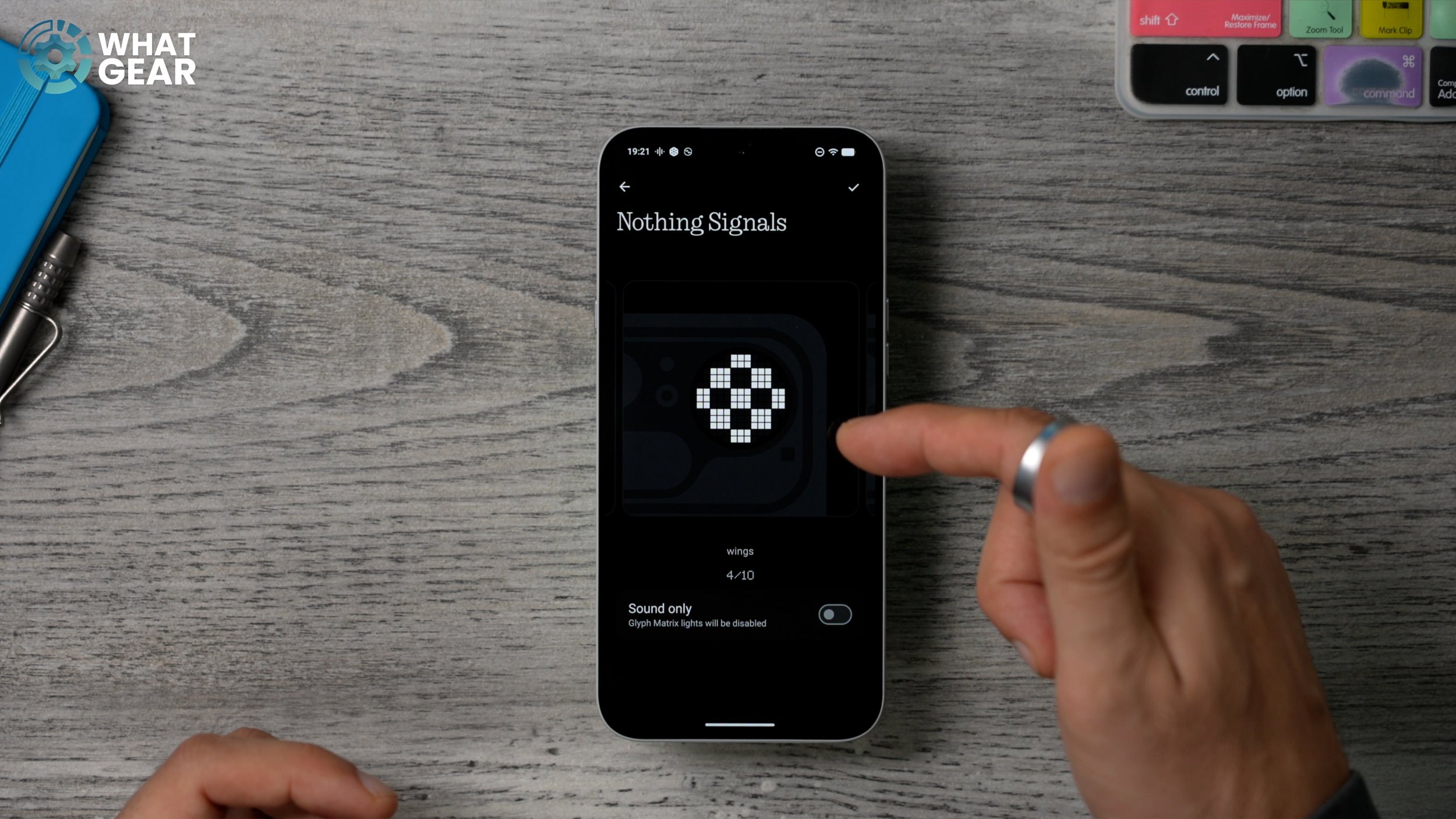
When you find one that you like, this will become your ringtone, and that will be the animation. Now, if we go back and go to “My Sounds”, you can actually add your own ringtones. You, of course, need to have some sounds on your device in order to do it. One of the apps that I like to use is Zedge. You might want to check that out. There are a lot of ads on there that you have to navigate around, but there’s some cool stuff you can find there. Now there is a really nice feature here which is quite smart, really. It’s called Generative Ringtone. This will actually use AI to create custom animations and ringtones, and then automatically assign them to certain contacts in your phonebook. So the more you use your phone, the more familiar you will become with which ringtones and Glyph animations are associated with which people.
Flippin Glyphs
Here’s another Glyph trick. Back within the settings, back into the Glyph Interface. If you swipe down a little bit, you will find “Flip to Glyph”. Enable this. So whenever you put your phone face down, this mode will kick in. So if you don't want to hear the ringtone or the notifications, you can use this feature, and now you'll just see the Glyphs. You can also filter all your essential notifications. But here is what I really want to show you guys: the Always-On Glyph Toy.
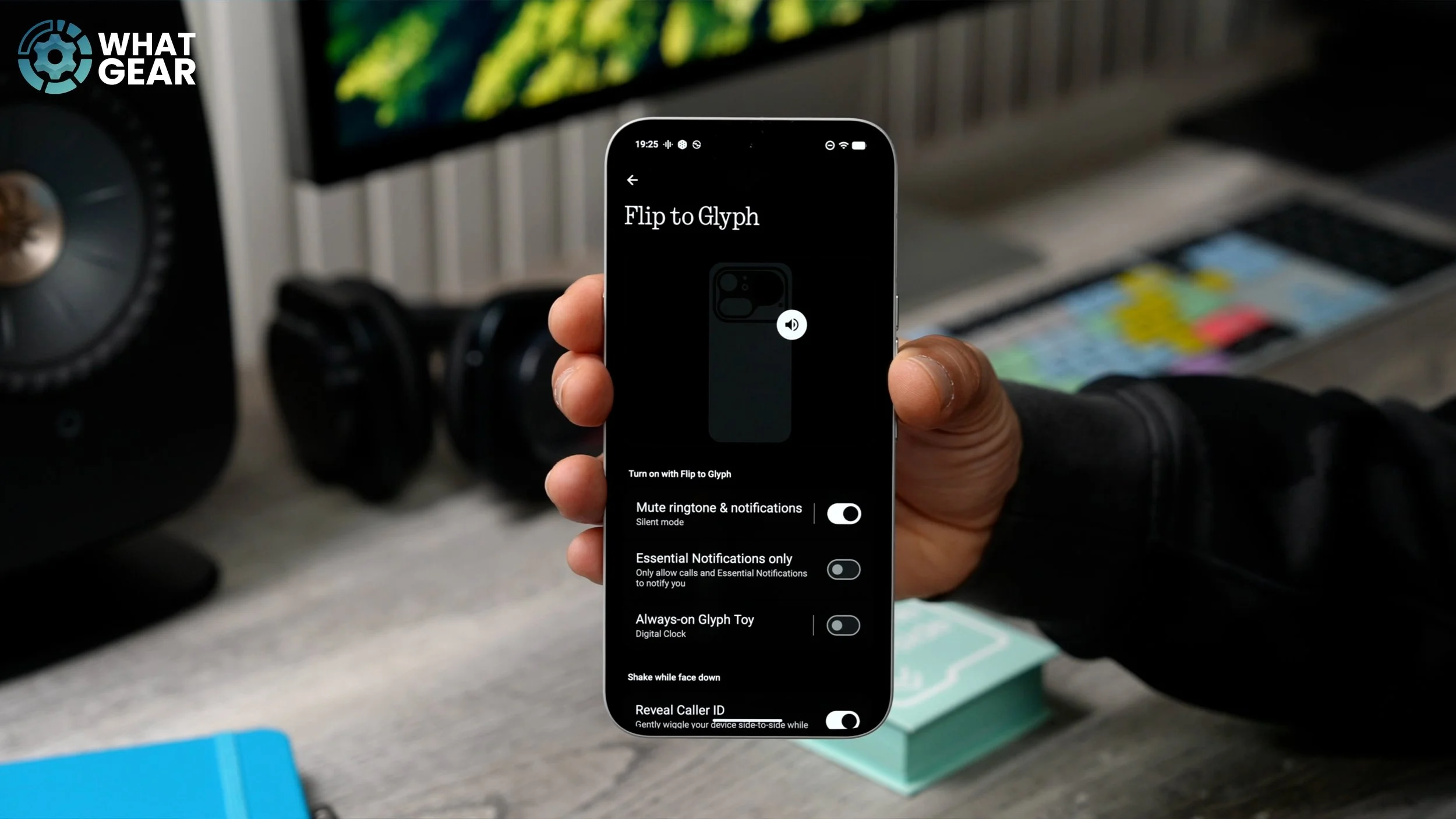
So if you enable this and then tap here, this is where you'll find some hidden features for the Glyph Matrix that allow it to stay on all the time. It’s essentially an always-on display for the Glyph Matrix. With this enabled, whenever the phone is face down on a table and you’re blocking the light sensor at the front, it will show whatever you've chosen for your Glyph Toy.
Visual Volume Level
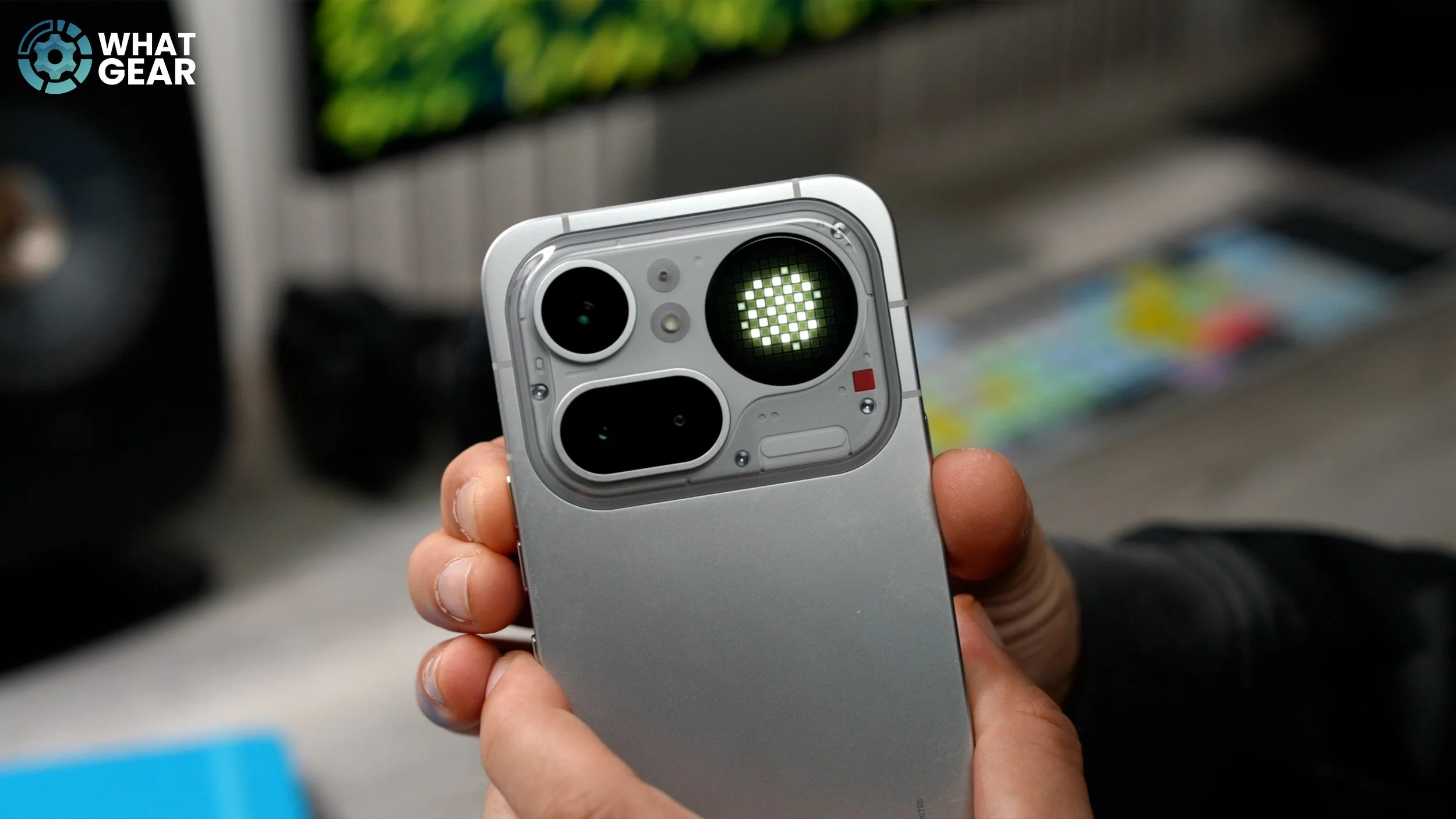
Do you ever listen to podcasts or music on your phone or put your phone on loudspeaker? If so, I think you're going to like this one. Back into the Glyph Interface, scroll down until you see the Volume Indicator and enable this. Now, whenever you adjust the volume on your phone, that will be reflected on the back with this kind of expanding circle.
Advanced Glyph Customisation
If you're not new to Nothing, those last few tips were probably pretty standard, really, so let’s get a little more advanced. Now, here's a trick to help you identify phone calls and other things very quickly, whilst your phone is face down. So if we go into the settings again and go to Glyph Interface again, this time we're going to go to Essential Notifications. On this page, you can create routines for what the phone does when it receives certain notifications that meet certain requirements. You do have to tap to allow permissions on this first. Once you've done that, you can go to “New Rule” and call it whatever you want.
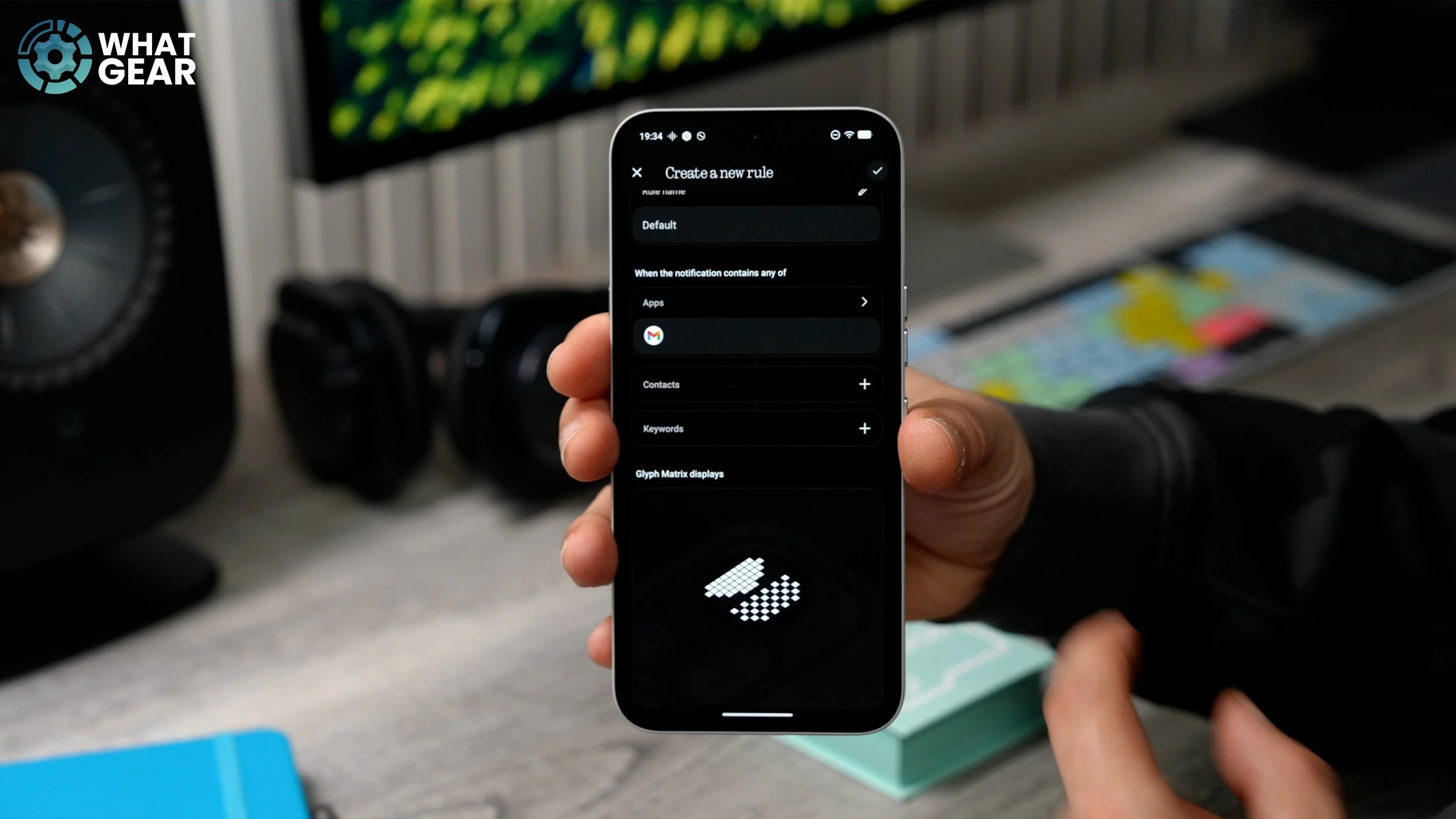
You can then choose the app that you want to set this up for. So just for example, I'm going to choose Gmail. If there are specific emails that I really want to keep an eye on, I can actually add the contact and even keywords that might feature in that email, which will then trigger this particular animation. Once that’s set up, you can then customise the Glyph, and you have this library of Glyphs to choose from. And if you really want to, you can create a custom Glyph pattern. Once you're happy with that, just hit the tick and there we go. We've created a custom Glyph animation for specific notifications.
THE LIT FUSE
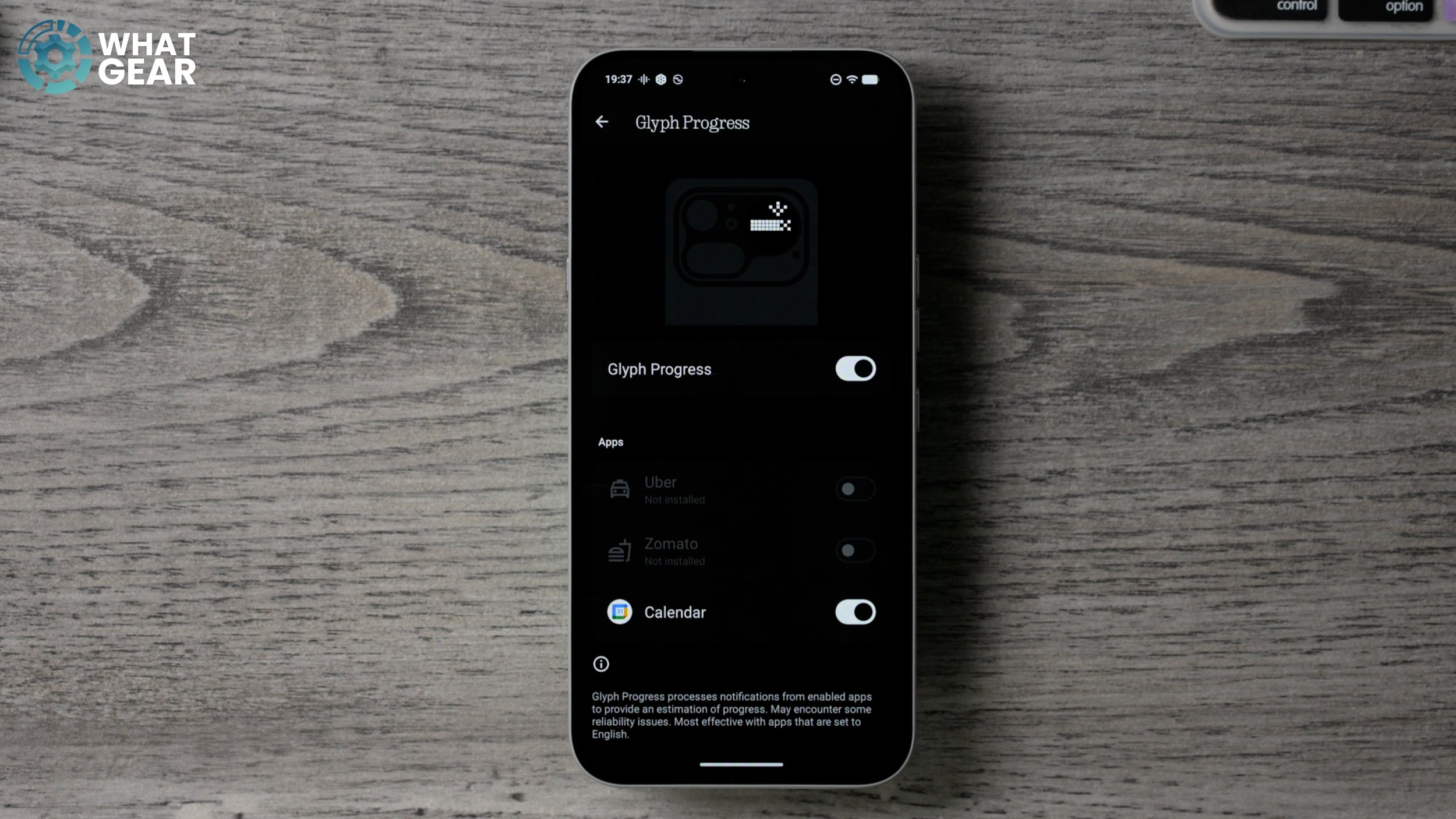
Here’s a question for you: do you use Google Calendar, or have you ever used Uber or Zomato? If your answer was yes to any of those, you'll want to activate this feature. Back into the settings on your phone, back to Glyph Interface. Scroll down to where you see Glyph Progress and tap here. If you have these apps installed, they will be available to activate. I only have Calendar at this point in time because the phone has been reset. Essentially, what this does is it activates a Glyph timer on the back of the device for when things are about to arrive, whether that’s your Uber or your Zomato order. Then you'll see this progress bar on the back of your phone that lets you know when it’s time to go or when it’s time to head to the door to pick up your order.
IT’S LIKE LOOKING IN THE MIRROR
Now, let me tell you something you already know. The sensor behind your selfie camera is small, and the lenses are also small, whereas the image sensors and lenses on the back are far bigger and far superior. So wouldn’t it be nice if somehow you could use your best camera to take selfies? Well, you can, and you can frame yourself up nicely using this tool. So if you open up the camera, do not flip to the selfie camera. Just hit the downward arrow, and then here you will see the Glyph Mirror. With this activity, you can get a basic idea as to whether you're framed up nicely or not. And if the lighting is good, you can pretty much see the outline and shape of your face.
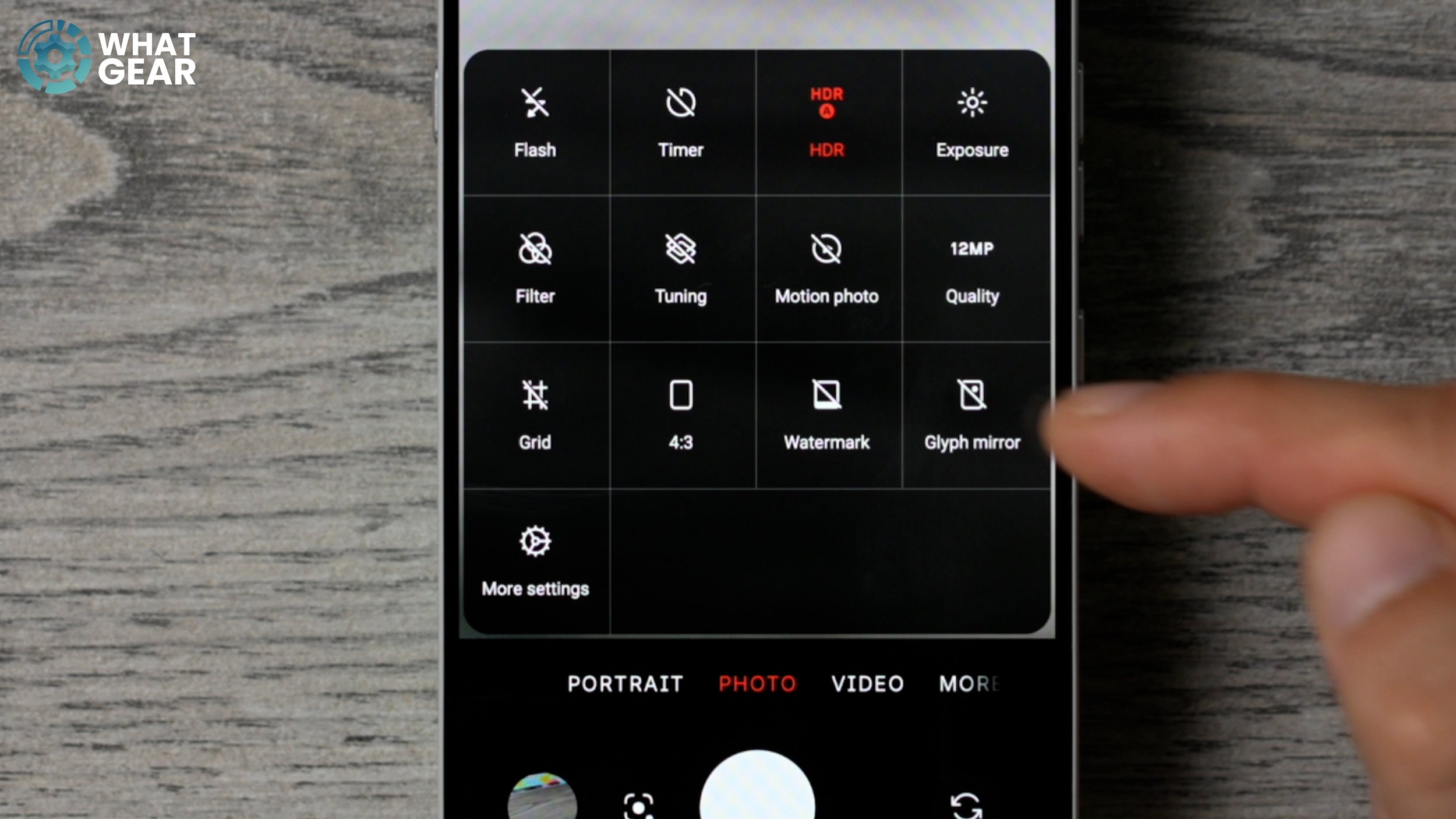
This should give you a basic idea of what the camera can actually see. Now, while we're here, there is another camera setting that you should be aware of. If you hit the dropdown menu at the top, the camera will default to 12MP photos, which is perfect for lower-lighting settings and even daytime settings. But in a well-lit scenario, you might occasionally want to switch from 12MP to 50MP to get even more detail in your photos. I don’t recommend leaving it on all the time, but just be aware of where you can find it.
DON’T WATCH THE CLOCK
Have you ever found yourself staring at the clock just waiting for your shift to be over whilst at work? I know that feeling all too well, and in those scenarios, it really feels like time slows down. Well, what if I told you there’s a better way to pass the time? So check this one out. Let’s jump back into the Glyph Interface settings. Scroll down again and go to Glyph Timer. Here, activate this setting: “Always open Glyph Timer popup”. This allows you to access it from your home screen pretty easily.
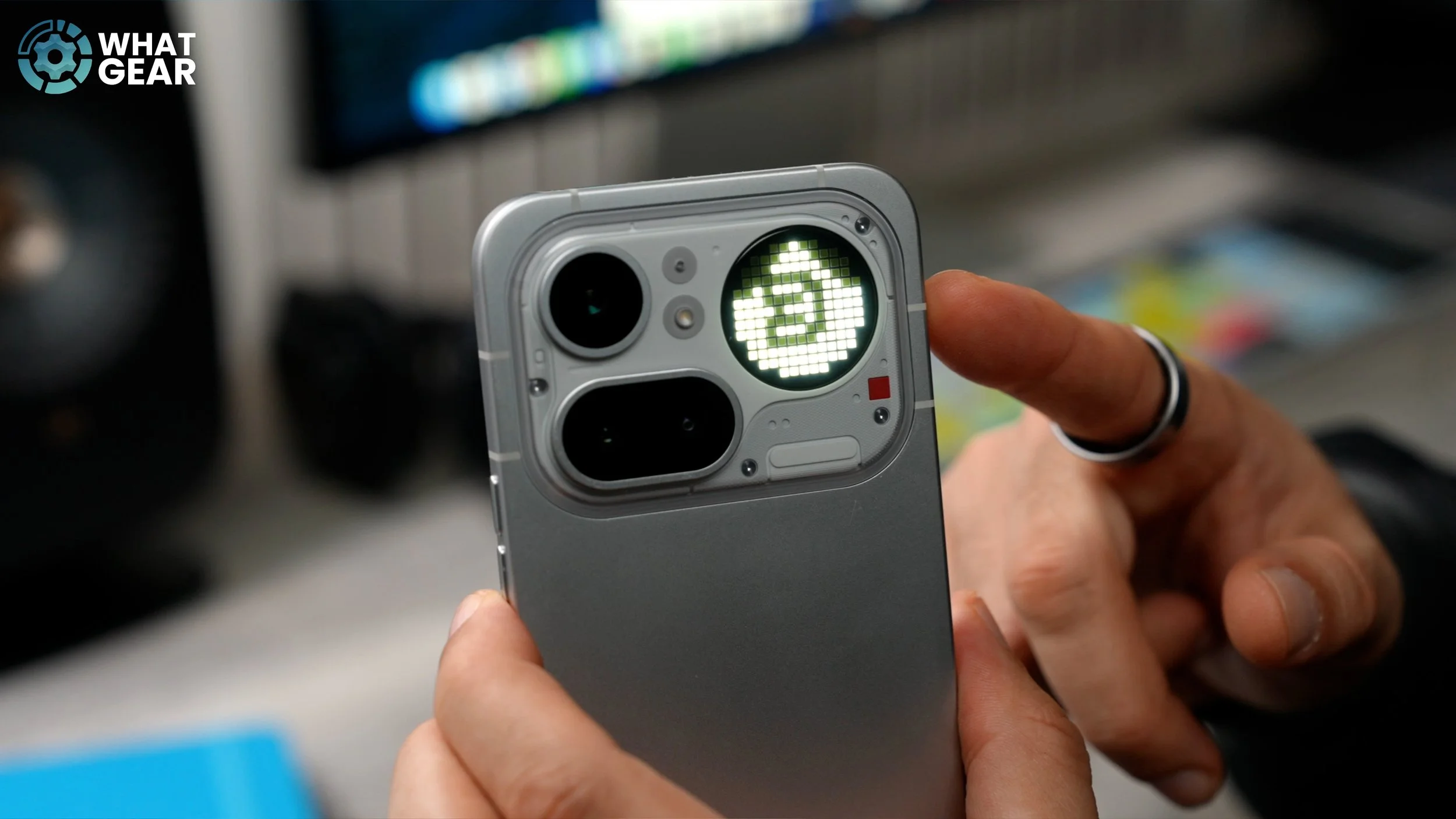
Another place you can access it is from your quick settings. Here you can dial in a custom time, and if you want, you can use one of the presets. Then, when you place your phone face down, this will start the timer. So instead of the ticking clock of doom, now you have this kind of hourglass-type animation that visually represents time passing in a slightly different and maybe less painful way. And once the Glyph Matrix timer has run out, it will alert you. And just so you know, you don’t have to go into the settings each and every time you want to use the Glyph Timer. You can bring down your quick settings, swipe across, and it will be there.
DAYS TO THE DAY
Now, I don't know about you, but when I book a holiday, quite often I count the days until I can finally sign off for a little bit. So let me show you a nice way you can count down the days to your holiday, for example, or anything else you want, so you don’t have to constantly look at your calendar and figure it out. To do this, you want to find a gap on one of your home screens, hold your finger down, and then go to Widgets. These are the pre-installed Nothing widgets, which have been designed exclusively for Nothing phones. You'll see one called Countdown. Activate this. Here you can customise the shape, give it a name, and set the date for when the event is.
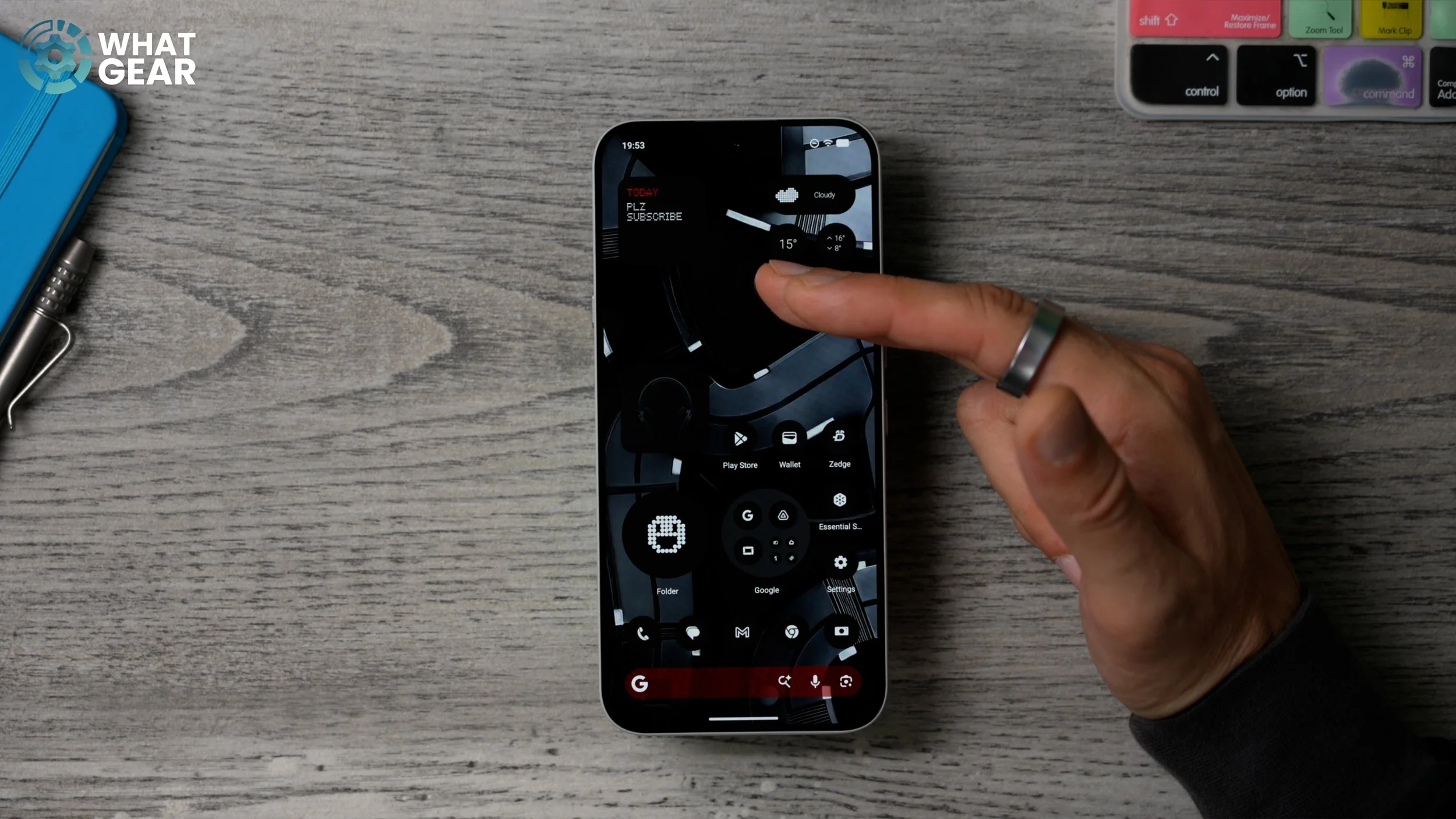
I’m going with 2125 — that’s probably the same time I’ll hit a million subscribers here on the channel. If you do have something recurring that you want to track, you can go to Recurring and set it there. Once you've done that, it creates the countdown widget, and you can tap on it and choose the specific countdown you want to use. Right underneath it, it will show how many days and years are left. For some reason, it’s saying “Please subscribe today”. I think it’s a sign.
THE HIDDEN GLYPHS
So we’ve covered most of the stuff you can do with the Glyph at this point, and you might think there really isn’t anything else you need to know about, but in fact, there is an ever-growing library of customisation options for the Glyph Interface available to you — but only if you know where to find it. Hold your finger down on an empty part of the screen and go to Widgets. If you swipe across the default widgets, you’ll see all of your other app widgets. But if you swipe the other way, this is where you can find some more customised widget animations. And this is thanks to the Nothing community because here is where you'll find Essential Apps Beta.
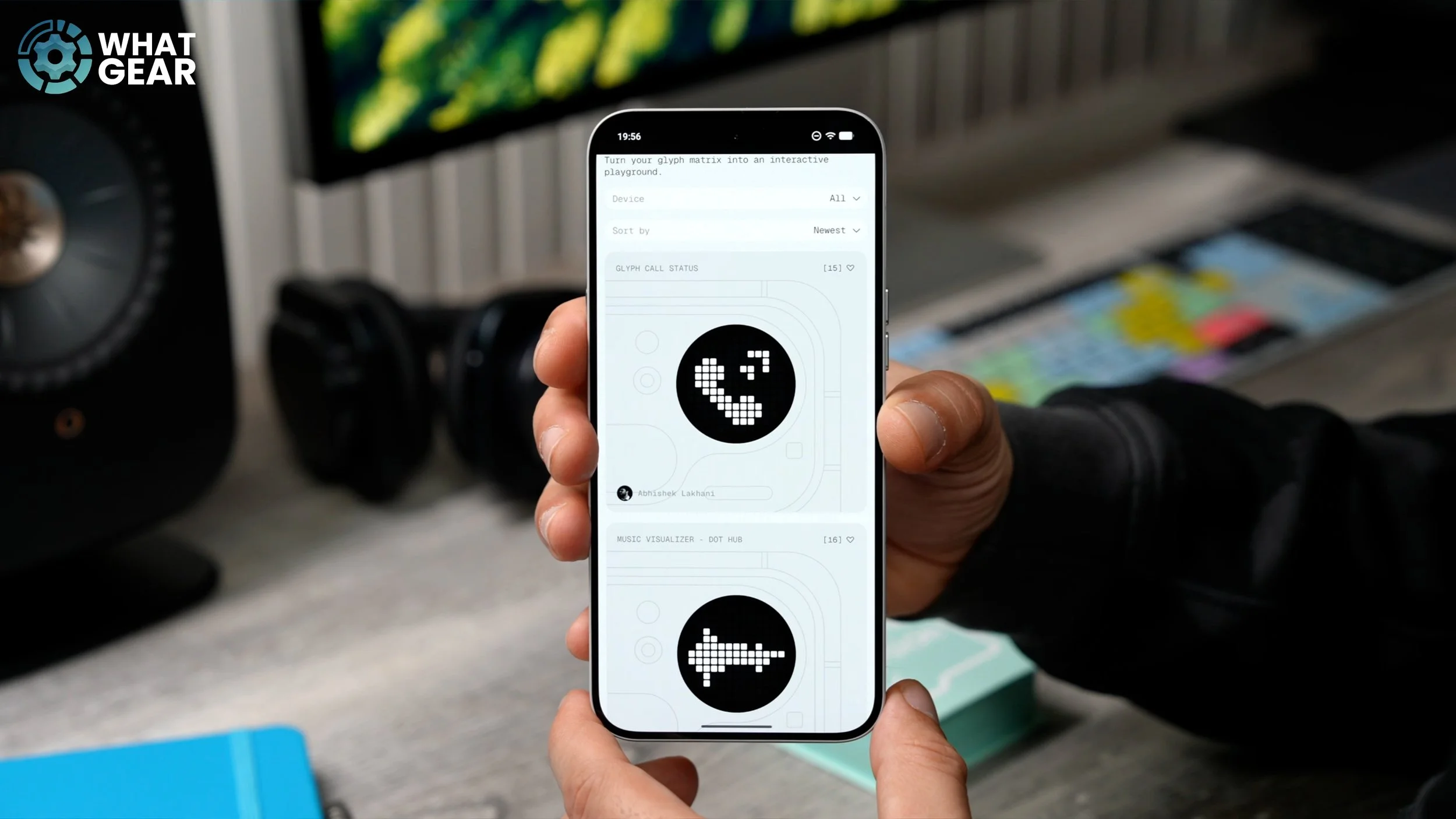
These are community-created features for Nothing phones. If you hit the little hamburger menu here and go to Glyph Toys, you will find a bunch of Glyphs that you might prefer over the default ones. For example, that phone animation is pretty cool. And do keep in mind that some of the animations have been designed for the Nothing Phone 3, so a good way to filter them is by selecting your device at the top and filtering to the Phone 4 Pro. Then you'll only see compatible animations. And I want to give a shoutout to the people within the Nothing community who have taken the time to make these. So definitely check out Nothing’s Playground because there’s more than just Glyph animations here.
THIS KEY IS ESSENTIAL
We're going to escape from the matrix for a little while because here's an essential and exclusive feature that you need to know how to use. See this pill-shaped button on the side of the phone? This would look good in red, but more importantly, it is your shortcut to a very powerful tool. But it’s only powerful if you know how to use it, and there are a few steps you need to take when setting it up. So the first time you double-press the Essential Key, it should bring you to your Essential settings page. Now, here, if you scroll down, you'll likely find that Essential Memory is switched off straight out of the box. So switch this on. Something else you might want to consider, if you use Google Calendar as your main calendar, is enabling the Google Calendar integration. You’ll see why this is important in a minute. So now your Essential Key and Essential Space are set up and ready to go. Here’s how you use them. Let’s say, for example, someone sent you a concert ticket, a boarding pass, or some really important piece of information. What you can now do is hit the Essential Key. That will grab a screenshot of that ticket or pass. If you want to, you can crop in just by dragging the corners. If you press it again, it saves it to Essential Memory. Something else you can do is make a little voice recording explaining why you’re saving that particular screenshot or ticket.
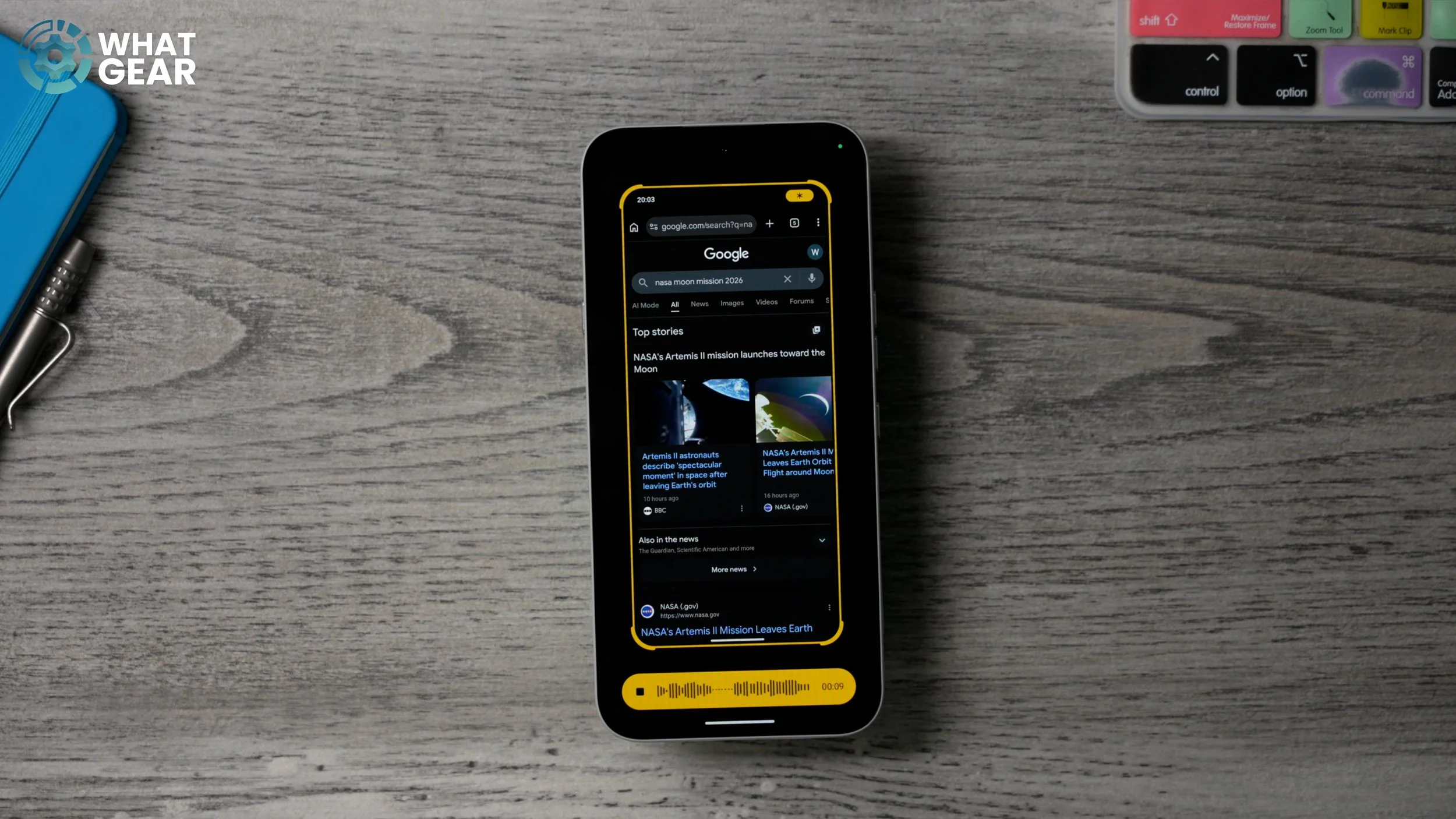
Another good use case is researching a topic. You can navigate through multiple websites, hit the Essential Key on each page, and build a collection within Essential Space. AI will then extract the important information from all of those screen grabs. Now, something very important you need to know is that you can access Essential Space from your app drawer, or by double-pressing the Essential Key. This jumps you straight into your library. If you have captured anything with dates and times on it, if you go to the “For You” page, it will appear there. And this is where the Google Calendar integration comes into play. It detects the date, time, and even location. If you tap on it, it gives you the option to instantly add it to your calendar. And if you enabled the countdown widget feature earlier, this will also work with that. Now, just so you can see how the information is presented, I’m going to open my library where I’ve captured loads of stuff about the moon landing. Earlier on, I was also researching the Nothing Headphones 1. Within Essential Space, AI will recognise when there are related topics connected to the screenshot you’re viewing. For example, this screenshot up here is related to these others, which I grabbed from different websites. When you tap on one, it gives you a summary of the article and even pulls key information like prices, deals, dates, and times. And if you recorded any audio notes, you can play them back here, too. If you want to manually organise everything, you can also create separate folders at the bottom.
KEY TO BETTER MEMORY
Alright, so you’ve made it to the end of the list, but there are a couple more things I want to show you guys. Think of these as a bonus for sticking around until the end. So this tip involves the Essential Key again, but this one brings us back into the matrix a little bit. When your phone is face down on a surface, if you press and hold the Essential Key for around four seconds, this activates the Essential Recorder. You’ll also notice the recording light blinking as well, indicating that it’s capturing audio. Now, let’s say you're in a lesson, a meeting, or something like that, and something really important was said. You can tap the Essential Key again to add a marker to that recording. Once you've finished recording, just hold the button again for four seconds, and it stops the recording.
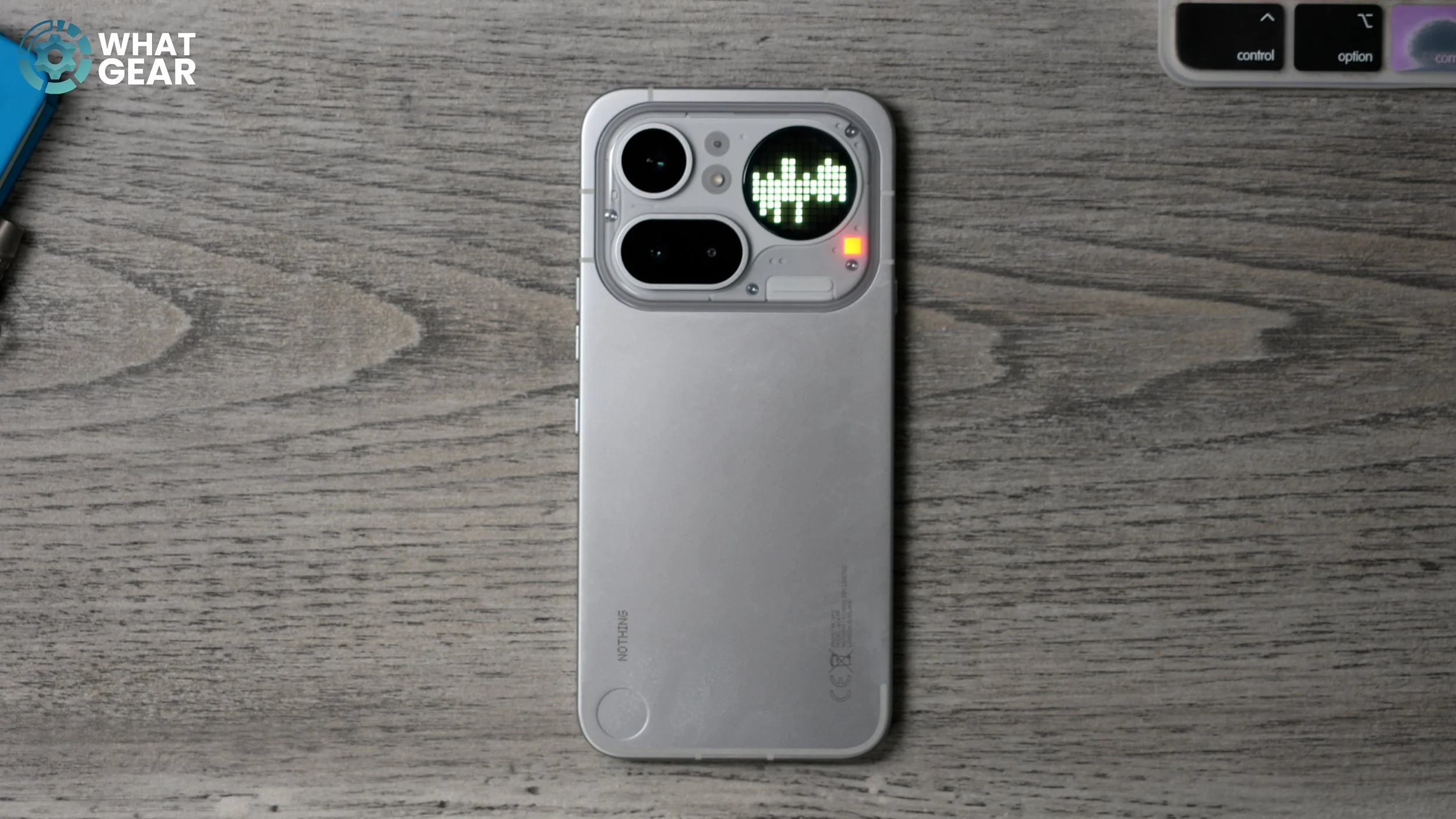
Because this feature is called Essential Recorder, the recordings automatically go to Essential Space. If you double-tap the Essential Key, you’ll find it right at the top. If you tap on that recording, you’ll then see the option to start AI analysis. This will transcribe the recording into text and even summarise what the meeting or lecture was about. There is a cap on how much you can use this feature, so you do need to be mindful of how many minutes you’re recording. I believe it’s around 300 minutes per month. So this feature will definitely be essential for you if you find yourself fading and struggling to pay attention during long lectures or meetings.
YOUR OWN PERSONAL REPORTER
Let me show you a newer exclusive feature for Nothing phones. It comes in the form of a widget. To find it, locate an empty space on your home screen, hold your finger down, and go to Widgets. Now scroll down until you see Essential News and add this to your home screen. When you first activate it, you can choose the topics you're most interested in. I’ve just chosen entertainment and technology. Once you’re happy with the setup, hit back and it will appear on your home screen.
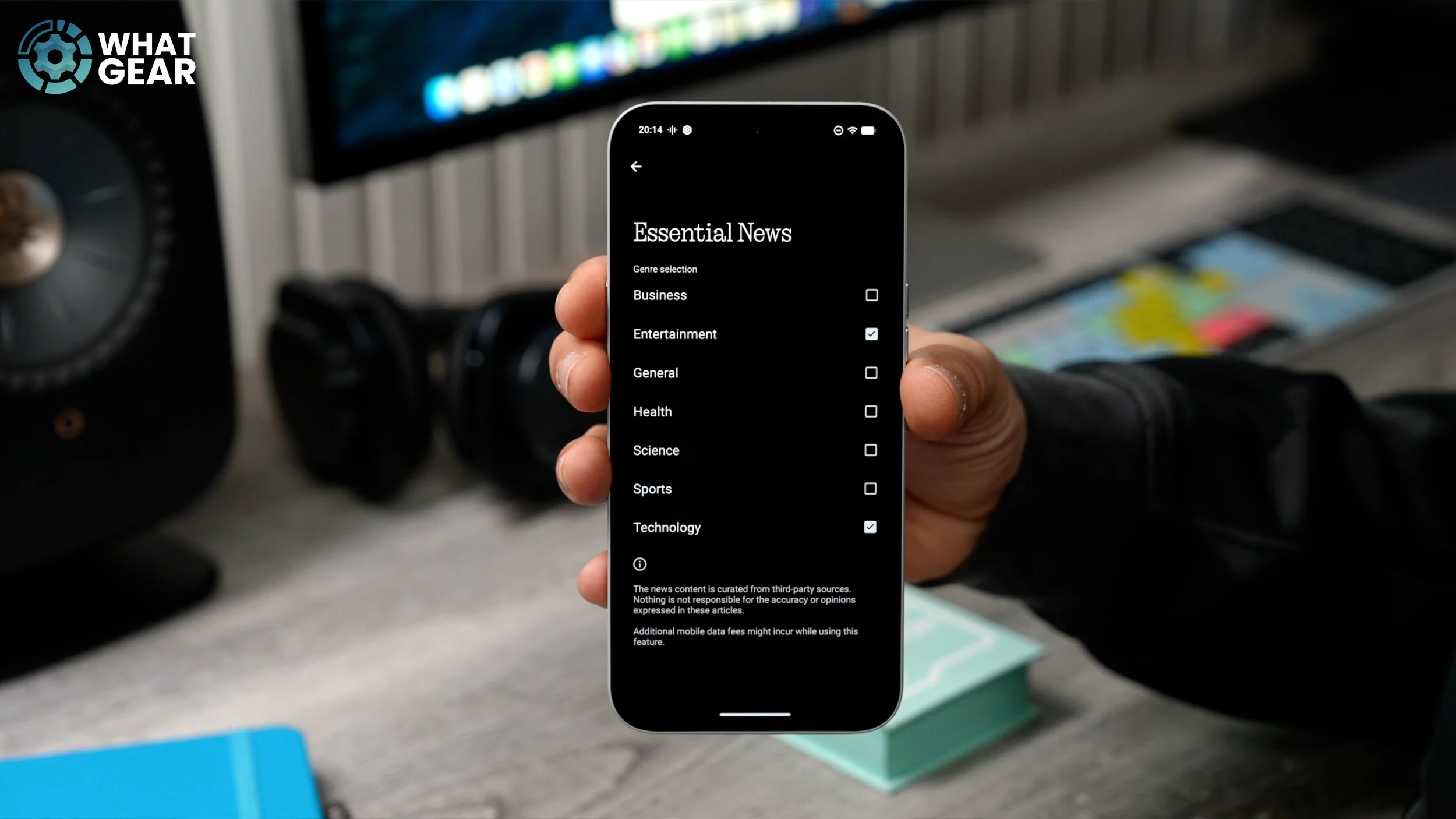
What this does is use AI to collect the latest news from online and read it aloud to you. Think of it like your own personal news reporter. And the good thing about this is that it actually has a good sense of humour. So definitely try this out — it’s actually very good and surprisingly entertaining.
