The Xiaomi 18 Pro Max… You've probably seen the reviews of this phone from around a month ago when it launched in China. I wasn't lucky enough to get one of those back then. So, instead of just repeating what other people have already said, I figured I might as well show you what it can do. Here are the first 10 things to do with the new Xiaomi 18 Pro Max if you've just picked one up… and if you're still undecided, trust me, this will be very interesting for you too.
Privacy Display
There are a few basic settings you can change that instantly improve everything. But let's start with a brand-new Xiaomi feature.
Settings / Security and Privacy / Xiaomi Privacy Display
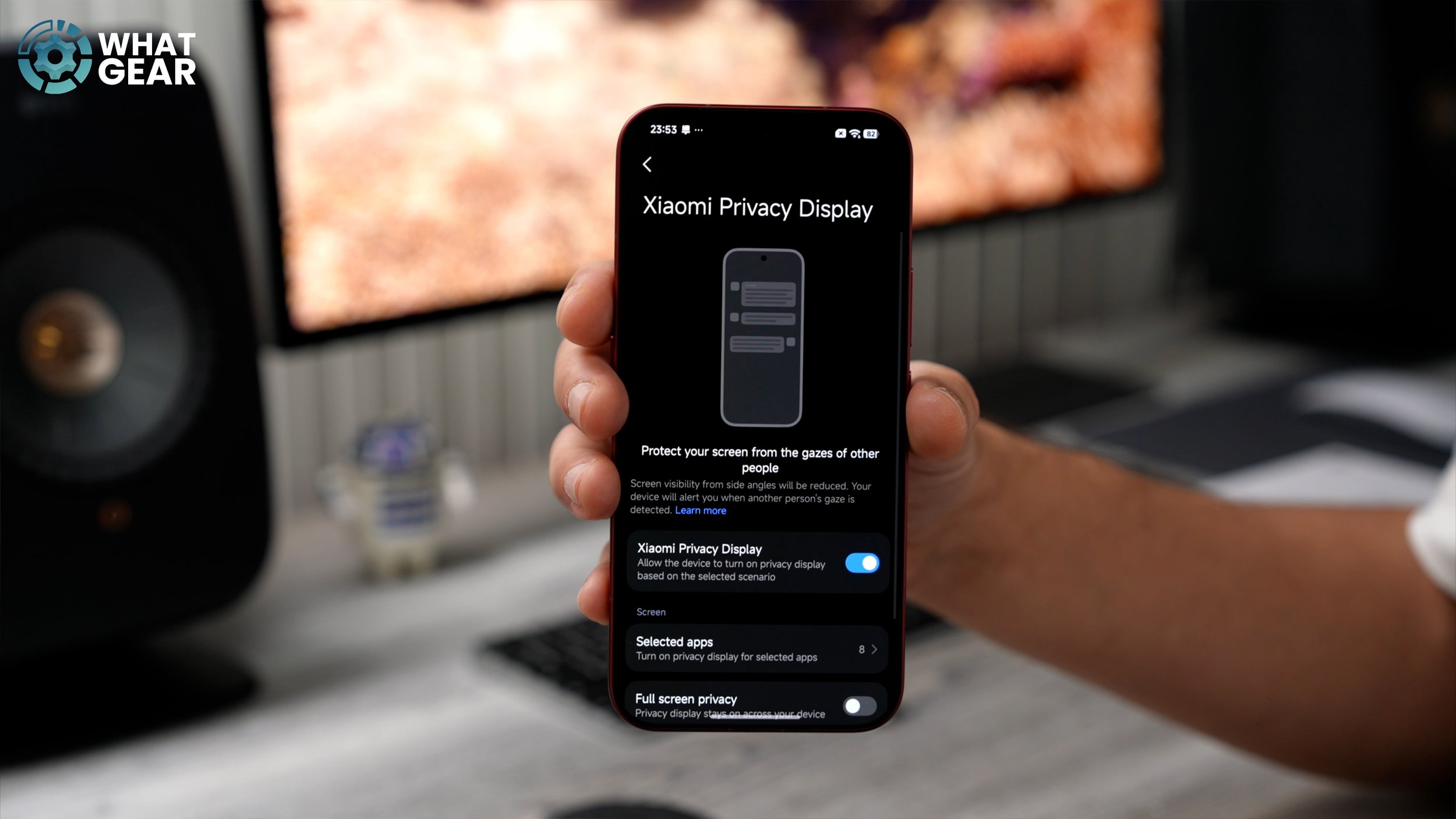
If you haven't set up 2D face unlock yet, it may prompt you to do it here. The important thing to do here is to enable this for any sensitive apps, for example, your money apps and authenticator apps. Now, when you use those apps, and someone tries to peek at your phone from the side, they won't see anything.
Custom Back Display
So, Xiaomi have been working on and perfecting what they're calling the 'Back Display'… which is not a great name, tbh. I've come up with a better name… I'll share that with you at the end. Anyway, let me show you how to personalise this and set it up.
Settings / Back Display / Delete all the wallpapers at the top
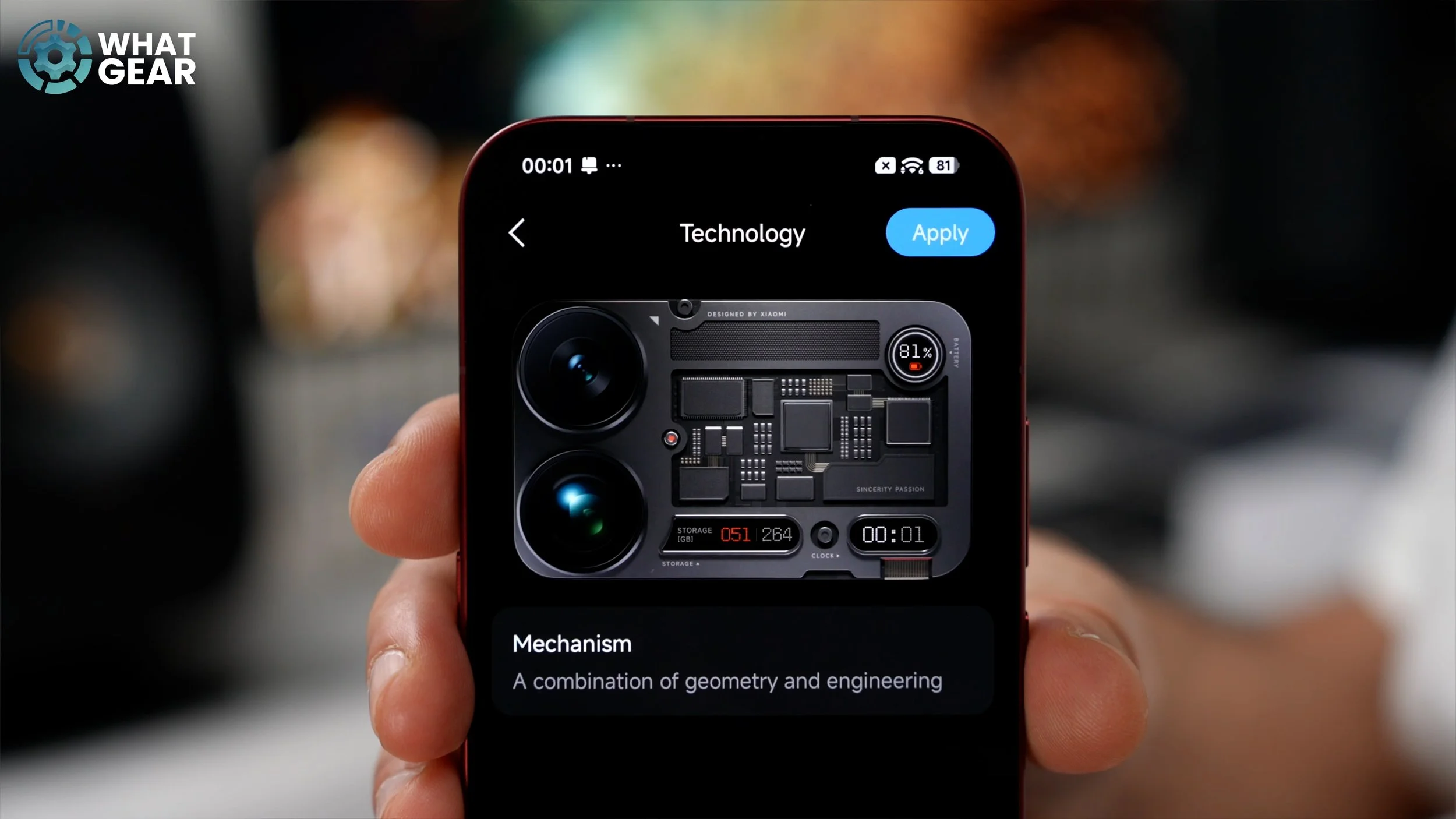
Now tap Back Display Personalisation. There are some awesome presets. I love the Infinity Mirror and the Retro Tech ones, and the Flowing Glitter is a nice one to add if you want to add effects to photos you've taken.
Back Display Camera
So, this phone has some insane camera firepower. And a very good selfie camera… but they pale in comparison to the cameras on the back. Honestly, aside from video calls, you might never want to use the in-display one.
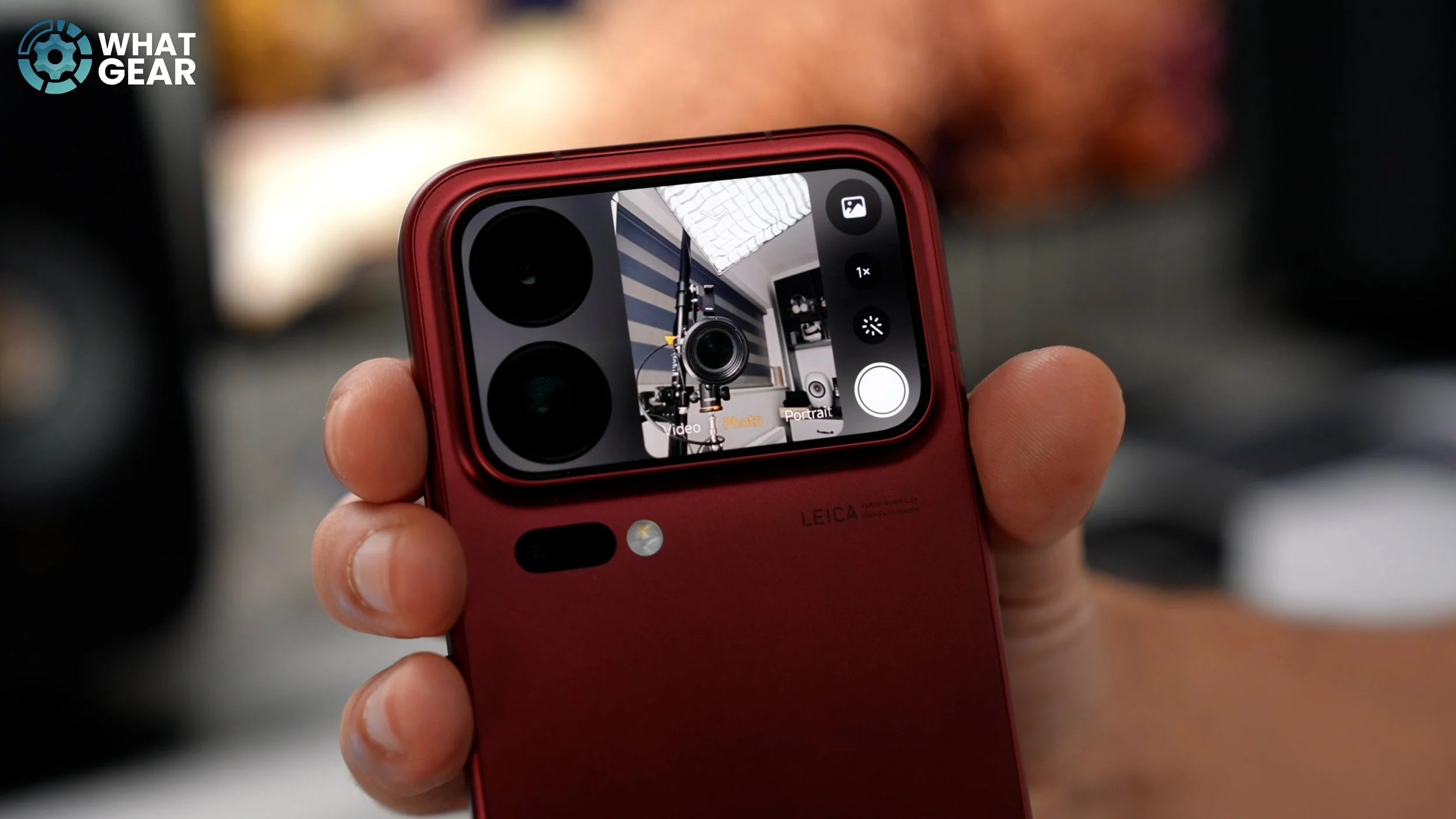
Because if you swipe from right to left, you can open up the camera viewfinder and take selfie-style photos and videos with the best cameras on the device. This technique allows the Xiaomi 18 Pro Max to literally destroy the selfie camera quality that you thought was good.
Back Display Functionality
OK, here are a couple more interesting options and one very fun Back Display feature that you need to see. When you swipe up from the bottom, you have a few cards. If you go to:
Settings / Back Display / My Cards
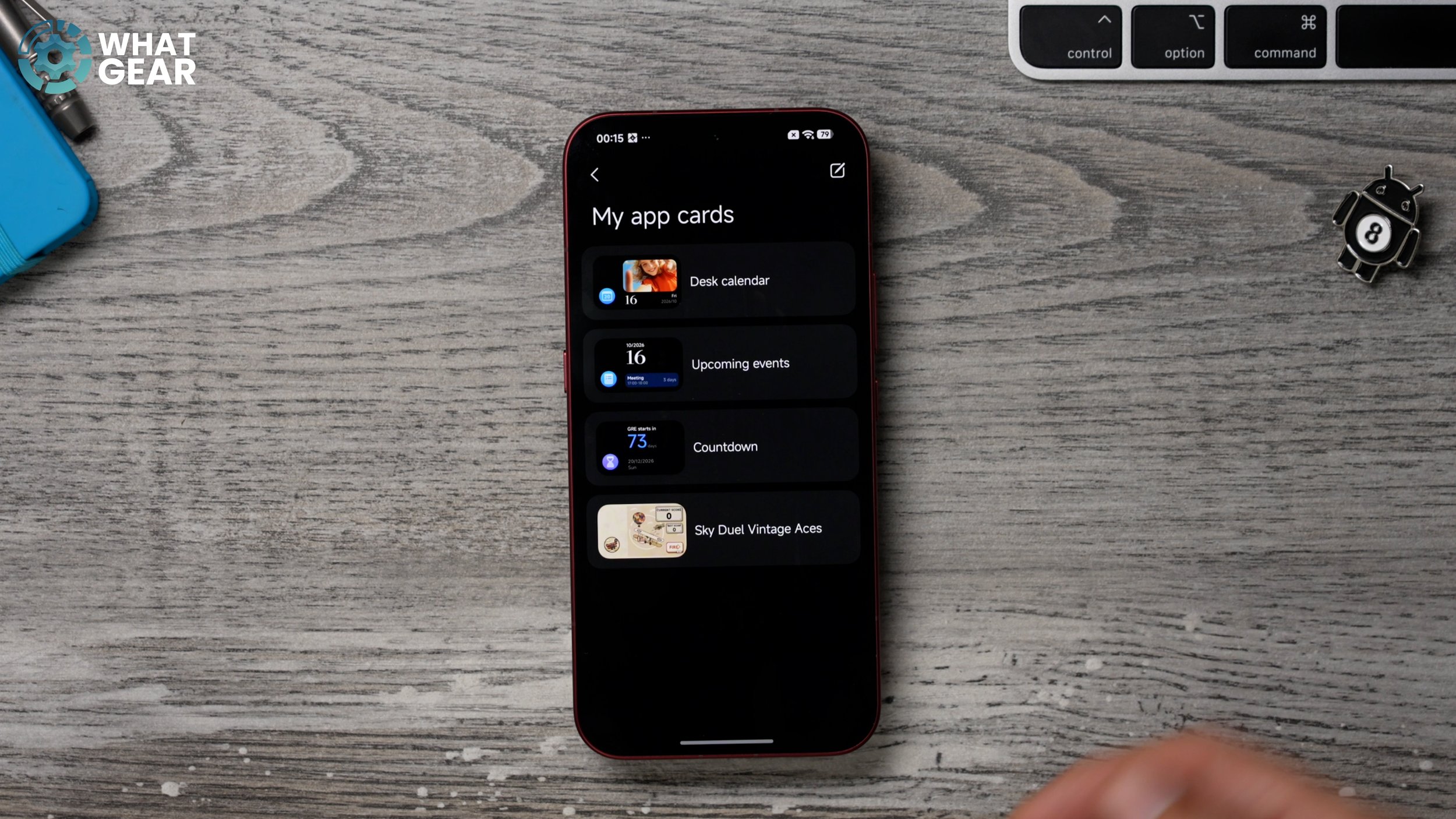
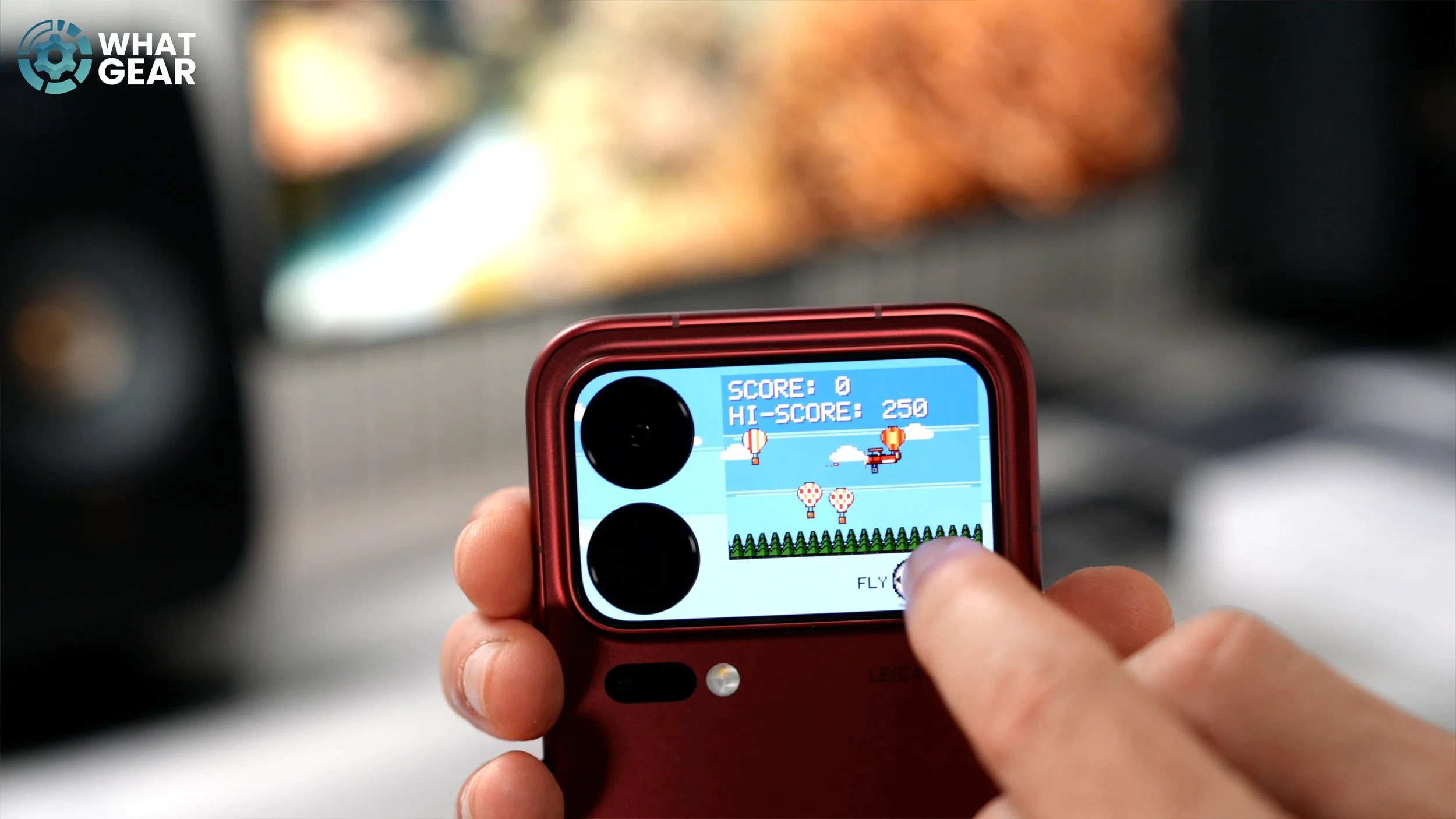
You'll notice there aren't many. You can add more from the App Card Store, but again, there aren't many… wouldn't it be nice if you could make one? Well, you can. Go to GenAI Apps. Hit the plus, write a prompt for what you want… and you're good to go. And you can even use the onboard AI to polish your prompt to get it just right. Let's leave this to generate in the background, and we'll come back to it shortly.
Display Settings
So, this phone has a very nice display, and there are a couple of settings that improve it.
Settings / Display and Brightness
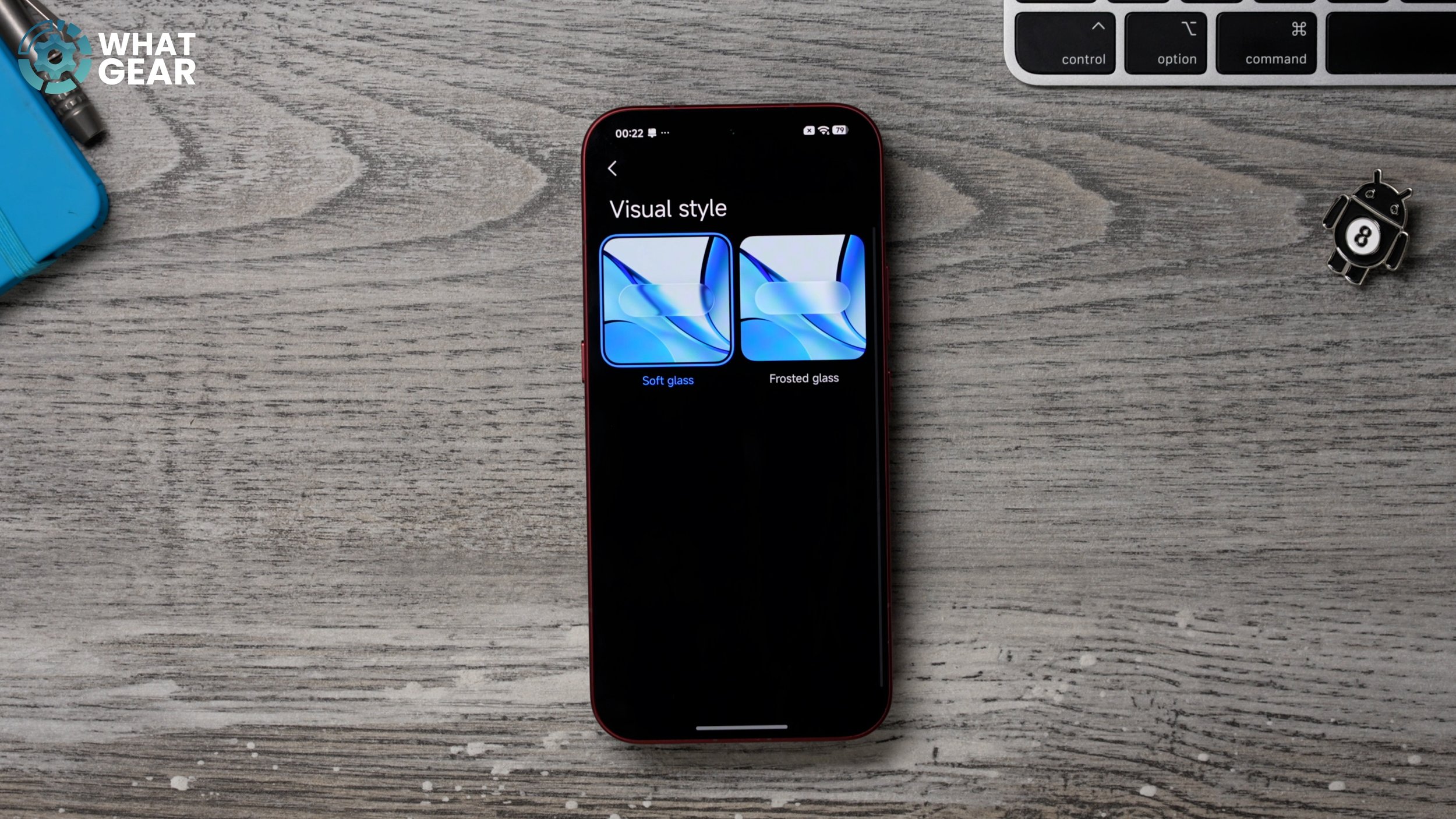
Turn on Adaptive Refresh Rate Pro, as this will not only adjust the speed according to the content, but it will also switch to PWM dimming to protect your eyes. The other settings to look at while we're here are the Advanced Textures and Visual Style settings. So, the default style is Soft Glass, but you can choose Frosted if you prefer. I'm showing you this because they're new to HyperOS 4.
Wallpaper Magic Trick
Do you have a wallpaper that you really like on your phone? If so, I think you'll like this.
Settings / Personalisation / AI Dynamic Wallpapers
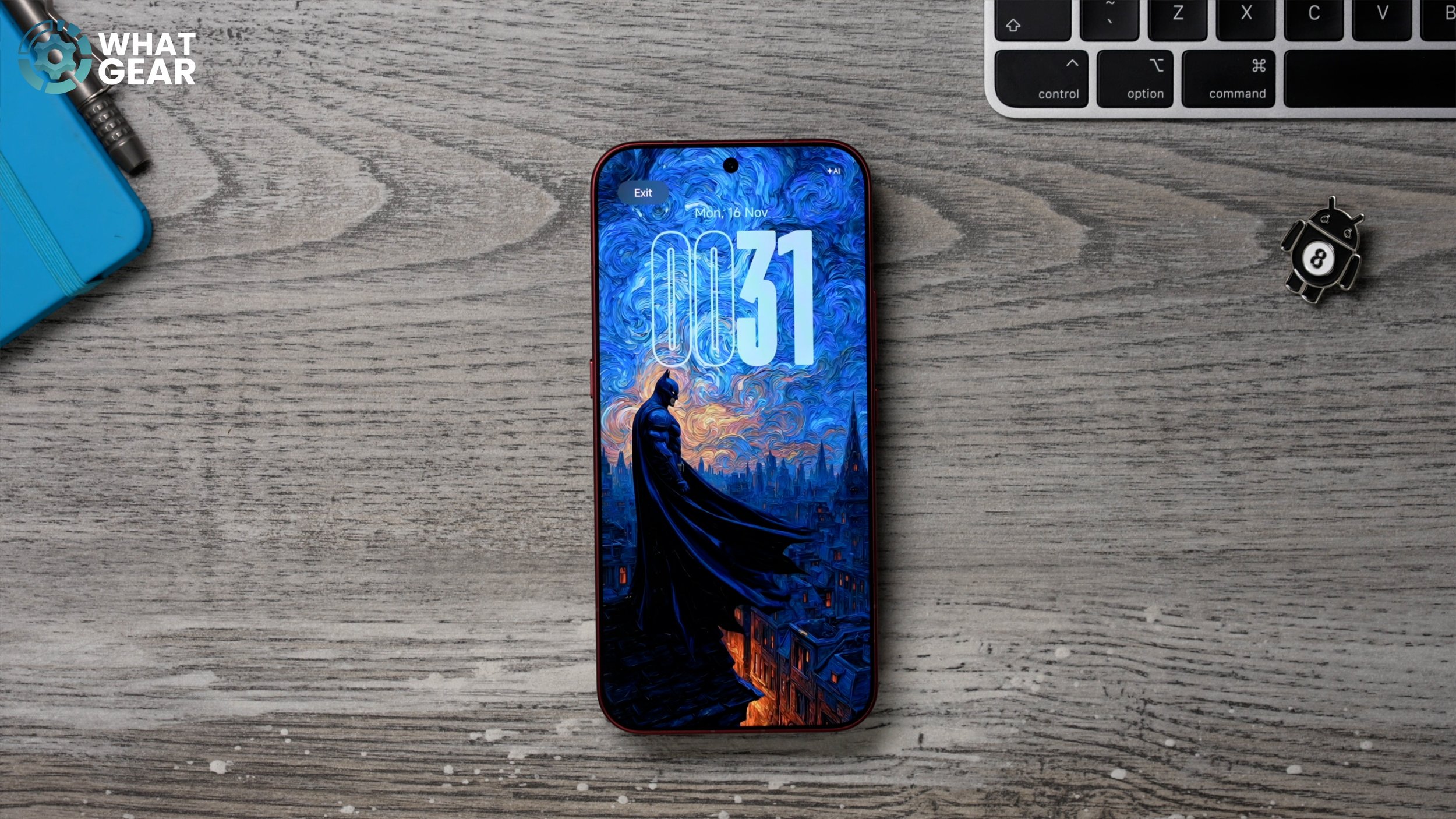
Hit the plus and add your favourite wallpaper. Now we just have to wait for it to do its thing. Once it's done, you might want to hit Custom next to your newly animated wallpaper and set up a custom clock.
Camera Tricks
OK, let's talk about the unique functionality and control you get with these Leica-calibrated cameras. So, when you're taking a photo of someone, wouldn't it be nice if they could see what you see?
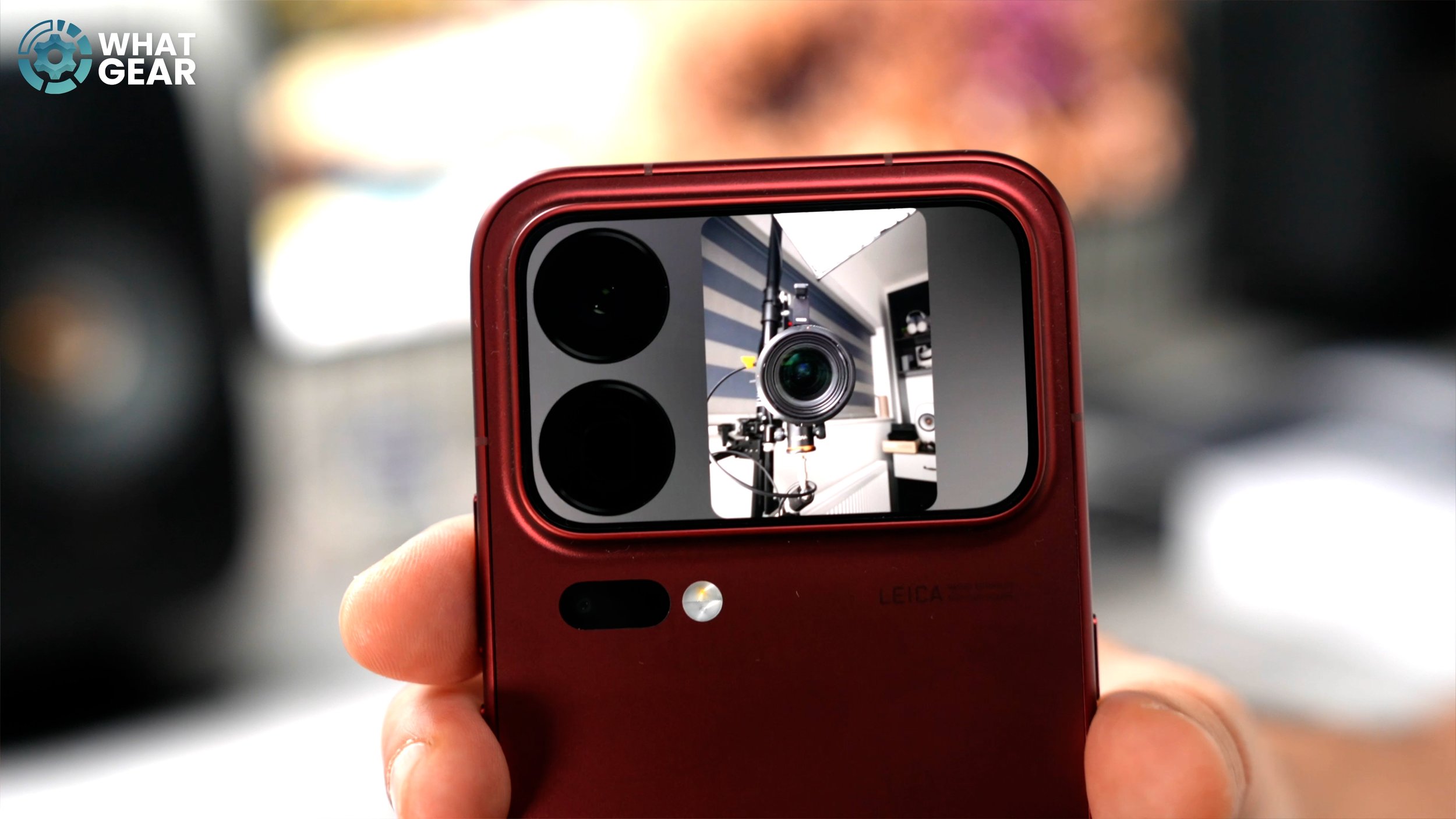
Well, they can if you tap this little preview icon in the top-left corner. And something else worth noting is the Leica styles. I personally like the authentic colours, but it's worth trying all three to see what you like.
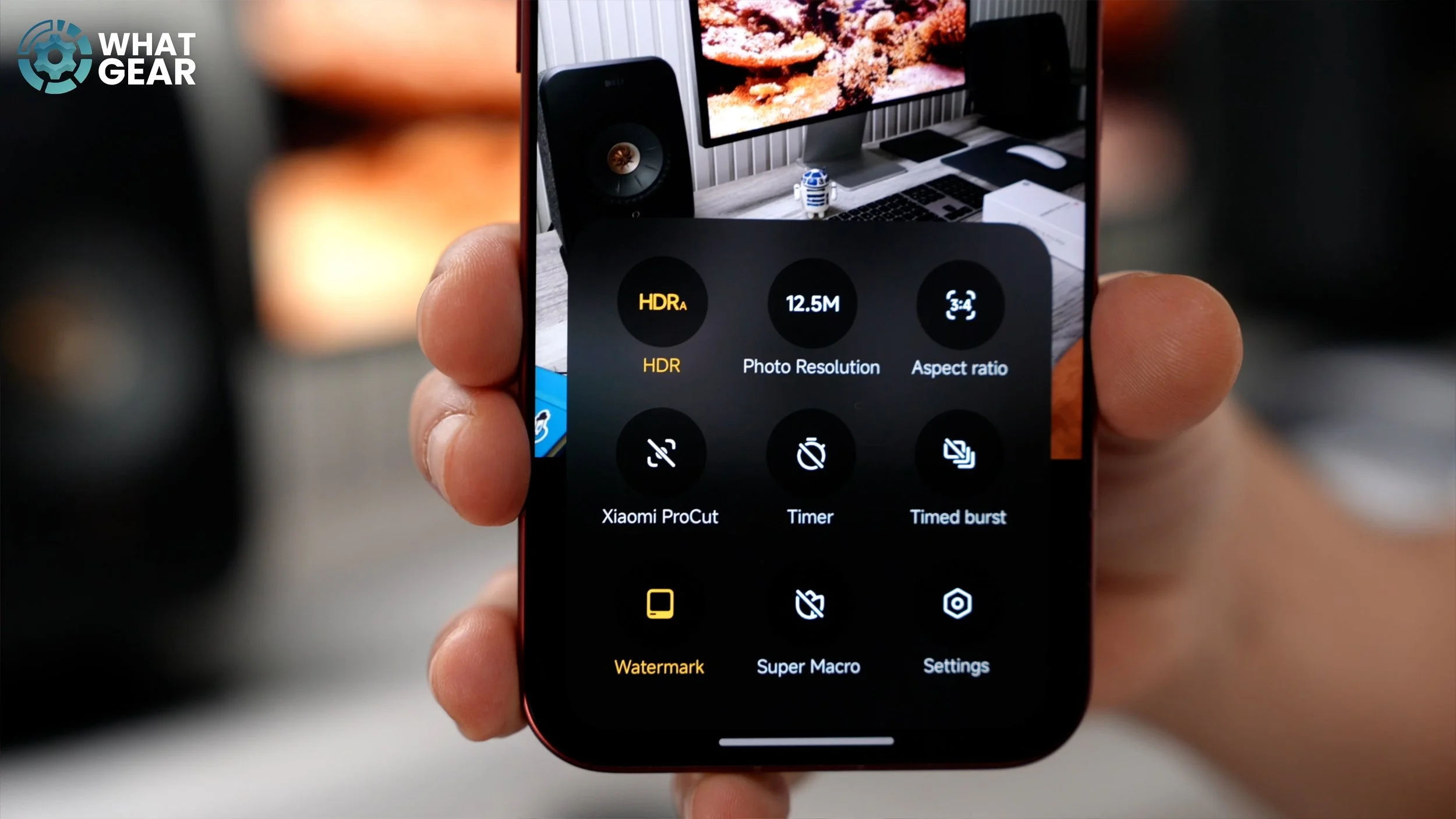
Xiaomi ProCut
You know, it's all well and good to have very powerful camera hardware… but there's no point in having all the gear and no idea how to use it. That's where this Xiaomi feature comes in. In the camera app, hit the drop-down arrow at the top and toggle on 'Xiaomi ProCut'. This uses your phone's camera AI to help you line up and compose the perfect shots.
Side Key Setup
OK, see this key on the side? You know what this is called? It's called the AI button. If you go to Settings / AI Button, you might notice the default functions aren't that useful for you specifically.
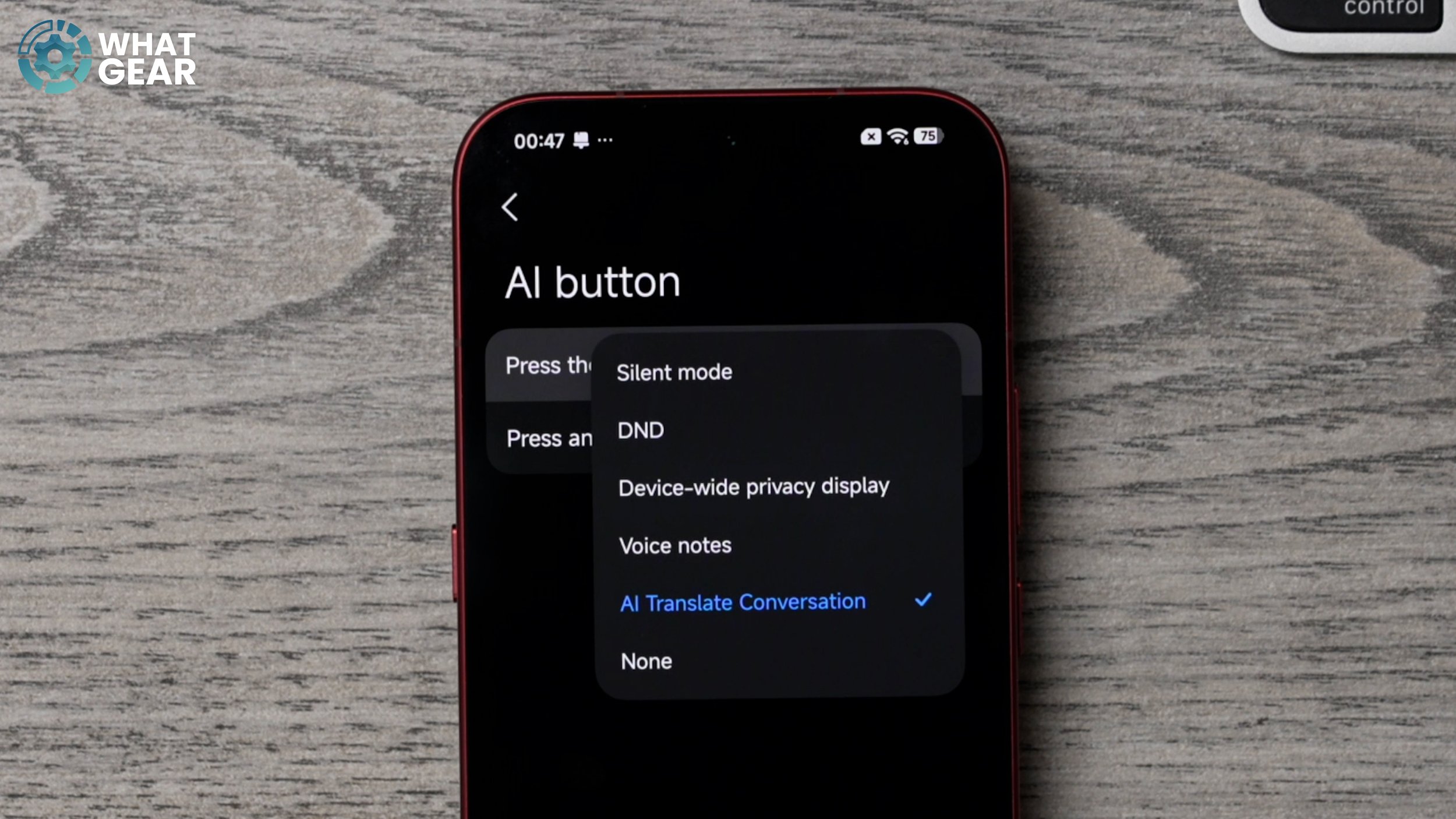
So, here are the other options. I'm surprised to see the camera isn't an option here, but DND is a good option. And the device-wide Privacy Display toggle could also be a good one.
More AI Tricks
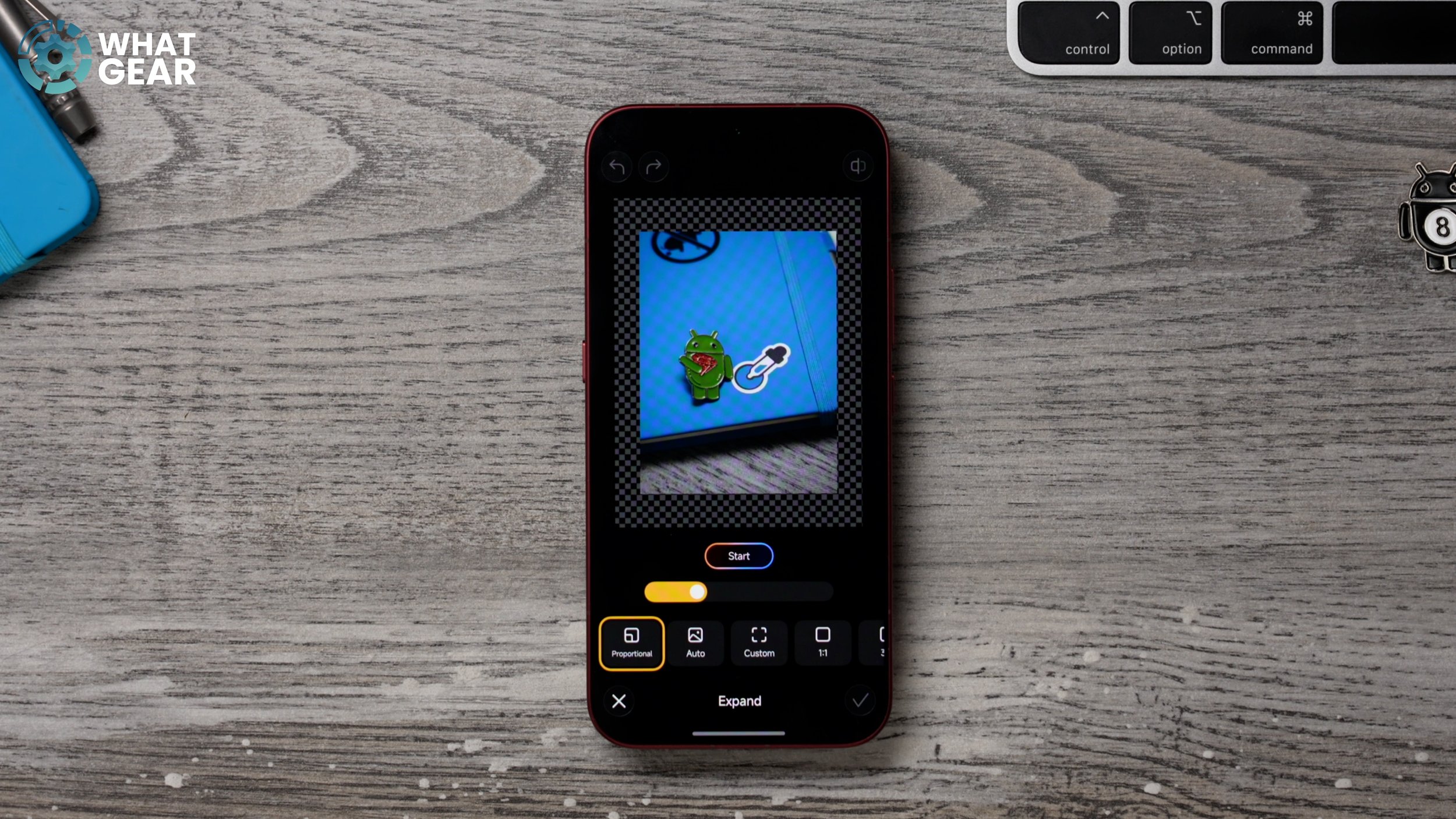
I've tried not to talk too much about AI, but there's some really good stuff you can do. In the Gallery app, hit Edit and then AI. You'll find some useful tools. I particularly like the expansion tool, as you can recenter your subjects if you mess up the initial shot.
And just going back to:
Settings / Xiaomi HyperAI
There is a setting here that you should definitely switch on from day one: AI Writing Assistant.
Hidden Upgrades
So, these are very well-hidden and extremely useful features that most owners will miss, and they're all off straight out of the box.
Additional Settings / Floating Windows / Side Toolbox
Enable Sidebar, and also enable Video Toolbox. And at the bottom of the screen, go to Manage Beautify for Video Calls and enable this… it'll be handy for those early morning conference calls.
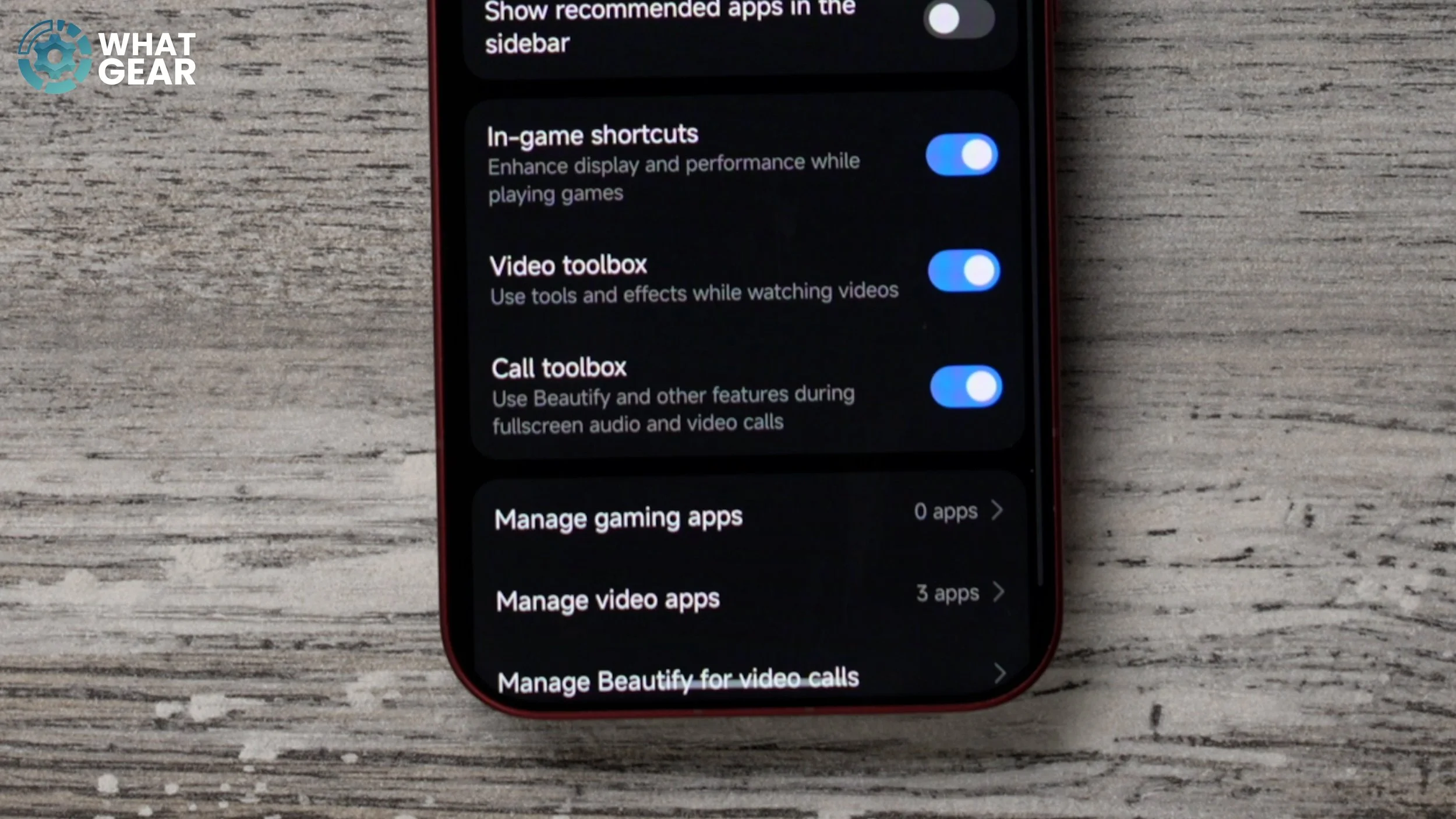
OK, the first thing to do is get used to summoning the sidebar. Now hit the Apps icon and then the pen, and add apps that are important but that you don't need every day. For example, authenticator apps could live here. And you can use this to create floating windows or initiate split screens. But here's what I really want to show you. When watching content, bring out the sidebar and take a look at some of these advanced video enhancement tools. And here are a couple more fun ones for conference calls.
12. AI Translate
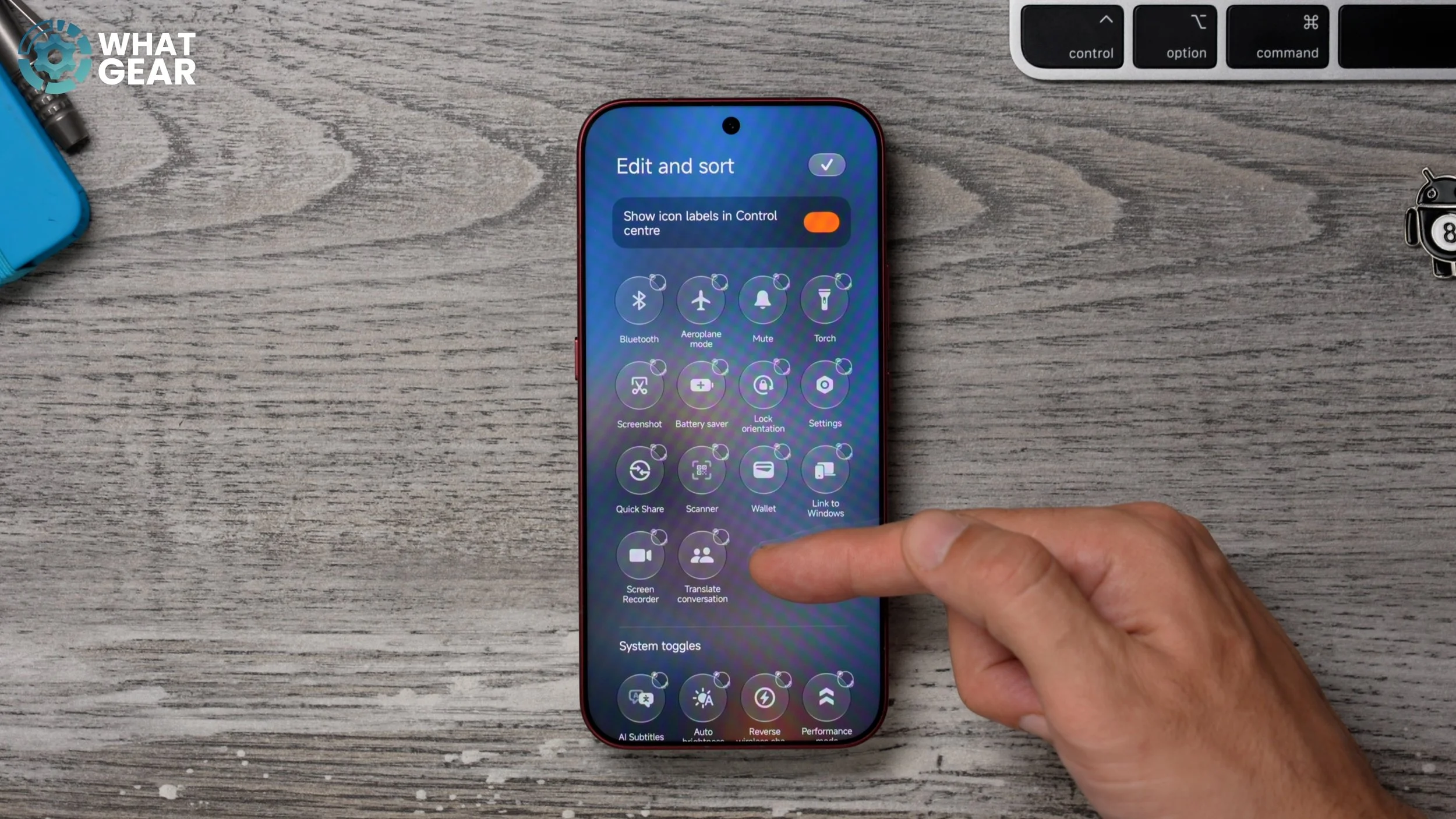
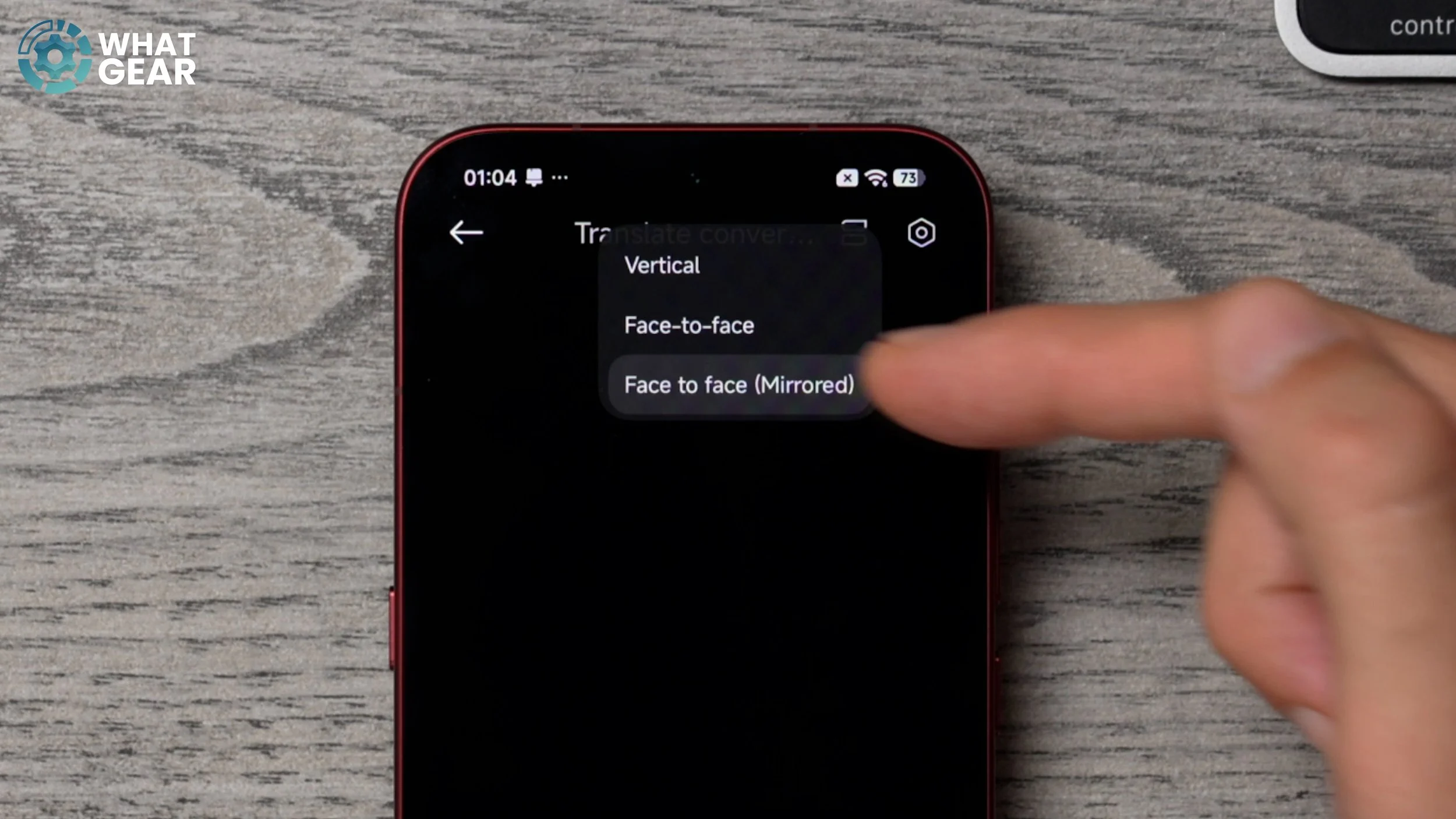
OK, here's one last one that, again, makes use of the unique display on the back… the Back Display. If you bring down your Quick Settings, hit Edit and add the 'Translate Conversation' button. Open this up, hit the two-bar icon at the top and choose Face to Face. Choose your language and the other one you'd like to translate.
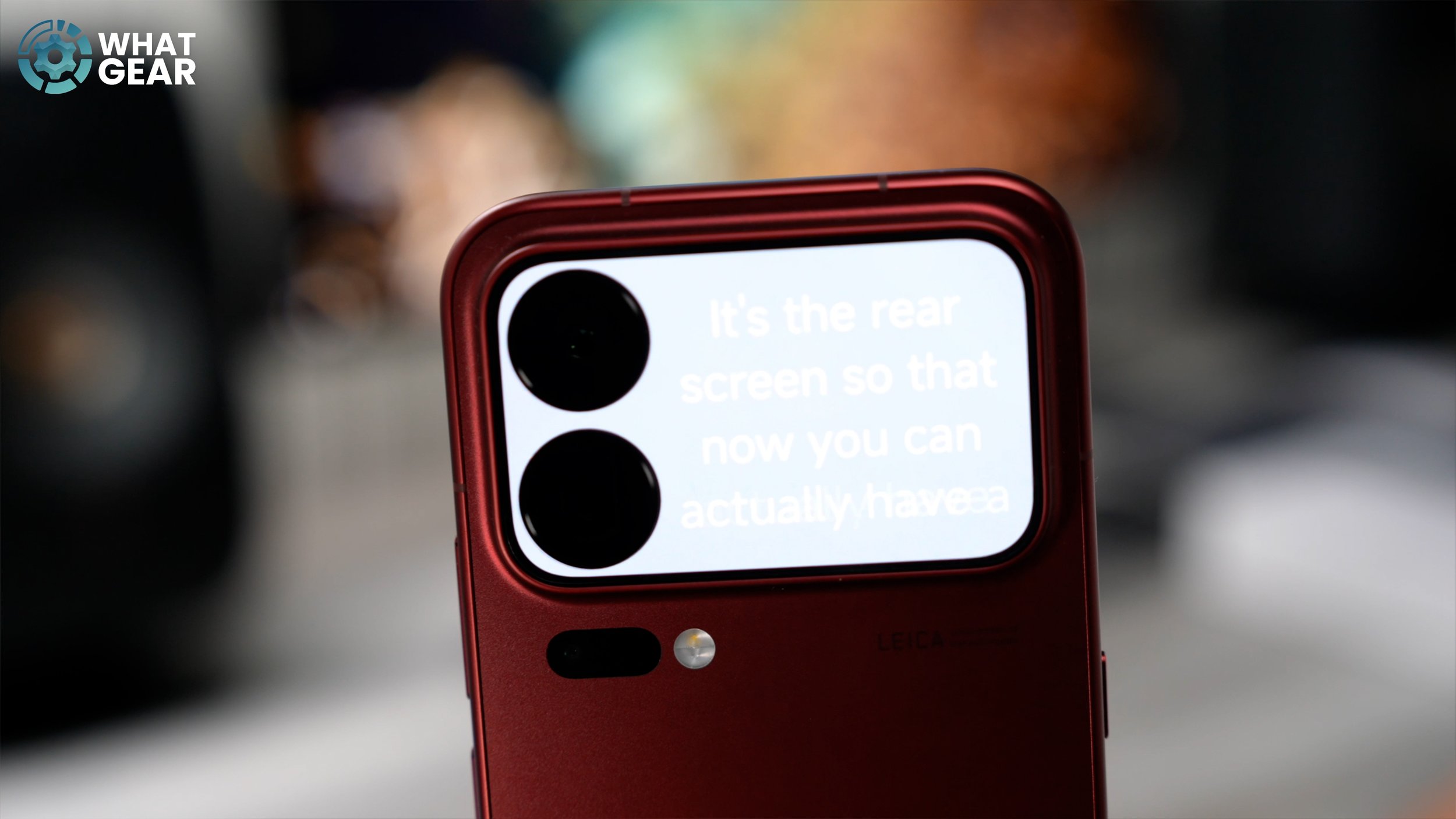
Now you can have a conversation with the person across from you, and they can see, in plain text, what you're saying on the 'Plateau Panel'… Yes, that's the name I had in mind. Oh, last thing to do! Let's check out my AI mini-game.