
20 Sony Bravia Tips & Tricks Every Owner Should Know!
If you have picked up a Sony Bravia TV, it's exciting times, and the first thing you'll want to do is watch something epic on it. But… maybe you should hold on a moment. What you might be missing out on is your Bravia TV's peak performance, especially if you rushed through the initial setup process.
The good news is that there are easy ways to fix this and improve your picture quality, sound, and the TV's performance and speed. I've compiled a list of 20 of the best pro tips and tricks found on the internet, including a few hidden settings that will literally double the speed of the user interface. When I found out about these, I was like, 'Son of a bitch,' because I could have saved so much time. Here are some Sony Bravia tips that I wish someone had told me on day one.
Sony Pictures Core
The best way to see your Sony Bravia's best possible picture quality on day one is to utilize a Sony-exclusive app. Apps like Disney+ and Netflix are great; they offer 4K HDR and even Dolby Vision content and can stream at speeds of up to 25 Mbps. However, that's significantly slower than Sony's exclusive Pictures Core app, which can stream video content at around three times the speed. Put simply, this means the video and audio data can be larger, resulting in higher-quality content. And apparently, Pictures Core has the most extensive library of IMAX-enhanced content.
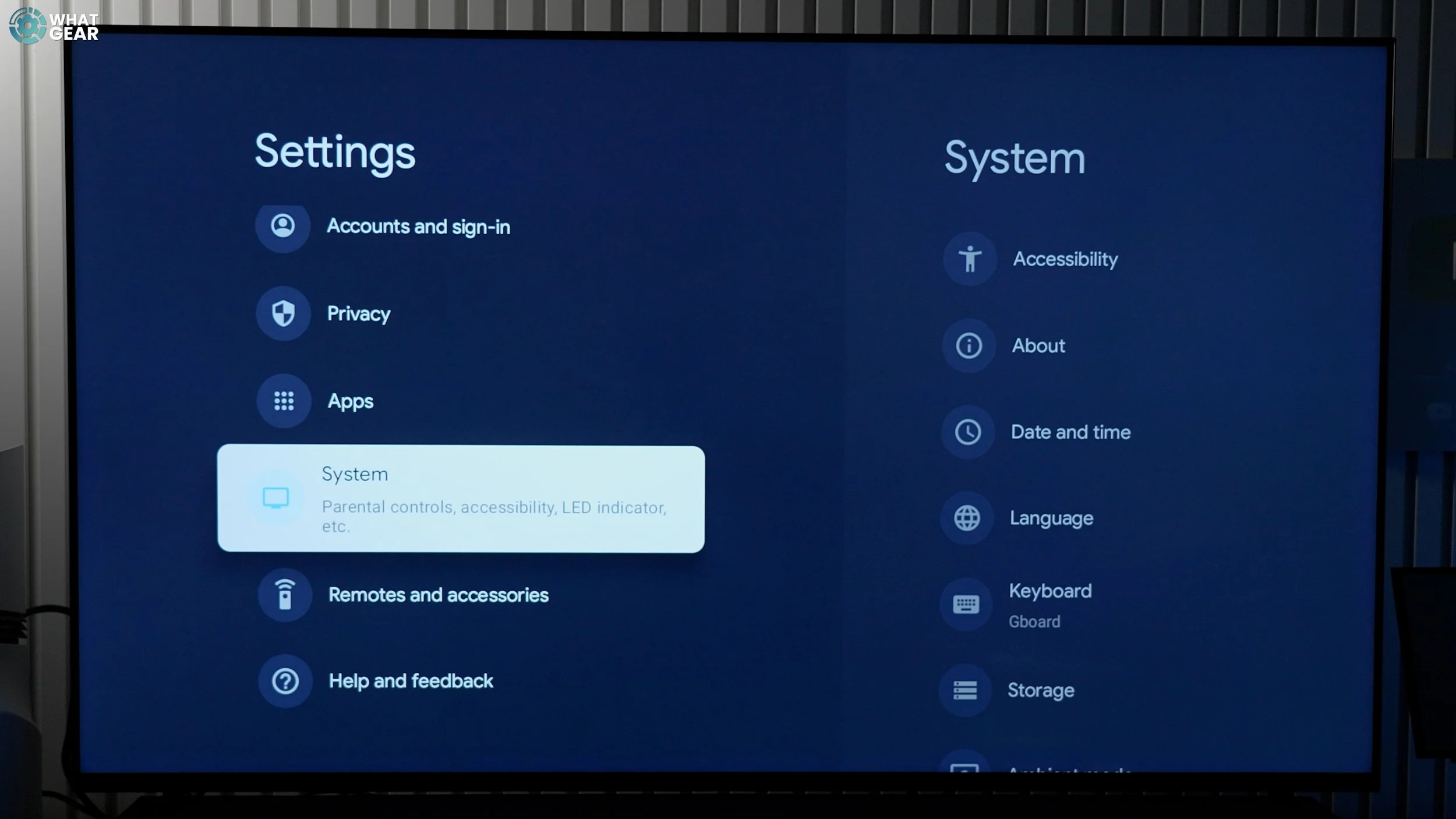
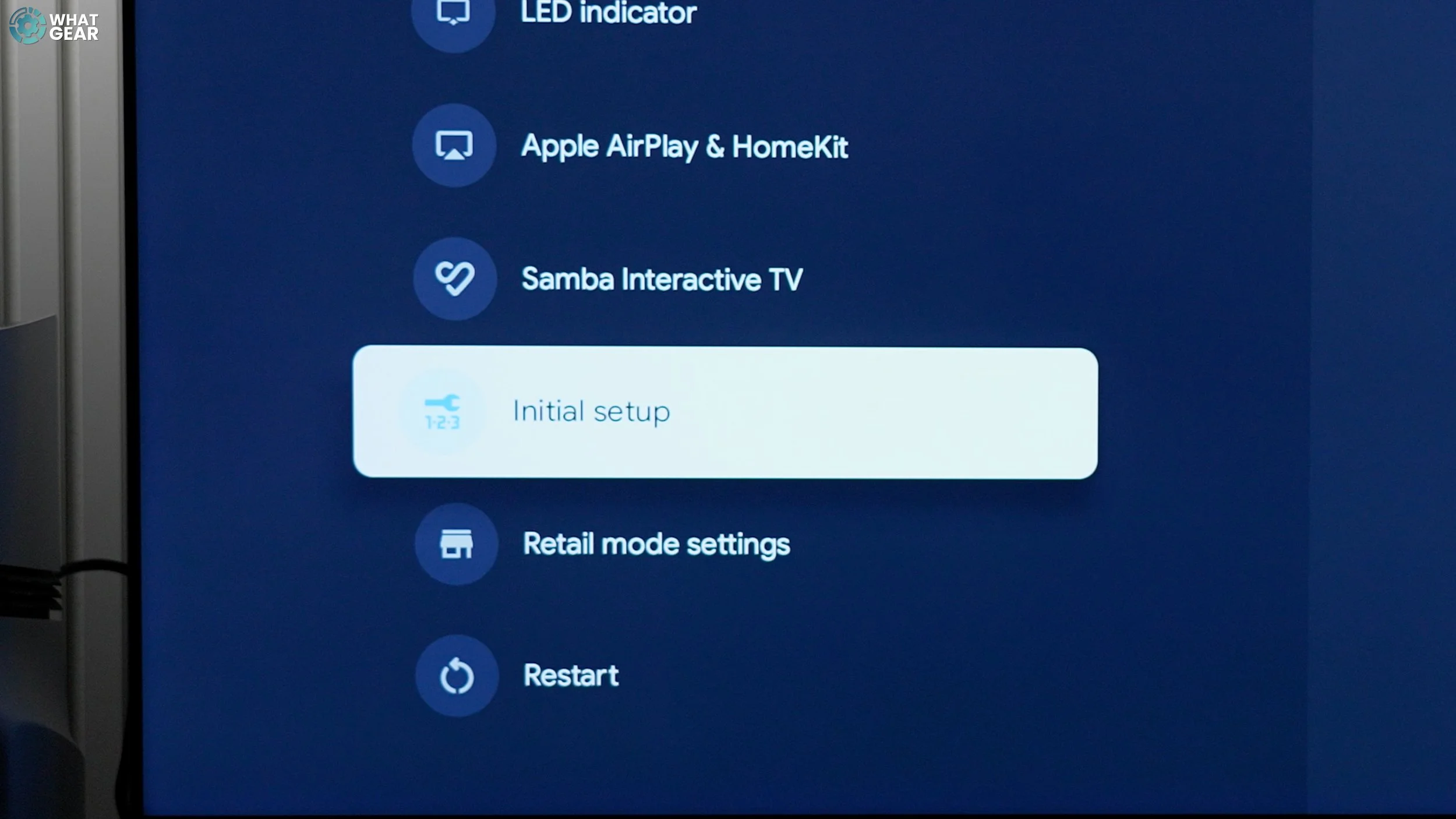
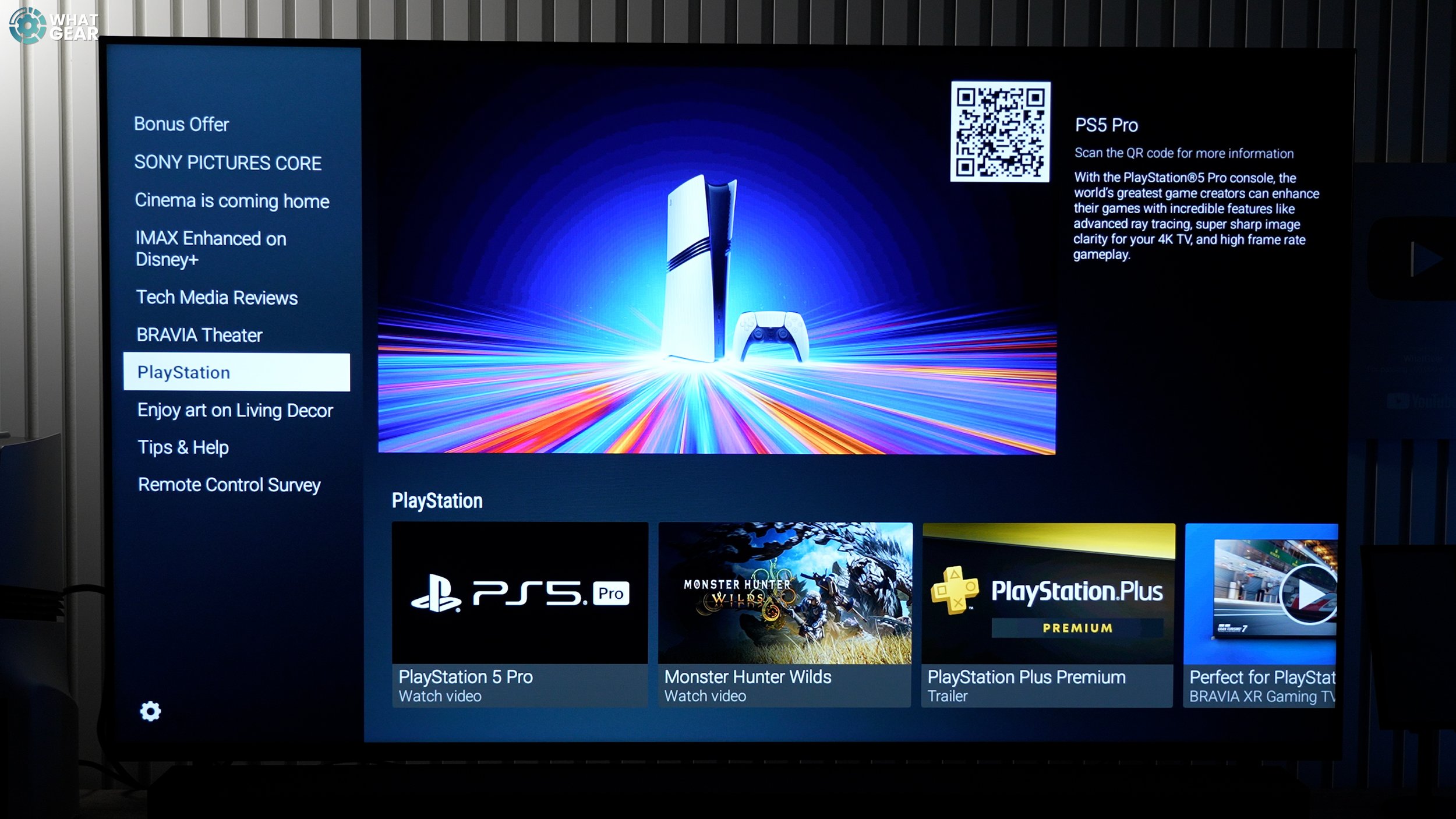
Something you could easily miss if you rushed through the setup is this: if you register a new Bravia TV with Sony during the initial setup, Sony, at the time of this video, offers you 10 free credits to unlock IMAX Enhanced movies to keep, digitally, of course. If you missed this, go to Settings / All Settings / System / Initial Setup and run through it again.
Pro Calibration Modes
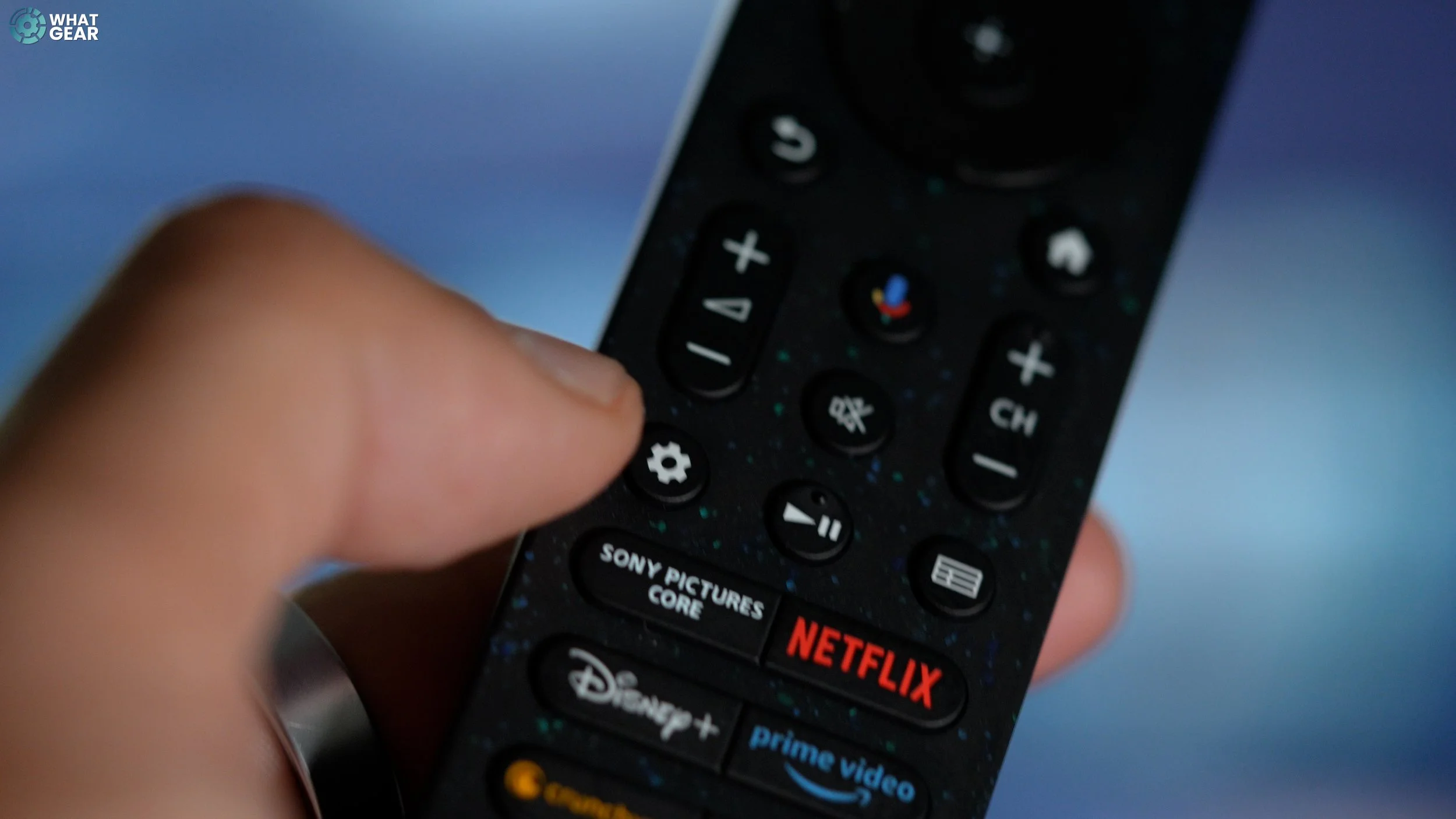
Using Sony's Pictures Core app unlocks maybe the most accurate color modes your Bravia has straight out of the box. To access it, make sure Pictures Core is open, hit the 'settings' icon on your remote, go to Picture & sound, select Picture & enable 'Sony Pictures Core Calibrated Mode.'
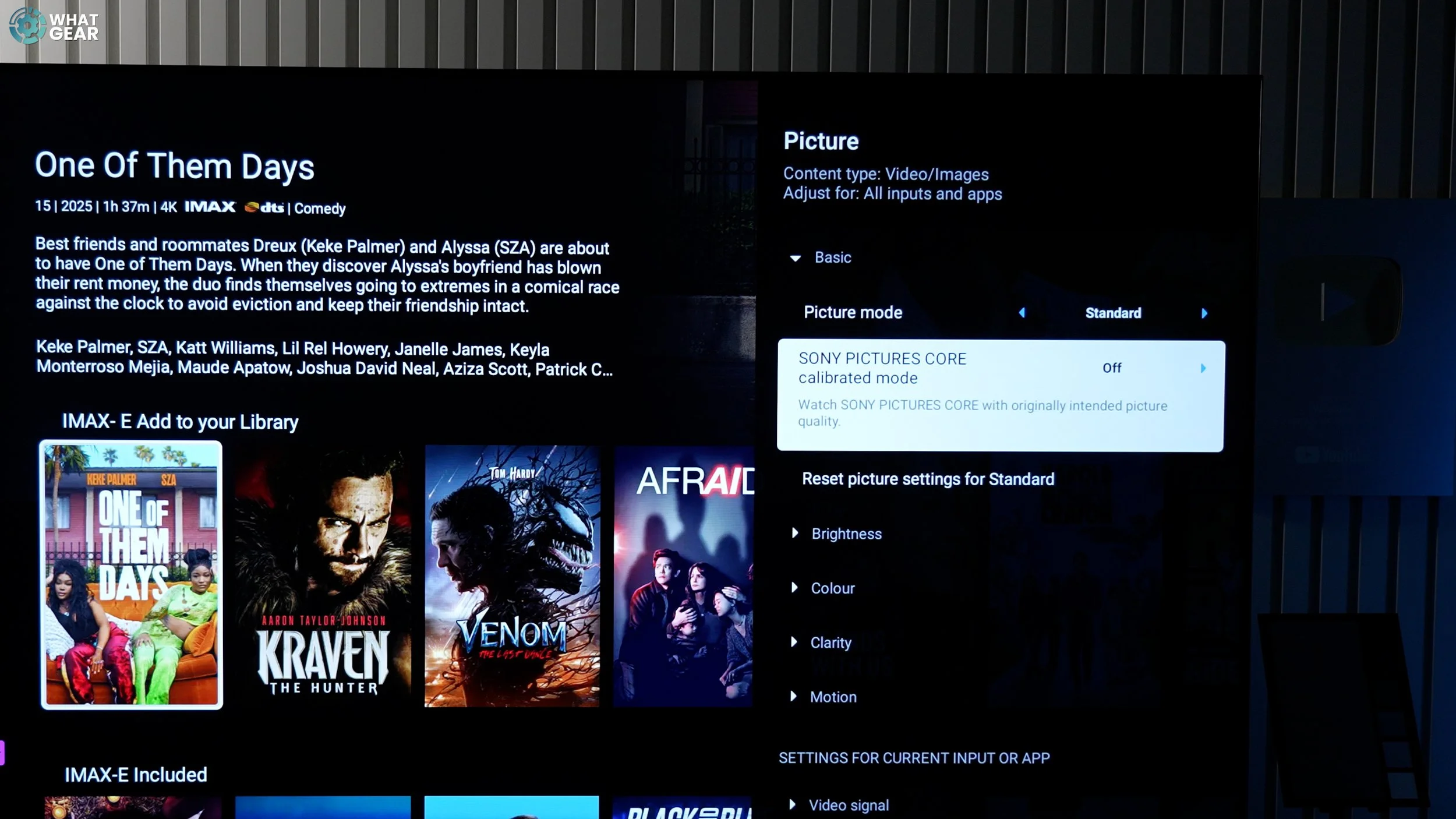
This color mode is professionally tuned by Sony for this specific app, and unfortunately, it can only be used here. But don't worry, because there are also pro color calibrations for Prime & Netflix, as well. They can be enabled in exactly the same way. And we'll come back to the important picture settings you need to change when it comes to accurate colors & improving audio for all the other content on the TV a little later on in the video.
Ambient Light Sensor
But first, let's make quick changes that will instantly improve your picture quality and make your TV faster. Hit the spanner/wrench and navigate to the eco dashboard. Turn off power saving, and turn off 'adjust picture according to ambient light.' These settings help the TV achieve a better energy efficiency rating, which is good for marketing purposes but can be bad for your picture quality, as it will often make the display dark... and darker than you'd want it to be.
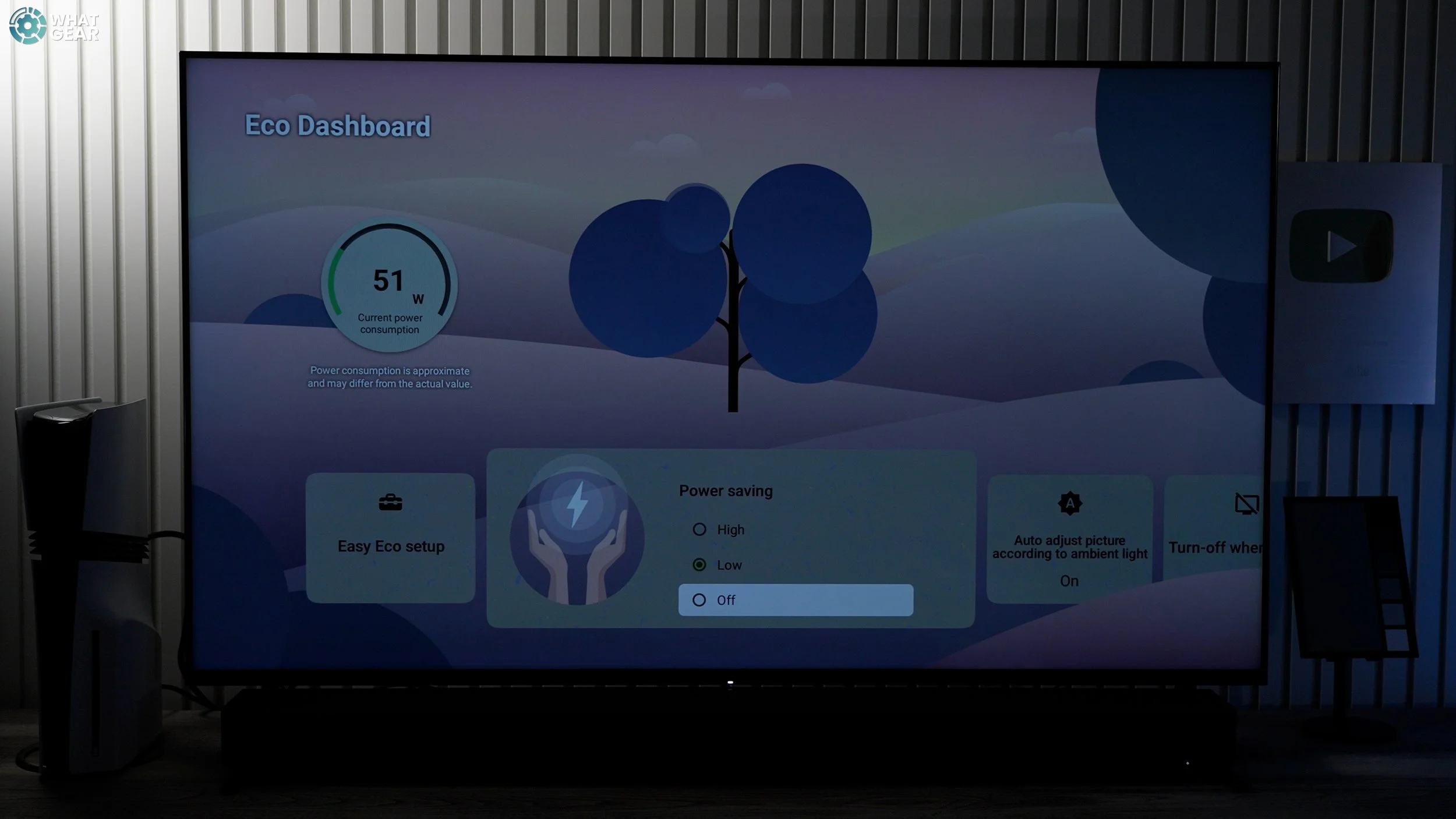
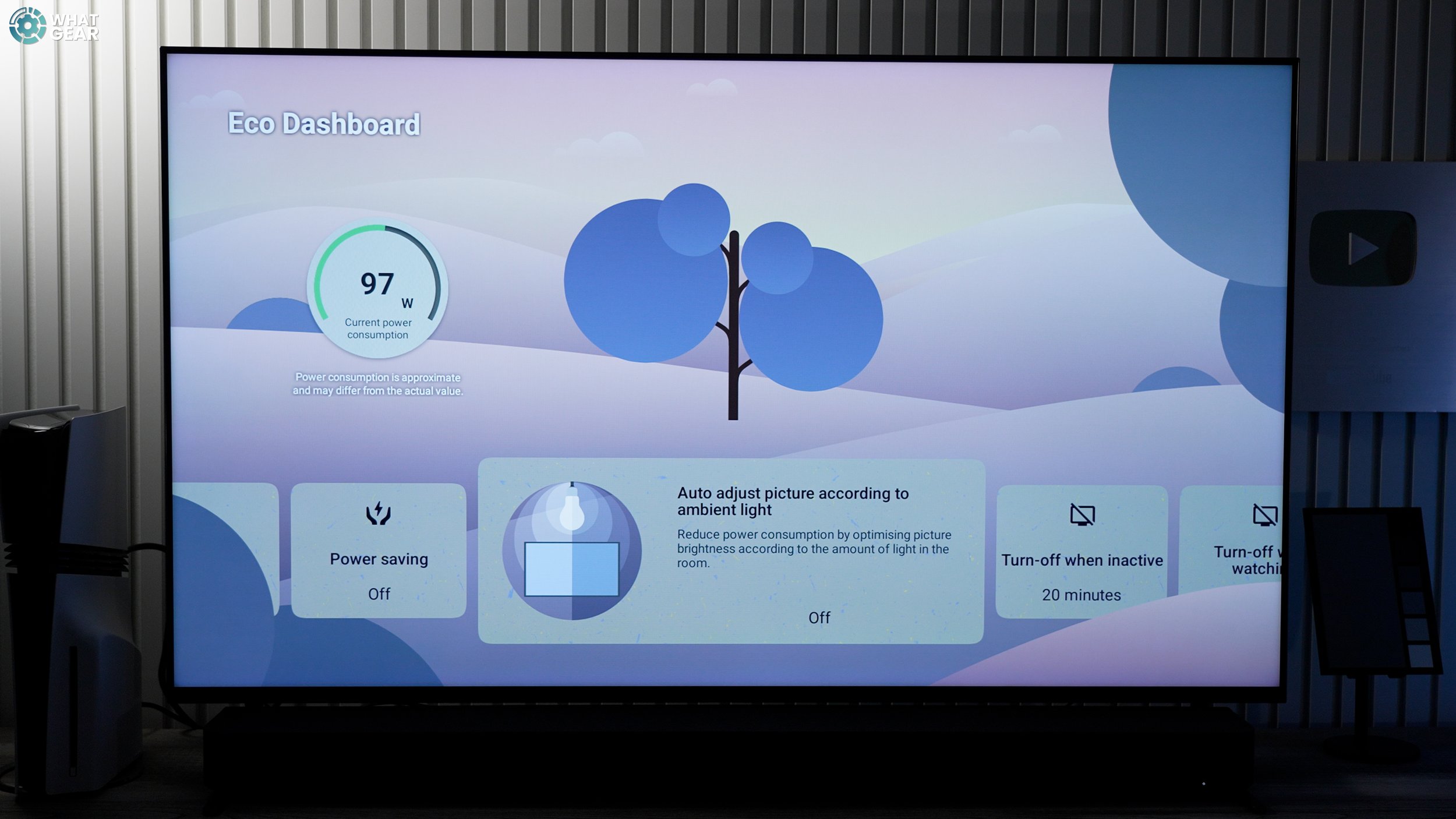
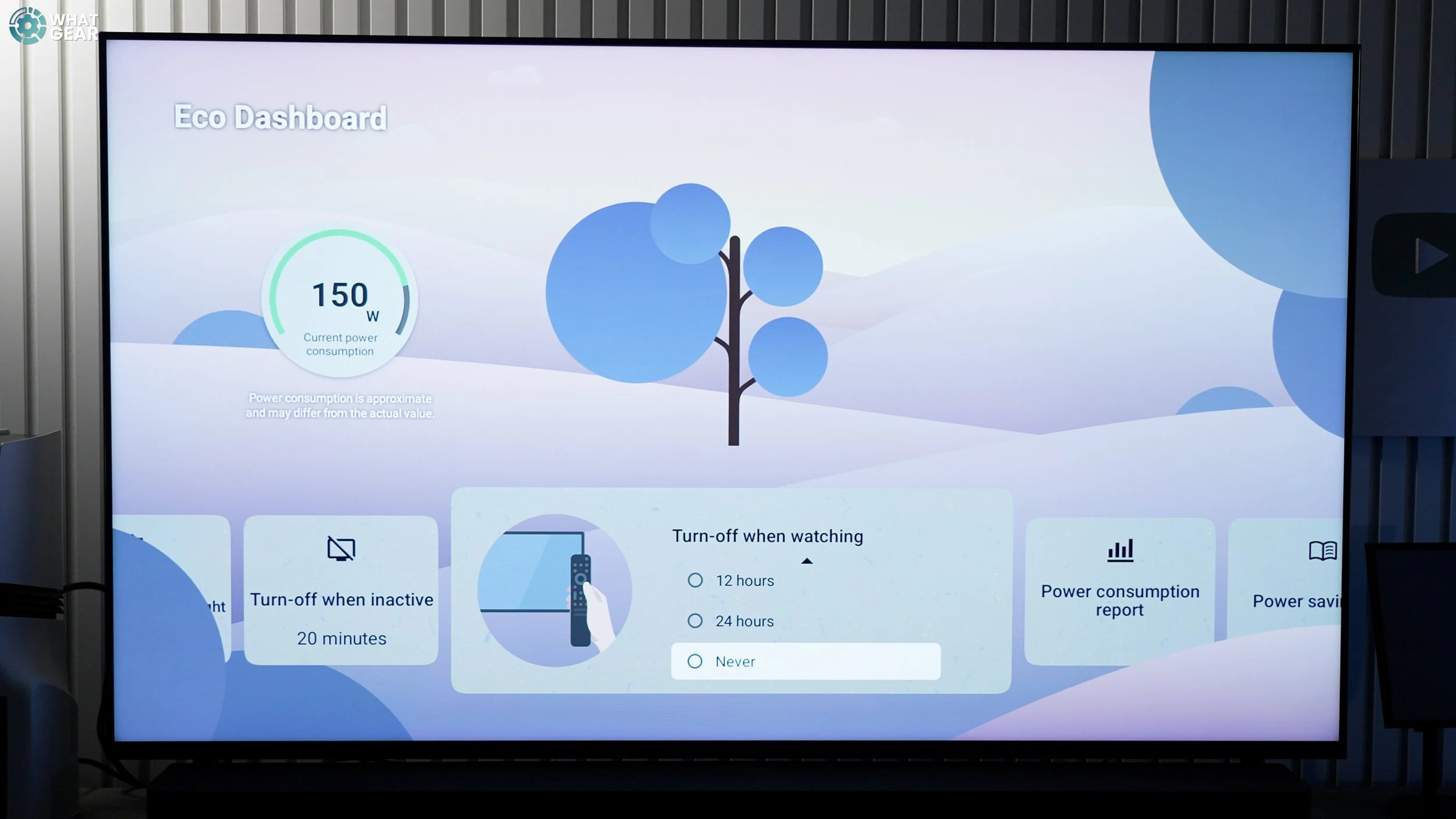
I would recommend you leave 'Power down after 20 mins inactive' on; 'turning off when watching at 4 hrs' is okay… unless you're a gamer. If you are, I'd recommend you set this to never. There's nothing worse than this kicking in mid-online gaming session. And also, because you know when gaming, the best time to throw in the towel and hang it up is (never).
Speed Up
Now let's make your TV faster. Your Bravia has a processor; the more processes it has to run, the slower it can become. So let's sort that out.
Go to settings / all settings / Privacy / Location.
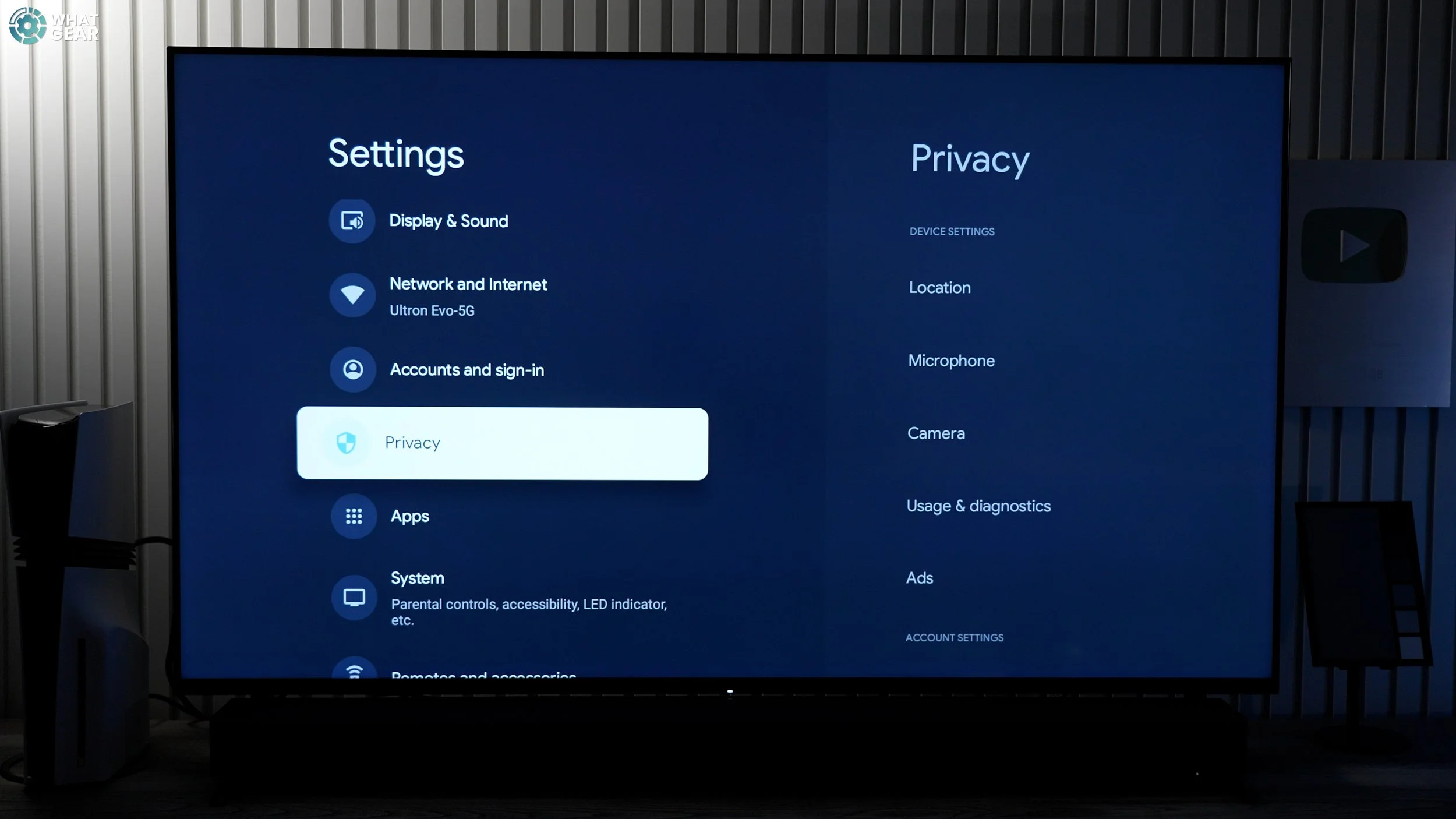

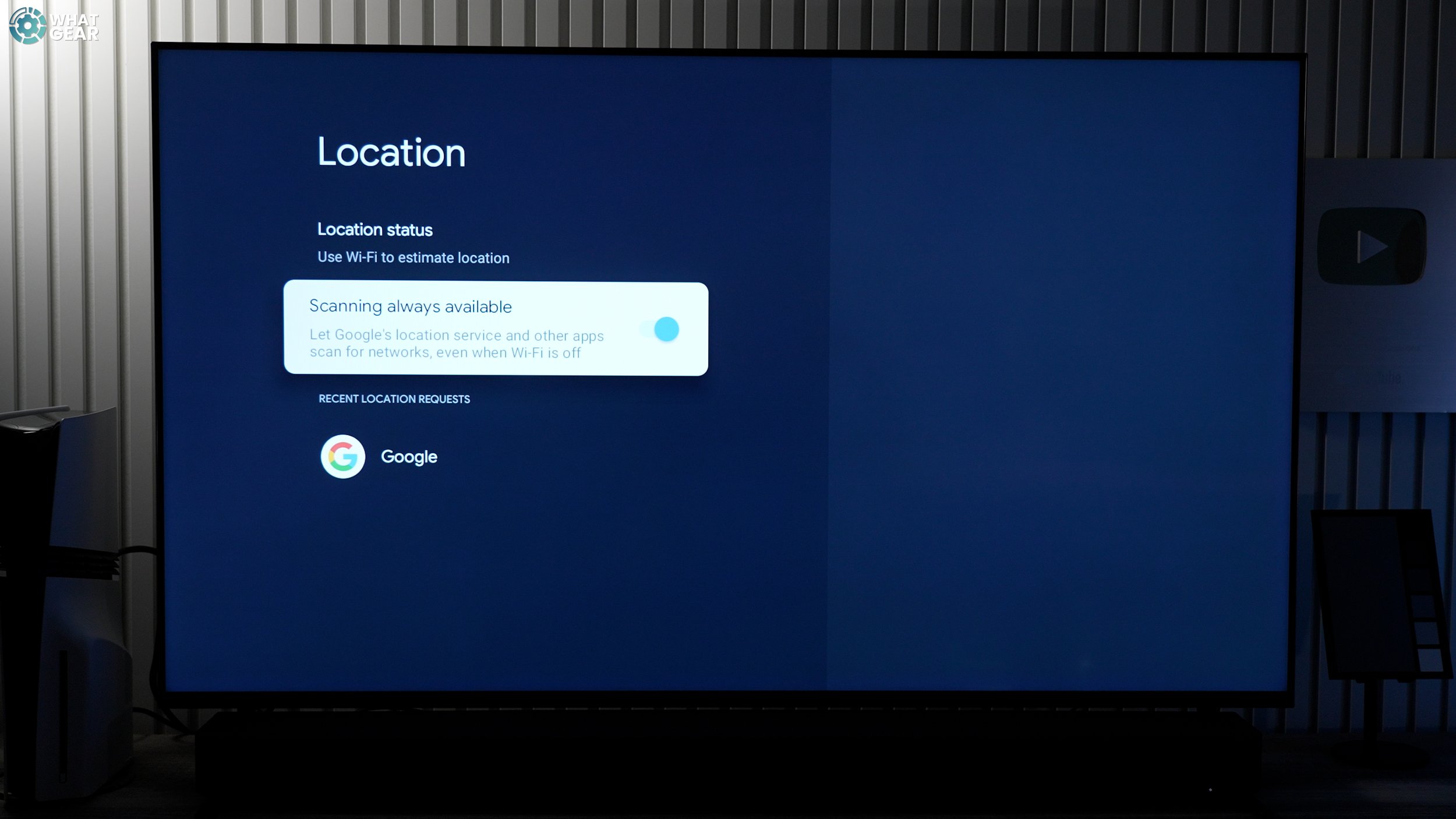
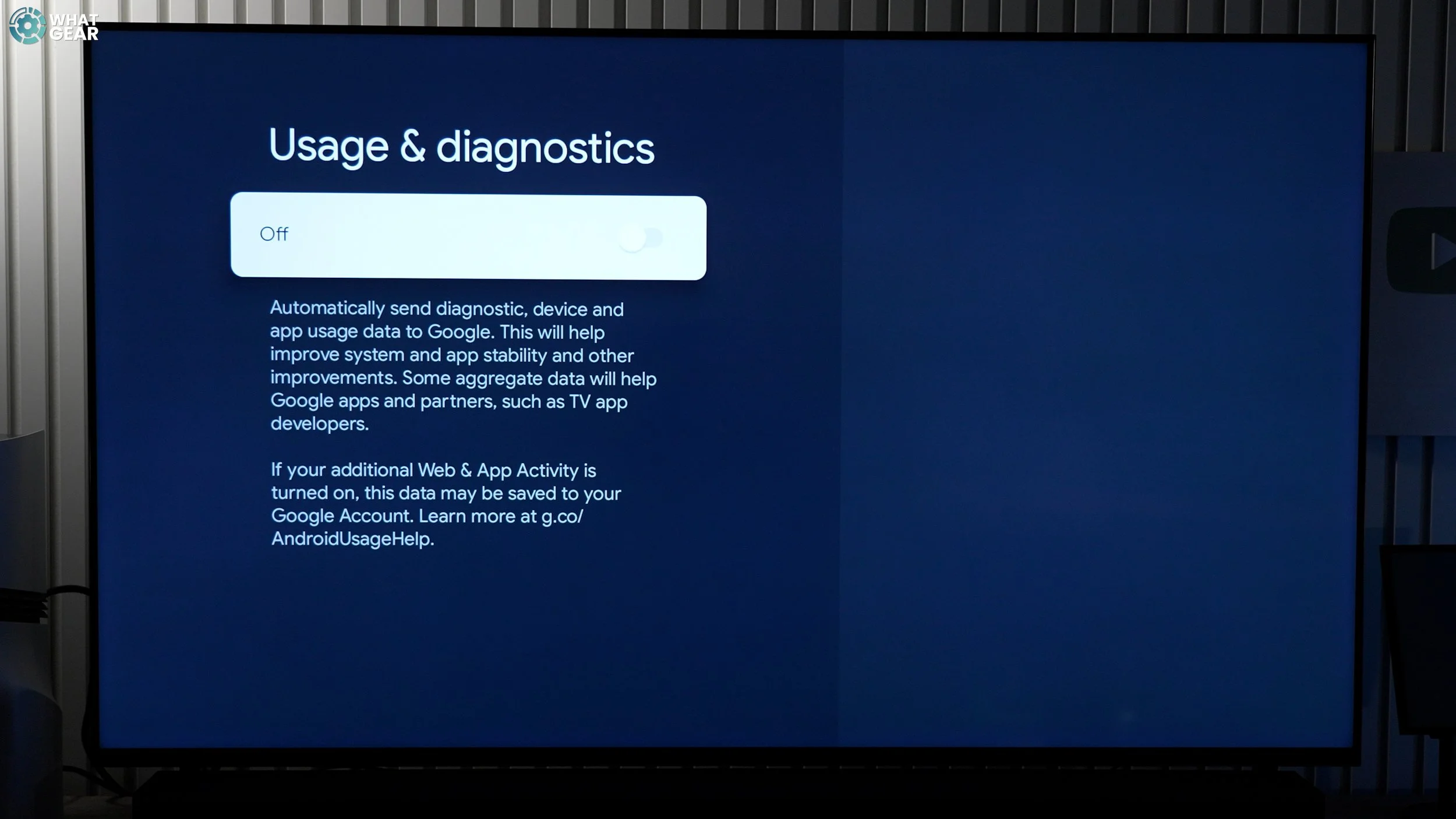
Turn off 'scanning always available.' This doesn't improve anything on the TV. It just helps other devices detect your TV's Wi-Fi, and those devices use this to figure out where they are. This applies even to people just walking past your house.
Now go back one step and this time go to Usage and diagnostics / switch this off. This will reduce the amount of information your TV is sending and receiving.
Update Everything, All at Once
While automatic updates should be enabled on day one, sometimes they just won't update until they feel like it, and this could cost you precious time. And also sometimes, some system apps that improve the UI will do the same. So here's something you should definitely do right now.
Go to settings / all settings / privacy / Manage Updates / Manage updates.
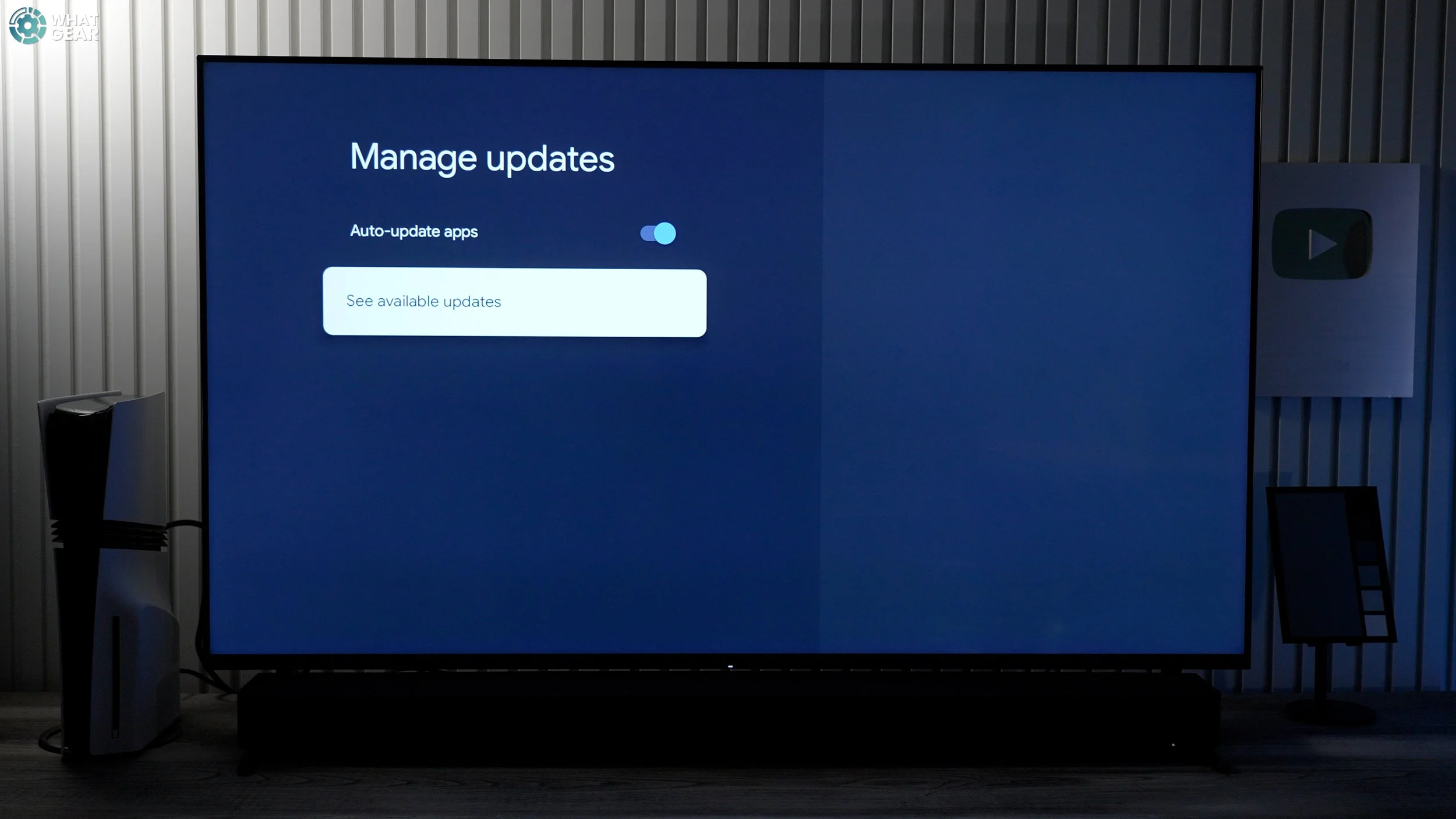
And take a quick look if there are any updates pending, and if you've had your TV for a while and it's running slow, you might want to free up some storage by uninstalling apps you don't use.
Find Your Remote
Nothing is more annoying than losing your remote, wouldn't you agree? Okay, almost nothing. Knowing this next trick will definitely save you time at some point, and it is one of my absolute favourite features… You can thank me later.

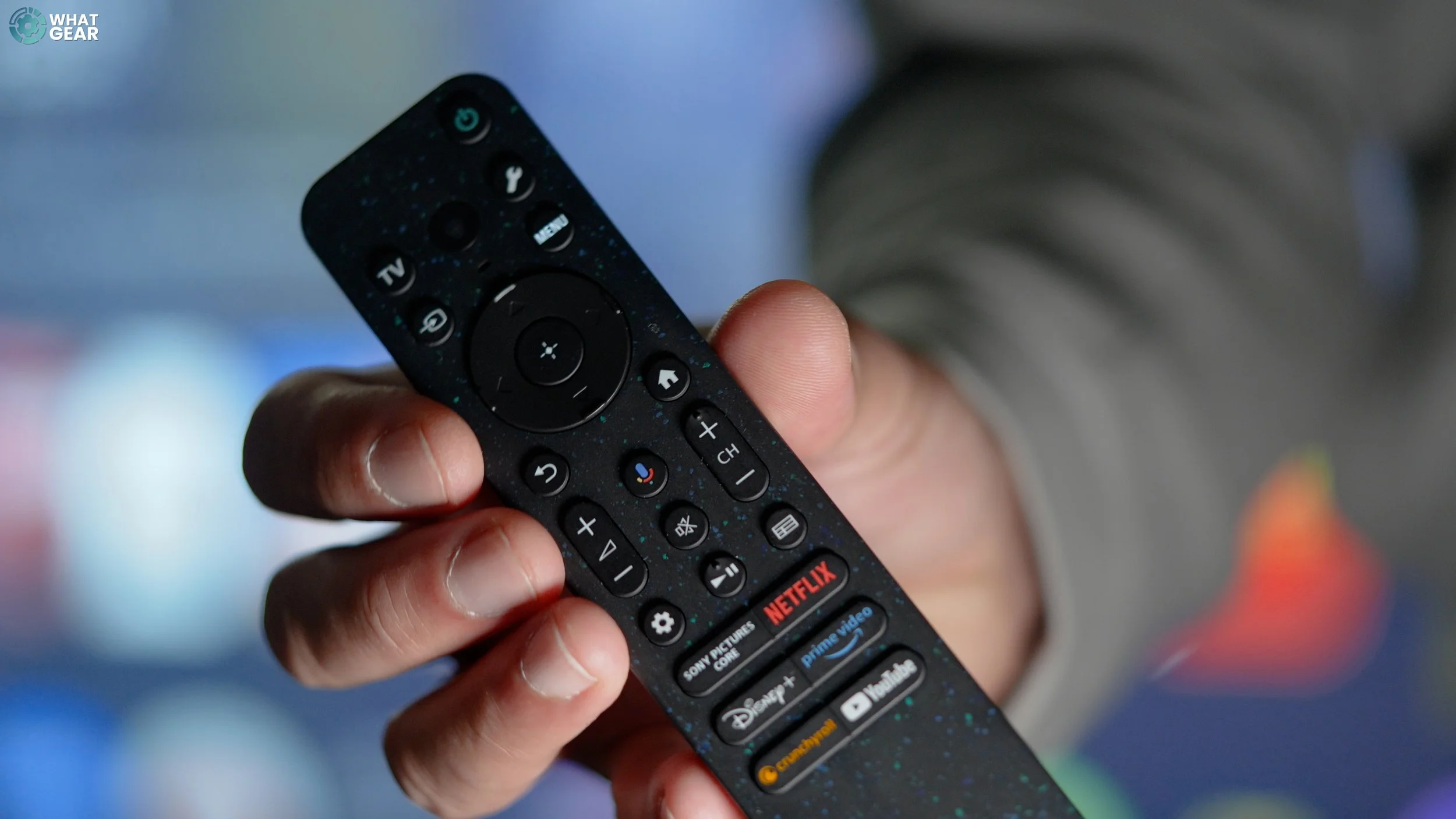
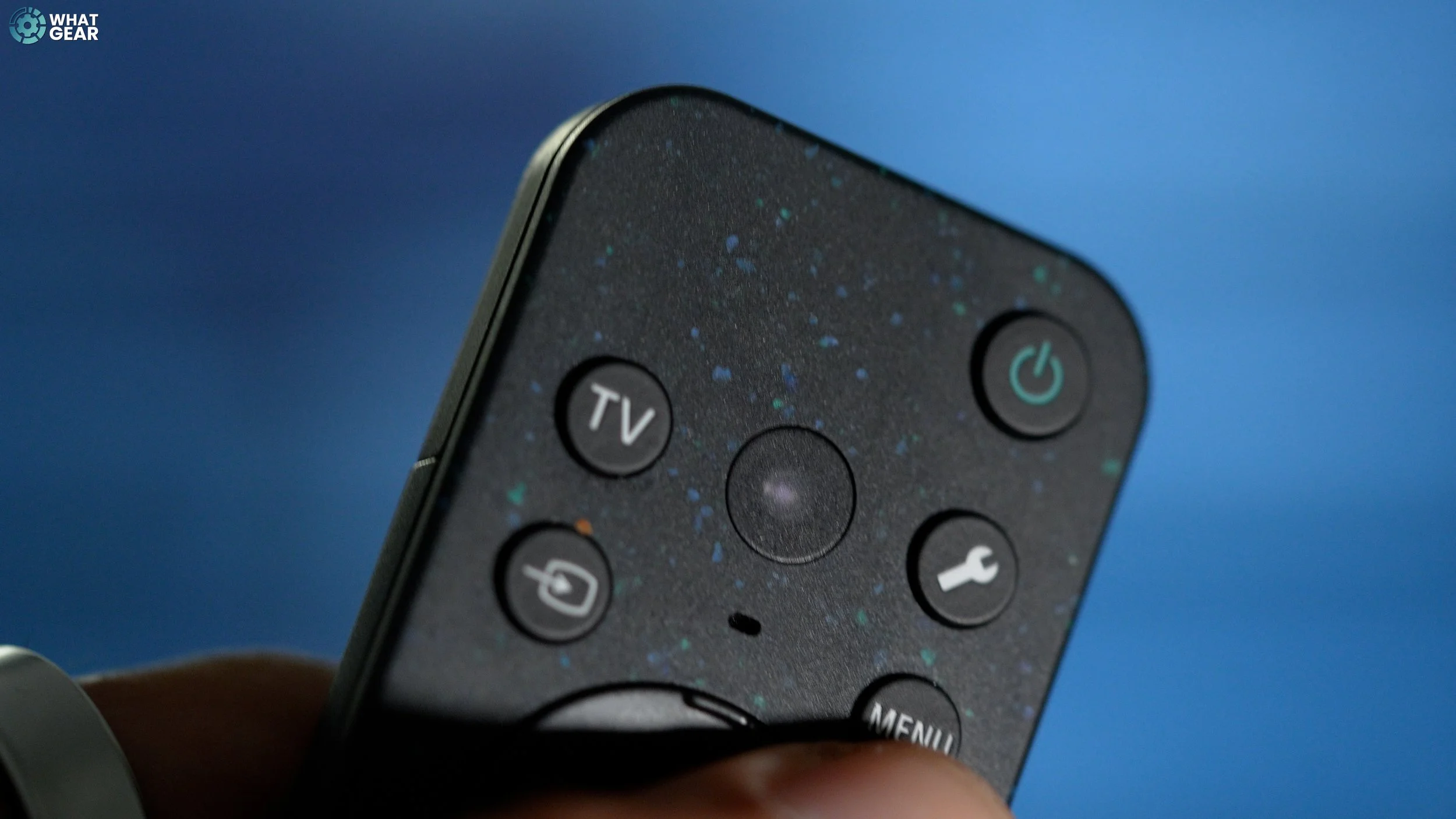
This may vary depending on the model, but on this Bravia 7, there's a physical button right in the center below the LED lights. If you tap that, a menu pops up, and you can keep tapping until you get to the Find My Remote option, and then push and hold. This makes the smart remote play a sound so you can find it.
TV Button Shortcut
Okay, when it comes to watching live TV, maybe you use a set-top box, satellite, or even an old-school terrestrial antenna. Regardless of what you use, here's one setting to change that will save you time. Go to settings / all settings / Channels & Inputs / TV button.
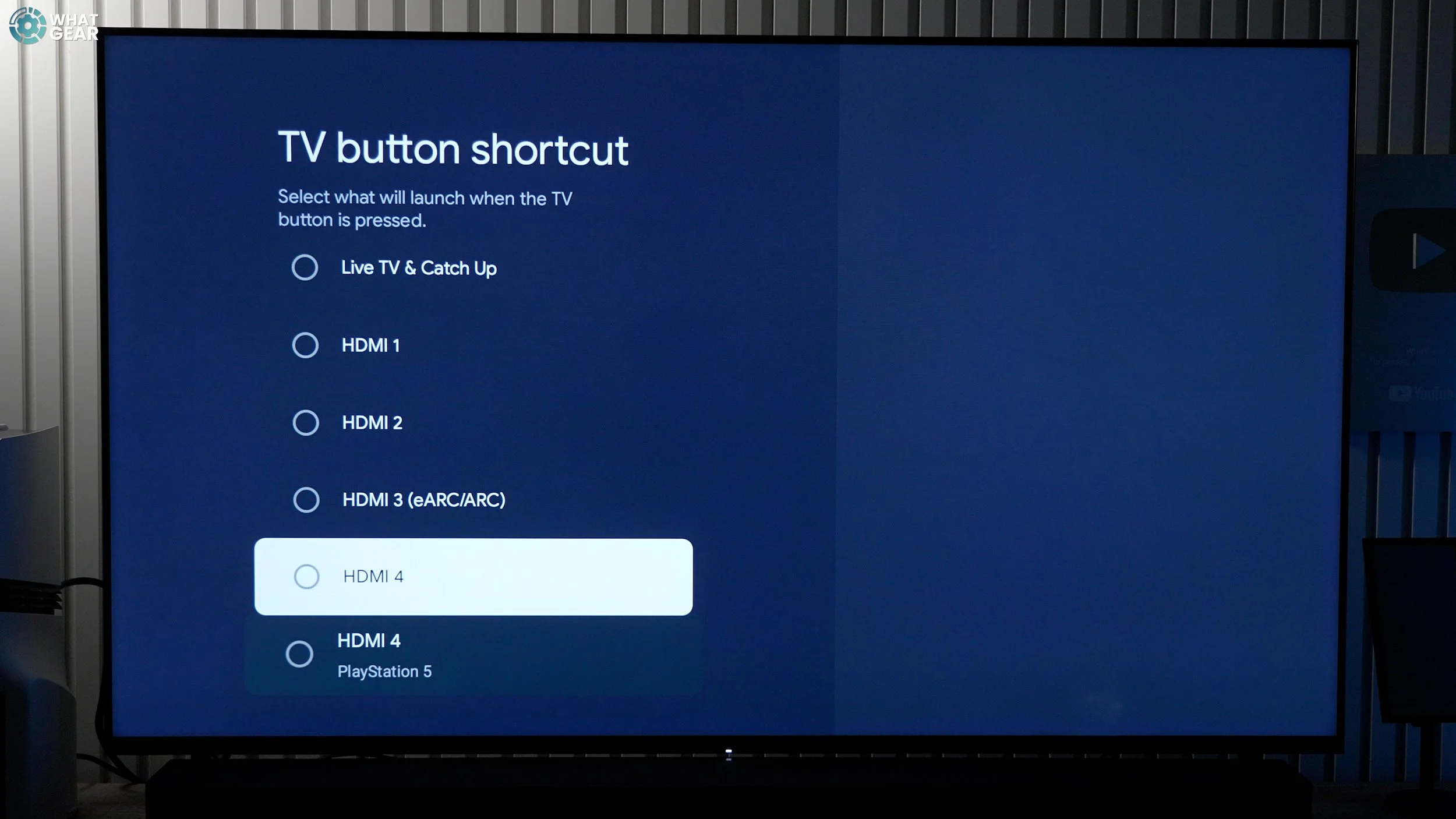
And choose what you want it to do. I kind of wish this could be mapped to any app, but you will have some good options here. Set it up as the input you default to for watching TV.
Get Things In Order
So now let's make finding your most-used apps even easier. Scroll to the end of your apps shelf, and you'll find 're-order.' Now just tap and drag the best apps to the front. And if there is anything here you don't need, if you push and hold the select button on that app, you can quickly uninstall it.
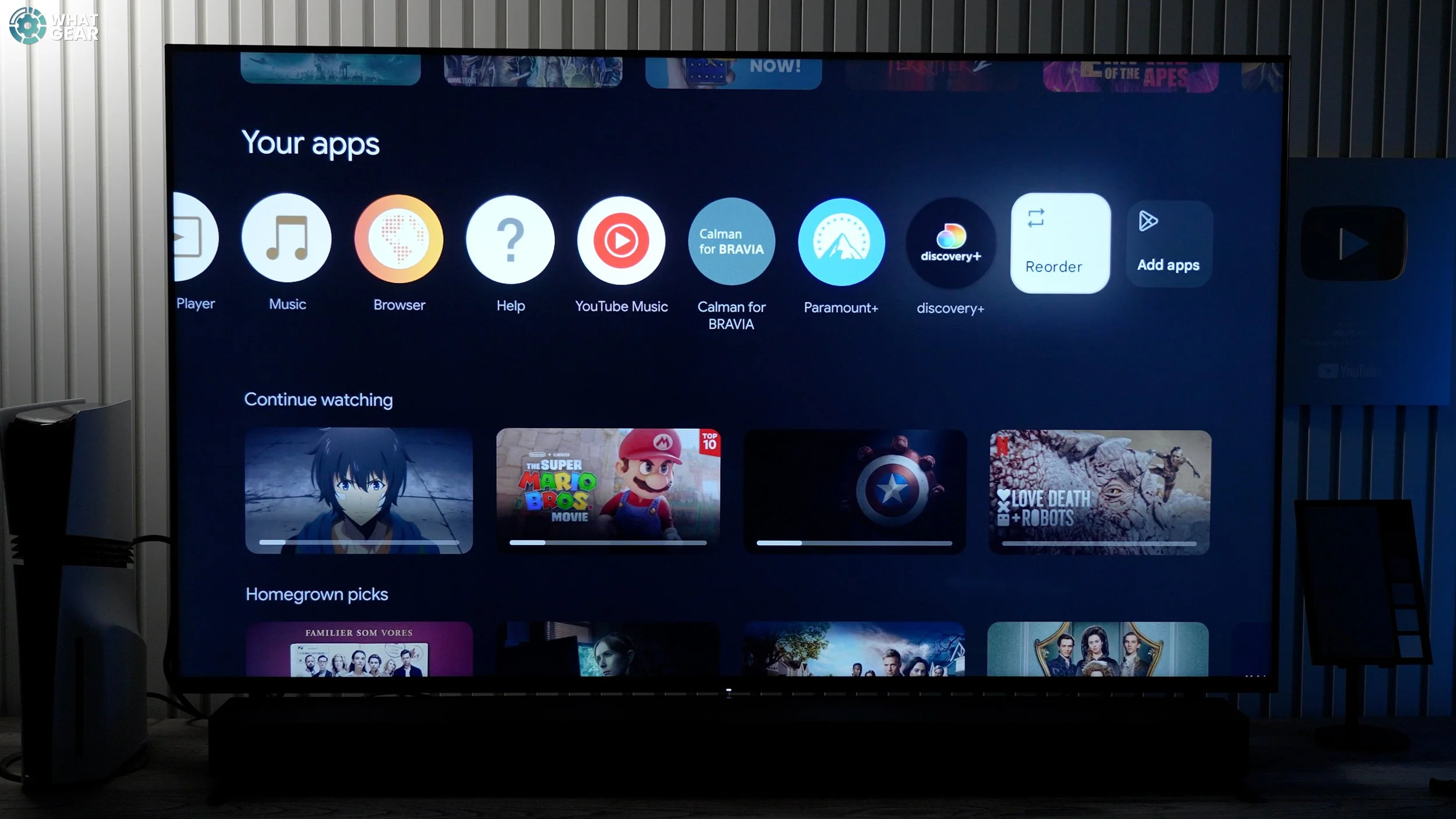
Add Input Shortcuts
Now, here's a well-hidden trick that can allow you to create quick shortcuts. If you hit the Input button, scroll to the end of your inputs, here you can add apps as inputs. So let's say you want a quick shortcut to Pictures Core. You could set that up, and you can also hide any inputs you're not using.
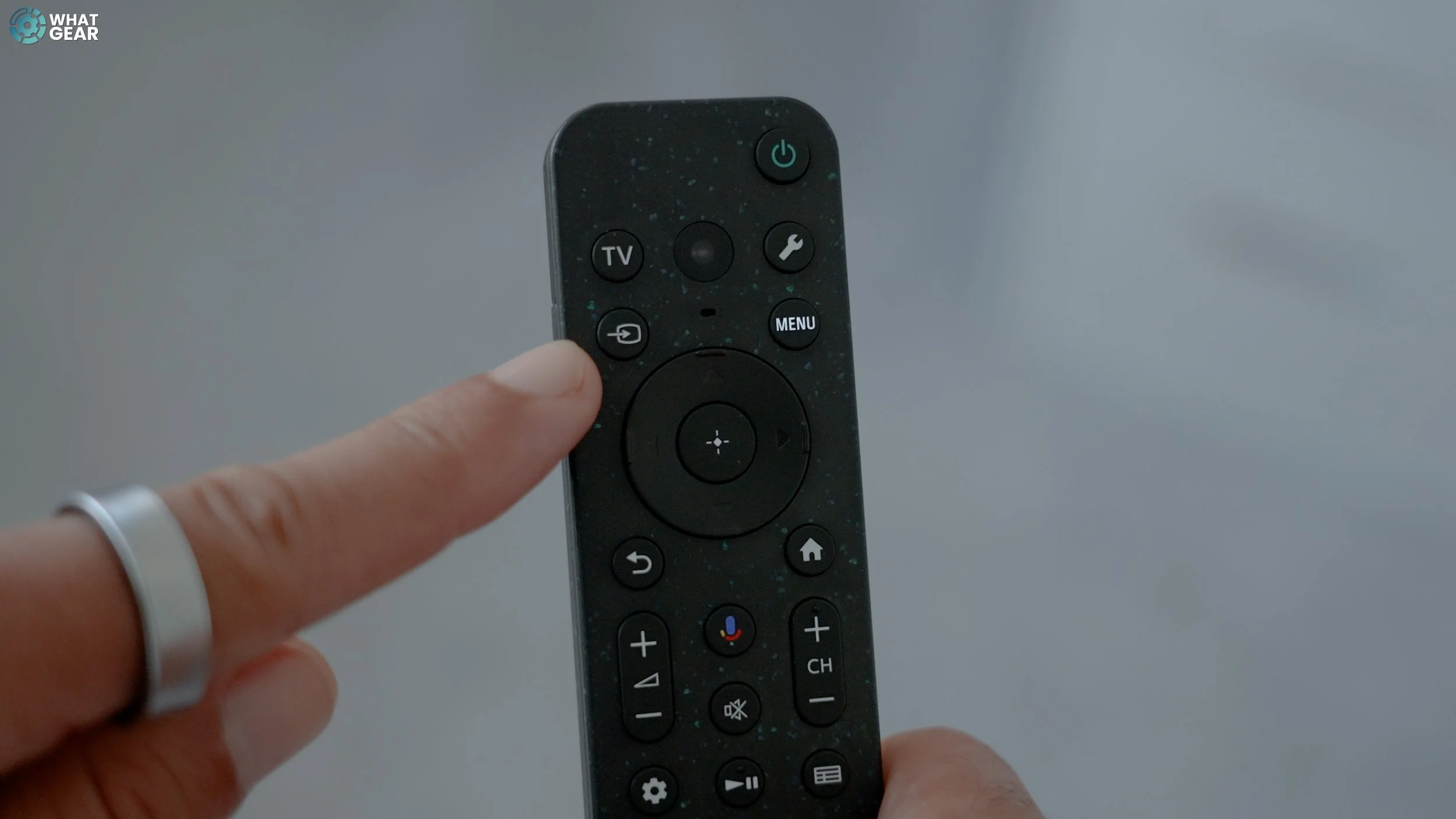
App Only Mode
If you're the type of person who doesn't want to be advertised to every time you switch on your TV, well… it seems like even streaming services you pay a premium for seem to run ads these days, so it's virtually impossible.

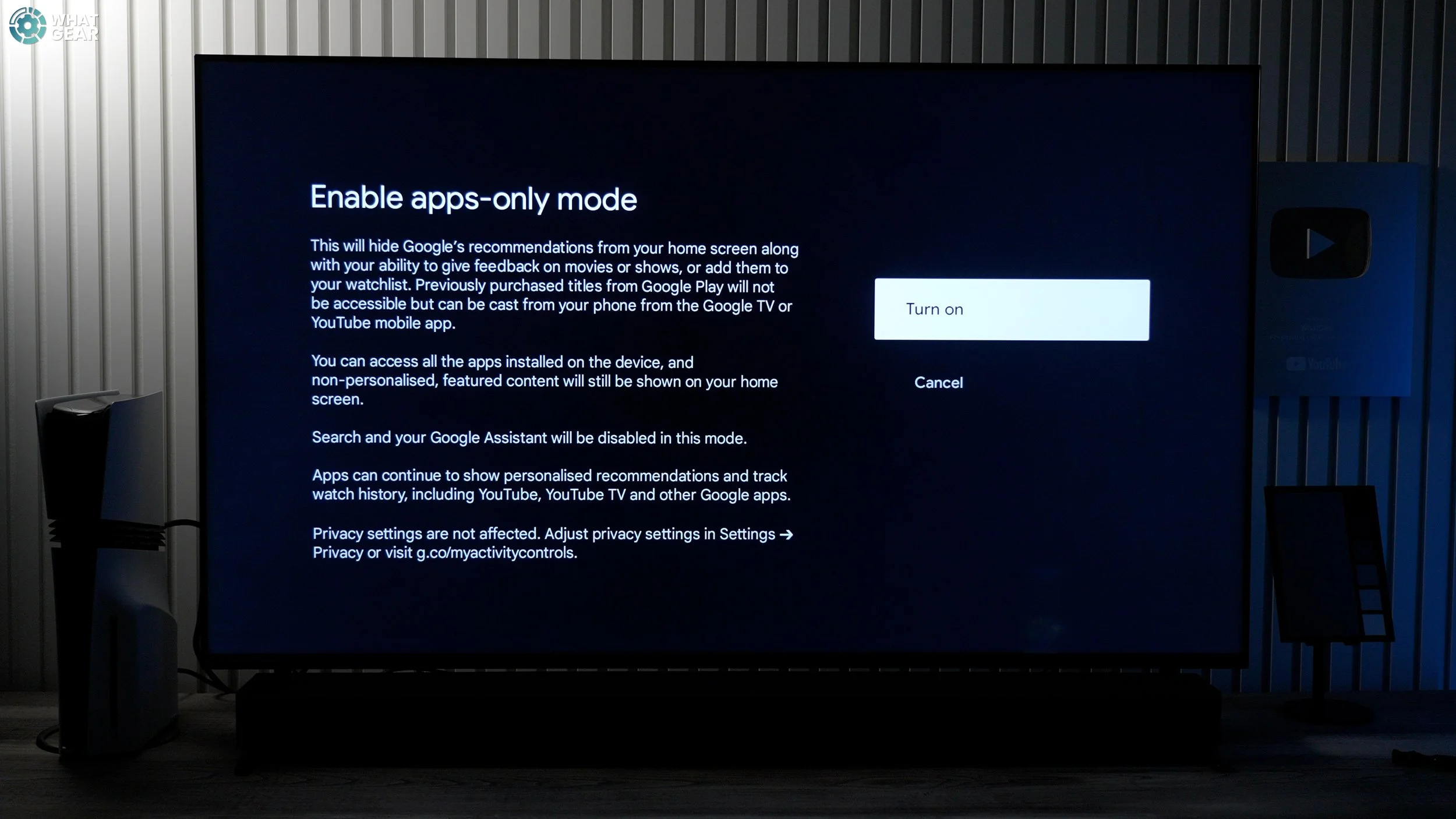
But the good news is that you can get rid of them on your TV's home screen. Go to settings/accounts and sign in, scroll down to Apps-only mode. This simplifies the home screen to just one page of your installed apps.
Auto Colour Modes Per App
So, back to colours, what are the best colour modes for apps that might not have pre-calibrations like Netflix, Prime & Pictures Core? Disney, for example. Well, if you load it up, push the 'settings' button, go to picture and sound, and hit the switch to enable 'Adjust only for Disney+.' Any changes you make here won't affect any of the other content sources on the TV. Now, it's important you know the TV will detect the types of content you're watching. In this case, Disney+ knows that this stream is Dolby Vision content, so you get Dolby Vision colour options.
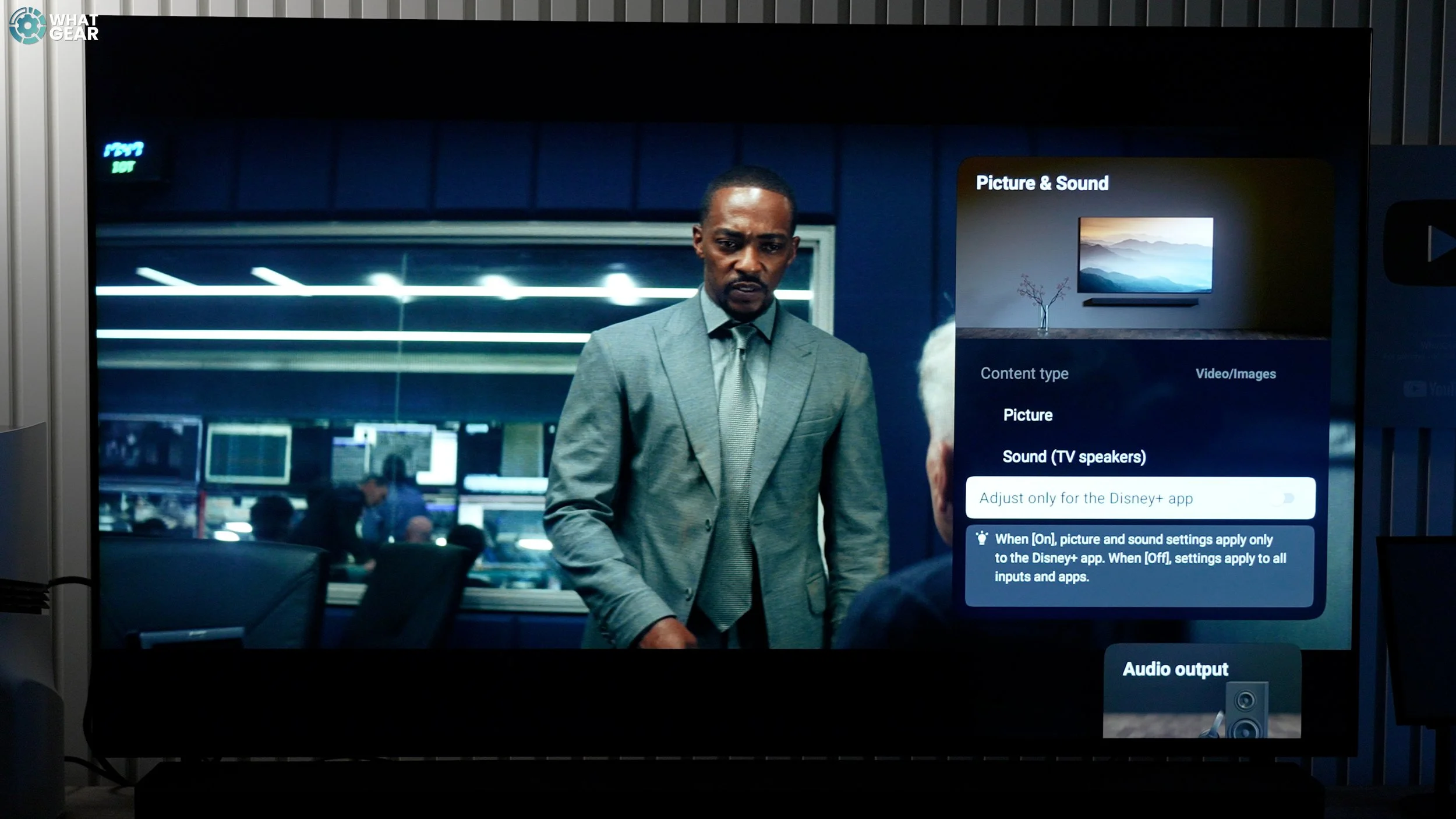

The Dolby Vision Dark is the best option for this particular Bravia 7 TV in my opinion, as you get better black levels. But if you have your TV in a bright room, you might prefer Dolby Vision Bright. These will give you the best colours, and you may want to jump in and manually tweak the HDR brightness to what works best for your unique lighting situation. Once you're happy, lock that in.
Standard Definition
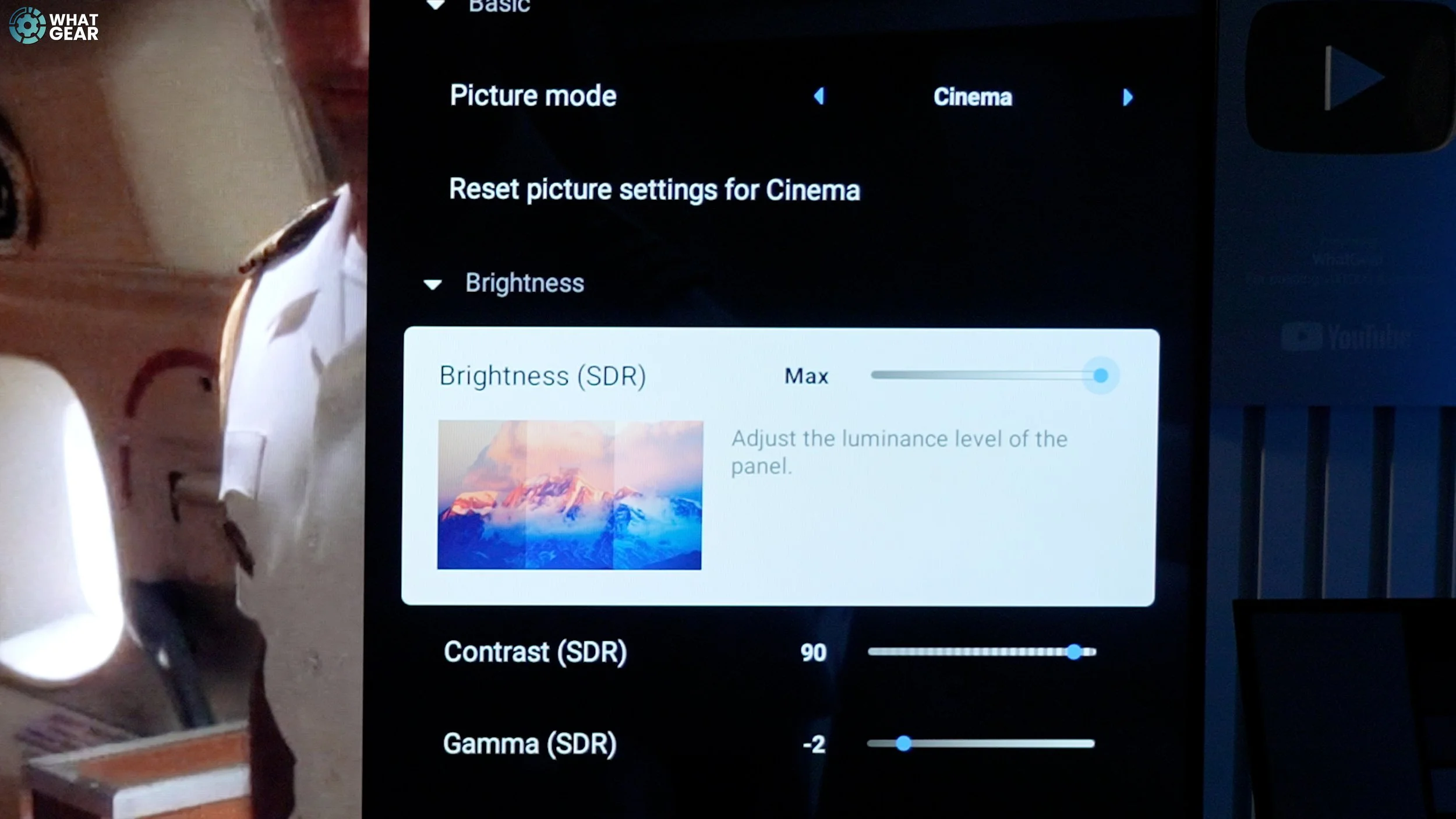
But what if you're watching regular HD with Standard Dynamic Range, for example, here is NCIS within the same Disney App?

Well, you can choose a preferred picture mode for that also. For the most accurate colors for regular content, I'd recommend you use 'Cinema' mode. Again, you can play with the brightness, and you'll notice doing this only affects the SDR brightness levels and not the HDR levels.
Screen Saver Quick Launch
Okay, when you set up your TV, you might have missed the options you had when it comes to screensavers. Well, here's a quick way to get back to those settings so you can customize them perfectly. When on the home screen, hit the back button. This is a quick way to activate the screen saver.
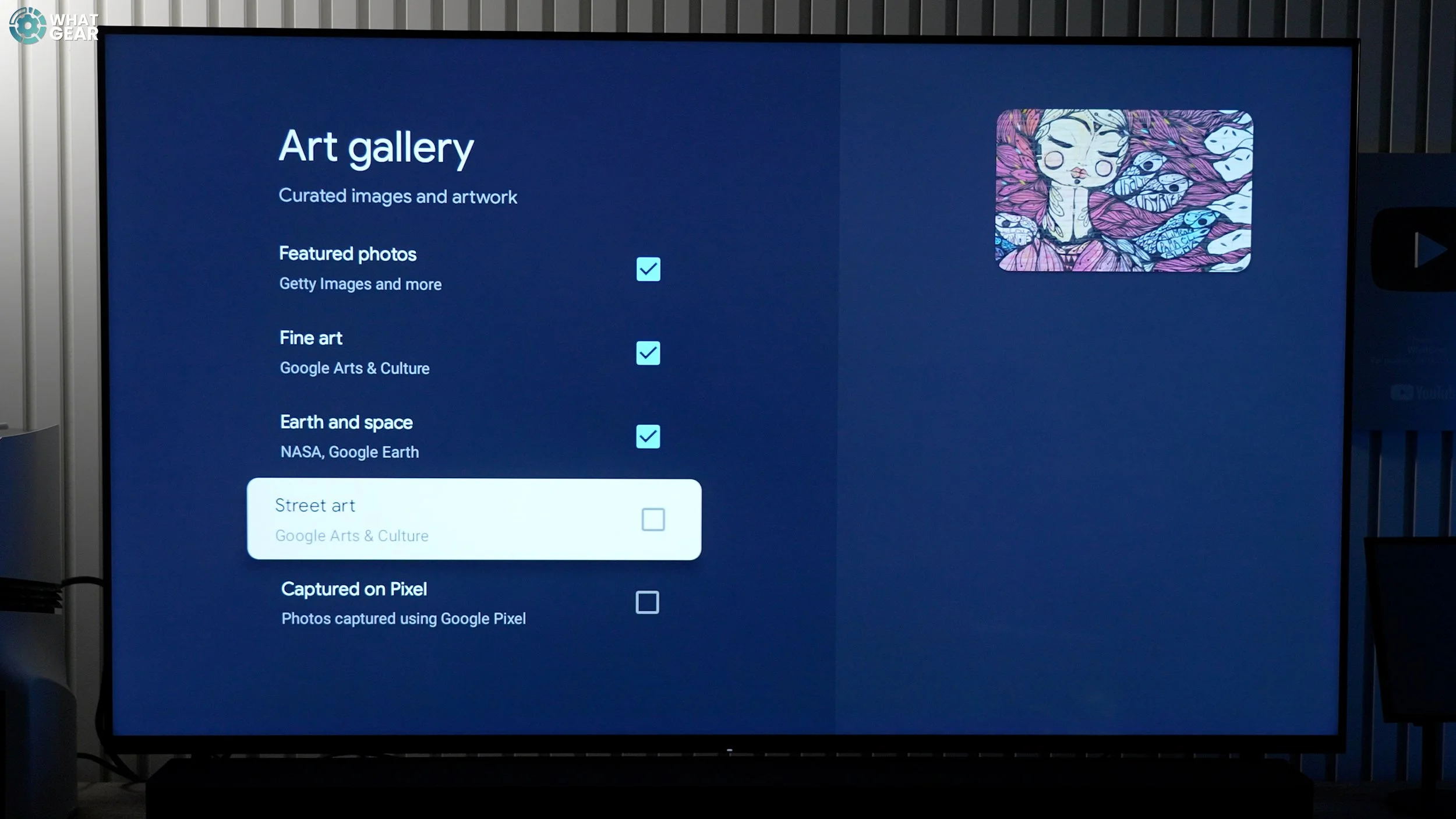
Now, if you tap the down arrow, you can access the screen saver settings and choose what you want it to show. And you can even add your own Google Photos Album if you want. Or, if you prefer, you can make use of Google's 'Living Decor' app, which offers a slightly different setup and some ambient background music.
Acoustic Auto Calibration
Okay, this is specifically for you if your only plan is to use the built-in speaker in your Bravia. Making these changes will dramatically improve the sound quality.
Settings / Picture & sound / Ambient Optimization Pro / Acoustic Auto Calibration.
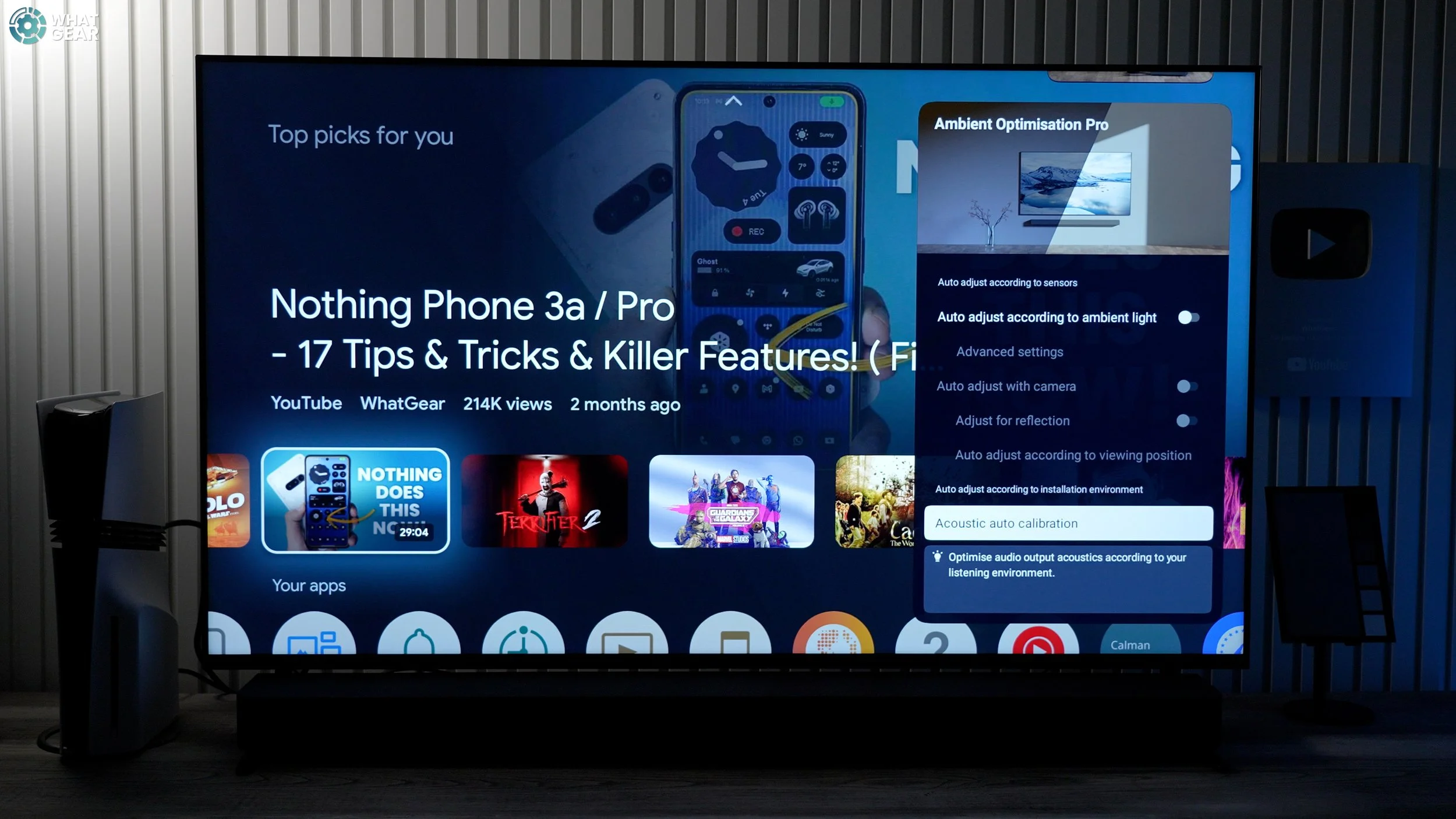
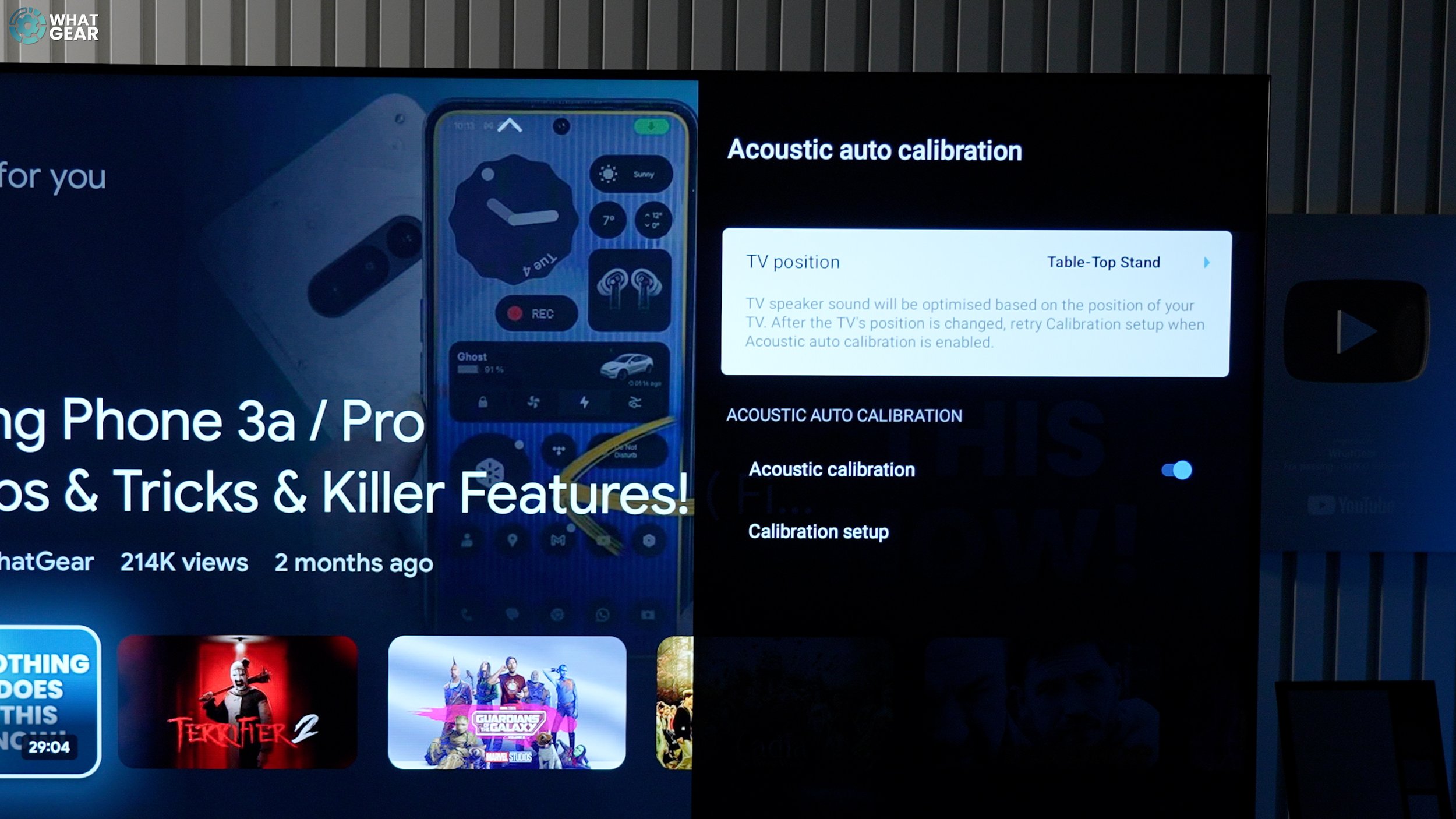

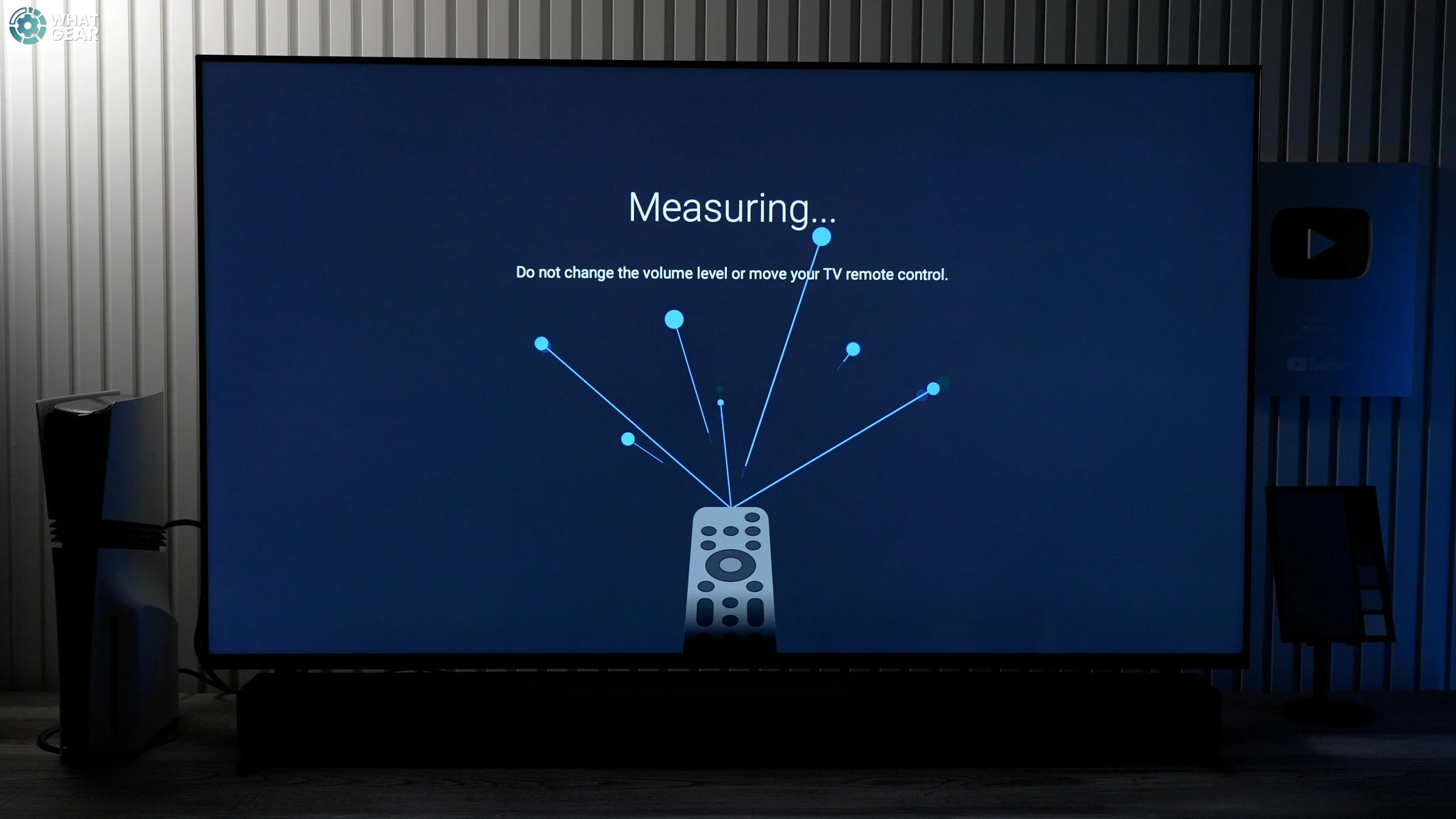
Here, make sure your TV placement settings are correct, and then run the Acoustic Auto Calibration. Make sure you are sitting in the spot where you normally watch the TV from. This uses the mics built into the Bluetooth remote to fine-tune the sound for your room.
TV Speaker Setting
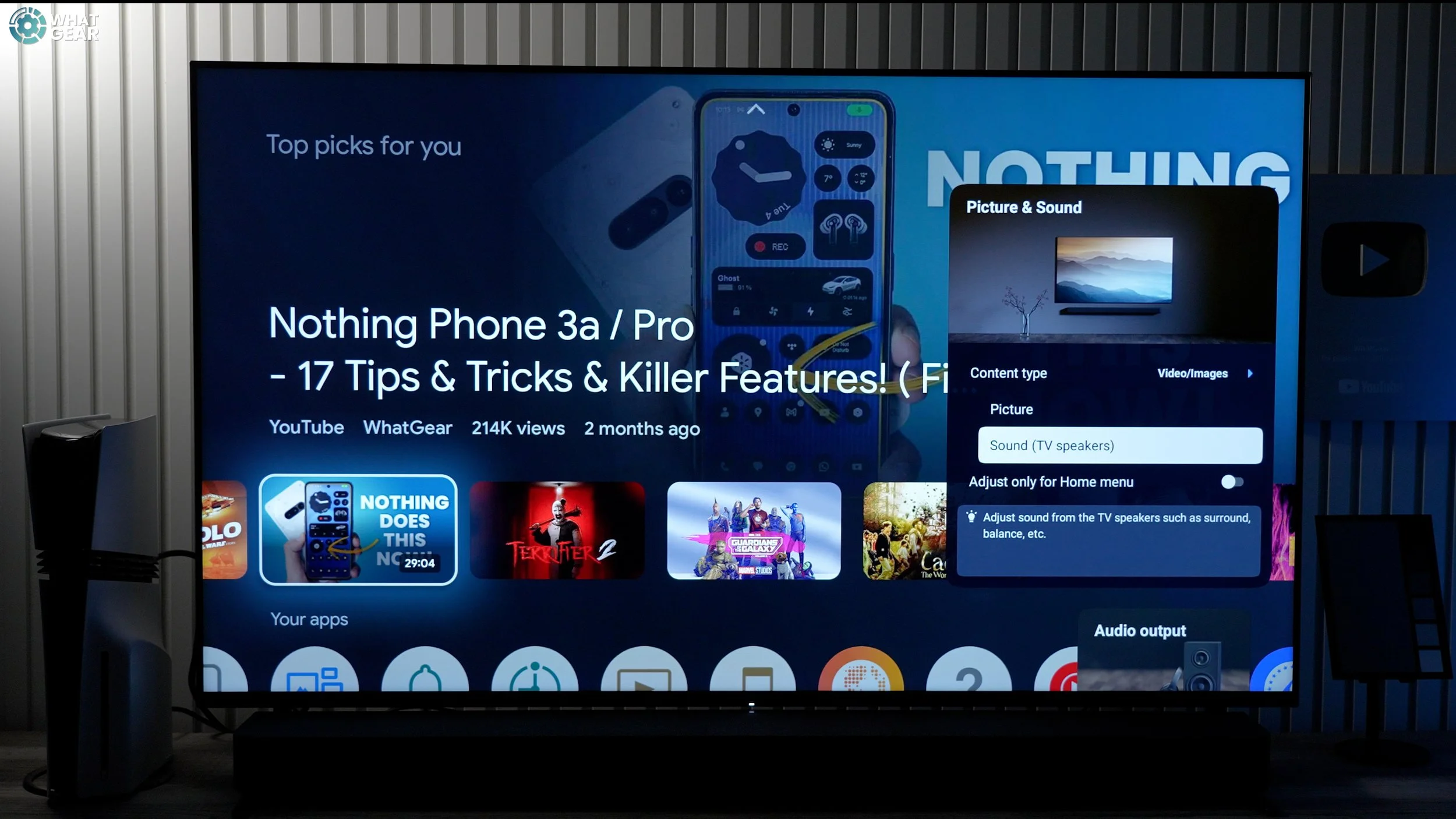
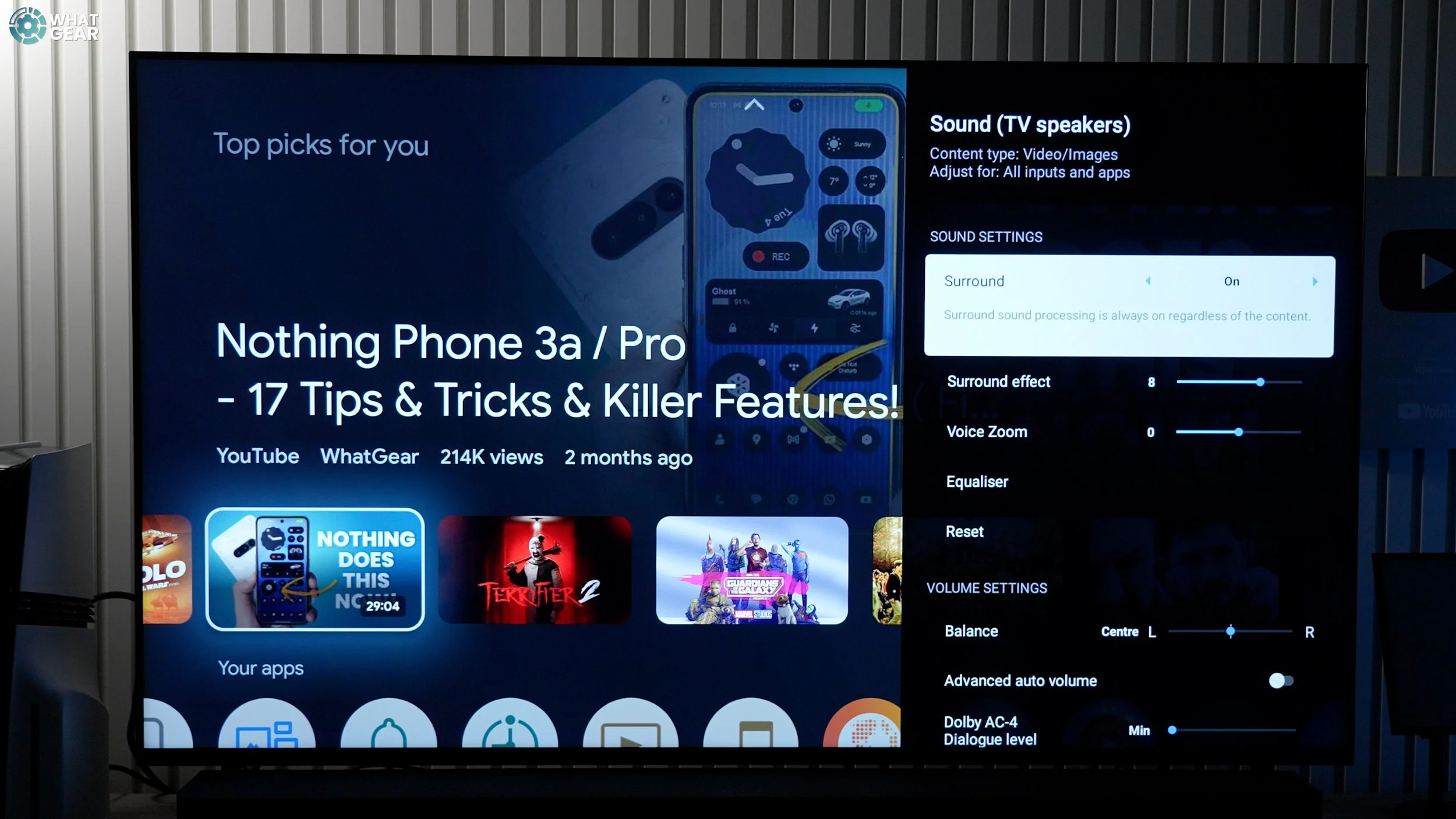
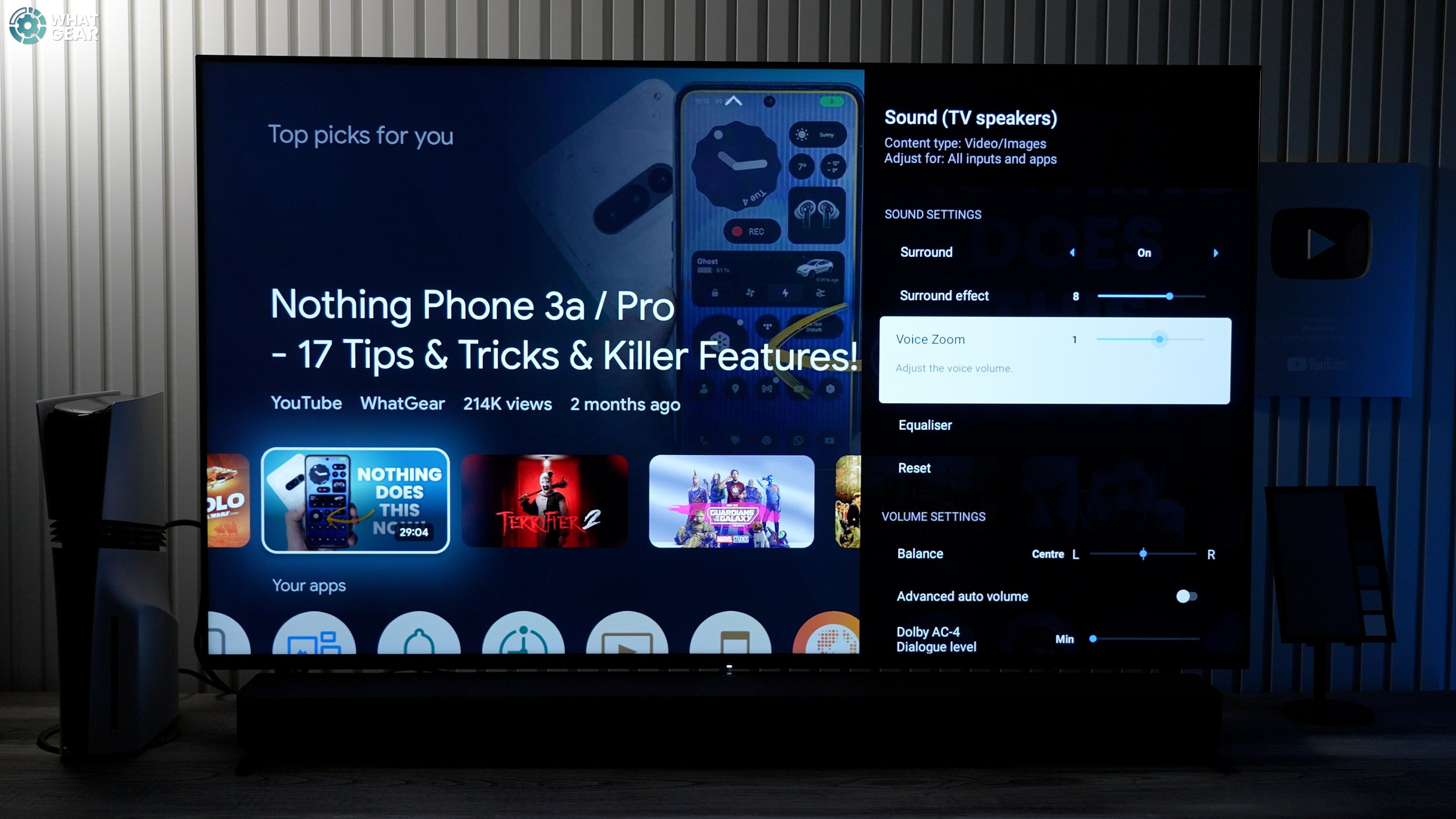
Okay, here is another quick one that is important if you're only using the built-in speakers on the TV. Go to settings/picture and sound/sound. You might want to turn on the 'surround' processing & play around with the surround effect slider until it sounds right for your room. This can add a more cinematic effect.
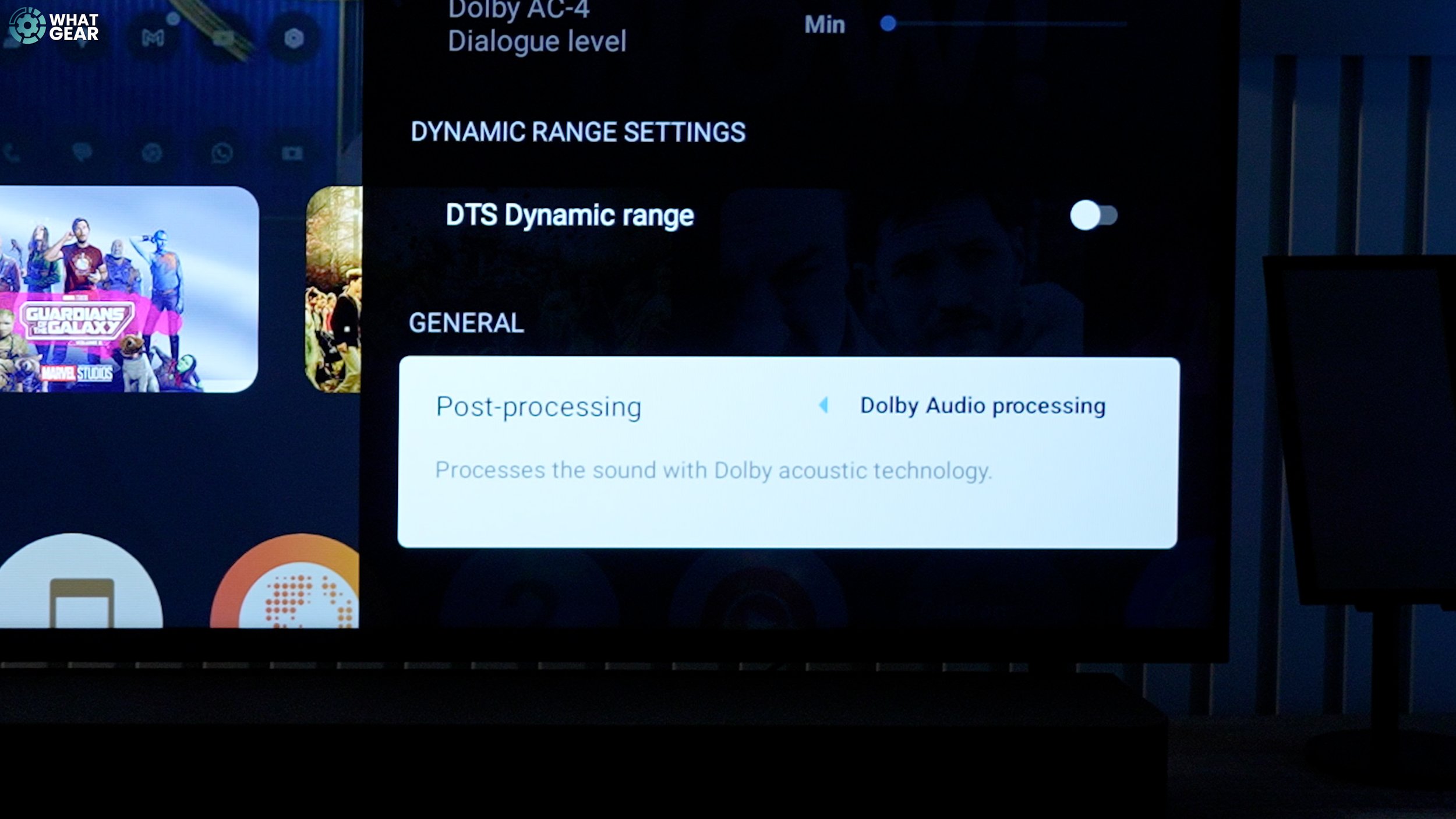
And if you scroll to General, you can improve the post-processing by switching it to Dolby Audio. But, if you do use Dolby post-processing, you can't use one of the Bravia's unique voice clarity features.
Voice Zoom
Which is voice zoom. You can access it from this same menu. But you'll probably want to adjust this on the fly. Here's how to do that: let's say you're watching a movie and the music and noises are overpowering the dialogue; you can just hit the quick settings button & you can access the voice zoom levels from here. You have to decide if Dolby processing or voice zoom is the better option for you.
HDMI Signal Format
When it comes to using HDMI input sources, there are some settings you need to check to make sure that you're getting the best possible signals to your TV.
Go to settings / all settings/channels & inputs / external inputs / HDMI Signal format.
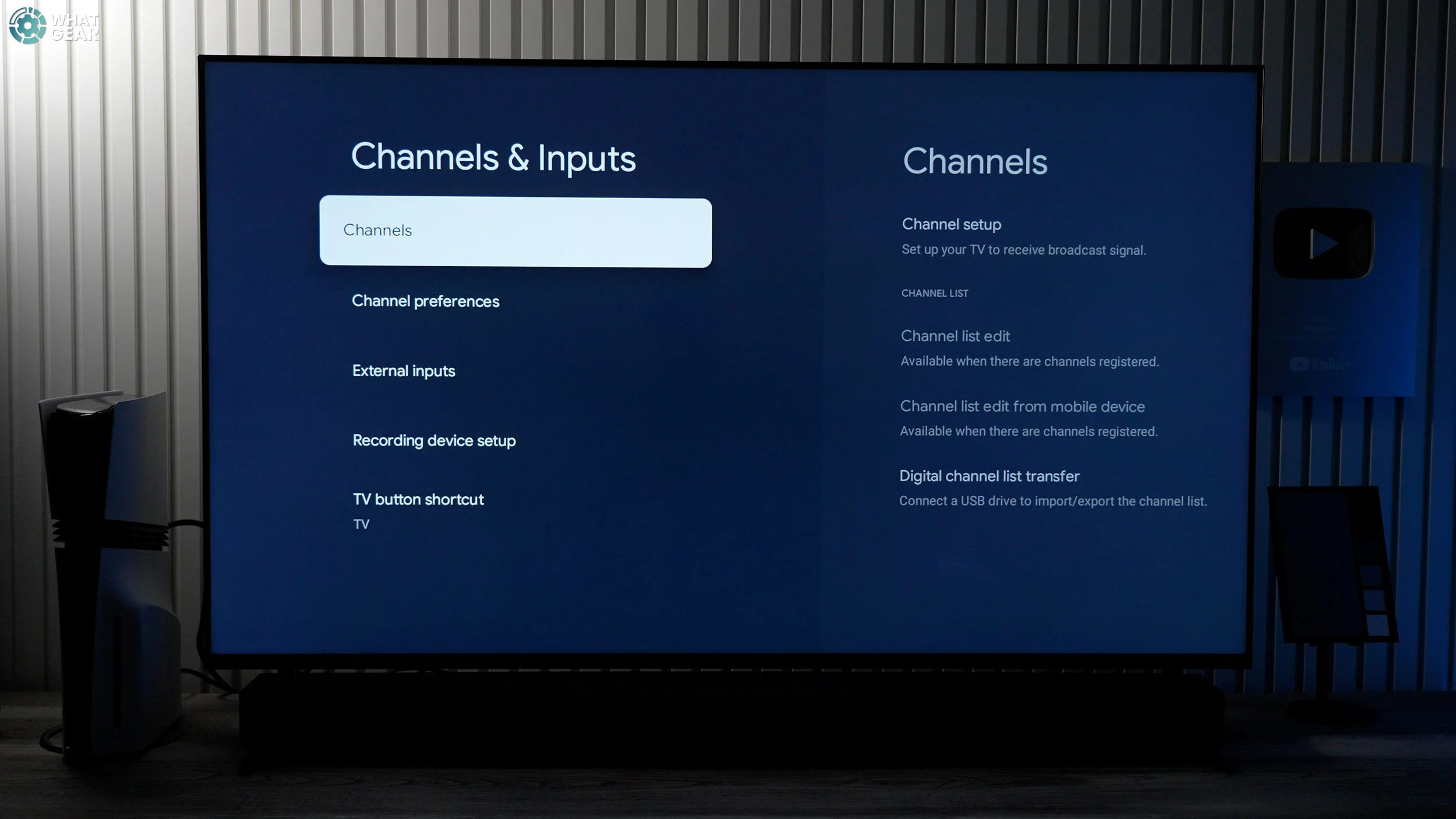
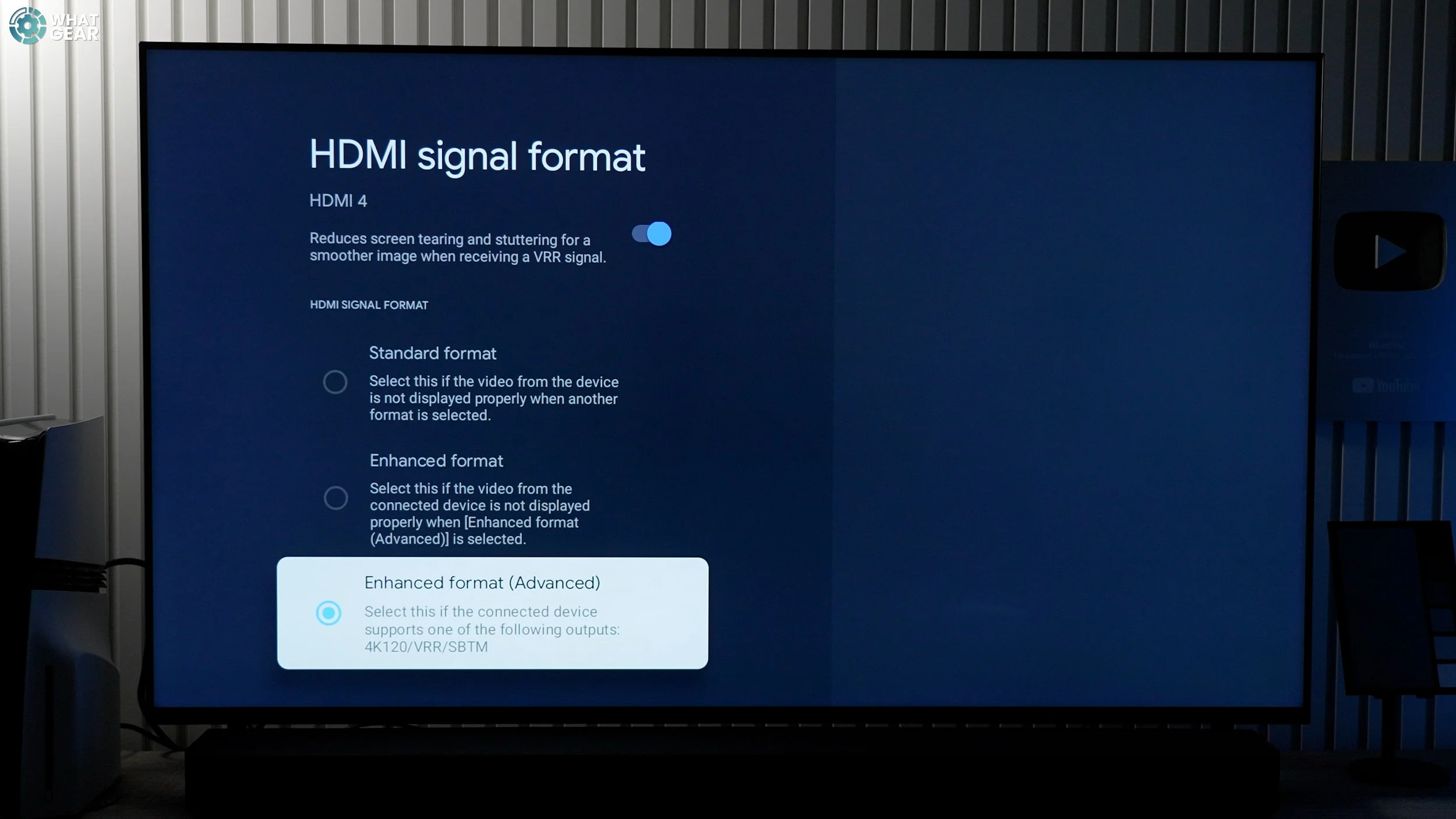
If you've got game consoles, Blu-ray players, or even a PC plugged into one of the high-speed ports, make sure the format is set to Enhanced to make sure you get the best picture possible.
HDMI Bravia Sync
If you go back one step, there is one convenient setting worth switching on on day one. On the External Inputs page, go to Bravia Sync settings. Make sure the switches are all on and go to 'Bravia sync device list.'
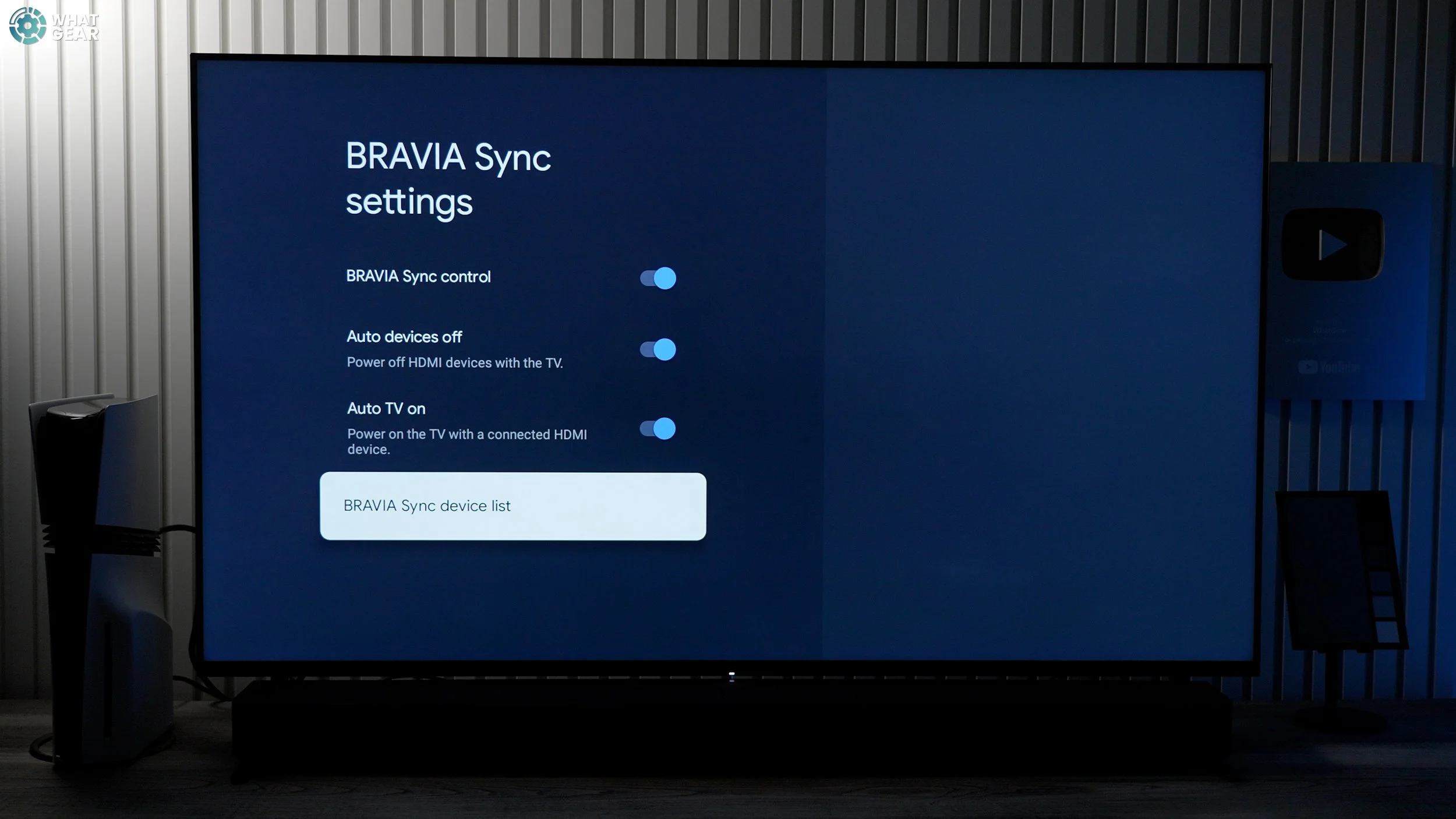
This tends to happen automatically with Sony stuff. But if you're using other hardware like an Xbox, for example, just make sure that they're on and then hit enable to get this working. Now, when you power up any attached HDMI device, the TV powers up, and if you power down the TV, all the attached HDMI devices also power down... all in sync.
BT Listening Profile
Something that you might want to do at some point is pair up some Bluetooth headphones or earbuds. It's really easy to do.
Push settings / Bluetooth / pair accessory.
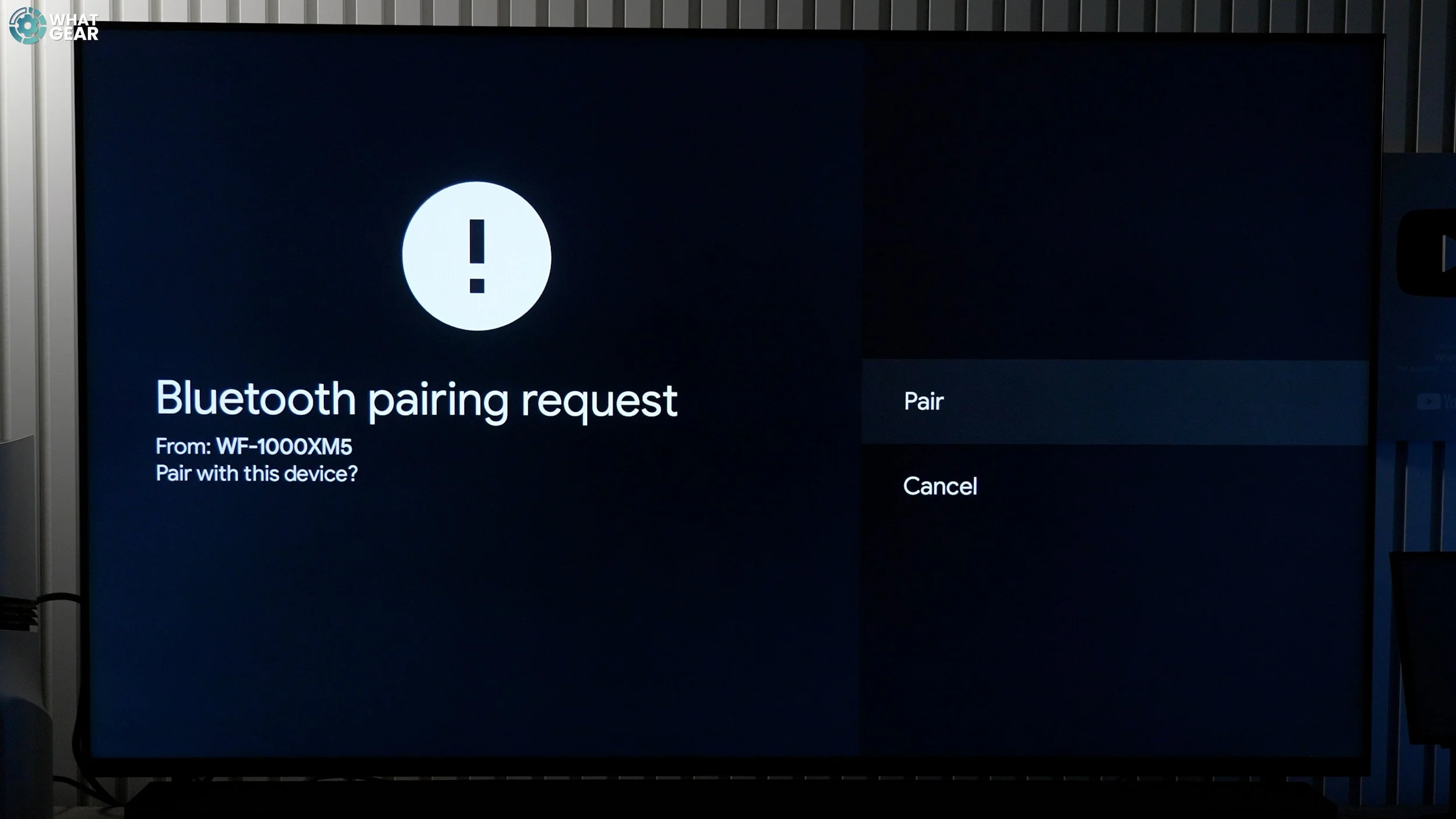
This is the same way you can pair a PlayStation controller. And there's some fantastic news here: if you own Sony Headphones like the XM6, when you connect them up, it imports your hearing profile and dials in 3D surround settings automatically for you. The TV also does a good job of syncing up the audio with the picture.
Clean Up Your Quick Settings
Okay, this next customisation hack is a great way to optimise how you use your TV. For example, when you want to quickly switch to headphones or back to a soundbar or TV speakers on the fly.
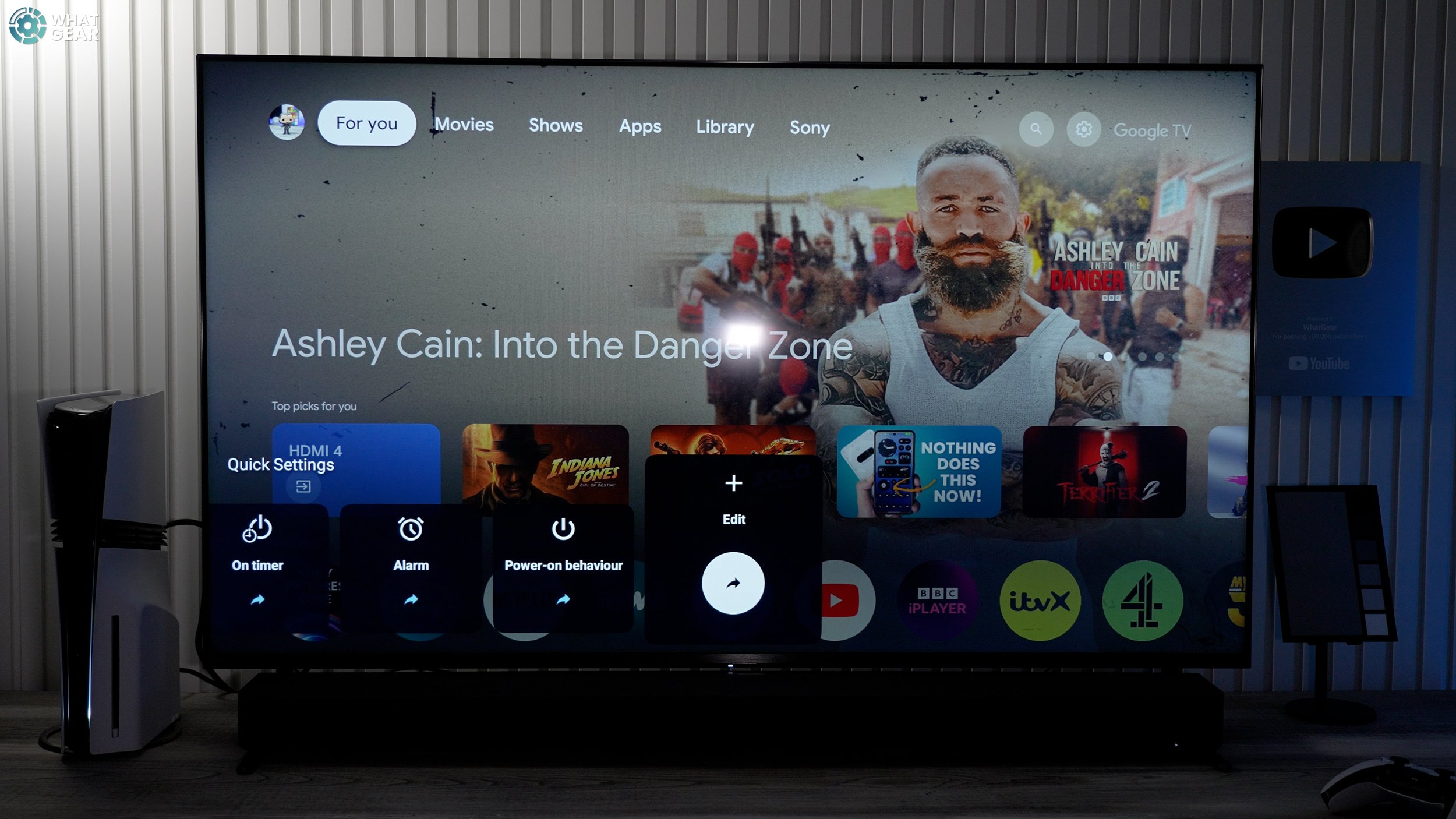
If you tap the quick settings button, scroll all the way to the end, and hit edit. Now you can switch off everything that you'll never use. Spend some time customising this because it can save you a lot of time in the long run. And thank you for making it this far into the video, and I've saved a few bonus tips for you guys as a reward for making it this far.
Bravia Connect App
Now, if you didn't set up the Bravia Connect app on your phone during the setup, maybe someone else set up the TV for you. I'd recommend you get it installed on your phone because it gives you quick access to the most important features without having to navigate through all the menus on the TV.

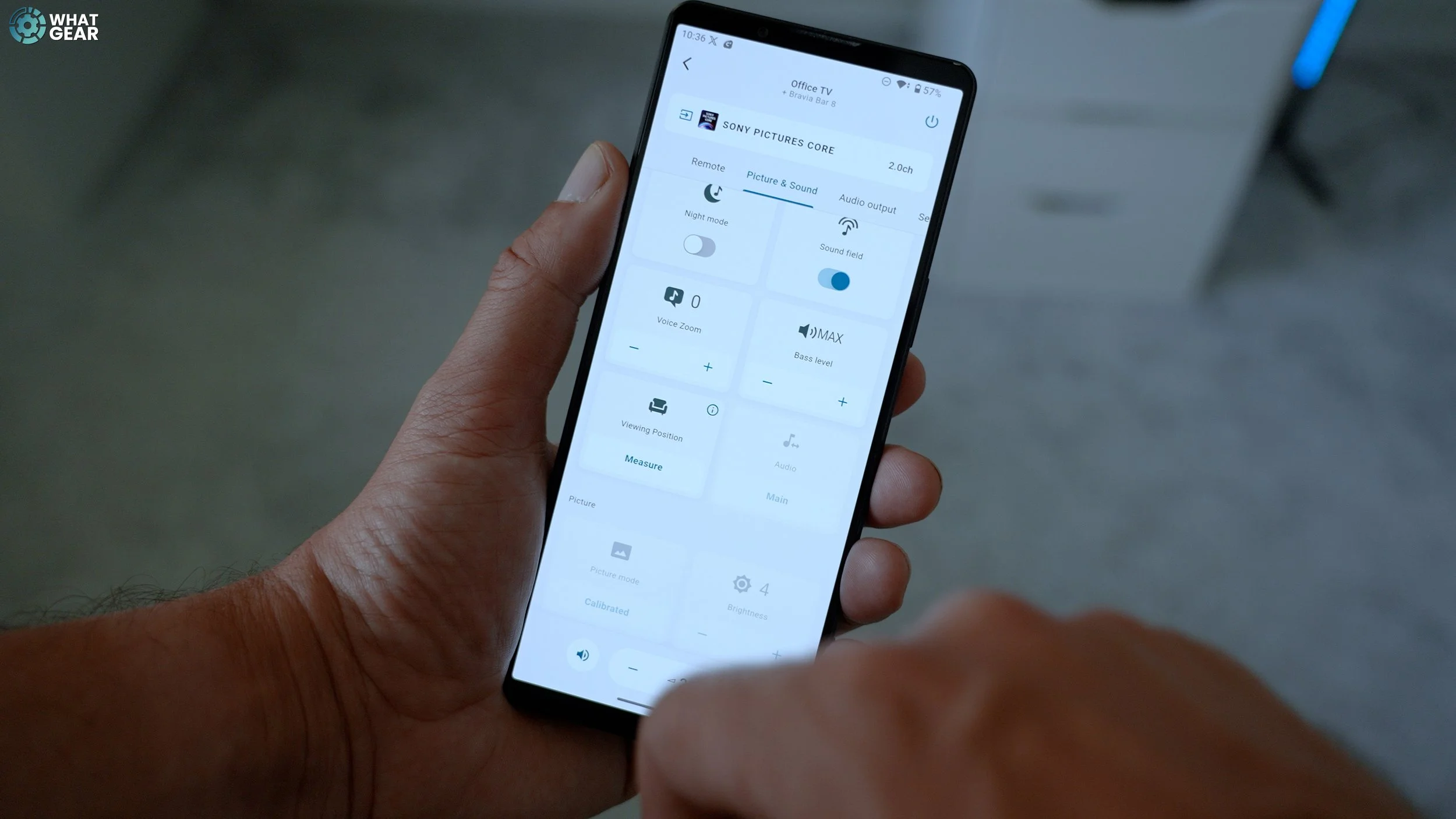
And maybe most importantly, you have the viewing position measuring feature, which you can access at any time to calibrate the sound. You also get easy access to voice zoom and night mode here, as well as audio settings and even more advanced features.
Uncompressed Audio
If you are using a sound system or soundbar, you need to do this. Go to settings/picture & sound / audio output / audio system settings / Digital audio output.
If you're using an Atmos soundbar, then change this from auto to 'prioritise pass-through.' If you don't have Atmos, but you do have a high-quality audio speaker setup, change this to PCM.
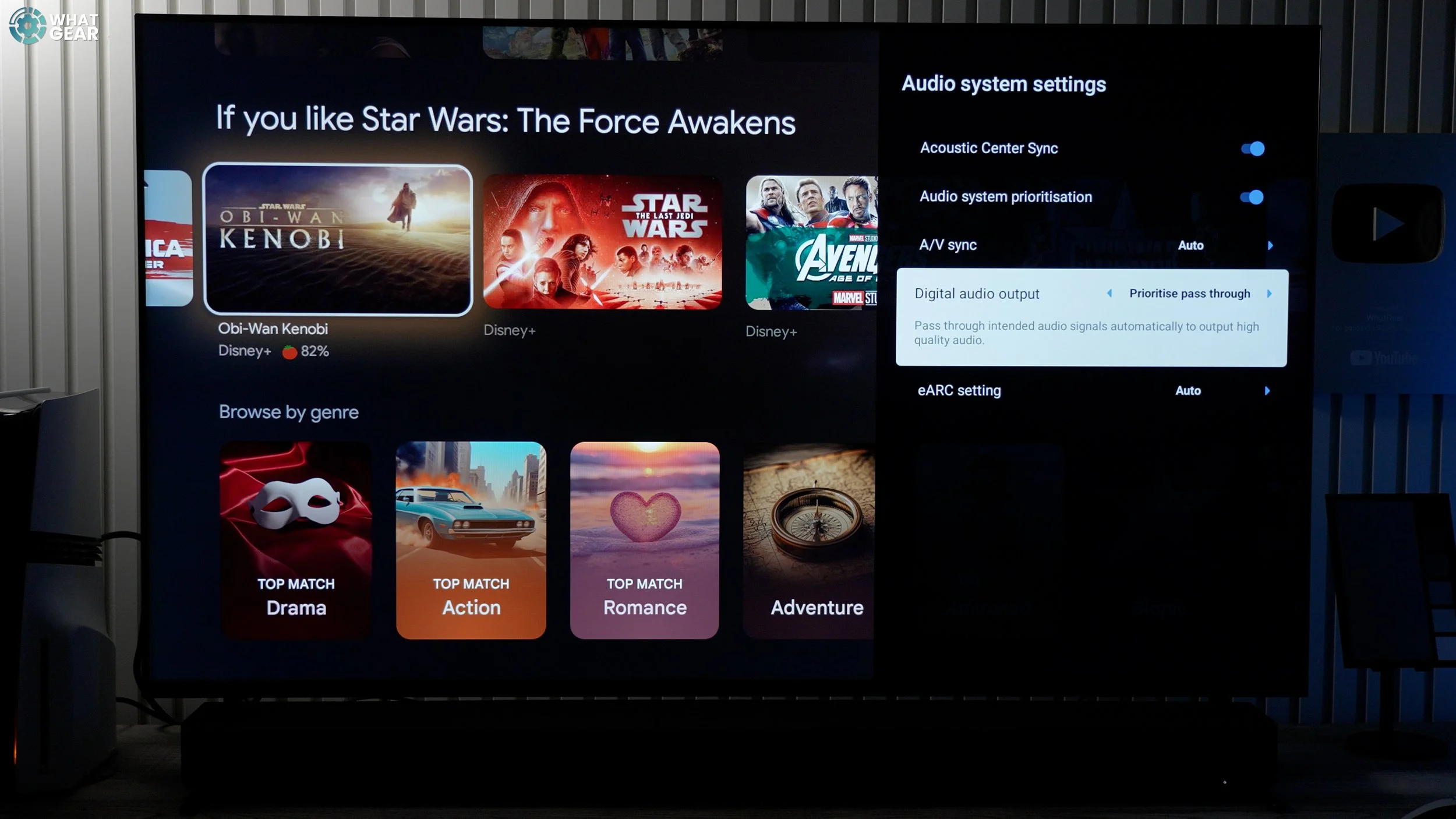
Leaving this on auto will compress the audio sometimes, which means you won't be getting the best quality sound signals to your speakers.
System Sounds
Something you might find a little frustrating over time is the system sounds every time you navigate the UI. If you want to turn this off, go to Settings / all settings/system / system sounds.
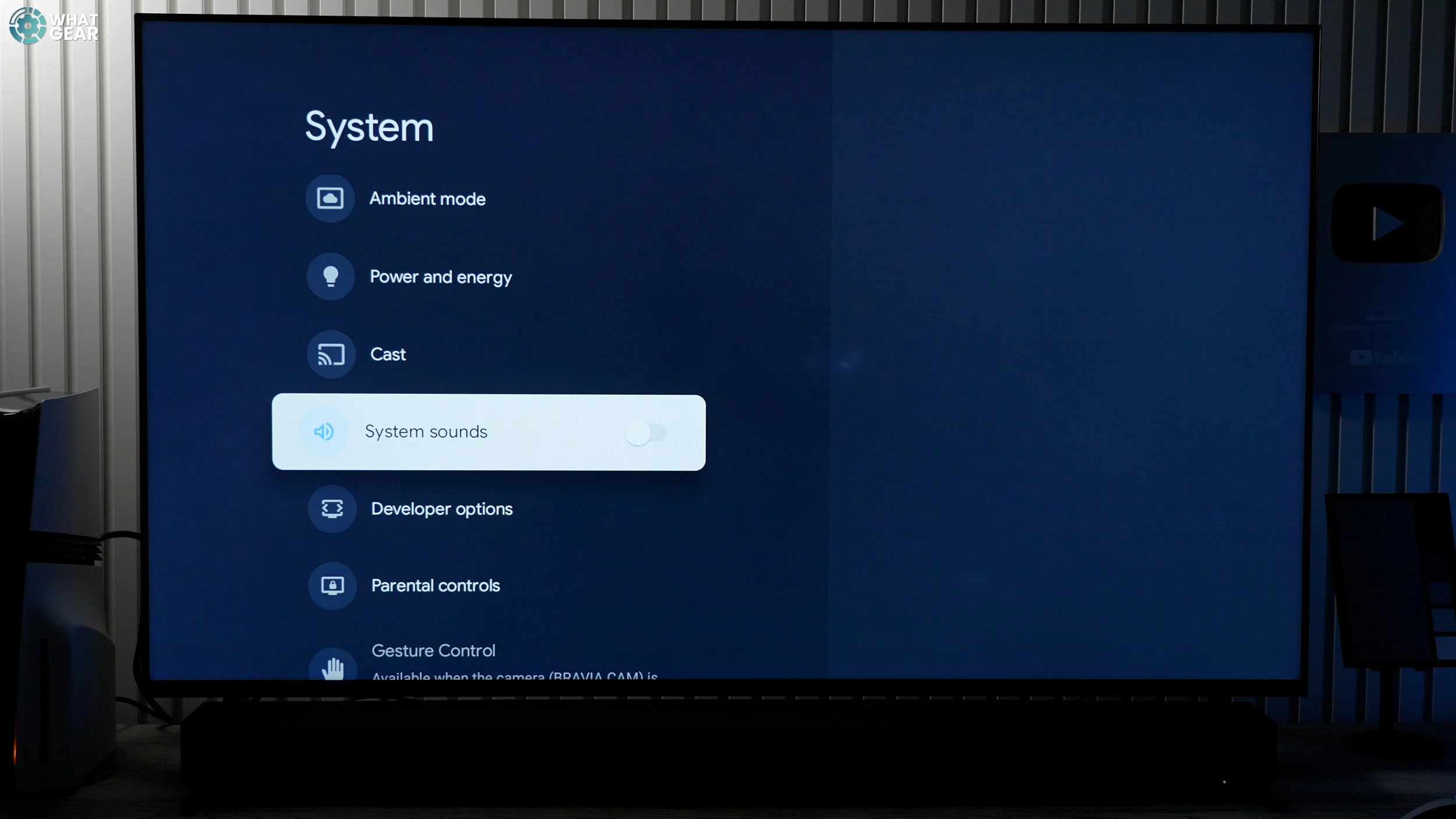
I wish there were a way to just turn this down or change the sound to something more subtle. As of right now, it's either on or off.
Reset
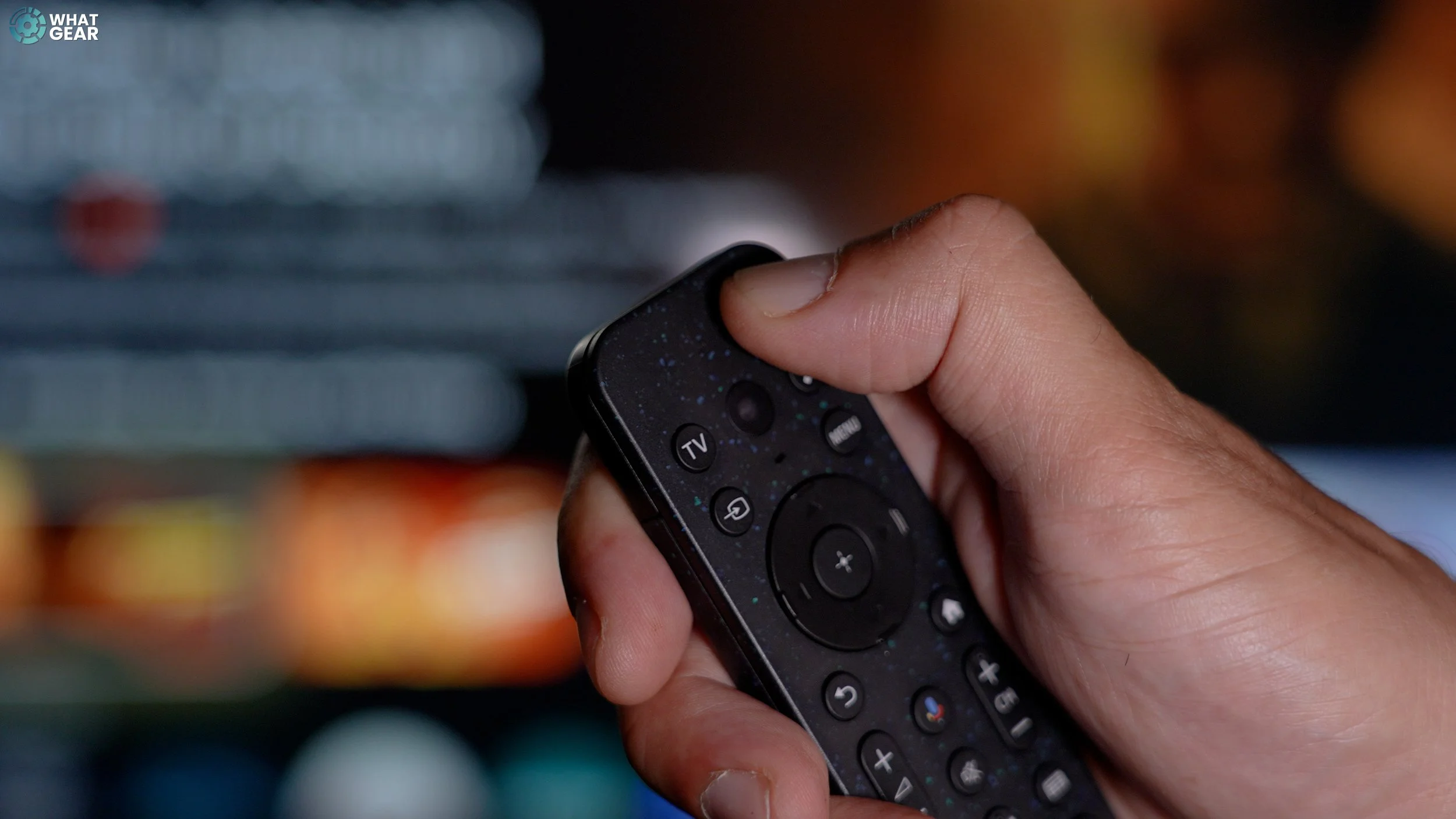
If, for any reason, you need to reboot the TV, you might be tempted to pull the plug or switch the TV off at the socket. But why get off the sofa when you can do this: hold down the power button, hold it down, and go to restart. This power cycles the TV remotely.
Lock Apps
This is just a quick one for you parents out there. I'm assuming you probably won't want to arrive home one day and find your kids binge-watching The Walking Dead or something.
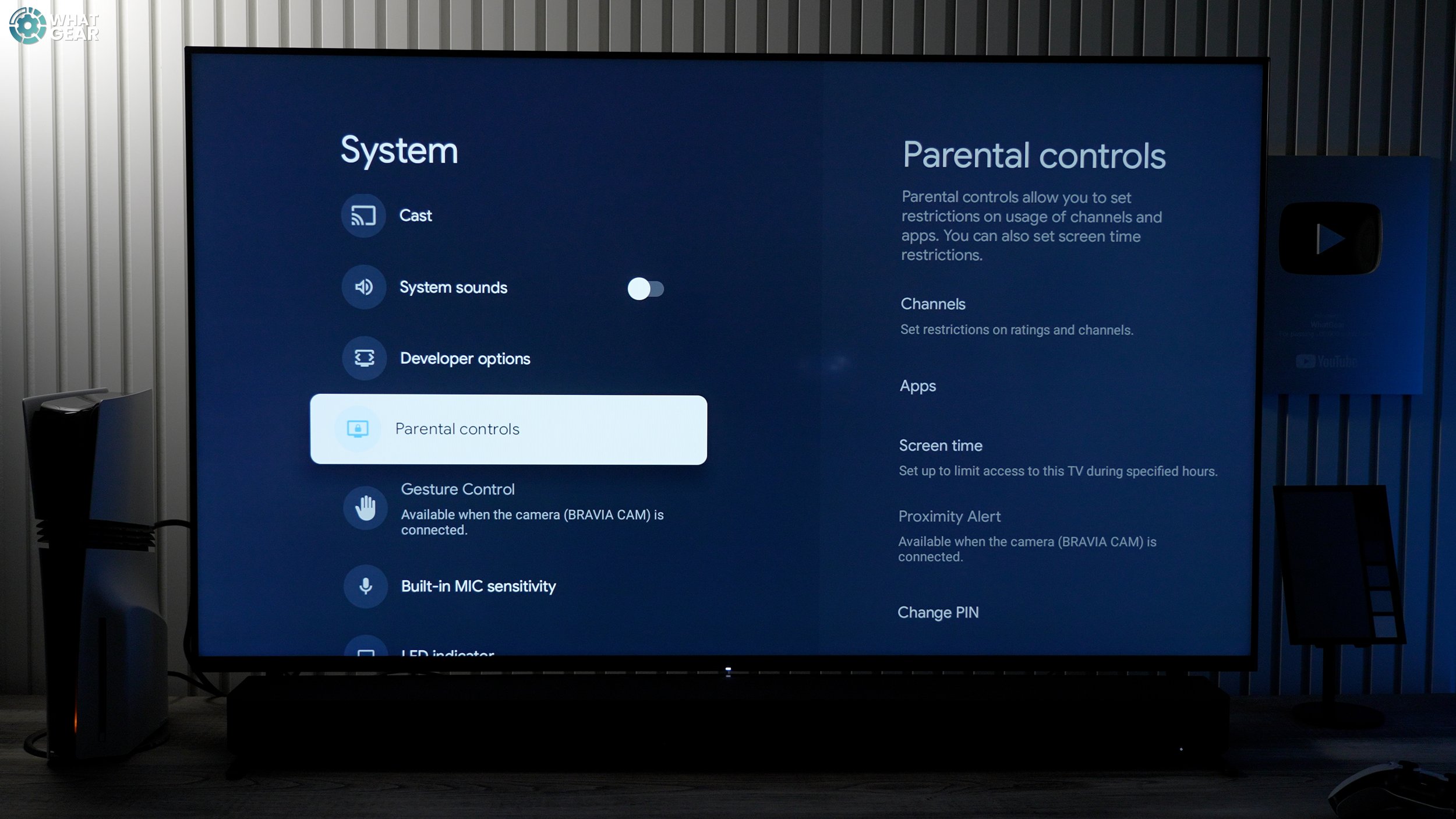
Did you know that you can control access to any or all of the apps on the TV? Let me introduce tools that you can use. Settings / all settings/system / parental controls. Here, you can set up a parental PIN and limit age-restricted content on TV broadcasts, and you can also lock specific apps with a PIN.
Make It Faster
Okay, this is the most well-hidden trick that I don't think anyone has shown you yet. Doing this will make your TV's software feel twice as fast. And it's quite simple, really.
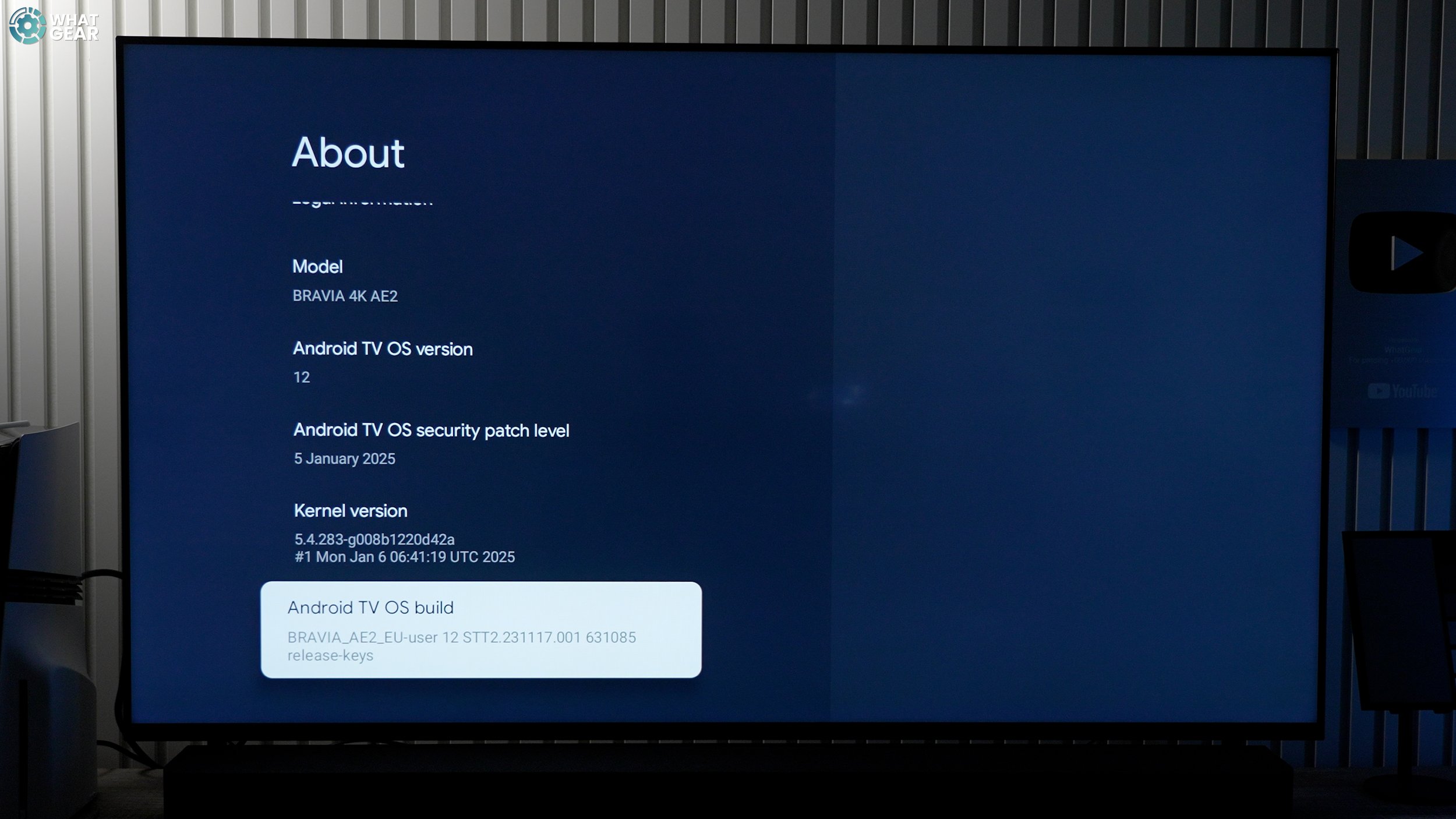
Go to settings / all settings / system / about / build number / tap 7 times. This unlocks the top-secret and hidden Developer Options. Now, if you jump into this hidden menu and scroll down, you'll find the transition animation scale. As standard, they're always set to 1, but if you want your TV to feel fast, set them to 0.5, and you'll notice the difference immediately.
Now listen, if you've watched this far into this video and you don't have a Bravia TV, you might be like, but don't worry, there are some amazing deals out there right now. I'll link them in the description. And if you got any value out of this at all, please let me know. And don't forget to subscribe. See you in the next one. Don't be late.
