
Galaxy A57 - First 10 Things To Do ( Tips, Tricks & Hidden Features! ) Part 2
I show you how you can easily customize and personalise your galaxy, and I even show you a few tricks that only the pros know. You just have to think 14 moves ahead, that's all. Remember us. Welcome to part two of three in this Galaxy A57 Tips and Tricks series. In part one, I showed you how to unlock max performance; here in part two, if you stick around by the end of this video, you'll understand how to customise your phone like a pro. And trust me, it is easier than you think.
Quick Panel Reorganisation
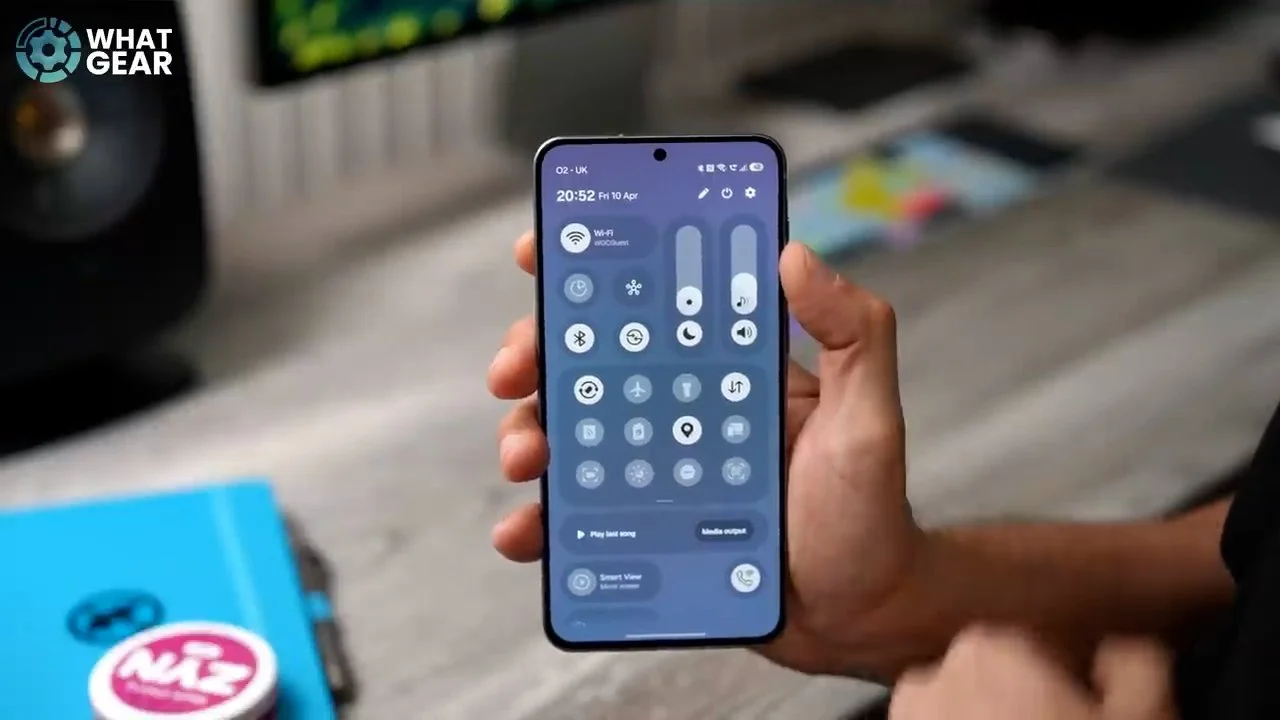
So let's start with the customization of the quick panel. So if you bring down the quick panel top right corner hit the pen here. You can actually resize and reorganize this entire area. So if you want the Wi-Fi button to be a bit smaller, just grab it by the line there and drag it inwards. Just drag the Bluetooth one inwards as well and put it over here. And if you want to, you can expand this quick settings area to be much bigger. And here's a little customization trick that not everybody knows about. If you delete the volume and the brightness slider from here and then go to add at the bottom and then re-add them, it will add them to the bottom here. And you can actually drag this inwards and down so it becomes vertical. We'll do the same with the volume slider into the long shape like that and bring it up. There we go, we got a volume and brightness slider in the vertical format instead of horizontal like everybody else.
Wi-Fi Calling
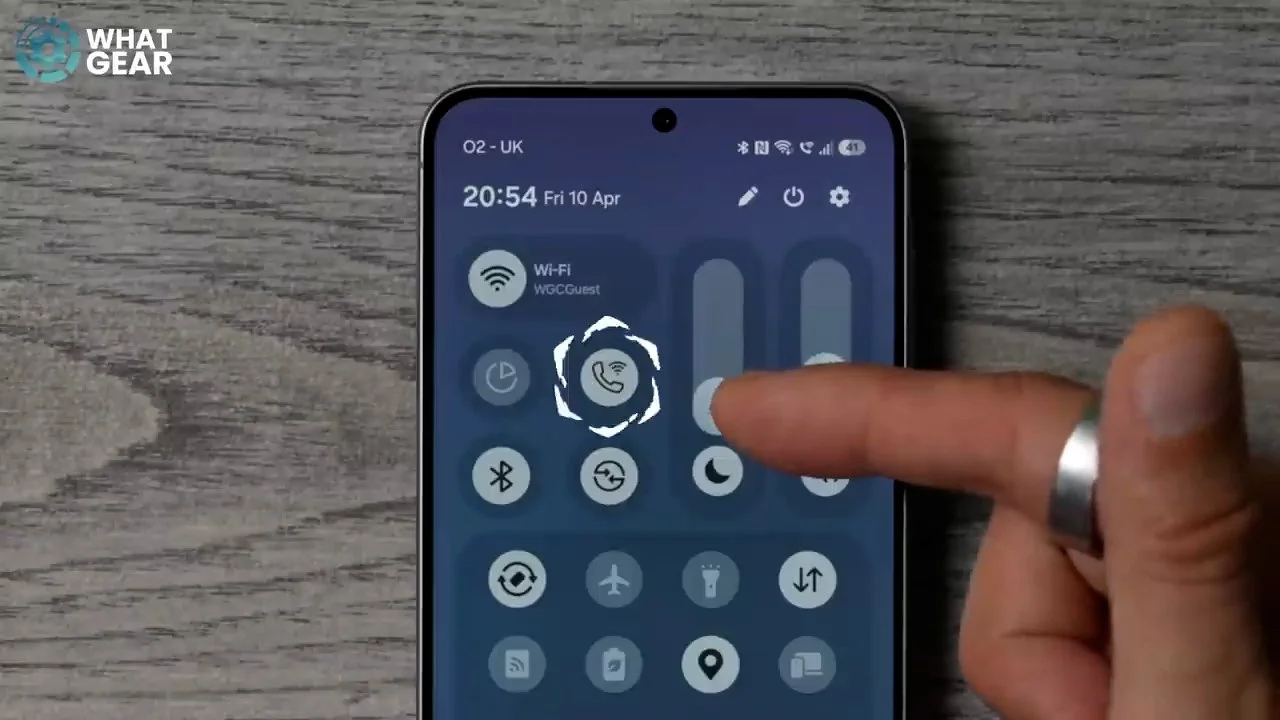
Here's a quick setting that you absolutely need to know about. If you ever get stuck with bad signal and maybe you're on Wi-Fi, let's say a hotel abroad or something, this will be extremely, extremely useful to you. So bring down the quick settings. Hit the pen here, hit the add control at the bottom. Right near the top, you should see Wi-Fi calling. Tap this and add it as one of your easy-access quick settings. With this active, whenever you have a bad signal, you can make phone calls from your own phone number as usual over Wi-Fi instead.
Home Screen Grid and Icon Size
Now, the Galaxy A57 has a fantastic display and it's a big screen, so I personally do this. This is entirely optional, but you might want to know about this. So if you hold your finger down on an empty port screen and go to settings here. This jumps you to your home screen settings, where you can change the size of the home screen grid. So I actually like to have five by six. This gives me more room per page so now you can have five docked apps and five apps per row.
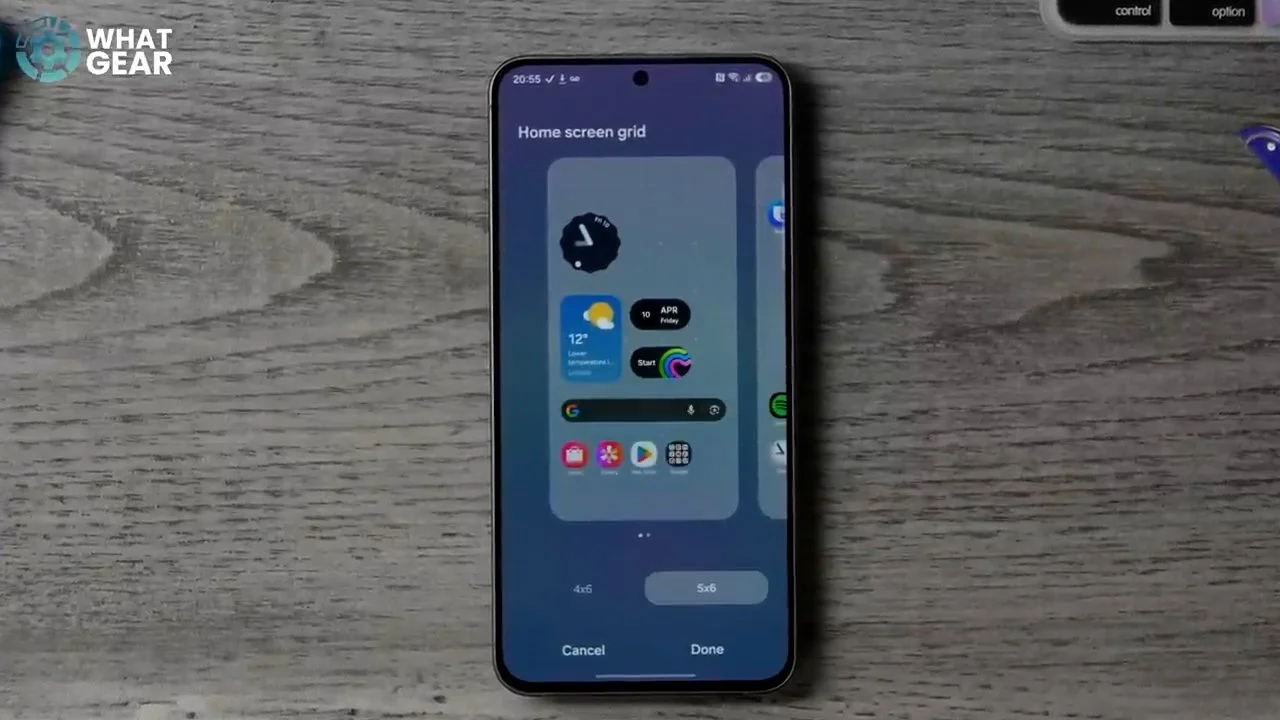
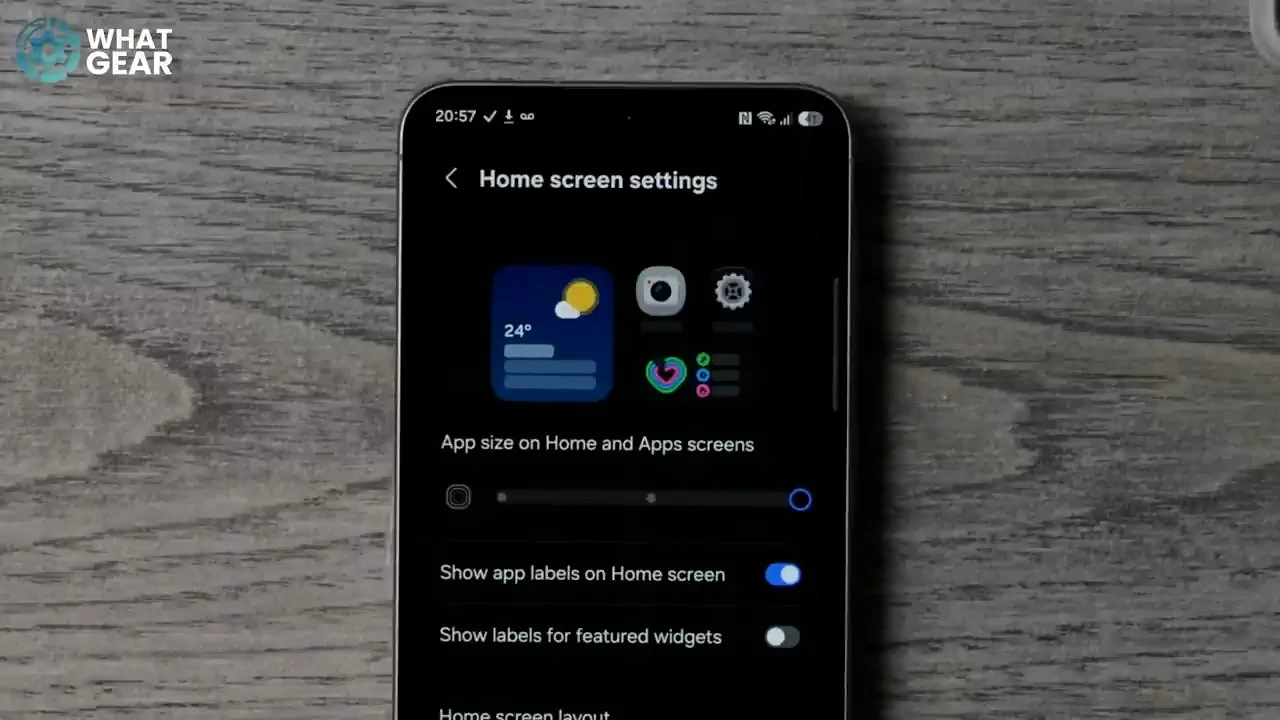
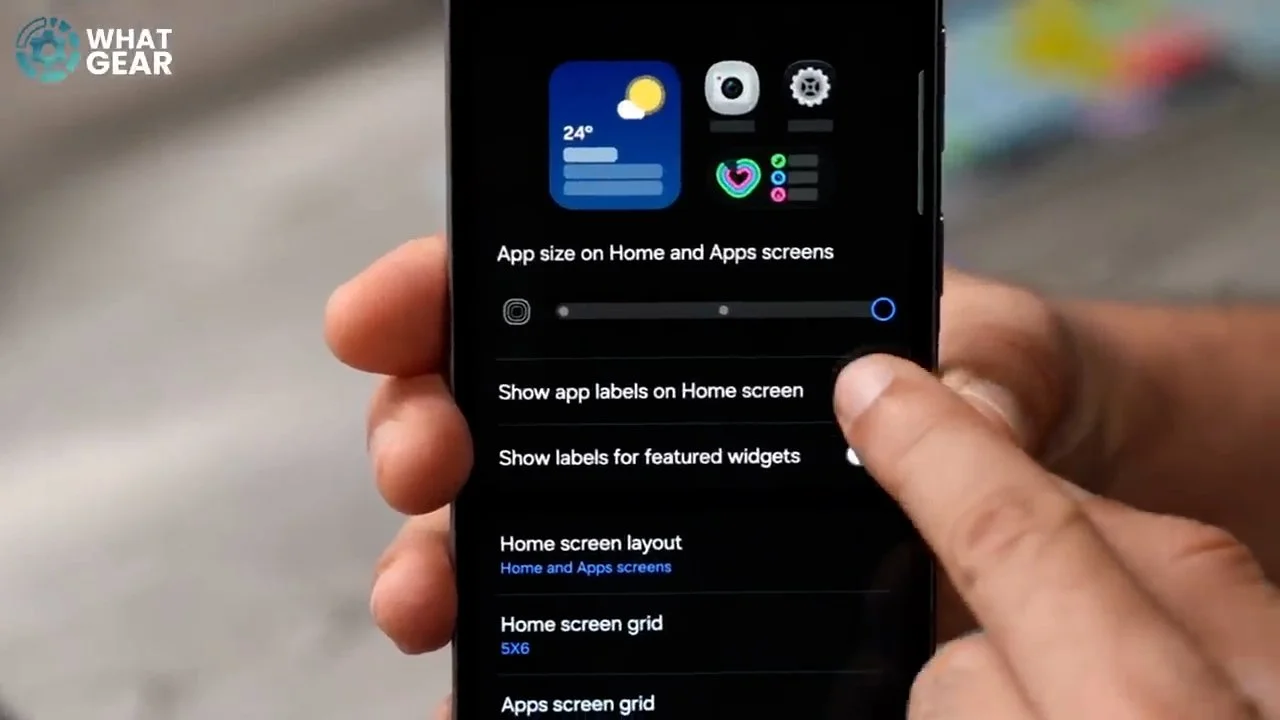
Yes, the app icons do get a little bit smaller, but if you want to increase them back to the original size when you had less icons per page, I want to show you how to do that right now. So once again on your home screen, hold your finger down on an empty space and go to settings. Right here at the top you'll see this slider. If you want the apps to be larger, you can just slide this to the right and that increases the size of the apps.
Clean Home Screen
Now something else you might want to do, especially if you're very familiar with all of the app icons, is this. Hold your finger down on the home screen, go to the home screen settings again, and then switch off "show app labels on home screen". This cleans up the home screen a lot. I'm personally very familiar with all the app icons—I don't need the text underneath to tell me what they are, and if you feel the same, then definitely switch off the labels.
Folder Styling
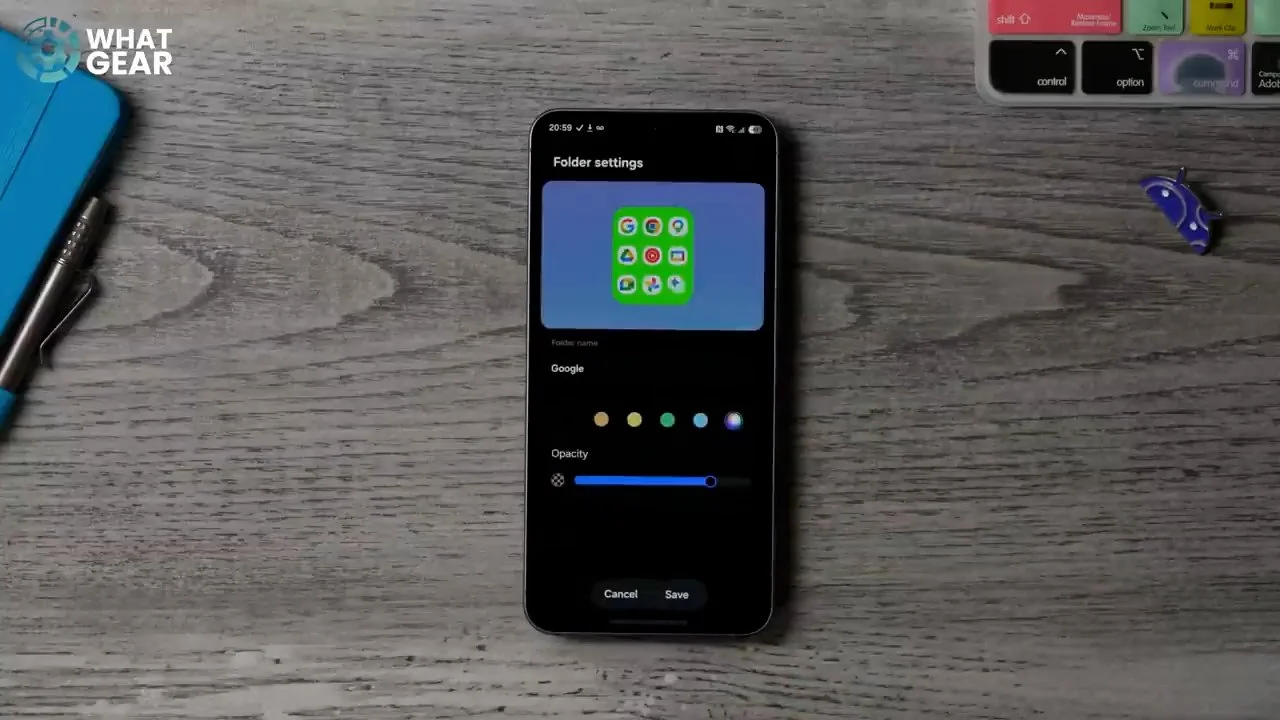
Okay, here's an organisational tip. So if you're the type of person who likes to create app folders, I think you'll appreciate this. So let's just drag this into a space like this. If you hold your finger down on a folder, you can enlarge it and make it bigger, of course. And if you hold your finger down on it again and go to settings, you can even colour-code that folder. So let's say all of the Google apps, I want that folder to be green. And we can adjust the transparency here. And if the green isn't quite right, you can just go to the little swatches here and choose the specific colour that you want. And do keep in mind they don't need to be big in order to recolour them—you can have them in the small format as well.
Edge Panel Handlebar
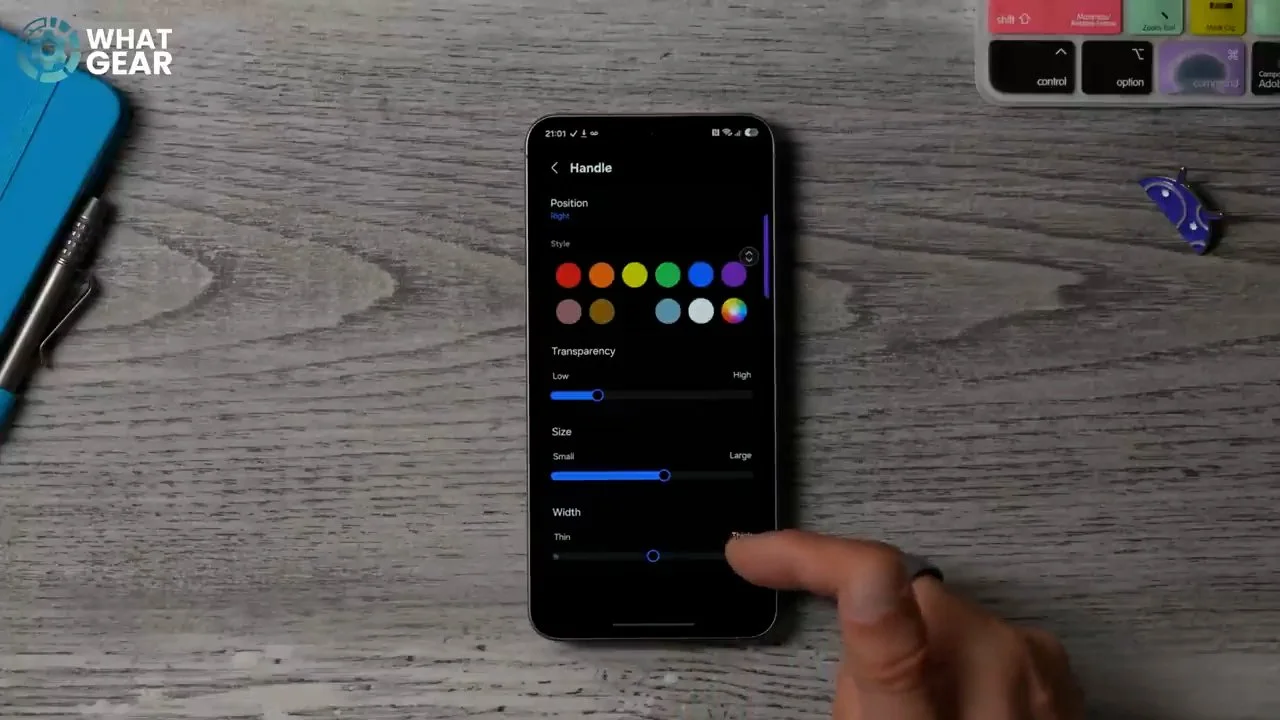
Here's another little colour-coding tip. See the little faint line here on the edge of the screen? That's your edge panel handlebar. You can actually restyle this to contrast nicely with your wallpaper. To do this, just slide out the edge panel real quick, and you see the settings down here. Tap on that before it disappears. Here you see the handle menu; tap on it. And this is where you can customise the colour—so let's make it purple. Actually, just make it a bit more of a bright purple, something like this, and we can change the transparency. So if you want it to be faint or bold you can do that. You can also change the size of the handle and you can adjust the width as well if you want it to be less visible. Keep it thin. And there we go, and you've got these little arrows here to adjust the exact position. I do recommend you keep it higher up the screen, because when you're swiping between pages, you don't want to accidentally hit that handlebar.
Advanced Wallpaper Customisation
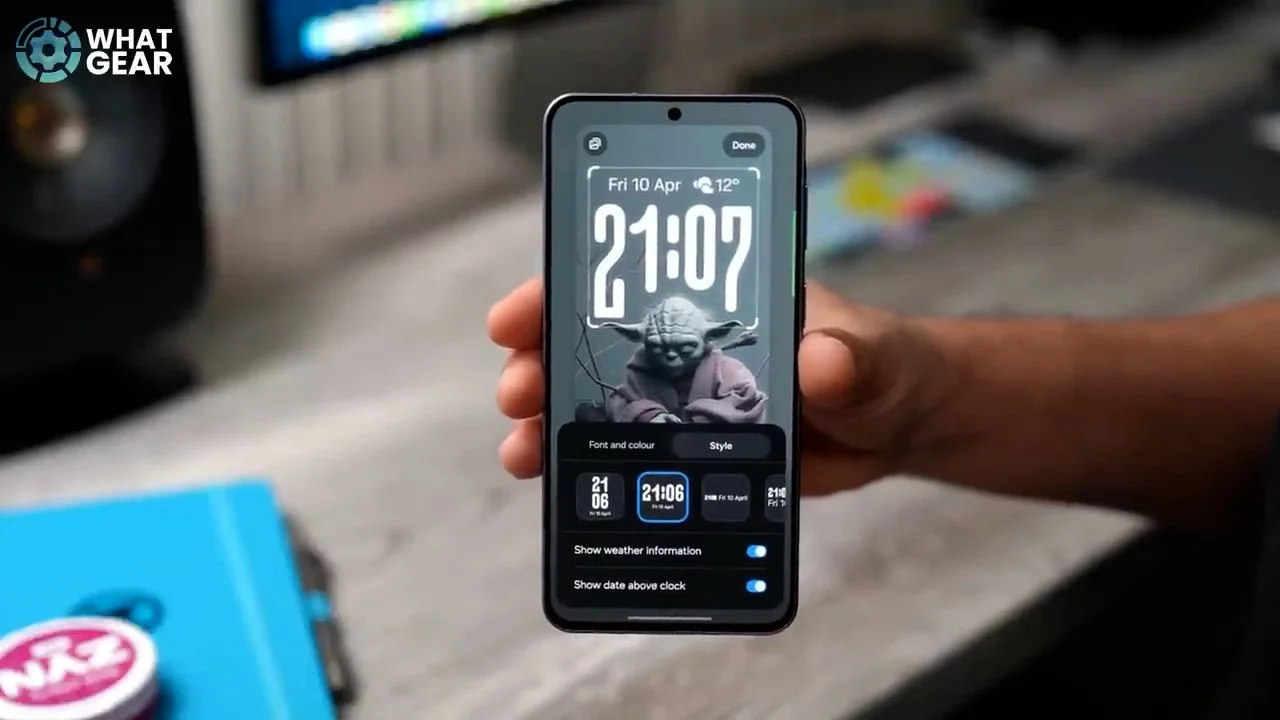
Now, I do realise that the first thing you probably will do with your phone is customise the wallpaper, so I might as well show you how to do that. It is very easy to do if you hold your finger down on an empty part of the screen, go to Wallpaper and Style at the bottom. Here you can go to change wallpaper and that will change both of these at the same time. At the top you'll see all of the featured wallpapers. I do like this dynamic one—it actually adjusts this colour throughout the day. You have various other options below as well, like a wallpaper carousel. But if you want one from your photo gallery, this is where you'll find it. So I'm just going to choose the Master Yoda one. This will apply that wallpaper to both of the screens, and if you just want to use it on one of them, you can untick one of the ones down here. And if you're happy with it, you can just hit done.
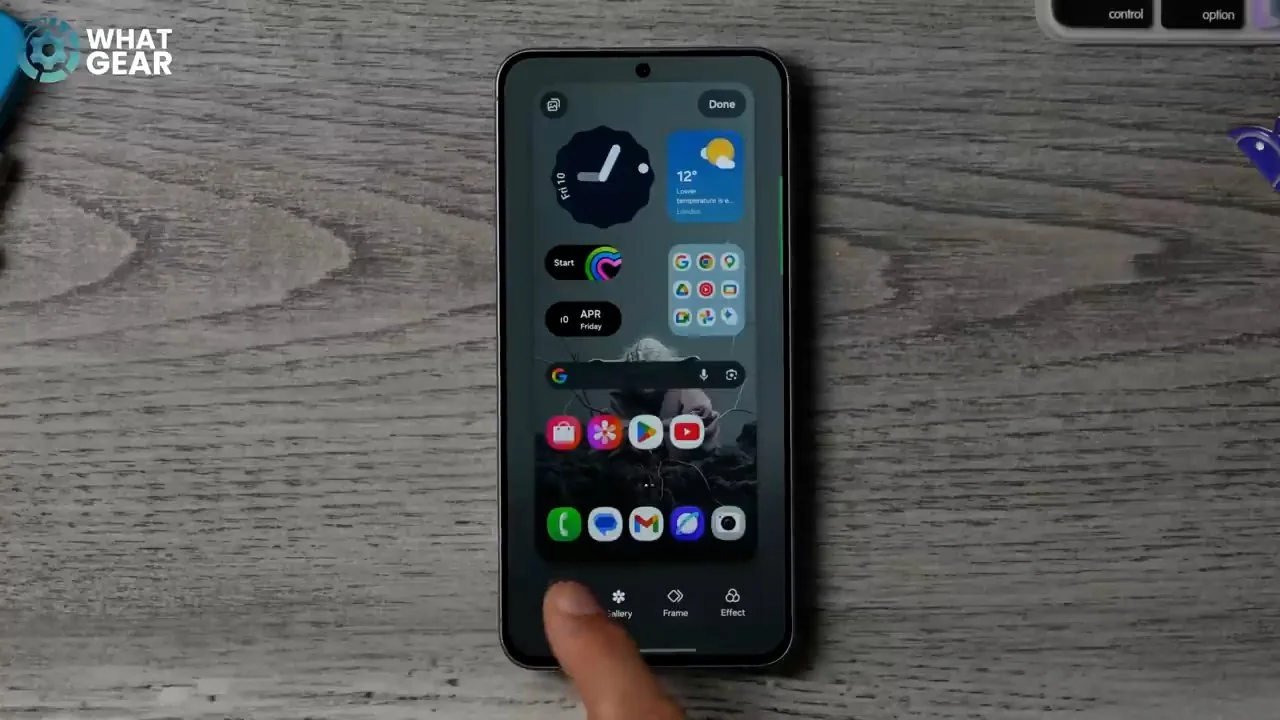
Now once you've found the wallpaper that you want to use, you can actually customise it on both of these screens independently. So here's how you can do that: hold your finger down onto the screen again, Wallpaper and Style again. This time I'm just going to tap on the home screen wallpaper. If you hit the suggest button, the phone will suggest various layouts for this wallpaper. Sometimes they're good, sometimes not so much. I'm going to hit back and then go to effect. Now here's a bit of advice for your home screen wallpaper: you don't want it to kind of distract you from the apps, or wash any of the apps into the background so they're hard to see. So I like to add a blur effect that just softens the wallpaper and makes the app stand out a bit more. But there are other options here, for example, grayscale colour, where you can adjust the colour of that wallpaper behind and still keep some of the image visible. And you can even change opacity here as well. There's also the dark mode, and you can add a little bit of a tint to that if you want to. Definitely have a little play around with the different effects that you can add to your wallpaper. But like I said before, my favourite by far is just the general blur.
Adaptive Lock Screen Clock
Once you're happy, hit apply. Now let's go to the lock screen. This is where things start to get interesting because you can do a lot of customisation here. If you hit effect again you can do the same thing—you can add these filters. But check this out. If you resize the image, I'm going to make it about that big. I'm going to tap the clock here and choose this one. This is the only clock that can adapt to its surroundings. I'm going to hit style to make it a bit bigger that way. And as you can see, it's kind of shaped around Master Yoda's head. This works best if you have a picture with a person in it; it can separate the foreground from the background. And if you want to watch the weather, you can activate the weather at the top of this clock. I think this is the best one by far. A couple of other things you might want to look at on your lock screen is this: when you tap on the lock screen, you can add various widgets just underneath the time, and you can also remap these shortcuts here at the bottom if you want as well.
Google Search Bar Styling
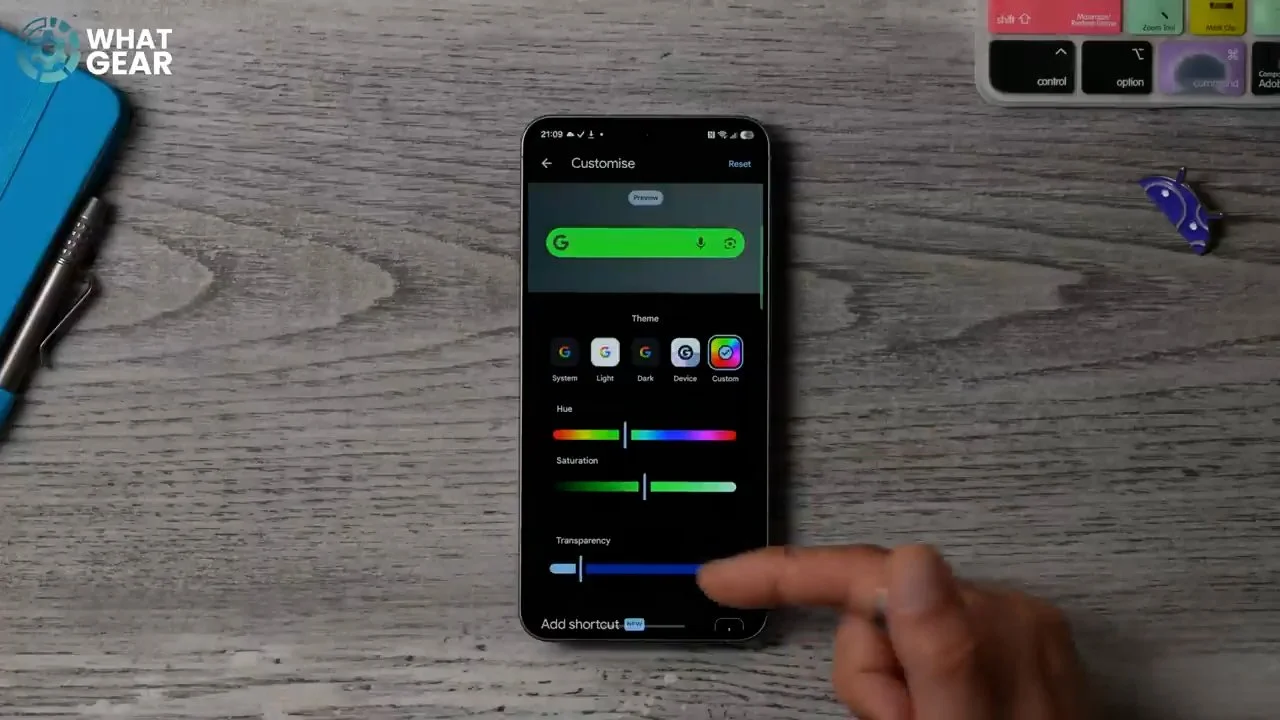
Here is another customisation to tweak to add a bit more colour to your home screen: see the Google search bar?. This is the bog standard search bar in dark mode. It will be lighter in light mode, but you can actually take full control over how it looks by doing this. Hold your finger down on the Google search bar, go to settings and this jump straight into the customisation settings for the search bar so you can go to custom. Here we can choose a specific colour, let's say green, for example. We can change the transparency of that search bar so the image actually shows through it. And then if you scroll down, you can go to Add shortcut. The two most useful ones, in my opinion, are song search and the AI mode. But you can only have one. Once you're happy with your customisation, you can go back and straight away, that change takes effect. You can also adjust the size of the search bar—it doesn't need to be right across the screen like that. You can shorten it, but it will restrict the number of shortcuts that can be shown.
Modes and Routines Widgets
Let me show you one little customisation tweak that I have recently started to use all the time on my Samsung phone. So if you bring down the settings and then go to Modes and Routines, you will find some recommended routines that you can set up. Sleep is a very good one—we can hit the set-up, go through the setup guide and customise this however you want. I'm going to set my sleep time, and you can choose the days at the bottom. There are various other things you can do, like changing the alarm background. Once you've done that, you can scroll down and choose a different wallpaper for when you're in this mode. Now that this is set up, you'll know whenever you're in this mode because the wallpapers will change on your device.
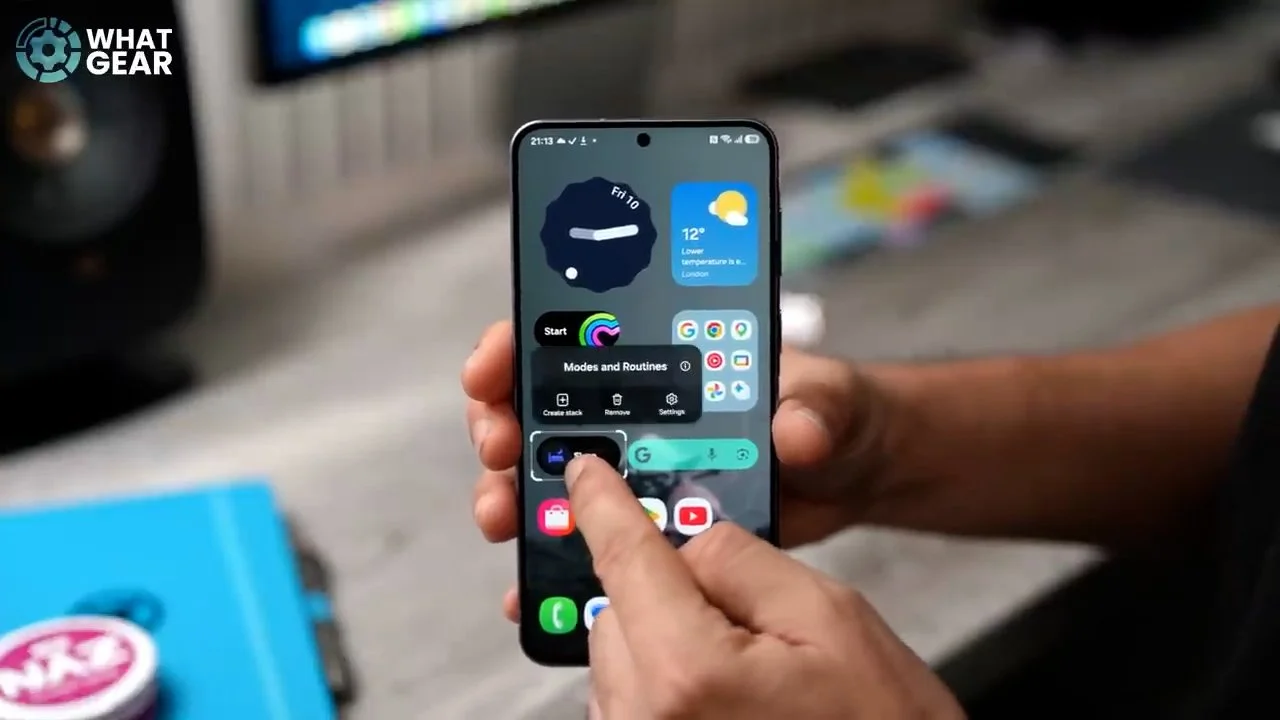
But here's a little customisation tweak: on your home screen, go to an empty space and go to widgets at the bottom, then go to the Modes and Routines widgets over here and choose the sleep widget and add it to your home screen. Making it much more accessible, and you can just toggle this on and off whenever you want. Now what I do is set up a bunch of different routines and modes for various occasions, and I have them all stacked on top of each other right here. So I can slide between these buttons on the home screen. Now, if you want to do the same, you just hold your finger down on that widget and go to Create Stack, and then you can add more widgets on top of that one.
