
Galaxy A57 - First 10 Things To Do ( Tips, Tricks & Hidden Features! ) Part 1
If you've just picked up a Galaxy A57, I'm here to show you some tips and tricks and chew bubble gum. And I'm all out of bubble. So let's kick this off with some performance upgrades first. Then we'll get into some customisation, and then some of the very important security settings. And if you stick around to the end, I may or may not have some bonus tips and tricks. Kind of hard to find, and most people don't know about. All right, so let's get this off.
Bixby and Perplexity AI Integration
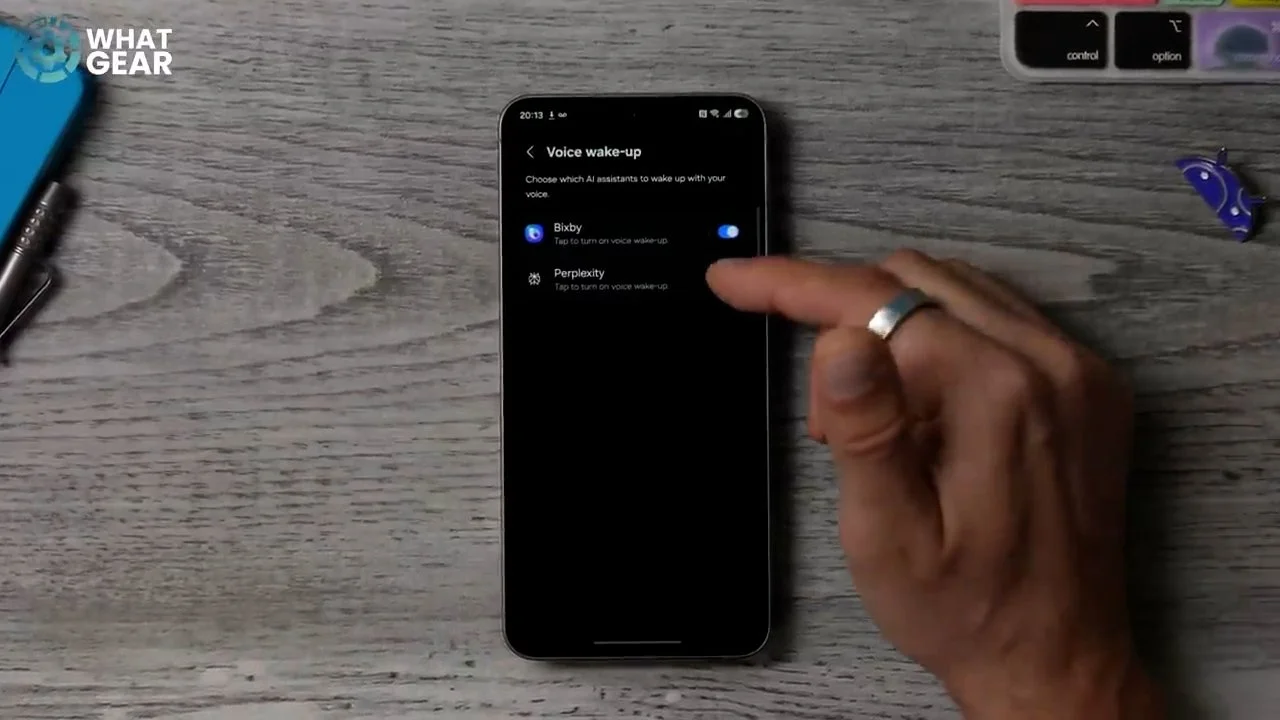
You might not realise this, but Samsung have recently upgraded Bixby, and they've introduced Perplexity, which has been optimised specifically for your Galaxy. However, you won't be able to use it unless you do this. First, go into your settings. So if you swipe down from the top, you can find it here. Scroll all the way down to Advanced Features. Here you will find the voice wake up settings. So if you tap on that, straight out of box, Bixby will be on, but Perplexity will be off. So if you switch this on, it will then prompt you to set it up for the first time by repeating the sentences on the screen. Once you've set up Perplexity, it can now work alongside Bixby and even control functions on your phone.
Camera Tips and Tricks
Megapixel Settings
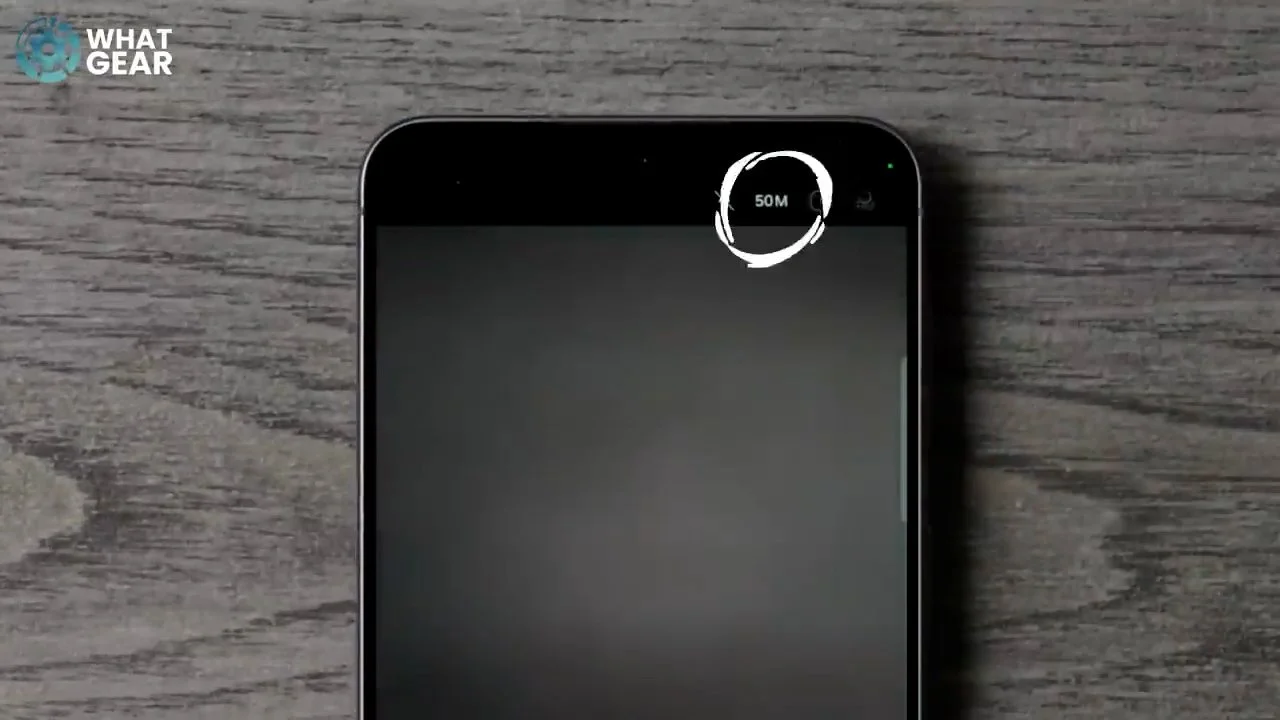
Here are a couple of camera features that you should be aware of, and not everybody knows about. Open up the camera app. At the top here, you see it says 12M—that's 12 megapixels. If you set it to 50 megapixels, you can capture more detail. However, keep in mind that 50 megapixels is best for well-lit scenarios, and 12 megapixels is much better in low light conditions.
Camera Assistant
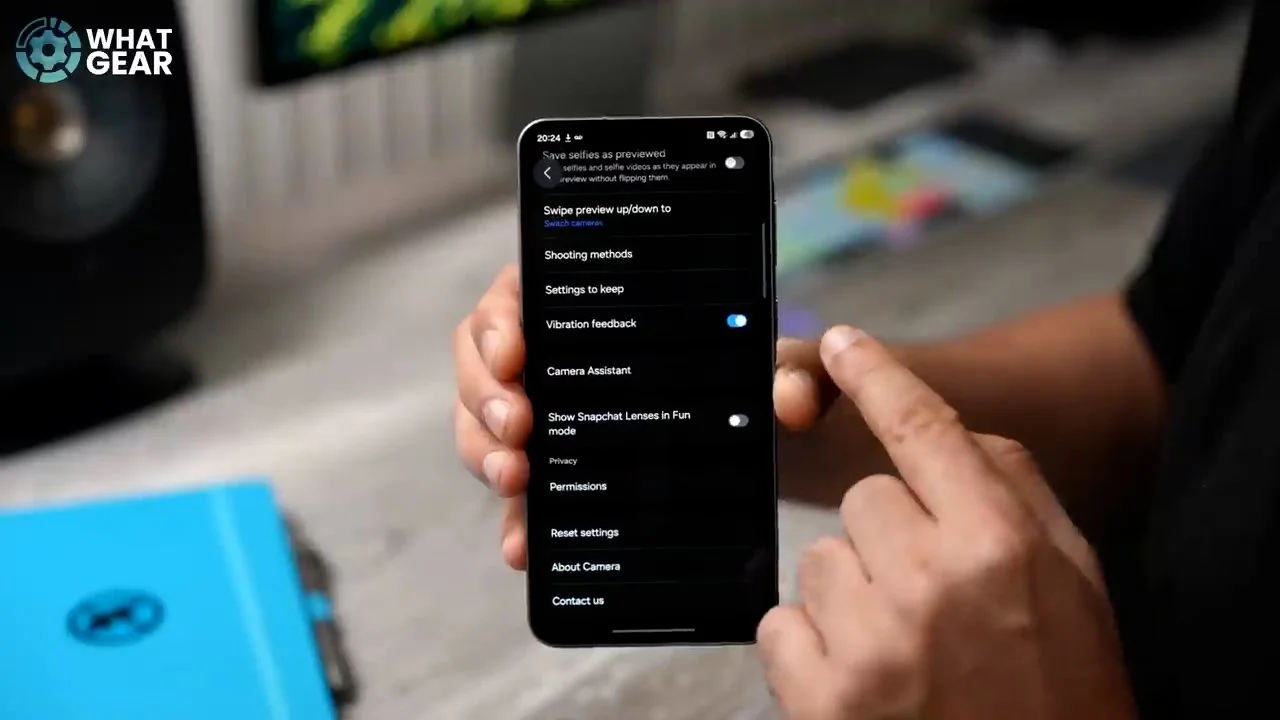
If you hit the little folks down here, go to the camera settings. You can unlock some hidden camera settings that might be very useful to you. So on this page, if you scroll down, you should see this right here: Camera Assistant. And you will very likely see a downward arrow indicating that you can download it, and install that app. And once you've done that, you've unlocked this new menu where you can actually tell the phone to prioritise focus over speed. If you find you're getting blurry photos, this will solve that problem for you.
Dual Record
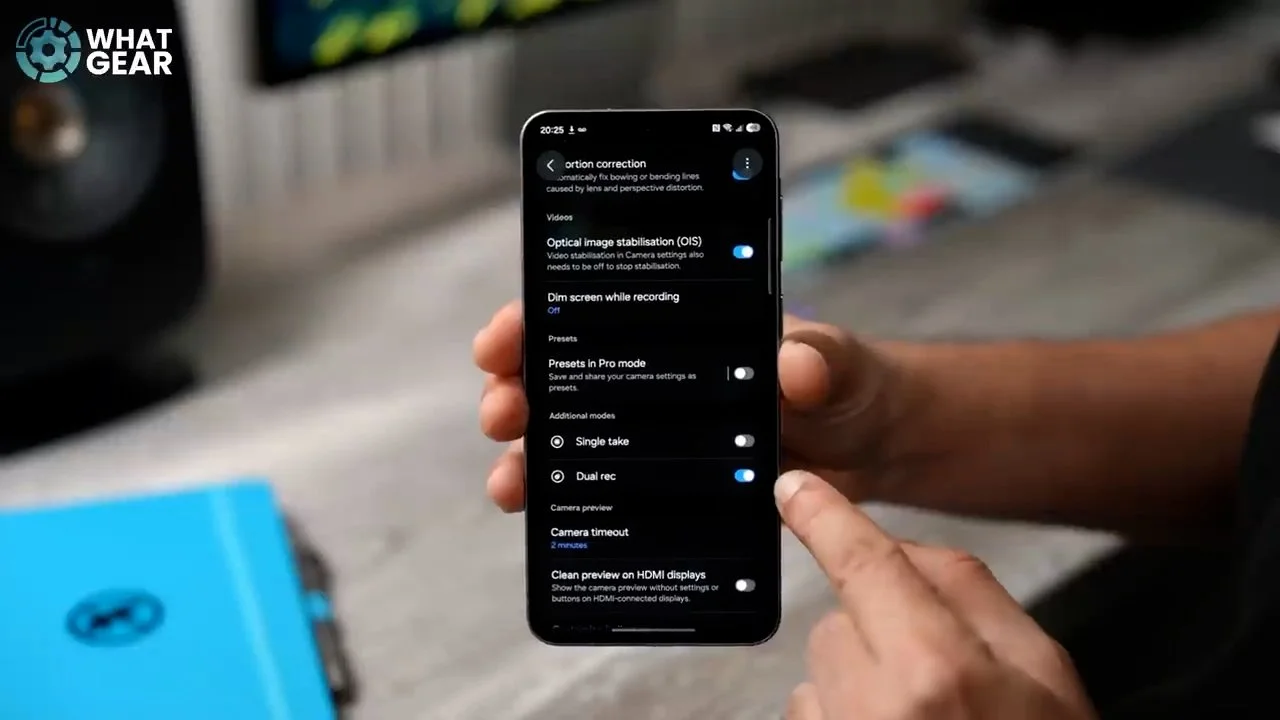
And something else you can unlock here, if you scroll down a little bit, is these two features right here: Single Take, which is great for creating short content, but this one is my favourite: Dual Record. With this enabled on your phone, you can now film picture in picture, which can be located in the more section at the bottom of the screen. So if you go to this, you should see Dual Record. You can actually grab this and then drag it onto the bar at the bottom so you have quick access to it. Now, when you activate Dual Record, you notice you have this little screen up here. And if you tap on this, you can actually make it a bit bigger. And you can also move it around on the screen. This can be a great way for creating content as well, if you want to show how you're reacting to what you're seeing. This is a nice little trick.
Composition Guides
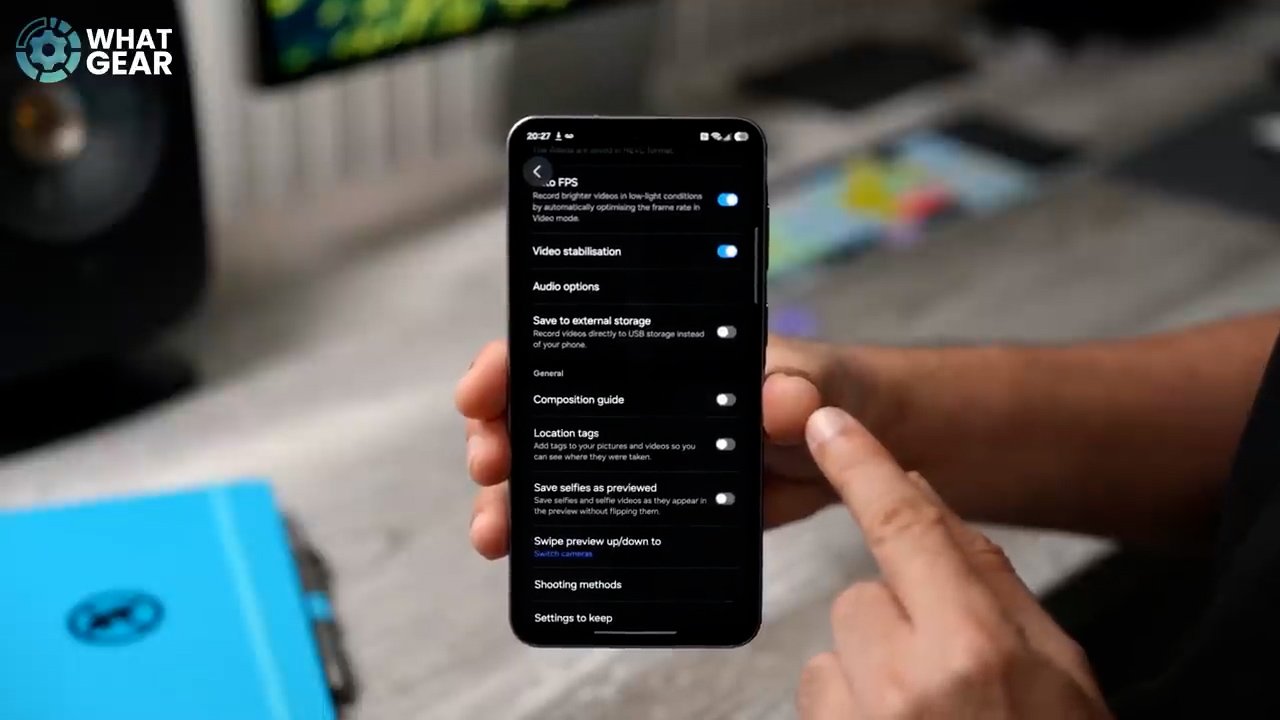
Here's another little camera tip that can improve how you use your camera. If you go into the camera app again, hit the folks over here and then go to settings. On this page, scroll down a little bit, and you will see the composition guide. If you switch this on and then tap on it, you can choose what kind of guide you want. I think the grid lines and the level is obviously the best ones, because now when you use your camera, you have the rule of thirds grid, and you also get this little crosshair when you're doing top-down shots. And when you are taking regular photos, you get a little crosshair in the middle or a little spirit level so you know when you're perfectly level.
Performance Optimization
RAM Plus
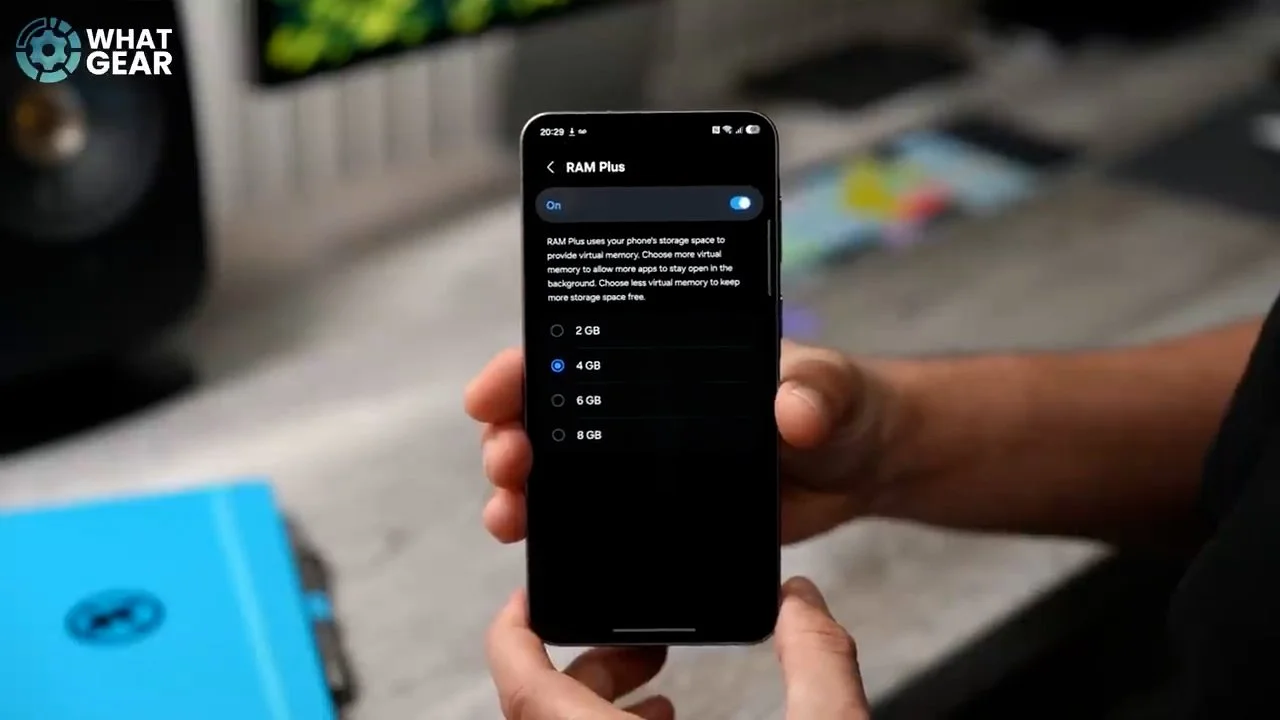
Now let me show you how to speed up your device a bit more. I'm assuming you have a lot of free memory since you have a new phone, but you might want to look at this and just be aware of where to find it. So go back into your settings, go to Device Care. Here where it says memory, tap on this. Right now I have eight gigs of RAM. 1.8 gig of it is being used, and the phone is barely out of the box for five minutes. So yeah, you get an idea of how quickly that RAM can be used up. If you want to, you can hit Ram Plus down here and expand it all the way up to eight gigs. This can help with loading times, backgrounding tasks and things like that. And if later on you start to run out of memory, you can always scale it back to 4 or 2 if you prefer.
Auto Optimization
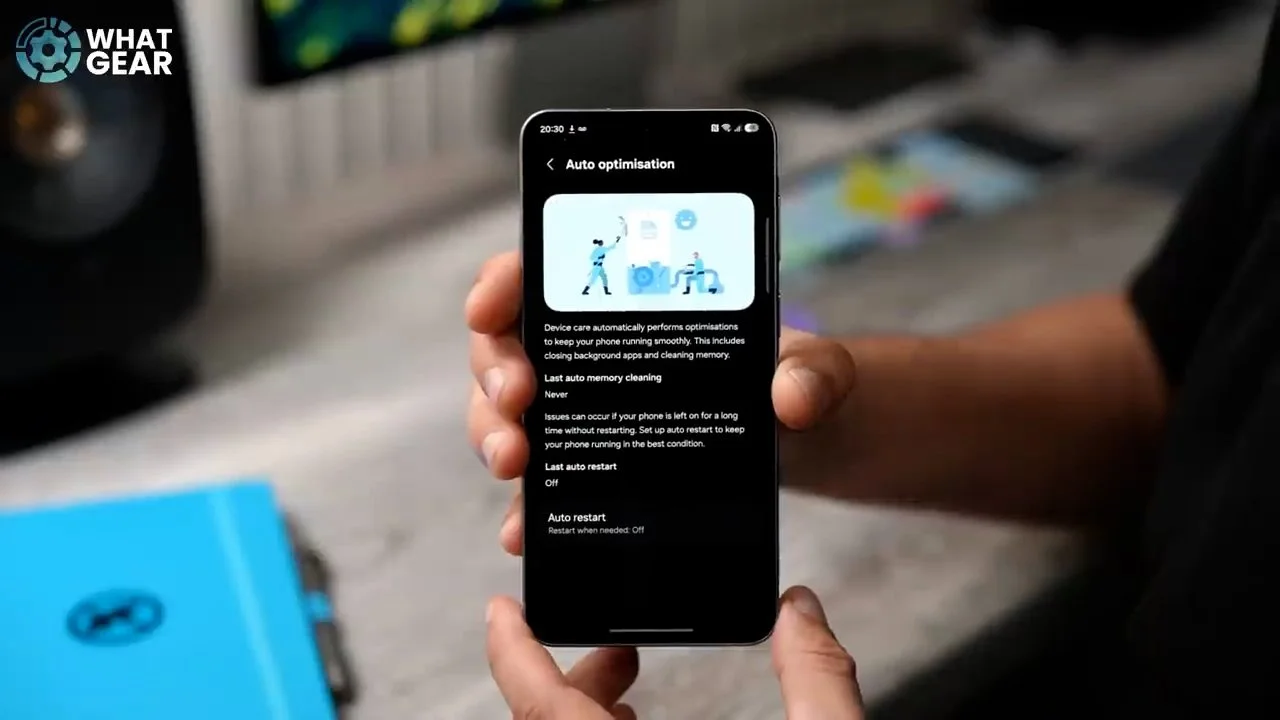
Now on a rare occasion, what you might find is that your phone is running lots and lots of processes in the background without you knowing, and it starts to warm up and slow down the phone's performance. Now, if you want to prevent that from happening, there is a tool within the software that you need to be aware of within the settings. Again, let's go back to Device Care and then this time just below these graphs you'll see auto optimization. If you want to be extra cautious you can go to auto restart and then set this to restart when needed, which if you are a light phone user, will probably be never. But if you switch it on, and the phone does start to do something in the background that drains all of the resources on the phone, well, this will sort that out for you very quickly. And if you prefer, you could set it as a schedule so every night a specific time it can reboot and refresh your device.
Security and Personalisation
Fingerprint Accuracy
My guess is when you set up your phone for the first time, you probably did 1 or 2 fingerprint scans for your unlock, and that's fine. But here's a way to make them even more accurate. If you go into your settings and then go to Security and Privacy, right here. On this page, you should see screen lock and biometrics. Tap on that, tap where it says fingerprints and then tap on the first fingerprint that you registered and then go to improve accuracy.
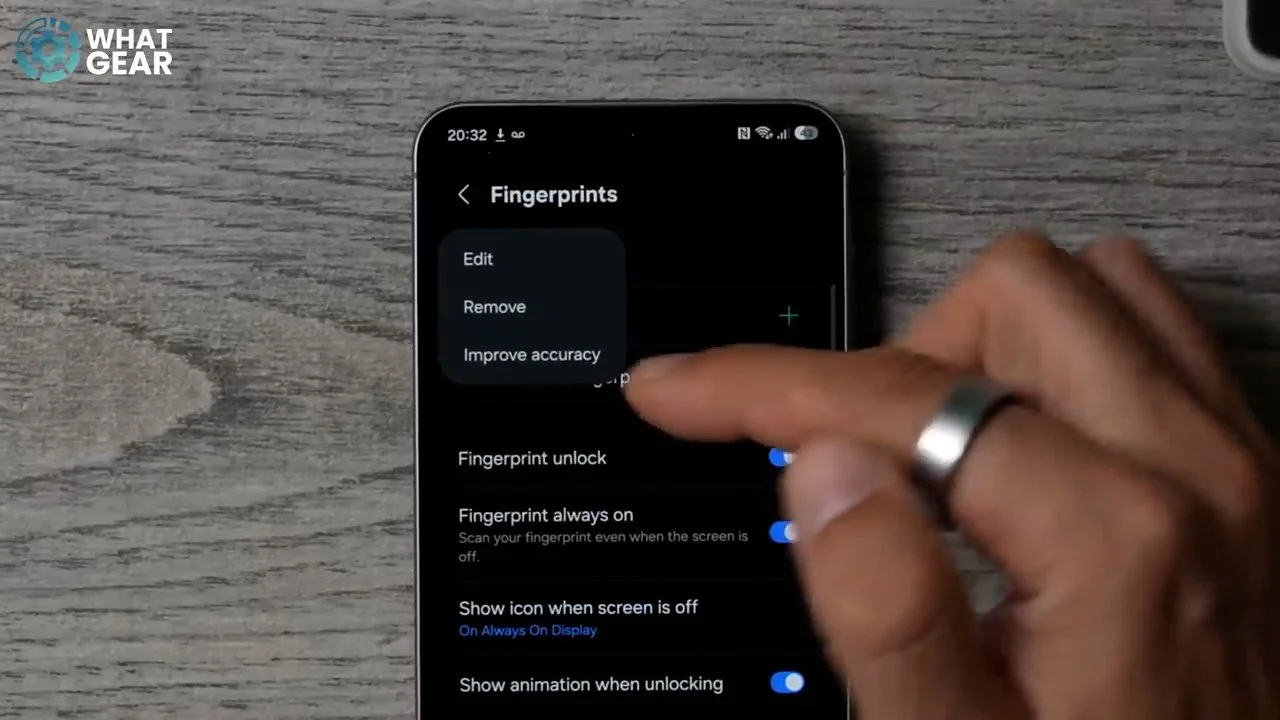
Now you can re scan that same print again. And this will just expand the amount of detail that the phone holds about your fingerprint. And it's a bit more of a thorough process. But once you've done it, your phone will unlock much, much faster. And if you're the type of person who rushed through the set up process and only did one of your digits, I highly recommend doing three: the thumb and first finger on your dominant hand, and then maybe your thumb on your other hand, and you can just hit the plus here to add those additional fingerprints.
Side Button Remapping
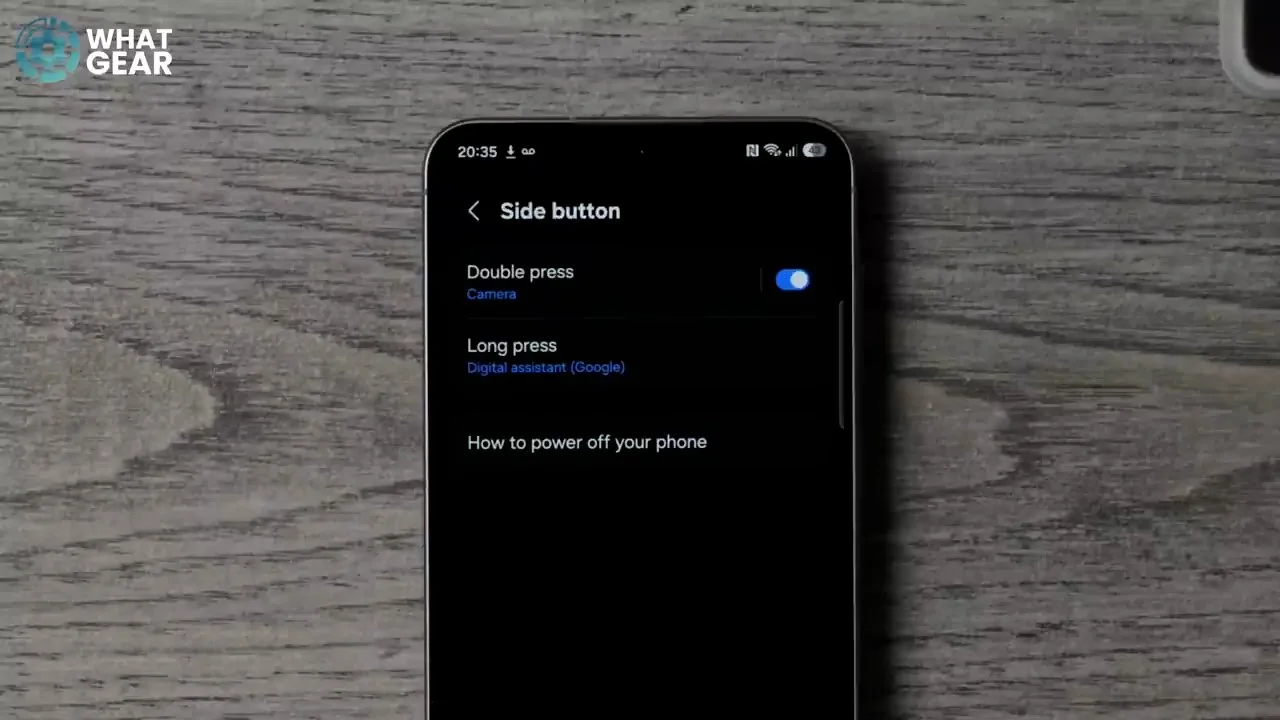
Now if you're a bit old school when you're used to a power button being a power button, or you've just switched from iOS, well, I think you're going to appreciate these settings. So if we go into the settings menu, scroll all the way down to Advanced Features. This is where you'll find the side button menu. It used to be called the power key, but it's not actually your power key anymore; you can make it one if you want it to be. So the long push and hold of the power key right now activates Gemini. But maybe you're not going to use that so much. And if that is the case, you might want to go to long press and then set it to the power menu. That way, when you push the power key, you get the power menu just like the old days.
Wallet Shortcut
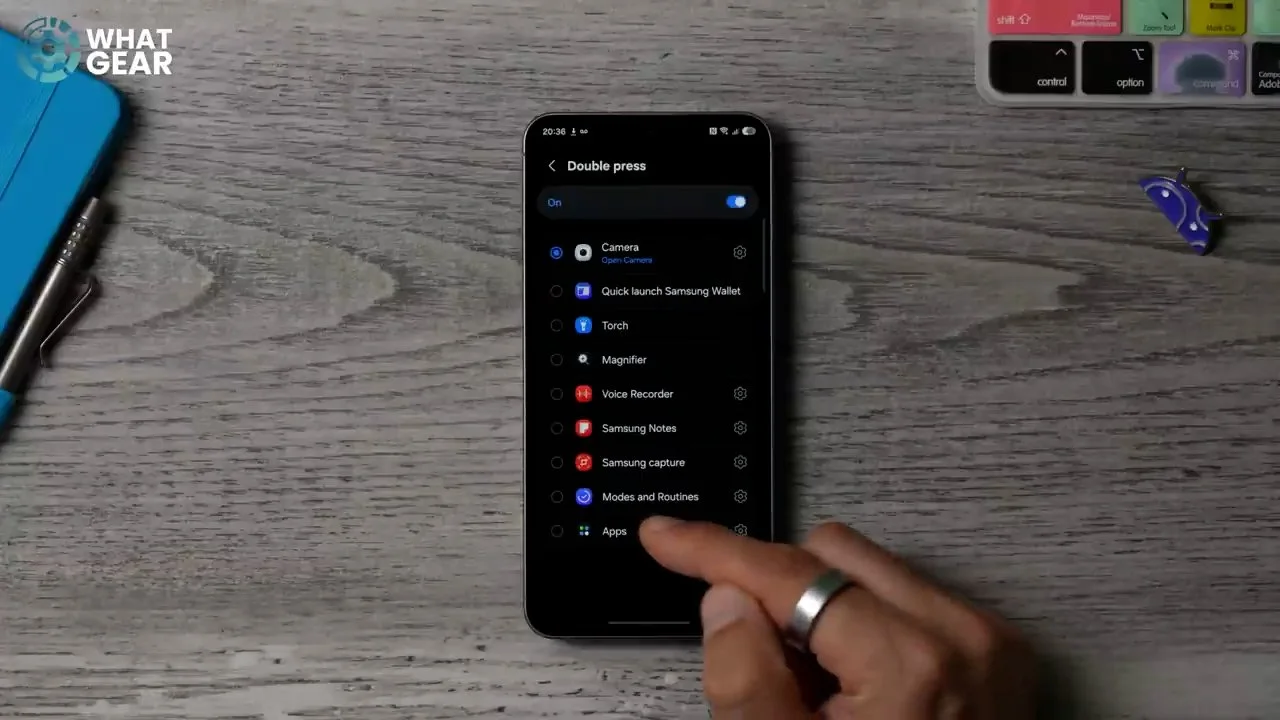
And if we go back to the side button menu, you'll notice that the double press of the psyche opens up the camera, which is okay, but if you're coming from an iPhone, you're probably used to double tapping to get to your Apple Wallet. On this phone, you can remap it. So if you have your Google Wallet installed on your phone or any other wallet that you might use, you can go to apps here and then choose it from this list. So with that set up now whenever you need to pay for something, you can just double tap here that will jump straight into your Google Wallet.
Galaxy Store Updates
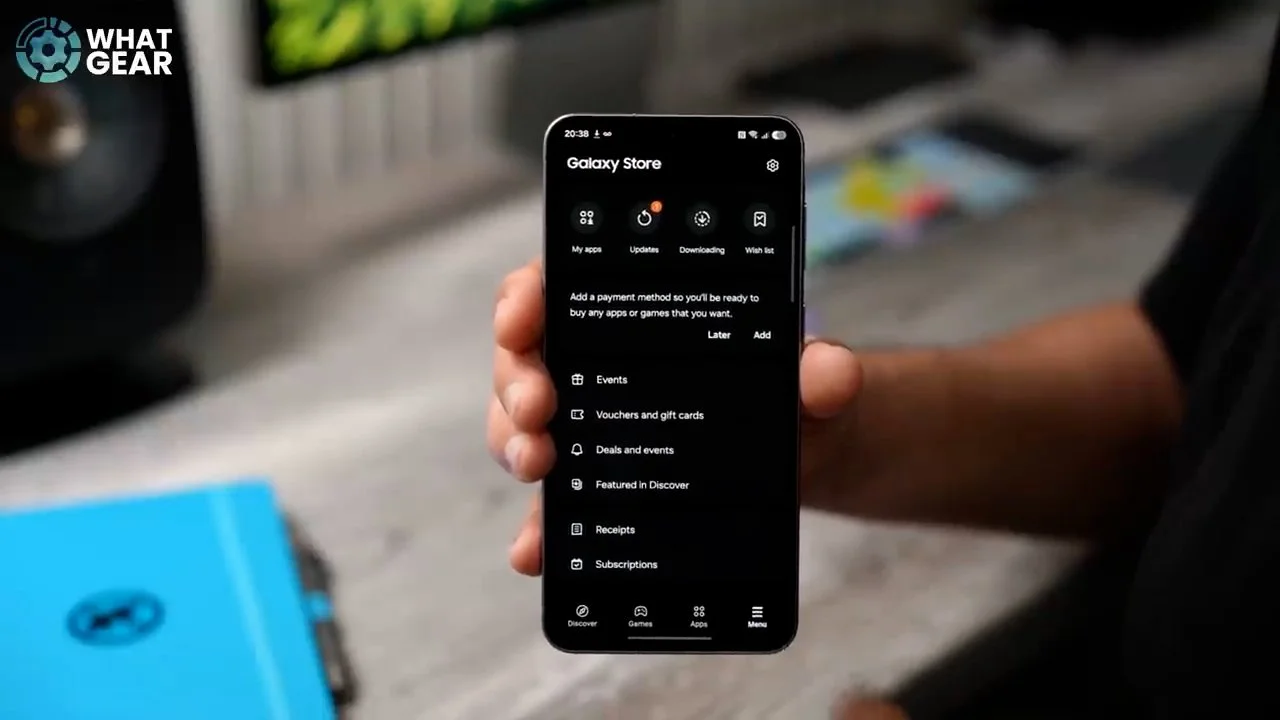
Now, if your phone is literally box fresh, it's going to look quite similar to this. And something you absolutely need to do straight away is go to your Galaxy Store, because this is where all of your Galaxy apps get updated. If you don't activate the store and update it out of the box, it'll be a while before you get the latest updates for all of your apps, so make sure you go through the original update process for the Galaxy Store. Once you've done that, go to the menu and at the top here if you see any updates, make sure you do all of those on day one. This just guarantees that you get all of the latest Samsung Galaxy features.
Multimedia and Sharing
Dolby Atmos
When it comes to watching content on your phone, you can actually improve the sound quality of the content. Here's how you do that: Go into your settings, go to Sound and Vibration. Scroll down on this page until you see sound quality and effects, and tap here, and you'll notice Dolby Atmos is available at the top.
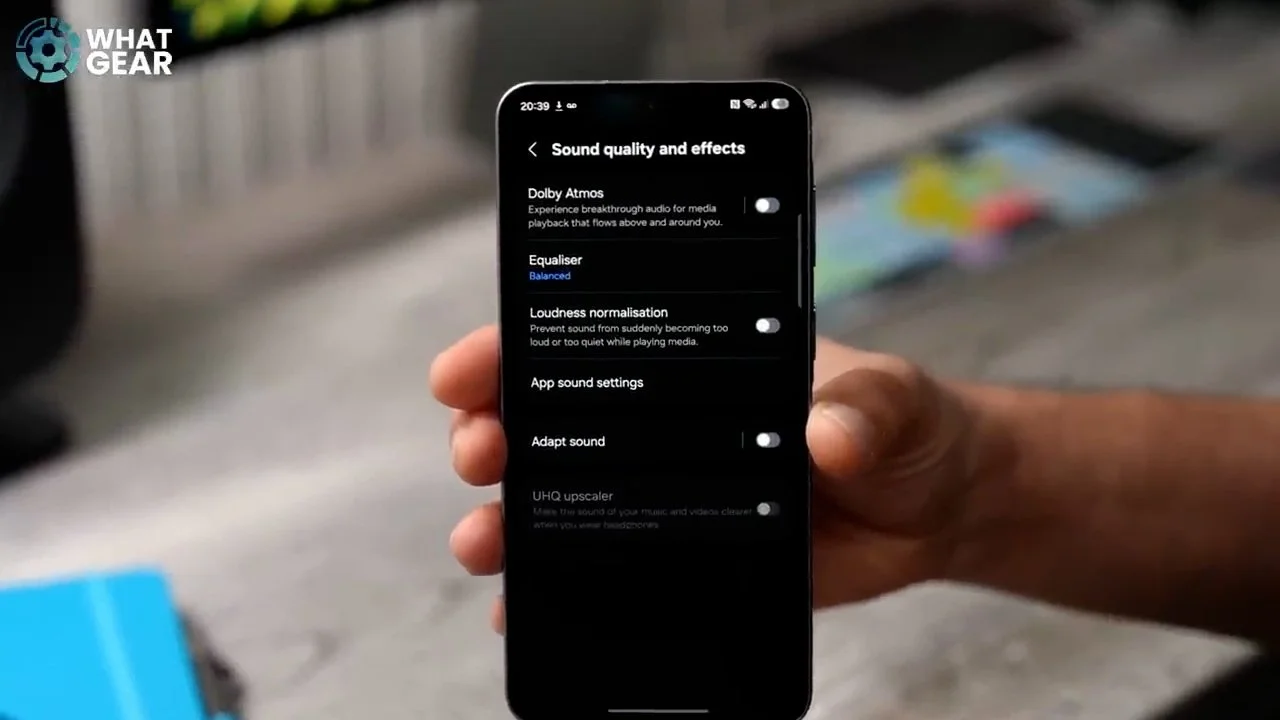
Whenever you're watching movies, I recommend you use Dolby Atmos, and if you want a quick way to activate it and switch it off when you don't need it, here's the best way to do that. Bring down your quick settings by swiping from the top right corner. Hit the pen and then if you hit the add control at the bottom, scroll to see the sound section. And if you tap where it says Dolby Atmos, this adds it to your quick settings.
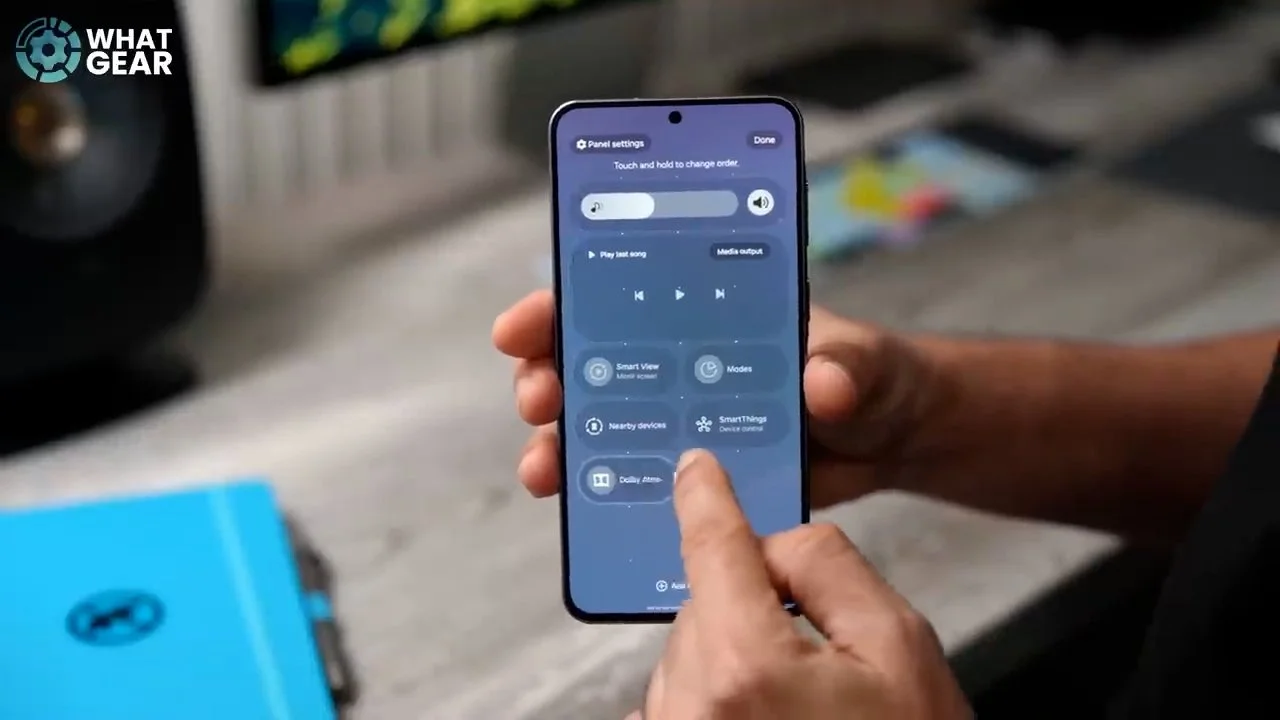
And then you can resize the quick setting to be a bit bigger. And now when it comes to using Dolby Atmos, you can just tap this button right here and that will activate it. But if you hold it down, this actually jumps you into another menu, which again, a lot of people don't know about, where you can select the type of content—movie, music or voice—and this will enhance that audio.
Quick Share and Blip
Now, one of the most useful quick settings, in my opinion, is the Quick Share. So if you are on Android and all your friends are on Android, the Quick Share can be found in the quick settings, and it looks like this. This allows you to send files, photos and things back and forth between the devices very quickly.
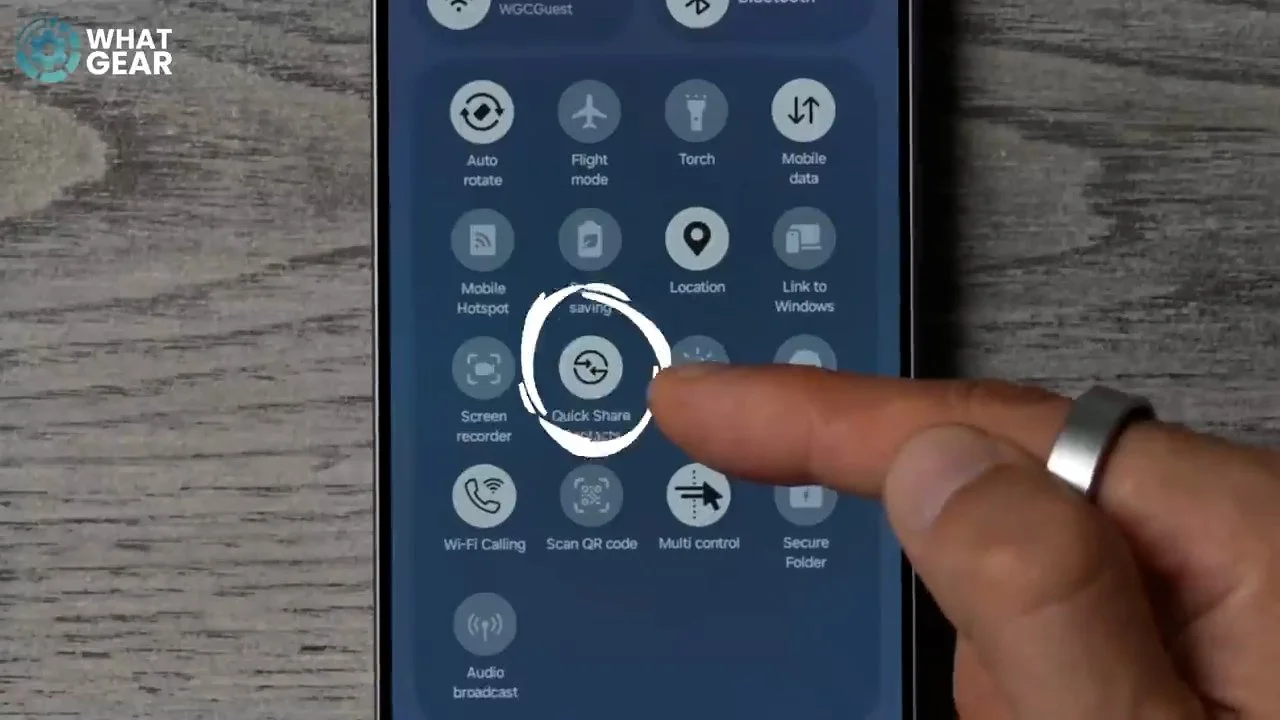
But here's a little pro tip for you guys. If some of your friends are on iOS, or if you work on an Apple Mac, for example, you'll appreciate this. Go into your Google Play Store—this is your app store for Android phones—and search for this app right here called Blip.
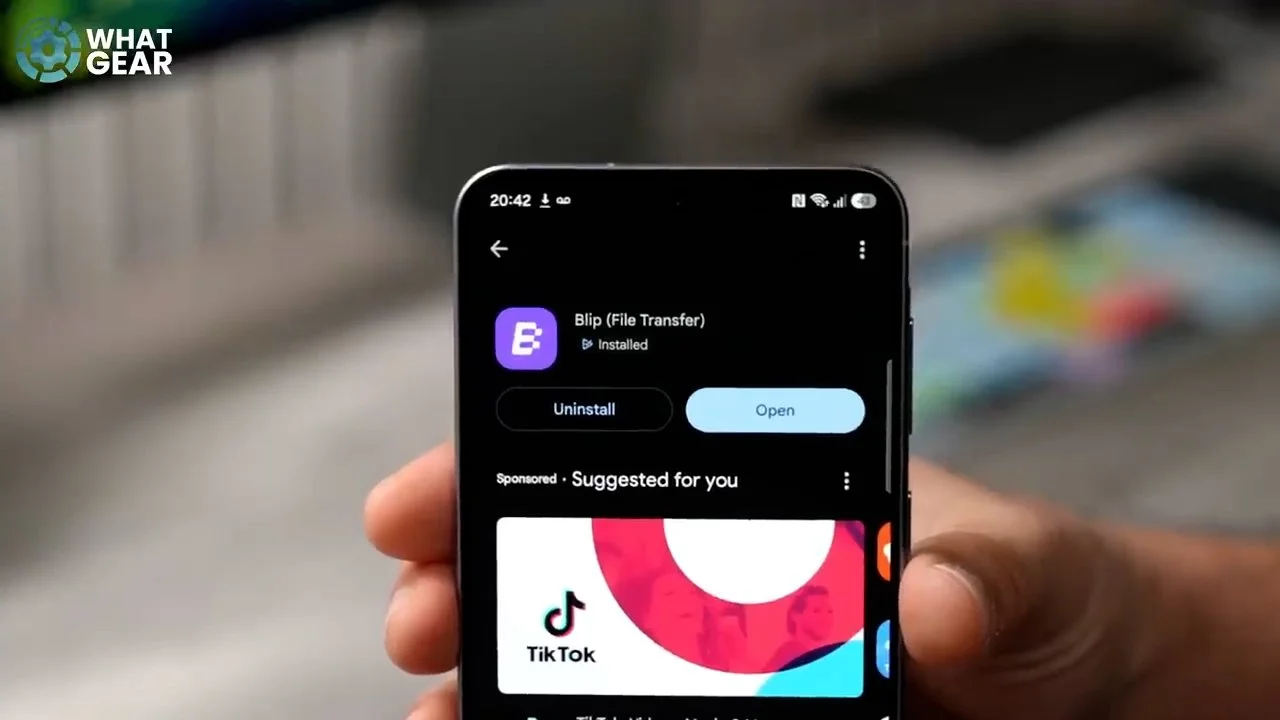
Make sure your friends also get this app, and if they do, you can now use it to send files back and forth between Android and iOS devices seamlessly and very, very quickly. Just to show you how effortless this is, if I go to the photo gallery here, I have this wallpaper of Master Yoda. I just hit the share button and then I hit Blip from the list. Now I can simply send this to an iPhone like this. I've now got access to that image, and it works fantastic for video too.
