Galaxy A57 - First 10 Things To Do ( Tips, Tricks & Hidden Features! ) Part 3
So you've made it to the end of part two in this three-part series. Part three is a simple walkthrough of all the security features and settings that most people miss during the initial setup process. If you did rush to set up your phone on day one, you definitely need to see this one. Welcome to part three of three. In part three, I'm going to show you some of the most important security settings and features that most people miss.
Hide Lock Screen Notifications
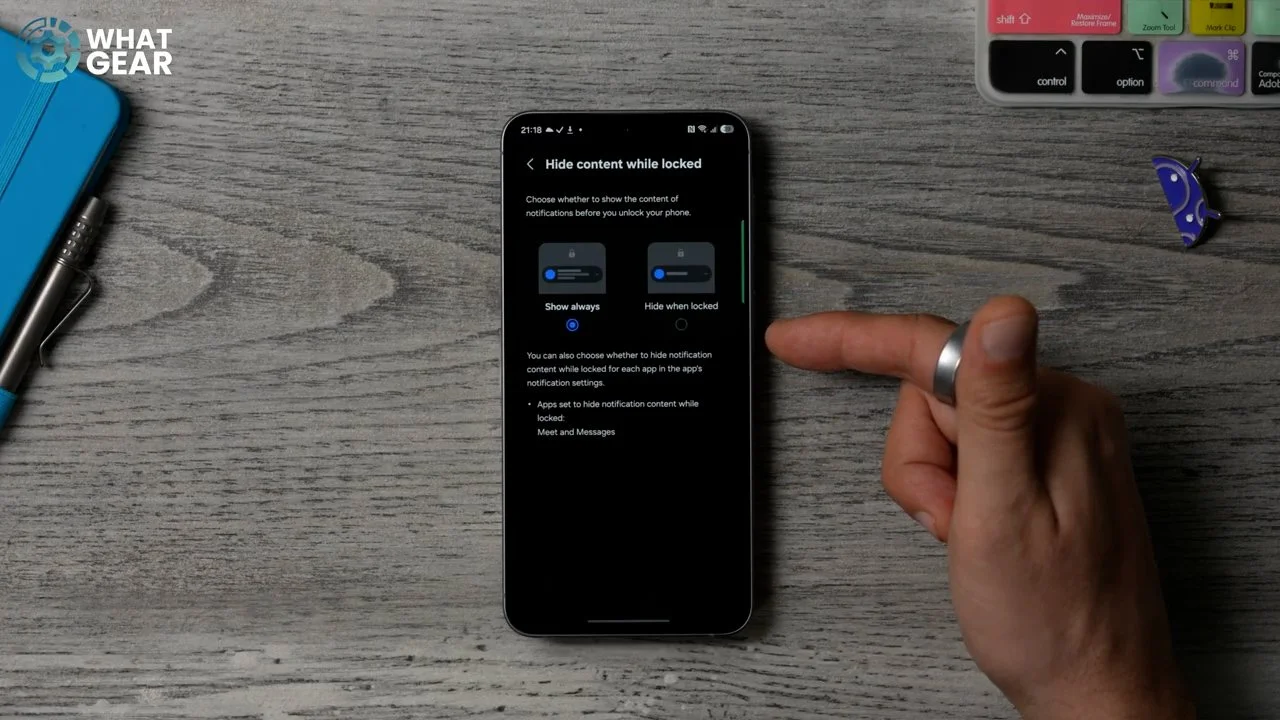
So here's a question for you: Do you want people to be able to read your private notifications when your phone is locked?. If the answer is no, then you should definitely, definitely do this. Go into your settings, and then go to notifications, and then here you'll see hide content while locked. Just go into this and set it to hide when locked. This doesn't mean you won't see the important notifications; it just means you have to unlock the phone to fully read them.
Private Album
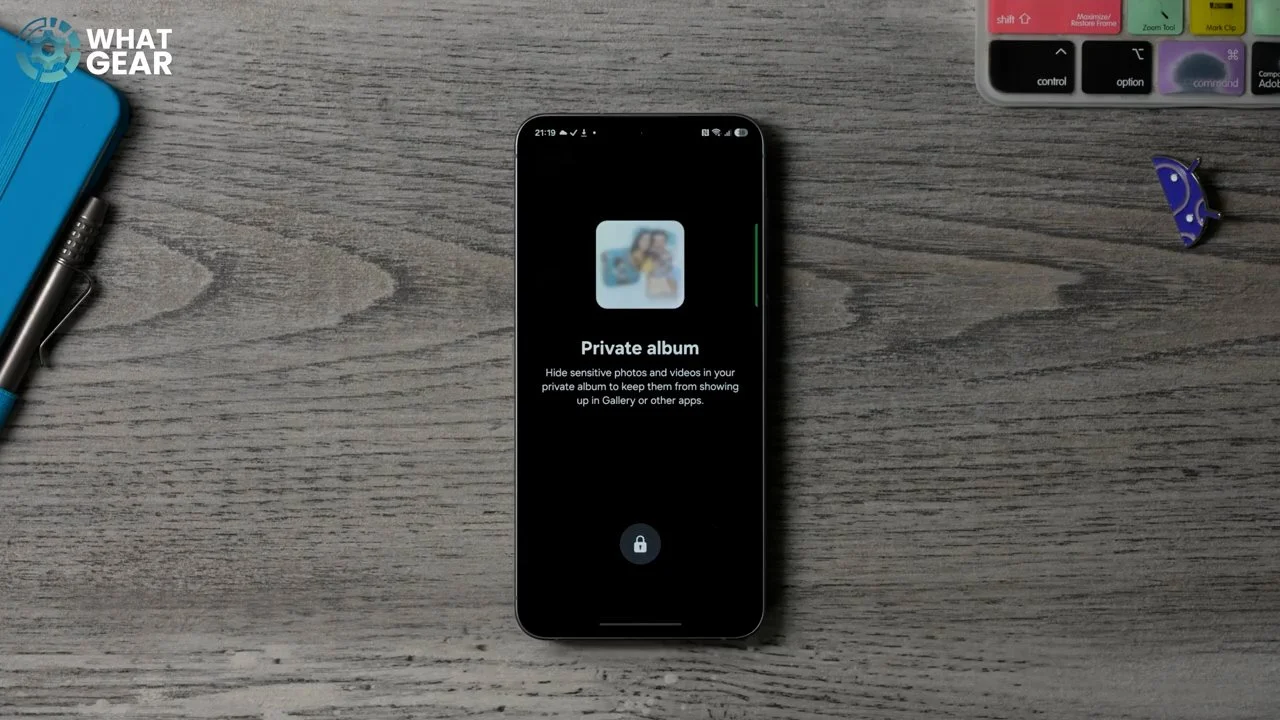
Here's an important feature that you need to be aware of, especially if you are using this phone for work, or if you ever hand your phone to someone to use to play games or watch videos. Go into your gallery and then go to the menu at the bottom. Down here, you'll find the private album. If you go to this, you can create an album which you can lock down with your Pin number or biometrics. What you can then do is go to an image and at the top, hit the three dots and then move it to your private album right here, which can only be accessed by you. Now, if you want to find it again, all you need to do is hit the menu on your gallery, go to the Private album and then unlock it.
App Protection
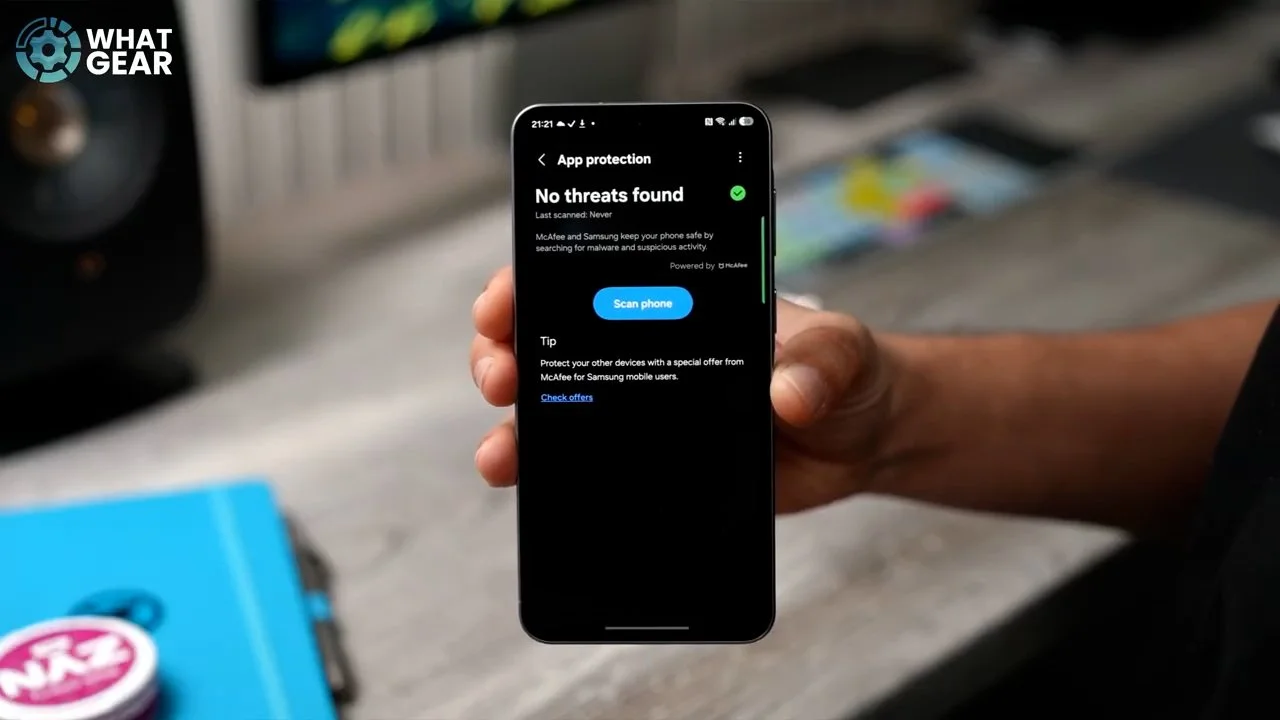
Now, one of the ways you're most likely to get hacked on your device is if you install an app that opens up a pathway for hackers to get in. There's actually a security feature on your phone that can prevent this from happening, but it's not on. To switch it on, just bring down your settings, go to Security and Privacy. Right here, you see the app security. If you tap on this, you can turn on app protection. This will scan anything that you try to install on your device for potential risk, and it will let you know. Just be aware that this might be a region-specific feature.
Samsung Find
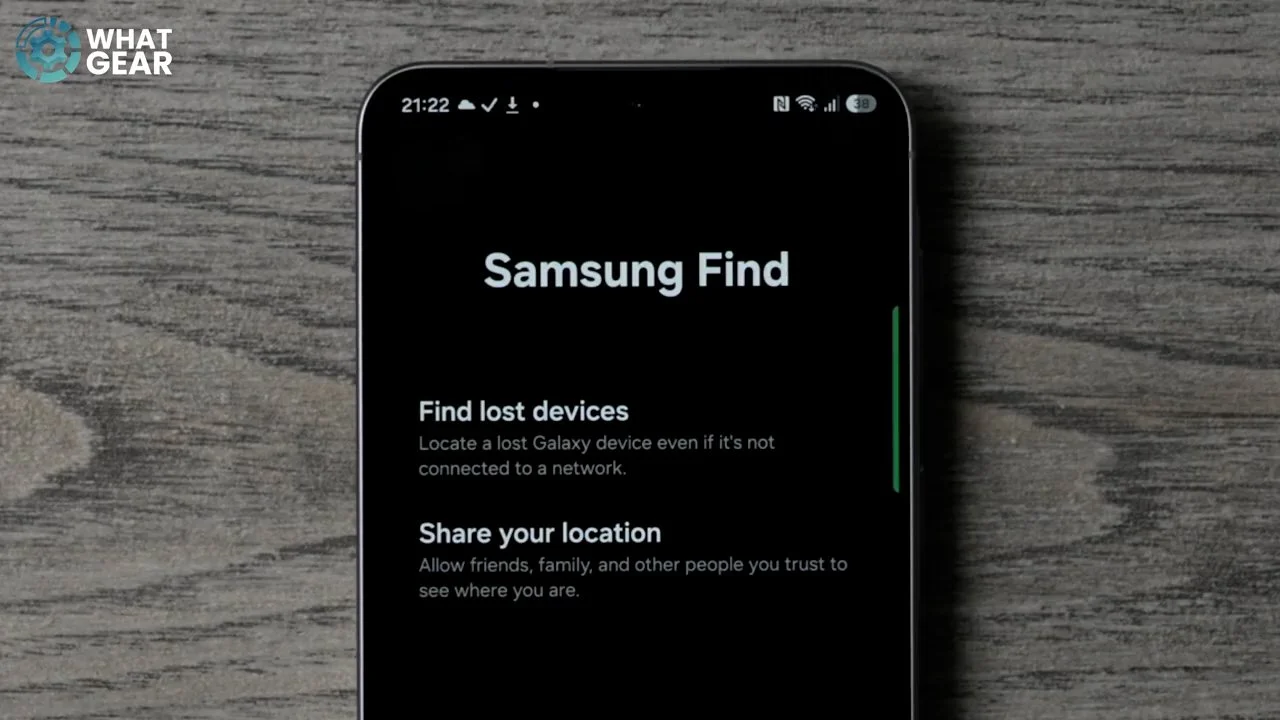
Alright, this next one is very important. If you ever lose your phone or it gets stolen, you'll be happy that you set this up. Bring down the quick settings at the top, and you'll see your account. If you tap on your account icon right here, it jumps into your Samsung account. And if you scroll down, you will see Samsung Find. If you tap on this, make sure this is set up properly. Now, if you do lose your device, you can log in to Samsung Find on the web browser and locate where it is.
Theft Detection Lock
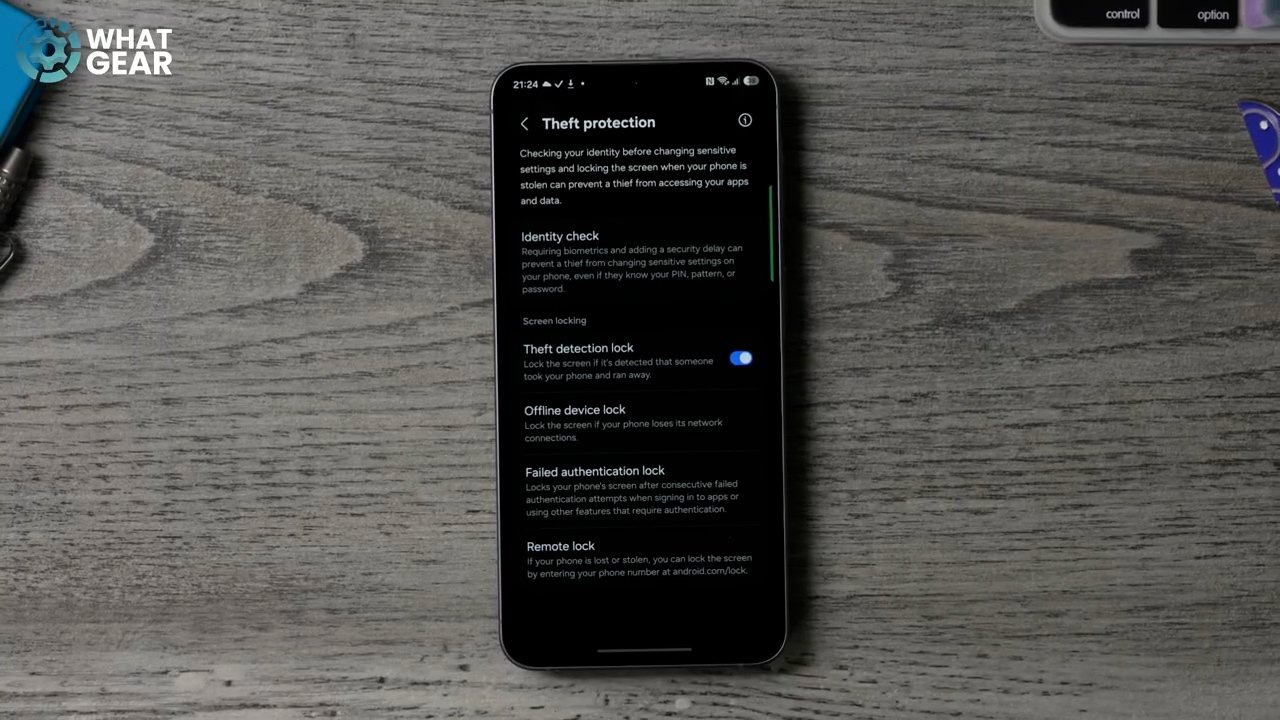
But what if someone has literally just snatched it out of your hand? Well, this new feature here will help you with that. Go into your settings again, go back to security and privacy. Right here, you will see locked device protection. Tap on that. And this is where you'll find the theft protection mode, which isn't active on day one—it's right here: Theft detection lock. Tap on this, turn it on. Now, if someone does snatch your phone out of your hand, your phone will actually lock automatically, so they can't get access to all of your stuff. You'll also find the remote lock feature here as well, which allows you to lock down the phone if it is open and you don't know where it is.
Remaster and Object Eraser
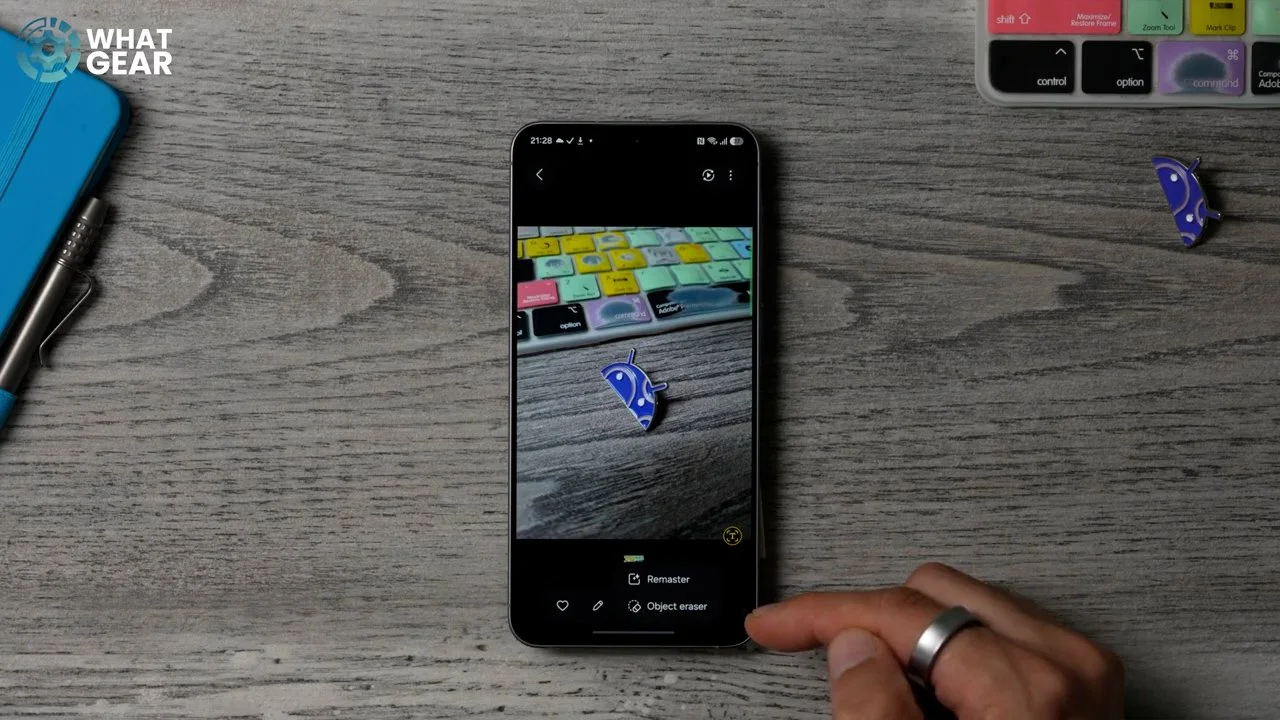
And as I've mentioned in the intro, of course, I've saved some bonus tips and tricks for you guys. So if you've just migrated from an old phone, the pictures from your old phone might not be as good as they are on this phone. There is a nice little trick here to upscale low-res images. So if you choose an image, what you can do is hit the little sparkles at the bottom of the image. This will open up two options: Remaster and Object Eraser. Remaster will upscale that image using AI to make it look a bit cleaner, and Object Eraser will allow you to remove things from the image. You can tap on various parts to select them and then erase them. You can also use the magnetic lasso to draw around the object you want to remove, and it will select that area, and then you can erase it.
Webpage Read Aloud
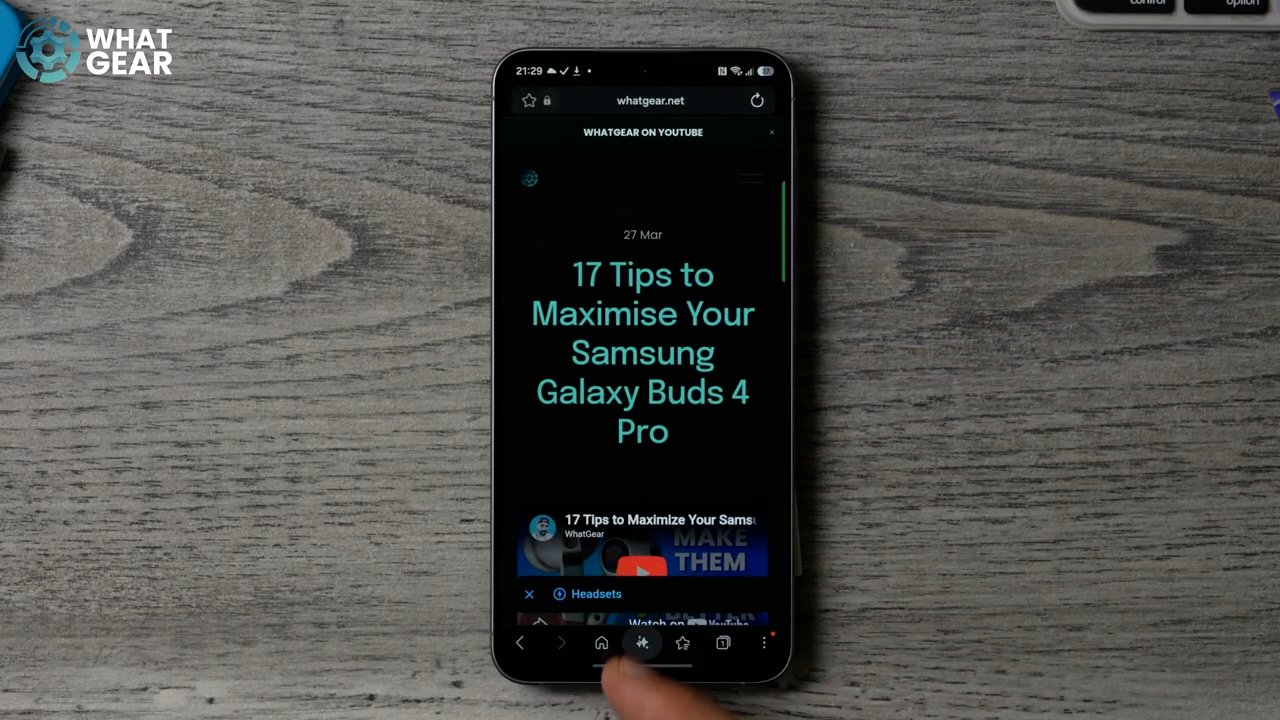
Something else that is really cool, but not a lot of people know about, is this: if you bring out the edge panel, you should see Samsung's Internet app here. Within this app, instead of reading the web page at the bottom, you can hit the little sparkly stars and then have that page read out loud to you. And you can even lock your phone and walk down the street listening to this website being read to you if you want.
Edge Lighting Effects
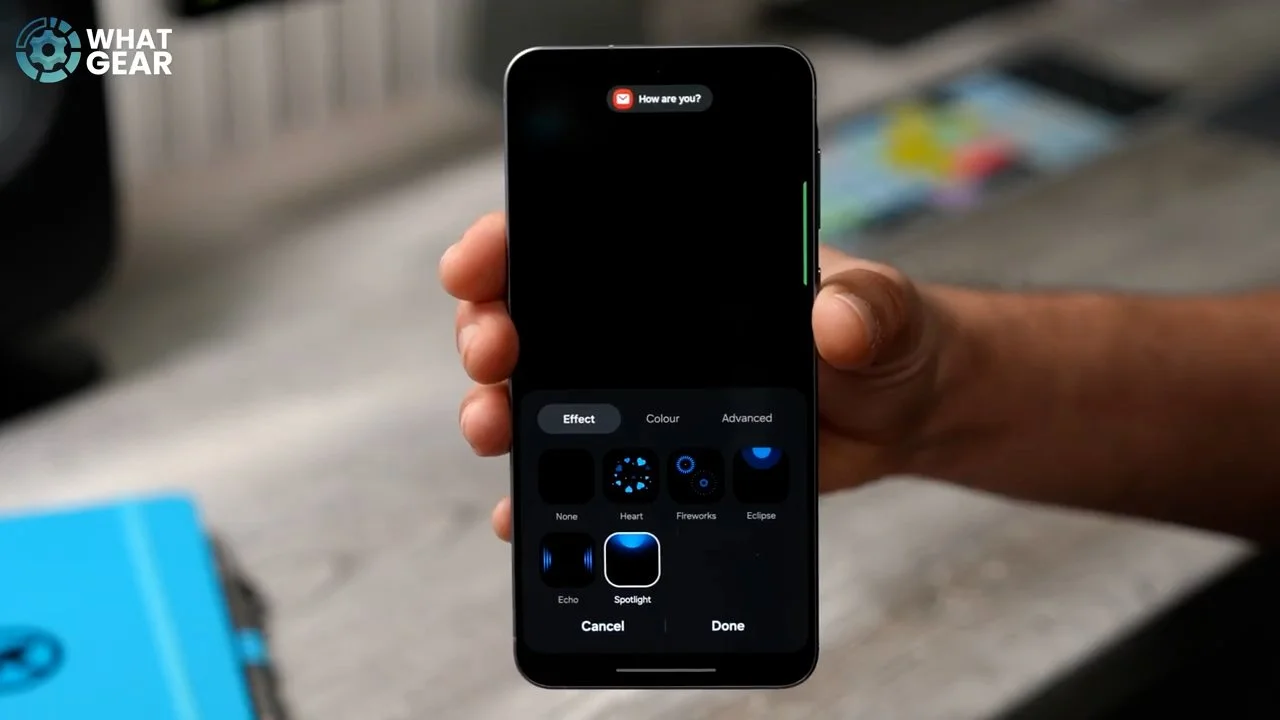
Here's a fun little setting which can help you identify notifications very quickly. If you go into your settings, then go to notifications, then go to Pop Up Style and add the lighting effect. On this page, you can choose various effects like the eclipse or spotlight. You can then choose the colour, and if you want, you can go to advanced and change the transparency and the duration. When it comes to colour, if you leave it on auto, the colour of the animation will match the app that is sending you stuff.
Custom Notification Colours
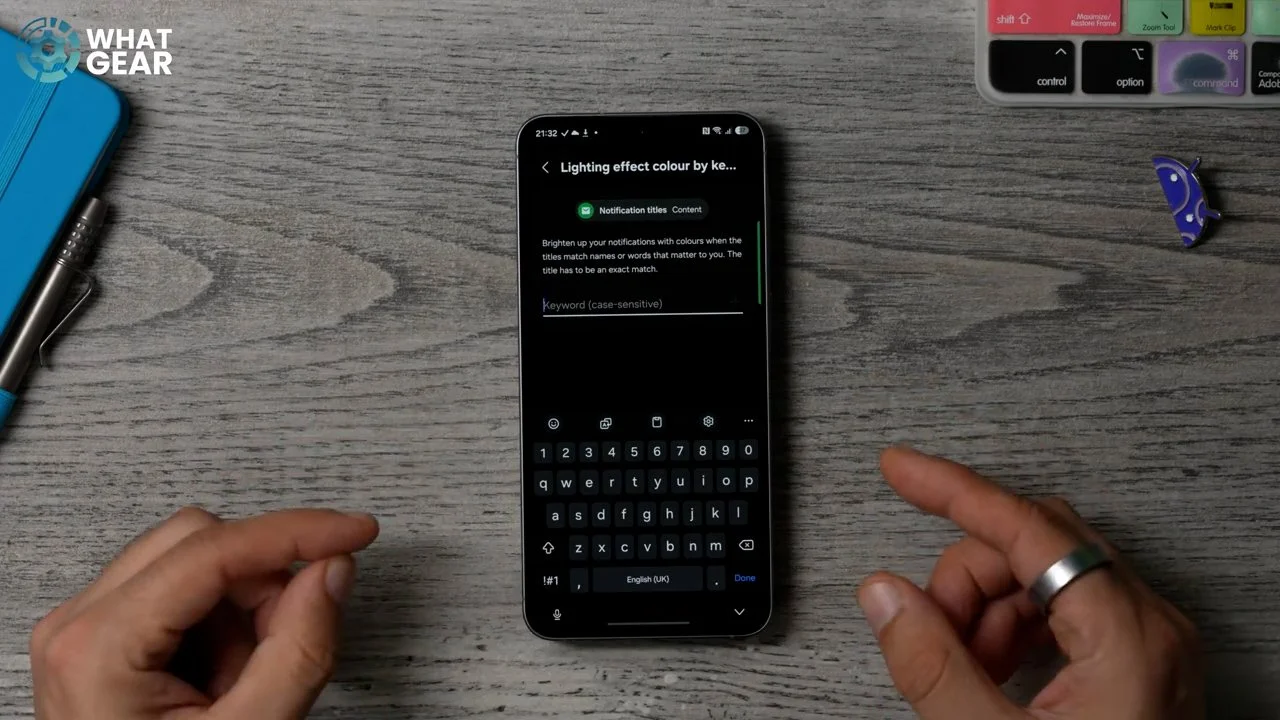
Stay within the pop-up style; there is something really cool you can do here. If you want custom colours for people in your phonebook, you can type their name in here and actually choose a specific colour for their animation. Do keep in mind it is case sensitive, and it has to be exactly how it appears in your phonebook. This can also work with specific apps, as well if you want to customise those colours.
Sports by Google
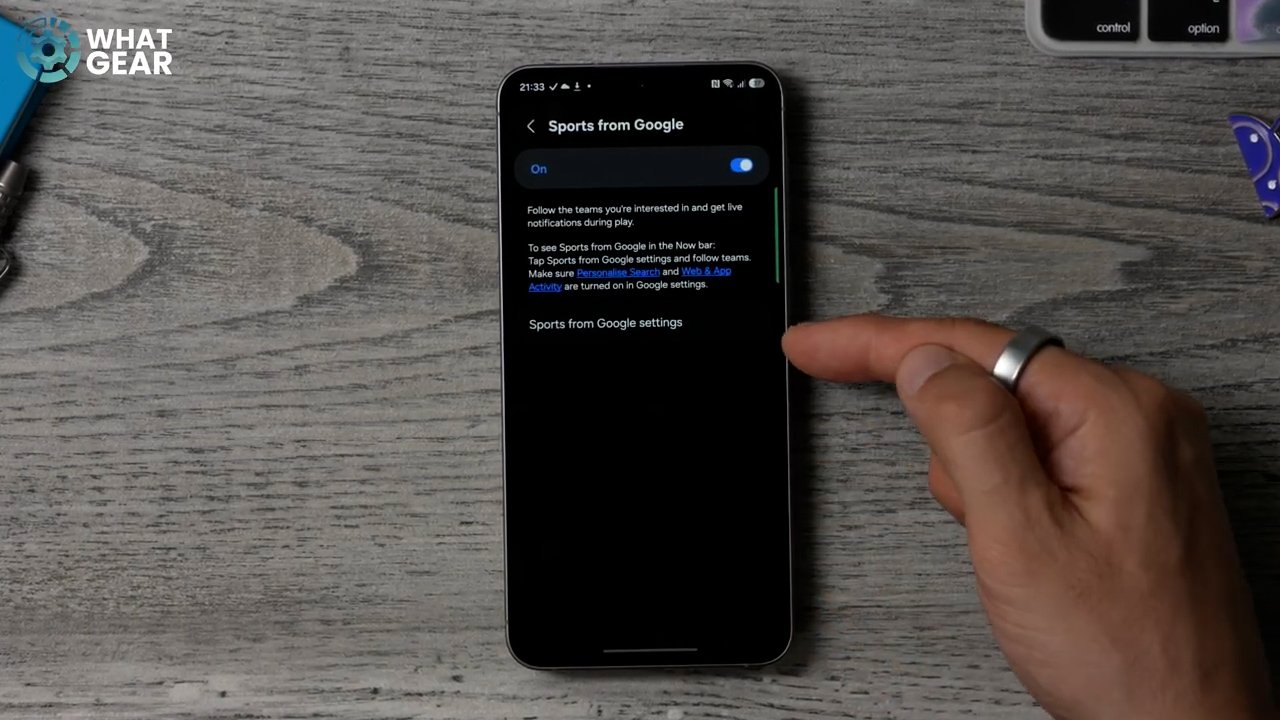
Right, if you're a sports fan, you're going to love this one. Jump into your settings, go to Lock Screen, and here you'll find Now Bar settings. Go to this and go to see all. If you scroll down, you will see Sports by Google. If you tap on this and go to sports from Google Settings, you can choose your favourite sports teams. Now whenever those teams are playing, you will get live updates on your Now bar on your lock screen. And you can also add the Now bar to the home screen as well if you want, in the form of a widget.
App Pinning
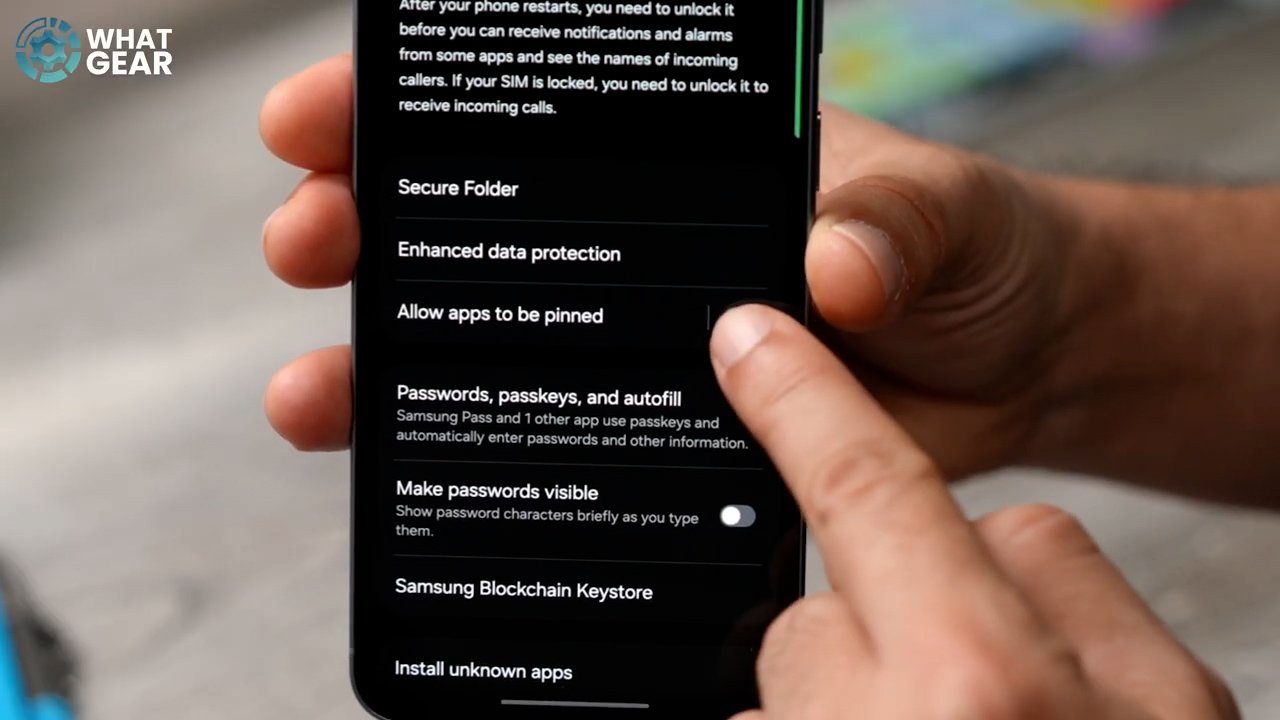
Here's another really useful feature if you are the type of person who lets other people use their phone to play games or watch videos. Go into your settings and then go to Security and Privacy, scroll down to More Security settings, and you'll find Allow apps to be pinned. What you can do whenever you open up an app, now you can open up the background, hit the icon at the top and go to pin this app. This app has now been locked on screen, and whoever's using your phone won't be able to get out of this without your fingerprint.
AI Select
One more tip: see the little edge panel that we set up before?. This is where you can find one of Samsung's unique tools—it's a very powerful one called AI Select. You just hold your finger down on that edge panel there, and that activates AI Select, and now you can draw out anything and extract it, or use the information with other apps on your phone.