
PlayStation Portal Just Levelled Up...DO THIS IMMEDIATELY
Sony have kind of done it again. That dark horse handheld portable gaming device, the PlayStation Portal, just got some updates. And the update is 7.0. And interestingly, there are really seven big changes that you need to know about, five of which are subtle UI refinements. But there is one big performance upgrade that you would appreciate the most.
If you're the type of gamer who appreciates quality, and if you don't want to miss out on this, it's important that you know how and where to enable this, because it doesn't just happen automatically. And there's also some hidden tools that will help you optimize the speed, which I think you're going to want to see. So if your Portal has been sitting on the shelf for a while, well, this might be the refresh that you've been waiting for.
TIP 1
So let's run through the five UI upgrades first, starting with trophy animations. You may not have noticed this, but they weren't present before — but now they are, including the very nice platinum animations. So if you're watching this and you're thinking about jumping into the world of Sony PlayStation, well, there's never been a better time to do it, because with the PlayStation Portal, you can get access to all of those Sony exclusive games.
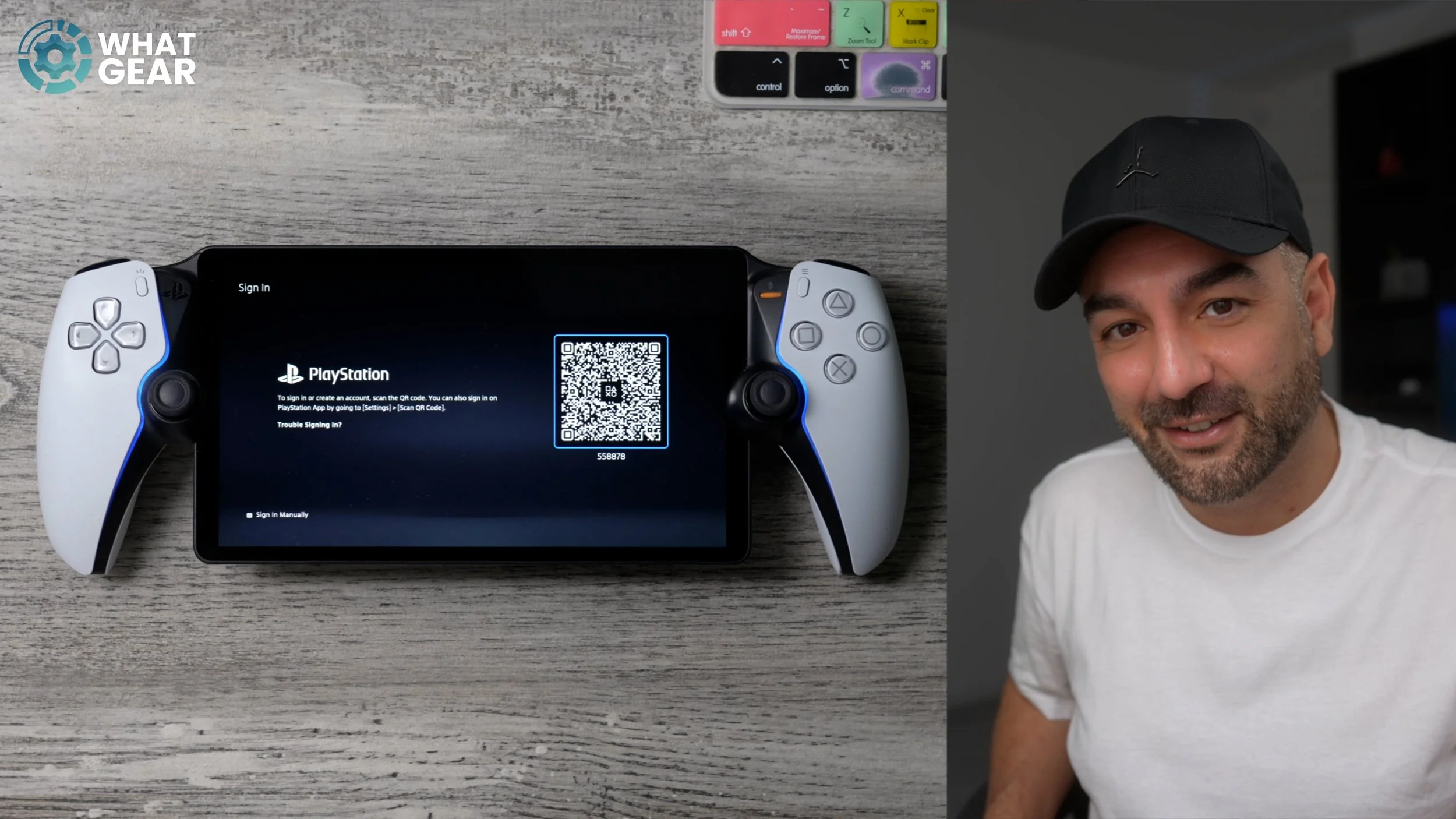
And on top of that, they've made it even easier now to onboard with this new QR code. And I know you might be thinking you will only have to use this once, but actually, whenever you get an update, and the system reboots, you will have to sign back in. So it's actually going to save you time. So by scanning this QR code, you can quickly sign into your PlayStation account via the web browser or the app on your phone. And if you don't have an account, you can literally just set it up on your phone instead of on the actual Portal itself.
TIP 2
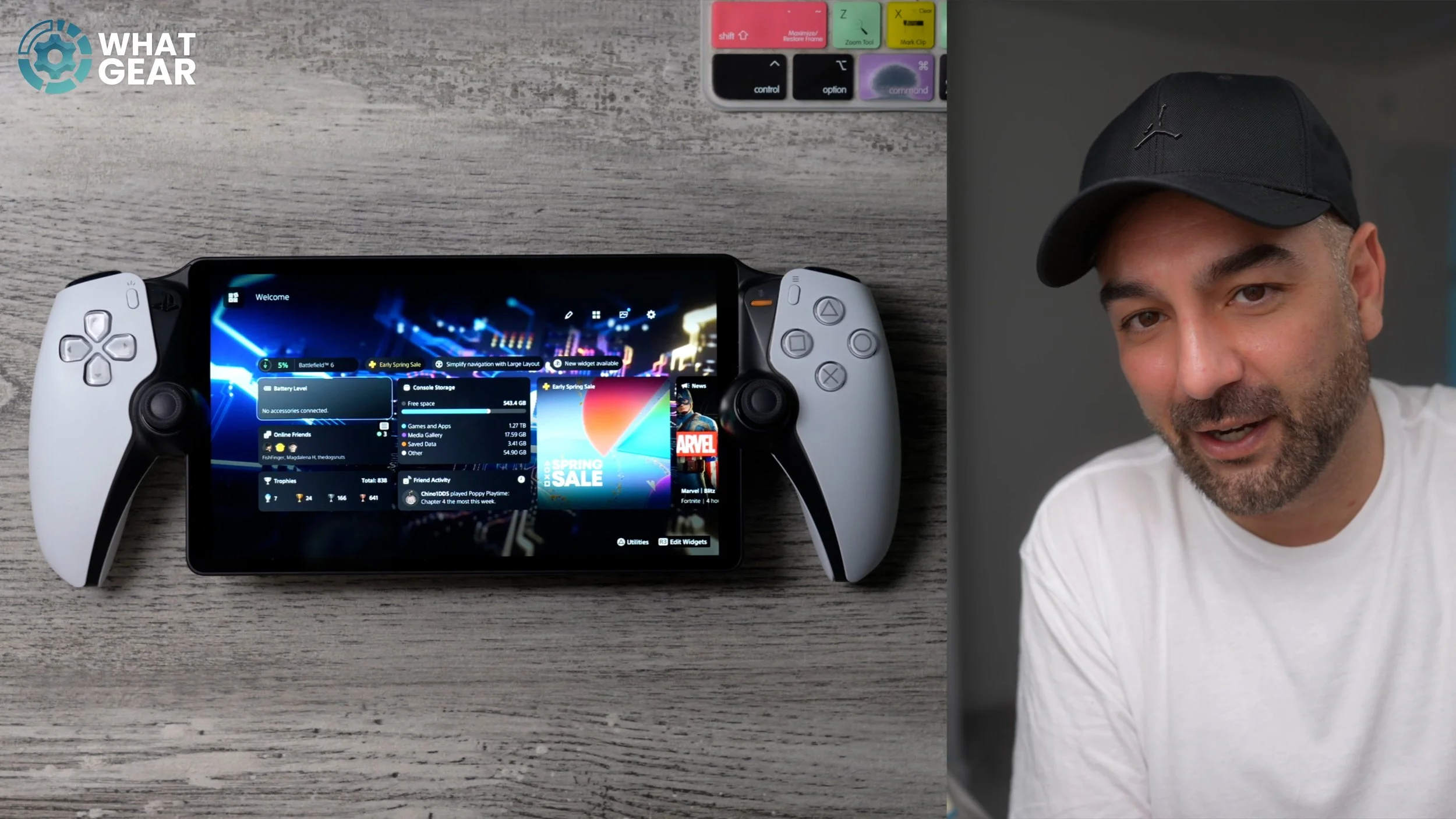
And here is another little UI improvement. When you receive a game invite while on the PlayStation Portal, that little animation will appear. It didn't happen before. Now I realise that this might not be that exciting an upgrade, especially if you have no friends. But on the plus side, that makes you unbeatable — because how do you kill that which has no life?
TIP 3
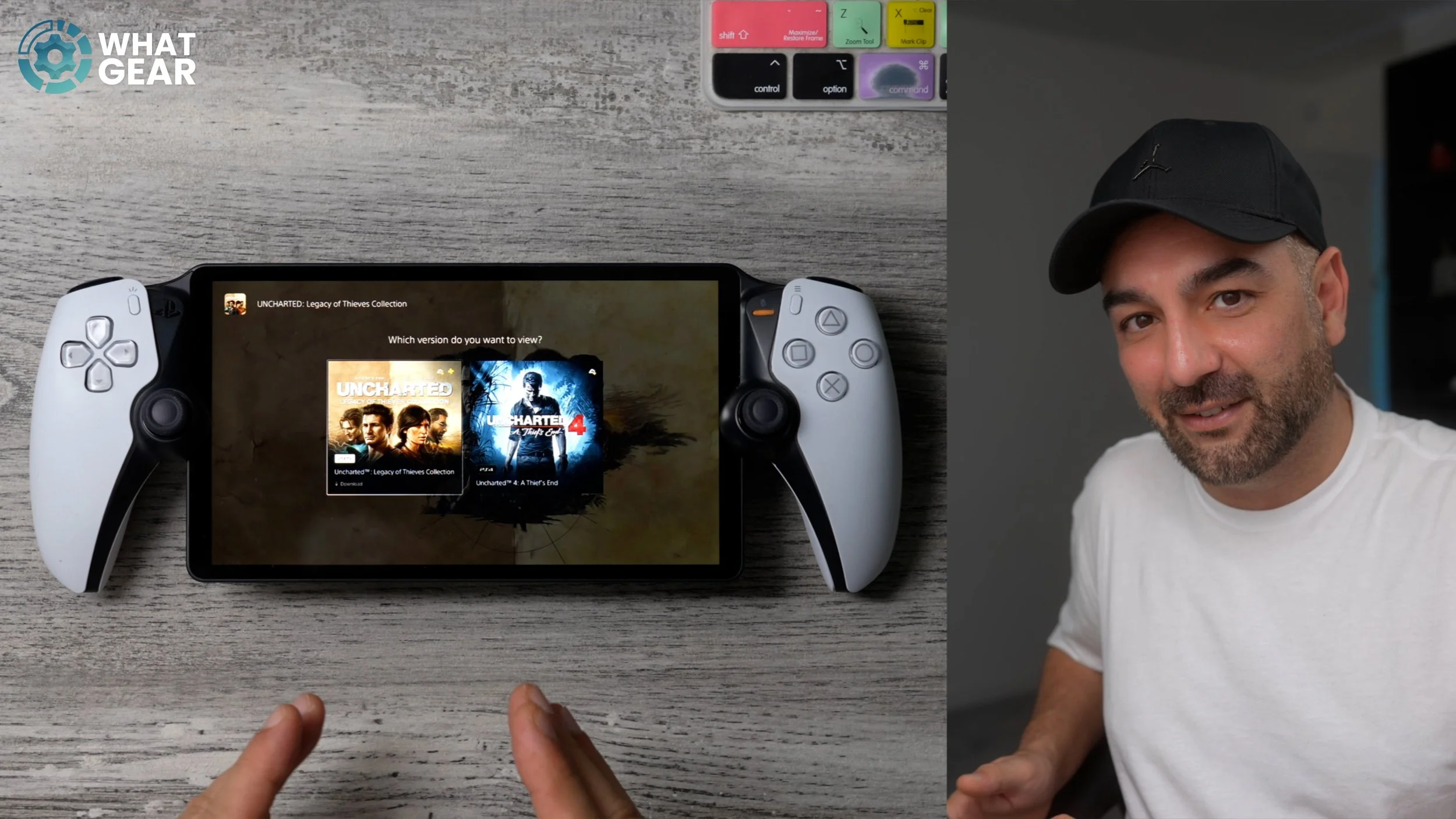
If you have purchased a game bundle in the past on the Portal, it may have been a little bit tricky to get to the different games within that bundle. But now they've actually made it a lot easier to do. And just for example, this is how the Uncharted Legacy of Thieves appears now. And if there were more, you would see more of these titles. Again, this is a subtle upgrade, but definitely a welcome one.
TIP 4
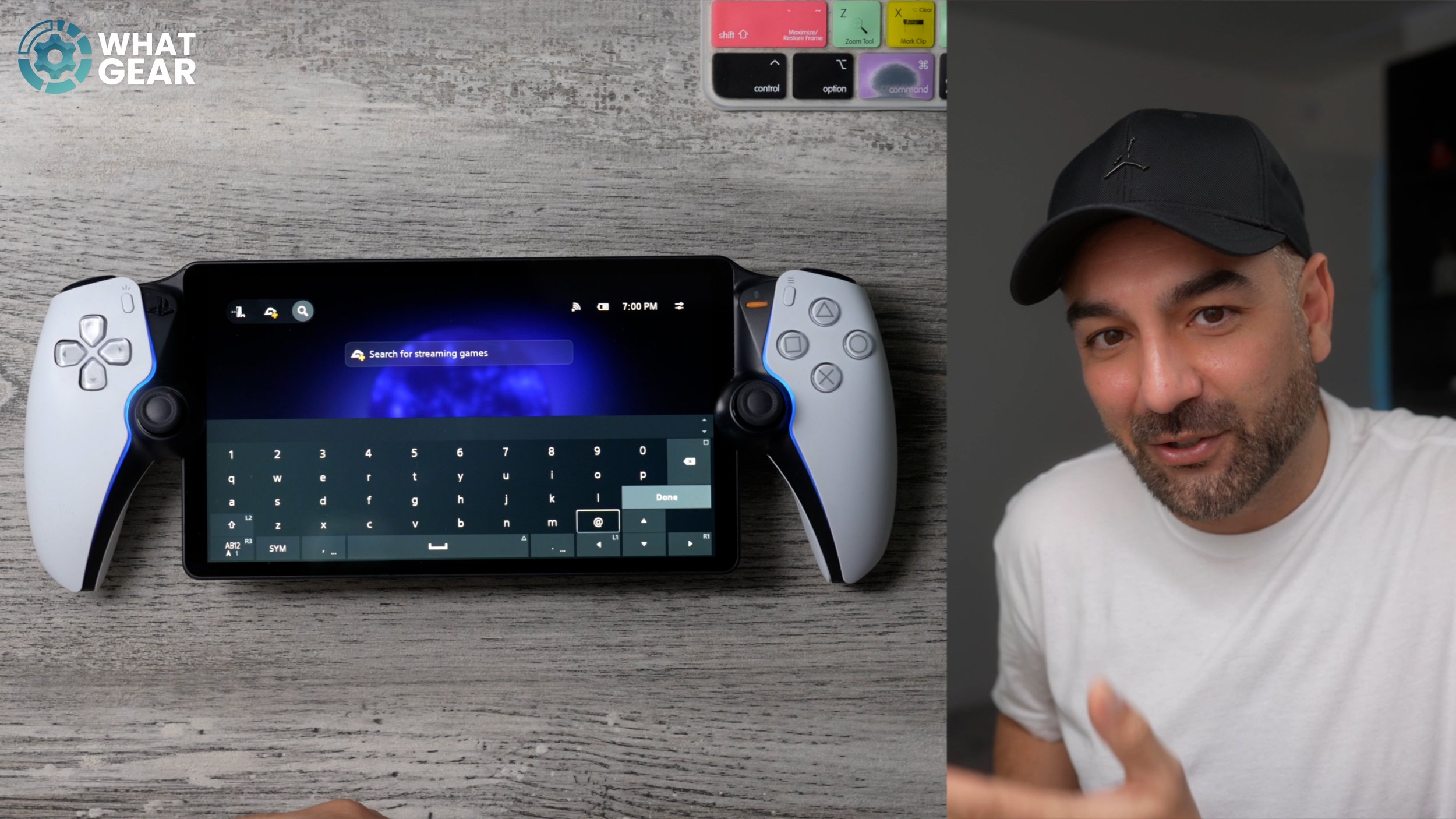
Now listen, I know these updates haven't been that exciting yet, but trust me — you will want to see the next one. So this is again very subtle. Whenever there is a text field now, the keyboard pops up automatically. But this little time-saving upgrade might be the key to more victories because it could potentially save you time. And if you've heard the saying, “You never stop playing because you get old, you get old because you stop playing.” I definitely butchered that quote, but you get the idea.
TIP 5
Here's a question for you — why wouldn't you want to play your games in higher resolution? I genuinely think the only answer to that question is if you have some kind of data cap on your internet. But if you're not worried about data usage, well, then you need to be using this on your PlayStation Portal. The next time you load up a game on your PlayStation Portal, just hit the PlayStation button, and it's right here where you will find the brand new Max Resolution feature.
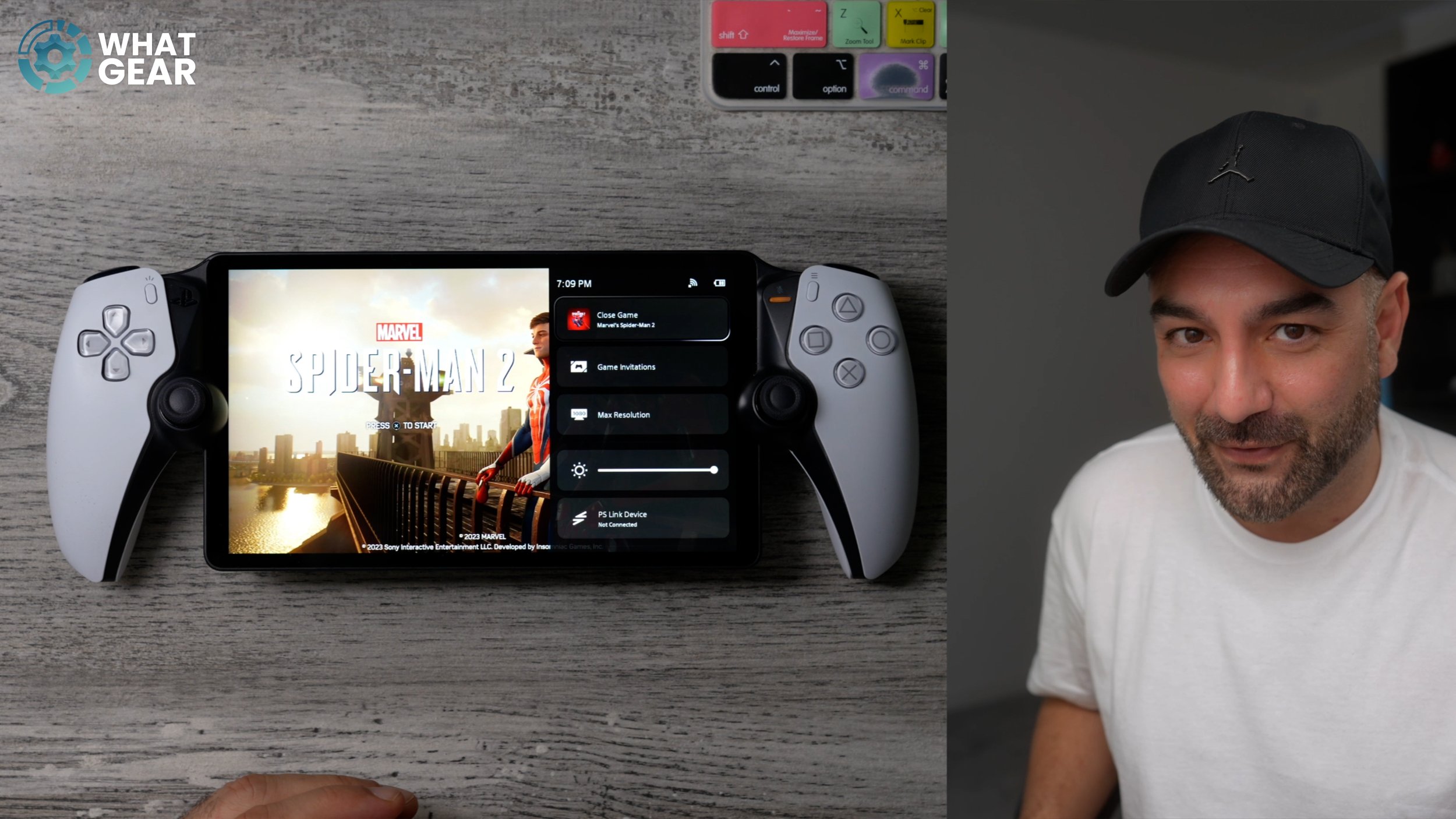
It is still going to be 1080p, but it's going to basically double the bitrate of the stream. Now, there are two things you need to know about this. Once you switch on the Max Resolution mode and set it to high quality, you need to apply and restart the game, so make sure you do it at a good time. For example, like I did, on the starting screen. The Portal will then, of course, have to reconnect to the game server in order to get you back in with that higher speed and higher bitrate, and ultimately higher graphics output. And this immediately looks way better.
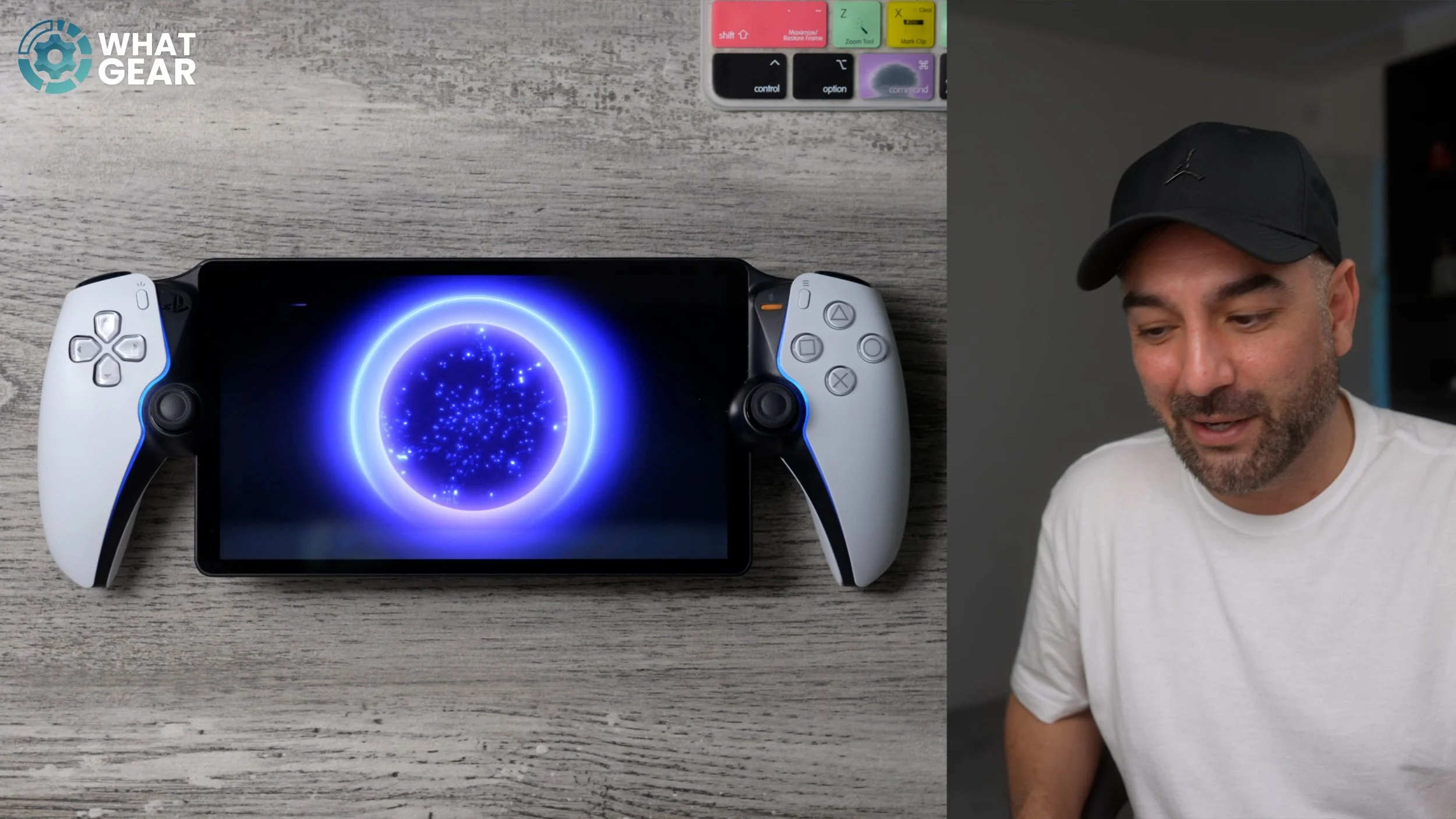
Now here's the important thing you need to know about this. Once you set it for cloud streaming, it will remember that setting. But there is a second setting that applies to PlayStation Remote Play. So, of course, you need to reconnect to your PlayStation once again. Just hit the PlayStation button, and on the right side, you will see the Max Resolution option. And when you go into this, you'll notice straight away it's still set to 1080p standard, so you need to set this to high quality. Apply and restart.
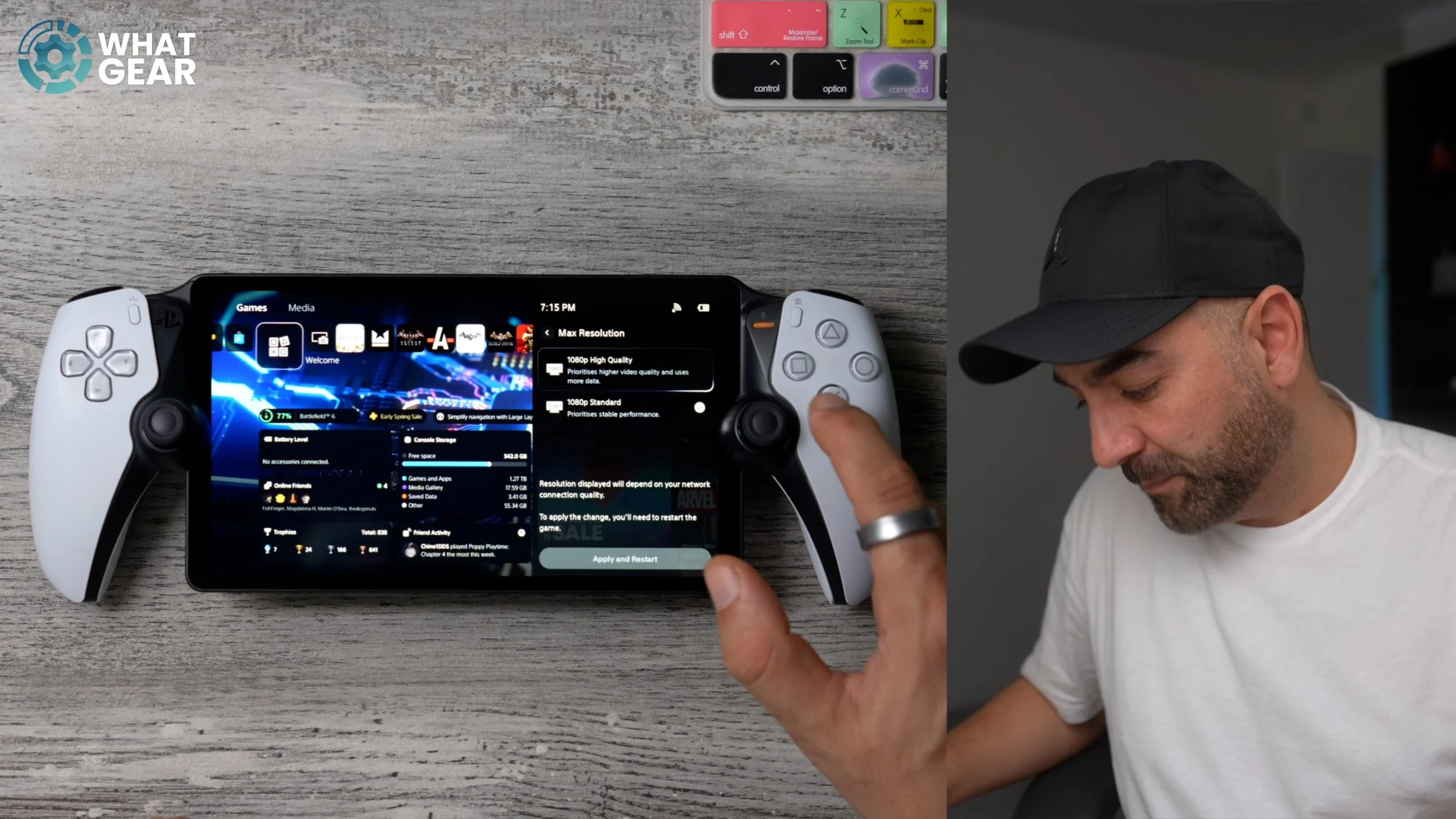
And just like before, it's going to reboot, and then it will come back with that enhanced bitrate. And if you were going to ask, “Is it too much to ask for high bitrate on both?” Well, the answer is… no, it isn’t. So it's important that you know this, because otherwise you might be missing out on one or the other.
TIP 6
Now let me show you those hidden tools, which are now less hidden and extremely useful — and even more so now that we have the high resolution mode. So once again, when you're in a game, if you just hit the PlayStation button, you get the quick settings. And now, if you scroll all the way to the bottom of the quick settings, you'll find the troubleshoot section. And this little tool here shows you the network status, so you can see what network you're on. You can see the downstream bitrate — that's the important one. Before, it kind of capped out around 12, like you're seeing now.
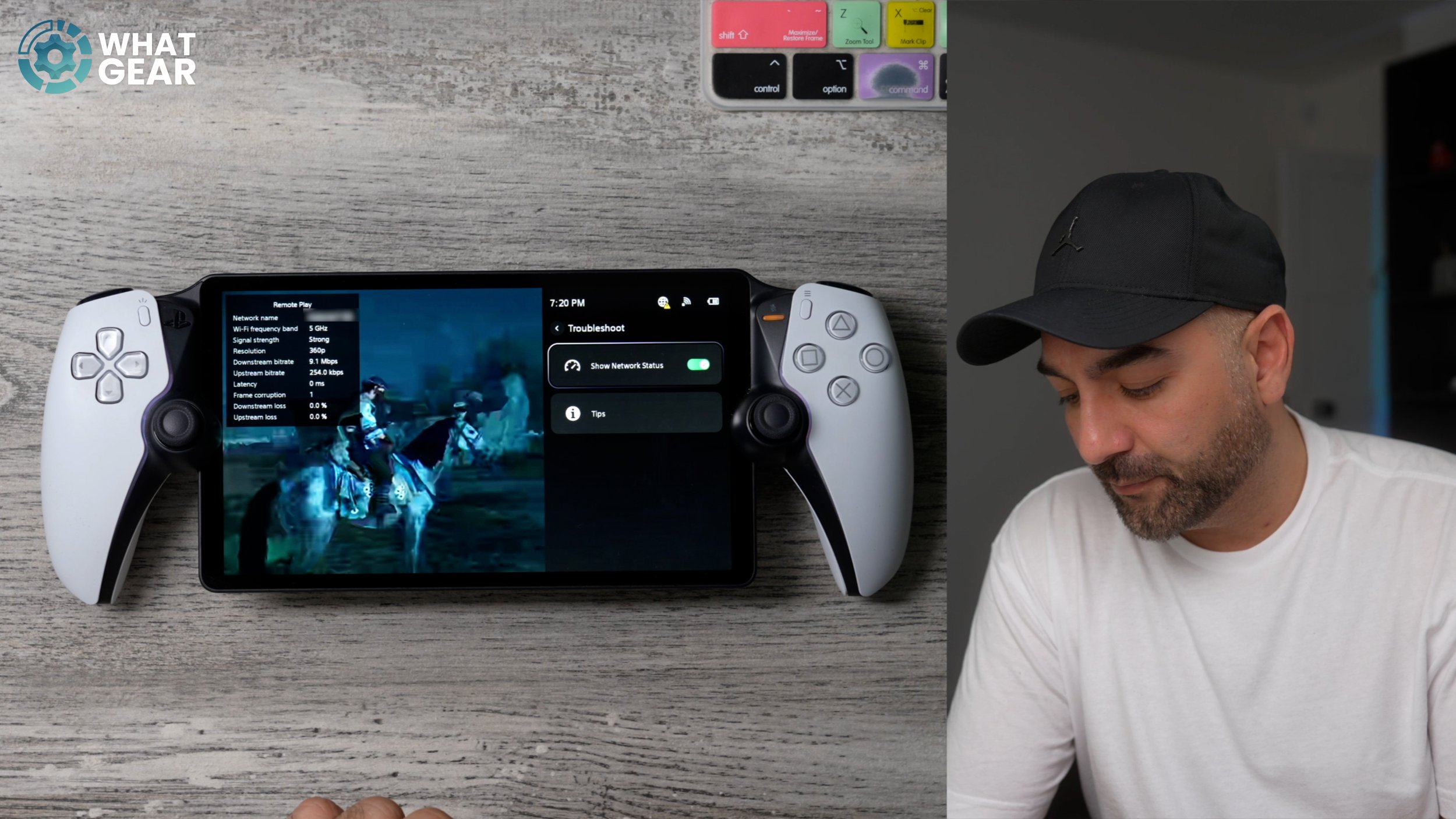
And just like you've just seen, when the speed dips to a certain level, the game stream will cut out. So what this does is it gives you some valuable information that you can work with. So the first and easiest thing that you could do would be to move closer to the modem or change the network. And then just underneath, you have all of the tips for how to improve the speed of your connection. And it's broken down into three nice categories: Wi-Fi, connection speed, and resolution. So if the new high-resolution mode isn't working as expected, you can go through these little troubleshooting steps and use the diagnostic tool to figure out exactly what's going on.
