
Samsung Galaxy A26 - 27 Settings to CHANGE NOW for MAX Performance!
This article provides 17 tips and tricks to transform your Samsung Galaxy A26 from a decent phone into an incredible one, unlocking its maximum performance and revealing hidden features you might not know about. If you are looking for a more depth & ADVANCED CUSTOMISATION GUIDE for Samsung Galaxy phones. Check this out.
Speeding Up Your Phone's Performance
1. Optimize Memory
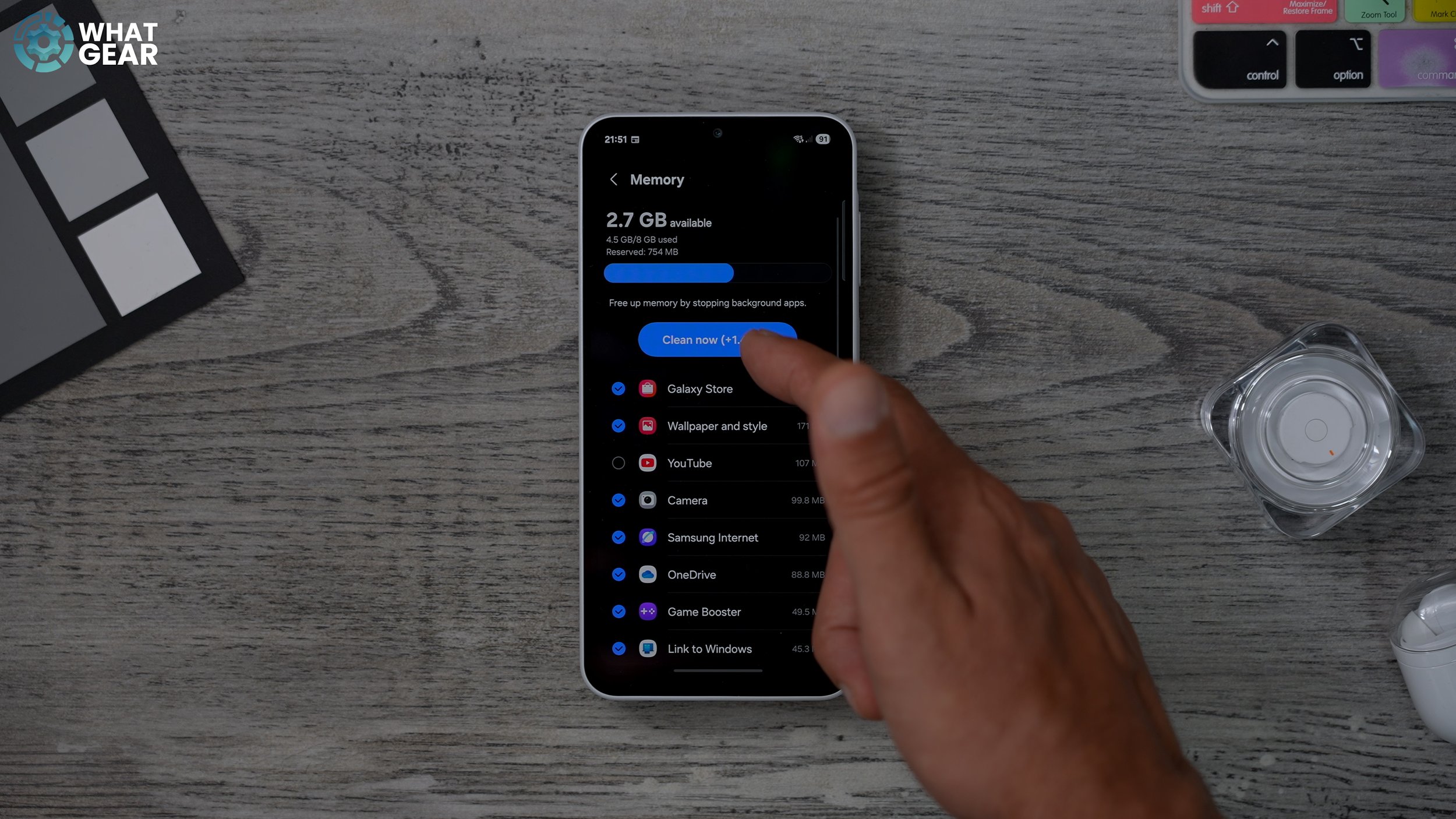
To instantly improve your phone's speed, go to "Settings," then "Device care". Tap on "Memory" to check for wasted space. The phone will prompt you to clean up any unnecessary information, which can be significant. You can untick any apps you wish to keep before hitting "Clean now".
2. Add a Device Care Widget
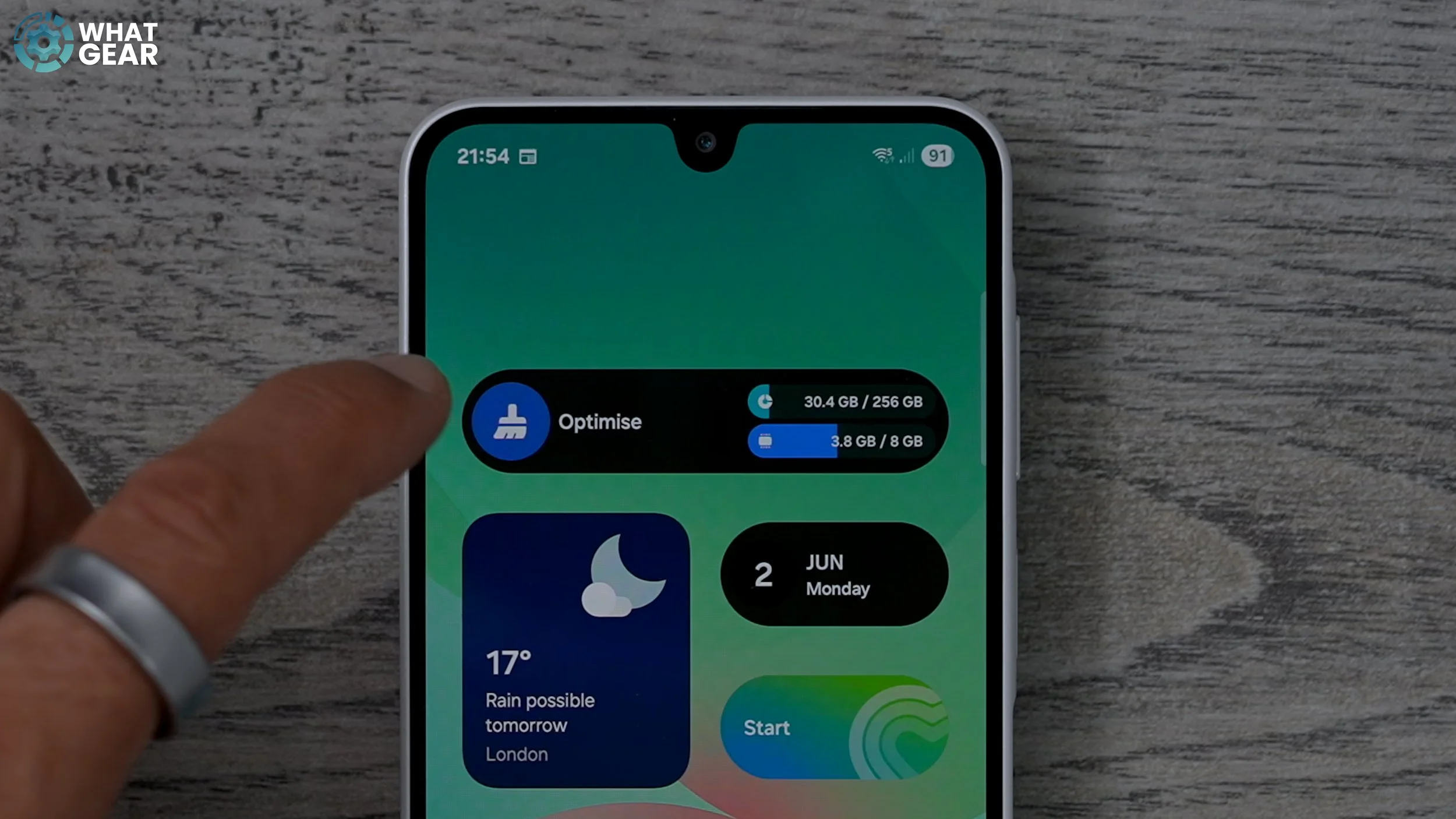
Add a device care widget to your home screen for frequent optimization without navigating through settings.
Hold your finger down on an empty part of the screen and go to "Widgets".
Select a widget from the "Device care" section.
This widget allows you to monitor RAM and storage usage.
If RAM is low, tap the "Optimize" button to close background processes and speed up your phone.
3. Maximize RAM Plus
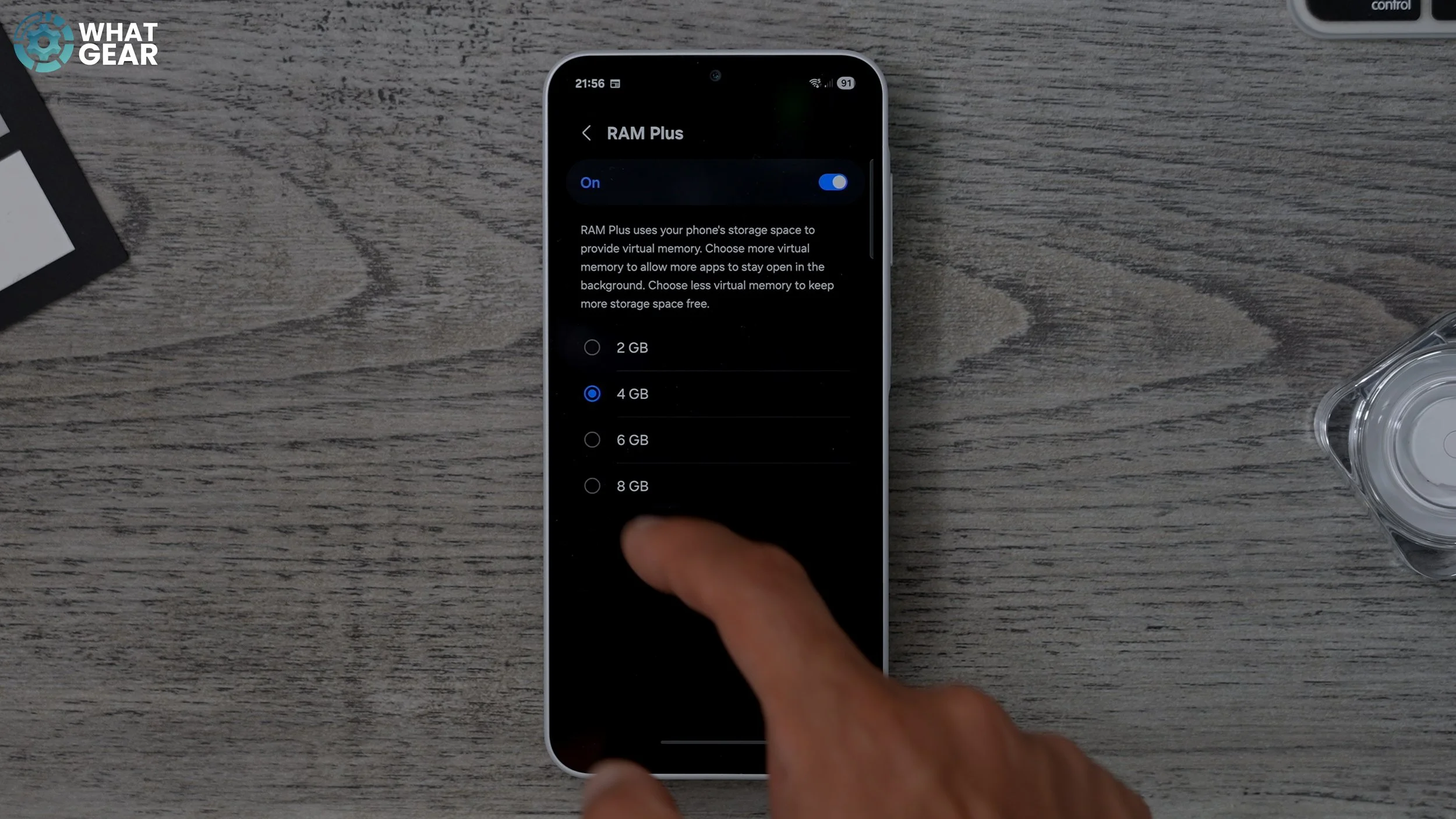
This feature uses your phone's storage (ROM) as virtual RAM to enhance multitasking and gaming performance.
Go to "Settings" > "Device care" > "Memory".
Scroll down to "RAM Plus" and tap it.
Change the setting from the default 4GB to 8GB.
You can dial this back later if you run out of space.
4. Enable Adaptive Battery Protection
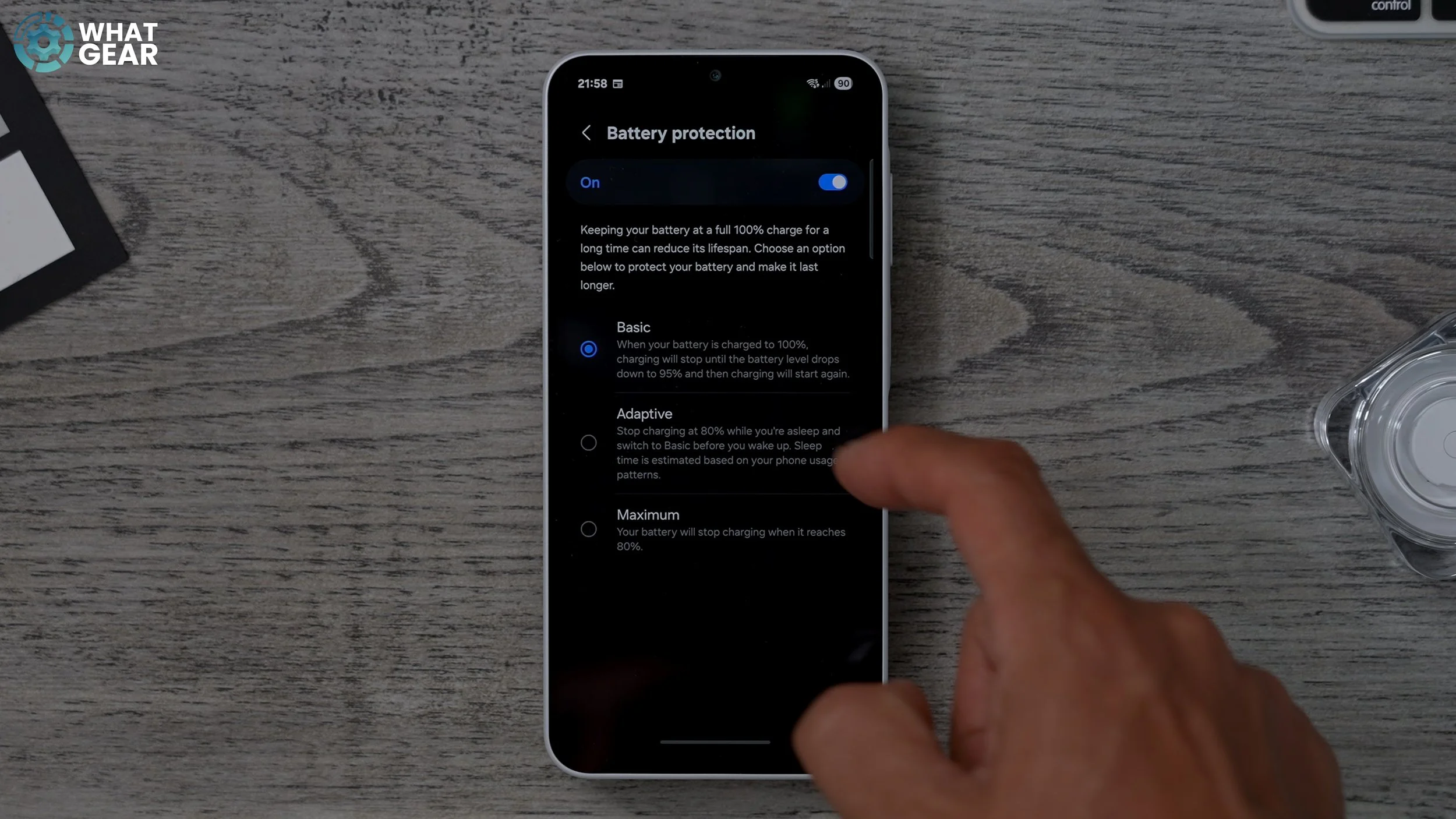
This setting helps prolong your battery's lifespan, especially if you charge overnight.
Go to "Settings" > "Device care" > "Battery".
Tap "Battery protection" and select "Adaptive".
Your phone will charge to 80% at a regular speed, then slow down and time the remaining charge to 100% based on your sleep patterns.
5. Turn On Auto Optimization
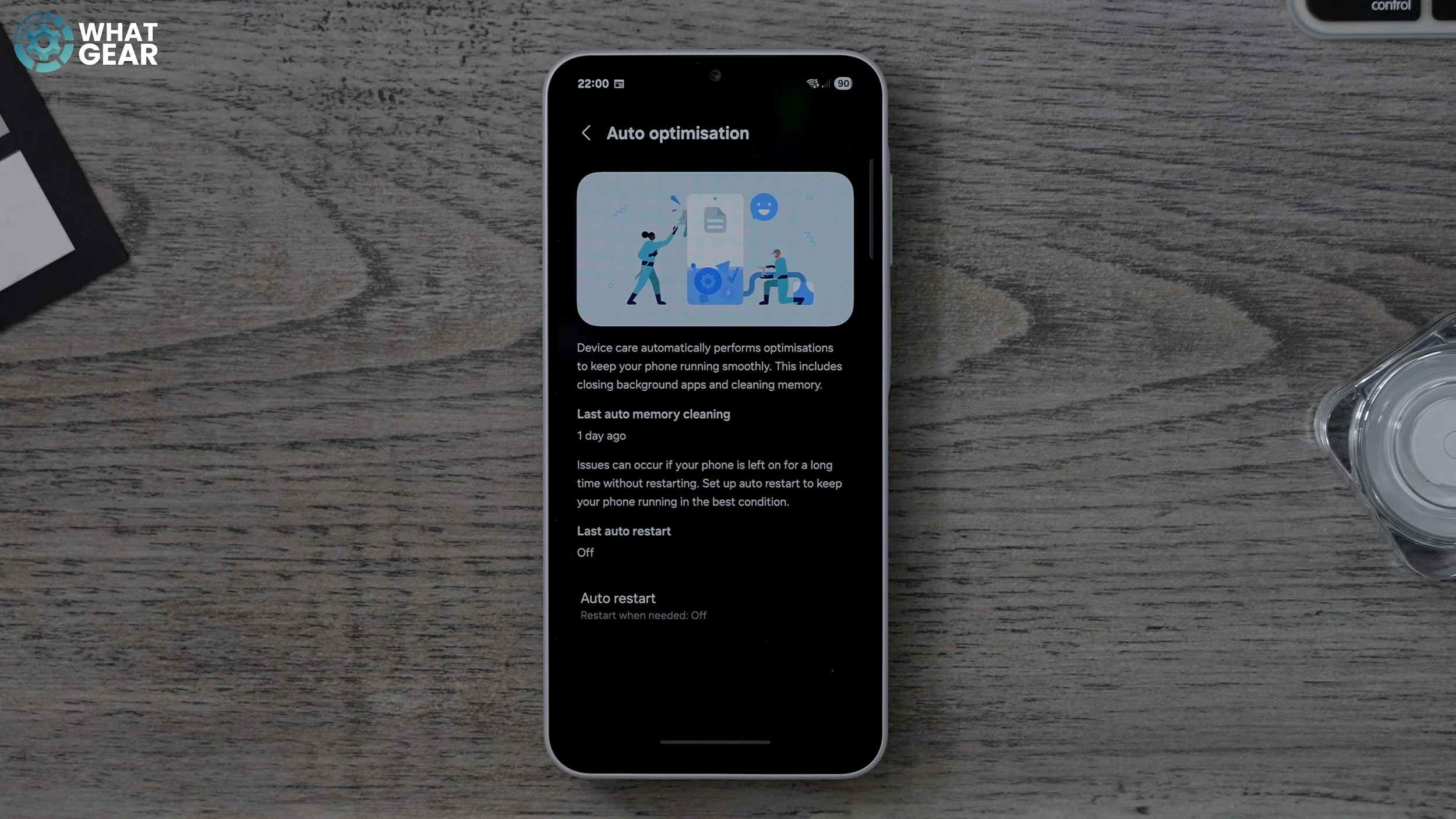
Allow your phone to automatically reboot when needed to maintain optimal performance.
In "Settings" > "Device care," scroll down to "Auto optimization" and tap it.
Switch on "Restart when needed".
The phone will intelligently reboot when it detects too many background processes, ensuring a fresh start without interrupting your usage.
6. Optimize Game Booster Settings
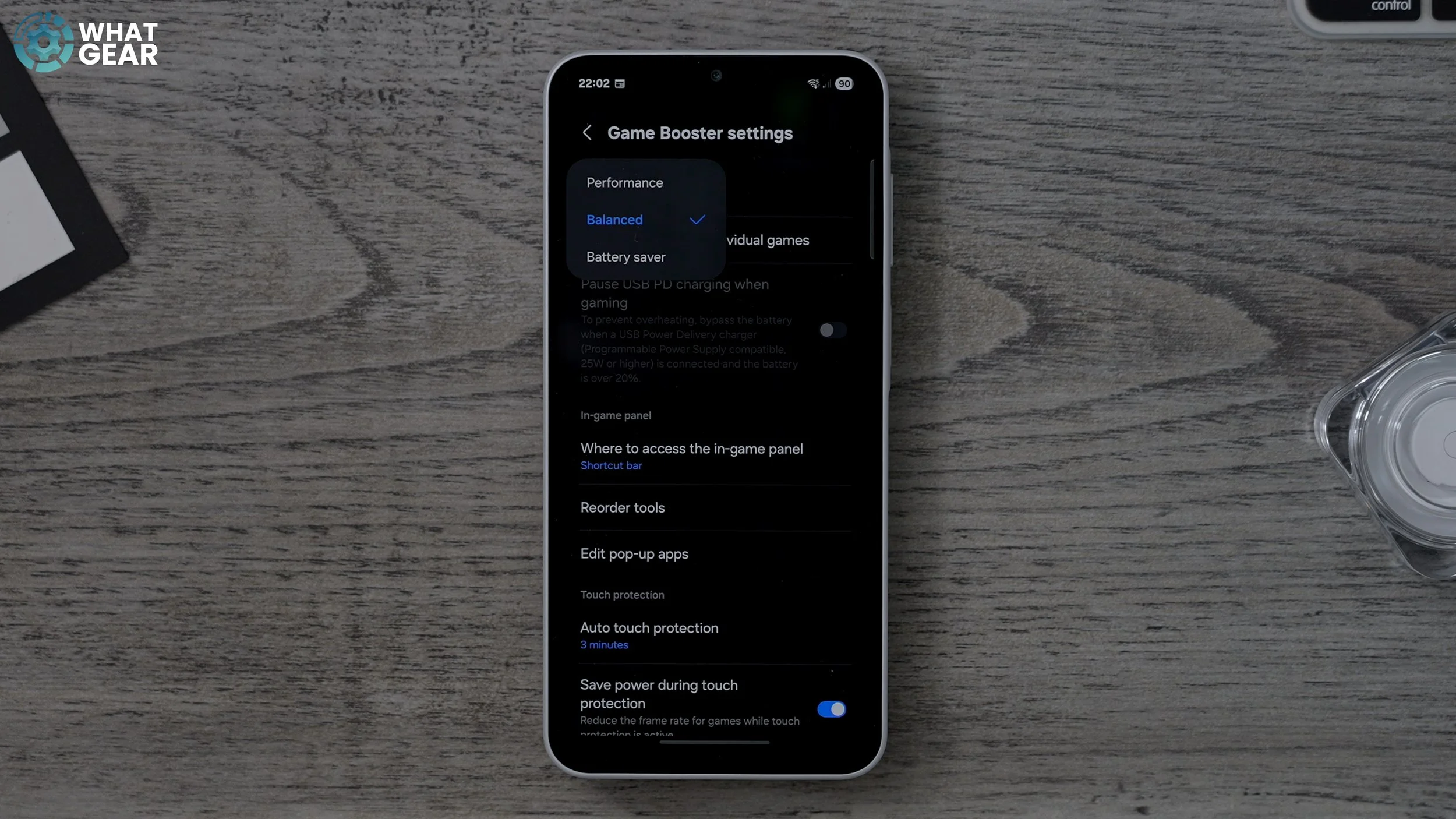
For gamers, these settings can provide maximum performance.
Go to "Settings" > "Advanced features" > "Game booster settings".
Change the performance mode from "Balanced" to "Performance".
You can customize individual game profiles if some games don't require maximum performance.
Enable "Bypass battery" if you play while charging. This powers the phone directly from the supply, preventing overheating and potential battery/processor damage, which can affect graphics performance.
7. Halve Animation Scales
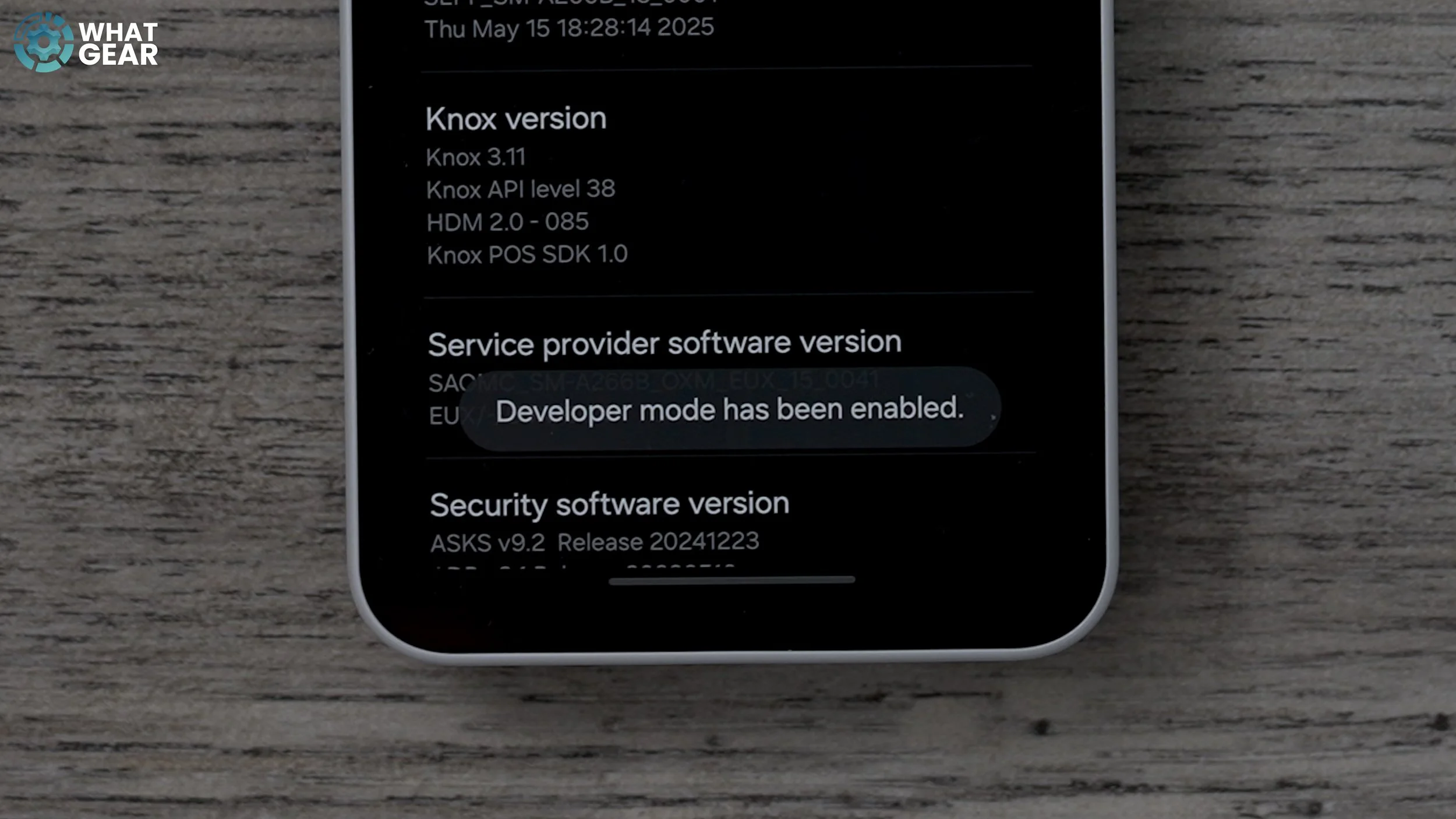
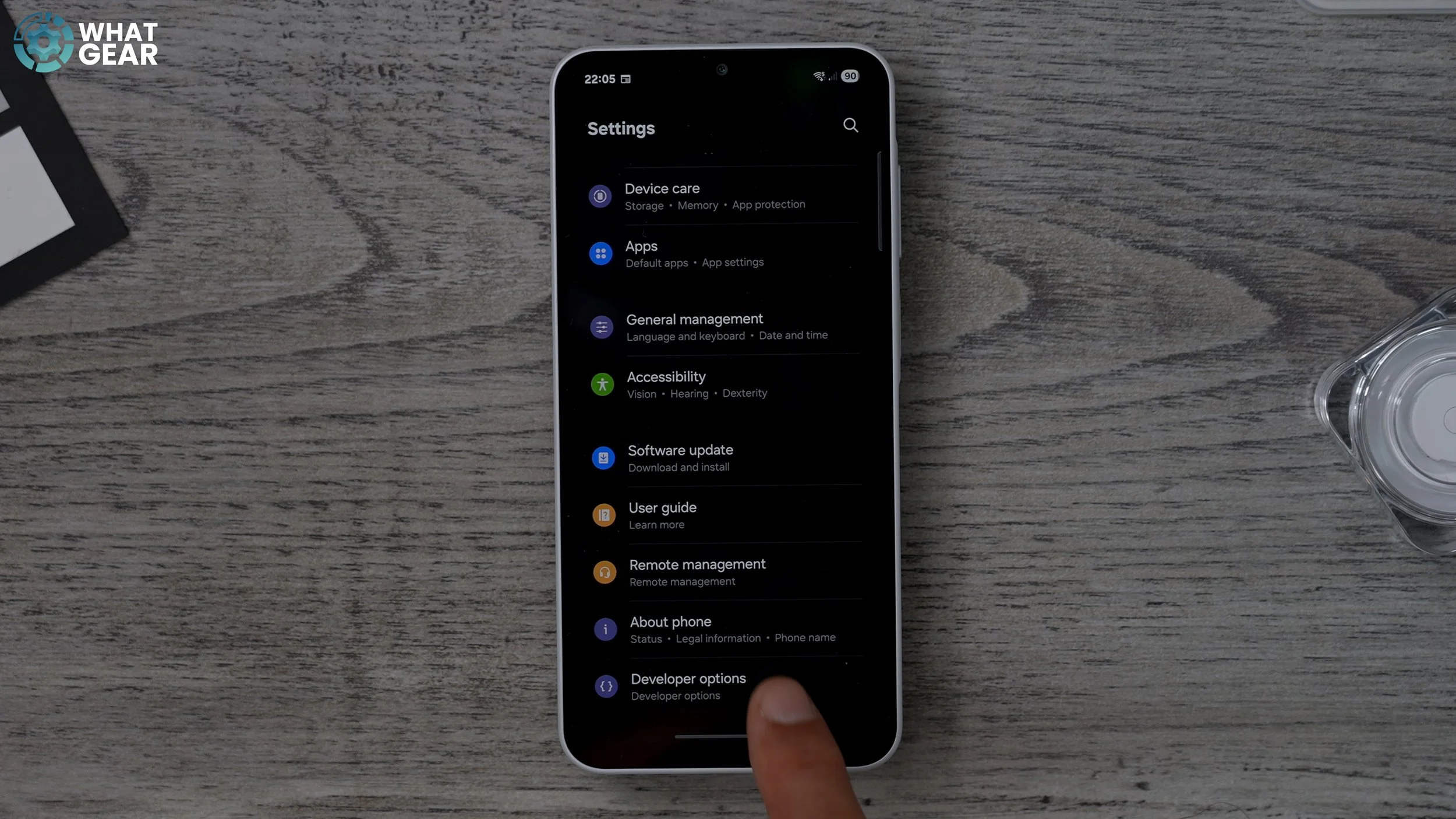
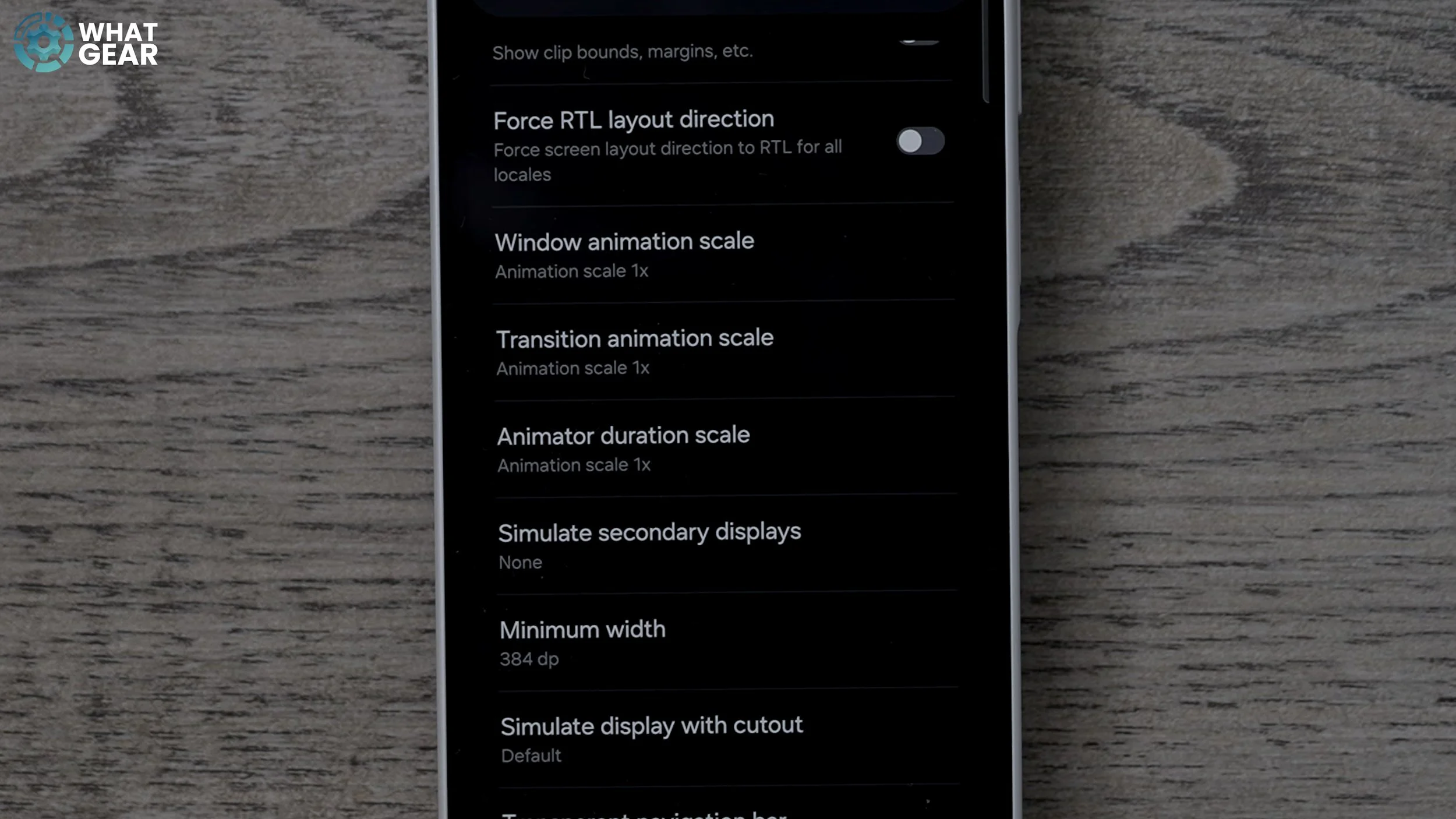
This trick makes your phone feel twice as fast by reducing animation times.
Go to "Settings" > "About phone" > "Software information".
Tap "Build number" seven times to unlock Developer Mode. You may be asked for your phone's PIN.
Go back to the main "Settings" menu and find "Developer options" at the bottom.
Scroll down to "Window animation scale," "Transition animation scale," and "Animator duration scale".
Set all three to "0.5x".
Animations will take half the time, making app loading and transitions feel smoother and faster.
Day One Bonus Tips (Overlooked Essentials)
These tips help maintain device speed, security, and feature access.
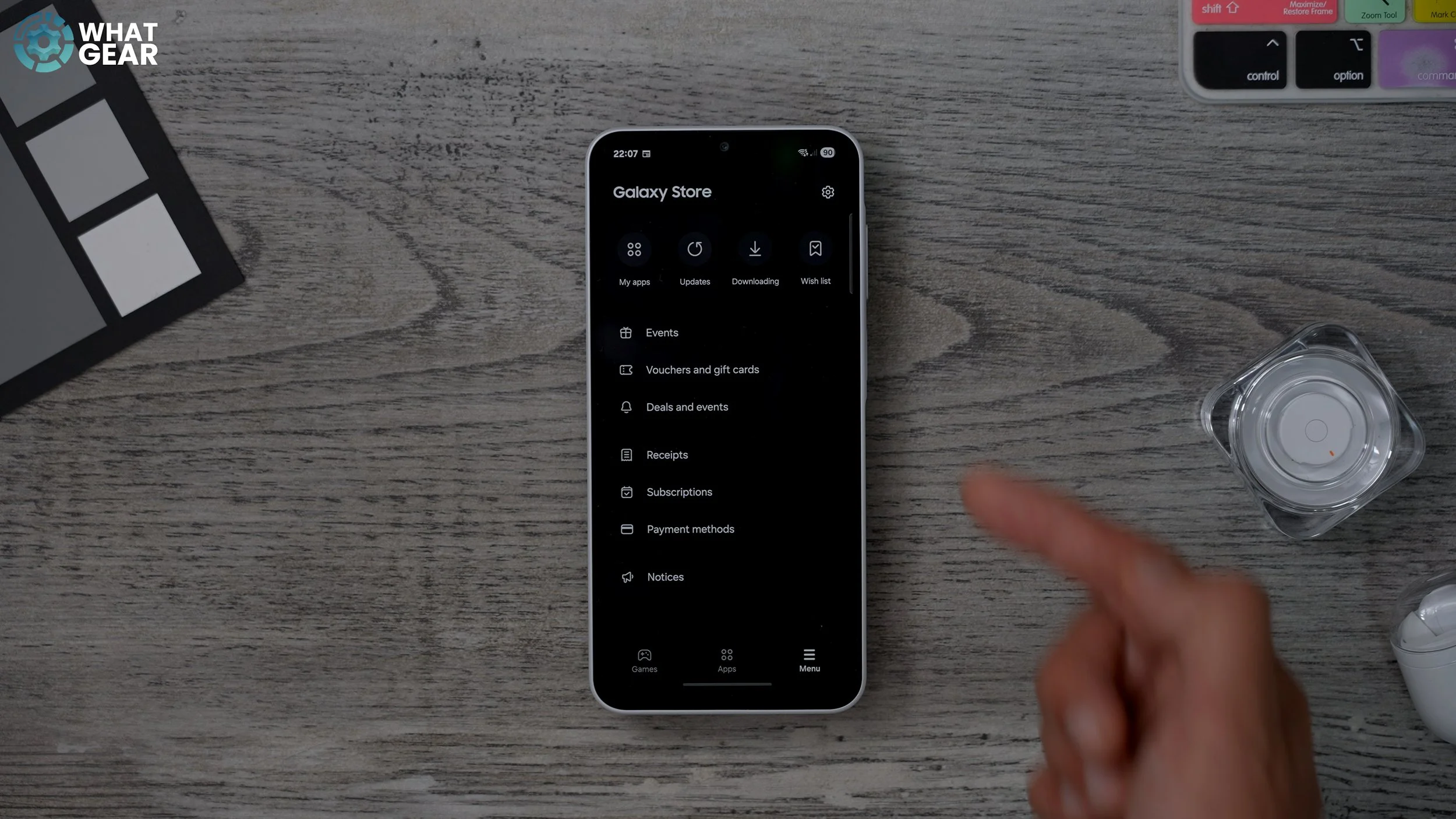
8. Update Samsung Store Apps
Go to the Samsung Store (Galaxy Store).
Tap the menu at the bottom and check for updates.
Many official Samsung apps won't automatically update on day one, and these updates can unlock first-party features.
9. Update Google Play Store Apps
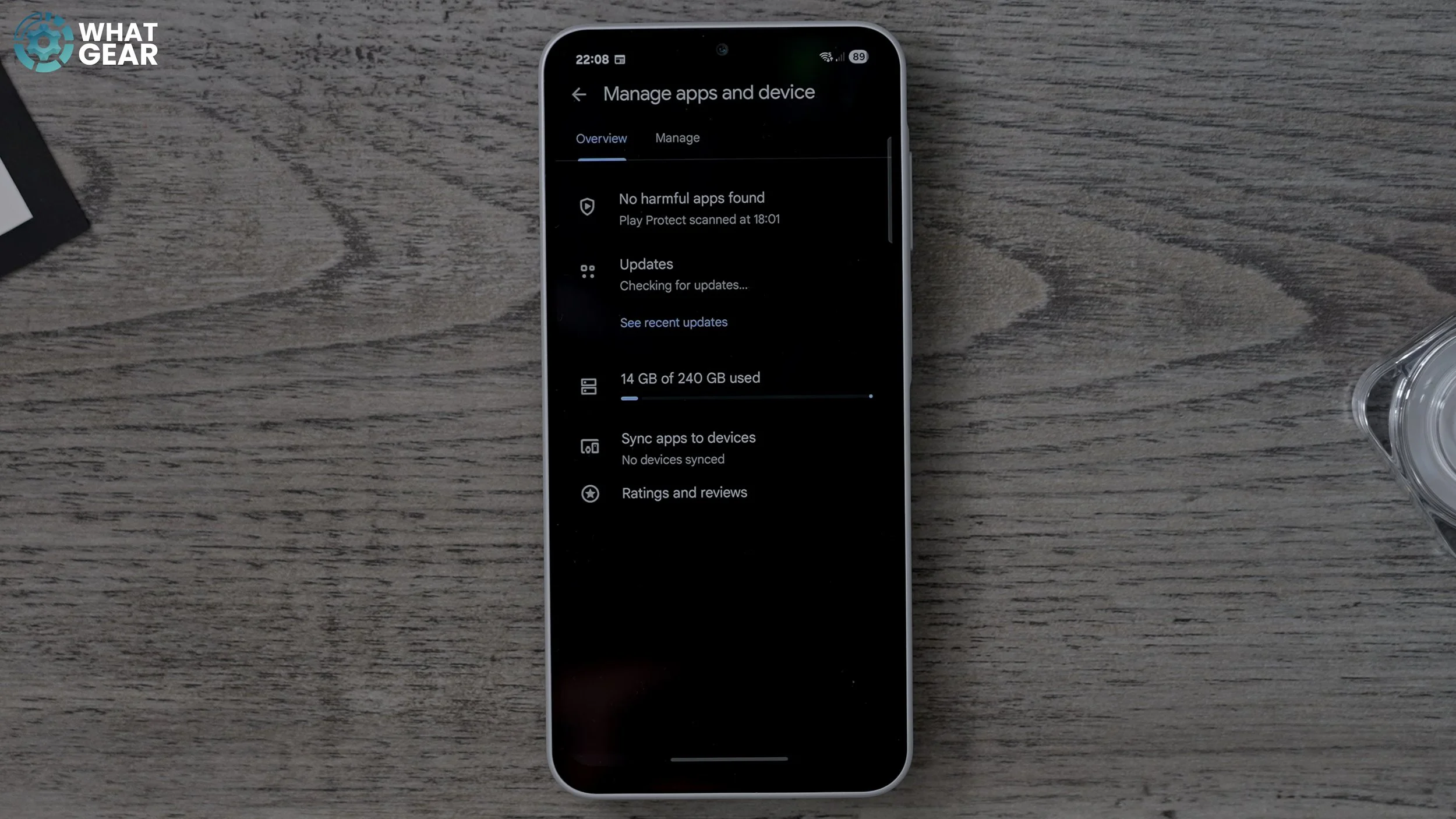
Go to the Google Play Store.
Tap your profile icon (top right) and go to "Manage Apps and Device".
Perform a scan for available updates.
Many of these updates are crucial for security and AI functionality.
10. Check for Software Updates
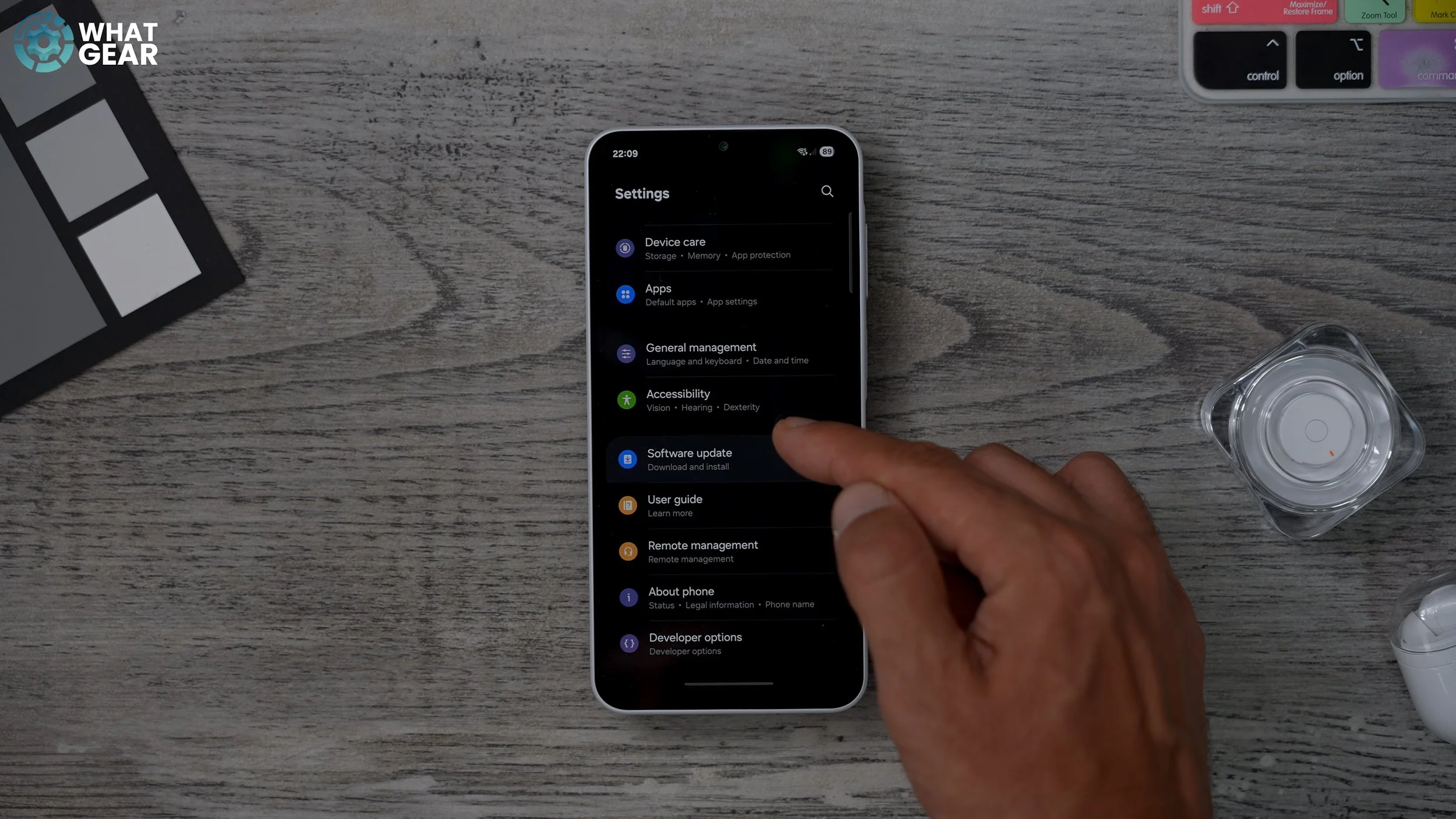
Go to "Settings" > "Software and update".
Scan for the latest software update.
It's recommended to do this last, as updating the Play Store or Galaxy Store first can interfere with system updates.
Customization Tricks
11. Customize Quick Settings Panel
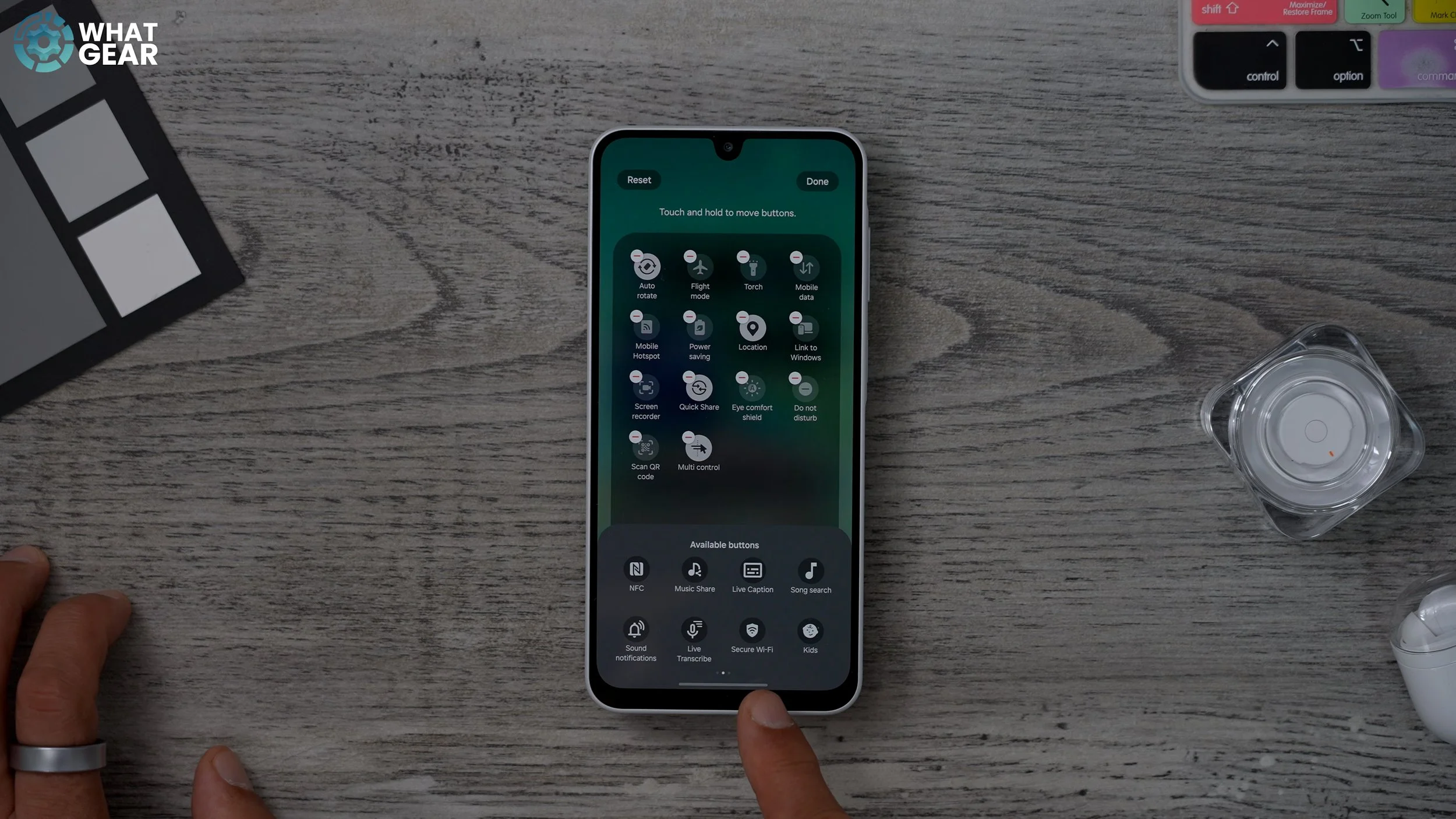
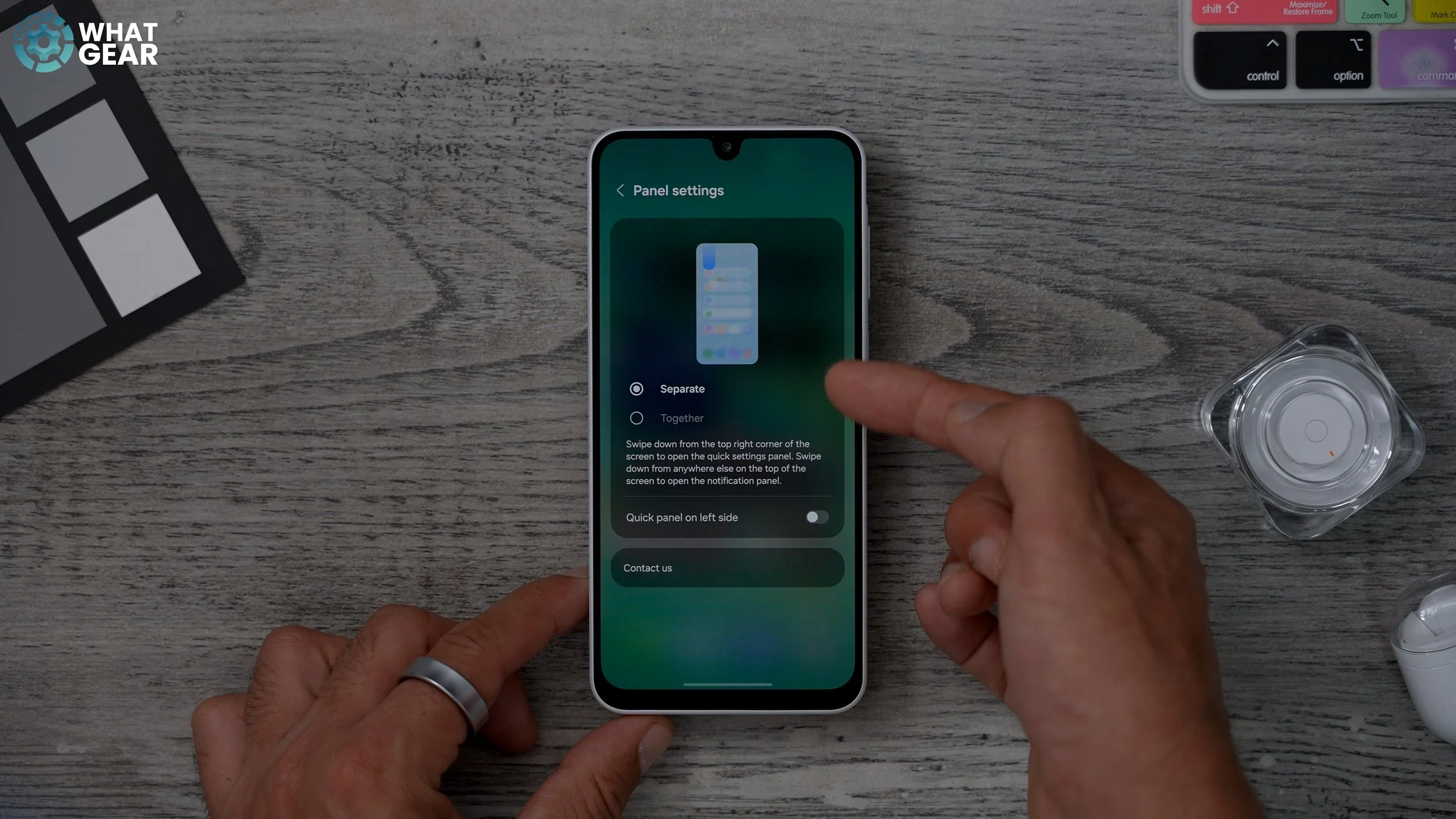
The quick settings panel can be customized for better accessibility and convenience.
Swipe down from the top right corner to access Quick Settings.
Tap the pen icon at the top to customize the order of tiles.
Tap "Quick settings" to expand the view.
Hit "Edit" to remove or add various items.
Recommended additions:
Secure Wi-Fi: Acts like a VPN on public hotspots.
Secure Folder: For confidential files.
Dolby Atmos: Enhances audio experience for supported content or emulates it.
For left-handed users, you can swap the quick settings swipe-down side to the left. You can also switch to the old Samsung style where all quick settings were together.
12. Master the Edge Panel
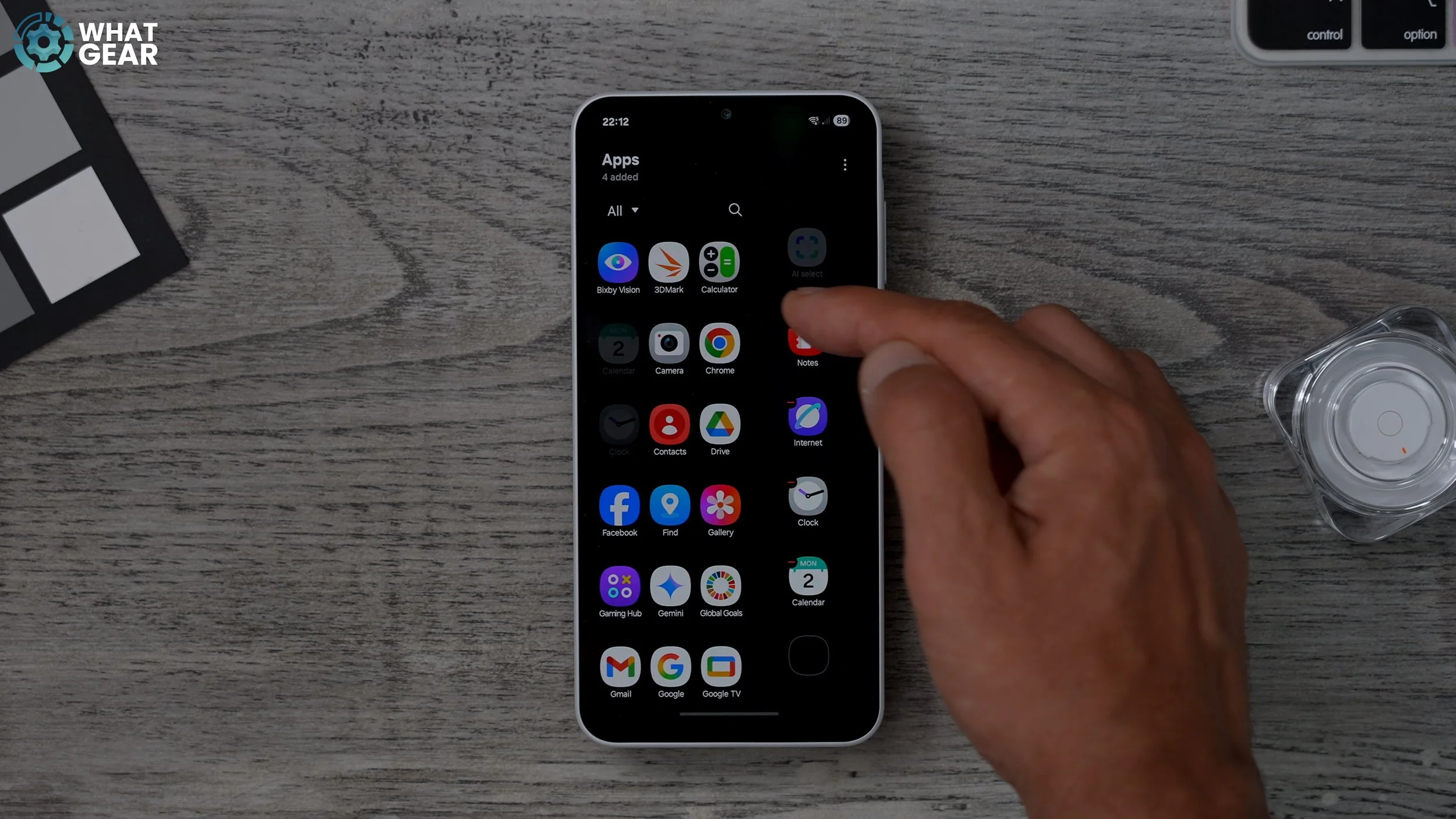
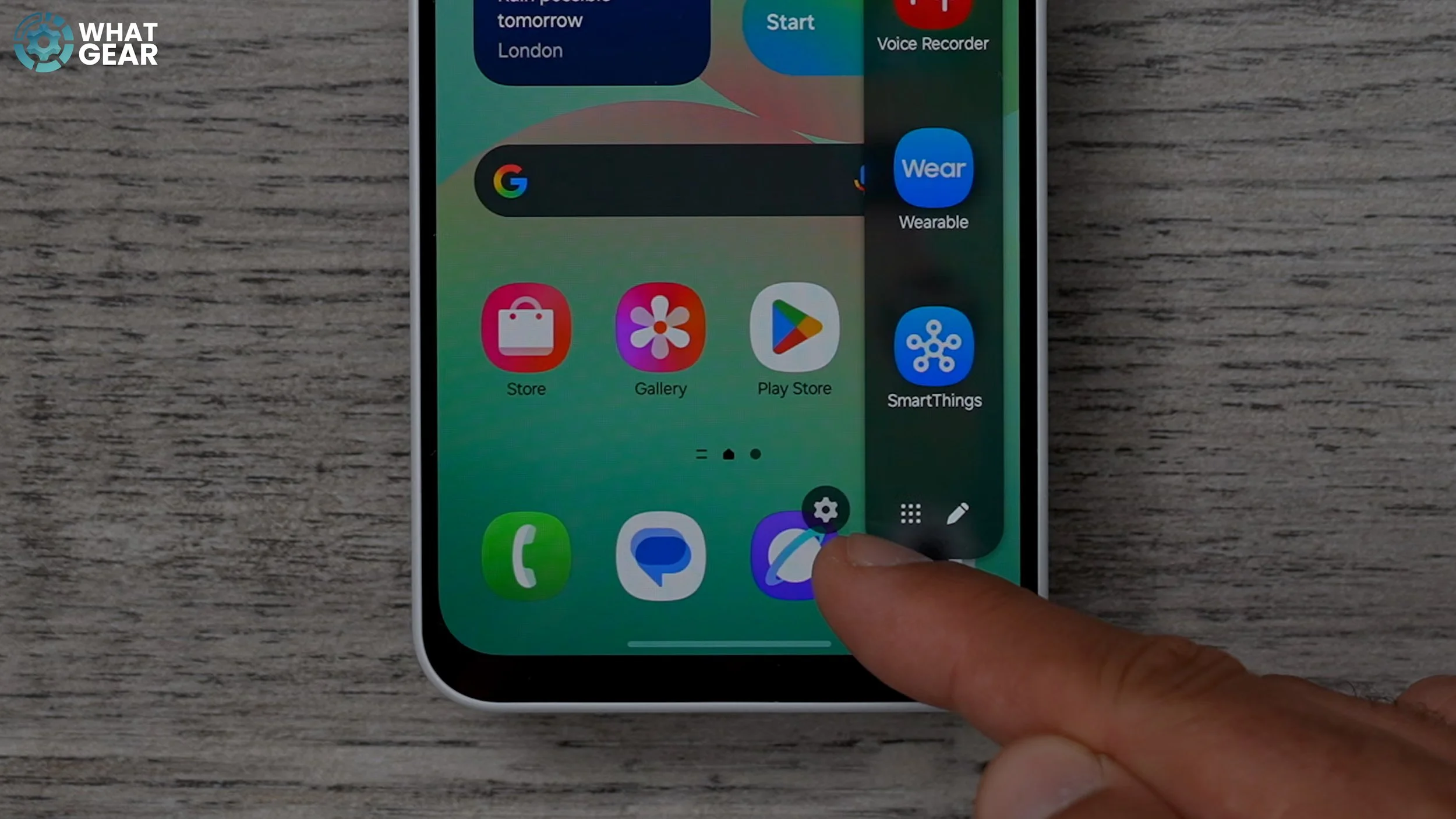
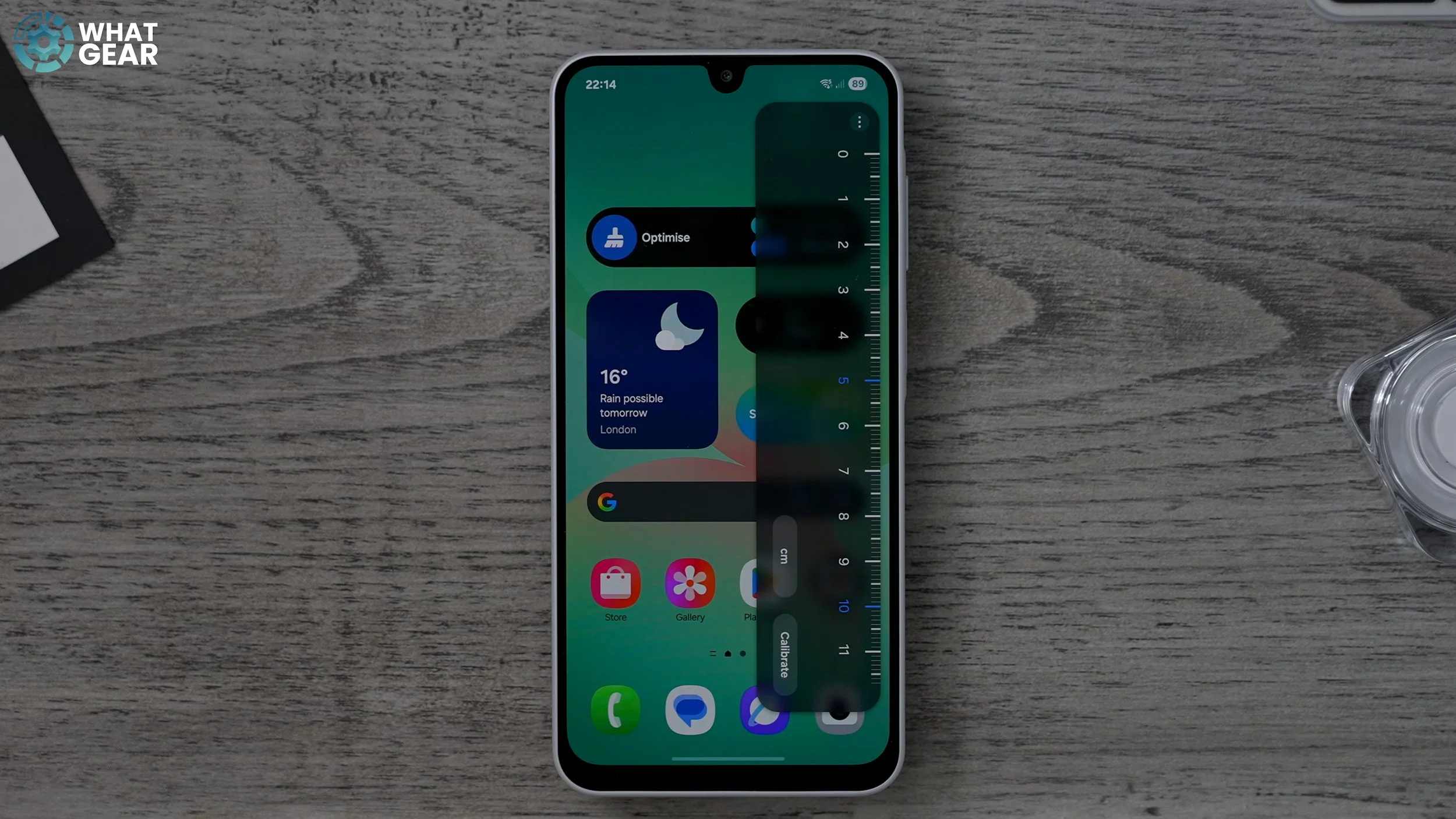
The Edge Panel is a highly useful tool for quick access to apps and utilities.
Drag out the faint line on the right side of the screen.
Hit the pen icon at the bottom to customize apps.
Add apps you use occasionally but don't need on your home screen (e.g., Samsung Find, Voice Recorder, Smart Things).
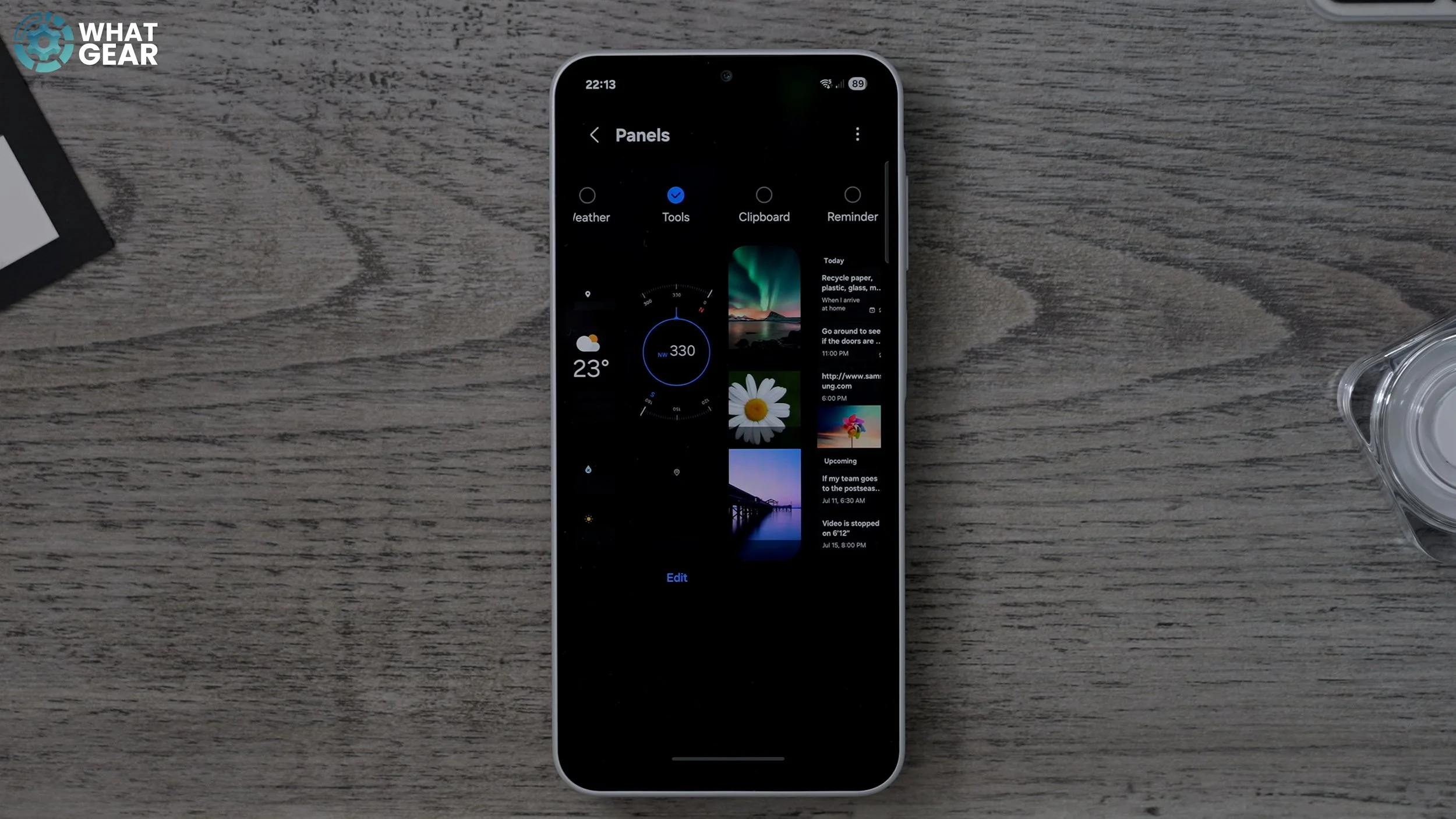
Add "Tools" Panel:
Swipe out the Edge Panel and quickly tap the "Settings" icon that briefly appears in the bottom left.
Select "Tools" from the Hidden Panels page.
This provides a compass, torch, surface level, and ruler.
13. Create App Pairs for Multitasking
The Edge Panel makes split-screen multitasking incredibly easy.
Drag an app from the Edge Panel onto the screen and choose its position (half screen or floating window).
Once in split-screen, you can select a second app.
To save this app pair, hit the three dots in the middle and tap the star icon to favorite it.
You can add the app pair to your home screen or the Edge Panel for instant recall.
14. Disguise the Screen "Chin" with Wallpapers
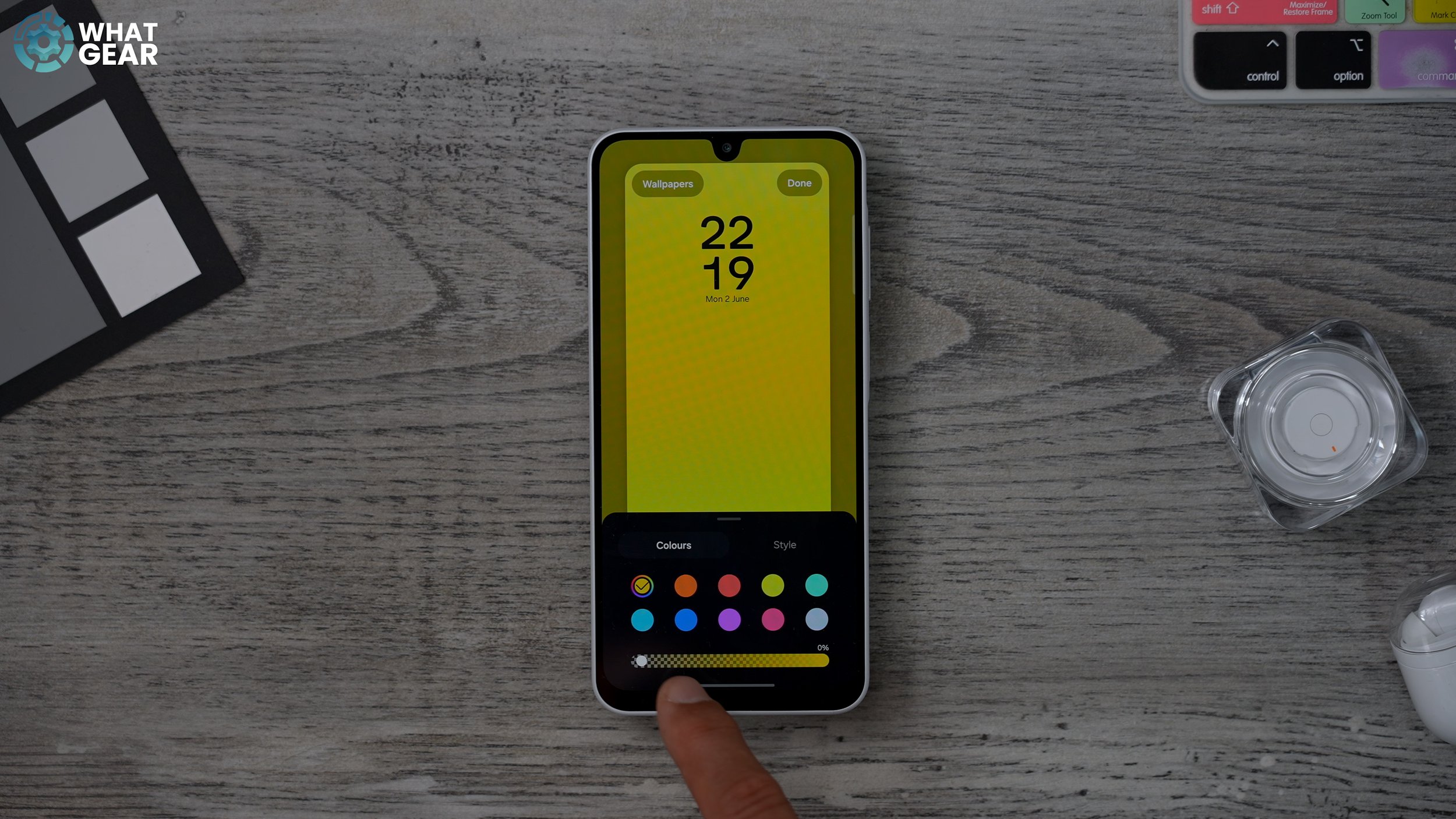
Make your Galaxy A26 look more like a flagship phone by hiding the bottom bezel.
Hold your finger down on the home screen and go to "Wallpaper style".
Choose a wallpaper with a dark area at the bottom.
Samsung's "Featured color" wallpaper, set to black, creates a seamless gray-to-black gradient that hides the chin effectively.
Using darker wallpapers also consumes less battery power. Pinterest is a good source for free wallpapers.
15. Customize Your Lock Screen

Personalize your lock screen with useful information and shortcuts.
Hold down on an empty part of the home screen and go to "Wallpaper and style".
Tap the lock screen image on the left.
Clock: Tap the clock to change its size, style, and even make it larger.
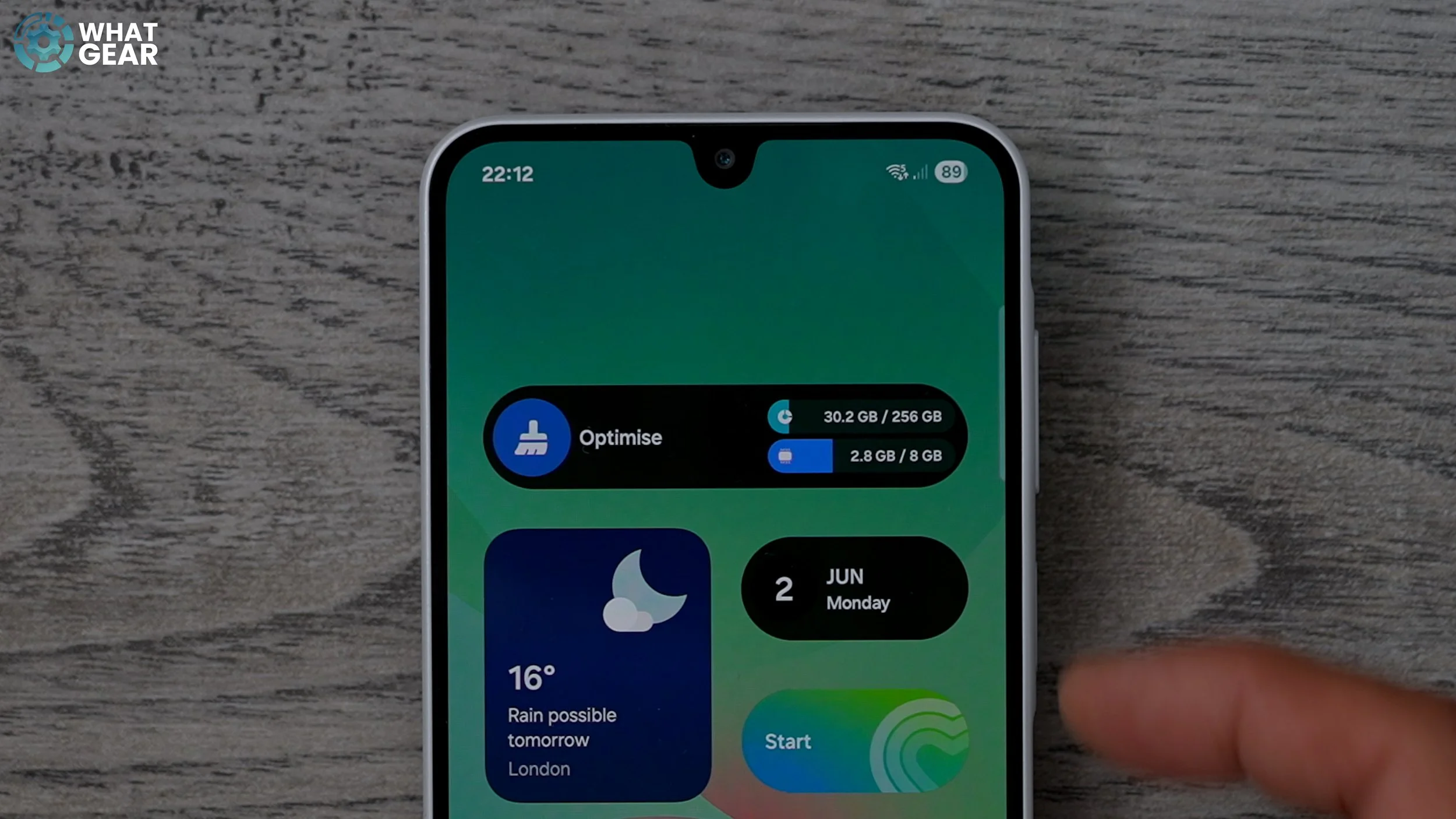
Widgets: Tap "Add widgets" to include useful widgets like the "Optimize" feature, allowing phone optimization directly from the lock screen.
Shortcuts: Customize the bottom shortcuts (default: phone and camera) to apps like a torch.
You can also set a different wallpaper specifically for the lock screen.
16. Customize Google Search Bar Shortcuts
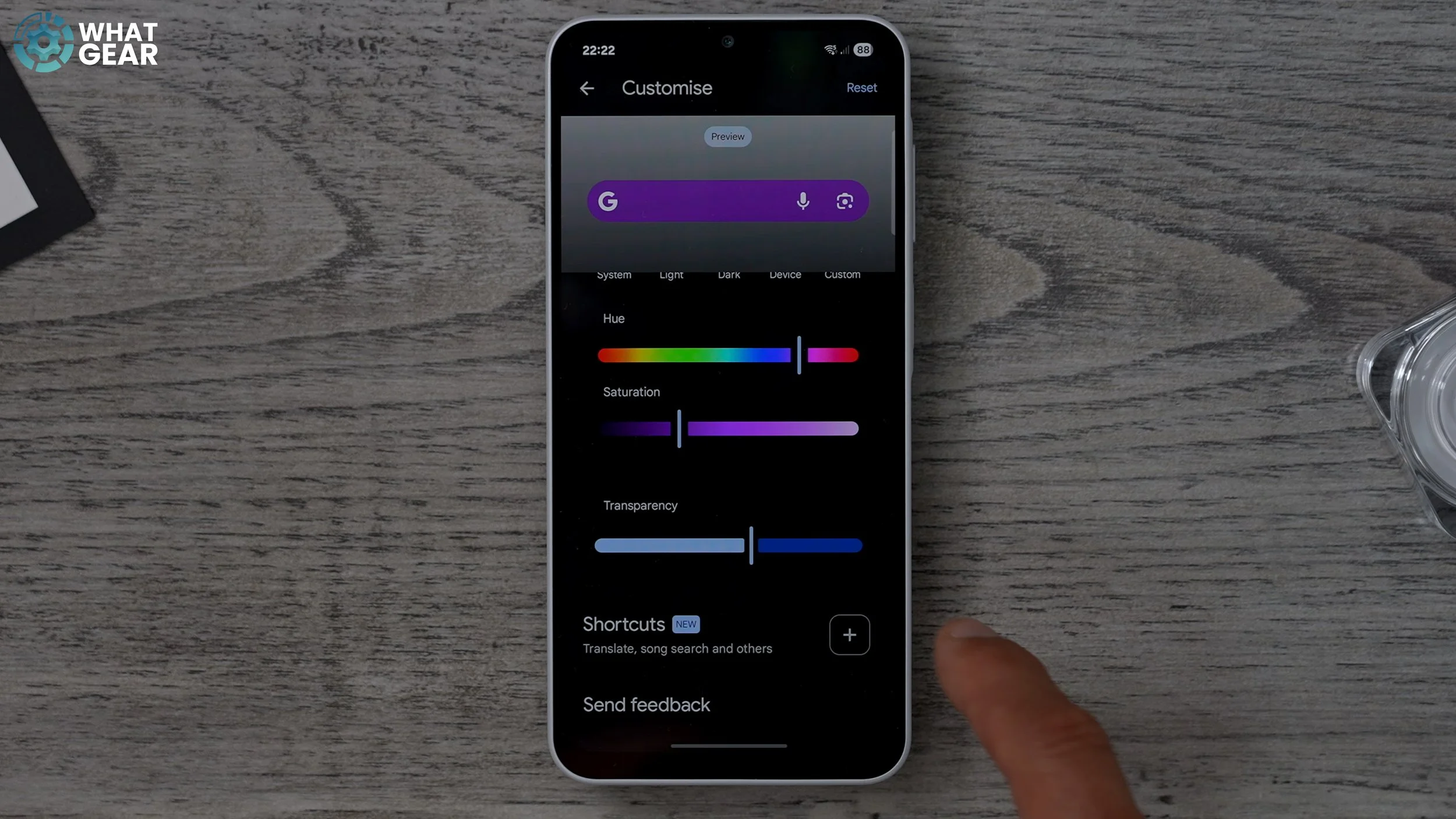
Add quick shortcuts to your Google search bar for fast access to features like song identification.
Hold your finger down on the Google search bar and go to "Settings".
Customize the search bar's appearance with different colors and transparency.
Tap "Shortcuts" and then the plus icon.
Add "Song search" to quickly identify playing songs. Other options like sports or finance can also be added.
Bonus Customization and Security Tips
17. Color Your App Folders
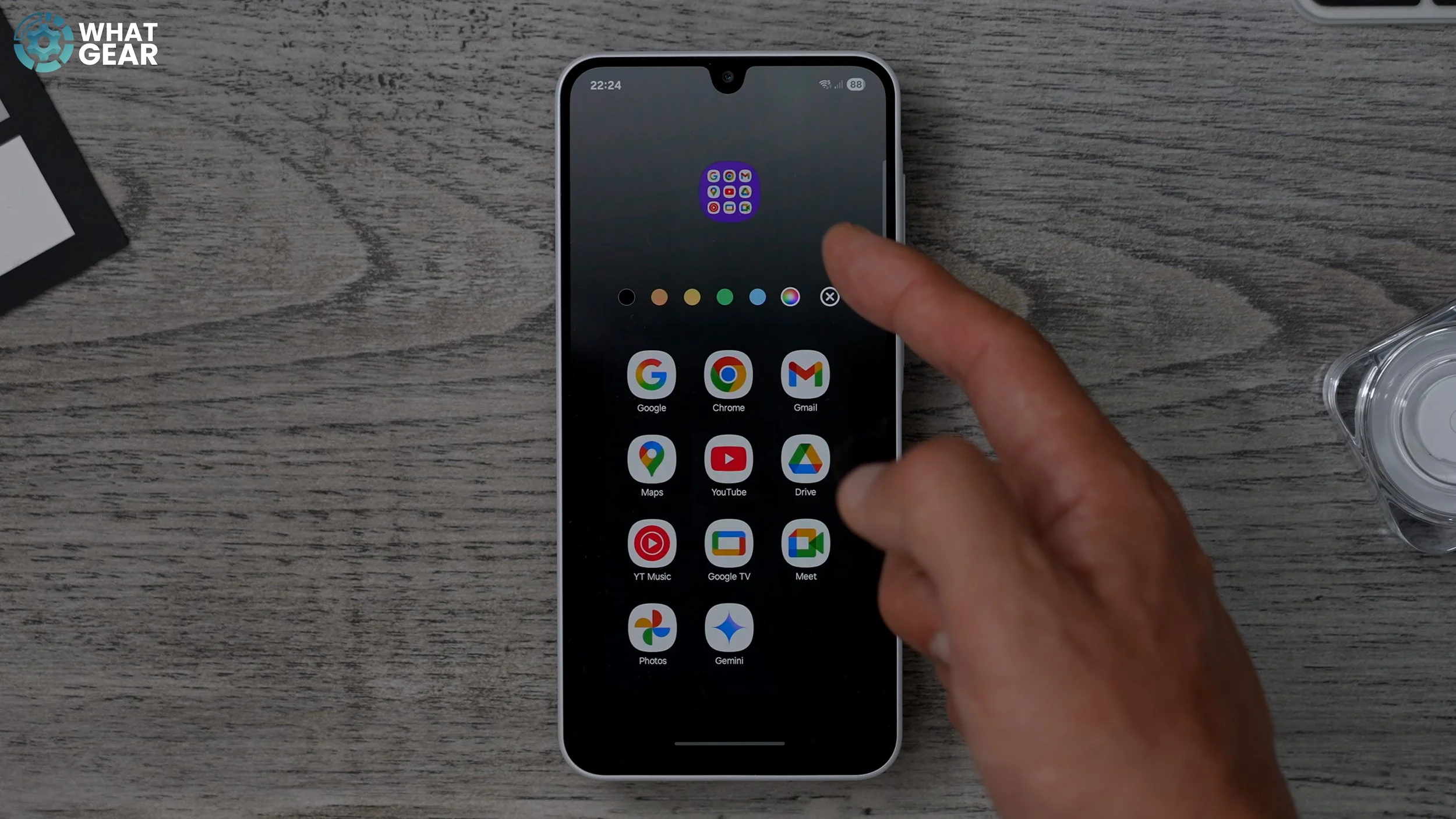
Organize and personalize your app folders with custom colors.
Hold your finger down on an app folder to enlarge it.
Tap the three dots in the bottom right corner and expand the folder.
Tap the small black circle to open color options.
Choose a color or use the pipette tool to select a color from your wallpaper.
You can also adjust the transparency of the folder color.
18. Stack Widgets on Your Home Screen
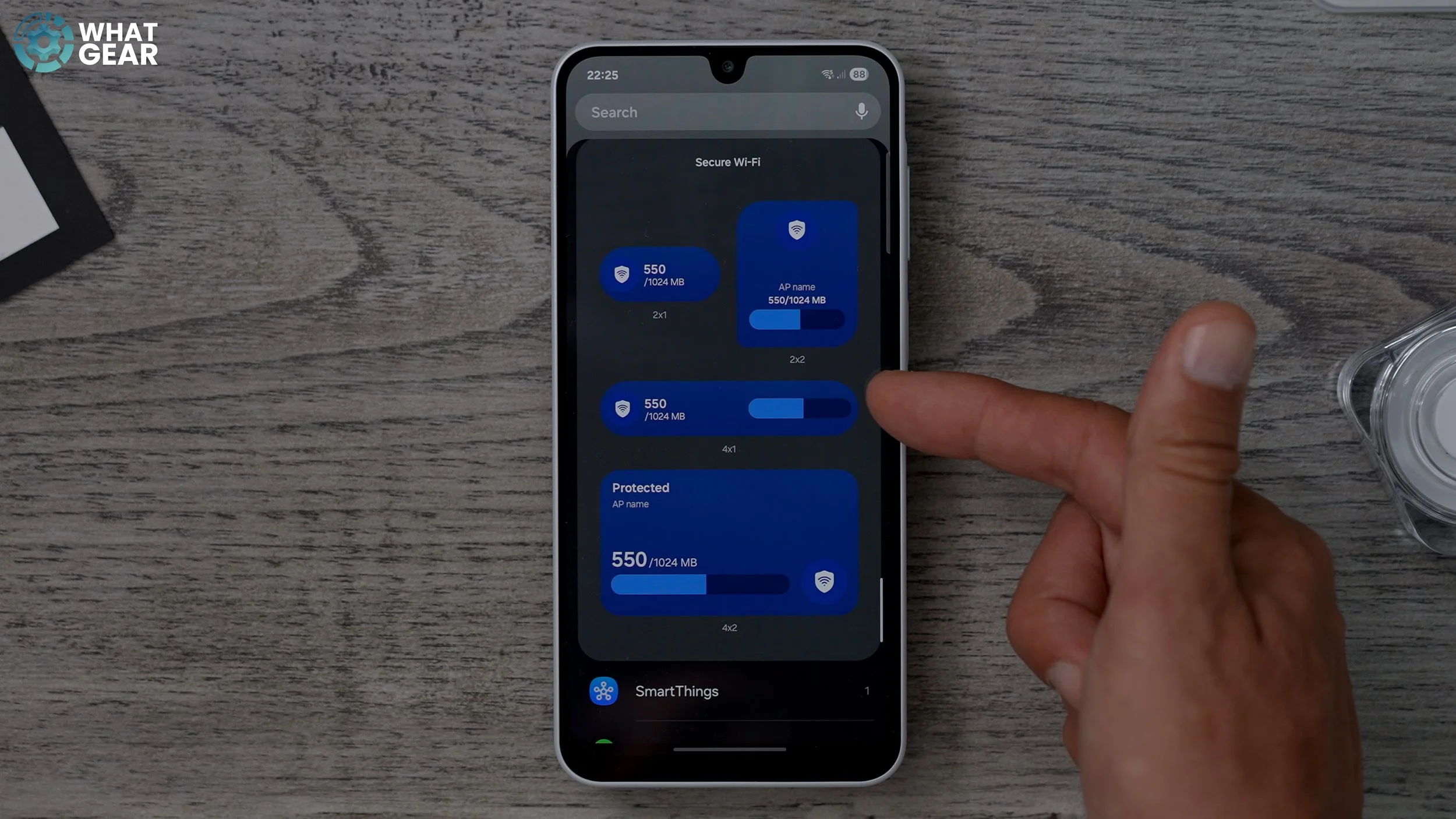
Save space and access multiple widgets by stacking them.
Hold your finger down on an existing widget.
Select "Create stack".
Add other widgets of the same size to the stack (e.g., battery, secure Wi-Fi).
Swipe between widgets in the stack.
It's recommended to place stacked widgets on the top half of the screen to avoid accidentally swiping the stack instead of changing pages.
19. Enable App Protection
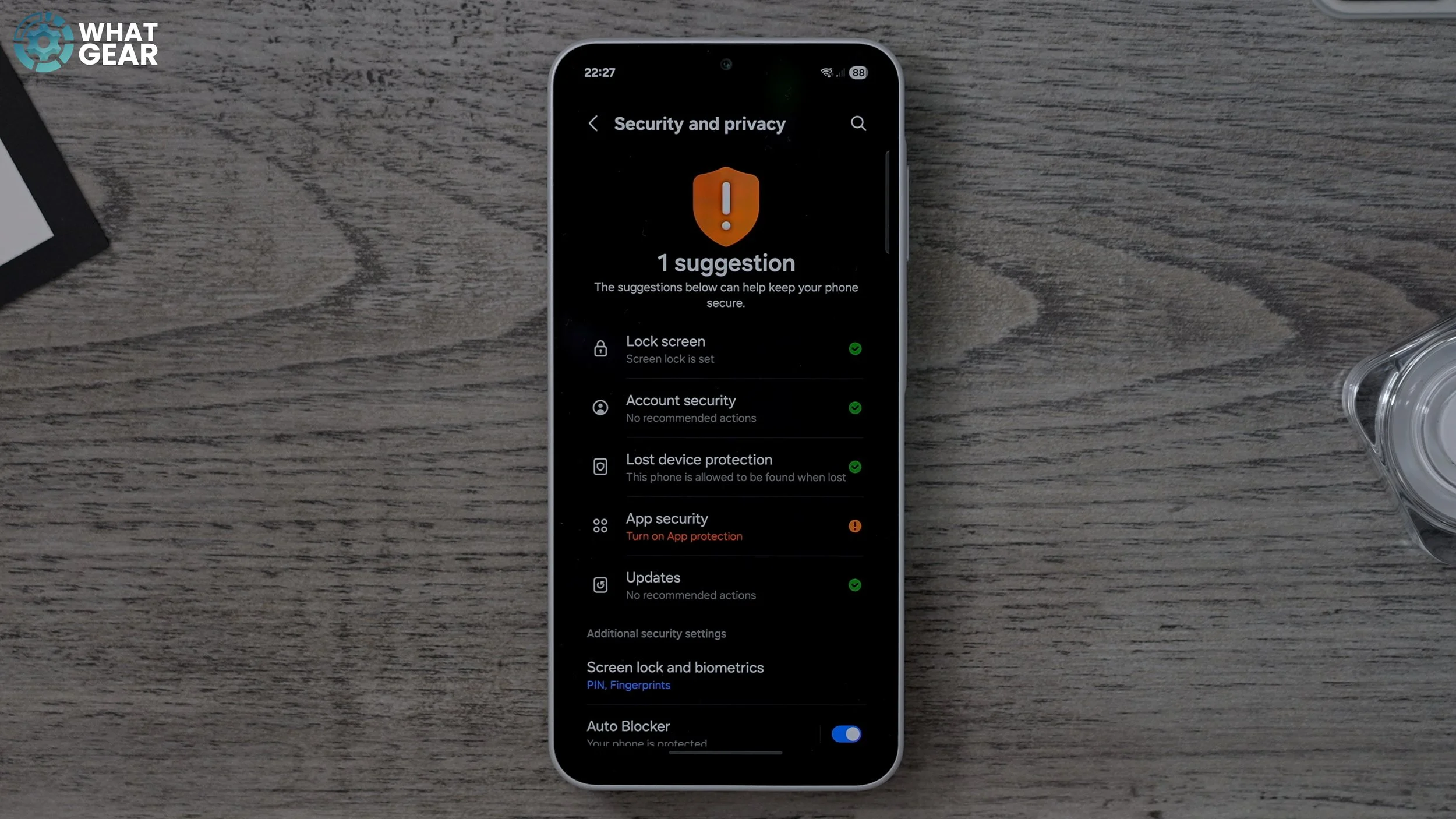
Scan your installed apps for malware and other threats.
Go to "Settings" > "Security and Privacy".
Look for "App protection" and turn it on. (Note: This feature may not be available in all regions).
20. Turn on Theft Protection and Offline Device Lock
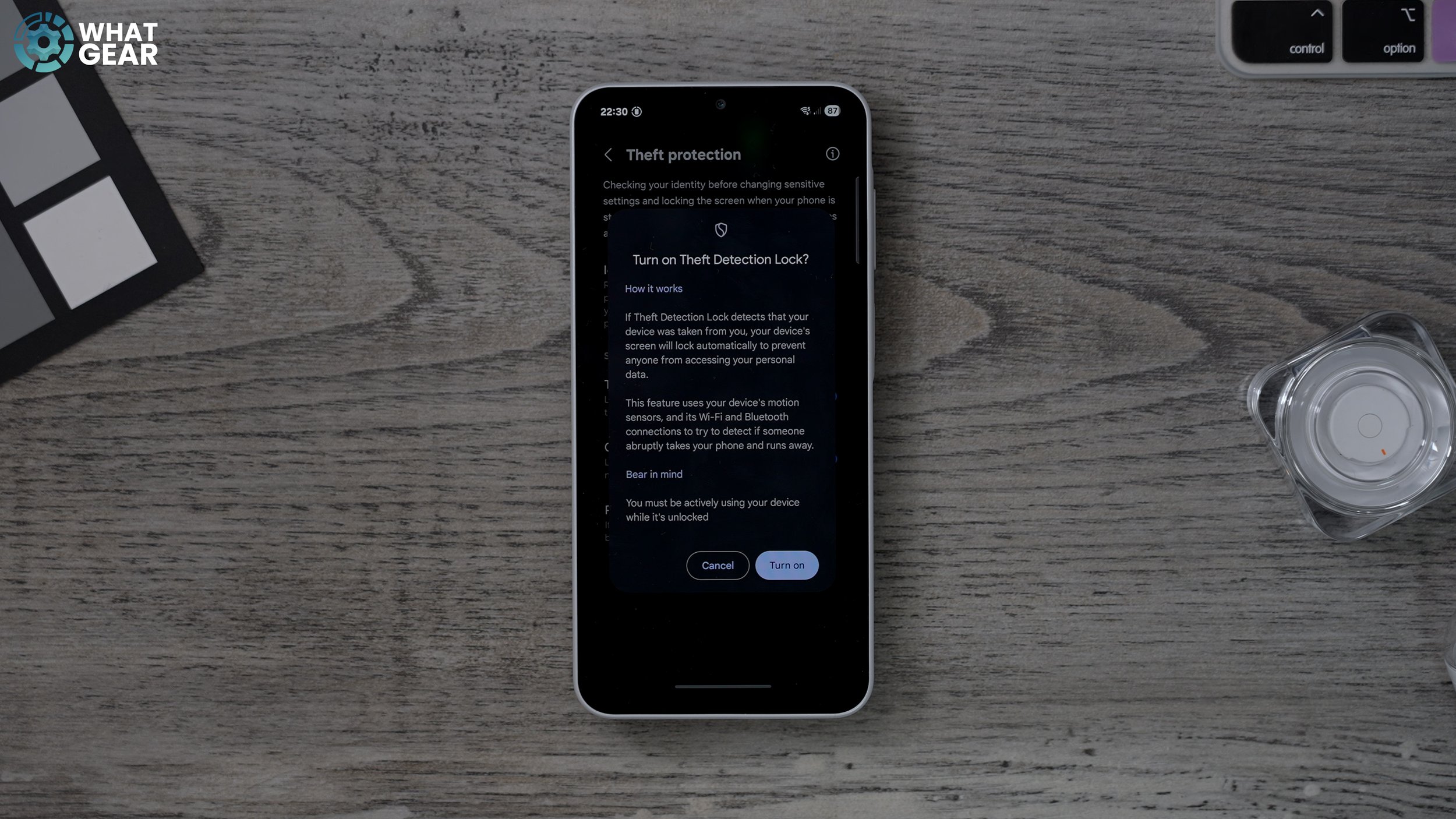
Enhance your phone's security in case of theft.
In "Security and Privacy" settings, go to "Lost Device Protection".
Switch on "Theft Protection" and "Offline Device Lock".
If your phone is snatched, it will auto-lock and prevent powering down, allowing you to track it via Samsung Find and inform authorities.
21. Set Up Secure Folder
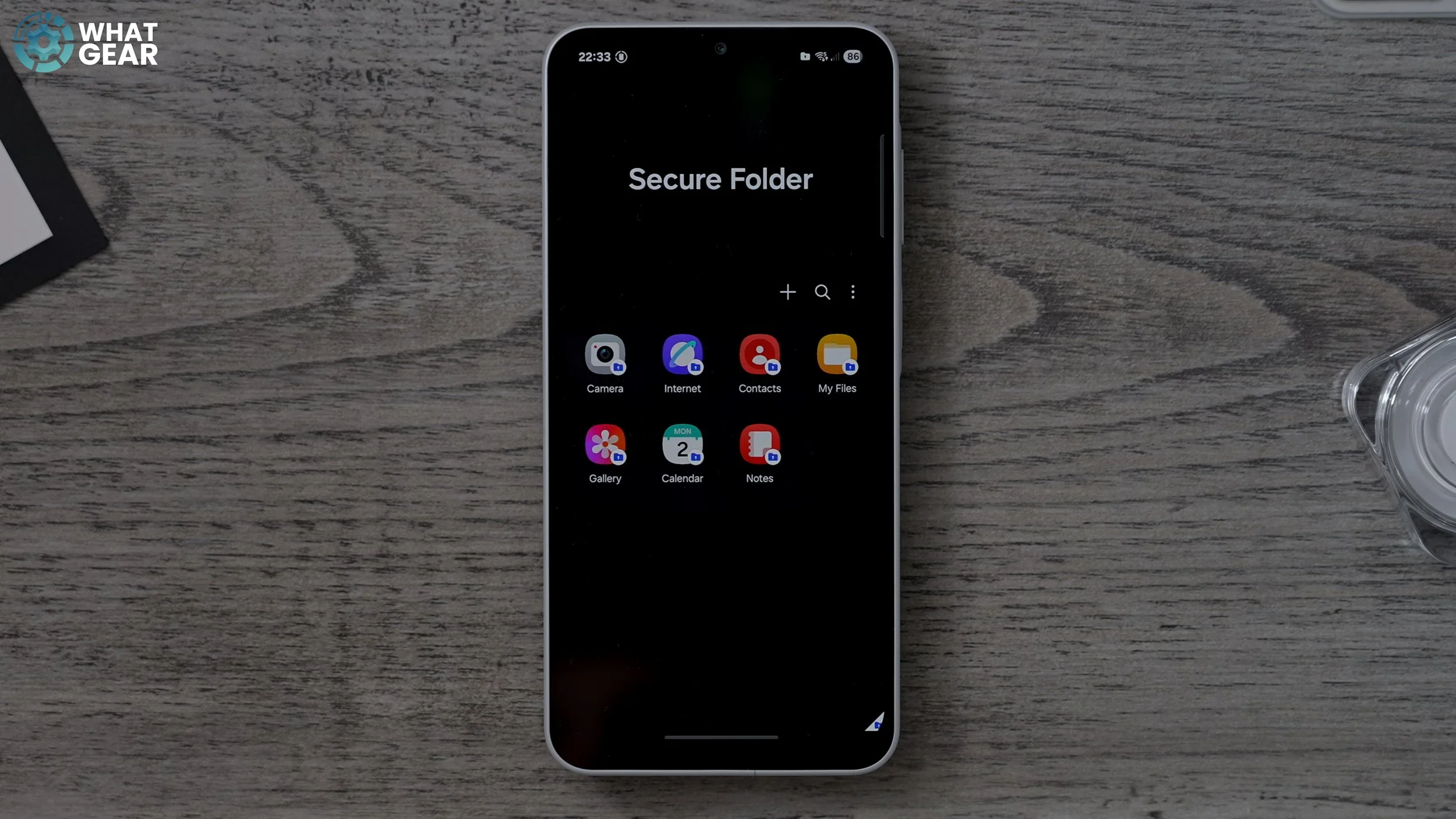
Create a private, encrypted space on your phone for confidential files.
In "Security and Privacy Settings," go to "More Security Settings" > "Secure Folder".
Set up a unique PIN for access.
You can add files and documents here.
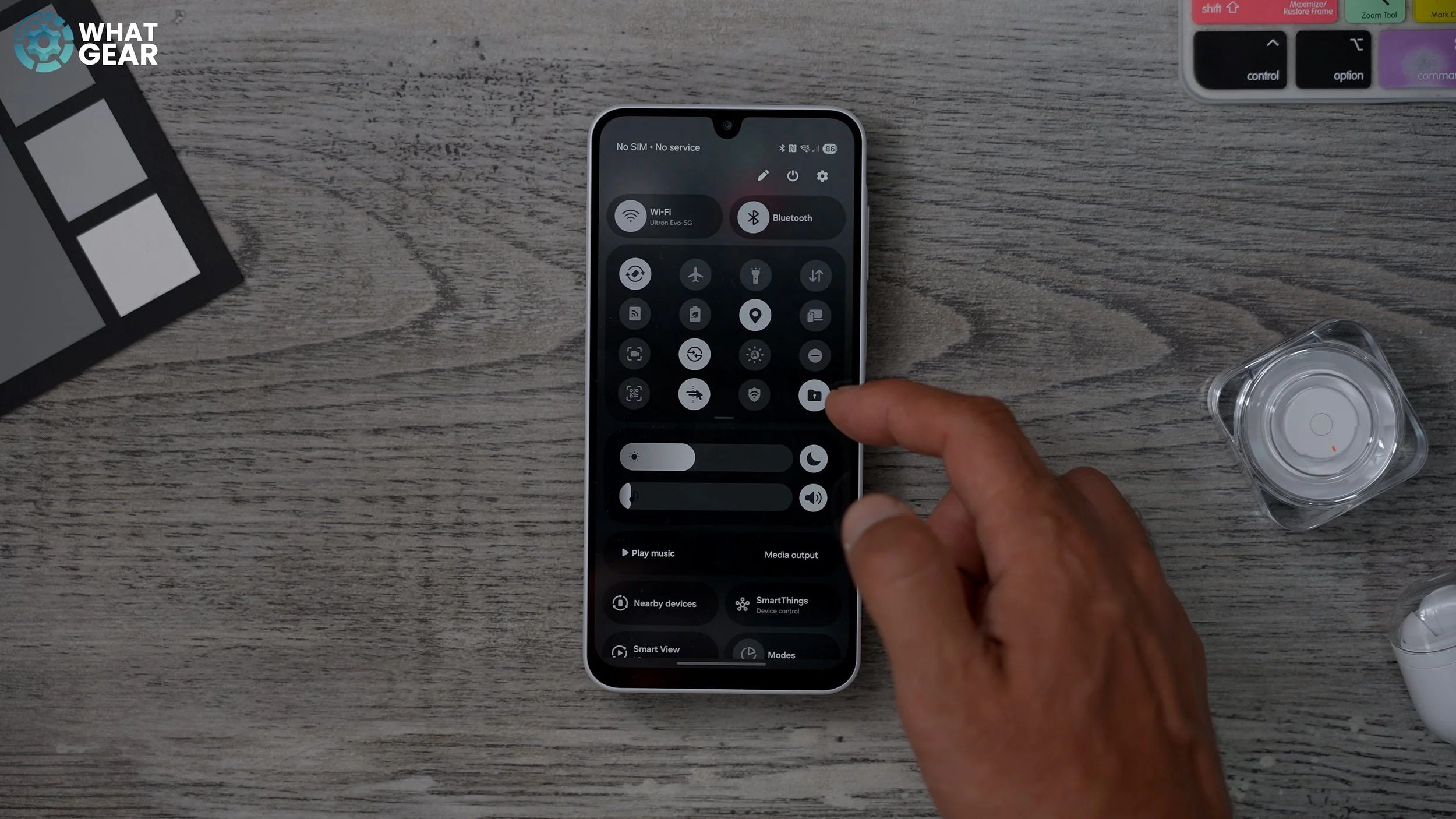
Toggle the Secure Folder on/off in Quick Settings to make it visible or invisible.
Holding your finger down on the Secure Folder icon in Quick Settings will take you directly to its settings.
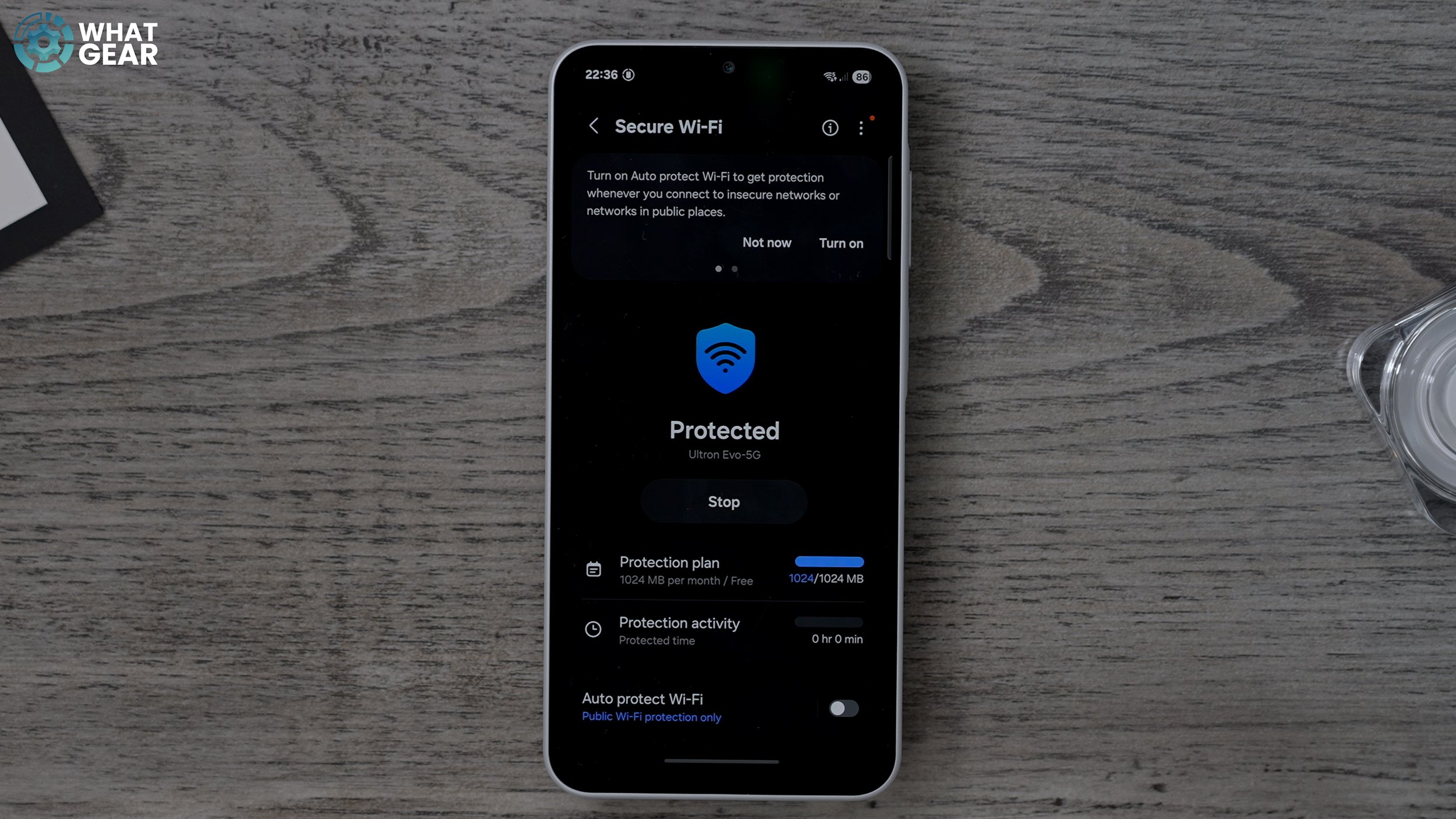
22. Utilize Secure Wi-Fi
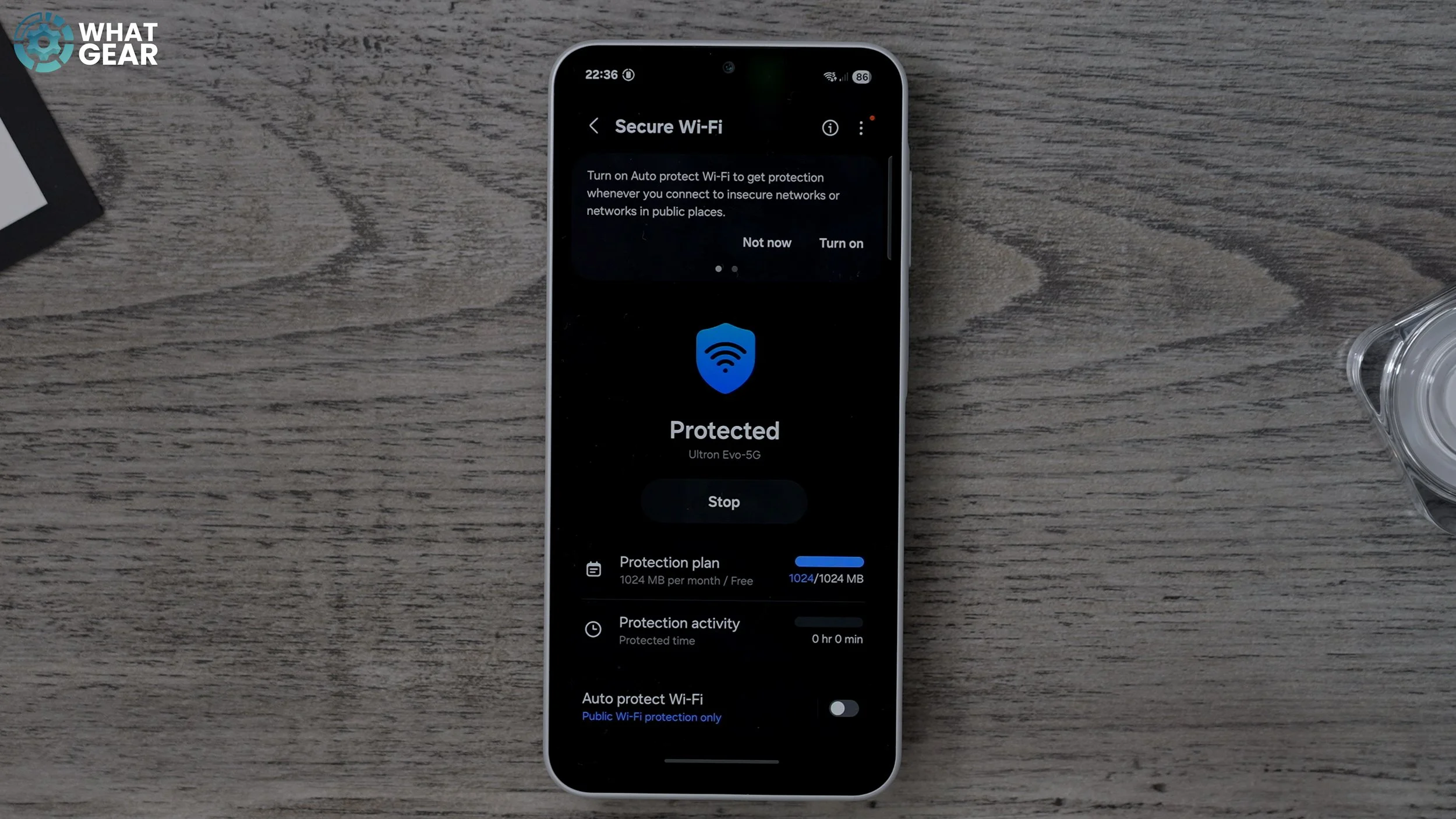
Get 1GB of free secure Wi-Fi every month for public hotspots.
Open Quick Settings and tap "Secure Wi-Fi" to turn it on and set it up.
This acts as a VPN, protecting your data on unknown networks.
You can upgrade to an unlimited plan if needed.
The Secure Wi-Fi widget (if added) also shows your data usage.
23. Set Up Emergency SOS
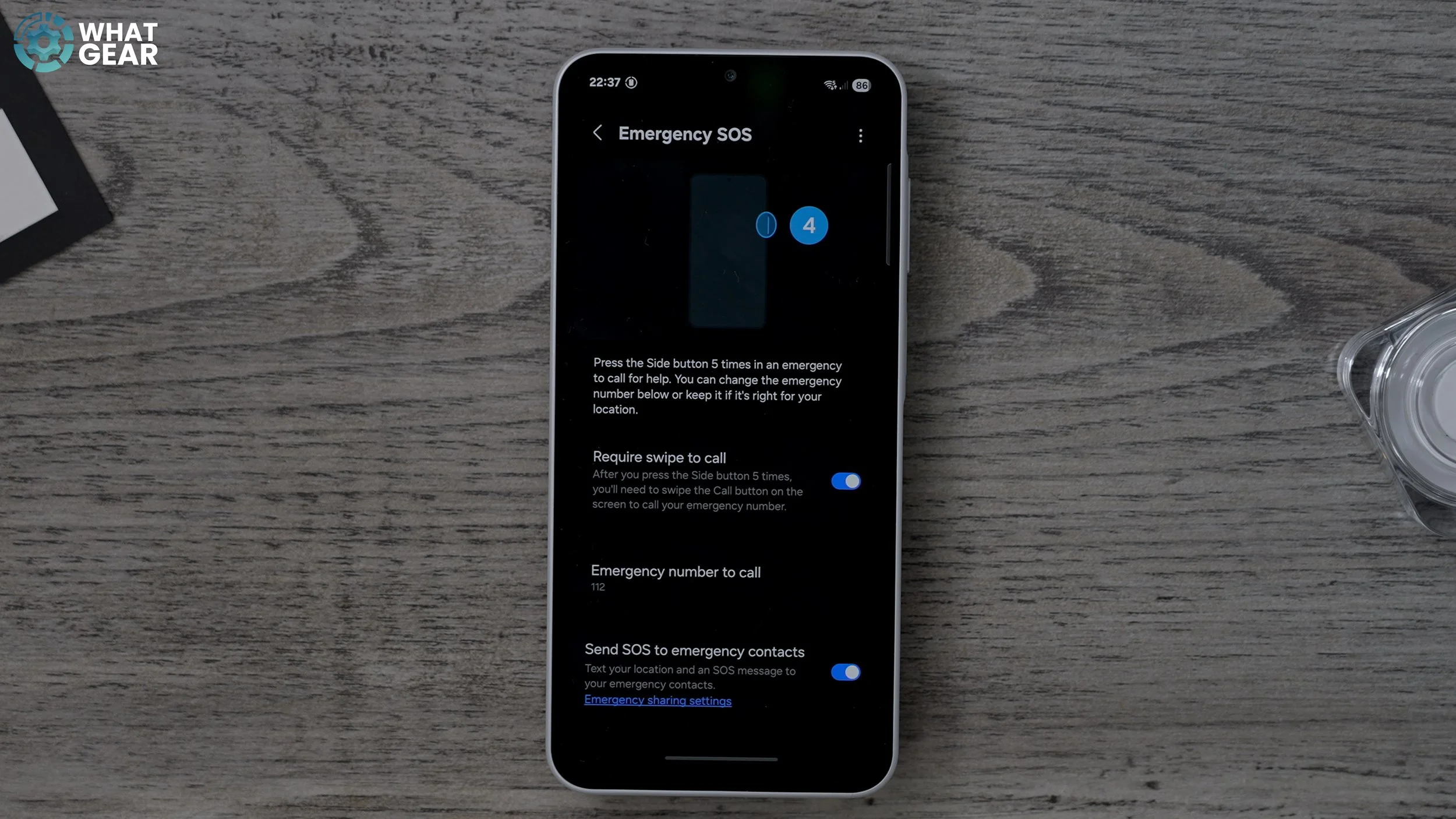
This feature can alert emergency services or designated contacts in an emergency.
Go to "Settings" > "Safety and emergency" > "Emergency SOS".
Push the power key five times to alert emergency services.
You can add specific contacts to alert instead.
In "Emergency sharing settings," add more emergency contacts and allow pictures and audio recordings to be attached to the message.
24. Improve Camera Photos
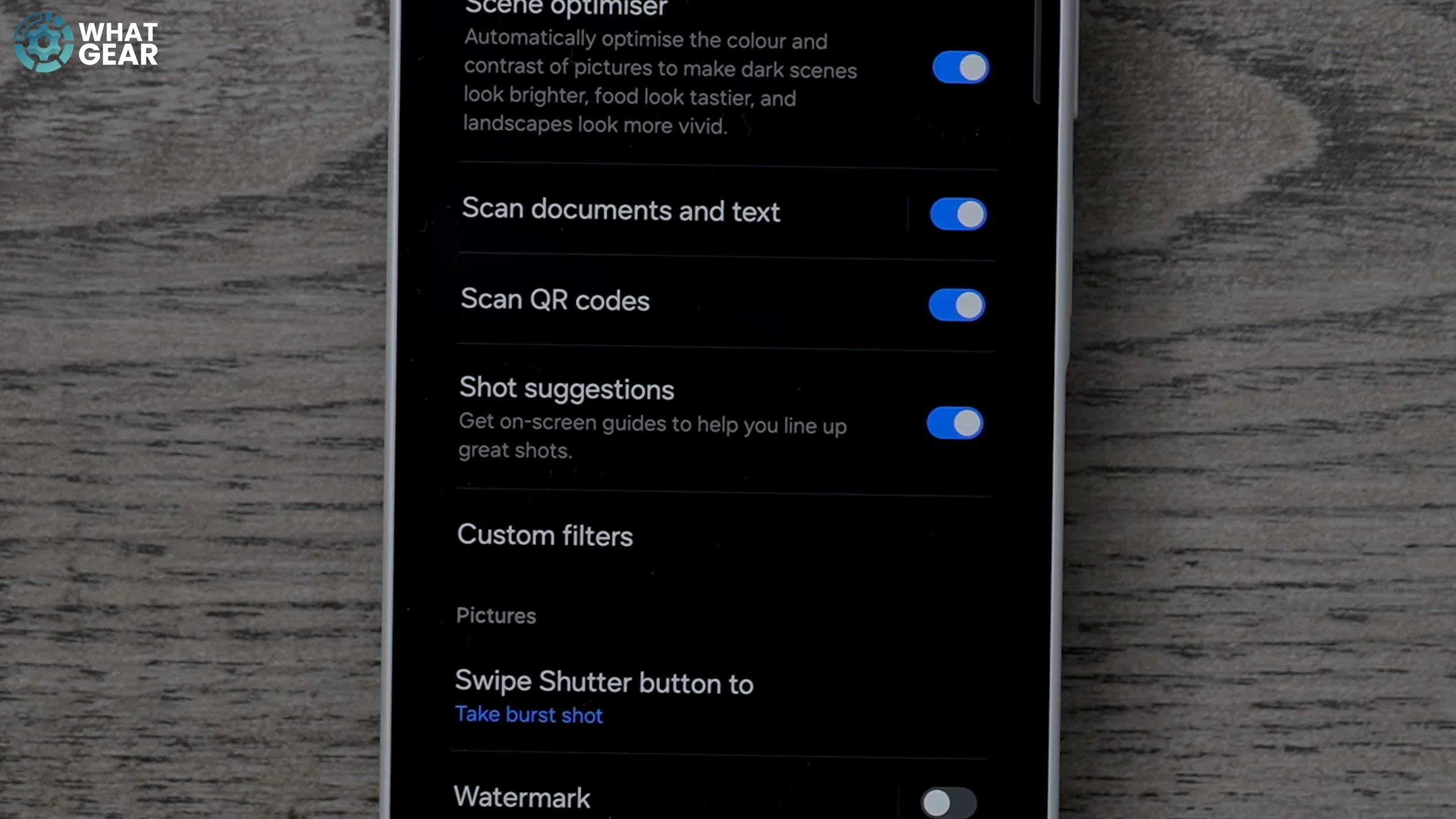
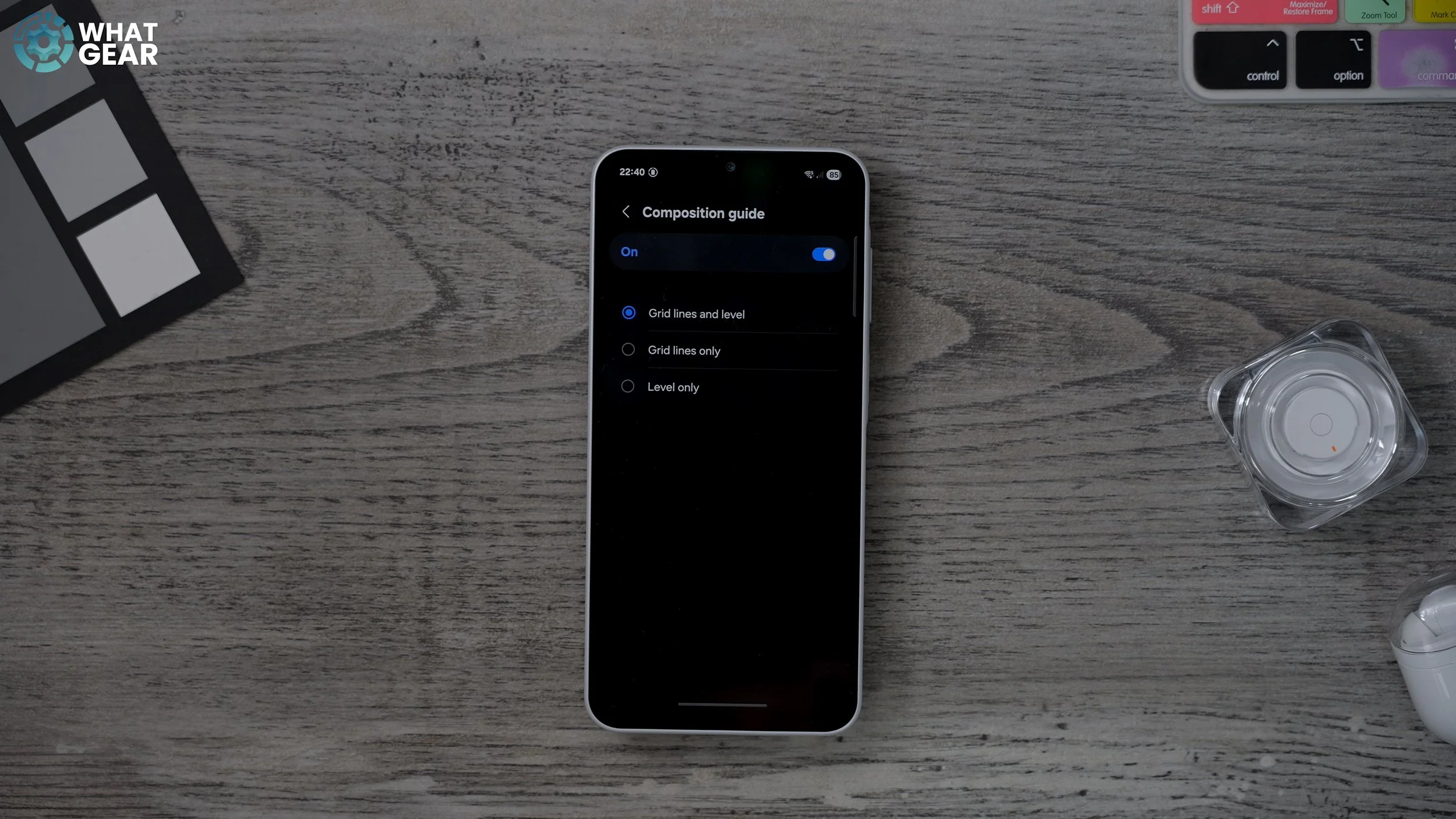
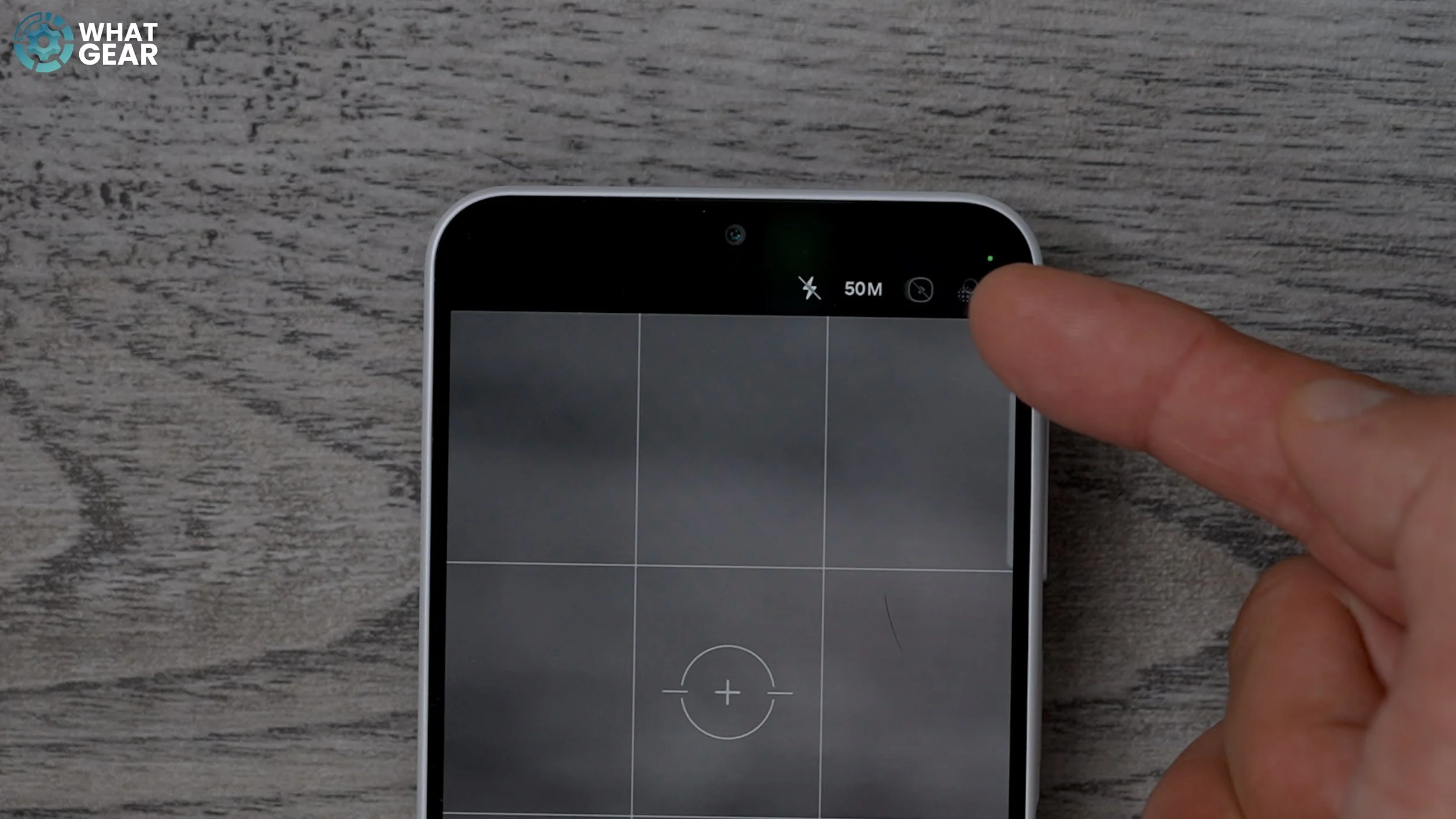
Two settings can significantly improve your photos.
Open the Camera app and go to "Settings".
Shot suggestions: Turn this on to use AI to assist with composition.
Composition guide: Turn this on for spirit level and grids to help line up photos.
50 Megapixel Mode: The phone defaults to 12-megapixel for better light collection. To use the 50-megapixel sensor, tap "12" at the top of the camera interface to switch. Use this in bright lighting as it uses more memory.
25. Customize Side Button Double Tap

Change the double-tap action of your power button for quick access.
Go to "Settings" > "Advanced Features" > "Side button".
Tap "Double tap".
By default, it opens the camera. You can change it to open your Google Wallet or Samsung Wallet for quick payments.
For Google Wallet, select "All apps" and then choose Google Wallet (it must already be set up).
26. Discover the Hidden Wi-Fi Inspection Tool
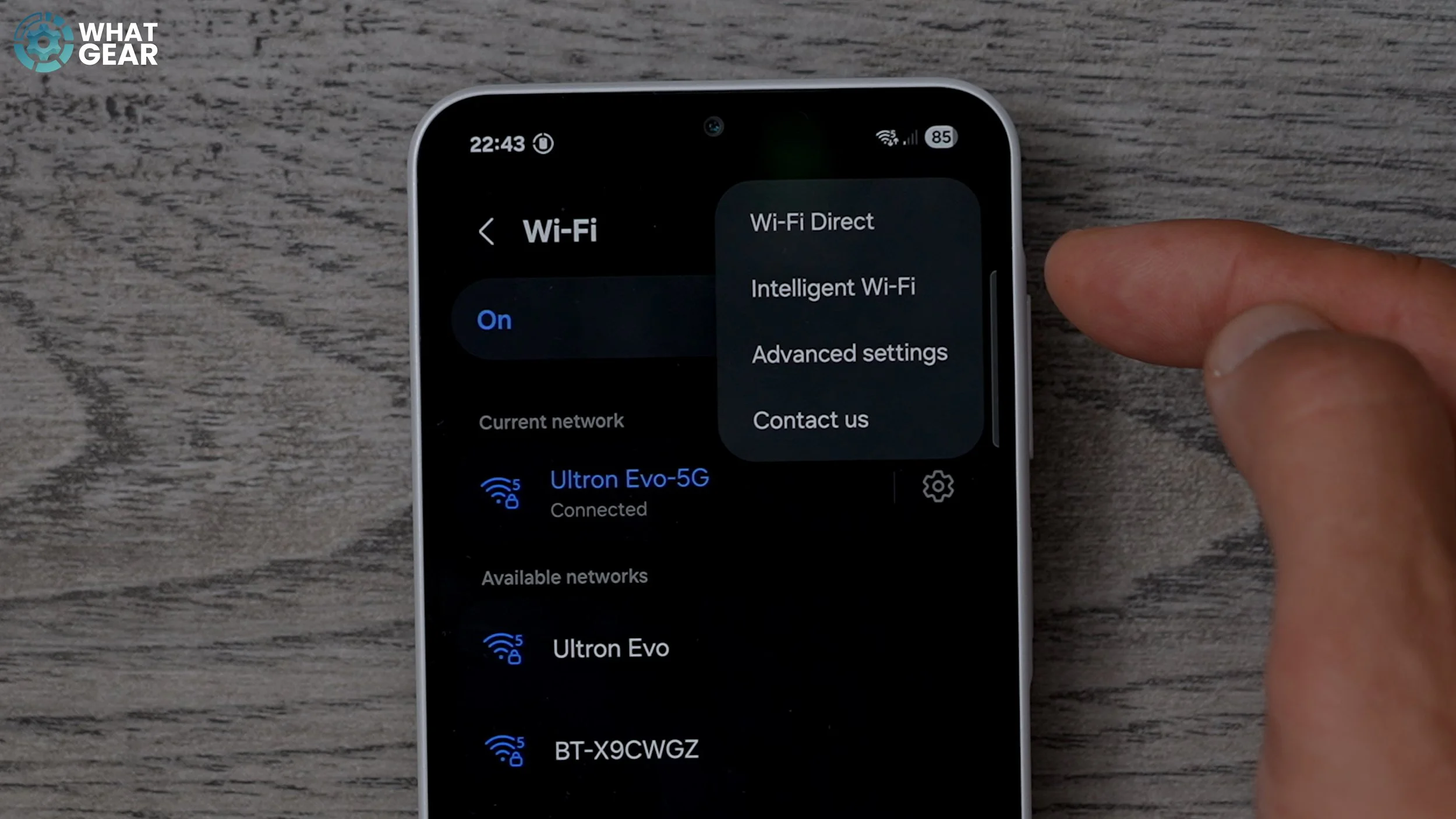
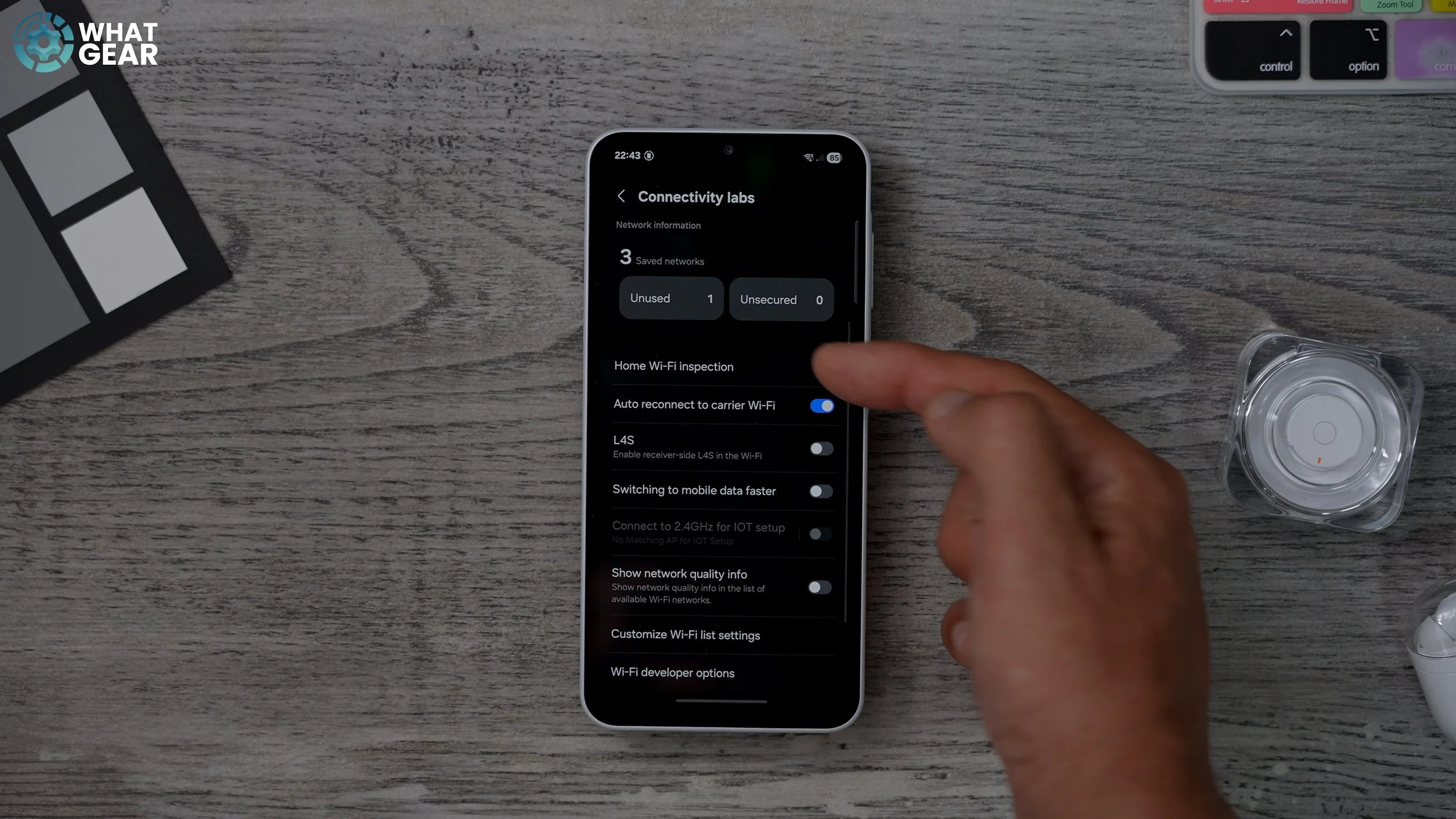
This tool helps optimize your home Wi-Fi speeds.
Go to "Settings" > "Connections" > "Wi-Fi".
Tap the three dots in the top right corner and select "Intelligent Wi-Fi".
Continuously tap "Intelligent Wi-Fi" and its software version at the bottom to open "Connectivity Labs".
Go into "Connectivity Labs" and find "Home Wi-Fi inspection".
Walk around your house to scan Wi-Fi signals, detect dead spots, and find the best placement for your modem to ensure full coverage and faster speeds.
27. Find the Hidden Android Mini-Game
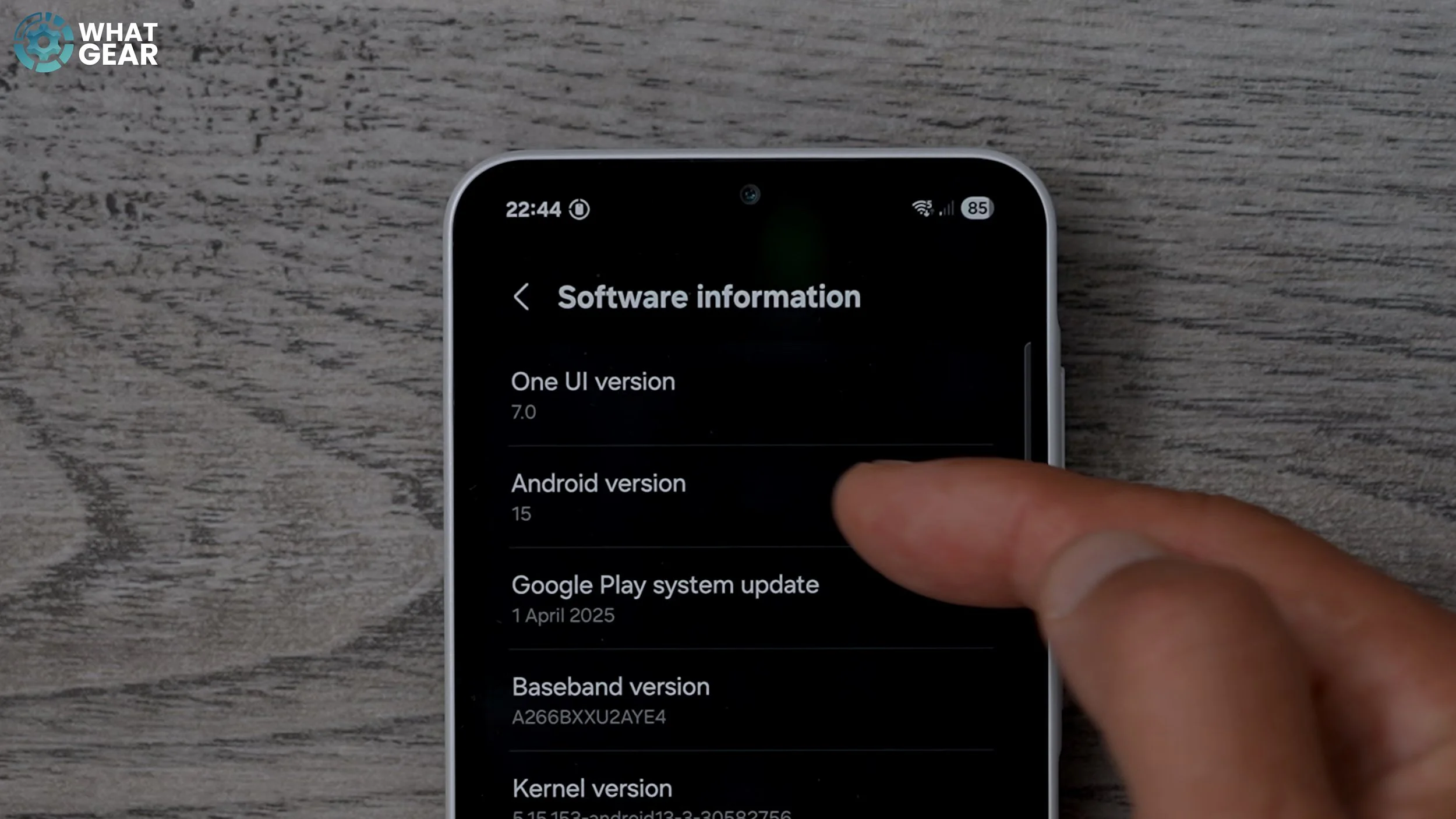
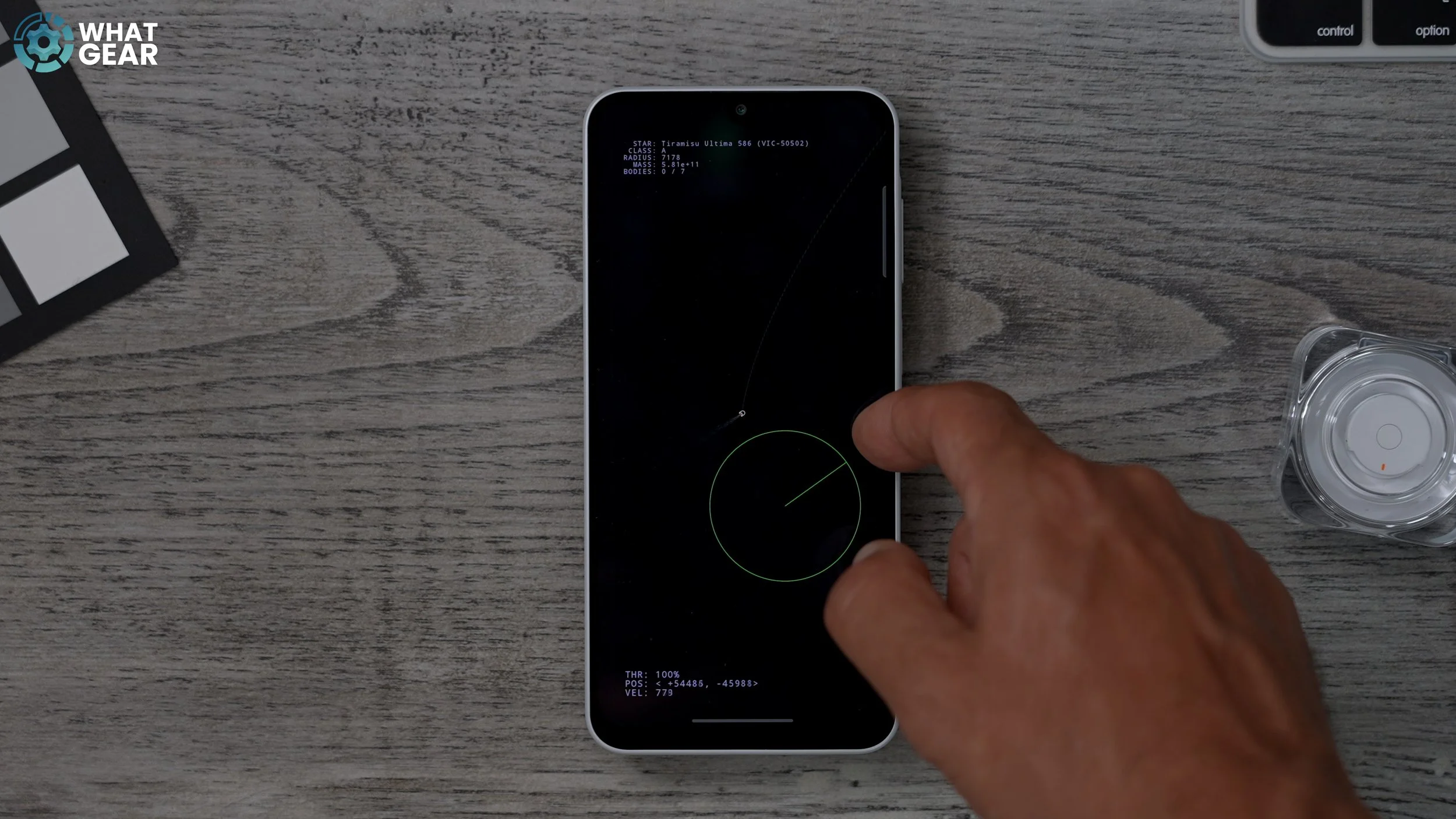
A simple mini-game is pre-installed on every Android device.
Go to "Settings" > "About phone" > "Software information".
Tap "Android version" repeatedly.
This will open the mini-game. Hold your finger down on the logo to start.
The game involves flying a spaceship and finding seven planets. Following strong lines can lead to planets.
This game is energy-efficient due to its dark background.
