
Galaxy S25 FE - First 18 Things To Do! ( Tips & Tricks )
If you've just picked up a Samsung Galaxy S25 FE, in this video, I'm going to share with you 18 of the first things you should do with your brand new Galaxy. I've carefully selected these tips and tricks to cater to those of you who are not so new to the galaxy ecosystem, and also those of you who are brand new. So there should be a little bit of something for everyone.
let's get into this.
OPTIMIZE & UPDATE
So the very first thing you should do on day one, and this is incredibly important. On a Samsung device, there are various ways to install apps. You've got the Google Play Store, and then you've also got the Samsung Galaxy Store. This one has some exclusive Samsung apps, and also, this is where some of the Samsung apps are updated. So if you want to unlock the full potential of this phone on day one, you need to check both of these. We'll start with the Galaxy Store. This is a box fresh phone. So this is pretty much exactly what it's going to look like to you. Right at the bottom, there will be a little red dot, and this will bring you to the Galaxy Store page, where you should see the updates here. And as you can see straight away, I've got 14 updates for the Galaxy Store. So if you tap on this, you'll see exactly what these are for.
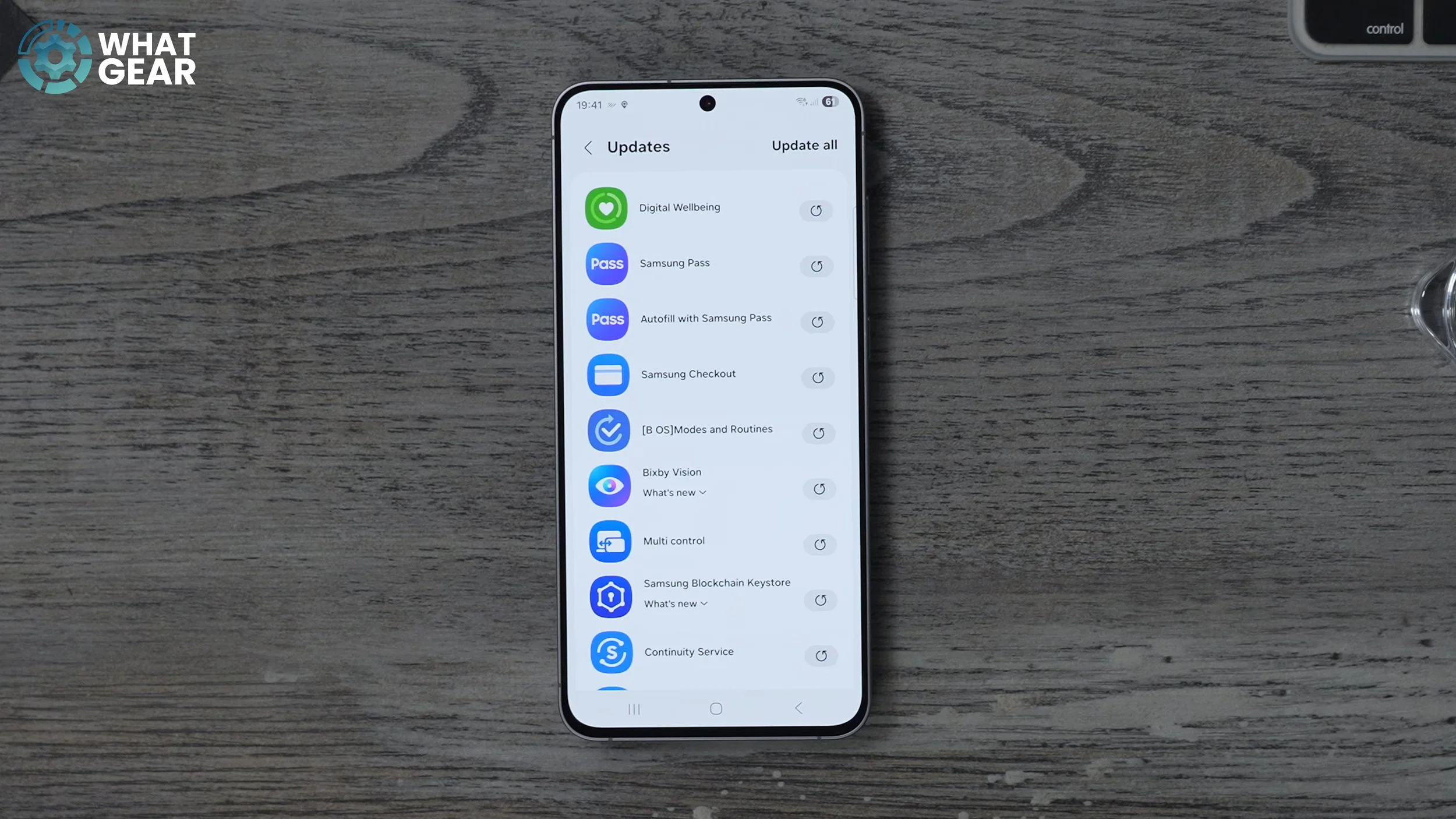

You'll notice that pretty much all of these are really imported Samsung apps, and some of them relate to security. It's a definite hit update on this one straight away. If you are coming over from an iPhone, just know this. The Play Store is the replacement for the Apple App Store. Once you open this up, hit your little icon in the top right corner, and then on this page, you should see the updates that are available. If you tap here, you can actually see again what the apps are. Just like the Galaxy Store, you can see that a bunch of these are very important, like the Android AI. You've got Gemini here. You've also got the Google Wi-Fi provision thing. These are really important and improve how your device works on day one. So, at the top, just make sure you update all. This is very basic, but it's also very important.
NICE GESTURE
Now, if you're a complete beginner and you're completely new to Galaxy devices, you should probably know how to get into the settings menu. There are actually two ways you can do it. One way is to swipe down from the top and go to the settings. Another way is to swipe up and bring up your app drawer, and then you have your settings here as well. What I'm going to do just to make this video easier is add the settings onto the home screen, go into your settings, scroll down to where it says display. And just for the sake of this video, I'm going to switch the phone into dark mode. Now, on this page, if you scroll down a little bit, you will find the navigation bar.
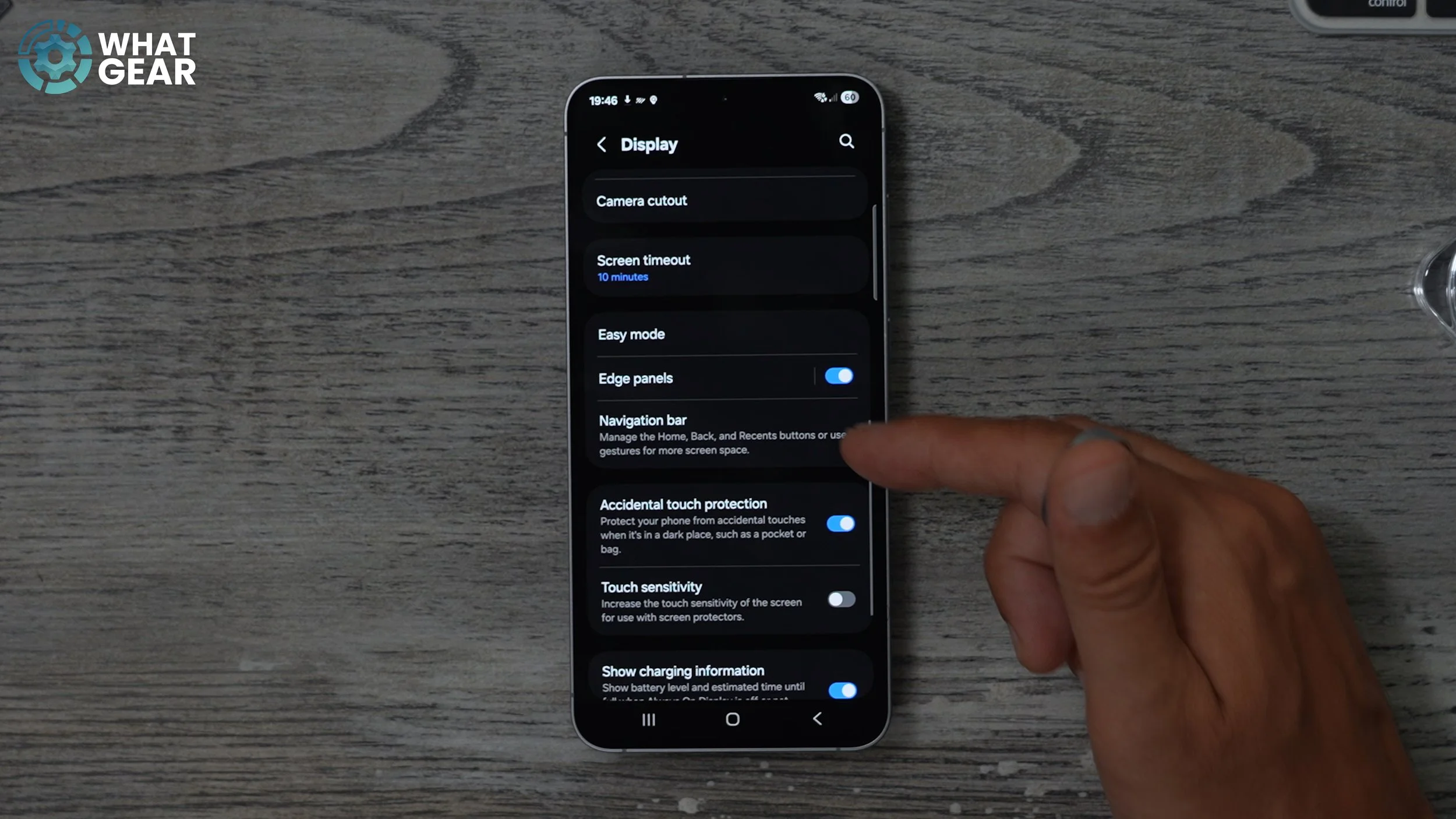
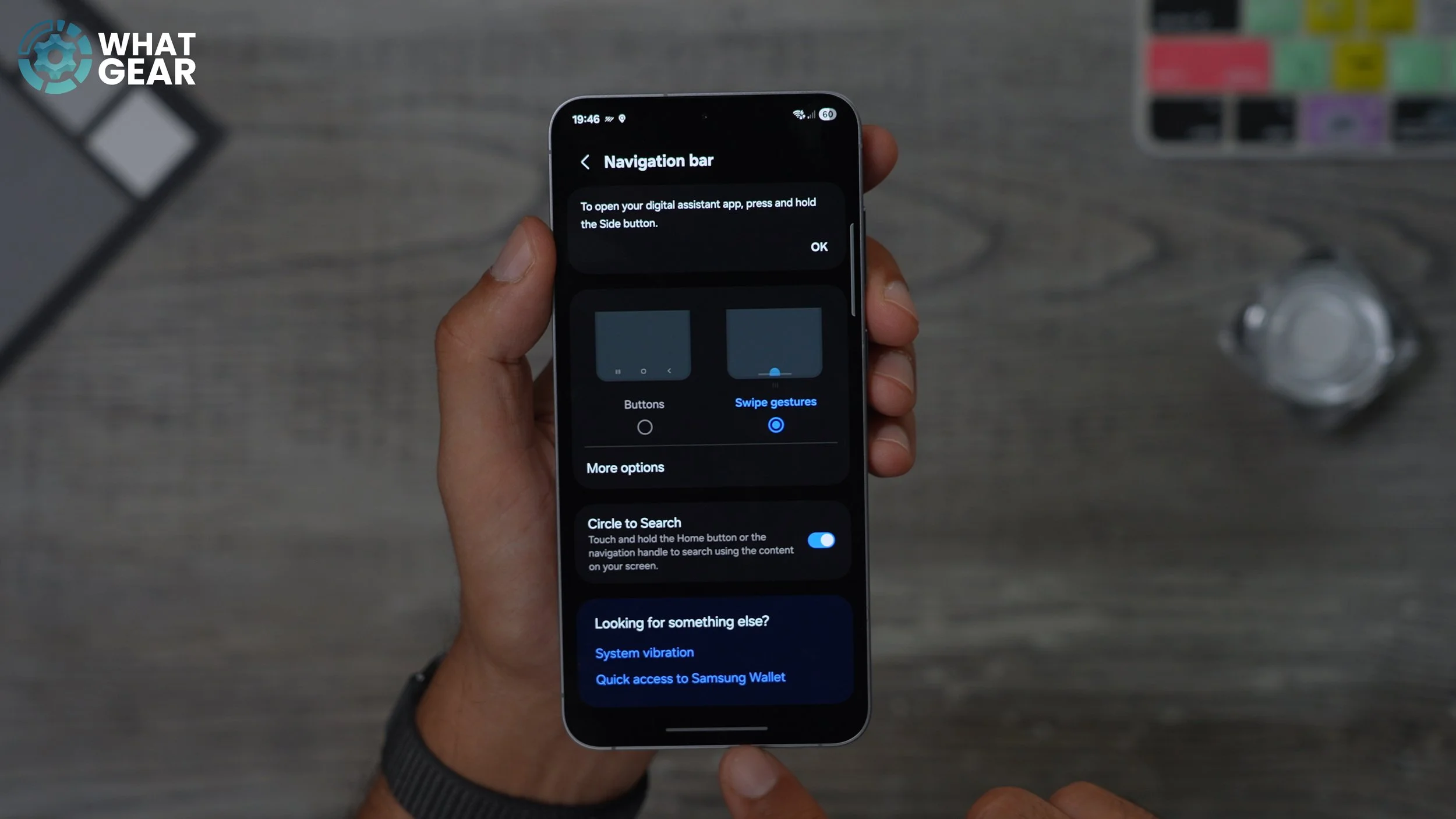
So Samsung's default navigation method is, in fact, the three buttons at the bottom. So you've got the home button, the back button and multitasking. if you are coming over from an iPhone, then you're just not going to be familiar with this at all, and you might not like it. So, what you can do is actually change this to the swipe gestures, which are identical to the iPhone's navigation gestures. So once you do that, the buttons disappear. Now you just have this little bar at the bottom, you can swipe up and hold to bring up your backgrounding. You can go back by swiping in from the left. So now the navigation gestures work exactly the same as on an iPhone. Also, you free up some space here at the bottom of the screen.
MONEY ON DOUBLE TAP
This is something that I do pretty much on every single phone. I'm going to go into the settings - Scroll all the way down to where you see the Advanced Features section. Tap on this and then go to the side button. So this side button used to be called the power key because this used to bring up the power menu. If that's something that you liked and you miss, you can actually change it.
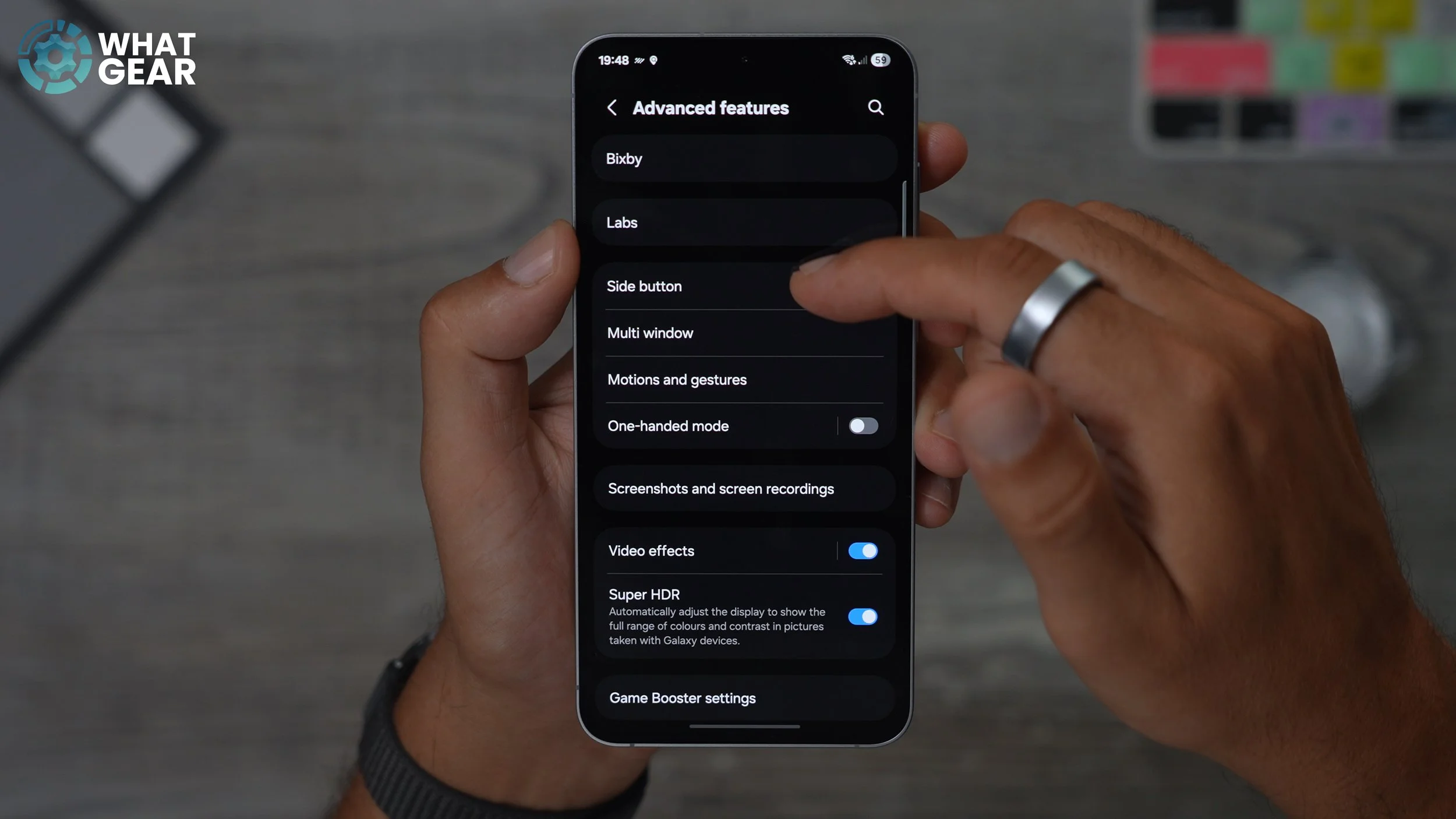
But I've actually got so used to the long push now, I don't change that anymore, but if you do want to change it, just tap on the long press and in here, set it to the power menu. That way, whenever you long-press the power button, it is, in fact, acting like a power button. But that's not the tip that I want to show you. I'm going to change it back to the Gemini, because I'm just used to that. Now, what I wanted to show you is this is the double press of the power key. So by default, it is set to the camera, which is okay. But for me personally, when it comes to paying for stuff at the checkout, I use my phone pretty much all the time, and I tend to use Google Wallet the most. One of the cool things you could do here with this phone is actually make the double push of the power key to anything, so you could set it to the Samsung Wallet if you prefer. If you have downloaded and installed the Google Wallet already, you can select apps at the bottom.
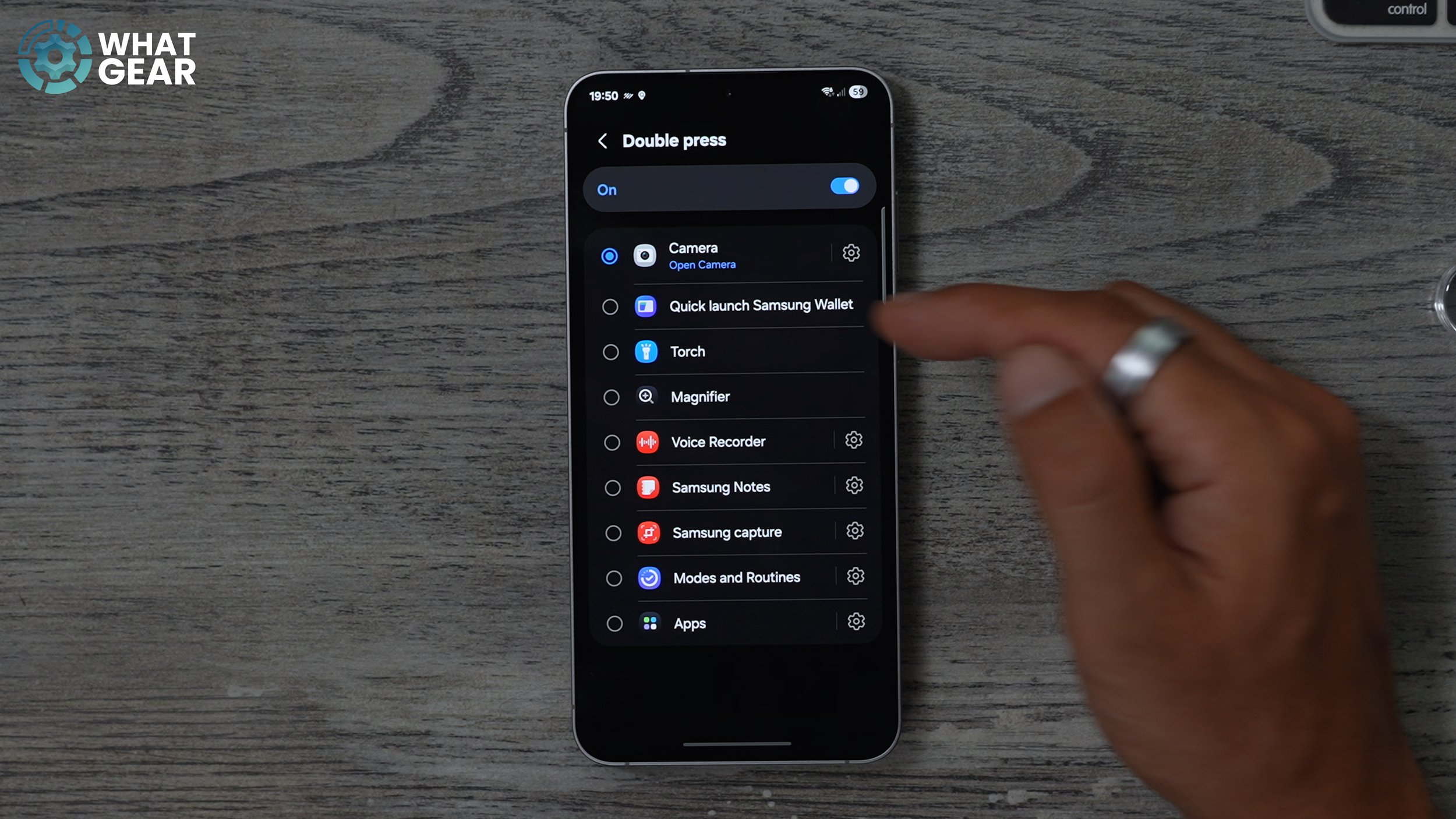
The phone will then show you the entire app list on your phone. You can choose the Google Wallet since this is a box Fresh phone. I haven't even installed the Google Wallet just yet, you get the idea. The double-tap or the power key, especially if you're coming over from iOS It is best suited for the wallet, in my opinion.
STEP UP SECURITY
This is kind of a recommendation when it comes to the security of your device. It's already pretty secure. But you can actually improve it even more if you do this. So we're going to go into the settings - Security and privacy. On this page, your phone will automatically scan the device, and it will highlight any potential risks. And it's right where you can see it says turn on app protection.
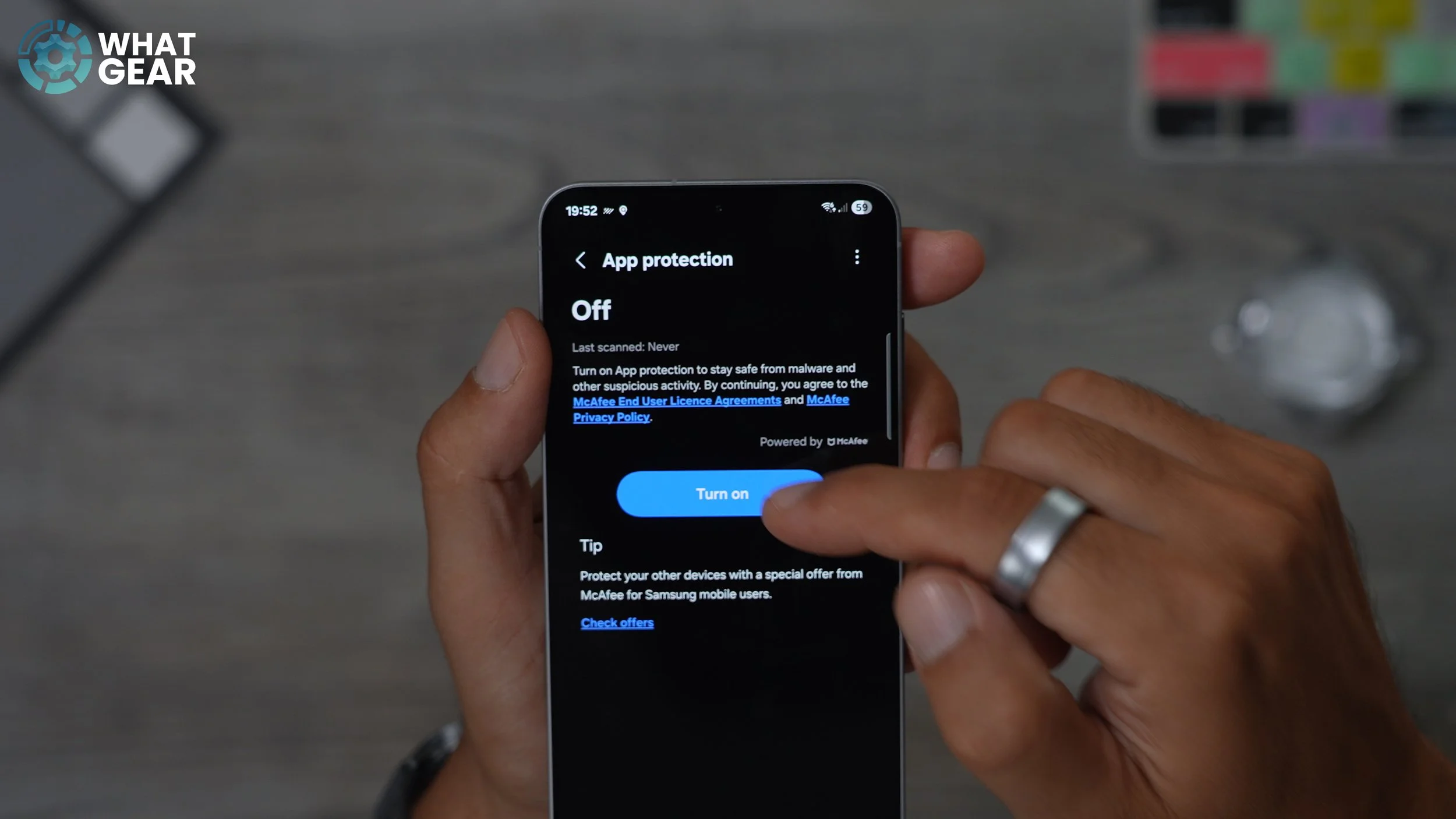
And that's exactly what I wanted to show you. So if you tap here, we've got this little orange exclamation mark. On this page, if you go to App Protection and switch this on, this essentially acts as an antivirus and will scan any apps installed on your device. Generally speaking, if you are installing apps from the Google Play Store, those are all secure. But this is just an added bit of security to give you a bit more peace of mind, and you can scan your phone at any time if you are concerned. There are a bunch more security features on this phone that I think you might want to know about. I have made a separate video, which I'll link at the end of this one, then explain all of that kind of stuff.
PERSONALIZATION
Let's get into some of the more fun things to do on day one. For example, changing the wallpaper. There are a ton of options when it comes to this, and I'm just going to show you how to do it. I'm not going to tell you what to do. So to customise the wallpaper on the device, there are a couple of ways. The easiest way, in my opinion, is to hold your finger down on an empty part of the screen. You then presented with these options across the bottom, and right here, you'll see the wallpaper style section. Tap on that. You can have two separate wallpapers, one for the lock screen and one for your home screen. If you go to change wallpapers, you'll see the featured ones across the top. You can access your gallery as well, so if you've taken photos on your device or you've imported them from another device and want to use them as a wallpaper, you can do that.
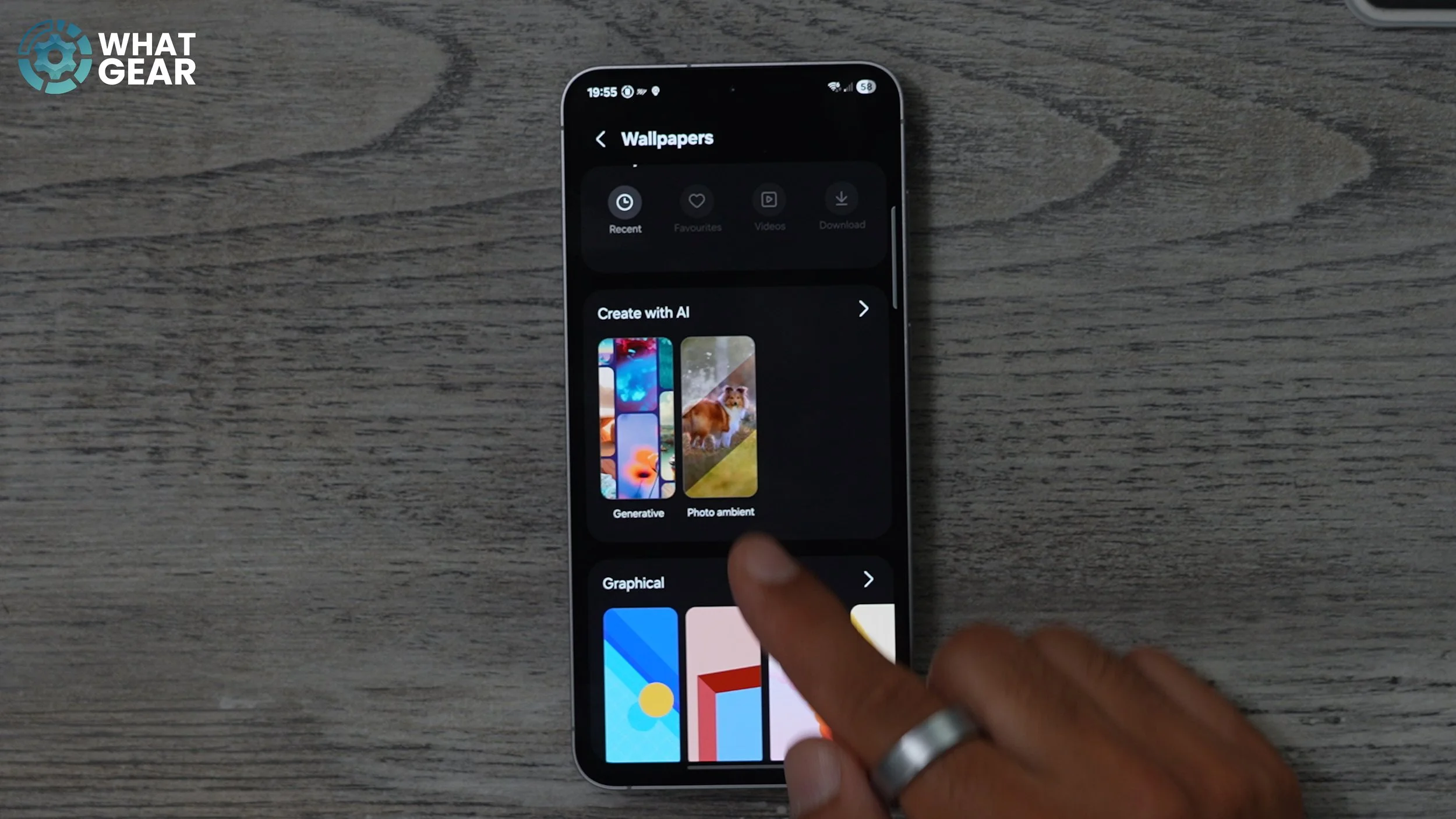
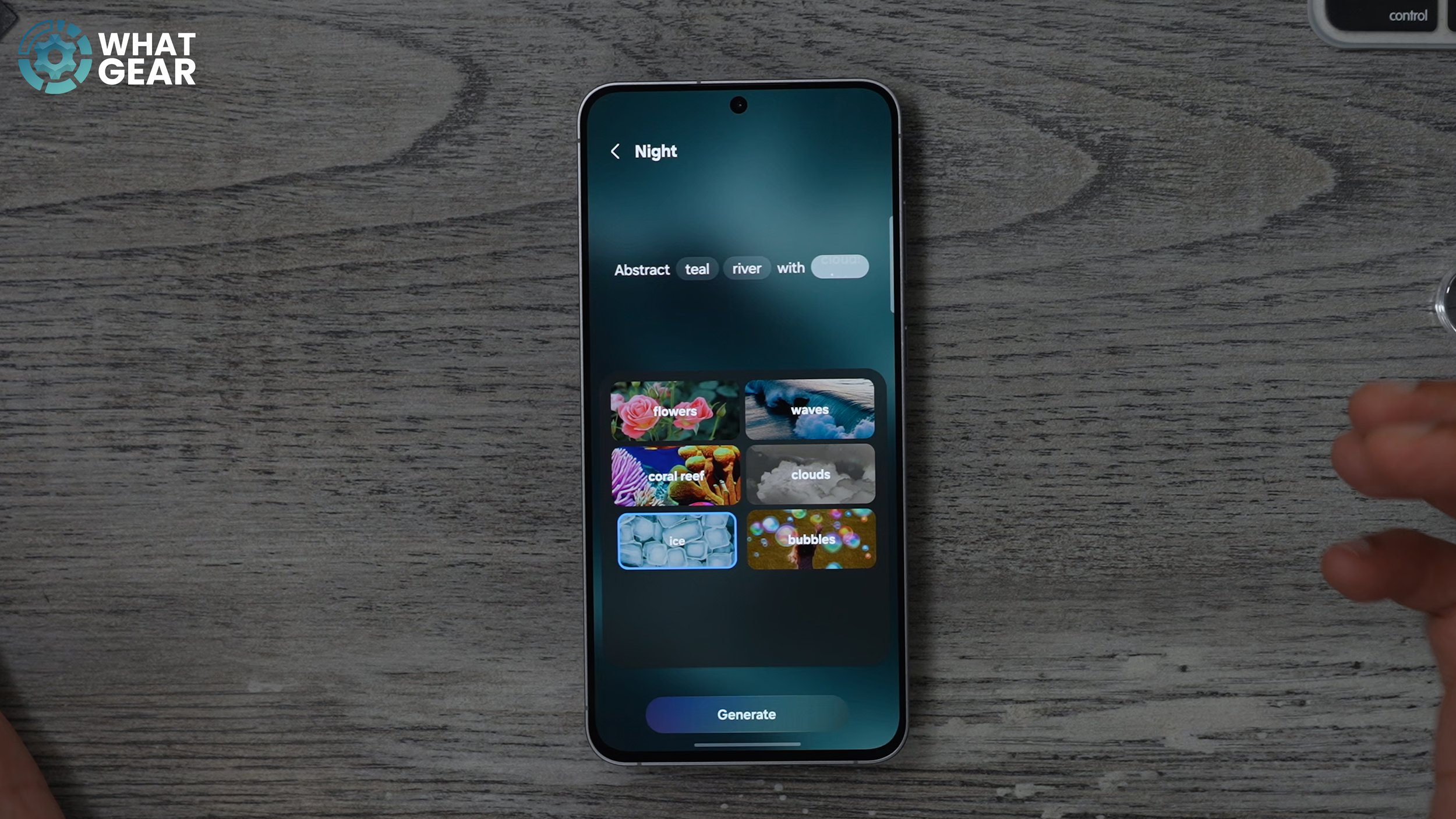
Something really cool that you can do is actually create wallpapers from scratch using generative AI. So if you go to the creative AI section, go to generative. Here, there are a bunch of templates that you can choose from. For example, you get a little prompt at the bottom, and the highlighted words here can be customised by you. This uses the power of Google Gemini AI to generate something very unique to you. So I could spend a bit of time going through some of the other options and playing around with different prompts if I wanted to, but I want to show you something else that's really cool when it comes to wallpapers. And actually, this is what I do pretty much with all my phones.
CONTEXTUAL WALLPAPERS
In the creative AI section, you'll see the photo ambient. This is fantastic in my opinion because what you can do here is use a photo from your photo library and add contextual weather effects to the wallpaper based on your geo location. So if you hit try now, you have to give it permissions for the local weather. Now you can choose the image that you want to use. Now, if you want to see what this actually does, you can hit the little play button, and it will demonstrate the effect. So you can see the rain, which is going to be doing a lot for me since I'm in England. And then when it's sunny as well you you'll actually see rays of sunshine beaming down. It works really well with photos that you might have taken. And that applies to the lock screen. Now, if you want to change the home screen, we can tap on the home screen.

AI, something that's pretty cool. If you do like the stock wallpaper that you have here, there are variations of it across the bottom. So some of these other colour tones might be more your style. But if you just want to use the same wallpaper as your luxury, you can just hit wallpapers at the top - Go to your gallery and just add that same wallpaper.
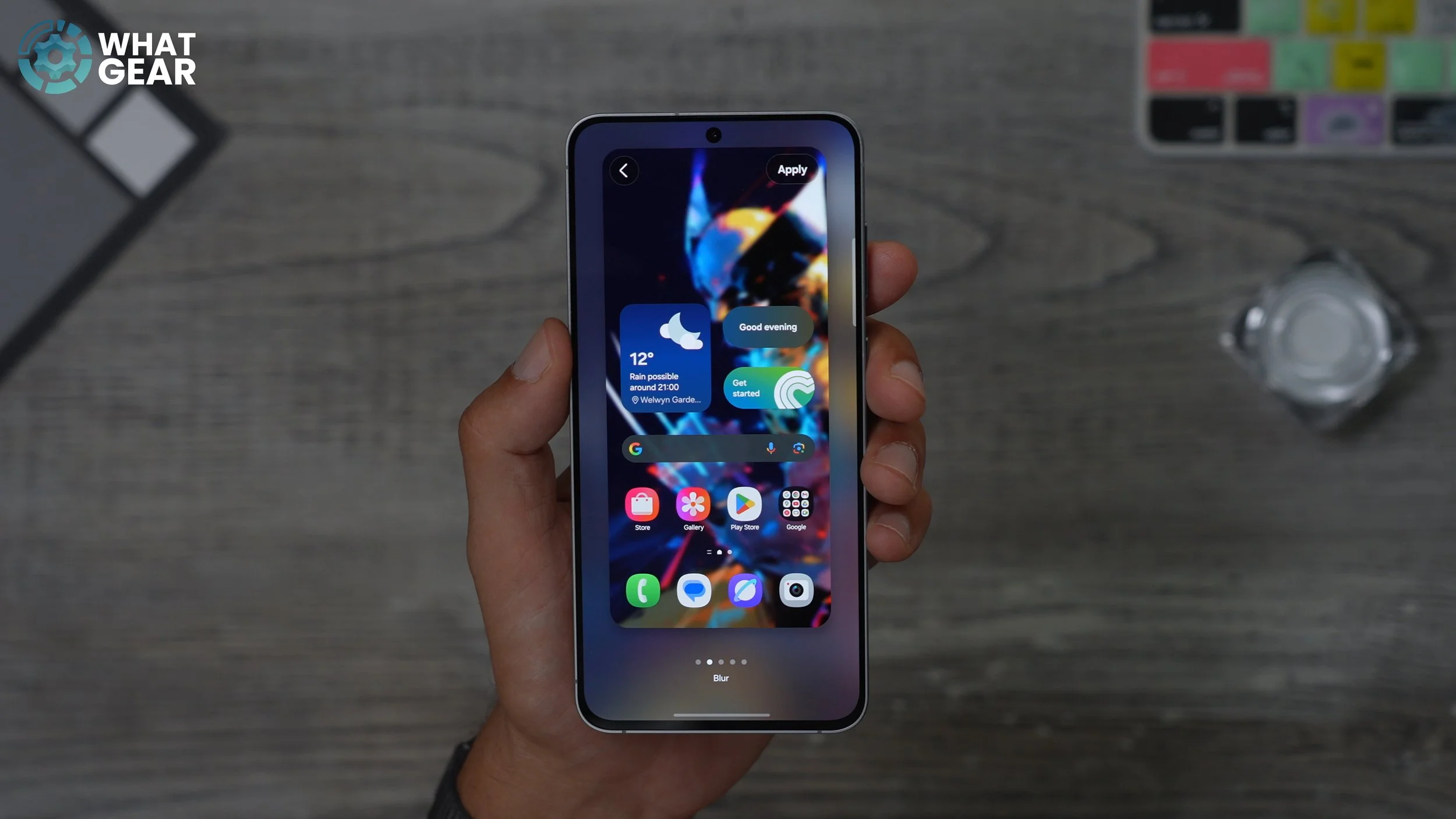
And I think you'll find this with some of your photos as well. You don't really want too many sharp lines in the background of your wallpaper, because it distracts you from the apps and the widgets. So there's something really nice you can do to avoid that. Across the bottom, you'll see suggested gallery frames and effects. I'm going to go to the effects. And I'm going to add a blur to the background. That just softens all of the edges of that image. And now the apps stand out nicely from the background. There are other effects as well to choose from. You can get really creative with some of these. You'll see the little orange dot. You can change the tone of the background completely if you want to. But for me, I'm just going to keep it simple. I'm going to go with the blur effect.
LOCKSCREEN OPTIMIZATION
So once again, we're going to hold our finger down on the home screen and go to wallpaper style at the bottom. I'm going to go back now to the lock screen. Now, right here, you get a bunch of options when it comes to customisation. You can add some useful tools. Now, remember earlier how we switched the double-tap from the camera? Well, the good news is you've got the camera down here as a shortcut. So when you're on the lock screen, you can open the camera. That's why you don't necessarily need the double-tap to be the camera as well.
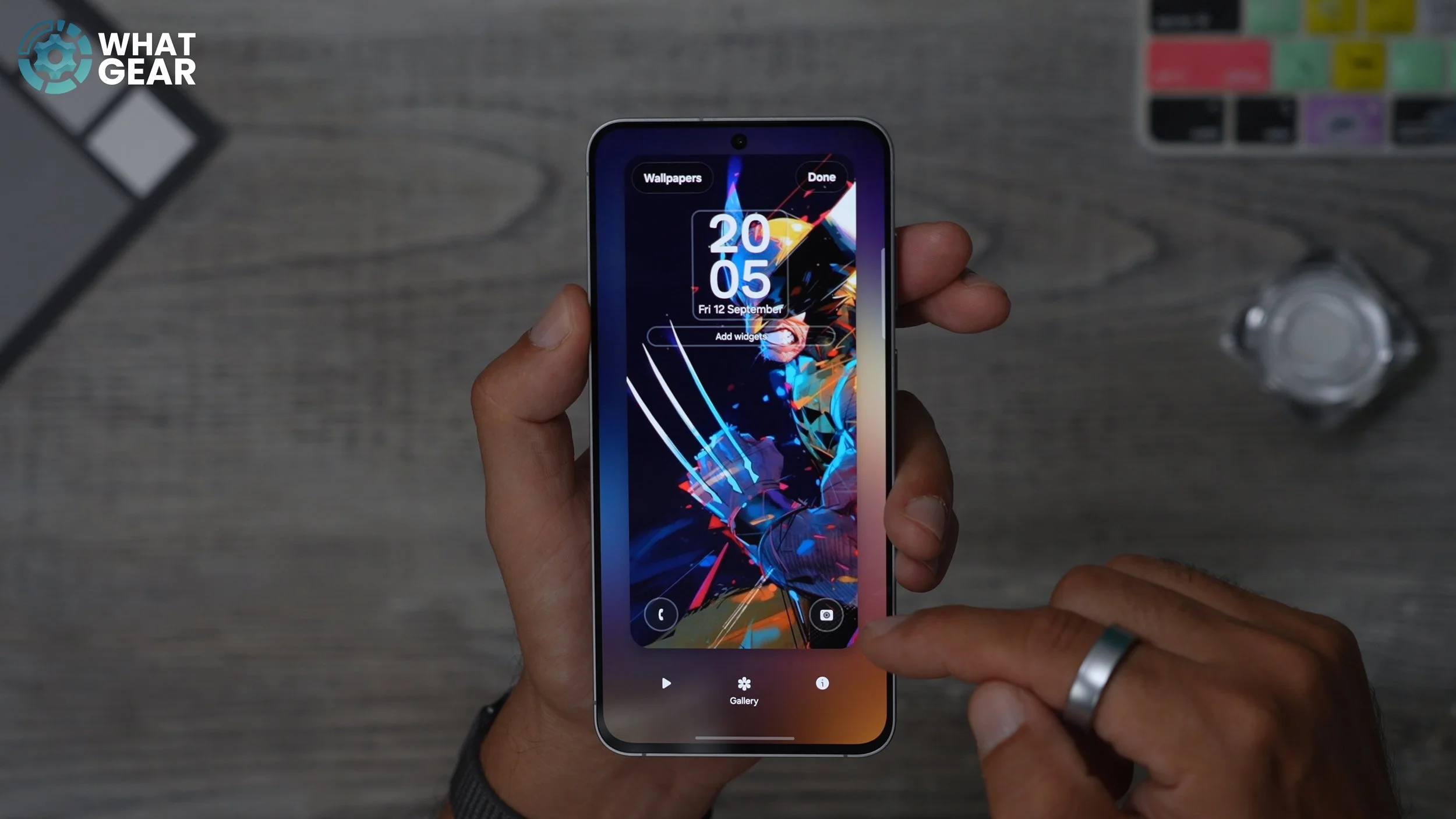
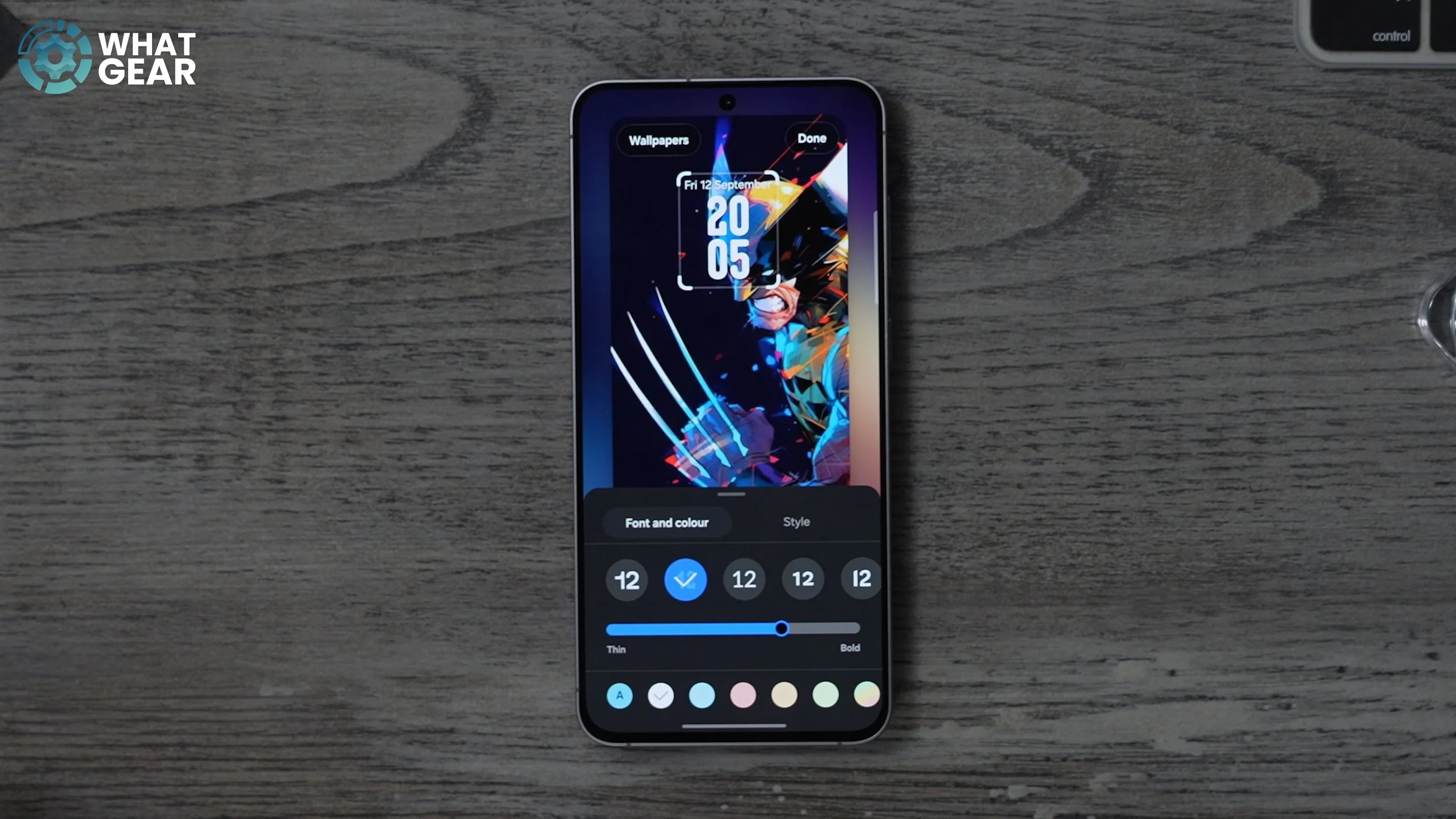
But going back to the customisation options, if you tap on the clock itself, there are a bunch of styles to choose from, including this new one, which is kind of a dynamic, moving clock. You could change the size of it, and it kind of adapts its shape according to the image in the background. So that kind of works quite nicely. The next thing you can do here is actually add widgets to the lock screen.
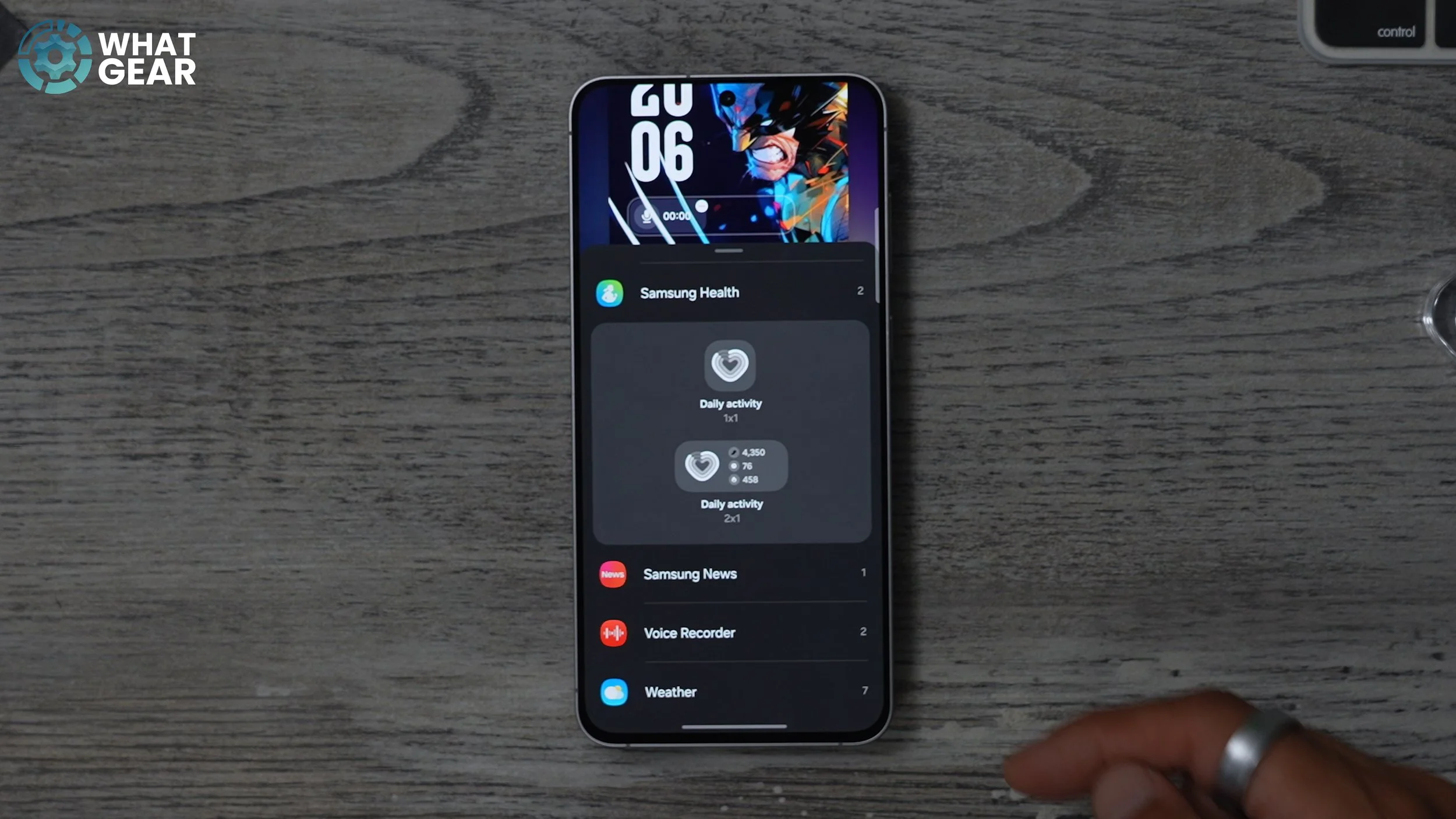
There is one that's really, really useful. So, just below the clock, you should see this little add widget section. If you tap on this, you can have a look at the options. The one that I highly recommend is the voice recorder. Another one that I'm going to add is the Samsung Health, which is kind of greyed out right now because I haven't launched Samsung Health for the first time. But once this is set up, you can see your steps and your activity and your calories burned and all that stuff right there on the lock screen. So that's why that's a good one, but it's entirely up to you. Choose the widgets that make the most sense to you.
Also, at the bottom, choose the shortcuts that would make the most sense. The left one is actually set to the phone. But for me personally, I'm going to make a phone call, and when I open the phone, first go to my phone book and do all that kind of stuff. So what I'm going to do here is actually switch that to the torch. So now I've got a torch and the camera and hit done. Now if I'm fumbling around in the dark looking for something, I can just swipe up diagonally and switch the torch on straight away and I can switch it off from here to.
STACK UP
This one's such a nice feature on One UI. I do wish all Android phones had this, and it is the ability to stack widgets. So, for example, right now we've got two widgets. They're exactly the same. We've also got the weather. What I'm going to do is shrink this down to be the same size as the other two. And now what I can do is stack these on top of each other. Now I've got three widgets in one, which I can now switch between whenever I want. So now all three of these widgets only take up these two spaces as opposed to six.
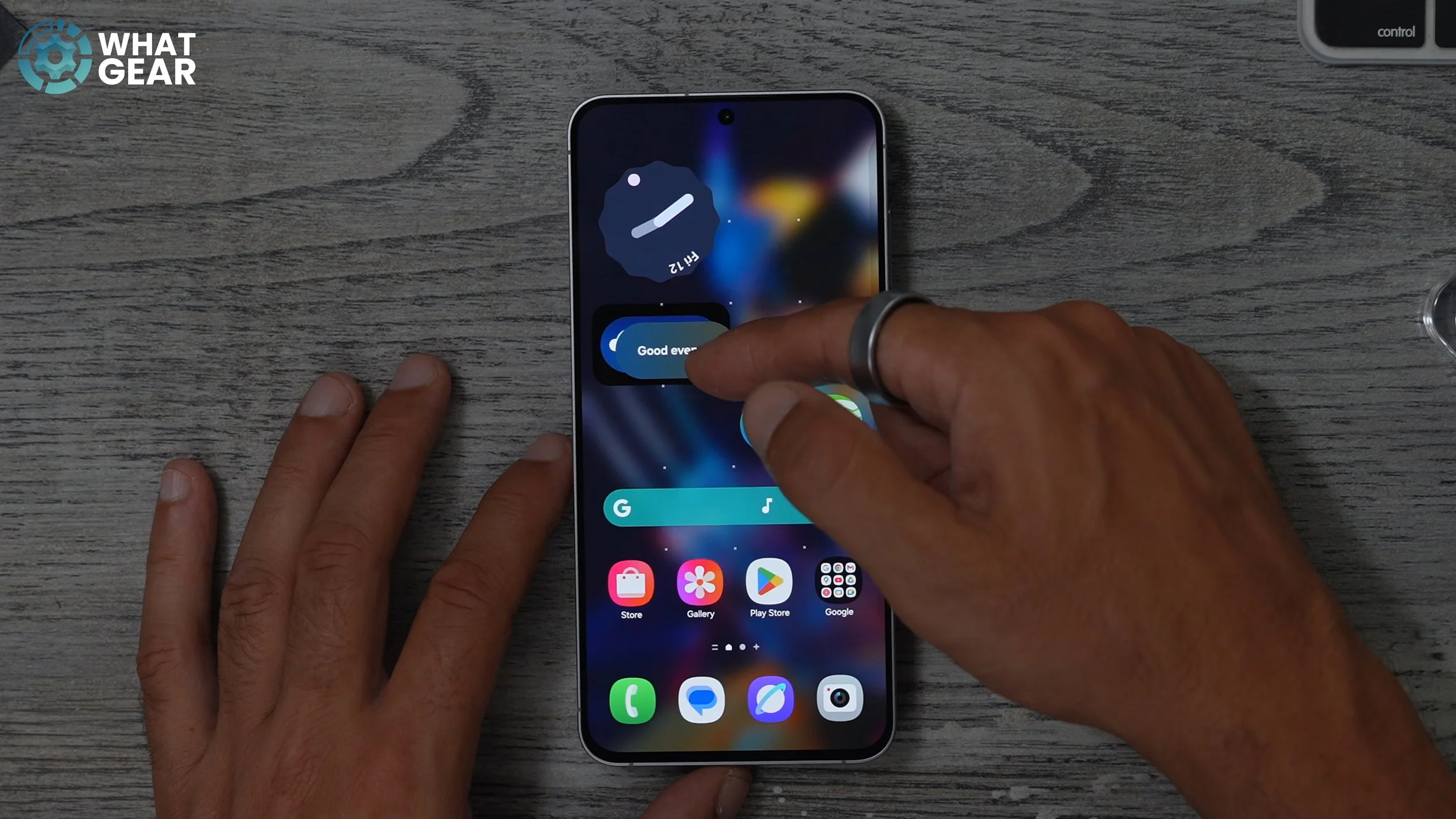
something else that I do on day one. This is entirely personal preference is If you pinch to the home screen and go to these settings, you get the option to change the grid layout for the home screens. I really like to have as many apps on the home screen as possible. But at the same time, we don't want them to be too small. So what I normally do is switch this to the five by six, which is the only option on this phone. Now I can have five apps per row. This also means you can make your widgets a bit bigger as well, because they have more space to expand.
GET THIS WIDGET
Remember, before I spoke about the power button and how I like to keep pushing the power button to wake Gemini. Well, that's one way to do it. And I recommend you set this up straightaway on day one. Just activate it, wake it, and accept the permissions. There is another way to wake Gemini, and that's to say, ‘‘hey Google’’. You should know is the little microphone here on the Google search bar isn't actually Gemini. If you hit this, this wakes the original Google Assistant. Let me show you what I wanted to show you. So here's how you can add new widgets to your home screen. If you hold your finger down on an empty part of the screen at the bottom you see widgets, just tap it.
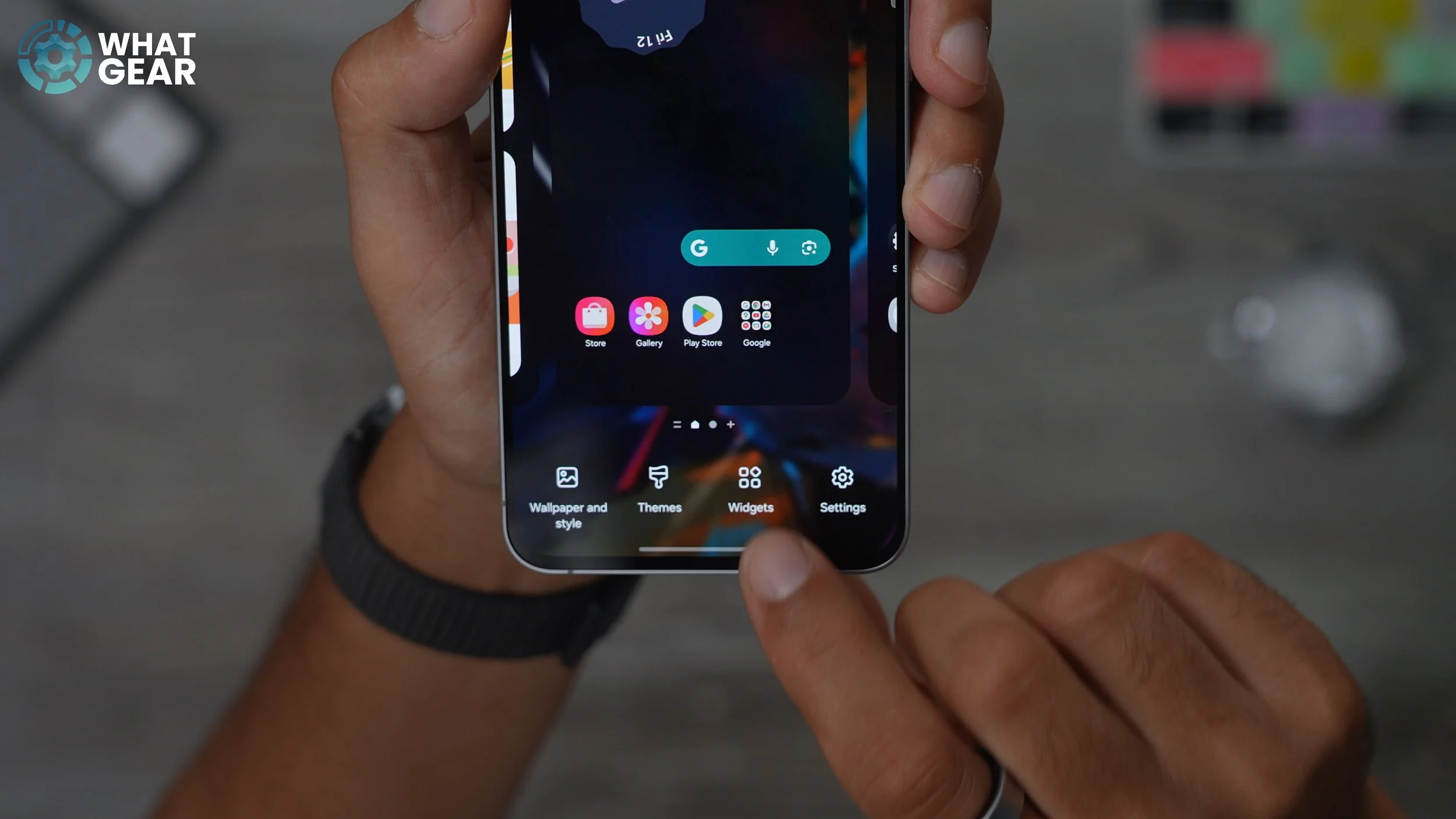
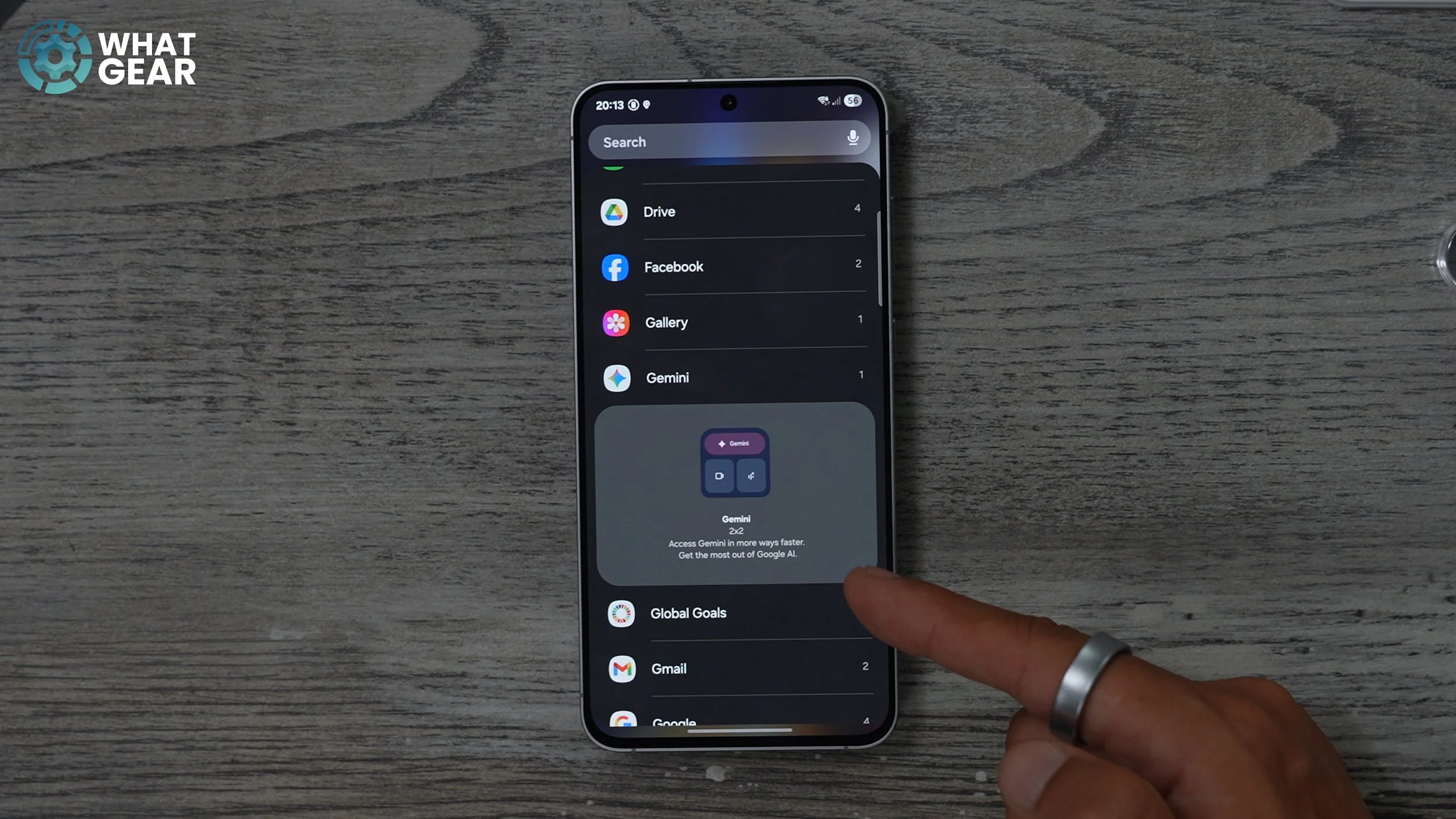
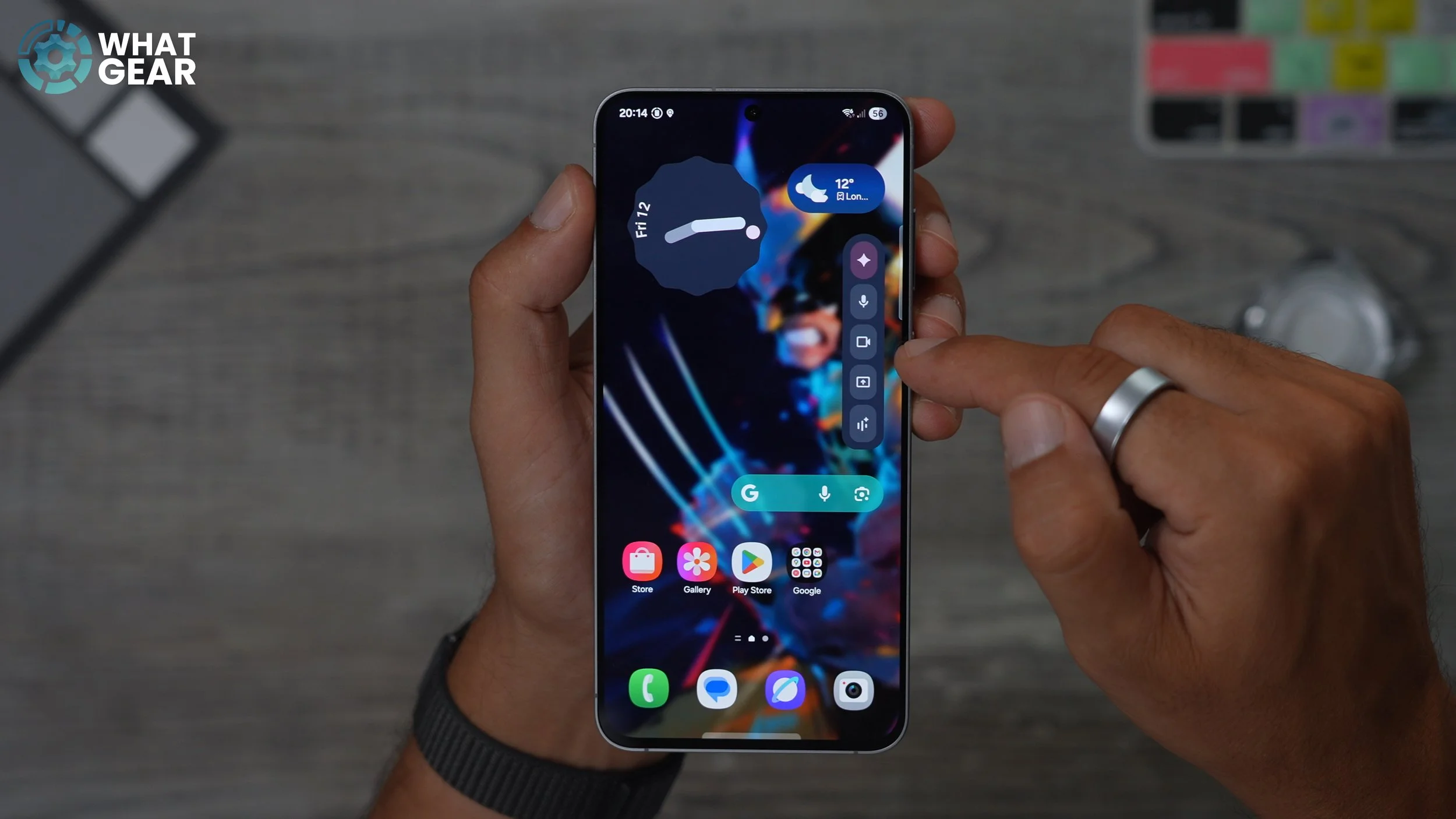
The ones at the top are going to be the Samsung ones, but if you scroll down, you'll start to see some of the other ones and the ones that I want to show you that I think are very, very useful are the Gemini widget. What's really cool about this particular widget is that you can actually reshape this to be narrow and tall if you want. So now with the Gemini widget set up like this, if I want to open the app itself, is the top one. If I want to ask just a one-off question, this is one. If I want to show what my camera can see and ask questions about, that is the little camera icon. If I want to upload a document and ask it about a document, I can do that. And then this one at the bottom is the Gemini life, where you can have a full-on conversation with the AI and brainstorm ideas and things like that. If you want to. So now you've got two very powerful Google tools in widget form on your home screen.
GET YOUR WRITING RIGHT
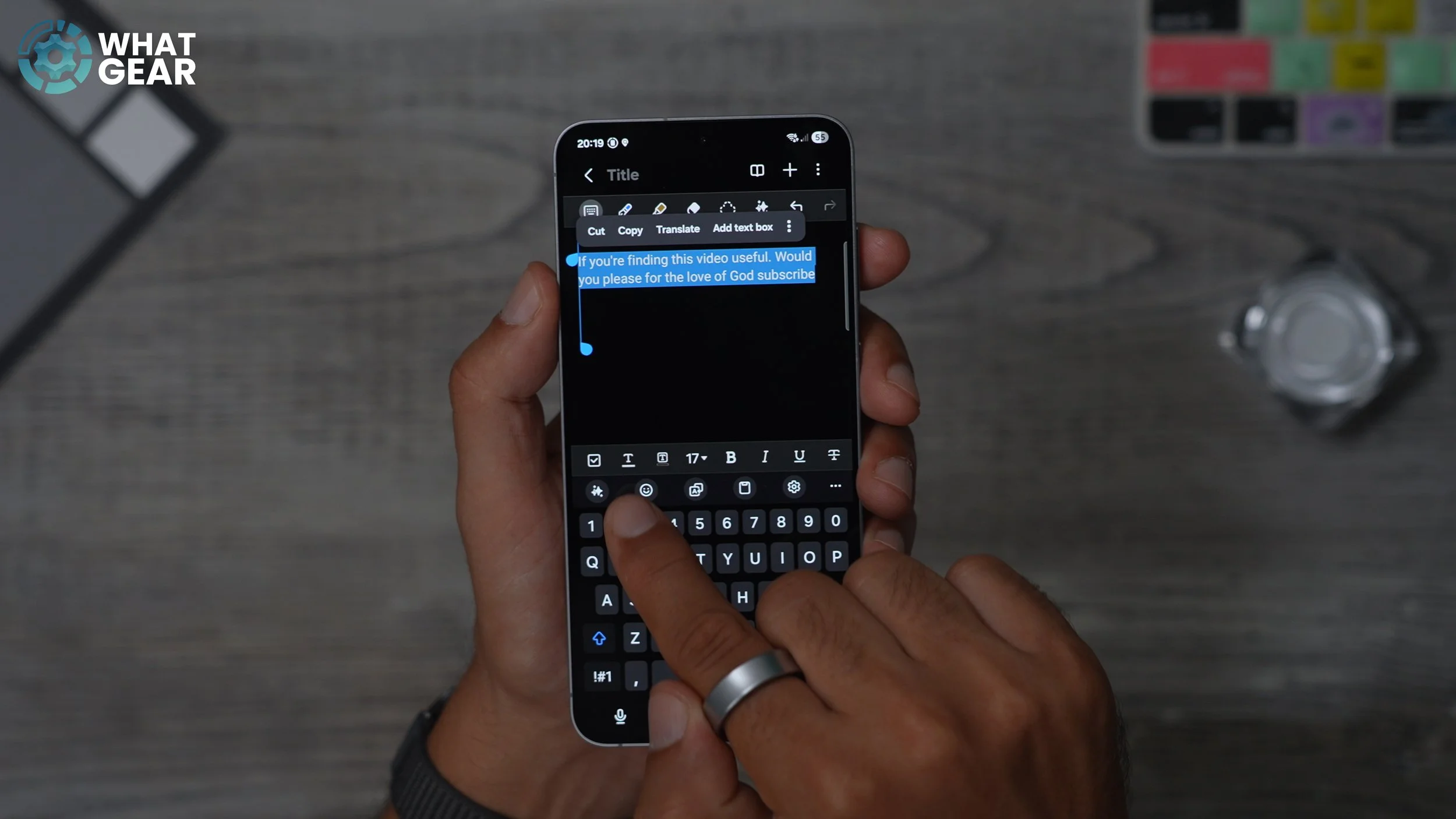
This next tool is very, very powerful and something that I started using more often these days, mainly because I'm not great at writing things. And also, I'm not very good at adding emojis or making things sound more casual or more formal. I just kind of write how I speak, which is not always the best way to write. So let me show you this really cool tool. So I've written a little sentence just to demonstrate this for you guys. So whenever you're writing and you're using the Samsung keyboard, if you highlight the text, I'm just going to select all, you see the little sparkles down on the keyboard. If you tap this, This opens up the AI writing tools that are baked into the Samsung keyboard. So this is how they will look if you want to check the spelling and grammar. Underline anything just like spell check on Microsoft Word. And then you can replace it. If I do it again, select everything. Hit the spark and the stars again - go to Writing style.
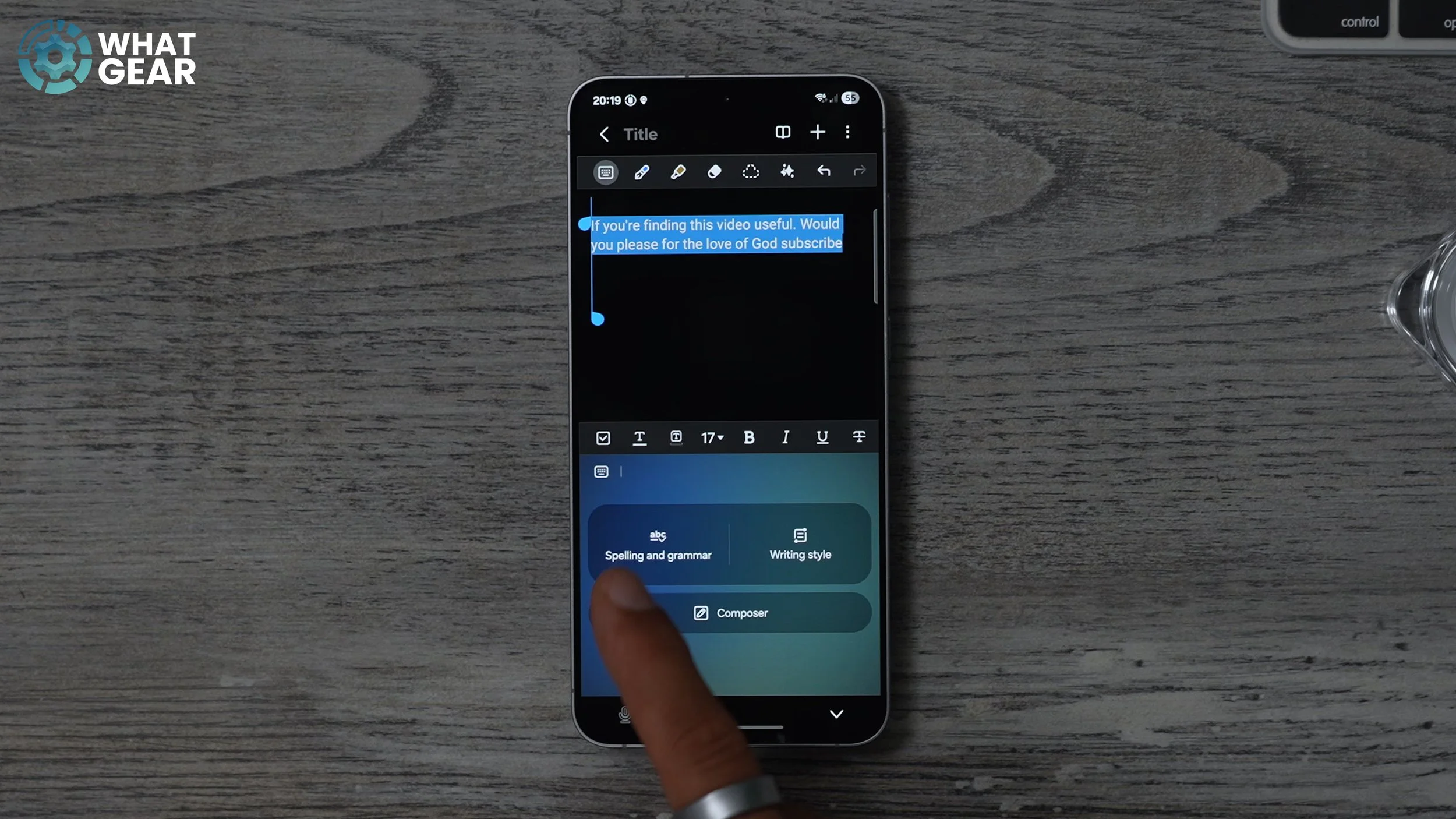
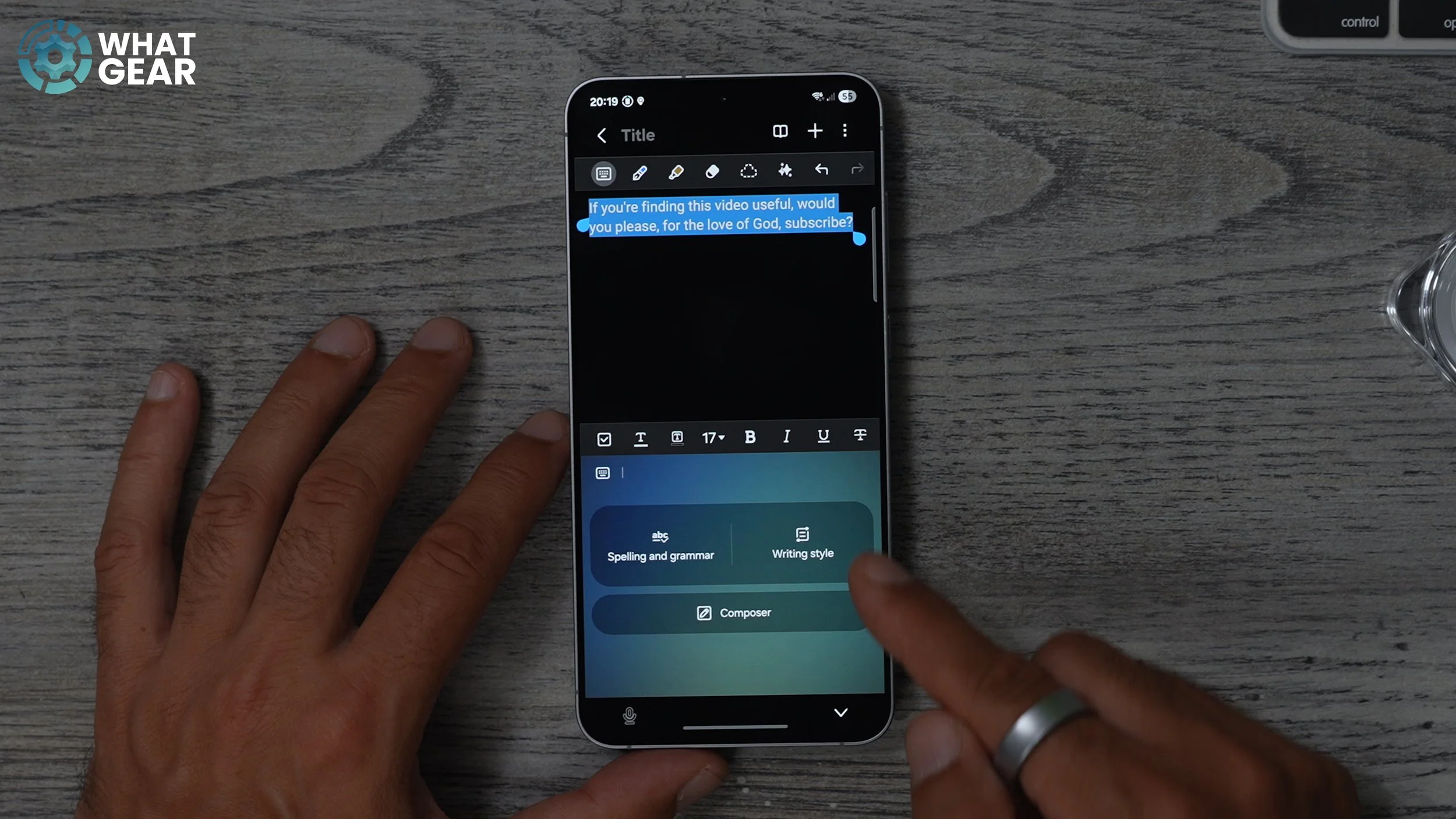
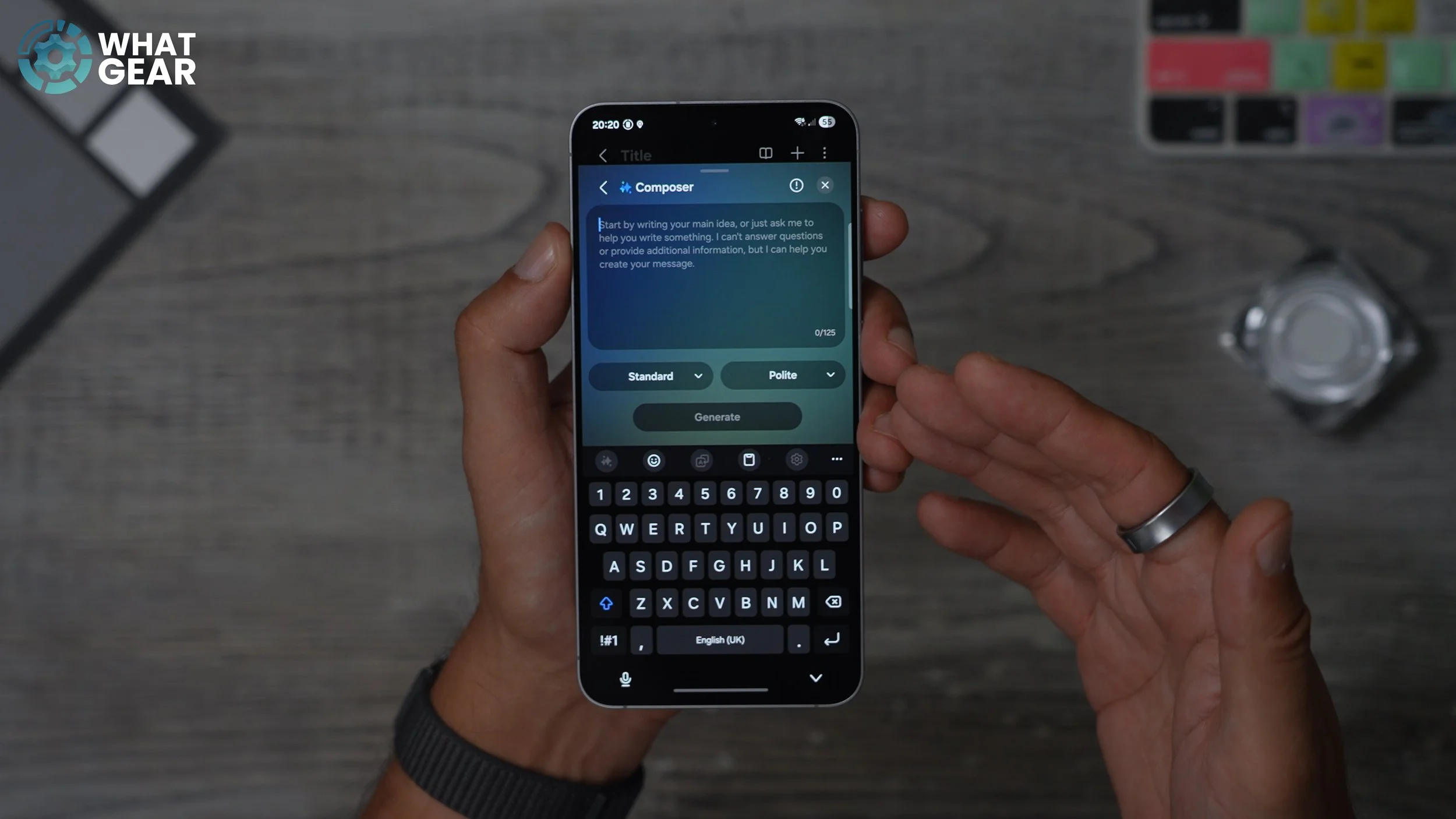
I can change what I've written and add a different tone to it. For example, if I want it to be more professional, more casual, more social, more polite, I could do that. I could pick my favourite one and then just hit replace. Something else you can do this really cool with the writing tools, is if you're kind of stuck for words, you can just hit the I goes here, go to composer and explain to the composer what it is you're trying to write. And then you can choose the style of that. want to go to social media and casual and then hit generate, and let's see what it writes for us. And you can see right there I added about two sentences. And this is written an entire social media post. Make use of the writing tools. Just remember how to find them whenever your keyboard pops up; hit the little sparkly stars.
Gboard
This is really for anyone who struggles with the Samsung keyboard. I'll be honest with you guys, I have done in the past, and whenever I do, this is the best solution that I have found. If you go to the Google Play store at the top of the search bar, type in Gboard. This is Google's own official keyboard app. The Google Keyboard app is the most similar to Apple's keyboard, so if you are coming over from iOS, this keyboard will make you feel more at home for sure. However, this does present a problem because now you can't access the AI tools quite so easily. So let me show you how to switch back and forth between the Google Keyboard and the Samsung keyboard. On this page, just make sure you switch on the Gboard.
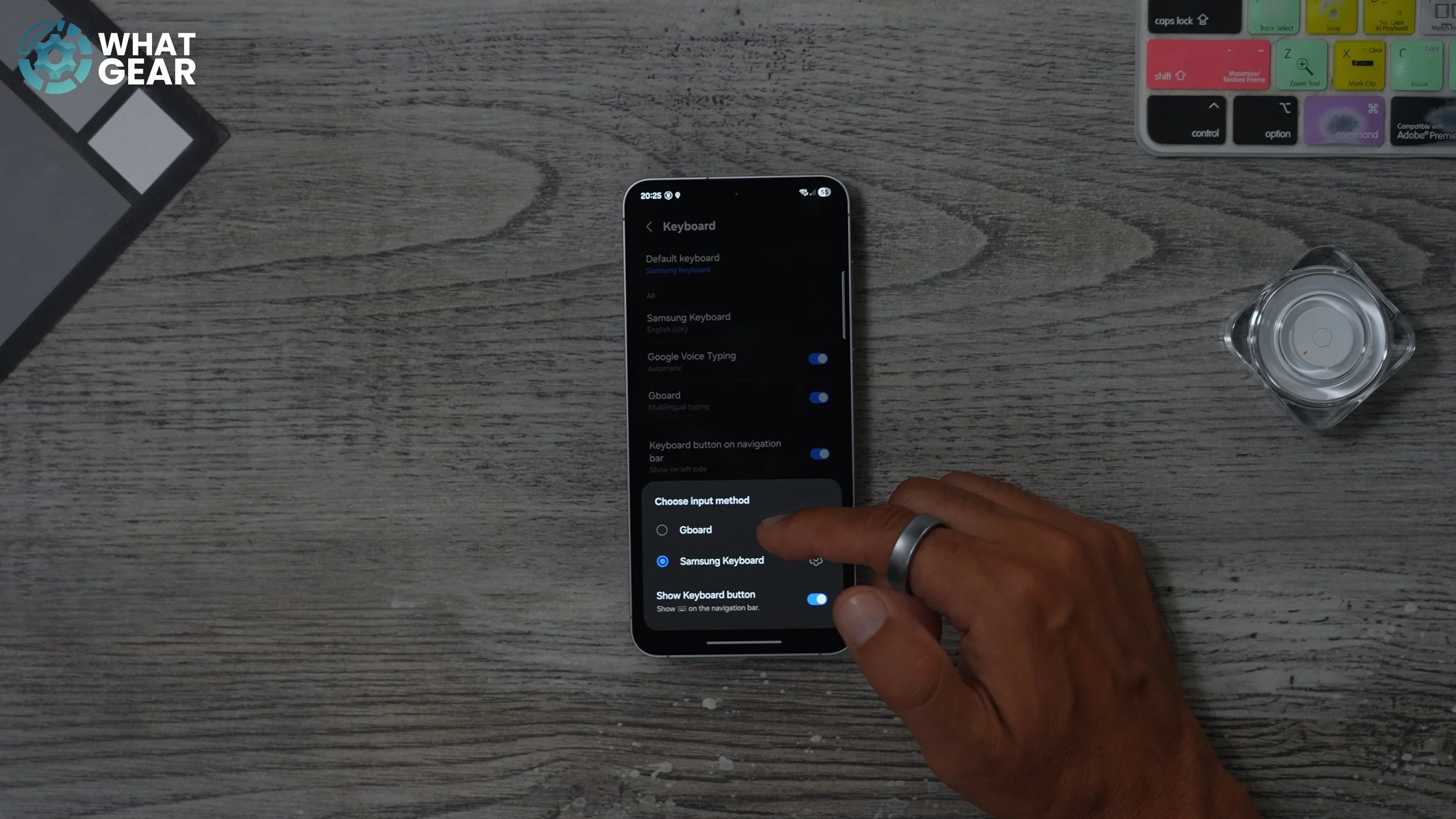
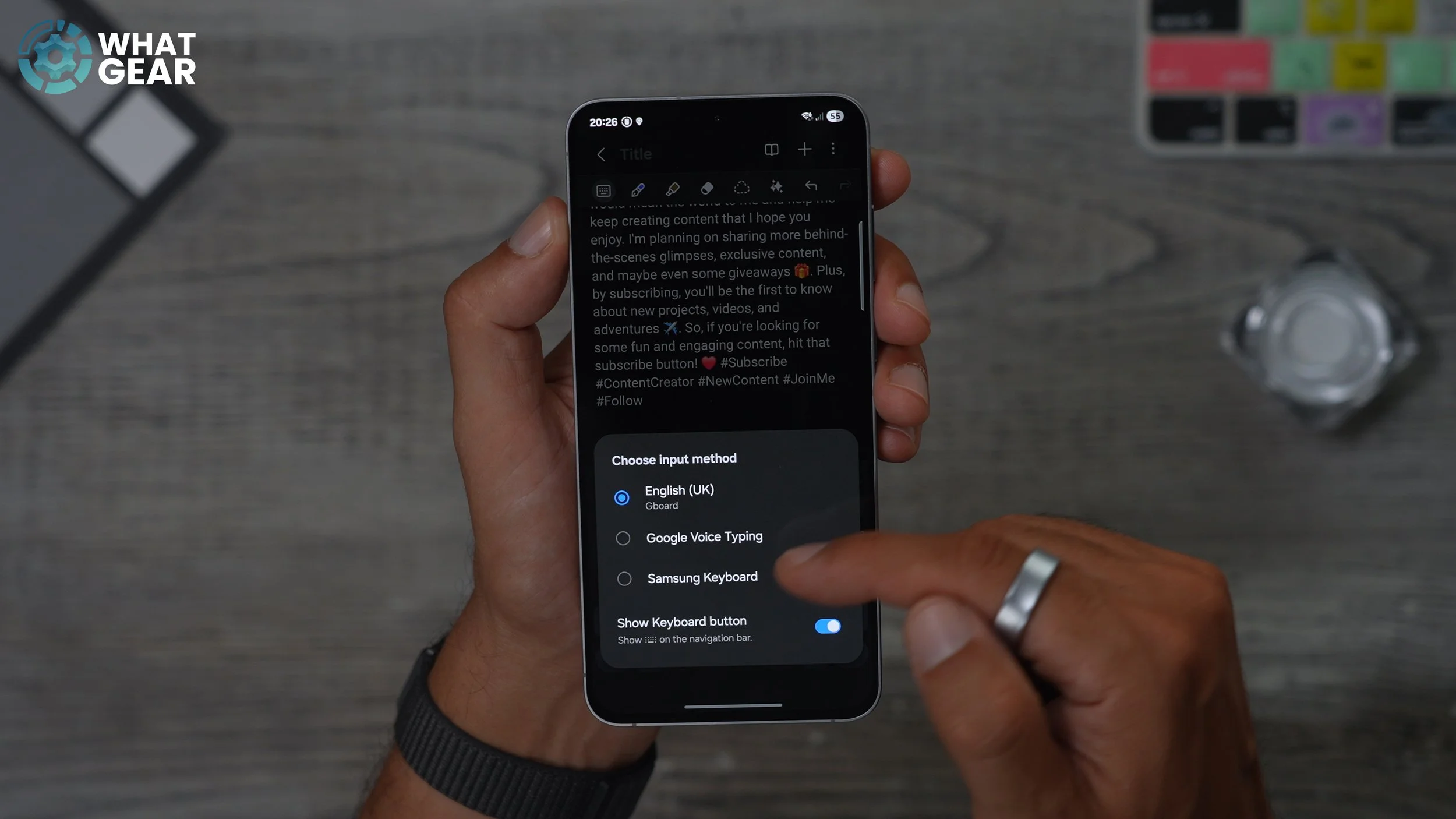
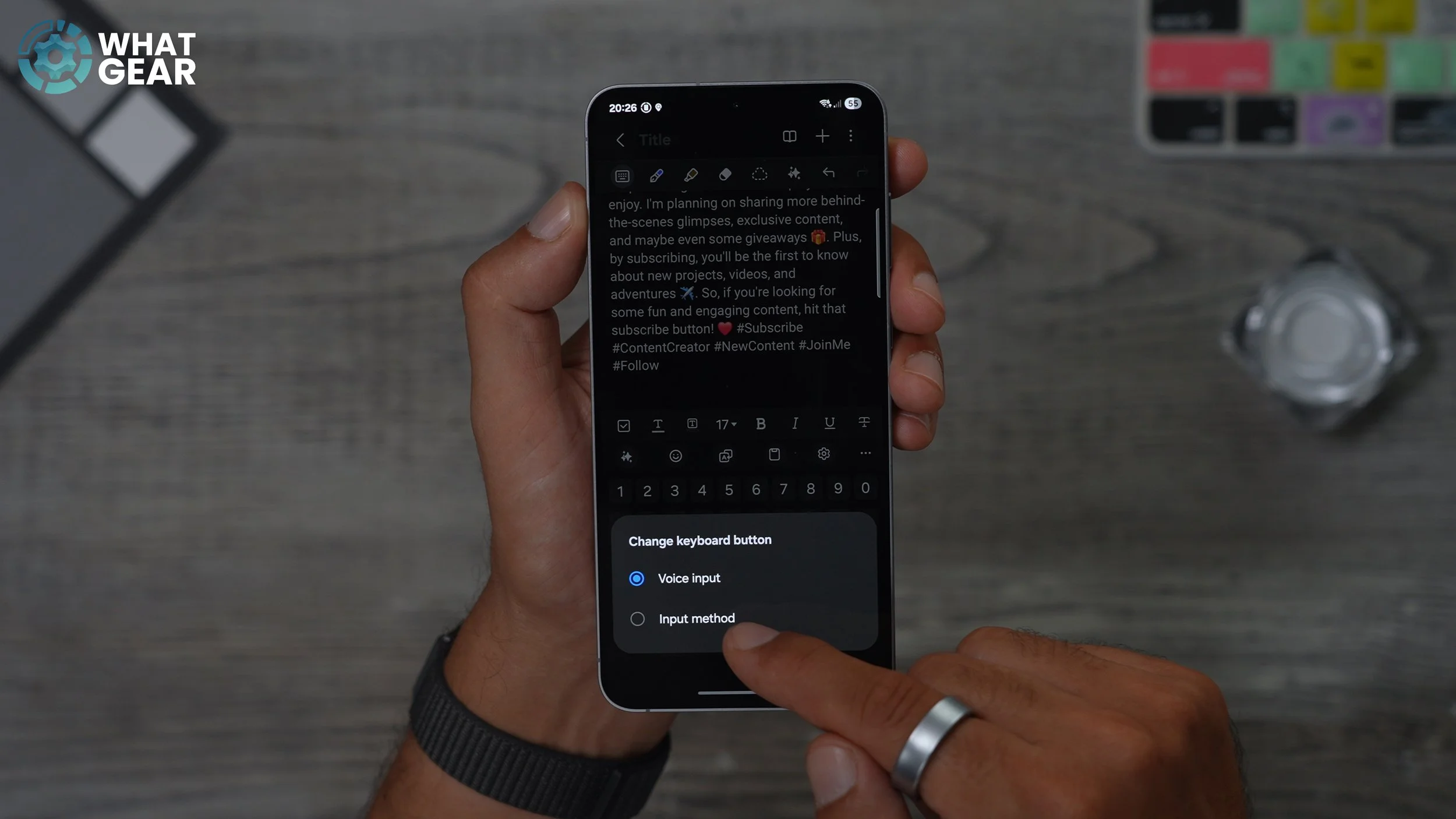
And now that's been activated. And at the top, if you go to the default keyboard, you can now change it to the keyboard. And I found that this is much better at predicting what you're trying to write. So that's why I like to use this one. But from time to time, when I want to write a social media post or add emojis into something I've written, what you can do is hit the little keyboard icon down here at the bottom, and switch back to the Samsung keyboard at any time. And when you are on the Samsung keyboard, if you want to switch back to the Google Keyboard, see that little microphone down here? If you hold your finger on that, you can actually change it to an input method. And then you can switch back and forth between the Google Keyboard and the Samsung keyboard pretty easily.
GALLERY Ai TRICKS
Let me show you a little fun AI trick that you can do within the Samsung Gallery app. So right here we had the Gallery app. If you open this at the bottom, you will see The AI sparkles. Whenever you see this, this means that there are some AI tools available. If you tap on this, you get a bunch of different options. The generative edit can allow you to cut things out of the image. For example, these headphones in the background. Let's get rid of those. And then next to it, you can hit the little magic eraser.
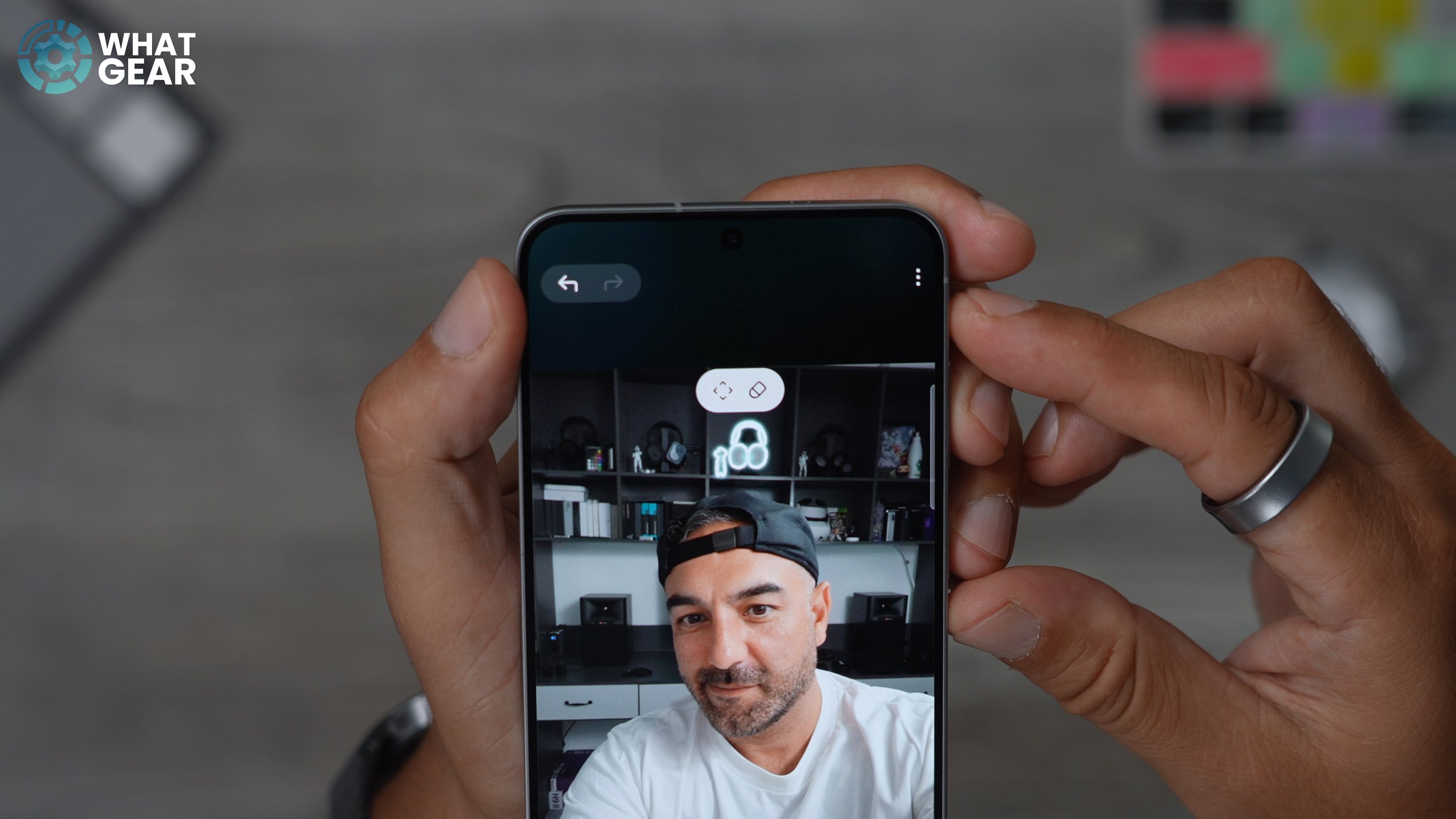
And it's actually kind of dark and about in the background. It didn't fully erase them. So they were white before. It's kind of turned on black. And then it's got rid of the stormtrooper that was on the shelf. Something else you can do with this is you can change the angle of the image. What it would do is all these areas around the photo, it will use AI to fill those in. So, for example, if I go like this and hit generate. It's filled in that missing information, and it's done a really good job of it. I go back to the original image to show you something else that's really, really cool. Across the bottom, you have some more tools. So if you swipe across, you'll see the sketch the image.
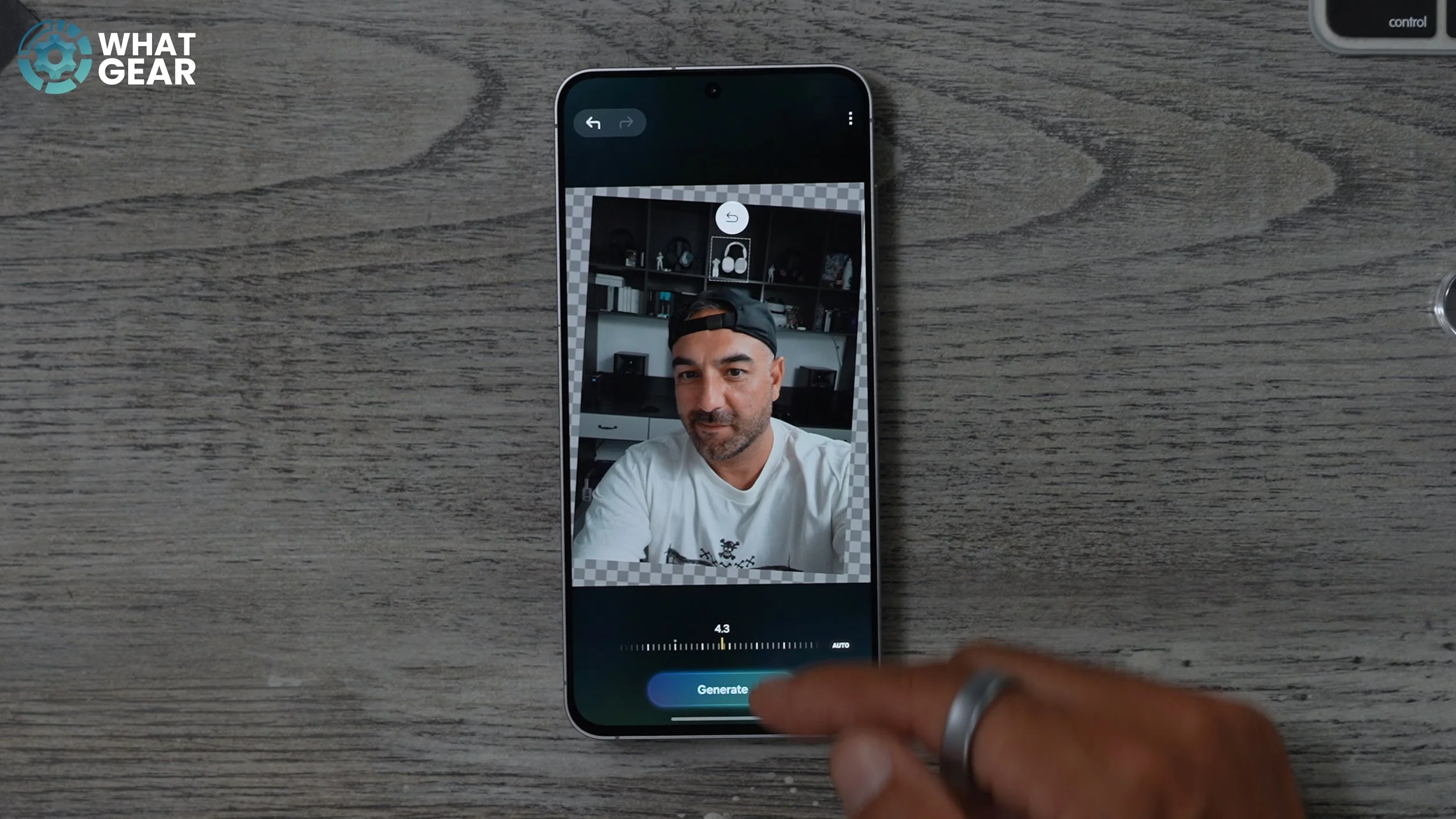
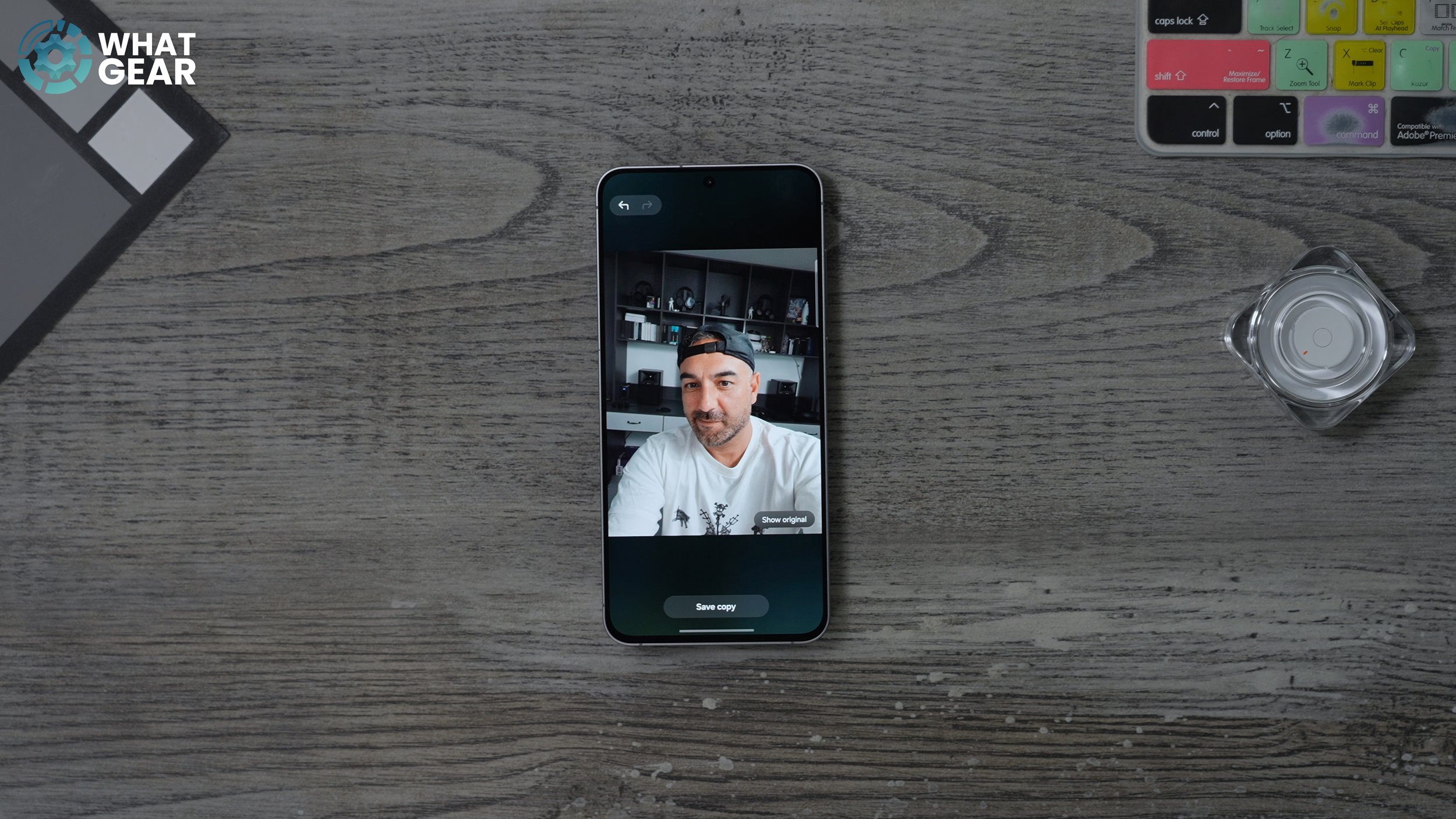
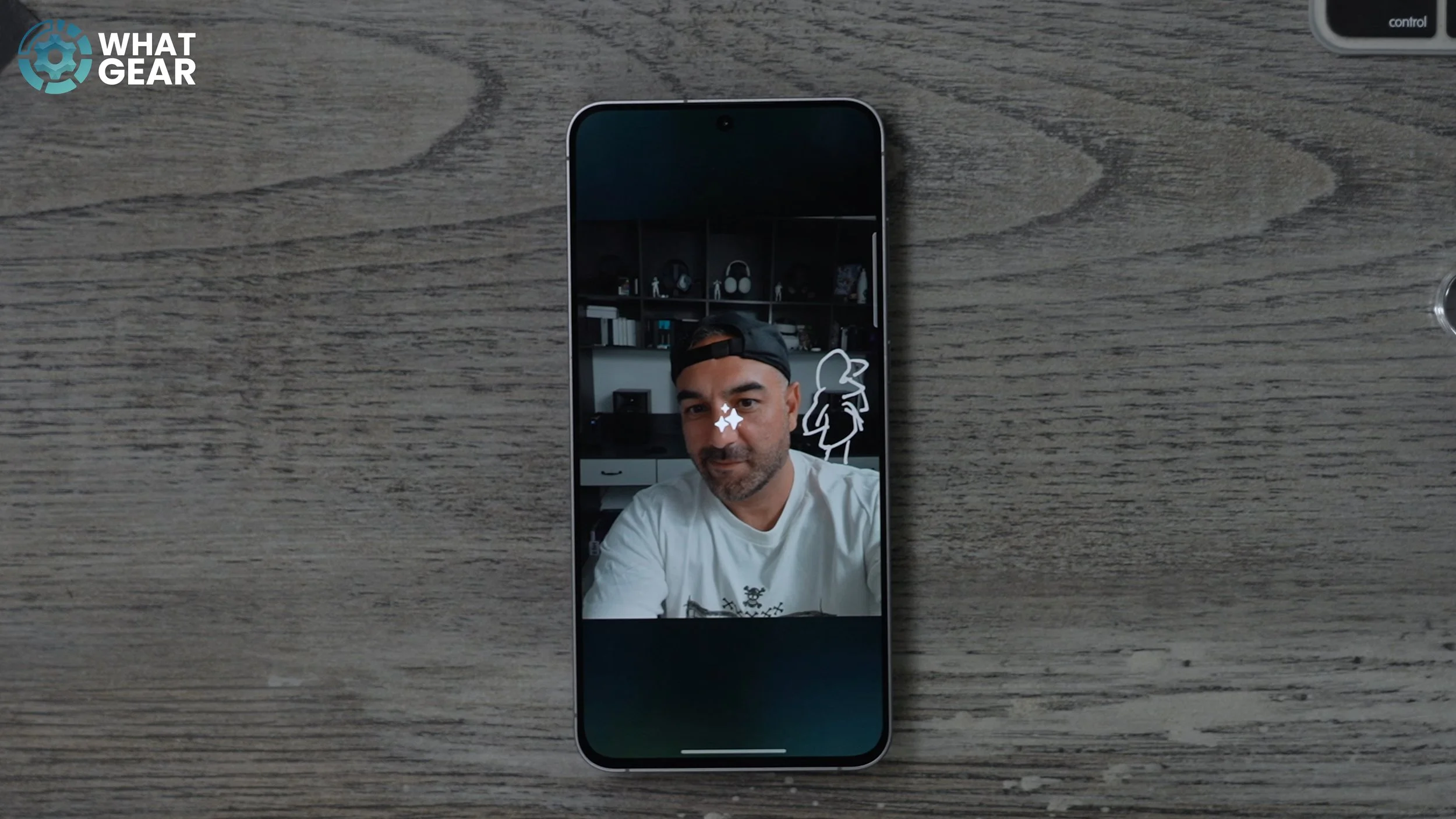
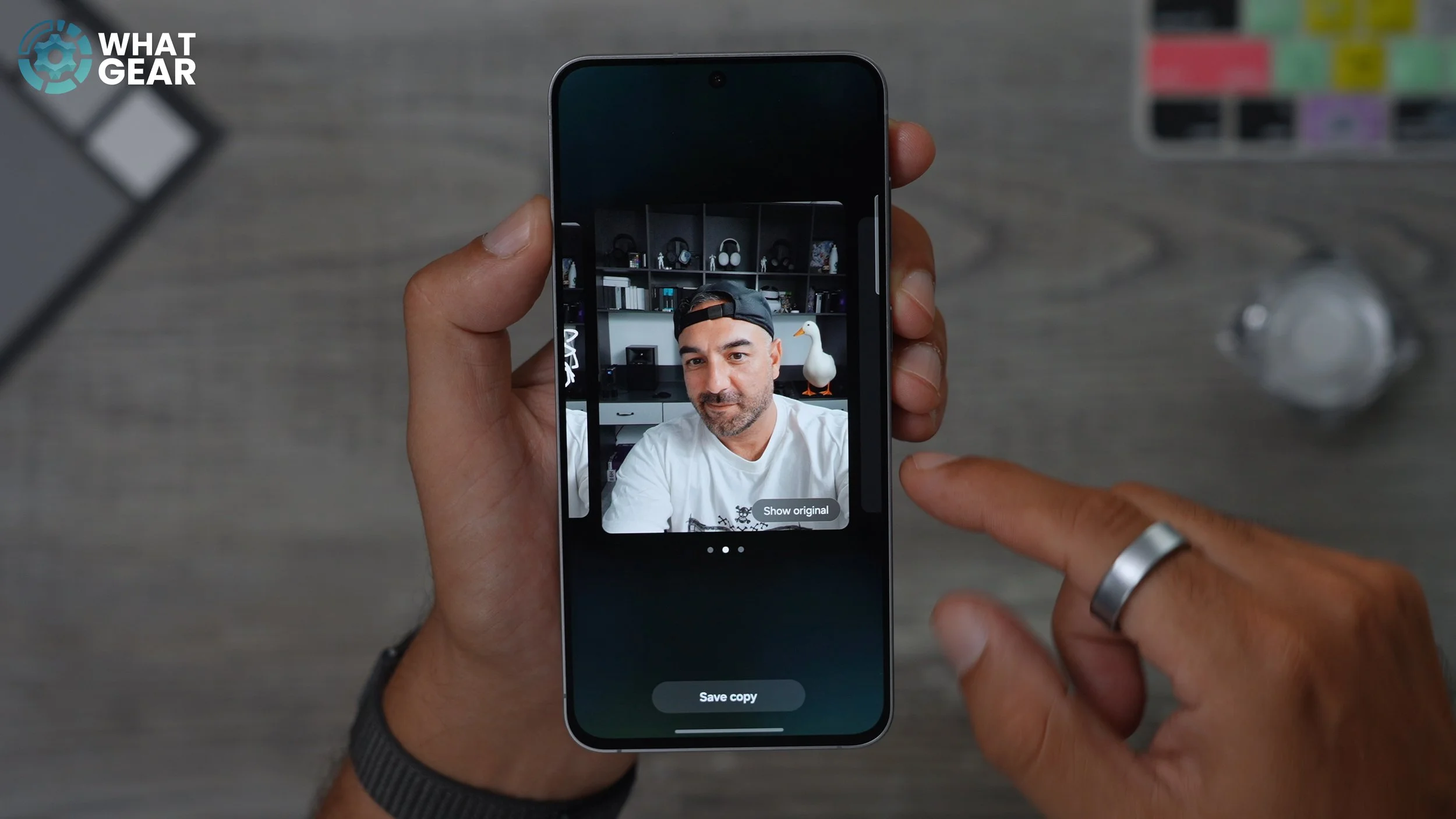
Let's say I feel like there's something missing from this photo. That is a really bad drawing of a bird. I'm not sure it's even going to know that it's supposed to be a bird, but I see it generate anyway. Let's see what it turns into. It's kind of turned it into a duck, and it's standing on the shelf behind me, and it looks pretty realistic. This is great fun to play around with. You can add loads of things to an image that weren't there originally. The last AI tool is the Portrait Studio. So if you go to this, you can actually change an image of a person into a cartoon of a comic book or whatever. So let's go to the comic book and generate. And there we go. And there are various options to choose from here as well.
GET THE EDGE
This is one of my favourite features on Samsung Galaxy devices and One UI, and it's this little faint line, which is just here on the right side of the phone. If you swipe this out, now, these apps right here might not be the most useful to you, so you might want to customise this. If you do, all you need to do is hit the little pan at the bottom. On the right side, you can get rid of the apps that are pinned here, and the ones at the top are Samsung's official apps. Now, what I found is that this is a great place for authenticator apps. You know, when you have to log in to something and you have to generate a passcode to get in? This is where I keep all my authenticator apps.

So this generally is a good place for apps that you don't use every day, but you want to have quick access to when the time comes. So I've just set up a few random ones just for demo purposes. And now whenever I need to access those apps, I can just swipe out here and there, we go. They're right there. They don't need to be on any of my home screens.
AN EXTRA EDGE
When you bring it out, you'll see the settings pop up down here, really, really briefly. And then it would disappear like that. If you hit that settings button. Now you have access to the edge panels. And you might want to use some of these. For example, you could set up all your family contacts here in the People Edge panel. But if you go across, there's one that's very useful, and it's the tools. So this is fantastic because. If you happen to be lost or you want to find out which way is north and which way south, you can bring the edge panels out, swipe again, and then you've got access to a compass, which you have to calibrate by waving your phone around. And not only do you have a compass, but if you hit the three dots at the top, you actually have the option to switch it into a tally counter. So if someone is doing laps and you want to count every time they've done a lap or something like that, you're counting anything. You can use the tally counter.
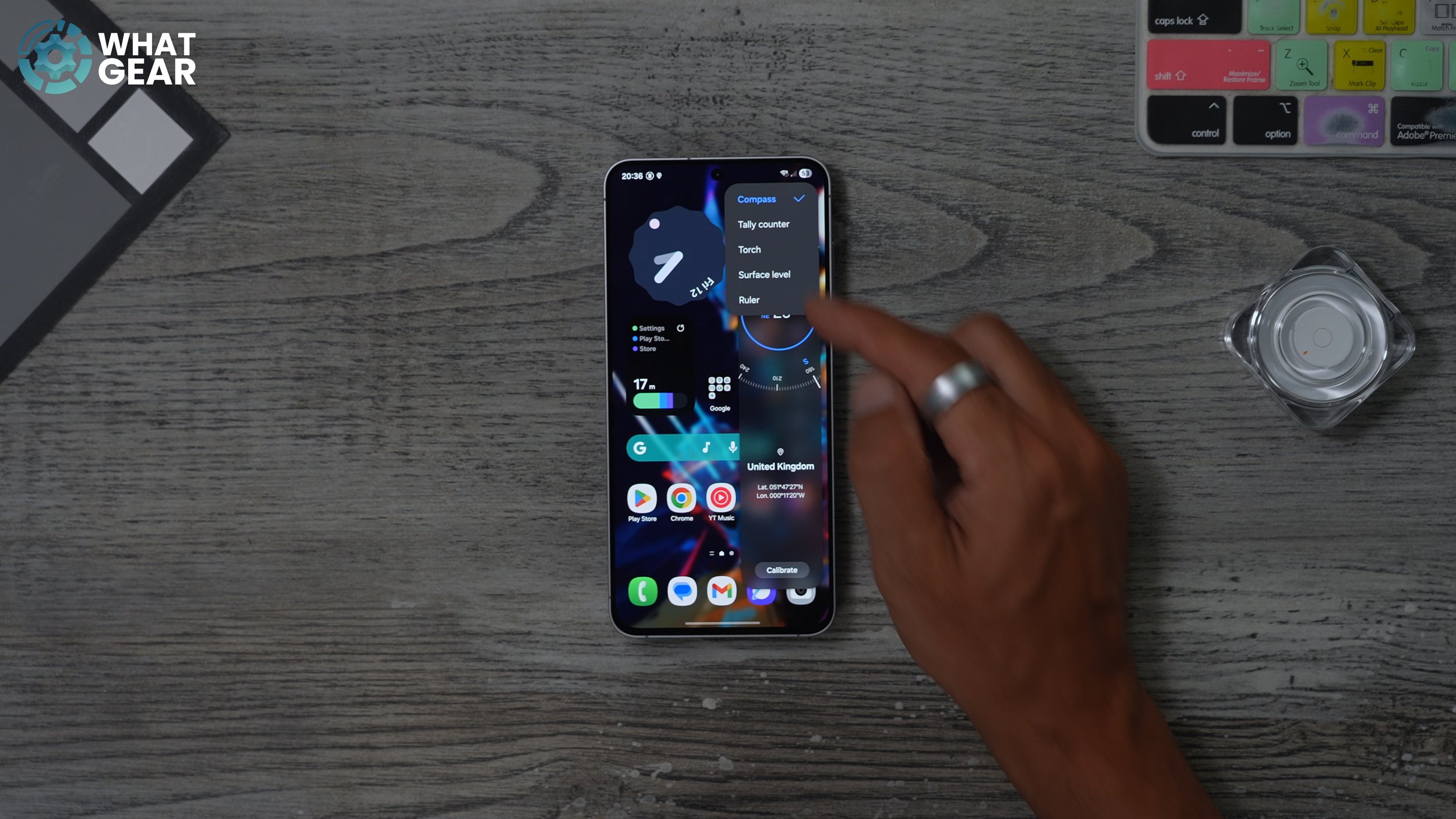
You've also got the torch Tool here as well. And the great thing about this one is you can actually change the brightness of the torch here. And if you hit the three dots again, there's the surface level. And as you can see, my table seems to be leaning slightly one way. Or maybe it's just the phone in this position. And you've also got a ruler as well for measuring things.
AI SELECT
Now you're familiar with the edge panel. Let me show you something that's really, really powerful and probably underused, mainly because people don't know what you can do with it. So let's say, for example, you're browsing the web and you see something that you like, like an image. If you bring out the edge panel and go to the AI Select tool. This is very different from circle to Search. This is Samsung's AI tool, which is more advanced. What you can actually do is draw around something on the screen, and it can actually select that bit of the screen, and then it'll give you a bunch of AI options. So if there's an address in the image, you can open it on the Map. If there's text in the image, you can extract that by hitting the little T icon. If you want to use generative editing, you can open it within the gallery.
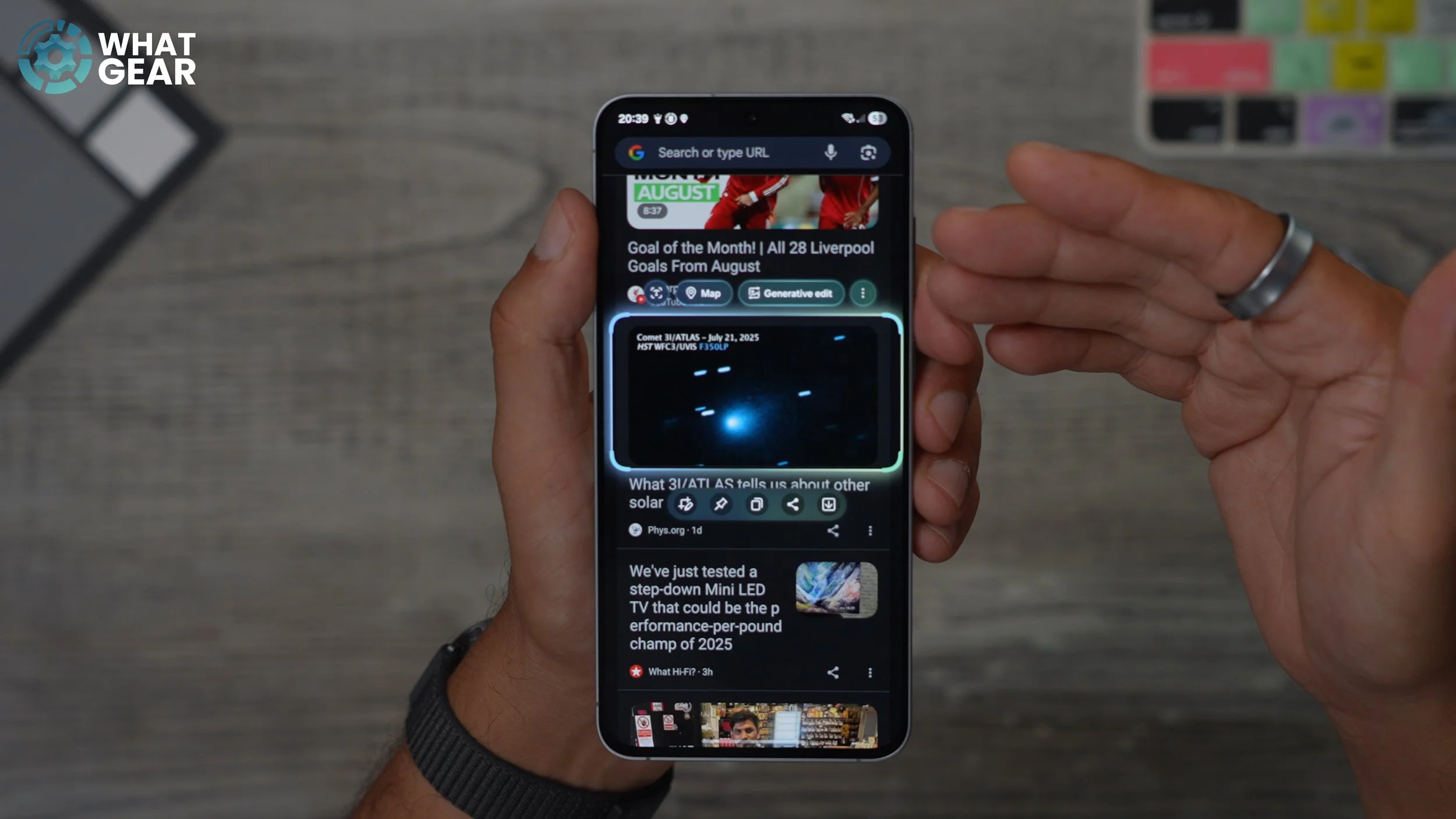
Actually, even use the AI tools on that image you just grabbed from a random website. Let's say there's a really important bit of information on the screen that you need to keep top of mind for whatever reason. What you can do is use the AI select tool, draw around it just like you did before, or tap on the image, and it will select that specific image. And then you can hit the pen tool. This grabs that image and kind of pins it on top of what you're doing. You can move this around. If you tap on it, you can shrink it down. So now we've got that important bit of information just floating. This could be a train ticket, an event ticket or anything. And when you need it, you can just tap on it. We've got access to it very, very quickly. And this is really just skimming the surface of what this can actually do. So just remember where to find it
NOW BRIEF & BAR
Now, one of the widgets that will be on your home screen, which is actually stacked with other widgets, is the now briefing widget. This is very, very useful. And if you're a sports fan, then you're definitely going to want to customise this. So what I suggest you do on day one is open up the now brief. Give you the permissions for the first use. Once you've opened it up, go to the settings and go to content to Include and look at these things here. If anything is not relevant to you, just switch it off.
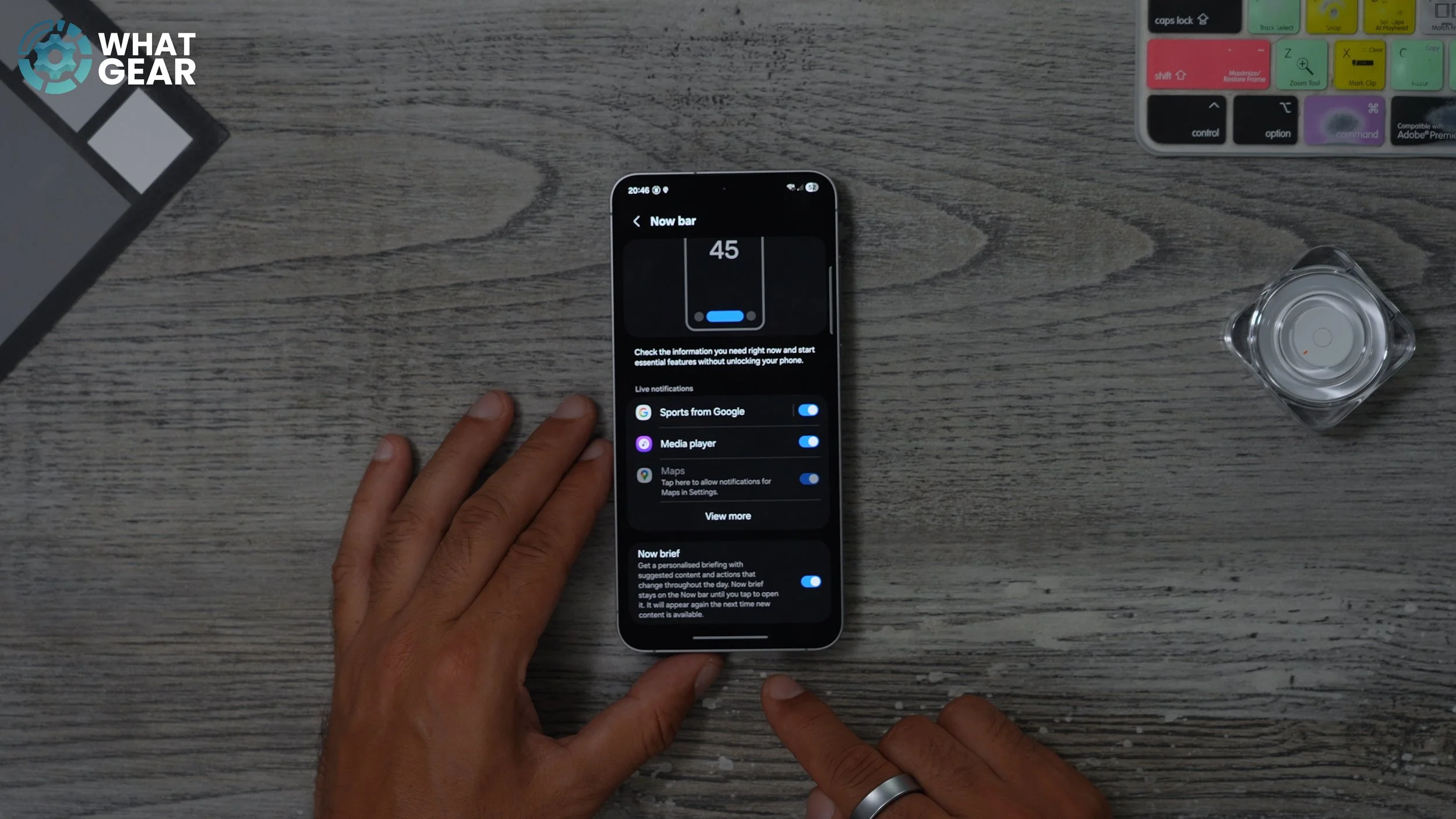
once you've done that, the next step is to go to settings - Go to your lock screen and EOD. And on this page right here, you should see the now bar; tap on this. And here is where you can configure the now bar, which will pop up at the bottom of your lock screen and at the top of your home screen. Whenever there's relevant information to select your favourite sporting events and teams, just tap where it says sports from Google, go to sports from Google Settings, and you'll notice there are so many sports here. And most of the big teams will be listed. And you can find them very quickly. And once you've done that, you will get live updates on the now bar right up at the top of the screen and also on the lock screen.
MINIMIZE DISTRACTIONS
I just want to make you aware of this because I think it's going to help you be less distracted and stay on task. If you go into the settings, go to notifications. At the top of this page, you'll see app notifications. What you can do here is actually switch off notifications for certain apps. And what I find is that social media apps are just designed to draw you in, and if you really want to stay focused and be more productive, then I highly recommend you go through all of your apps and switch off the notifications for anything that can distract you from what you're trying to achieve.
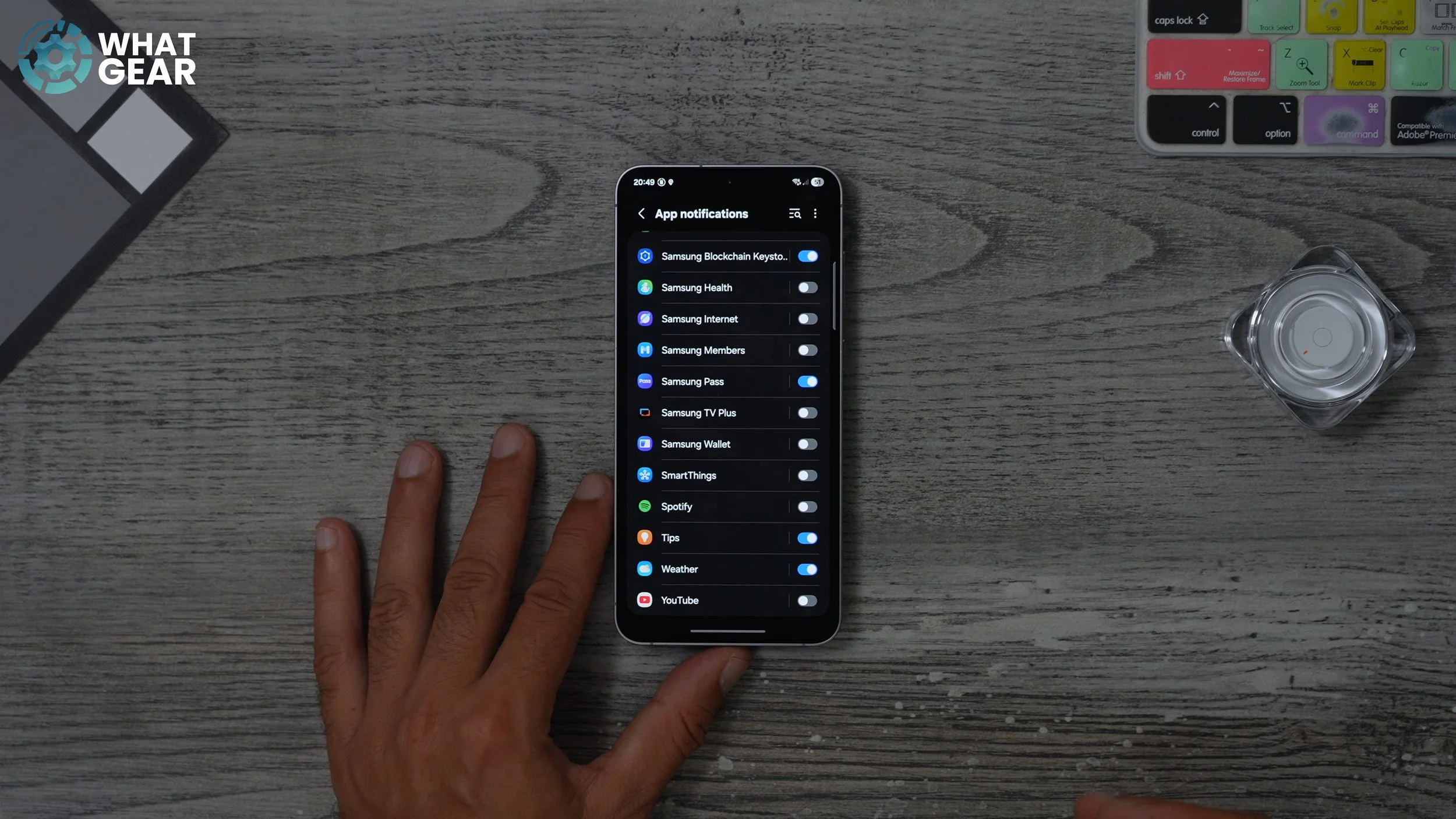
So whether that's TikTok, Instagram or Facebook or anything like that, switch them off, not going to go anywhere. They're always going to be there. And I'm assuming if anything really important happens, that you need to know about someone who's just going to phone you or message you, and you don't necessarily have to be staring at your social media all day. So this is where you can control your notifications. As you begin to install more and more apps, this list will, of course, grow. But just be aware of where this is so you can take back control of your life and be less distracted.
UNLOCK MORE EFFORTLESSLY
Here's something you might skip past when you set up your phone for the first time. Go into your settings - Go all the way down to security and privacy, and right here go to luxury. There are a few ways you can unlock your device, and they're all listed here. If you want to use a password or pattern, you can do that. But what I highly recommend you do is tap on the fingerprint section. If, like me, you rush through the setup, you would only have one fingerprint registered.
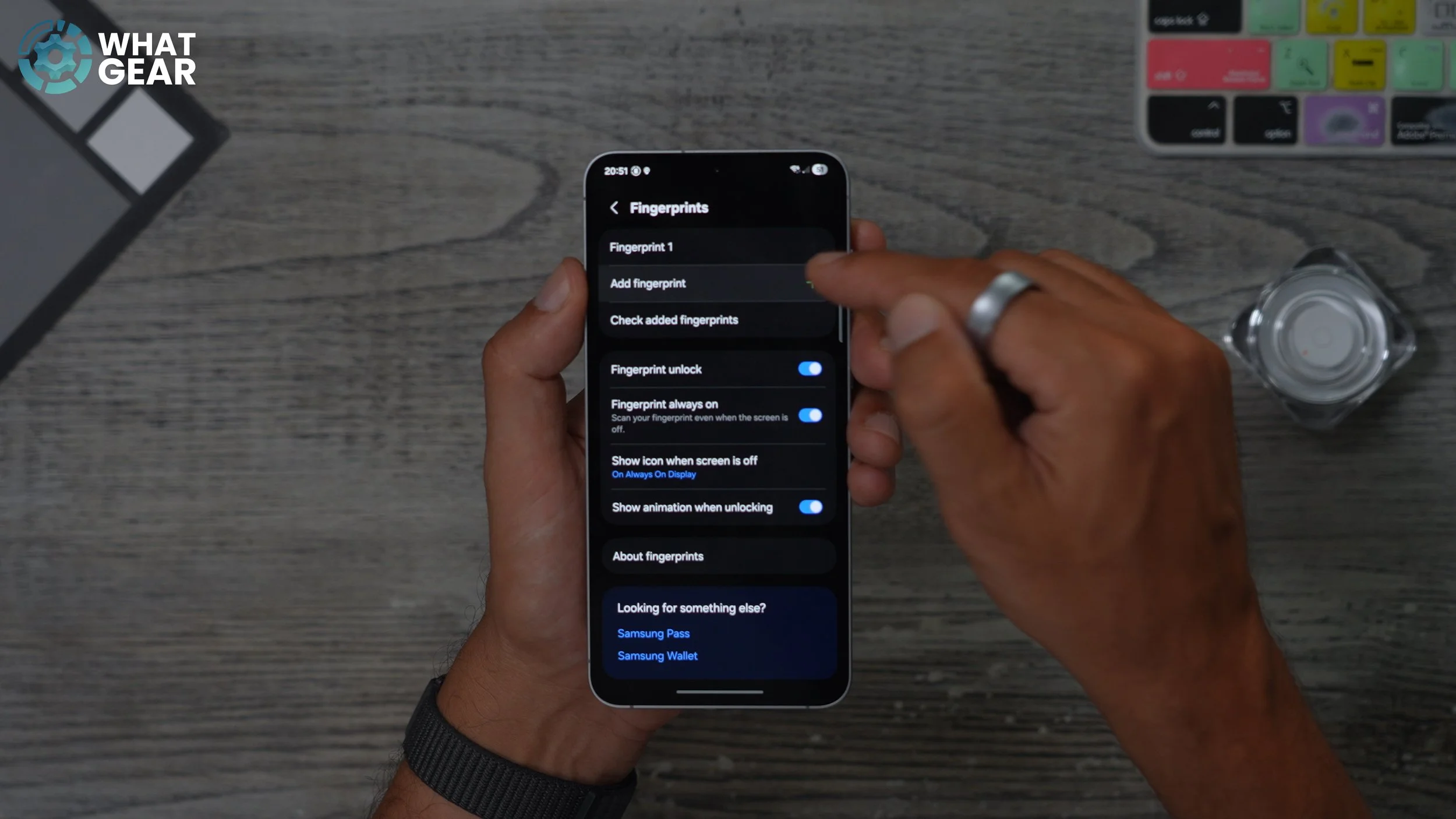
Here you can register another one. So when I set this up for the first time, I use my thumb or my right hand. But what might also be useful is to use my first finger on my right hand, and also maybe my thumb on my left hand. That way, no matter which way I pick up the phone or if it's on the table, I can unlock it very quickly. That way, it doesn't really matter which way you pick up your phone.
CUSTOM GOOGLE BAR
So some of you guys might be wondering, how is my Google search bar right here? This kind of turquoise blue? Well, there is a pretty well-hidden customization trick for the standard Google search bar. To access it, just hit the G on the search bar and hit your icon in the top right corner. And then go to settings. On this page, if you scroll down, go to Customise Search Widget. Here's where you can change the style of that search bar. There are some default ones, but in the end, you can choose custom, and you can select the hue of that search bar. You can also change the saturation, even the transparency. So you can make it almost invisible.
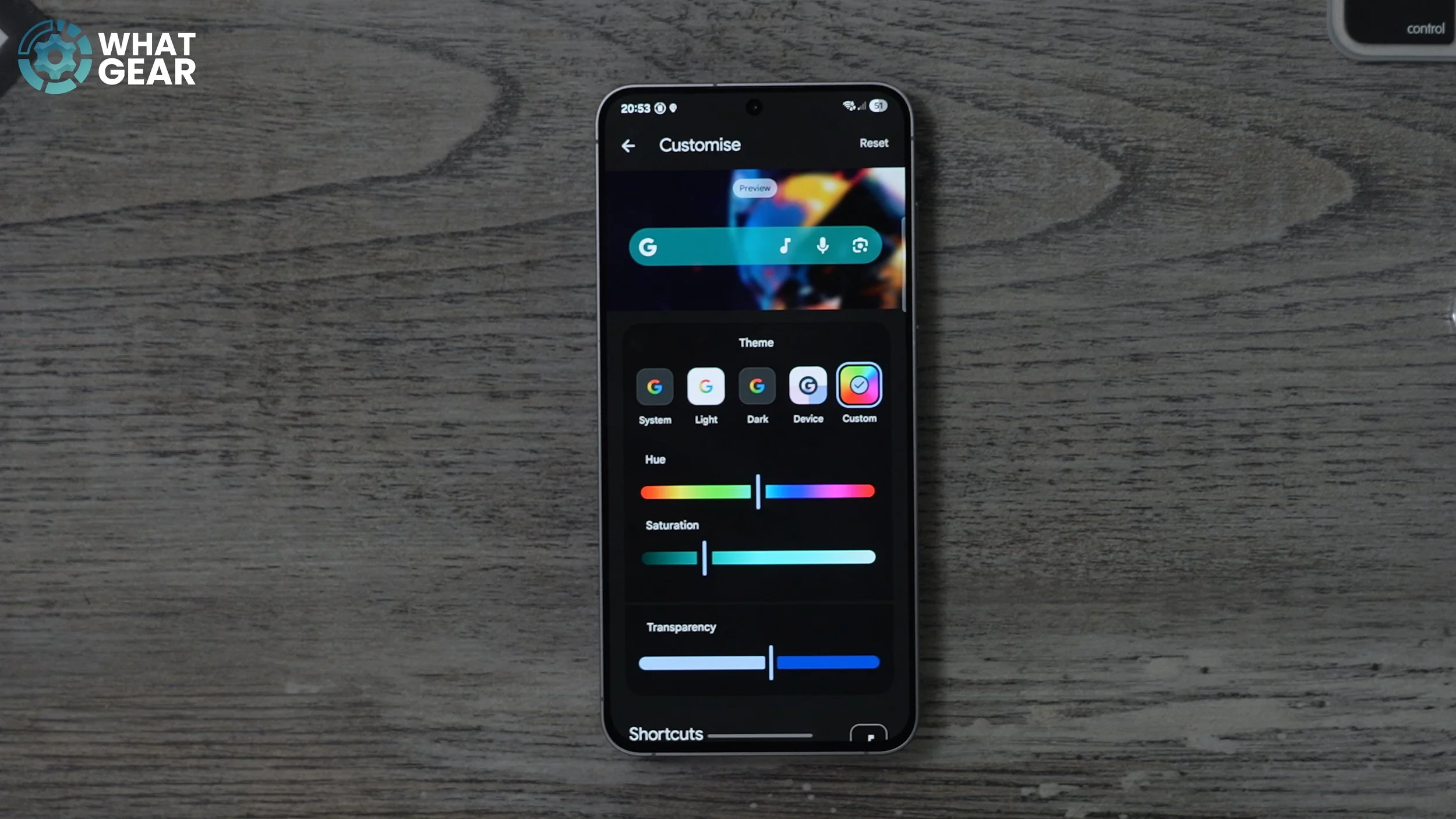
If you scroll down a little bit, you will see the shortcuts. And I've added the song search shortcut to the search bar, so if I do hear a song playing, I want to know what it is, I can just tap that. Another really useful one could be the translate camera features. If you're going abroad, just have that right there on the search bar. There's also text translate, and if you're a big sports fan, you could even add the sports shortcut right there. So that's how you create a custom Google search bar on a Galaxy device.
THE RED BUTTON
Now I don't know about you, but for me personally, when it comes to being productive, wouldn't it be nice if there was just a quick way to silence your phone from the home screen without having to swipe or look around within the settings? Well, let me show you a really nice way to do that. This is actually pretty well hidden, so if you swipe up from the bottom of the screen within your apps, you won't actually see it until you type this in. Type in modes and routines, and you should see this little icon pop up. This jumps into the Modes and Routines settings. You can access this from the settings menu, but this is just a quicker way, in my opinion. So right here, there's a bunch of different modes and routines, but what I'm going to do is actually create one from scratch. So I'm going to go to routines, I'm going to hit the little plus at the top. I'm going to start manually.
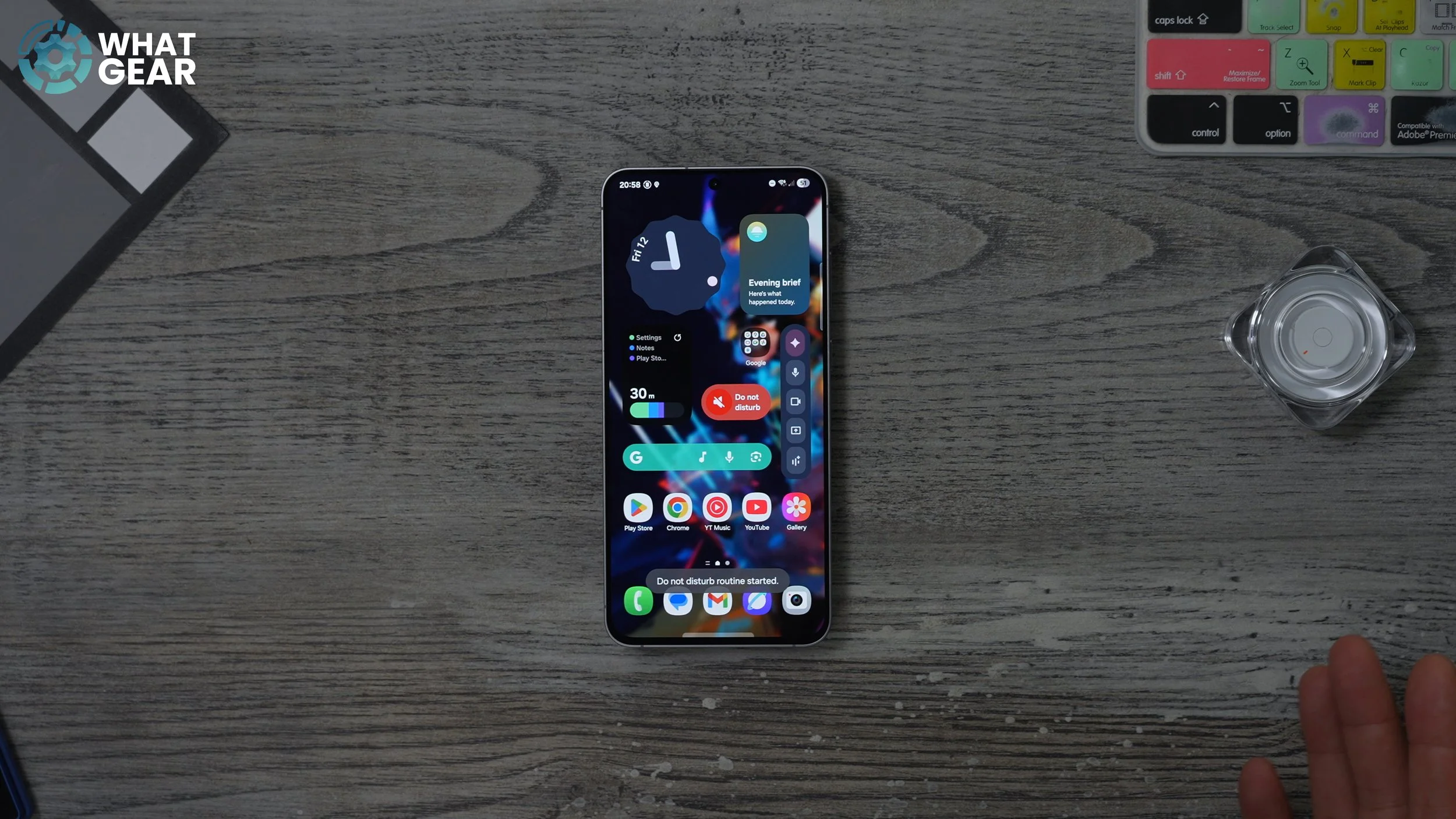
I'm going to hit Do Not Disturb, and then I'm going to save. Up here, I'm going to change the colour of this to red, and I'm going to use this little speaker with the line through it. And there we go. We've created the Do Not Disturb routine. Now, when I go back to the home screen right here in the middle of the home screen, I'm going to hold down my finger, go to widgets. I'm going to go to Modes and Routines. I'm going to go to single routine and add this. And there we go. I've created a nice Do Not Disturb button right there in the middle of the home screen, so now, whenever your phone is blowing up, you can literally just tap this and activate the Do Not Disturb, and it lights up red to indicate it is active, and you can switch it off like this. Now I actually have a few of these all stacked up, really useful ones right here in the middle of the home screen.
THE ROTATING CLOCK
Here is another little personalisation tip. I know someone's going to ask in the comments, I might as well show you right now, this clock up here is pretty cool. And this is how you can get it for yourself. Go to the Play Store, at the top, just type in Google Clock. This is what the app looks like, and it's designed by Google itself. And now all you need to do is hold your finger down on an empty space, go to widgets, scroll down, look for the Google Clock app, which is the blue one.
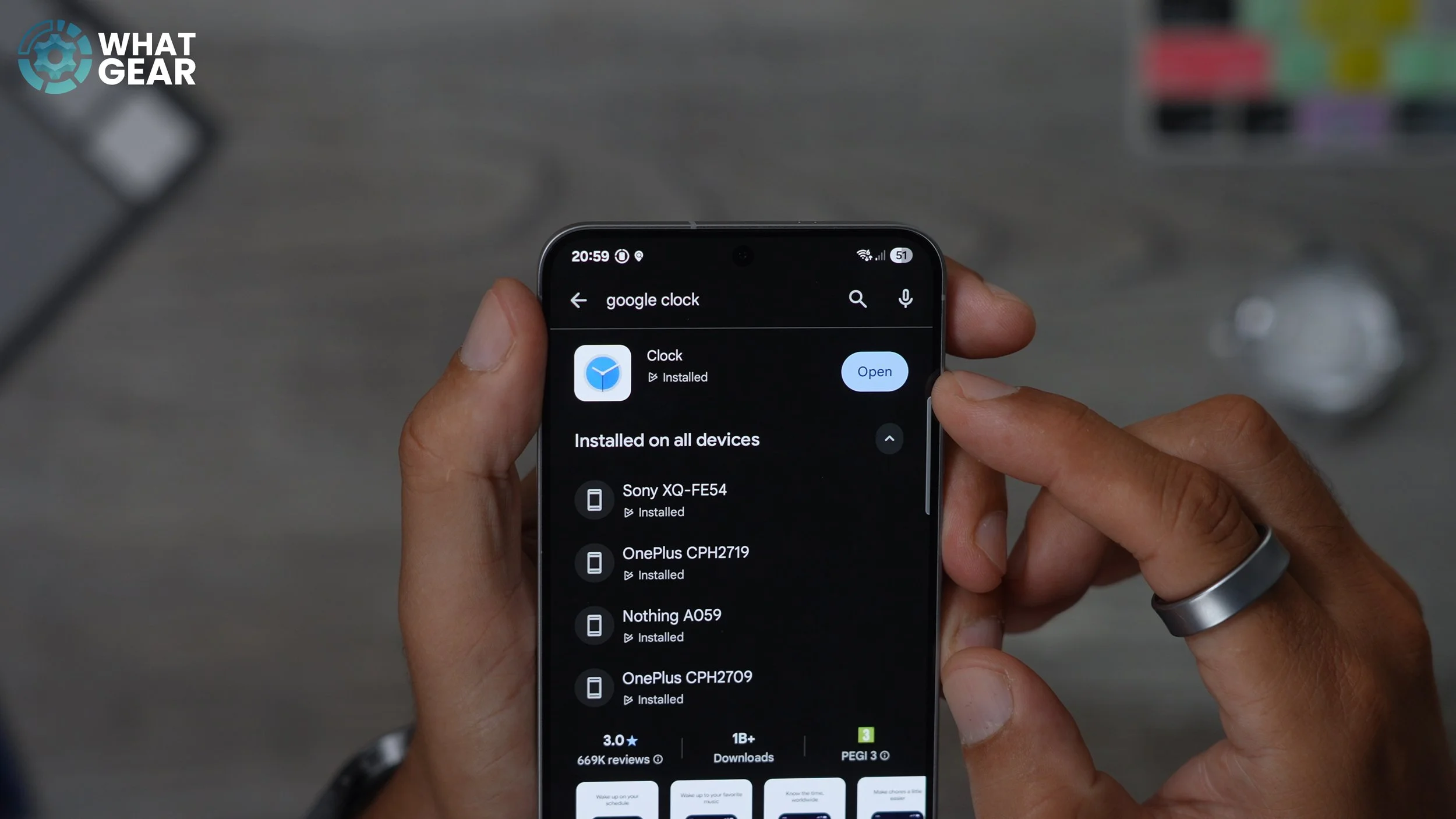
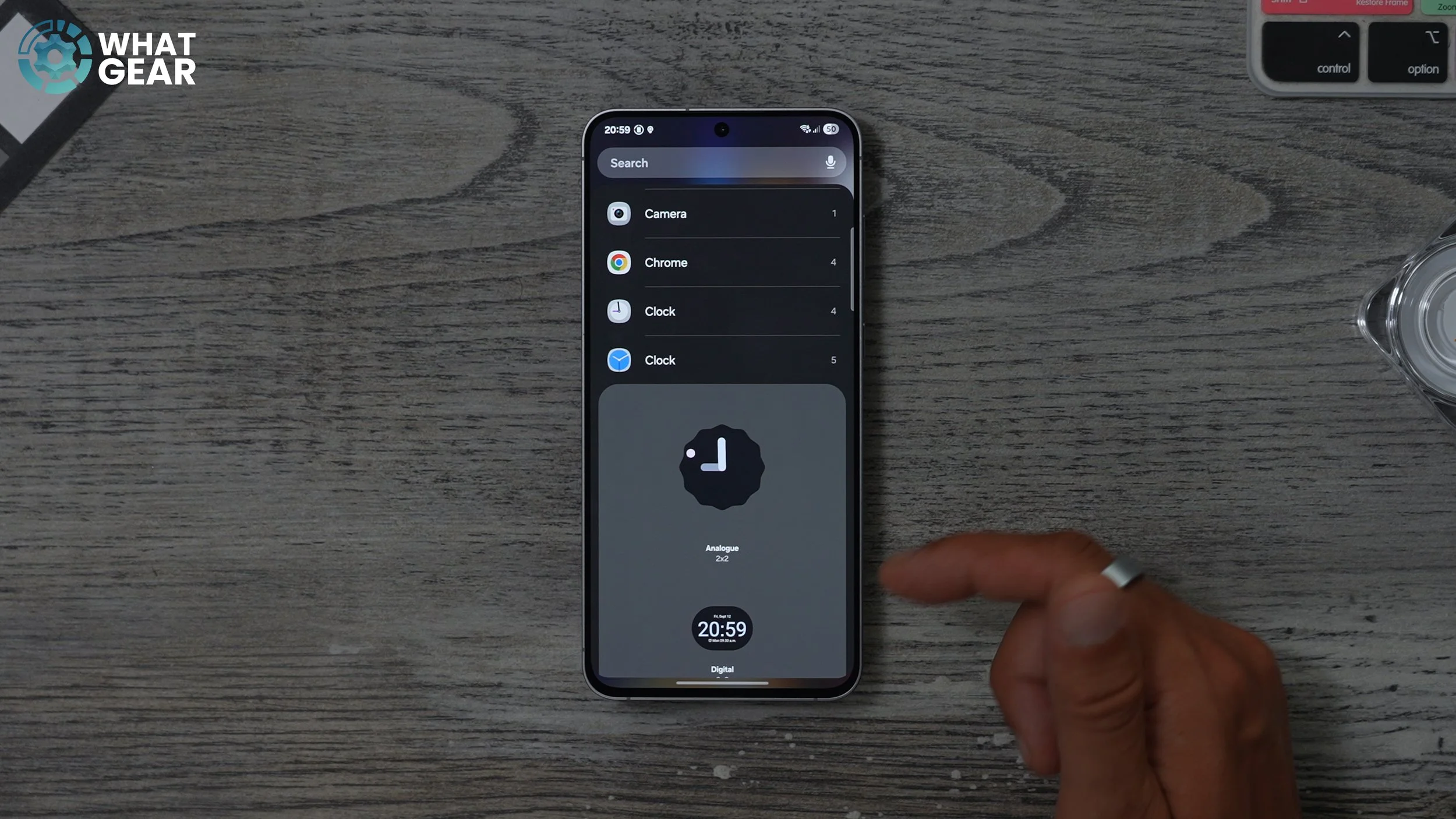
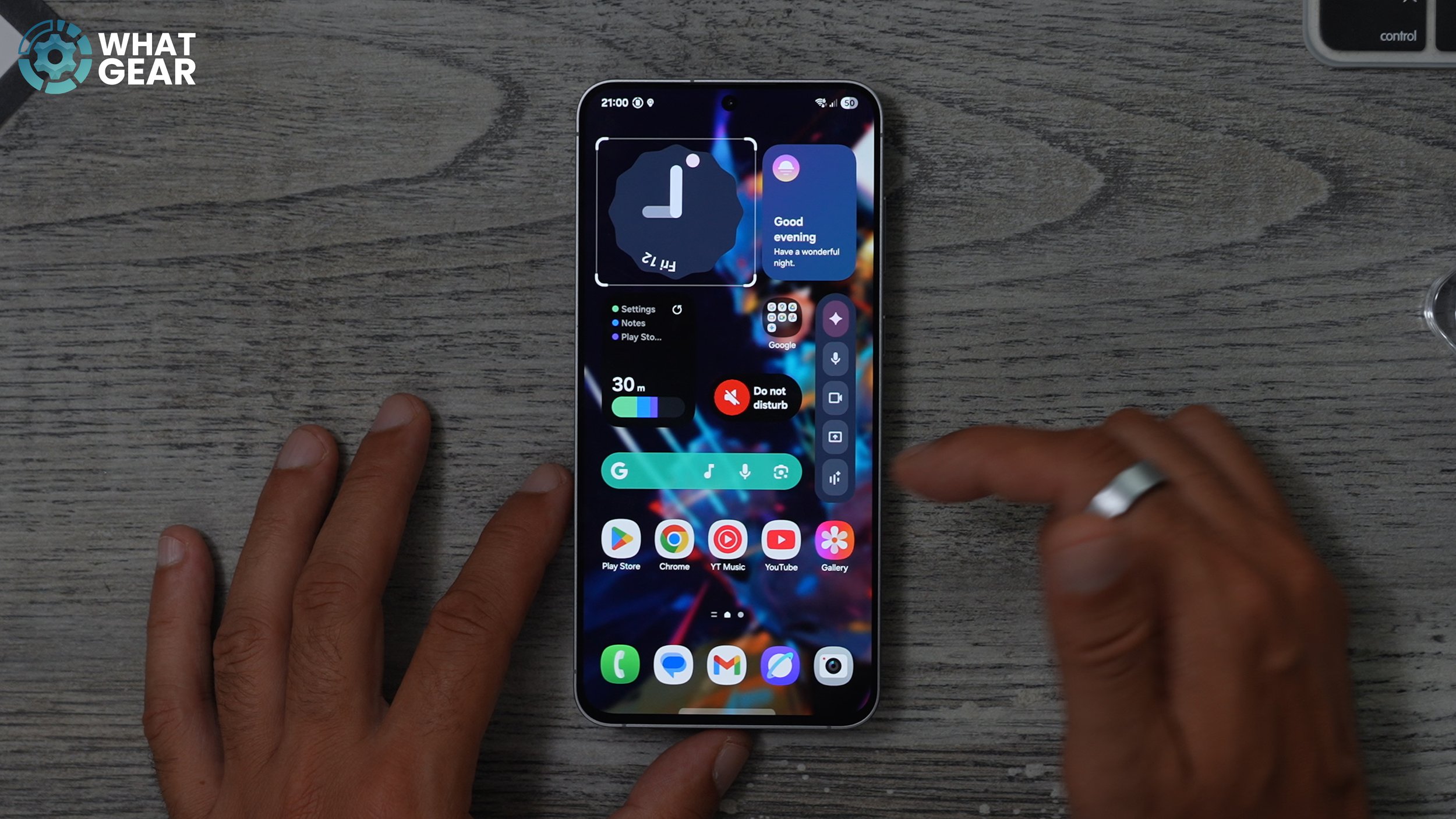
Tap on that, and you see all the options that you have. The one that I go with is the analogue and the scallop style. You can now bring this over to your home screen and expand it to take up a bit more space if you want. You can see now how this phone has completely transformed since the beginning of the video. That was pretty much box-fresh. This is kind of how I have my everyday device set up.
CUSTOM QUICK SETTINGS
When it comes to performing quick actions on your phone, there is a really good place to do that, and it's a very important spot on the device. If you swipe down and swipe down again, these are your quick settings. The Wi-Fi and Bluetooth are pinned to the top. You've got your brightness and your volume, and then you've got various media controls. But if you expand this section, you can customise this, so if you expand that, hit the pin - Go to Edit. You can remove anything that you're not going to use, and if you swipe across to the bottom of this page, you'll see the things that haven't been added yet. Now there are actually three quick settings that I recommend you add from these ones.
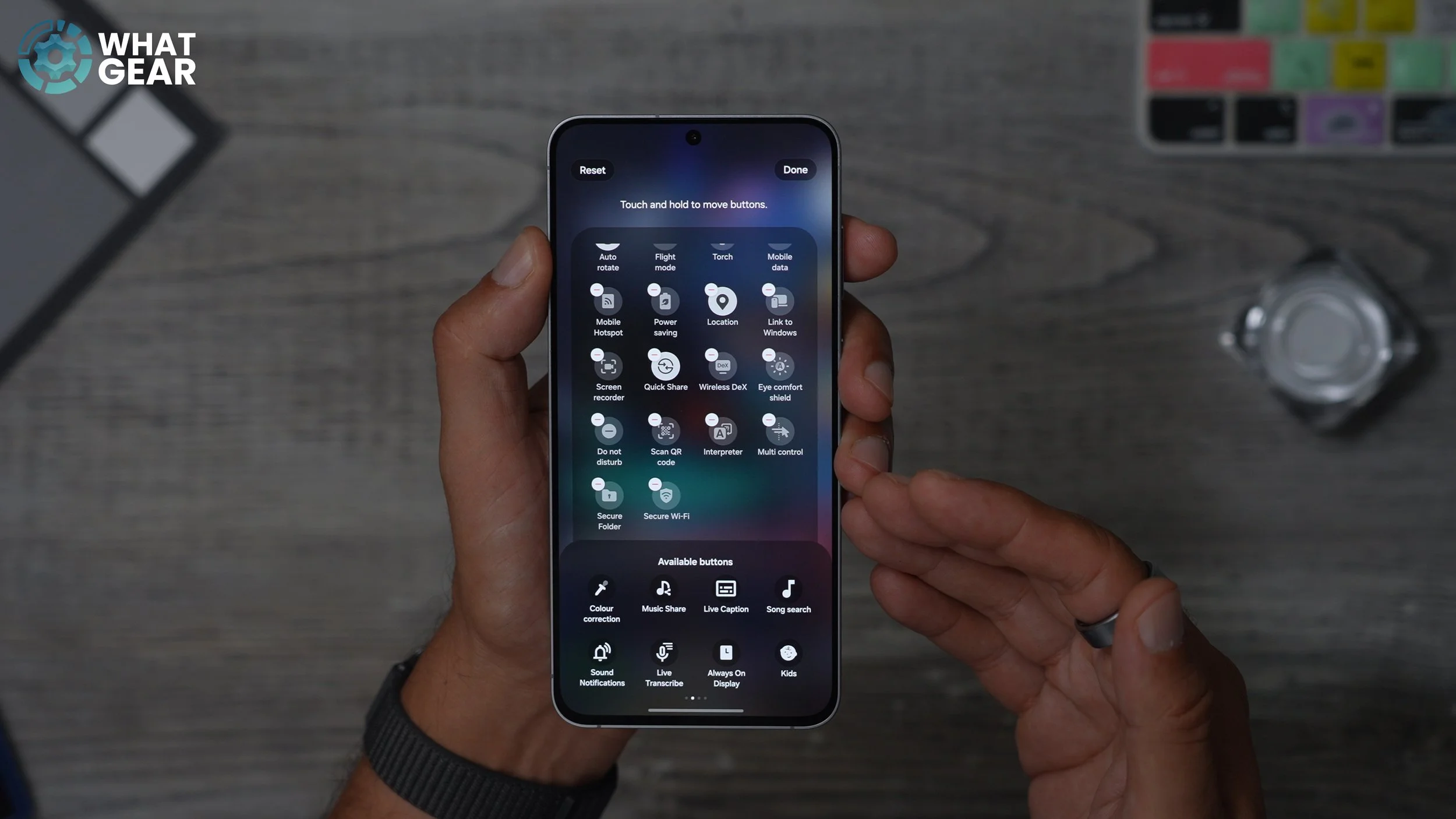
At the bottom, if you swipe across, add to secure Wi-Fi, which acts as a VPN. When you're on a public hotspot, you get one gig for free every month from Samsung. This could be very useful, and it could prevent you from getting hacked. If you swipe across again. You'll also see Dolby Atmos. I recommend you only use this when you're watching movies. Don't use it when you're listening to music, or if you're using some headphones that have its own EQ built in, because this will just mess that up. But if you are watching a movie, test this out because quite often it sounds better than the regular audio. Another one you might want to add is extra dim.. This is fantastic at night when you're trying to use your phone without lighting up the entire room. The extra dim just drops the brightness of the display below the lowest brightness.
CUSTOM COLOUR FOR CONTACTS
This is definitely something I do for all my family and my close friends. Go into your settings - Go to notifications. And here go to notification pop-up style. If you scroll down a bit, you'll see the add lighting effect. You can do exactly what it says. You can add a lighting effect for your notifications. Some of these are really, really nice.
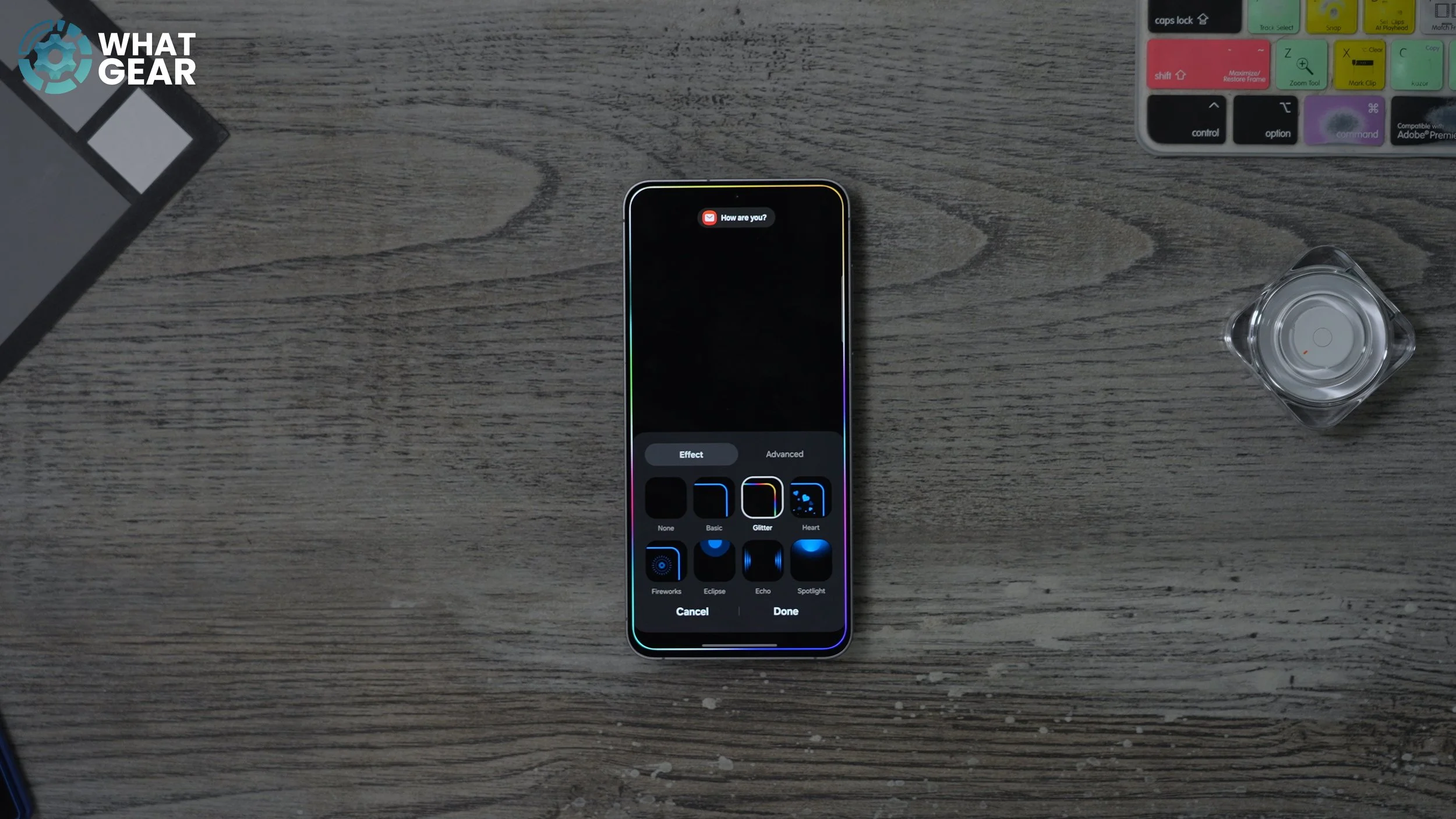
The spotlight is a bit more subtle than the other ones, but just for demo purposes, let's go with that one and hit done. Now, on this same page, you'll see the Lighting effect. Colour by keyword. If you tap on this, what you can do here is actually add people's names. So I'm gonna add my own name here and hit the plus. Now I can choose a colour for myself. So if I message myself, the notifications will appear in that colour. I'm going to go with purple. So spent a bit of time adding all your favourite contacts’ names, exactly how they appear in your phone book, and give them a custom colour. That way, when you get these animations on the screen, those animations will appear in those specific colours, and you'll know straight away without even reading the screen who's messaging you.
SECRET HIDDEN TOOLS
Here is another bonus tip just to wrap this up. Trust me, there is so much more for you to learn about this device. I have made so many videos on these. If you go to connections - go to Wi-Fi. Hit the three dots in the top right corner and go to intelligent Wi-Fi. Down here, you should see the version of intelligent Wi-Fi. If you tap this continuously, you will unlock the connectivity lapse, which is a hidden tool that can help you speed up your Wi-Fi at home. So if you open this, you'll see the home Wi-Fi inspection tool. Tap on this. Run through this.

Follow the instructions on the screen, and you can learn where the best signals are in your house and where they're not so good. Then you can make a really well-informed decision as to where to put your modem or where you need boosters and things like that.
