
Google Pixel 10 Pro Tips & Tricks - First Things To Do & Fun Things To Try! ( Part 1 )
When it comes to getting a new phone, you know, at some point someone's going to ask you. What can your phone do to my phone can't. And most people's answer to that will be something like this. and that's exactly what you're about to do in this video. You're about to find out.
CAMERA COACH
Here are the first things to do and fun things to try on your brand new Google Pixel device. So the first fun feature to try on this phone is within the Google Camera app. So we'll open this up. When you open the camera app, you'll notice this little camera icon with a little AI sparkle next to it. This is what's known as the camera coach, so it will guide you through composing a better photo using AI. So I'll just do a quick demo of this. So line up of photo that you want to take. And then hit the camera coach button at the top. And it will scan what it can see and give you some options. It will actually ask you what you want to take a photo of. It's giving me the desktop scene.
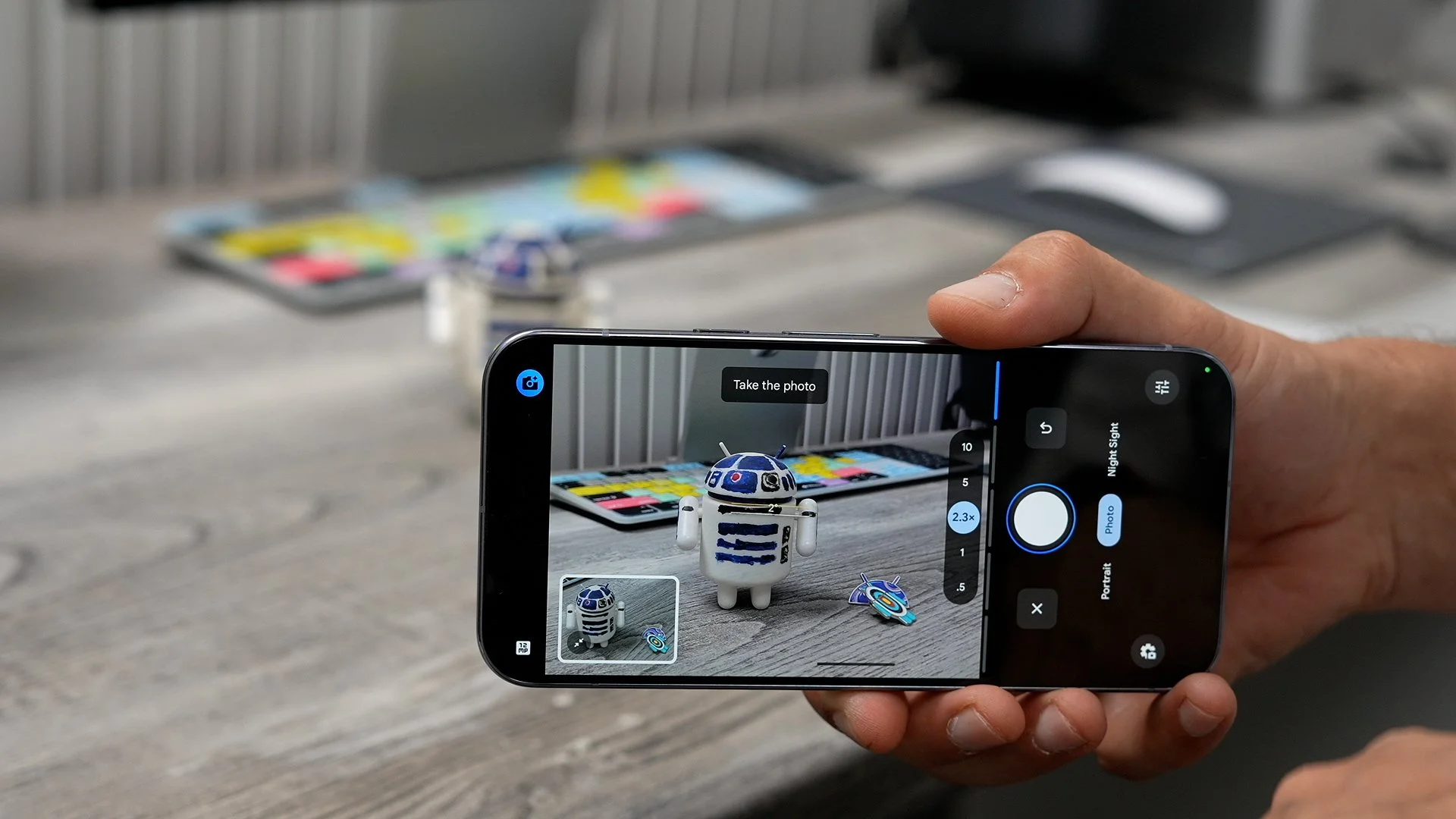

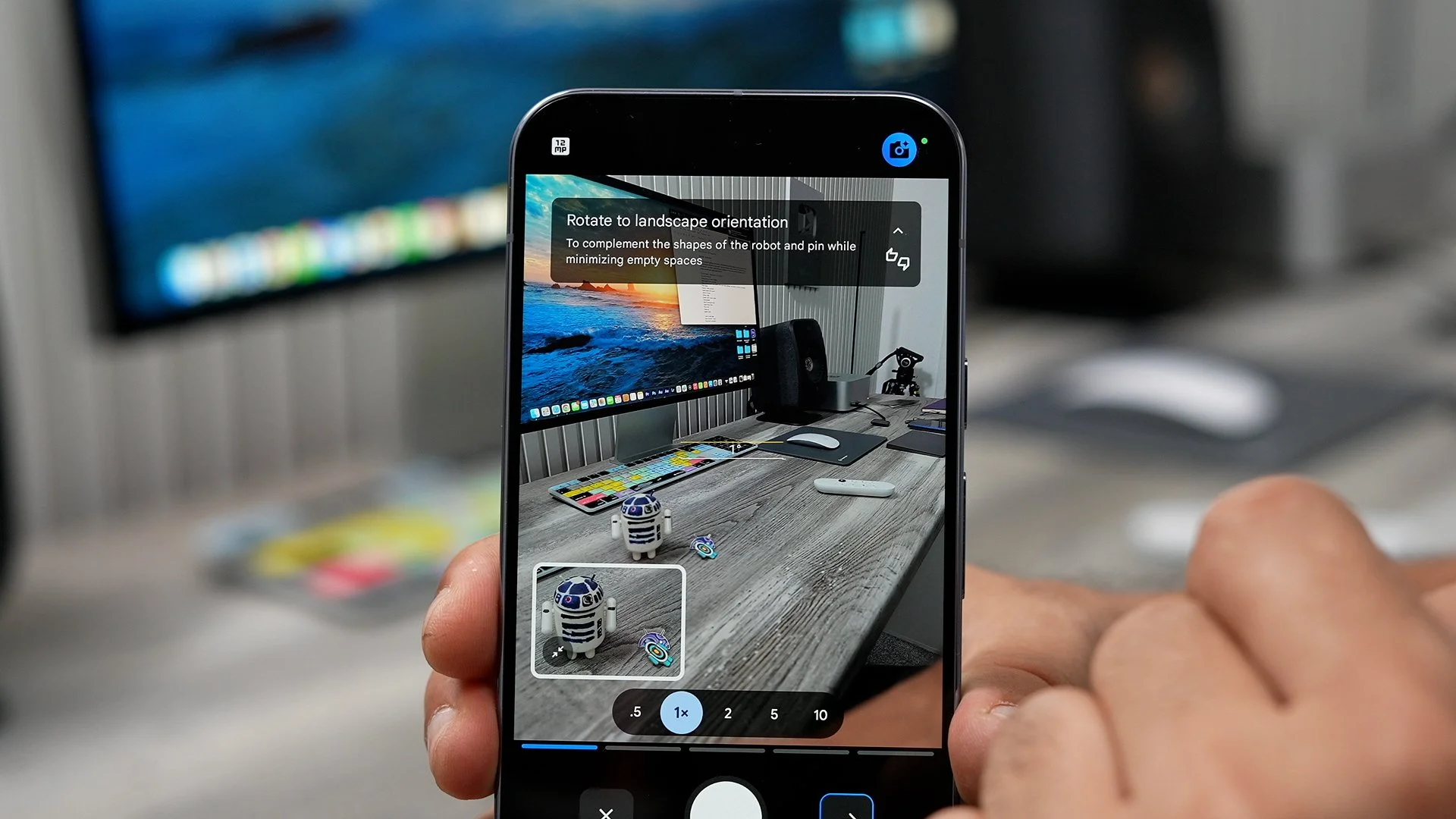
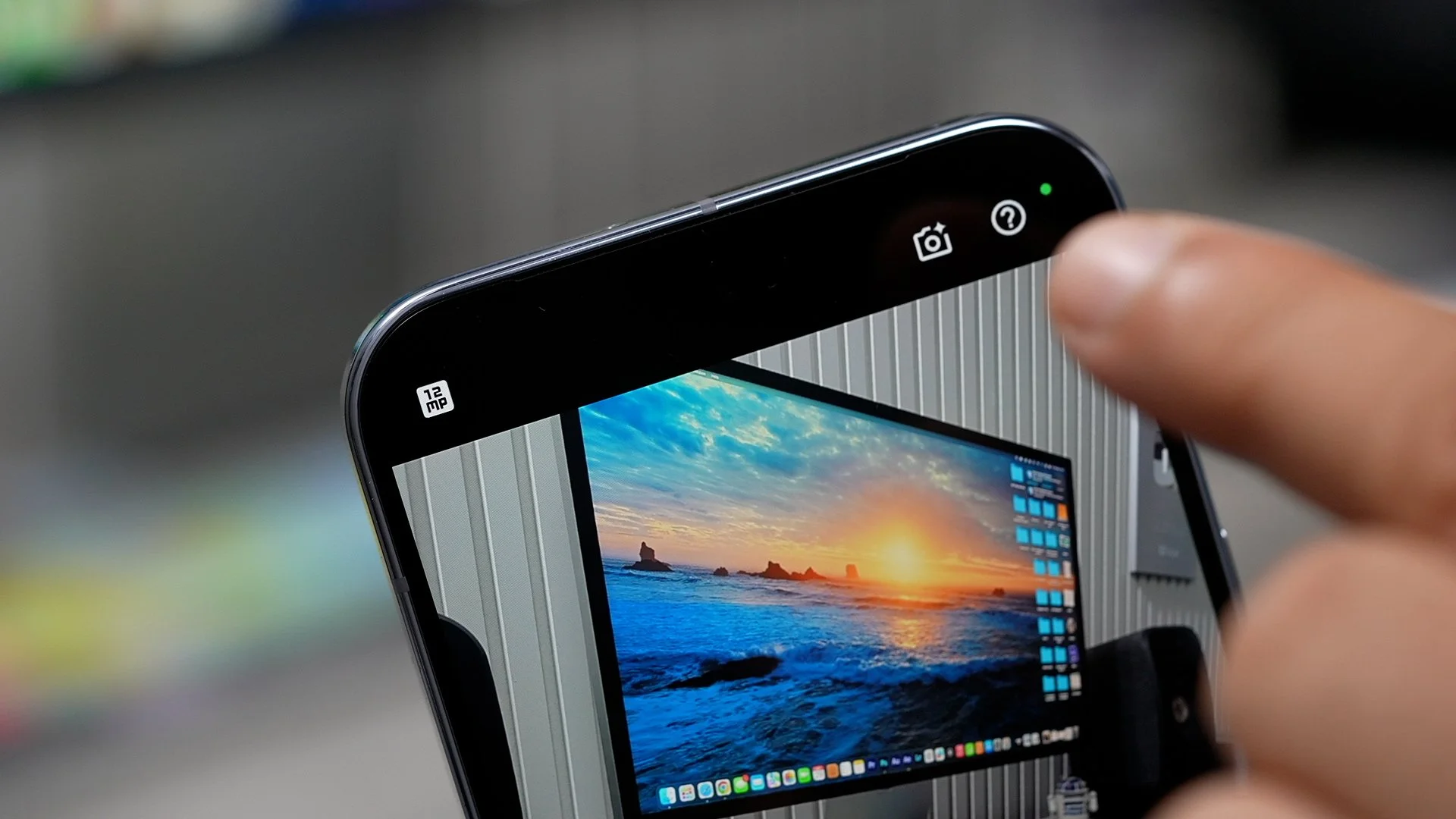
Also, we've got creative gear, and then we've got robot and pins. So we've got robot and pin. And straight away is recommending that I take this photo in landscape. So that's the first step. Now we can hit the next arrow and look at the second one. Zoom into the robot and pin. So that's what I'm going to do. And now I'm going to go to the next step. And you'll notice the next step is usually highlighted in blue when you do this. So now it's asking me to get the camera eye level with the robot itself. Going to hit next. Now is suggesting to reframe and centre the robot and the pin. So that's what I'm going to do. We're all set up and ready to take the photo. So this is the photo that I got using the camera coach. Of course, if you're taking landscape shots, portrait shots with people in it, then it's going to give you different kinds of tips. But just be aware of how to access the camera coach. It is within the camera app, and it's right at the top.
BEST TAKE
Here is another camera tip for you guys. This is a fun one to play with, especially when you're taking photos of your friends. So if you go into the camera app. to make sure this feature is enabled. Set this to photo, not video mode and then go to Settings. Here you can go to the three dots top right corner. And just double-check that auto Best take is on. Now going to show you this cringeworthy photo that I took earlier. Okay, so as you can see, I don't look very pleased in this image. But moments before I actually was, and you might find that you've taken photos of a group of friends, and some people are smiling, but in other photos, vice versa. The people who were smiling they're not smiling anymore. And the people who just realise you're taking a photo, now they're smiling, and it's all a big mess.


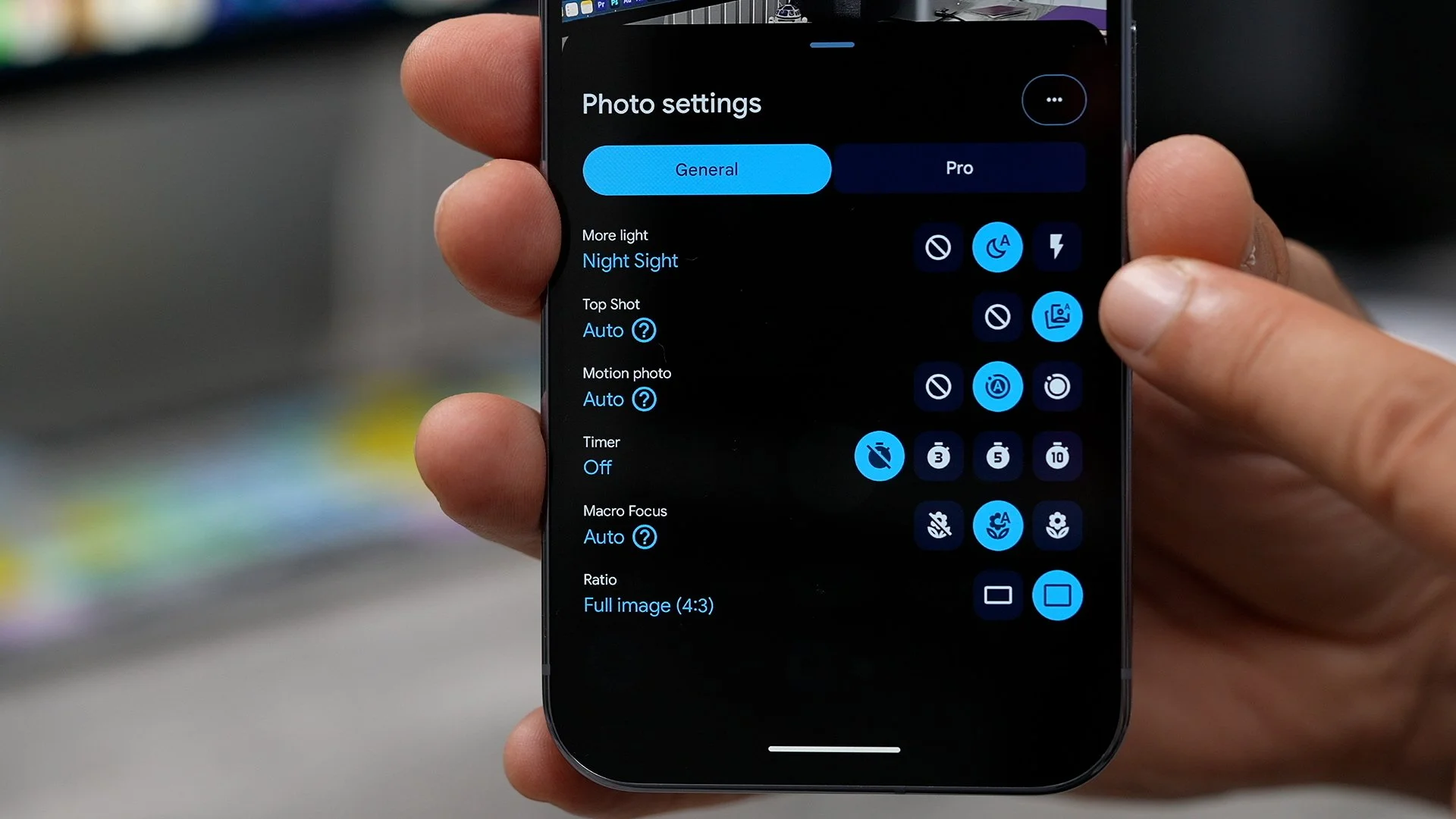
Well, here's how you can fix that. If you go to the edit button at the bottom of the photo and go to actions, you discover a bunch of really useful tools. And if we just scroll across a little bit, you will find the best take. So if you tap on this. This analyses the faces in the photo. And it can be more than one. But in this case, it's just me. And it will suggest the best face for the photo. So here's one where I'm smiling. Here's one where I'm kind of smiling, and here's one where I look really pissed off. So what you can do is go through each person's face, select the best one, and then hit take. Now you've got the best take from that moment in time. Another little addition to make sure you're capturing these fleeting moments. If you go back into the camera app again, go back to the settings. There is a feature called Top Shot, which essentially captures a few frames before and after you take a photo, so you can move forward and back in time just a little bit. Just make sure that this is switched on.
CALLING CARDS
Here's something fun to set up on day one. When it comes to actually improving how you use your phone as an actual phone. So to do this, go to the contacts app, the official Google one. Choose a contact that you want to customise. Go to that contact. And then you should see this little banner. Try adding a calling card. If you don't see that you can hit the little pen, but I'm going to go try adding a calling card. Now I can actually take a photo of that person if they happen to be in front of me. Or I could use a photo from the gallery. So I've chosen a photo for that particular contact.
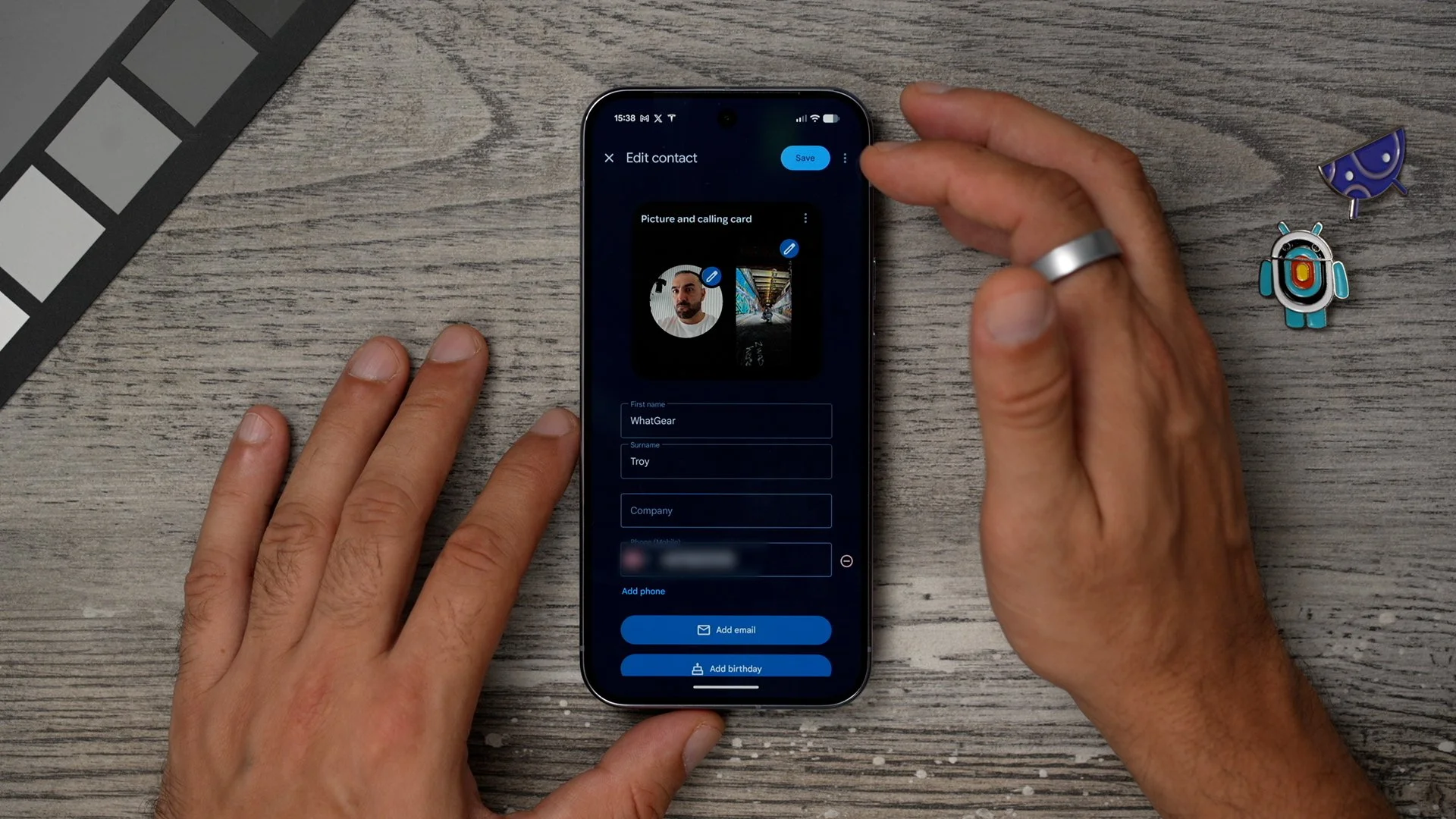
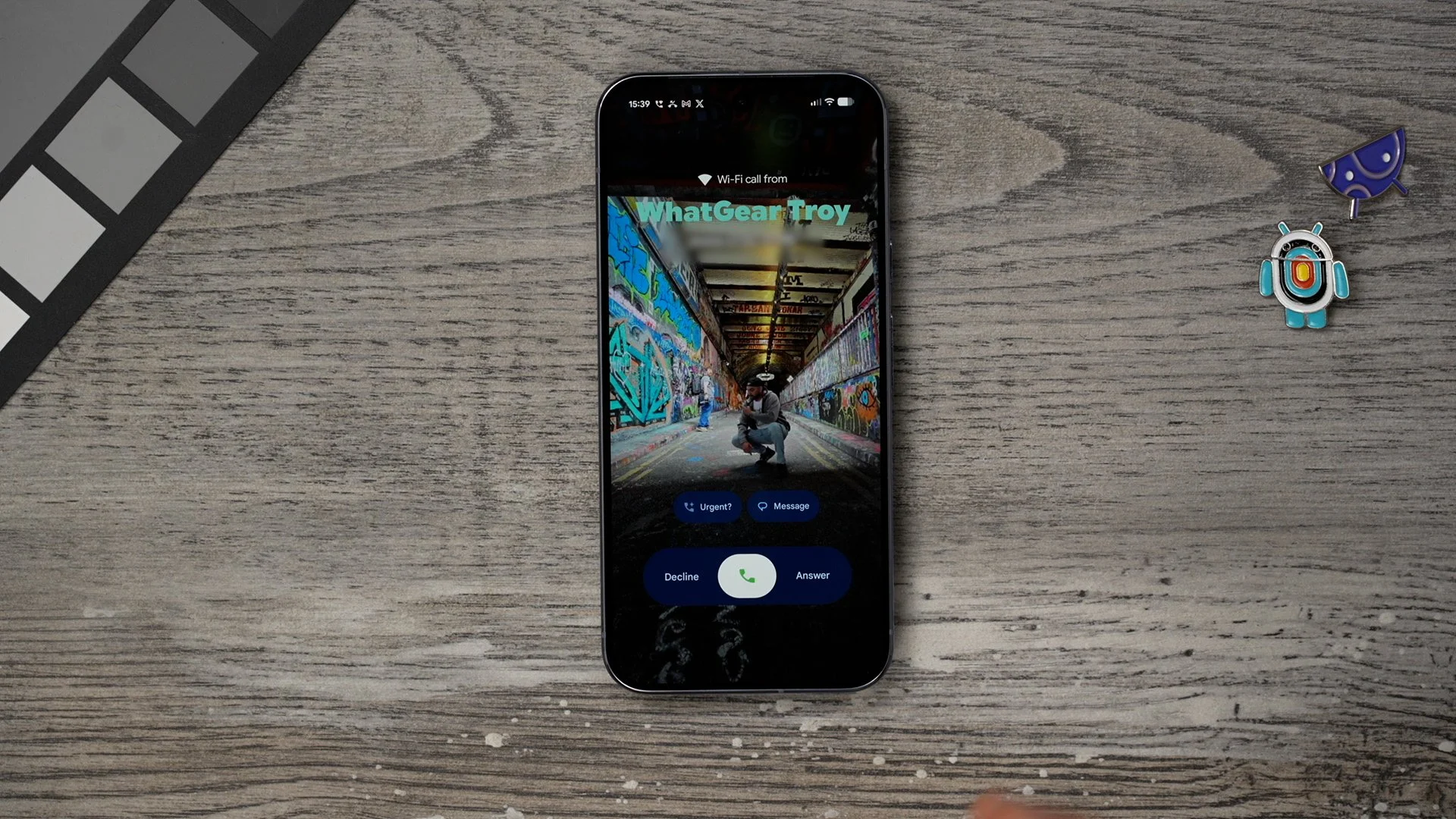
You can customise the font, and you can even customise the colour of the text, how it appears. Just make sure that it stands out nicely from the background. So that's the background for the calling card. Now we can set up a picture or portrait of the person as their main sort of thumbnail. I'll go with the moody-looking picture from earlier. You can add other stuff like their email address, their birthday, their actual address, and even add a label to groups of friends if you want to. Once you've done that, hit save. Now you set up a calling card for that person. So now that that's been set up, whenever you receive a phone call from that person, you will see that calling card with the custom text, and it's just kind of a fun thing to do for your friends and family. So each person has a unique set-up.
NOTEBOOKLM
So this next one is a brand new feature on the Google Pixel 10 Pro XL. And it's actually in the form of an app. It's called the notebook LM. Now this is very interesting. So if you open this up for the first time, you'd have to run through some stuff. Essentially, think of this as a scrapbook. Or a research notebook that actually uses AI to provide you with interesting insights. For example, if you go to create new, you can upload a PDF, a website, a YouTube video, or even just text that you've copied from somewhere on the web. Just for demo purposes, I've added one of my videos from last year, so at the bottom of the screen here, we've got the source, which is the video.

We've got a chat here. Which AI is kind of generated now, where it gets really cool is if you go to the studio, it's created a kind of conversation using AI about this video. So literally, you could just put your headphones on and listen back to the deep dive. So today we're diving into something many of us are likely holding. Or maybe thinking about getting at this point in time, to me, it seems like it could be an incredibly powerful research tool for pretty much any topic you can think of. So I highly recommend you take the time to set up notebook on day one. This is a real power tool. This install by default and is free to use, so definitely make use of it.
NOW PLAYING UPGRADE
There's an awesome feature on this phone that is already switched on by default, but there is a way you can improve it even more. The feature I'm speaking about is the now playing, so if there is music playing around you, it will actually show you what track it is at the top of the screen if it recognises it. Go into your settings. Wallpaper and style. More lock screen settings. And right here is where you will find the now playing section.
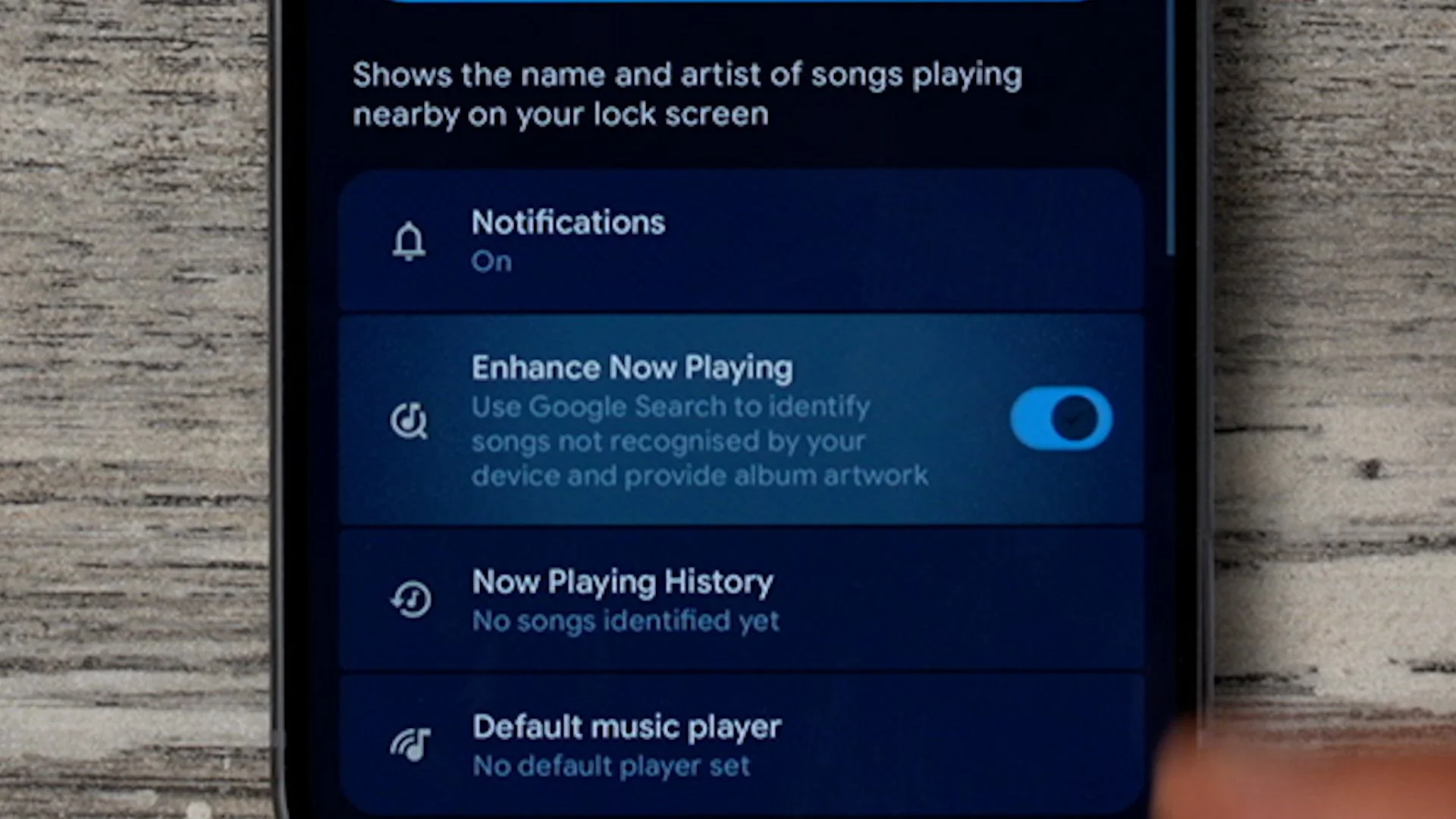
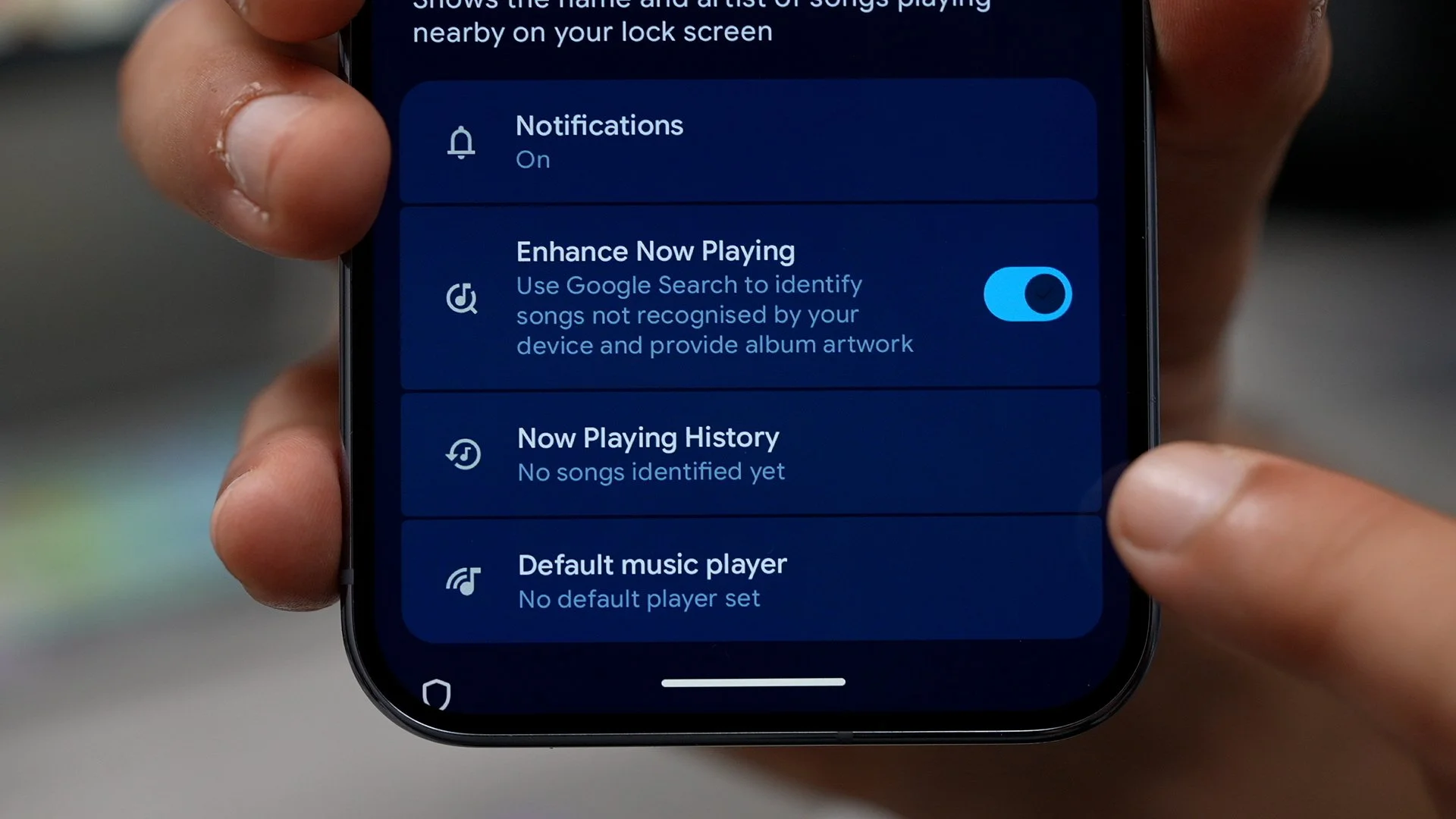
If you tap on that and enable the enhance now playing. This will harness Google search to find these tracks. And even in some cases, find the artwork for the tracks as well and do it more efficiently. I highly recommend you switch it on. And one of the cool things about this feature is, let's say you're out during the day. You heard a song that you liked, but you didn't really pay attention to what it was. You can actually bring back the history of now playing. So if later on that evening you're like, What was that song? You can come back here, tap on this and find out exactly what it was. And you can even add it to your favourites.
PIXEL STUDIO
Here's another fun app that you can play around with to kill some time and maybe get a few laughs out of. If you go into your app drawer, you should see an app called Pixel Studio. Tap on that. So this is Google's own generative art app. And here are a few demos that have already been created for us. And you can see these are actually pretty good. If you want to create something from scratch, just go to create at the bottom, type in exactly what it is. For example, a devil dog that likes to destroy socks. That is surprisingly accurate. I can't tell you how accurate and lifelike that is to me.
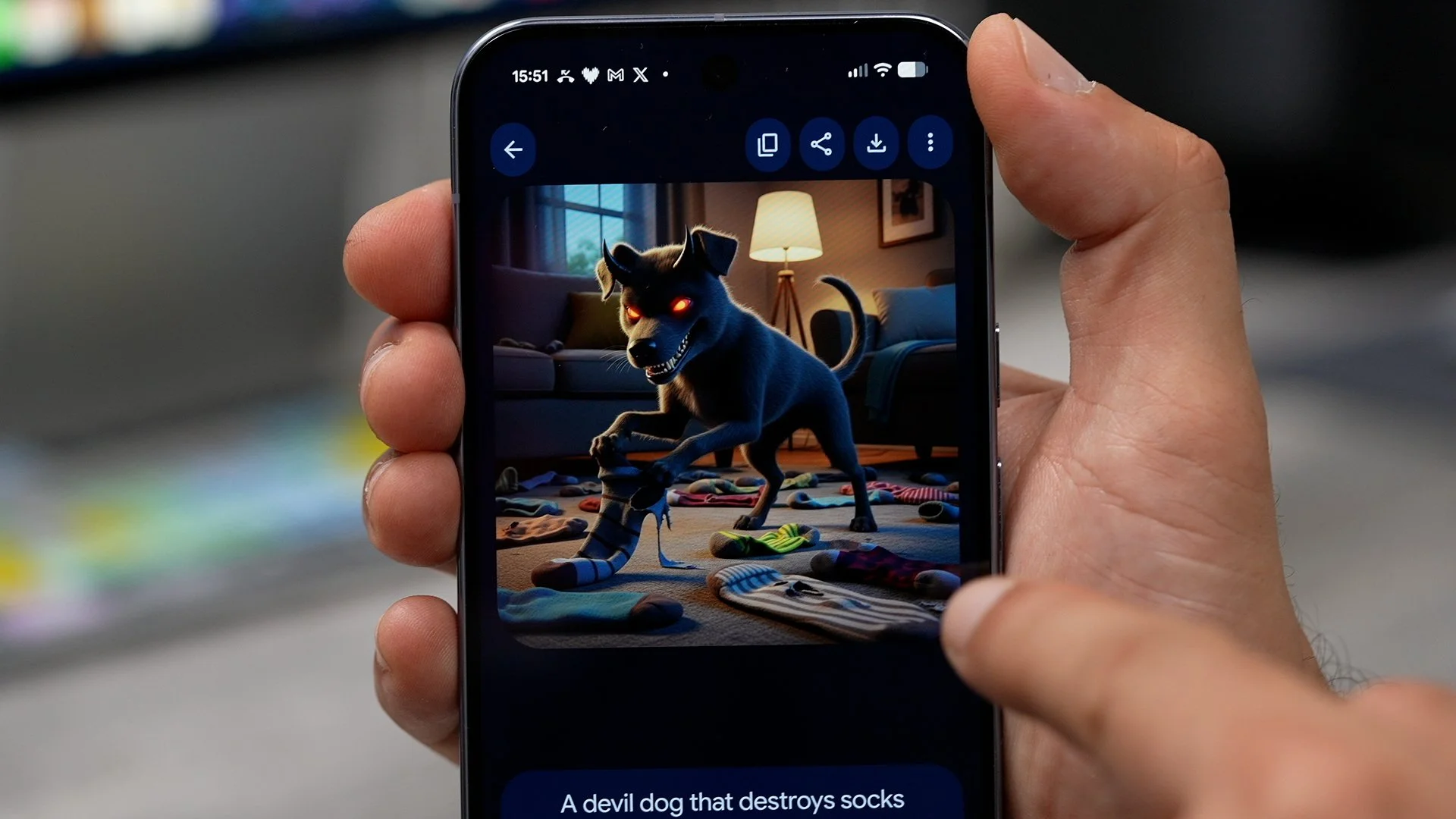
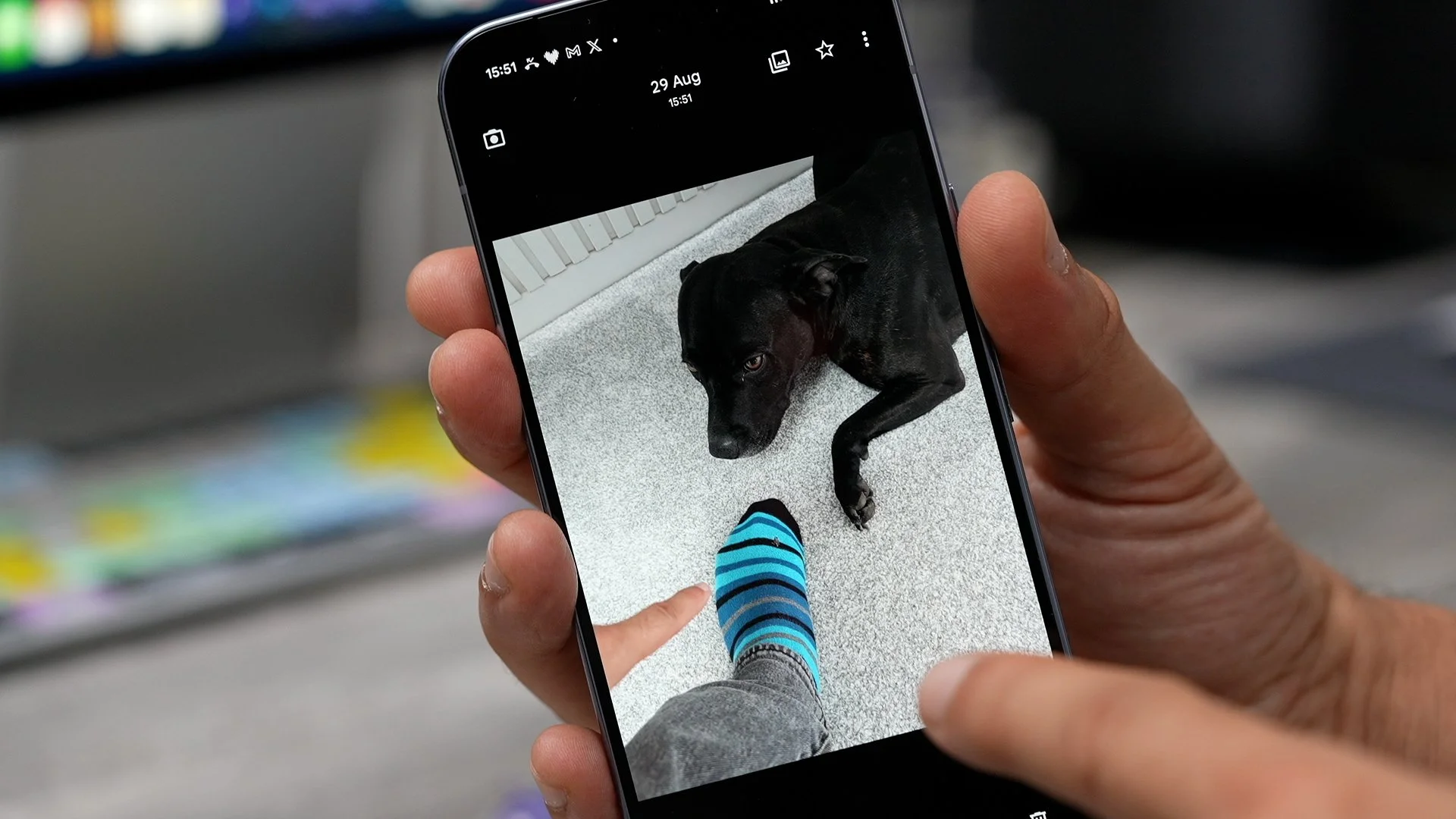
It is the real-world version. Once you've created a piece of art, you can download it, you can share it, you can copy and paste it into an app or anything like that if you want to. And you can even set it as a wallpaper. There's also the option to edit the photo, and you can keep going with this. can even use more generative AI to add things to the image. You can add text to it, add stickers to it, and crop it into a different size. It's essentially a photo editor for AI artwork. You can also add photos today's for example, this one right here of the actual devil dog who likes to destroy socks and you can add things to the image if you want to. Changed the factual expression on the dog, and actually, that looks pretty realistic. And using this button right here, you can create stickers as well, which you can use across various different apps
SUMMARISE EVERYTHING
Now this is an old trick, but it's a very, very useful one. So let's say you're on YouTube. You find a really, really useful video like this one on the Google Pixel 9 Pro XL that I made last year. If you invoke Gemini, there are a few ways you can do with your voice, or you can hold your finger down on the line. We can hold the power button down. When you do that, you see the option down here to ask about the video. So I'm going to do that.
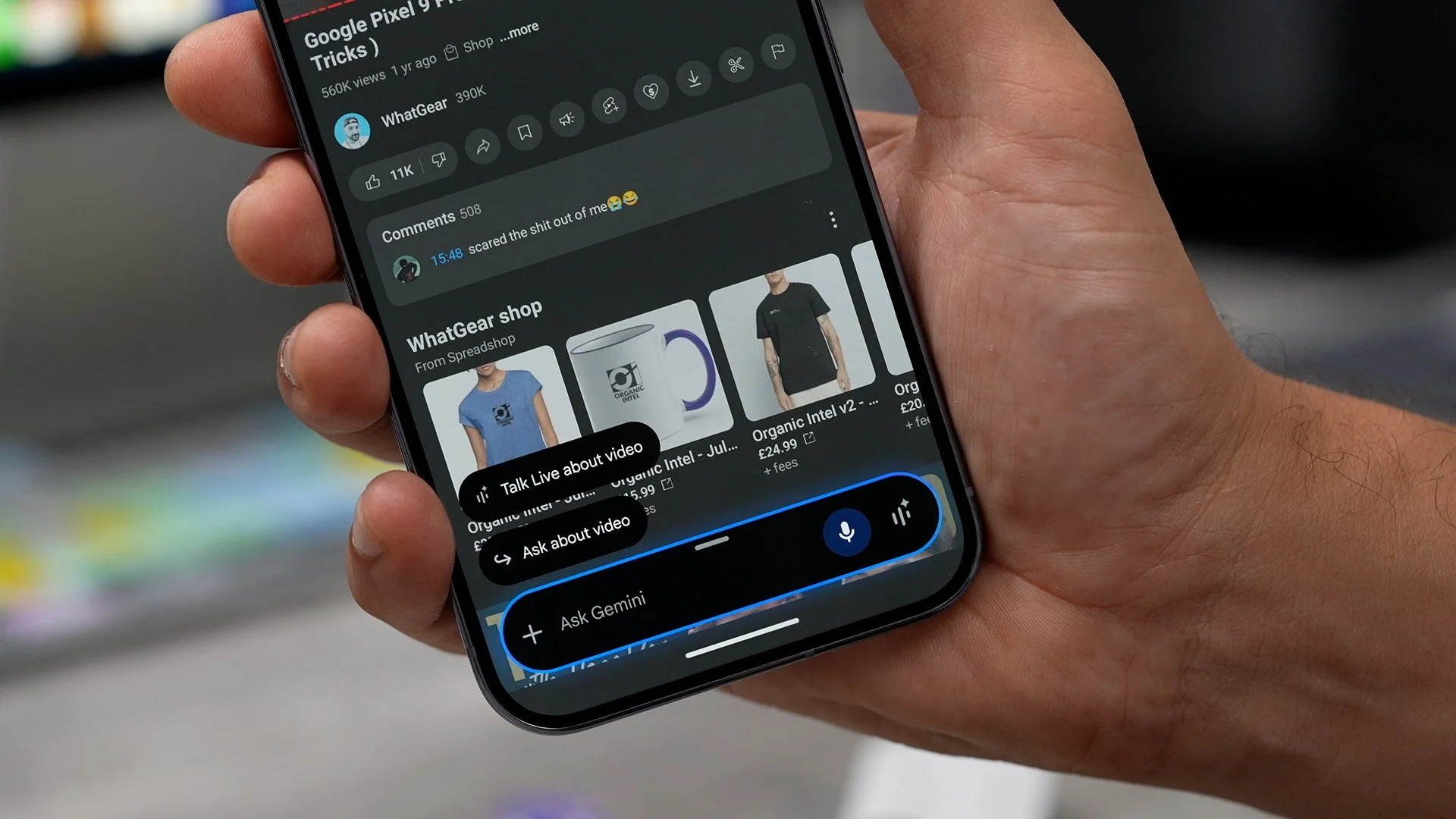
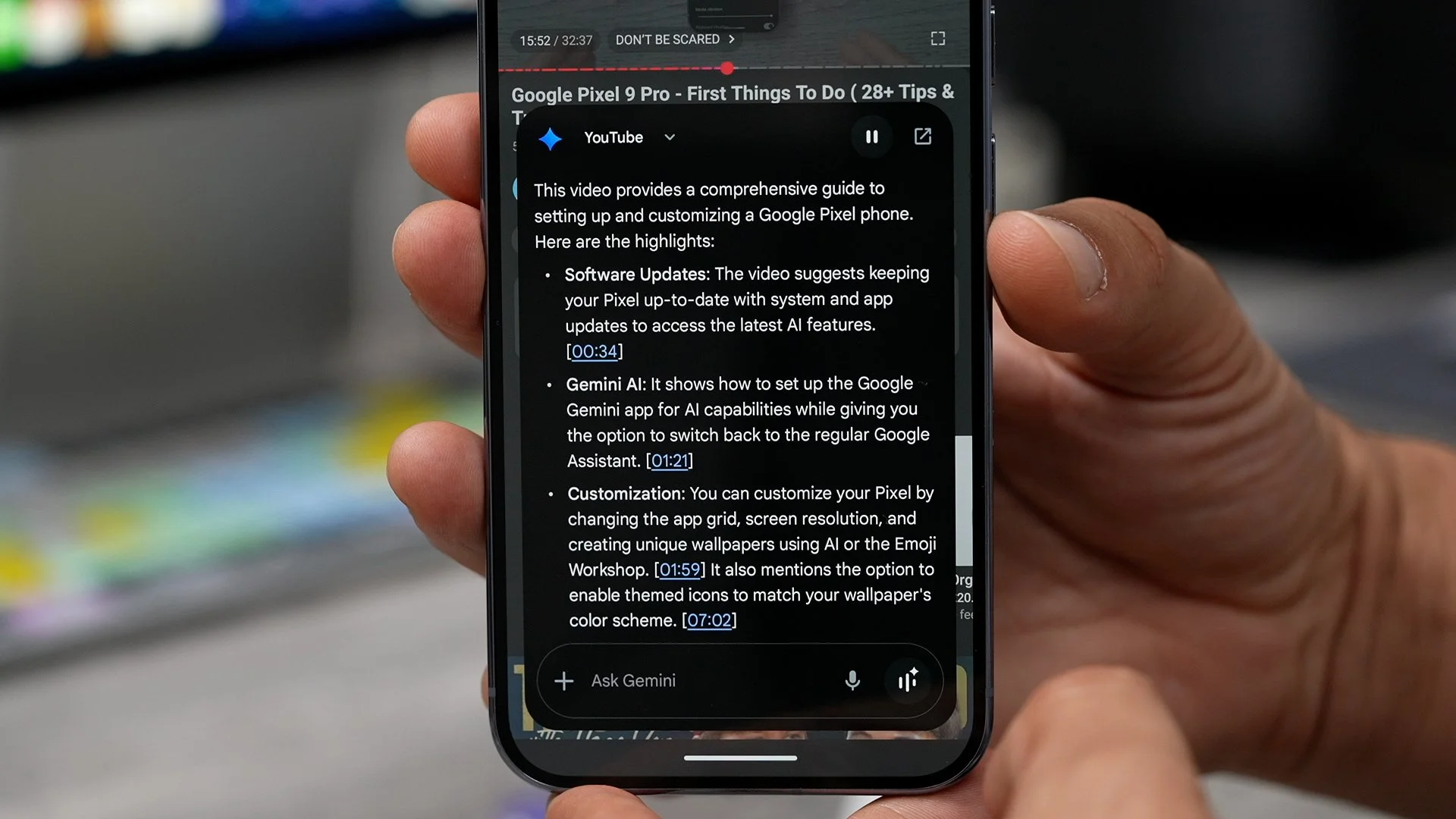
And I'm going to ask it to summarise the highlights, and you'll notice it accesses YouTube directly because it is Gemini has access to all of that information. This video provides a comprehensive guide to setting up and customising a Google Pixel phone. And it's even given timestamps to jump to specific points in that video. So I'm sure you can see how this could be incredibly useful.
CONSULT GEMINI
Here's another use case for Gemini. Let's say you're researching a complex topic, Something kind of hard to understand. And you want to kind of get a better grasp on the subject. What you can do is wake up Gemini, Tap share your screen with Google.
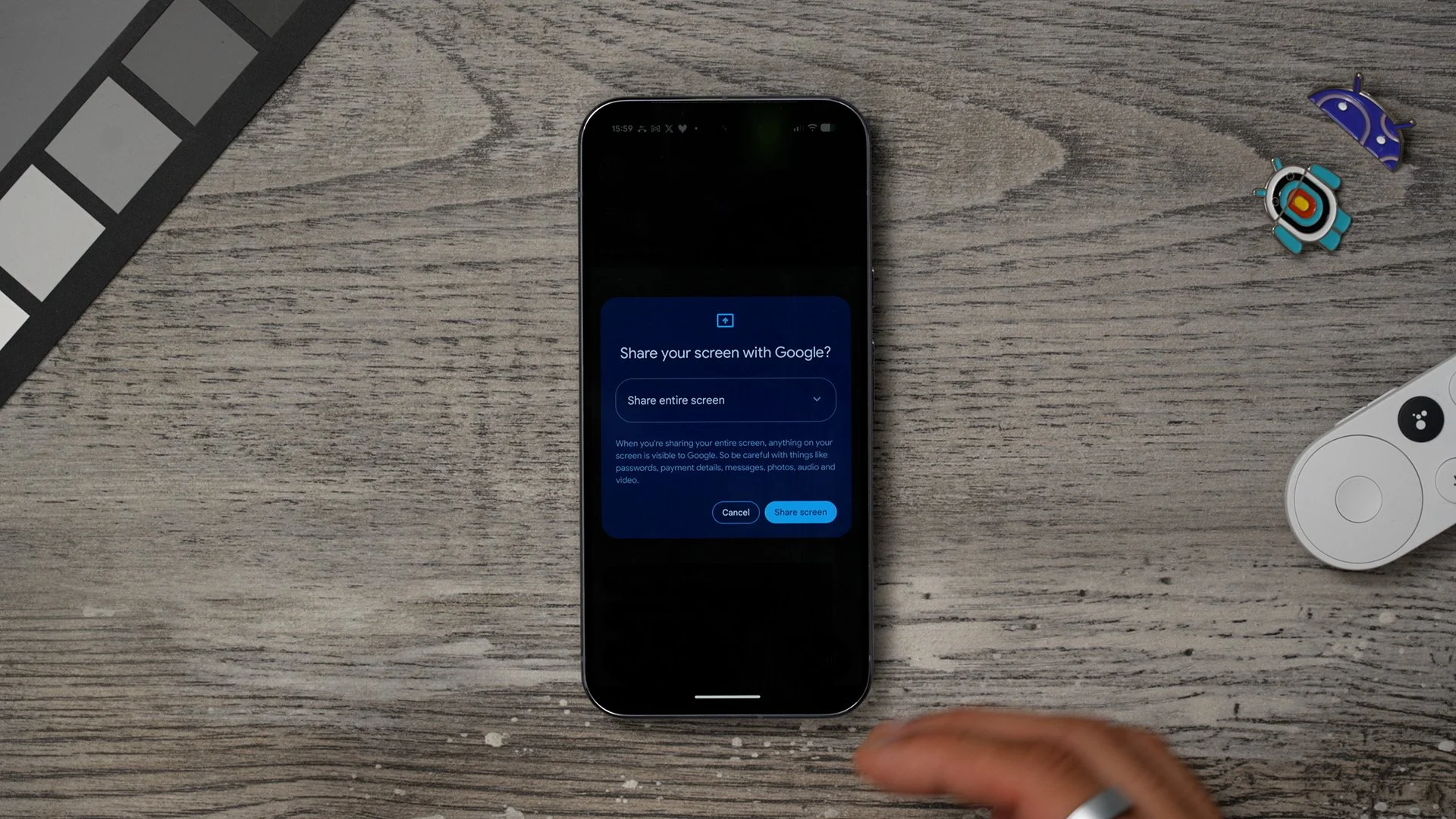
You will have the option to choose an entire screen or an app if you are using a specific app. This essentially creates a conversation with Gemini about what you're looking at on the screen. This is so cool! You can ask it pretty much anything about what you're looking at on your device to learn more and accelerate your learning.
Ai ACROSS GOOGLE APPS
So not so long ago, I was in a new Uber and I was explaining to the Uber driver that you could use Gemini to simply have a conversation and even create reminders and all this kind of stuff. And he was completely blown away by it. He didn't realise how much you can do with it. if you're quite new to this stuff, you should know you can actually use Gemini to go through your Gmail and find important information.

Let's say you've booked a flight. What you can do is wake Gemini. Can you find my upcoming flight information in my emails? It accesses the Google Workspace to scan through your emails it will bring up relevant information. So yeah, you can use Gemini across different apps to do different things, create reminders at times and even scan through for emails.
Ai WRITING TOOLS
Another power user tip is something to play around with on day one Is the AI writing tools. So when it comes to writing anything, for example, the intro of this video, what you can do is highlight the text, and on the Google keyboard, you will see that it was a sparkly pen in the middle here, just above the top row of letters. These are your writing tools.
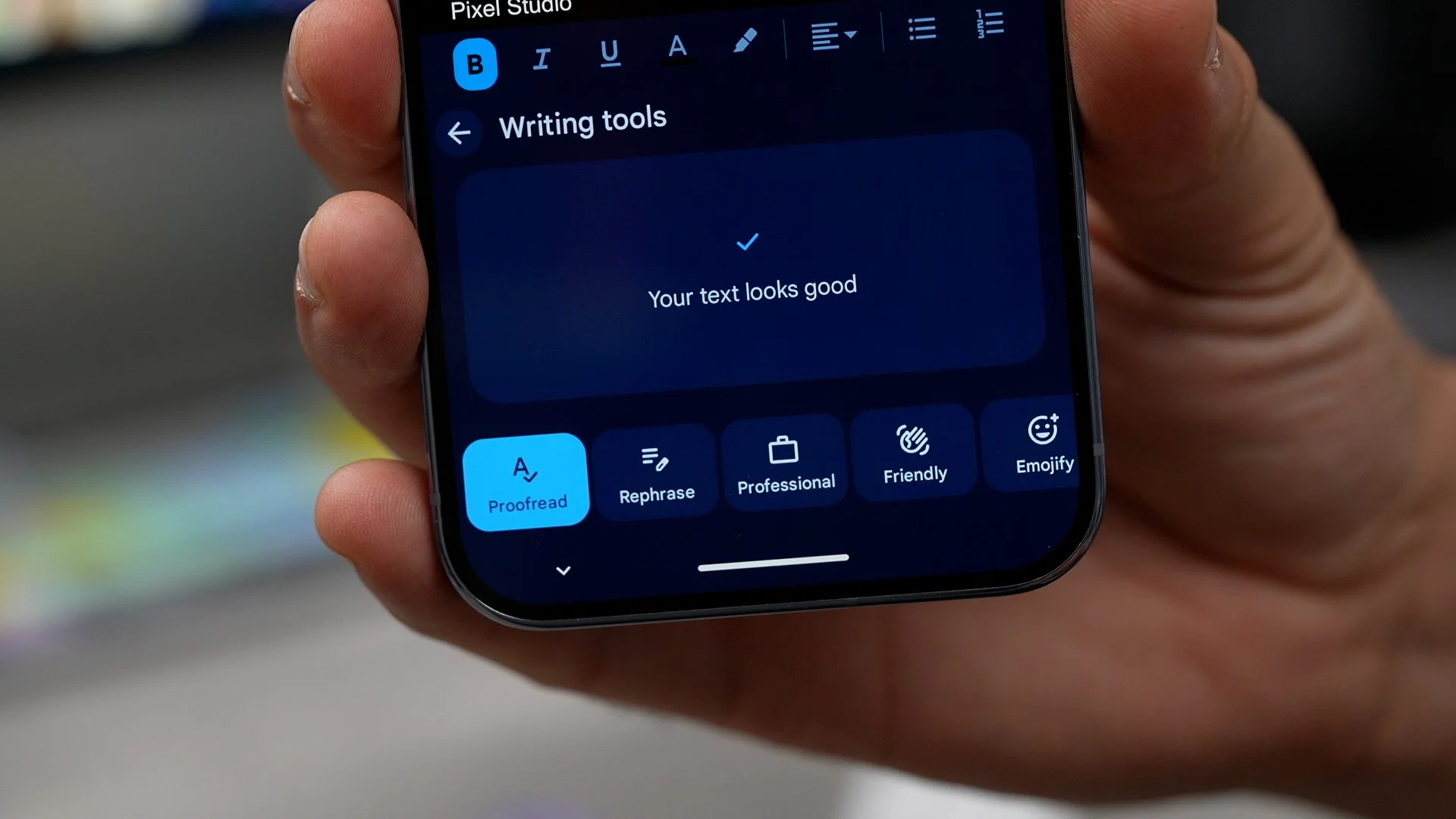
Here you can proofread your text. You can rephrase things. You can make it sound more professional, more friendly, or even add emojis, which is something I like to do with social media posts. If you've just got a really short sentence but you need a few more words, you can get it to elaborate a bit more or even shorten. So when it comes to any kind of writing, if you want a grammar check or you want to improve, lengthen or shorten, just be aware of where to find the AI writing tools
GRAB ANYTHING FROM ANYWHERE
Here is another incredibly powerful research tool, and you might already be familiar with this if you've used previous pixels. But if you're brand new, you're going to love this. So let's say you've been researching something on Google Chrome. If you open up Backgrounding, you have the option to screenshot, and that's pretty standard stuff. And there is a dedicated screenshot app, which we're going to come back to. But it's this that I want to show you. This select option.
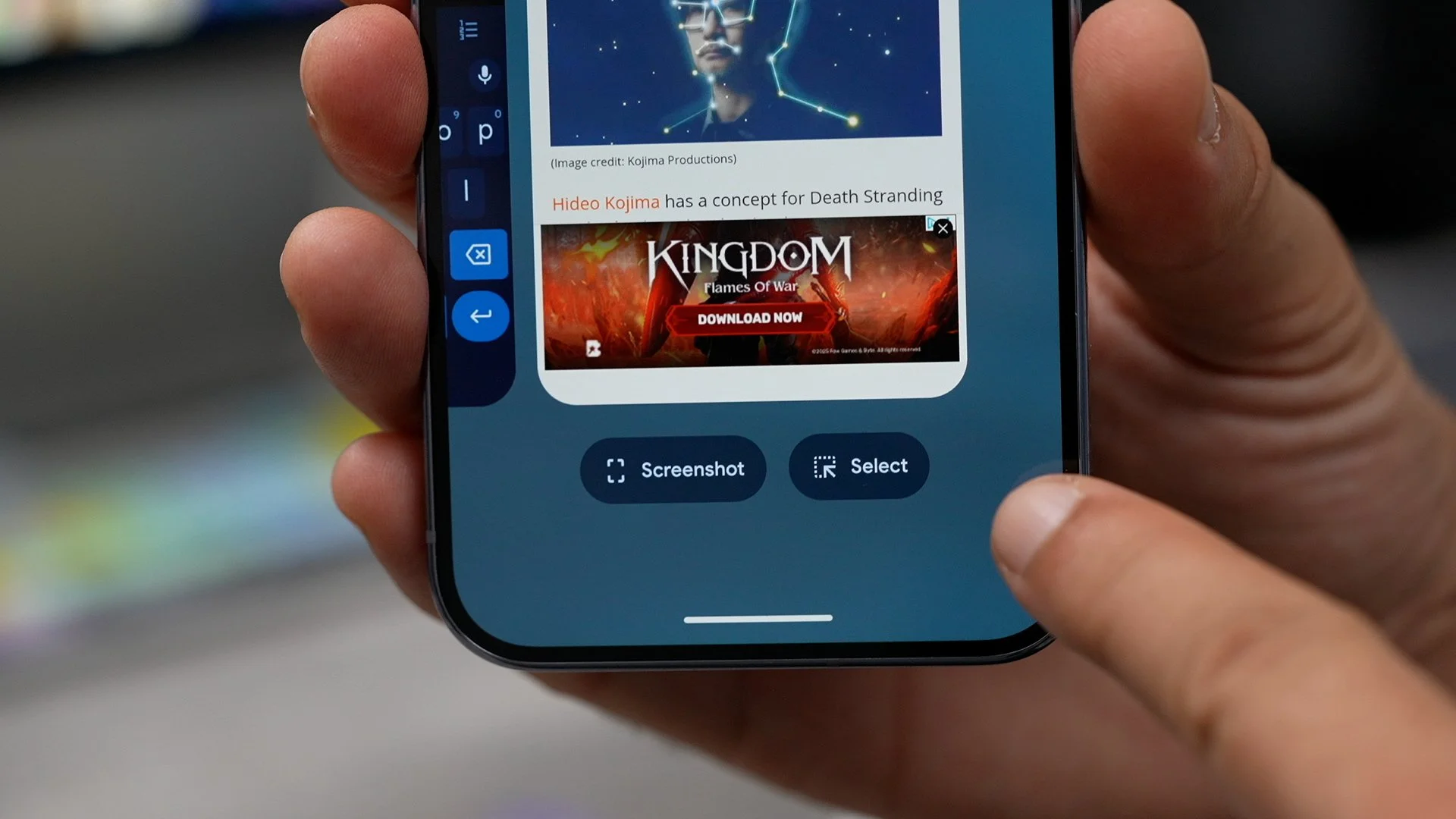
So if you tap on this, it will scan that page and allow you to extract specific parts of the page. So if I hit save, that's now been saved as an image, which I can access from my photo library. You can do this even if that image isn't clickable. This is within a different app. If I go to select, I can choose the image right, save it. And now that image is available in my photo library. That's definitely not the best take.
TEMPERATURE CHECK
here's an exclusive tool that I have not seen on any other phones other than the pixel. If you swipe out from the bottom. scroll through the apps. You will find the thermometer app. This uses the sensors on the back of the device to scan the temperature of various things.
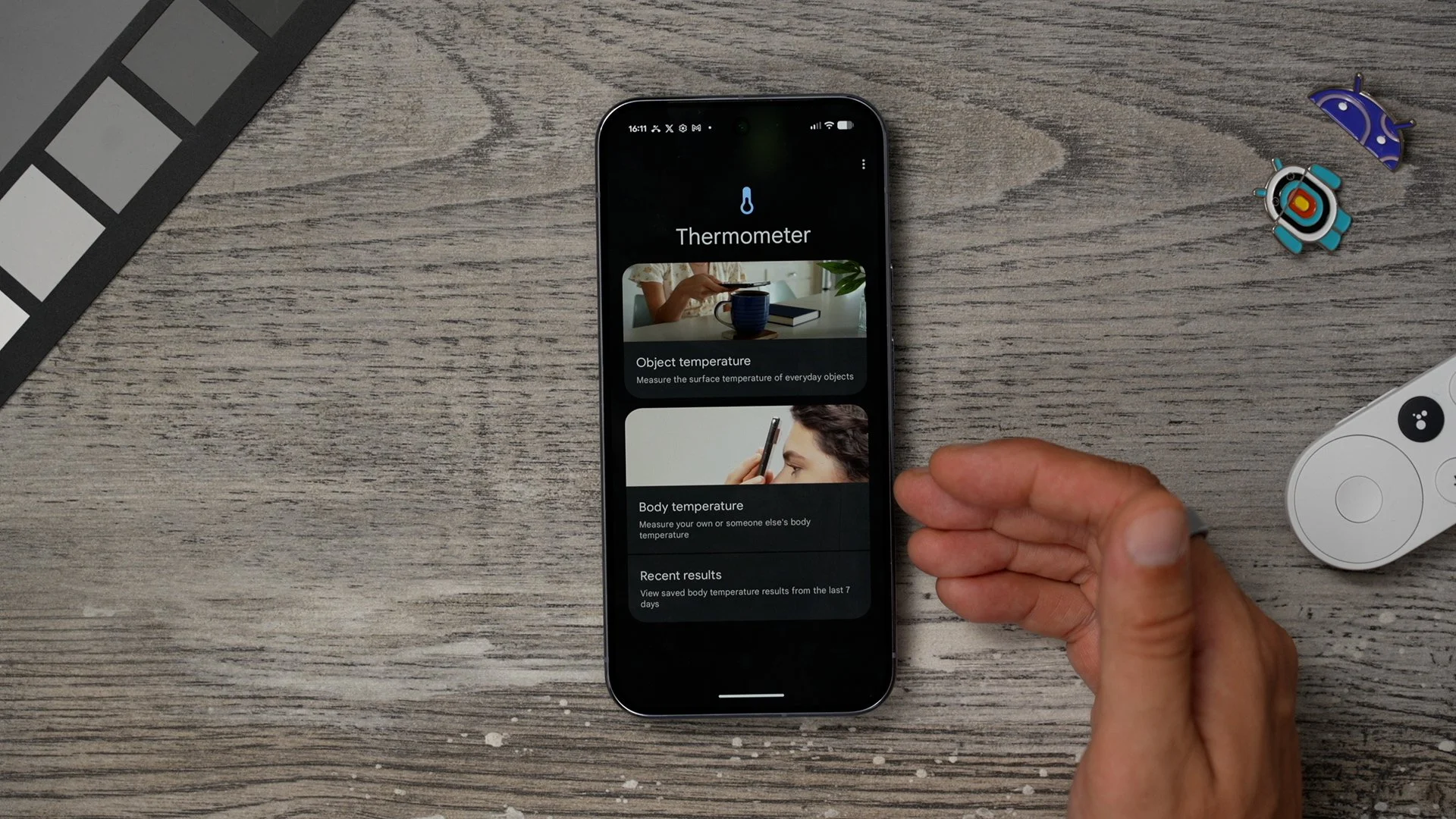
For example, objects like a drink or even body temperature. You can link this to the Fitbit app, which Google now own. And it talks you through exactly how to do this. So this could be useful for you. If your kids are saying, that Oh, they're trying to get some time off from school or something, you can give them a quick scan with your phone. And if they are bullshitting you, you know.
GAMING SETTINGS
If you're a gamer, you're going to love this. There are some hidden tools for gamers. If you swipe down from the top just a little bit, you'll get the little pad icon pop up just here. If you tap on that, here are the gaming tools. So, depending on the game you're playing, you have optimisation achievements and leaderboards. And at the top, you can activate the frames per second counter, which actually appears just here at the side, so you can see how many frames per second you're getting as you're gaming.

You've also got the shortcut for recording, which can be here. So you can record the best moments, and then you've got the screenshot feature as well, which can be pinned here at the side. I have actually been looking for a game where the optimisation shows up. Let me know if you find one. I have to download the Genshin Files, but they're so massive I'll have to do that later.
AI PHOTO EDITS
I want to show you a couple more camera tricks here. So I'm just going to go to a photo I've just taken. So here I'm going to go to edit, and I'm going to go to actions. What you might see when you first use this is purple dots next to these tools. This indicates that you do need to download A pack of information in order to use these for the first time. I've already done that, so check this out. The Magic Eraser. If you tap on this, it scans the image for things to erase; you can just circle around or even brush over things. So I'm going to circle around this white thing right here, which looks horrible in this image. It has been selected it and it's even selected some of the shadows. And I'm going to erase it.
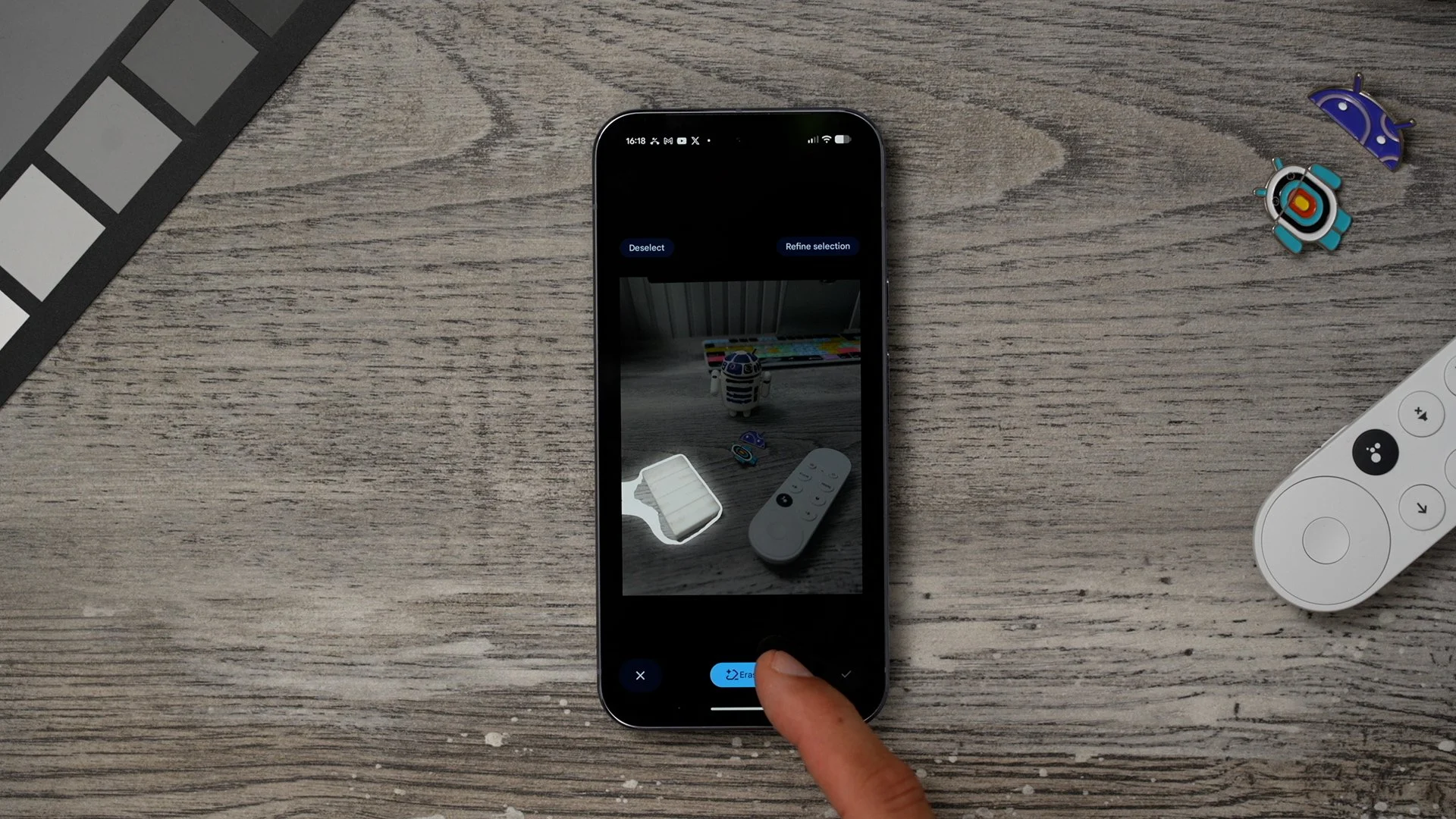
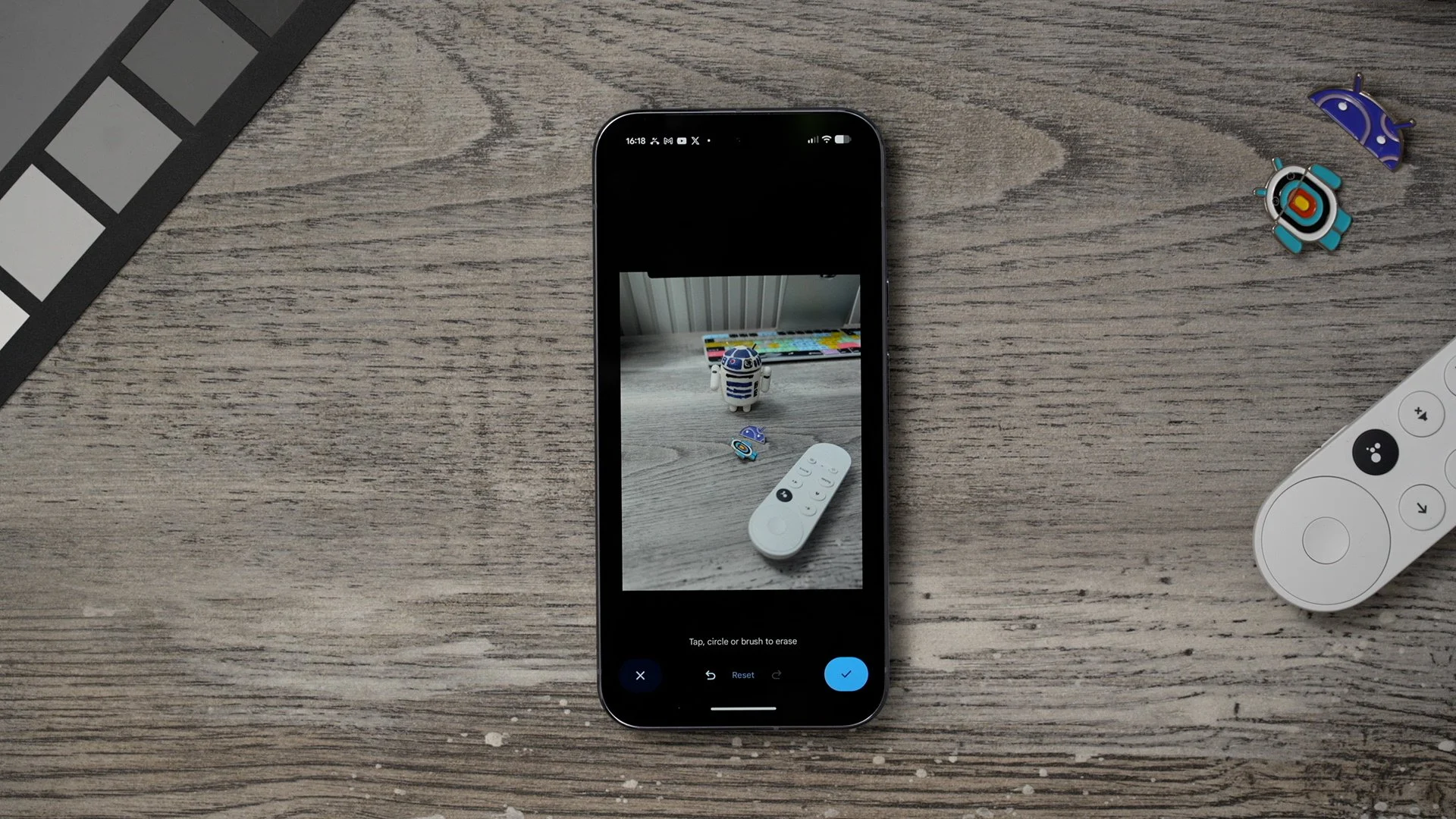
And it's done a fantastic job of that. So I'm going to save that one. That's kind of an old trick. And there is some new ones here on this phone, for example, with the zoom. And it has This of course works better when you're taking photos of things further away. In fact, let me do that right now. So, believe it or not, this is actually quite far away from where I'm sitting. And I'm really, really impressed with how high-res this looks is going to go back in its actions. Go to the zoom in enhance, and let's zoom in and enhance right here. And crop and enhance. There we go. That's the after. That's the before sure you'll be able to take some photos from a distance that will demonstrate this much better than I just have, but just be aware of how to do it,
TALK TO THE TABLE
Here's a nice feature to switch on on day one within your settings menu. Scroll down to System, and in here scroll down again, and on this page, go to gestures. So here is a super useful feature to switch on. It is the flip to Shhh. So if someone is phoning you to blow up your phone, what you can do is just flip your phone face down and that then mutes the call.

A LIFE SAVER
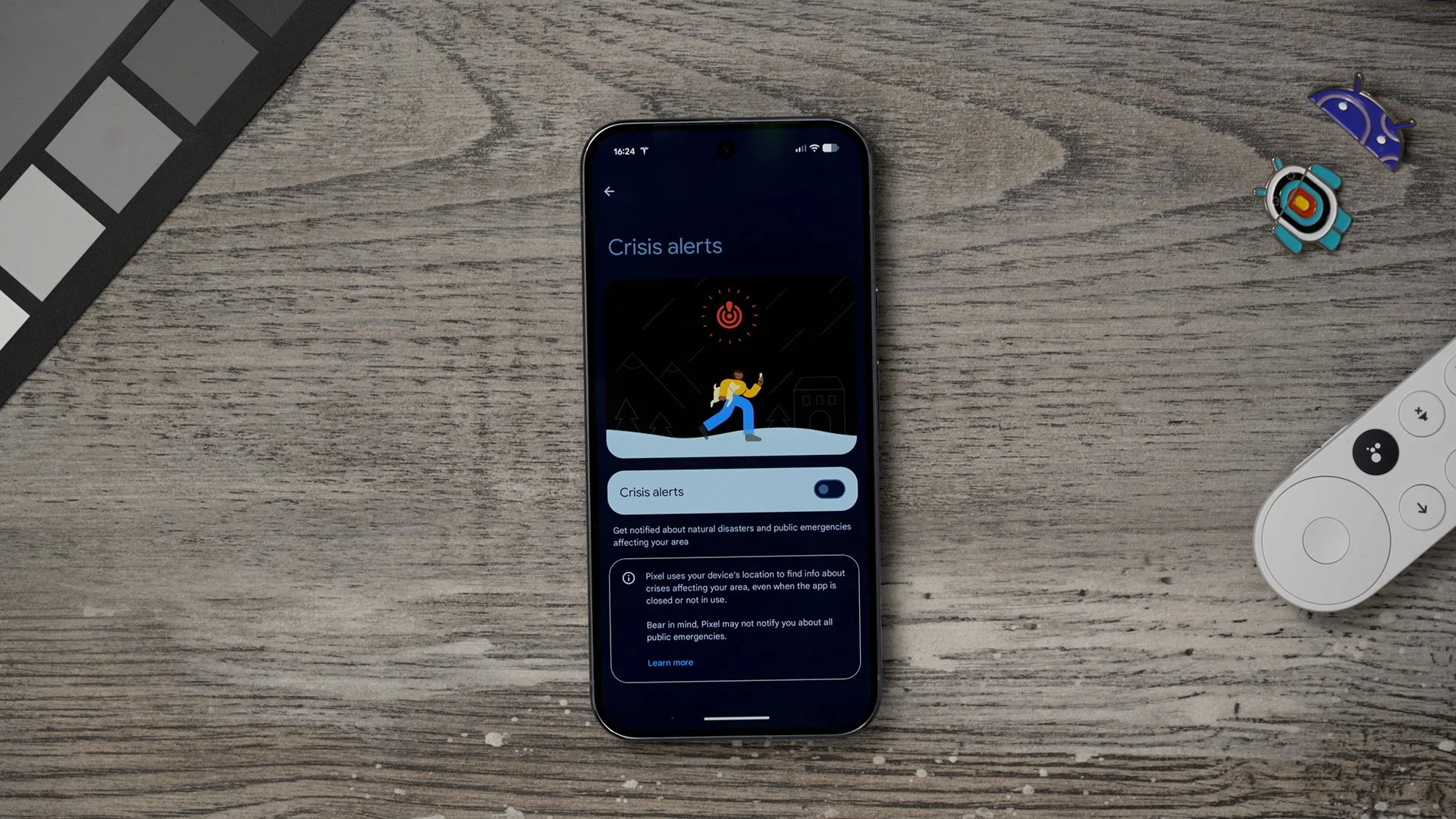
This one really could be an actual lifesaver. So within your settings, once again, if you go to Safety and emergency. Here, you'll notice the crisis alerts are switched off. So if there is some kind of major disaster, I'm assuming you probably want to know about it. So you might want to switch this on.
A HEADS UP
Here is another feature that I recommend you switch on on day one within the settings menu. If you scroll all the way to the bottom, you will see Digital Wellbeing and Parental Controls. If you tap on this, if you hit the three dots in the top right corner. You can join the beta program for this app if you want. What I really want to show you here is a feature the like I said, that could save your life and heads up.
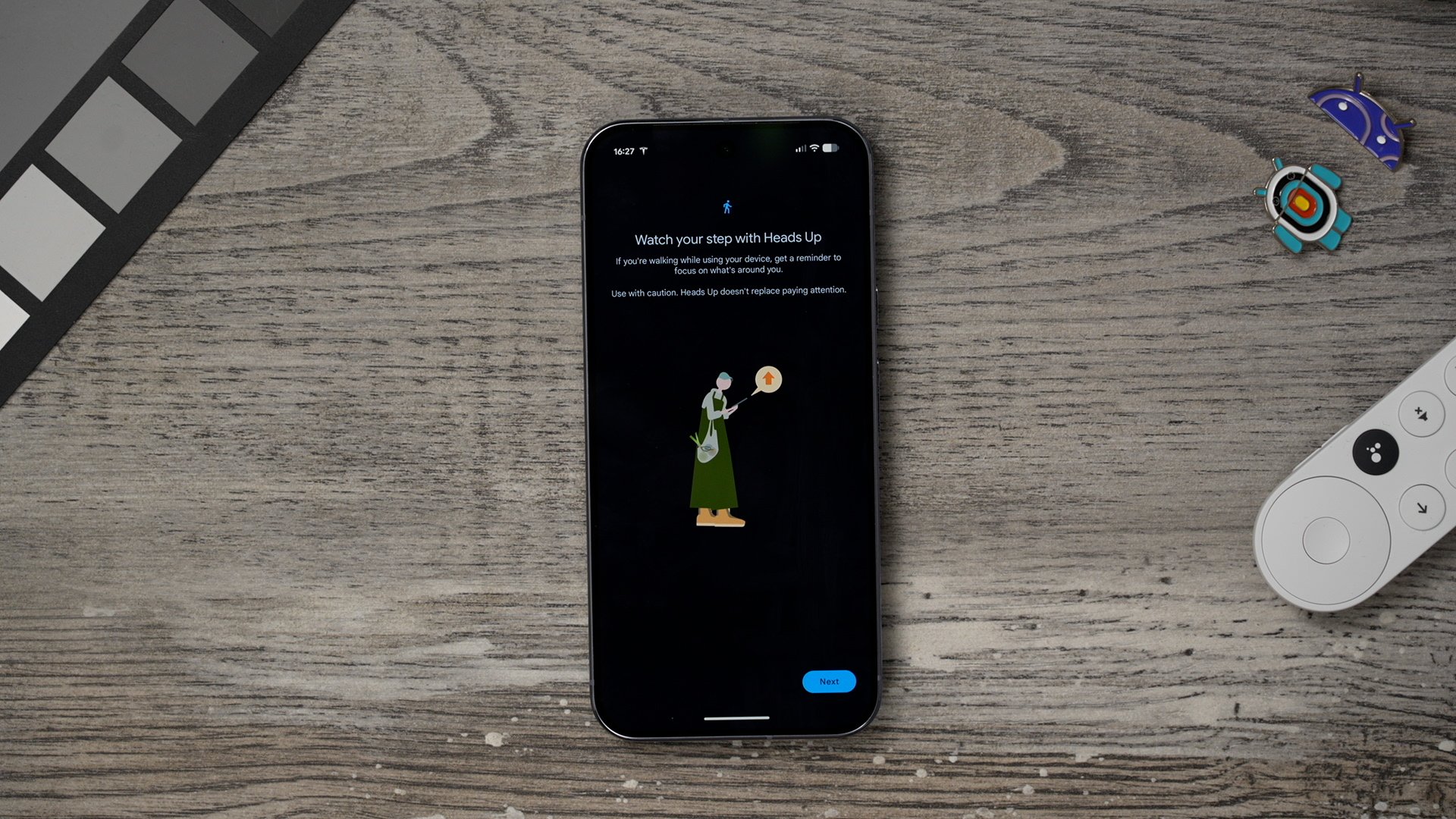
So if you are the type of person who walks down the street using your phone and you're constantly looking at your phone, you might not be looking around, and you might not notice the bus. If you switch this on, this will just give you periodic reminders. Keep an eye out on what's going on around you when you're using your phone whilst moving.
SPATIAL AUDIO & CAPTIONS
Here's a really useful audio trick for you guys. And this will help you fine-tune how you receive audio from your phone. So if you hit the volume rocker, you'll notice you get this little icon at the bottom with three dots. If there's nothing playing, this will show you your volume slider; it also gives you the spatial audio options. So you can switch this on and off at any time. This is really good for movies and watching things on your phone. It can also improve how music sounds from time to time. And it's something else that was really cool. Here are the live captions.
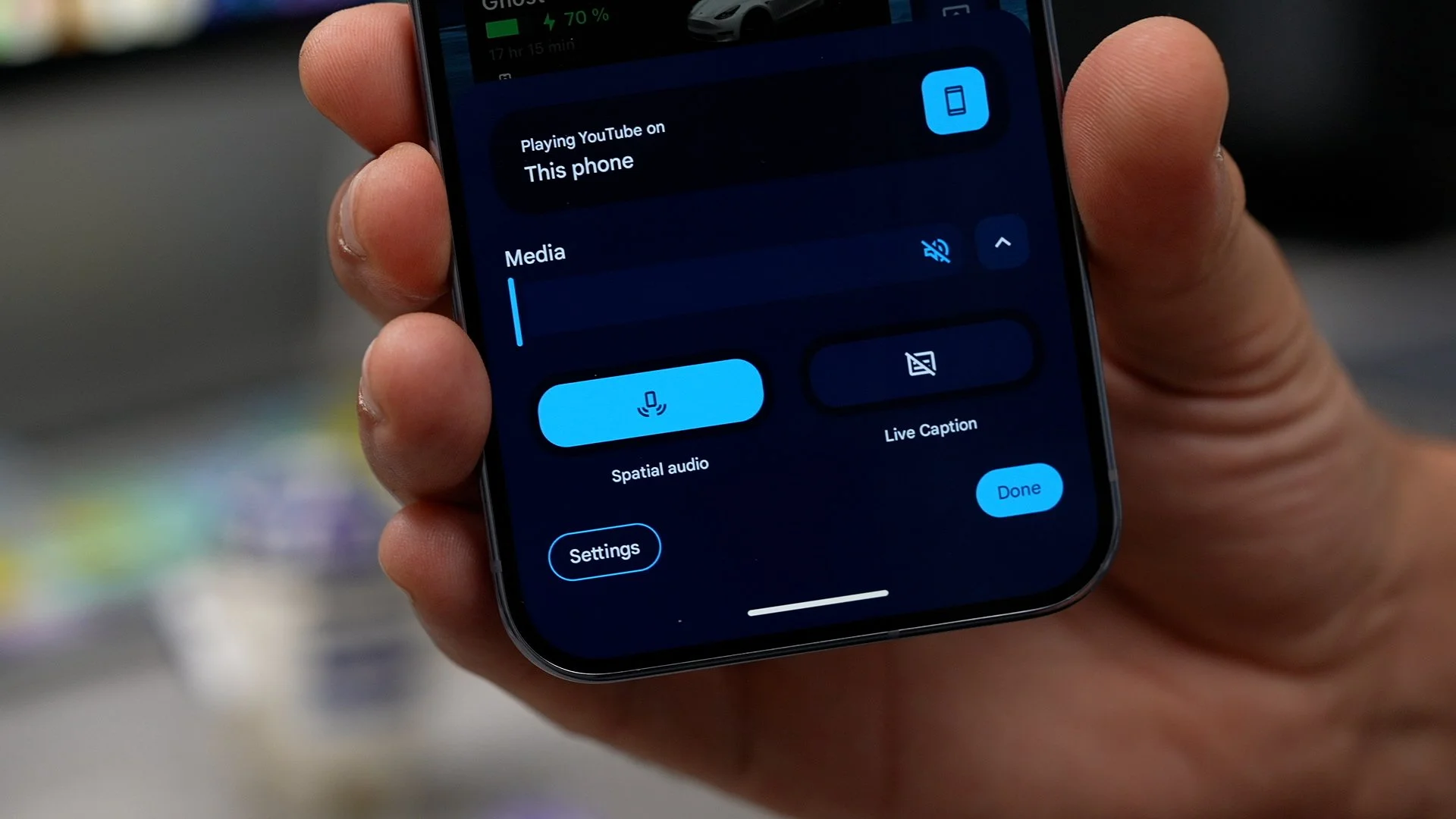
So if you do have something playing on your phone, you can caption it even if it doesn't have closed captions. The first time you use it, you do have to give it permission and download the pack. So in this case, the English pack. And once you've done that, whenever you're watching something and you activate the live captions. You can read what's being said as opposed to having to listen to it. If you go into the settings, this is a shortcut to sound and vibrations. You can access the spatial audio settings, and you can choose whether you want that spatial audio feature to kick in for the phone's speakers and wired headphones, or just one or the other.
LISTEN TO THE WEB
So next time you're researching something, but you haven't really got time to read the article, and you'd prefer to listen to it, you could, of course, add it to the notebook realm. But there's also another way that you can listen to this audio without having to run it through the AI.
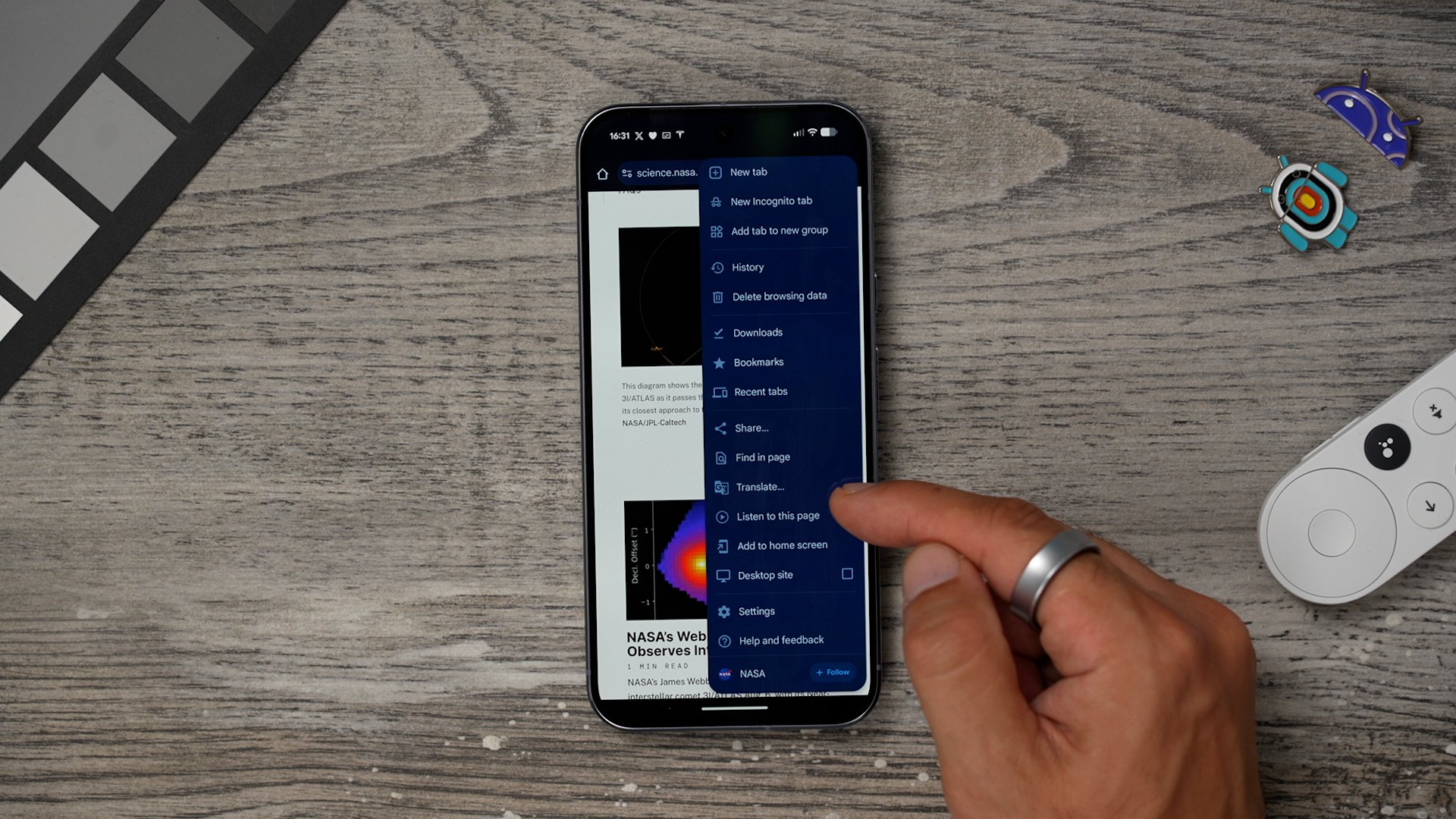
If you hit the three dots in the top right corner of the Chrome browser on the right side, you'll see: Listen to this page. This will then read out the website to you through your headphones or through to speakers on the phone. And even when you lock the phone, it continues the track. So you could listen to some stuff whilst on the way to work or at the gym or whatever, simply turning a web page into an audio track.
Bonus Tip 2
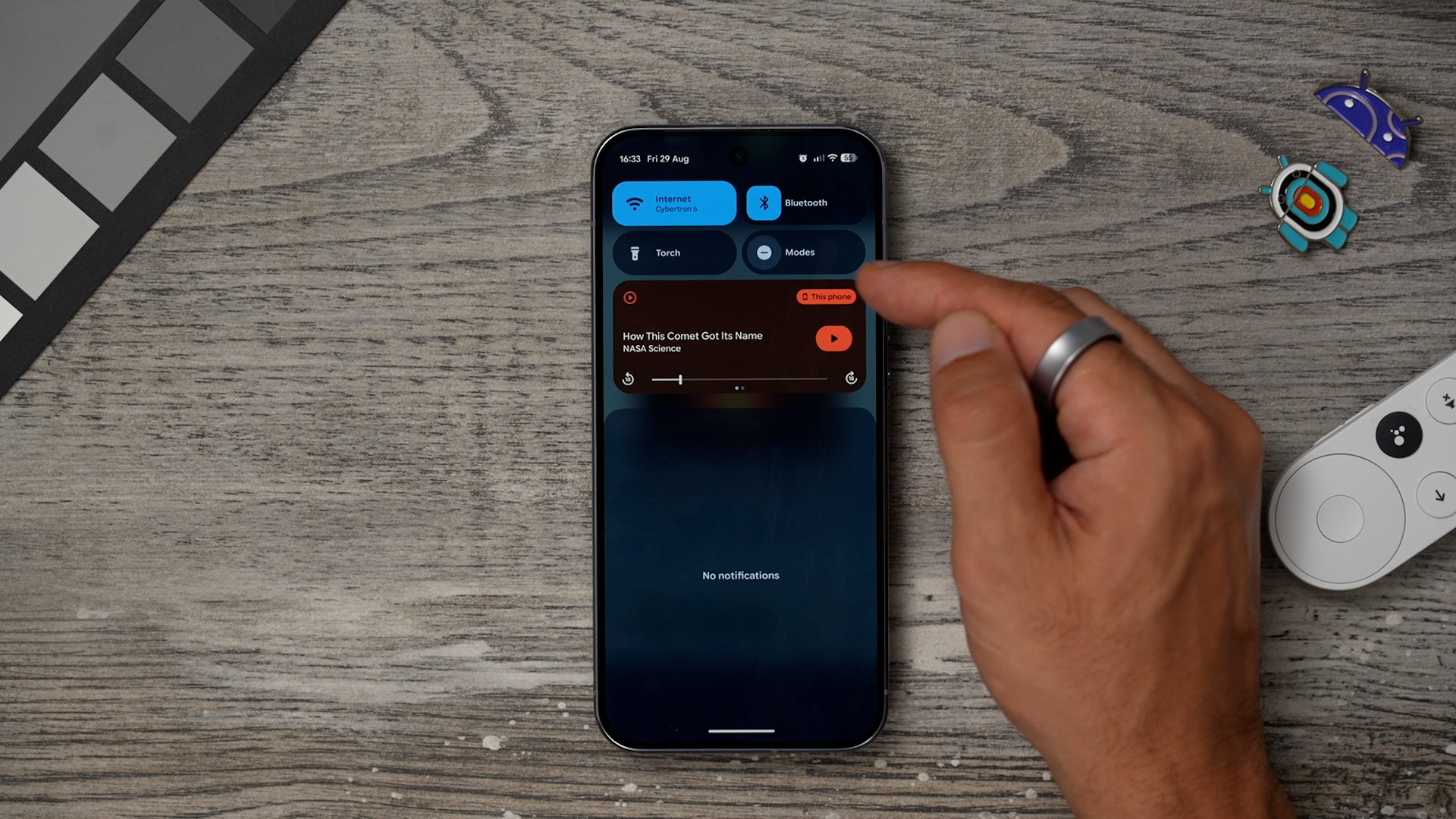
Let's say you do have some audio playing in the background, and then you get in your car, and immediately it jumps over to the car's audio or a Bluetooth speaker is audio, and you don't want it to. All you need to do is bring down your notification shade. Where it says this phone, you can tap on this and you can actually switch between the different sources.
VOICE RECORDER UPGRADE
Here's another upgrade to the voice recorder. I have it right here on the home screen because it's super, super powerful. This has now got a brand new upgrade. So just like before, you can record meetings and lessons or anything you're listening to, and it can then transcribe it, and you can summarise it later, extract those bullet points out of it, and then turn it into your own homework. That is still possible. Now, there is this other new feature, which is kind of interesting. I'm not sure how I would personally use it, but it is here. I want to go to the recording in the top right corner. We've got three dots. I'm going to tap on that. And right here is where you'll find the brand new feature is called Create Music.
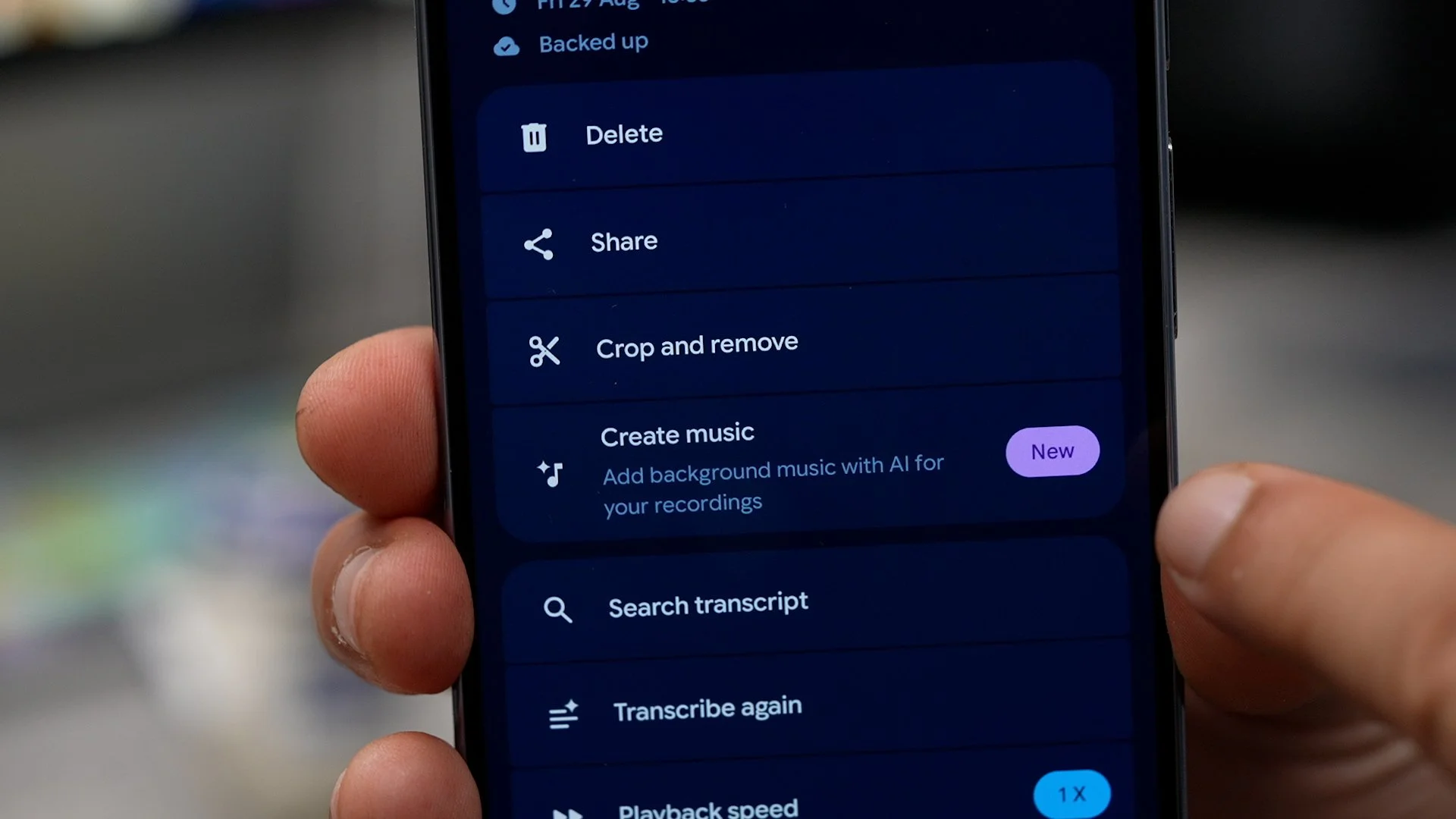
So this kind of creates an AI backing track to your recording. I guess if you want to record some kind of podcast or something like that, this could add some nice atmospheric music to it. So we go Chill Beats, for example, and just hit next. is’s actually analysing the recording to select the best track for the recording. All right, let's hear this with the chill beats. So just like before, you can record meetings and lessons or anything, you know, listening to. And you can then transcribe it, and you can summarise it later, extract that, extract those bullet points out of it and then turn it into your own homework. Yeah, it's pretty cool. It could be a great way to create some audio content if that's what you're into.
COPY & PASTE TO MAC / PC
Here's another really well-hidden trick on this phone. At the bottom of your screen, you see the Google Lens icon. That's the one that looks kind of like a camera. If you tap that. Choose one of your screenshots. What you can do here is copy the text from this screenshot and then hit the three dots on the right-hand side, then copy it to your computer. So So this will allow me to copy from my Google Pixel device to my Apple Mac computer. And you know, Apple don't like people infiltrating their whole garden.

But it does mean you have to have Google Chrome installed on that computer. This also applies to Windows computers and anywhere else you can install Google Chrome. Now, if I just tap select, I can go to Google Chrome on my desktop and paste that text.
If you want to learn how to customise the Google Pixel like a pro, then check out part two of this three-part series. If you found this one valuable, let me know in the comments if there are any tips that I should have added that I didn't, or so let me know in the comments.
