
Galaxy Tab S10 FE - 10 Killer Features That Destroy iPad Air
I'm going to show 10 Samsung Galaxy Tab features that you simply can't do on an iPad. I'm going to demo these on the brand-new Galaxy Tab S10 FE. This one is direct competition for the iPad Air, but it is £100 cheaper on day one. If you're watching this on an iPad, when you see what I'm about to show you, you might be like - that's impossible.
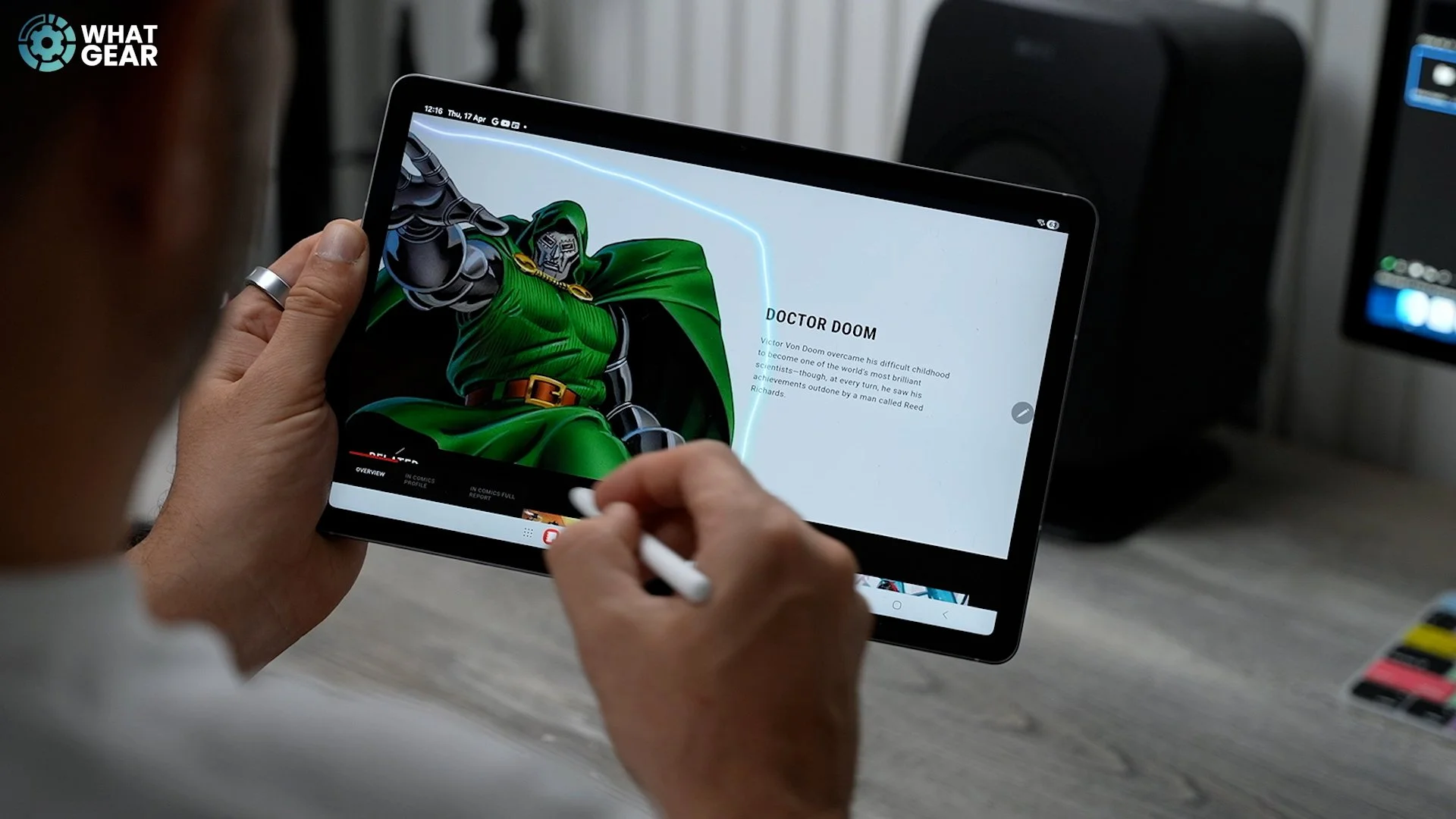
Well, it is on an iPad. And who knows, these features might make you want to switch. Let me know if it does. I've been a Samsung Galaxy user since 2012, when the Galaxy S3 came out. I know a thing or two about these devices. And I'm going to share them with you in this video. If you have a Galaxy Tab already or are thinking about getting one, this video will help you to truly understand & master your Galaxy Tab.
More User Friendly
A Tablet is a very useful device, but you'll find that your phone is the quicker and easier option for googling things or just checking emails. Therefore, your tablet might get left lying around and not do much. So if one of your family members asks if they can use it one day.
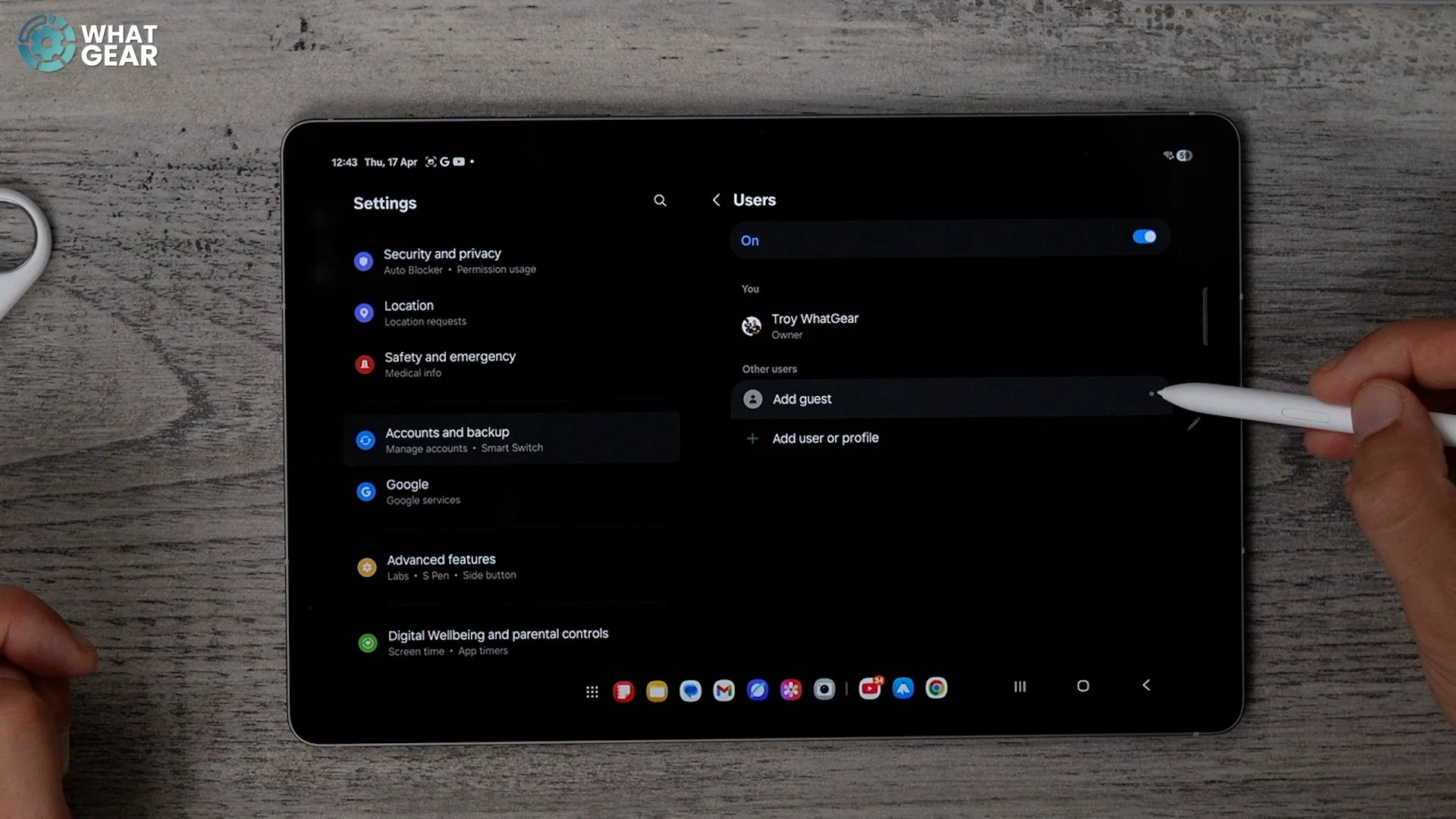
If you were an iPad user, you might respond in this way: Because only one Apple ID is allowed per iPad. With the Galaxy Tab, you can create up to eight users by going to settings/accounts & backups/users. Here you can find guest profiles. One problem is that the device storage might get used up quickly if 8 different people share the tablet and this brings nicely onto the second big iPad Air killer feature.
SD Card Slot
So, the iPad is currently £100 more expensive than the Tab S10 FE for the 128GB model. But it gets worse because, let's say, you wanted 512GB of storage. Apple would charge an additional £400 for that. Bringing the price to just under £900. Now, on the flip side. You could instantly save £100 instead of paying £400 for more storage.
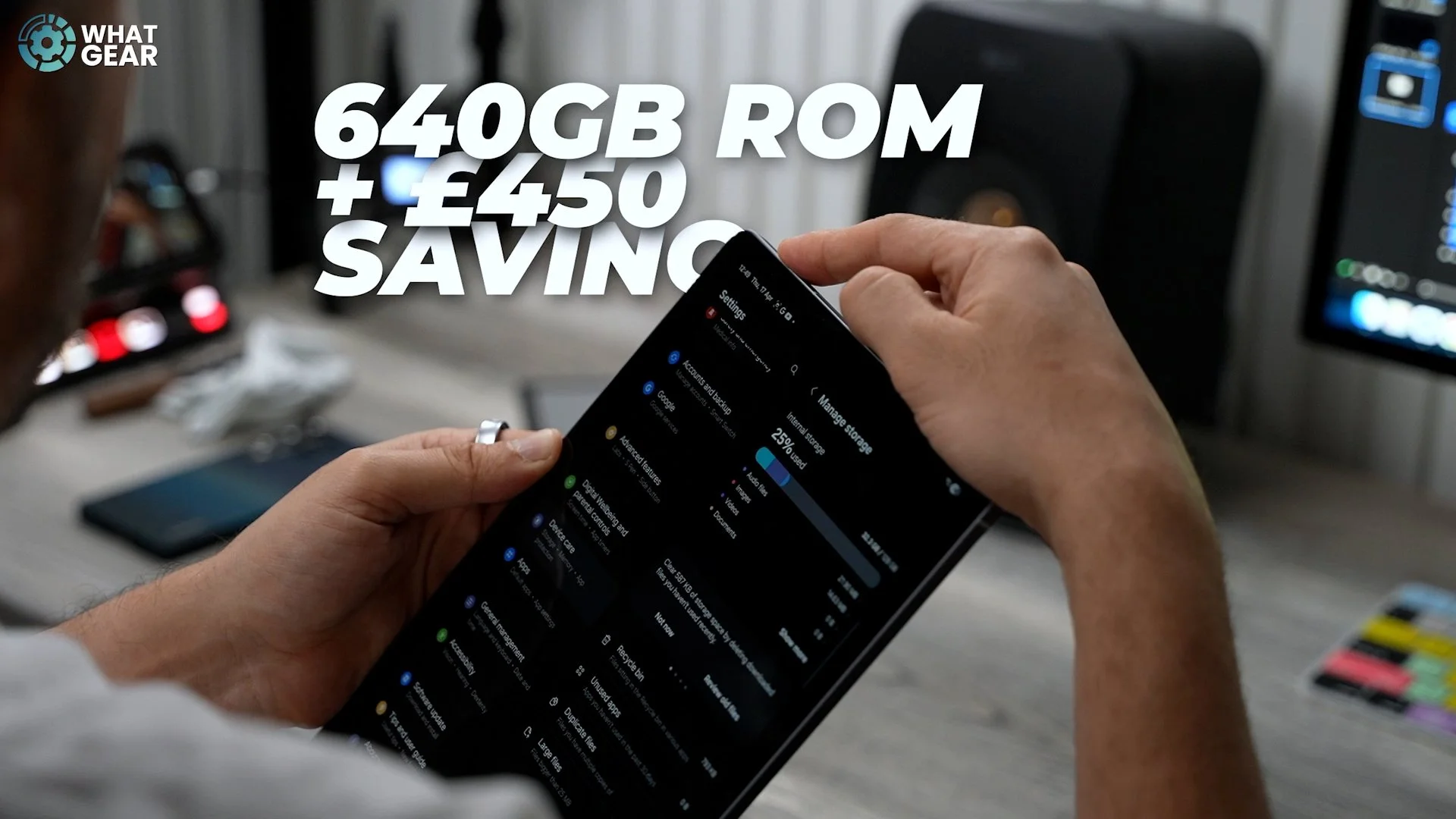
You just get a Samsung Pro Ultimate 512GB Micro SD card that costs just £50. Now you have 640GB of memory, and you saved £450. And if you want to, you could hot-swap the memory cards at any time.
Write This Down
So, the Apple Pencil is awesome. But no surprise, it's also expensive. That's why it's awesome that Samsung bundles the S Pen as standard. As a side note, though, the S Pen that comes with the Tab S10 FE is not the pro one. So, there are no BT Air Commands here. But it does give you all the features you'd expect from a stylus.
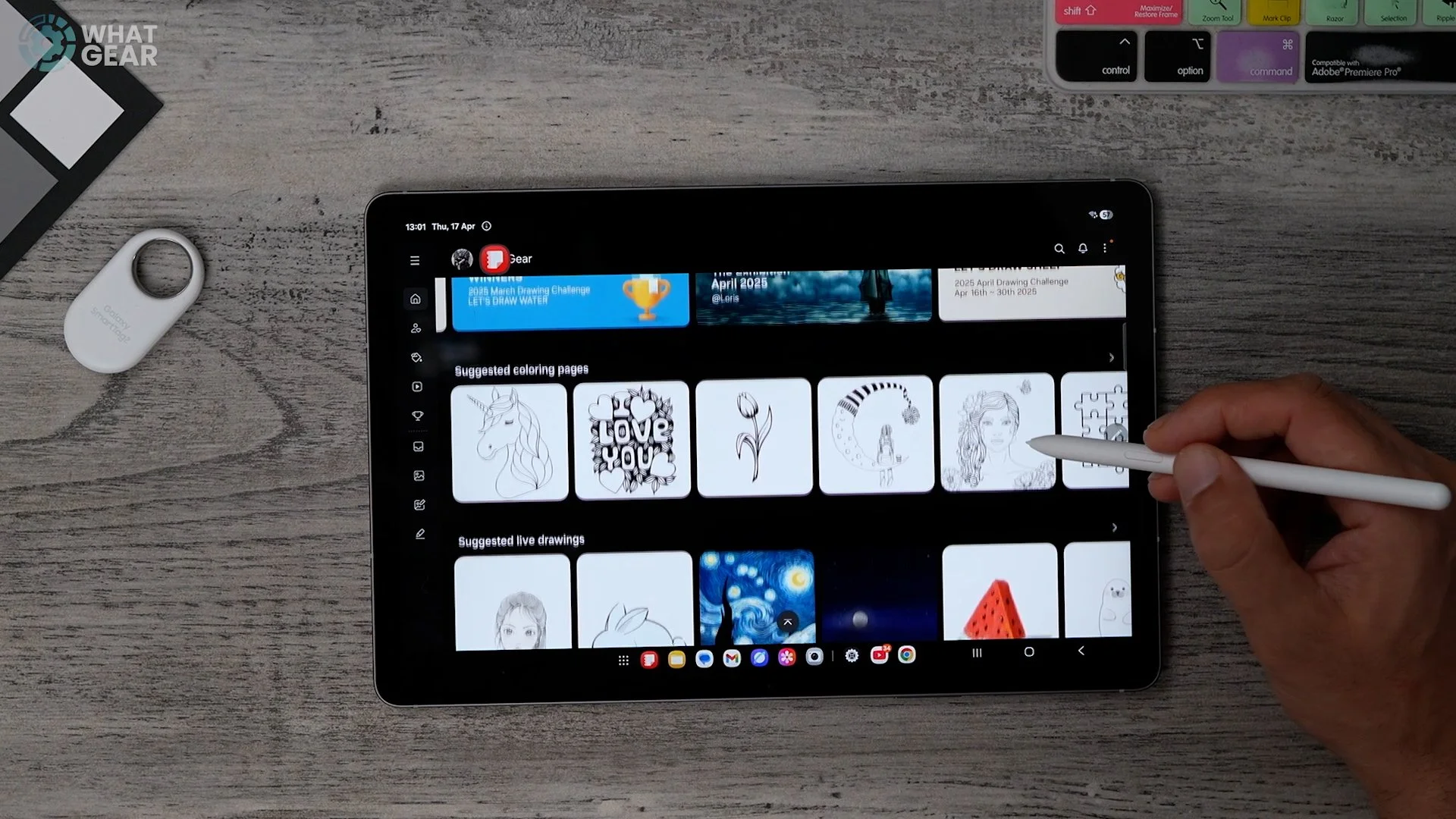
It's excellent for signing documents, sketching and taking notes. You can download apps on iOS, which is nice. Samsung's native PenUp is one of the best I've seen if you're into colouring books, and there's also a really great feature here where you can upload a photo or an image and trace your own version.
Separate Layouts
This is a small thing, but a huge deal when it comes to tablets. Because it's larger than your phone, you might feel the urge to use it in landscape mode most of the time, so you set all your apps and widgets up nicely, and then when you decide to use it in portrait mode. Apps and widgets are all over the place.
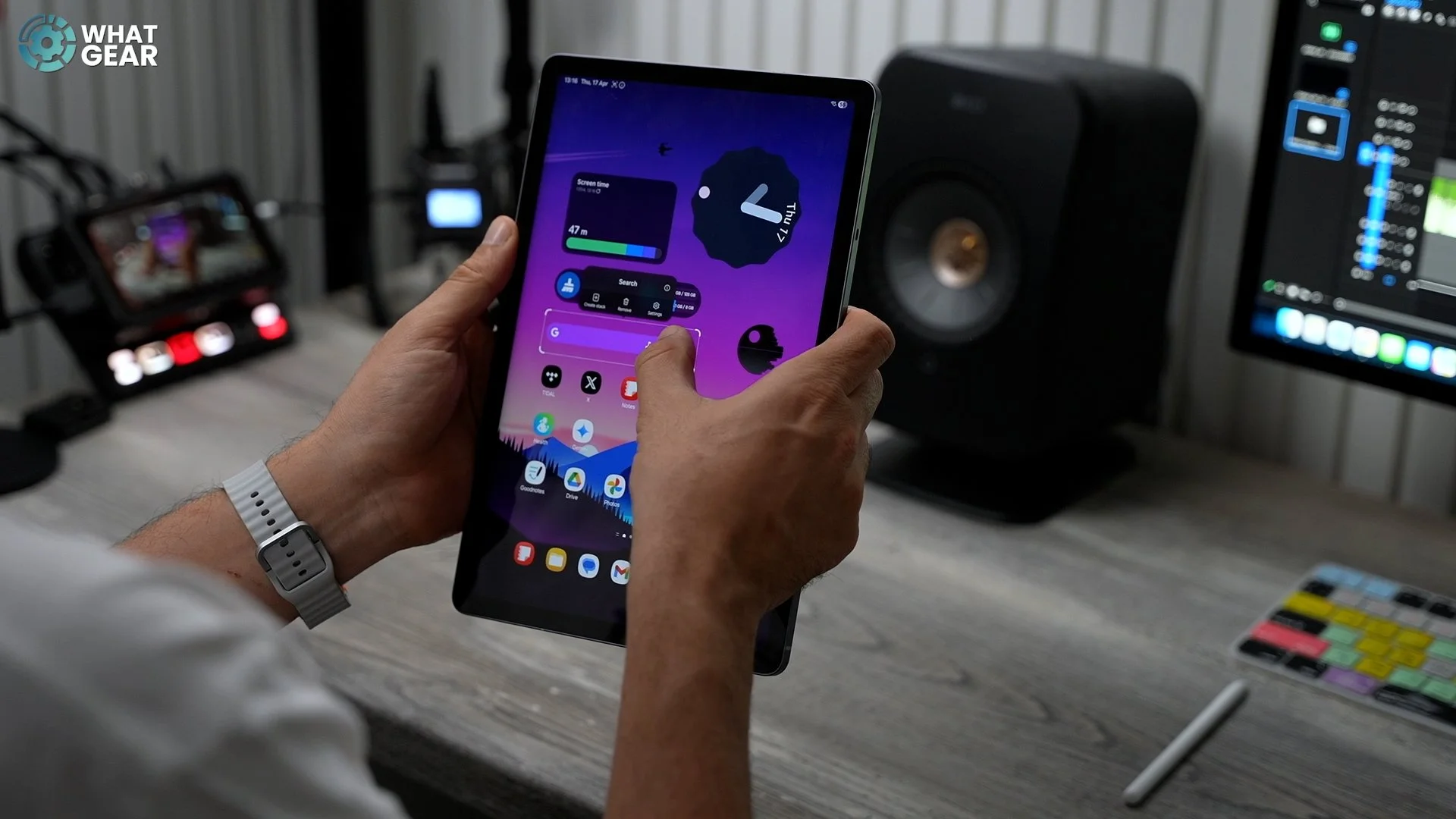
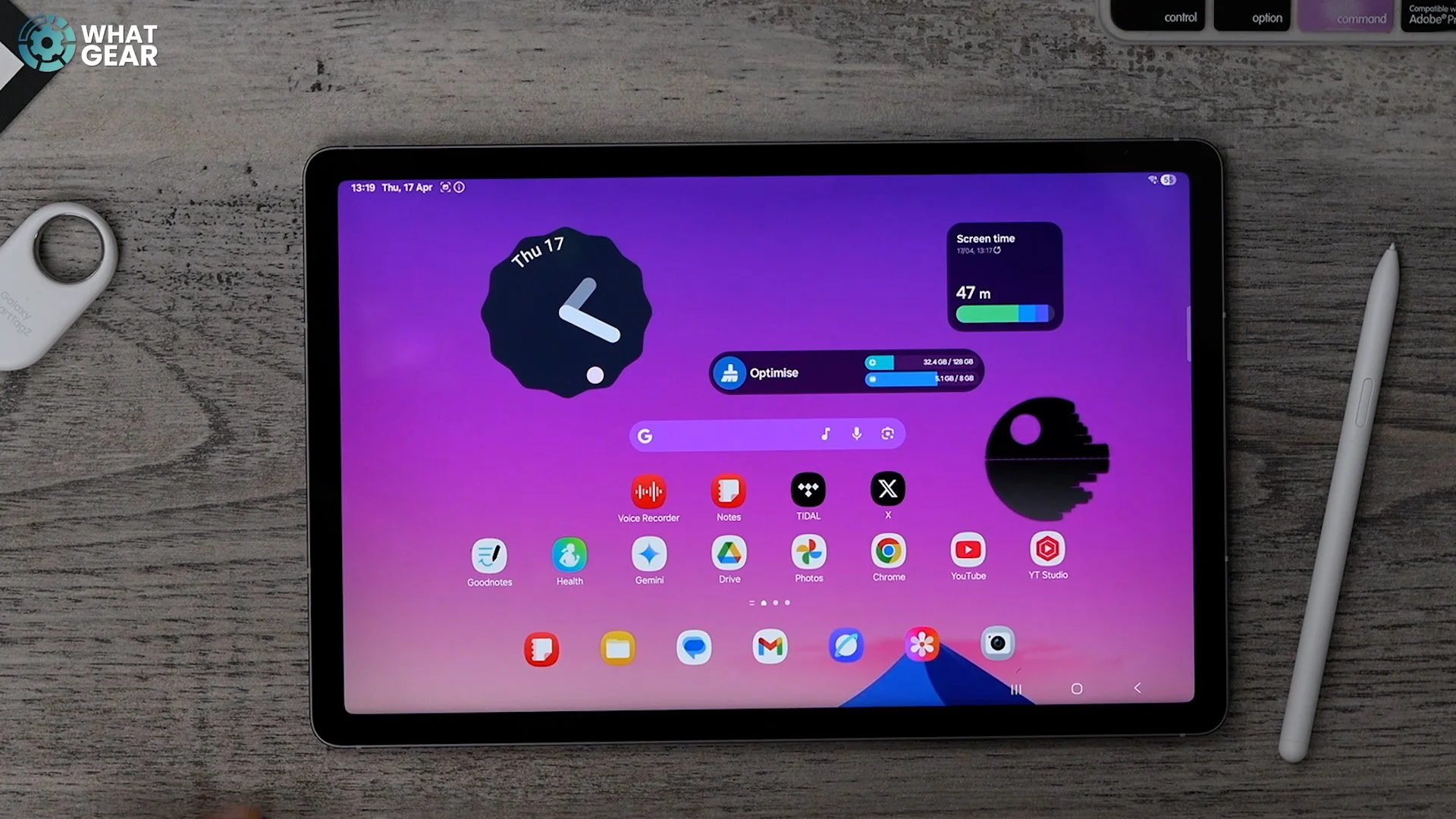
Well, on the Galaxy tab, you can customise the positioning individually for the horizontal and vertical layouts. And they'll stay like that until you decide to mix it up. One side note: deleting an app or a widget from the home screen will remove it from both vertical and horizontal setups.
Seletive Ai
Let's get started. On the side of the screen is Samsung's edge panel. This can be heavily customised, I made an entire video about customisation. So I won't go into that here, I'll link that at the end. At the top of the list is Samsung's Ai Select. This will level up your productivity game, improve your research skills, and save time. And even creating memes, This is a powerful tool.
Part 1.
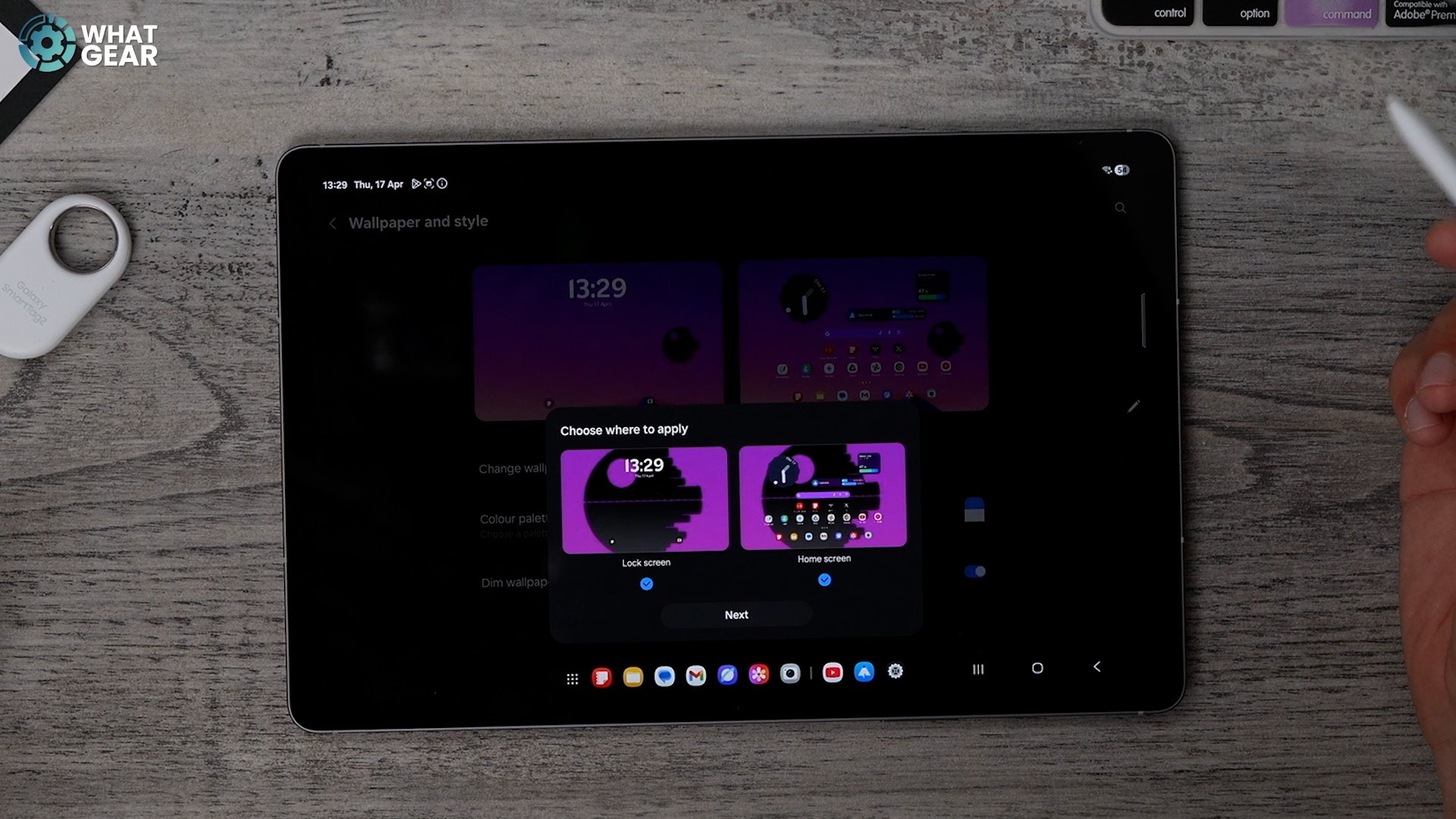
You can draw around or tap anything on the screen when you activate it. You get several options. If the selected area is big enough, you can turn anything on the screen into a wallpaper. And if you use this method, there is a very powerful and unique wallpaper trick that I need to show you. We'll come back to that.
Part 2.
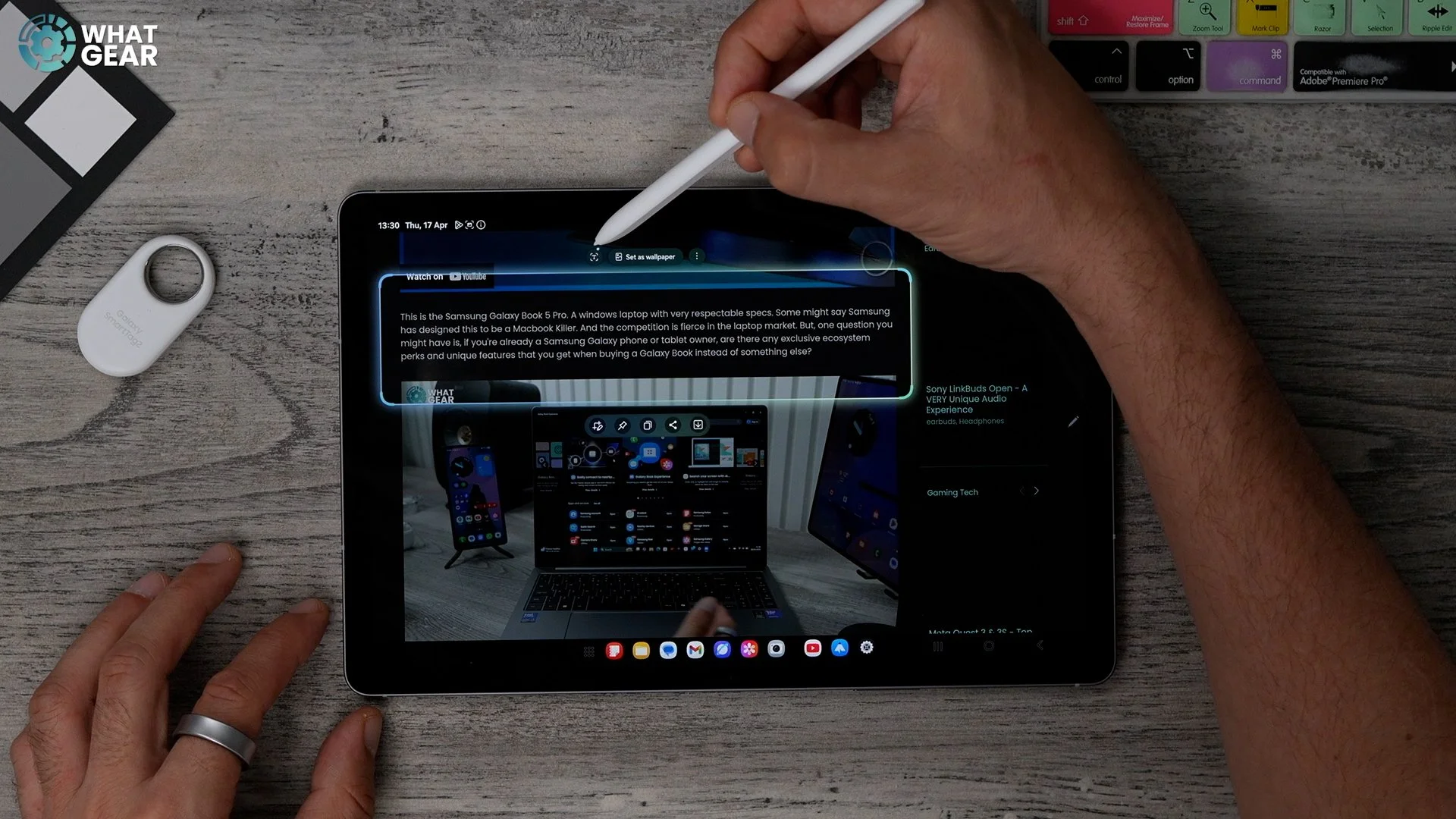
If you select something that has text in it, you can extract text from anything by hitting the T icon. Even if it's a flat image. If there are dates and locations, you will also see the option to add them to your calendar. And you may even see the option to translate from time to time.
Part 3.
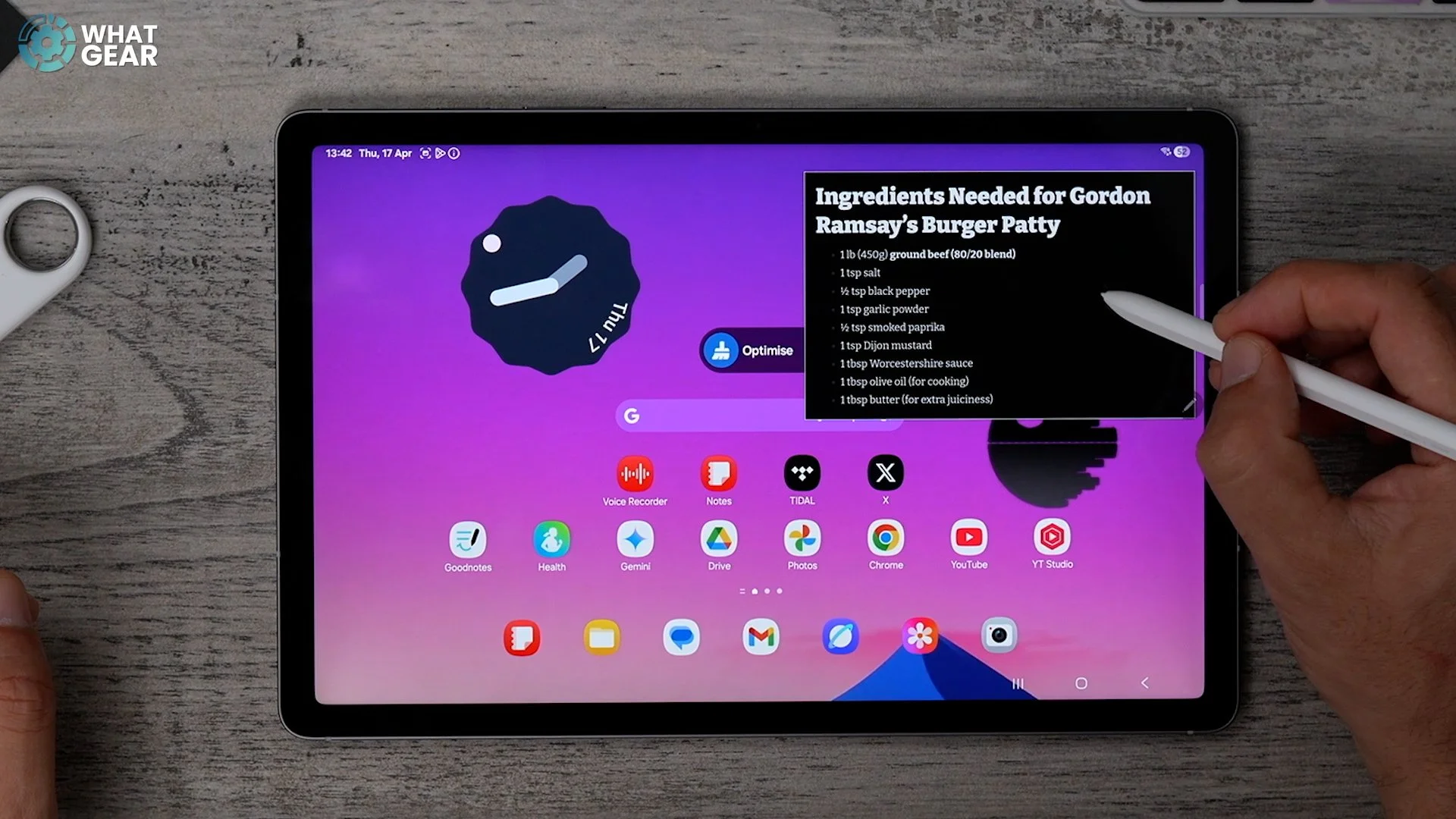
If you hit the crop icon with the pen, you can grab a piece of the screen, jot notes onto it and send it to people. This is very handy for multitasking. Let's say there's some valuable information you need to keep at the top of your mind for the day. You can grab that section of the screen and pin it on top. Like a sticky note. And I think you'll agree that that is ( nice ). And, of course, you can share and download the Ai AI-selected area, too.
Sparkle Circles
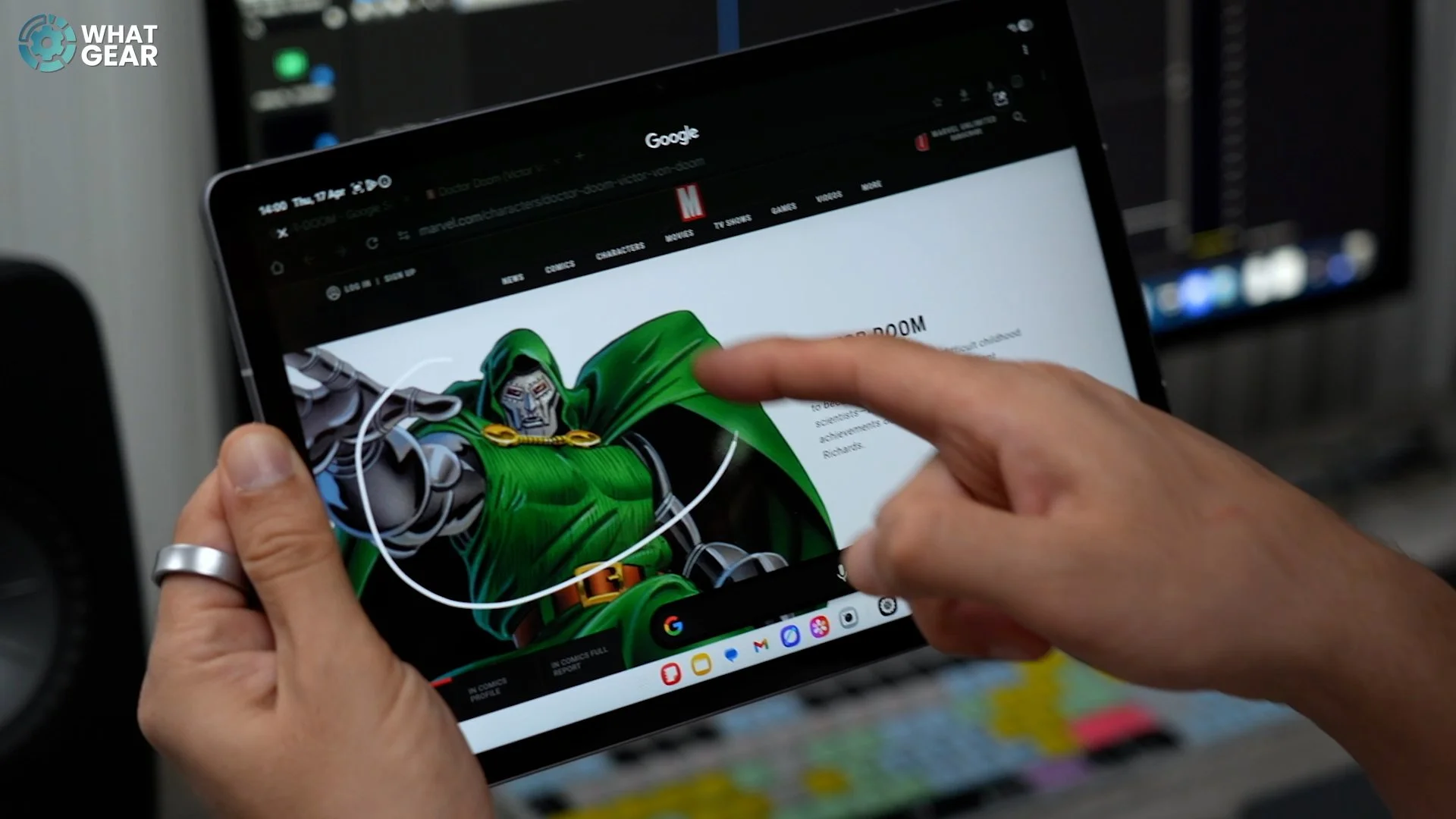
This is not a unique Galaxy feature, but it is impossible to do on the iPad. You know Google is the number one search engine on the planet. Well, Circle to search is their newest power tool.
No Time To Read
Here are a couple of Bonus tips for you. They're bonuses because a version of these is available on iPad. But they're worth highlighting. When you're using Samsung's web browser. Near the top, you'll see the AI sparkles. If you tap this, you can have the webpage read out loud for you.
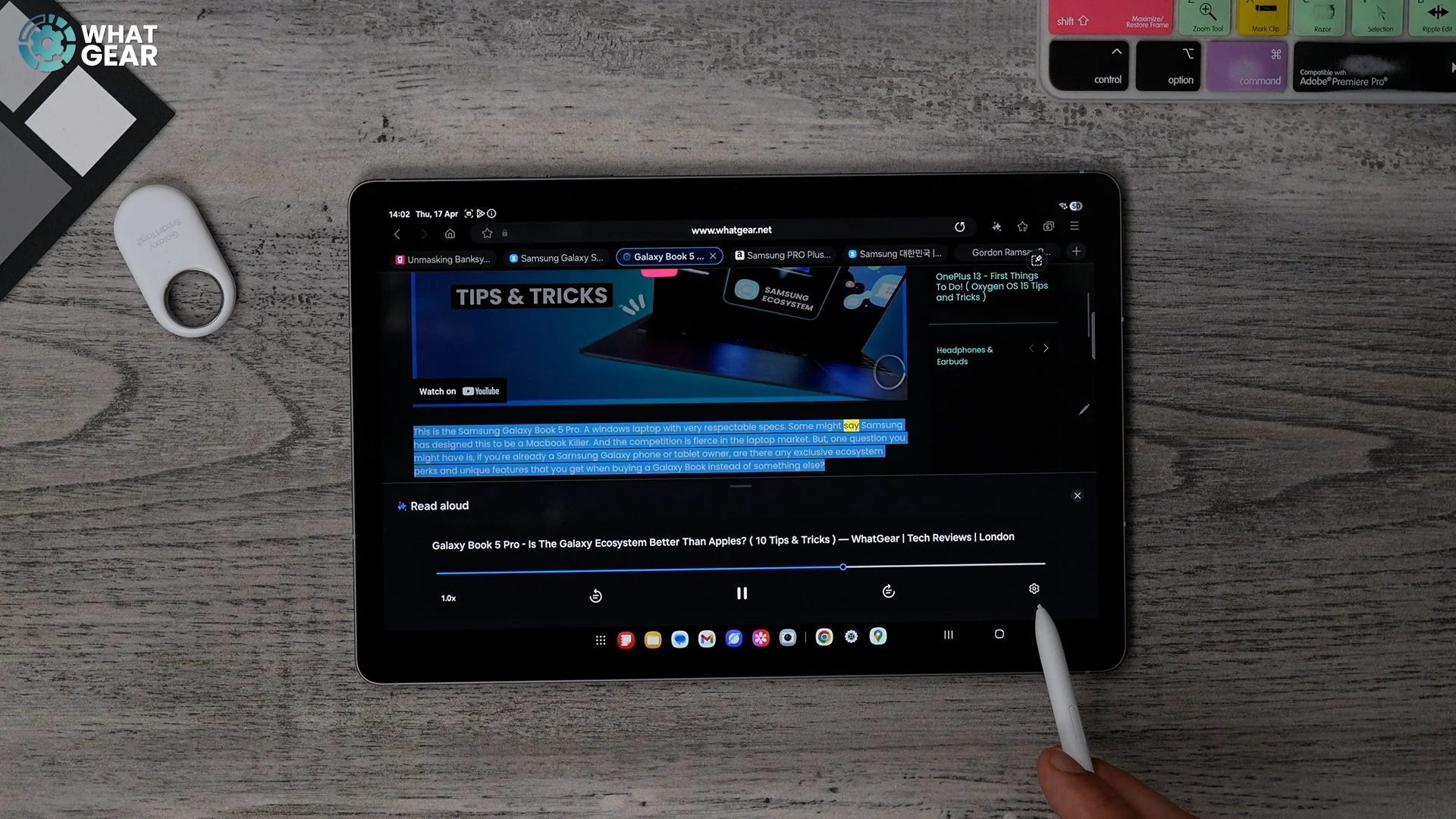
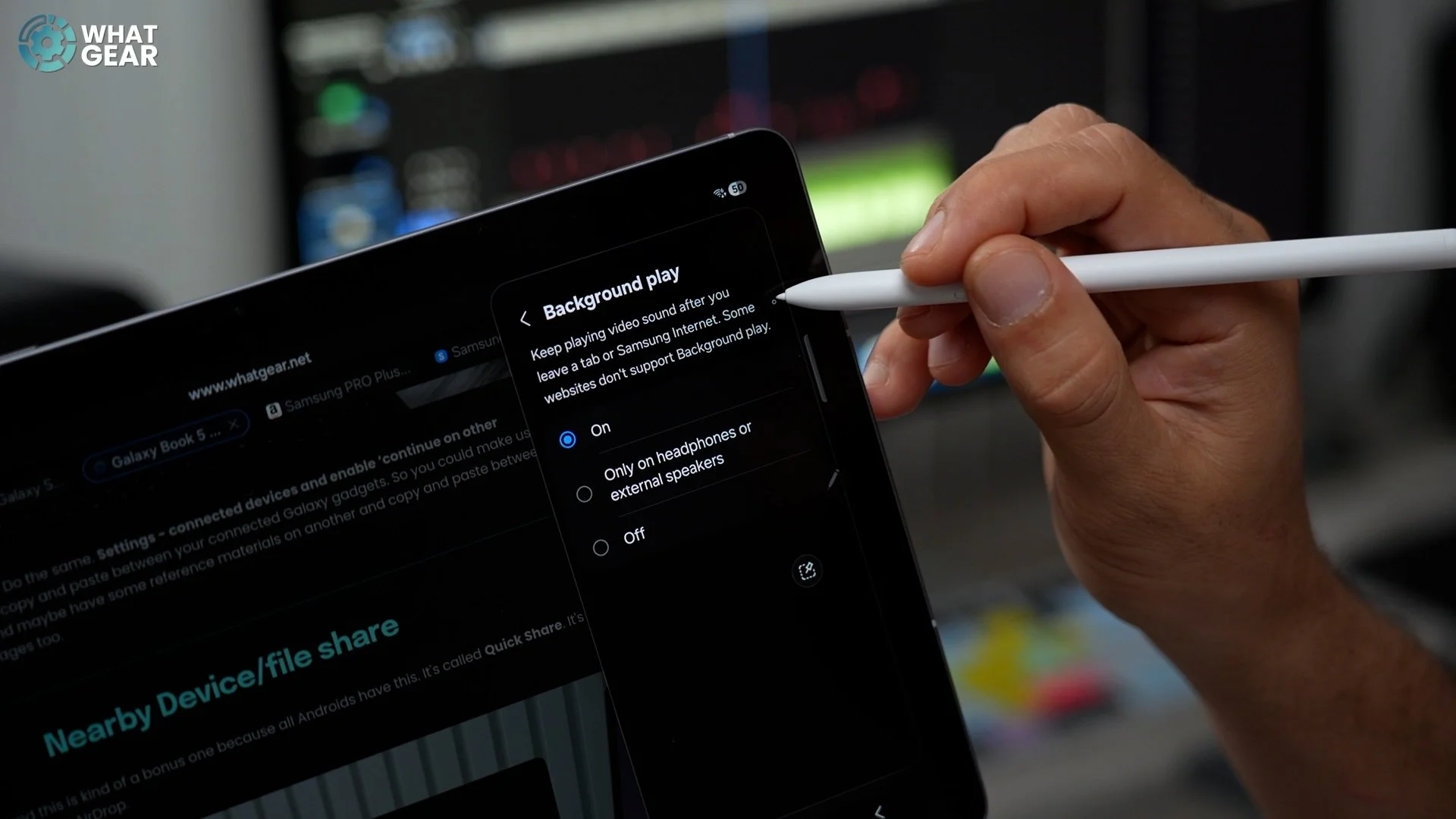
So you don't have to read it yourself. You can lock the screen, and the audio will play in the background. If you go into the Internet settings/ useful features/ enable background play. You can now play videos via the browser, and the audio continues even if the screen is locked. This is fantastic if you don't have a YouTube Premium account.
Background Play Anything
Another Bonus feature, which again exists on iPad but was on Galaxy for a long time. The AI voice recordings will likely be more polished here. In the voice recorder app, you can use the speech-to-text feature. When can it be used, 10 minutes at a time? You can even download different language packs. And once you get your recording. You can summarise it into bullet points and pass it off as your own homework.
Setup & save split screens
Let's move on to another iPad Killer feature. This is something Samsung has worked on for a long time. It is the approach to Split screening. iOS has a stage manager, but it works a little better. To split the screen, just open the background. Tap an app to open the split screen..and then you can choose what you want to split it with.
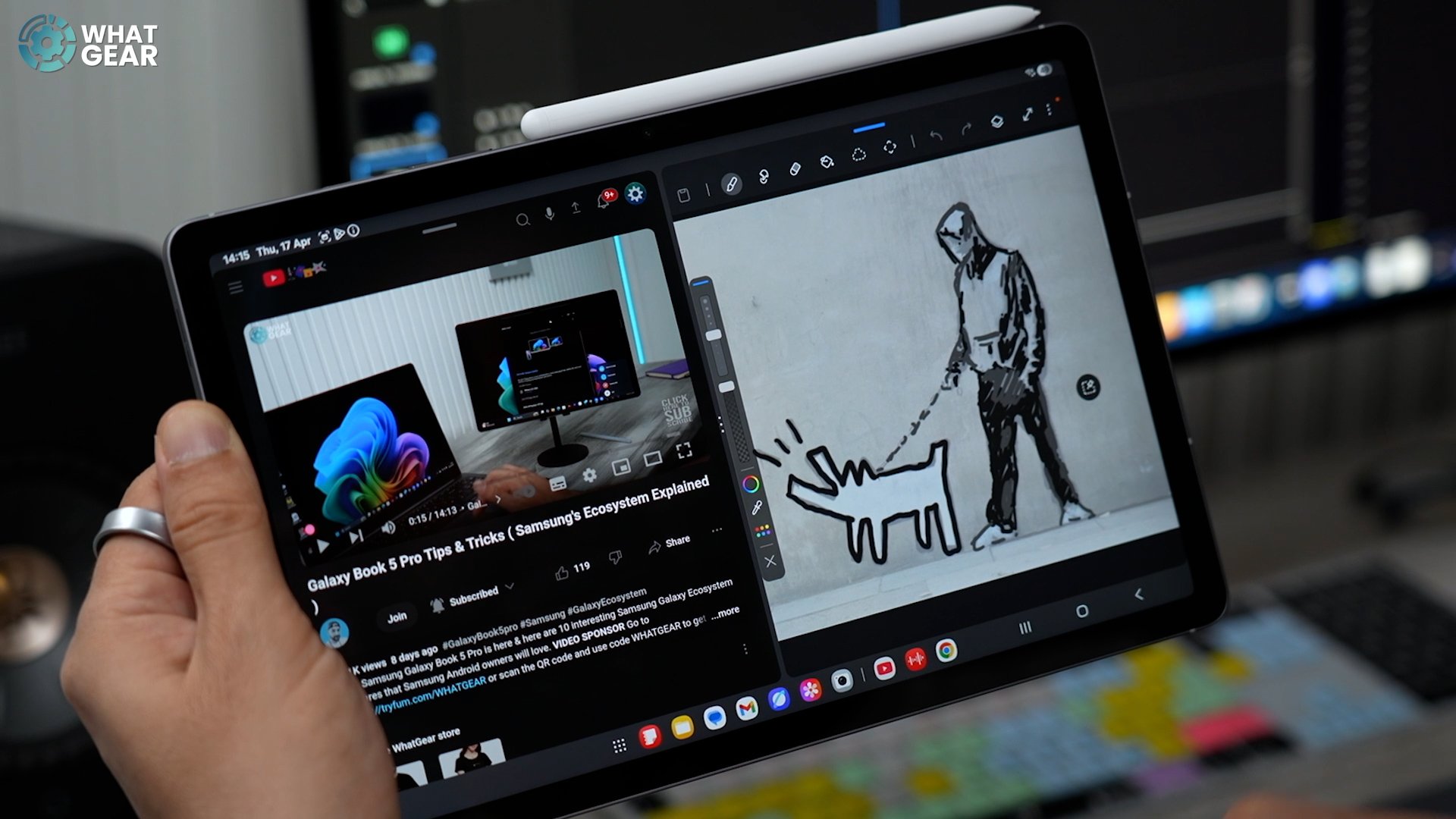
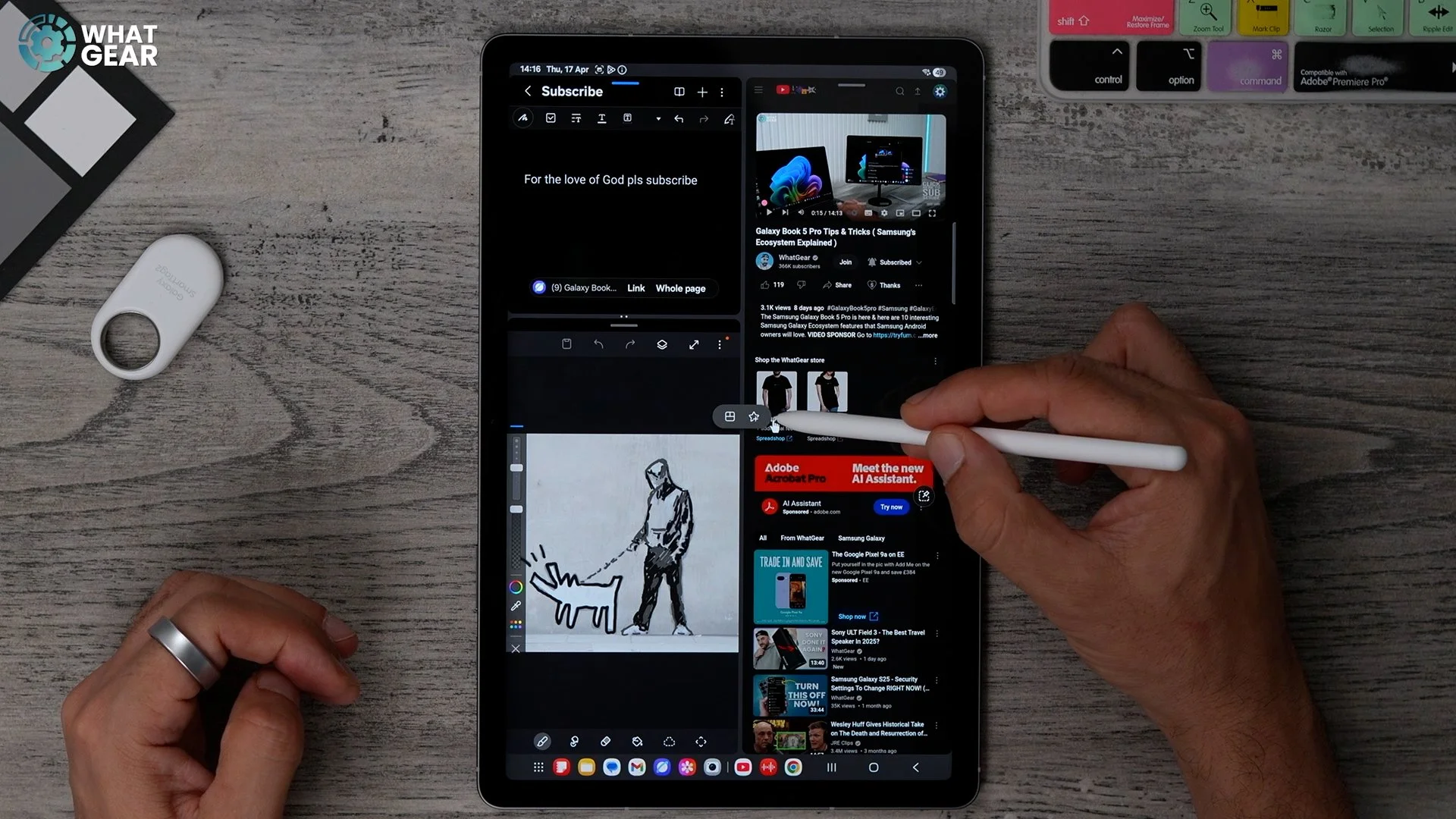
You can also drag from the edge panel and add a third app. And you can resize & rotate however you want. But the ability to save these split screen setups to your taskbar, home screen, or edge panel makes the difference.
Bonus - Samsung Notes
Now, since we're talking about split-screening. Let me show you this quick bonus tip that combines a few things I've shown you so far. This could be great for getting stuff done quickly and efficiently. This involves Samsung's Notes app as one of the split-screen apps and Samsung Internet as another.
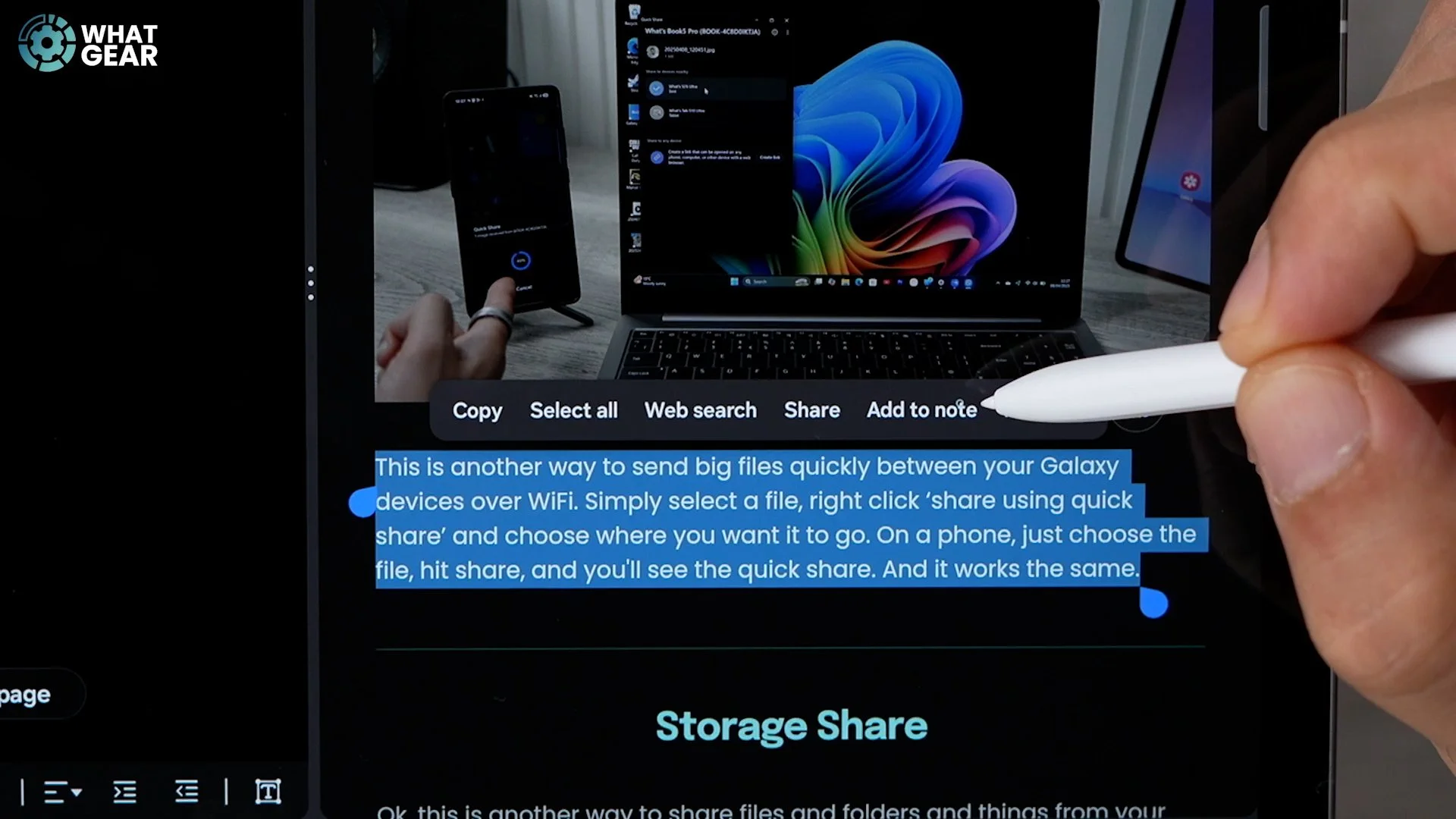
You can copy text from websites and add it to notes, and the URL links are also copied. You can copy entire pages and copy and paste images across. You could also drop in bullet points from your voice recordings. You can even use AI Select to grab frames from videos. And throw them in there for added effect.
Object Eraser
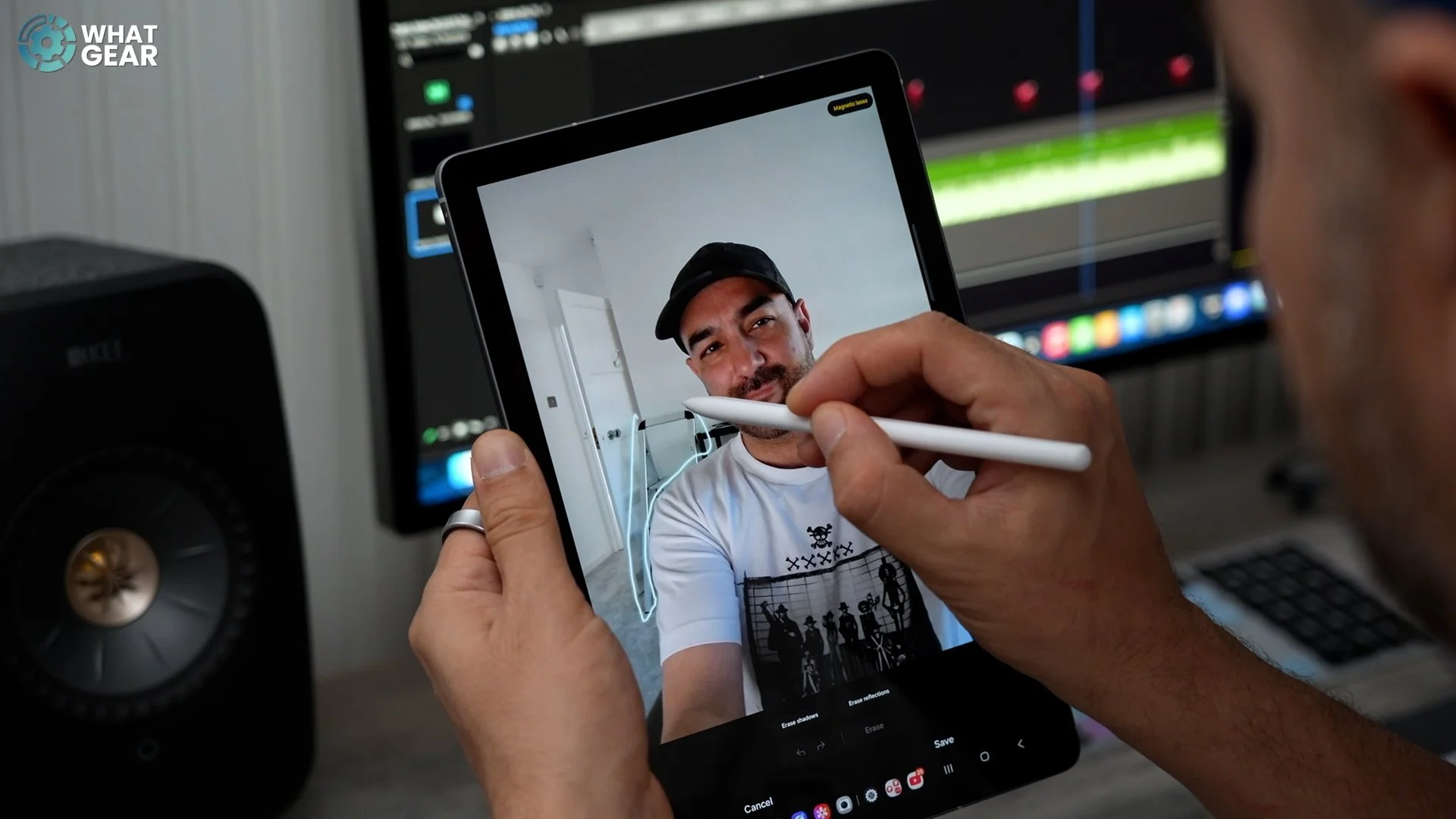
There is an area here where Samsung is so far ahead of Apple and its AI in general. The S10 FE doesn't have all the features of the Ultra. But it does have some, including their class-leading object eraser. It's so good now, and you can use it here.
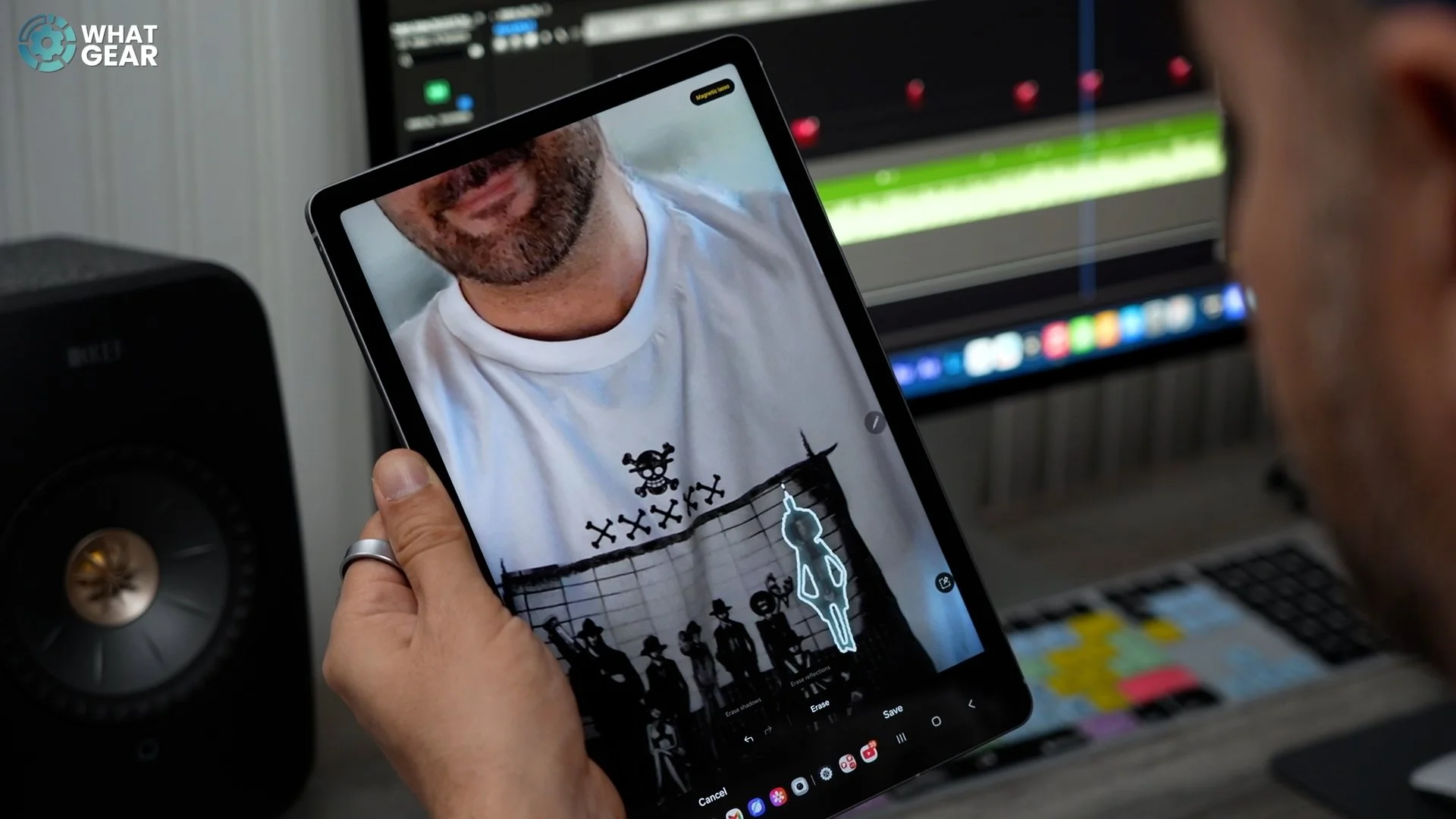
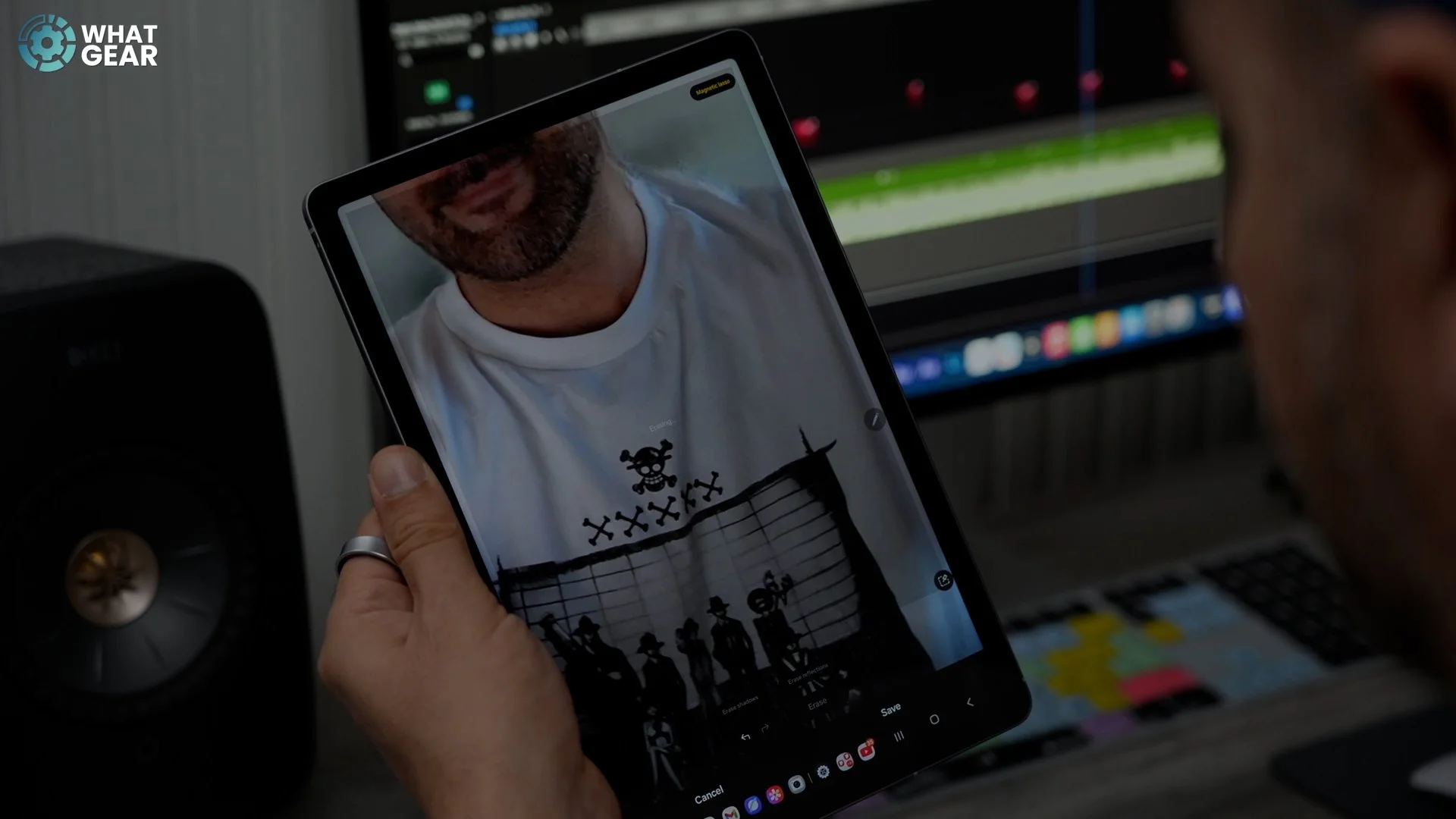
Wallpaper / Remaster
Remember how I showed you how to grab an image from anywhere using Ai Select and set it as wallpaper. Well, this is the trick I wanted to show you. If the image is grainy and low Res. Jump into Samsung's Gallery.
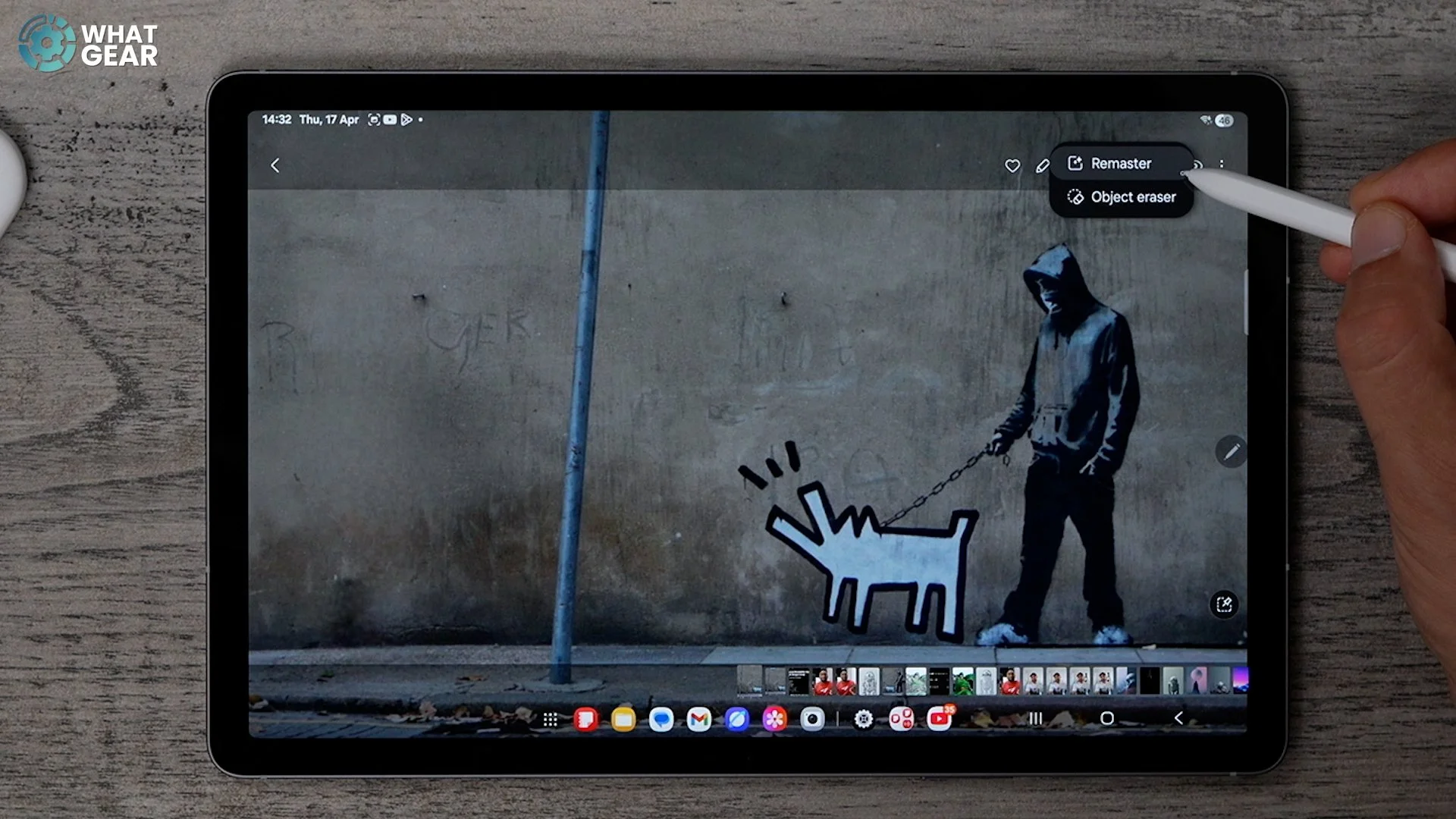
If you hit the sparkles, you'll see the remaster tool. This will upscale that image and make it look nicer when used as wallpaper. You can also use this to upscale and remaster your old photographs.
DEX
I've saved one of the most powerful tips for last. It is the Galaxy Tabs DEX mode. This switches the Tabs Up into more of a classic desktop PC interface. Not too dissimilar to Windows. This is the perfect mode and makes the Galaxy Tab a viable option for anyone considering buying a small laptop for word processing and research and things like that.
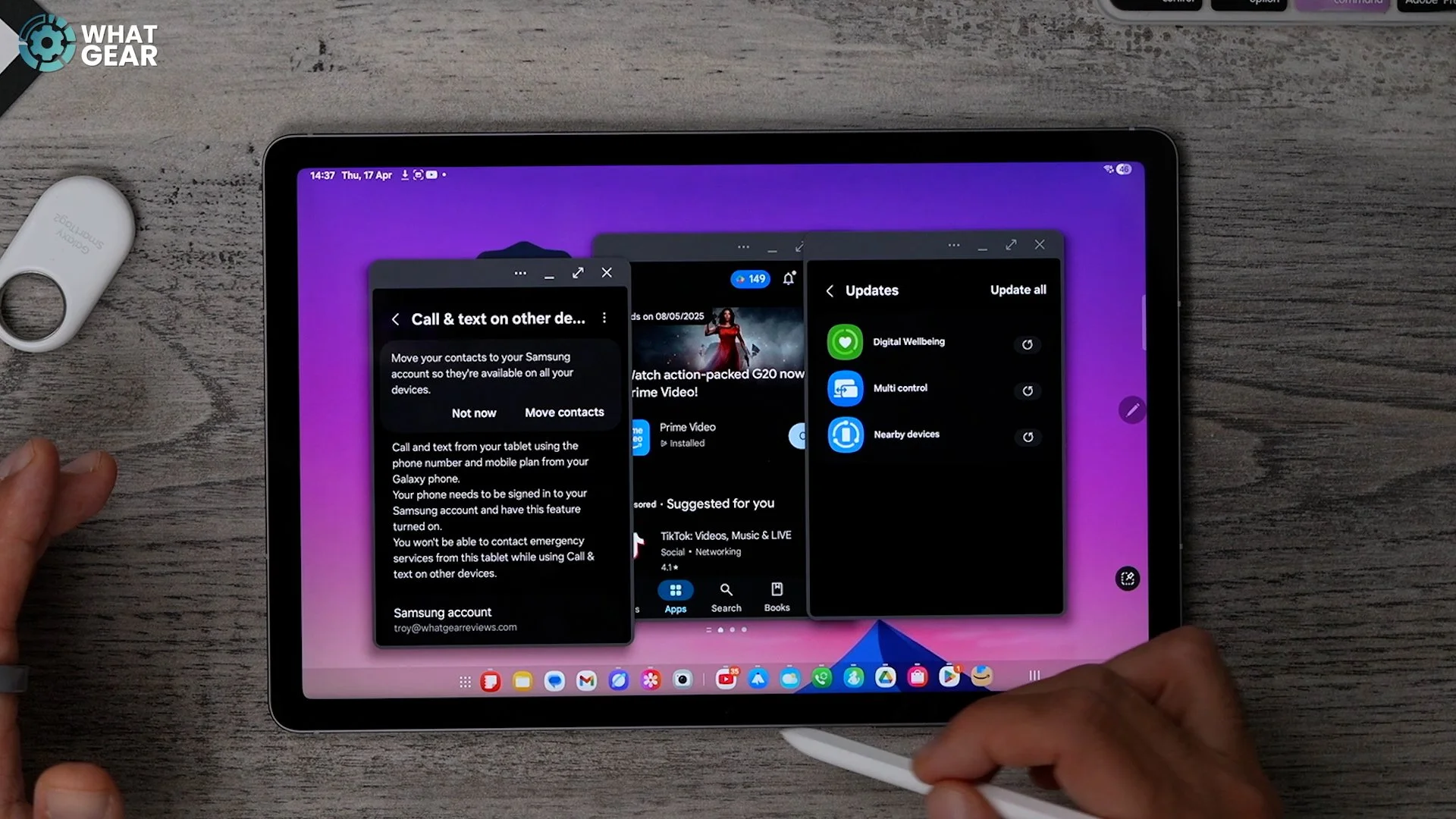
But you would need to grab the keyboard cover and maybe a Bluetooth mouse to go with the tablet to make the most of this mode. So, you made it to the end, and I have a couple more iPad Killer features to show you.
Bonus - Secure Folder
So, security on iPads is good & the fact that they don't allow you to share the device with your family helps. But they don't have this. If you bring down your quick settings, go to the pen and add the secure folder.
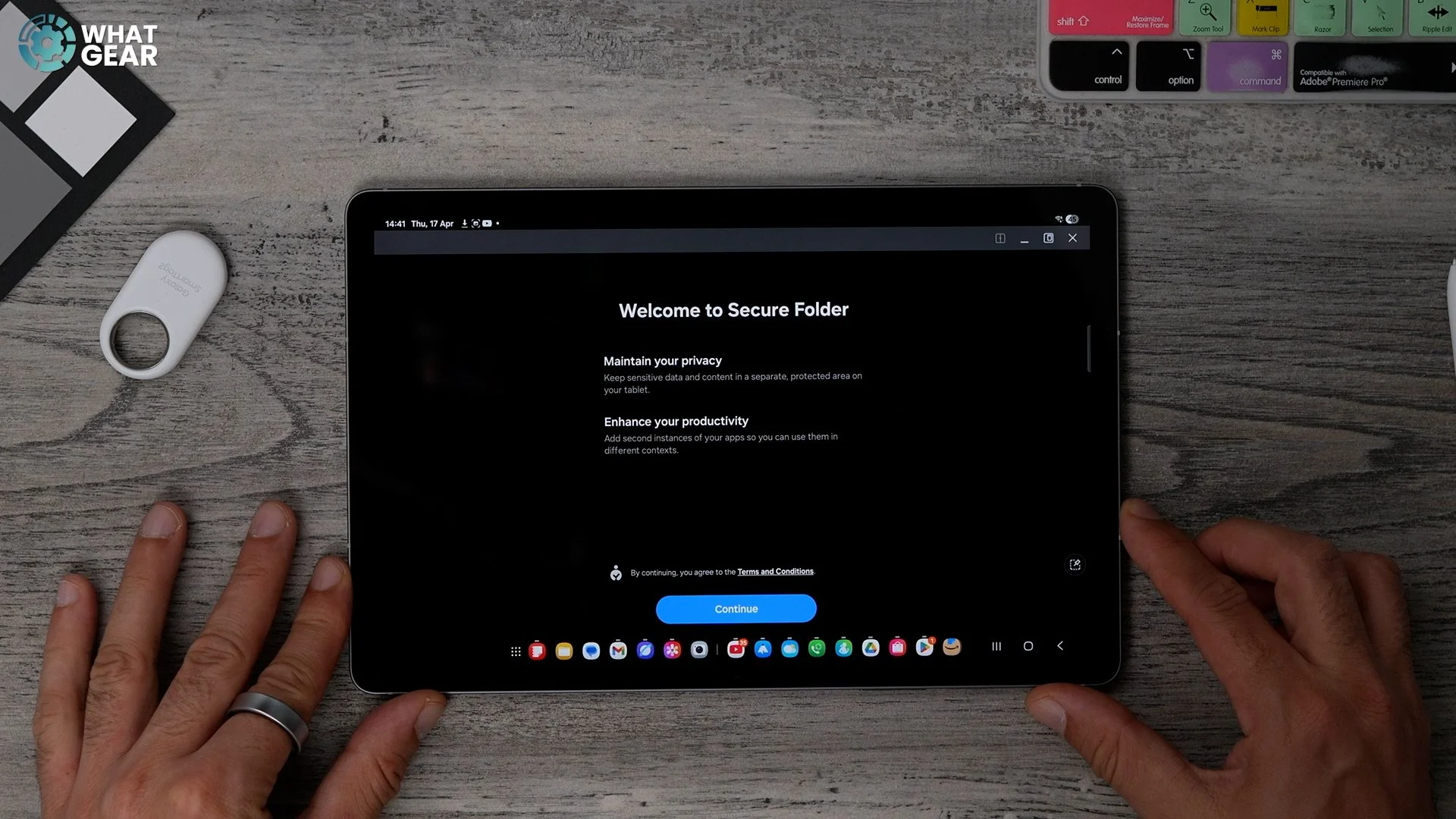
This creates a secure folder requiring a separate password or PIN for files and things you need to keep locked down. This is native to Samsung Galaxy. You don't need a third-party app.
Bonus - Free VPN
If you jump into settings/security and privacy / more security settings. You'll see secure WiFi at the top. Tablets are a great device to travel for movies, work, and other things, but there's a problem. Public hotspots are places where hackers can steal your data. And the built-in secure WiFi can help put a stop to this. Again, this is native to Galaxy. It's a free VPN, but only a certain amount of data is free.
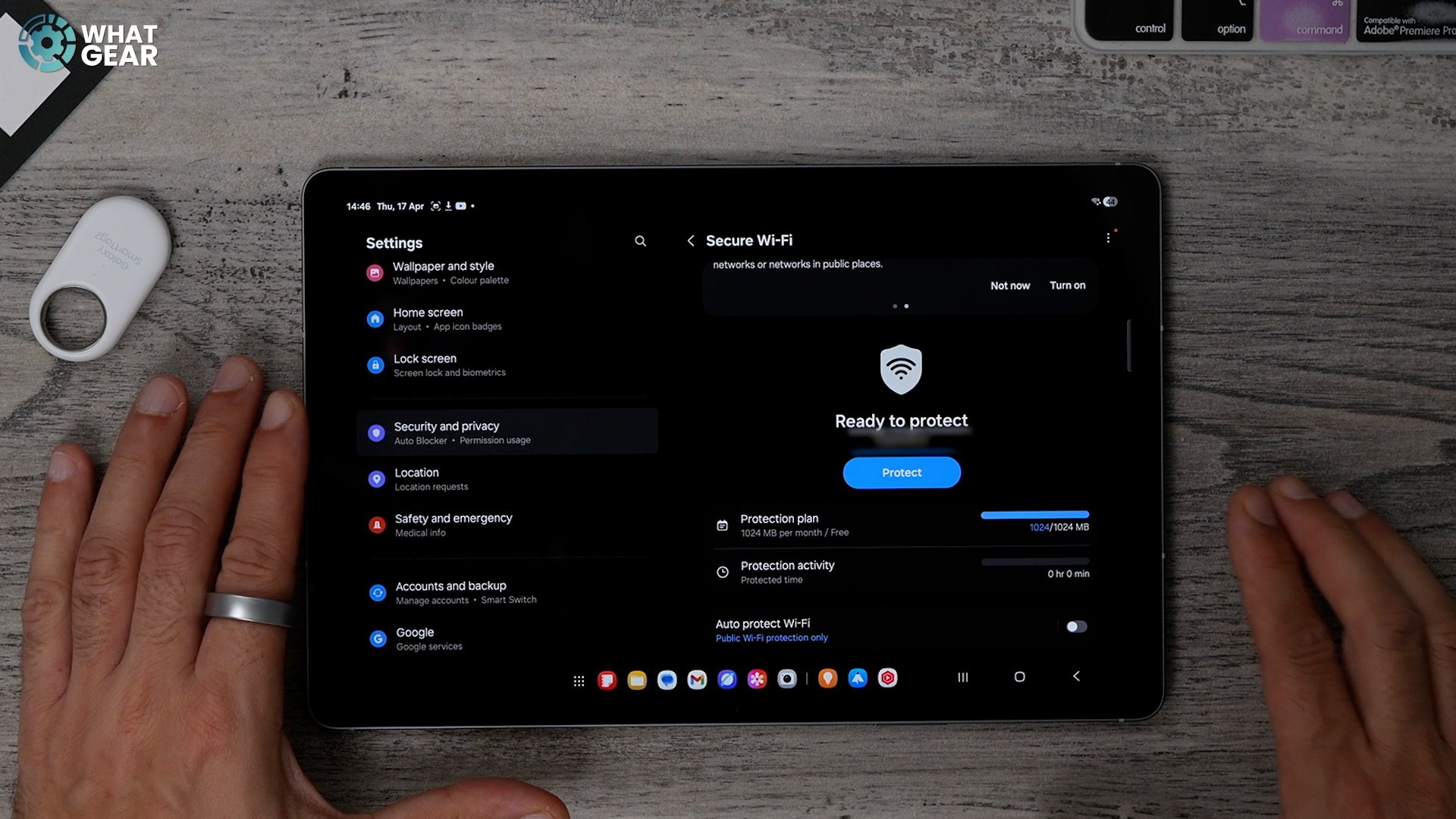
So, be mindful of how you use it. I could show you a hundred more cool things that you can do with Galaxy Tab & show you how it integrates alongside Windows computers and all the hidden customisation secrets. But I already made those videos. Go check them out.
