
So you've got yourself a Samsung Galaxy Watch, now, if you follow along with these tips and tricks, trust me, you're about to have a good time unlocking some of the most fun features and hidden settings on your brand new watch. So let's get into these power tips quickly, because as you know, time is of the essence, and nobody can give you time back.
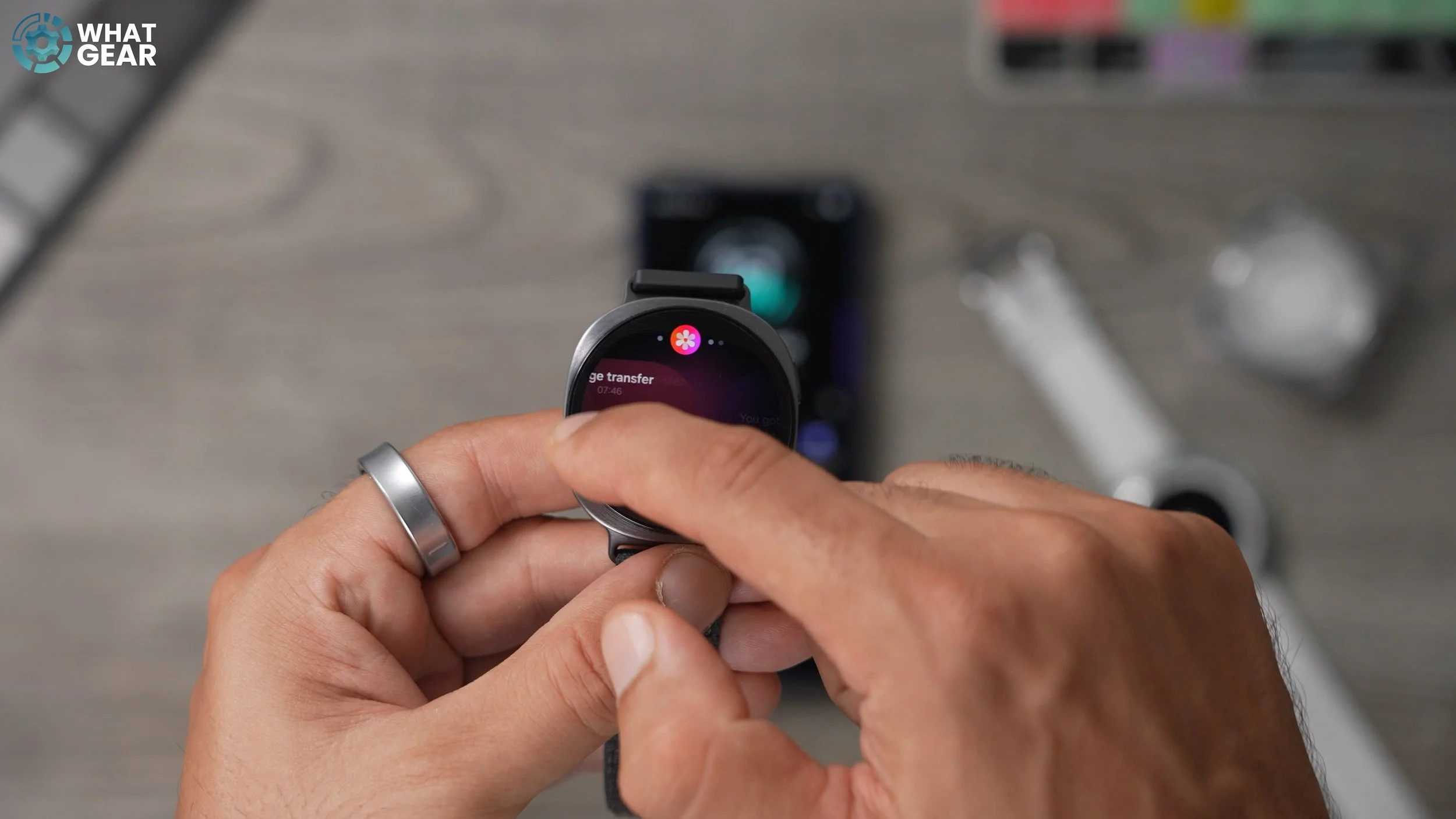
Photo Stories
So if you missed part one of this two-part video series, I did go into all of the watch faces and how to customise them and stuff like that, but there is one watch face which I want to show you because there's something really cool you can do with this. For this one to work, you must do this first: go into your Samsung Gallery app - Go to the story section at the bottom. Now this is a brand new feature, and this is pretty awesome. At the bottom here, you can use your voice to say what it is you're looking for. You can also type it in. Let's say I want to create a story about graffiti.
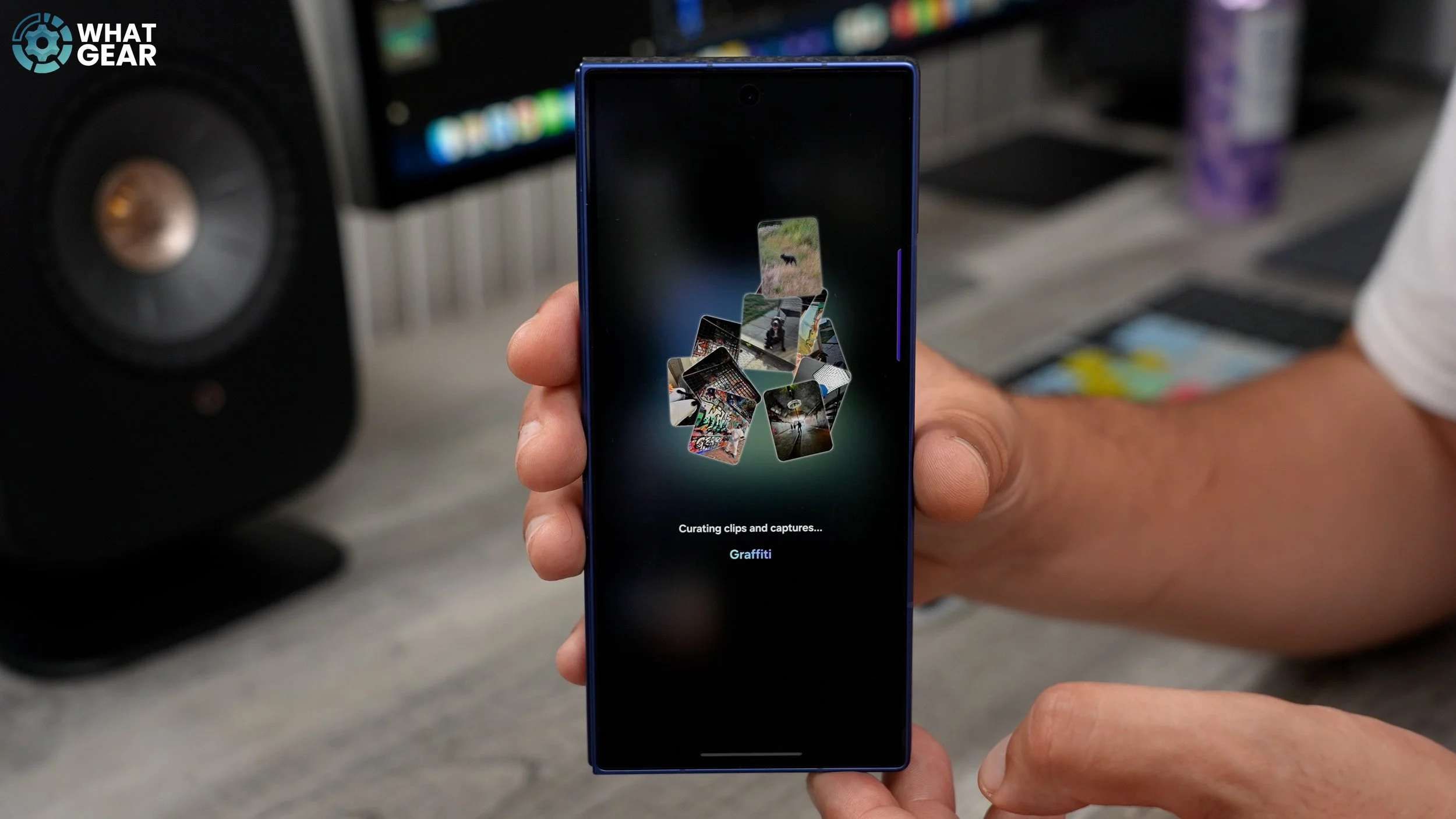
So I'll just tap here, ‘‘Graffiti’’. The Samsung Galaxy device will grab as many of the photos that involve graffiti as possible, and create a story for you. So just tell it what kind of story you're looking for. Let's say pets, beaches, and specific places, and it will create a story for you. Once you've done that, you can save the story. Step two of this: go into your Samsung folder within your app drawer, and you should see the Galaxy Wear app. What I've done just for easy access in this video is I've added it to the edge panel right here. So this is quicker to get to. Now, on this page, if you go to watch faces - scroll down to the photo section.
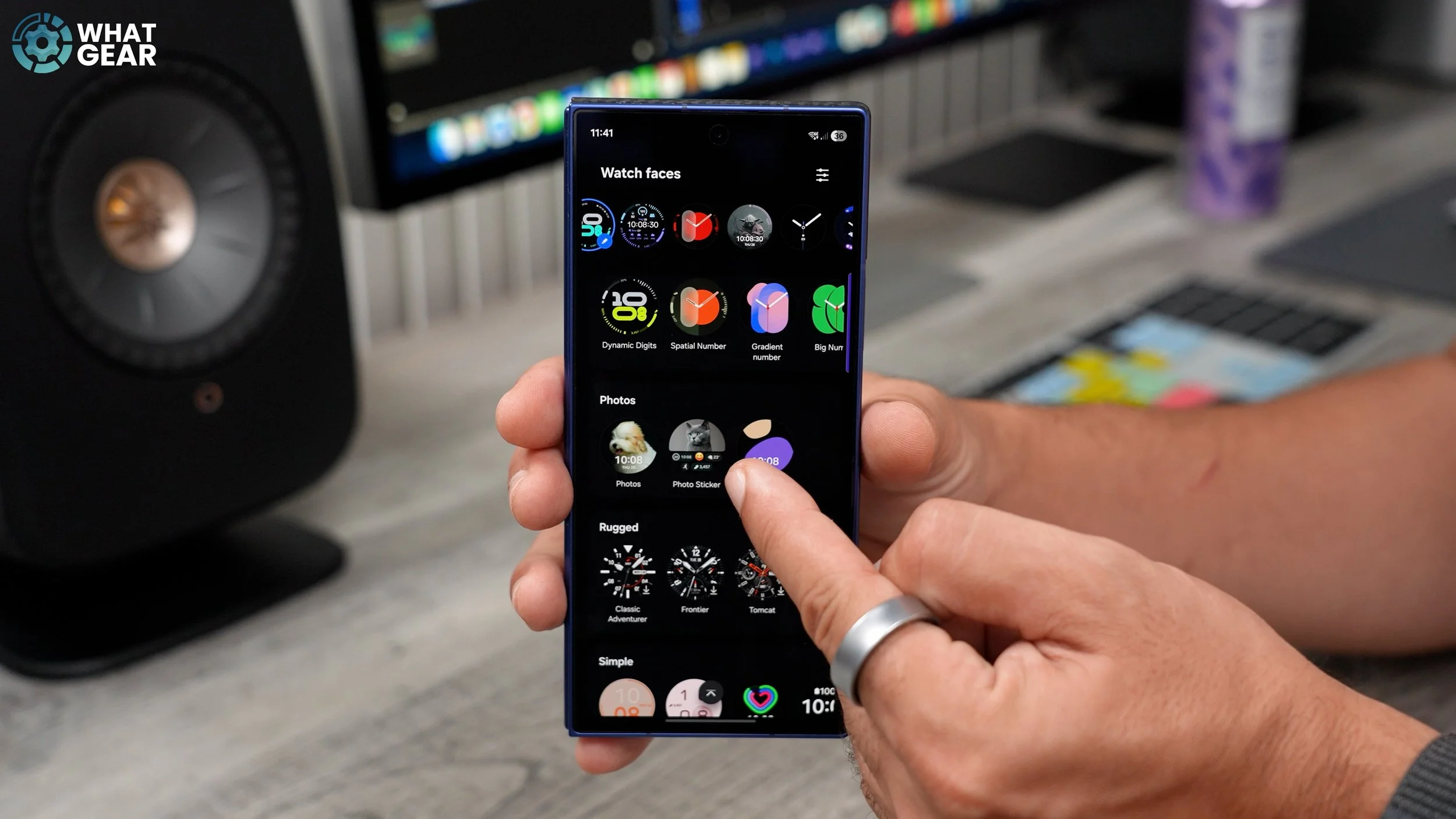
Once you've selected it, you should see at the top here with a little pen next to it. Just tap that and that allows you to edit this watch face. Now, if you go to background - go to story, you can now add that story that you've just created. And if you plan to use that story feature quite regularly on your Samsung phone, you can leave this on, the most recent story or you can select a specific one. So I'm going to select story. Hit next, and there we go. There's my graffiti story. can add that to the watch. Make sure you hit save. And now my graffiti story is set up here as a watch face on my Galaxy watch.
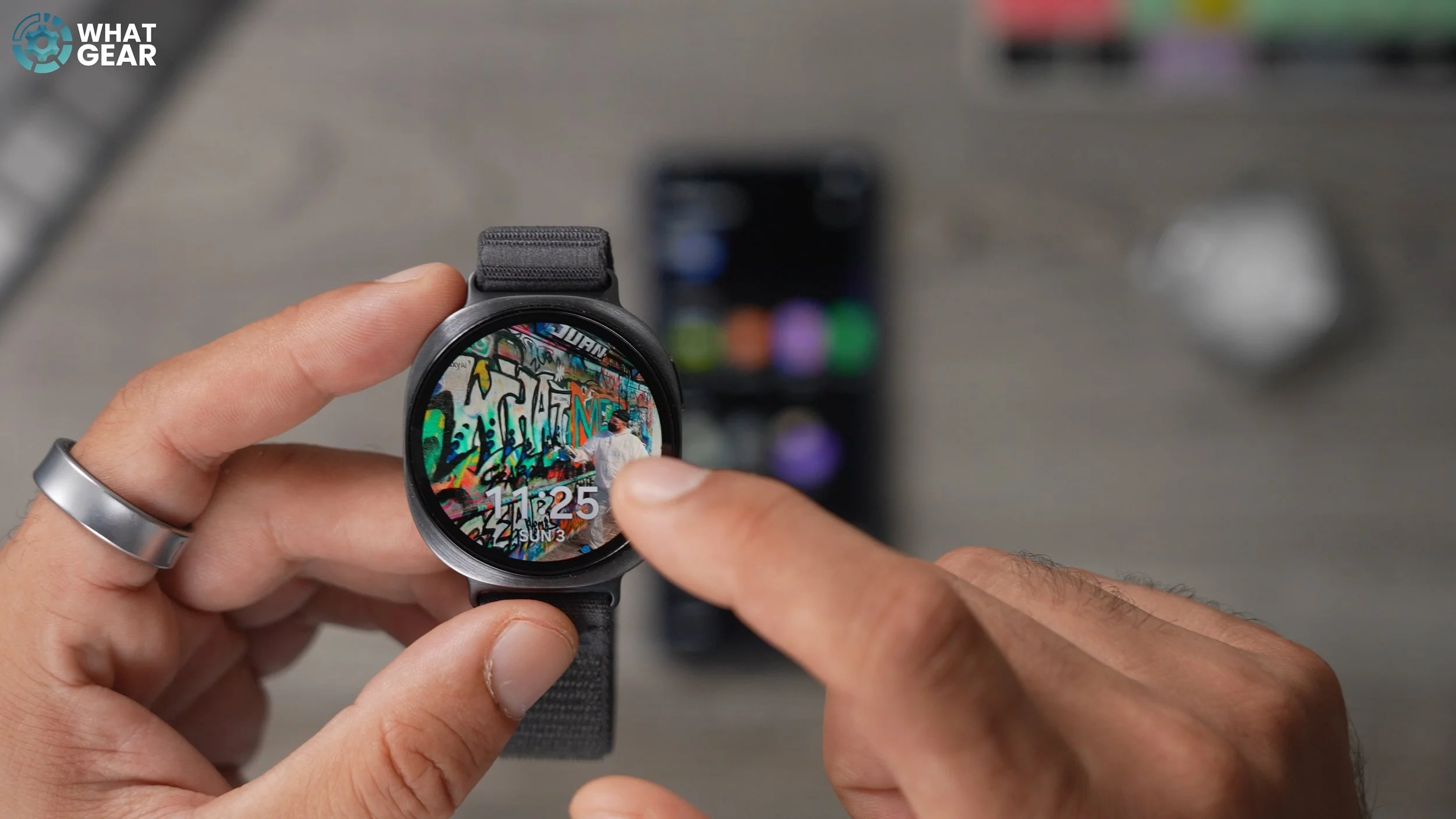
So if you're taking holiday photos and things like that, then this could be a really great one to set up. Something else you should do here is if you hit the pen at the top as well, you can change the type of clock so that it works better with the background. And you can also change the colour of the text on the clock and even add complications around the outside as well, which can be quite cool.
Always On Display
So I think you'll agree there's nothing quite like a good story. And what if your watch could tell a story for you? This one is a display tweak. So if you jump into your settings, swipe down from the top. Go to the cog icon, go to display and scroll down. You'll see always on display.
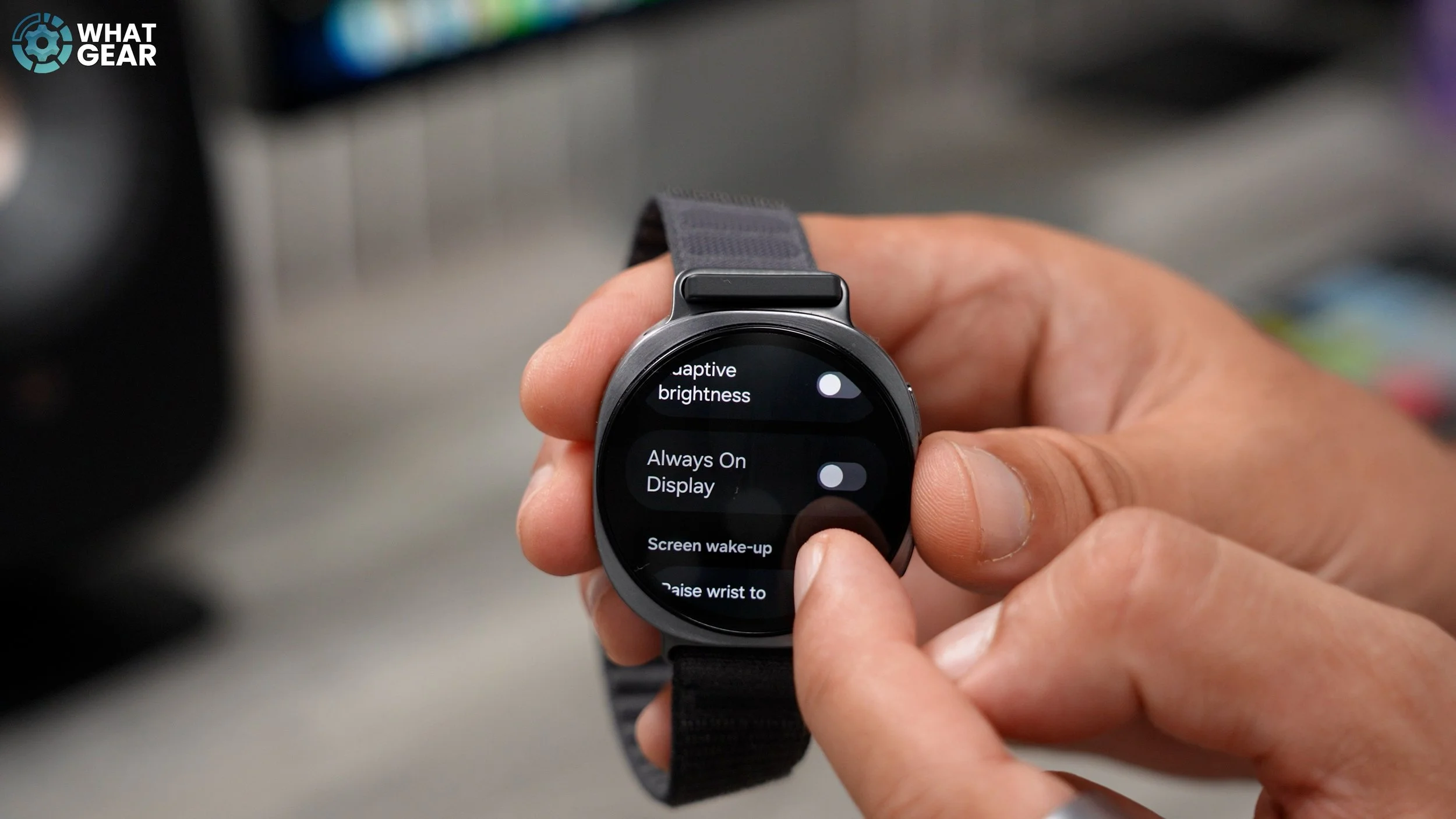
So once you set this up, once the watch times out, what it would do is switch to the always-on watch face and actually switch off and then if you raise your wrist or tap the screen, you can turn on the always-on display, which uses less power than actually waking to watch fully. But with that said, if you are concerned about battery life, then actually, the always-on display will use more power, So you might want to switch it off. If battery life is the priority for you.
Handy Gestures
We're going to go into the Galaxy Wear app again. This time we're going to go into the settings - watch settings. And we're going to tap on this section right here, buttons and gestures. Now, here you can enable a bunch of different gestures. So the double pinch is probably the most useful one if you do workouts with gloves and things like that. This is going to be super handy for you. Switch that on, then tap on this section here, and you can see what it controls. So when you're on the watch face or the notification panel, if you tap, you can customise what it does next, notification or next tile. So you can scroll through your tiles without actually touching the screen. So just a double pinch like this will navigate through the different tiles that we set up. Some of the other cool stuff you can do with the pinch gesture is when you're within a music app, you can use it to play or pause, and you can also use it to dismiss alerts.

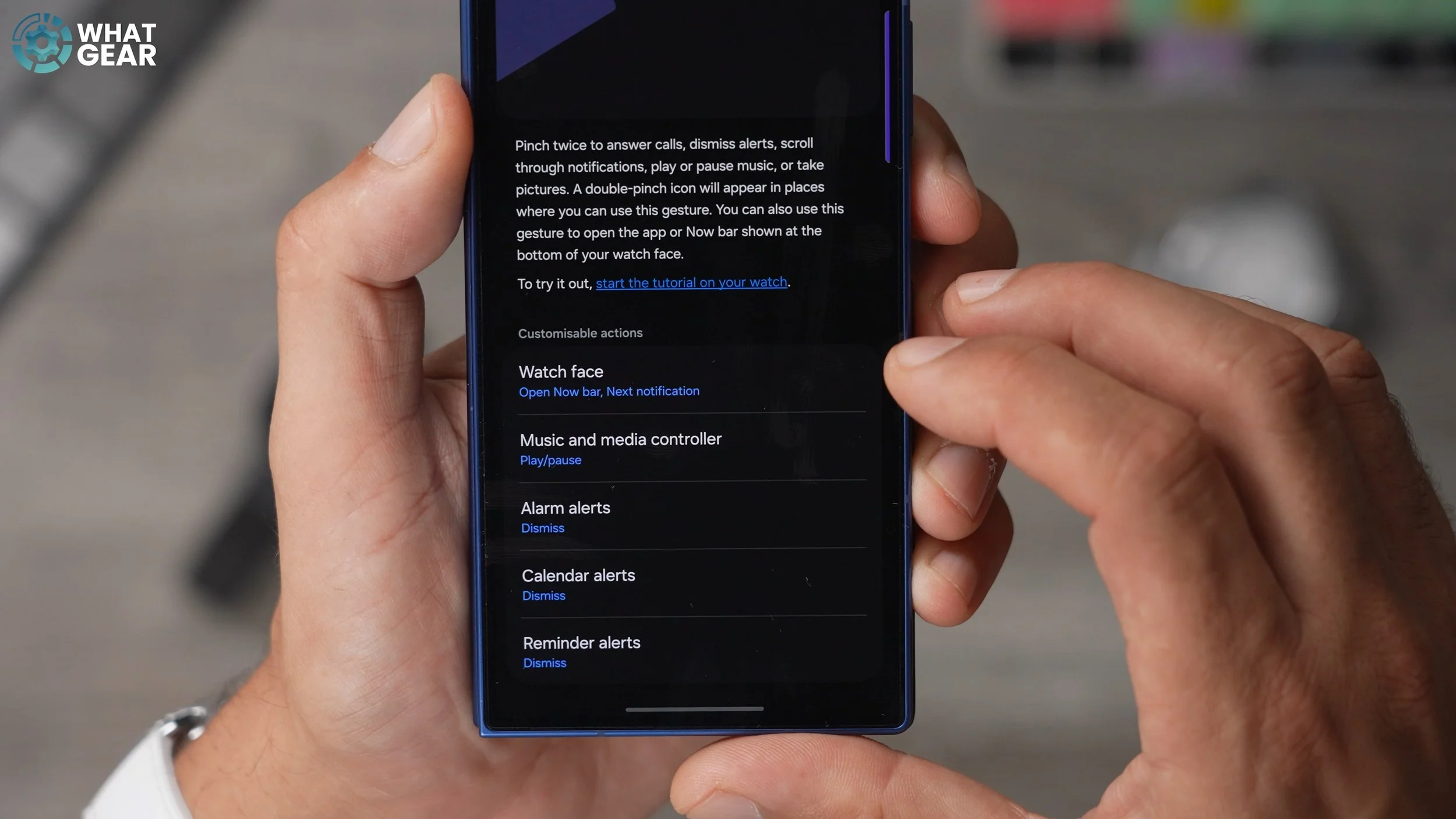
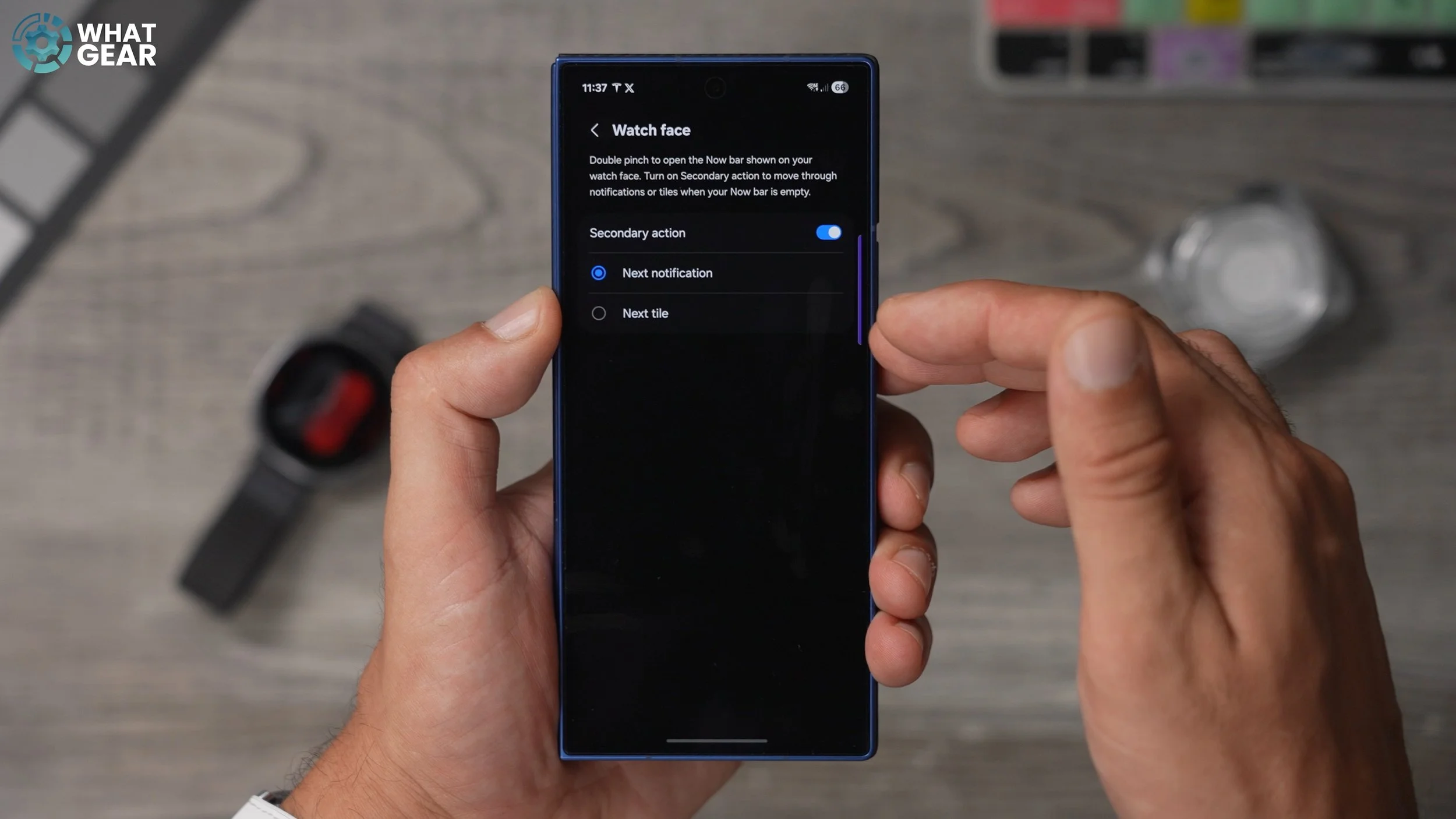

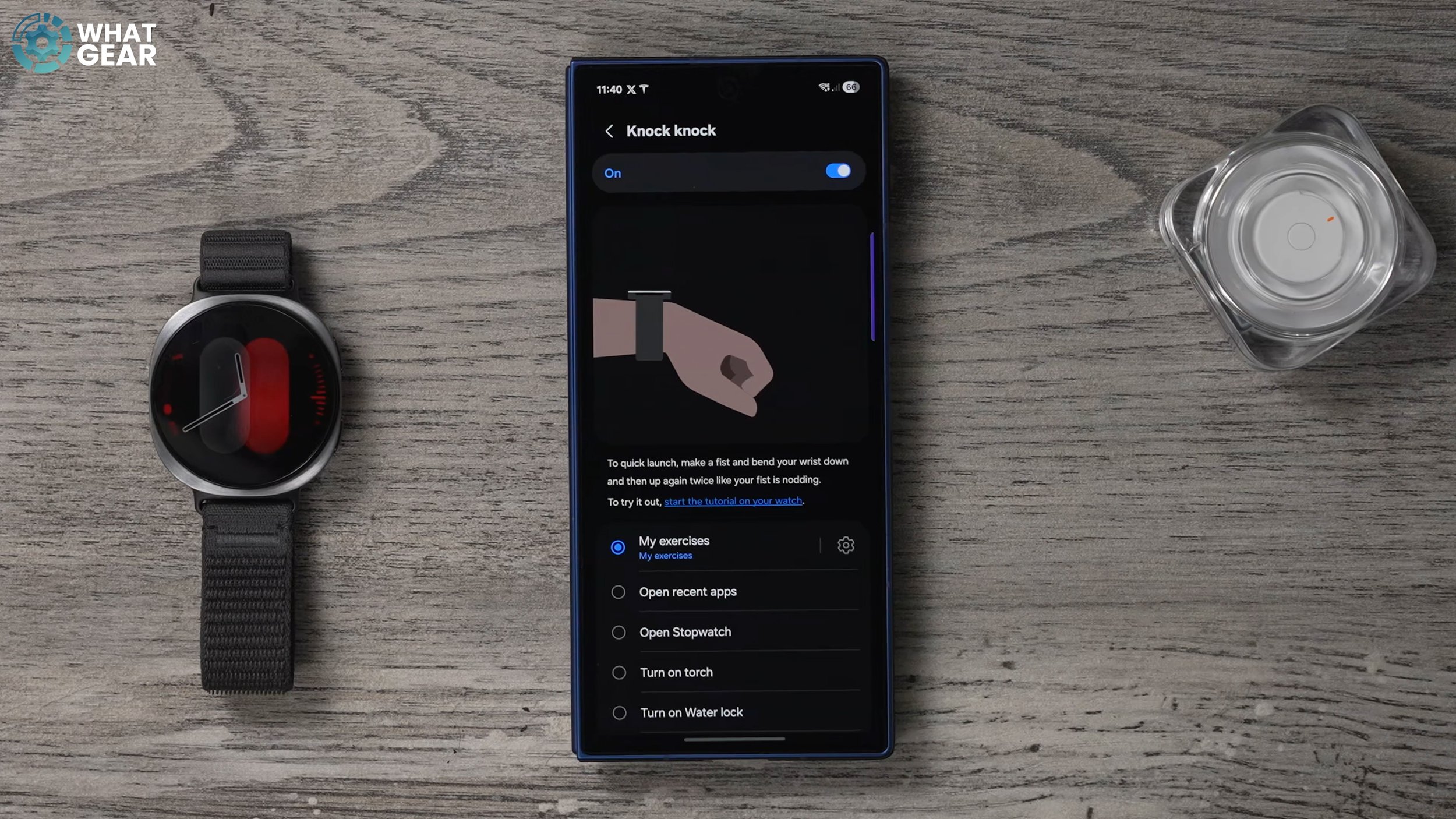
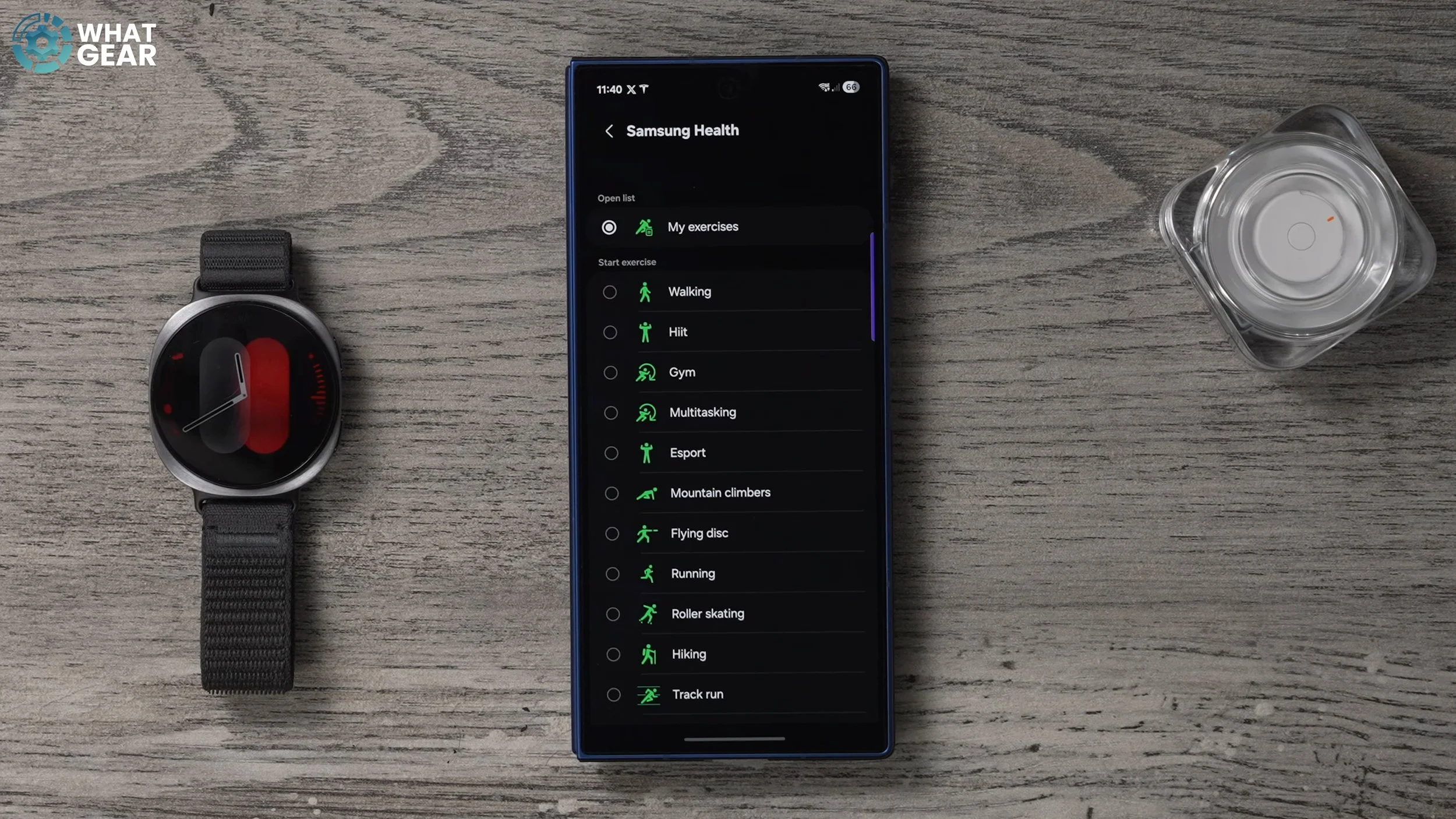
And there are a few more gesture options. If we go back one step and you scroll down, you'll see you have the shake gesture. And I've mentioned this in another video, but you've got to be careful when you use this gesture, because if someone sees you doing this, they might get the wrong idea… But essentially what it is, is you can twist your wrist in a certain way to decline incoming calls, dismissive, like similar to the pinch gestures. Like I said, proceed with caution. This last one right here is a little less dangerous is the knock knock gesture. And the great thing about this one is you can set it up to start your exercises. So if you walk into the gym, you can knock, knock on the table or a wall or something. And immediately you can jump into your exercises. And if you hit the little cog next to it, you can choose what exercise you want it to start. When you do the knock-knock gesture. And if you're not much of a gym person, well, you can use it for other things as well, like open recent apps, stopwatch, torch, water lock, and even open a specific app like a music app, for example.
Get In Your Mode
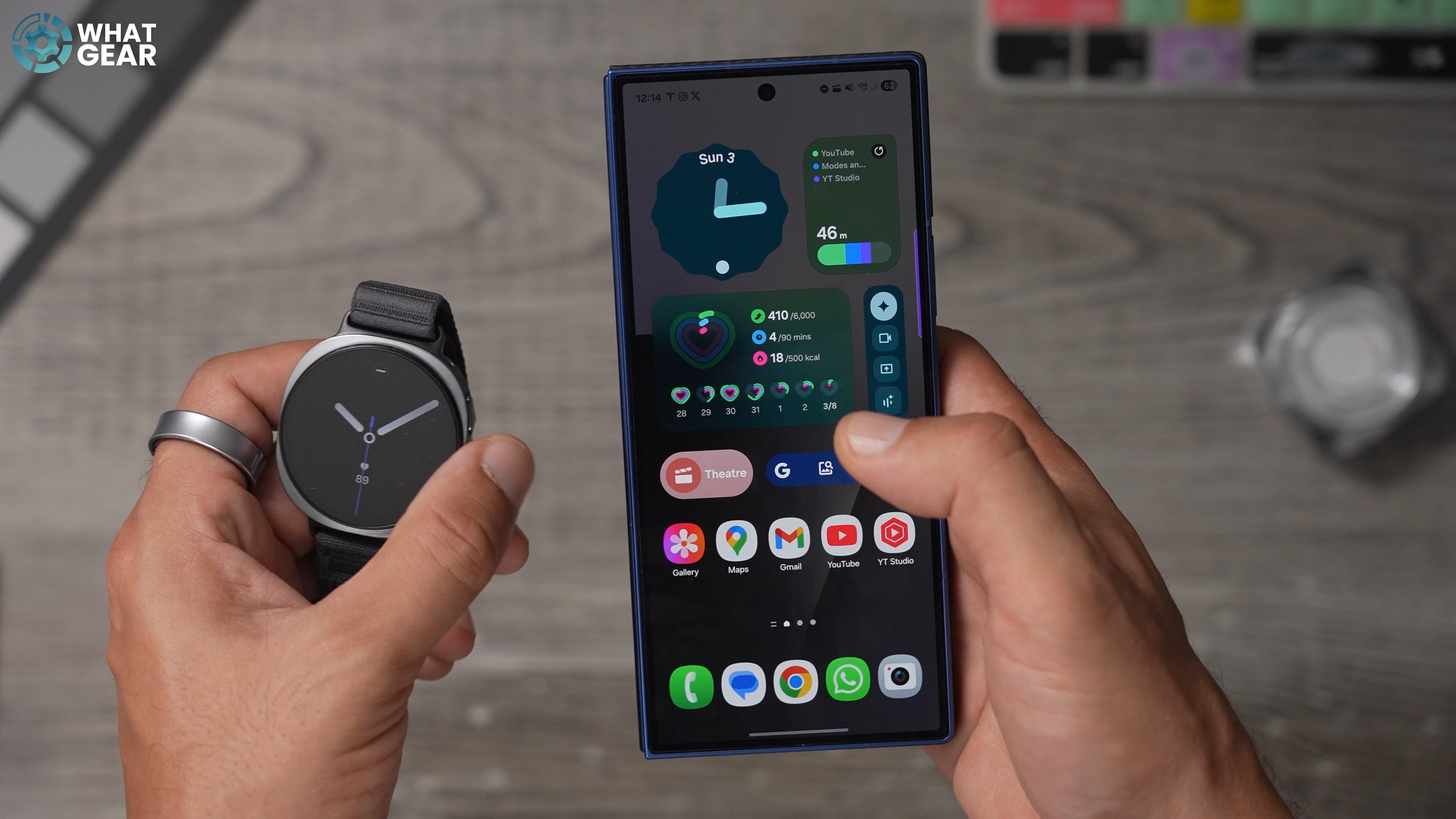
Okay, so this one I touched on very briefly, in part one of this two part video series, but I'm going to show you a little more in depth so that you can set up some really useful modes for your watch and modes that not only affect the watch, but also affect the phone at the same time. If I activate my sleep mode, you'll notice the display on the phone switches, and also the display on the watch dims right down. You can see the night mode is on, and I can switch it off anytime. I've also set up the theatre mode, so when I go and watch a movie, I can set how long the movie is. Switch it on, my watch face goes really, really dark, and then my wallpapers on my phone and my lock screen also get really dark. So I'm not disturbing people in the cinema.
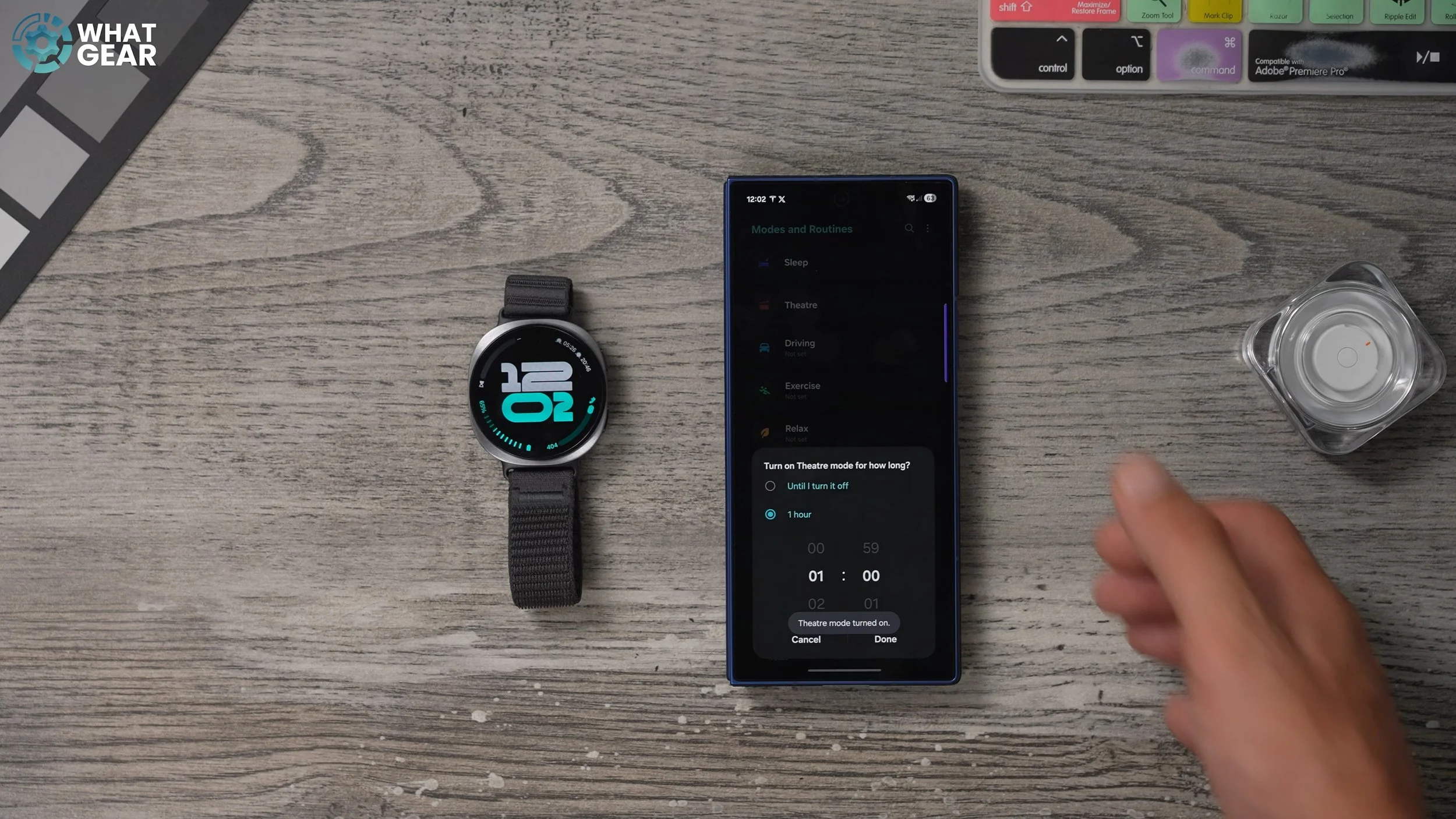
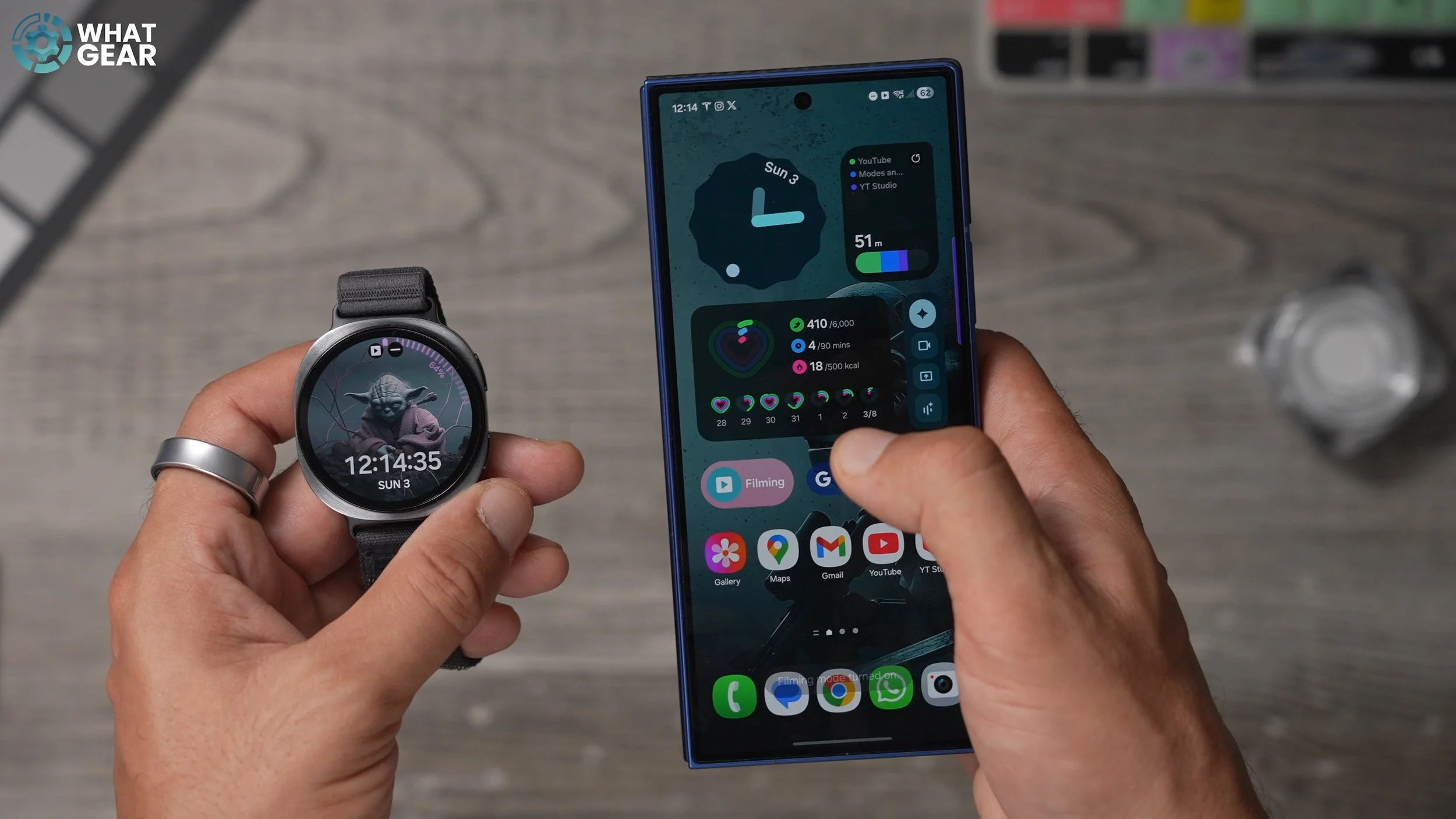
And I've even set up a mode for when I'm filming video so I can activate this at any time. So with this set up properly, you can know what mode you're in just by looking at the watch faces and the wallpapers, because they will be linked to those specific modes. So let me show you real quick how to create one of these. So if you swipe up from the bottom, you're looking for the Modes and Routines. Tap on this. So here you have a bunch of templates that will take you step by step through creating a mode for your phone. Now, if you want to create your own one, you can scroll to the bottom, go to add Mode, and I'm going to show you guys how to create a fantastic supercharged.

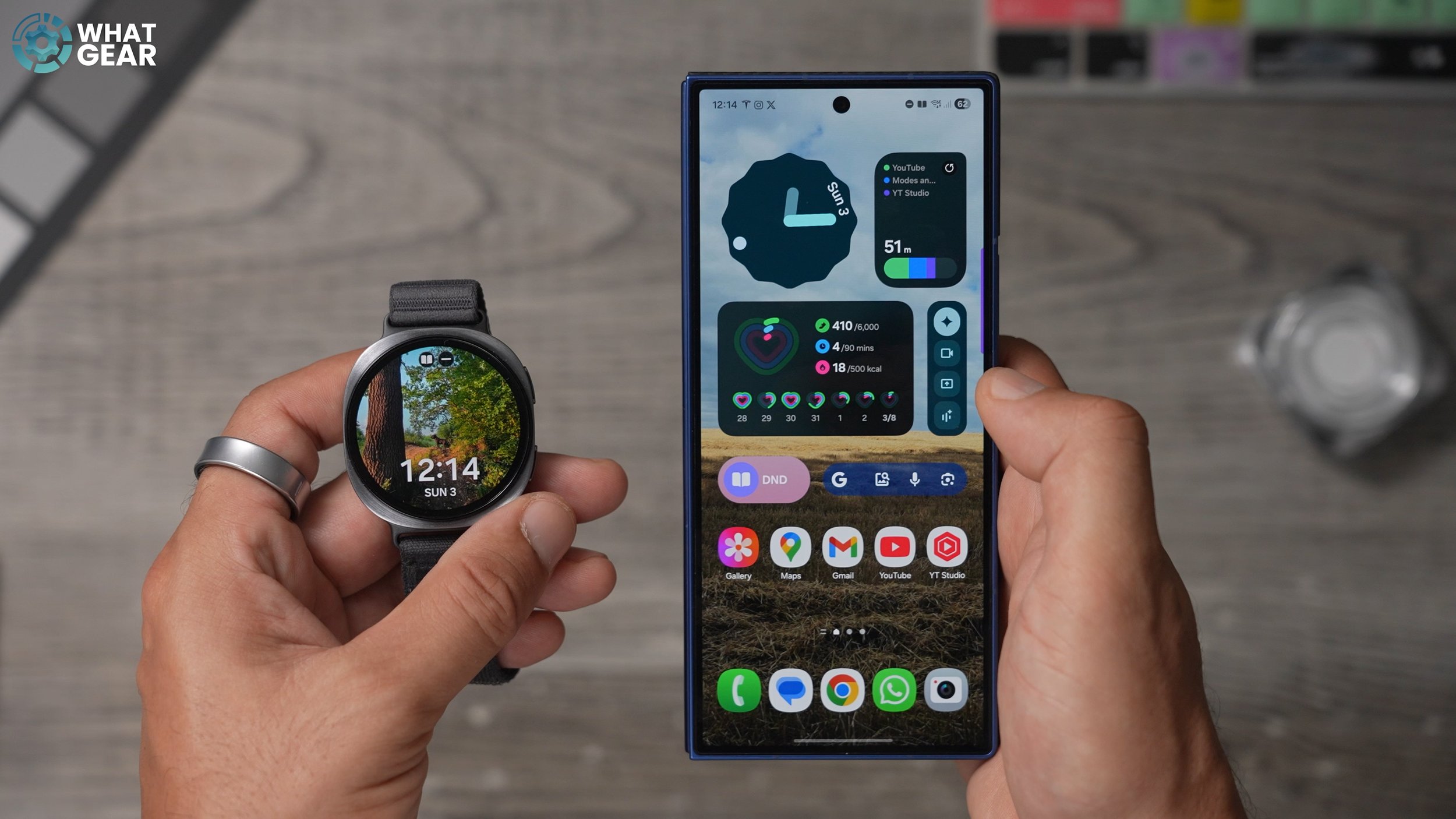
Do not Disturb mode. just at the top. Give it a name. I'm going to call it DND and I'm going to give it an icon. Just maybe the book icon. And I'm going to make it blue. Purpley blue. Now I can choose what it does. So this mode I only want it to start when I'm in a specific place. Let's say for example, where I am right now, current location. You can set the radius of that location and you can set it to activate when you arrive. If you prefer not to use location, you can use any of these other things here. So for example, if you have specific workout headphones that you use whenever you're at the gym, you can set it to activate whenever you use as headphones.
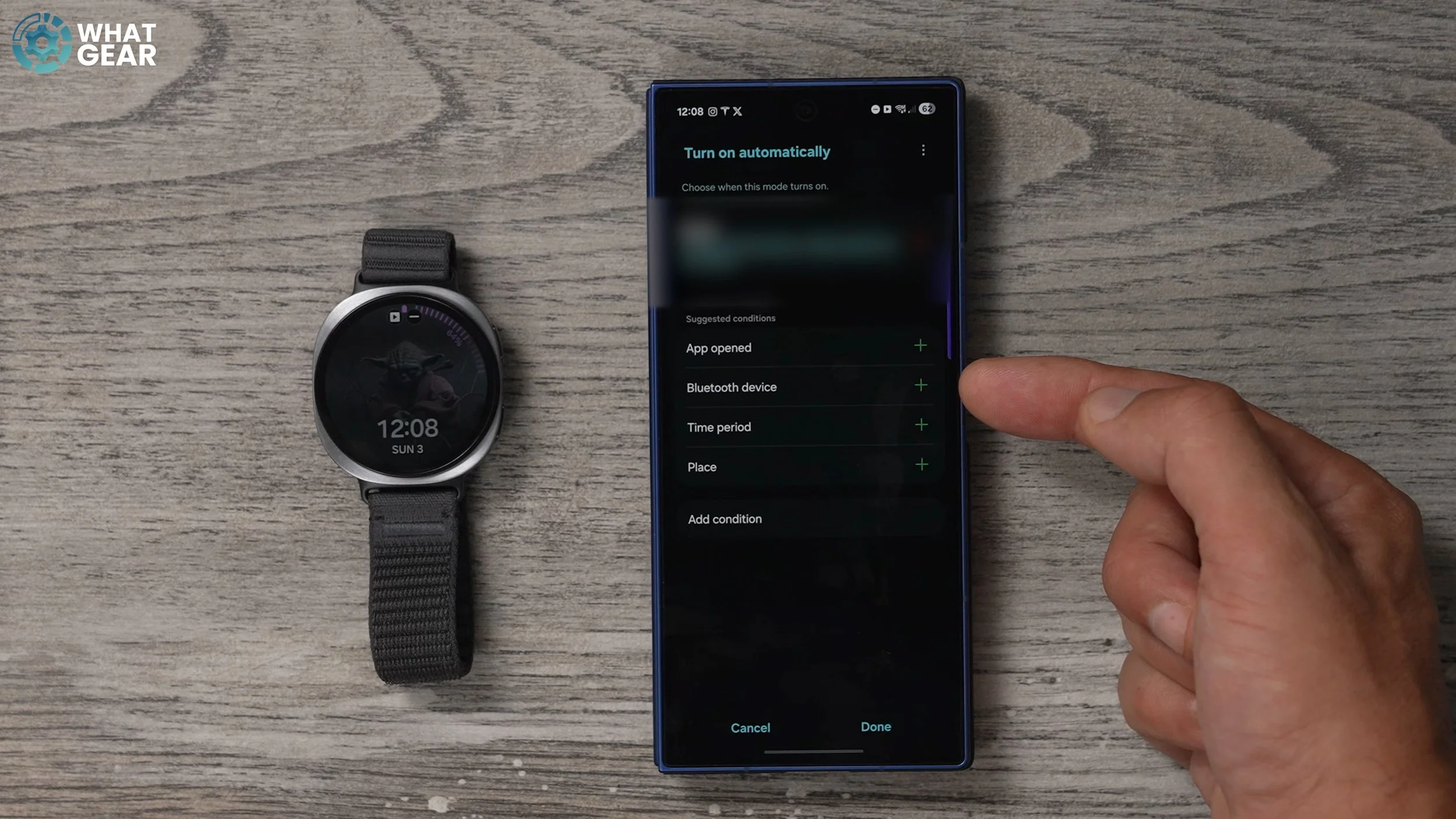
Anyway, just hit done underneath. You can choose what it does next. So I'm going to go Do Not Disturb, and this is where it gets really cool. You can allow specific contacts to pass through to Do Not Disturb, which the regular Do Not Disturb doesn't do. So what I like to do here is for calls is to select just my favourite contacts, and also for messages, my favourite contacts. And if someone does find you several times, that probably means it's an emergency. So you could allow repeat callers to come through if they're persistent. You can also allow specific app notifications to come through. And really, for me personally, there's only one app that I want coming through, and that's my security alarm. And there's lots more settings for this. But for now, I'm just gonna hit done.
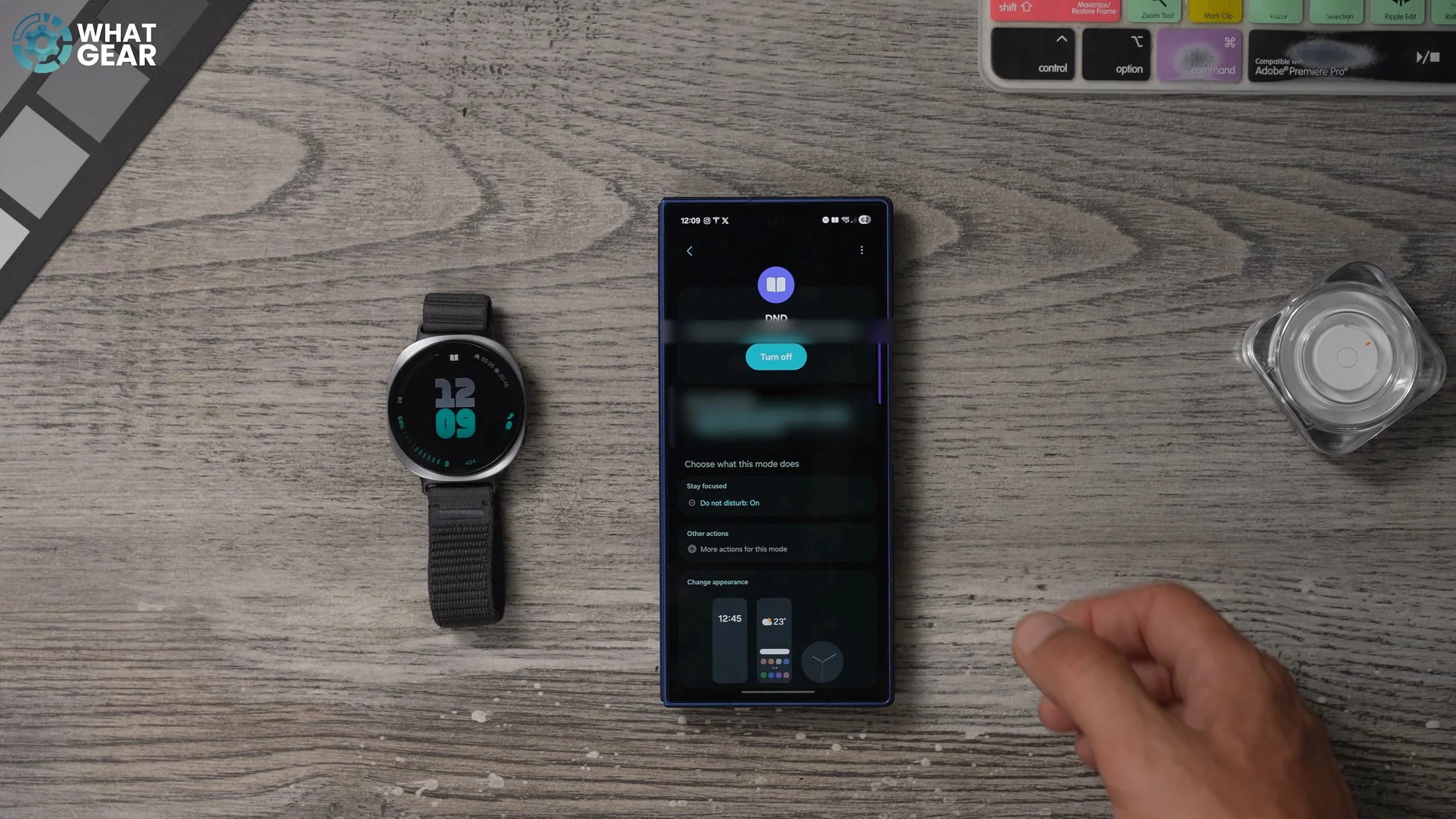
And if you want to dive a bit deeper into the actions and things that you can change like the screen brightness, the sound and all that stuff, you can do all of that here. There is literally so much stuff you can do with these modes and routines, and I'm working on a dedicated video about this, so make sure you subscribe to notifications on if you do want to really deep dive into these things. But what I really want to show you here is this. See this section at the bottom? Here's where you can customize the wallpaper, the lock screen, and also your phone watch face whenever you're in this mode. So tap on lock screen. I'm going to choose this photo of a tree home screen. Same picture tree. And then lastly you can choose a watch face to match that mode.
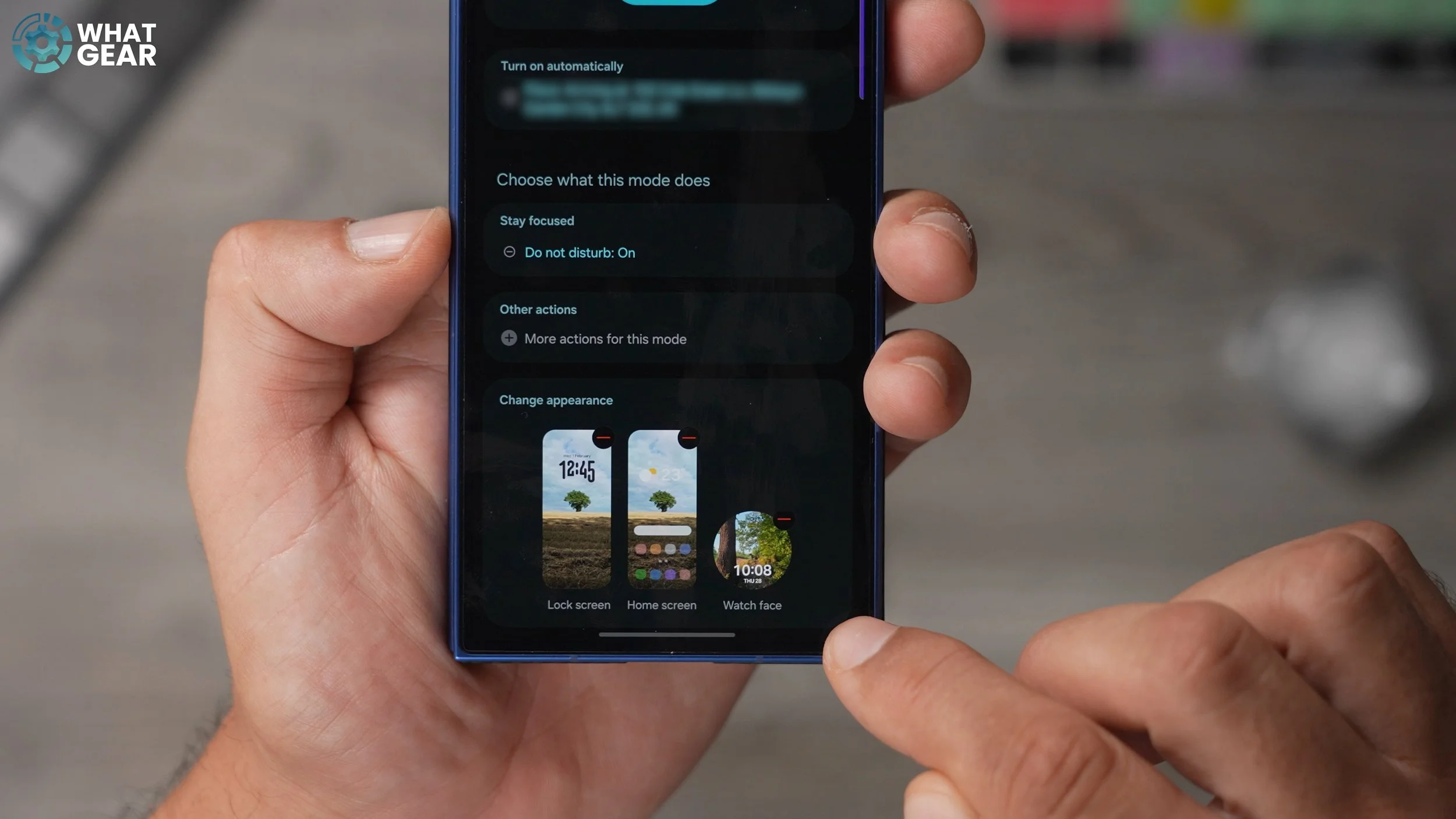
And I've got one here with a different tree in it. There we go. We've created the new mode. I've got the theater mode immediately. Just everything into dark. And then I've got the filming mode where I activate some of my Star Wars wallpapers, and now I've got to Do Not Disturb, where activates the tree wallpapers and it allows specific contacts through who are important to me. If there is an emergency, for example, I don't want to be blocking everything out with the regular do not disturb mode. And just so you know, there is more fine tuning to be done when it comes to modes and routines to make them work a little more smoothly, but I just wanted to show you the potential so that you can play around with these settings for yourself.
Old School Tick Tock
If you now need to change the wallpaper on your Galaxy Watch, you already know how to make it resemble a mechanical watch. But here's how you can make it feel more like a mechanical watch. If you swipe down from the top, go to settings - Scroll down to sound and Vibration and scroll down again to where you see the system sounds.
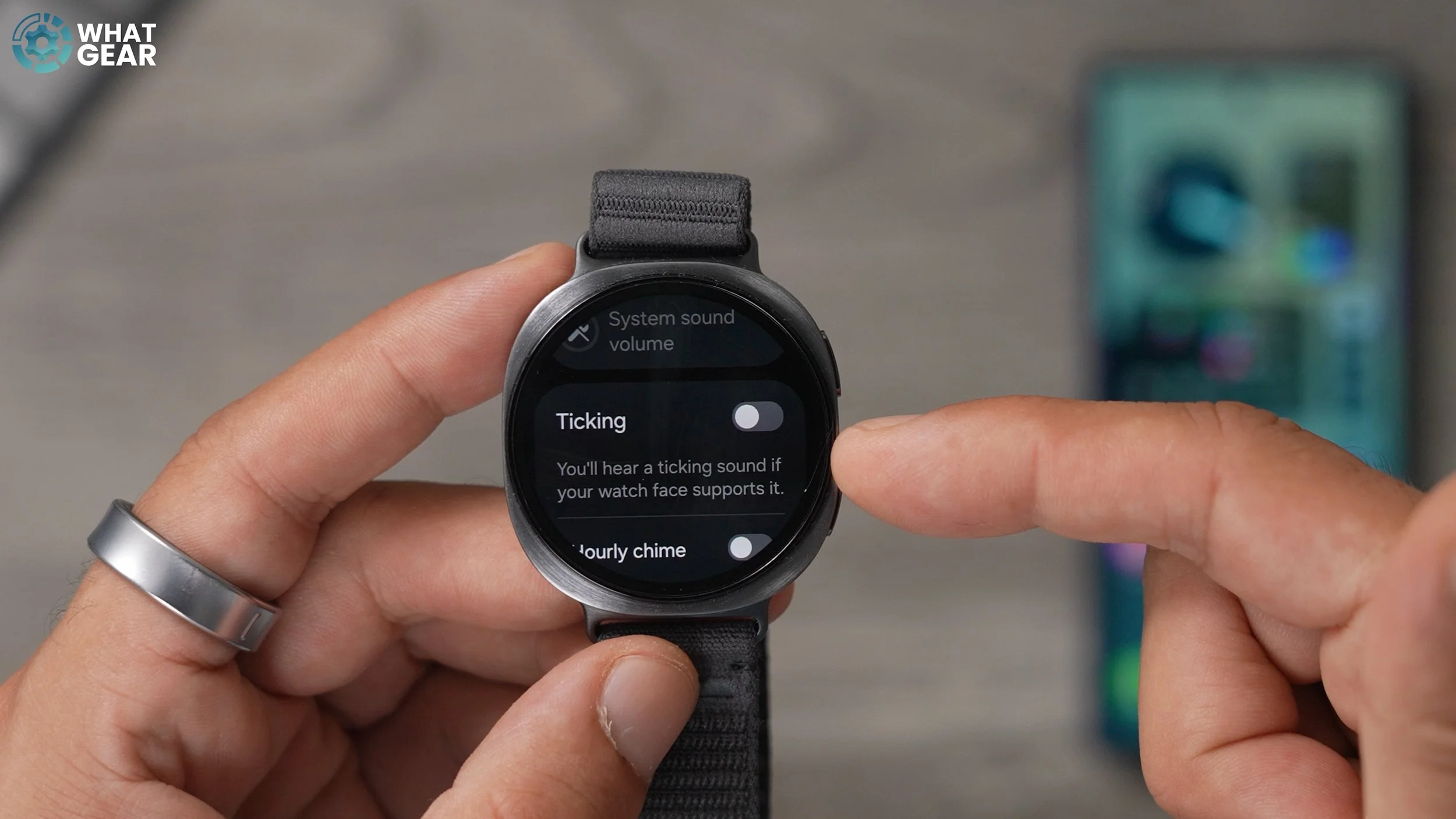
Tap on this. Here, you can enable the ticking feature, which allows the watch to tick quietly, much like a mechanical watch, all the time the screen is awake. Additionally, you can activate hourly times, sounds for touch interactions, and different sounds, such as the unlock sound. And it is a very quiet sound. I think some of you guys will definitely appreciate that feature.
Staying Connected
Here's a little bonus tip for you guys. Something that you need to be aware of. It should already be on. If it isn't, here's how you can check: go to your watch settings, scroll down to Advanced Features, and then where it says Remote Connection. Just tap on that. This should be enabled. The next thing to do on your watch is swipe down from the top. Go to your Wi-Fi. Make sure it is connected to your Wi-Fi. If it isn't, just hold your finger on that. Connect to your Wi-Fi, the same one on your phone. Now, some of you will realise that having Wi-Fi on will drain more power.
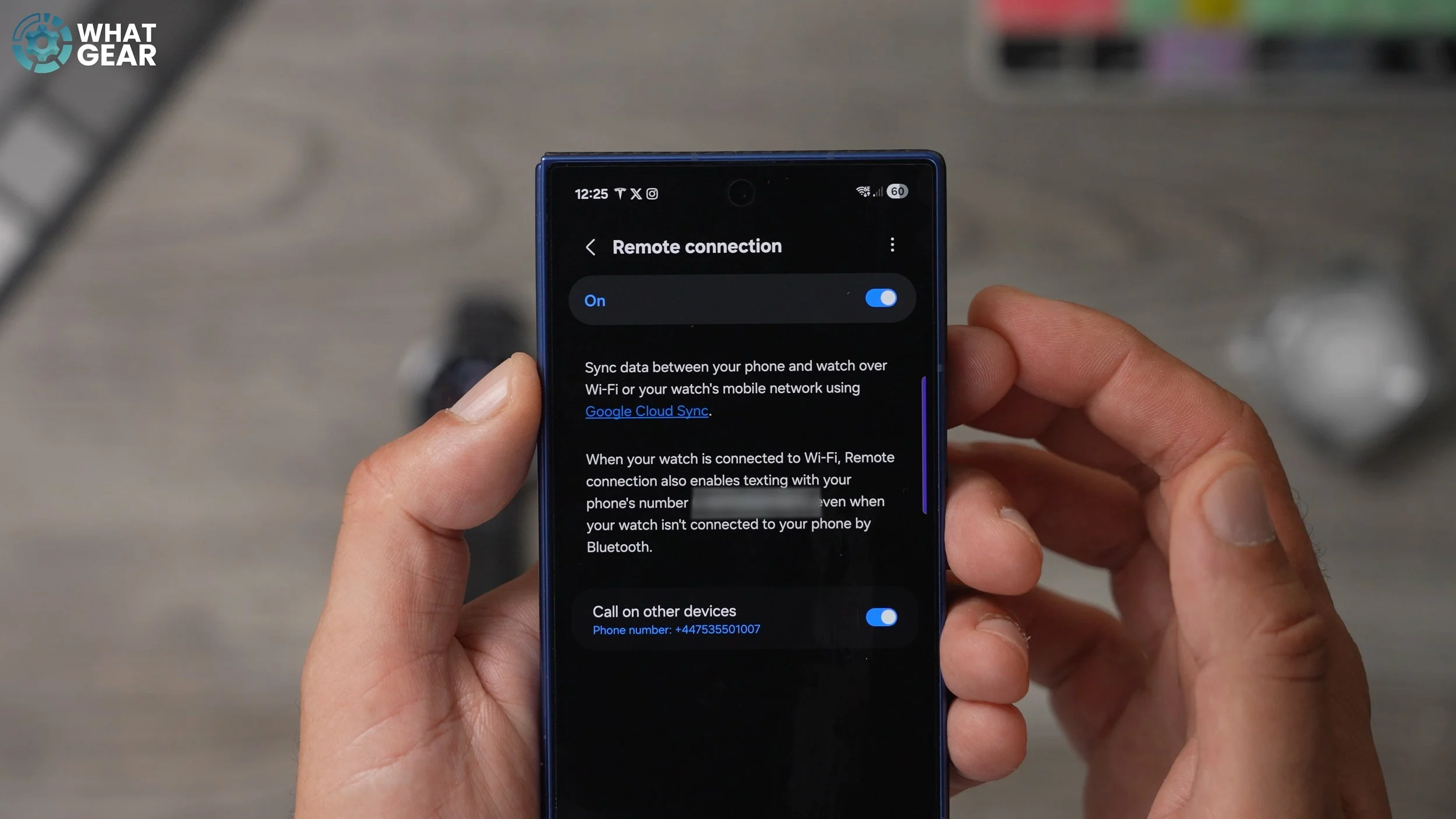
The great thing about the Wi-Fi setting on this watch is it's automatic, so it alone kicks in when the watch is not connected to the phone via Bluetooth. And the reason this feature is so great is if you are outside of the Bluetooth range, you can still take and make phone calls via the Wi-Fi connection to the watch, and it would appear with your same phone number, your same contact details on whoever's device you're contacting. Also, it does mean that if you have music streaming services on the watch, even if you're outside the range of your phone, you can still use those services and all of the things you're logged into on the watch. So, double-check that the remote connection is set up and your Wi-Fi on your watch is on.
Get Orientated
Now, there are some people out there who like to wear their watch on the inside of their wrist or on the opposite wrist. Maybe you're left-handed or whatever. So to solve this problem, just jump into the settings on the watch, scroll down to the general section, which is near the bottom of the page here. Scroll down again until you see orientation. And in here you can switch the wrist to left or right. And then you can also change the button position to left or right as well. So if you do want to wear it in a different way, you can do that pretty easily.
Faster Typing
So one of the trickiest things to do on a smartwatch is to send messages and reply to people quickly, because the keyboard is tiny. I mean, you can't do it just by typing, and then you get the autocorrect at the top. What we can do is if we open up the keyboard, swipe up, this brings up the other options for sending messages. So we can just use the microphone, which is much easier. Another option, if you swipe up from the bottom, is this little one here with the T and the pen next to it. This is where you can write on the screen what it is you're trying to say letter by letter. You've got your emojis, and then you've got your regular keyboard, and you've also got the number pad.
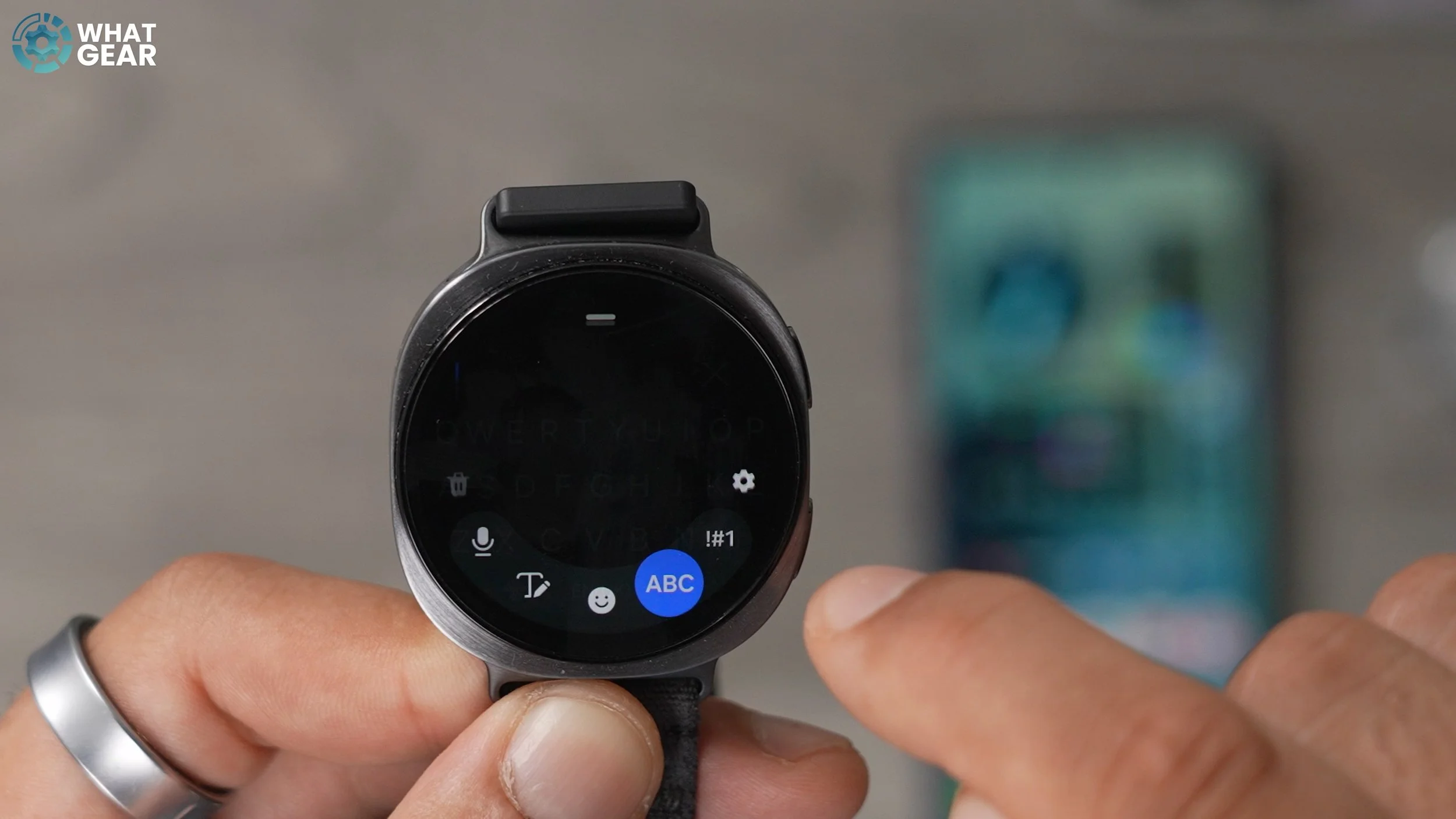
Now, there is an even easier way to respond very quickly to people from your watch. Open up the Galaxy Wear app, go to general and then here you should see quick responses. Tap on this. So these are suggestions that will just pop up every time you get a message. And you've got some standard ones here, but you can hit the add response at the bottom and add your own one. There is a character limitation, though, so you might have to abbreviate what it is you're trying to say. That now exists in the quick responses section whenever you get a message. So now when you get a message and you want to reply quickly, you can just keep scrolling down, and you'll see all of your quick responses set up underneath so you can use those very quickly. You can delete all of the standard ones if you wanted to, and something else you can do in the quick response page on the app is add more emojis.
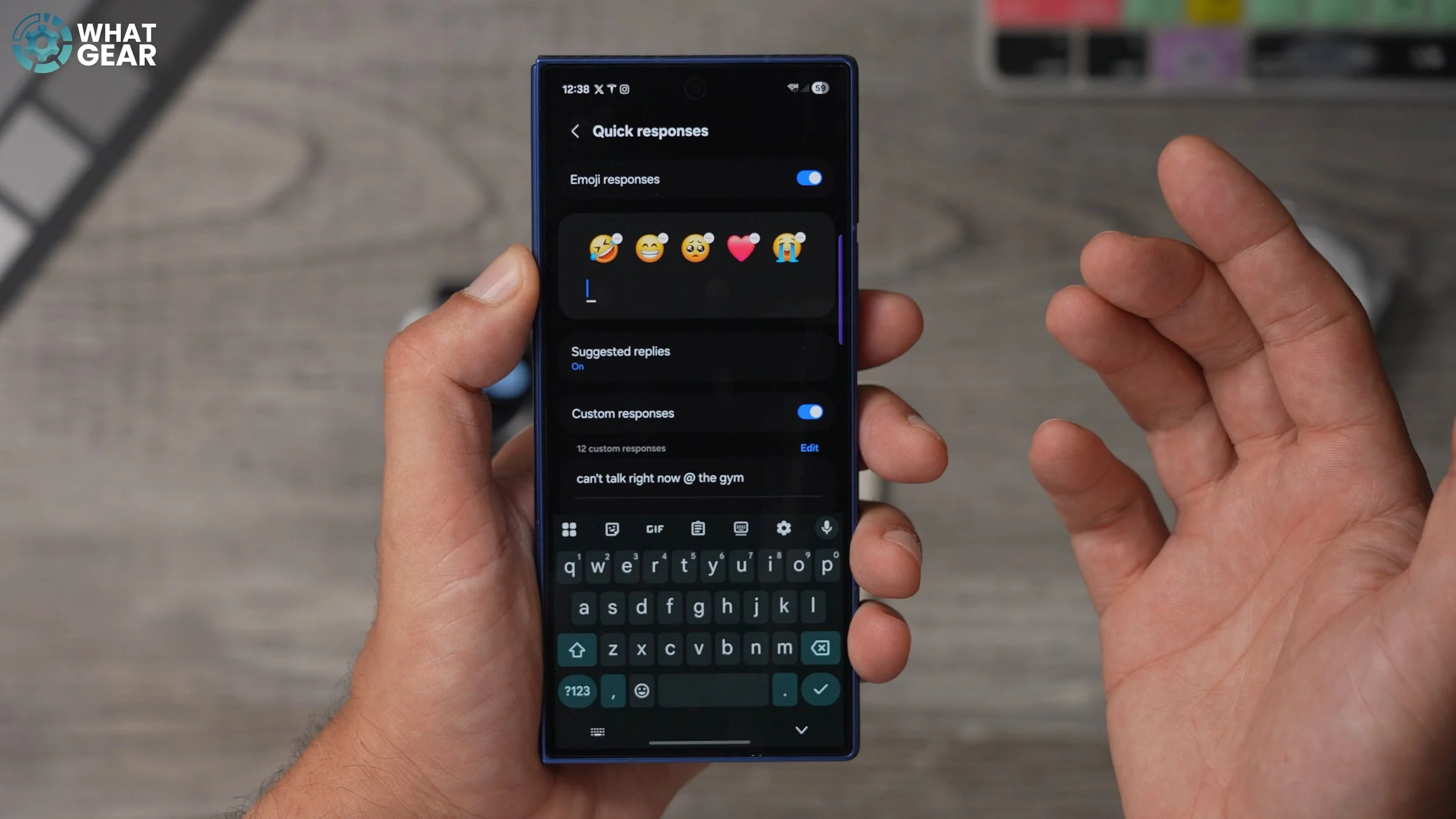
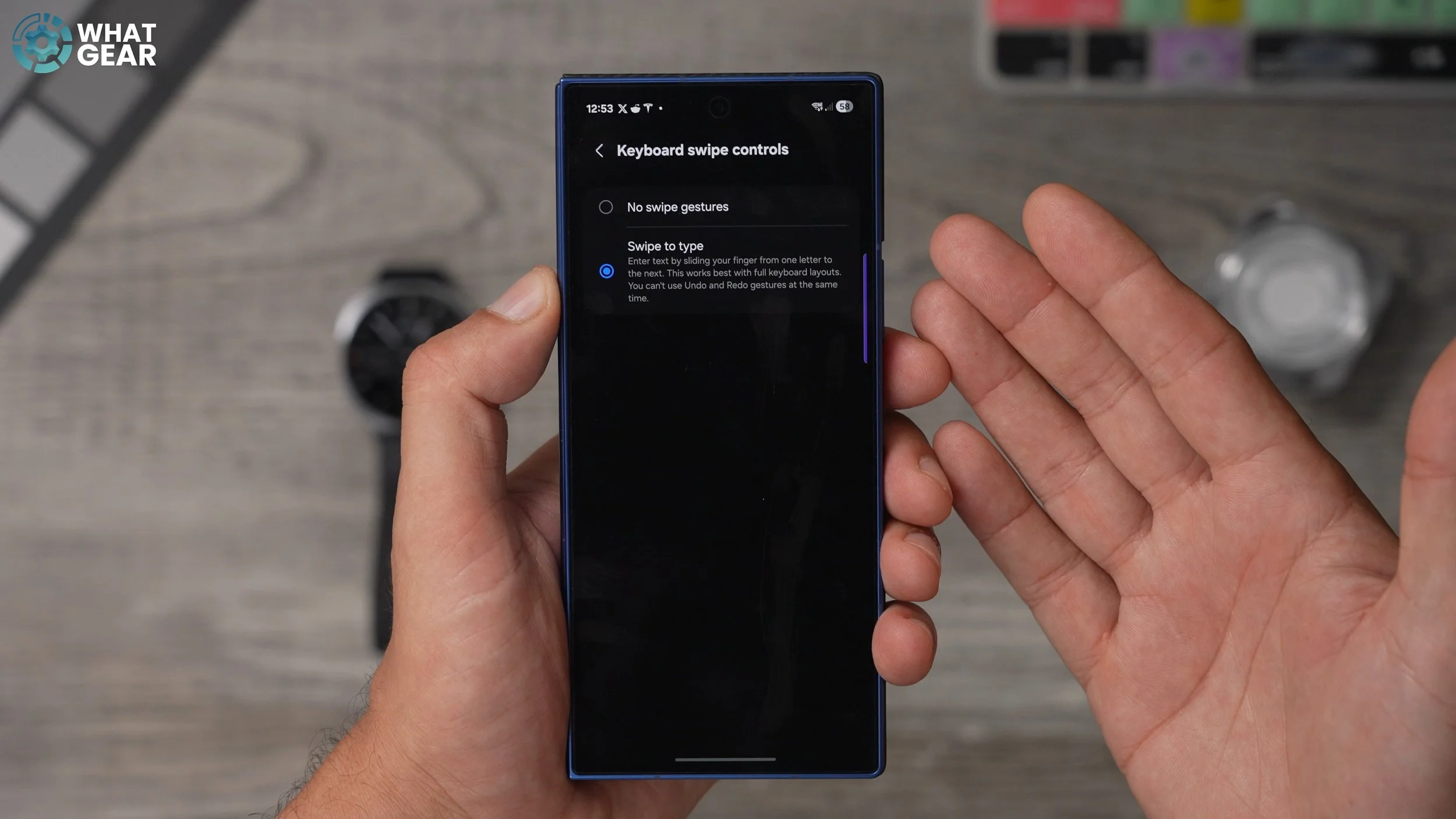
So we've got these five as standard. You can hit the little plus here and add some more if you want. You can also do swipe typing on Samsung's keyboard, and to get to this setting, go to what settings, go to General and then go to Default Keyboard and then tap on it. Here you'll see the settings icon. Tap on this, scroll down. And here you will see keyboard swipe controls. If you tap on that here, you can enable swipe to type for the Samsung keyboard.
Different Voice Recognition
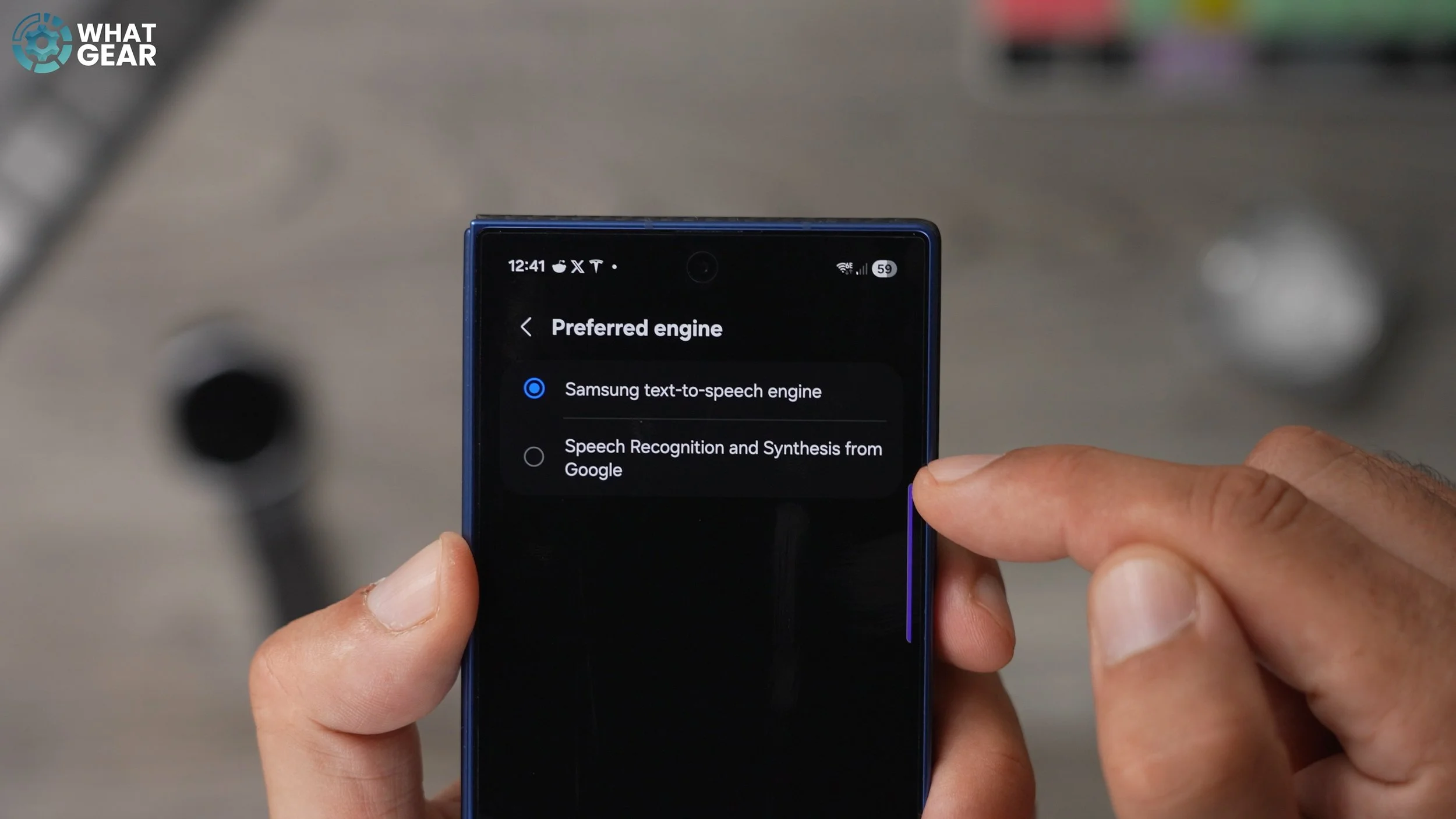
Here's how to slightly improve the voice recognition on your watch. If you go to the Galaxy Wear app, go to the watch settings and then go to general at the top. The preferred speech engine is Samsung's. If you hit the little settings next to it, you can change the speech recognition engine to Google. And if we're being honest, Google does have probably the best voice recognition of any service on the internet.
The Gboard
If you're kind of struggling with the Samsung keyboard input methods on the Galaxy Web app, if you go to the store at the bottom, you can search for the keyboard, which is Google's own keyboard. Tap on it, and then just make sure you're selecting the Galaxy Watch from the drop-down. So, tap that one that then downloads the Google Keyboard to the watch. It will take it a while.
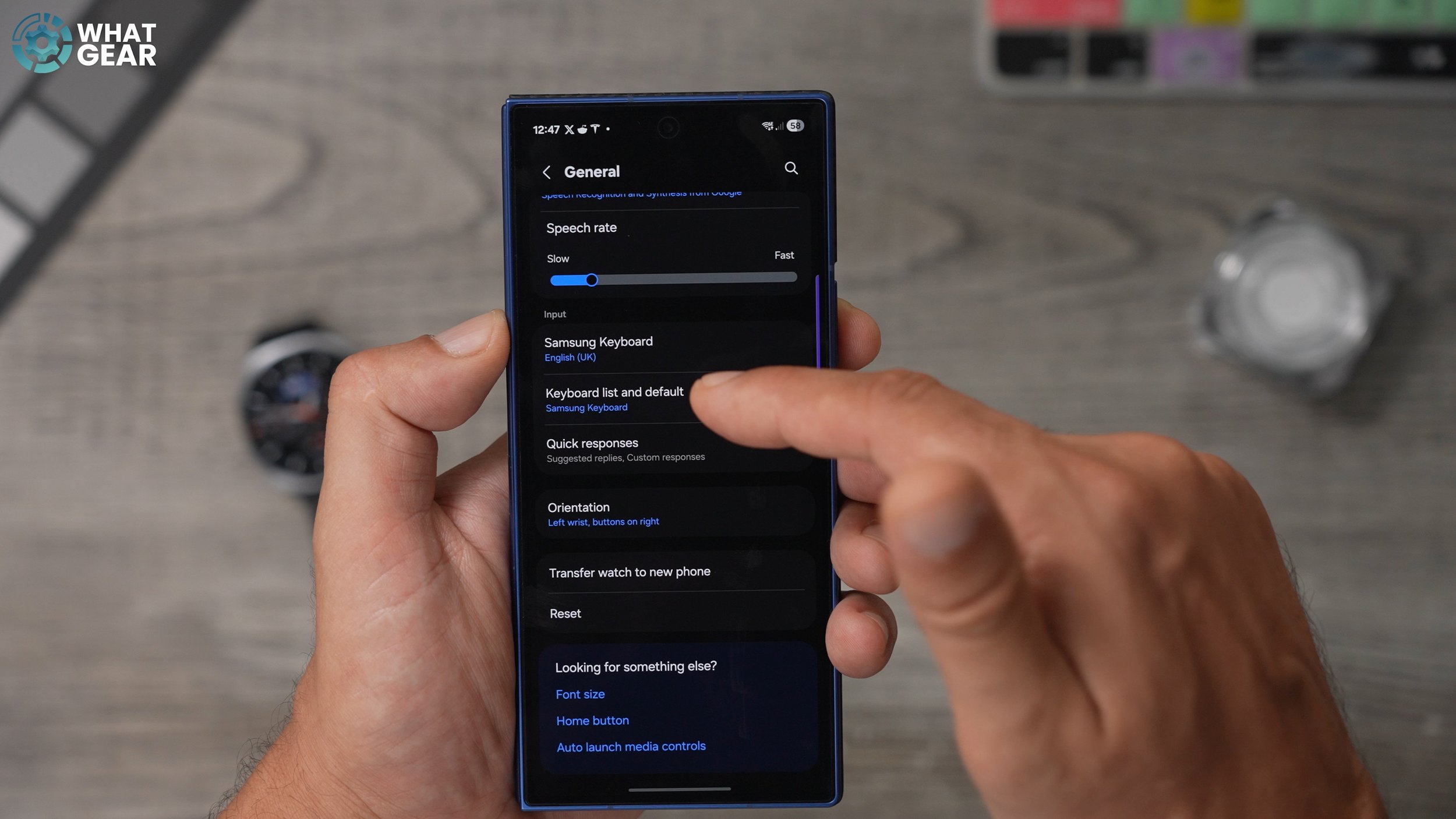
So once you've successfully installed the keyboard on the watch, what you need to do now is go into the Galaxy where app, go to the watch settings, scroll all the way down to general, and then here you should see the Samsung keyboard set up, but you want to go to the keyboard list and default. And at the top the default keyboard. You want to change this to Gboard. Okay, so now you've got Google's keyboard set up slightly different from Samsung's One, and it does support Swype typing. And you can just hold your finger down on a letter, swipe to another letter, or the rest of the word to spell things out quickly in one motion.
Take Control
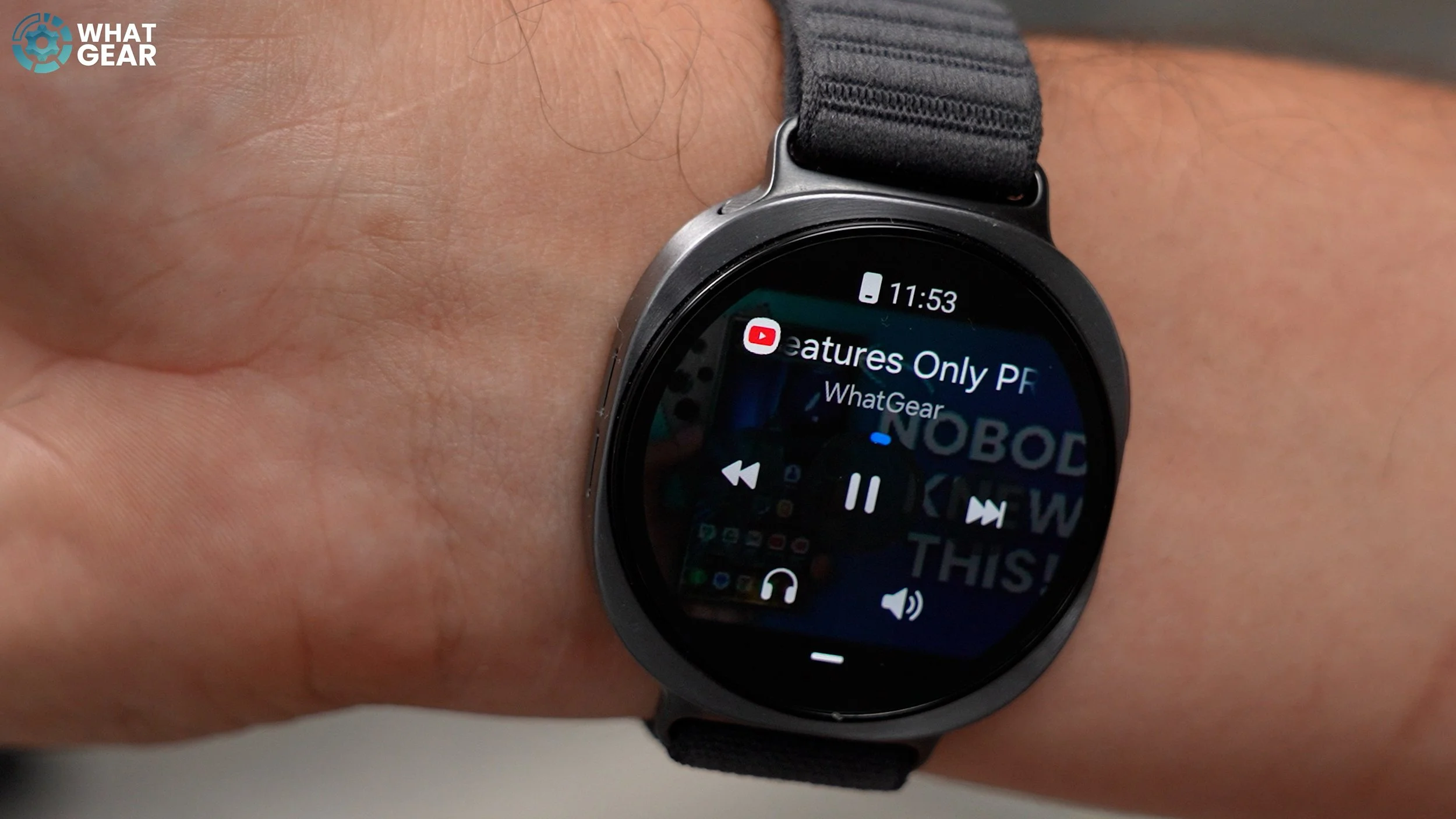
Another useful setting to switch off by default within the Galaxy Wear app on the phone. You can also find it on the watch. But here's the easiest way: just go to Watch Settings. Scroll all the way down, go to Advanced Features, and here you see the auto-launch media controls. With this on, whenever there is a video playing on your phone or music playing on your phone, the controls will appear like this. And if you switched on the pinch gestures, which I showed you guys earlier on in the video, you can use pinches to play pause without having to touch the screen.
Protect Your Heart
Okay, so this next feature could quite literally be a lifesaver if you set it up on day one. Here's how to access it. Go to the Galaxy Wear app, go to the watch settings, scroll down to you see the health section right here. Then where it says heart rate. It checks every ten minutes, which is fine, but what you can do if you tap on that is select your high heart rate number and low heart rate.
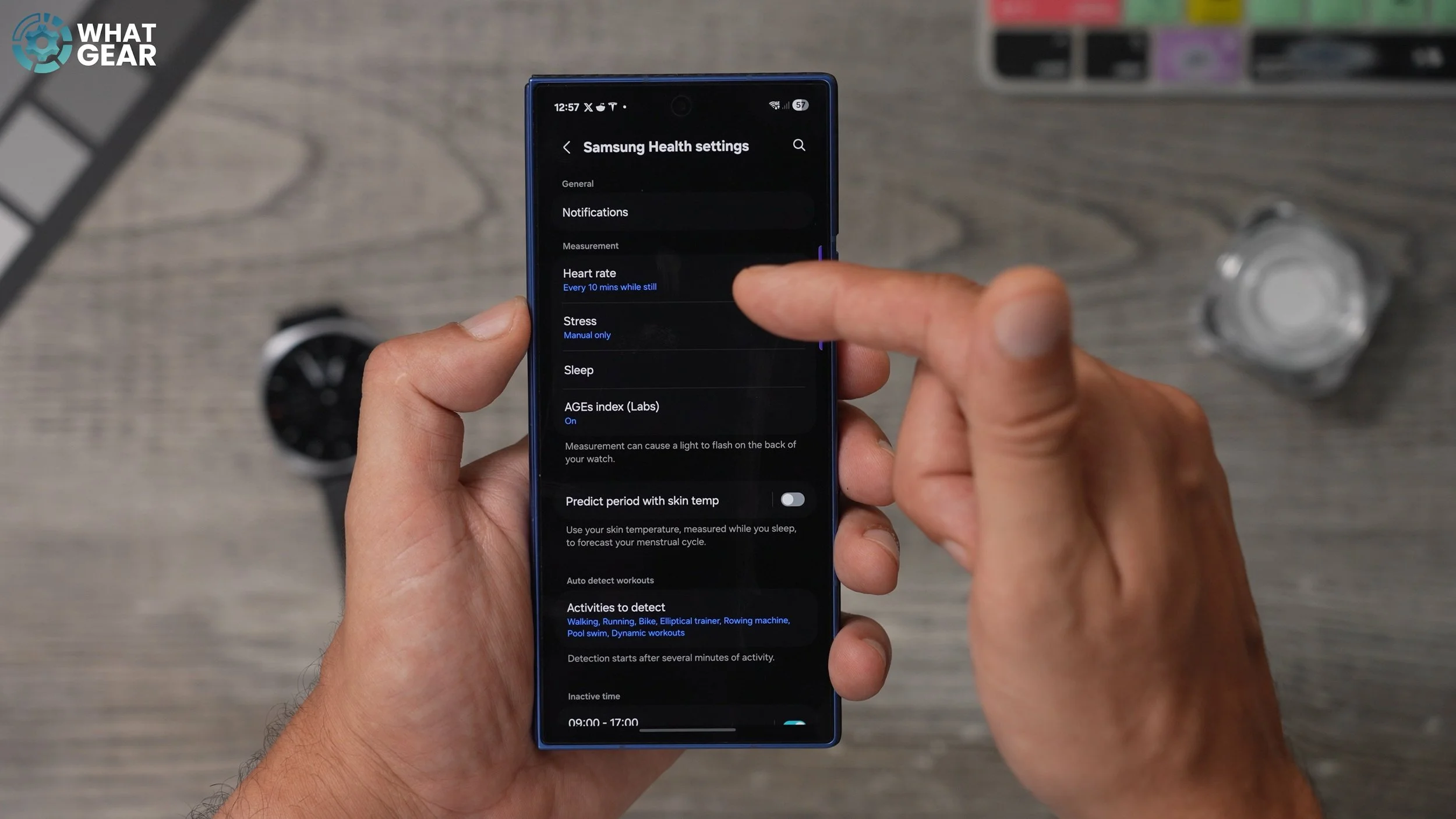
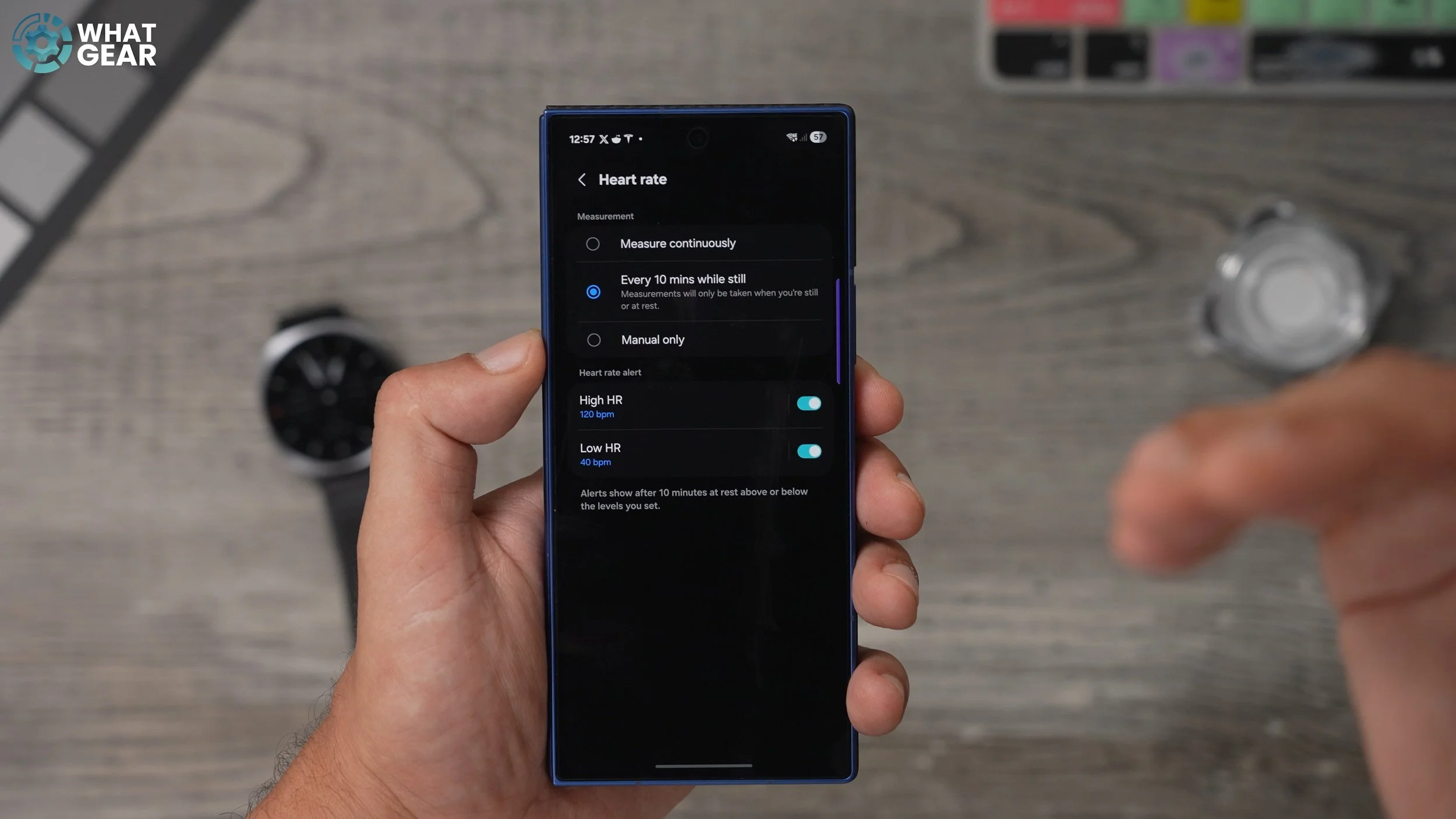
So, find out what your heart rate should be for your age and body type, and dial these in manually. This is the default right now. So the great thing about setting these up properly is if your heart rate does go above or below where it should be, the phone will alert you to this and maybe call an ambulance or get someone to help you. And that's why I said this feature could save your life.
Why Do We Fall?
Here is another lifesaving feature that is switched off and that you should be aware of, especially if the person wearing a watch is maybe a bit vulnerable. So within the Galaxy Wear app, if you go to Watch Settings, scroll down to Safety and Emergency. Here you'll see the hard fall detection. This will be switched off by default if you switch it on. This unlocks a bunch of options, like the option to swipe to call an emergency service if it is triggered. This could be useful if someone is quite accident-prone, but who isn't necessarily at major risk. Essentially, what this means is that when the watch detects a hard fall, it will give you the option to swipe to call emergency services. But if you're particularly worried about someone falling and maybe knocking themselves out or something, then you want to leave that off.
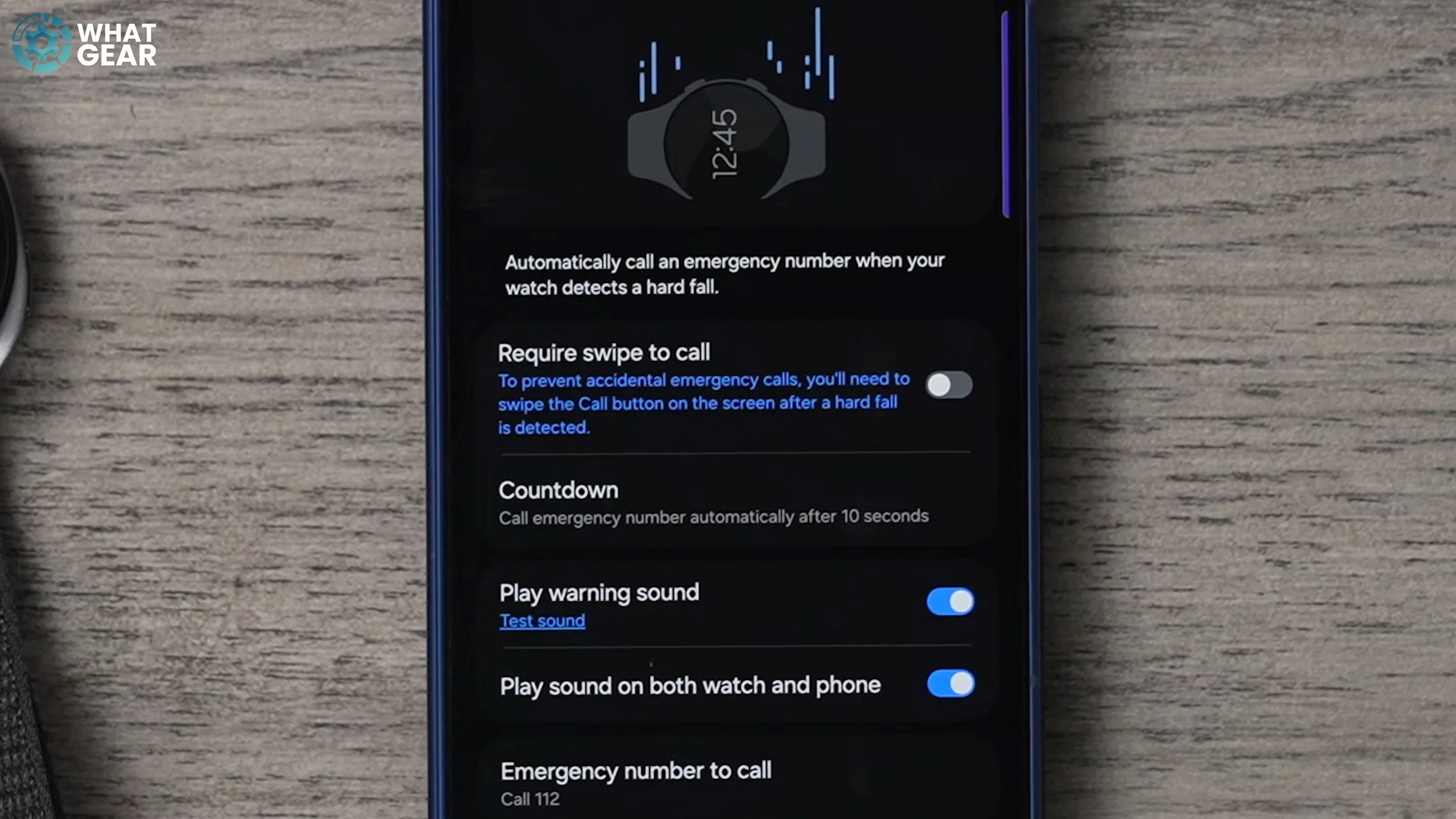
You can also set up a countdown, which is useful. This gives the person time to cancel that emergency call if it isn't a bad accident, and when this is triggered as well, it will sound an alarm. It's not the loudest, but it might alert someone to the fact that something's happened. And then if you scroll down, you can change the emergency call number. You can change this to a specific person if you prefer, and you can set this feature to only be active during workouts or always. And it's that section right here. I suggest leaving this on if you haven't set up your emergency contacts on your phone and all that kind of stuff, then definitely check out some of my other tips and tricks videos that will show you how to do all that stuff.
Who You Gonna Call?
This is kind of the next step when it comes to emergency situations. If you go back into the watch settings, go to Safety and Emergency again. Here you'll see the emergency S.O.S. section. Tap on that. This feature allows you to send an S.O.S. by tapping the home button five times on the watch. So if you are in a bad situation and you need some help, all you need to do is tap that five times.
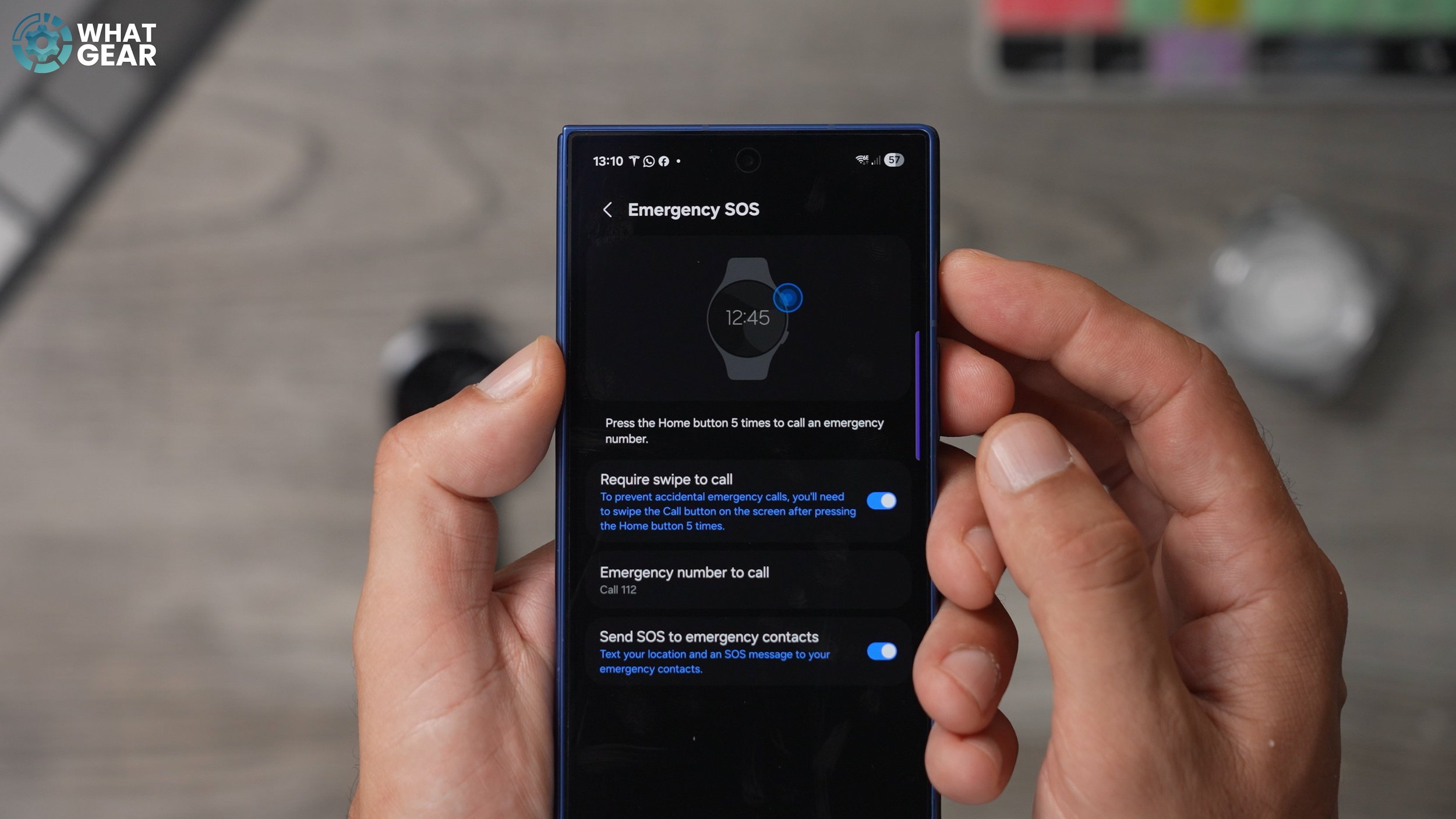
Because, as you know, sometimes shit happens. Someone has to deal with it. And who are you going to call? And this is where you could choose who you're going to call. You just tap the emergency number here, and if you want, you can add a custom number. And when it comes to sending an SOS emergency contact, it's important that you set up your emergency contacts.
Use The Force
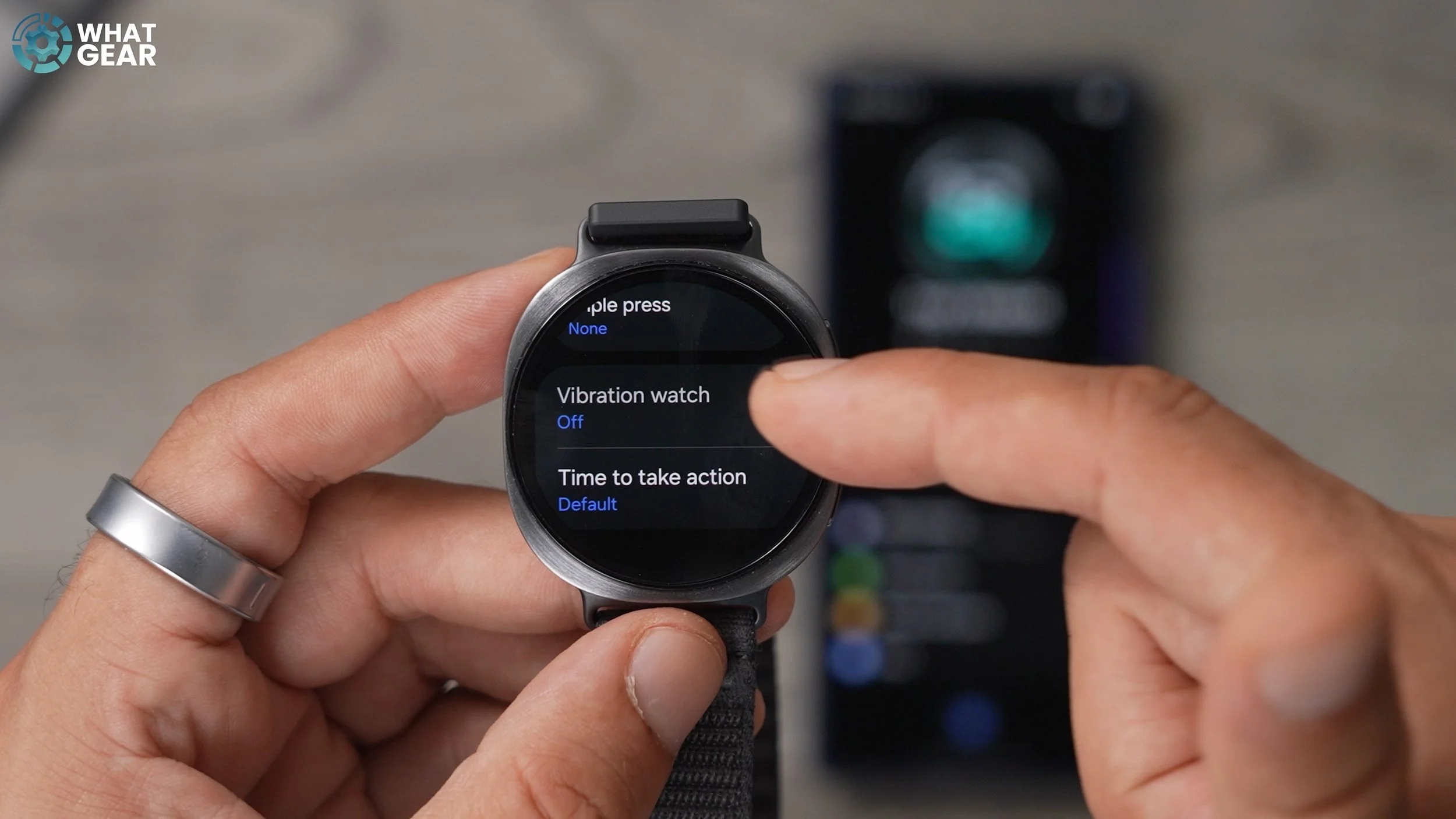
Did you know that you could actually tell the time of a Galaxy Watch without using your eyes or your ears? Check this out. Swipe down for the top, go to settings, go to accessibility and then here. If you scroll down, you'll see the advanced settings. And if you scroll down again, there is the option for Vibration watch. So this kind of uses like Morse code to tell the time to you. And there are two ways to do it. You can use digits or you can use terse.
Uncrowned Technique
This is a tip for anyone who has the regular Galaxy Watch eight and not the classic. The classic actually has this crown, which you can rotate, and the Galaxy Watch eight doesn't, but it does have a digital crown where you can roll your finger around the outside to scroll through things. And this is something that a lot of people overlook. So just be aware that you do have a digital crown as opposed to a physical crown on the regular Galaxy Watch eight.
True Blood Pressure
If you do want to measure your blood pressure through the watch, you can do it just by hitting this icon right here and then going to blood pressure. There is a step to this though that does involve an additional purchase. And what you'll need is a proper blood pressure monitor. When you use the blood pressure measuring feature on the watch for the first time, it will open the app on the phone, and then you have to kind of sync up the data from the medical-grade blood pressure monitor with your watch.
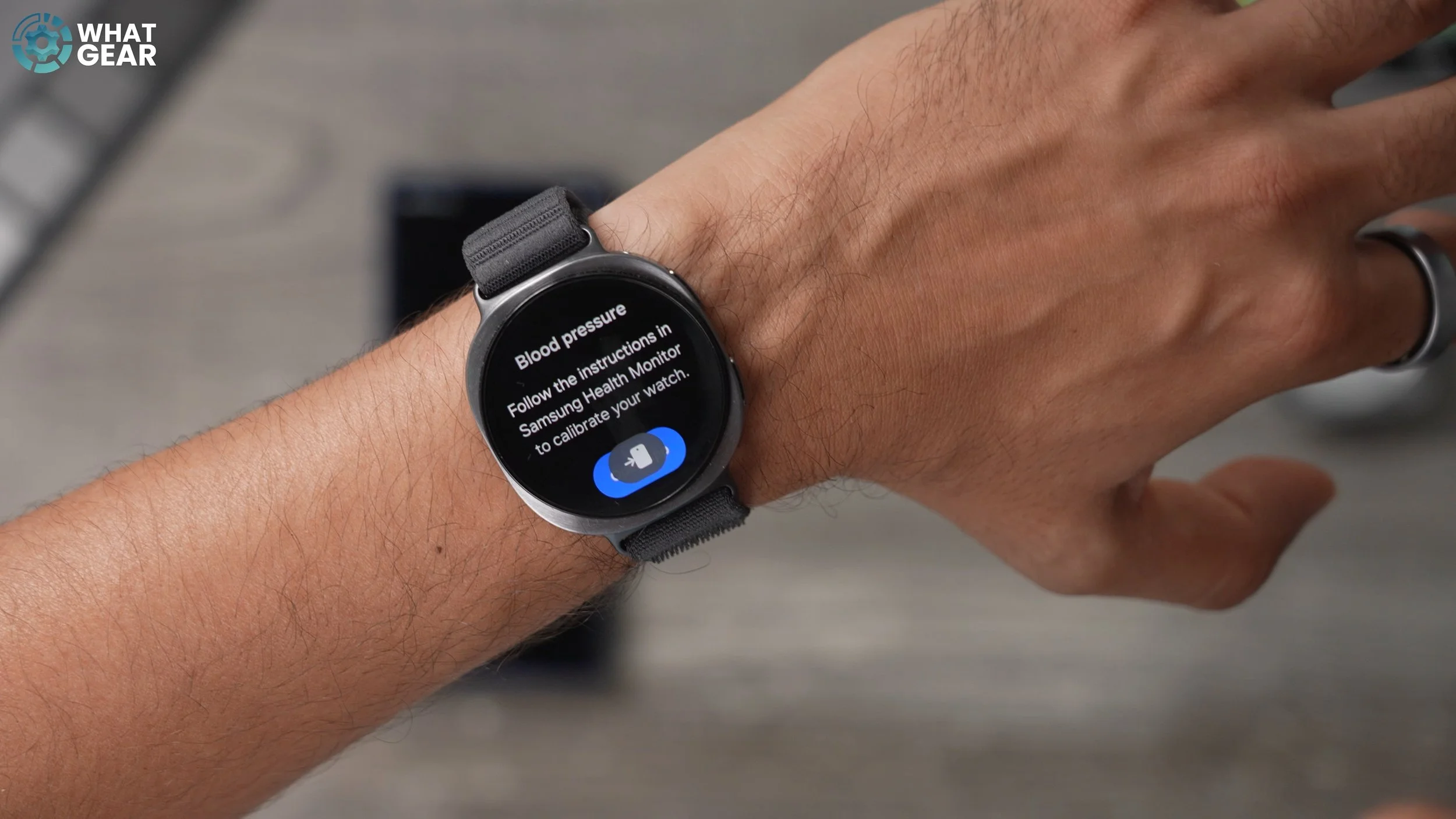
And you'll have to do this every now and again just to recalibrate the watch so that it's accurate. Just be aware that if you do want to make use of this feature, you do need one of these first.
Vascular Load Calibration
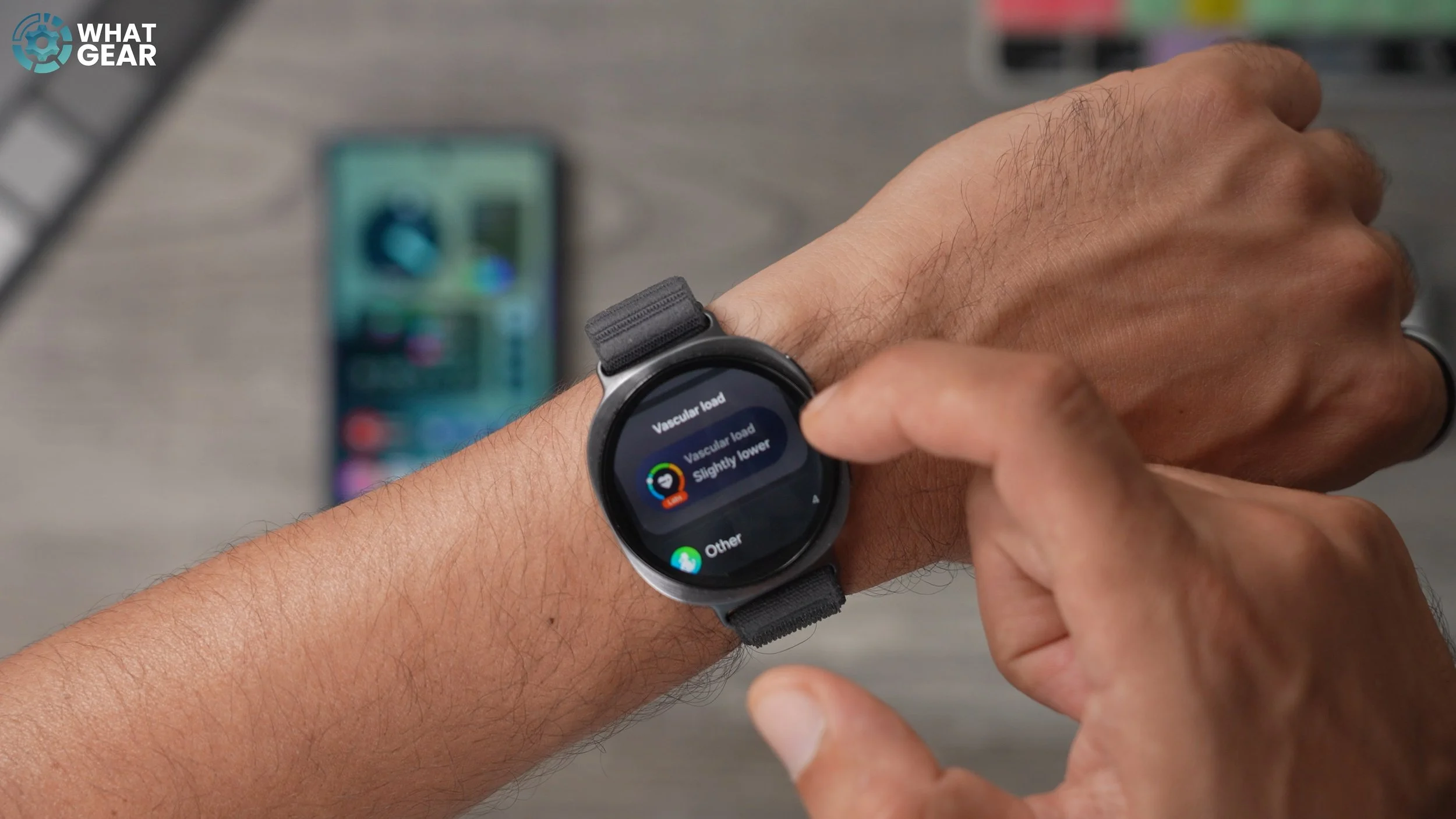
Another cool new feature on the watch is the vascular load measurement. So if you want to add this, just hit the little plus at the bottom of your pages. Go to vitals and you'll see vascular load. Once you start this for the first time, it will open up on the watch, and the first time you use it, you'll have to set your baseline so it knows what is resting, what is active. And that way, you can create better data for you when it comes to measuring vascular load. Make sure you set this up for the first time, and it will take three nights to calibrate this to work properly.
Temperature’s Rising
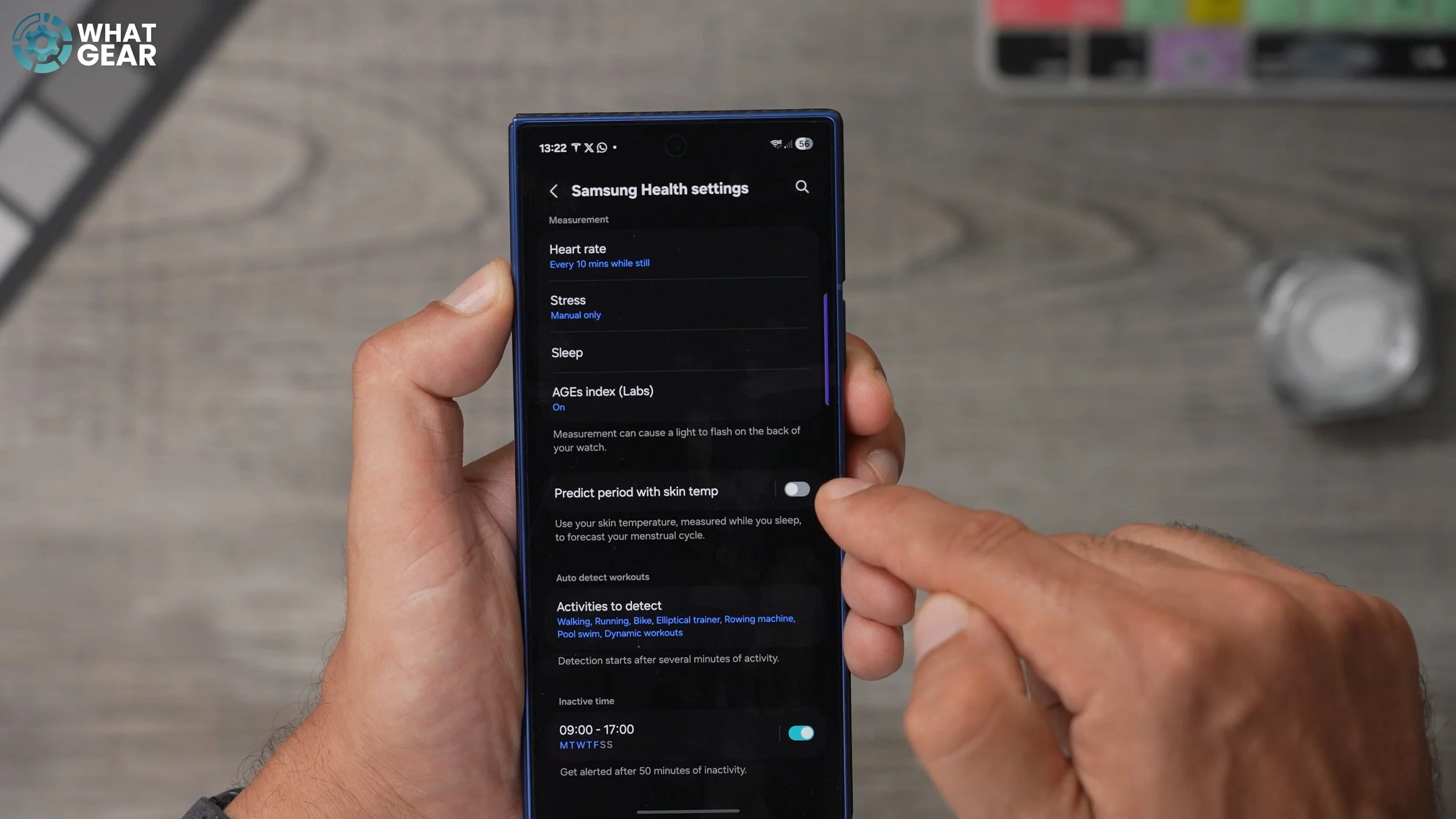
This next bonus setting is for you ladies out there. If you go into the Galaxy Wear app, go into your watch settings, scroll down to where you see health. Tap on that and then if you scroll down again, you'll see this predict period. With skin temperature, you can turn this on. And that way, you can just keep tabs on your cycles.
Long Live Your Watch
If you're the type of person who plans to keep the watch for a very, very long time, then you might want to do this. Swipe down from the top, go to Device Care, and then tap where it says battery.
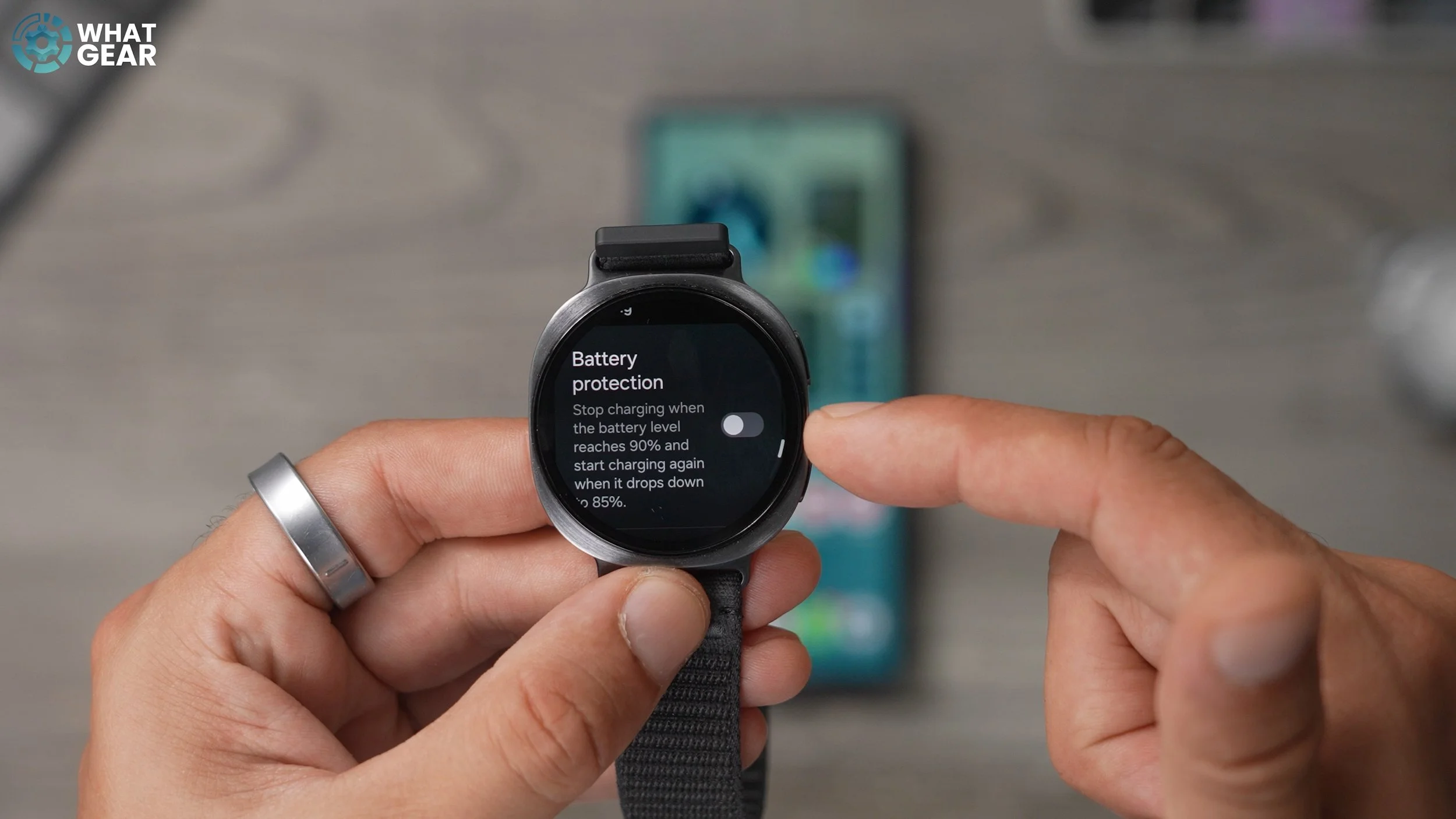
And if you scroll down, you will see the settings for battery protection. This limits the charge of the battery to 90%, and this just protects the lifespan of the battery in the watch. So if you feel like you are going to keep your watch for a very long time, then you probably want to switch this on.
Speed Things Up
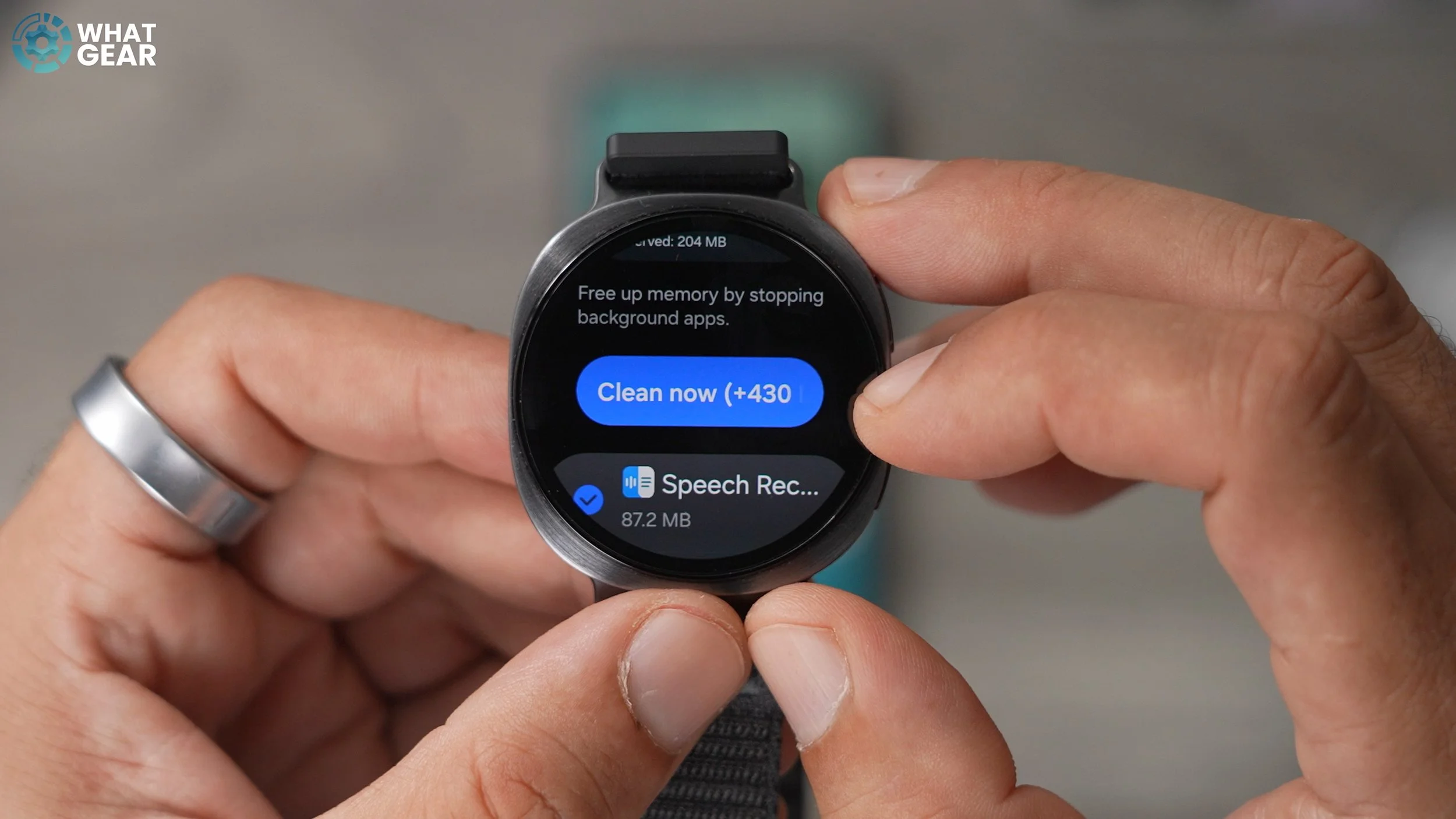
If your phone ever feels like it's running slowly, then there is a way you can speed it up. And if you go into your settings - Device Care. If you scroll down a little bit to where you see memory on this memory page, if you swipe down, you'll see the option to clean now. So this basically closes down all the backgrounding on the watch and frees up memory on the device so that it can run more quickly.
Hidden Speed Trick
Now, let's say you and your friend both have exactly the same watch, and you want your watch to appear to be faster than theirs. Well, you can do it. Jump into the Galaxy Wear app, go to Watch Settings, and scroll all the way down to the accessibility section.
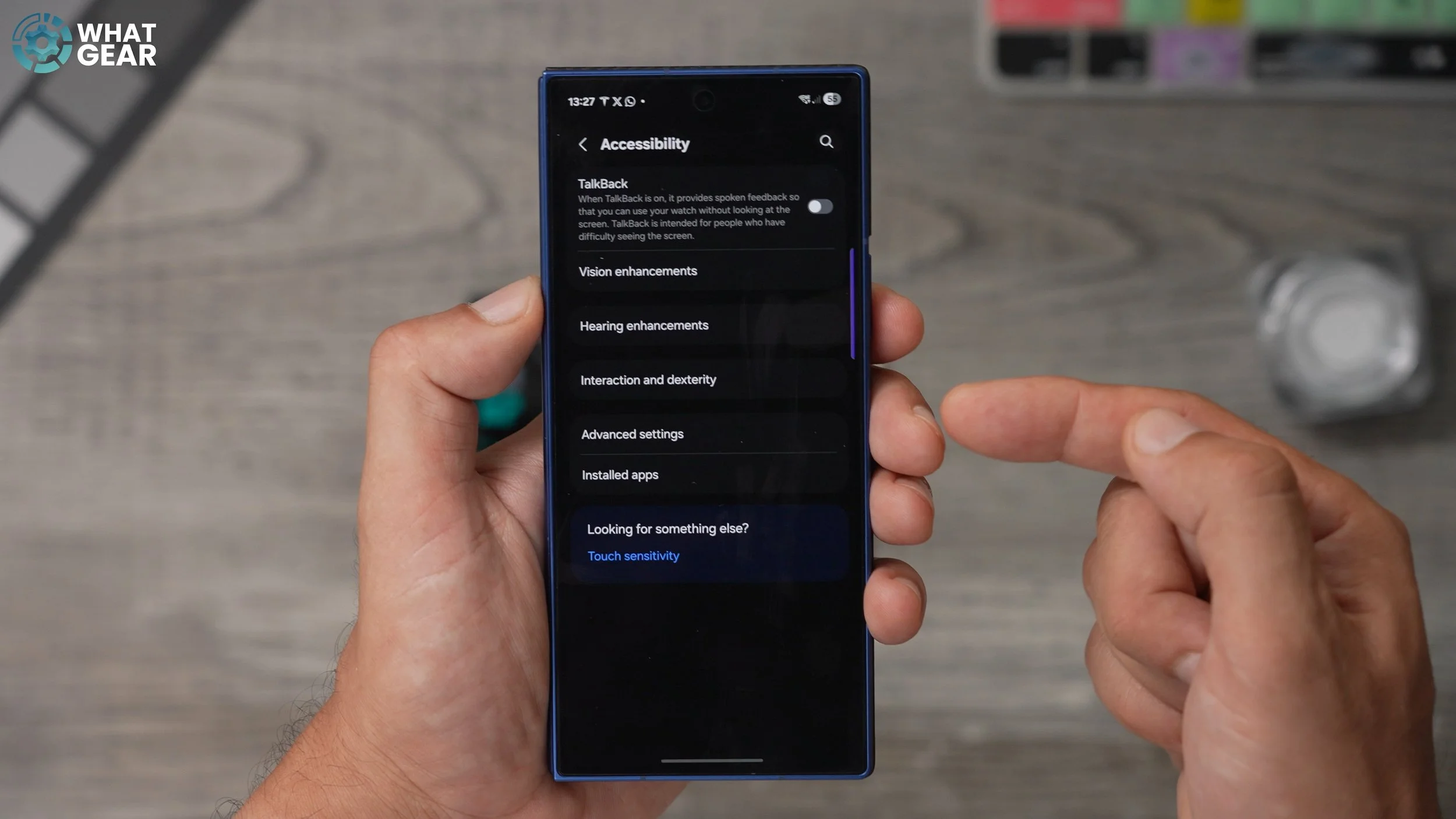
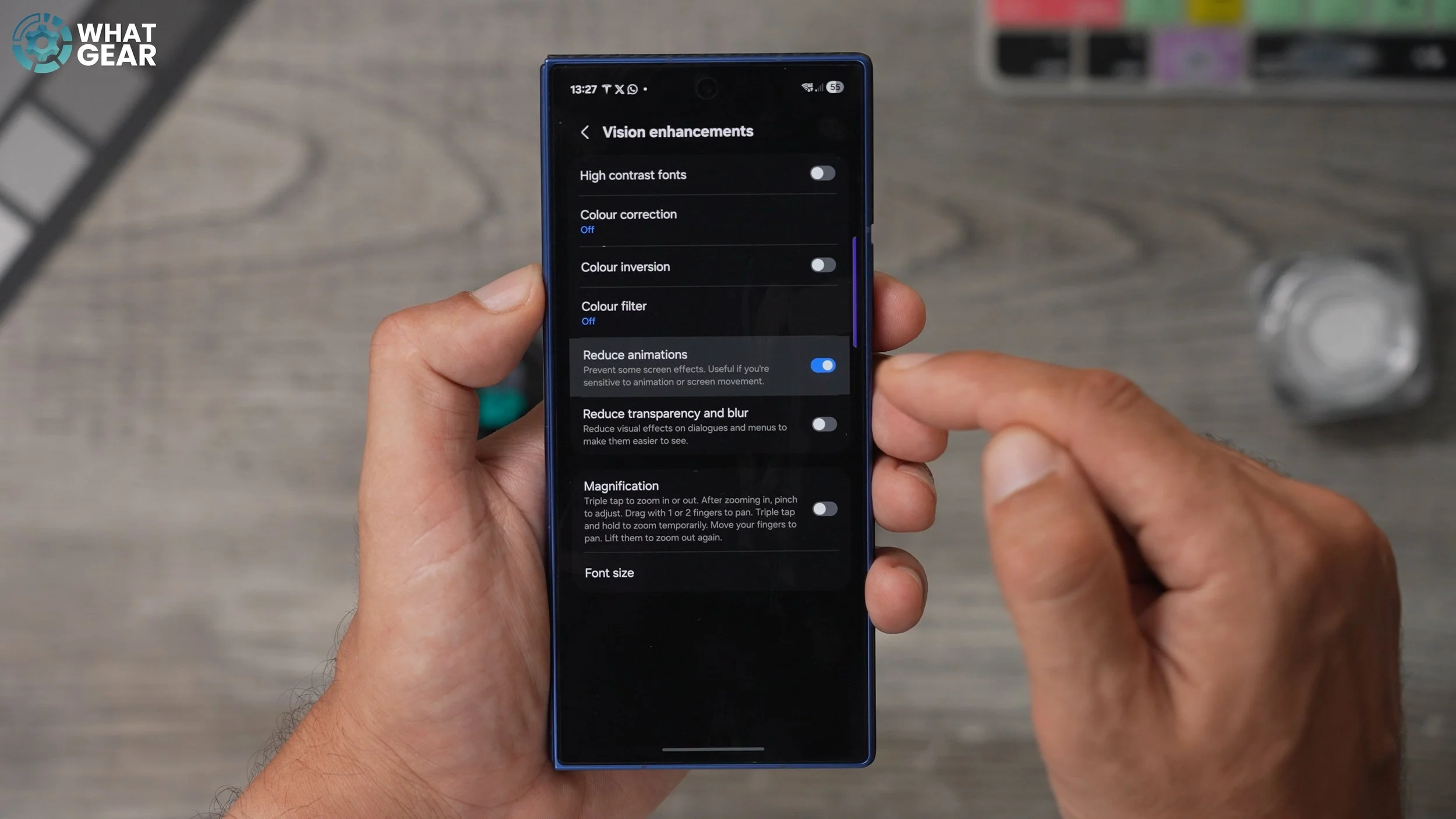
Here we go into the vision enhancements, and then on this page, you will see Reduce animations. So with this on, the animations on your watch will happen much more quickly.
