
Galaxy Watch 8 - First Things To Do! ( 10 Tips & Tricks )
If you want to have a good time? Well, then you need a good watch. And if you're watching this video, you're likely already have one in the form of the Galaxy Watch 8 or Watch 8 Classic. And in this video, I'm going to show you how to take your new timepiece to the next level with these 17 tips & tricks. And if you use what I'm about to show you, you'll save a lot of time & by the end you'll understand how to fully optimise your Galaxy Watch for your specific needs.
Watch faces
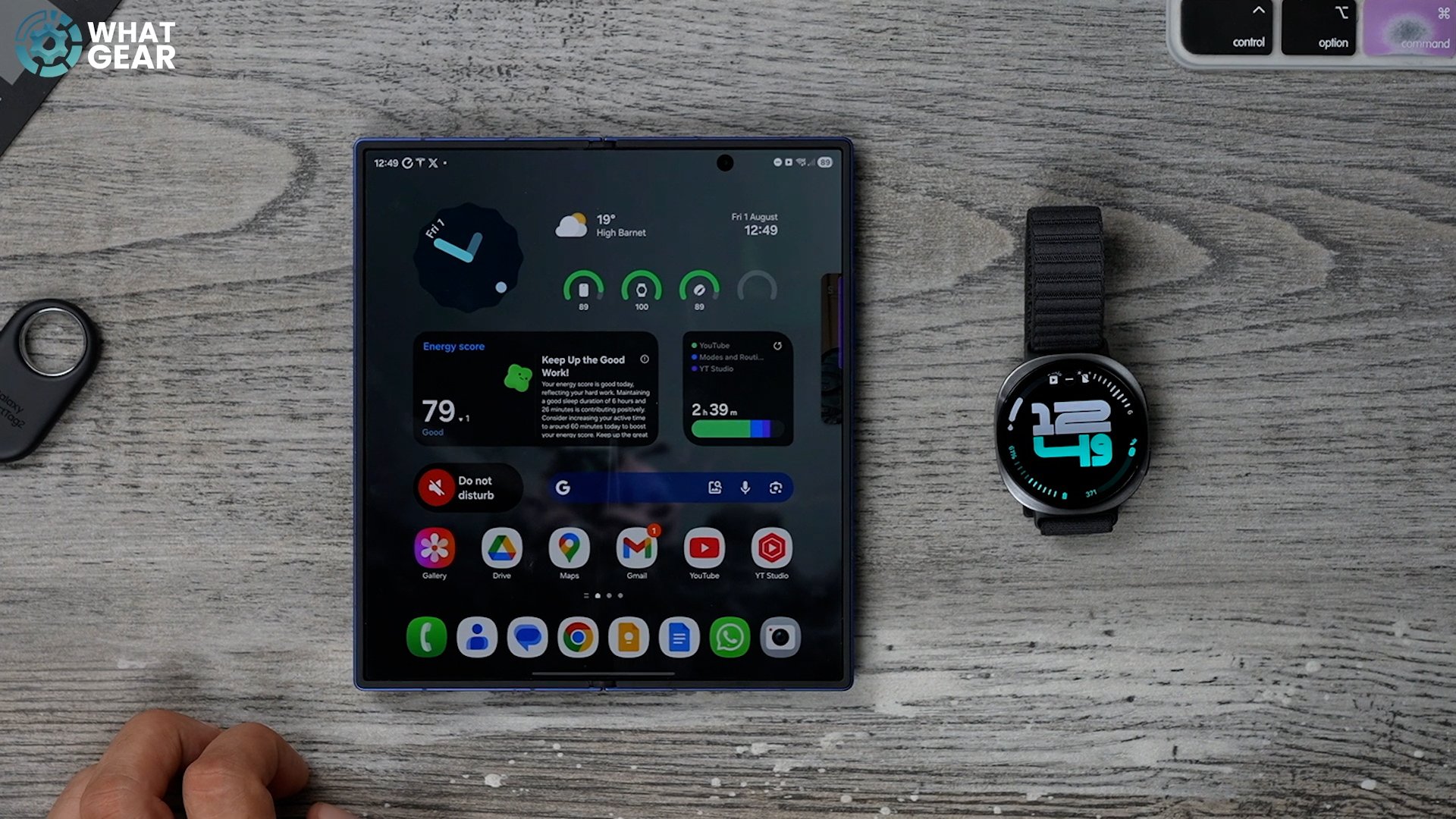
The first thing you might want to do is customise your clock faces. You can do this on the watch itself. It's a lot easier to do on your phone. To do this, open the 'Galaxy Wear' app, tap watch faces. At the top, you'll see your current watch faces. My advice is that you should set up a minimum of three. One for leisure, one for work & one for workouts. I like the One UI8 watch faces. Sport Classic for the more formal look, dynamic digits for casual and 'daily dashboard' for exercise.
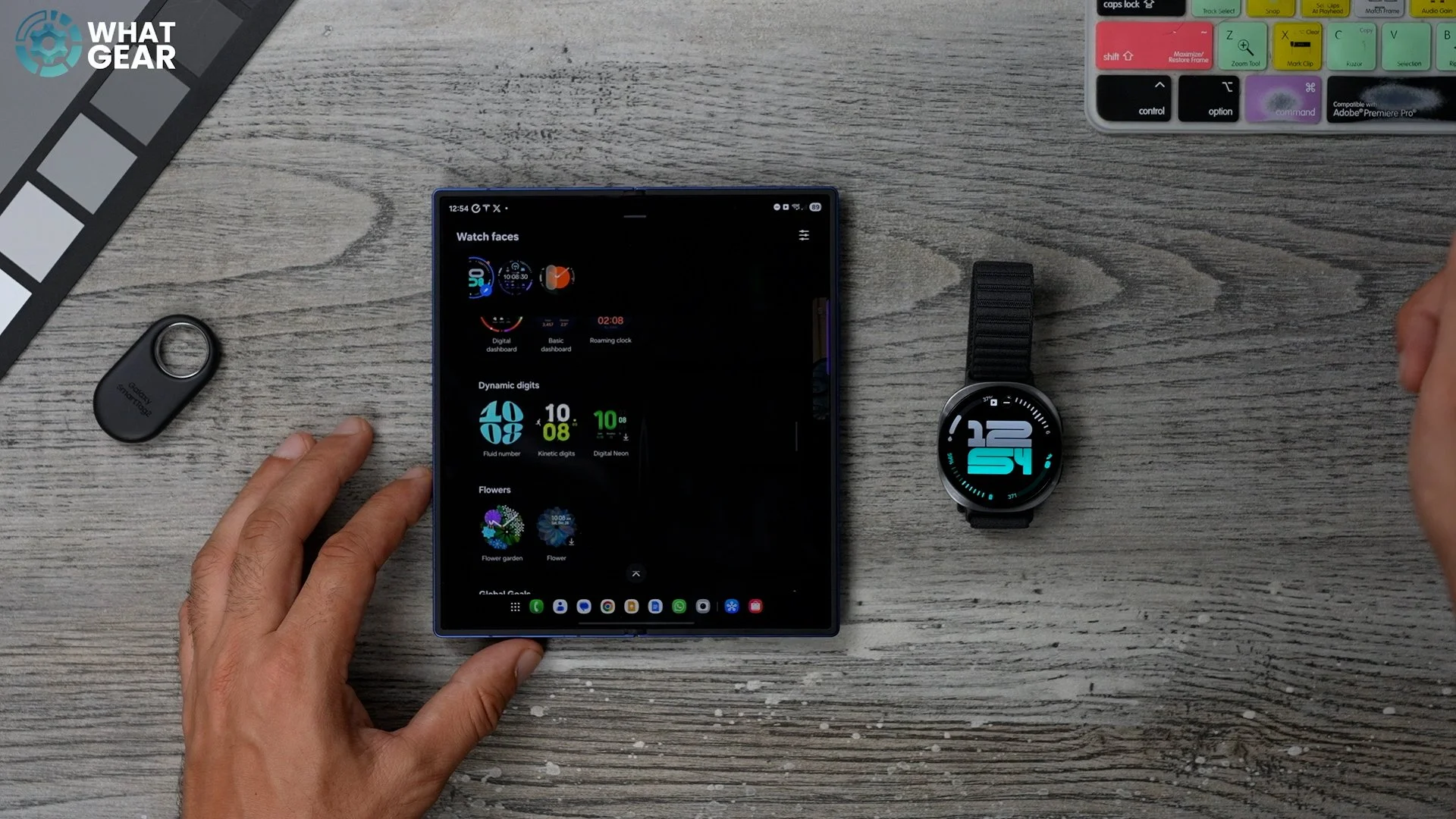
If you do want to use a photo or a custom wallpaper, you can do that by selecting one of the photo watch faces. The regular photo one is great for wallpapers, and the Pebble one is quite fun for pictures of people. Once you've installed your favourites, you might see a red dot next to them in the app. This means they need an update. Just tap them to update. To delete a watch face, just hit the three lines in the top right. And here you can hit the red minus next to the watch faces that are currently selected to remove them. Now let me show you how to customise your watch faces like a pro.
Watch Face customisation
Now you've selected your watch faces. To switch between them at any time, hold your finger on the current watch face, and then you can swipe between them. Now you could customise each one here, but again, it's much easier on the phone. At the top of the Galaxy Wear app, you'll see all your watch faces. Underneath each one, you'll see the option to customise. The number of customisation options will vary depending on the watch face.
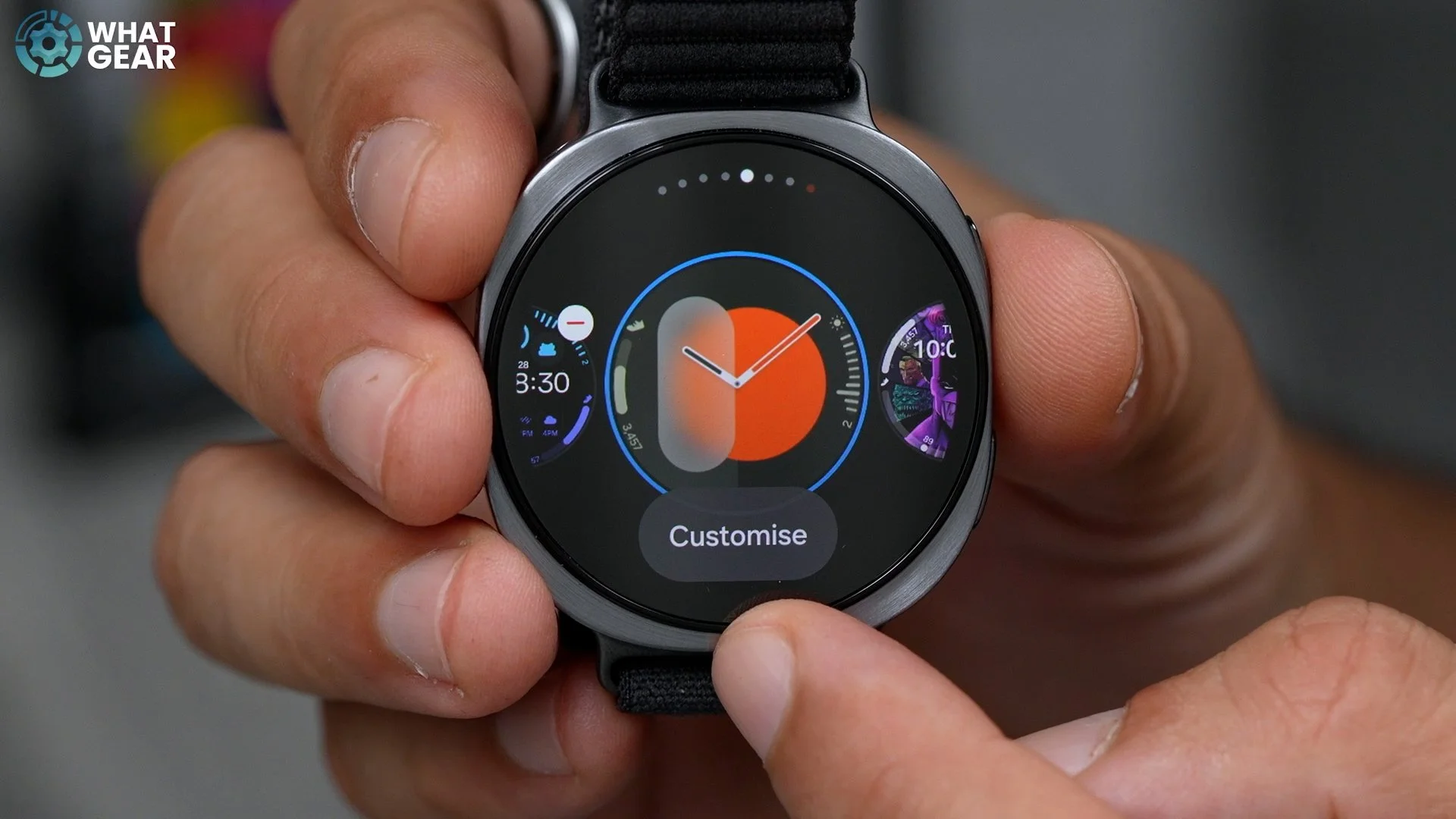
Just to demo this for you, I'm going to show you on the 'Dynamic Digits' watch face. Once you hit customise, you'll see the premade options that you can choose from. But, if you swipe across, you'll see the options to change the colours and even select individual complications. So, for your fitness tracking watch face, choose these wisely. And keep an eye out for the low 'light mode' watch faces because some of those look good.
Exercises
Now, since we're talking about fitness tracking. Let's get your usual exercise set up so they're easily accessible. Ok, so this is important. To set up your favourite exercises, you need to use a different app. This time, we're going to open the Samsung Health App. If you haven't set this up yet, definitely do this first. Now scroll down to the list of exercises. Tap 'more' and if your usual exercises are not in this list, don't worry. Just hit the 'plus' then choose 'select from exercise list'. Select all the exercises you do or plan to do. These have now been added to your list.
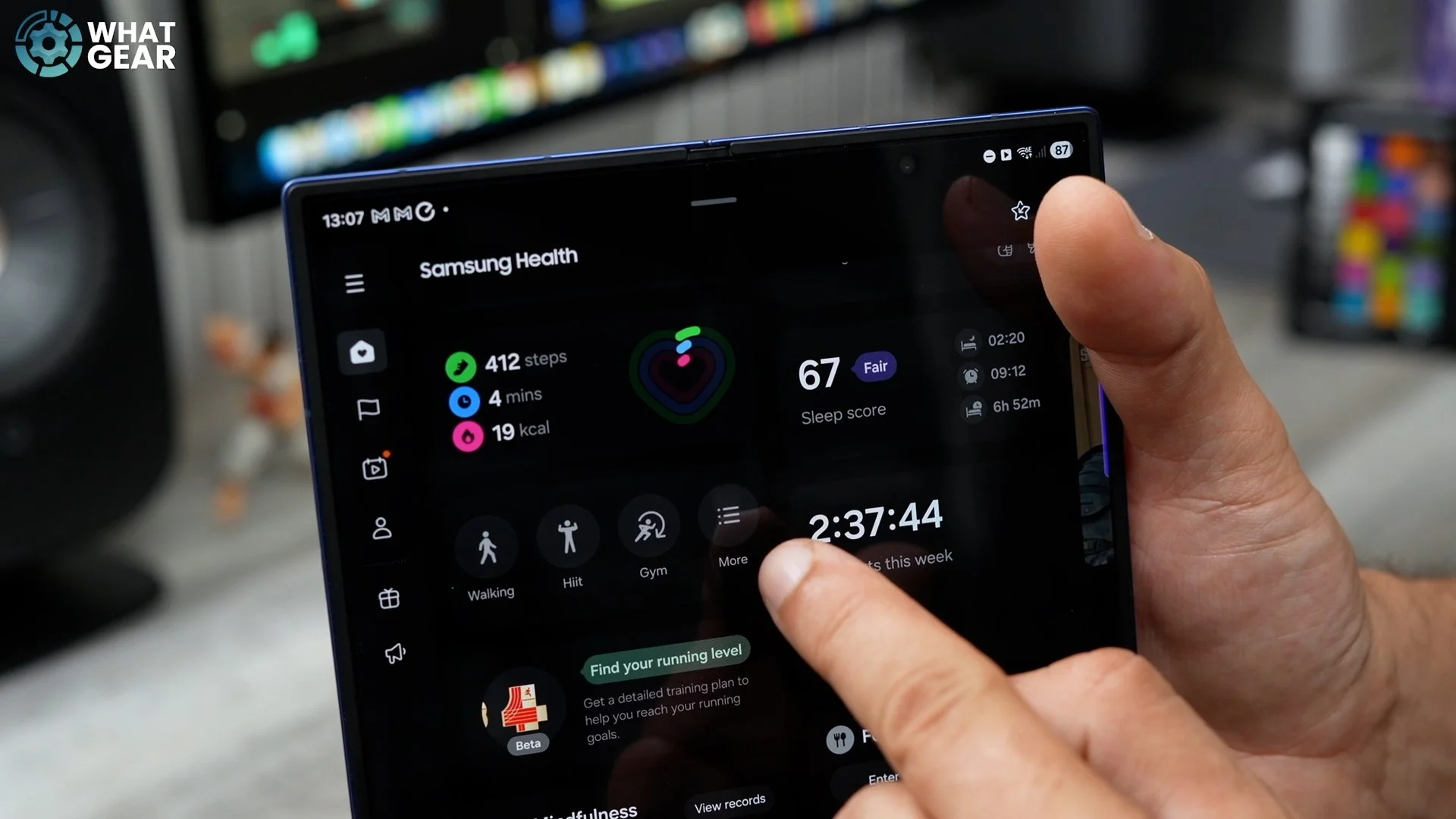

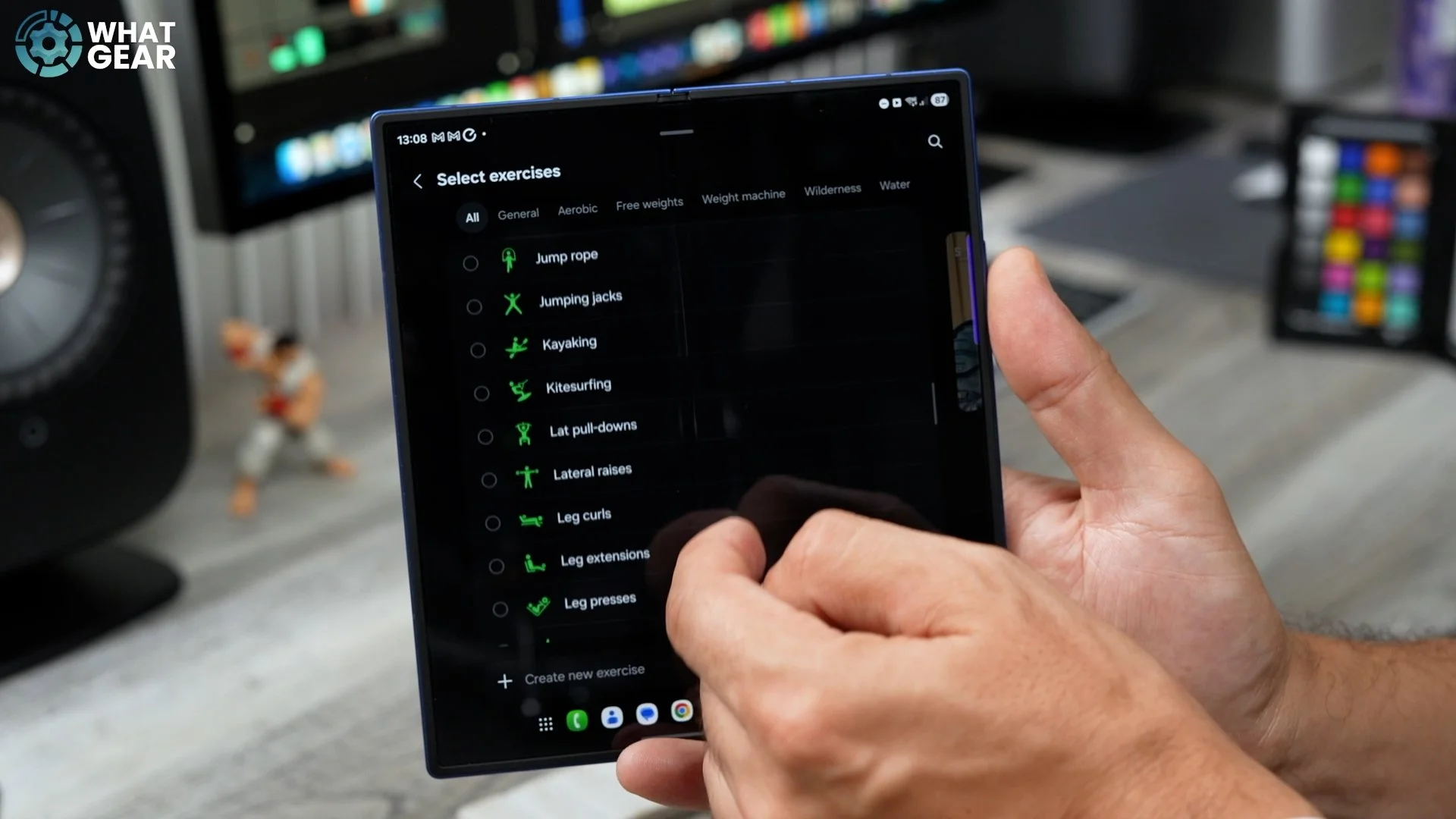
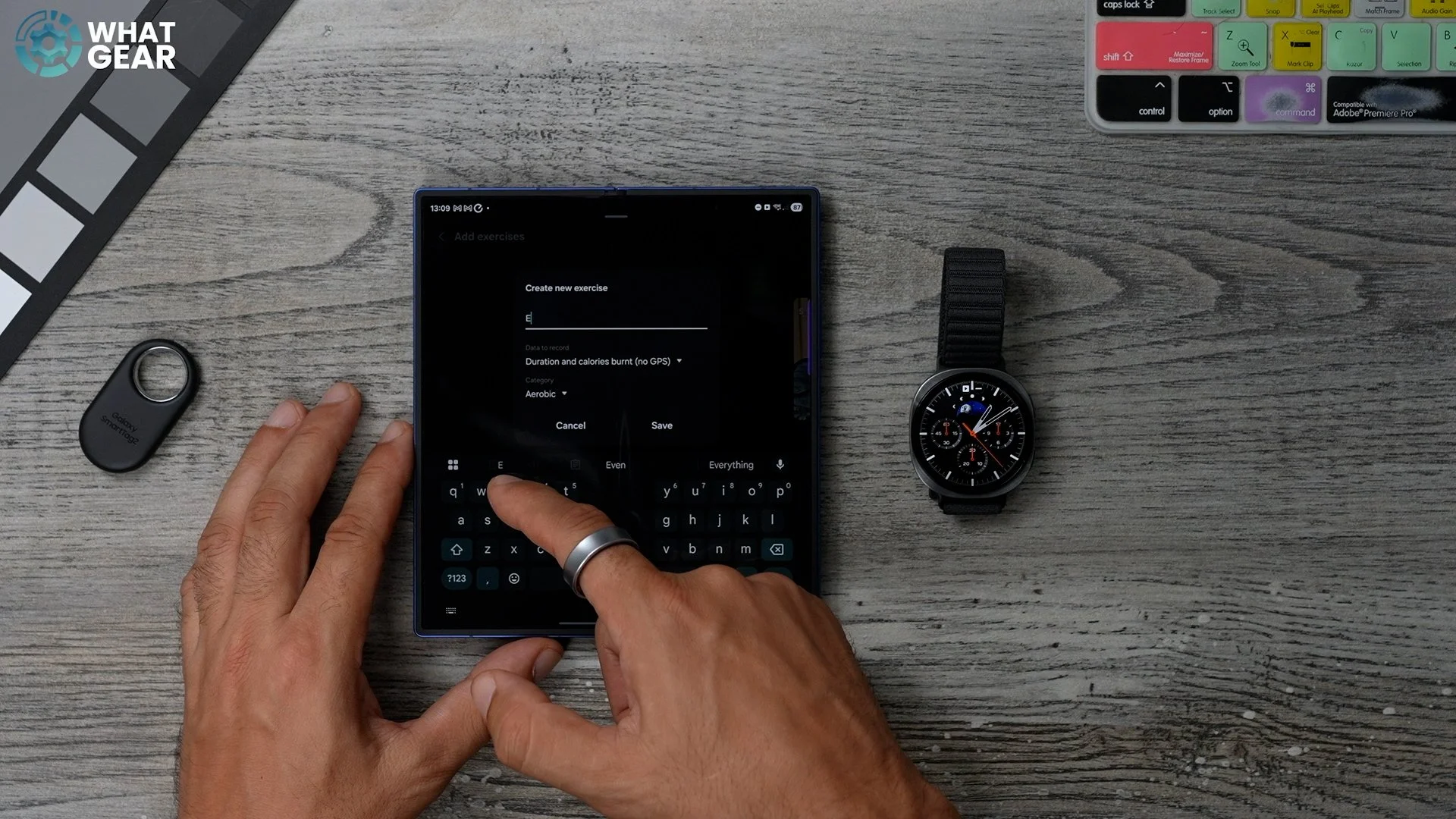
If your exercise isn't listed, you can create one by going back one step and selecting 'create new exercise' and have a specific routine that you often do at the Gym. You can program that here & give it a name. Now go back to the My Exercise page, and it'll all be here. An important step that most people won't do, which will cost them time, is this. On the 'My Exercise' page, if you hit the three dots in the top right corner, tap 'edit exercises' and hide all the workouts that you'll never do. This is important. Hit the star next to your top 3 exercises or exercise routines. Now you can find the exercise tile on your home screen with your top 3 workouts ready to launch instantly.
Customise tiles
All right, you're getting there, but don't give up now. There is more customising to do that will save you time in the future. Open the 'Galaxy Wear' app again, and this time go to the 'Tiles' page. By default, you'll have three pages. Health, Fitness, Basic. If you want to reorganise the order. Just hit the three lines in the top right corner & here you can tap and hold to rearrange the pages. Go back one step, and here you can choose the page you want to customise. To remove tiles, hit the 'red minus' next to the tiles. To add new tiles, just select them from below, and they'll be added to the page.
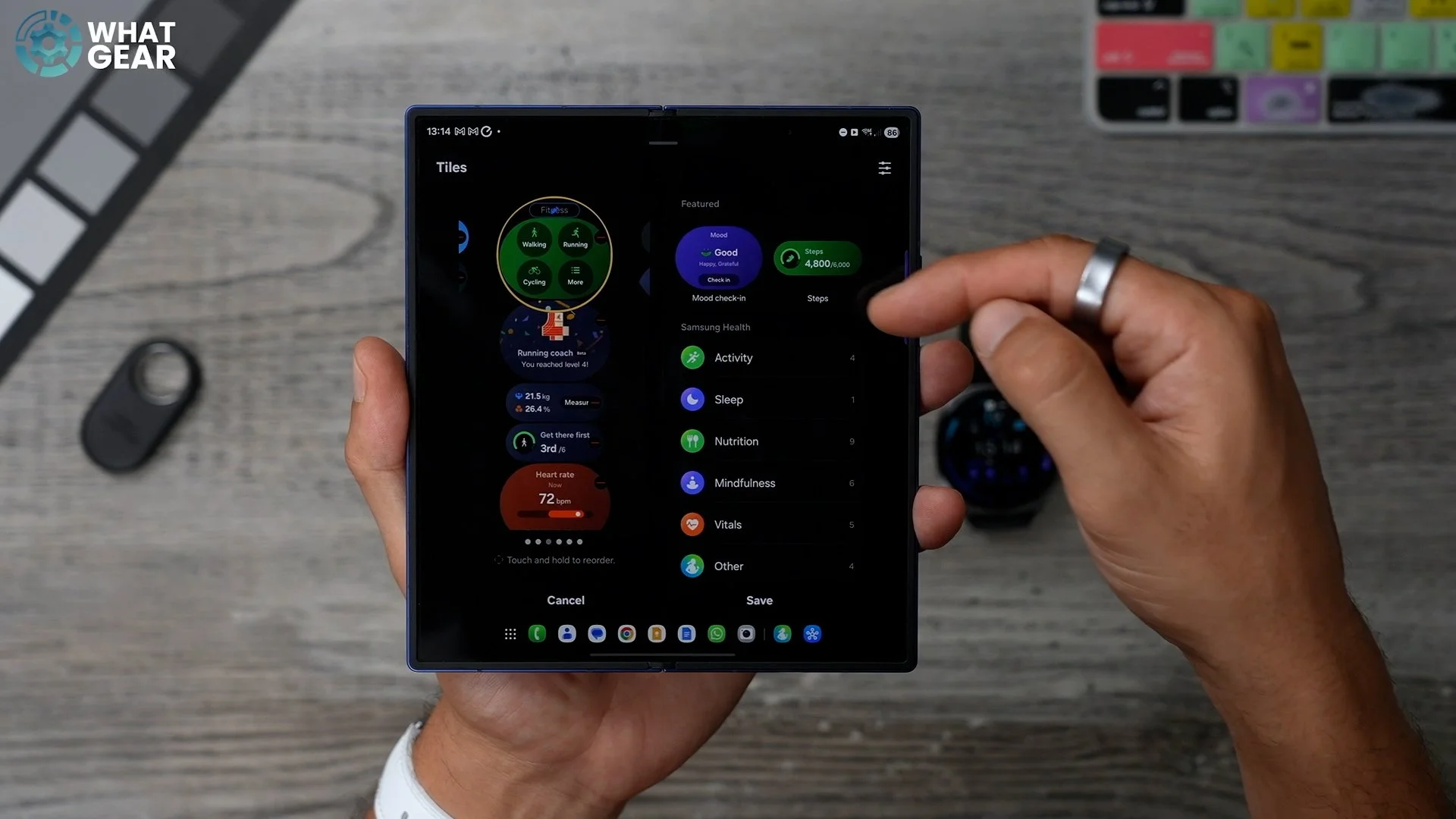
And if you want to move things around, hold your finger on a tile and drag it up or down, then drop it in place. Now, before we move on to another really important step. Here's how you create a new page. On the 'tiles page', swipe all the way across and hit the plus. As before, you can add tiles by dragging them onto the page. I'd recommend the 'Shortcuts' tile & you'll see why. Also, the voice recorder is super helpful, and the modes and routines are also super useful. Once set up, once you hit the pen at the top, you can give the page a name. Now this next one can be a little tricky. So take your time on it.
How to add new Apps
Ok, when it comes to adding new apps to your Galaxy Watch, there are a few ways to do it. But there is one way that seems to be the easiest right now. It took me a little while to find it, and I'm very familiar with Galaxy watches. So here's how to do it. Go to the 'Galaxy Wear' app, then 'watch settings', then 'Apps'.
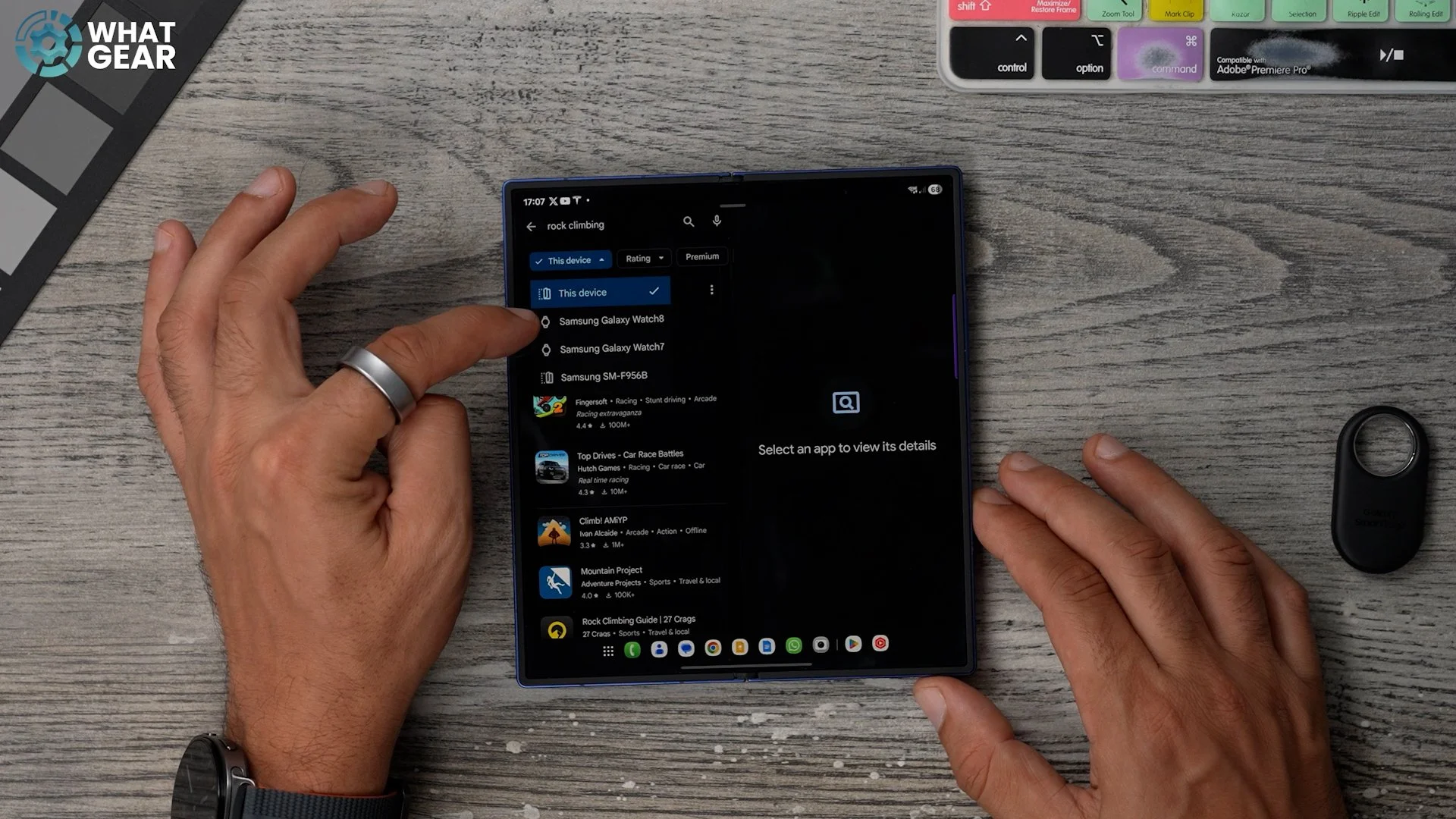
In the top right corner, hit the three lines with the magnifying glass. Type in what you're looking for, and then 'search in Play Store'. This will open up the Google Play Store on the exact page, and you should see your watch 8 as an install option. So, take some time to install all the smartwatch apps that you need.
Organise App screen
And, once you've done that, this will be the natural next customisation step. Go back to the 'Galaxy Wear' app and tap 'App Screen'. As standard, the apps will appear in grid format, which looks like this, but you may prefer a list view.

But, more importantly. What I recommend you do is organise your apps by holding your finger down and dragging the apps into an order, with your most essential apps nearer the top.
Google Wallet
Ok, let me know if this has happened to you. You go to the shop for one or two things, but somehow you end up picking up a few more things that caught your eye. So now you've got a whole bunch of things that you're pleased about, and you get to the checkout…and then that's when it hits you 'Oh God, Oh Man. You forgot your wallet. You left the phone in the car, and now you're holding up the queue.
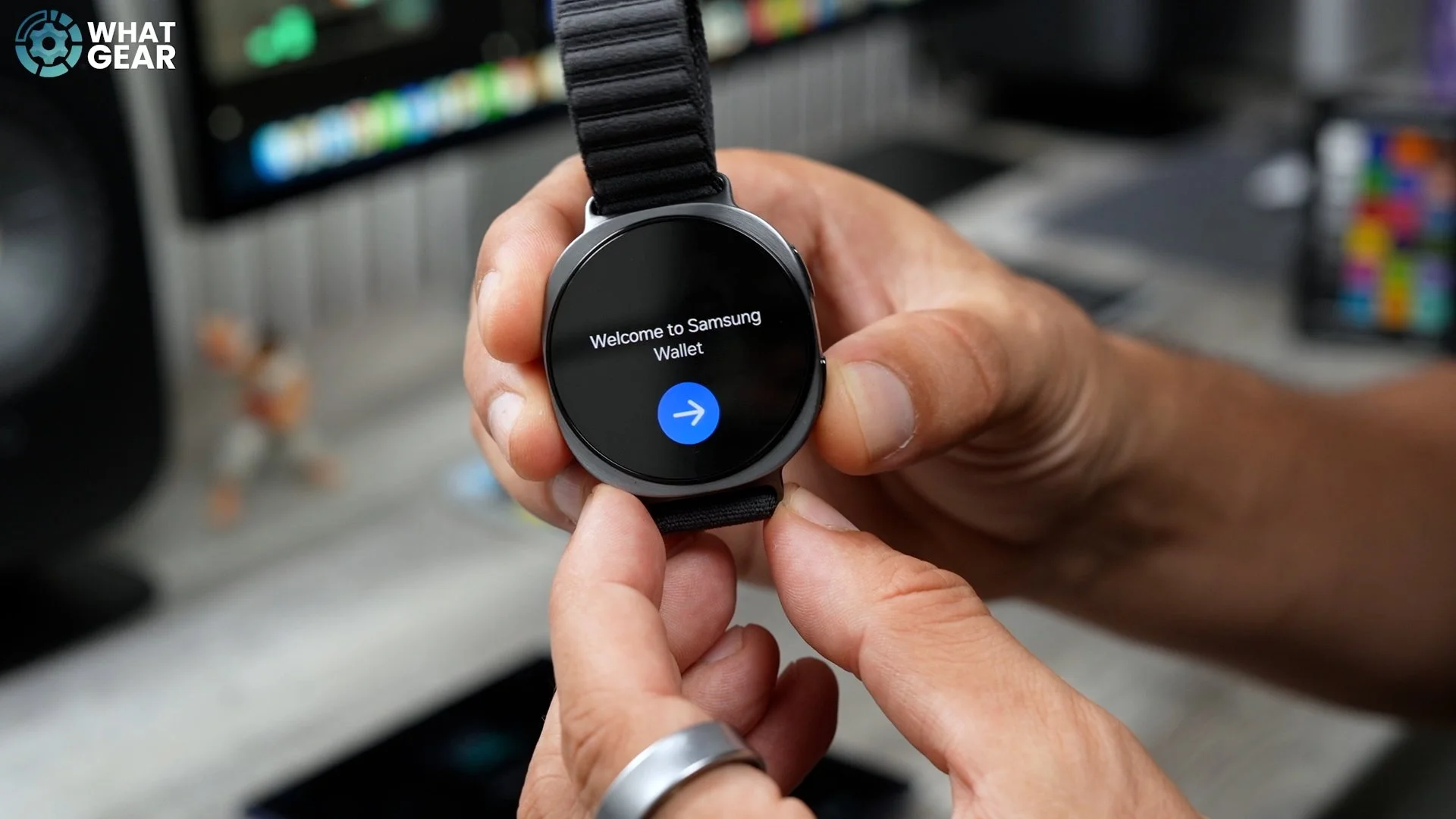
Well, that has happened to me several times, but my Galaxy Watch has saved the day for me on many occasions. Samsung wallet is on this watch as standard. So you can set this up on your phone and link it to the watch. Just open the Samsung Wallet app on the watch to do this. Once set up, you can pay even when away from your phone by just holding the back button down to quickly open Samsung Wallet.
Bonus
However, if, like me, you use Google Pay as your main wallet app. Download and install as I showed you in tip 5. Set it up. And the last step is to avoid having to find and open the app each time. It is to add it to the shortcuts. Or even better than that might be this.
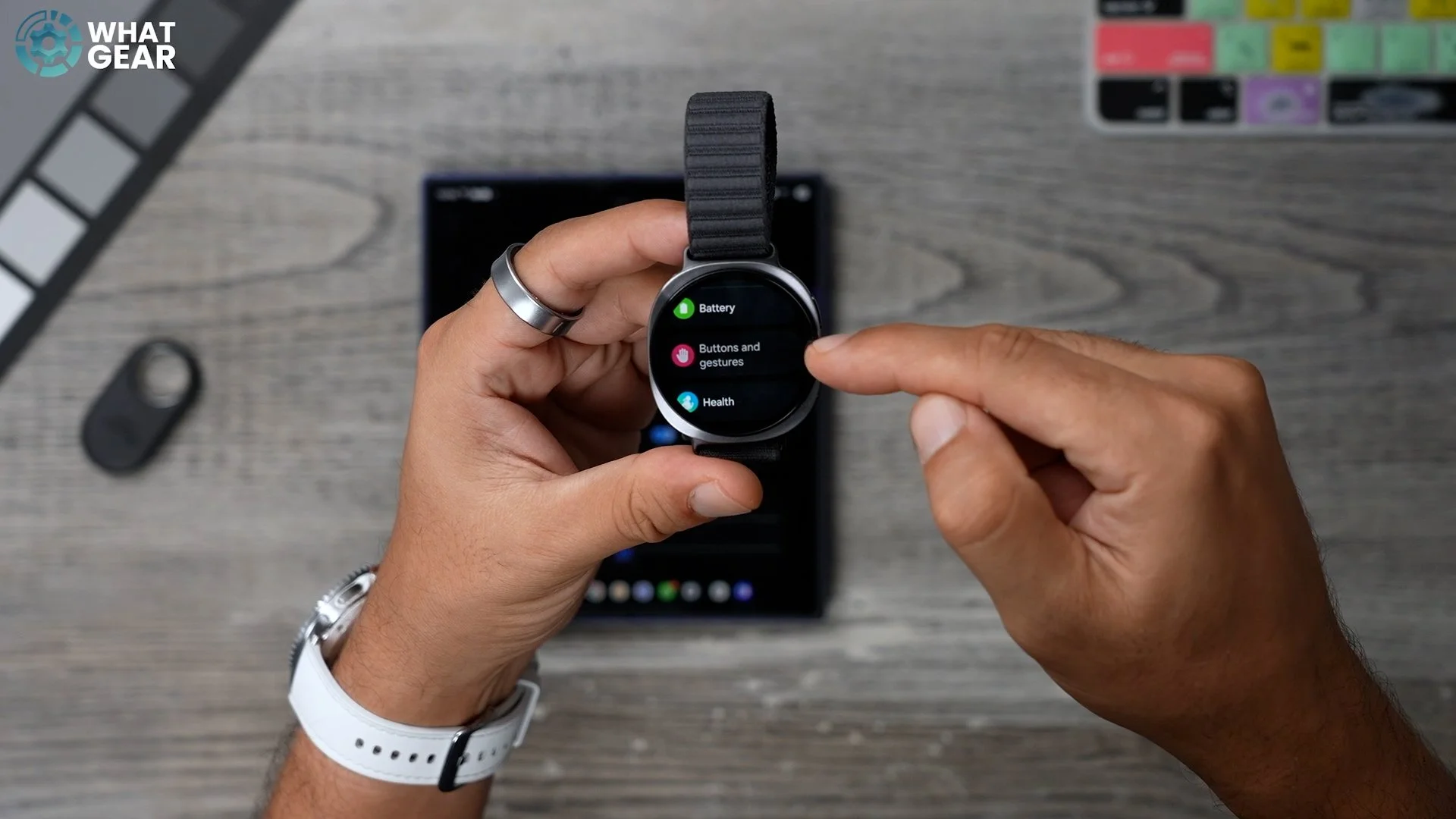
Swipe down from the top, go to settings, then 'buttons and gestures' and set the double press of the home button to open the 'Google Wallet'. And if you go back to 'buttons and gestures', since double-tap isn't backgrounding anymore. You could change the back button to 'show recent apps'.
Gemini
Ok, so this is one of the newest additions to the Galaxy Watch & it can be extremely useful. You can now use Gemini AI. By default, if you push and hold the home button, you can wake the AI and use it to answer any questions you can think of.
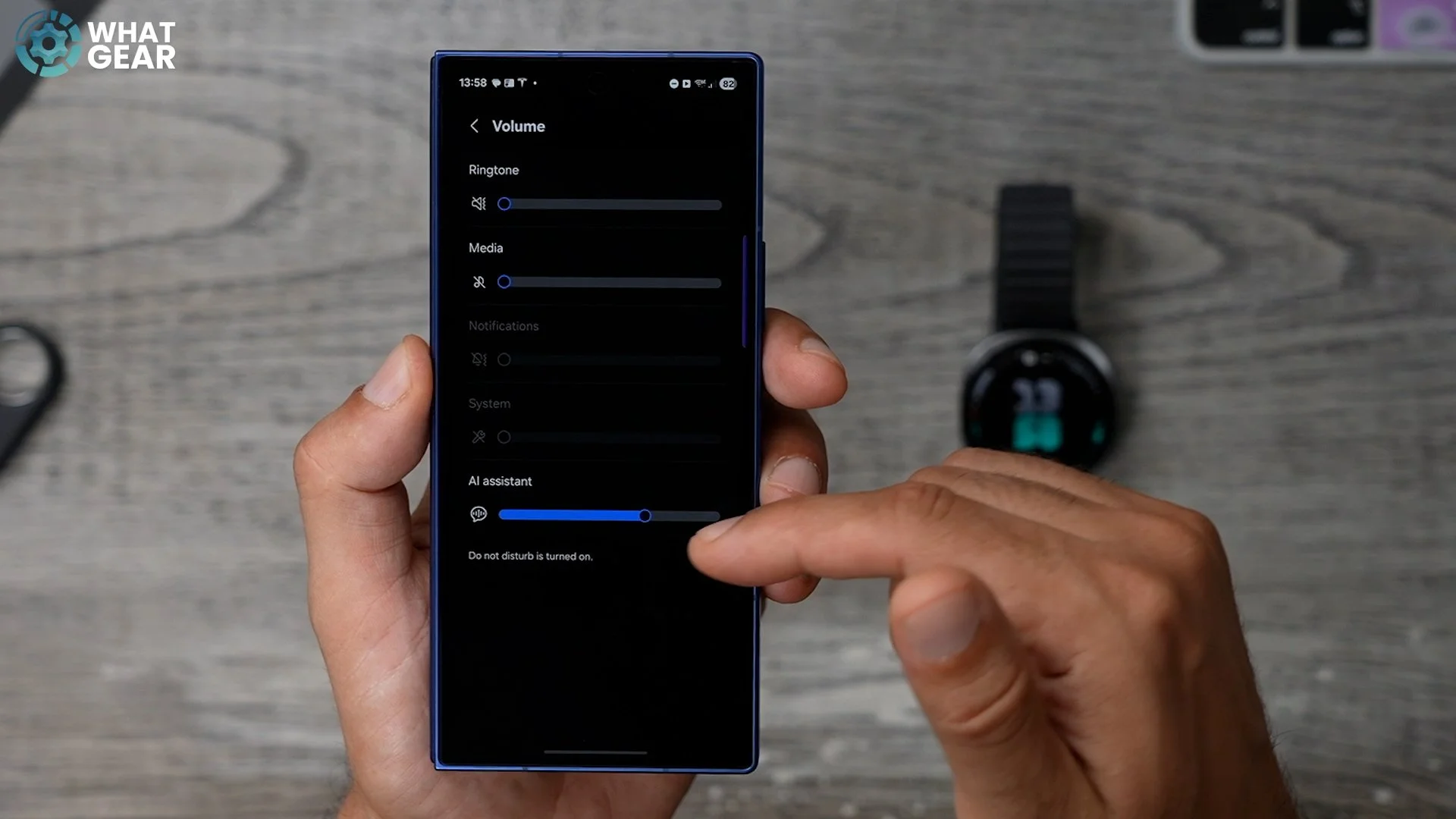
What you might notice is that the volume may be a little low or maybe even too loud. In the 'Wear App', go to 'watch settings', 'sound and vibration' and the 'volume'. Here, you can set the audio level just for the AI.
Organise Quick Panel ( show volume )
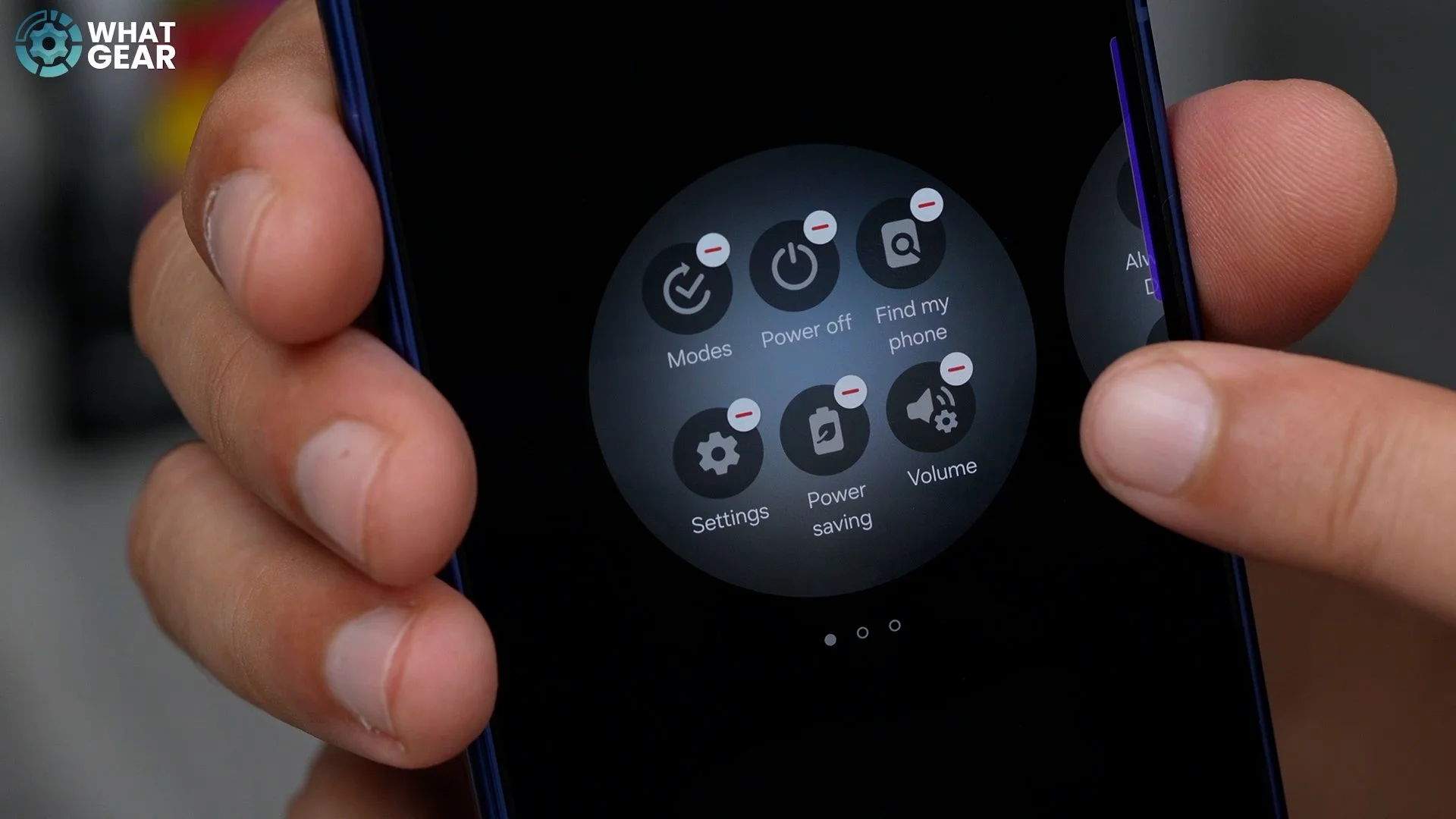
Alright now, here's another organisational tip to help you save time. On the 'Wear App' go to 'Quick Panel' and this is where you can move things around so that all your essential 'quick settings' are easy to find and access even more quickly For example see my phone is super handy, also you may want to much volume control and do not disturb, and BT Audio closer to the front.
Local Music
Alright, so I know some of you watching this might be runners, or maybe when you're at the Gym, you like to leave your phone in your bag. In those scenarios, you want to know how to add music to your phone for offline listening. There are two ways to do this. Here's the first one. In the 'Wear App', go to 'watch settings', then go to 'Manage Content', go to tracks on watch & here you can manually add tracks to your watch.
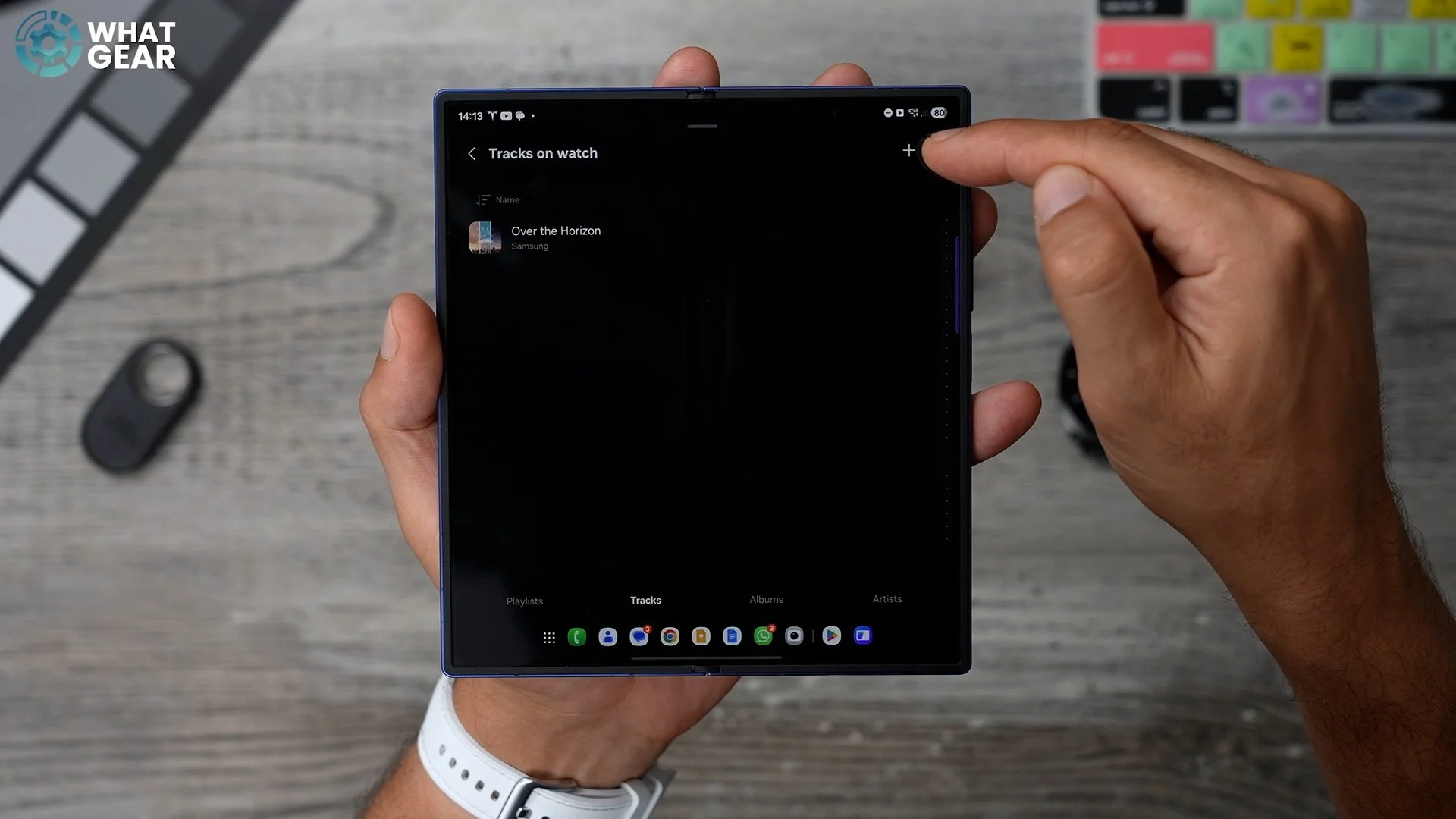
Alternatively, you can download offline playlists. I use Tidal, Deezer & YouTube Music, and all three allow you to download offline tracks. And of course Spotify too. Just navigate to your playlists, and you should see the option to download to watch. Okay, so I made it & thank you for staying to the end of this first thing to do video. As a reward, I've saved some bonus tips for you. Some quick-fire ones that I think you're going to find super helpful.
How to pair earbuds
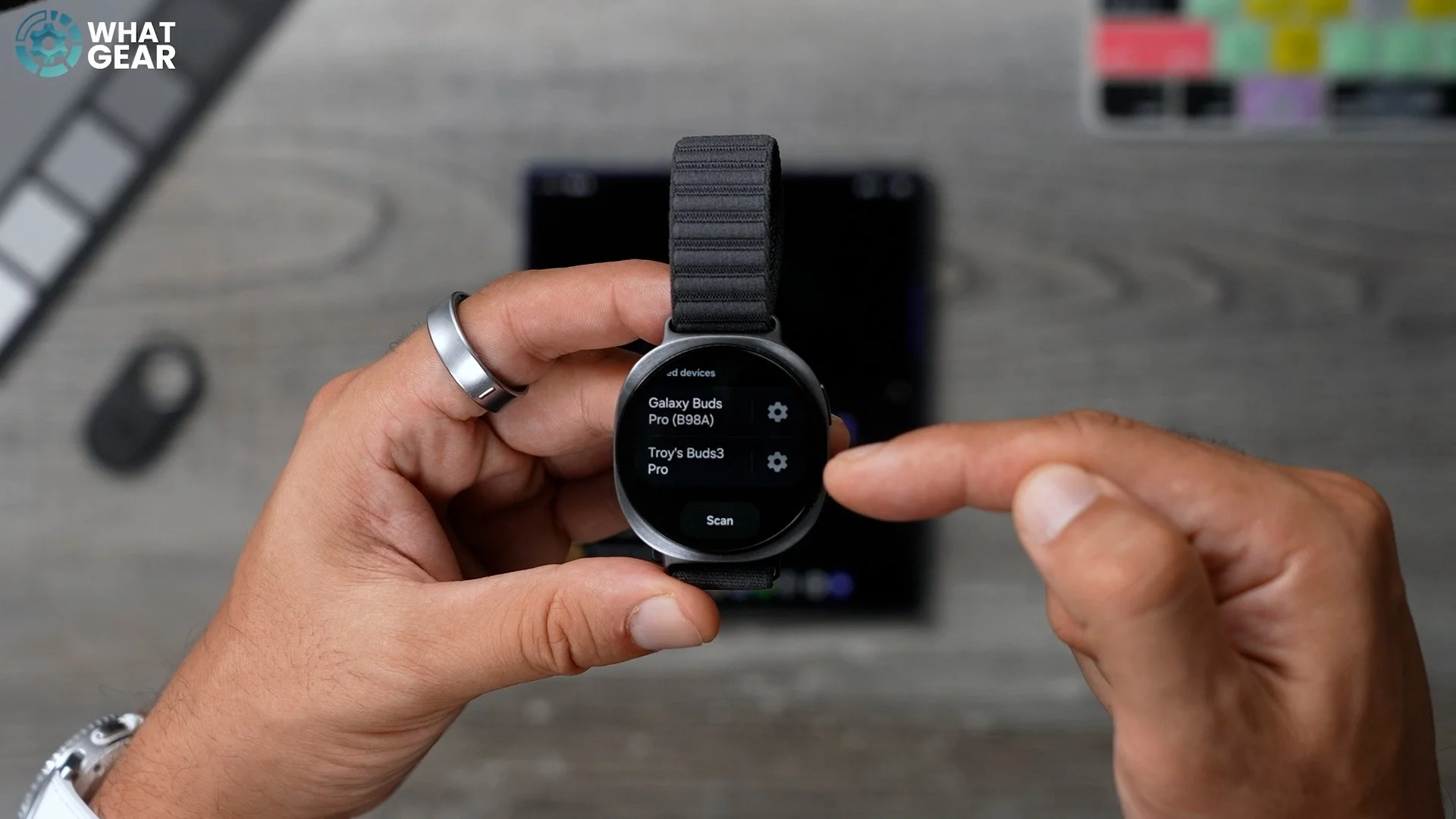
Here is how to pair BT headphones to your watch directly. For when you want to leave your phone behind. Swipe down your quick settings, tap the BT Audio icon, and this brings you to a page where you can scan and pair new devices, such as headphones, earbuds, or speakers.
App notifications
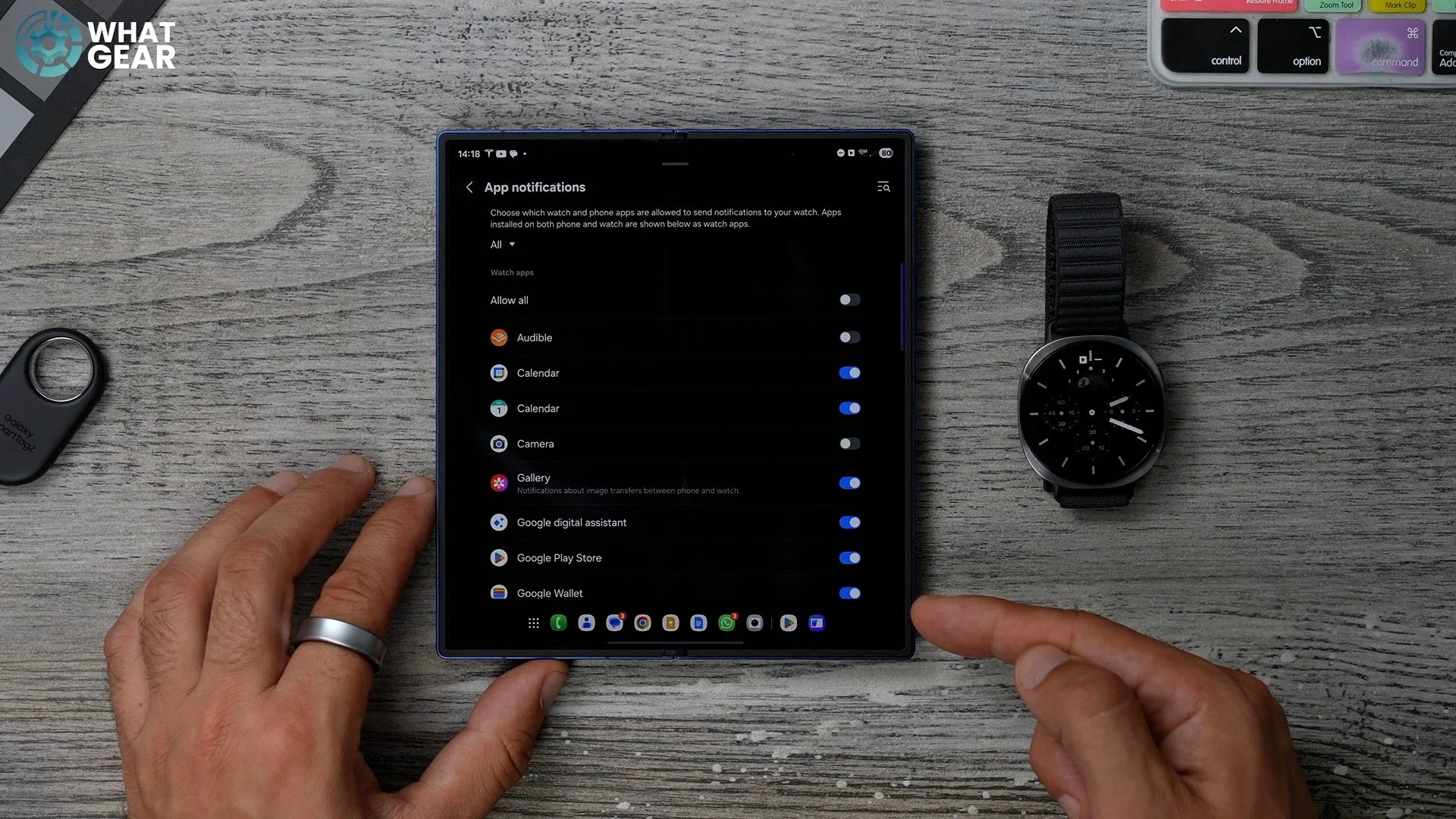
Now this is important. You know when it's really quiet and then all of a sudden your phone goes off and startles you, well, it can be twice as startling if you watch it vibrate every time you get a notification. So, do this in the Wear app, go to 'app notifications', then scroll through the list and switch off everything that could distract you.
Antioxidant index
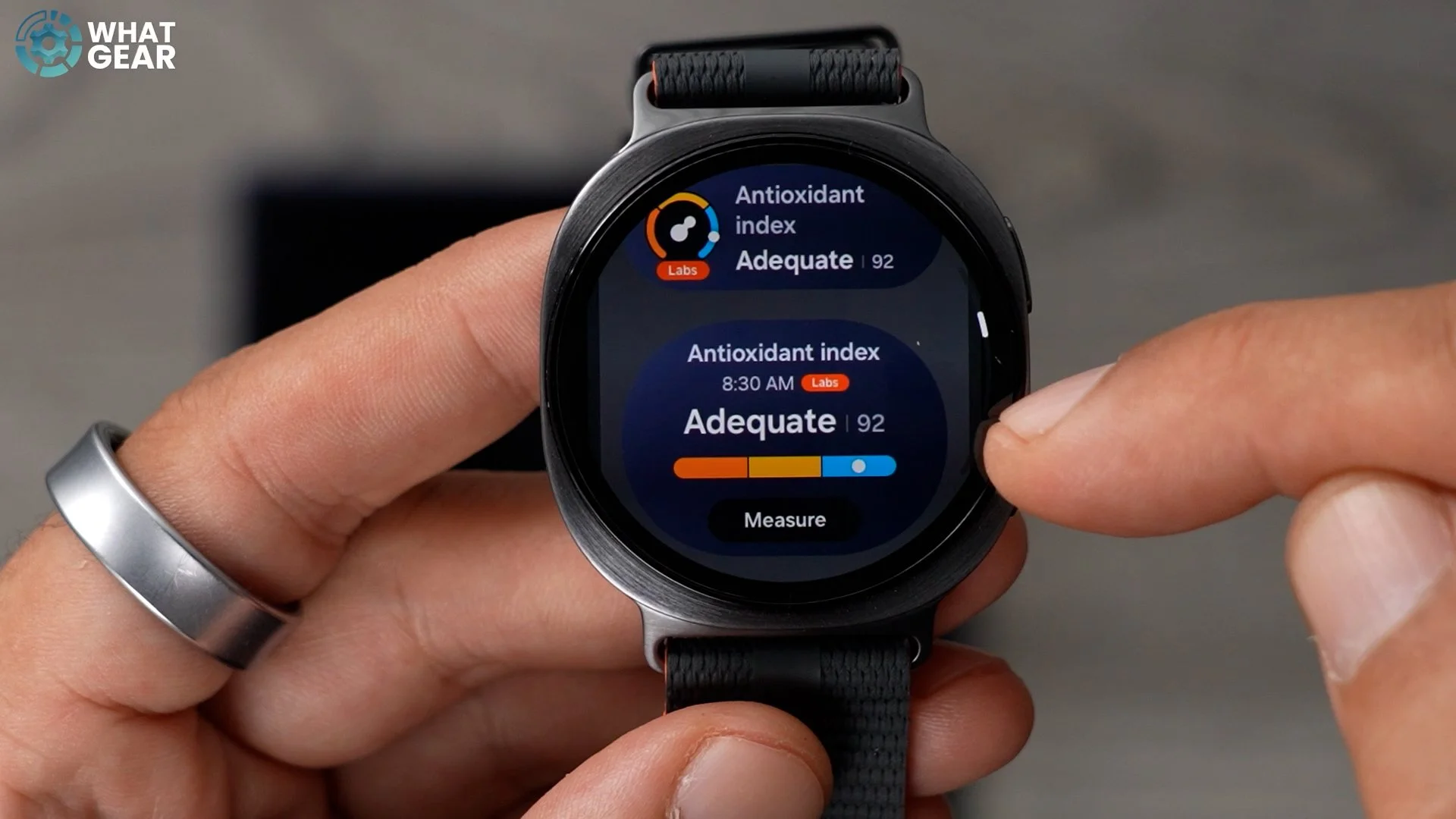
So here is another brand new feature on the Galaxy Watch 8. It's the Antioxidant index. This can let you know if you're eating enough fruit and veg. And so definitely test this out on day one.
Camera Controller
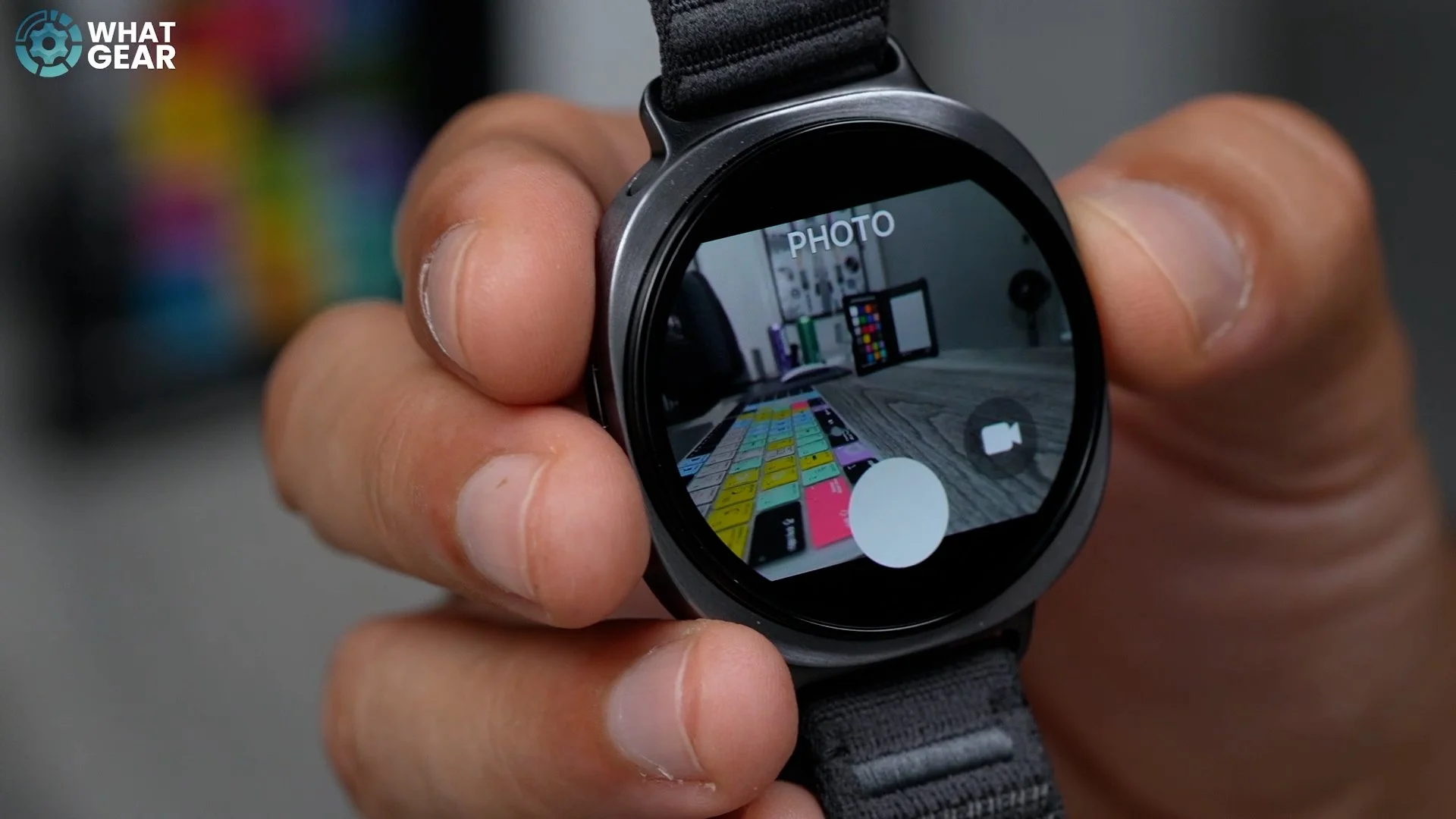
Ok, this is a favourite feature of mine. Remember tip 4 and how I recommended adding the 'shortcuts tile'. Well, add this to that shortcut tile. 'Camera control' now allows you to use your watch as a viewfinder to snap a photo from a distance, and this can even help you frame a selfie video perfectly.
Movie Mode
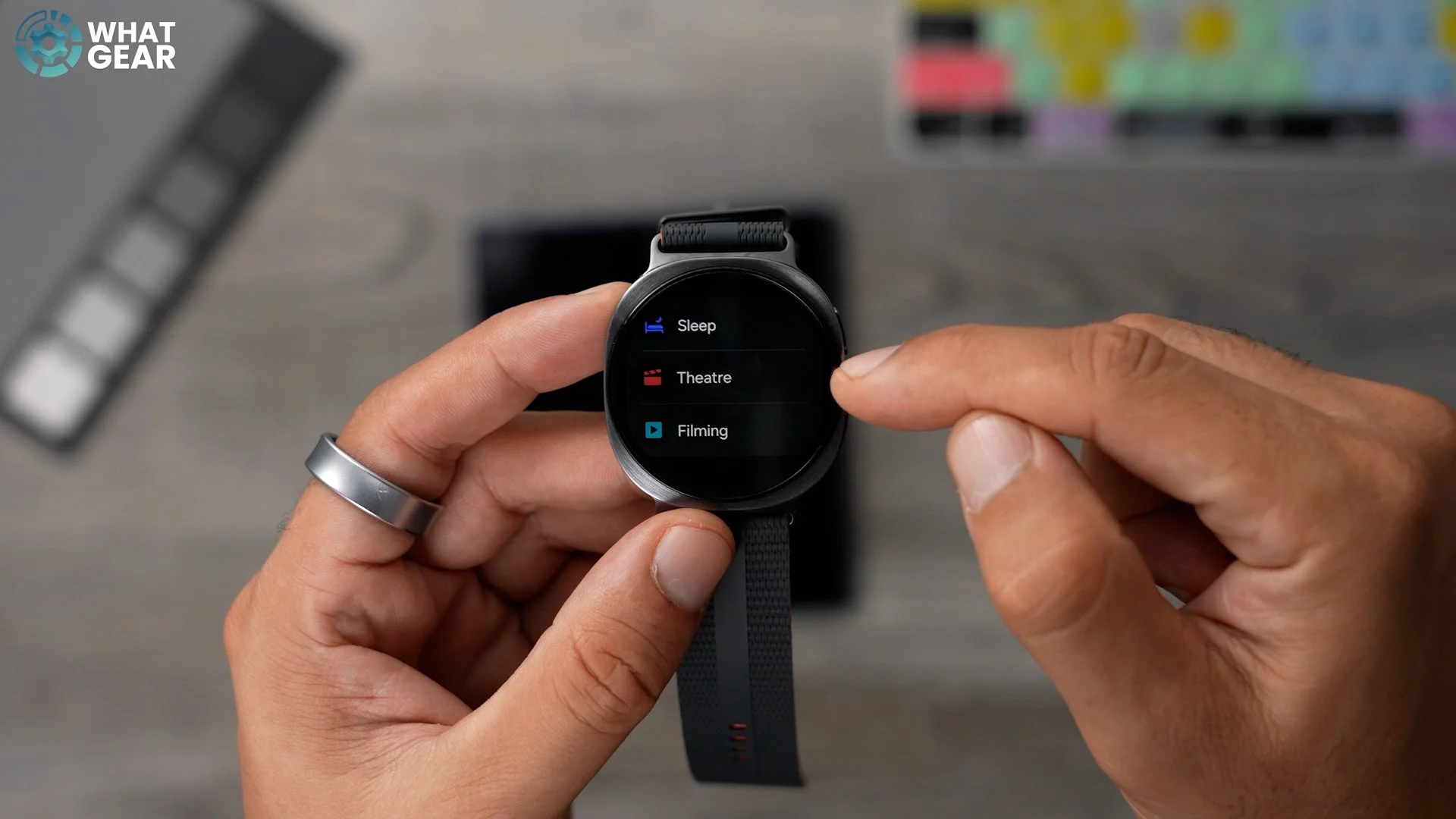
Have you ever had someone complain that your watch is constantly lighting up while watching a movie? Well, if you haven't, maybe one day you will & you'll be glad I showed you this trick. Swipe down from the top, hit the icon that looks like a pie chart & here Samsung has very kindly dialled in a dedicated 'Theatre' mode.
And when it comes to modes & routines, and all the hidden features on the Galaxy Watch 8. I had planned to include them in this video. But, I didn't because there are enough of them to make a separate Galaxy Watch 8 secret settings, hidden feature video. That's on screen right now.
