Galaxy Watch Ultra 2 - Don't Get Your Settings WRONG! ( Tips & Tricks )
So you just got yourself a brand new Samsung Galaxy Watch. Good times. This watch is an absolute beast, but there is a chance you might be missing out on some of the new and best features, especially if you don't take the time to discover them and set them up properly. And don't be one of those people who makes the assumption that everything will just magically fall into place. And everyone knows when you make an assumption, you're making an ass out of yourself. And now, good news, it's not too late. The best time to have done this was a week ago. The second best time is right now.
NEW TILE/NEW FUNCTIONS
So let's start by adding all of the new health tracking features that exist on this watch to a new tile, and at the same time, you will be learning how to create and customise your home screens on the watch. And yes, you can make all of these changes on the watch itself, but it is much easier to do in the Samsung Wear app. Once you're in the Wear app, make sure you select your watch on the left side with the little watch icon, and then go to Tiles at the bottom. So whilst on this page, you can reorganise, delete, and add things to the pages that you already have.
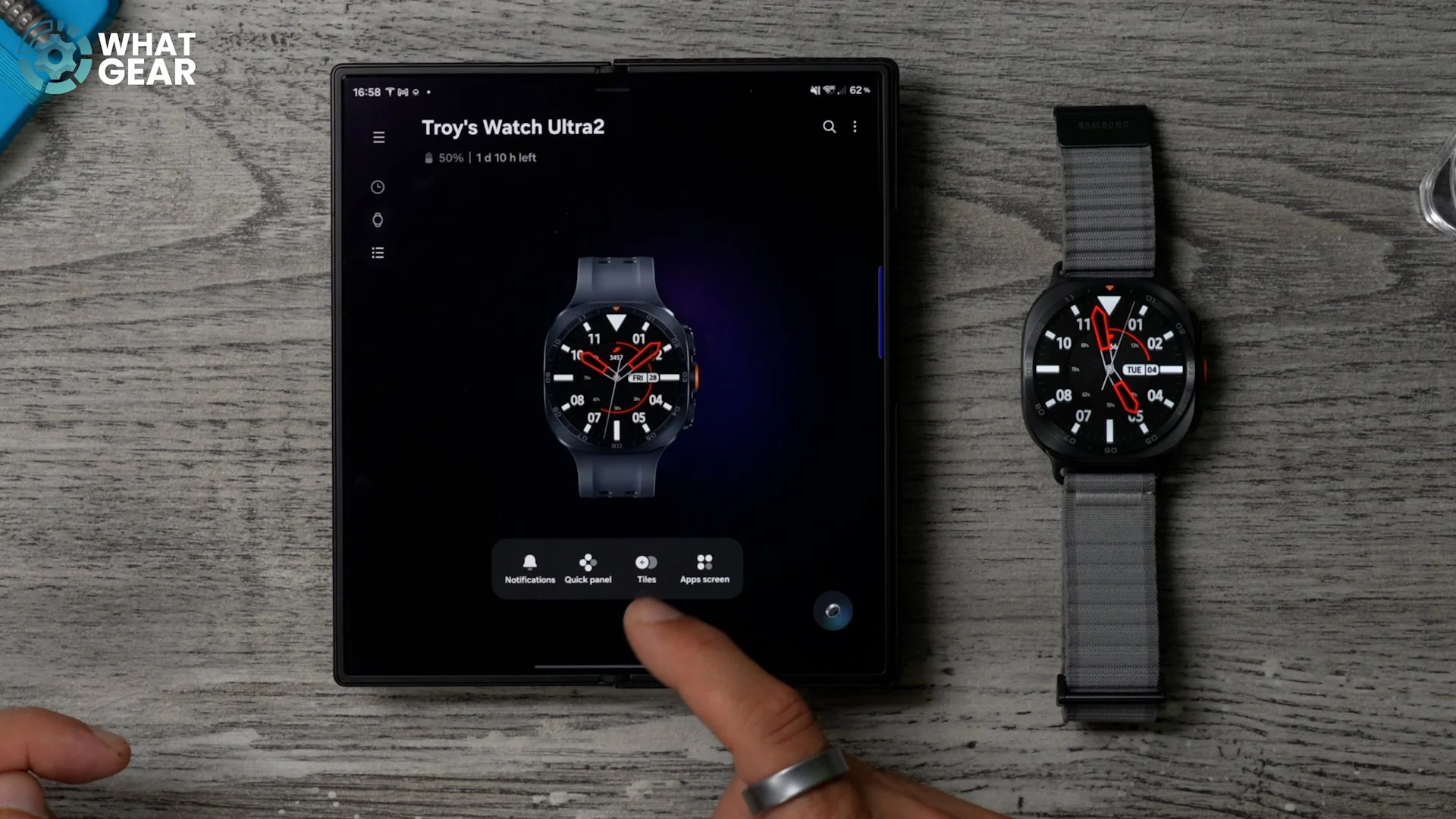
But for this one, we're going to go all the way across to the plus. Hit the plus. And now we can add all of the new features to a new page, so the first one can be found within Vitals. When you scroll down a little bit, you'll find this new card called Vitals. You do need to use the watch for five days in a row and actually sleep with it on in order for this to activate properly. Also, within Vitals, you'll see these new ones. Heart Health: these are brand new tracking features that have been added to this watch. Also, under Activity, there is a brand-new tile called DailyCardio Load. So these are all great for recovery. And there is another new feature under the Other tab. If you scroll down, there is this under Hearing. This is a new Sound Exposure widget that shows the sound levels around you, because sometimes it's good to know if you're standing a little bit too close to a speaker. And also, while we're here, under Nutrition, you will find this: the Antioxidant Index. This was brand new to the previous watches, which essentially lets you know if you're eating enough fruit and veg.
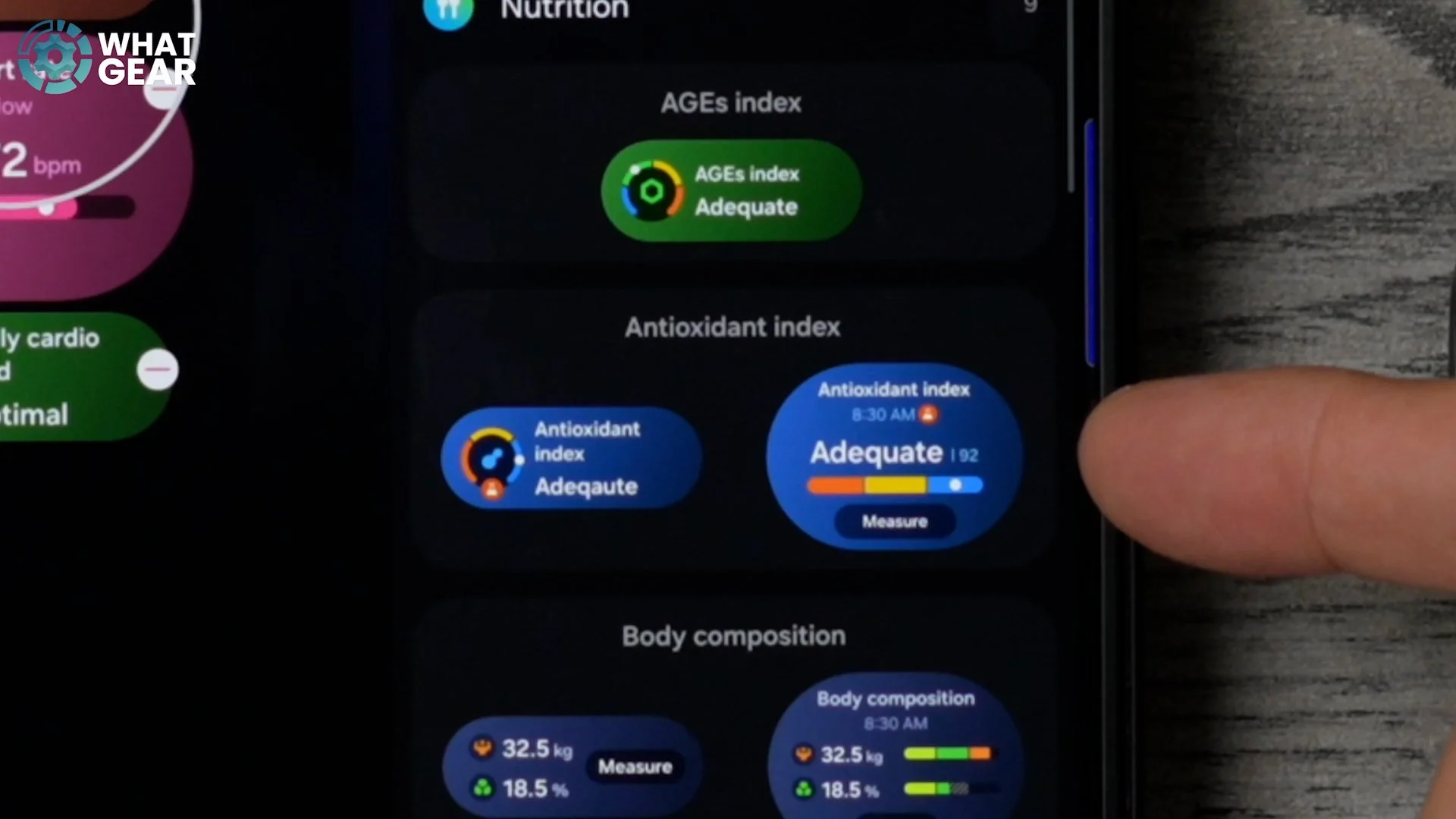
And something really important to know about this particular feature is that in order to get an accurate reading, you do need to take the watch off and rest your thumb on the sensor array when you start the measurement. And when it comes to tiles, if you are a Samsung Galaxy Buds user, you might want to add the Galaxy Buds controls to your watch. And if you are going to be using your watch a lot of the time to listen to music and not your phone, there are some important things you need to know, which we will come back to a little bit later on in this video.
GYM TRACKING
So if you're the type of person who only wants to track one particular type of sport or workout activity, and you just want one simple way to track everything that you do at the gym, for example, you'll appreciate this one the most. This time, on the watch itself, when you swipe down from the top and go to Settings, you will discover the Buttons and Gestures menu. If you go to this, right at the top, the quick button is the one on the side here with the orange accent. If you go to Action, you'll see that Samsung Health is set to My Exercises.
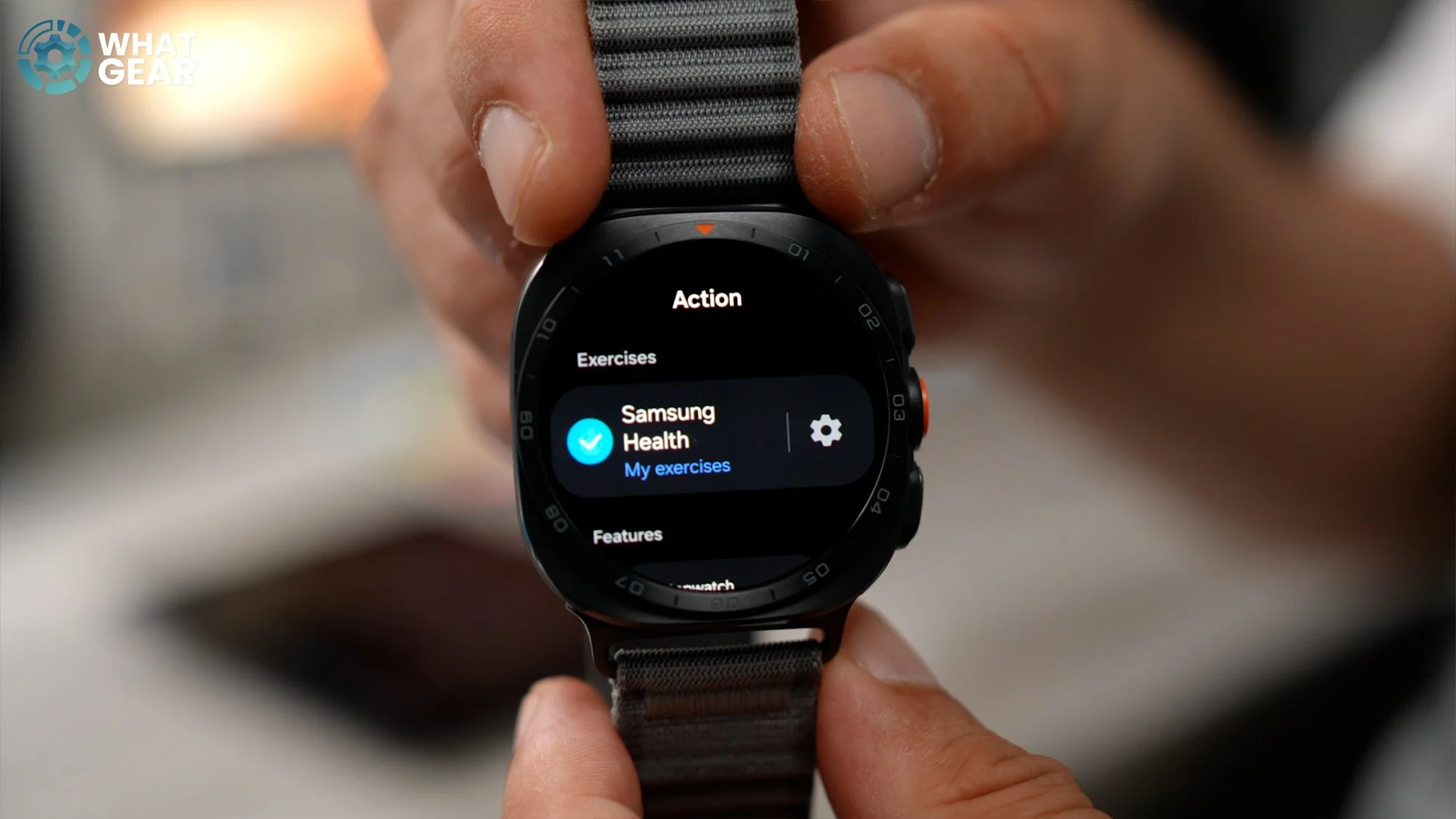
If you hit the little settings button to the side of this, you can now scroll down and choose the specific activities that you're going to be doing. For example, if you just want a generic tracking mode for the gym, you could set this to the gym. And now all you need to do to start that tracking is push this button at the side. And if you use the digital rotating crown, you can actually scroll through these quite nicely. And there's one here called Multitasking. So this is if you're going to be doing lots of different activities.
FAVOURITE EXERCISES
But if you want to be more specific about what you actually do at the gym, you might prefer to do this. So we're going to go back to Samsung Health. And on Samsung Health, we're going to go to the Exercise tab, which is the little running man. Tap on this. If you scroll down, you should see this tile called Exercises. Tap on this. So this is a list of available exercises. You can pick and choose the ones you like by tapping the stars. This then adds these exercises to your My Exercise list. Now, if you're looking at this list and your exercise isn't here, don't worry because there are more that are not shown here, and you can find them by hitting the little plus at the top over here and then going to Select from Exercise List.
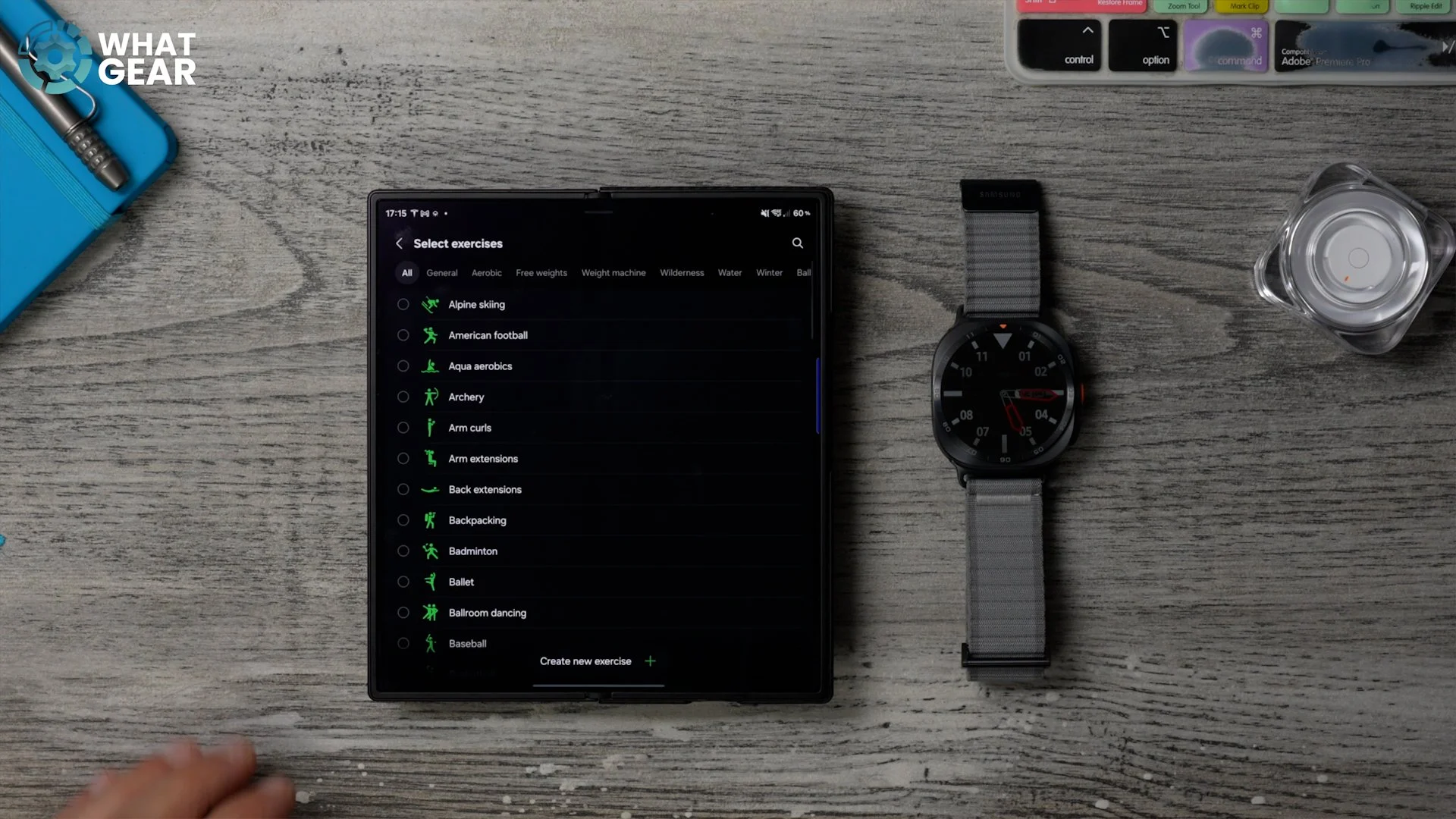
And here is the full list. And it's even categorised across the top, so you can find what you're looking for. And the final step is, of course, this. Just swipe down from the top, go to your settings, and then scroll down a little bit, and then go to Buttons and Gestures again. And then make sure it is set to open up your favourite exercises at the top. And now, whenever you hit the orange accent button over here, this will jump straight into your specific exercises. Now I just want to emphasise how important this one is because lost time is never found again.
APP DISCOVERY
Now, when you set up your watch for the first time, it should auto-install all compatible apps found on your phone to the watch. But what if there's an app that you really need that is not here? Well, that is exactly why you must know how to find and install compatible apps. And you might think that this is easy, right? Wrong. And it's because some of the compatible watch apps are actually quite hard to find. So let me show you one easy way to find them all in one place.
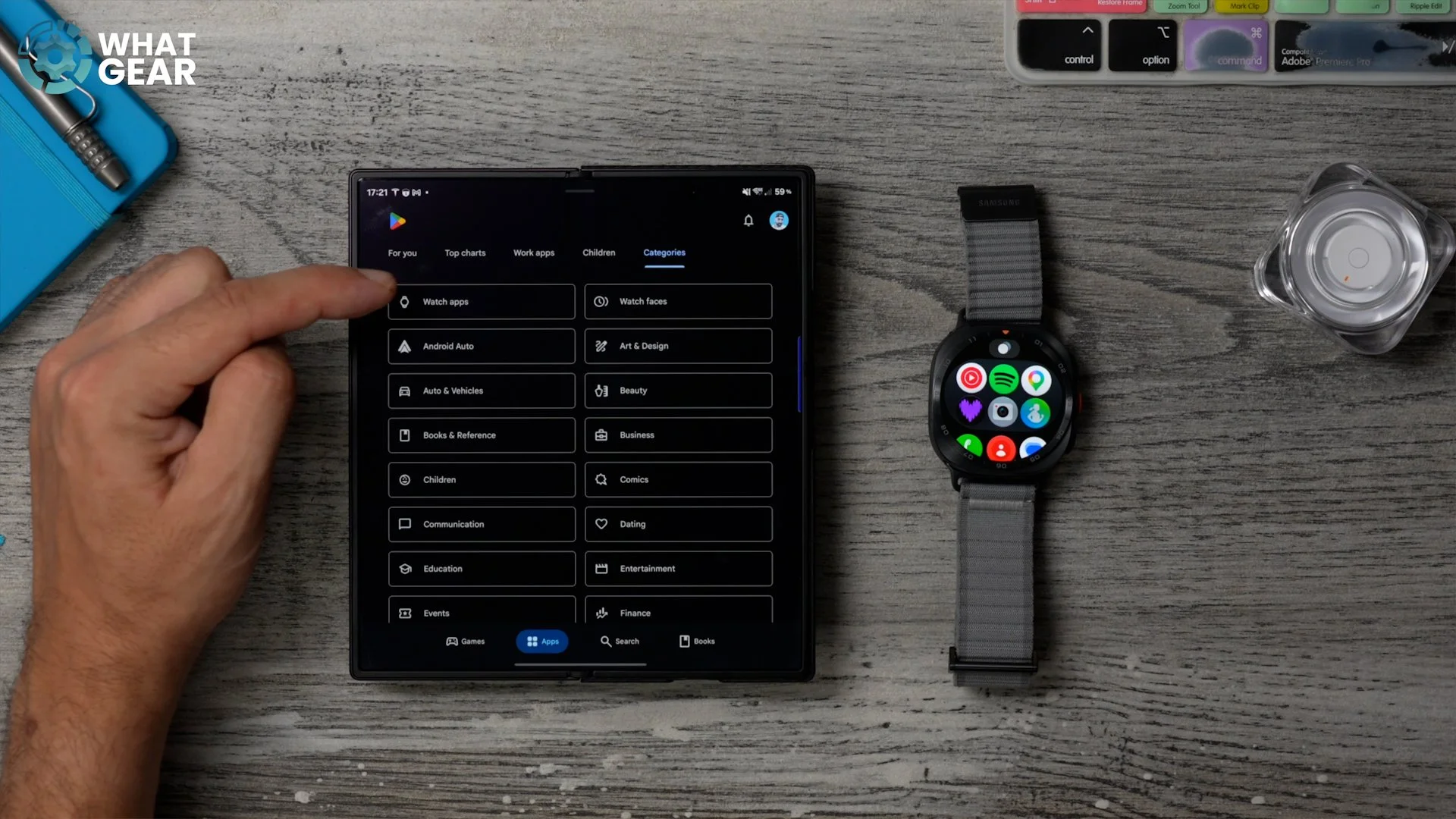
First of all, we need to go to the Google Play Store. Of course, I have added it here on my Edge Panel for quick access. Now, within the Play Store, you'll see Categories across the top. Go to this, and here you will find a tab that shows only watch apps. So this actually puts them in order of how popular they are in your region. So have a look at these. At the top, you do get filters. And also, you might discover some hidden gems within the app library here that you didn't know existed or were even usable on your watch.
TALK TO THE WATCH
Here's another brand new feature on the Galaxy Watch Ultra 2. If you push and hold the home button, which is this top one right here, this wakes Gemini. So if you have a question about the beginning of time or fancy a chat, you can do it right here on the watch. And I know right now you're probably saying why. Well, here are a couple of ways that you can use this that might be particularly useful. Let's say you go to the gym, you put your stuff in the locker, and when you finish your workout, you then forget what locker your stuff is in.
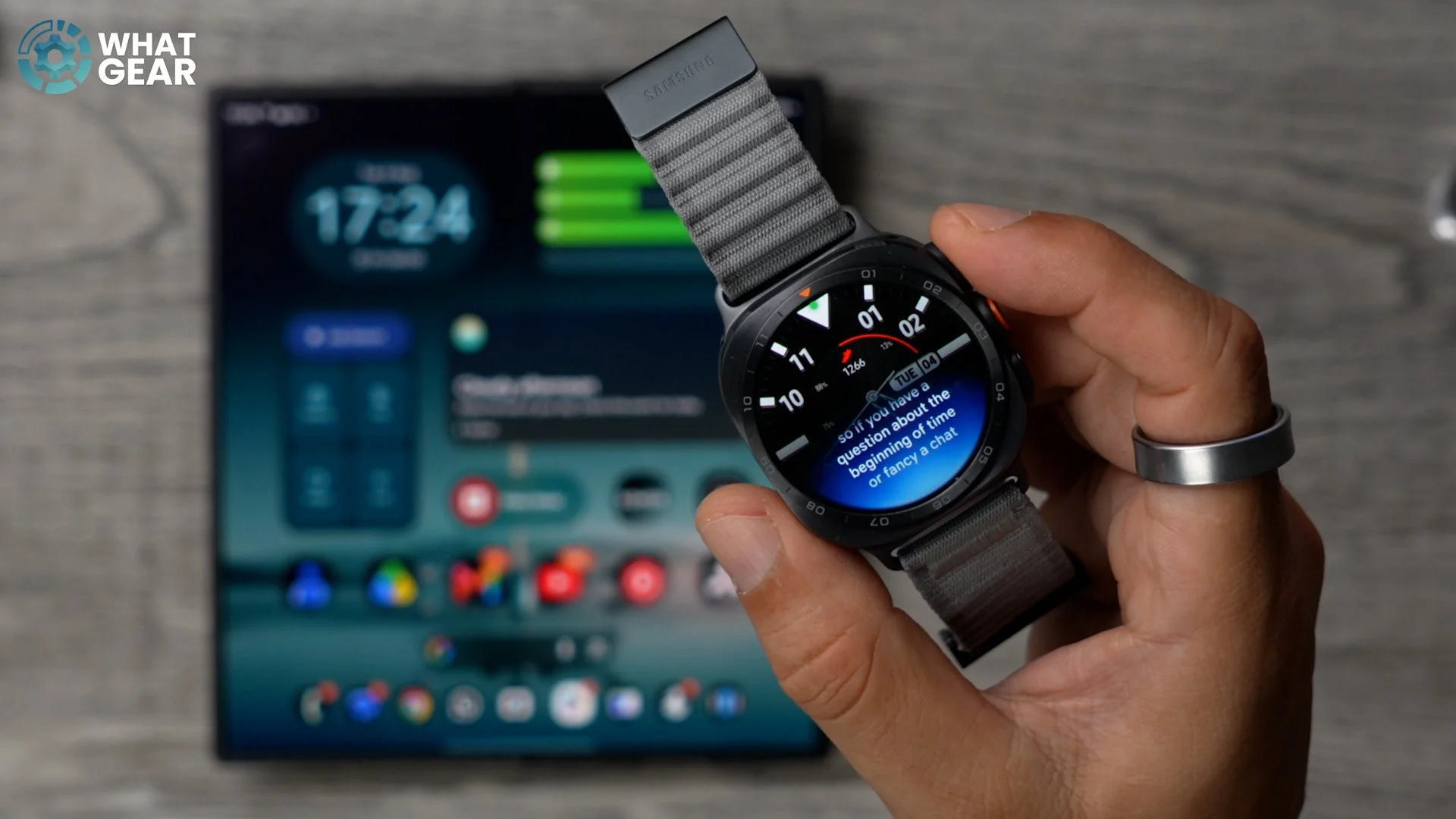
Well, in a scenario like that, with a little bit of foresight, you could ask Gemini to remember your locker number or ask it to set a reminder or a calendar event, or ask it to start or stop a timer. And you could even ask it to remember where you parked your car. Okay, here's a little bonus tip: make sure you install Google Maps, and if you want to, you can go into it and download offline maps too. And just like I said in the intro, don't assume that these features will just work automatically. Everyone knows when you make an assumption. Also, a little side note about Gemini: it cannot start workouts for you on the watch, but there's an interesting feature that can, which I'm going to show you a little bit later on in the video.
SETUP WATCH FACES
So this might be quite obvious, but one of the first things that you'll likely want to do with your brand new watch is set up some good-looking watch faces, and some useful ones for when you're working out. Now, this is actually very easy to do, but there are some complications that some people might miss. I understood that reference. You can do it on the watch. The easiest way is within the Wear app. Just tap on the watch face of your watch, and here you will find all of the pre-installed watch faces. So you can actually modify these. So let's take this one for example and hit the pen down here. Here, you can customise the style of the watch face and the colours, and you will see varying options depending on the watch face that you've chosen.
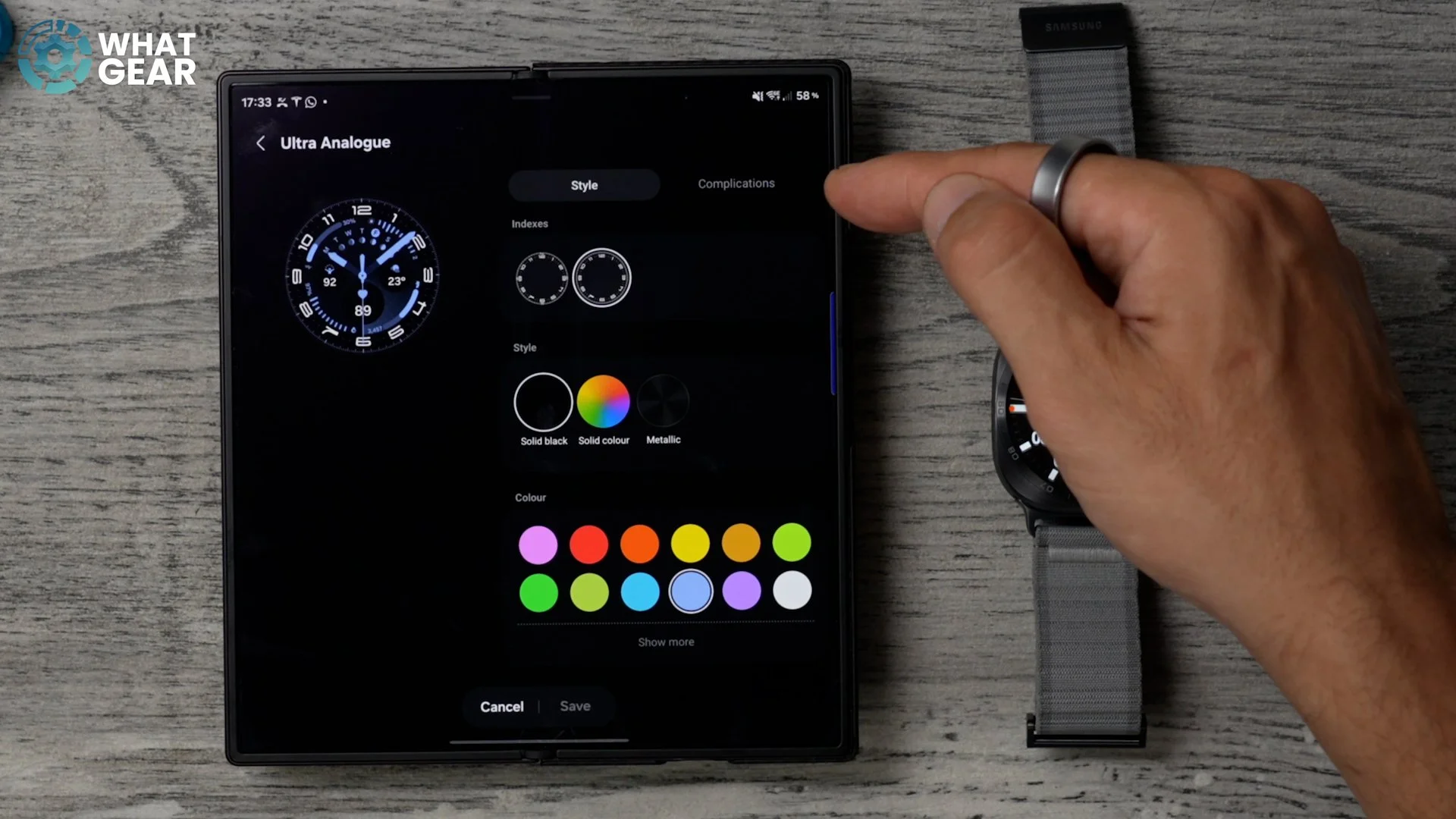
But what I really want to show you guys here is this. Tap where it says Complications. So these are wherever it is on the watch. Faces act as shortcuts to specific watch features. So to make accessing some of your most used features on the watch less complicated to find, make sure you add the most useful complications, aka the shortcuts, to your favourite watch faces. Because you know life is simple, but we insist on making it complicated anyway. Going back one step, if you hit the plus over here, you can find the watch face library. Some of them will be specific to the Ultra watch. There are ones for workouts, and there are stylish ones. There are fun ones, and you can actually preview the different colours and things just by swiping across on these little tiles. So you should be able to quickly find the styles and designs that you like, and then go in and modify them, just like I showed you.
PERSONAL PHOTO FACE
All right, let's say you truly want to personalise your watch face using photos or wallpapers that you've got on your phone. Well, this is actually very easy to do, just like before on the Galaxy Wearable app. If you tap the watch face here, go all the way to the end and hit the plus. So right here, you'll find some presets that you can choose from. If you like any of these styles, you can just tap on them. If you want a different style underneath, you'll see some other suggestions, so I'll go with this one. For example, hit the pen over here.
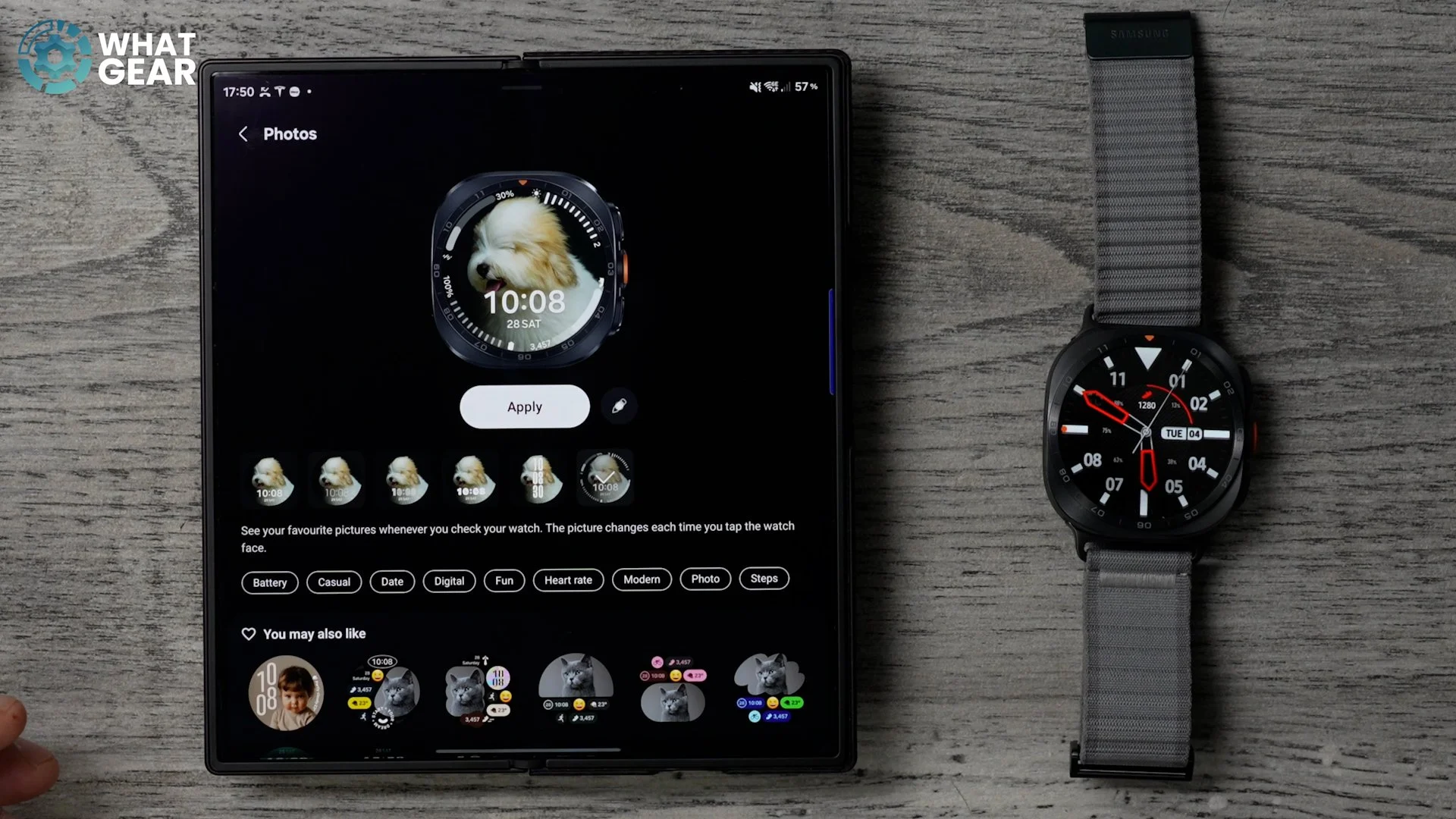
Now you have the option to customise the style of the clock and the complications. So if you hit the plus and go to Pictures, don't choose Album. You can select an individual image or several. It's entirely up to you. I'm going to choose these wallpapers right here. They can be repositioned however you want, and you have to do this for each one. If you're going to do more than one, once you set your style and your clock font and your complications, you can just hit Apply. Now, whenever you wake up your watch, you will in fact have a different wallpaper each time, and you can actually tap the watch face to toggle between the different images. And if you have created some little GIFs using the trick that I showed in my Quick Select video, you can actually apply them as watch faces too.
AP DRAWER - CAMERA REMOTE
And since we're talking about images and photos, here's a double-barreled trick for you. This is kind of a party trick, but at the same time, you might find it very useful from time to time. In the Wear app, this time we're going to go to the App Screen down here at the bottom. Here, you can arrange the order of your apps, and if you want to, you can even drag one on top of another to create a folder just like you can on your phone's home screen. So you might want to spend a little bit of time organising this. But what I want to show you is this. Down here near the bottom, you will find the Camera app. If we drag this near the top so that now you can find it very quickly when you need it. Now, when you open this camera app, you'll notice your camera viewfinder opens up, and now you can actually set your phone down somewhere in Flex Mode or with a little kickstand if you have one, and then use your watch as a remote control and viewfinder for your camera.
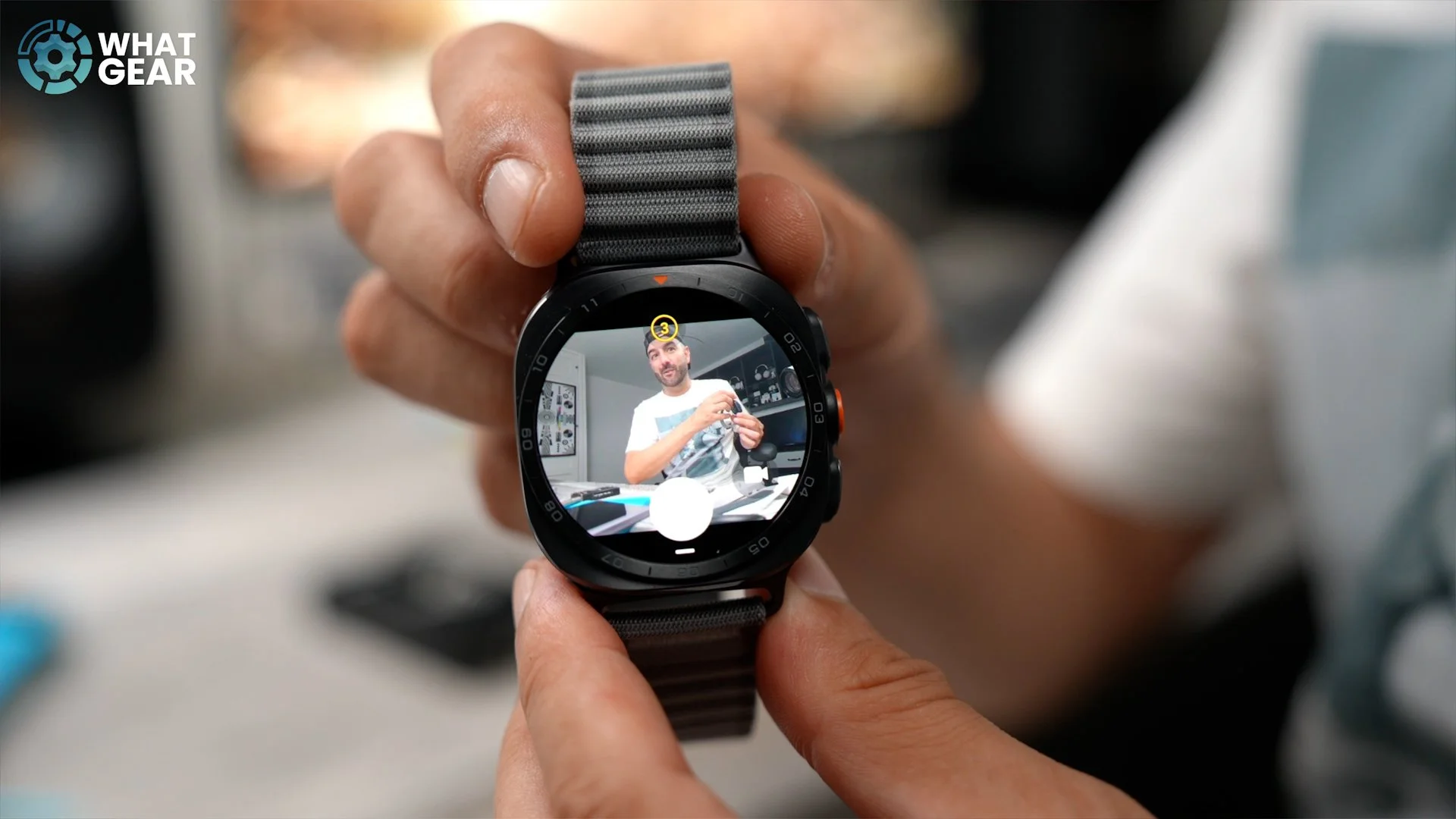
And swipe and pinch gestures are supported here, so you can zoom in, zoom out, and you can set timers for the images as well, so you can see how this could be extremely useful when it comes to taking group photos. And I think this will actually impress your friends. And you might have picked up on this earlier on when I was showing you guys how to download compatible apps. The Blackmagic Camera app is supported on the Galaxy Watch, so this could be a good alternative option if you're not using a Samsung Galaxy phone.
HANDS FREE
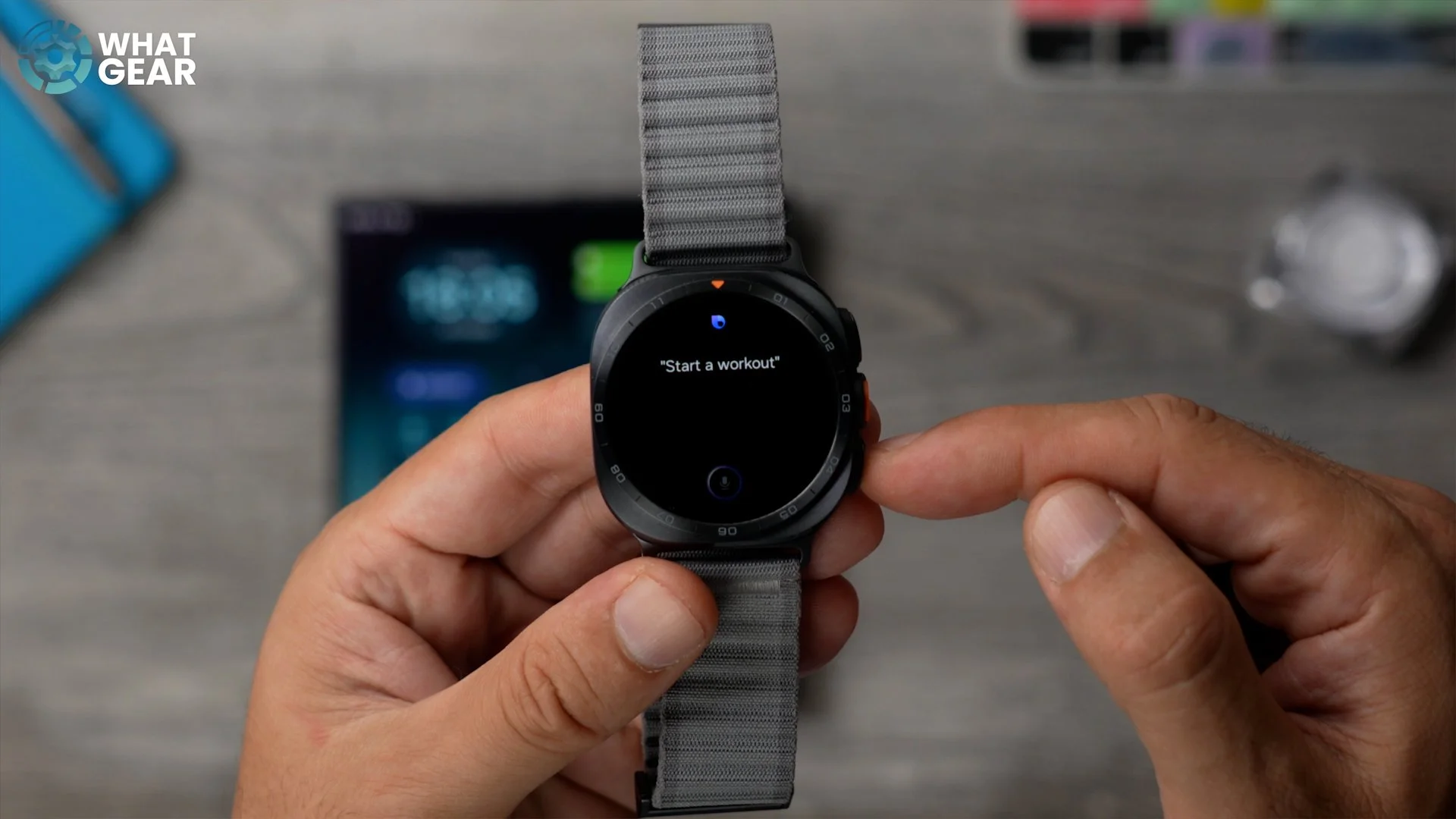
Now let's do a few rapid-fire tricks. If you want to start workout tracking modes from your watch hands-free, find and open the Bixby app for the first time on your watch. This voice assistant has access to all of the watch features that Gemini does not, so if you wear gloves or something like that for your activities, this could be very useful. And if you have lots of Samsung smart home stuff, you can also use this to control those too.
BACKGROUNDING SHORTCUT
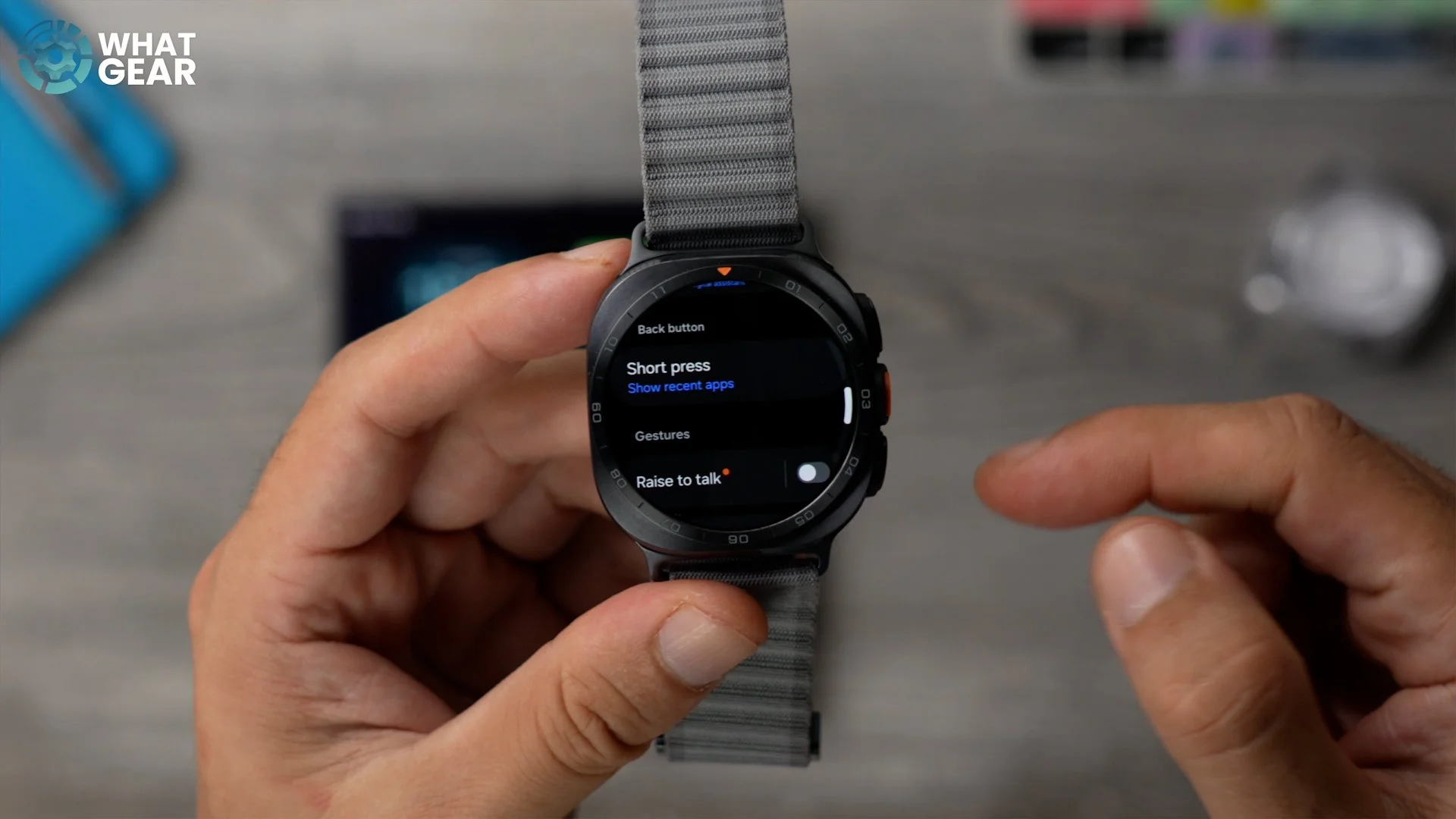
Here's another one. In your watch settings, go to Buttons and Gestures and remap the back button, which is the lower button on this side, to show recent apps. If you want to activate backgrounding so you can quickly jump between them. This, of course, is optional, and if you prefer not to do this, the way you access backgrounding is by swiping up on the app drawer and the dot at the top. Tap that. This will show you your background, and if you're wondering how you will go back without a back button? Well, it's just a swipe in from the left side.
QUICK CASH
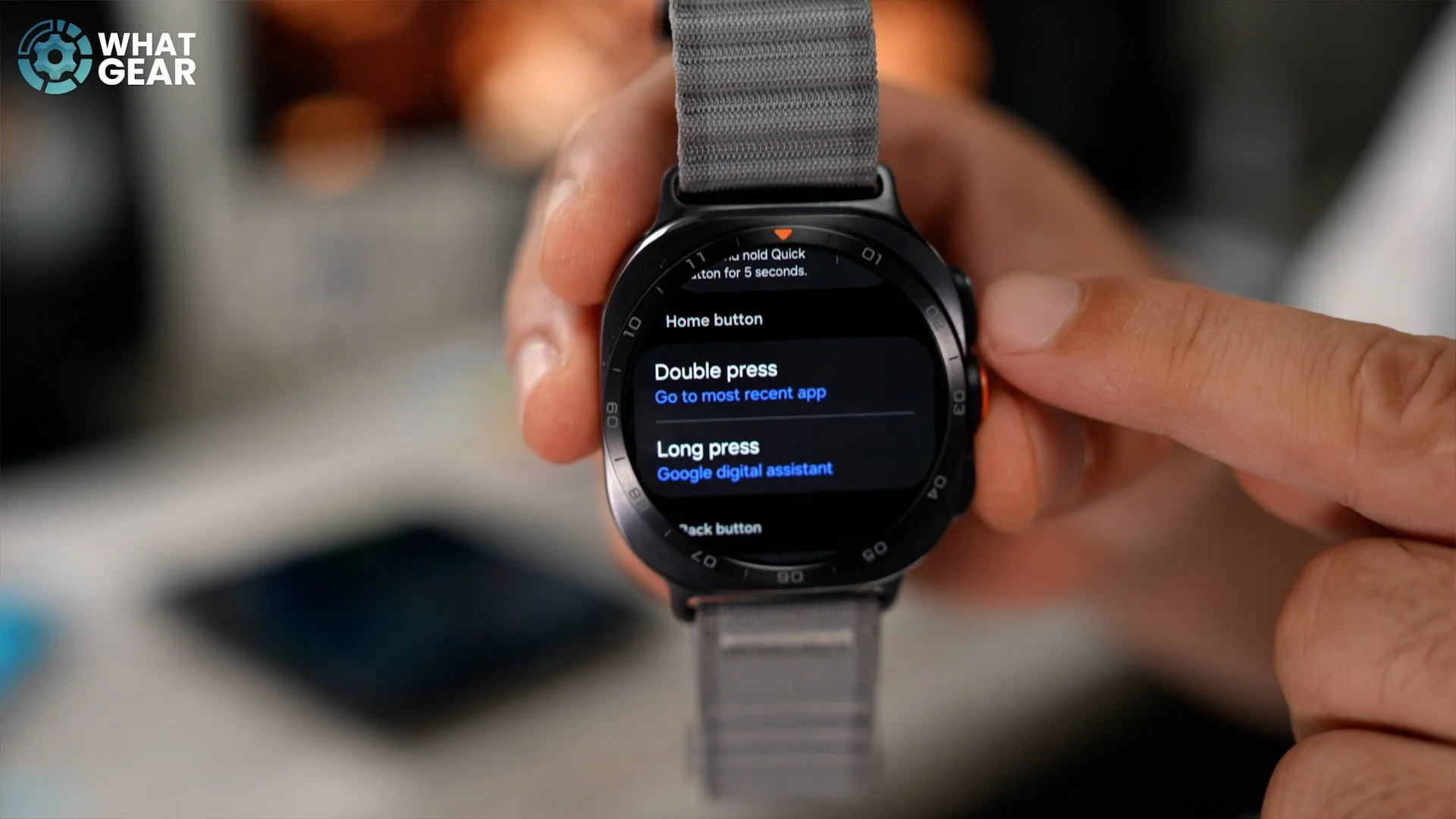
So if you want to use your watch to pay for things at checkout, well, there are two ways you can actually do this. One is by holding the back button down, which is the lower button. This activates the Samsung Wallet. You do need to set this up on your phone and add a card. Once you've done that, you're good to go. The second way to do it is to download and install Google Wallet. Tap on this, set it up for the first time, and this cannot be mapped to the long press on the lower button, unfortunately. However, what you can do is swipe down from the top, go to Settings again, go back to Buttons and Gestures again, and then remap a double tap of the home button, which is this top line, to open the wallet. Now that that's set up, whenever you want to pay for something, you can just do this, and that will open your Google Wallet with your cards ready to go.
WHY DO WE FALL?
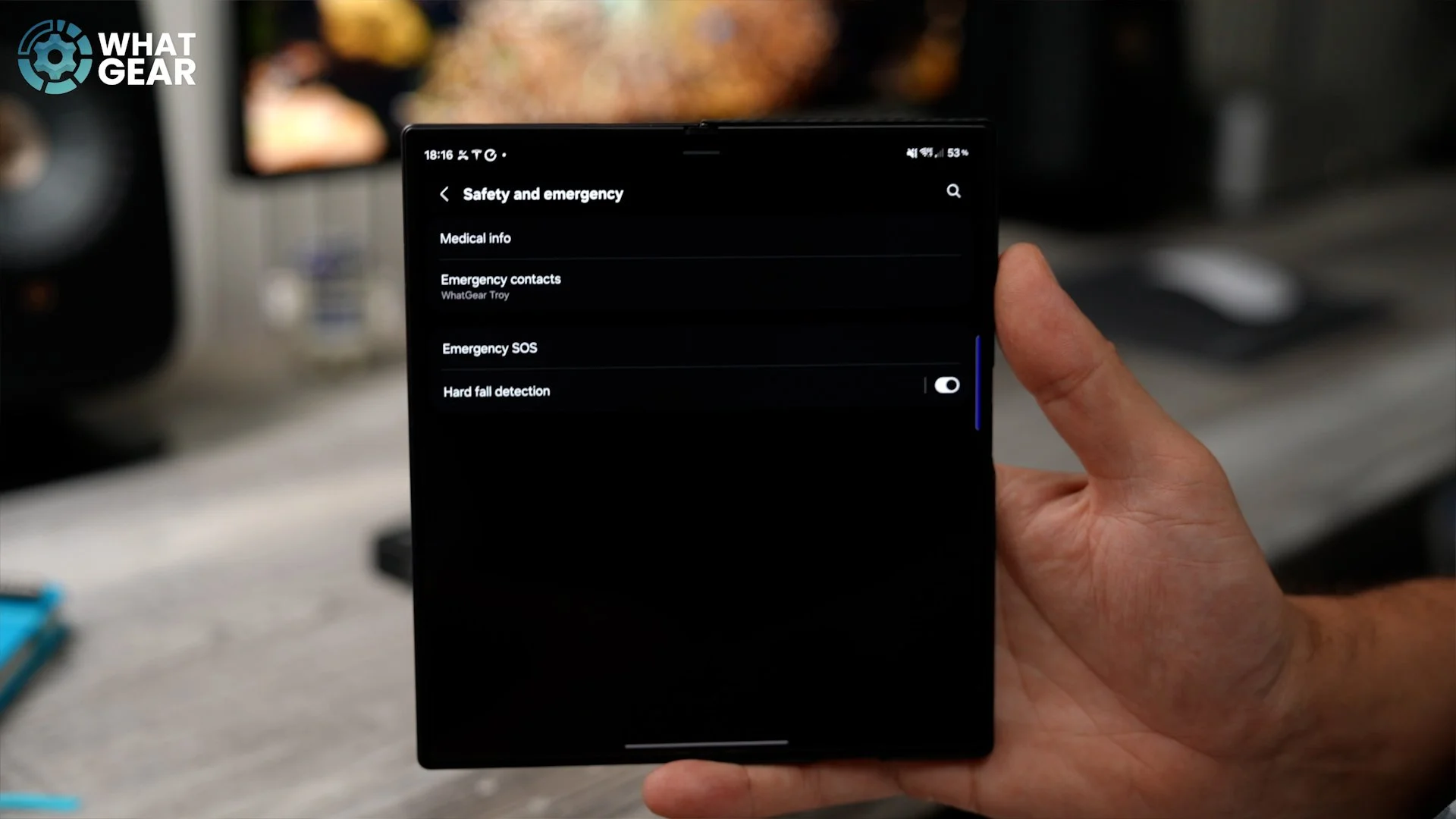
So, you know, sometimes shit happens. Someone has to deal with it. And who are you going to call? And this is very important if the activities that you do are very risky or somewhat risky. So once again, we're going to go to the Galaxy Wear app. On the left side here, you'll see this hamburger menu with dots next to it. Just tap on this. This is the settings for the watch. Here, we're going to scroll down a little bit and go to Safety and Emergency. And here is where we're going to turn on hard fall detection. Now, if you tap where it says hard fall detection, this brings you to another page, which is a very important one. So definitely spend a bit of time setting this page up. But the most important one is who it is going to call should you take a hard fall.
NO PHONE LEFT BEHIND
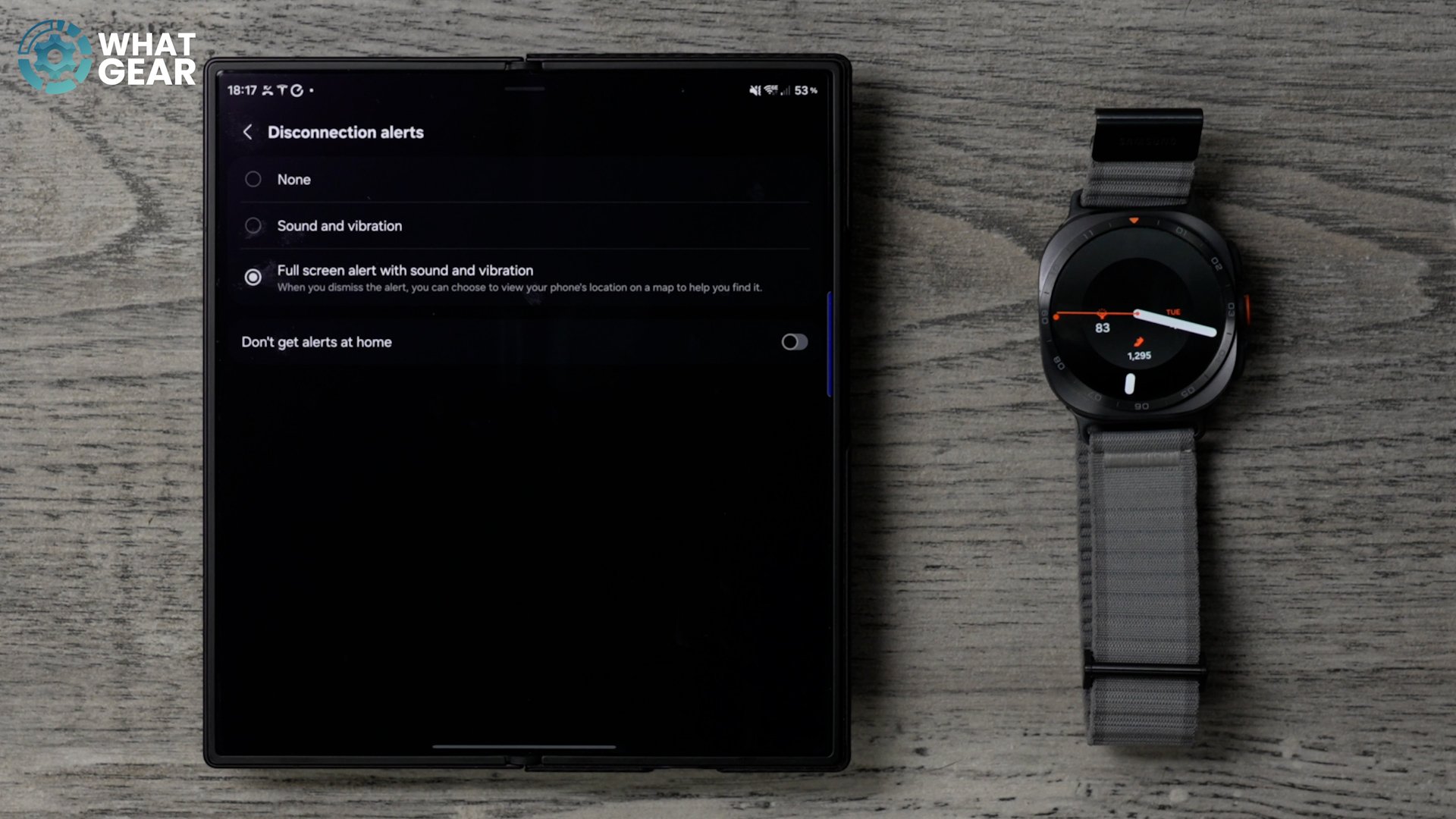
So I'm going to take a shot in the dark here. My guess is you probably don't want to ever lose your phone. Right. Well, within the Wear app, if we go back into the settings, scroll down and go to Advanced Features. At the top, you'll see Disconnection Alerts. Go to this and set it to Full Screen Alert and Sound and Vibration. You might want to enable Don't Get Alerts When You're at Home. Now, with this on, whenever you leave your phone behind, your watch won't let you forget it because it will start pinging and buzzing to let you know that you've gone out of range of your phone.
FACES ON WATCH
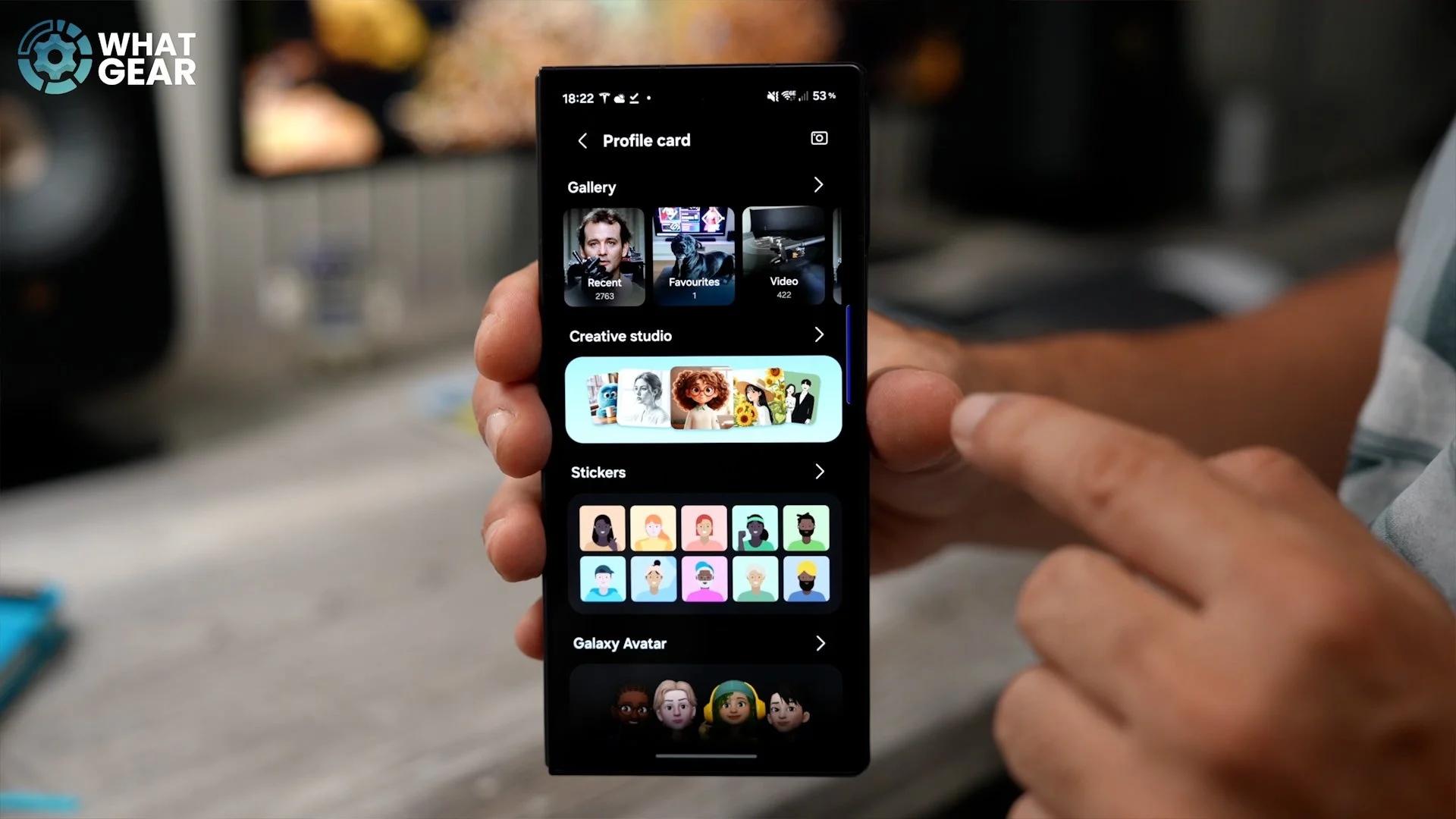
You may have some important people in your life, and for them, I suggest you do this. Go to your phone app, not your contacts app. The phone app. Find that important contact and then hit Edit at the bottom. Now, on this page at the top, you'll see this area saying Profile Card, and it will be empty. If you tap on this now, you can actually choose the image of the person for the profile card, or you can actually use the Creative Studio to create a cartoon version of them if you prefer. And for this demo, I'll just use the regular photo right here and hit Done. Now, whenever this contact contacts me, the face that you chose will pop up on your watch face. This is probably not the best example.
GET IN YOUR MODE
All right, this is a need-to-know one, so let's slow it down a little bit. When you swipe down from the top of your watch, you will see this little pie chart icon up here in the top left corner. This is your Modes and Routines. If this is new to you, there is a very good chance that you'll only have two. You'll have Sleep and Theatre, and Theatre is very useful for when you do go to watch a movie, because this stops your watch from lighting up and bothering everyone else in the theatre, which is great. But if you are going to be using this watch mainly for the gym and stuff like that, I'd recommend setting up a gym mode, and it is actually quite easy once you know how. So let me show you this real quick. If you go into the settings on your phone, there is a section called Modes and Routines. Go to this, and here you will find some preset templates which you can use. So there's an exercise one here which you might want to use. But if you want to create one from scratch, just scroll to the bottom. Go to Add Mode.
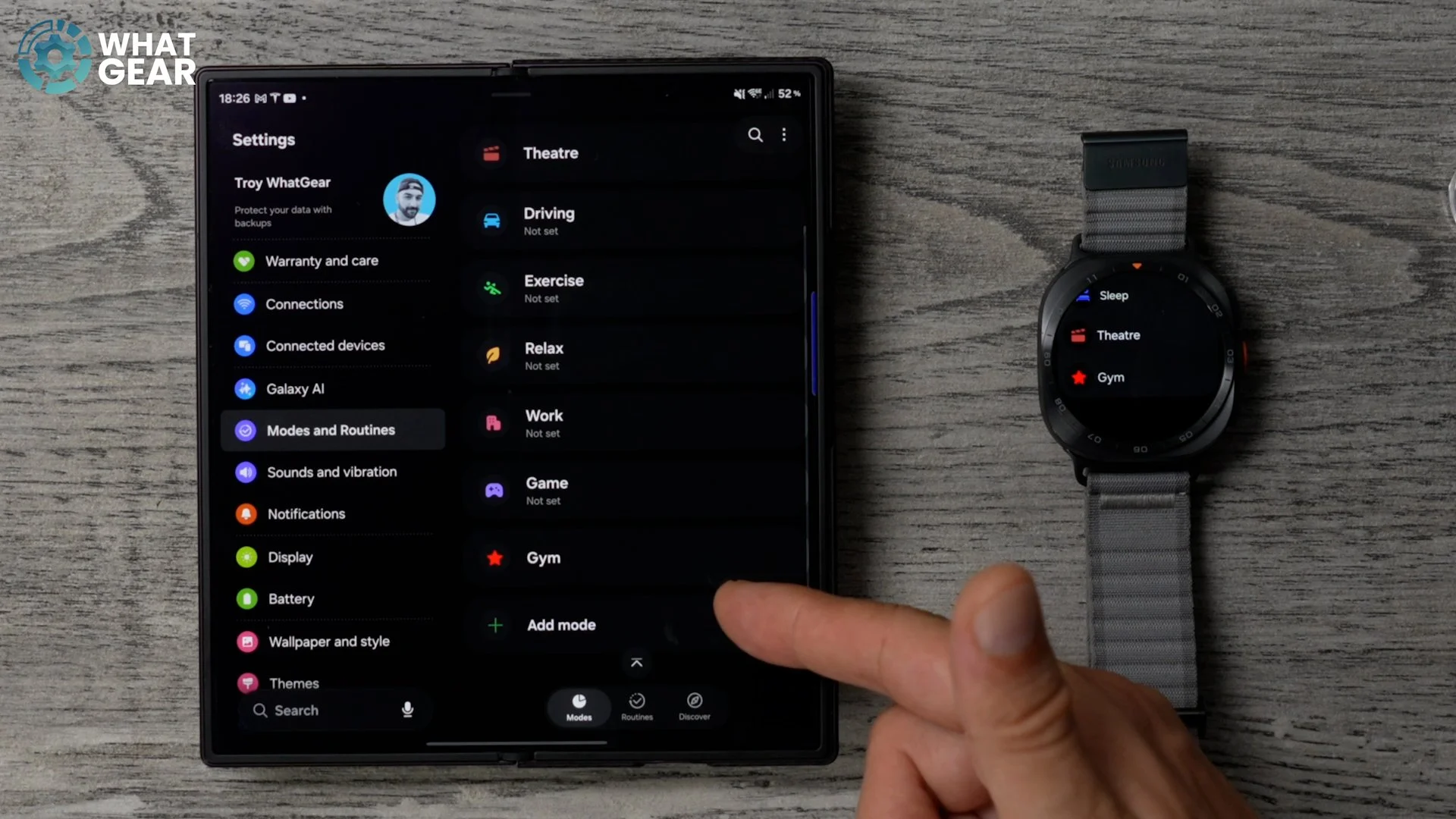
Here, you can give it a name. I'm going to call it a gym. I already have a gym one, so I'll call it Gym 2. Give it a colour, and then you can also give it an icon as well. Whatever makes sense. Then you can hit Done. The next step is to set when it turns on. You can have it turn on manually just by accessing the Modes and Routines on your watch. Or if you want to be a bit more advanced, you can go to Place here and actually drop a pin on the map where your gym is. So whenever you go there, it automatically activates. The next step is this: Stay Focused. You can restrict apps here, and you can add Do Not Disturb. The good thing about Do Not Disturb is you can actually go in and make exceptions for certain contacts and also for certain apps, for example, your burglar alarm. Maybe you want that to come through if you're at the gym, your car alarm, your bank accounts, that kind of stuff.
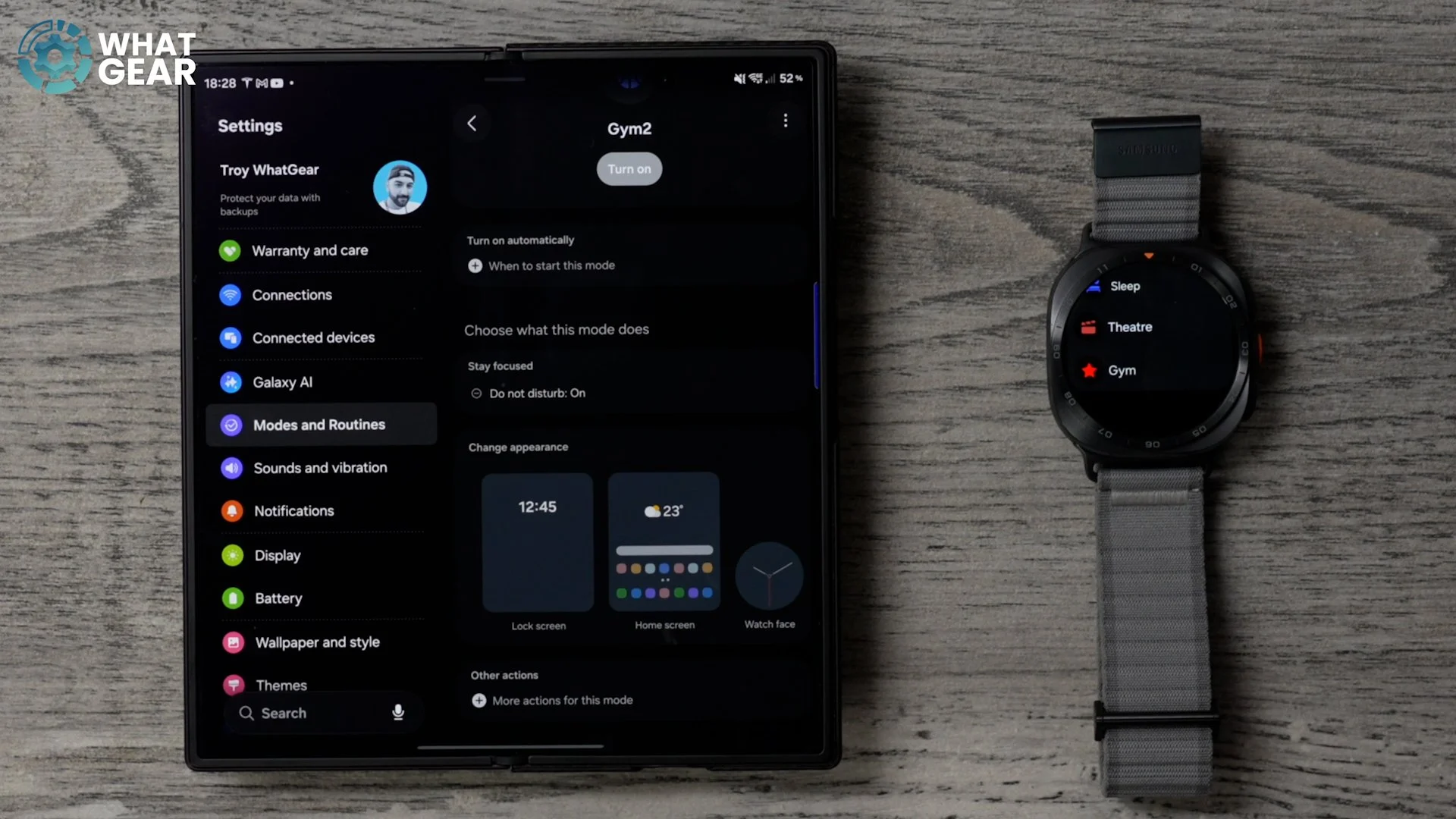
So it's worth setting this stuff up if you want to stay focused on your workouts. Now, there is one more step to this. You can actually have the watch switch into one of your sports watch faces that you would use at the gym, just by tapping here, Watch Face, and then choosing that particular one. Let's choose this one, for example. And if you want to go one step further, you can actually have your screen wallpapers change as well whenever you're in the gym mode. So now that this is set up, whenever you activate this mode, whether it be on the watch or on your phone, everything will change. It will switch into the watch face that you're using, and your wallpapers will also change so that you know you're in the gym mode. And when you switch it off, everything will change back to how it was before you activated it.
MUSICAL WATCH
All right, so that's 15. And if you know me or you know this channel, or maybe you don't, something you should know is I always save a few bonus tips for those who make it this far into the videos. So some of you might be using your watch whilst away from your phone. And maybe you don't want to pay for an expensive mobile data subscription. And if this is the case, you may want to know how to install music locally on the watch. There are a few varying methods for this depending on the apps that you use, but I'll just give you a quick demonstration because they're all quite similar. So if you swipe up, choose your music app of choice. I'm going to go with YouTube Music right here.
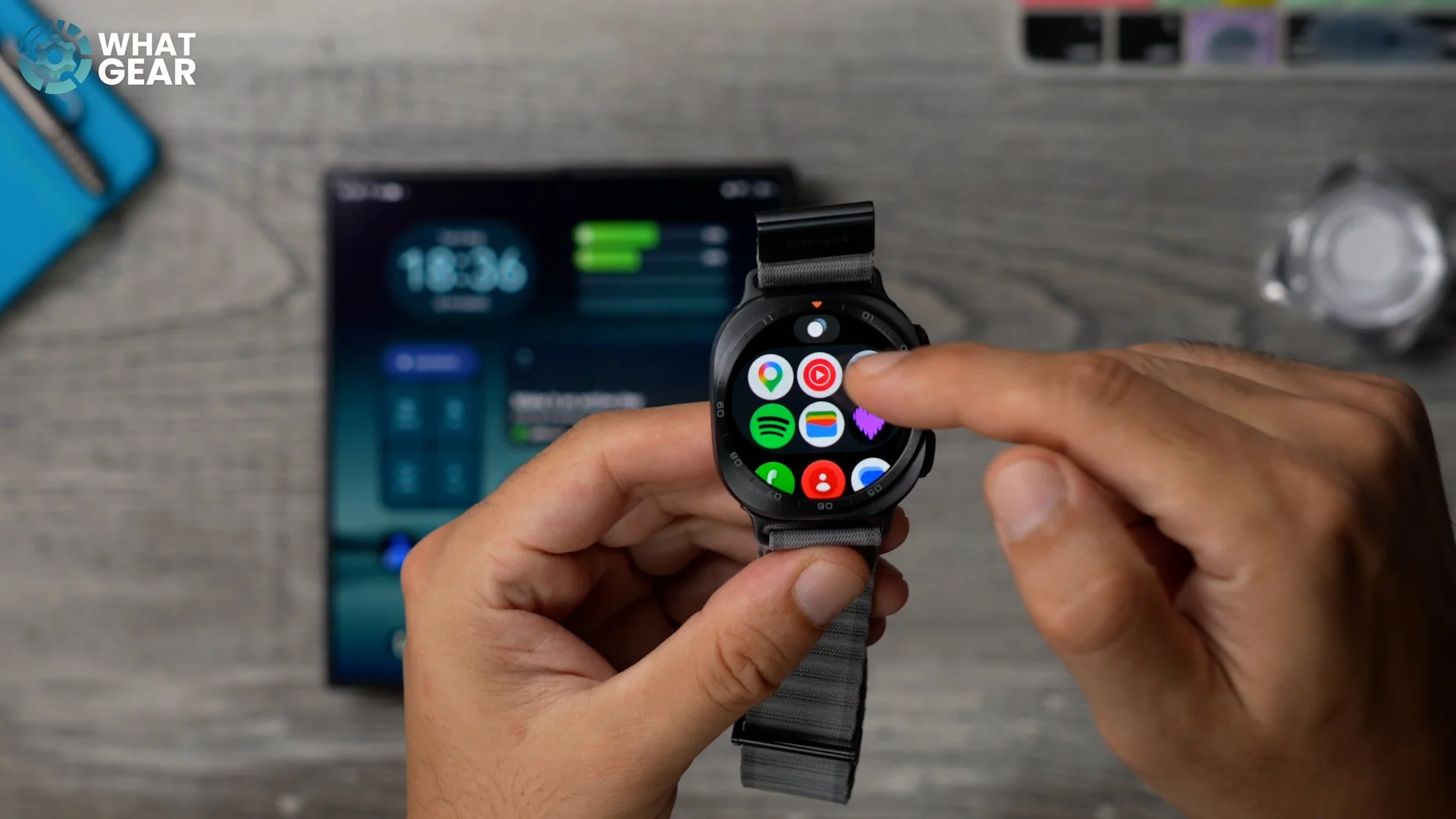
Straight away, when you open the watch version of the YouTube Music app, it will actually suggest playlists and show you your existing playlists that you've created. You can actually choose these and then immediately download them locally on the watch, so they won't be using data. If you're going for a long-distance run or something like that, this works pretty much exactly the same way as Spotify. You just go to your playlist, hit Download, and that will store the tracks locally on the watch. And this is also available here if you want to find other apps that are compatible music apps. Go back to that tip where I showed you how to find and download apps.
AUDIO FILES
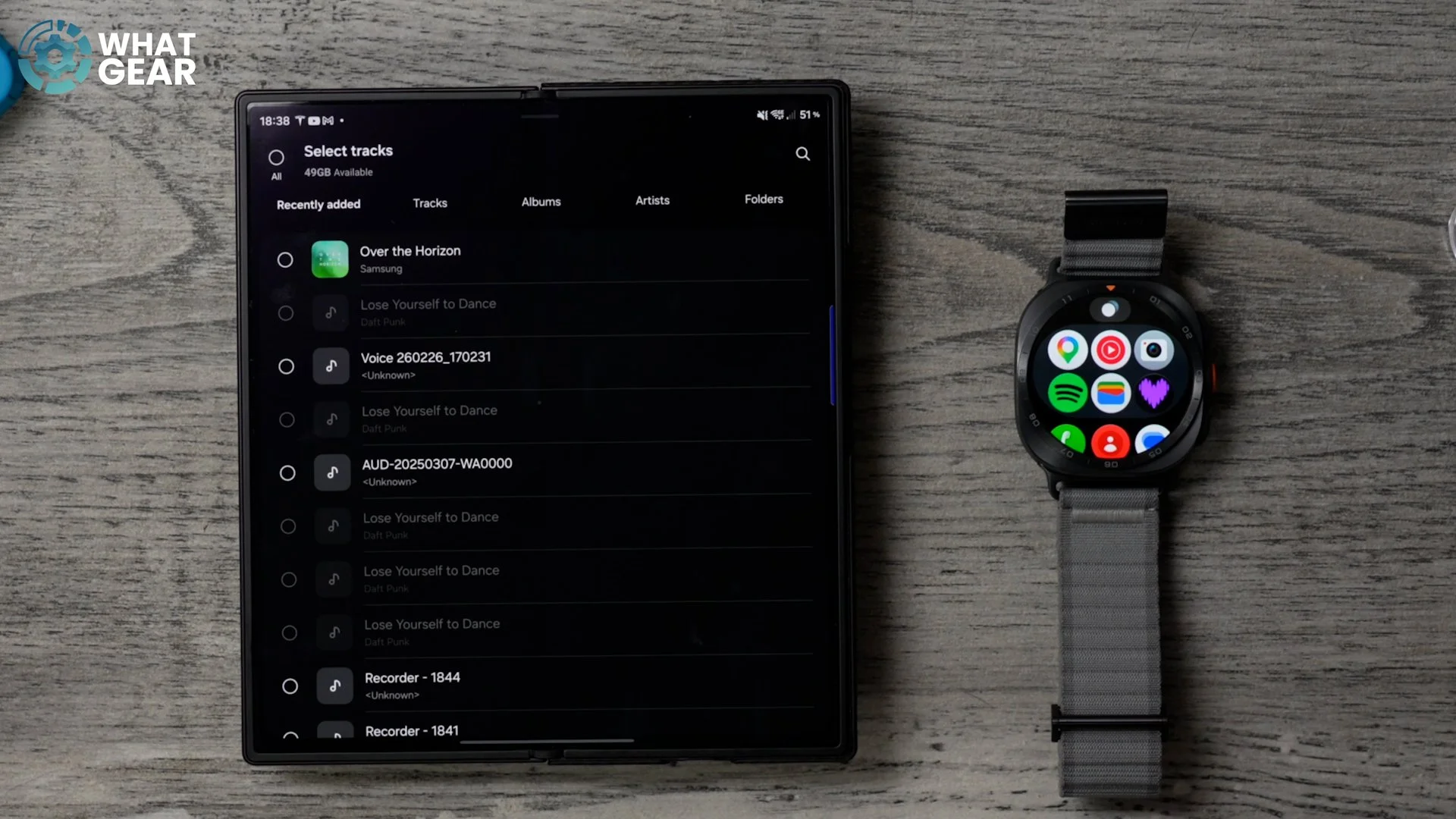
Now, let's say you are the type of person who has local music stored on your phone, and you don't use streaming services. Here's a little trick: you can actually transfer those files onto the watch like this. Within the Wearable app, go to your settings, scroll down a little bit to where you see Manage Content, and here you'll see Tracks on Watch. You can hit the little plus up here. Find the tracks that you want to transfer over to the watch.
QUICK SETTINGS
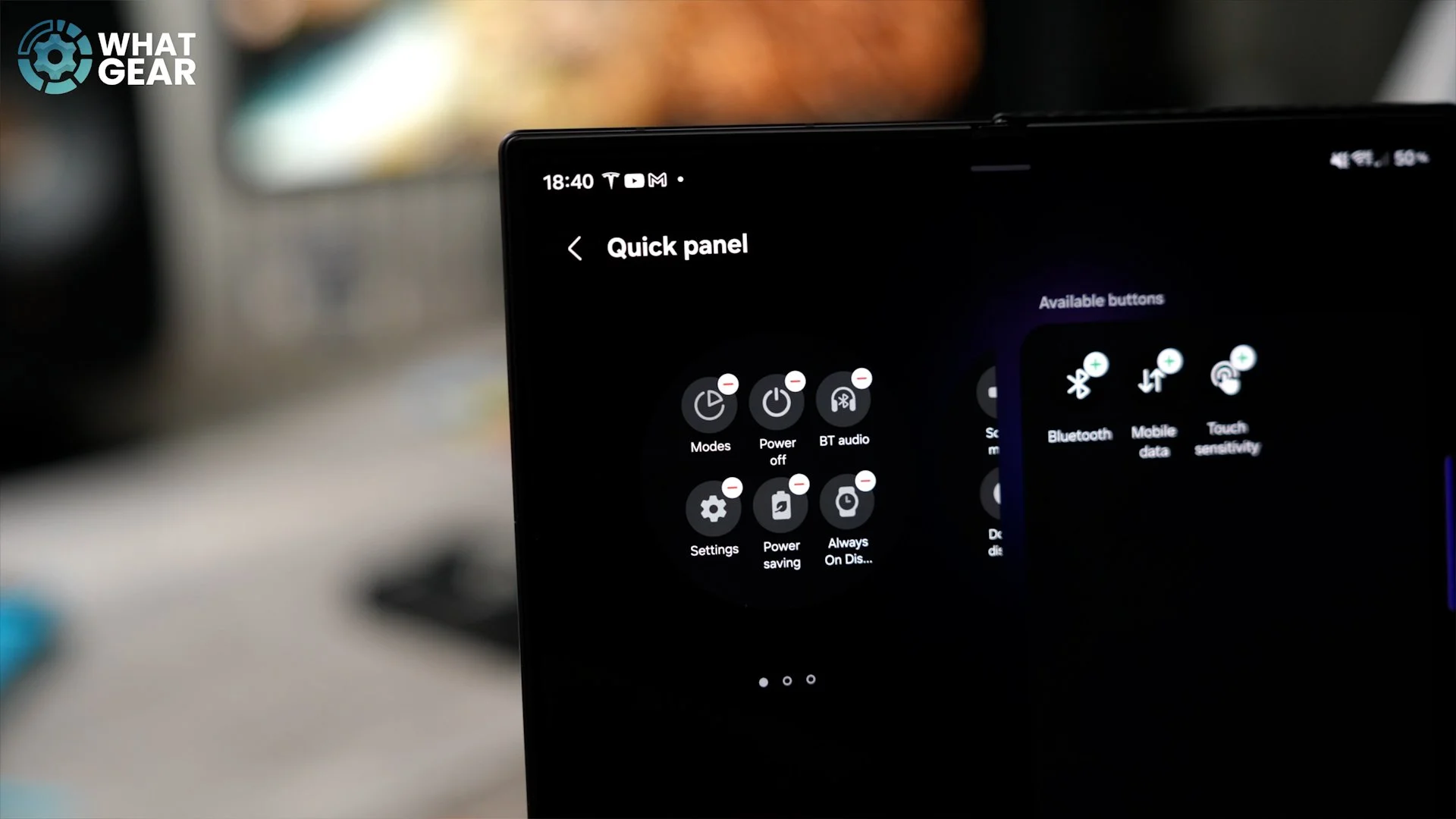
Now let's say you're going on a very long trail run or a mission to Mordor or something without your phone. You may find this very handy. Within Samsung's Wearable app, if you go to the watch page, which is this icon over here at the bottom, this time we're going to go to Quick Panel. Here, you can customise all of your quick settings, which drop down from the top of the screen. And there's one that I think you might find particularly useful. And it's this one here: Bluetooth Audio. So this one, you may want to drag it over to the first panel. This will make connecting your earbuds directly to your watch much easier. And whilst you're here, you might want to customise and reorganise these other quick settings.
NICE GESTURES
All right, in the words of DJ Khaled, another one. All right. If you made it this far into the video, you're on your way to becoming a true pro Galaxy Watch user. But there are a couple more things you need to know. Little shortcuts that can help you out. If you scroll down within the settings and go to Buttons and Gestures, you will find a feature here called Raise to Talk. So when you raise your watch to your mouth, you can activate either the AI assistant from Google or Bixby. And then if we go back again, there are two more gestures: the Double Pinch and Shake.
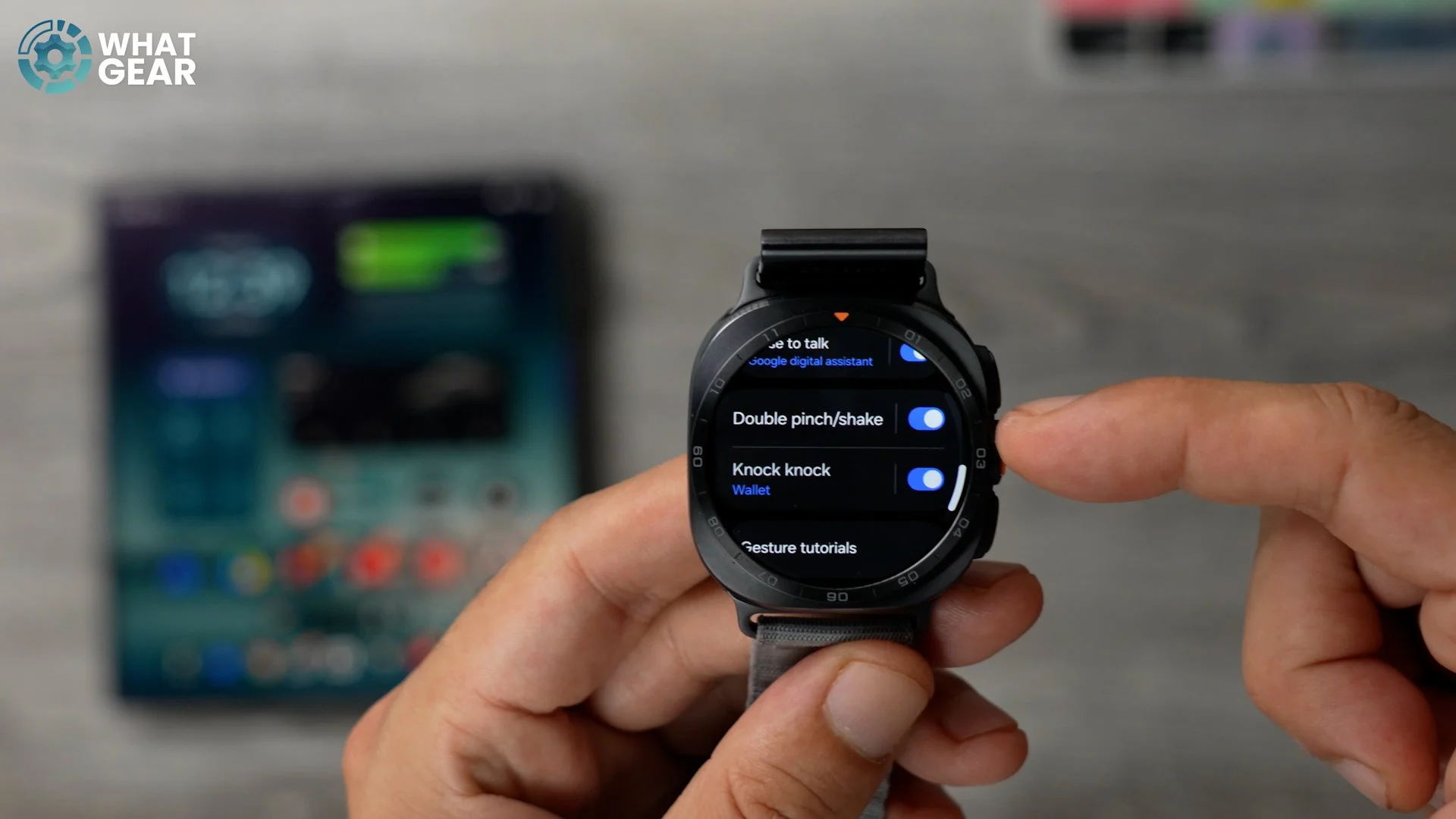
So this can be mapped to various things, and it will open and close things when you pinch or shake your wrist. Now, there is one more you need to know about, and it is the Knock Knock. I've set this up to activate my wallet, but you can set it up as anything: your favourite exercise, or a specific app, or a stopwatch. And once you have, it's important that you know the Knock Knock gesture is just this. You don't actually have to knock on a surface.
UNDER THE WATER
This watch has an all-new diving certification, and if you're planning to make use of this, you need to know about this important setting. If we go into the Wear app again and go to Settings again, once again we're going to go to Advanced Features.
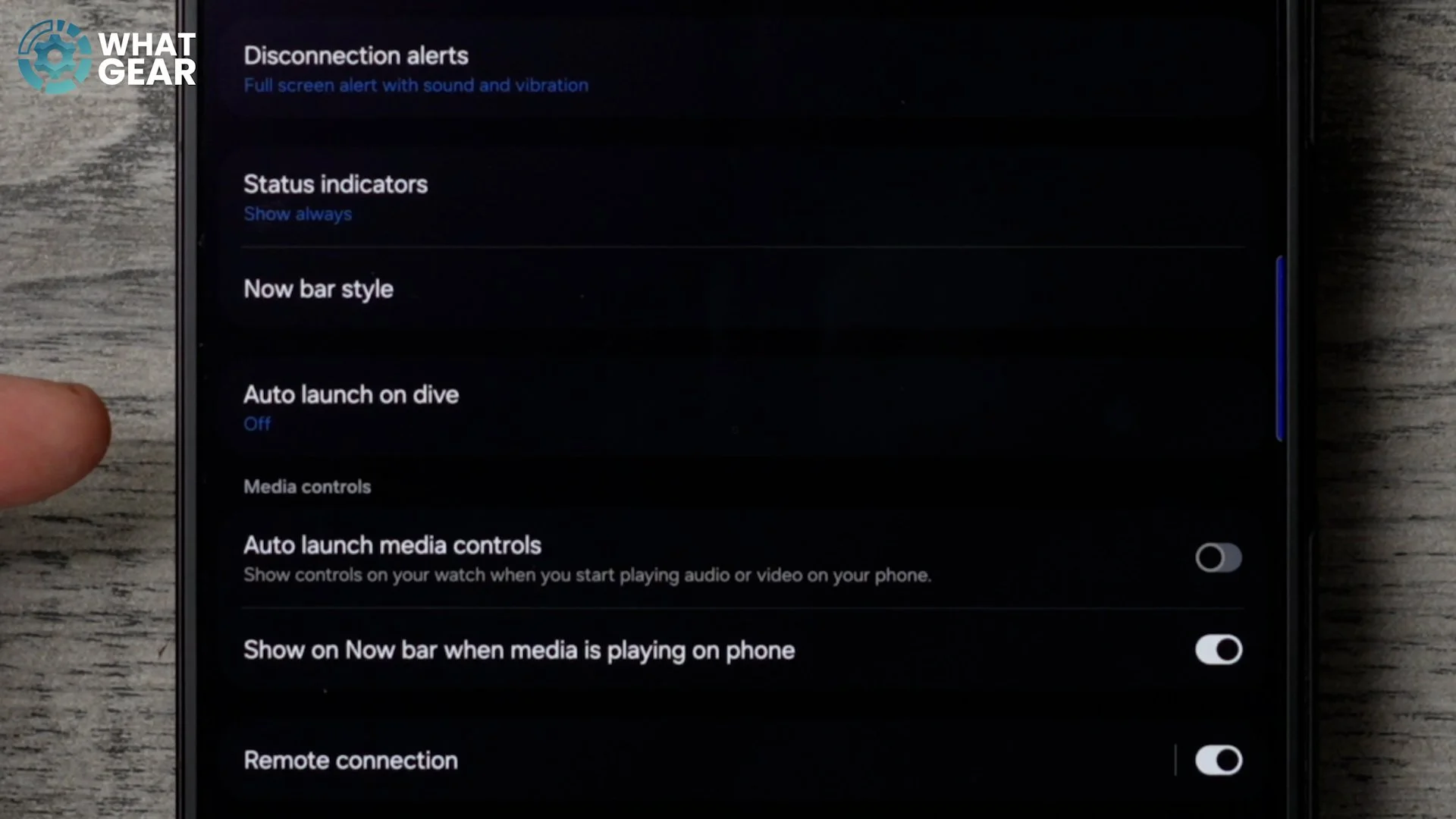
Here, you will find Auto Launch on Dive is off. If you go to this and switch it on, you can actually choose the depth at which it will kick in and essentially turn into a dive computer for you. You will already be ready, so you don't have to get ready, but you won't catch me down there. There are far too many sharks.