It's a happy day. You got yourself a Samsung Galaxy Z Fold eight. But first, I think we must pay respects to your wallet. It lived a good life. Not another day will go by that we won't remember the sacrifice that it made for us. And may it live on in our memories forever. Anyway. Now you've got one of the greatest foldable phones ever made. And if you've just jumped off the Apple iOS cart, congratulations. And it's important to always remember this about the iPhone. Their strength and their speed are still based in a world that is built on rules. Because of that, they will never be as strong or as fast as you can be.
So with that said, let me show you how to make the most of your new Samsung Galaxy foldable device. And I'm making this one for two very specific reasons: one, to help you save time finding all of the amazing features and important settings that are actually off straight out of the box. And two, to show you how to enhance your Galaxy by unlocking its full abilities on day one. Because right now, your phone is probably performing at 60% of its full potential. And I know right now you might be like, what? Okay, I'll be real. That's not a scientific number, but it will start to make sense the further you get through this video. So let's begin with a few very useful settings that most people will miss, that will put their devices at risk and potentially slow it down in the long run.
Hidden ads in apps blocker
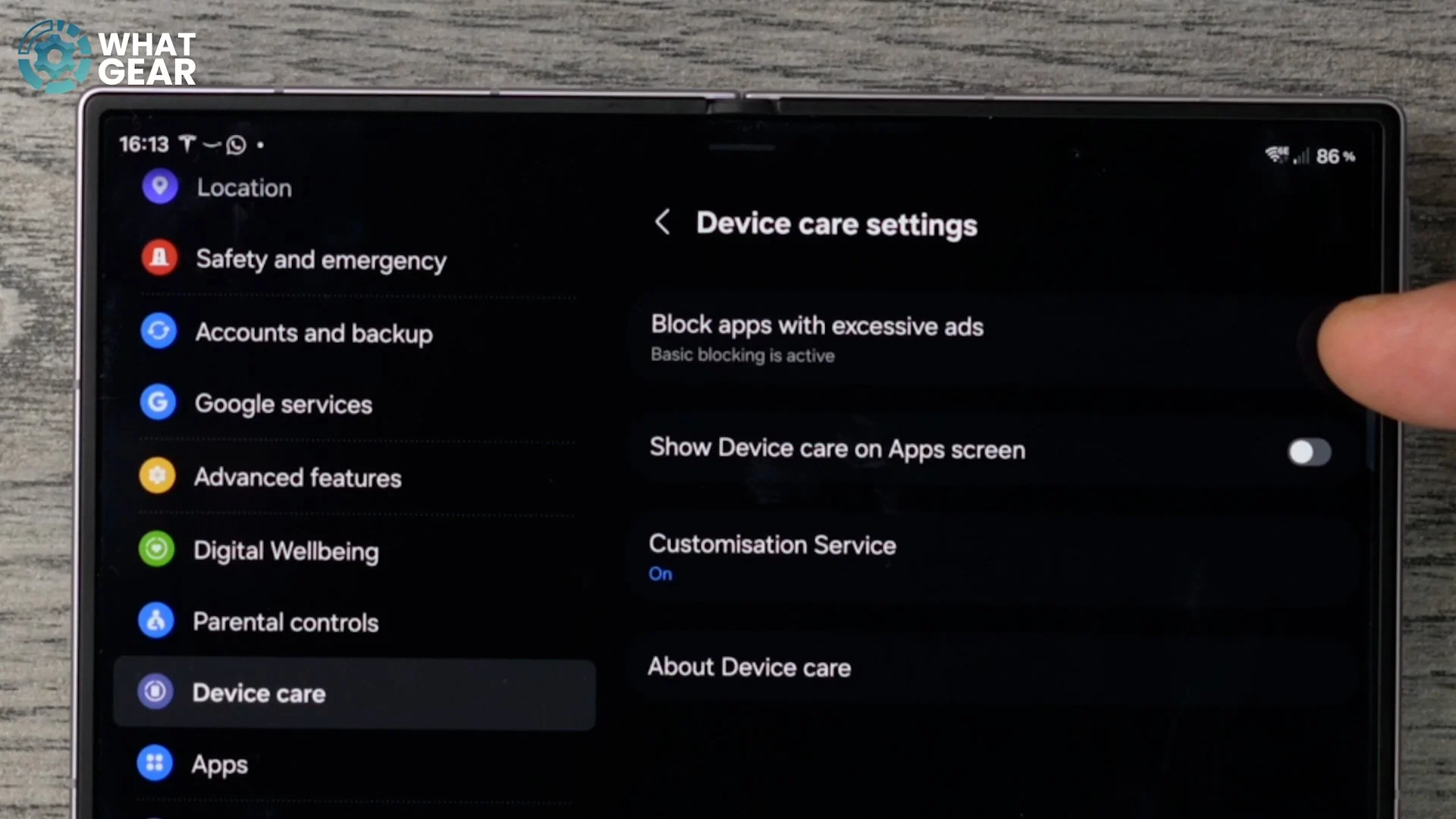
All right. Tip one: we need to jump into the settings. There are two ways to do this. You can either swipe down from the top right corner and get to it here, or you can swipe up, go to your app drawer, and find the app icon, which looks like this. Jump straight into your settings. On the left side, we're going to scroll down until we see Device Care, which is right here, the grey icon. Tap on this. Now, here is the reason why most people will miss this. But this setting is actually hidden in the top right corner, where you see the three dots. So tap on that, and you'll see the option to jump into the Device Care settings. And this is where you can find Block Apps with Excessive Ads. So tap on this and switch this on. This is Samsung's own intelligent ad-blocking feature. So if you're tired of annoying ads that pop up within apps that you've installed, this will help you solve that problem.
ADVANCED APP SECURITY
This first one may be region-specific, but it's worth having a look. So jump into your settings. Scroll down a little bit until you see Security and Privacy. And here, it will do a quick scan. And it will highlight anything that it thinks you need to fix. So if you do see an alert at the top, you definitely want to have a look at these things. But what you should definitely switch on on day one is this App Security.
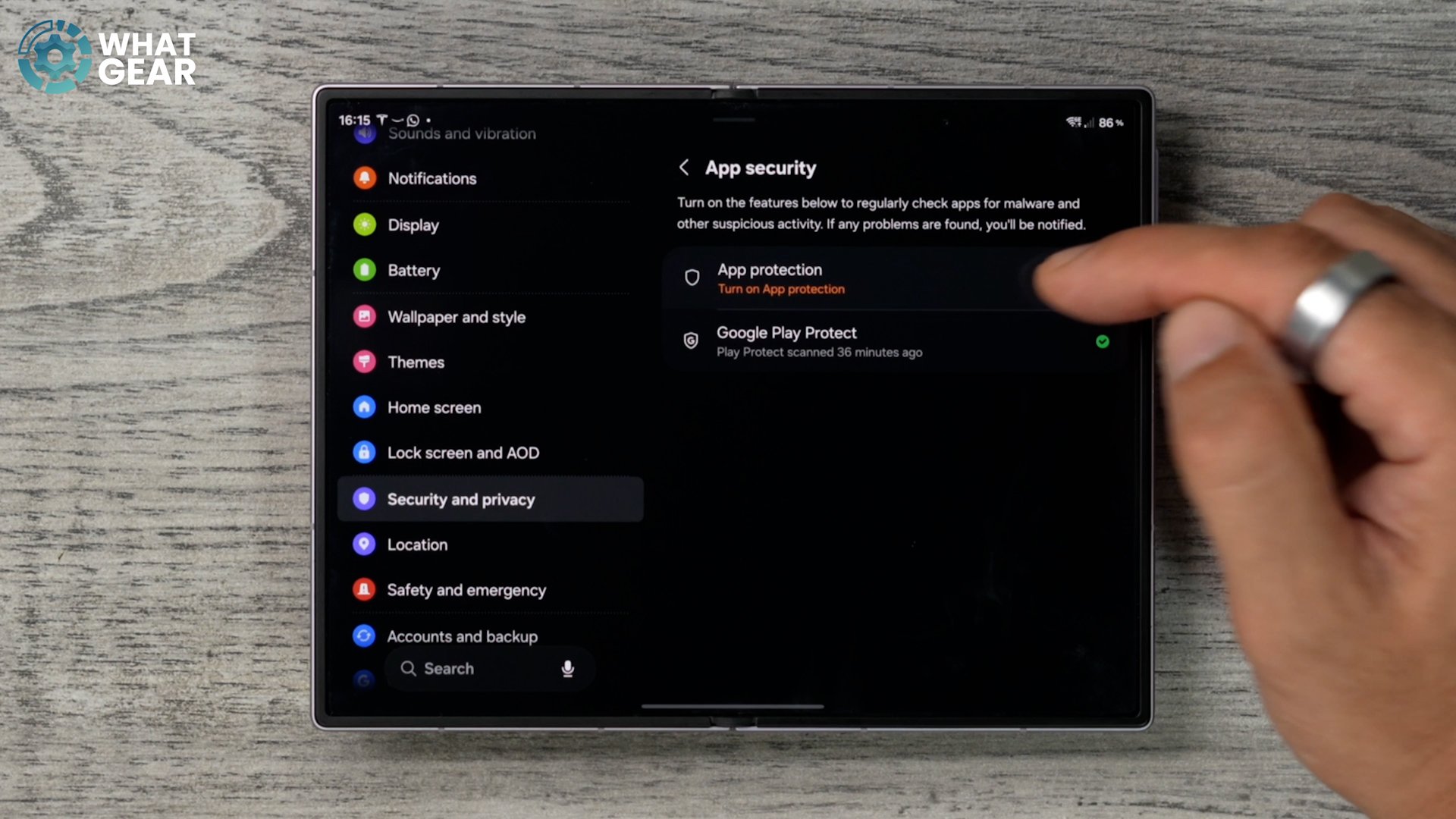
This is a built-in security feature that scans every single app that you install on your phone. And even if you sideload apps as well, this will scan those to make sure they're not going to mess your phone up. So if you have this, definitely switch it on and spend a little bit of time solving these issues as well, if you have them.
AUTO OPTIMISE
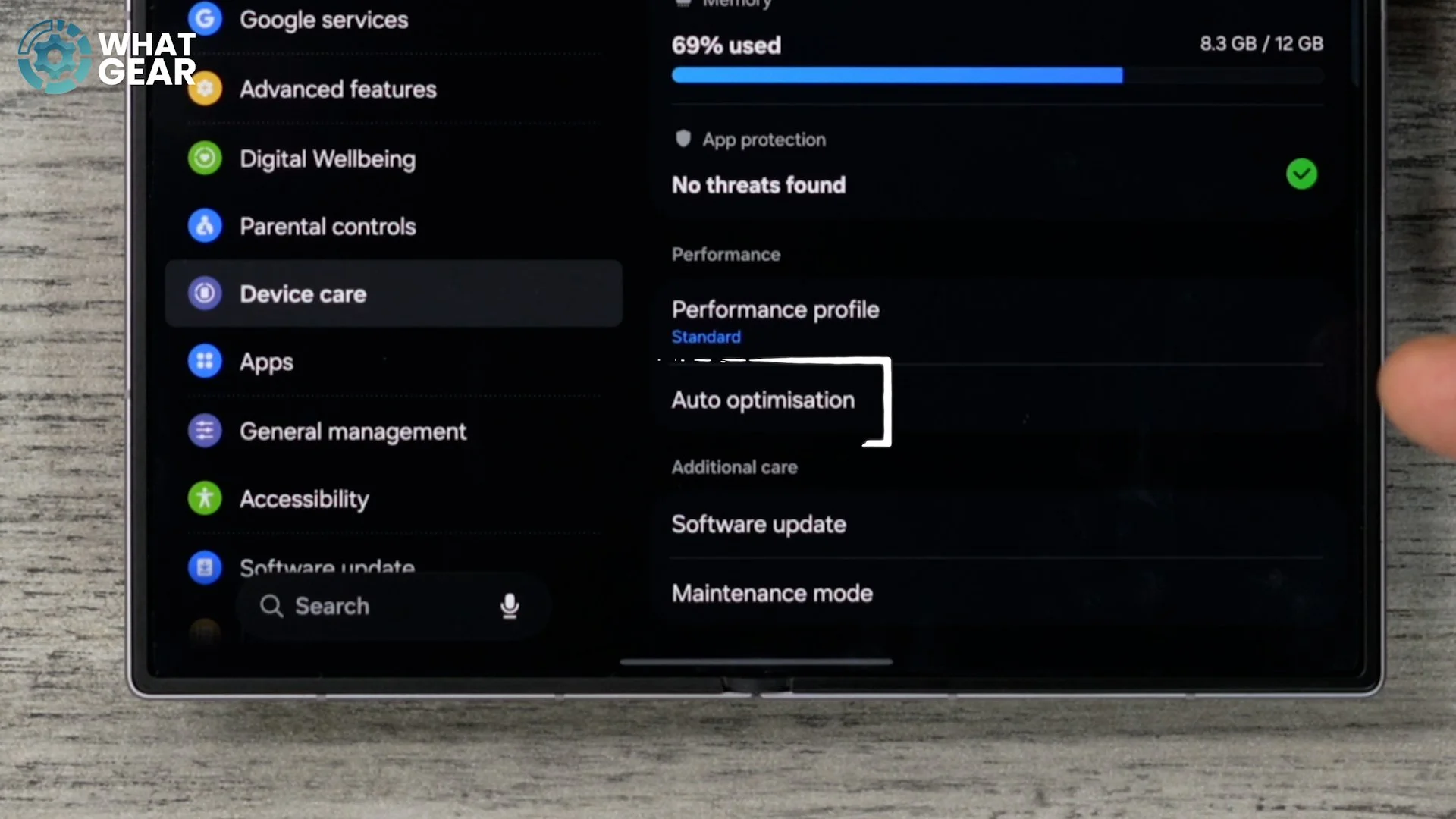
This is another important one. Go back into your settings. Again, we're going to go back to Device Care, which is the grey icon on the left side right here. We're going to jump in here. And if you scroll down a little bit, you'll see this option, Auto Optimisation.
You'll notice that Auto Restart is switched off. If you go to this, essentially what you're doing is giving the phone permission to restart if it's starting to experience performance issues. So if your phone suddenly gets really hot, it might be because there's something running in the background. It's draining all of the resources, and this allows the phone to shut down and restart when needed, which might be never.
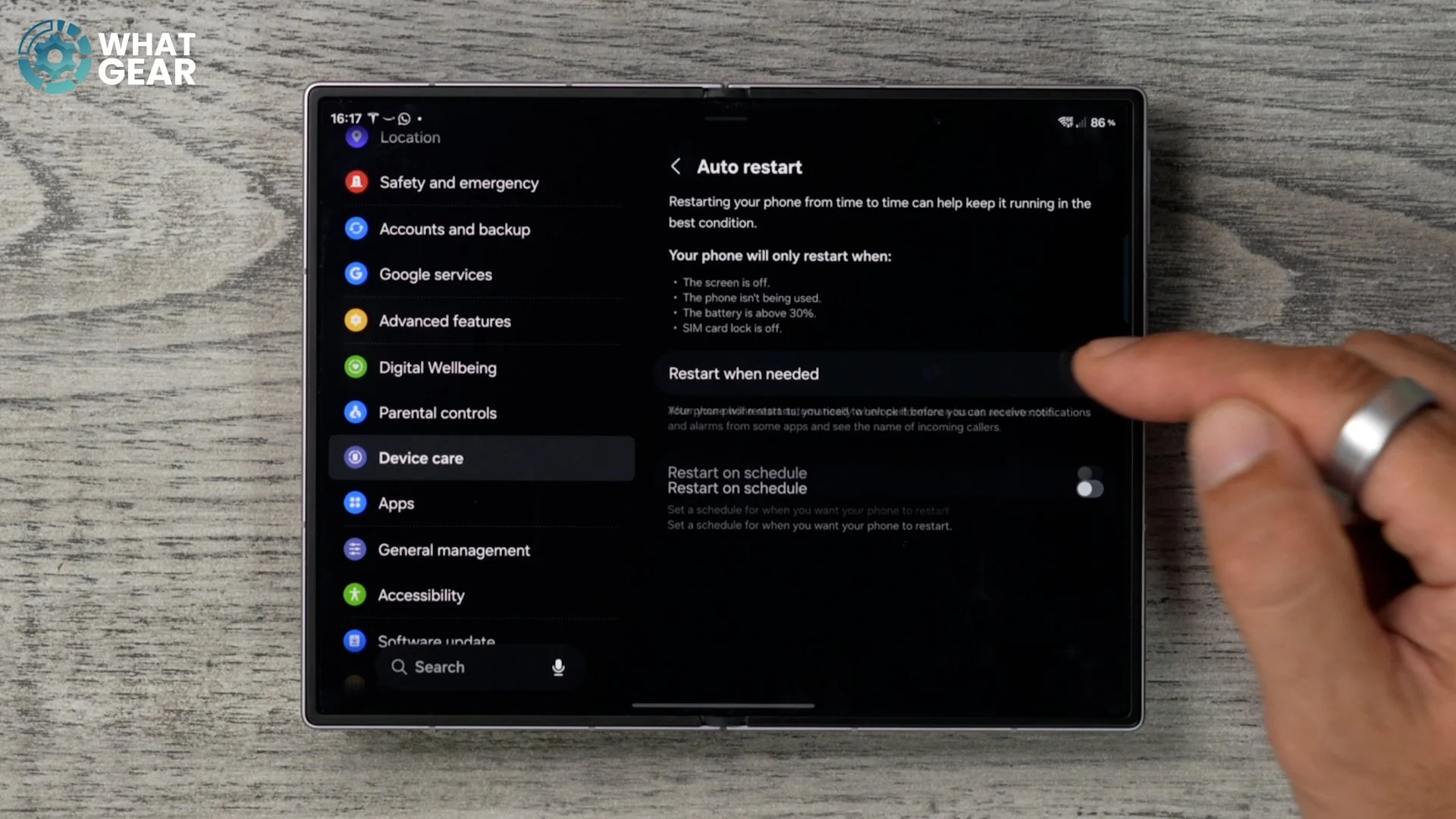
But it also might help protect your device from damage. And if you want to go more manual with this, you can actually schedule a restart time. So, for example, in the middle of the night or something like that, and it does tell you it will only restart when the screen is off, the phone isn't being used, and the battery is above 30%. And when the SIM card lock is off.
MAKE IT A BETTER PHONE
So our phones are so powerful these days, and quite often we lose sight of what a phone is actually primarily meant to do. It's meant to work well as a phone. And here's a little tip that's going to help it do that even better. And actually, I've got a bunch more of these, which are very, very important when it comes to this topic. But let's jump into the phone app and let me show you what I'm talking about. So with the phone app open, if you hit the lines over here, the hamburger menu is what they call it sometimes, you'll see you can open the settings for the phone app. If you scroll down a little bit, you'll notice that this Wi-Fi Calling is, in fact, switched off.
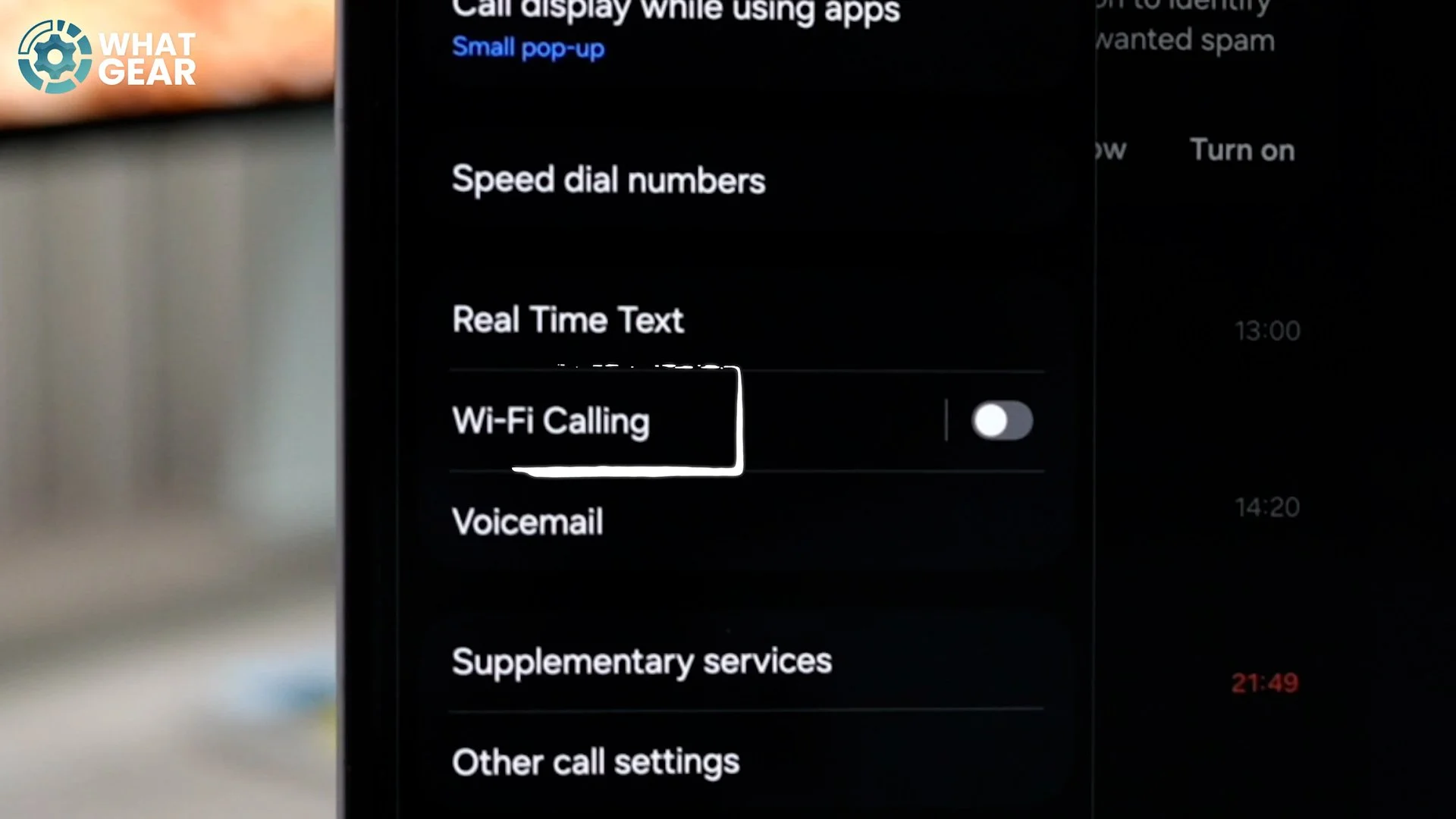
So Wi-Fi Calling allows your phone to use the internet if your phone signal is low, and once it's enabled, if you tap on it, you can go in and actually set a preference for what you'd like your phone to use. So let's say, for example, your home location has really bad cell signal. You could actually set this to prefer Wi-Fi. So it'll use that first if available. And then it will fall back onto the mobile network if needed.
PASSWORD PROBLEM SOLVED
Now, one thing that I think slows everybody down is bloody passwords. Different apps and different websites encourage you to reset them on a regular basis, and then you end up with a bunch of different variations of your passwords. And sometimes it's hard to remember. That's why it's very important to do this, because it will save you time in the future. So we're going to go into the settings again. On the left side, we're going to go to Security and Privacy. Scroll down to More Security and scroll down again until you see this: Passwords, Passkeys and Autofill. Tap on this. Now, at the top, you'll see your preferred service, which will likely be Samsung Pass.
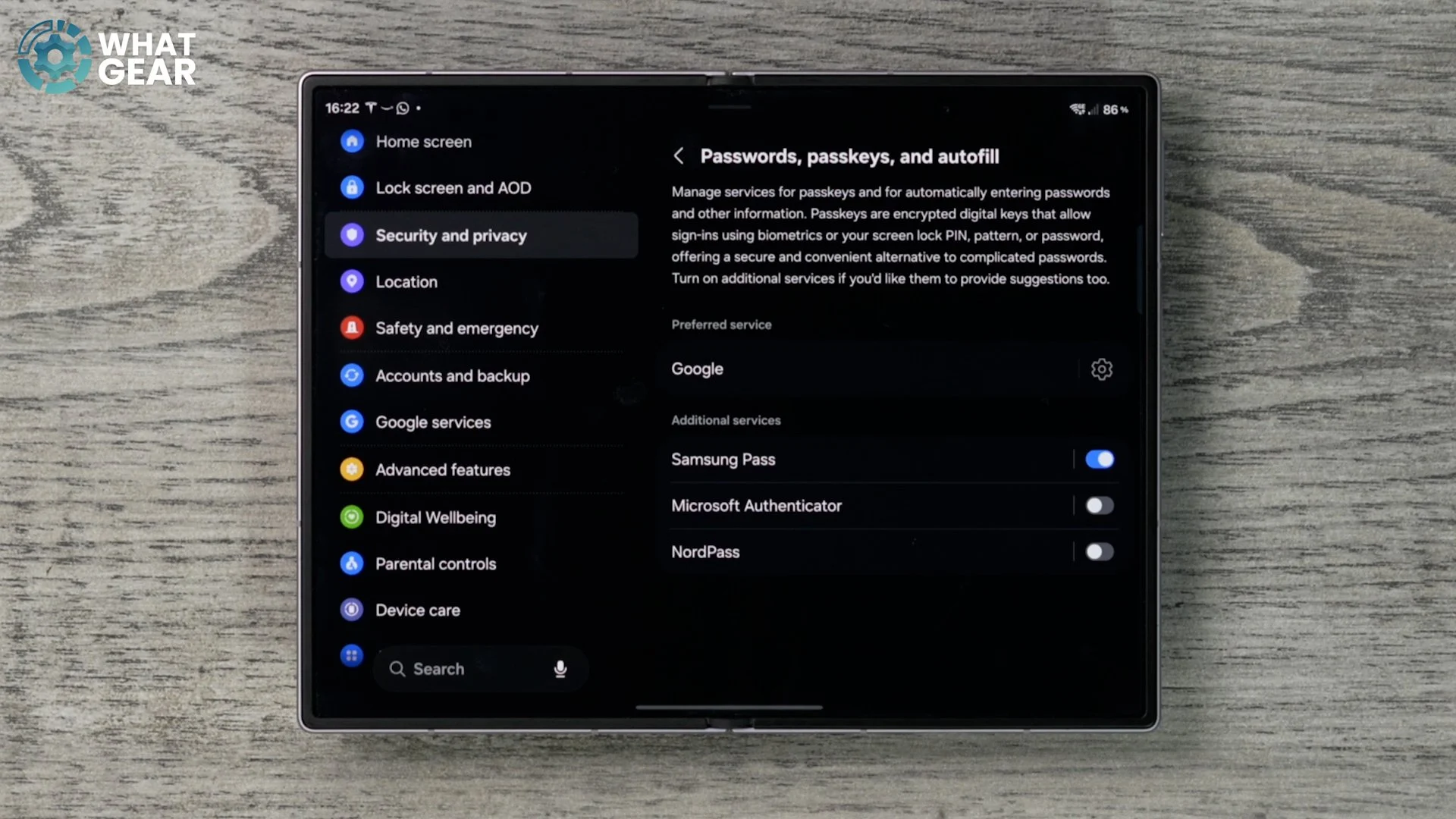
But let's say you use Google Chrome on all your laptops and computers and things like that. Chrome will be saving Google passwords, so if you do want to change the preferred password autofill app, you can hit the little settings icon to the side here and choose the one that you actually use. And the great thing about this phone is actually that you can have a backup as well. So if you have other password managers installed, you can enable them as well. I actually use NordPass as a backup for all my passwords, because I use lots of different devices on different platforms and things like that. So this just gives me a universal password manager, but tailor this for how you save passwords, and trust me, you'll be glad that you did the next time you forget a password.
PREDICTIVE TEXT
Here's another really important time-saving tip. And trust me, this is something you want to do on day one on a Samsung phone. So whenever you're typing anything on this phone, it's going to default to the Samsung Galaxy Keyboard, which has a bunch of really powerful tools on it. However, you might find it a little bit frustrating at first because these things are not enabled straight out of the box. So to access your Samsung Galaxy Keyboard settings, you just hit the settings icon. Once you're in there, you will probably see this at the top: Download the predictive text in English or whatever your language might be.
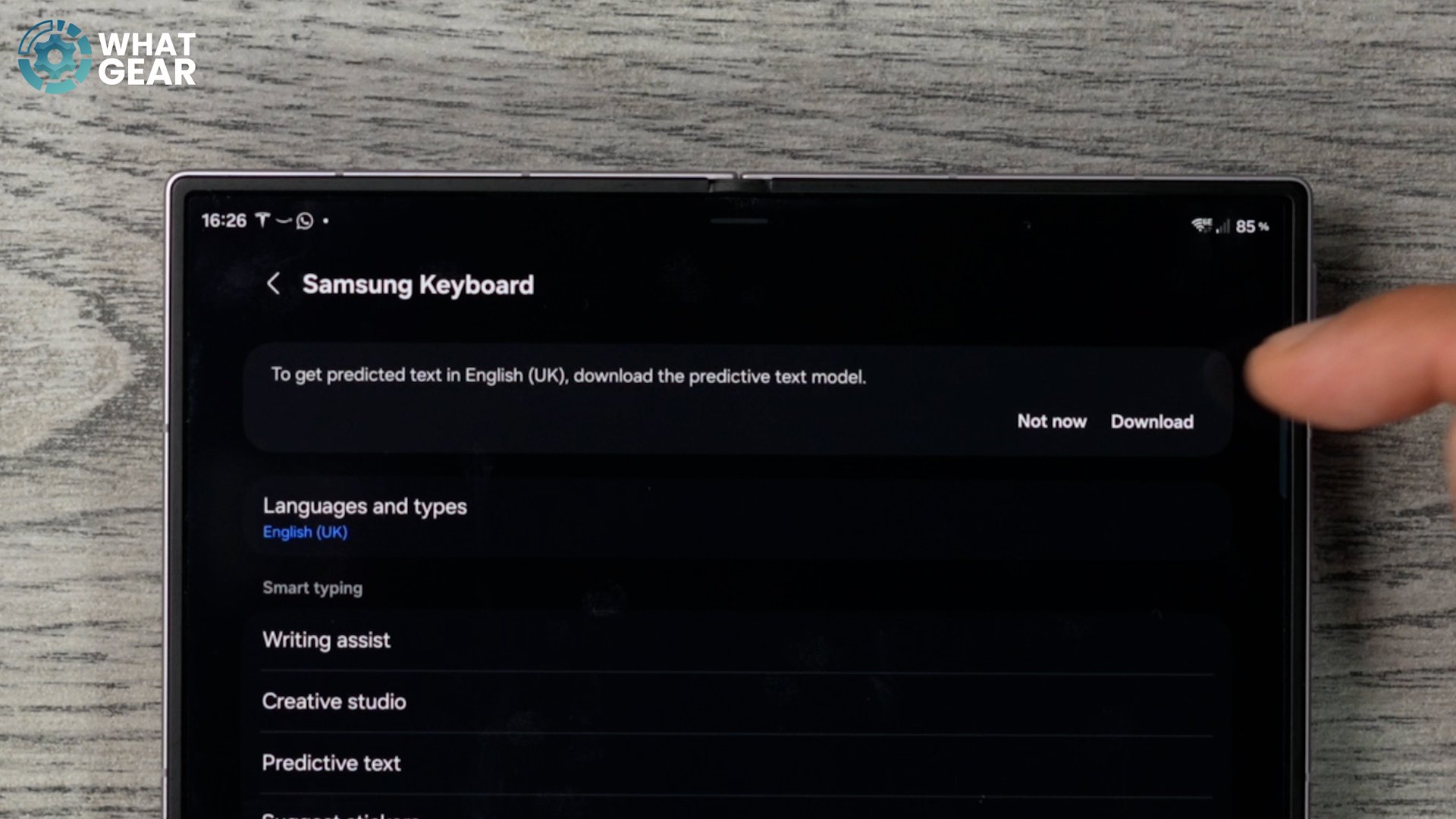
Definitely do this straight away. That way, when you begin to type something, it can suggest the word for you before you even finish typing, which will save you time. So definitely download that and then tap on Predictive Text here and make sure that it is enabled. And you can have more than one language if you want.
HIDDEN AUTOFILL TRICK
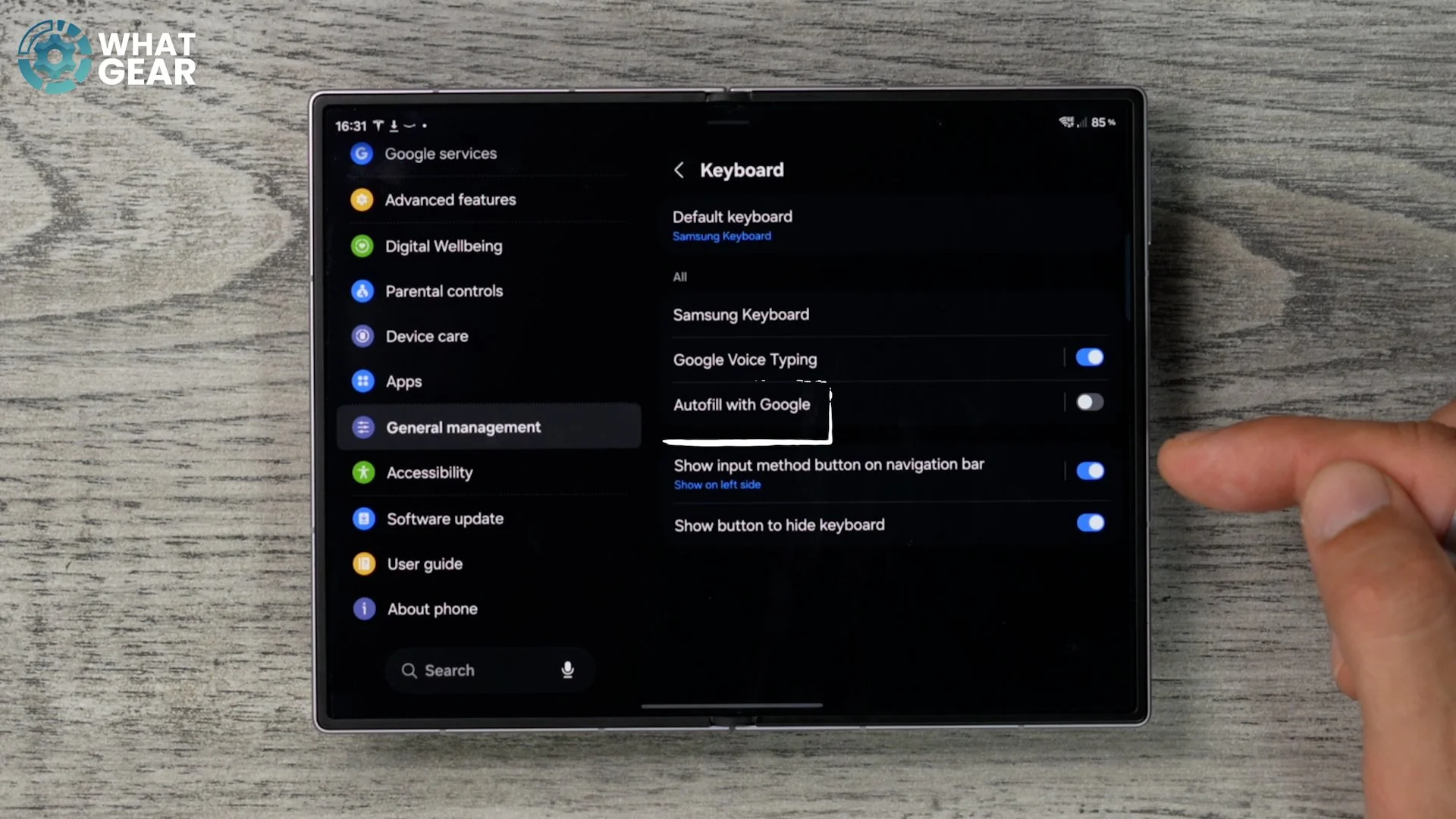
Remember how I said with the password manager, if you use Chrome on all your devices, it's good to switch to that password manager. Well, actually, there is a nice little setting here on the Samsung Keyboard, which you should switch on if you do use Chrome and Google devices a lot. So to find this one, it's a little bit tricky, and actually, you can't get to it through the Samsung Keyboard. You have to go to General Management in your settings menu. And then here, tap where it says Keyboard. And here is where you'll find Autofill with Google. This allows the Samsung Keyboard to use Google Autofill information. If you don't do this, you won't get all of your suggested Google login details with the Samsung Keyboard.
SWIFT, SWIPE, TYPE
Let's do a couple more keyboard tricks that will save you a ton of time. And let's do these quickly because I know these are quite boring. There is more exciting stuff right around the corner. So with the keyboard open, if you go into settings and this time scroll down a bit further until you see Swipe, Touch and Feedback.
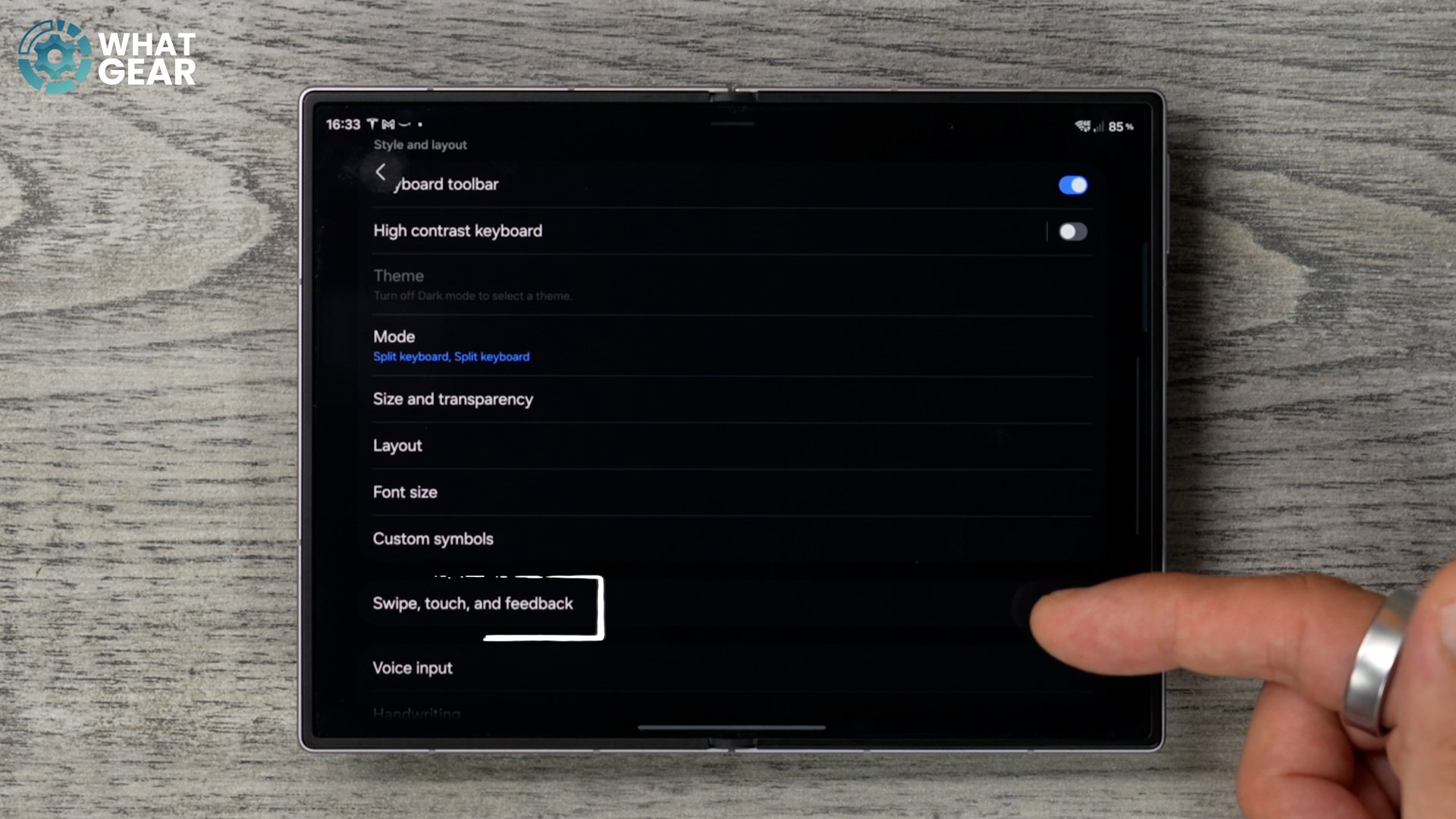
Go to this, and then here you will find the option to turn on swipe controls. So this allows you to type without taking your finger off the screen, which, trust me, will save you a ton of time, especially when trying to type one-handed. So switch on Swipe to Type. Once you get the hang of this, you will be gliding through typing long sentences with just smooth moves.
HIDDEN SPELL CHECKER
When it comes to typing anything, if you spell it wrong, the Samsung Keyboard won't automatically correct it for you unless you switch this on. So in the Samsung Keyboard settings, if you go to Auto Spell Check, you'll notice this is, in fact, off. And if you've downloaded multiple language packs, you can switch it on for those different languages as well. One last little bonus for the keyboard: if we go back one step. If you go to Writing Assist, you scroll down a little bit. You can choose to process this data only on the device. So if you're security-conscious, you should probably do that. But what I want to show you here is Suggested Replies, which again is also switched off.
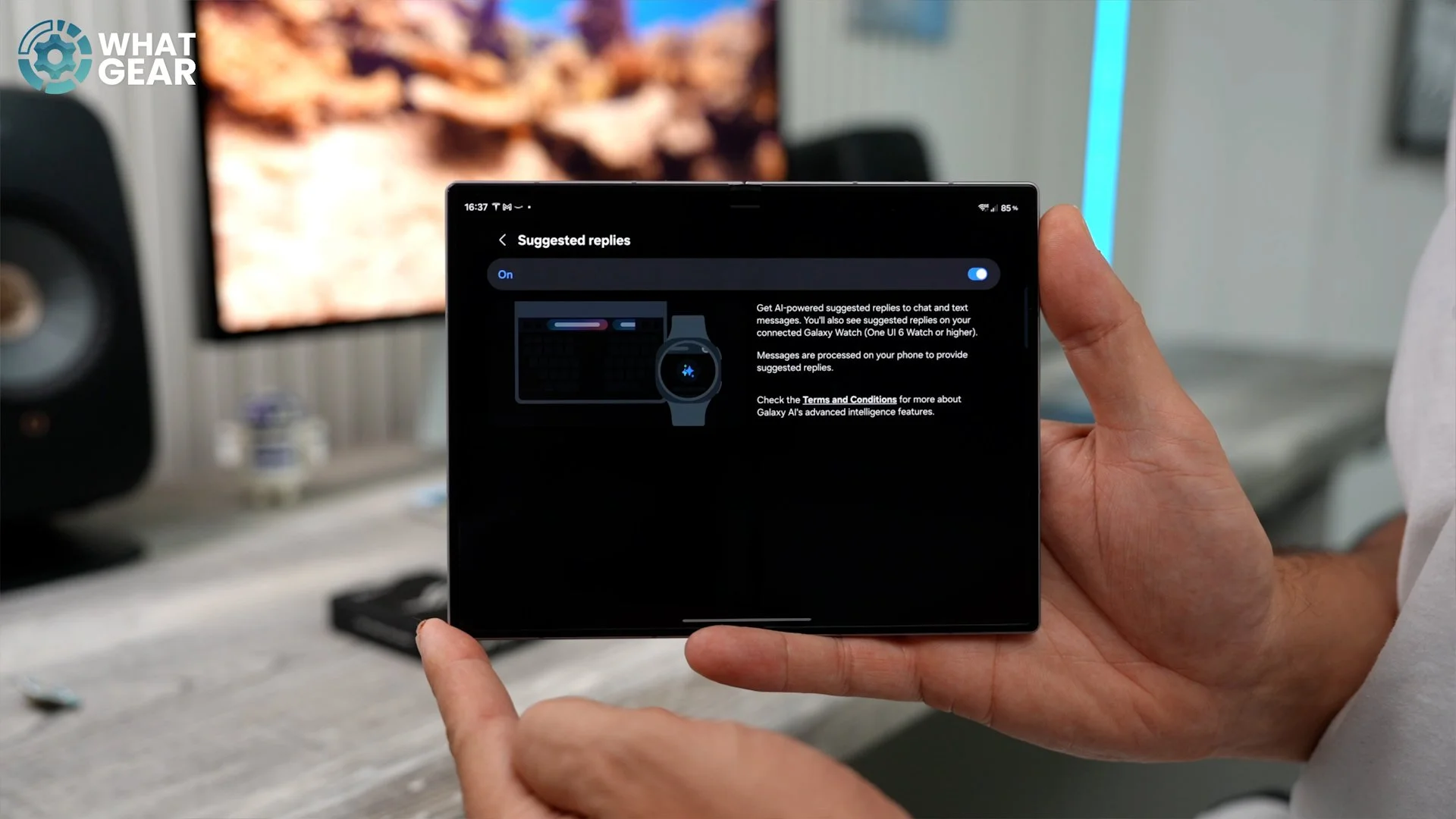
This can use your personal intelligence data on the device to predict what you might say next. And this is especially handy if you are using a Galaxy Watch, because messaging from that tiny screen can be a little bit fiddly, and this will help. With this on, sometimes you only have to type; you can just tap on the reply that basically says what you were going to say anyway. All right, now it's time to dive into a few usability upgrades and new features that you might not know about yet, but are definitely worth using. And trust me, you're definitely going to want to stay for the next chapter after this one, because it just might be the most important. So stick around.
LANDSCAPING
And this one is in regard to the cover screen. Now, this phone has a very unique ratio, a brand new ratio, in fact, for Samsung devices. And something that's really nice about this is this. If you pinch the home screen, go into the settings and scroll down a little bit. Right here at the bottom of the page, you'll see the option to rotate to landscape mode. So this is switched off.
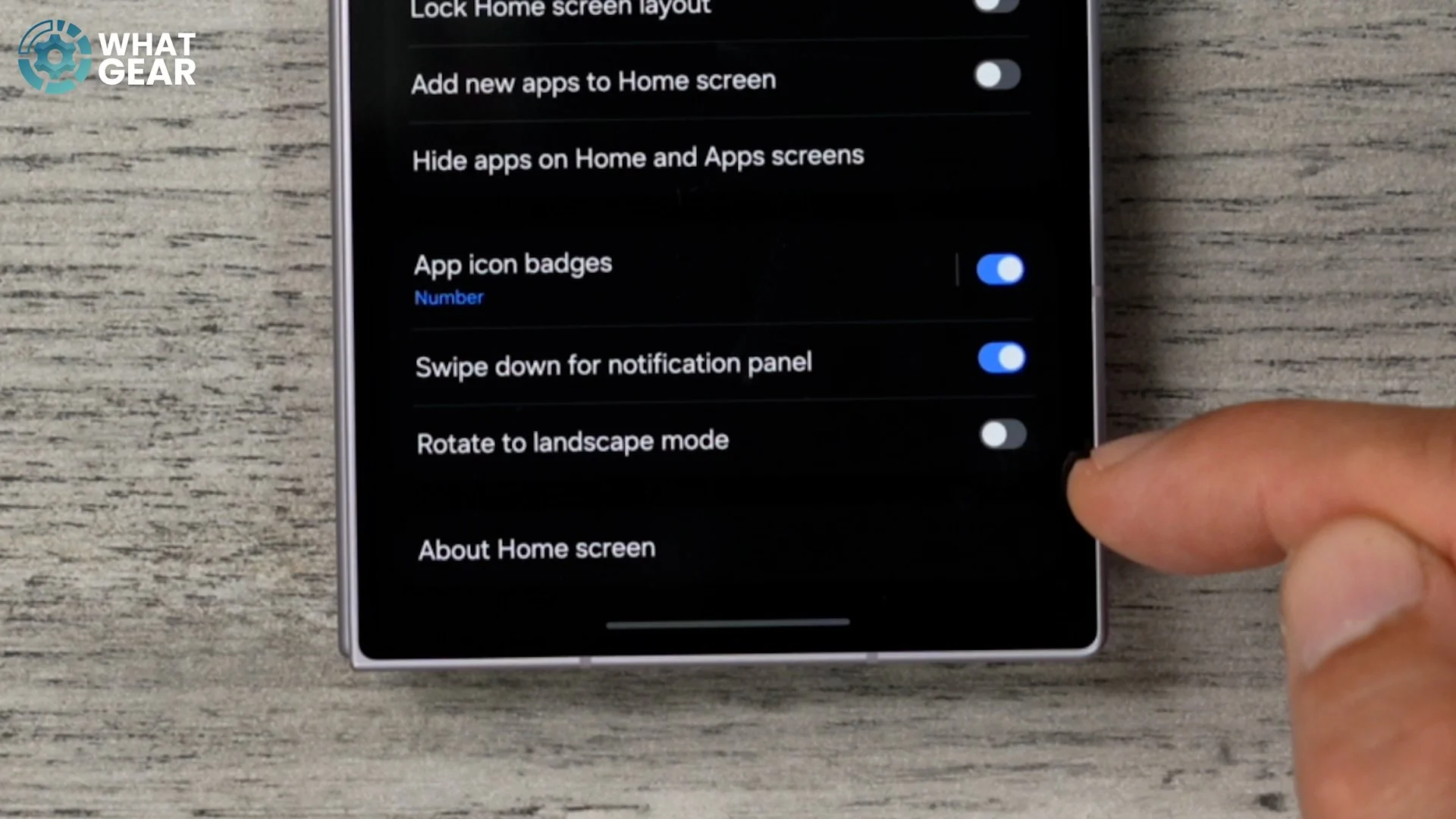
And I do recommend you switch it on because what this does is it allows you to flip the phone this way around and use the phone like this. And this can actually be better in some scenarios, and especially when using the keyboard, which you have just upgraded because you followed the last few tips. Those are actually shrunk down as well, which is quite nice, so they're even more minimised but still available. So yeah, if you want to use the cover screen in landscape like this, you can't do it unless you change that setting.
CONTINUOUS FLOW WHEN FOLDED
So one of the best things about the Z Fold eight is the wide inner display. And I'm guessing at some point you're probably going to be doing some work or using apps on the inner display, but then maybe you have to get up and move around a bit, and you don't want to close down that app. You want to continue working on it on the cover screen. Well, you can't unless you do this. And this again is quite well hidden. So if you go into your settings, this is found in the Display menu. Go to this, scroll down a little bit further, and you will discover that ContinueApps on Cover Screen is, in fact, set to Never straight out of the box.
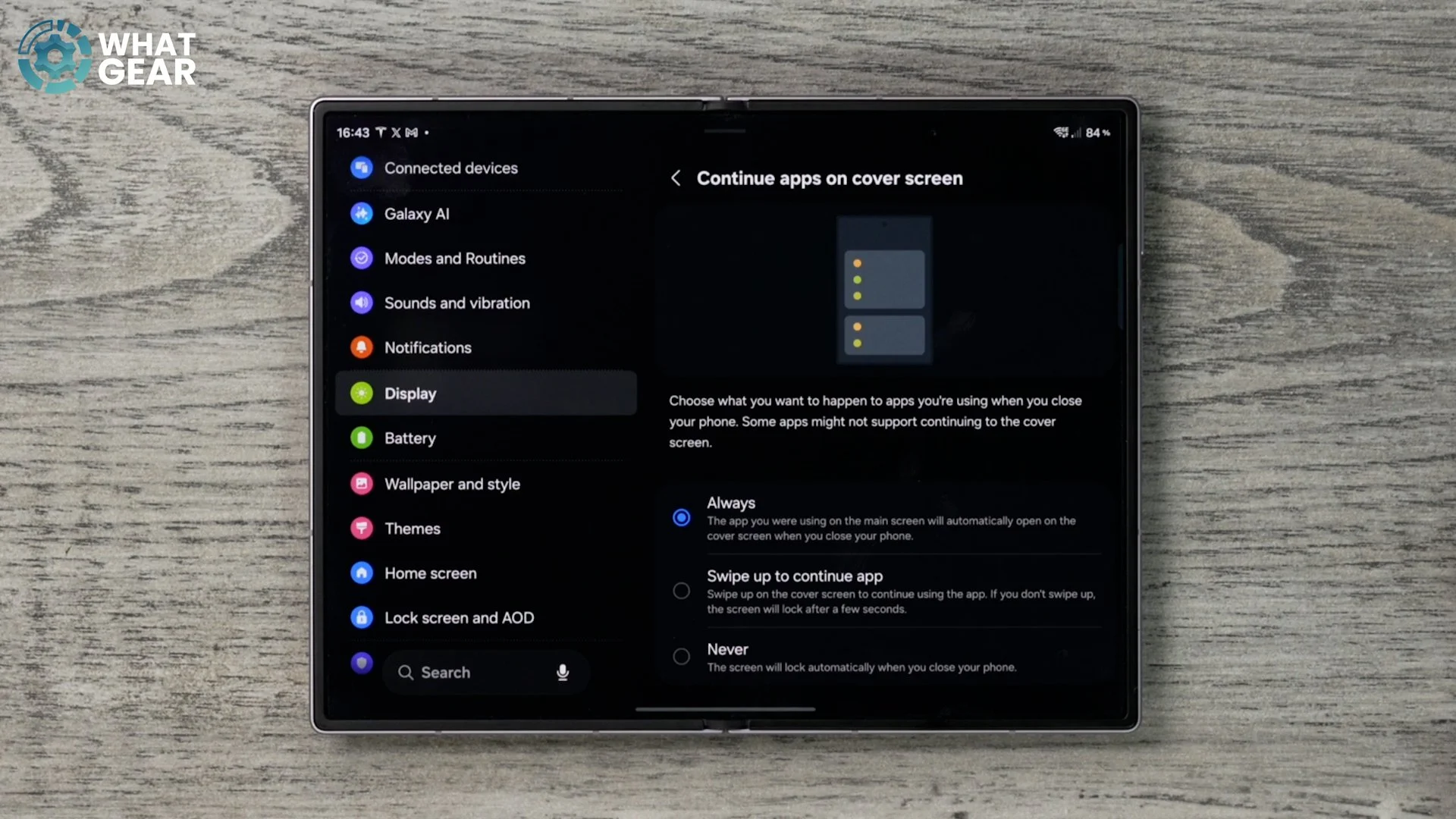
So if you tap on this, you can change it to Always. So if you're writing on your Google Docs or something like that, you close the screen. You can continue working on that document. And there is another option here, which is Swipe Up to Continue the App. So with this enabled, when you swipe up on the cover screen, you've then got the option to carry on with that app, because maybe you want to shut it down when you close the screen. And let me show you real quick how this works. So I've set it to Swipe Up. When I close the screen, the app is still open, and it's where I left it when I was working on the inner display.
MAXIMUM MULTI-TASKING
Now, this next tweak can improve the multitasking abilities of what is already a very powerful phone. So if you want to max out the performance when it comes to handling heavy workloads, this is an option to consider. Jump into your settings, scroll down the left side and go to Device Care. So this little tweak is actually quite well hidden, and a lot of people may never discover it. But by watching this video, now you will know. If you tap here where it says Memory, it will do a quick scan and tell you how much of your RAM is being used.
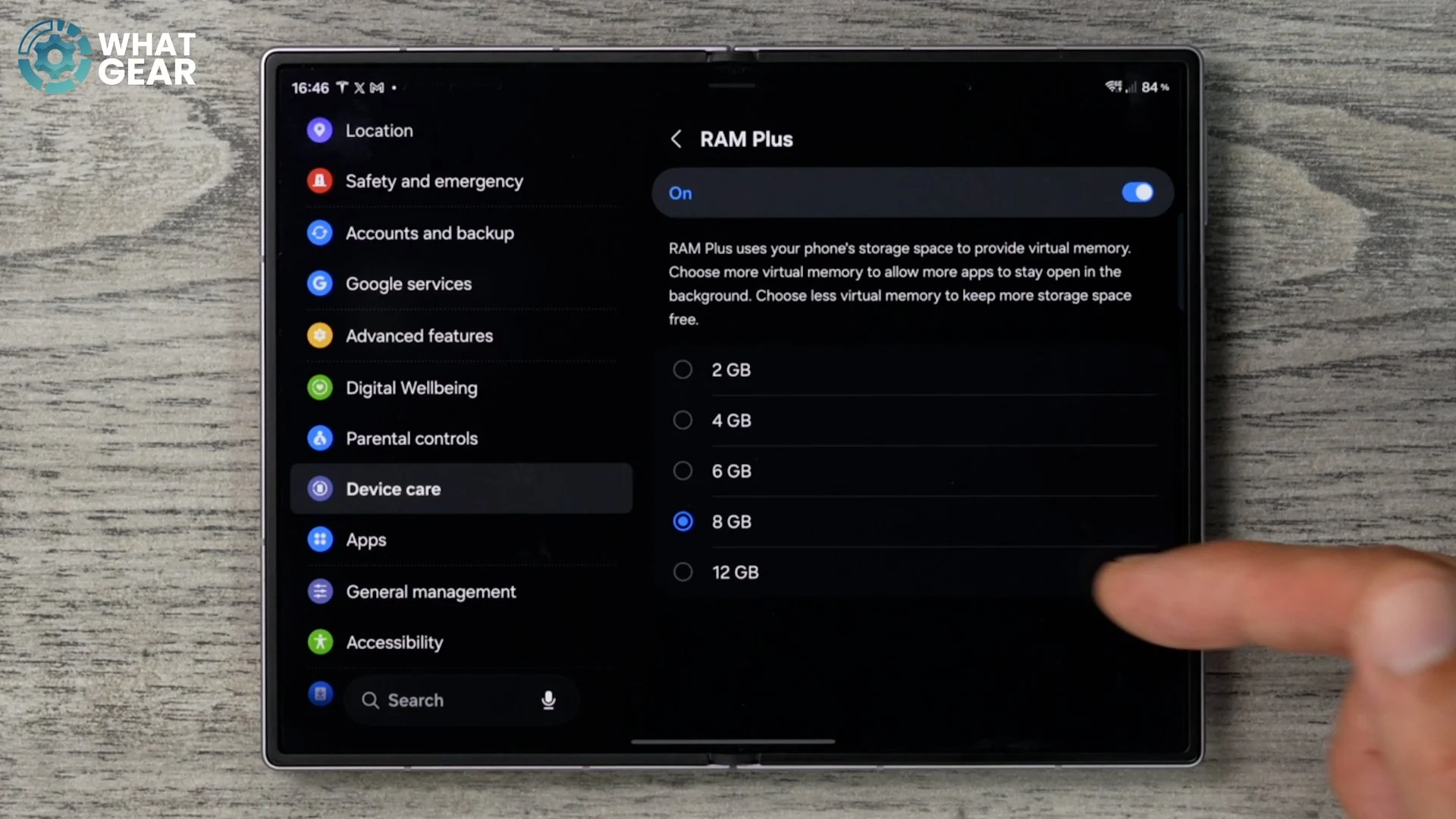
This phone does have 12 gigs of LPDDR5 RAM, but it also has very fast storage, which can be used as virtual RAM. So if you go to RAM Plus at the bottom, you can set this to 12. This will then prompt you to restart your phone, and when it does restart, you will have double the amount of RAM, and this will increase your multitasking abilities at the cost of some of your internal storage. So yeah, you have to think about that before you make this change.
NOTIFICATION GLANCE
Here is a little customisation tweak that you might like. So if you pinch your home screen and go to your settings, this shortcuts you to the home screen settings. If you scroll down a little bit and go to App Icon Badges and tap here. On this page, you can choose to turn off the numbers. So if you've got, like, an email account with like 5,000 unread emails, you might see that number there for a very long time until you go in and read them. So if you prefer, you could switch it to dots. But there's also another brand new feature here that I think you might like.
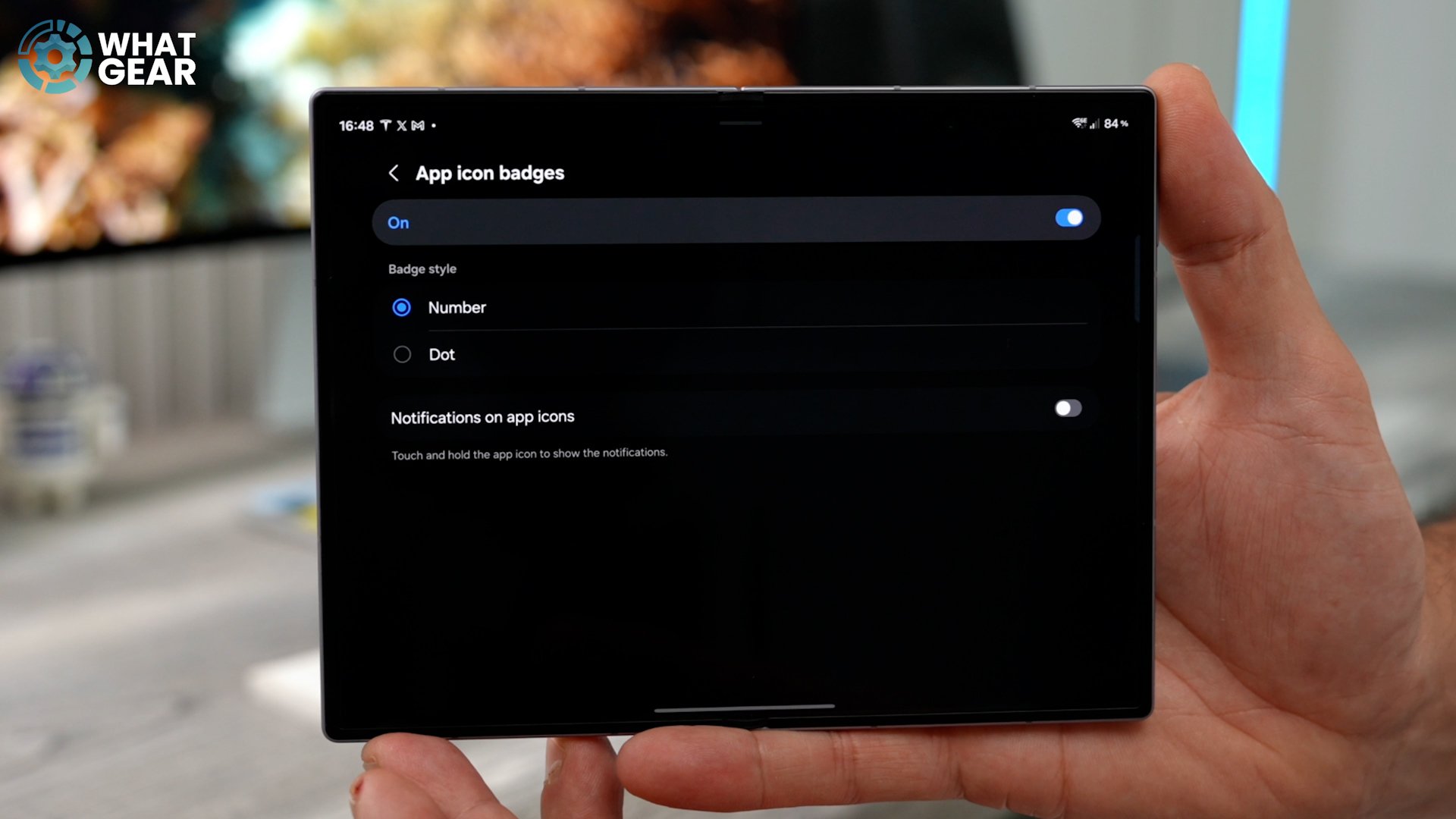
And again, most people won't know about this. Go to Notifications on App Icons. So with this feature enabled, when you see the little notification numbers or dots, what you can do is hold your finger down on the app, and you will see a new field at the bottom, which is a quick preview of what the most recent notification is. It would be nice if you could scroll through the notifications instead of just reading the top one. Maybe Samsung will improve that over time. Anyway, that's a nice little new feature.
UPGRADED BIXBY WIDGET
Here is a brand new widget for the Galaxy Z Fold with One UI nine. And let's find an empty space. Pinch the home screen, go to Widgets at the bottom. And then here, we're going to go to Bixby. I know Bixby does get some flack, but actually, now it's really quite powerful. And these newly redesigned widgets are actually very nice. So I'm going to add one to the home screen. So the great thing about Bixby now is actually that it works with Perplexity AI. So you can actually have conversations with it, but it also has access to all of your Samsung devices.
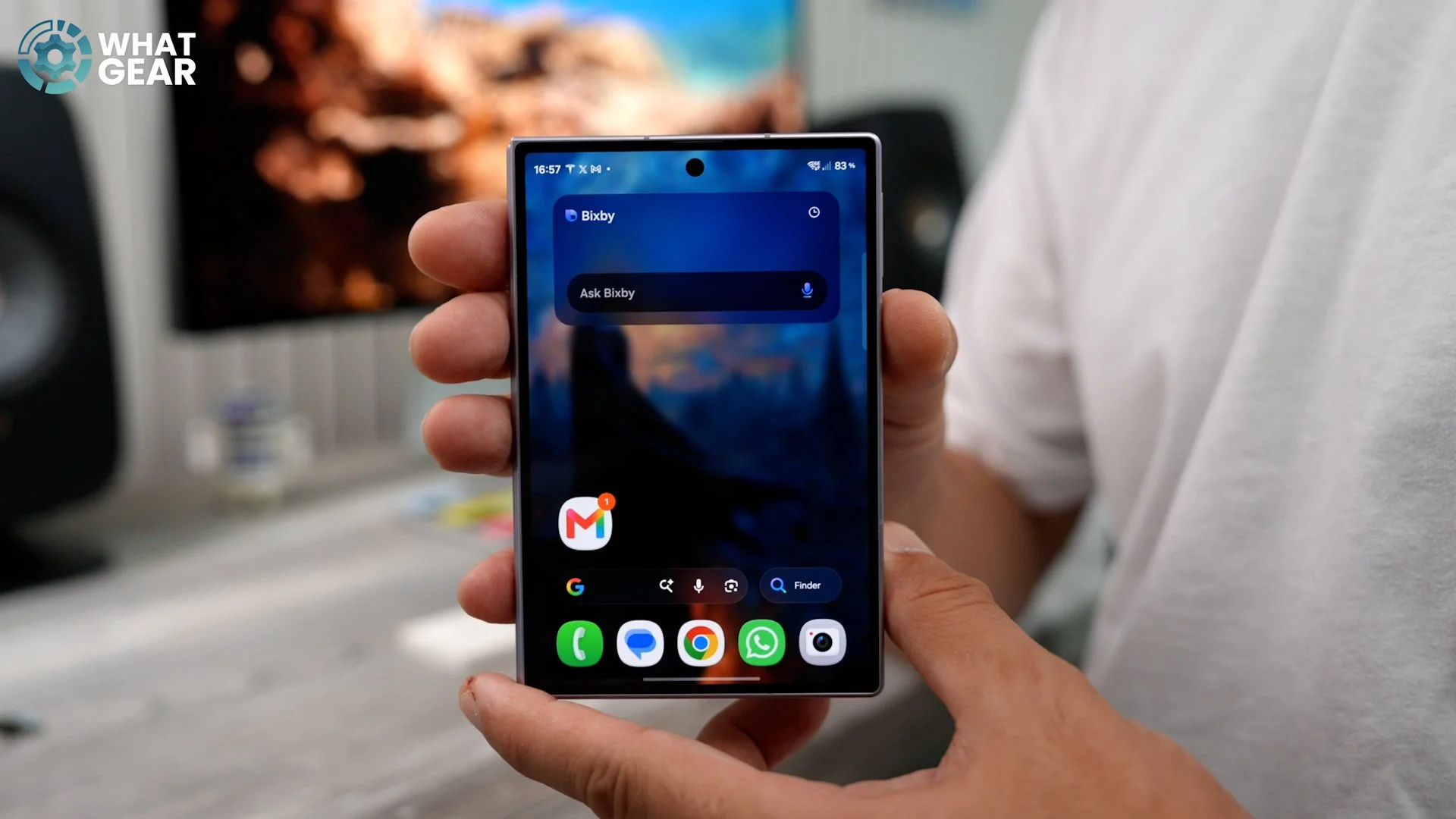
If you have TVs, fridges and washing machines and all the other stuff, including the watches and the wearables, you can actually make changes here using just voice prompts. It can give you some things to try. And this brings me really nicely onto the next feature, which is brand new.
A NICE NEW GESTURE
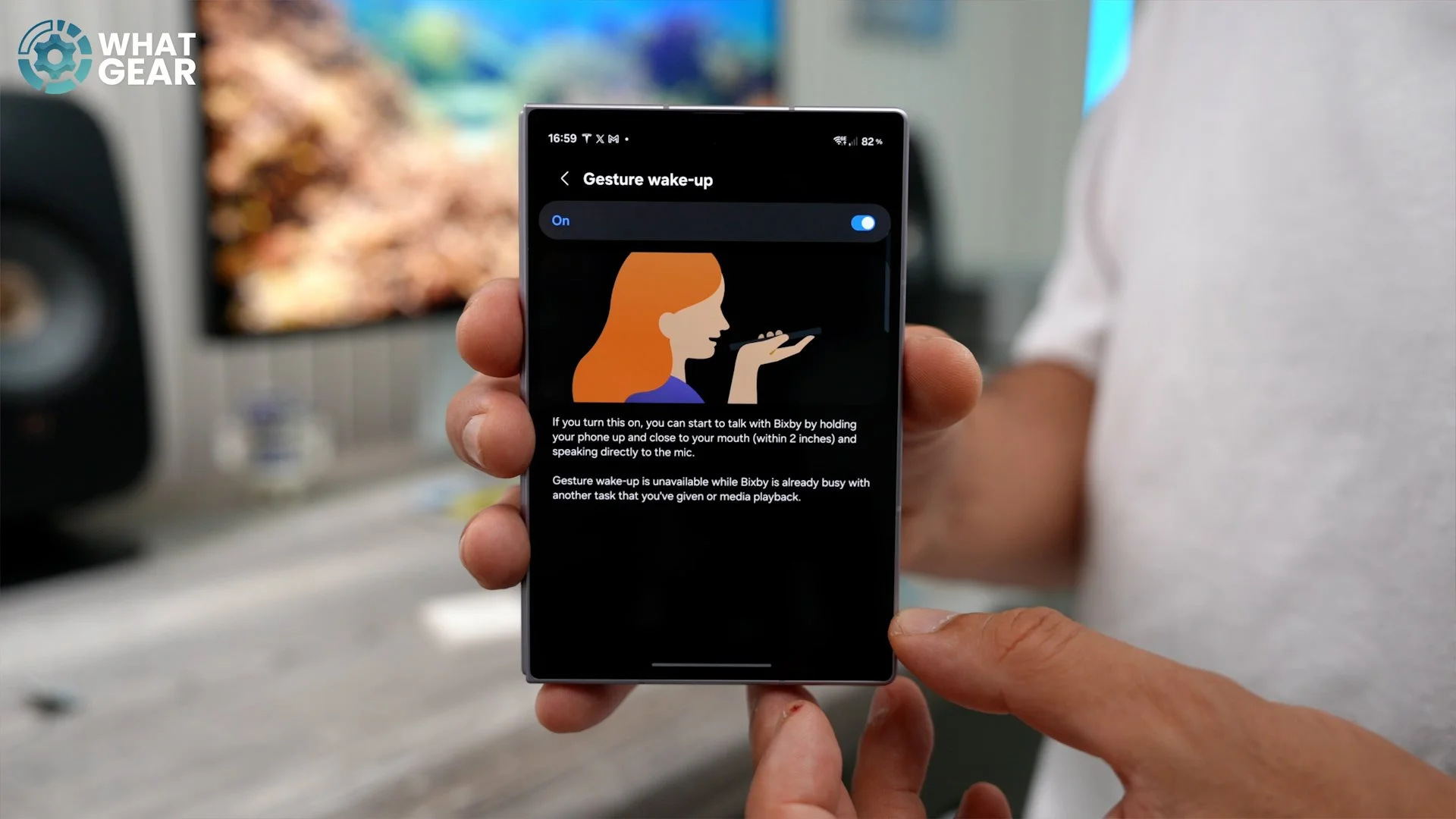
Staying within the Bixby app, you'll notice at the top that you can activate Bixby with a gesture. So if you go to the settings and switch this on. If you ever discreetly want to use Bixby without having to open the widget or the app itself, you can bring the phone up to your face at around two inches away from your mouth and ask it whatever you want, and immediately that gesture will open Bixby and respond. So yeah, I recommend you test out the brand new Bixby because it's actually very, very good now. So if you watched part one in this series, I showed you guys a bunch of the first things to do and try on day one.
HIDDEN NOW NUDGE UPGRADE
I did touch on the now-improved Now Nudge feature on this phone. I've only been using this for a couple of days, so I haven't actually made use of it that much just yet. But there is a little setting that is off that will give it a better understanding of when it can help you based on your emails and conversations in your emails, when you've scheduled meetings, for example. If you go into your settings, go to Galaxy AI, go to Now Nudge.
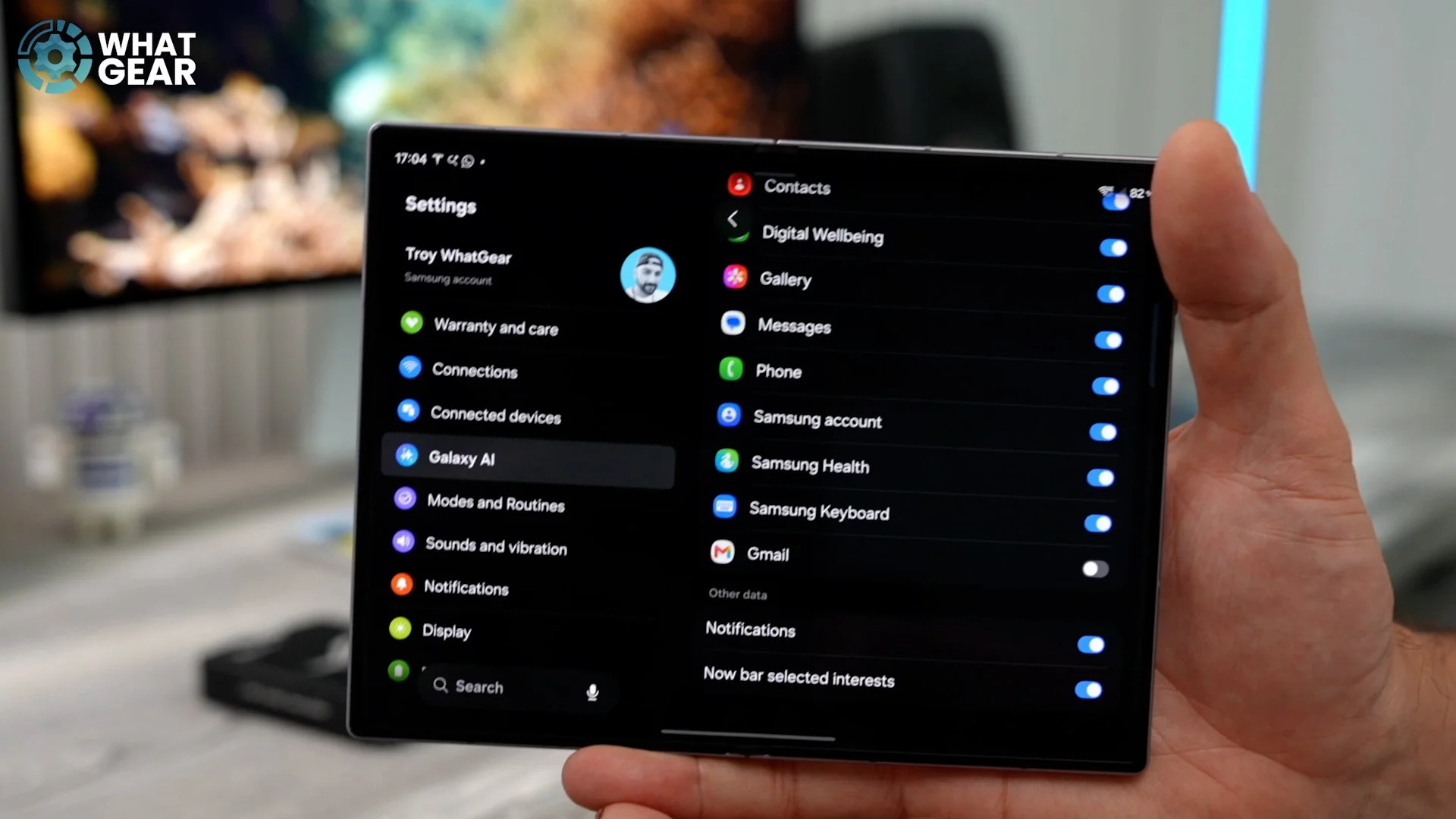
This will be on straight out of the box, but this, if you scroll down, isn't. Go to Data to Use. Scroll all the way to the bottom here. And you'll notice Gmail was switched off by default. By giving Now Nudge access to your Gmail emails, it can assess those emails and pull relevant information out of them to help you organise your events. It will create suggestions based on what it knows about the previous conversations that you've had with specific people, but you must be comfortable with sharing this information with the Galaxy AI. If you're not, don't worry, you don't have to enable this. But if you do, Now Nudge's suggestions will improve significantly.
BROADEN YOUR HORIZONS
All right, so this has a really nice ratio for the inner display. However, not all apps are optimised to use it properly. That is why this next little trick is really important. So I'm just going to open X, just for example. As you can see, it is only taking up the middle part of the screen. We could, of course, flip to portrait and it would be much nicer. But let's say you want to use it like this for whatever reason.
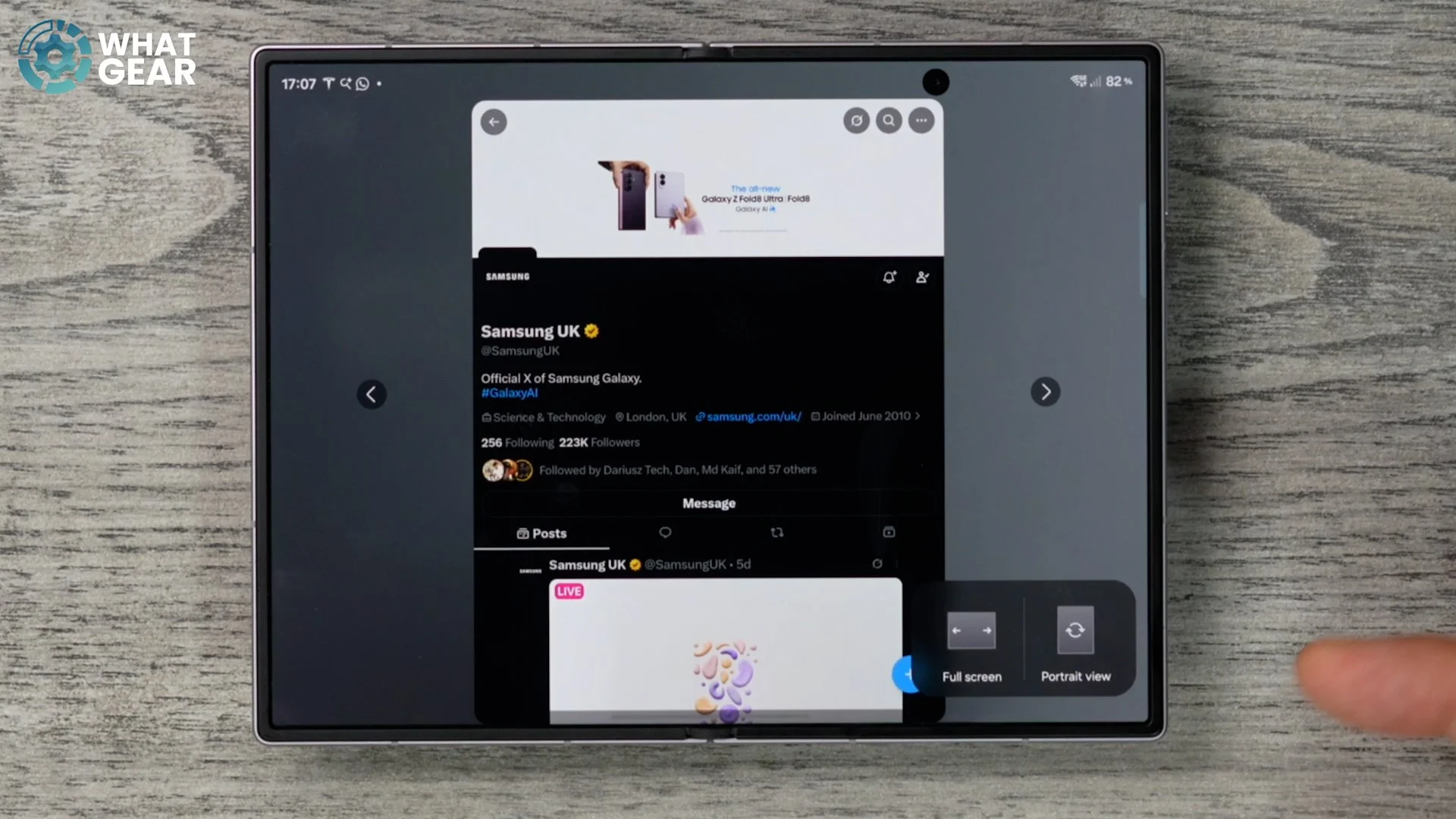
If you tap off the screen, you can actually shift it over to the left or shift it over to the right. But it's this little icon down here that allows you to force an app that isn't supported in this format to take up the entire screen. So right here, we can go full screen, and there we go. Now X is taking up the full screen. I don't know about you guys, but a lot of these promotional videos for this particular phone make me kind of hungry.
DISPLAY UPGRADE
So everybody knows Samsung Display makes the best displays for smartphones, but no matter how good they are, there might be one thing that gets on your nerves about them, and that is when they switch off whilst you're still looking at them. And especially if you're reading a book or a website or something like that, and there's lots of text on the page. So let me show you how to fix this problem before you even experience it. If you swipe down from the top, go to your settings over here on the left side. If you go to Display, scroll down a little bit.
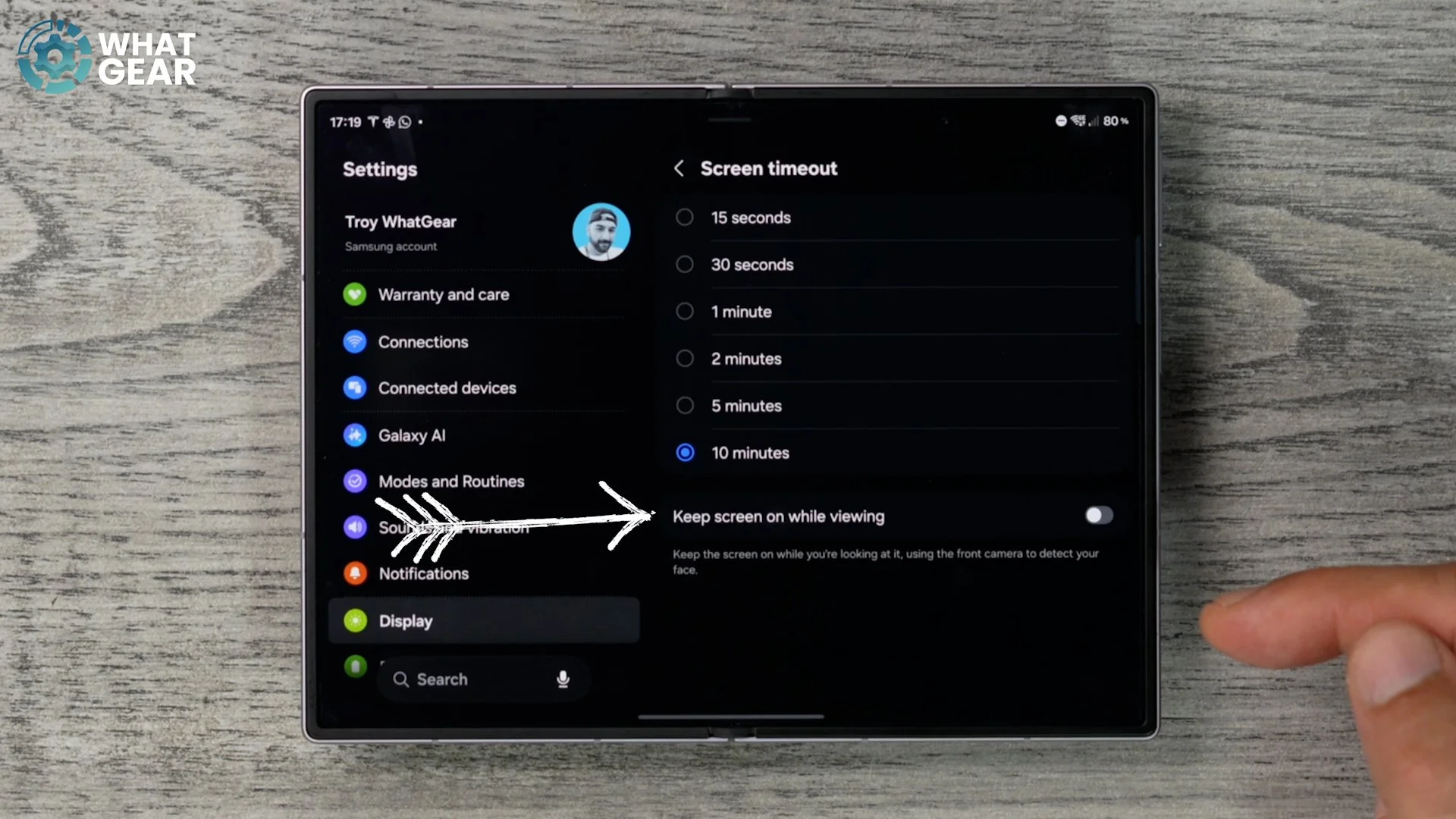
I've turned off these features just for filming the video, but what I really want to show you here is this. Go to Screen Timeout. I recommend you leave this on 30 seconds. It's only on ten minutes here because I'm filming. Right at the bottom of the page here, you'll see this hidden feature called Keep Screen On While Viewing. Essentially, the camera at the front of your display can detect when you're actually looking at the display, and when you are, it won't put it to sleep even if you set it to 15 seconds. So if you are going to be doing a lot of reading on your device, this is a setting that I recommend switching on.
GALAXY AI UPGRADE
So Samsung's Galaxy AI might be one of the best on any smartphone right now. But did you know that your phone's full AI abilities are restricted and not fully unlocked straight out of the box? And look, I know if you're an anti-AI person, you might be pulling this face right now, but don't worry because I've got some good news for you too. You'll see very shortly. So this particular set of tips could be separate. But let's do it all in one just to get it out of the way real quick. If we go into the settings and on the left side, go to Galaxy AI. Here, you'll see all of the AI features that are available on this phone. Let's start at the top: Call Assist.
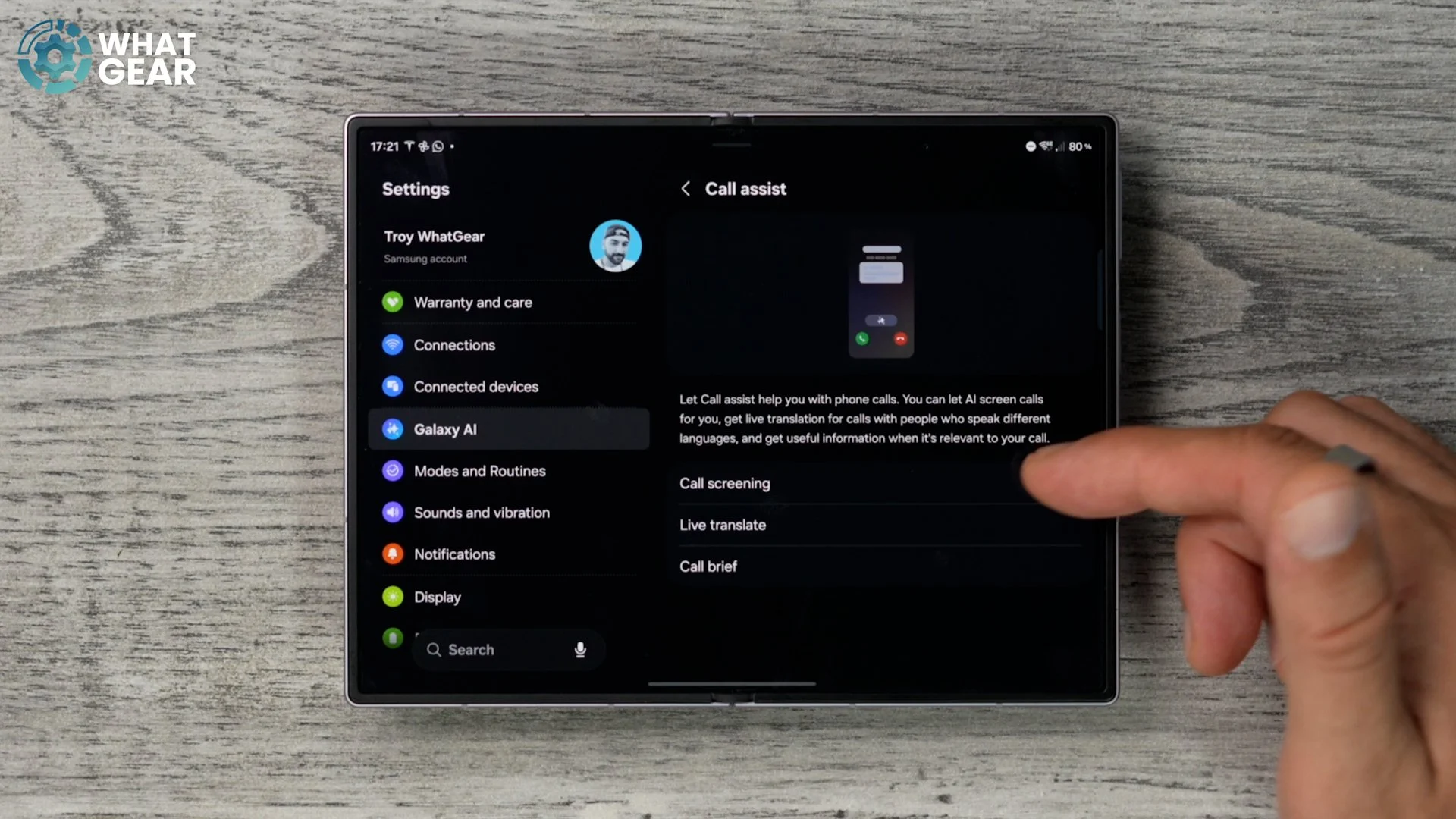
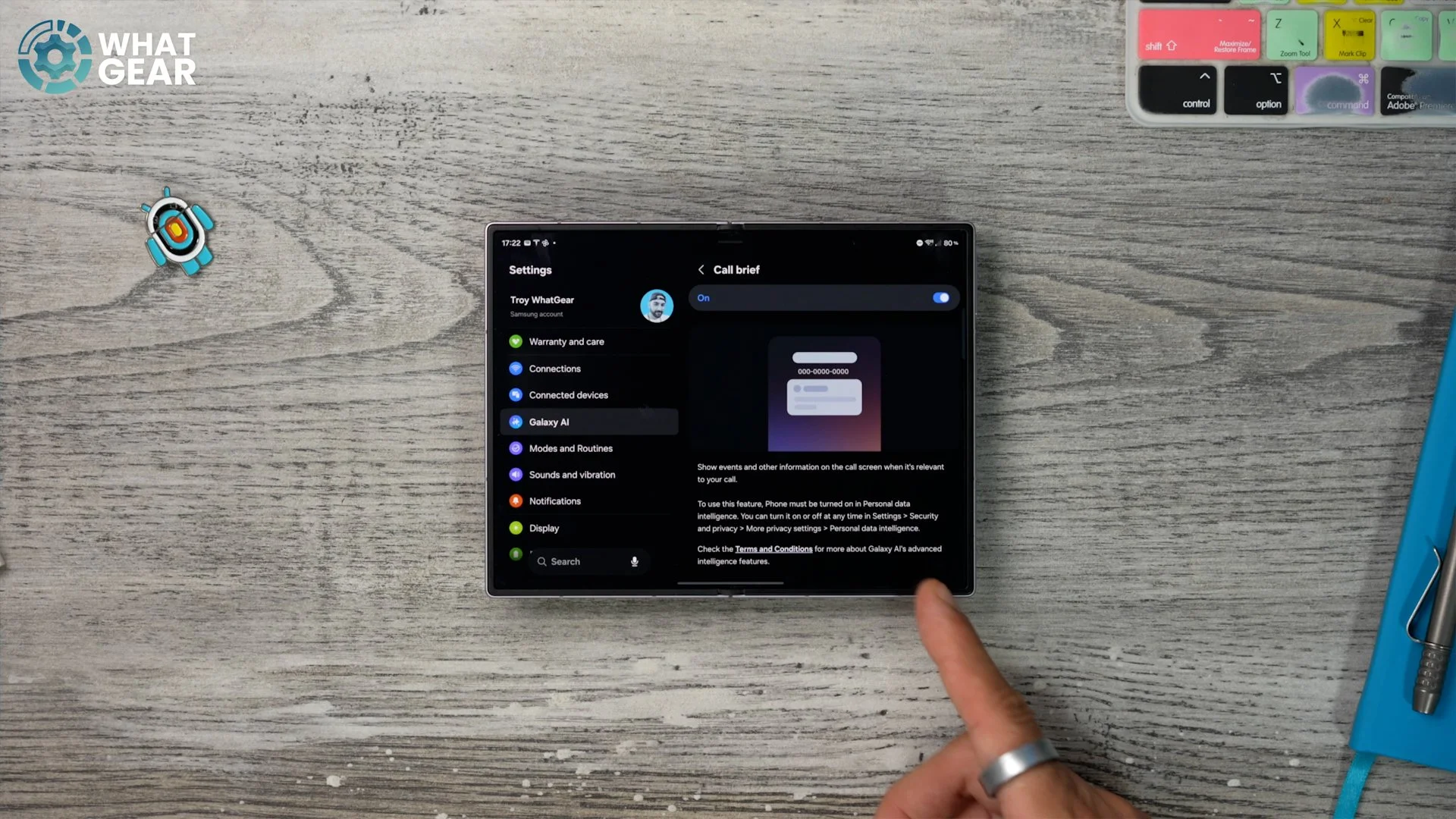
You'll notice here that Call Screening is off. This allows you to filter out spam calls by actually quizzing them before you even pick up the phone. This is a great feature. Live Translate is also very handy if you're going to be abroad and talking to people in another language that you don't understand, so you might want to switch this on and choose the language that you want to translate from when on the call. Call Brief should be on. If it isn't, I highly recommend you switch it on because this will give you relevant information. If you've had a past conversation with a person, it will bring it to the forefront as a quick little recap. Do take a look at the text here at the bottom, because there are some settings that you might have to adjust before this fully works. And it involves the Personal Data Intelligence, which should already be on and active.
Writing Assist we already looked at in this video when we were playing around with the Samsung Keyboard. If you are security-conscious and you don't want AI having access to your conversations, you can set this to process data only on the device. And right here, you'll notice these little downward arrows. That means that these features aren't even installed on the device yet. This will unlock a bunch of very useful features within those apps, and it's actually quite nice that Samsung doesn't pre-install these straight out of the box by default anymore. It's just that your phone is a little less cluttered, and then they give you the option to add them.
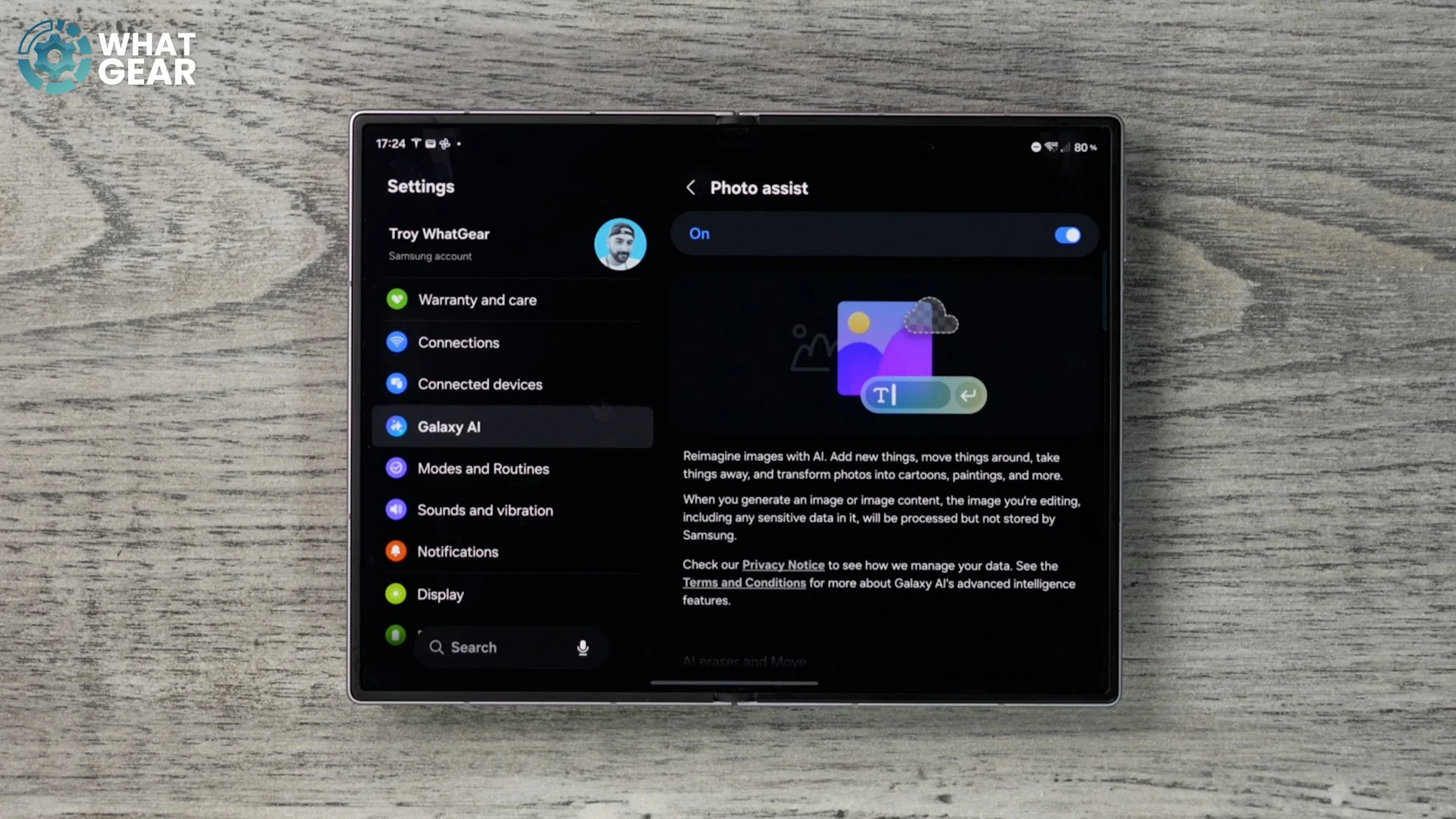
Photo Assist is also another really fun one to play around with. It allows you to modify images, delete people from images, add things and all that good stuff. If this is off, switch it on. Creative Studio should also be on. This allows you to generate images using text prompts, and even transform images that you have already taken on your phone and turn them into anime characters and things like that if you really want to.So you get the idea. Go to all of these, activate the ones you want and deactivate the ones you don't want.
ON DEVICE AI ONLY
Staying within the settings. Staying within the Galaxy AI menu. If we scroll all the way to the bottom, this is for you. If you don't like the idea of AI handling all your information and your photos and reading your conversations and things like that, you can still make use of some of the features here, but have them processed only on your device so they're not going to be sent off to an AI server.
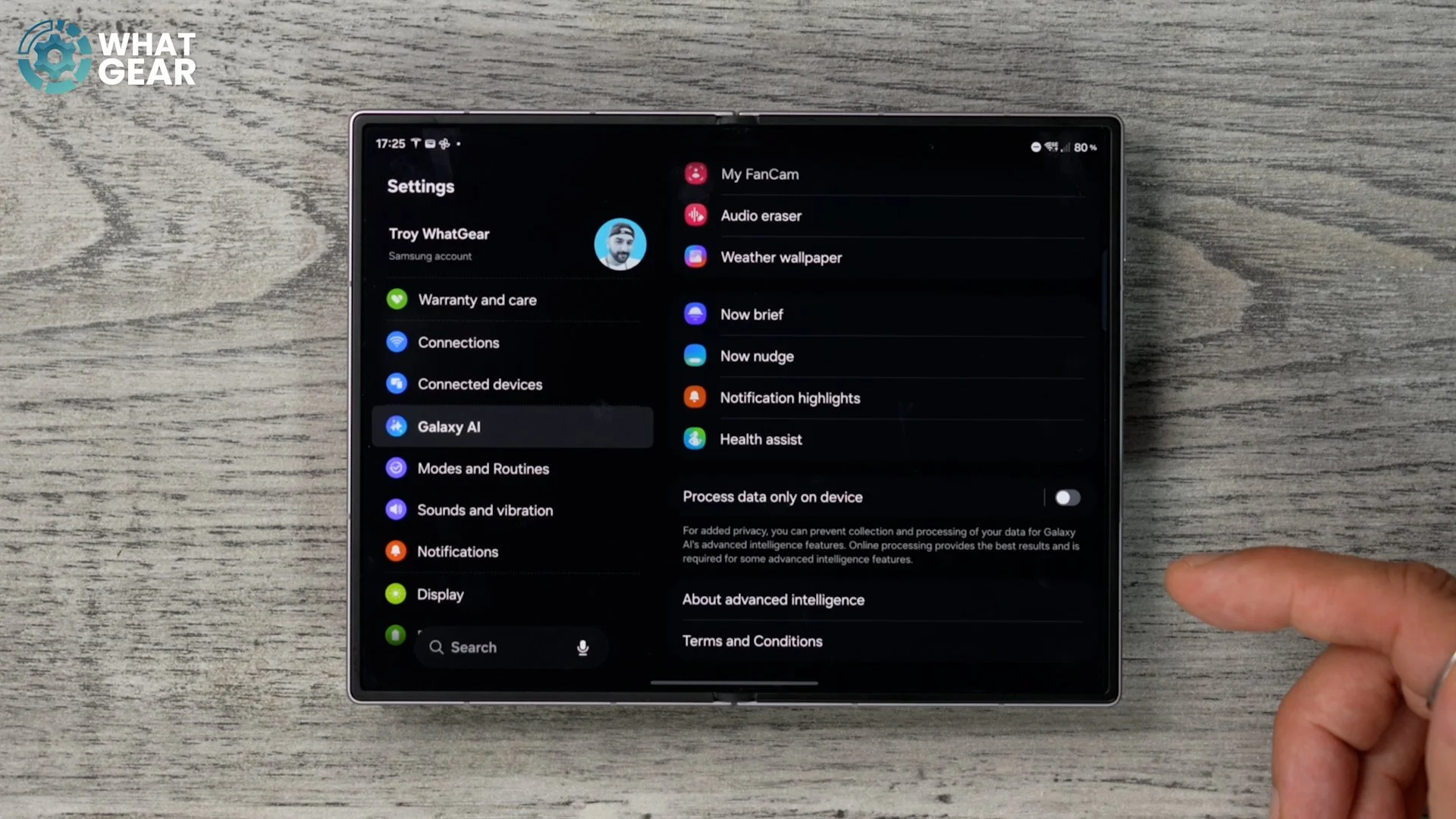
So if you are concerned about AI taking over the world, you might want to switch this on. And if you're not sure about switching this on and you want to learn a bit more about what information is being processed off the phone, you can tap here where it says Process Data Only on Device, and it will show you what is actually going to be sent off for processing by the machines.
UPGRADE YOUR CAMERA
Now let's talk about the perfect picture settings that will take your camera game up a notch. Trust me, once you know about these camera tricks, your photos will look better than your friends', even if they have exactly the same phone. So when you open up your camera, at the top of the screen, you will see it says 12 M, indicating that you'll be taking photos with 12 megapixels, even though the sensor on this phone is 50. And the reason for that is it can combine the 50 megapixels down using pixel binning, allowing the phone to capture more detail in lower-light scenes. And also, the file size will be smaller.
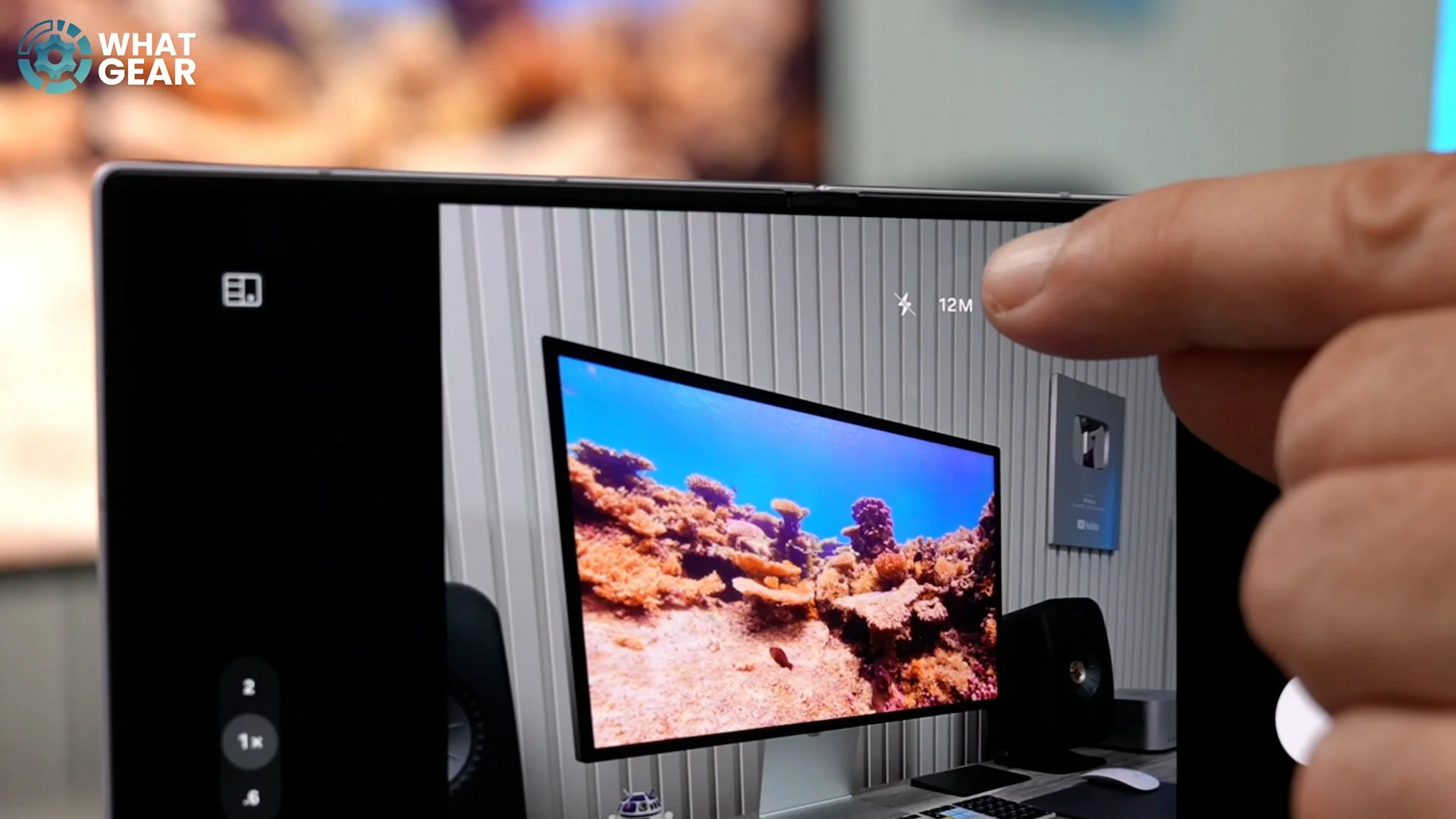
But let's say you're taking a photo that's really bright, like this one right here. It's got a bright screen in the background. What you can actually do if you want to is tap where it says 12 M and switch it into 50-megapixel mode. This will give you four times the amount of detail in your photos if the scene is well lit, for example, a nice landscape shot or something like that. But do keep in mind that when you take photos in the 50-megapixel mode, the files will be bigger, and the photos might not be as nice in a low-light setting. But actually, there is a hidden hack for your camera that allows you to make the most of both worlds. I'm going to show you that in a minute.
RAW SKILLS
Let's open up the camera app once again. This time, we're going to go to More at the bottom here. This is your additional camera modes. And you'll notice in the top left corner here on this little window is Expert RAW. And there's a little downward arrow indicating that it's not downloaded yet. So let's download it. This will jump you straight to the Galaxy Store where you can download this Samsung official app. Install this. Now that that's installed, when we go back to More, you will find Expert RAW. So give it the permissions, and this adds the RAW capabilities to the Photo Pro mode on the phone. Now, at the top of the page next to the 12-megapixel marker right there, you'll see that this phone will now be taking photos in JPEG and RAW. And if you tap on that, you can actually toggle between JPEG and RAW, RAW on its own, and JPEG on its own.
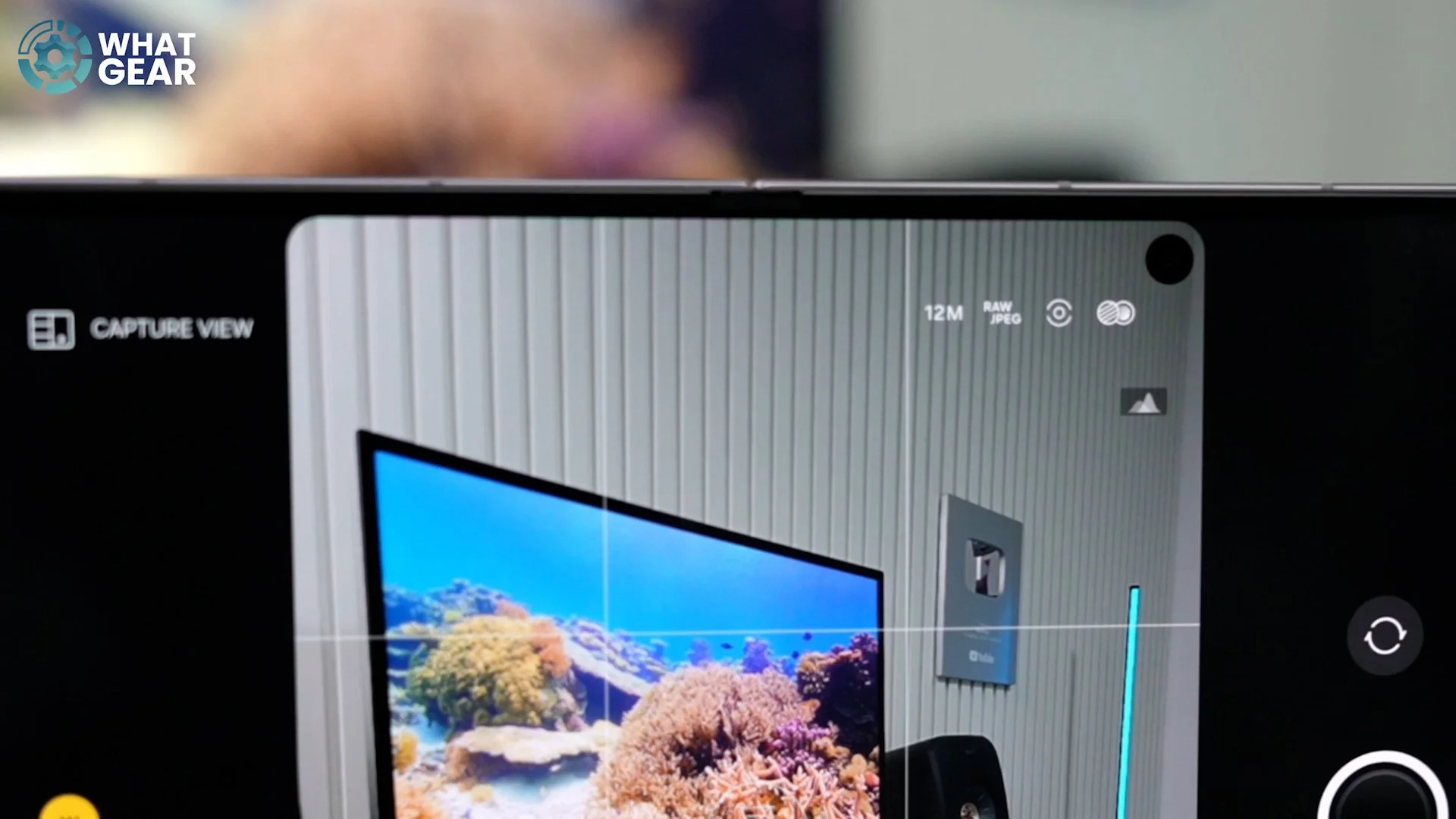
Now, if you do take photos in RAW, essentially you're capturing a ton more image data, which is fantastic for editing after the fact. So I'm going to snap a RAW photo right here and open this photo, and it looks just like a regular photo at this point. You see those bright highlights there on the screen. We could actually bring down the highlights of it and bring the detail back in those areas, and see the speaker where it's very black back here. There's actually a kind of denim texture on that. We could actually lift the shadows up a little bit and bring that back, because the information is here within this RAW photo. I do not recommend you shoot all your photos in RAW unless you really know what you're doing, but this is fantastic if there is some really nice scenery with some very harsh lighting.
STAY COMPOSED
Here's a very fundamental camera setting that will improve how you take photos. If you open up the camera app and hit the four dots over here, it might look a bit different if you're holding your phone a different way around. But what you're looking for is the settings for the camera app. So go into this on the left side. If you scroll down, you'll see this Composition Guide. Switch this on and then tap on it, and you can choose what kind of guide you want. I do recommend you go with grid lines and level, and it does exactly what you think it does. It adds the rule of thirds to the camera viewfinder, and it adds a spirit level in the middle.
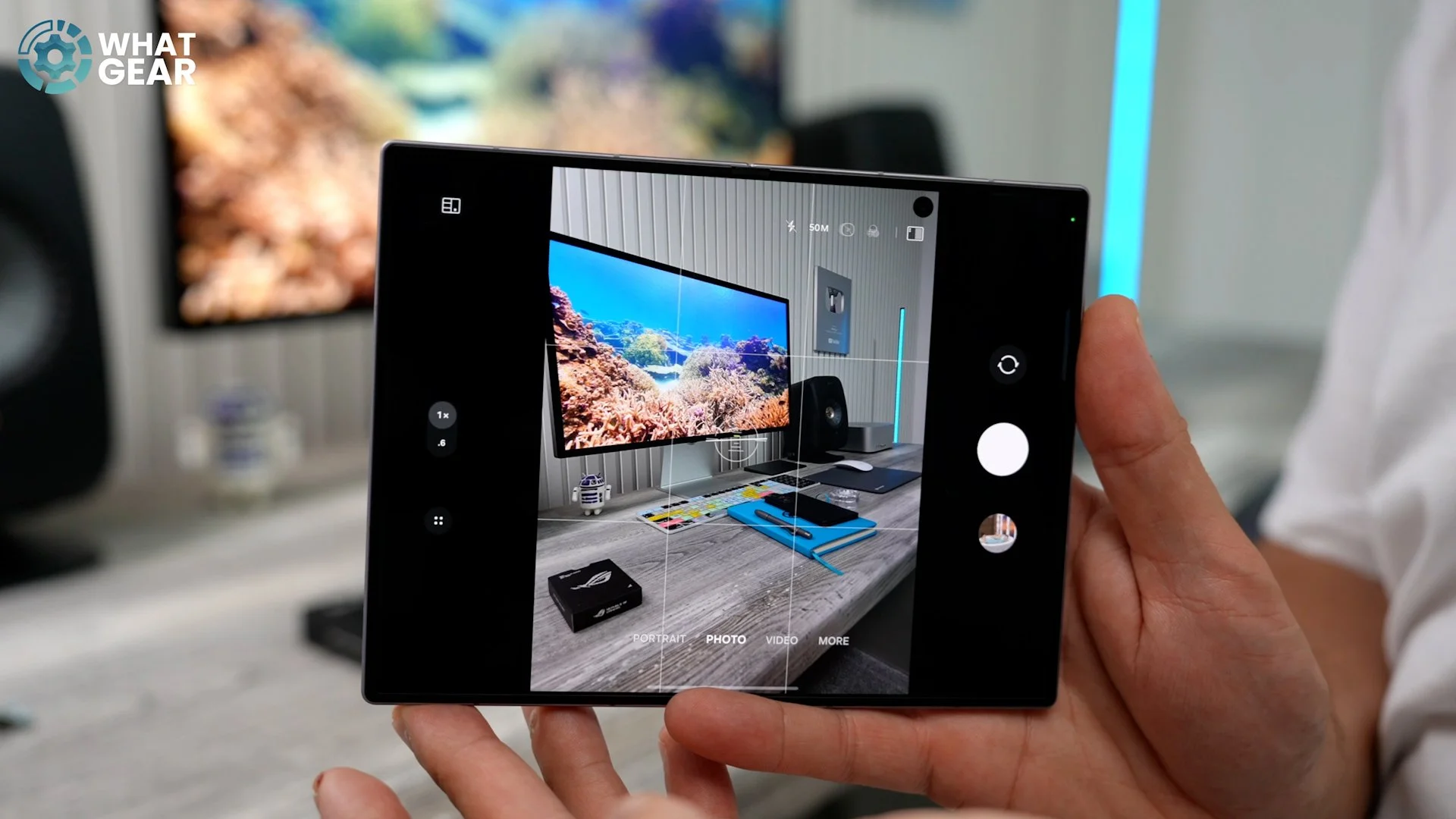
So you know when you're holding the phone perfectly level. And actually, you can see if you're tilting your phone too much as well, because if you tilt the phone, you can make people's heads really big or really small accidentally. And this set of tools will help you avoid doing that. And also, if you want to shoot straight down, that guide gives you a little crosshair in the middle so you can actually line it up exactly. Perfect for a top-down shot.
PRO CAMERA TOOLS
This next one is a Pro camera tip. You might want to make use of this. Maybe you might not. But let me show you where to find it in case you do. If you open up the camera app again, go to More at the bottom and go to Expert RAW. Once again, the new app we just installed. And over here on the right side, you'll see this little science bottle. If you tap on this here, you will unlock a bunch of very advanced camera tools, some of which aren't even installed within Expert RAW yet. So the ones with the downward arrow, you can install these. The Virtual Reflector, so you can add a kind of warm glow to your subject in the camera, as opposed to actually bringing a reflector with you.
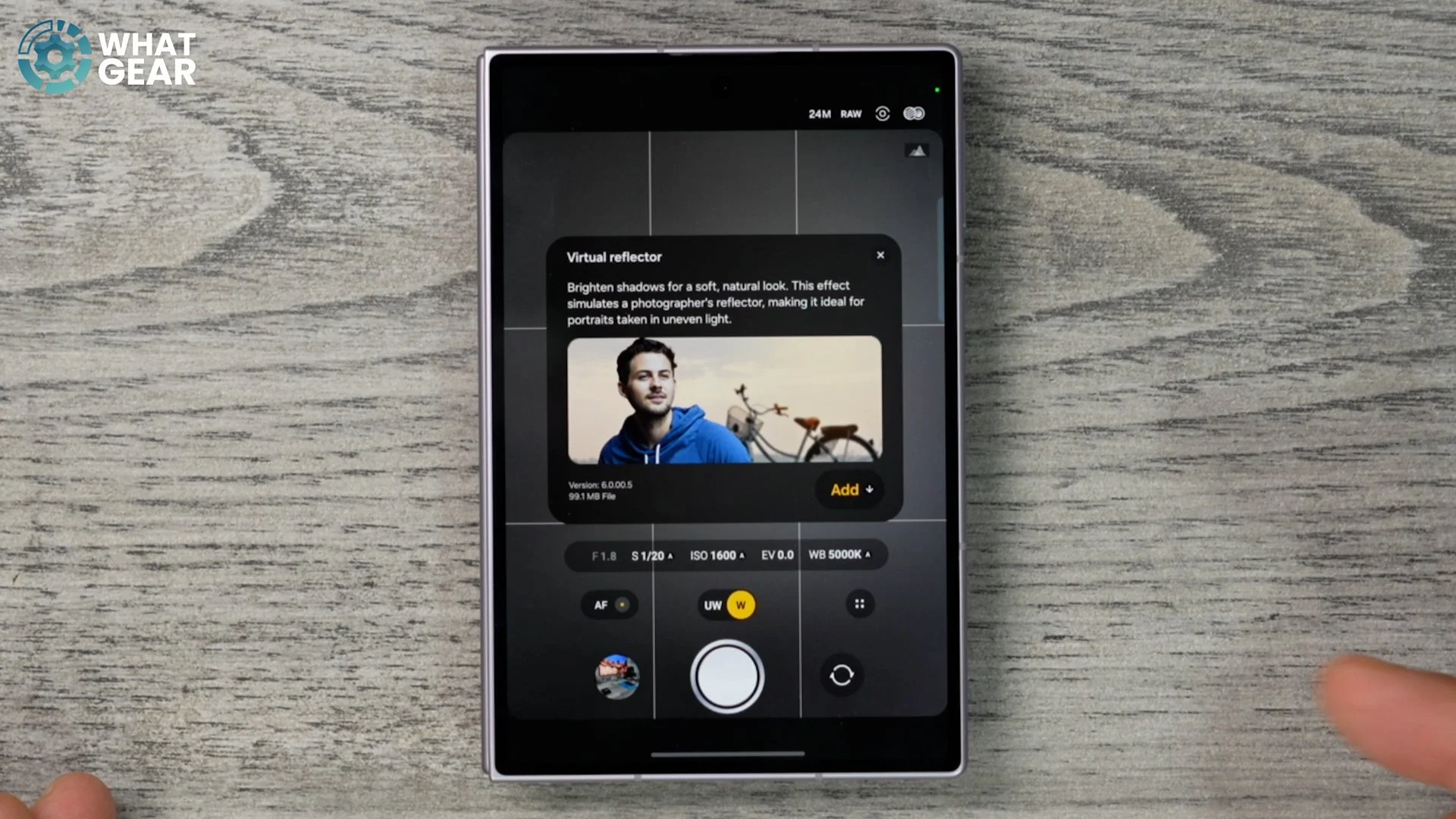
You've also got this here that allows you to adjust the aperture virtually. So this is going to add more of a blurry depth effect behind your subject, with much more granular control than you get with the portrait mode. You've also got a virtual ND filter, which is, put very simply, like putting a pair of sunglasses in front of your camera. So if it's very bright, that could be useful. And you've got dedicated modes for shooting the stars and doing long exposures and things like that. I'm not going to go too deep into this, but I do want to show you this. The Ocean mode; this is brand new. So this is for underwater shooting. If you have a waterproof case for your phone, you can use this mode for taking photos underwater. But you won't catch me down there testing this feature out because there are too many sharks.
DOUBLE YOUR DETAIL
Now let me show you a very cool camera hack which allows you to make the most of pixel binning and more megapixels than the standard 12-megapixel mode. So the best way to find this is in your Galaxy Store. It looks like this. You can swipe up and find it. I've added it to my Edge Panel, so jump into the Galaxy Store and look for this app. The Camera Assistant. This is designed again by Samsung. It is part of the Good Lock suite of tools. Install this, open it up, scroll down a little bit, and you will see a dedicated setting for 24-megapixel resolution. So instead of just having the 50 and 12, with this enabled, you now have a third option, which is the middle ground between the two.
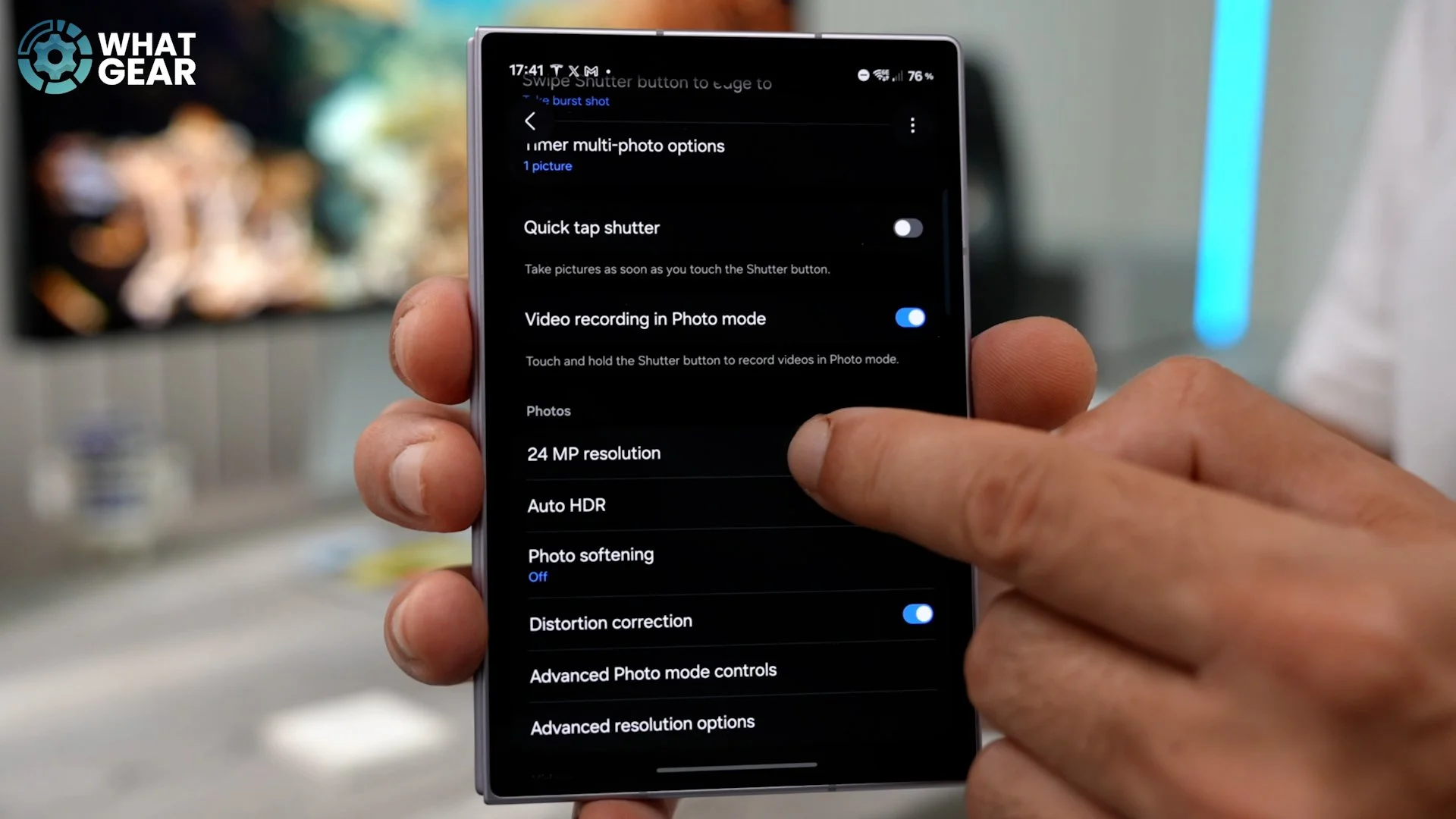
So your photo details will be twice as good as the 12-megapixel mode, and it will be better than the 50-megapixel mode when shooting in low light. So yeah, most people will never find this. But now you have, and you can make use of it whenever you're taking photos. And the lighting is kind of not too dark, not too bright and just right. So if your friend is standing next to you with the same phone, taking the same photo, they probably won't know that you're actually capturing double the detail that they are, and your photos will look better than theirs.
PHOTO EDITING TRICK
Last fun little camera trick. There are a lot more of these. I may make a dedicated video all about the cameras, but let me show you this one. So if you have a photo on your phone, if you hit the little AI sparkles at the bottom, you get a few options. You can erase things from the photo. So if we wanted to erase that, we could just draw around it and get rid of it. Samsung's phones are so good at doing this, I think maybe the best.
In fact, what I want to show you is this: if you go to Create, you can use a text prompt to tell it what you want it to do. So if you want to make it larger, make it smaller, add something in the shot, you can just type it here, and it will create it. And if you want to, you can hit the little photo icon at the side and merge it with another shot like this one. For example, it will select various things from the image, which can then be selected and brought into this image, and you can tell it how you want to combine these two shots. There we go. It took that deck of cards and put it underneath the little Android pin that I've got here. So you can get real creative with this if you want.
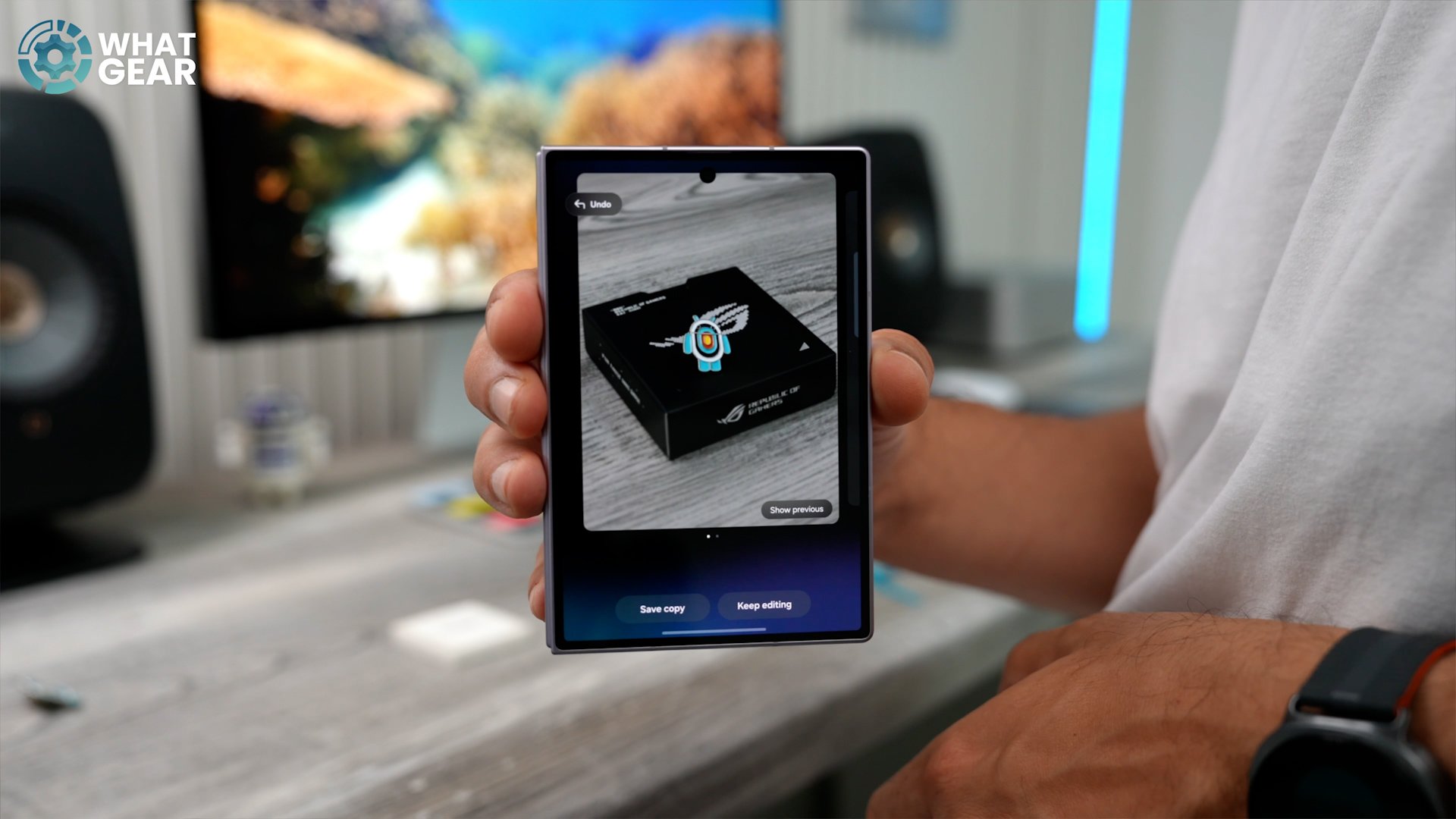
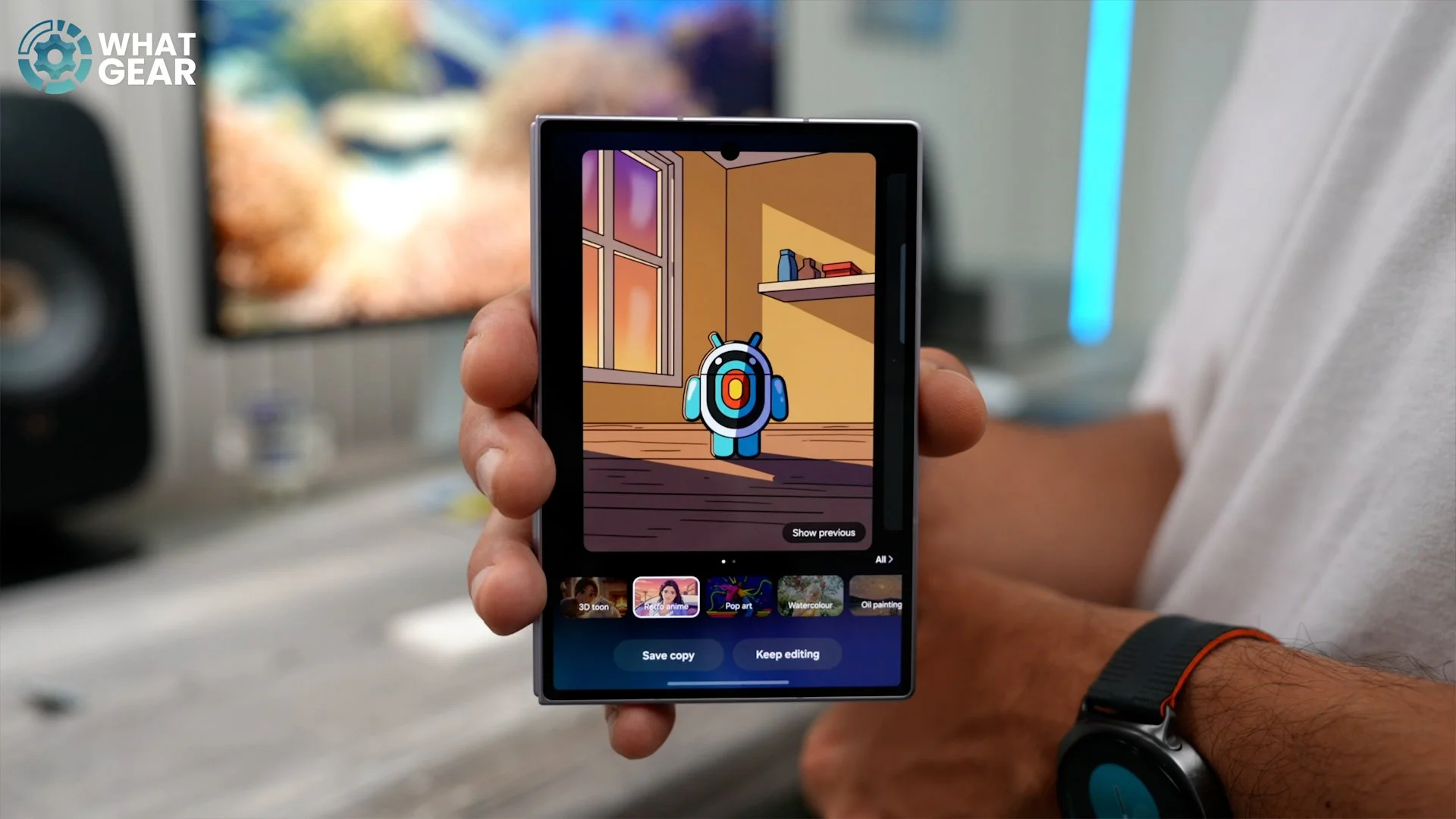
And you don't have to overwrite the existing image; you can just save it as a copy. That's what it was like before, and that's what it's like after. And something else you can do here is go to Style. So this is fun to play around with. If you've got a group photo of your friends and family or whatever, you can restyle the image using any of these presets. The retro anime is actually quite a fun one. It's almost Studio Ghibli style. I'm not sure if I said that right. So yeah, you get the idea. Lots of AI photo tools to play with here on your brand new Samsung Galaxy.
All right, so I know some people won't want to hear this, but did you know that pickpocketing and snatching mean a mobile phone gets stolen every six minutes in London? And I'm sure it likely happens outside of London too.
So let me tell you something you already know. It's better to stay ready, so you don't have to get ready. And with that in mind, here are a few security settings that you should consider switching on right now. Actually, you know what? You should probably do it. Do it. So let's do this quick. Jump into the settings on your phone. Go to Security and Privacy on the left side. Make sure you solve any critical issues that you have here on this page. You want to tap where it says Lost Device Protection. Make sure you've got Find My Mobile on. And also, Theft Protection is switched on. And here in the Theft Protection section is a brand new feature for One UI nine.
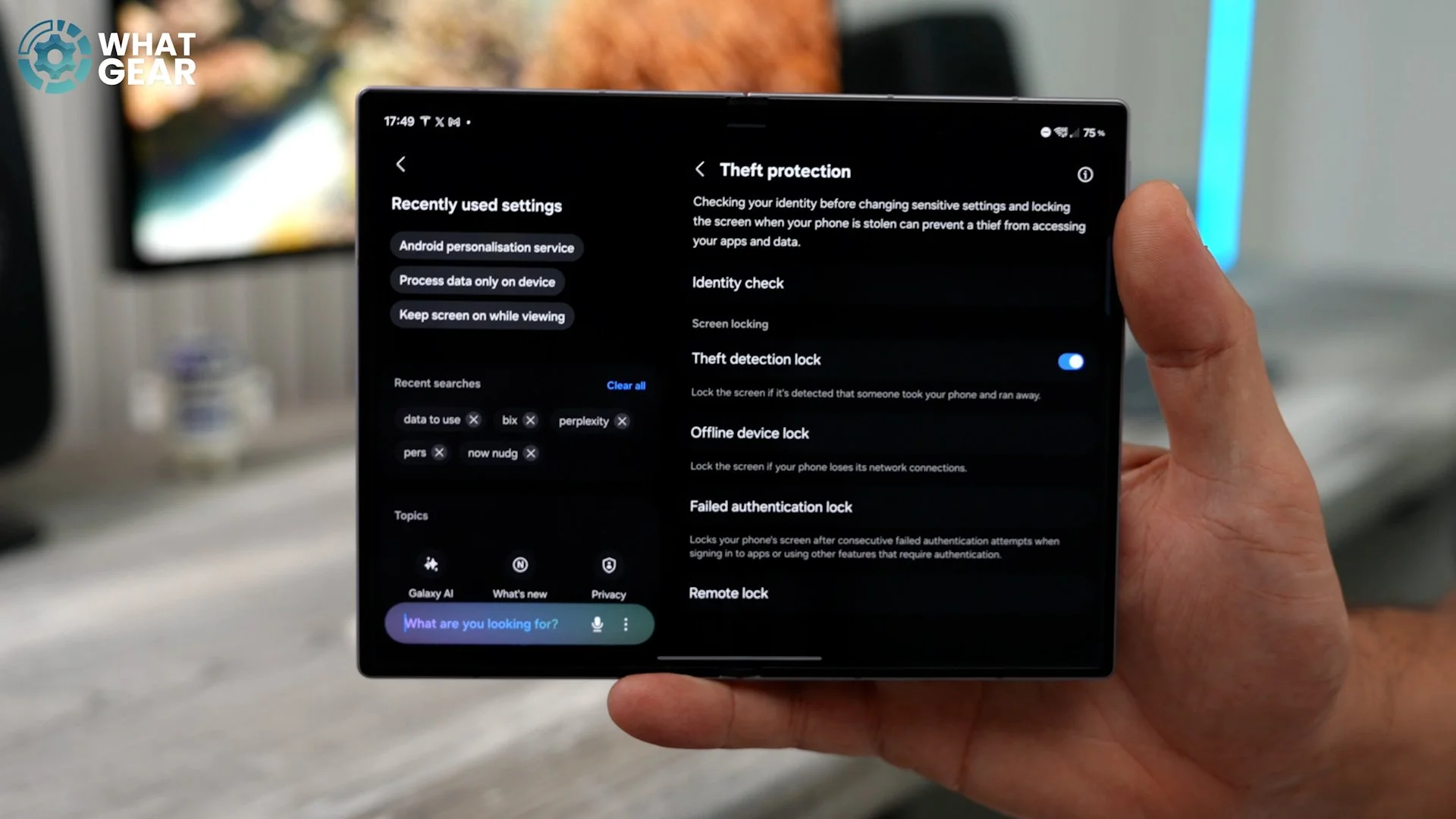
It's called Identity Check. So this actually adds an extra layer of security to your phone. If someone does nick it off you, the person won't be able to verify that they are, in fact, you, because it'll be locked to your biometrics, and they won't be able to change a bunch of the settings on the phone, which will help you track them down and take vengeance like Batman. And vengeance. Okay, don't do that. You should probably just call the cops.
SAMSUNG’S FREE VPN
Staying within Security and Privacy. If you scroll down a bit and go to More Security Settings, there is a built-in feature here that can protect your information when you're online on an unknown network, and it's this Secure Wi-Fi. This essentially acts like a free VPN. There is a limit to this. You only get one gig per month for free. You can extend that if you want to pay, but I'm assuming you probably won't be using, like, coffee shop Wi-Fi that often, but it's important to know where it is and how to use it. So if you hit Protect, that will activate a VPN, essentially encrypting all of your data whilst you're on that network.
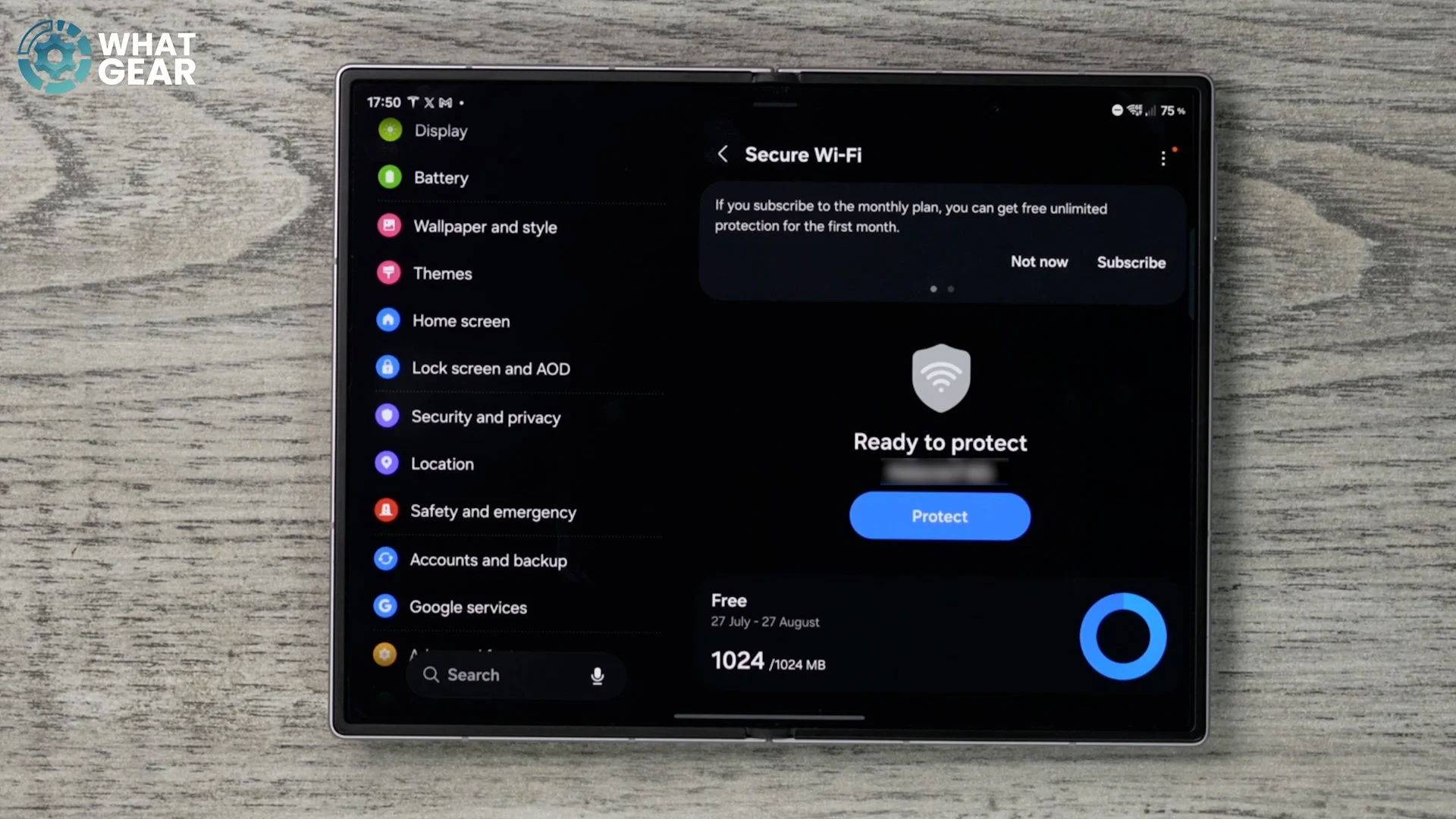
You don't want people bypassing your passwords and things like that whilst you're sipping your Starbucks. And if you want to be extra safe, you can turn on Auto Protect Wi-Fi. So whenever you connect to an unknown network, it will switch it on. However, that might burn through your data a bit too quickly, and if you want quicker access to this feature without having to come here every time, bring down your quick settings, hit the pen. Here, you can actually add the control to your quick settings. You'll find it here under the Connections submenu for the Quick Settings. So tap that. That adds it as a button. You can make it bigger if you feel like you're going to be using it a lot.
PROTECT YOUR CLIBBOARD
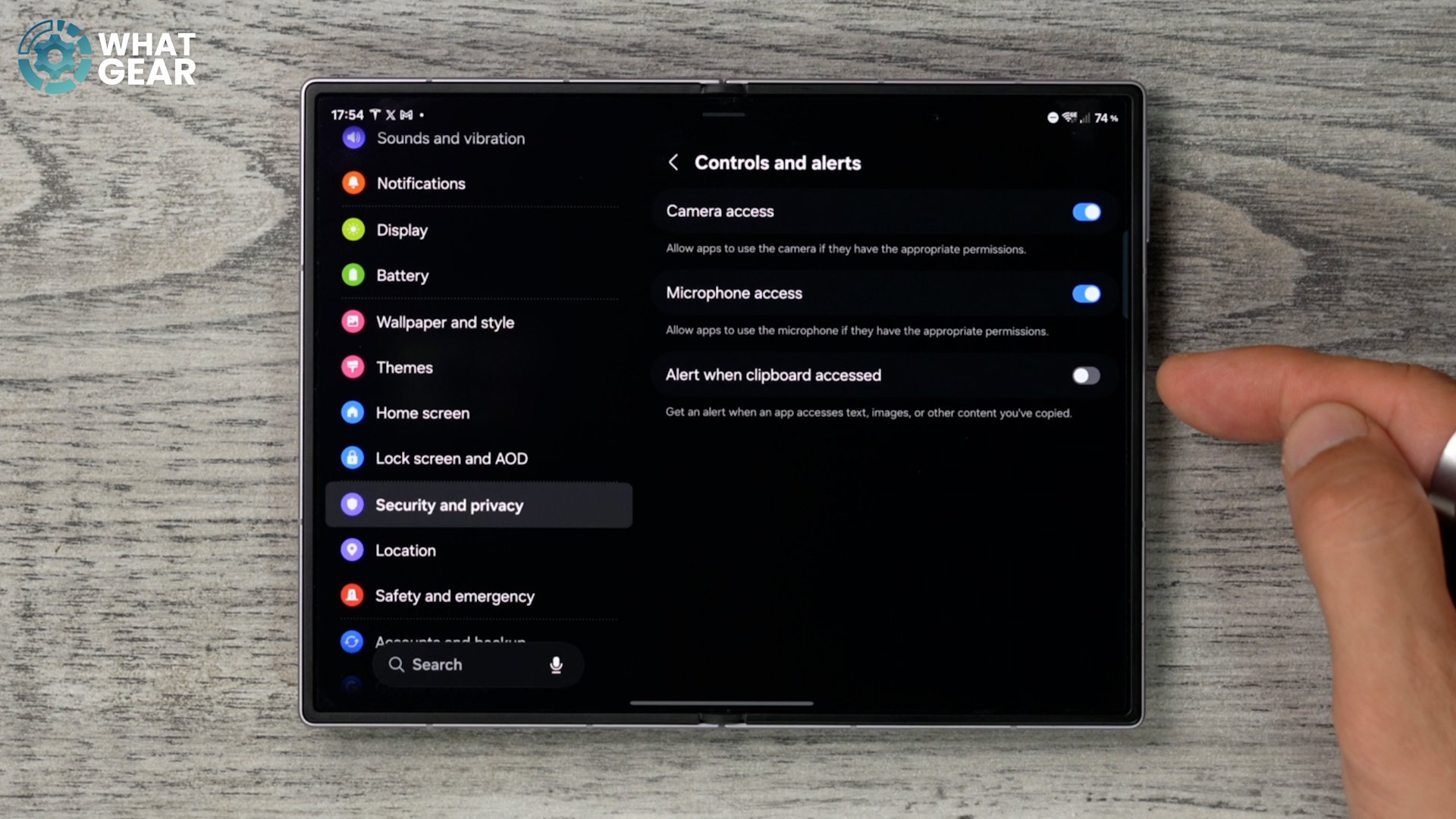
Here is another very, very important security feature that is off and definitely should be on. And if you are concerned about people somehow finding your passwords without you knowing about it, I do recommend switching this on. So go back into Security and Privacy again. Scroll down on this page, and you will find Controls and Alerts. Tap on this, and right here, you will see that this is off. If you've ever copied a password to paste it into a text field, or you've ever copied a code or something like that, that is important. You probably should be aware of when that code is being accessed from your clipboard. Switch this on. And now, whenever that is going to be used, you will know about it.
UPGRADE PHONE CALL SKILLS
So remember how I said there are some important settings that improve your phone's abilities when it comes to using your phone as a phone, for example, during phone calls and messages. Well, here they are. If you open up the phone app, hit the hamburger menu in the top left corner and go to your settings. Some of these you may have turned on already in the Galaxy AI section, but you want to make sure Call Captions are on in the language that you need them to be. If you scroll down a little bit, you'll see Direct Voicemail.
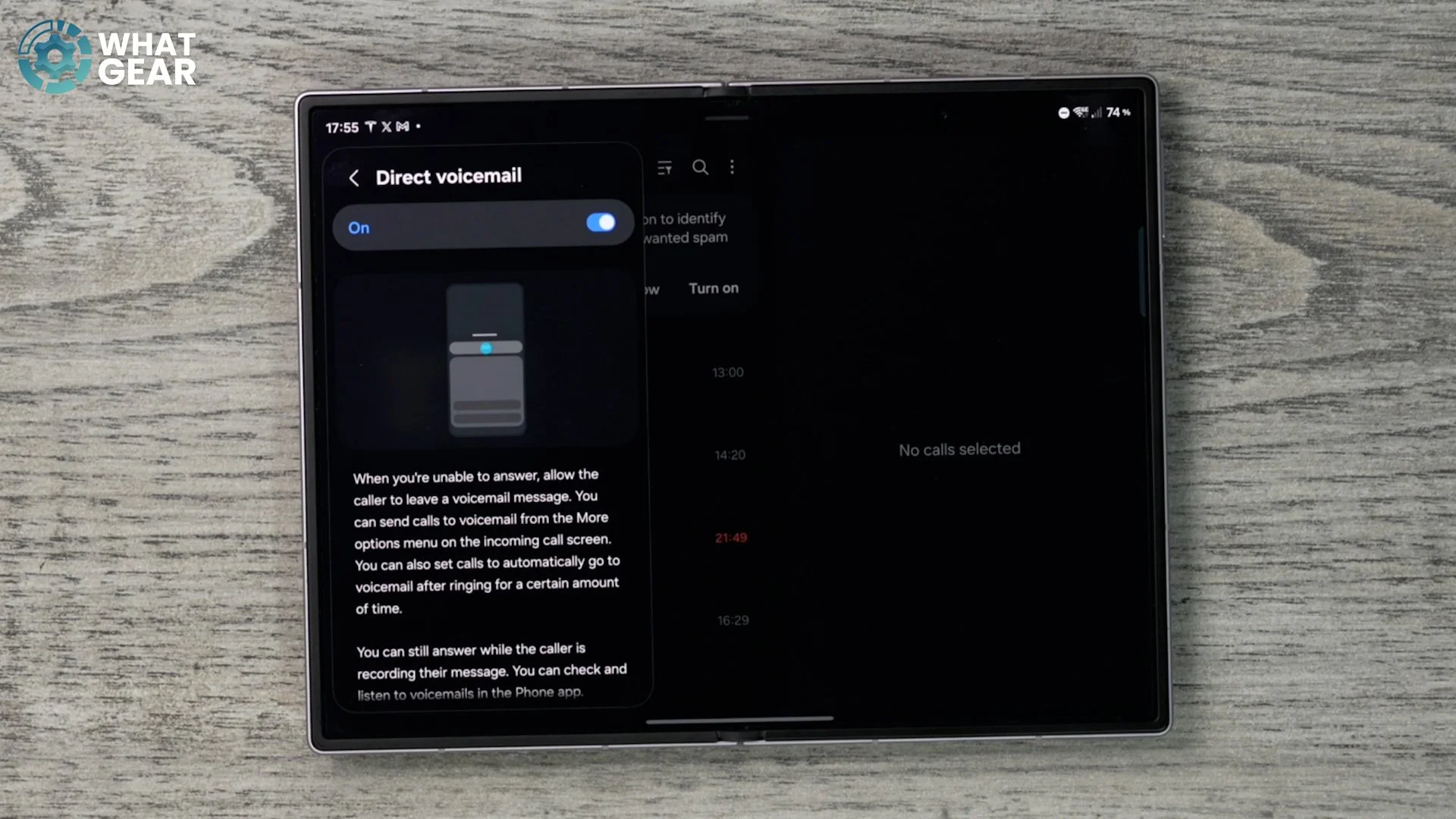
This will be switched off. I highly recommend you switch this on. If we go back one step, you'll notice Caller ID and Spam Protection aren't on. The phone can access a library from Hiya of spam numbers, so if any of those numbers try to call you, it will block those straight away and tell you that a suspicious call is coming through. So you might want to switch this on.
UPGRADE TEXT SKILLS
Here's a way to improve your messages. So let's open up the Messages app, which is the Google one by default here. If you hit your icon in the top left corner when you're in this landscape setup, scroll down a little bit, and you will see Message Settings. Tap on this, scroll down a little bit and go to the Advanced section. And right here is a very important setting: Get SMS Delivery Reports. So this will let you know when someone's actually read your text message at this point. With this off, when you send a text message, you have no idea if they've actually even seen it.
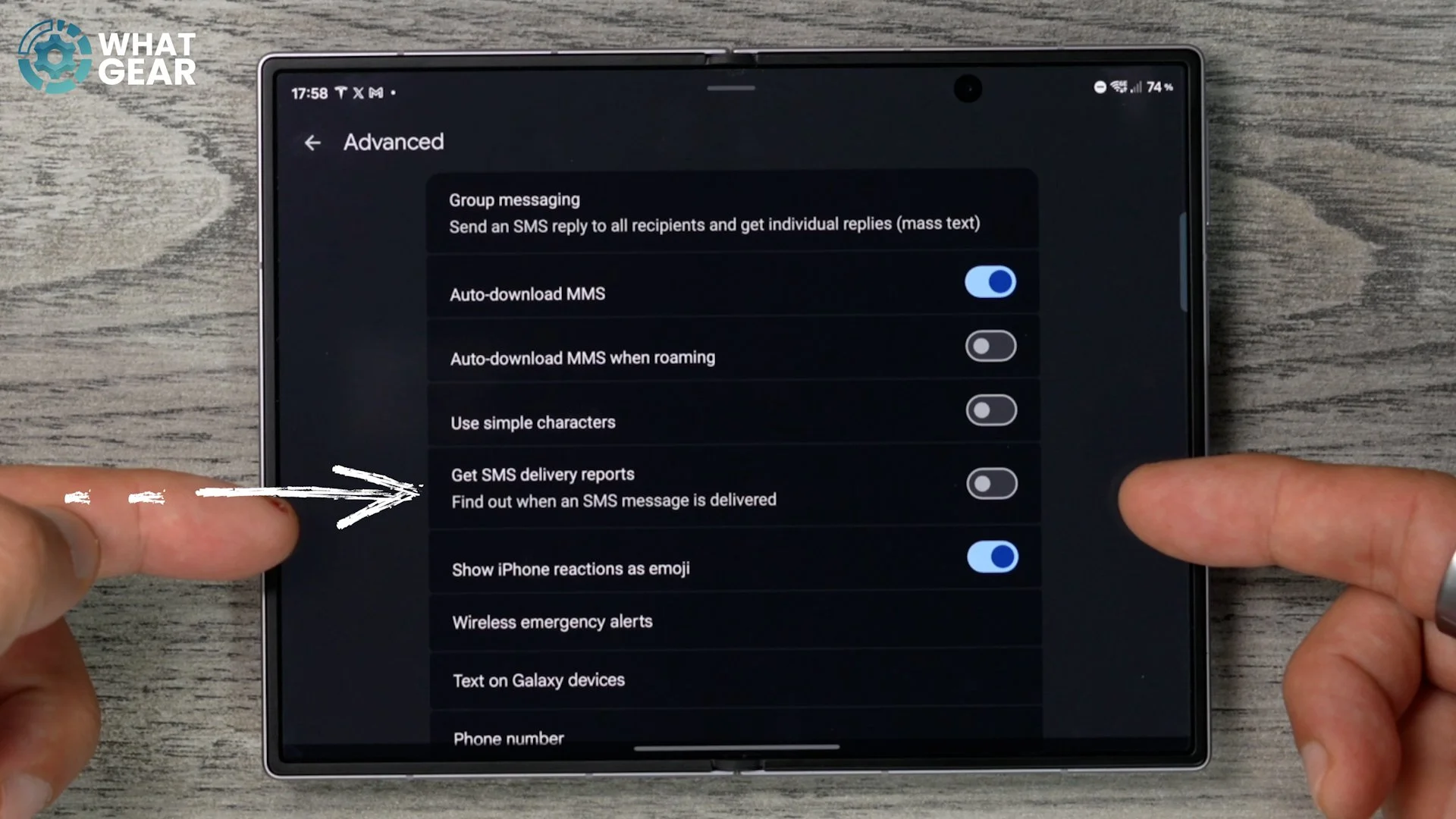
But with this on, you will know if they're intentionally trying to avoid you. I know how that feels. All right, so you've made it all the way to the end of this video. Thank you so much for staying this long. I know this has been a very deep, deep dive into the settings and things like this. Yes, you could have found them on your own, probably, but hopefully this has saved you some time, and maybe you've learned something new. And as a reward for sticking around this long, I do have a few bonus tips for you guys that you might like. So let's do this real quick and wrap this up.
CUSTOM CHATS
So let's go back into the Messages app once again from Google. Hit your icon once again here and go to Message Settings. So let's say you've got a chat with one of your friends, and this boring black background is just not cutting it. You could actually spice it up a little bit by hitting the three dots up here, and then going into Chat Theme here. You can change the colours of that particular chat to make it stand out from the rest. And if you want to, you can actually add wallpapers underneath.
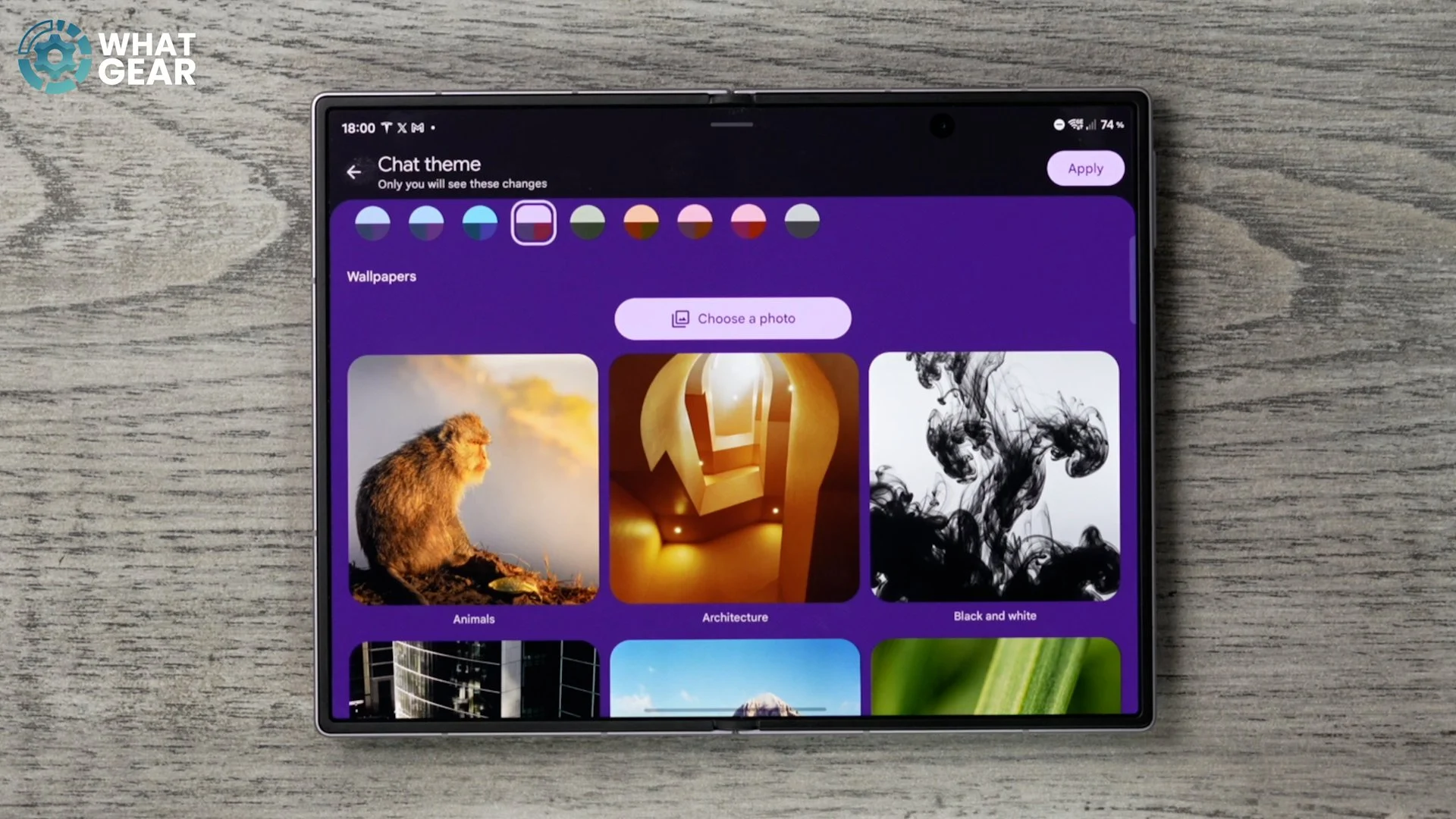
There are some suggested ones. Maybe you want to have the moon there in the background of your chat. Maybe you want some stars or something like that to really bring it to life. You can select that there, choose your colour scheme and then hit Apply, and there we go. You've improved your chat visuals exponentially.
POWER DELIVERY PERFORMANCE
If you are a gamer, you're going to like this feature, which is again well hidden within the Samsung software. If you go into your settings and go to Advanced Features, which should be, yeah, right here, now on the right side, if you go to Game Booster Settings, when you're charging while gaming, you can switch this on.
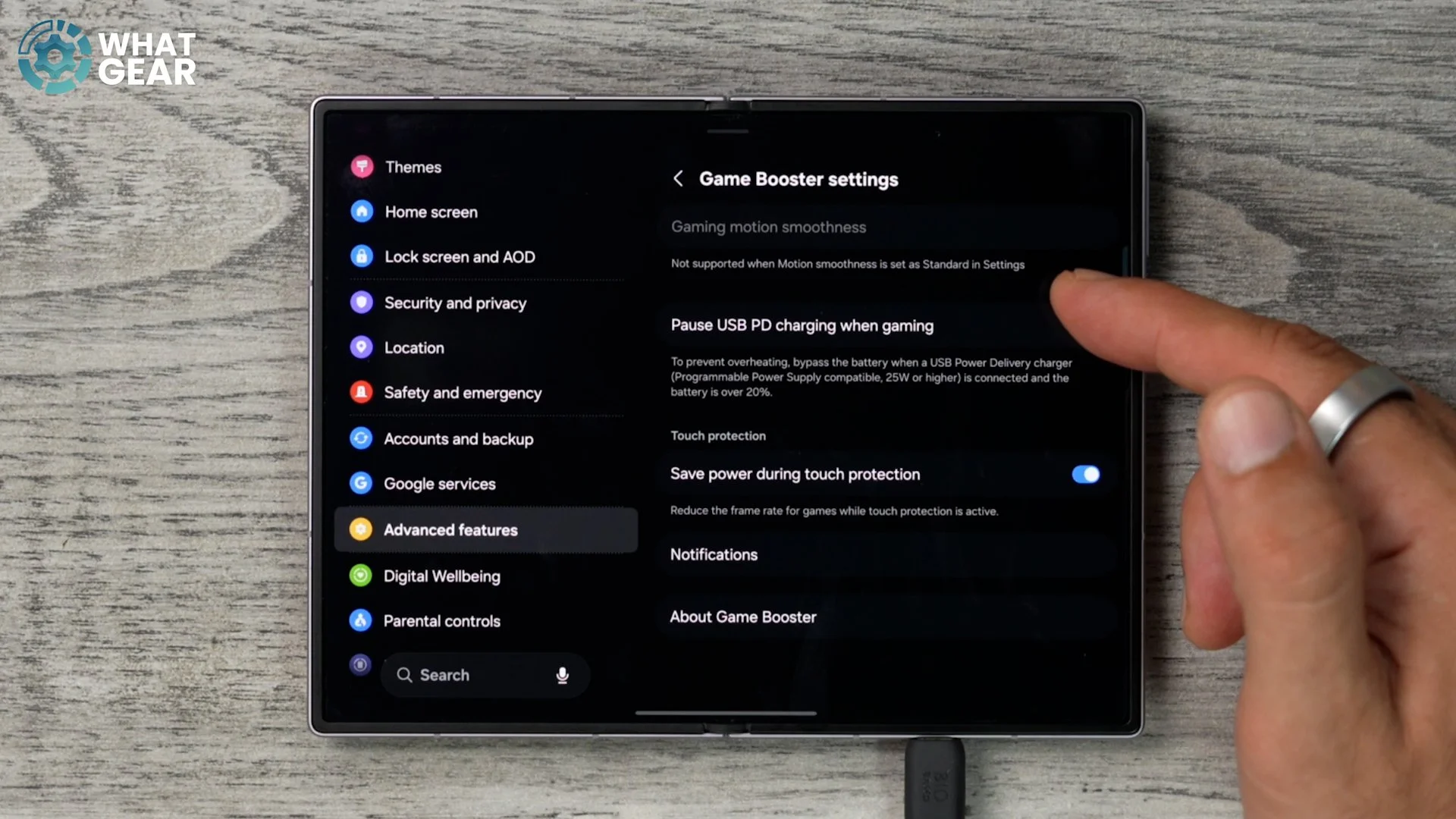
And this allows the device to be powered directly from the source and not by the battery itself. And that will help improve the performance of your graphics and things like that. So yeah, just be aware of where to find this.
THE GBOARD SWITCH
Now, if you find yourself getting frustrated with the Samsung Keyboard, maybe it's auto-correcting wrong, or it's just annoying you, and you want something a little bit simpler that is maybe arguably a little bit better at predicting text. Well, then you want to do this: go to your full Play Store. It will look like this. Go to Search and type in Gboard.
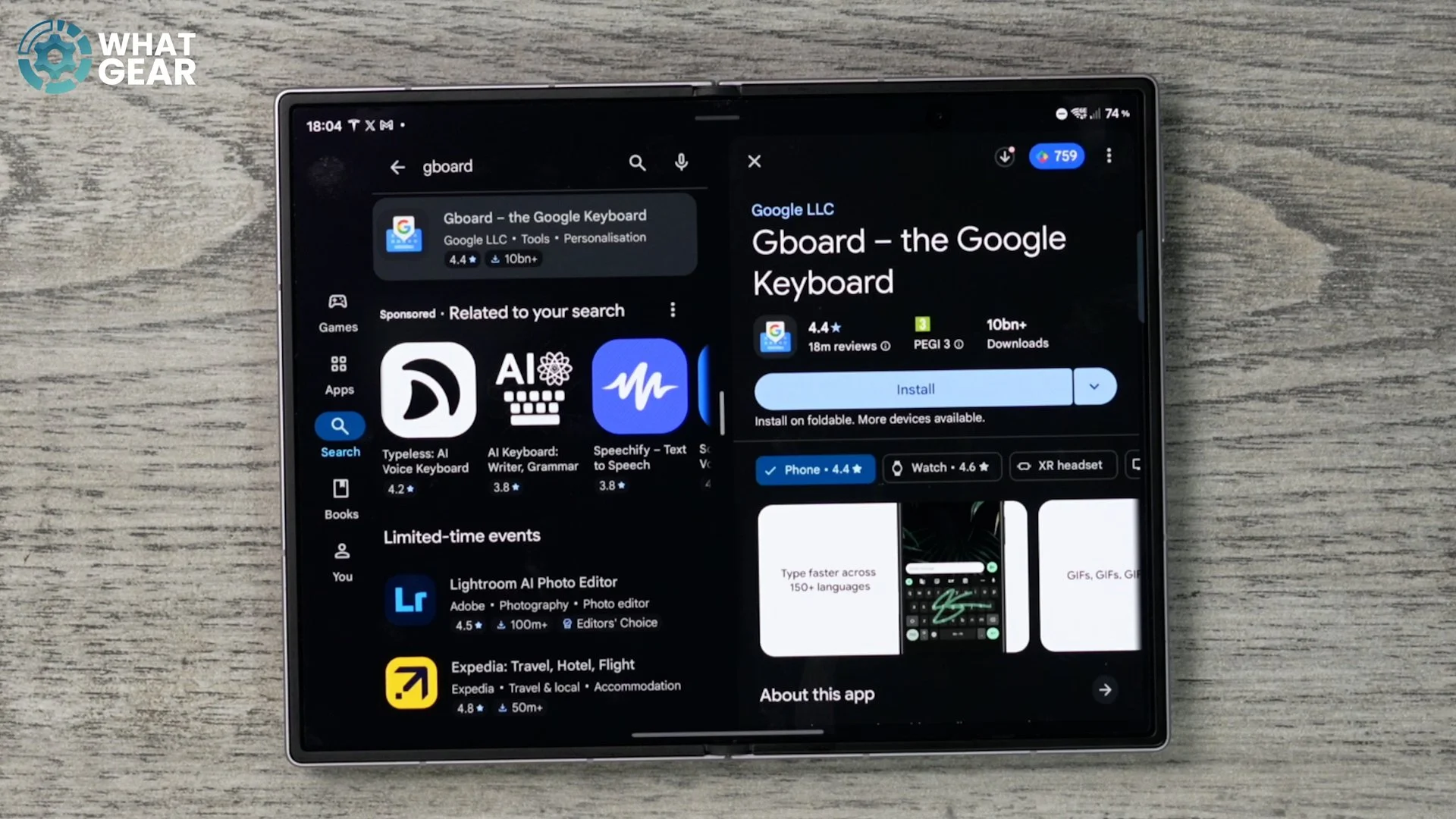
This is actually the closest that you can get to Apple's keyboard. So if you are coming over from iOS, I think you're going to like this more than the Samsung Keyboard at first, but I do recommend you test out the features with Samsung Keyboard and see if you like it. If you don't, then come here and install this. And once you do, you can set it as your default keyboard. However, you will lose some of the Galaxy AI features if you do.
PALM TOUCH TO TURN OFF SCREEN
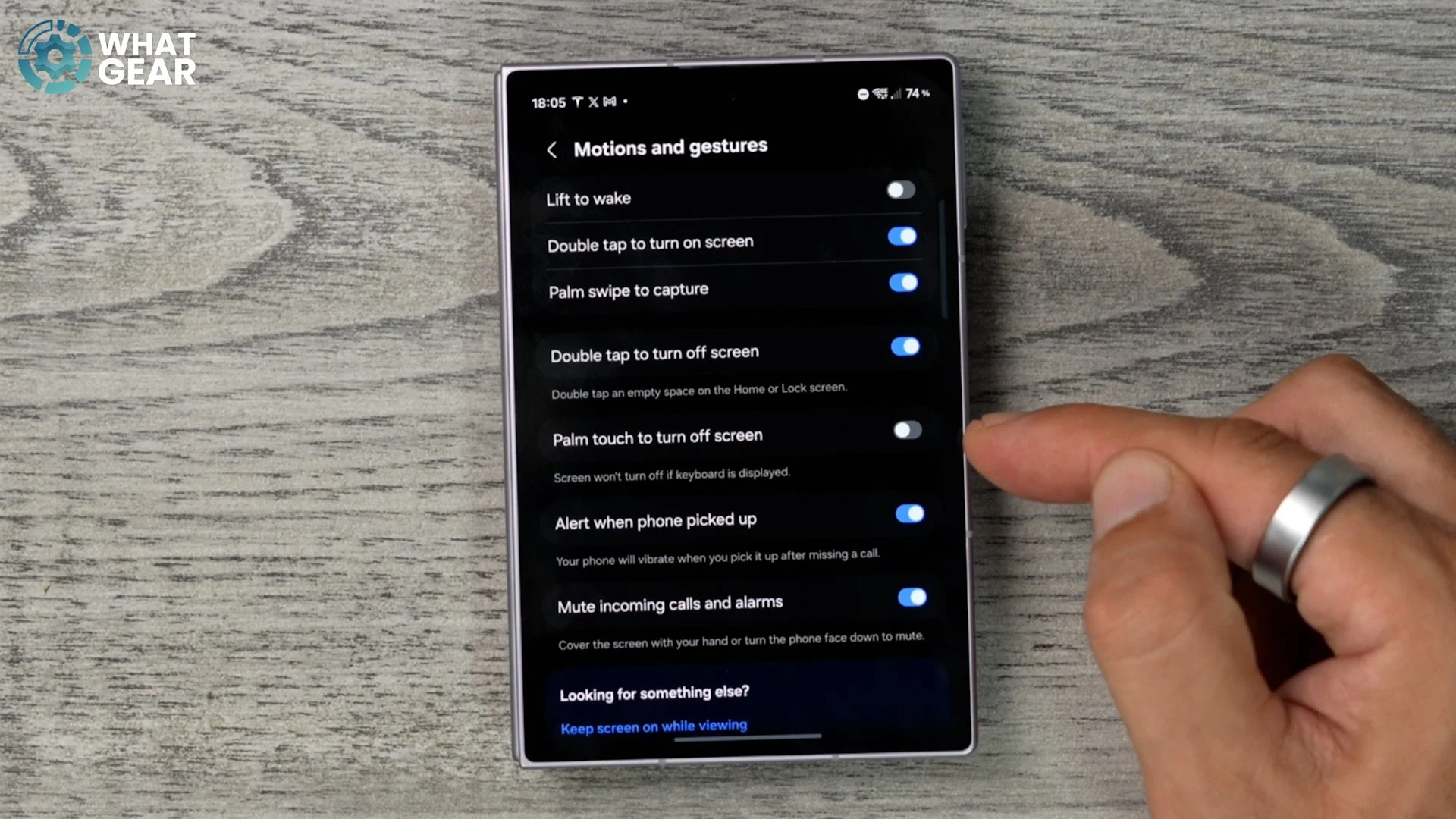
All right, here is one last tip. If we go into the settings for the last time in this video, scroll all the way down to the Advanced Features section right here. And then we're going to go to Motion and Gestures. Here, you'll see there's a feature switched off, and it is Palm Touch to Turn Off Screen. So with this enabled, whenever you want your phone to lock and turn off, you can just go like this.