
Galaxy Z Fold 7 - 18 Useful, Unique & Fun Features To Try! (Tips & Tricks)
If you've just picked up a Samsung Galaxy Z Fold 7, congratulations! Good choice. You now own the greatest foldable phone that Samsung has ever produced to date, and I'm happy for you! To make sure you don't waste your money, I'm going to show you how to get the most out of your new purchase. And you can do this by understanding these 18 unique tools and hidden features that the Z Fold 7 brings to the table and a lot of these are brand new.
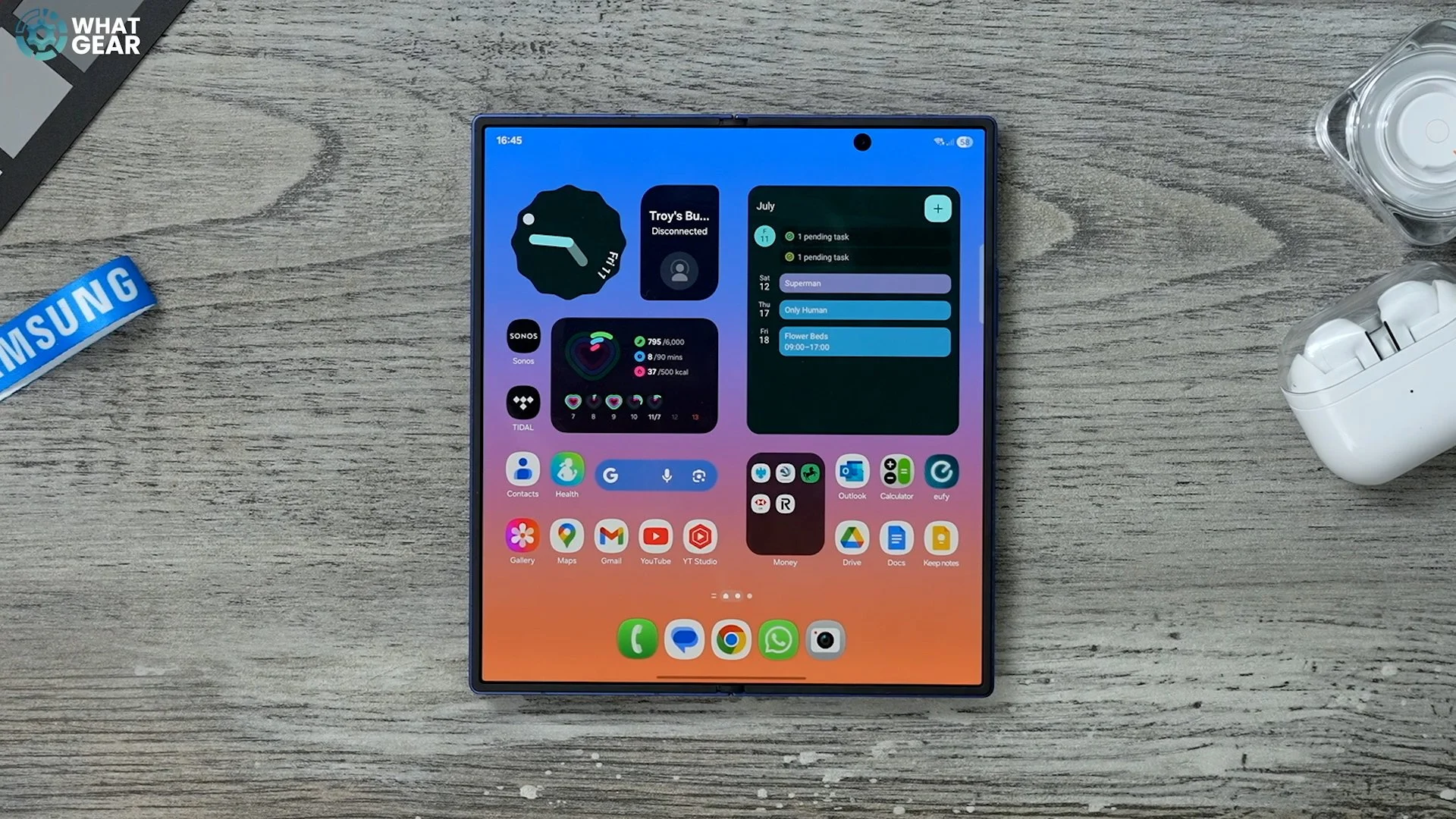
A New Effect
There's a brand new effect within the Gallery app. If we open up a photo with someone in it, for example, myself. When you swipe up on the app, you actually get a bunch of quick tools. You got remaster, that's not new. You also got background blur and Reflection Eraser, but it's this new one that I want to show you. Hit Live effect.

Essentially, what this does is it takes a static image and turns it into an animated image. So if you have old photos of family or friends or just memorable occasions, and you want to make them a bit more dramatic, you can use this. You can save it as a copy, and you can even save it as a wallpaper or just share it with your friends.
Funny Faces
Here's another new feature. This was first introduced on the Pixel devices. It's now here on the Galaxy devices. So when you open up your camera, there's one thing you need to check first. And that's this little icon up here that looks like a little YouTube play button. This is your motion photo. So this has to be active for this to work. So if you're like me and you see someone point a camera at you, you pull a funny face unintentionally, or maybe you blink or something like that. You can love this. So, take the photo with the motion photo on. When you swipe up, you will now see the option to choose the best face.
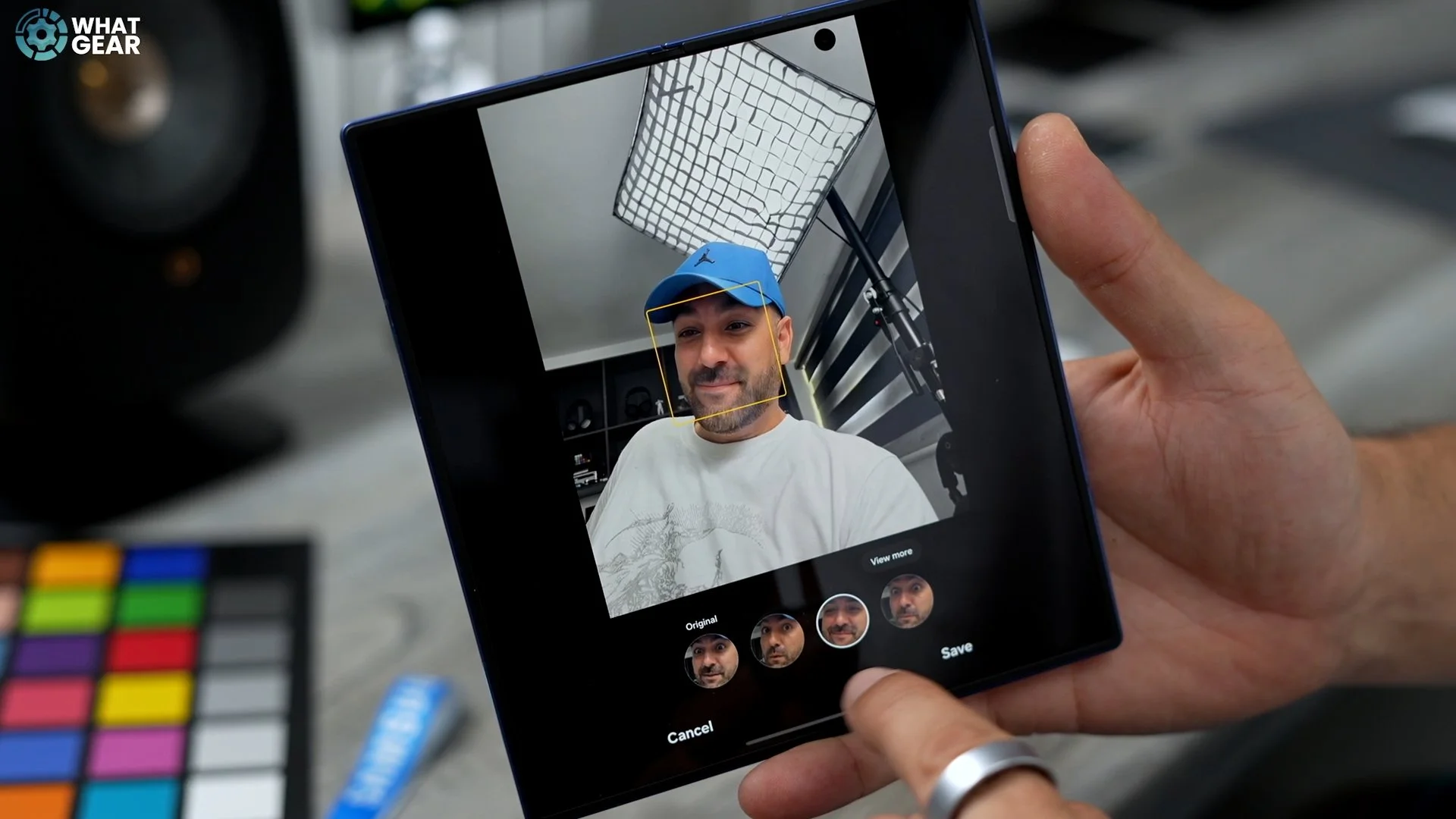
The great thing about this is if there are multiple faces, you can change each one individually, and then you can get a photo where everybody's smiling. Or on the flip side, you could use it to get a photo where everyone's pulling a funny face.
Next Level Selfies
Now, one of the things you absolutely need to know how to do and use frequently with this phone is taking selfie photos, using the best camera on this phone, which is a 200 megapixel camera. When you open the camera app in the folded form, what you'll see in the top left corner is a button that says selfie. And when you hit the selfie button, this actually activates the cover screen as a viewfinder. When you unfold the phone. So now you can actually take selfies with the best camera that you have.
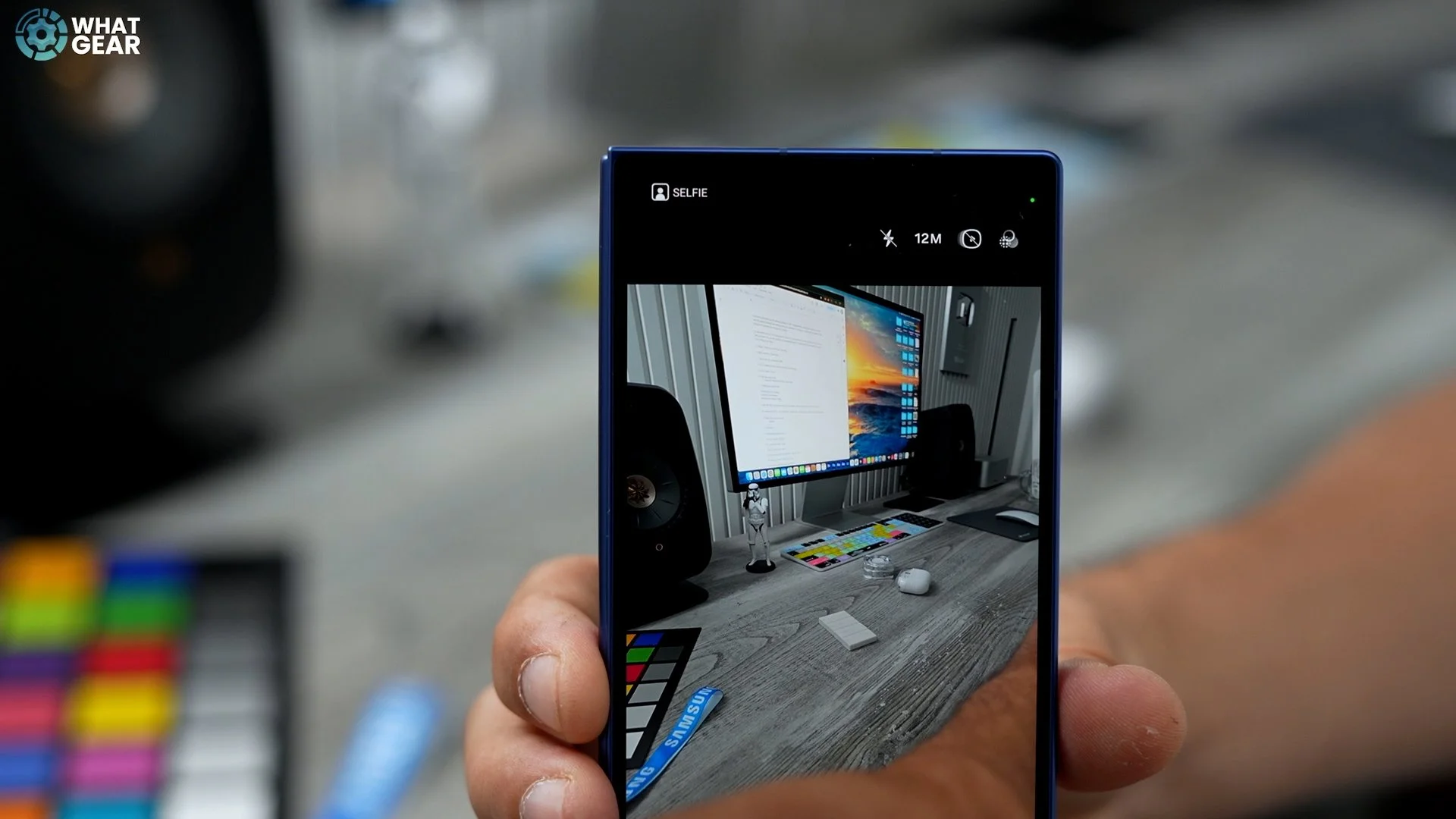
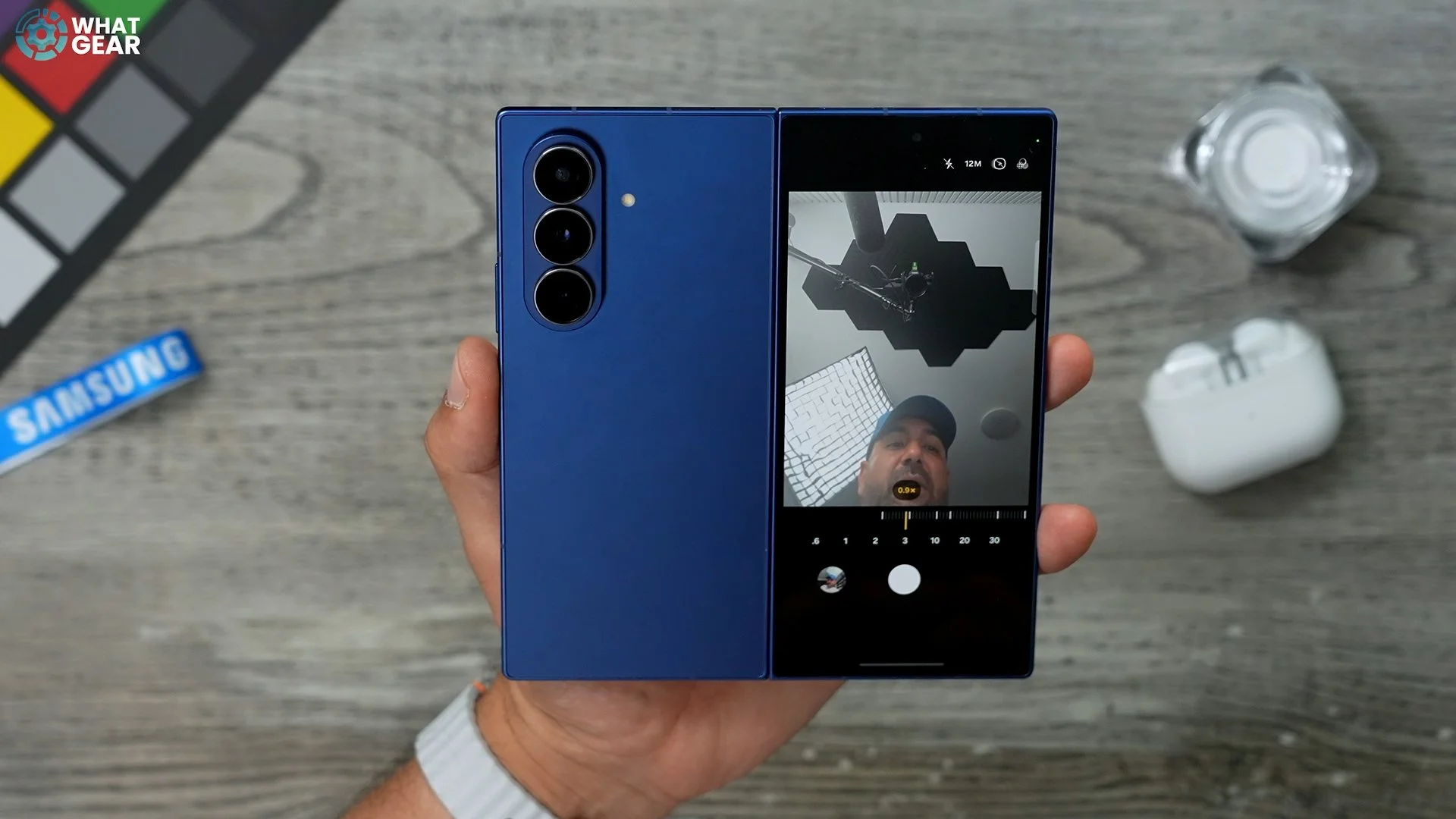
You can even toggle it to the 200 megapixels if you want a really, really detailed selfie. And you can also use the other cameras as well. And to take a photo, you can just hold your hand up like this to start a palm shutter. Or you can use the volume button up to snap a photo. And if you have a Galaxy Ring, you can set up a pinch gesture to take a photo as well. For me personally, I like the palm shutter. It just works really, really well. So if you want to take selfie photos that will put your friend's phones to shame, then don't forget where that selfie button is.
Preview Like A Pro
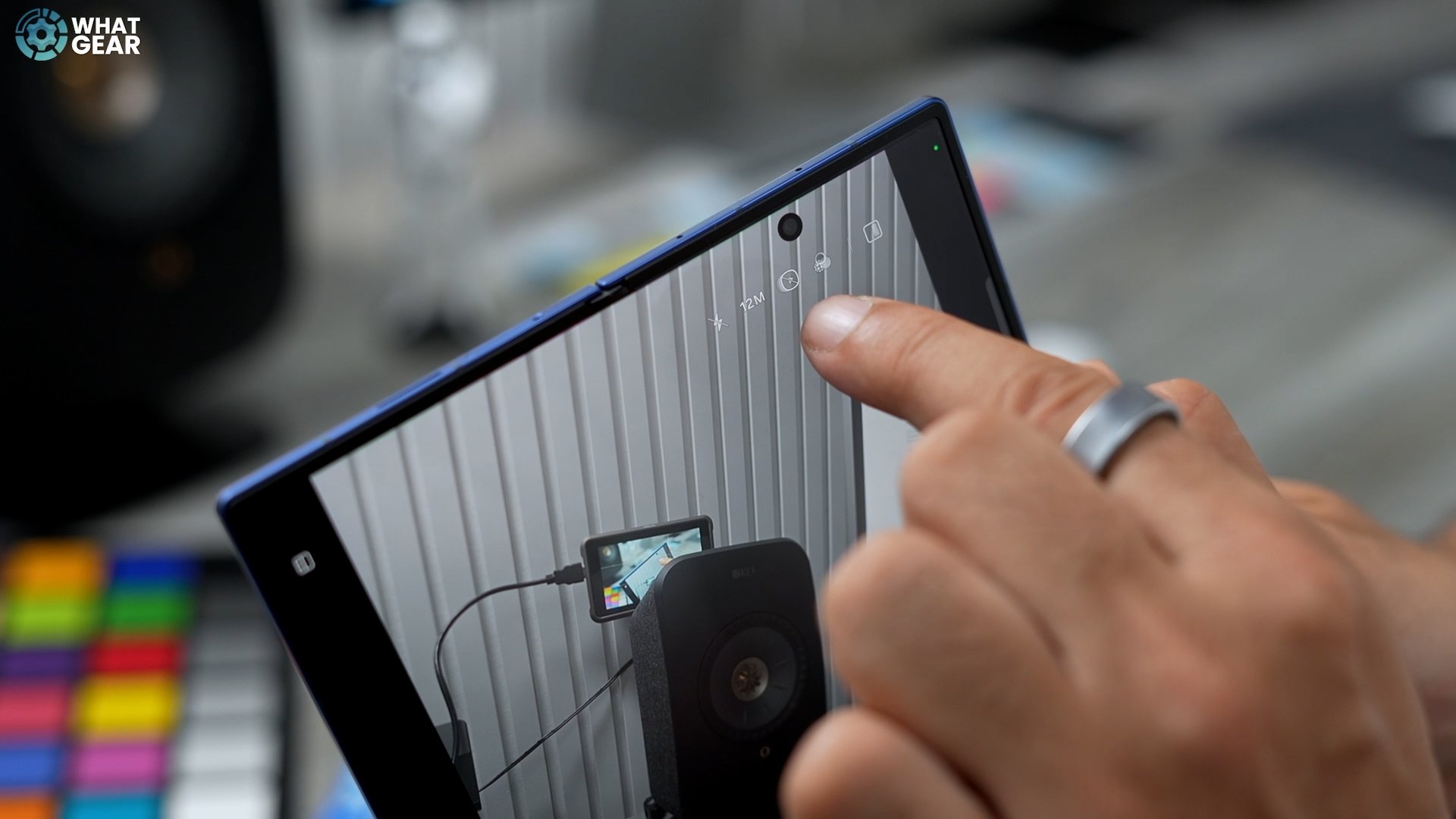
Here's a unique camera feature which is kind of exclusive to foldable phones, and it's very, very useful when it comes to taking photos. So when you open up your camera app up here, you'll see this little icon is kind of like a square with a few rectangles inside it. Tap that. And what this does is it gives you a preview window for all your photos, and you can actually see how the photos look without ever having to exit the camera app itself.

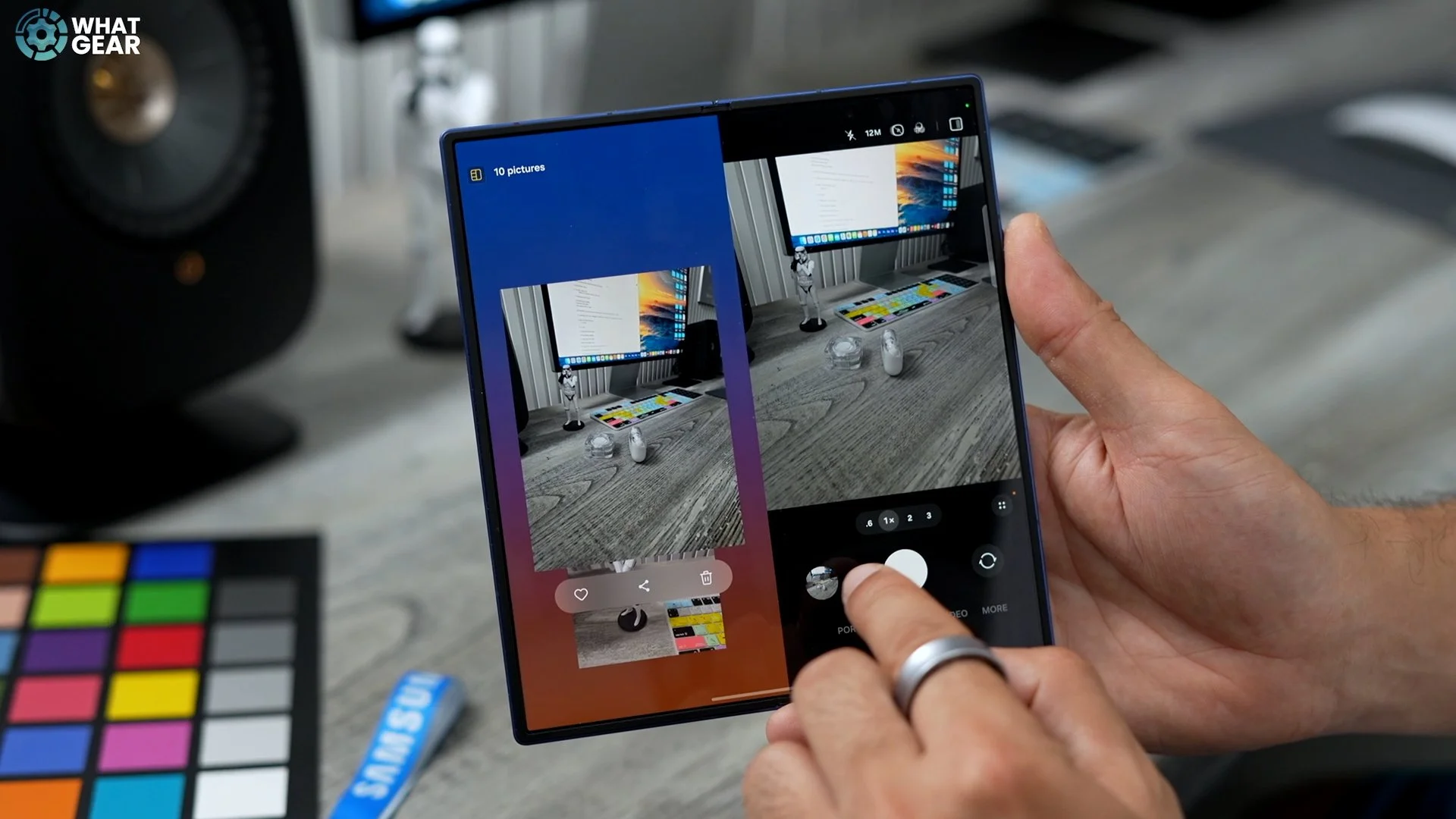
So on other phones, you'd have to exit the camera interface and then go into the gallery to see how that photo looks. You can just snap away several shots and actually see them all here on the left side. Pick your favourite one and then literally just share it from here if you want.
Audio Eraser
So I am now filming a video of my double chin, but I've also got some road noise playing in the background. And this is to demonstrate the audio razor tool. Now here's where the magic happens. I come down here a little blue one. This is the auto noise eraser. So that's worked its magic. Let's see how it sounds.
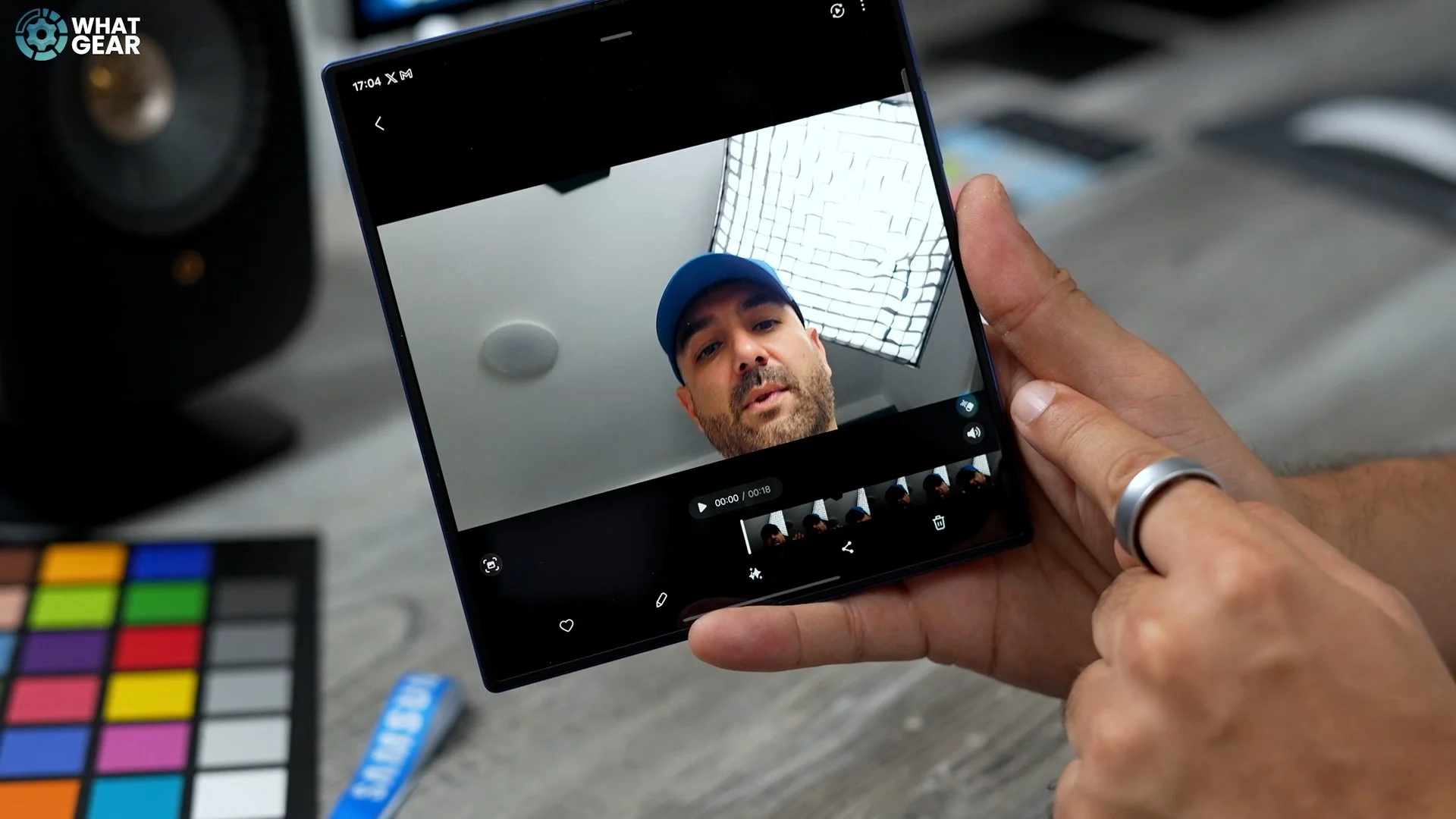
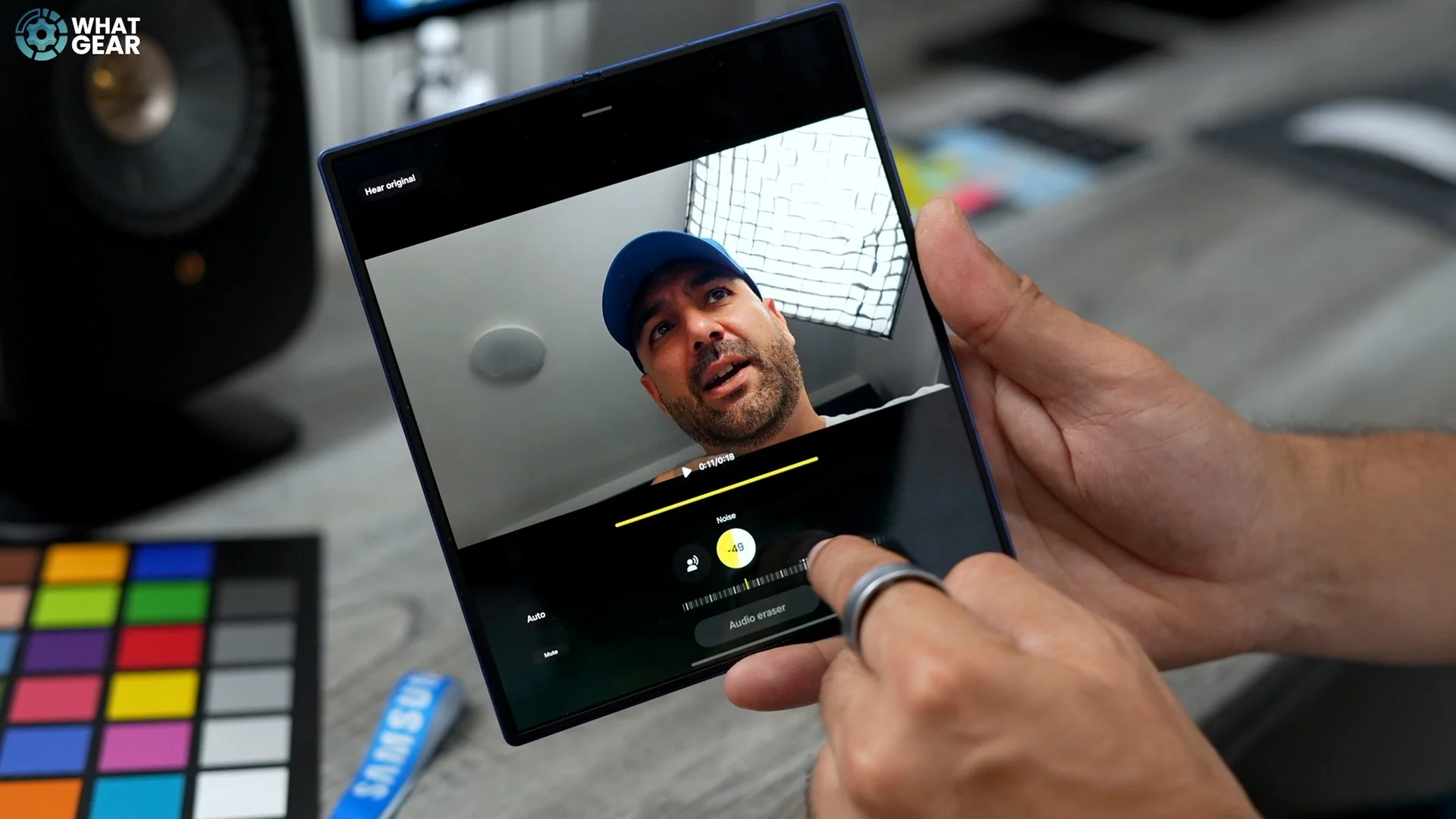
So it has cleared up a little bit, but if you want to take it one step further, you've got the little eye sparkles down here. You can tap that. And this actually opens up the manual stems to adjust various noises. If we want to reduce the noise even more, we can change the levels here by dragging this. If there are voices in the background, you can change the levels here by dragging that.
Now You Are Speaking My Language
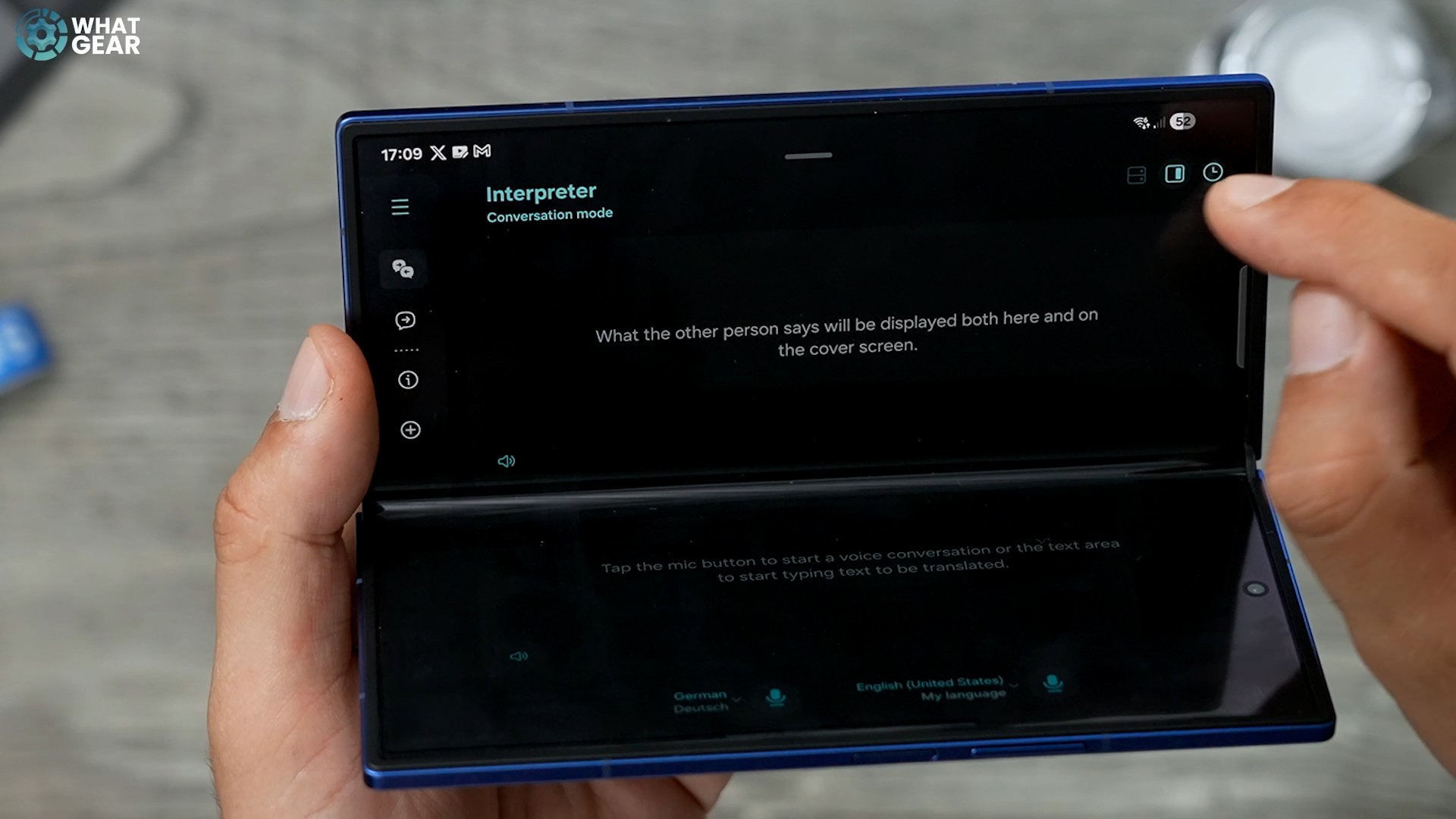
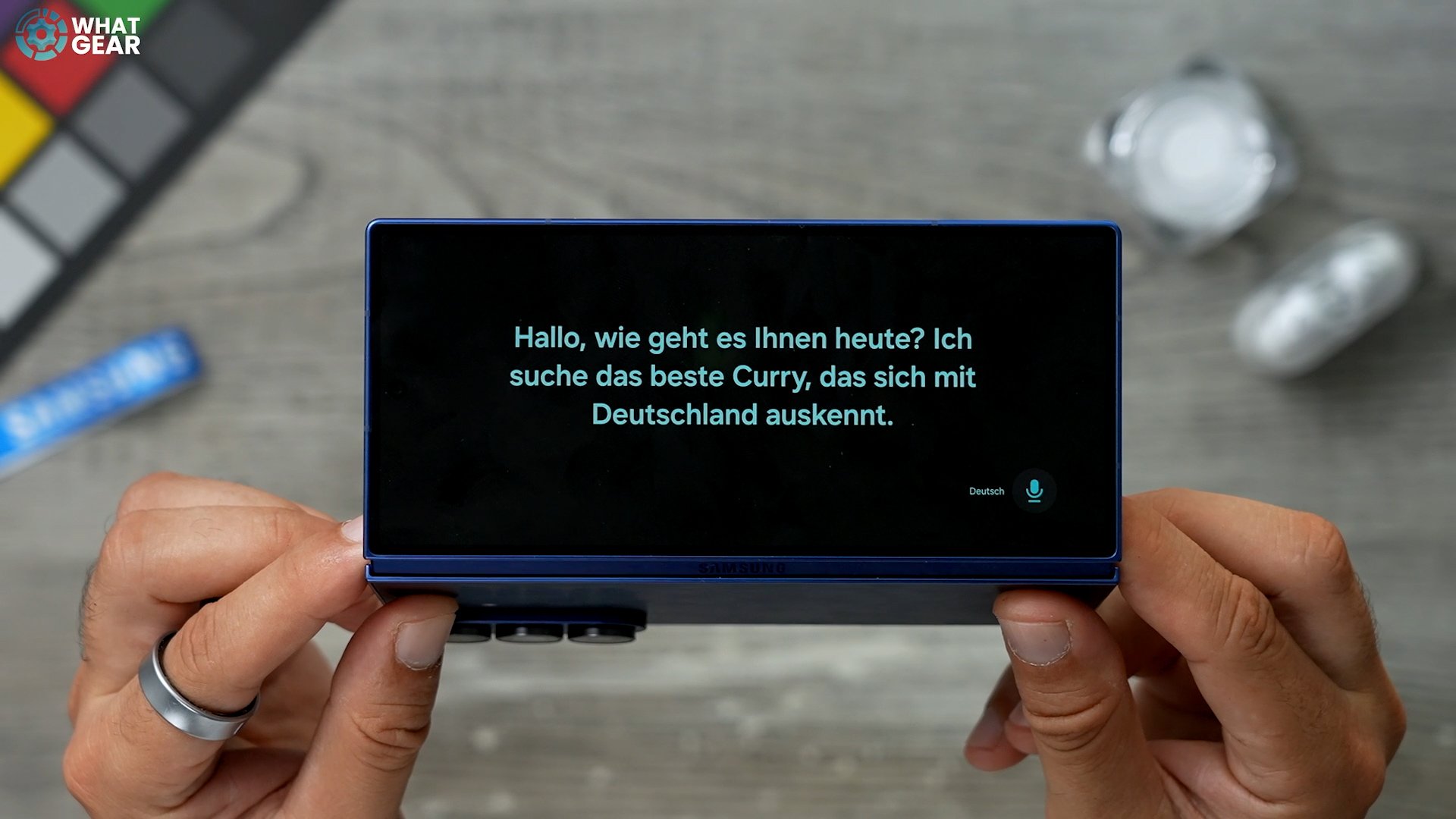
Here's a very useful and unique feature for the Z Fold 7. Swipe down. Swipe down again for your quick settings. You should see the interpreter right here. So if you tap on that, you can choose the two languages that you want to use. Now, if you flip this into flex view, which is like this with the cover screen outwards, if you tap this icon up here, this activates the cover screen window. So now, when you talk in English, And then I can speak back to you in German, and it will turn that into English. You can use that cover screen to have a conversation with someone abroad, and they can hear and see what you're trying to say.

New Split Screen Techniques
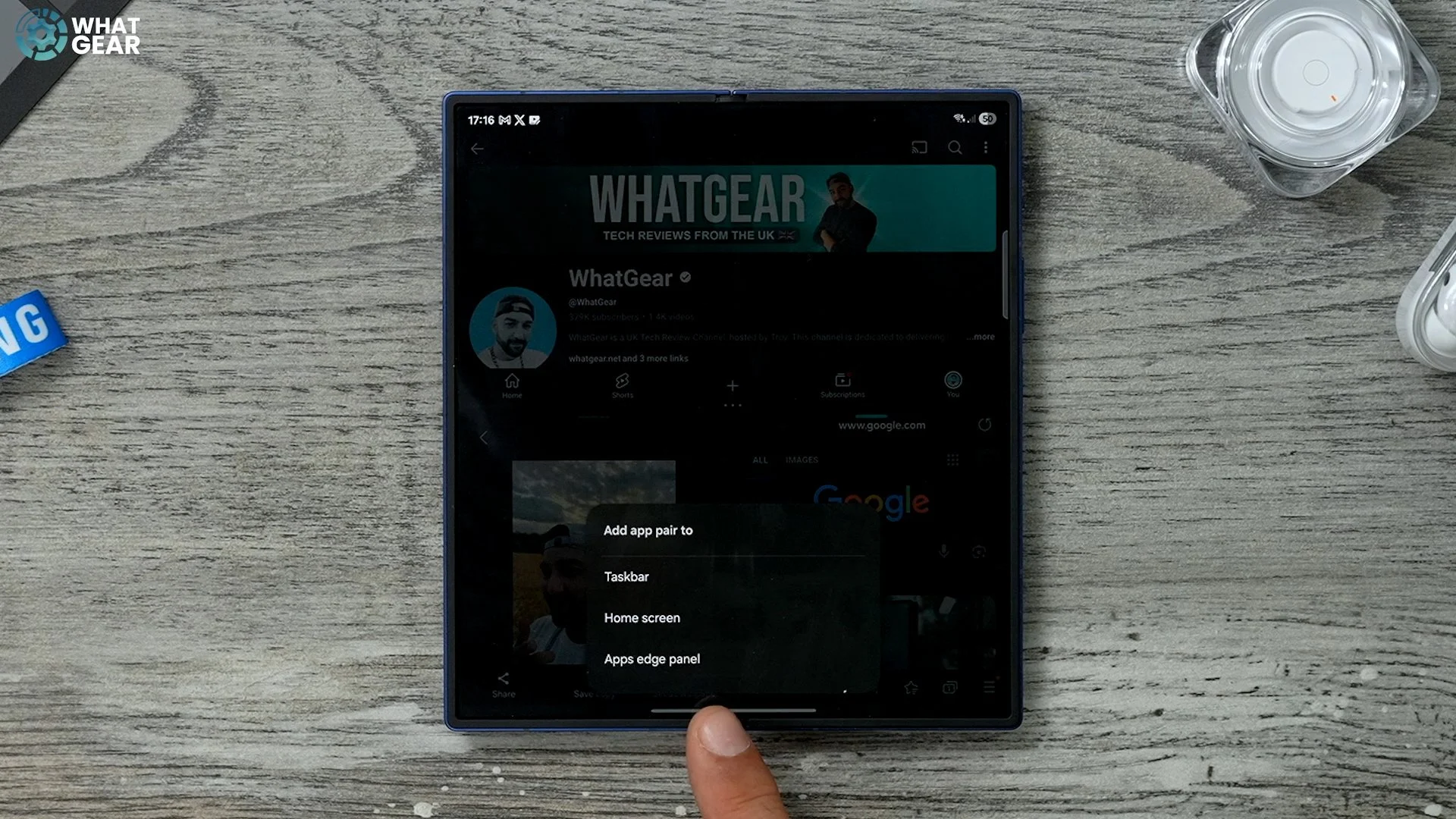
This one has a massive eight inch display on the inside, and something you absolutely need to know how to do is how to create app pairs and trios. So let's say for example, we want the Samsung Internet Explorer on one page. Maybe we want YouTube on the other page. And then let's say we put the gallery down here as well. There we go. We have an app trio. Now, if you want to, you can hit the dots in the middle and rotate this trio as much as you want. If you hit the little star in the middle, you have the option to save it to the taskbar or to the home screen, or to the edge panel. I'm going to add it to the edge panel. That way, whenever I want to open this app here, I can get to it here just within a swipe and a tap. Now let's say I want it on the taskbar as well. Just hit the star again and add it to the taskbar. And you might be wondering what the taskbar is.
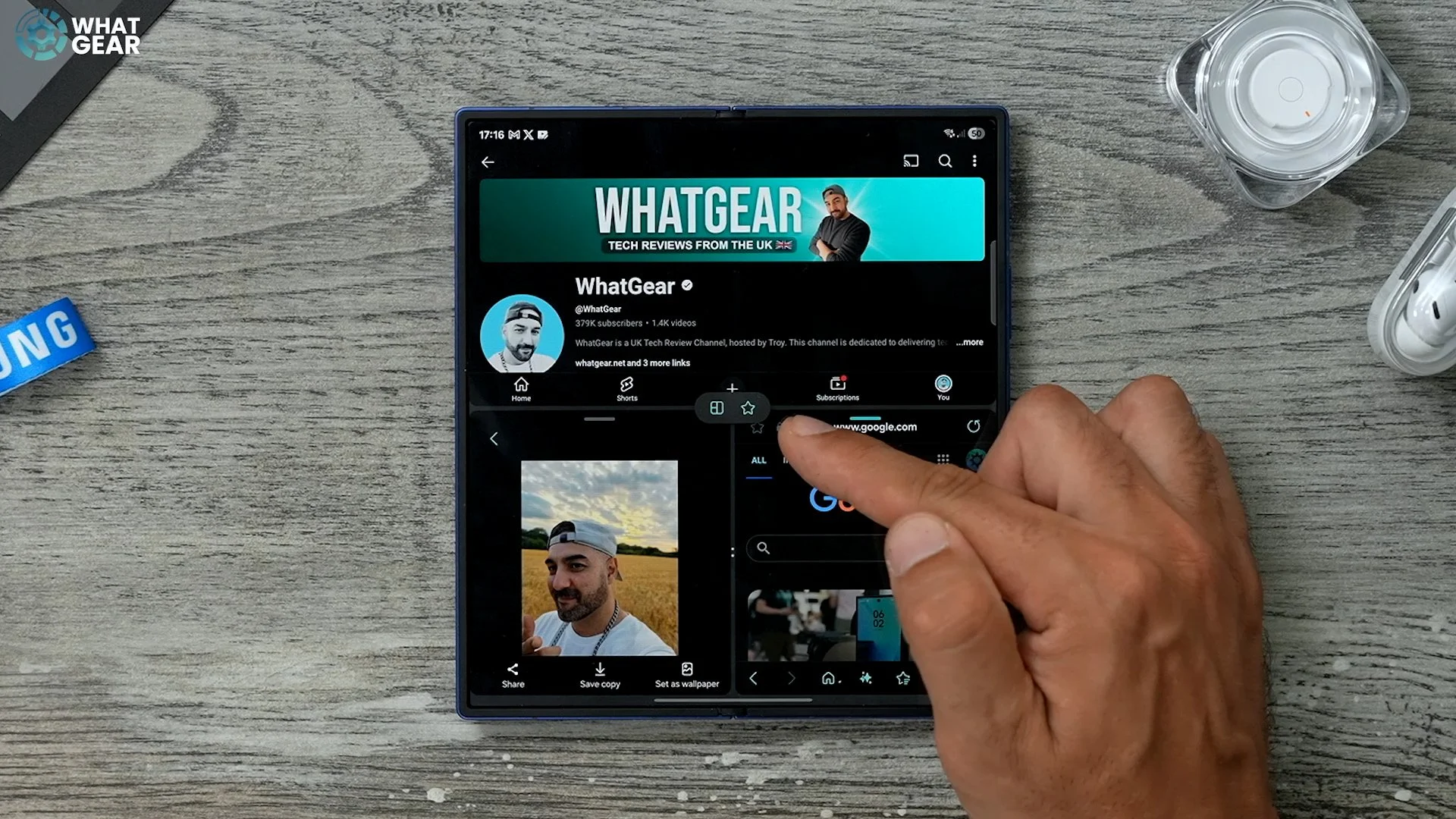
Is it this down here, or is it something else? Well, actually, it kind of is something else. So let's say we open up YouTube. So right now you can see there's no taskbar at the bottom, but we can reveal it by swiping up like this. And then we can actually drag an app onto the screen for a split-screen set up, just like that. So that taskbar method isn't new, but it's important you know how to use it. Here is the new feature. Jump into your settings. Scroll all the way down to Advanced Features. Go to the multi-window here and enable the show Multi-Window menu with one window. And what you'll notice is this little line pops up here at the top. Whenever you have just one app open. So here, for example, I have the YouTube app open. I've got the little line at the top. If I tap this line now, there are options straight away without having to swipe and hold or drag things onto the screen to split screen. So the first one is the pop-up window. If you tap that and expand it again, tap it again. And we've got the split view window just like before, except now it's much more easier to access.
Now You Know
if you're brand new to Samsung phones, you might not be familiar with the now bar, if you are new to this, well, there's probably still some settings you need to adjust to make this work properly for you. Right now it's showing my voice recorder right here. I can pause and stop it at any time right from the lock screen. You're now briefing will also pop up here in the mornings, in the afternoons, and it will give you a little update of what's going on on that day. And if you got any calendar events and the weather, and all that kind of stuff. Here are the settings you need to change to improve the now bar. So if you go into settings again on the left side, we're going to go to Lock Screen and AOD. On the right side we're going to go to Now Bar. And then here is some really cool stuff.
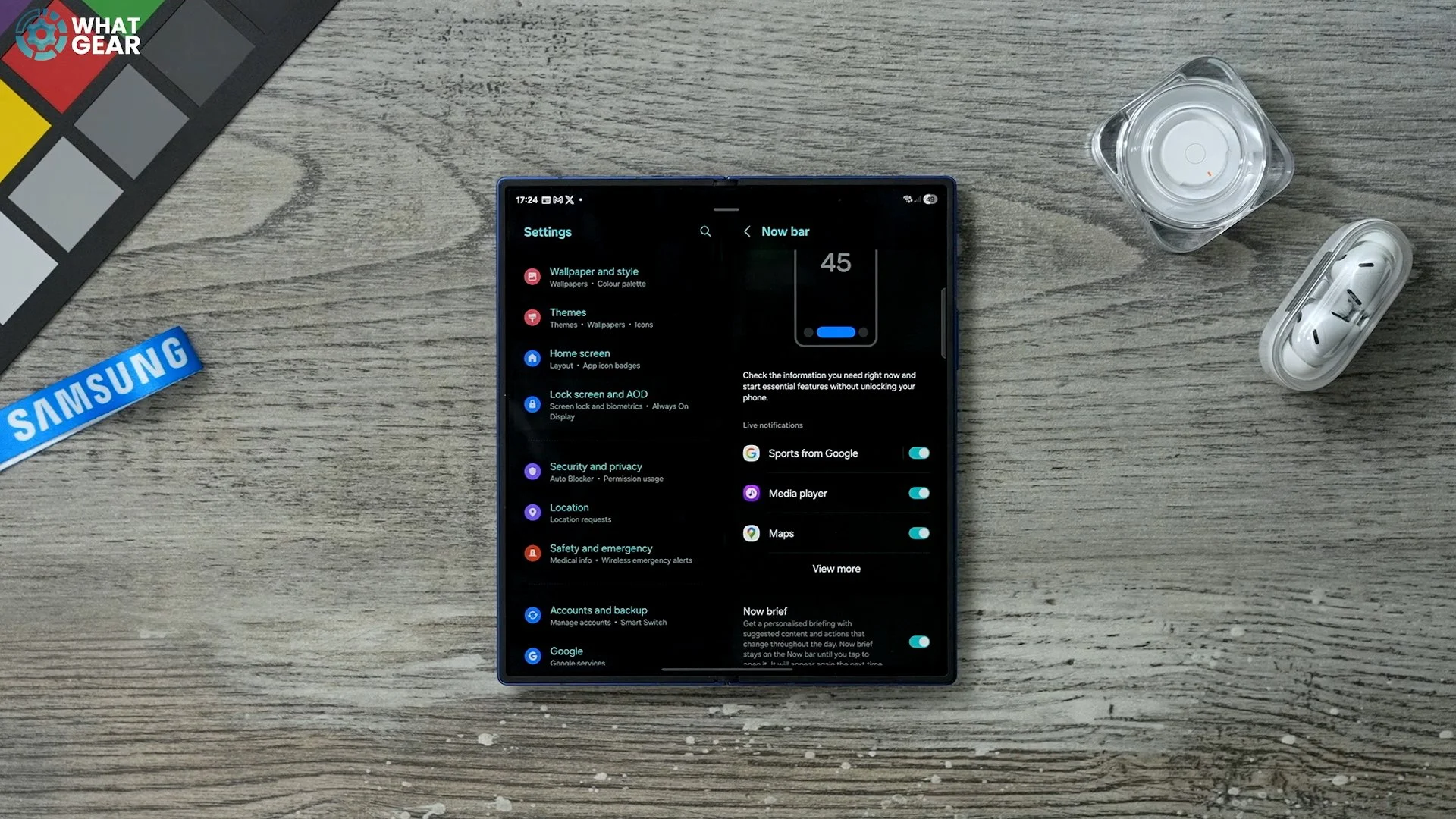
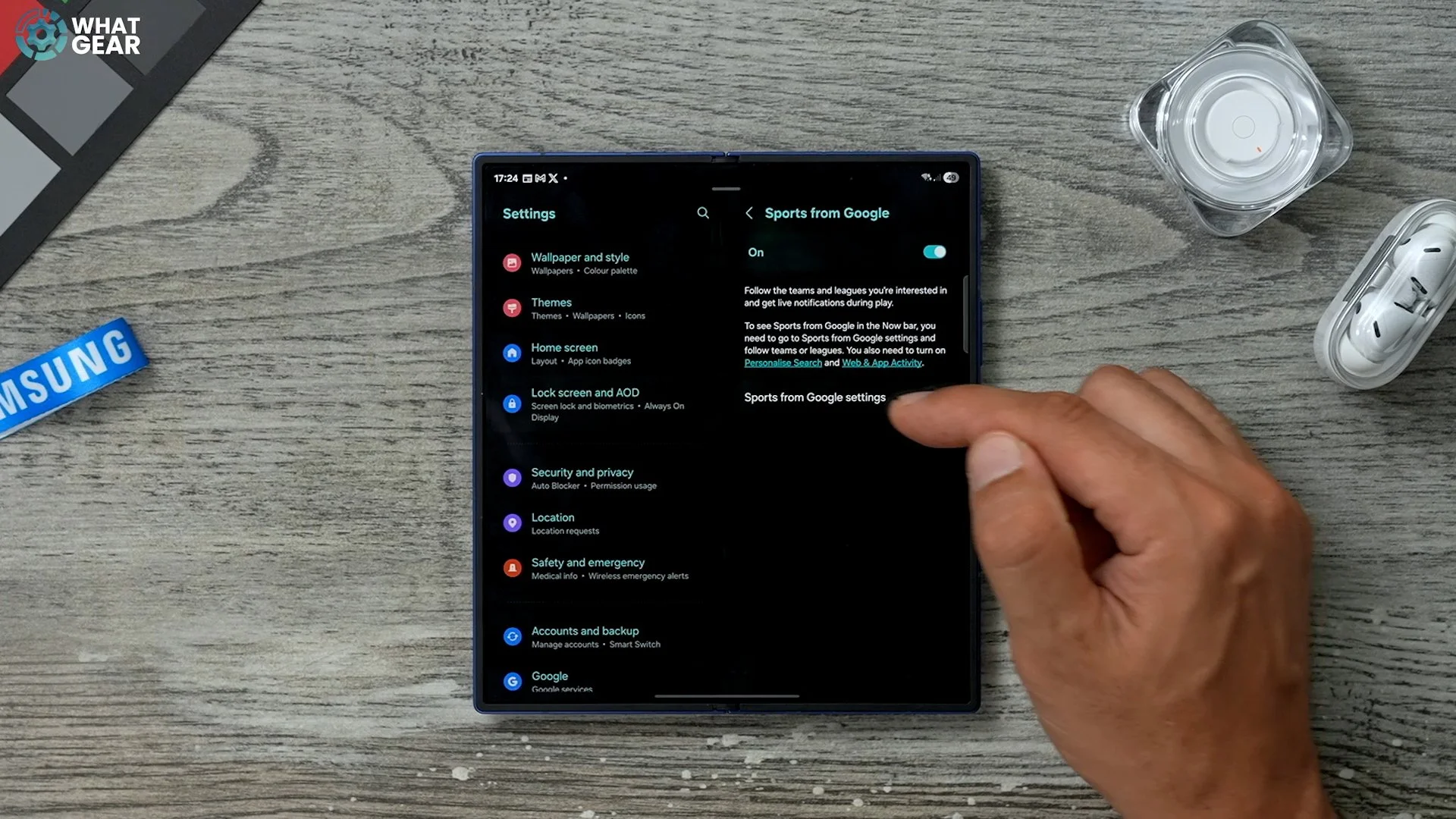
So if you tap on this sports by Google. If you are a sports fan you can actually add your favourite sports teams to the Now bar, so you can get live updates on how they're doing right there on your lock screen. So I'm following a few things, but there are a bunch of different sports here you can follow if you want, and most of the popular ones are here as well. So definitely set up your favorite sports teams and it will be updated via Google Sports. The next thing to do is if you expand this list of apps, you can actually switch more things on. For example, the voice recorder was actually off, so I switched that on just to show you guys that demo. You can also enable smart things.
You have to go into the settings and allow the notifications. So if you have the tags or other smart things devices, you can actually get updates from those devices on the Now bar. And as you begin to add more apps to your phone, you may see more options. I do recommend you switch on the maps as well. Again, this was not on by default. You have to give it permission first to switch that on when you are using navigation on your phone. You don't necessarily have to have it unlocked because you can look at the navigation on the now bar on the lock screen.
Cross App AI
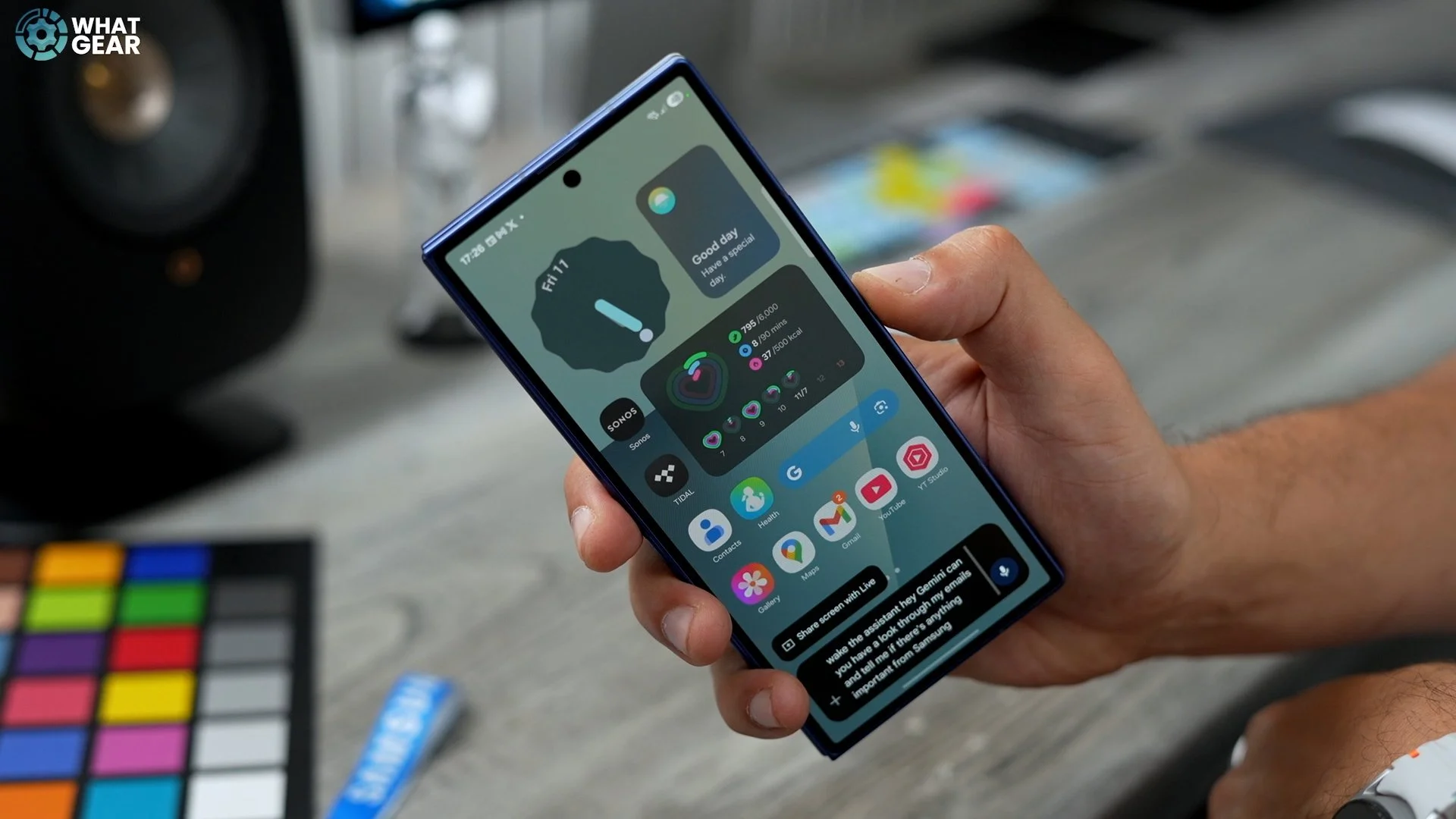
Something that people don't realise is that Google's Gemini can access apps and information within apps. For example, if I hold my thumb down, wake the assistant.
Hey Gemini, can you have a look through my emails and tell me if there's anything important from Samsung that I need to look at?
And as long as you've given it permission to, it can actually scan through all of your emails and find the relevant emails to your query. The other thing you can do with this is send messages via WhatsApp.
You can scan through your Google Drive, and you can even scan through your docs and keep notes as well to find important information. Can you find my keep notes with all my Galaxy Z Fold 7 first things to try? You can see there is looking through keep and you can ask it to add things to the To-Do list or your calendar and that kind of thing.
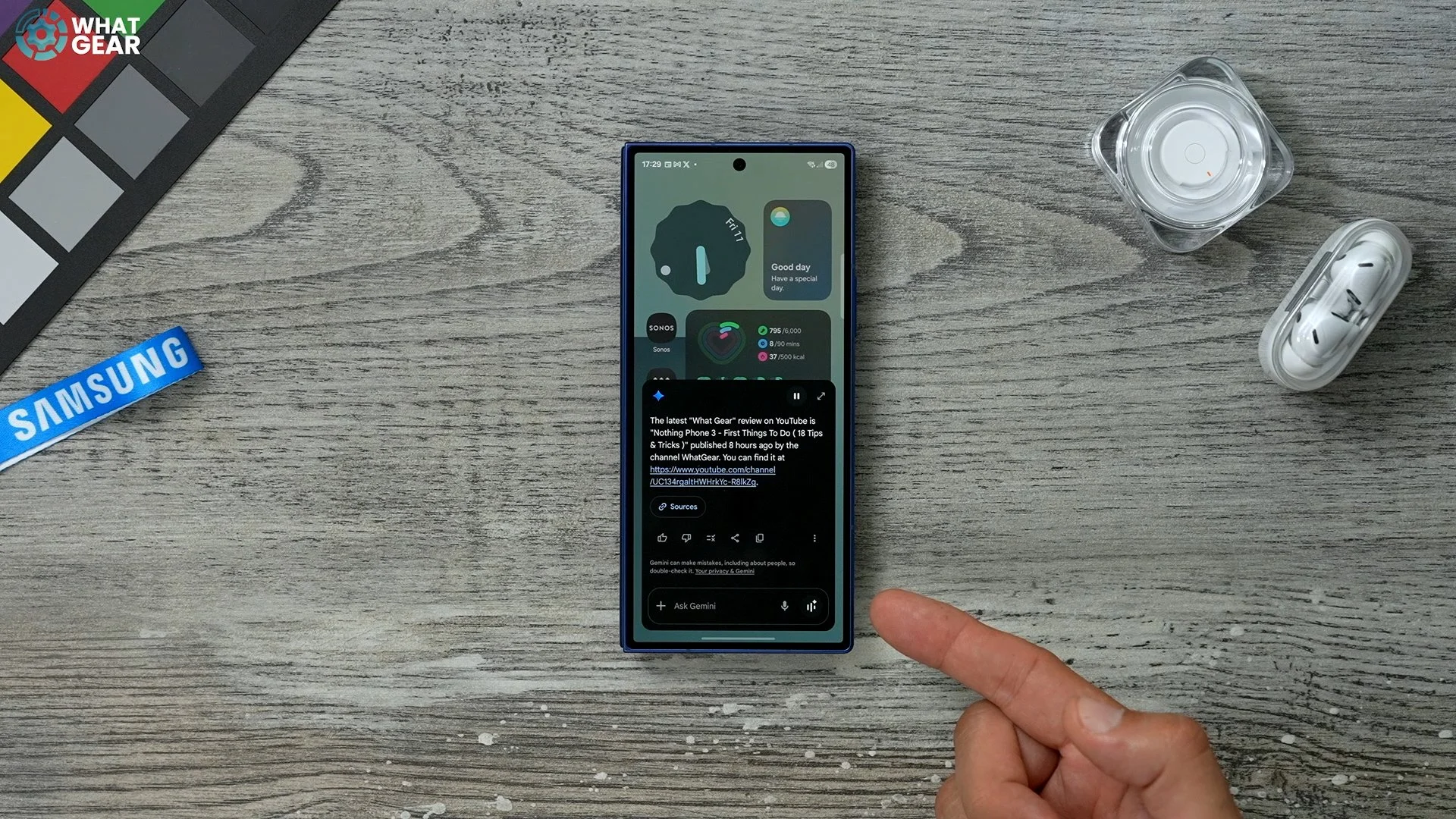
And it does work with all of the Google apps and also some of the Samsung apps. Can you find me the latest WhatGear review on YouTube?
The latest What Gear review on YouTube is the Nothing Phone 3.
The Power of AI Select
Here is another really powerful tool on the Samsung Galaxy Z Fold 7. So, for example, it's going to open a website like this. Swipe out the edge panel, and you'll notice at the top here we have the AI select tool. This is very, very powerful. It can extract images from websites.
It can extract addresses and add them to your Google Maps automatically for you. You can even take images from websites and use detouring assist on those images, or even grab photos of people and use the generative edit. But just to keep things real simple right now, let's say I want this image on my phone. I can hit the little download button here, and that's now saved.
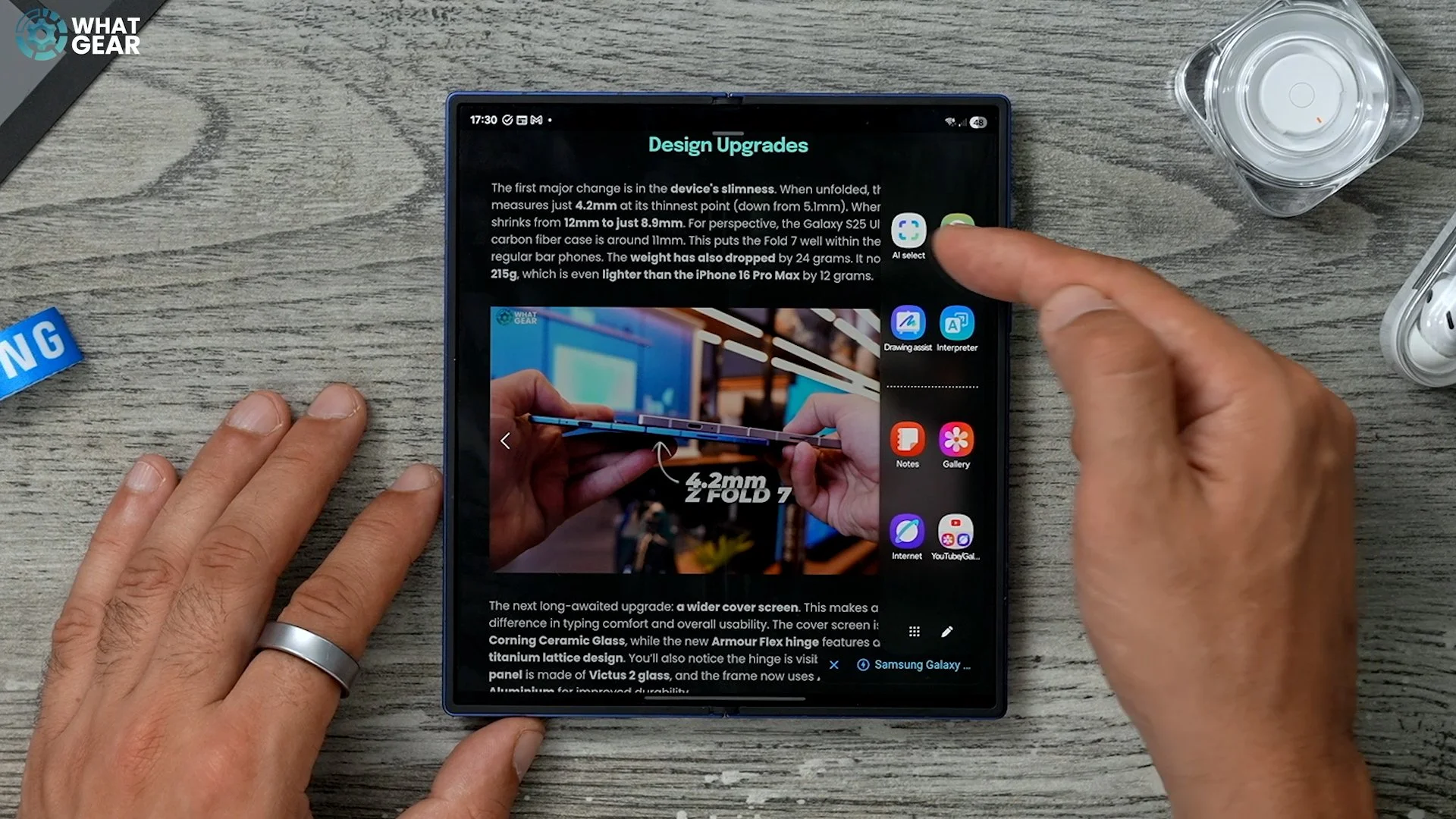
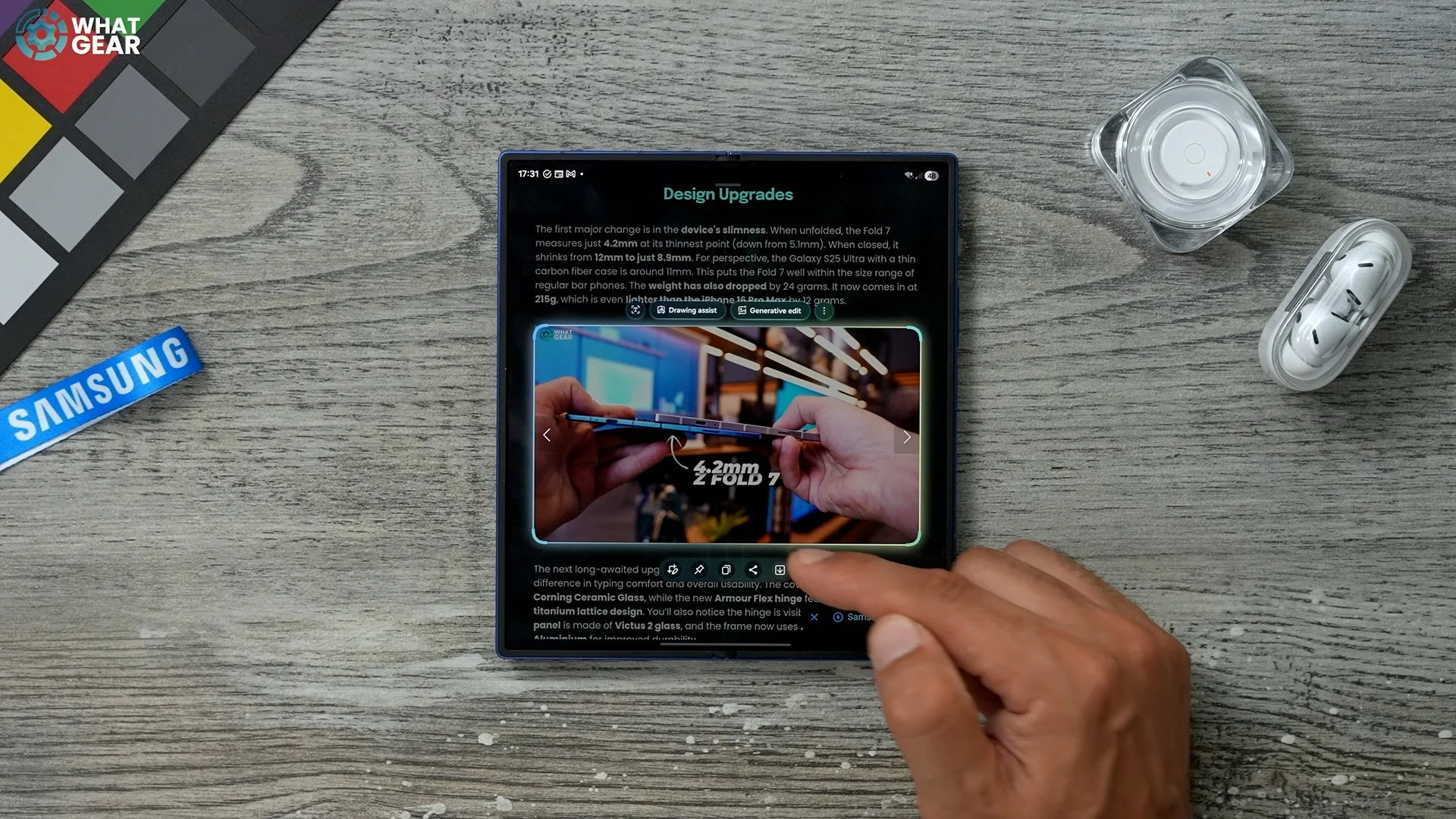
So we can even use this to grab text off of the internet as well. Or from images or from pretty much anywhere. Let's say you want to grab a picture of the internet and, turn it into a cartoon. You can actually do that. So you go to I select this, choose just the face here like this. We go to generative edit and then you've got sketch to image. So you can actually draw things on the image.
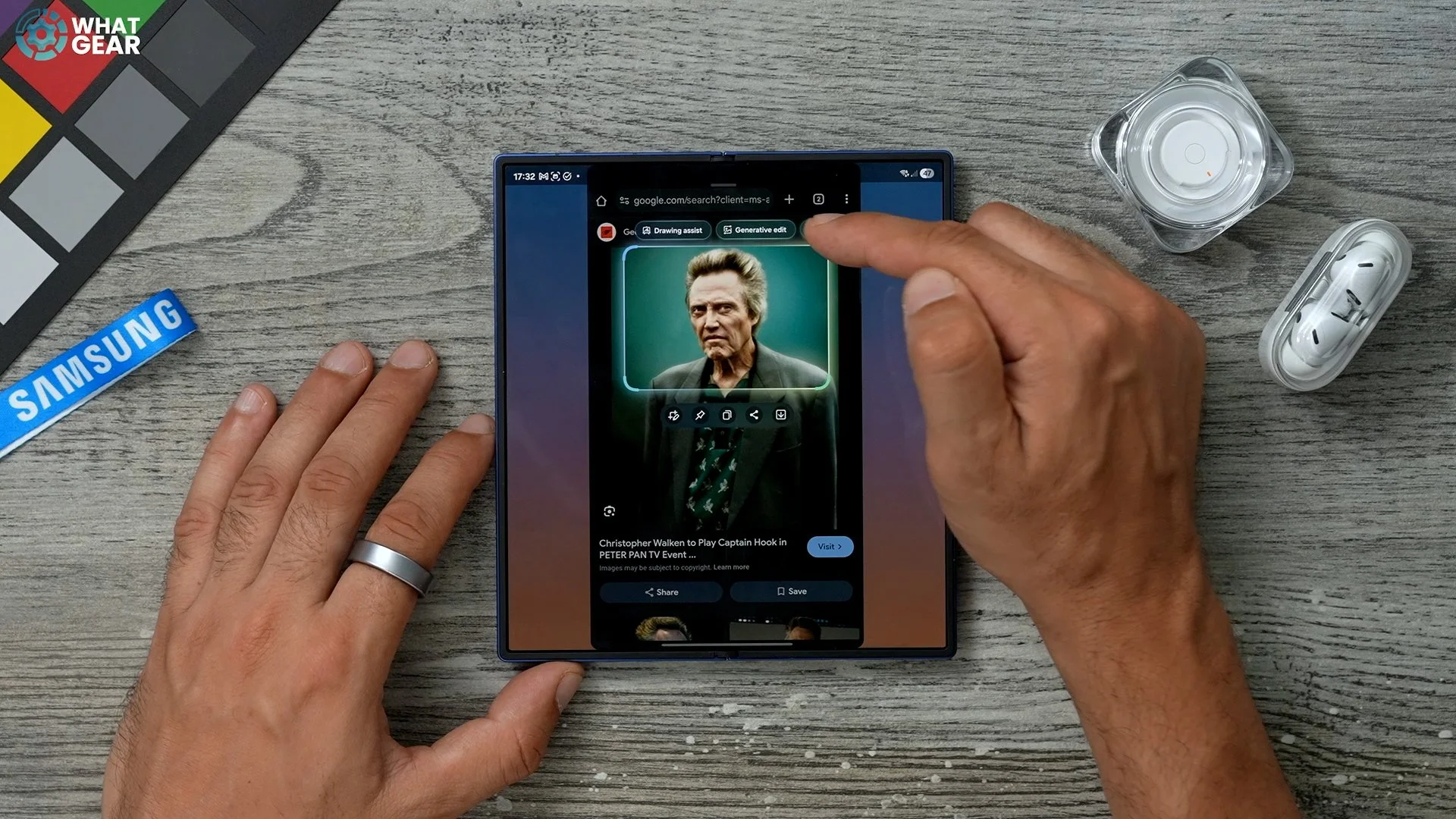
You could even go to portray studio and turn the image into a cartoon. And you can do this from anywhere, even if the photo isn't downloadable. You can literally just screenshot it and use all of these tools. There are a bunch of good use cases for the AI select app. One of the most useful is being able to pin stuff. So if you have a QR code or a boarding pass or something like that, you can grab it and then pin it to your home screen. Shrink it down so it's just a little floating window like that.
New Dynamic Wallpapers
Here's another brand-new feature to the Galaxy Z Fold 7. If you hold your finger down on an empty part screen, you will see the wallpaper and style options.
If you go to change wallpapers, there is a new type of wallpaper to use and it's in the colors section. So you've got these dynamic styles. So these are the two that we have right now. They will change on their own throughout the day.
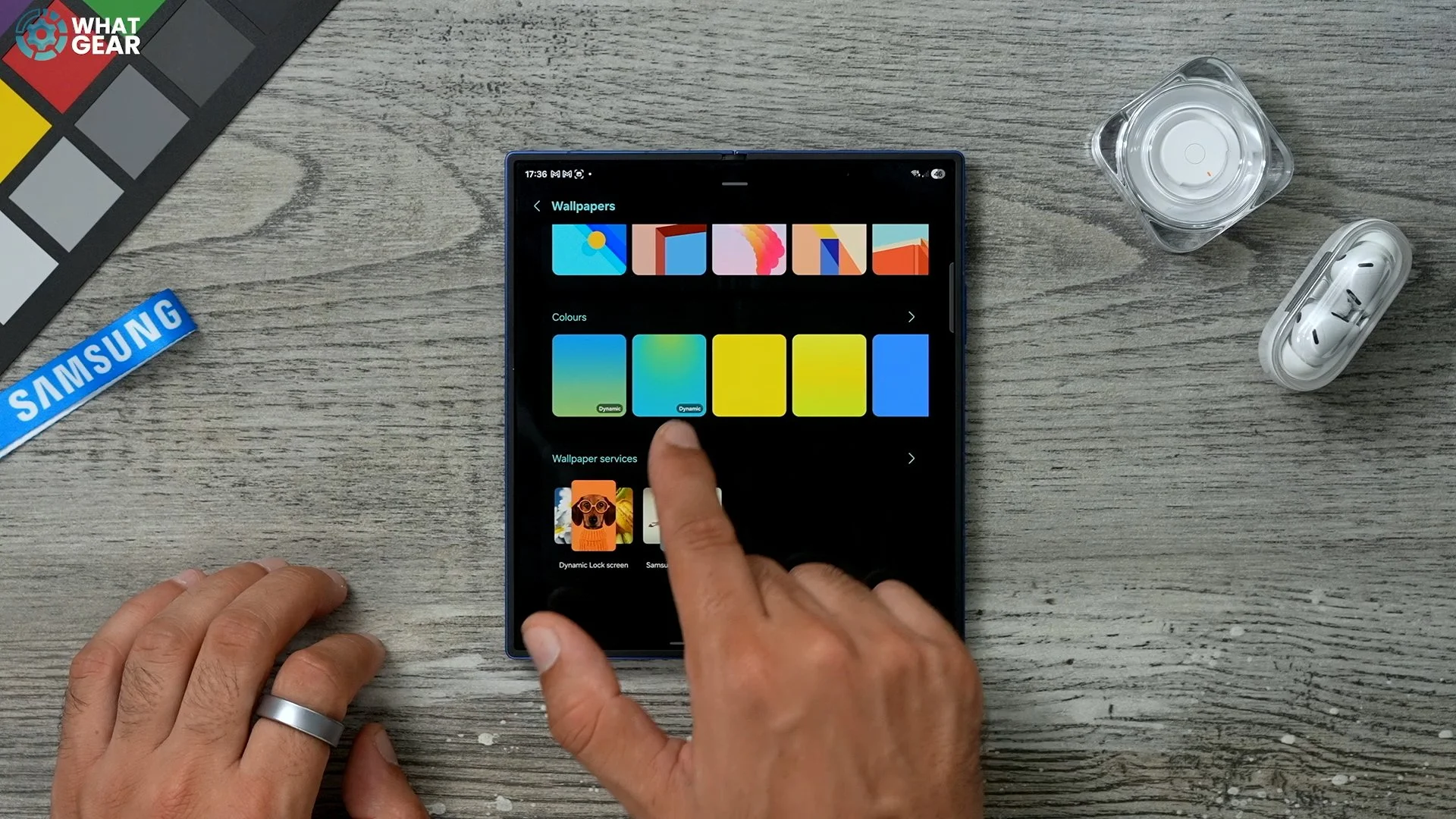
So if you prefer the purple and green or the blue and the orange, you can choose those and they will adapt as the day goes on. I do kind of like this mint green and blue colours, because that's kind of the Chatham colour. And it's definitely one worth using if you don't want too many distractions on your home screen.
Photo Ambient
This next one is one of my favourite customisation tweaks. So if you hold your finger down on the home screen, go to Wallpaper Style. This time we're going to tap the lock screen, go to wallpapers at the top, and we're going to choose Photo Ambient, this time from the creative AI section. I've got this Yoda wallpaper that seems to be very popular among a lot of people in the comment section. Now that this has been selected, this will actually show weather effects based on the geo location.
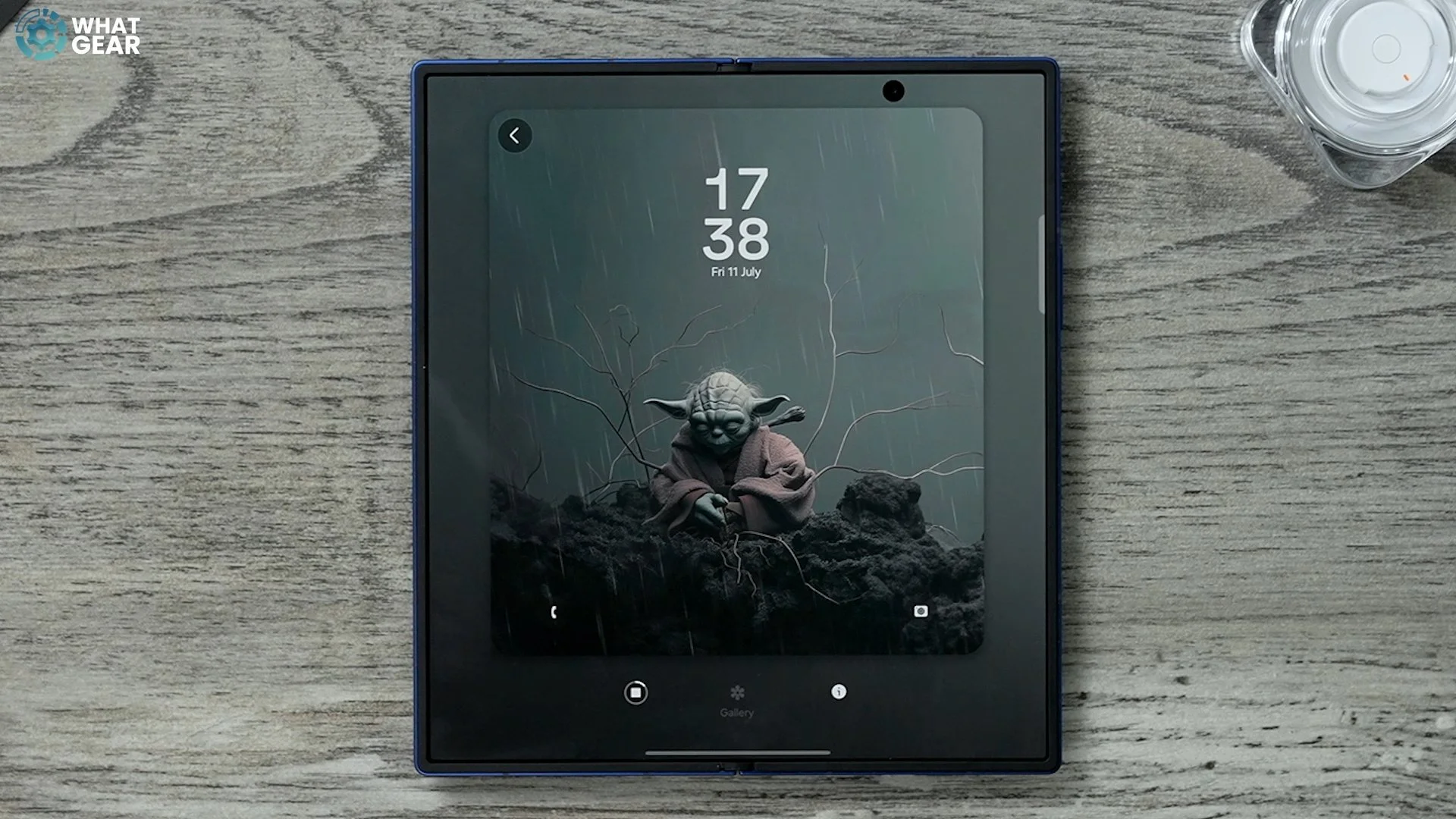
So if it's sunny outside, if it's raining outside, if it's snowing, it's going to show that on the cover screen. And this makes the cover screen much more interactive and actually more useful. So I do recommend you use this if you can.
Clock the New Clock
If we stay within the wallpaper’s style settings menu, tap on the lock screen. One of the upgrades now is this brand-new clock. So if you tap on the clock here, you'll see this one where the numbers kind of drop into place. So, essentially, what this clock does is it adapts and adjusts around your background. So you can kind of see how shifting around the edges of Yoda's head, it actually works better on the cover screen. So here I've got the stormtrooper wallpaper set up. And if I tap the clock and actually move it around, you'll see how it adapts to the shape of the stormtroopers head there. I actually really like how that looks.
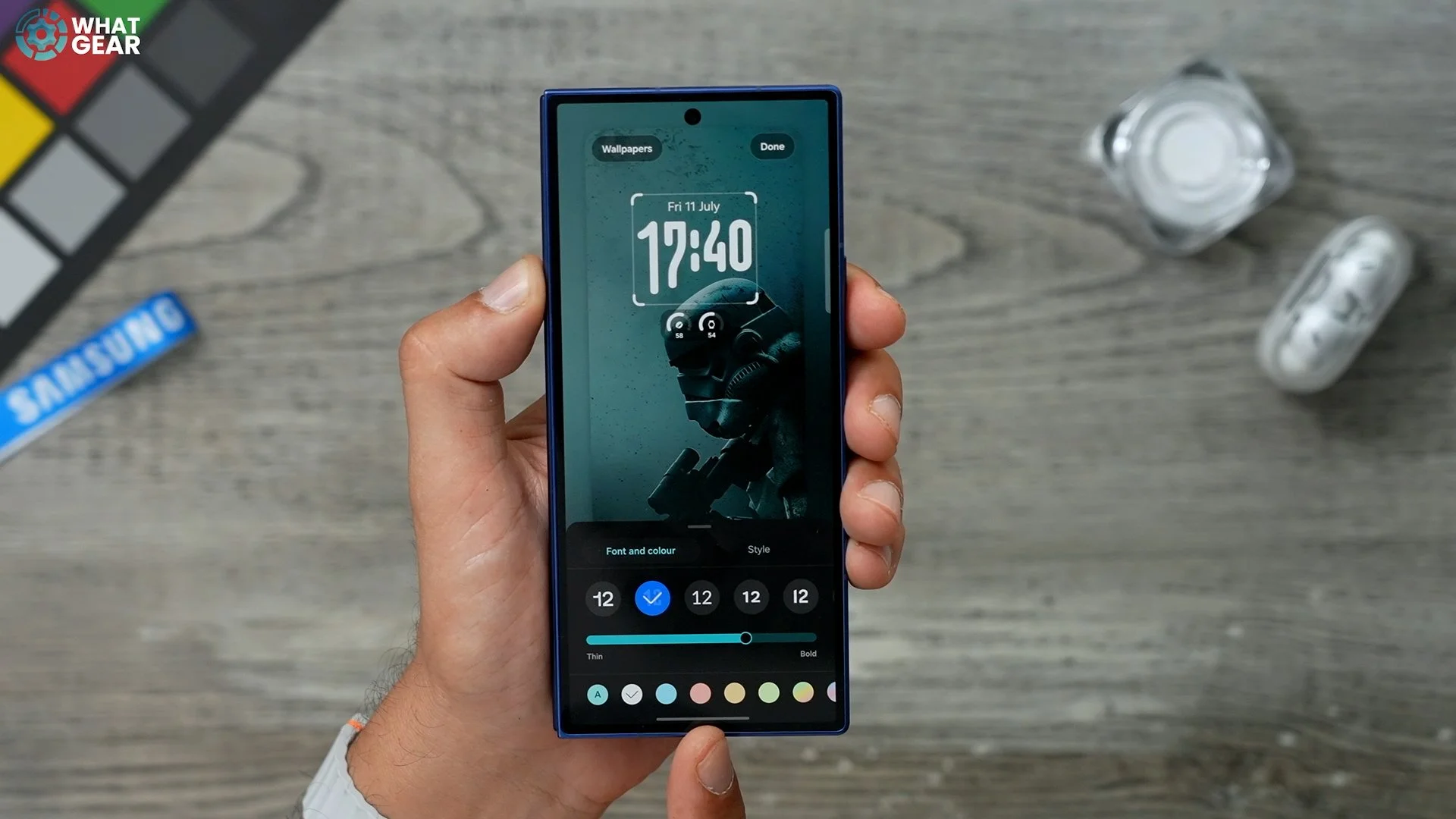
You can also go into font and colour and change the type of font and the colour, and even how thin or thick the text is. You can actually have two different wallpapers for your two different lock screen. So cover lock screen and inner display lock screen. Like I said before, I've made an entire customization video about all of the changes you can make to this phone, including making all the apps one color as opposed to multi colors like they are now. How to create stacks and widgets and custom folders and unlock a bunch of hidden customisation tools.
Stay Open
Have you ever been using an app where you've been filling out all your details, and then it's asked you for a verification code or something that you've had to leave the app for and then come back to fill in. And then when you come back, it's not there anymore. That is literally one of the most annoying things that could happen. So here's where you can avoid that with the new Samsung phone.
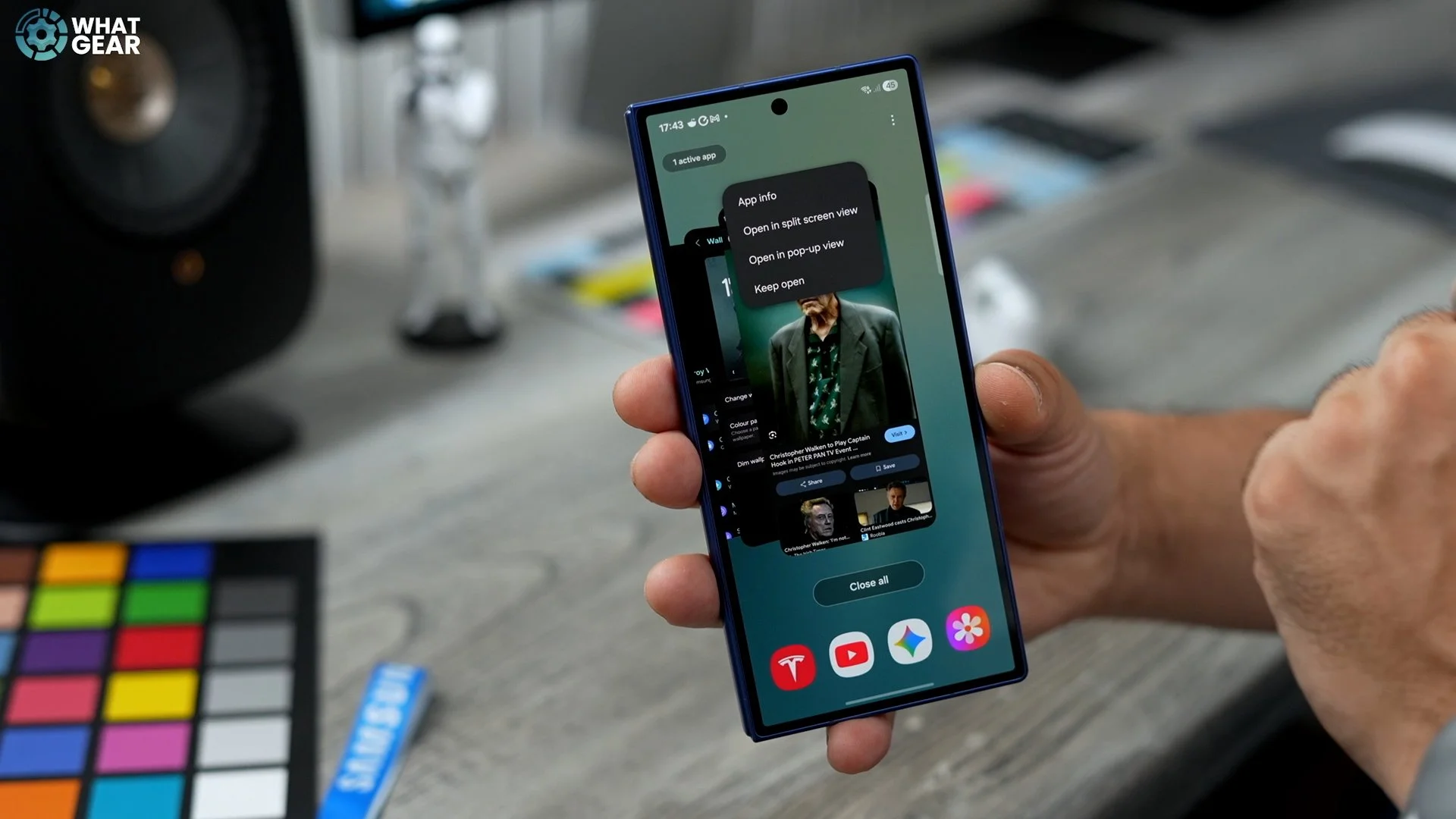
So if you open up your background and let's say this is the app that we're filling out the information on, if you tap the icon at the top, there is the option now to keep this app open. This essentially tricks the app into thinking that you're still using it, and therefore it won't shut down in the background while she was scrambling looking for your codes or whatever it is you're looking for.
Auracast QR
Here is another upgrade from Samsung. I've got the Galaxy Buds three Pro here. if you go into settings now, when you're using them they'll be the buds three settings right at the top. Very easy to access. When it comes to sharing audio to other headphones that support Auracast. So if we go back we go into the Bluetooth settings right here. Just hold your finger down on that.
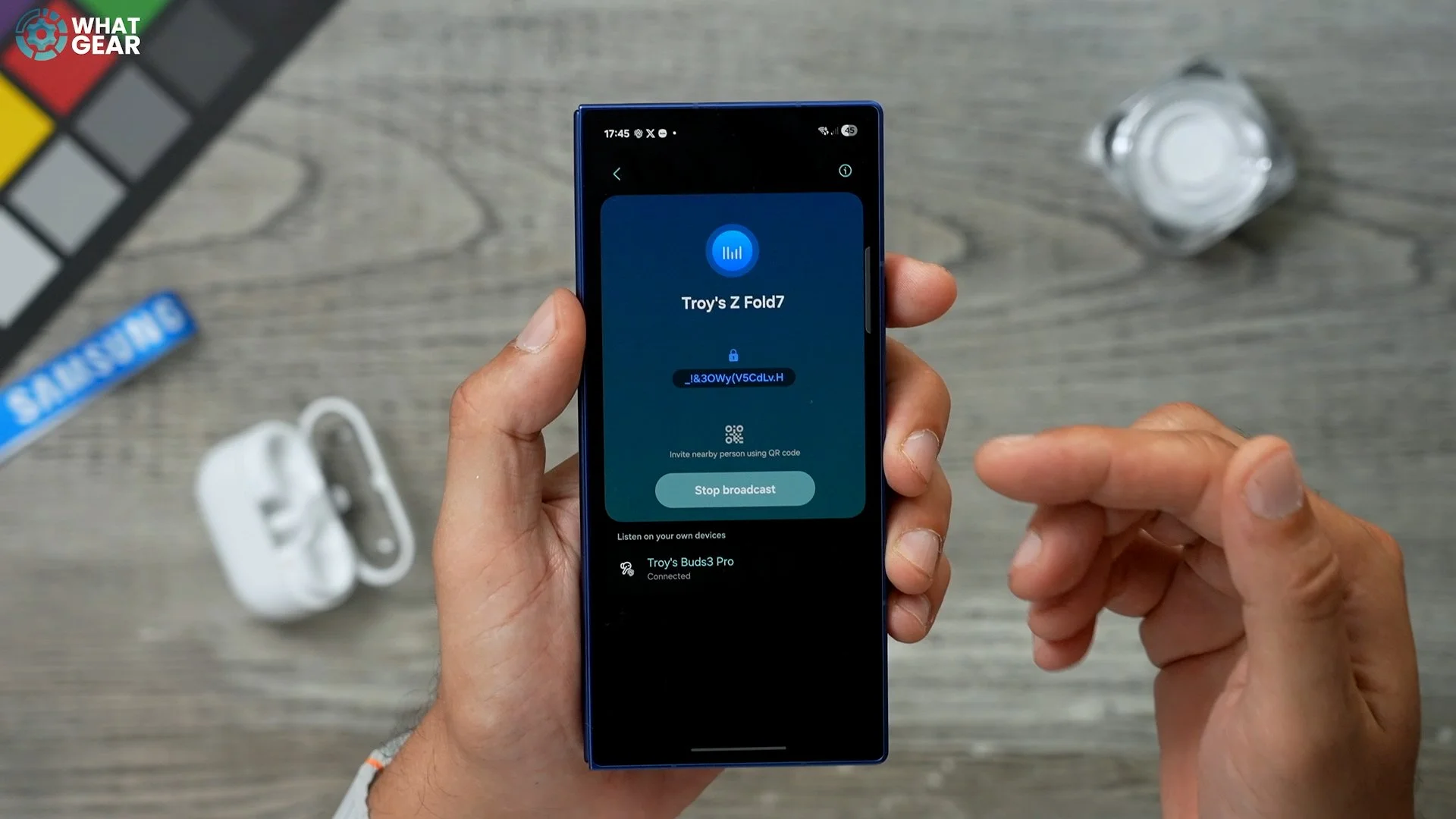
Go to details in the top right corner of the Bluetooth settings page. You will see broadcast sound using Auracast. It's kind of redesigned, but the new feature now, once you start a broadcast is this. You can create a QR code that someone can scan and then join you share the audio the headphones have to support Auracast, though. It doesn't really work with iPhones, unfortunately. if the QR code doesn't work, you can just connect via the broadcast name with the password.
AI Suggestions
Here are some AI settings that I recommend you switch on on day one. If you go into your settings here and go to Galaxy AI here. Here, go to Writing Assist. Scroll down and go to Suggested Replies. This is off by default. If you switch this on, the AI will do his best to predict what you personally would say to a message. And instead of just giving you basic recommendations, it's going to give you much more advanced suggested replies.
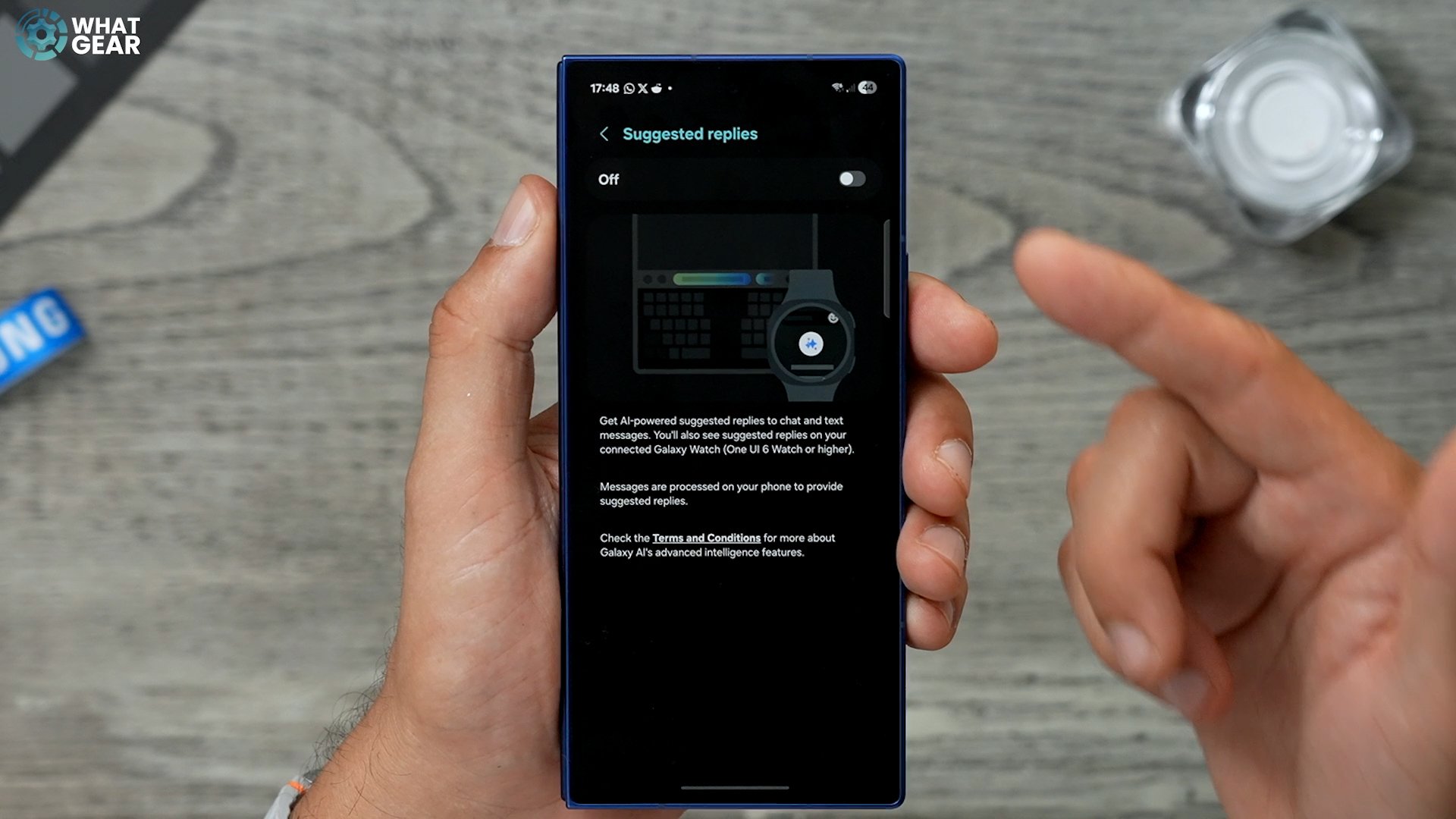
It will take a while to figure out how you communicate and the words you use and the way you say things. Once it does, it could be very, very handy. And it's definitely very handy if you use a Galaxy Watch because the keyboard on the watch is tiny.
Internet AI Upgrade
This one's on Samsung's Internet app. So once you open this up, when you're browsing the internet on Samsung's Internet app, you do have a bunch of AI tools. For example, whenever you see this little sparkly star at the bottom, if you tap that, you can summarise, translate, and even have the highlights read out loud. I'm just going to summarize this. So this is the classic way it used to appear. So as you can see, when you unfold the phone and even when it's folded, the summary takes up so much of the page.
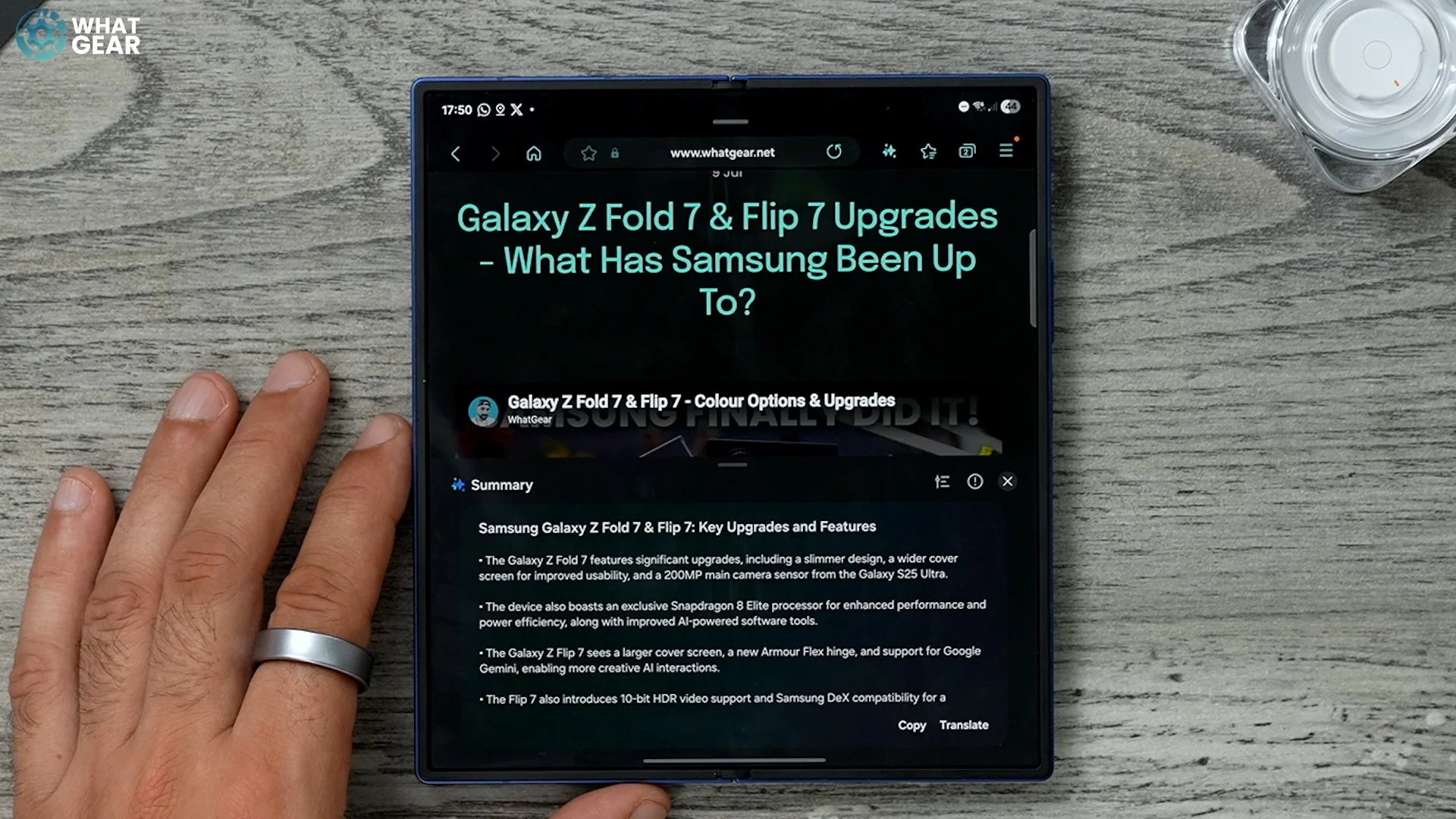
And maybe you want to keep that on hand, but you don't want it to be blocking what you're looking at. What you can do now is actually tap this little line right here and hold it, and that shrinks the summary page so you can actually move it around and out of the way so you can carry on reading without it taking up too much of the screen.
Background Audio Hack
Keep the Samsung Internet app open for now, because this next tip could be extremely useful for anyone who doesn't have YouTube Premium. Within the Samsung Internet app. If you go to the settings app here, top right corner. Here, there's a section called Useful Features. Go to this. There is something here to switched off which you should definitely switch over right now. Background play. So you can set this to headphones and speakers only or just on in general. Now let's say there's a video on the browser on YouTube that you want to listen to, but you want to lock your phone because you're going to be walking down the street. If you don't have YouTube Premium and you try and do that within the app, it won't let you do it. If you do it here within the browser.
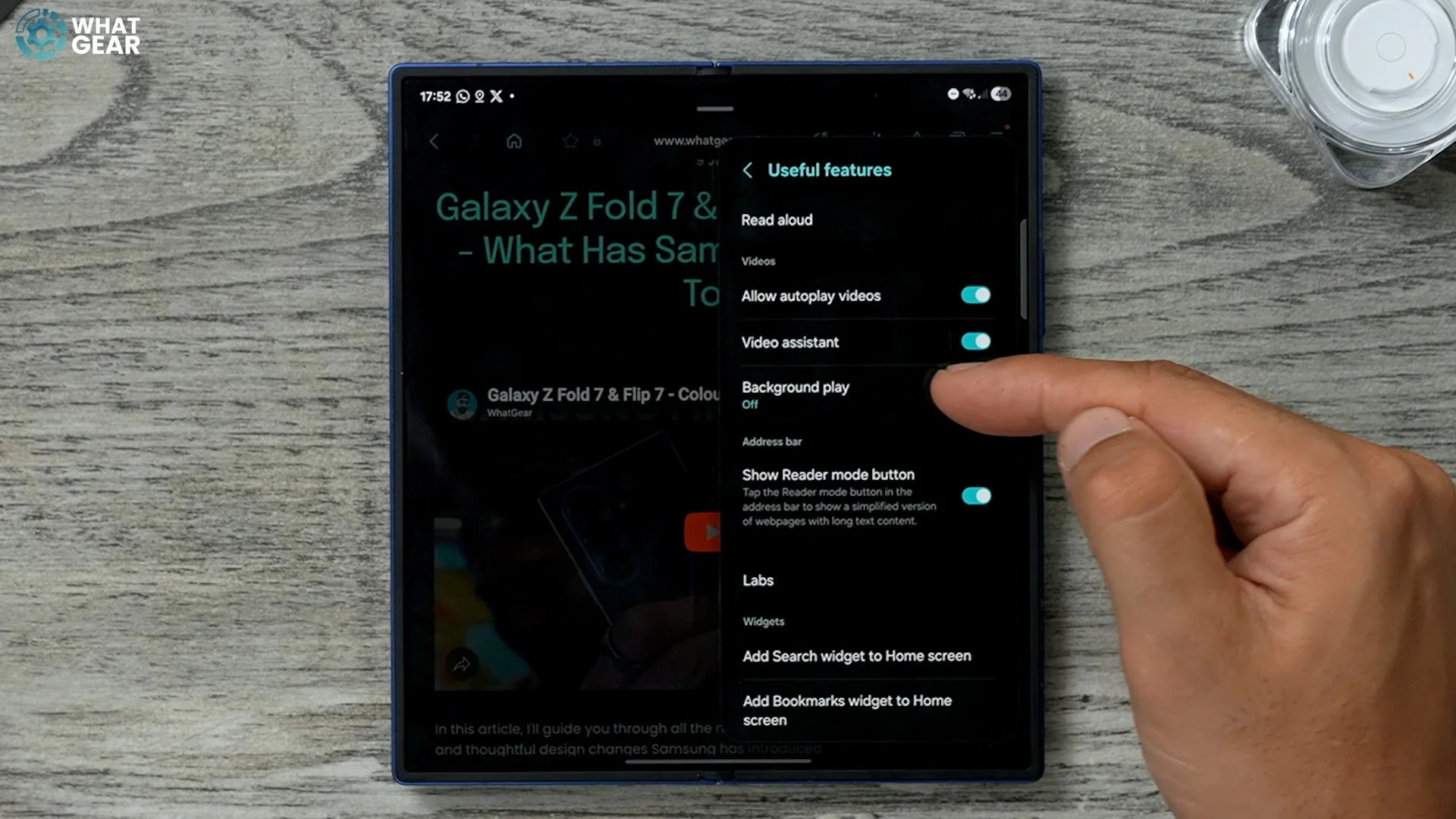
How is that going to take you guys on a guided tour of all the upgrades and improvements and even the subtle changes, I've locked the screen and you can see in the now bar is still playing in the background, like I have YouTube premium. And also, not only does it appear that it is playing in the background, it also appears up here top left corner. So essentially you can stream audio from any website on the internet via the Samsung Internet app and have it play in the background.
Anti-Ad Trick
This next one is also a Samsung Internet app feature, which I do recommend you switch on on day one if you hate ads, which is most people I'm guessing. So if you open the Samsung Internet app again, go to the settings in the top corner and then go to settings and scroll down again to Useful Features.
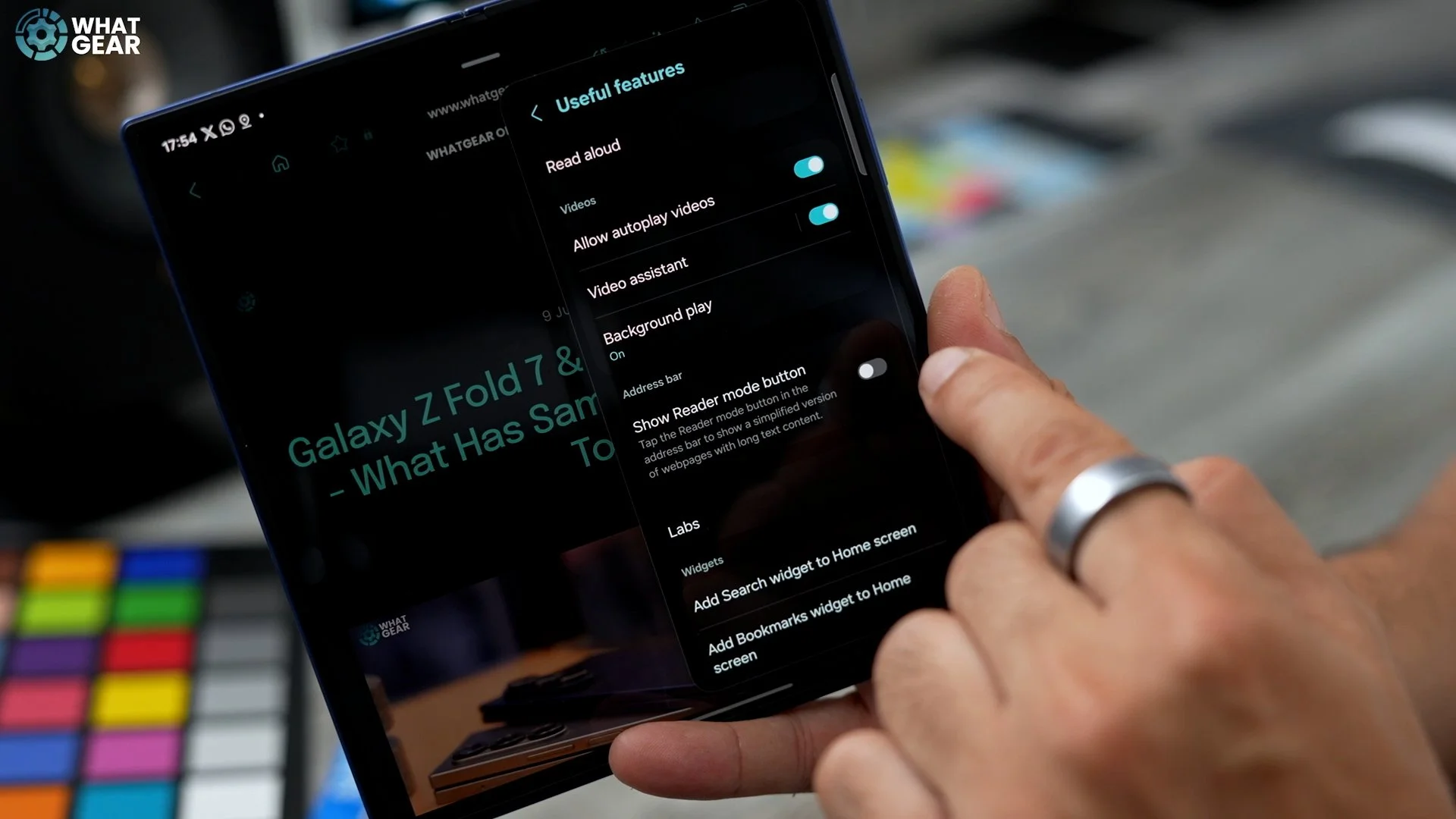
This feature right here will be switched off, and you should definitely switch it on, Show Reader Mode button. Now that you've activated this button, if you go to a website that has loads of ads and things all embedded in it, you will see the reader button up here. So if you tap that, that then strips all of the ads out of this and puts it into a nice easy reader mode. And this is all in German for some reason. And let's say you on the website is all German. You can actually use the AI to translate it as well.
Flex View Tools
Here's a unique feature on the fold phones. If you fold it in half. This is called the flex. Here you see a little button pop up down here bottom left corner. Here are the flex view tools.
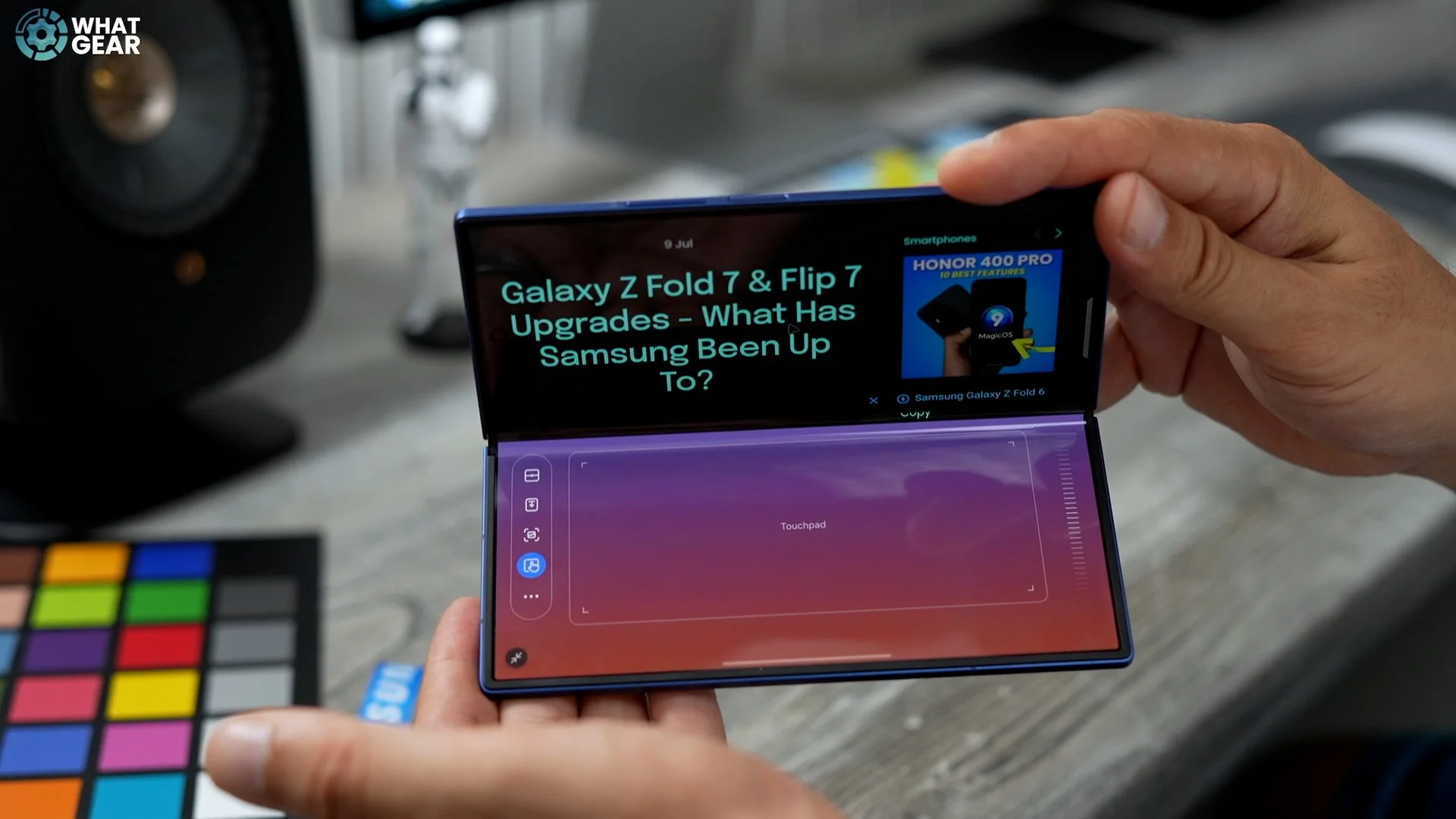
You've got a trackpad that recognises gestures just like a mouse. You've got a scroll wheel to scroll up and down through documents. And then on this side you've got a screenshot tool. You got a notification dropdown button and multi-screen options for a split view. And then you've got even more tools right here for like brightness and screen record, amongst other things. So it's definitely worth exploring these.
The PDF Problem
This next tip can solve a big problem for a lot of people, but only if you know how to do it. Let's say someone sent you a document and you need to sign it and send it back. And you don't have a dedicated app for doing that. Well, the good news is you can do it using Samsung's own notes app. So, this open Samsung Notes can swipe out the panel, and go to the notes app here. At the top, you'll see a little plus, and it does say PDF. Assuming that you've just downloaded that document, you can open it straight from here, and it will open it up within the notes app, scroll down to the area where we need to sign it. We can hit the pen up here in the top left corner. And then, just with your finger, you can sign the document. Once you've signed it, you can then go to the three dots in the top right corner. And then save the file as a PDF to wherever you want on the phone.
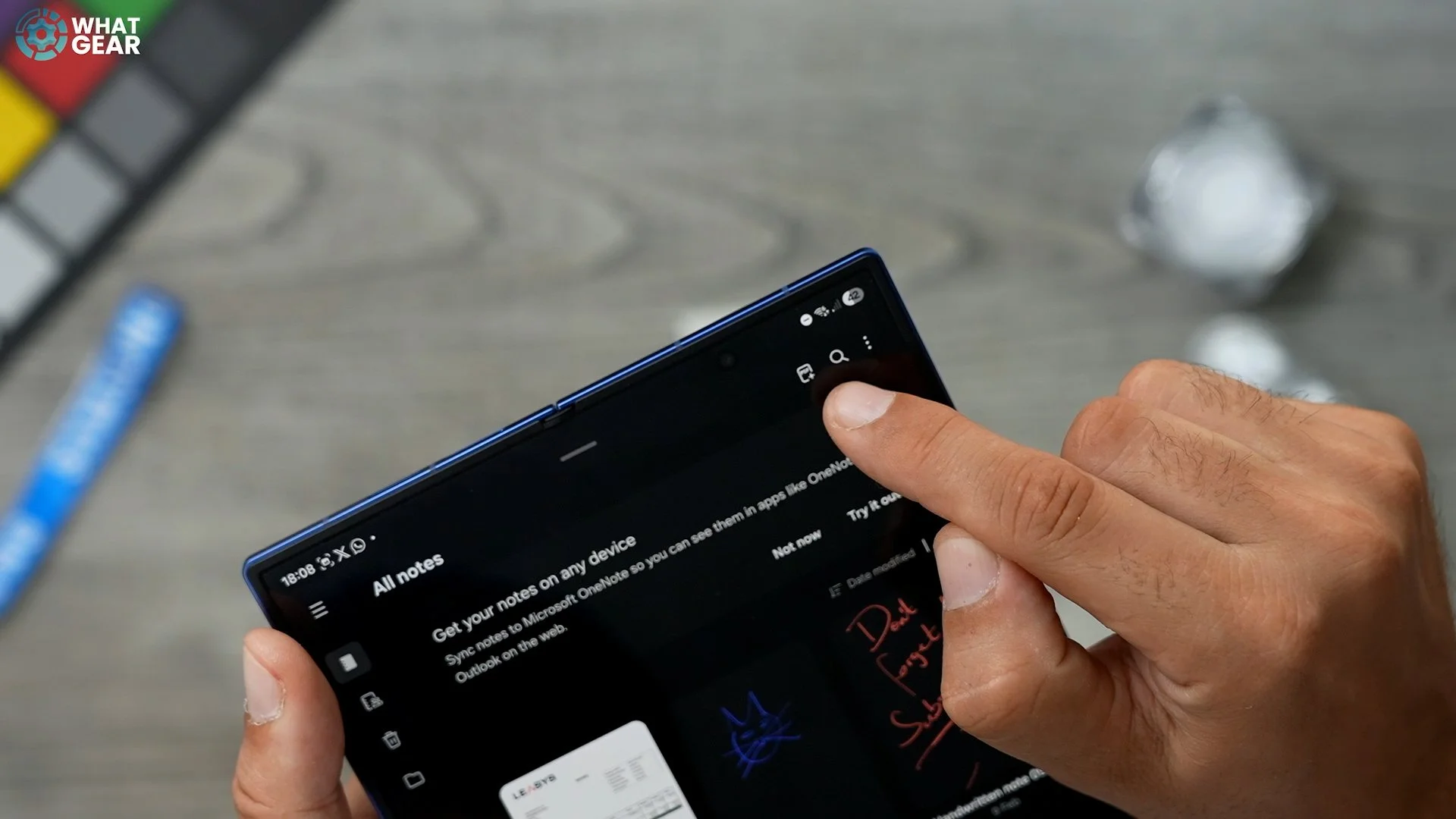
My advice would be to save it to the documents folder, and there we go. We've now signed the PDF. I saved it to the phone. It is in the documents folder. If you want to find the documents folder, Swipe up. Go to the Samsung folder. Go to my files, and then here you can find your documents right there. Now I know that's a bit of a painful process finding the My Files app so you could add it to the home screen, or you could even add it to the edge panel. If you want to add it to the edge panel, just hit the little pen and go to my file. Hit that there and we can add it to the panel.
AI Call Transcribe
Here's another AI trick. Go into your settings Galaxy AI on the left, transcribe assist on the right. And here you'll see the option to auto-transcribe voice recordings. So with this on, whenever you record voices using the voice recorder, it can transcribe them automatically into text. And you can then summarise them. And they've extended the amount of time it can be. So now when you receive a phone call, you have a few new AI options available to you. So you've got call assist. If the conversation is going to be in another language, you can go to live Translate if you want. When you pick up the call, you see this little icon?
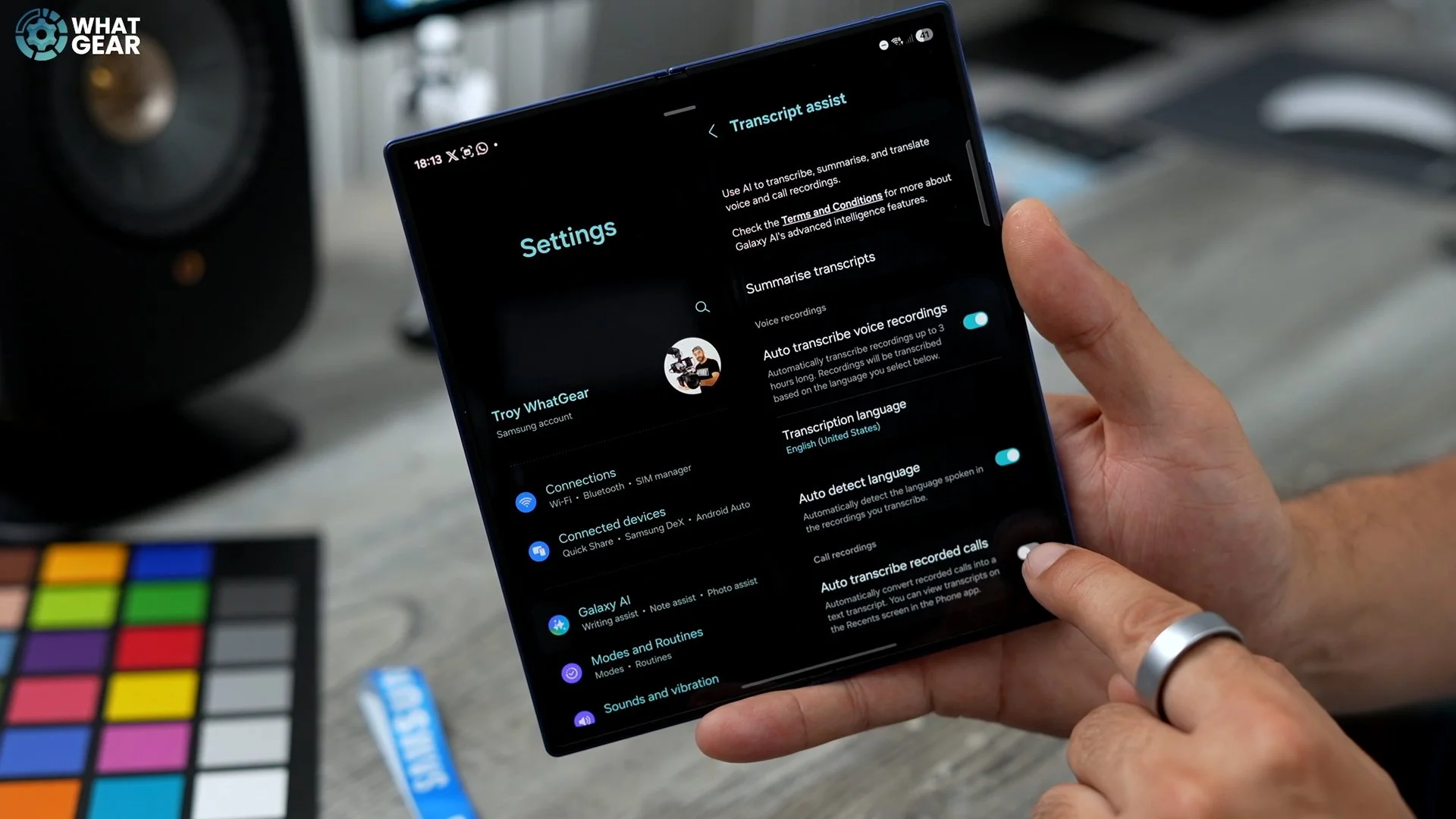
Here is a little cassette tape with a letter next to it. If you tap that, that alerts the person on the other side that they are being recorded. And this would actually take that conversation and turn it into text. And then you can access that later on. If I go back into my phone app and then go to the call log, you'll be able to see that there is text linked to this particular call. And let's say it was a particularly long conversation. There's even the option to summarise that entire chat, So you can extract the key parts of that conversation.
AI Art Adjustment
Remember earlier on how I showed you how you can use AI select to grab images or whatever from websites, and even use the drawing assist with whatever it is you're extracting. Well, there is a little setting you can play with here to improve the results you get from the drawing assistant. So, if you go into your settings, go to Galaxy AI. On the left side, go to Drawing Assist on the right side and go to Sketch Matching Strength. Here you can adjust how accurately the sketch. If you have really bad drawing, then I would set it to low because that gives the AI a bit more room to play, and then if you set it too high, it will match quite closely what you've drawn, and that's ideal if you're pretty good at drawing.
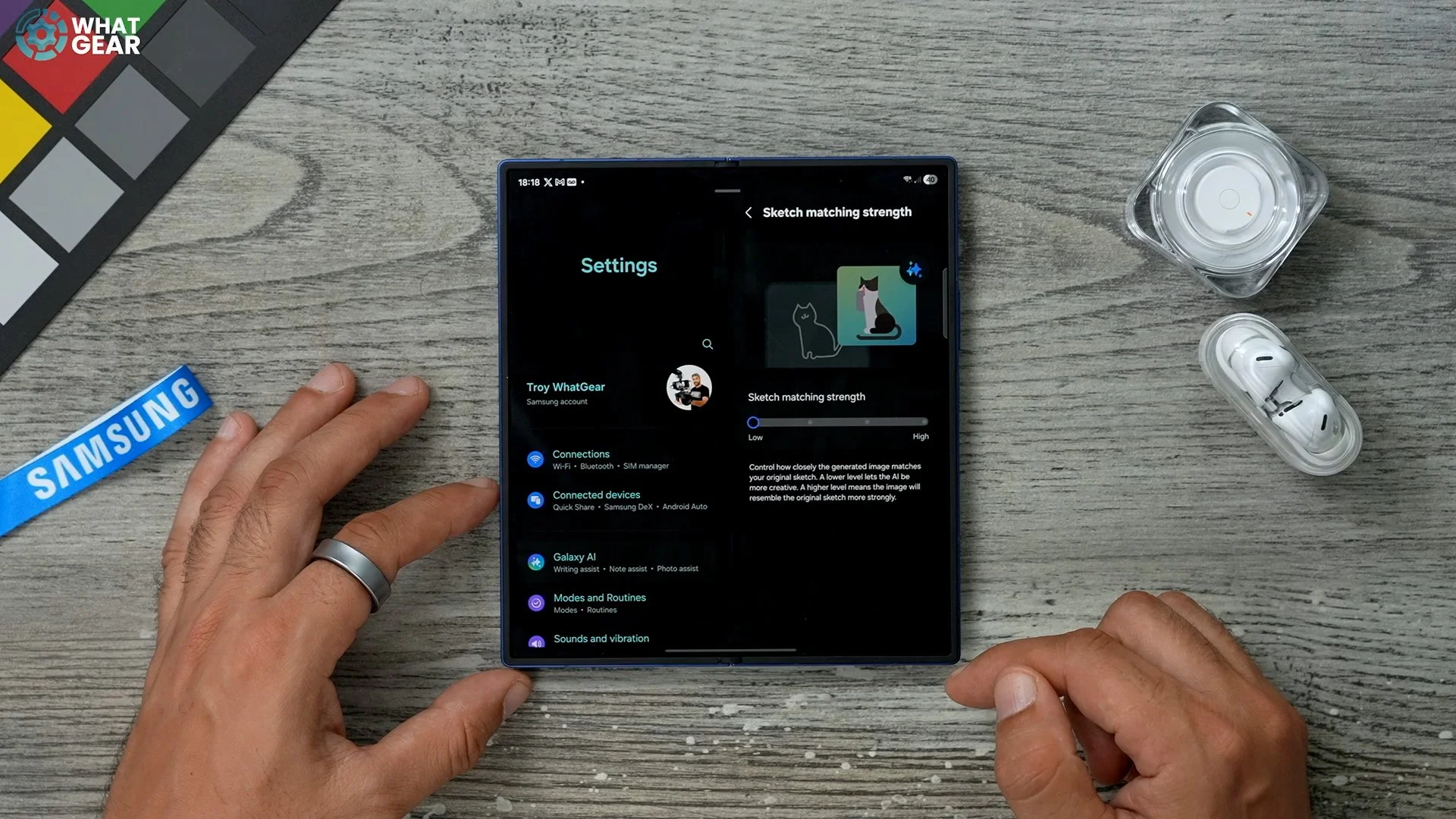
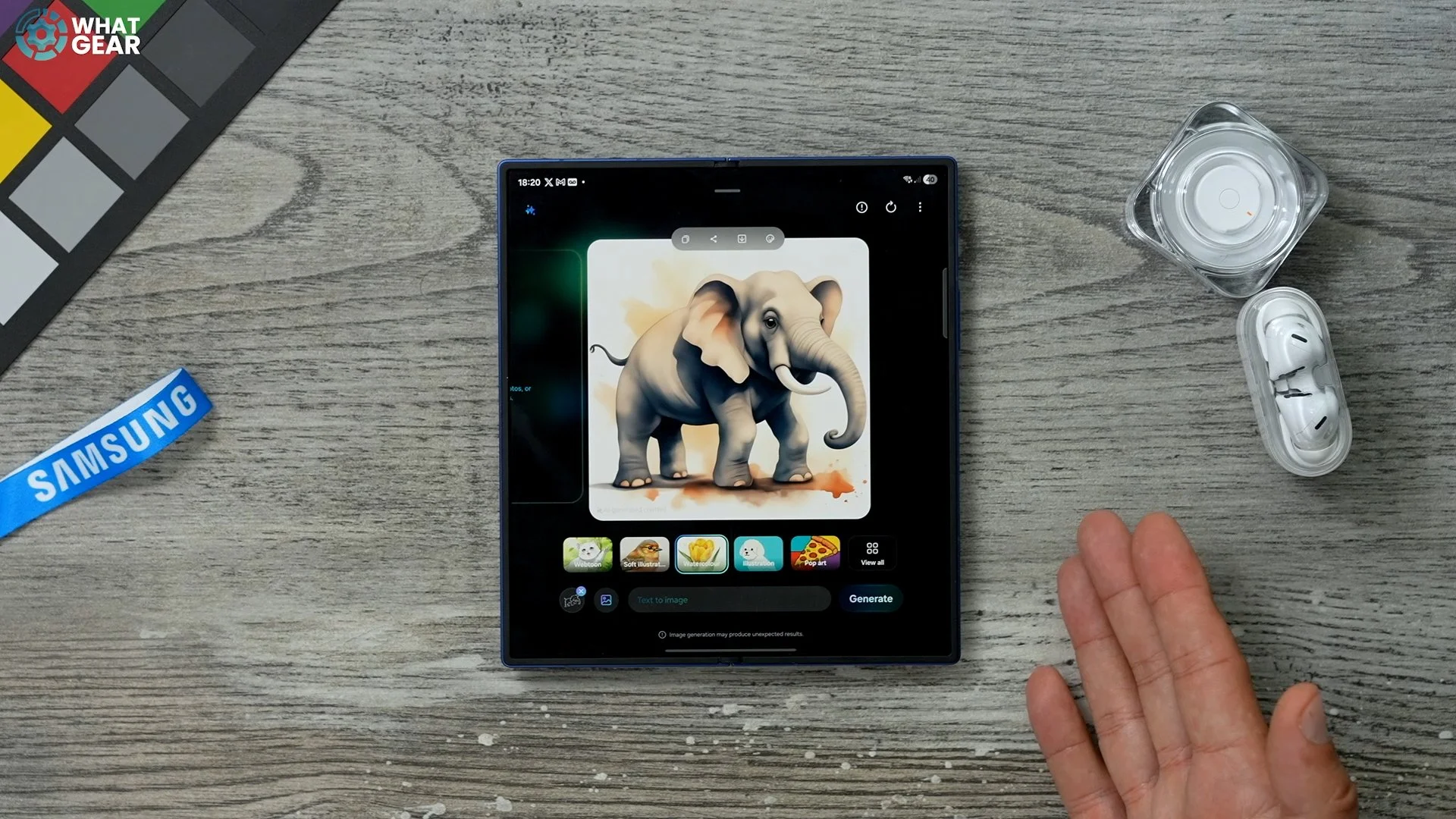
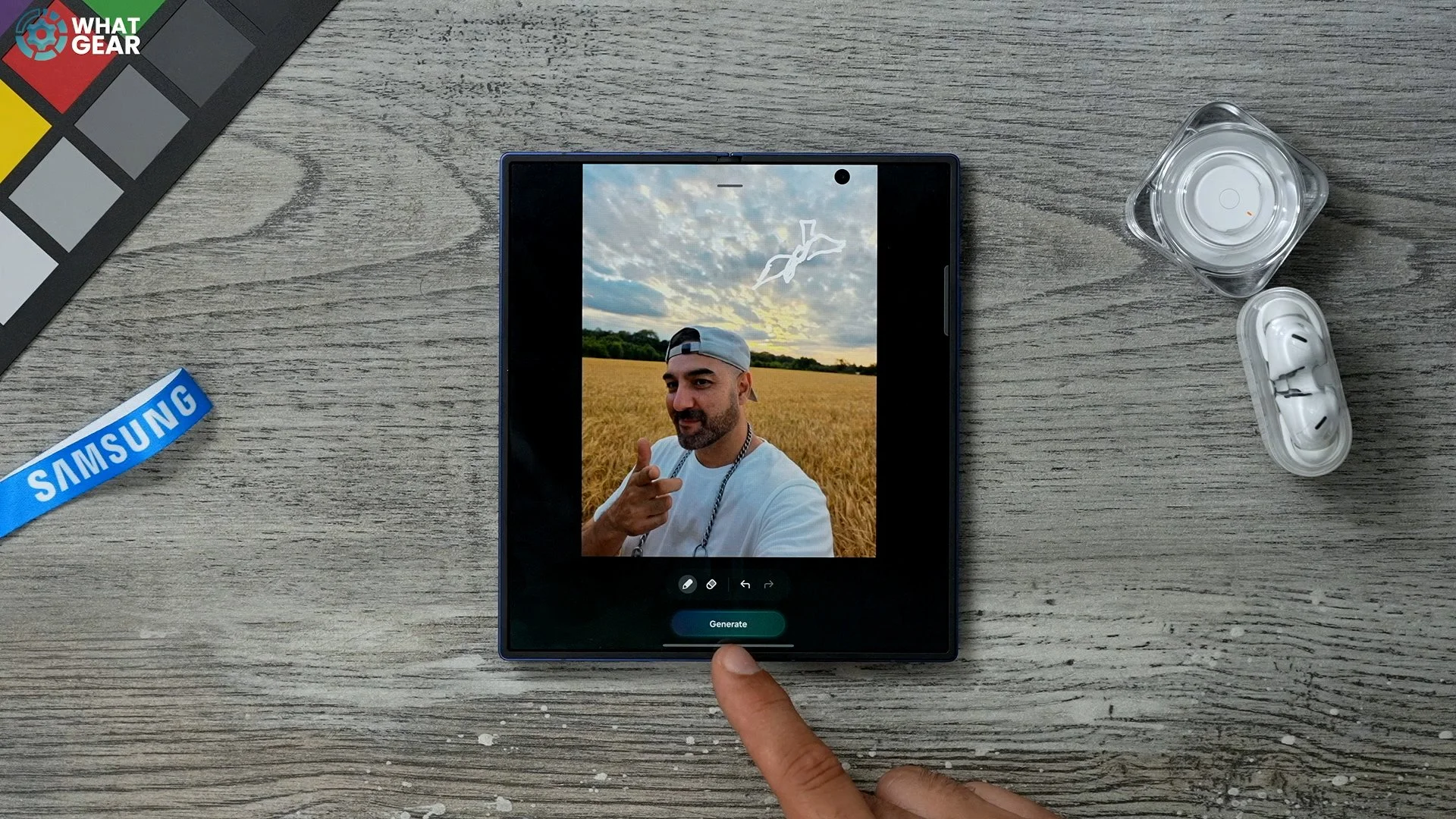
Now that I've set up, if you want to quickly just sketch something and turn it into an image to share with a friend or something, here's how you can do it. Swipe out the sidebar. Here you will see the Drawing Assist app. Go to that. You have a few different options here. You can add a photo to this, or you can hit this little icon down here to draw something. Now, another feature that that little setting can affect is the sketch to image. So, if we go back to the regular version of this photo, hit the AI at the bottom here. This brings up a bunch of tools like Generative edit, but this is what I want to show you, to sketch to image. Let's say there should be a bird in the background of the shot sweeping down like that. That is a really bad drawing, but let's see what it can do. It's taking my rubbish sketch and turning it into something pretty decent.
Upgraded Audio
Here's a setting that you will only want to do if you have Galaxy Buds. And this is kind of exclusive to the buds as far as I know. If you go into your settings, go to the buds settings, go to Cell Quality and Effects and in here go to Advanced Quality Options.
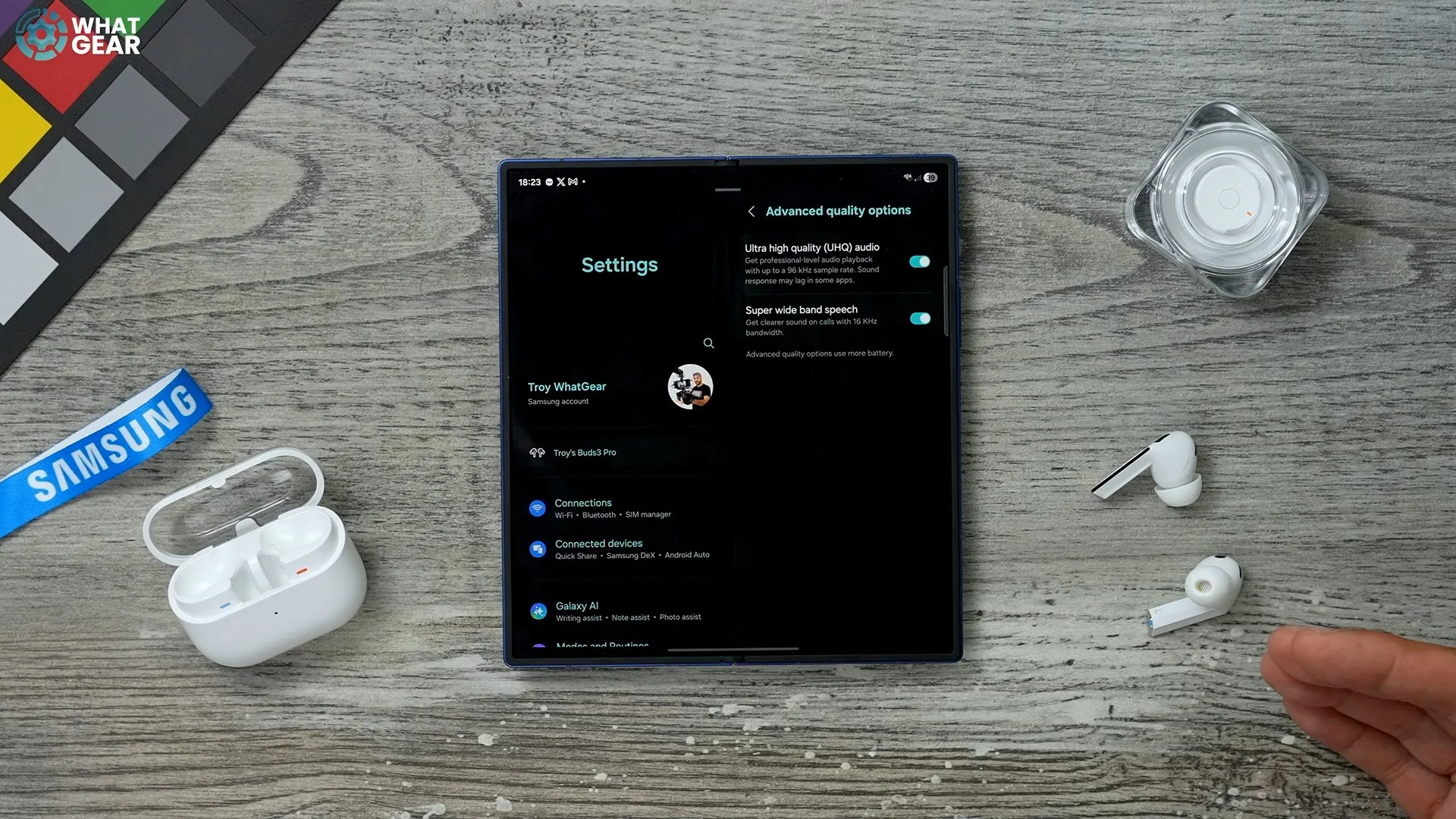
For some reason these two features are switched off. Uncheck which is ultra high quality audio, is a better codec for your sound and also super wideband speech, so this improves the voice pick up. Switch these on if you have these earbuds or other Samsung earbuds to support those.
Wireless DEX
So there is a killer feature here that Samsung has, and I don't think anyone else has done this quite so well. It is this if you swipe down from your quick settings, there is a feature here called wireless Dex. So this essentially will scan your Wi-Fi network and look for TVs that are compatible.
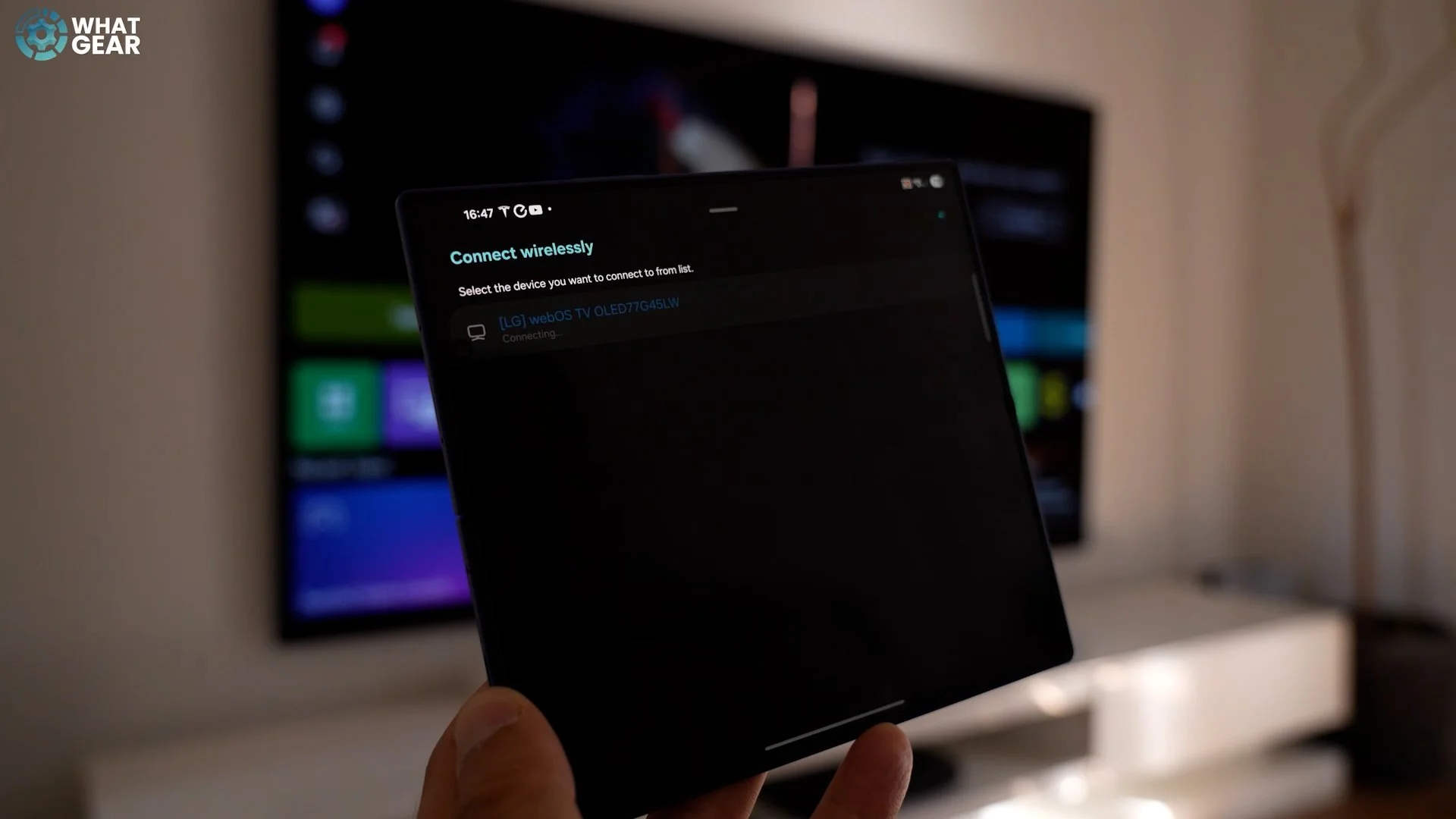
In this case, this TV is, in the front room. Essentially, what I would do is take over that TV screen and turn it into a desktop-like experience with your phone as the computer. So if you do want to play games or compare your phone to a TV, you can do it that way and open multiple windows and even connect up the keyboard and actually use that TV as a proper PC.
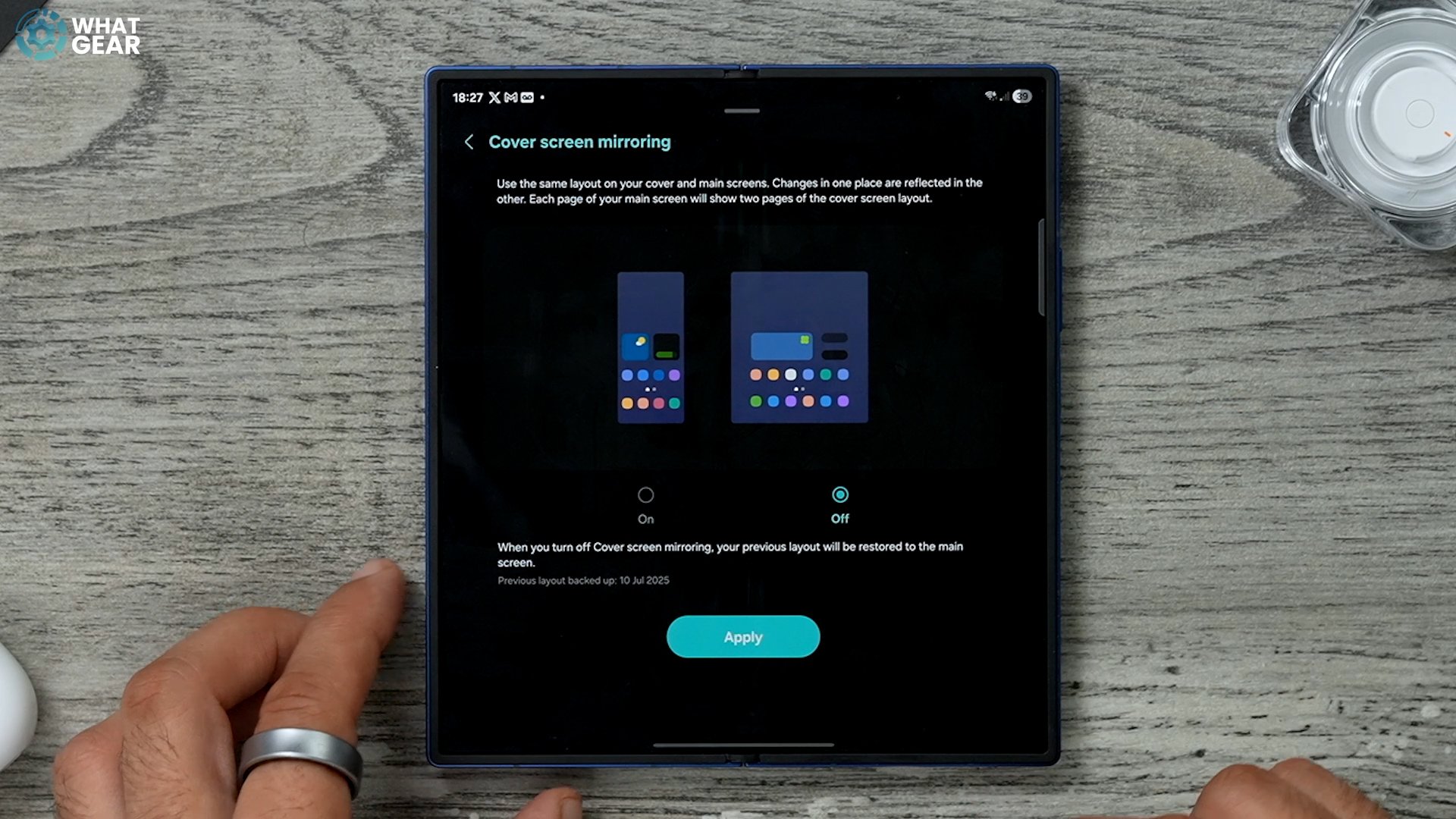
Cover Screen Mirroring
Here is how you can have a unique set-up on the inside, and a unique set-up on the outside that doesn't affect each other. Hold your finger down on the screen. Go to settings. Turn this off. Now you'd have to spend a bit more time doing it, so you could have more folders, more apps, big widgets, all that kind of stuff set up very specifically for inside.
If you guys want to dive into all of the unique things that you can do on Samsung Galaxy phones, then, definitely check out this video.
If you want to learn about the first things to do the basic set up to optimize this phone, I've also made that video.
