
Aqara G410 Video Doorbell - Setup & Review
If you’re in the market for a next gen video doorbell, my guess is that you don’t want to buy one that delivers blurry video & distorted audio. Also you probably don’t want to buy one that's tricky to set up and frustrating to use. Well, this video doorbell from Aqara the G410 could be what you’ve been looking for. And I want you to be the judge of the video and audio. And I’m going to walk you through the setup process here, so by the end of this video you’ll have a good idea as to whether you could set it up yourself. Also there are a couple of ‘Next Gen’ features here that really separate this Aqara G410 video doorbell from the pack. I shall explain. But first let me show you what you get with it in the box.
Design & Unboxing
So first out of the box is the G410 itself, I’m going to put this to one side and we’ll come back to that. Aqara provides a USB A to USB C cable for powering the Aqara chime repeater element. You also get a small philips head screwdriver. And the chime itself and this is more than just chime, you’ll see why. There’s also an optional back plate that can allow you angle the camera as opposed to having it look straight on. And the batteries are included and the Aqara G410 runs on 6 double A’s the one provided are Alkaline batteries, but can use lithium batteries or rechargeables. Battery life will vary depending on various factors. The amount of traffic in front of the camera is a big one. The best case scenario is up to 5 months.
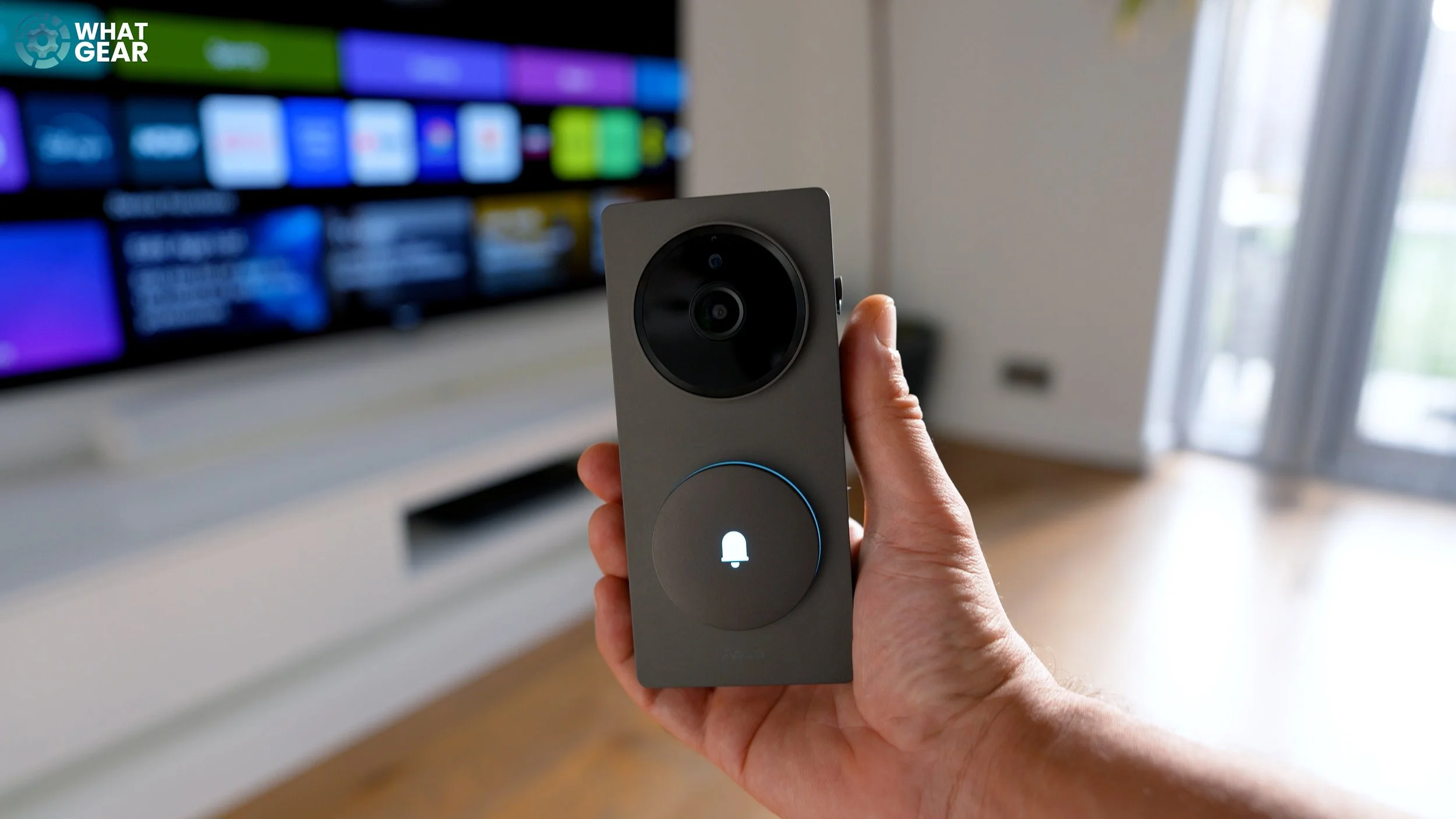
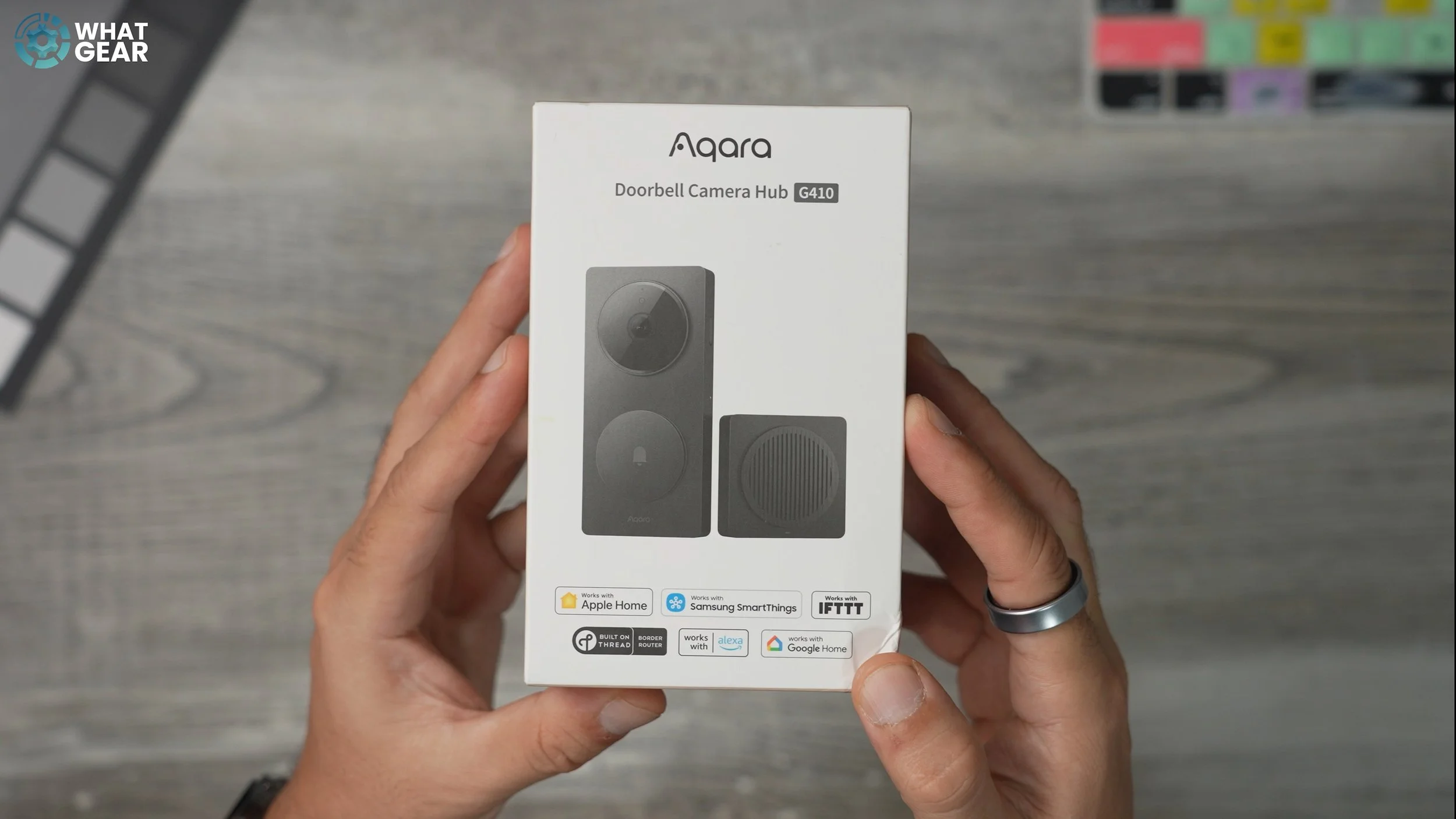
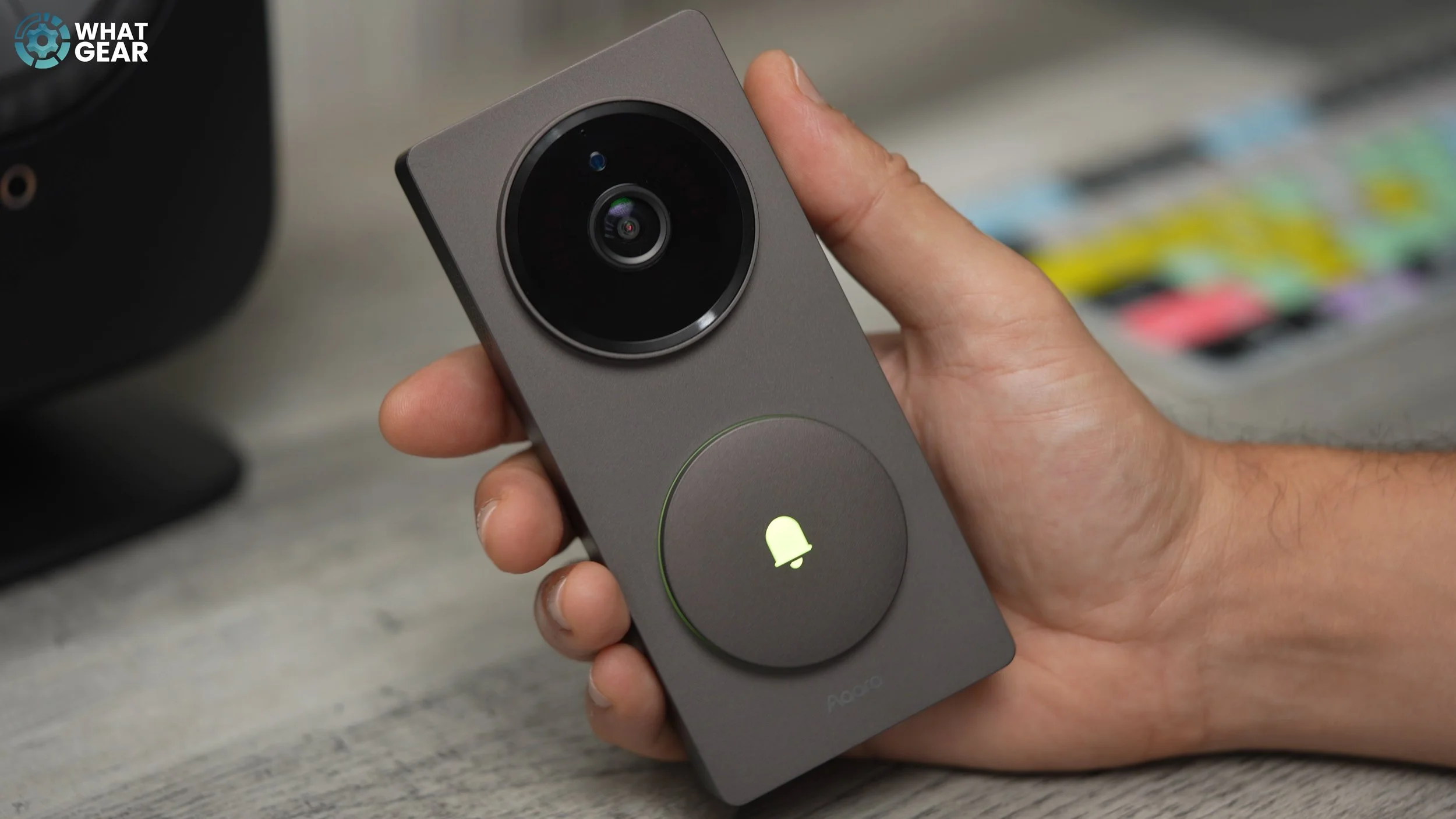
Now the Aqara G410 design is a really nice one. It’s these nice clean lines, slightly curved corners, speaker and mic grill on the side. Nice circular camera module, and doorbell button that mirrors the size of the camera module. And this button is edge lit, which lets anyone who uses it know when it’s been activated. Also if you activate the tamper feature, it will flash red and make a horrible noise if someone tries to steal it. I found that out the hard way, during the setup. So let me show you how to avoid that mistake and steps involved in the setup and installation process.
How To Set It Up
Ok, so there is one really powerful feature here that you definitely don’t want to miss during the setup. So to get started you loosen the locking screw with the provided screwdriver, you don’t need to fully remove it. This releases the back plate, which just slides downwards.
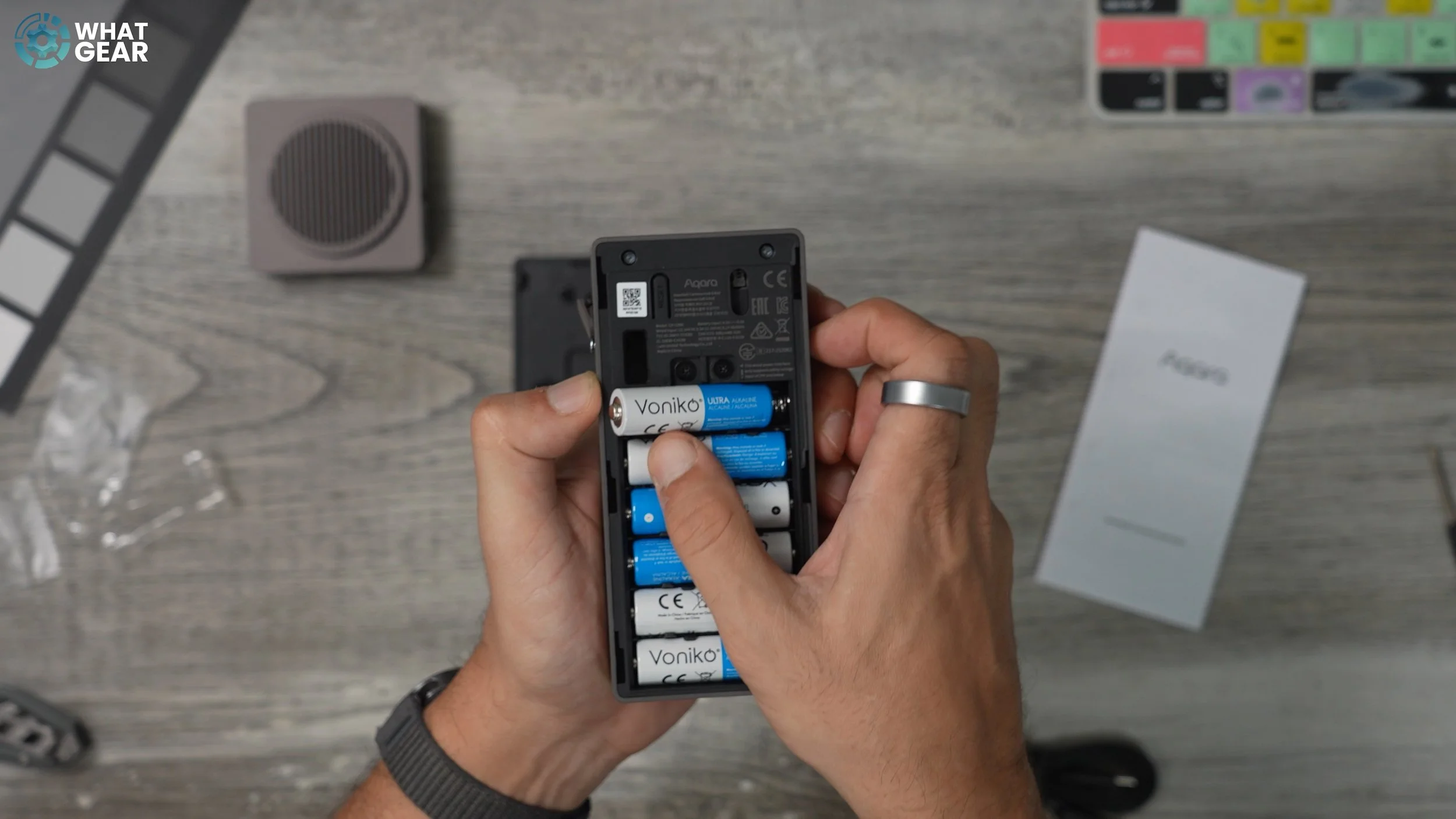
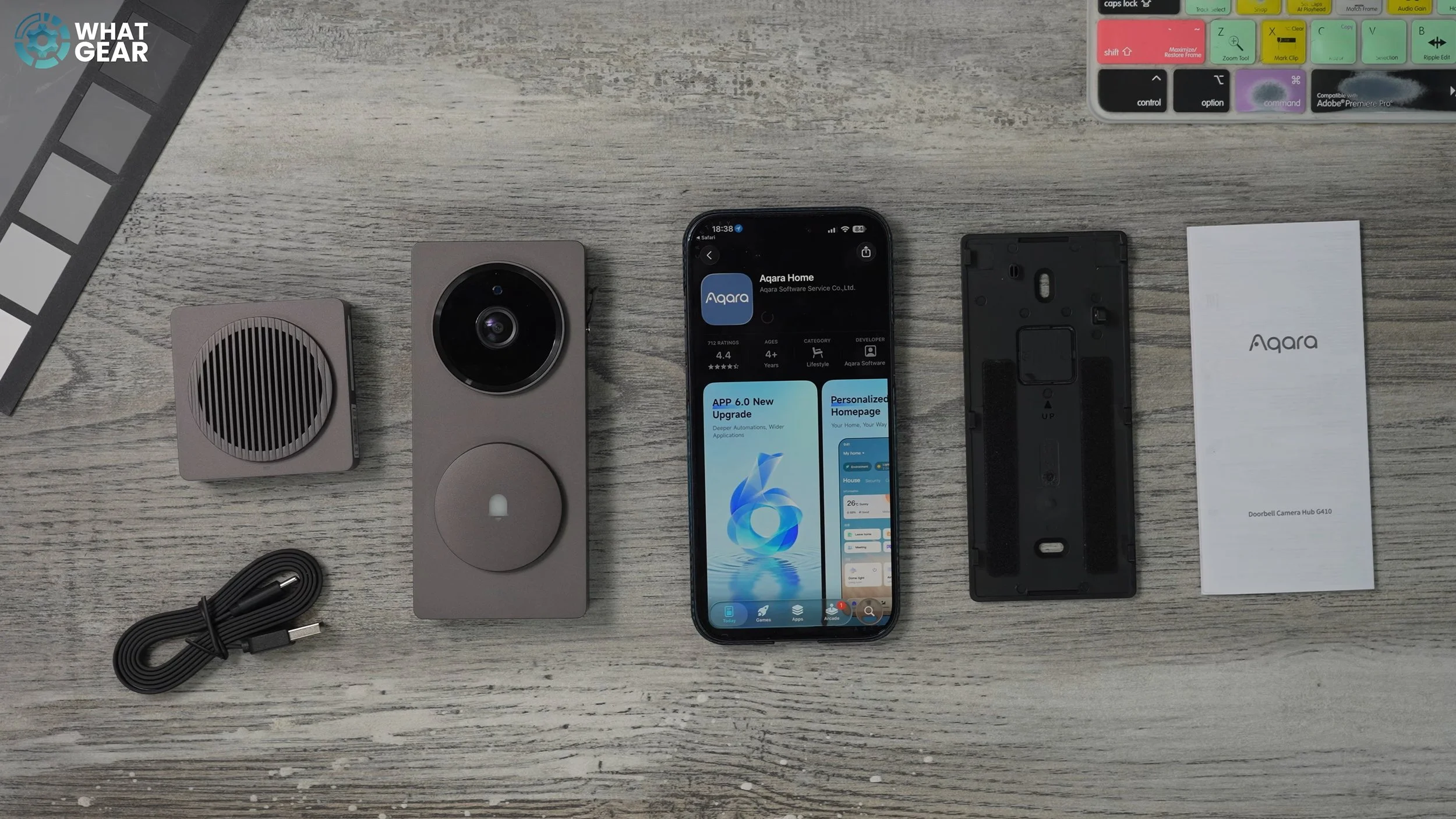

Now you can load up the six batteries paying attention to the directional markings of course. Now, you can either search your app store or scan the QR code in the quick start guide to download the official Aqara App. Then give it the necessary permissions and create an account. I just used the Apple ID login to keep it simple, but you can also use Google sign in if you’re on Android, or just setup the classic email and password setup.
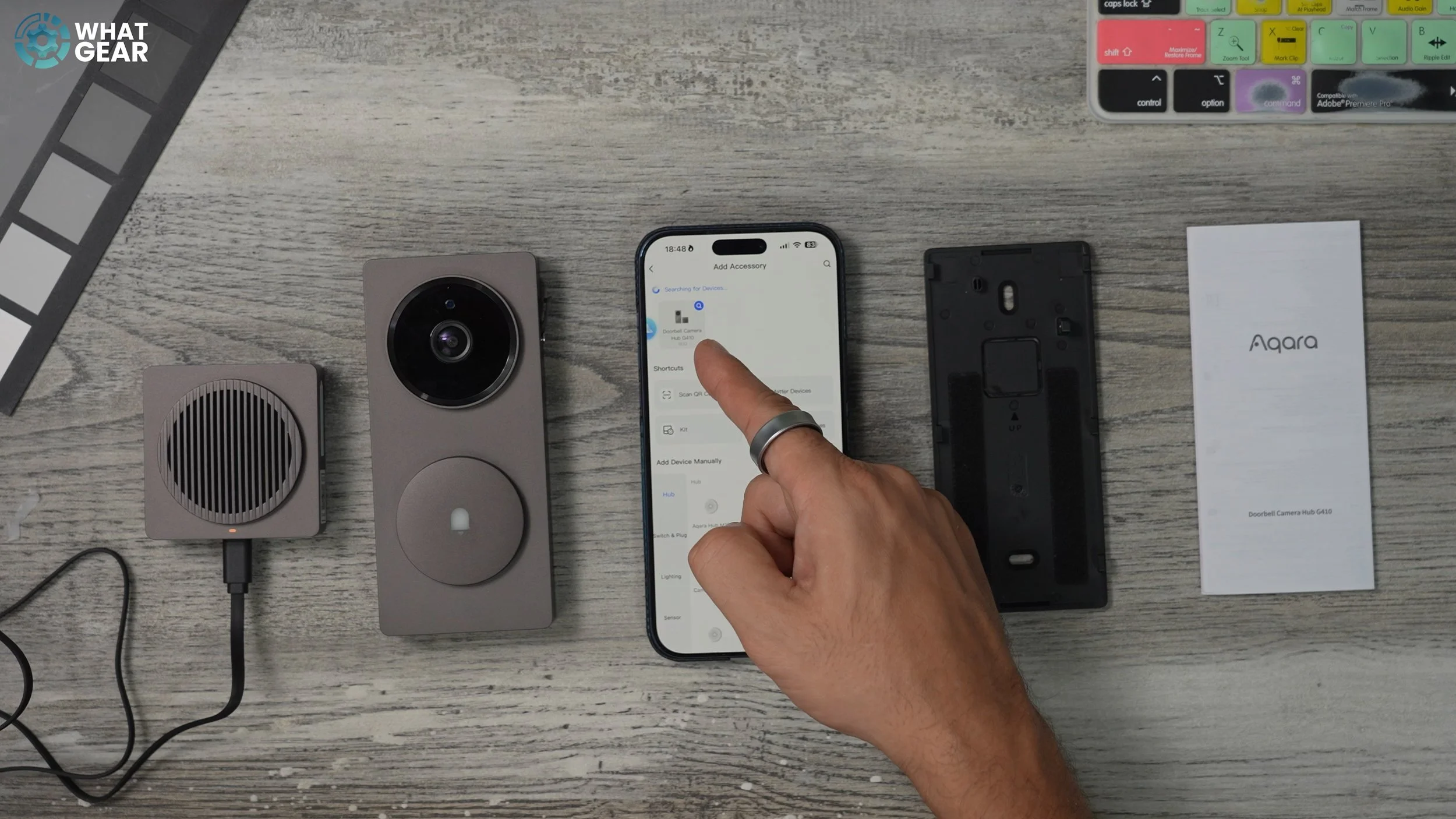
Once you’ve done that it is as simple as plugging in the Chime to a power source and pushing the doorbell button and it’s ready to pair. Now, that will ask you to scan a QR code & there are 3 but the one you are looking for is the one labelled Aqara. And that’s phase one done. Next, we just need to fix it to the wall next to the door. And then we can activate one of these doorbells' best features.
Installation Process
So, when it comes to mounting the Aqara G410 first up make sure you keep the provided mini screw driver handy. Also you should know there are 2 power options available. The G410 can run on battery, but it can also be wired into your existing doorbell's power supply & these are the two contact points. The great thing about this is if your power does go out the batteries can act as a backup. I’m going with the easier battery option. So, it’s important to get the height right. Because the Lens is designed to be angled slightly downwards to keep an eye on anything left on your doorstep. You got too high and you won’t be able to do it. So the ideal height is between 1.4 & 1.5m from the ground.
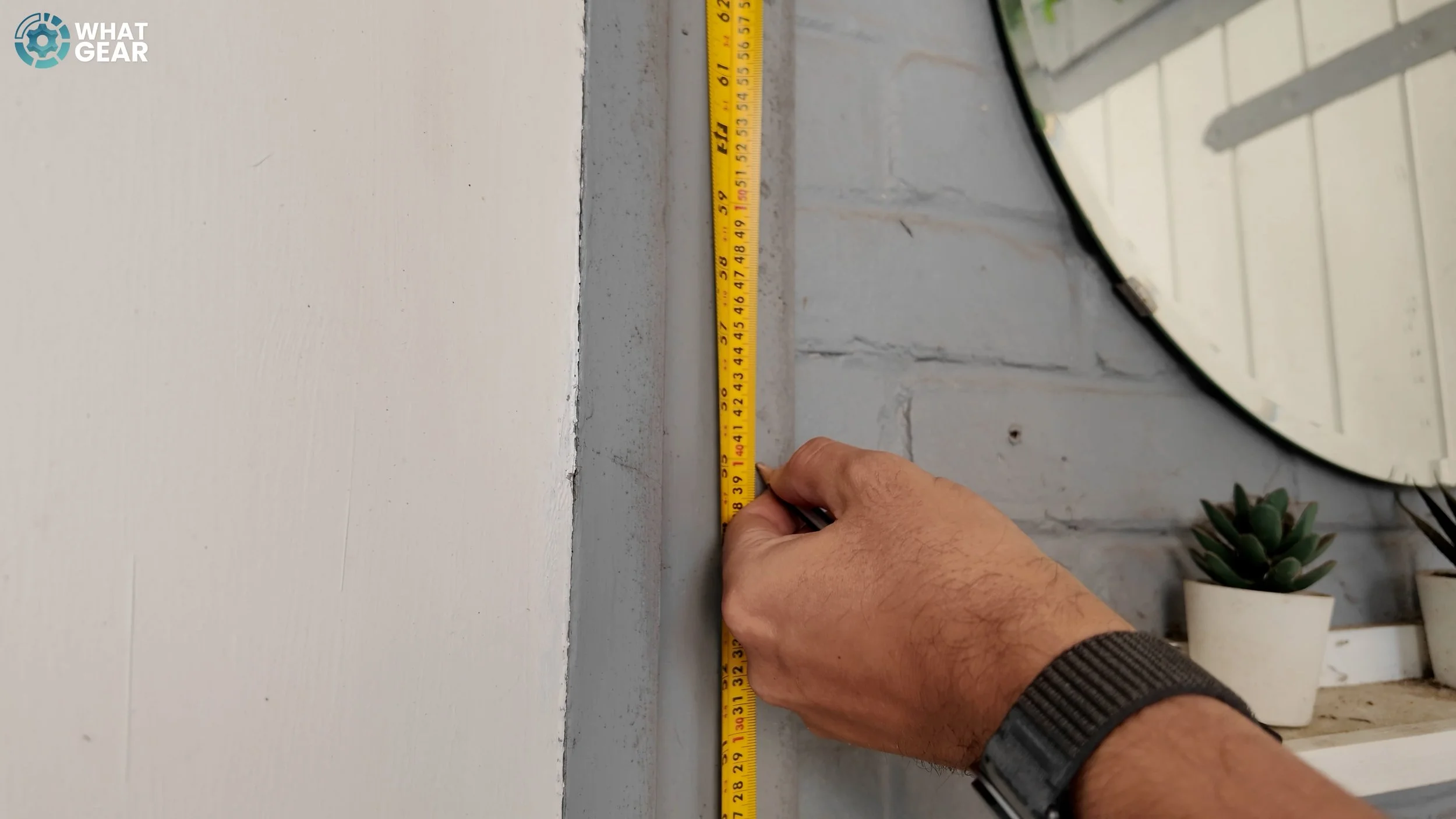
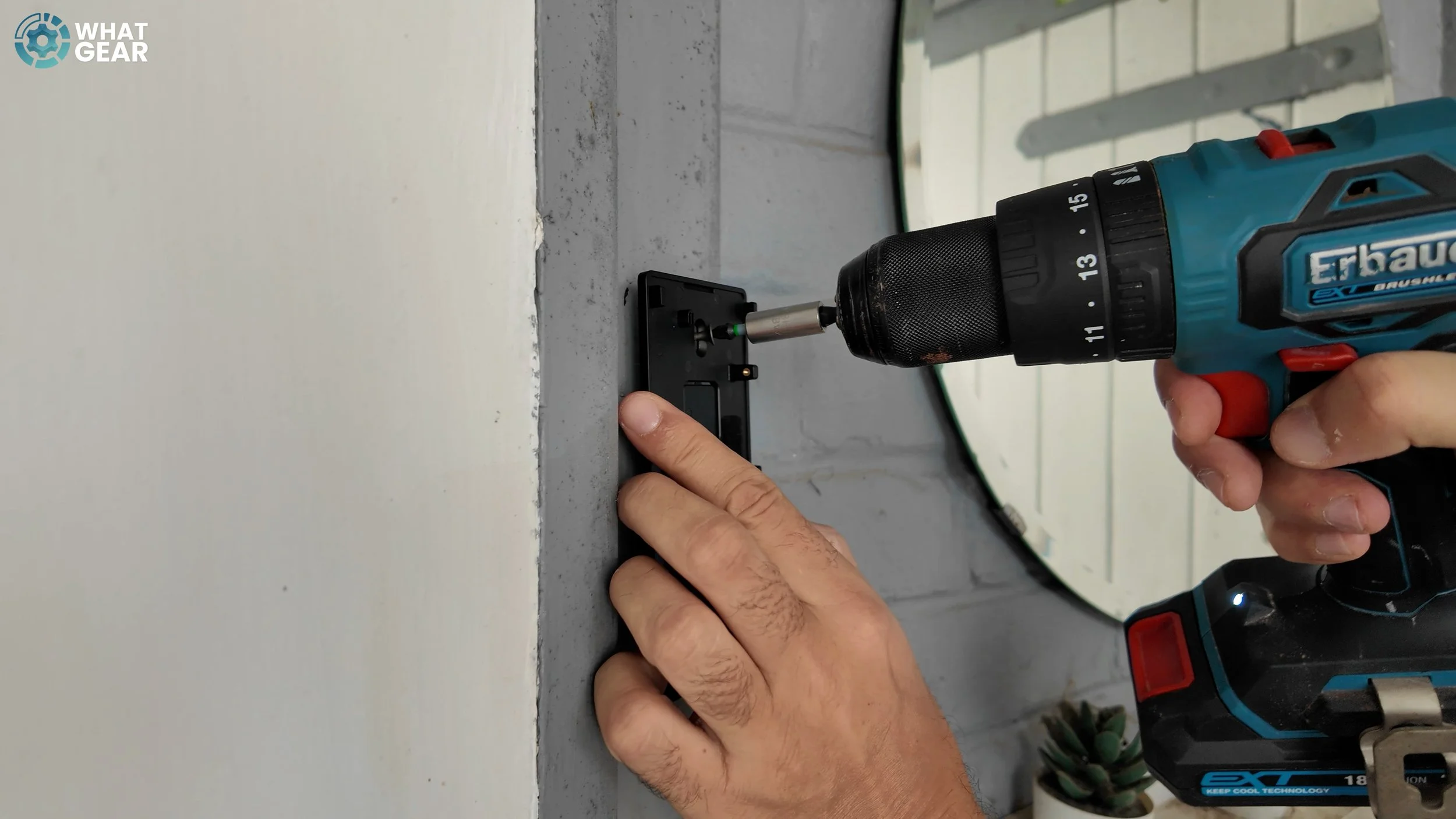
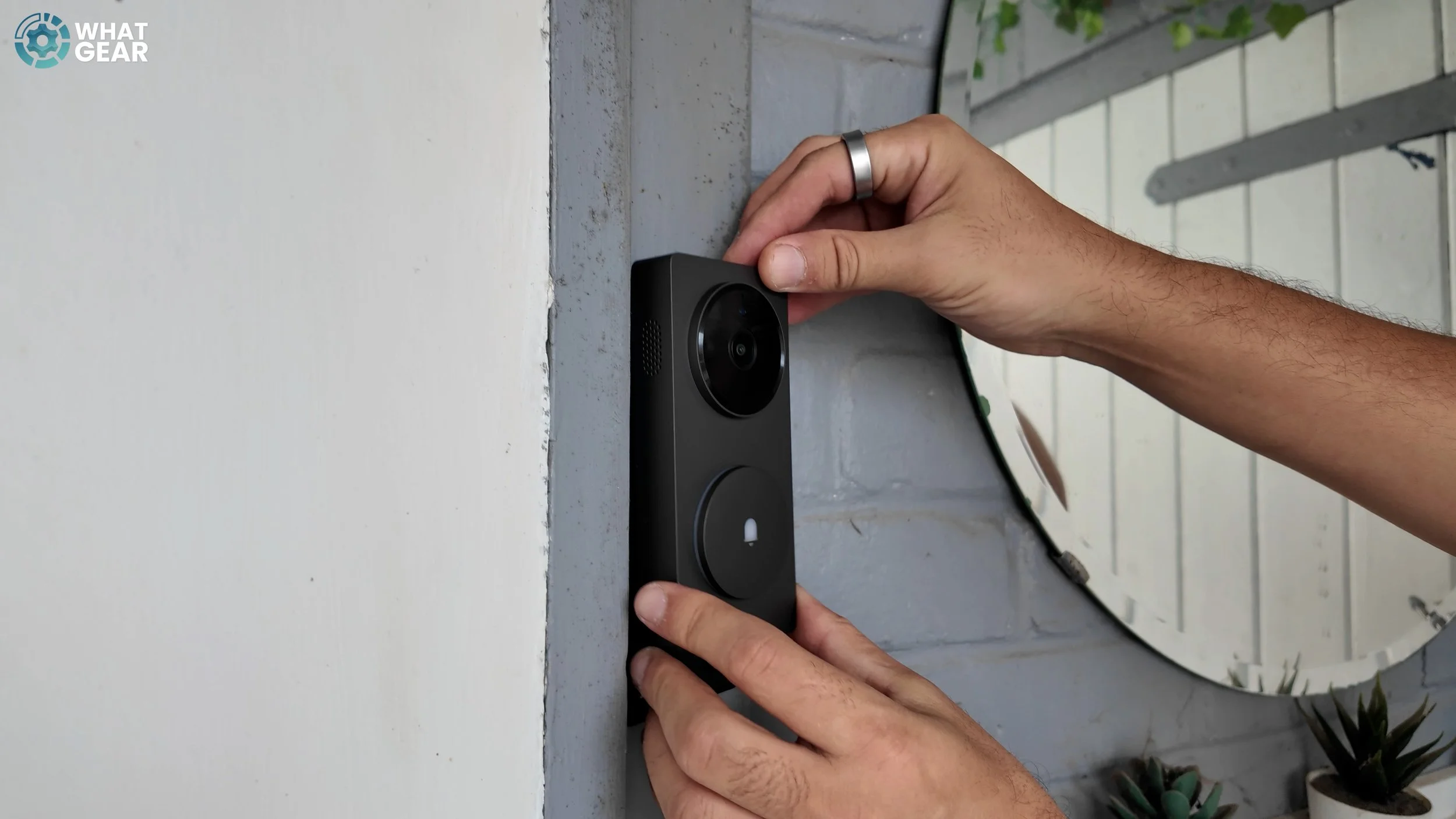
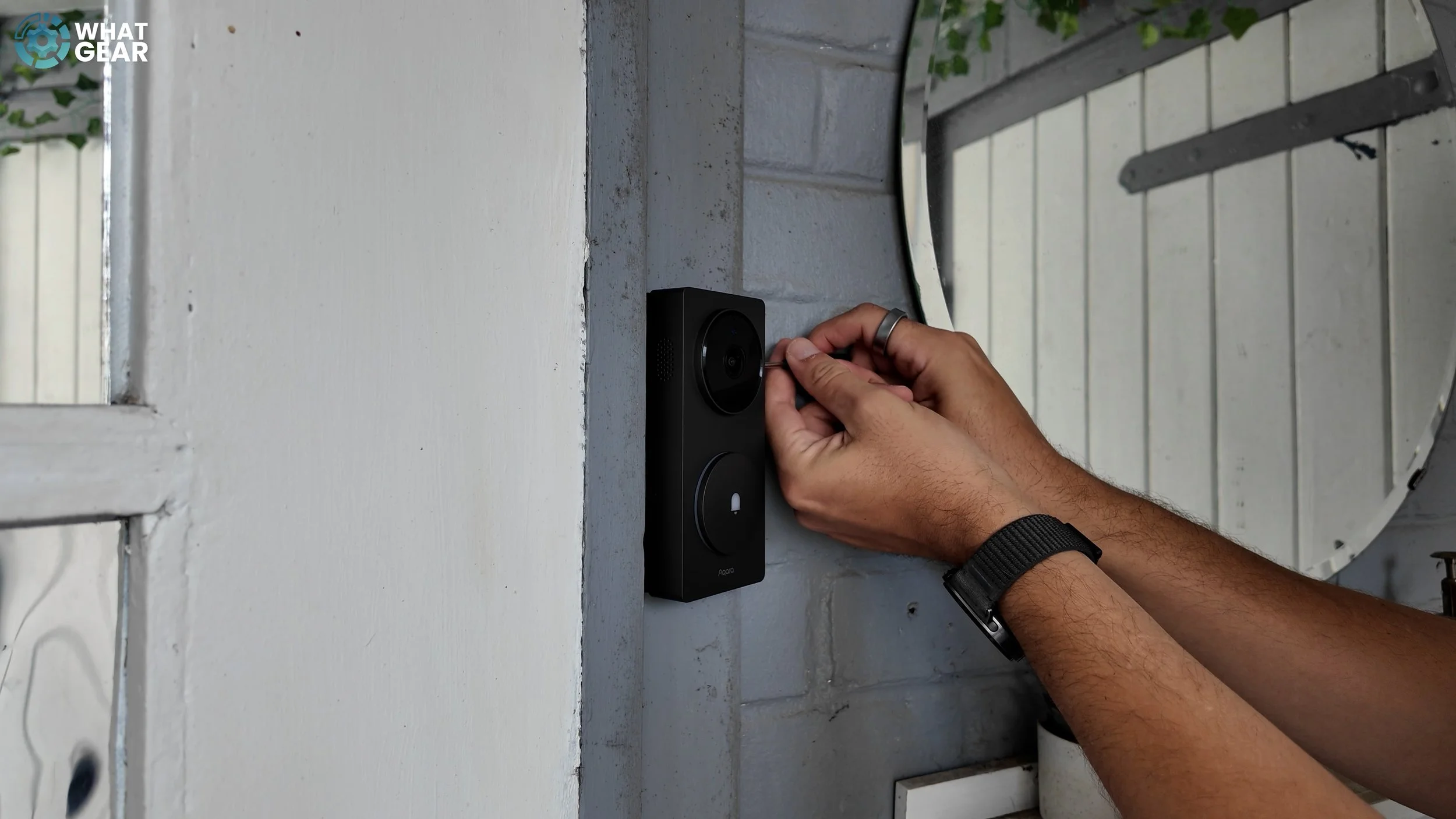
The best way to do this is to drill the top hole first, level up the backplate, make a marking for the second hole then move the bracket out of the way and then drill the lower one. This will allow you to get the doorbell levelled perfectly. Now you simply click the doorbell on & tighten the safety screw.
The next step is very important. The chime element is actually not only a chime it’s also a signal repeater and this should not be placed more than 10 meters away from the doorbell itself. Also this element requires constant power supply. So you will need to locate this near a power outlet and there is a pre-installed sticky pad on the back so you can fix it nicely onto a surface next to the power outlet. And this little Chime has a couple more tricks up its sleeve. But before we get into that, some of the other killer features. Finally I can show you the quality you can expect to get from the Aqara G410 video doorbell.
Quality & Performance


( Daylight footage & audio recorded on the doorbell ) So the Aqara G410’s camera sensor allows for 2K resolution recording. The aspect ratio is 4:3 which is well suited for phone screens and it also allows you to see more on the vertical access. The field of view here is 175 degrees. So let me know what you think of the video and audio quality. Now this is how the Aqara G410 looks at night. The image sensor is good and there are infrared sensors built in that give this doorbell night vision. And that’s what you’re seeing right now. And let me know if you can read this piece of paper.
The Killer Features
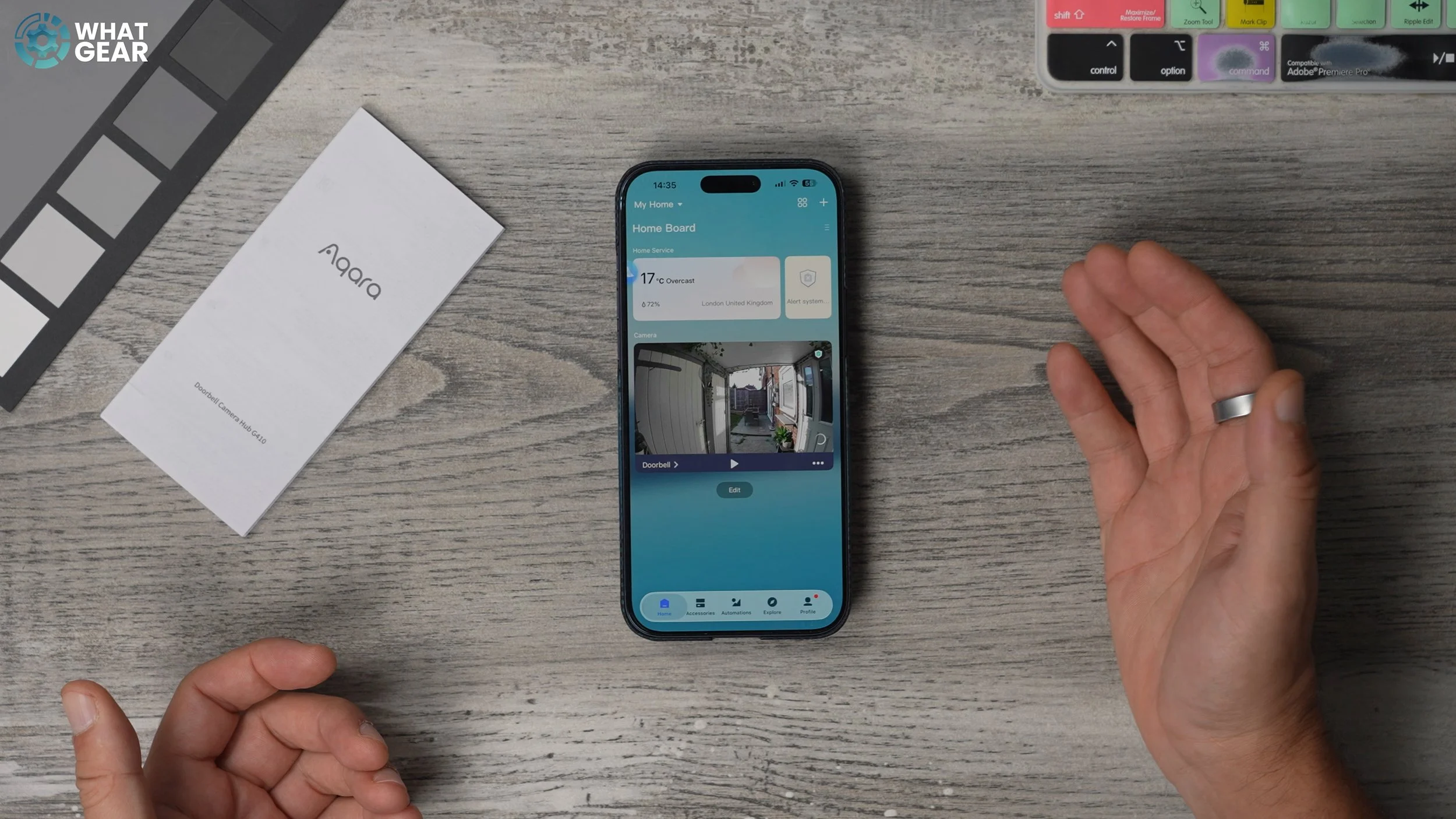
Ok, so now the G410 is set up. Let me show you some of those killer features that you know about. The Aqara app isn’t just an app for the doorbell, it actually controls a range of smart home devices. If you click on the accessories tab, and hit the plus you can see all of the Aqara devices that can be connected to this one app. It can also recognise Zigbee and Matter devices.
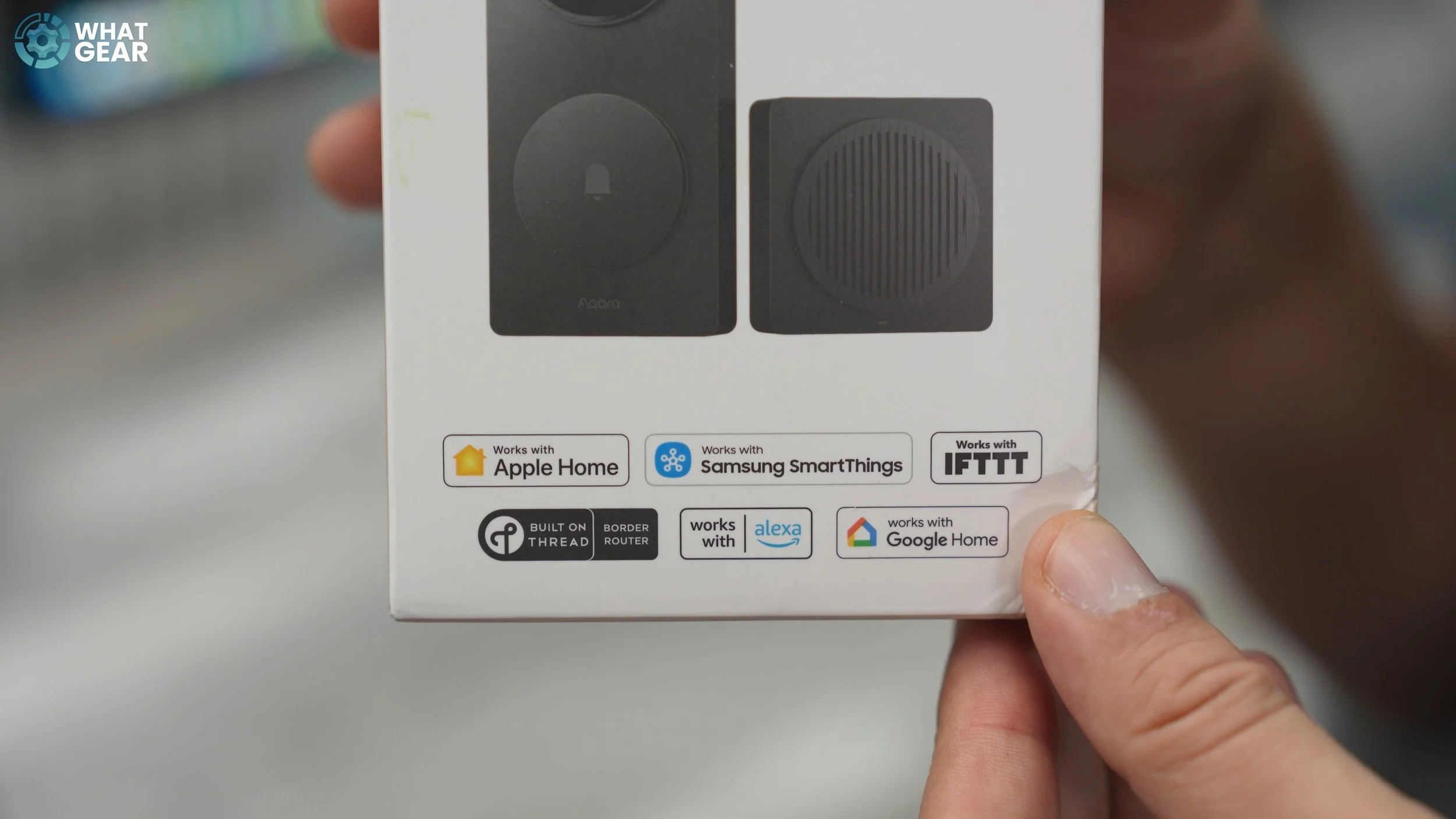
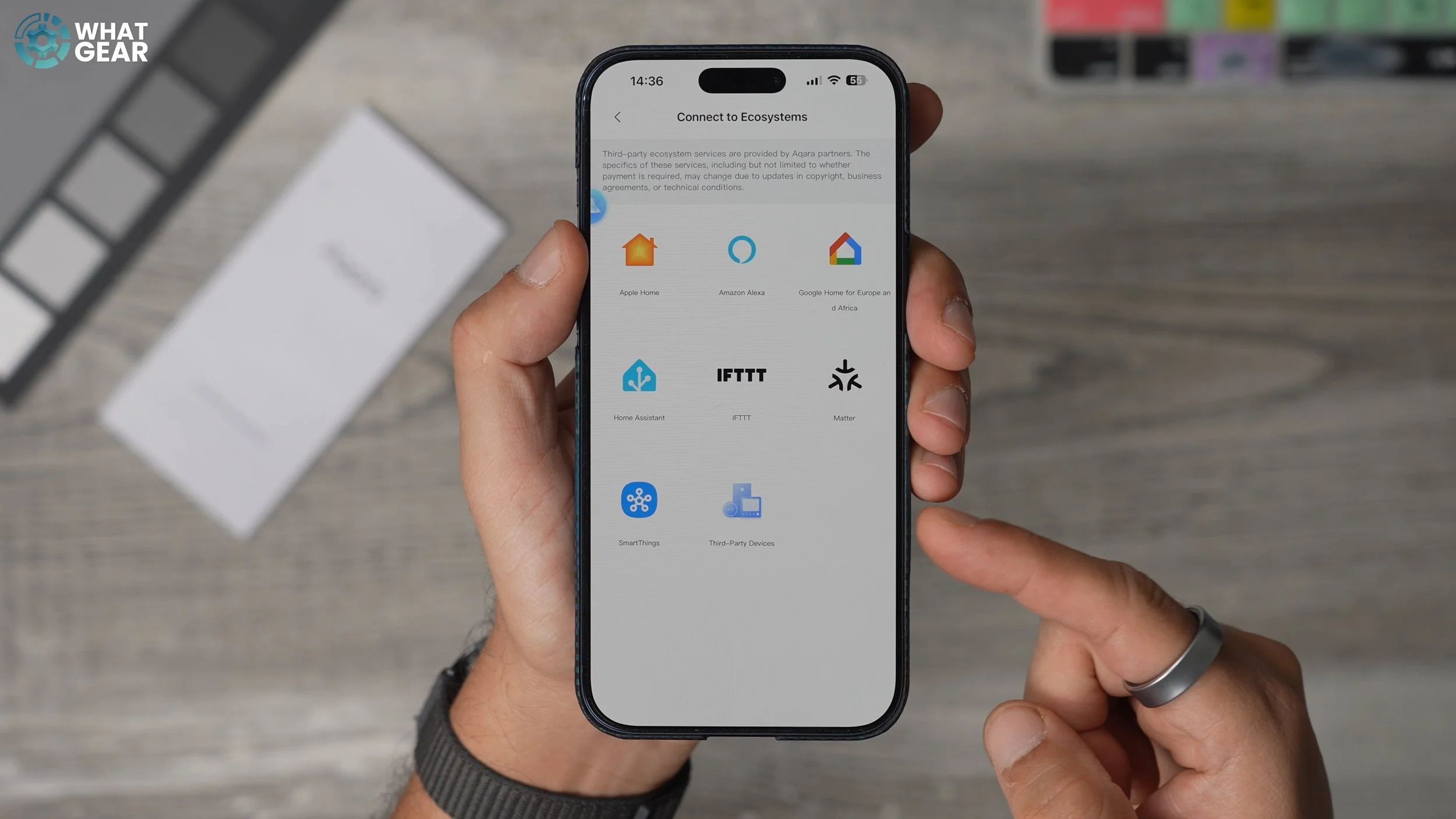
Now, here’s where it gets maybe more interesting: the Aqara Chime repeater is in fact a Zigbee smart hub. That can connect to Samsung SmartThings, Google Home, Alexa and it is one of the few doorbells compatible with Apple’s Homekit ecosystem. Think of it as a kind translator that allows it to talk to other systems whilst boosting the connection signals and another feather in the cap for the Aqara Chime is it allows for local Micro SD storage. If you want to keep a local backup of all your doorbells recording.

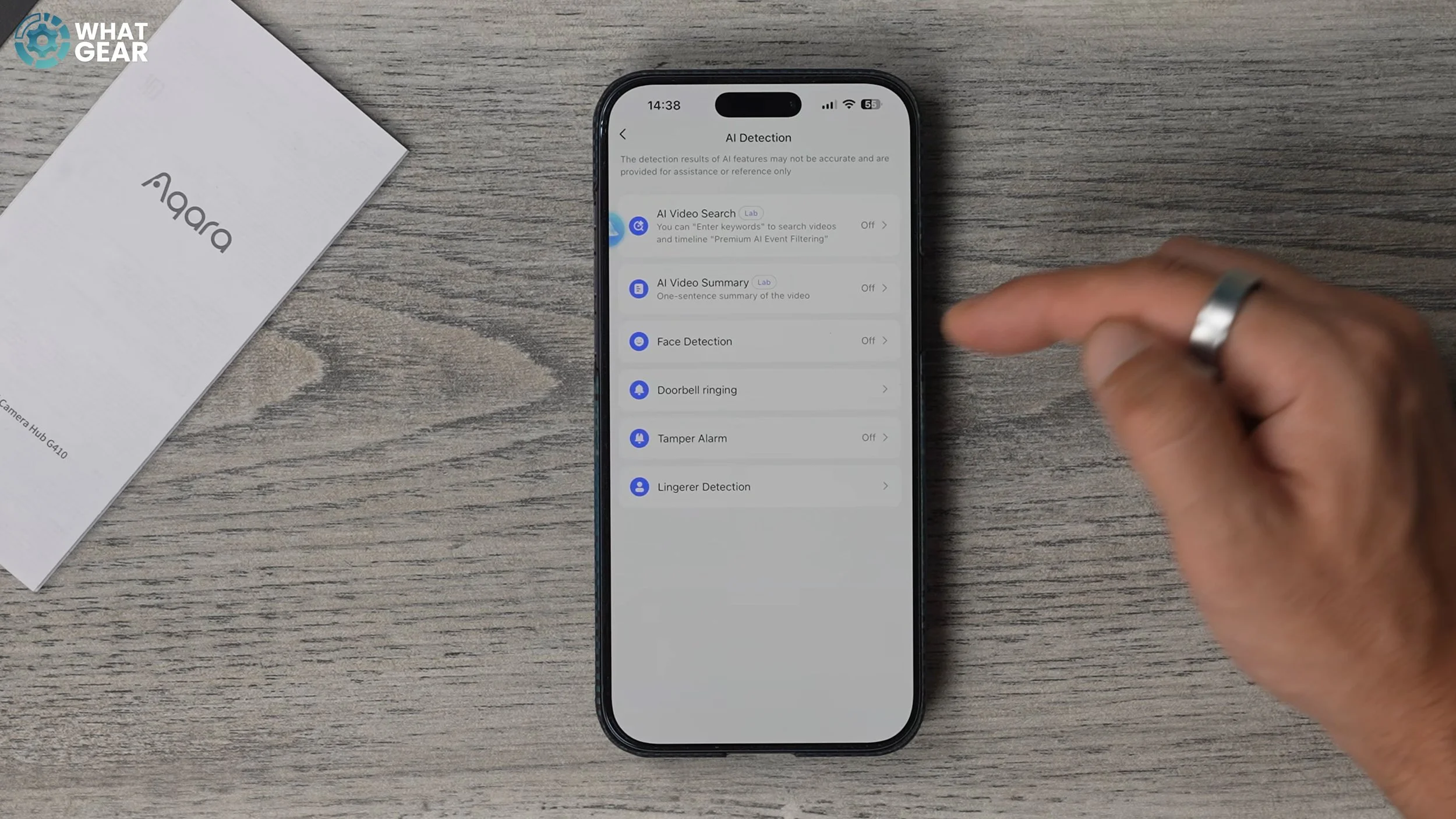
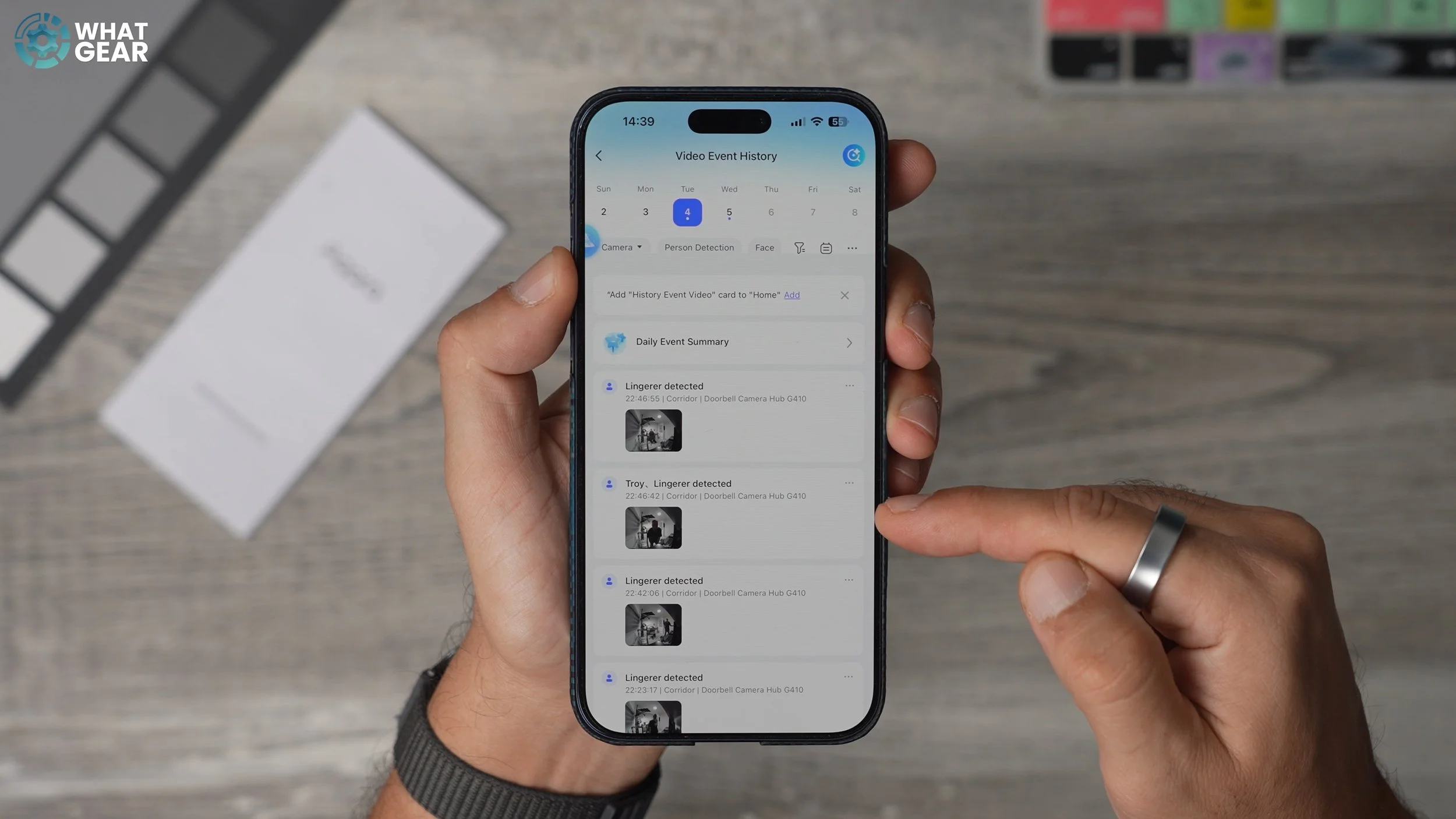
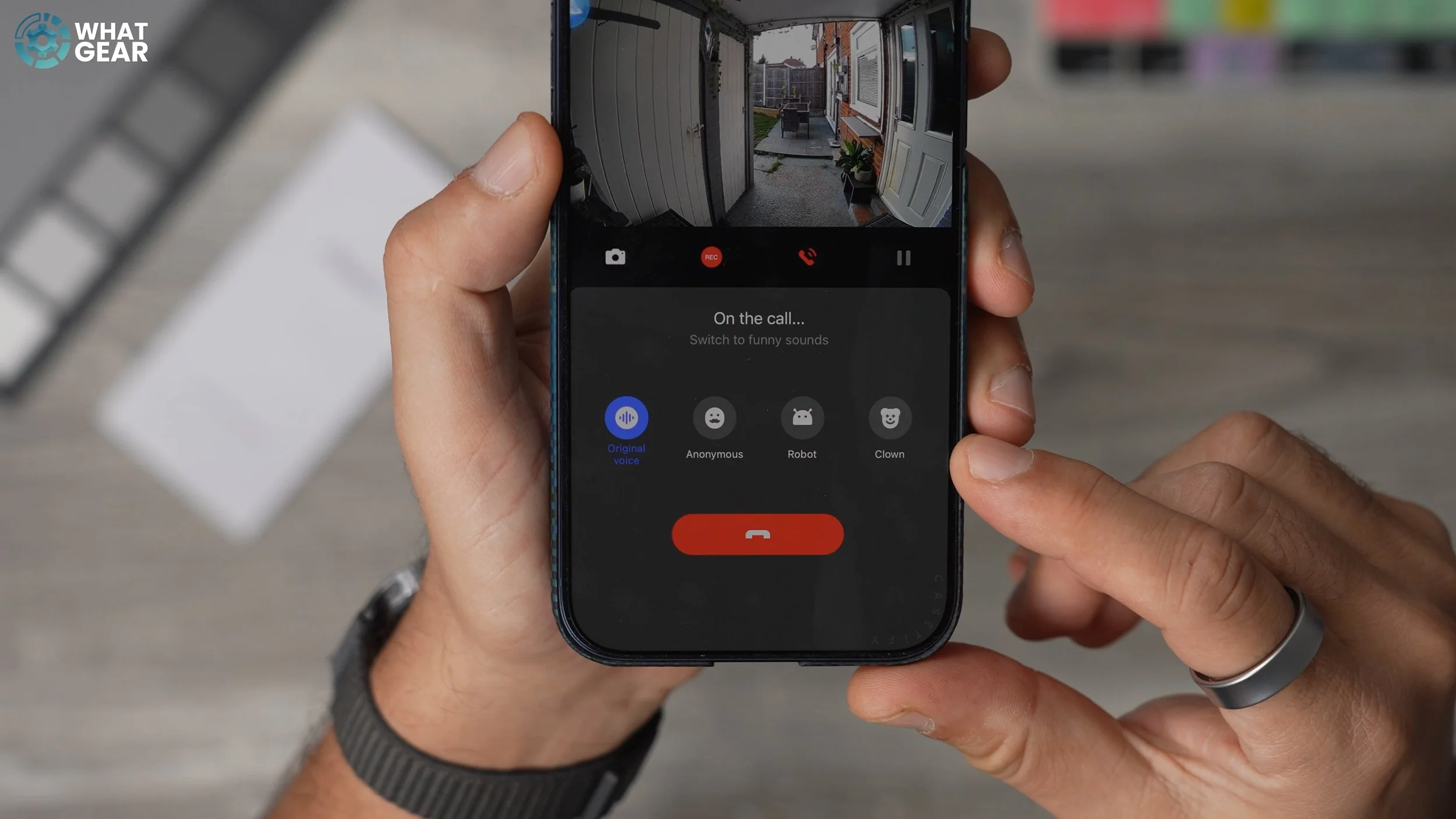

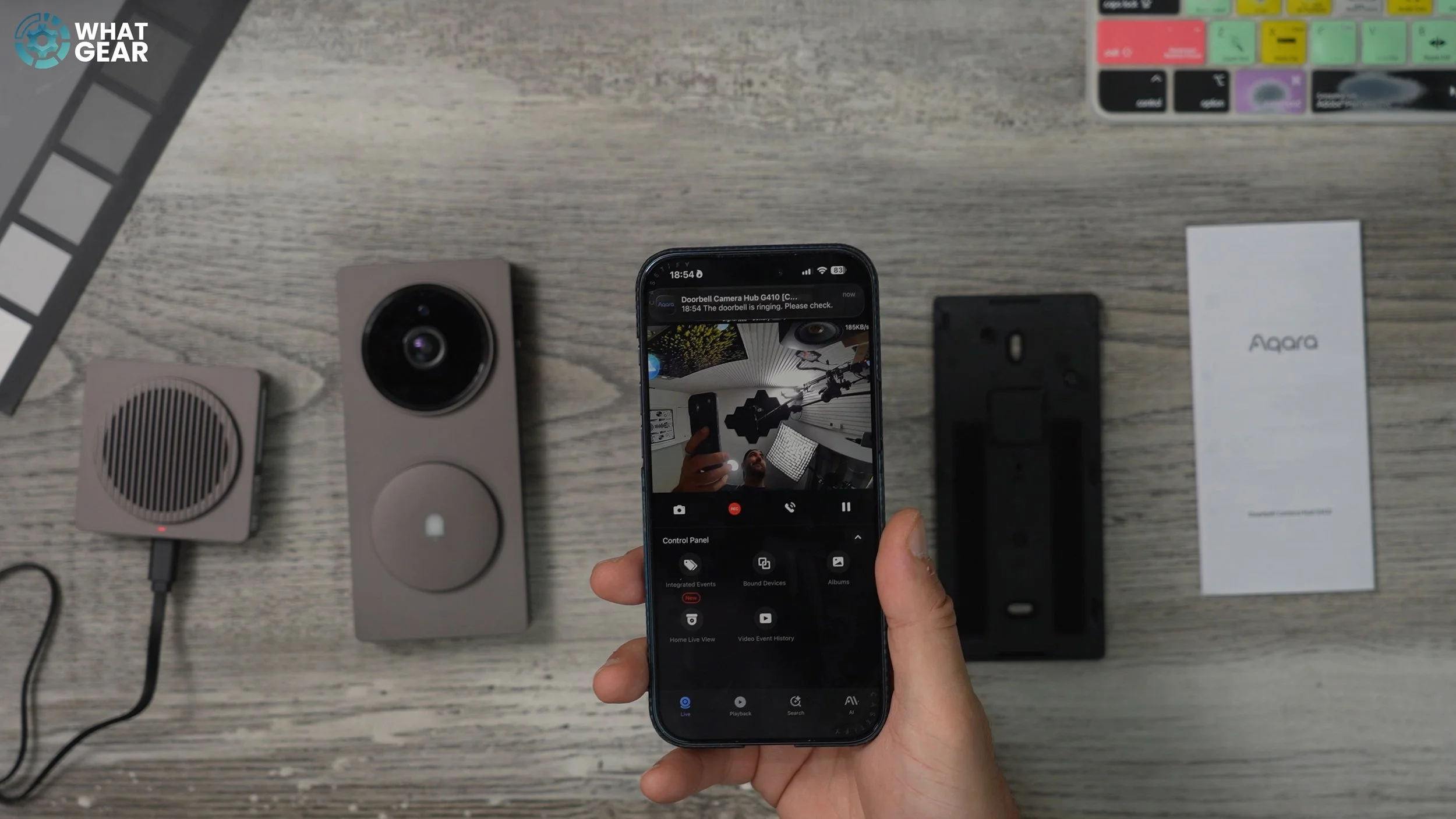
Ok, here’s my favourite feature. The Aqara G410 uses millimetre wave radar detection & facial recognition. So this is that feature that I mentioned that you should turn on. In the Aqara app if you jump into the G410’s main page and hit Ai in the lower right corner. Here you can enable face detection and add photos of the people you want the doorbell to recognise. Once you’ve done when you get alerts from the doorbell you’ll know if it’s someone you know or not straight away. Their names will also appear in the video event history page. And you can filter by faces if you want to keep an eye on specific people. So this could be great for a workplace for example.
And you can have a bit of fun with this too. If you go to the device settings, ringtone settings, custom ring tone. Here you can record some custom messages for specific people. Save those then go into the Automations tab and select automations at the top. You can tap accessories here , then the G10 and here you can choose ‘specified face detected’ choose a face, and in the ‘Then’ section hit ‘accessory’ again and choose to play custom audio. And select the appropriate one for that person. Now whenever they’re recognised by the doorbell they’ll hear that audio. And this is just the tip of the iceberg when it comes to smart home automation. You can do so much more, if you spend a little time on it.
So if you guys want to check out the latest deals and prices on the Aqara G410 video doorbell. There’ll be links below. Let me know if you have any questions about it, I’ll do my best to answer those. I appreciate you guys for watching. See you in the next one!
