30 LG OLED TV Expert Tips & Tricks ( All Owners NEED TO KNOW! )
If you're an LG OLED TV owner, old or new, when you set this up for the first time, you might assume it is as good as it can be, right? So to help you optimise your LG TV performance, make it easier & faster to use. I'm going to share more than 30 of the best tips and tricks from the internet that will help you become a true LG master, And if it sounds good, watch until the end because you might discover a few secret features that you didn't even know you had, and, of course, I'm going to show you how to get the best possible picture as recommended by some of the internet's best TV calibrators.
CUSTOMISATION
But first, let's get into some customisation and personalisation features that most people don't even know about. So this row of coloured tiles is what is known as cards. Now you have to ask yourself a question. Which of these cards are helpful to you, and which are you never going to use? Once you have figured that out, navigate to the end of the list and click 'Edit Card List'. Now select the first card you don't need. Hit the up arrow, then, with it highlighted, hit the centre button to remove it from the list.
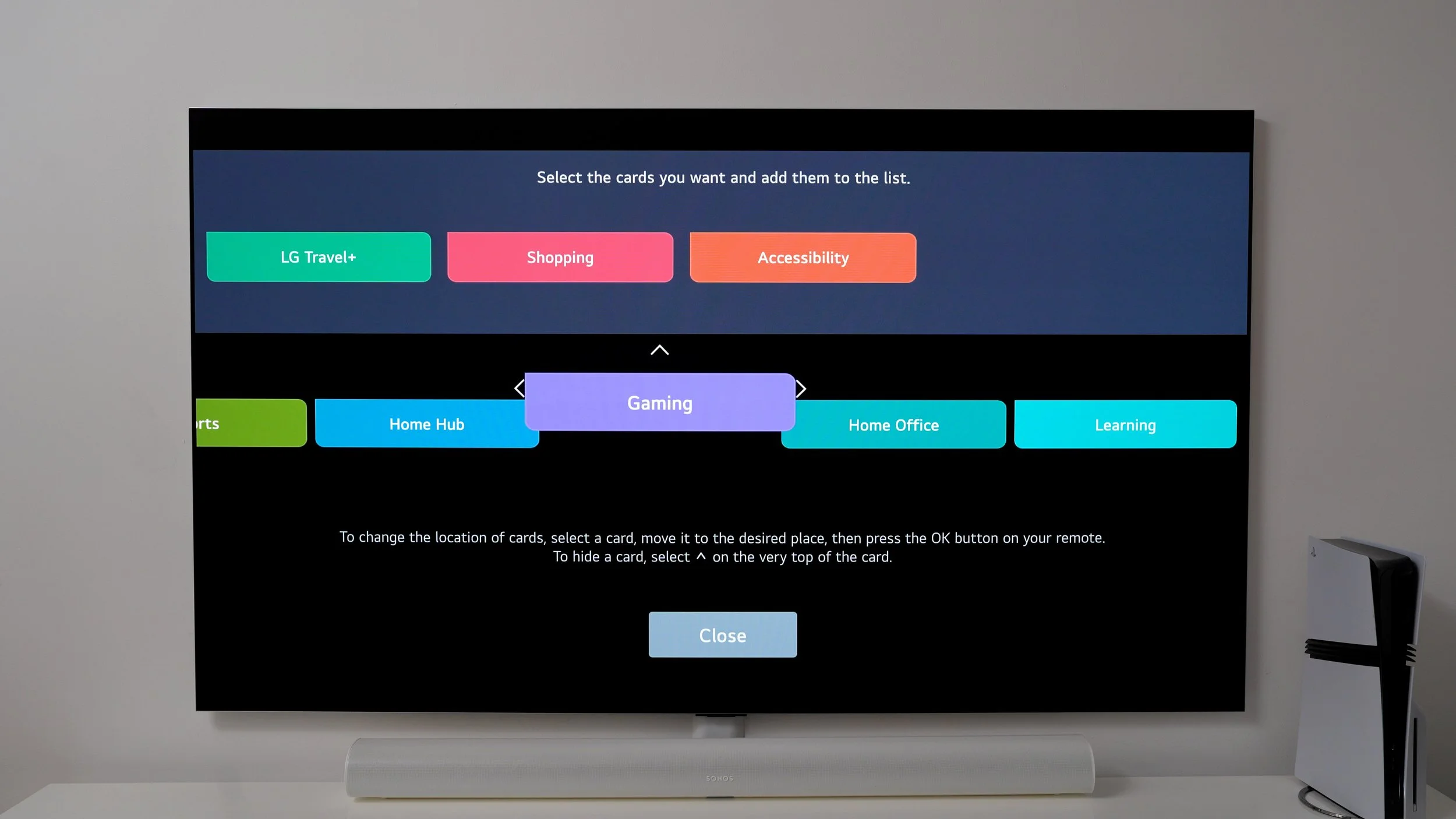
Also, on this screen, you can select and arrange your cards in the order of importance to you. Once you've done that, you're on your way. Oh, and I've not deleted the sports tile for a particular reason. You'll see why.
How to move & Uninstall apps
One way TV manufacturers can bring down the cost of their TVs is by pre-installing apps. And similar to tip one, you need to ask yourself a question. Which ones don't you need? This is important because TVs don't have much local storage, so I suggest you declutter to make room for the good stuff.
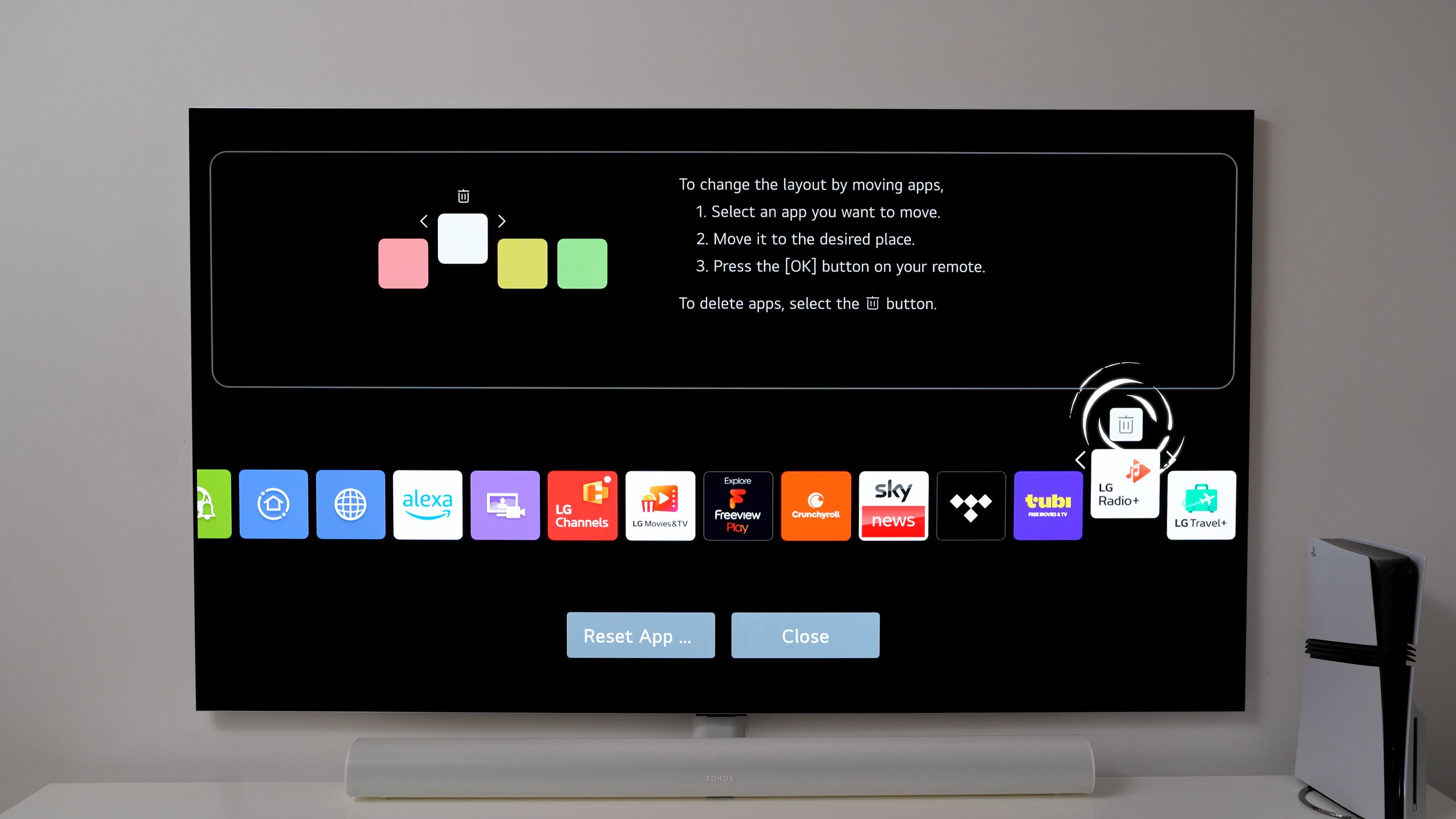
Here's how to do that: select an app you never use. Hold down the select button, then press the up arrow to highlight the bin, then press delete. And just like before, if you select and hold you can put your apps in order of importance.
How to show wallpapers
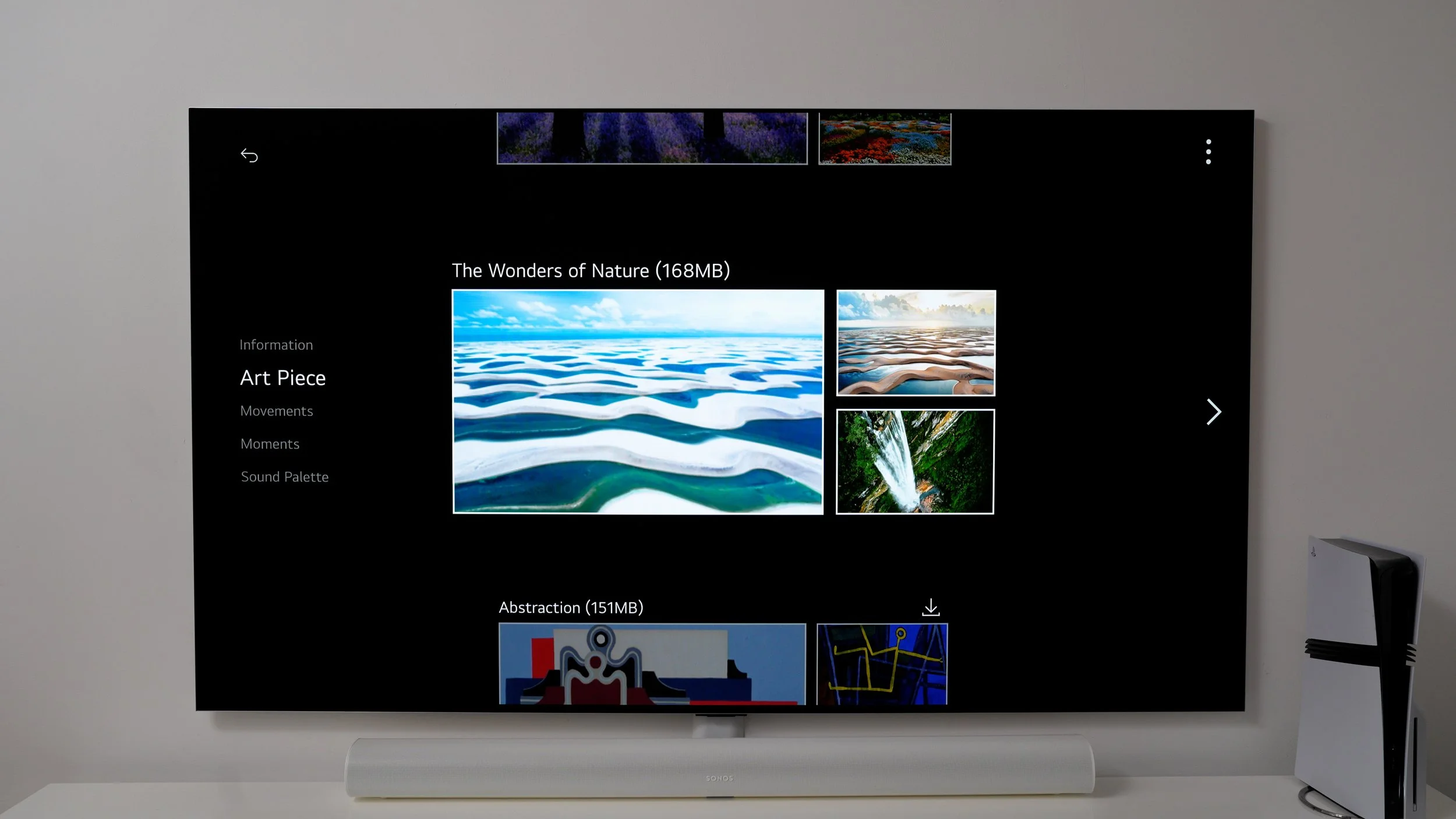
Here is one of my favourite features. On the home screen, if you scroll across your apps, you will find this app icon. This is the Always Ready feature & here is where you'll find your LG TVS hidden masterpieces. This works like a screensaver; you'll see what I mean. Here's where you can use the up and down arrows to navigate the always-ready options. You have a few important choices to make here.
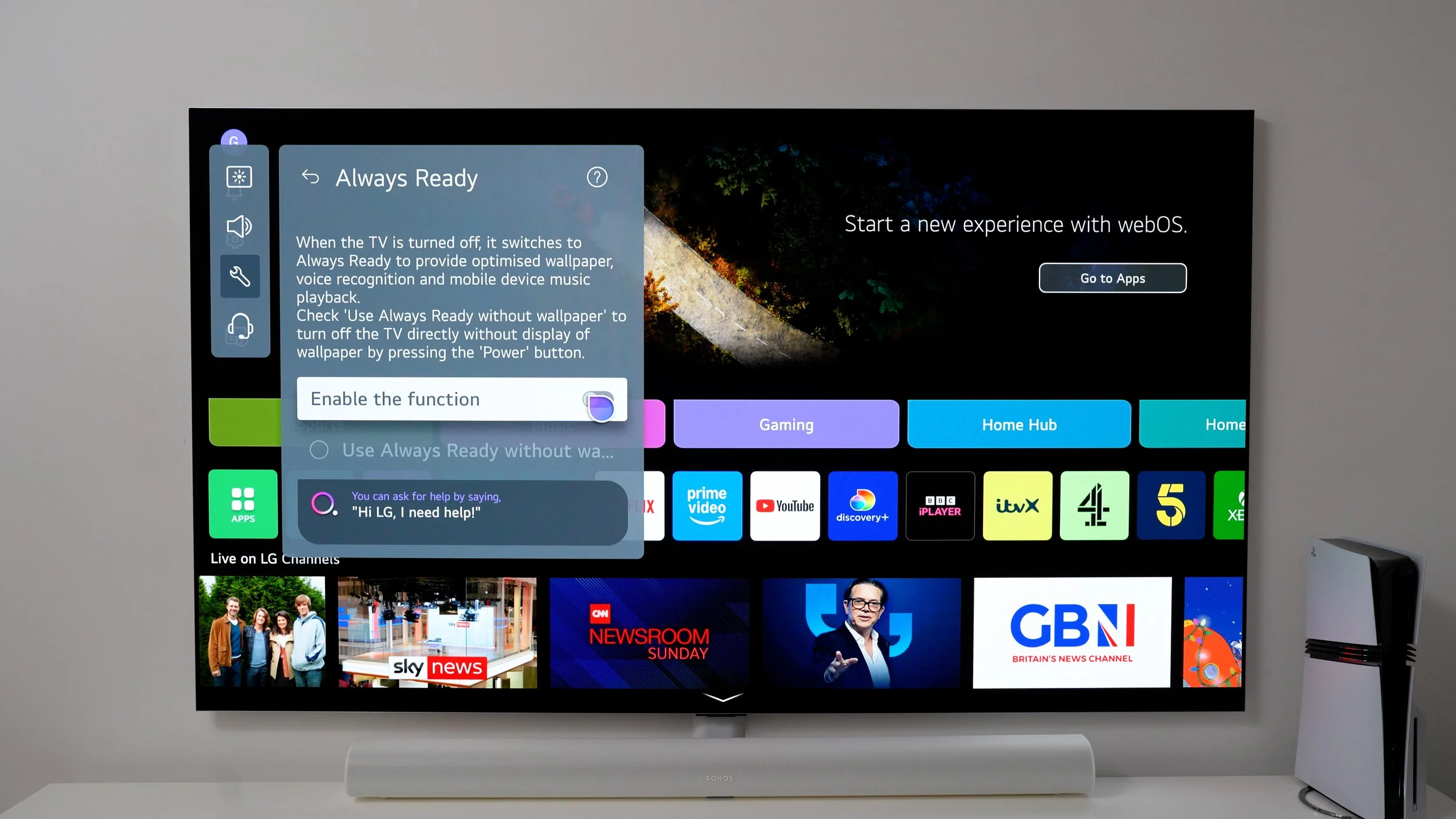
At the top, you'll find The information page is helpful because it shows the time and weather. As well as other updates. If you press the right button on your remote control, you can access the menu and choose the style you like best. Next on the list is my favourite, Art Piece. Again, hit the directional pad right to access the menu options, and here you can install a few different art collections.
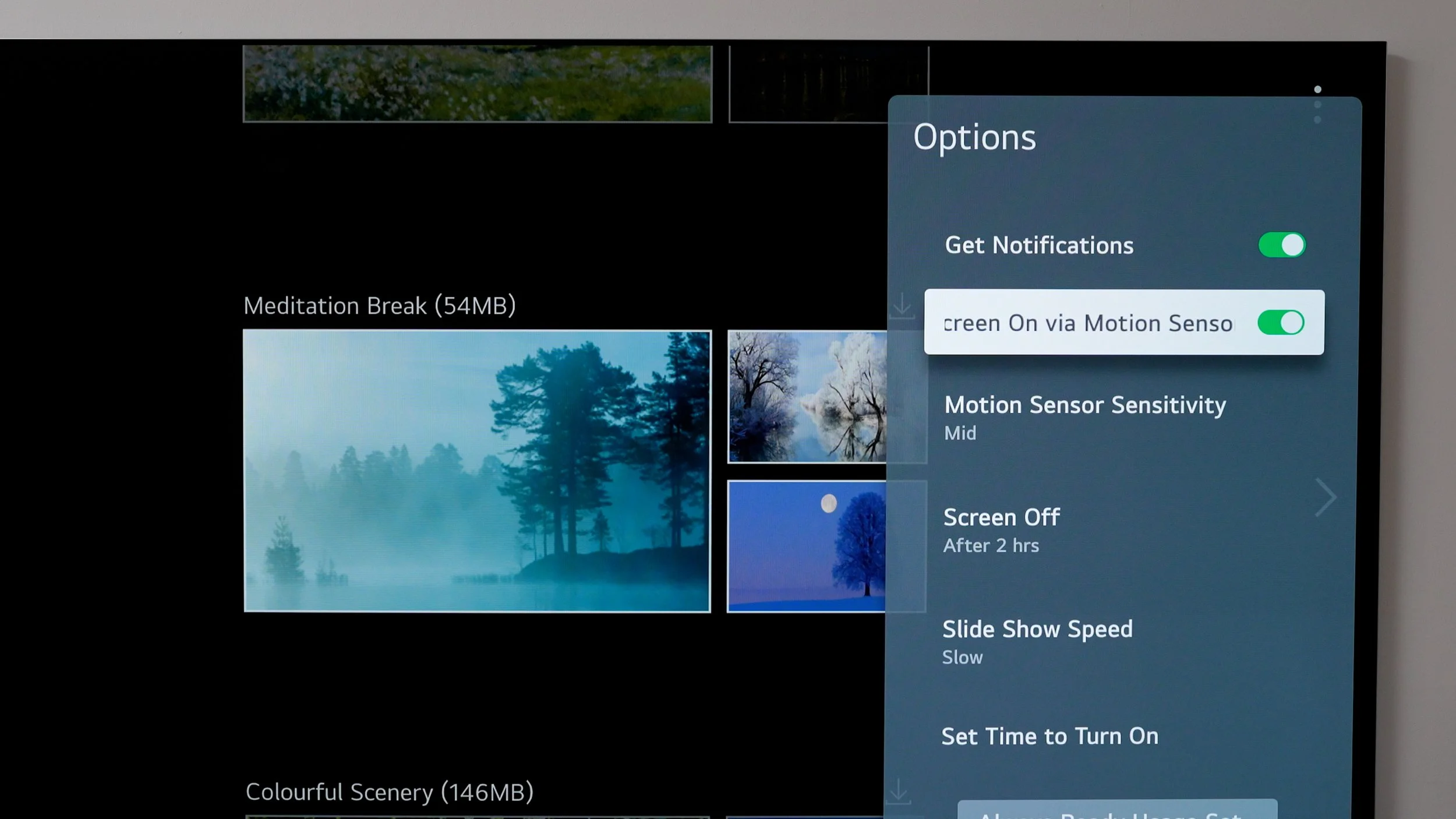
Also, while you're here, if you hit the three dots in the top right corner. You can enable "screen on via sensor". This allows the artwork to fire up when near the TV. Which is nice if you appreciate fine art. You can also adjust the slideshow speed and set specific times for when you want it to display. For example, if your TV is in a workspace, you could set its display art to run from 9am Mon to Friday.
Next on the list is movements. They are like motion wallpapers with audio. I really like the 'sound of the silhouette' option. Side note, the sound does loop on repeat, so that might become repetitive, but good news, there's a better option for ambient sounds. Again, you can download the ones you like. If you hit the three dots, you get the same options as the static artwork.
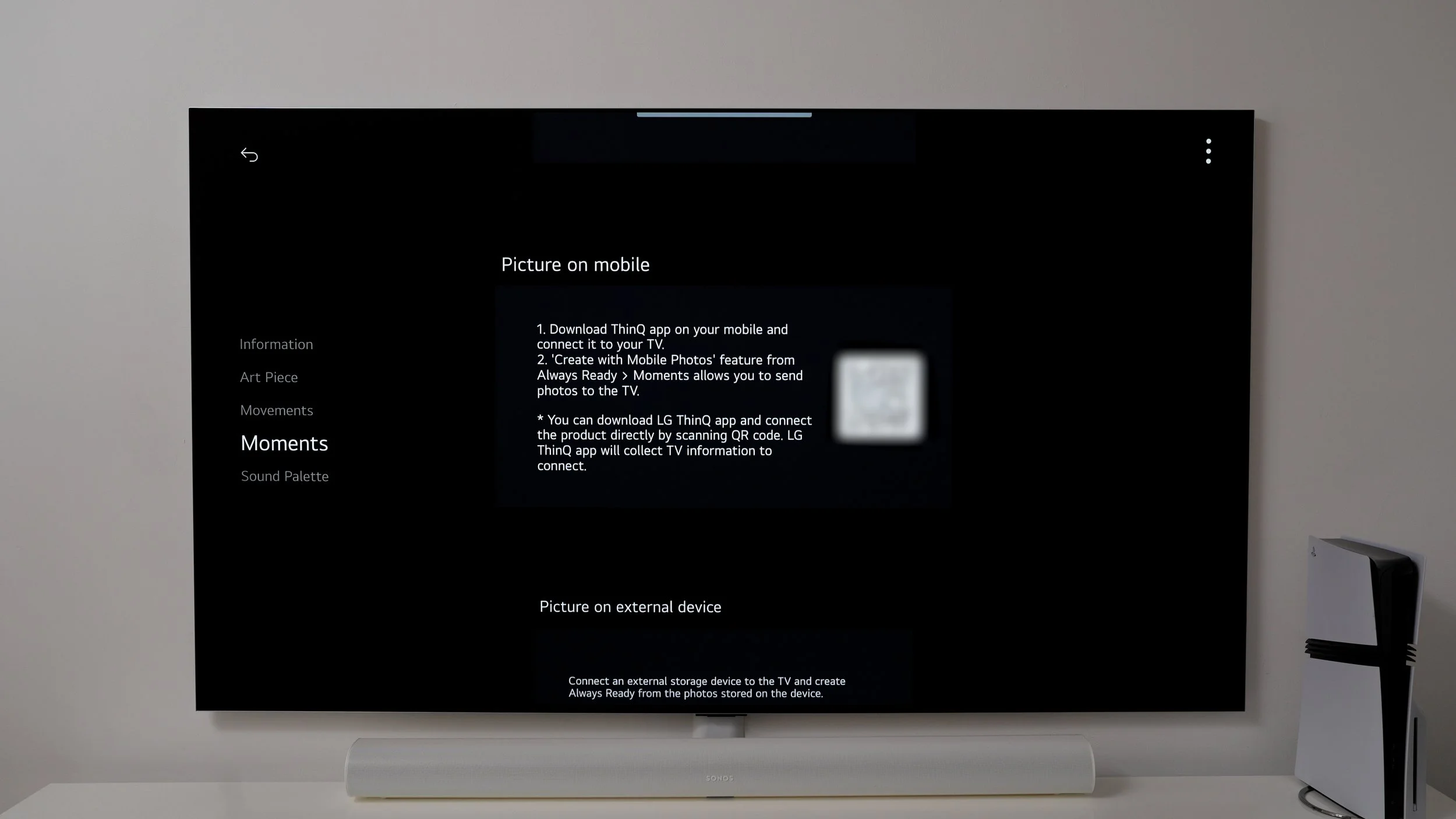
Then there are moments. If you want to truly personalise your idle display, you can connect a Google Photos library. Or use LG's app to upload your own wallpapers, or plug in a USB drive to use images from it. Just make sure they're hi-res images, especially if you have a big screen. Hopefully, now you know why I said clearing the storage on the TV is essential.
Ok, the last on the list, and this one deserves to be its own tip because it's so good. When you select this for the first time, you'll be presented with LG's selection of soundscapes. They're all very relaxing sounds. Now, if you navigate away from this using the up arrows, you'll notice it continues to play in the background. And if you navigate back, you can use various equaliser graphics. These are not EQs, and they do not affect your sound settings. Don't worry about that. Choose one of the graphics you like. I personally like the rain one. This is perfect for creating a relaxing environment.
QUICK LAUNCH SHORTCUTS
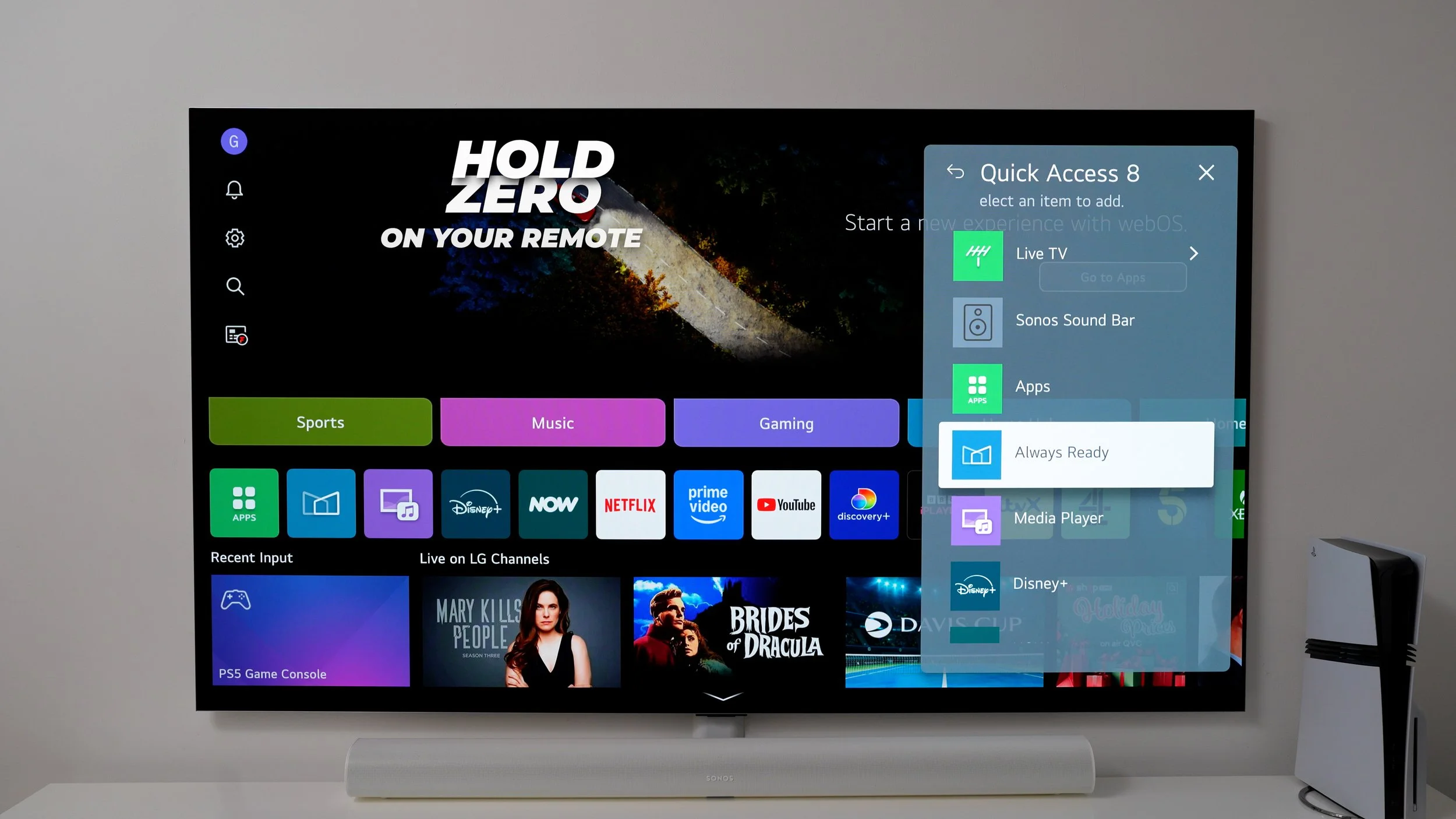
Ok, so now that's set up, let me show you the best way to manually activate it with swiping or pointing. If you hold zero on your remote. Now you've unlocked the hidden shortcut feature. This allows you to map shortcuts to specific apps and features. So, for example, if you're going to use Always Ready a lot. Map it here to a key of your choosing. And while you're here, you can map some favourite apps that don't already have a dedicated key on your remote. Once set up. A push-and-hold teleports you straight into that app.
How to get rid of the no signal alert
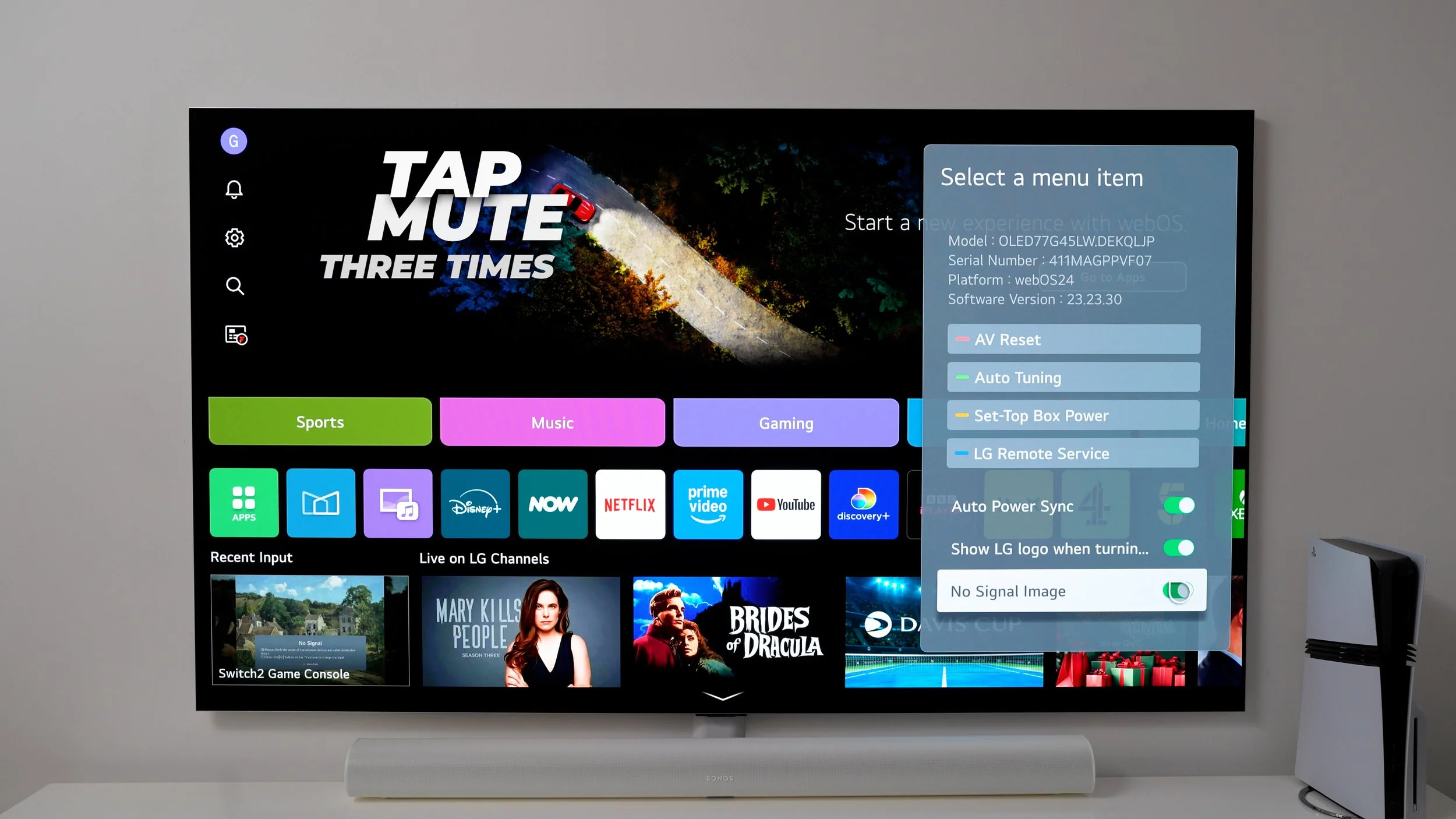
Now this is a quick one. If you use your TV as a standalone smart TV, with a game console hooked up from time to time. When the console is off, The TV will automatically display this annoying 'no signal' pop-up, which completely ruins the artworks. So here's how to get rid of that. Whilst on your homescreen, Tap mute three times, turn off the " no signal image.
FOR THE SPORTS FANS
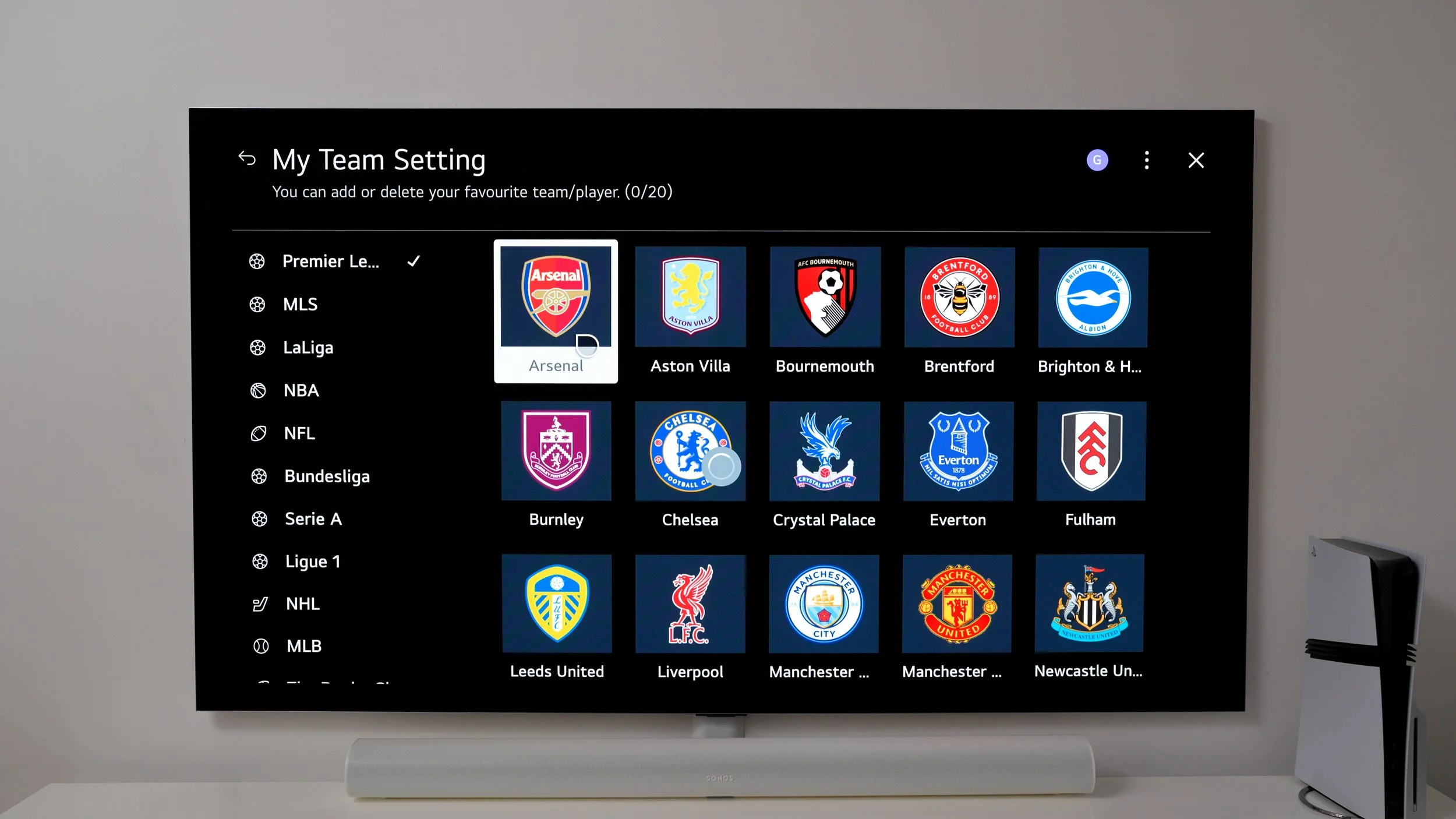
Before we get into the all-important perfect picture setting. Here are a few quick-fire settings to change. If you're a sports fan, select the sports card. Go to my team and choose your favourite sports teams. I'm a born-and-bred north Londoner, so the Gunners, by default. Once you've selected your team or teams, you can see all their fixtures, and if you click on one, you can see related videos and where to watch. Also, on the home screen, you can highlight the sports card to see the most recent updates at a glance.
YOUR TV HAS A NAME
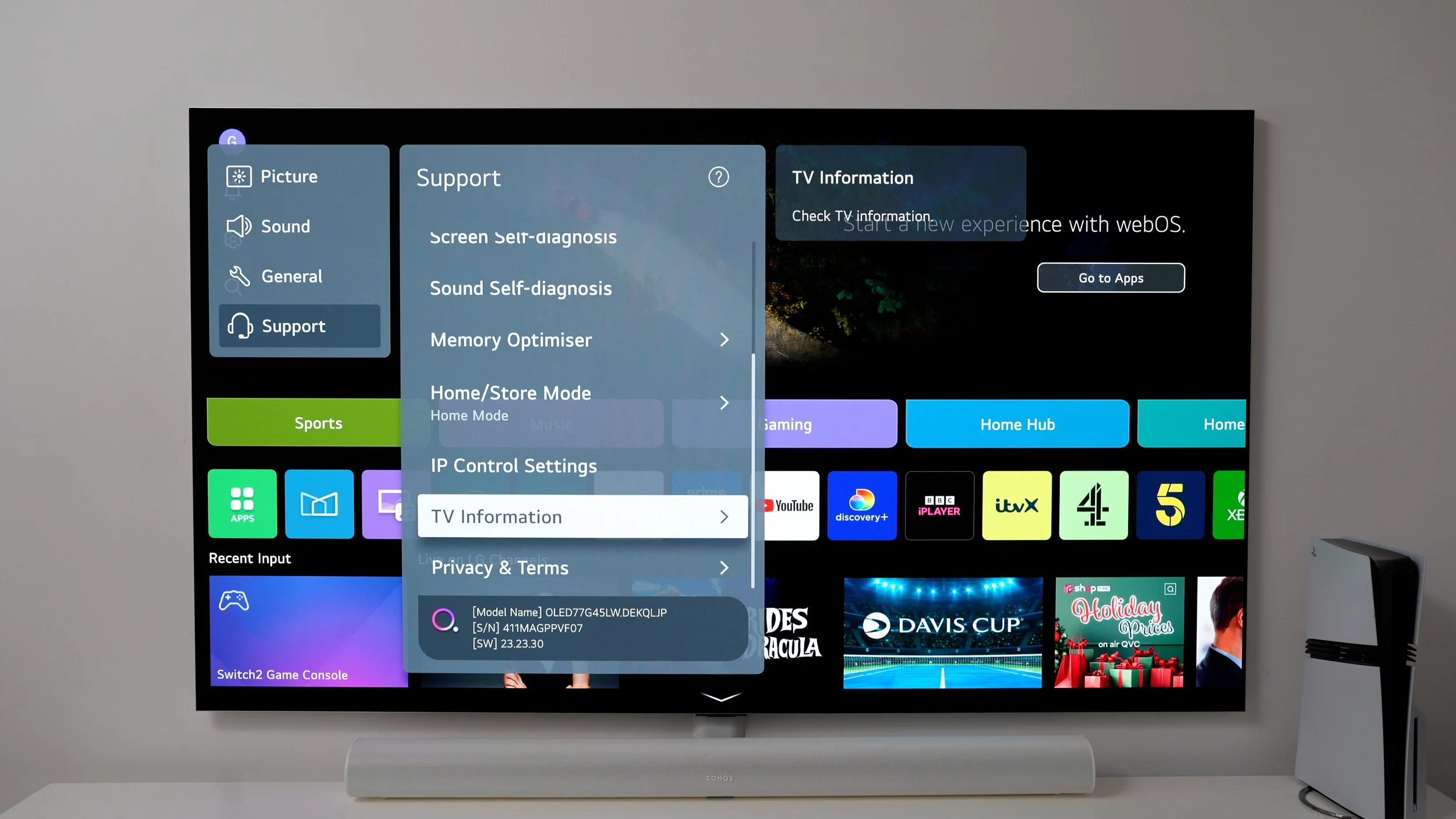
Here's a personalisation tweak to make life easier. Go to settings/support / TV information here and rename your TV something memorable. This will make casting from your phone to your TV easier, as it will be much easier to identify.
POINT PRECISELY
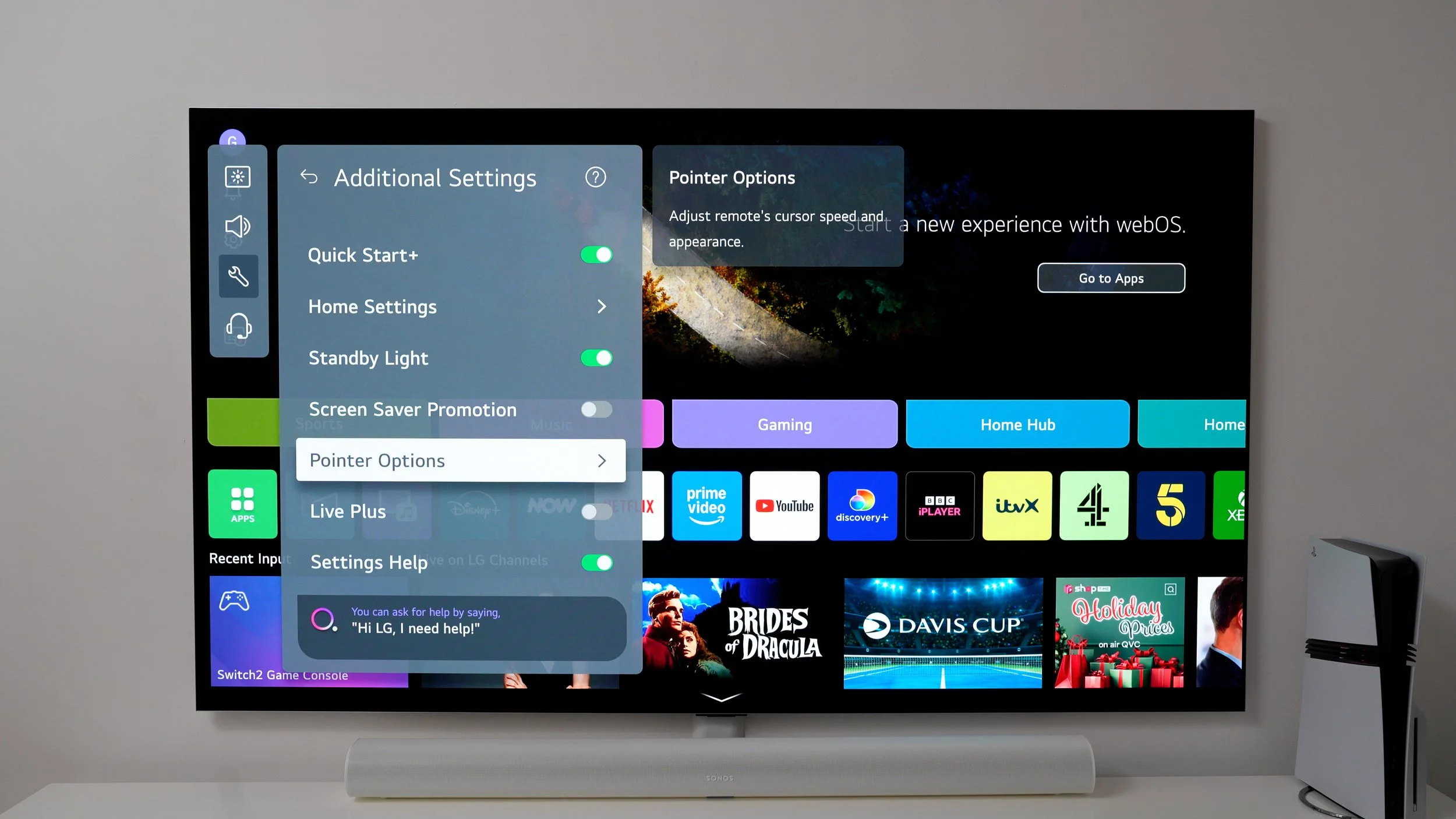
Settings / general / system / additional settings / pointer options / tracking slow
Now I like LG's pointer feature. It's one of the few TVs that offer this feature. Although it's very sensitive and you find it a little tricky to use, this will make it easier. Now, if you're on your third coffee of the day, you'll still be able to pinpoint the letters on the on-screen keyboard precisely.
UNLOCK YOUR BRIGHTNESS
Let me show you how to perfect your picture settings for TV, movies, sports and gaming. Then we'll get into some important settings you need to turn off.
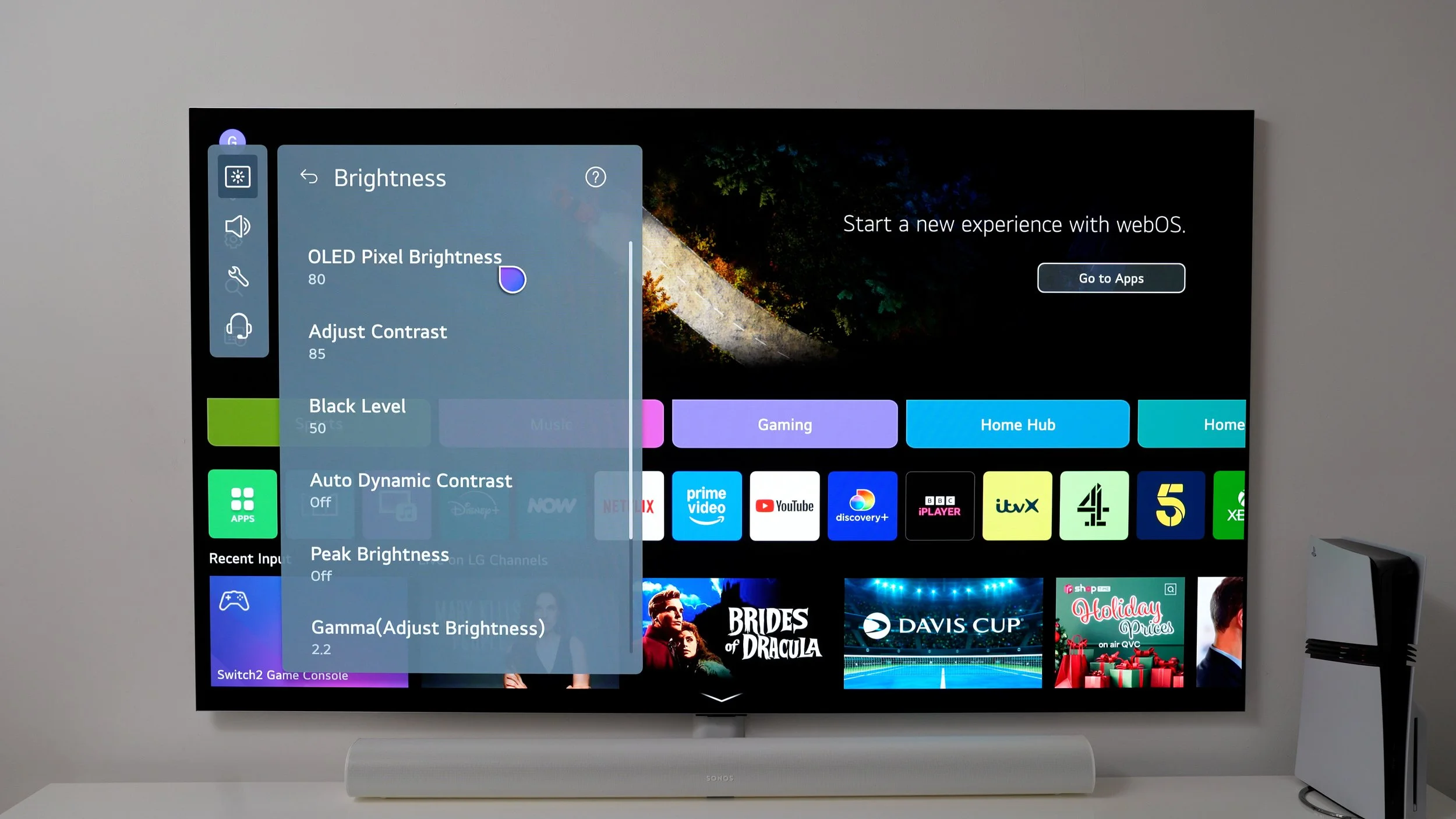
Settings/picture / advanced settings/brightness / OLED pixel brightness to 100 & set peak brightness to high.
This doesn't mean that your TV will hit peak brightness 100% of the time. But it will allow it to as and when it needs to. This unlocks your TV's untapped brightness potential.
PERFECT YOUR PICTURE
OLED displays are incredibly power-efficient. And brands sometimes like to make them as power-efficient as possible, at the cost of picture performance. And this helps with marketing. But you've already spent your hard-earned cash. So why sacrifice your picture? Go to settings / general / energy saving / switch this off. Now your TV won't throttle its performance to meet its energy-efficiency claims. And always remember that your OLED screen is already supremely power-efficient without this on.

CREATORS INTENT
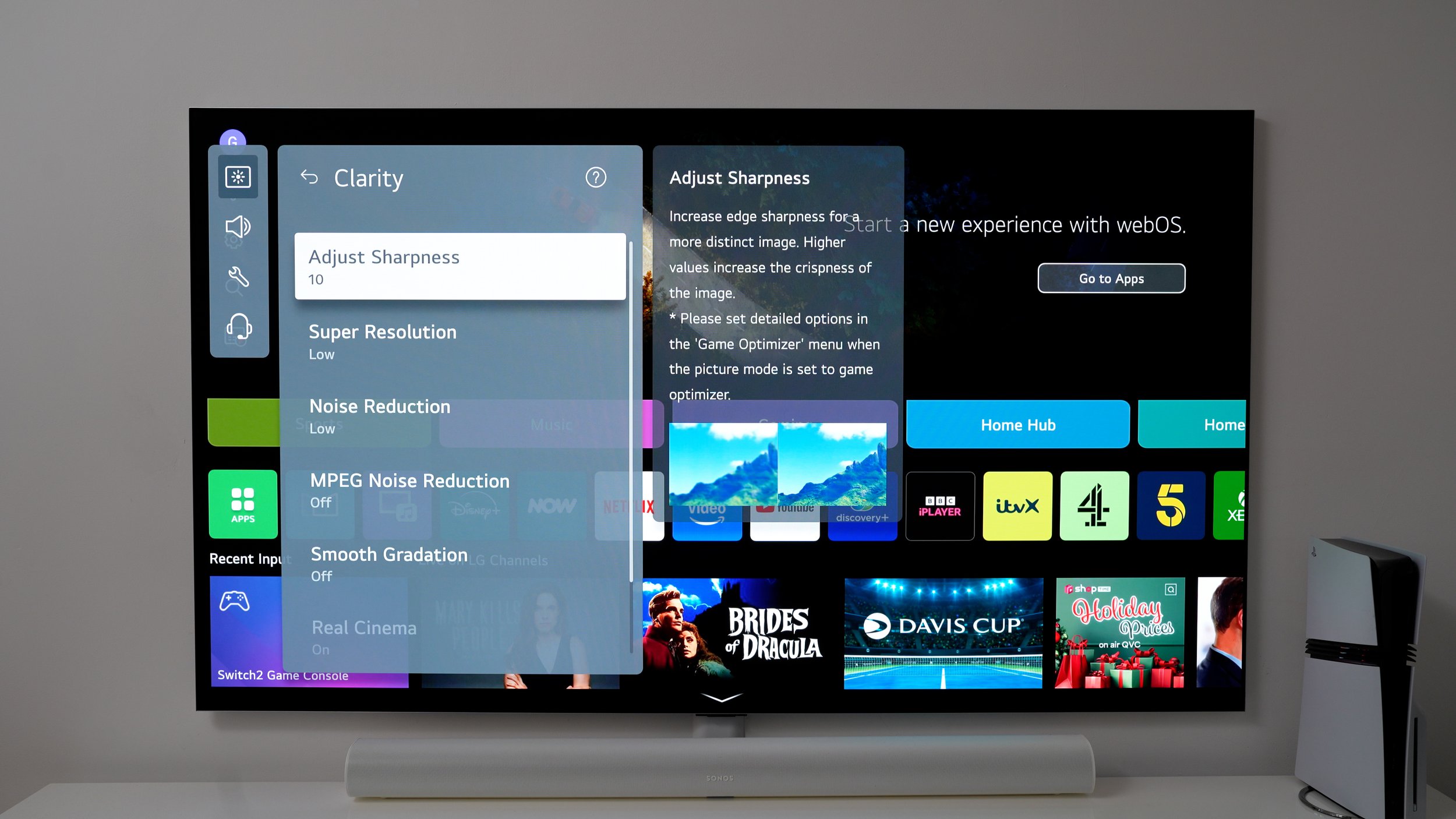
As a video creator, I can tell you this from experience. When making videos, creators typically use specific lenses and lens filters to achieve a particular look. What you don't want is your TV to go in and change that with over-sharpening. So go to settings / picture advanced settings/clarity / adjust sharpness and set this to zero.
BEST GENERAL PICTURE MODE
When it comes to the best picture Mode for colour accuracy. LG's Film maker mode is the most accurate; however, it is not suitable for regular TV shows that have not been colour graded for cinema. You might find this better. Settings/picture/cinema mode
The cinema mode is similar to the Film maker mode but a little brighter, making it a good all-rounder for regular TV and SDR content. And I've got a little trick for Film maker mode, which I'm going to show in a minute.
Ai AUTO ADJUSTMENTS
Now, if you're a sports fan, there's a good chance you might not appreciate cinema mode or filmmaker mode all the time. And that's why you should do this. Settings / general / Ai Service / Ai genre selection. With this on, your TV will detect when you're watching the game and subtly optimise picture settings for that content.
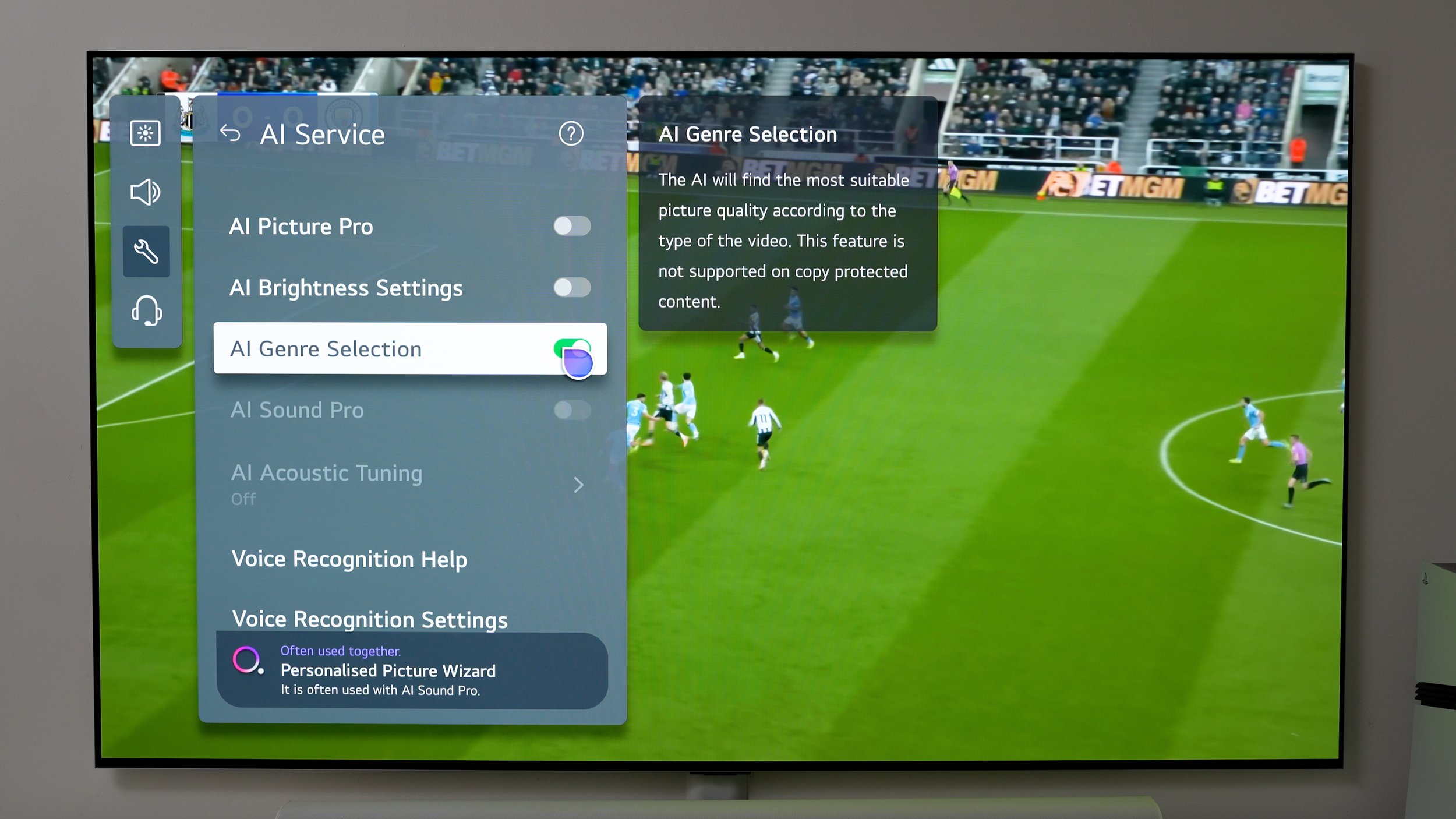
But if you like things to be extremely vivid when watching sports, you can go to Settings> Picture and Sports. Just beware that the blue light goes through the roof in this mode.
AUTO FILMMAKER
Now, as I said before, the most accurate colour profile out of the box is film-maker mode. That is a fact. But it doesn't need to be on all the time. You probably don't want to manually switch it on when you're watching movies. So, make it easier for yourself and go to settings/picture/film maker mode auto start. Now, when you're watching the latest box office bomb. Film-maker mode will activate automatically.
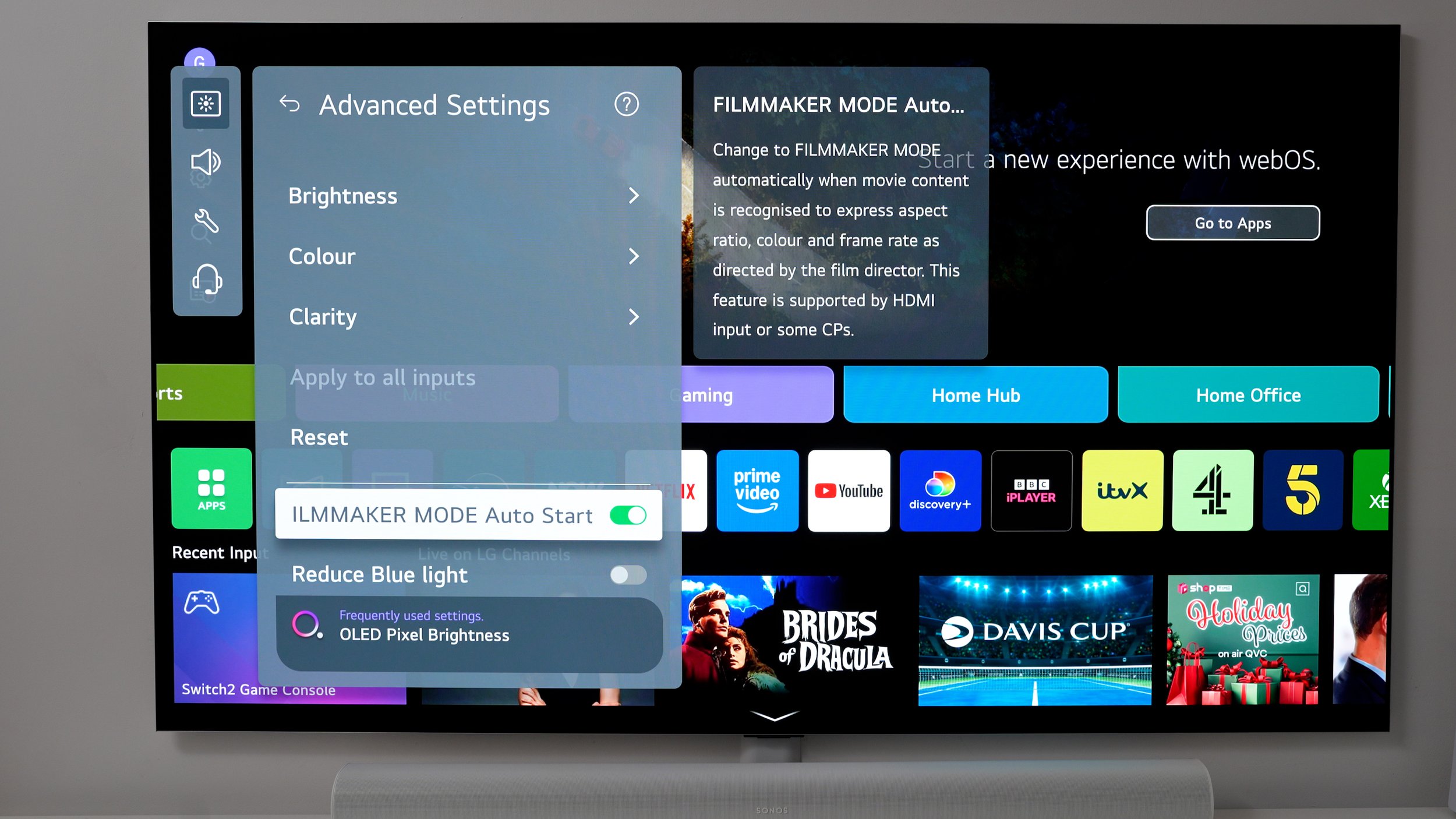
WORD OF ADVICE
Something I'd really want here in the settings is individual menus to easily set specific HDR, SDR, and Dolby Vision settings separately. Unfortunately, it still doesn't have that… yet. So, right now, if you want to set these up, you first need to play an HDR video and adjust the settings as I showed you in the previous tips.
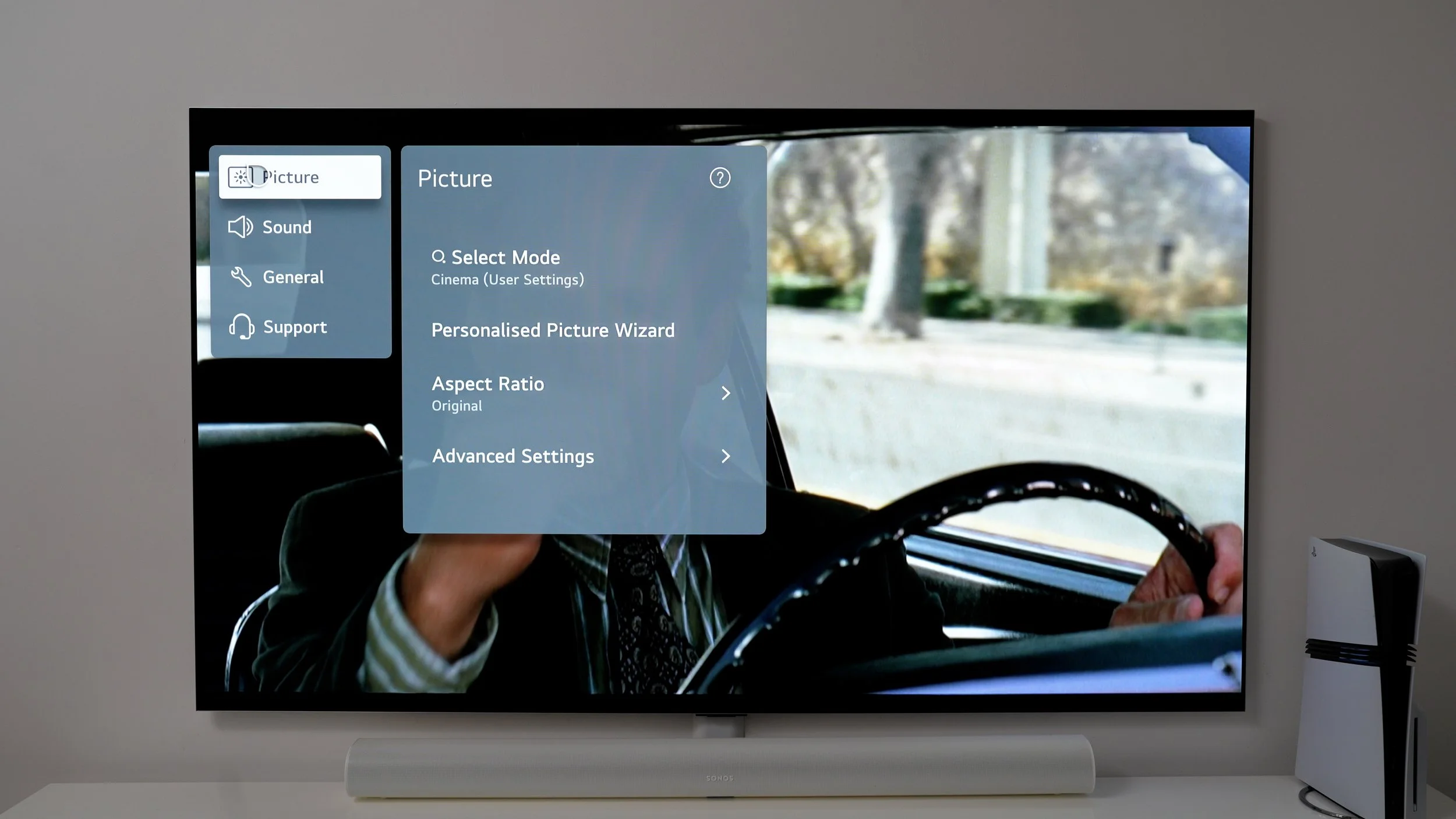
The load up SDR content. YouTube is a good place for this. Just play an old TV show or something. Adjust the picture for SDR, then play some Dolby content from Netflix or Disney to access Dolby Vision settings. It's a bit of a headache. But you'll only have to do it once. Set it, and then you can forget about it
FOR THE GAMERS
Ok, if you're a gamer, there are some really important changes to make. I have a gaming PC and a PS5 here. So let me show you the PS5 optimal settings first. So, with your PlayStation powered up, go to settings, picture / advanced settings/brightness / dynamic tone mapping. Change this to HGIG. This allows the PS5 to handle the HDR tone mapping on its own. If you leave this on, your TV will take what was already accurate HDR and add its own settings on top.
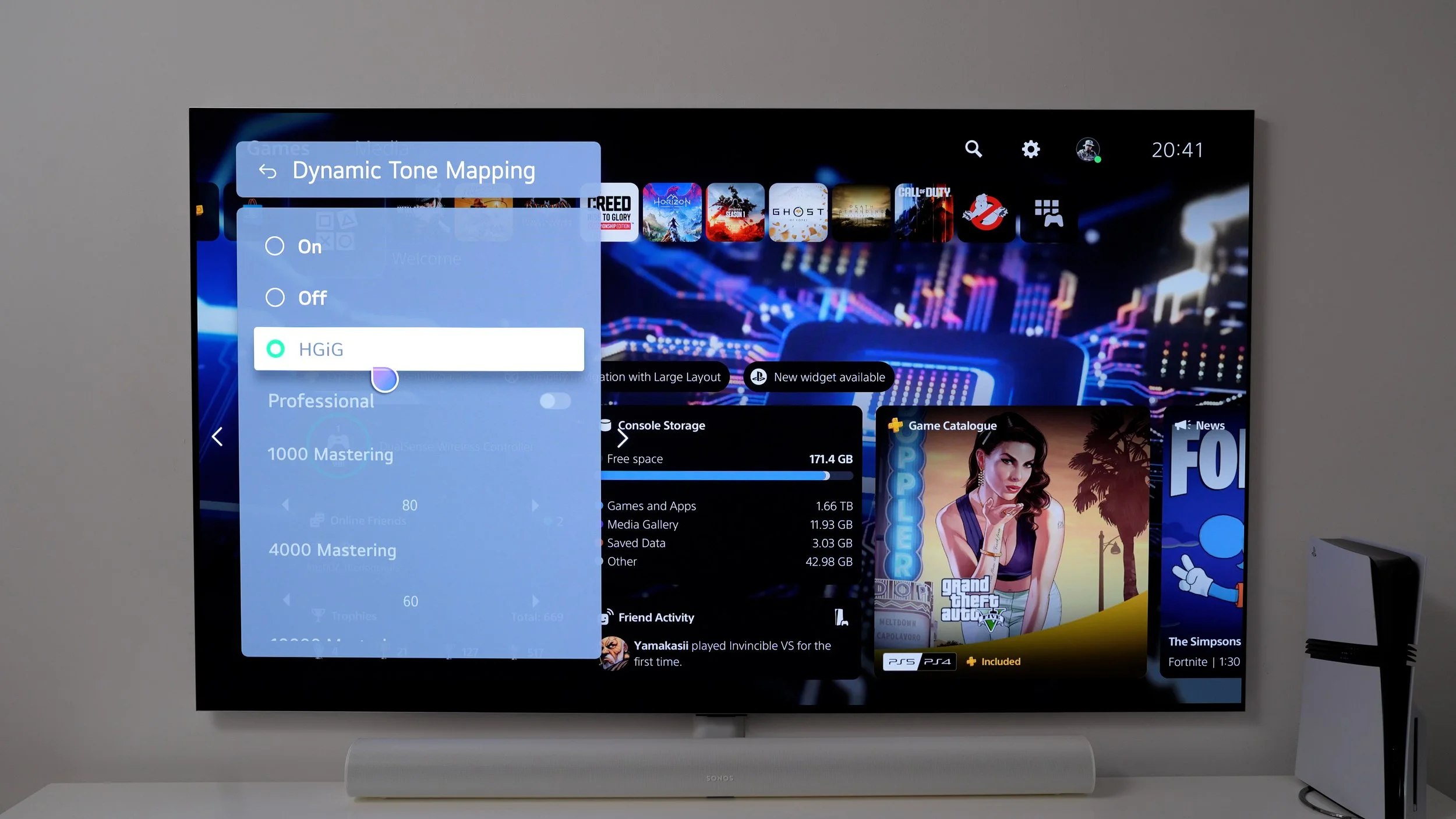
MORE ACCURATE GAME COLOURS
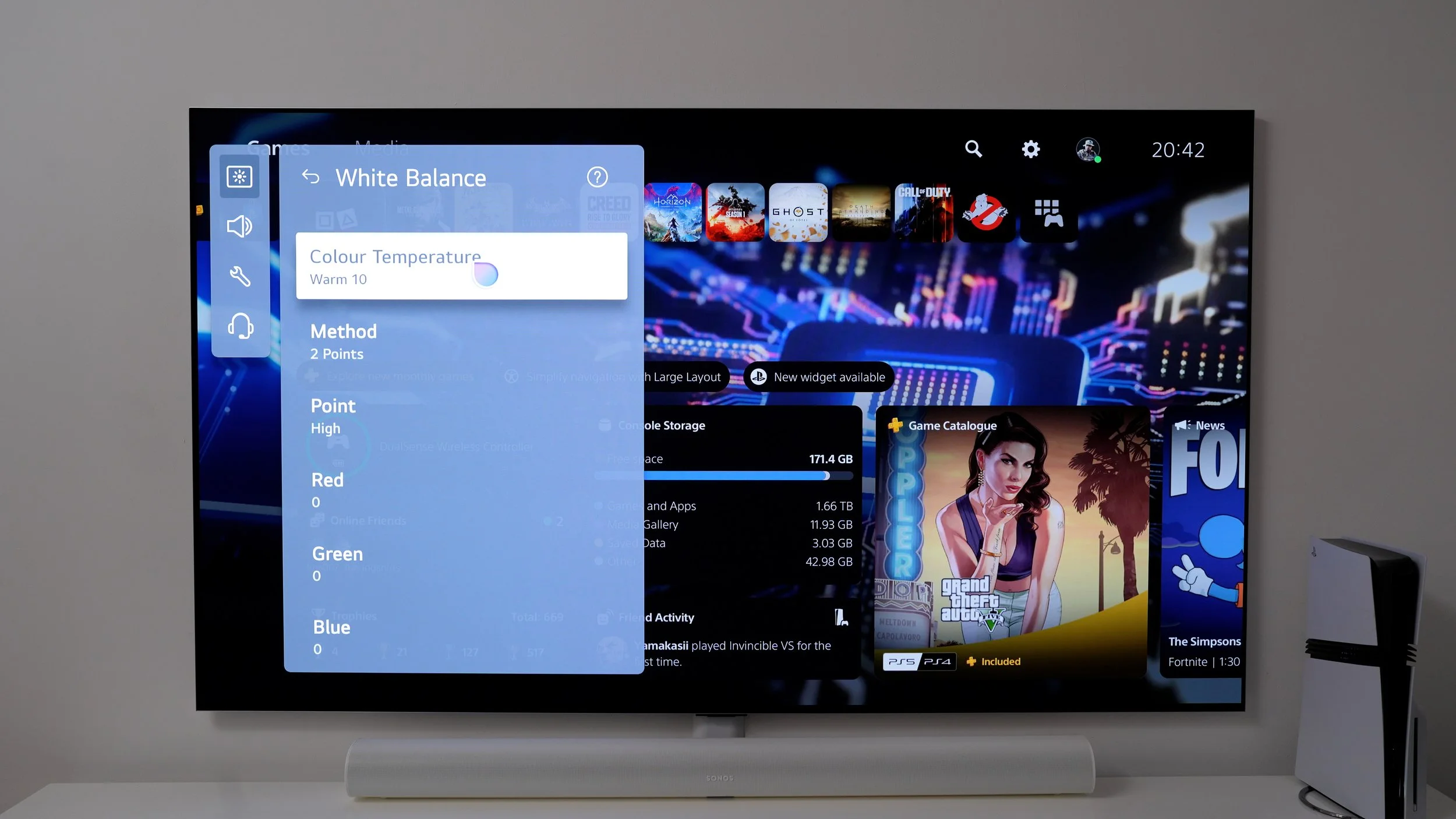
If you want more cinematic colours when gaming. And some games are like movies these days. You might want to try this out. Go to All settings / picture / advanced / colour / white balance / colour Temperature. The game enhancer picture profiles boost the blue tones quite a bit. And here is where you can rebalance that. I suggest around -10. With this set, when you switch back and forth between game optimiser colour and film-maker mode. They're similar, although with this, you get all the perks of the game optimiser on top.
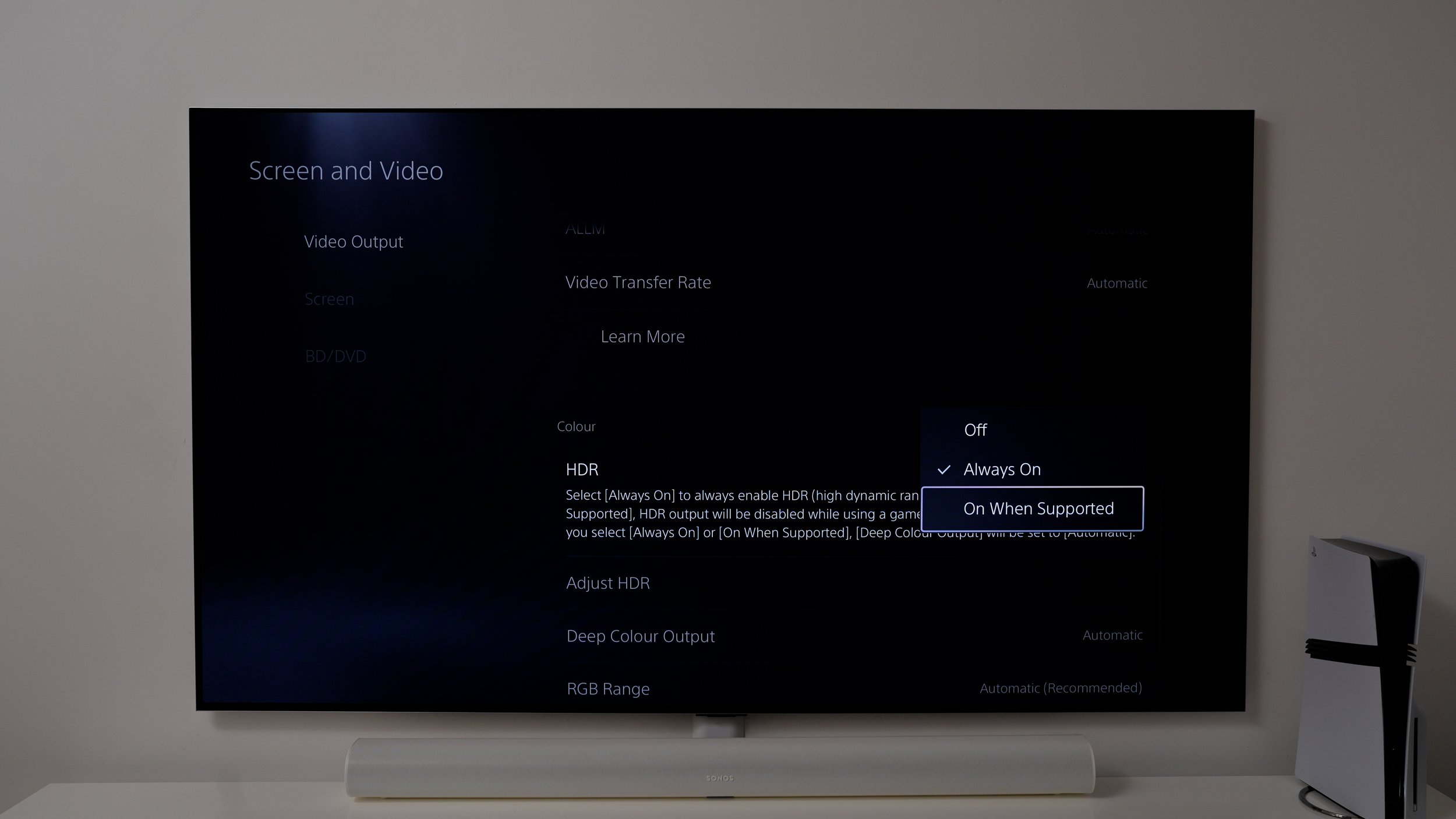
A PS5 SETTING
This one's in the PS5 settings. Go to settings/screen and video/colour and set HDR to ‘ on when supported ‘
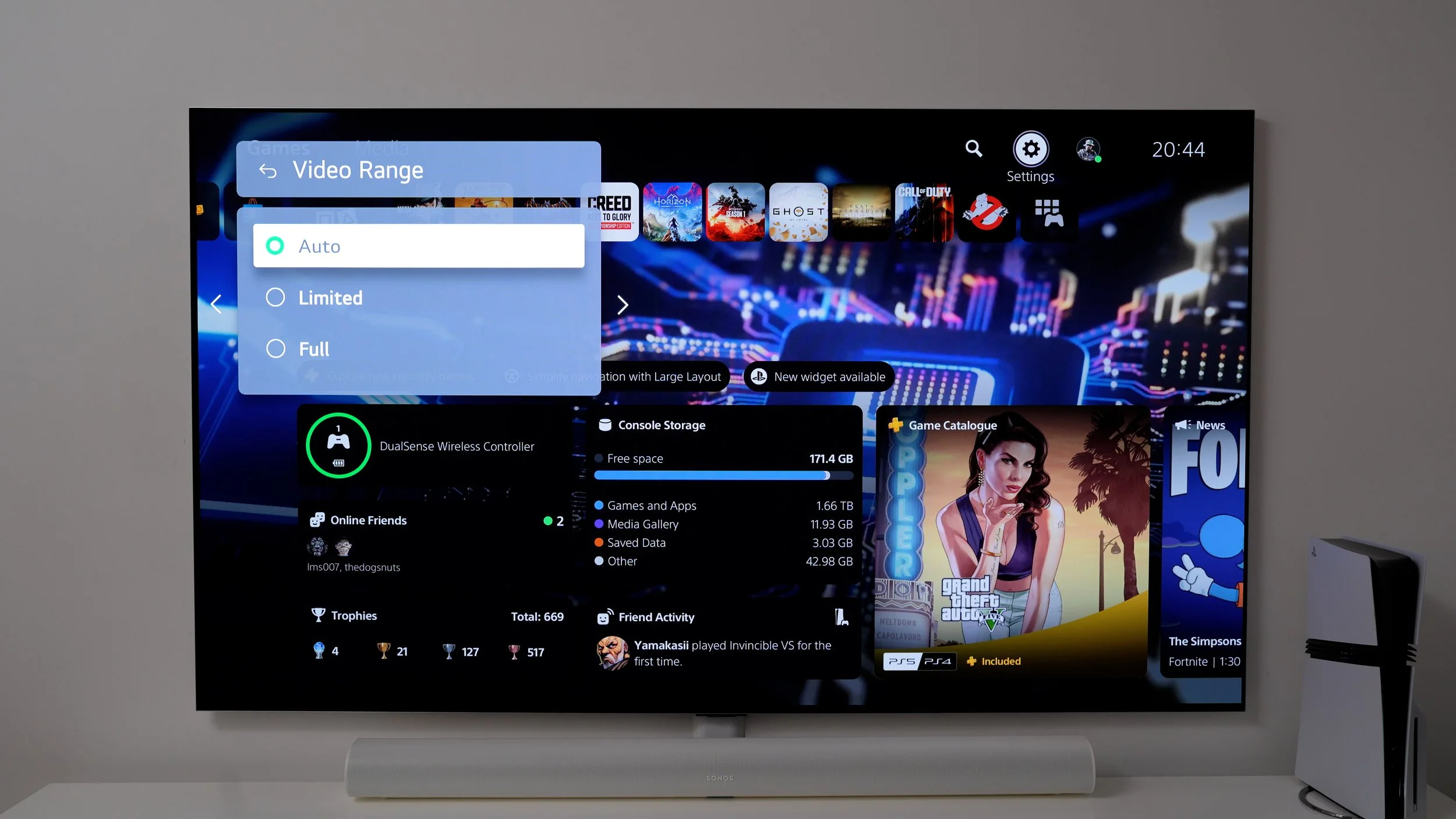
SDR GAMING SETTING
In your TV settings, go to picture / advanced settings/brightness/video range/auto. Some might be tempted to set this to full. The problem with that is that when gaming in SDR, leaving it on full can ruin the picture.
ANOTHER PS5 SETTINGS
One last PS5 setting to change is this. Staying in the screen and video menu. Go to the RGB range and set this to automatic. This allows the TV and PS5 to work together for the best colour accuracy.

FOR PC PLAYERS
Here are some quick tips for PC gamers. LG OLEDs are surprisingly well-equipped for PC. So let's show you some stuff you'll want to look out for.
On the TV, go to all settings/picture / advanced settings/colour/colour Gamut to auto.
4.4.4 chroma
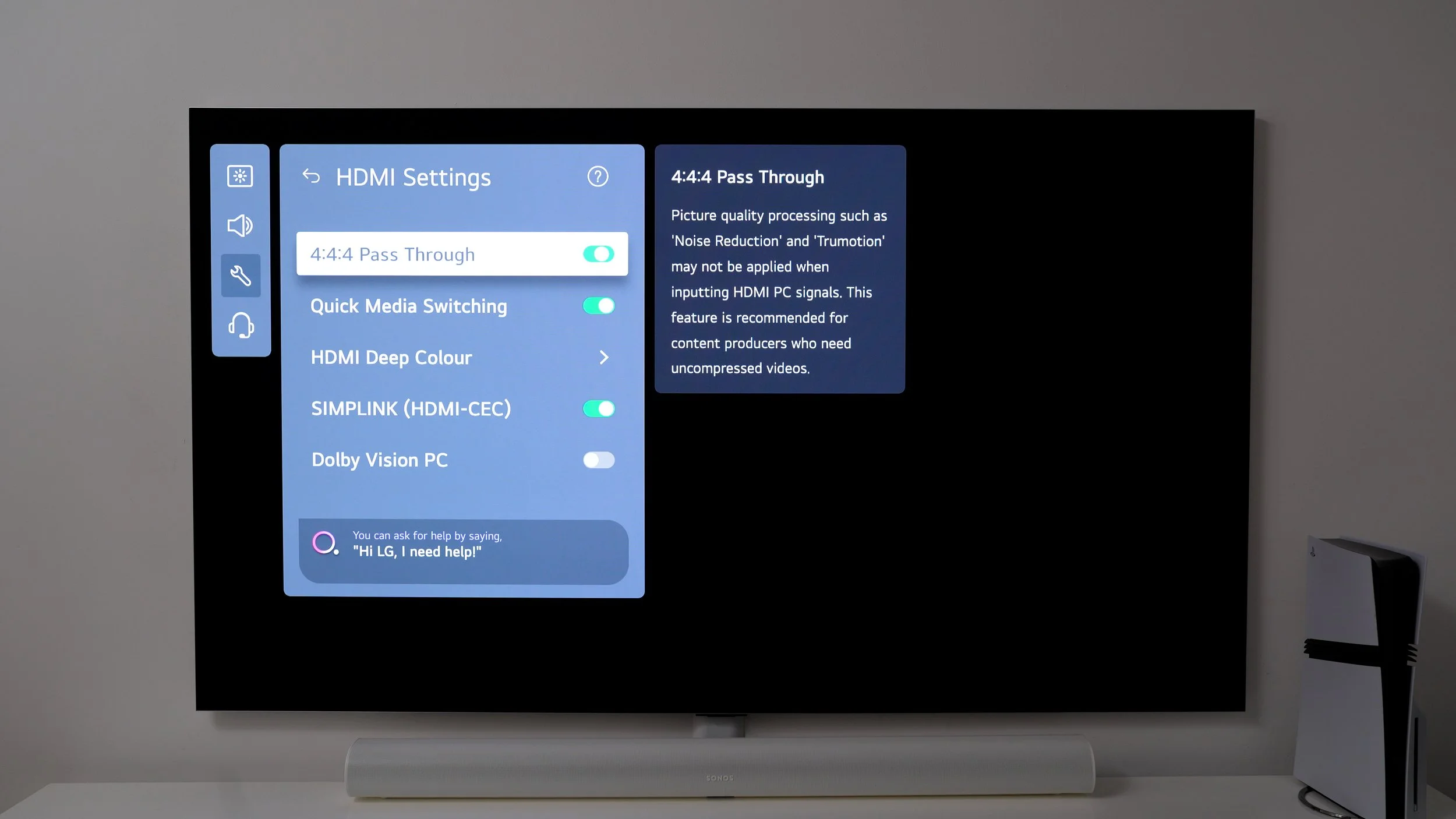
Now, if you want the very best picture quality, do this. Settings / general/external devices/ HDMI settings / 4.4.4 pass through. You will need to make sure your PC's graphics card settings are configured correctly. I have an Nvidia graphics card. So it involves going into the Nvidia control panel. In the display menu under change resolution, you can set the colour depth to highest, the output colour format to RGB, and the output dynamic range to full.
PERFECT PC HDR
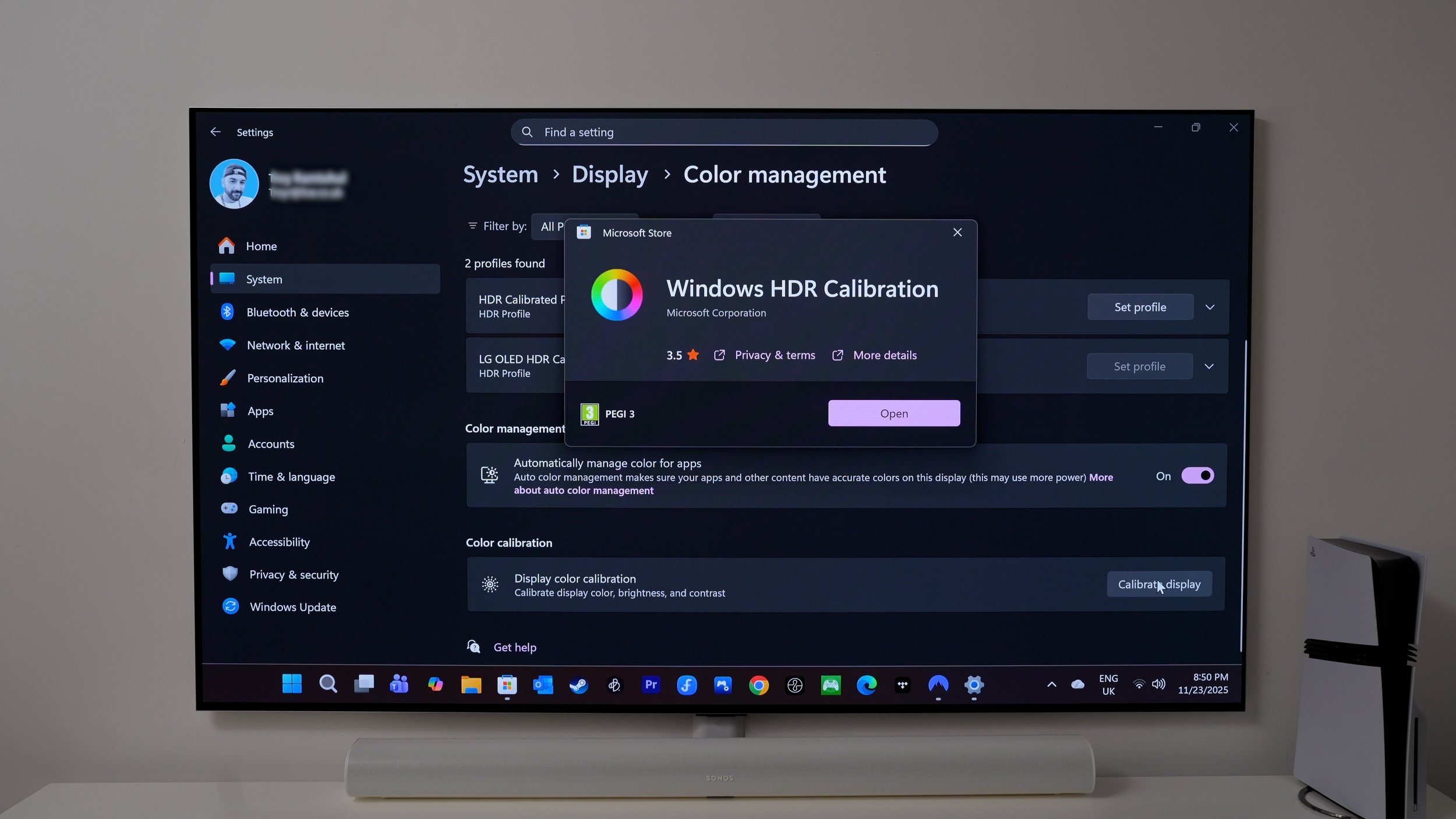
Now here's a little calibration hack for PC gamers. In Windows, go to Settings/display/colour profile / calibrate display. Windows has its own app that will help you get your HDR levels perfect.
DOLBY VISION FOR PC
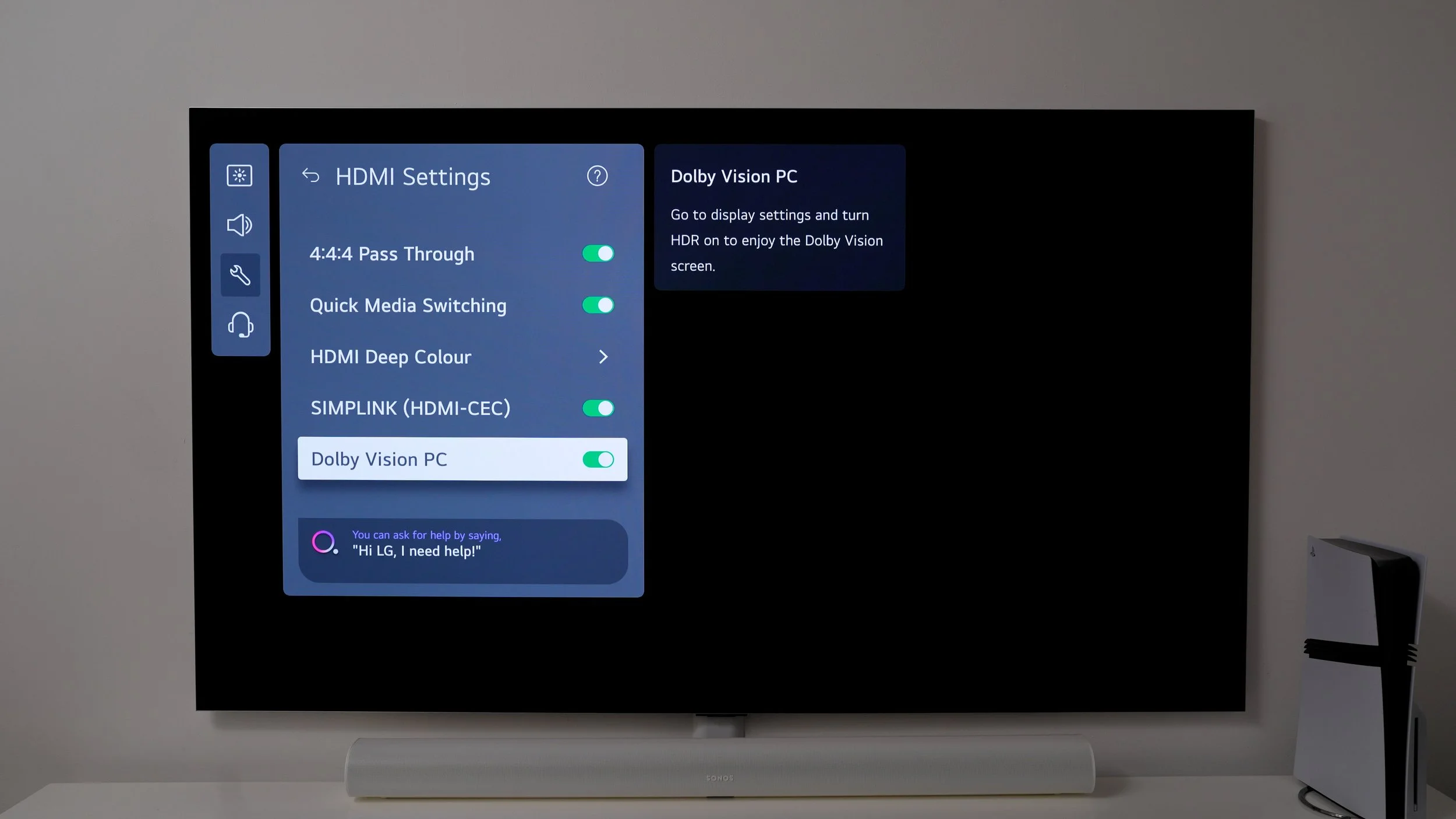
A couple more PC settings to look at. On the TV, go to all settings> general> external devices> HDMI settings. If you have the right graphics card and HEVC extensions, and games that support Dolby Vision, enable Dolby Vision PC. Setting this up properly actually deserves its own video. So if you're not sure your PC is set up for this properly yet. Leave this off for now.
SIGNAL CHECK
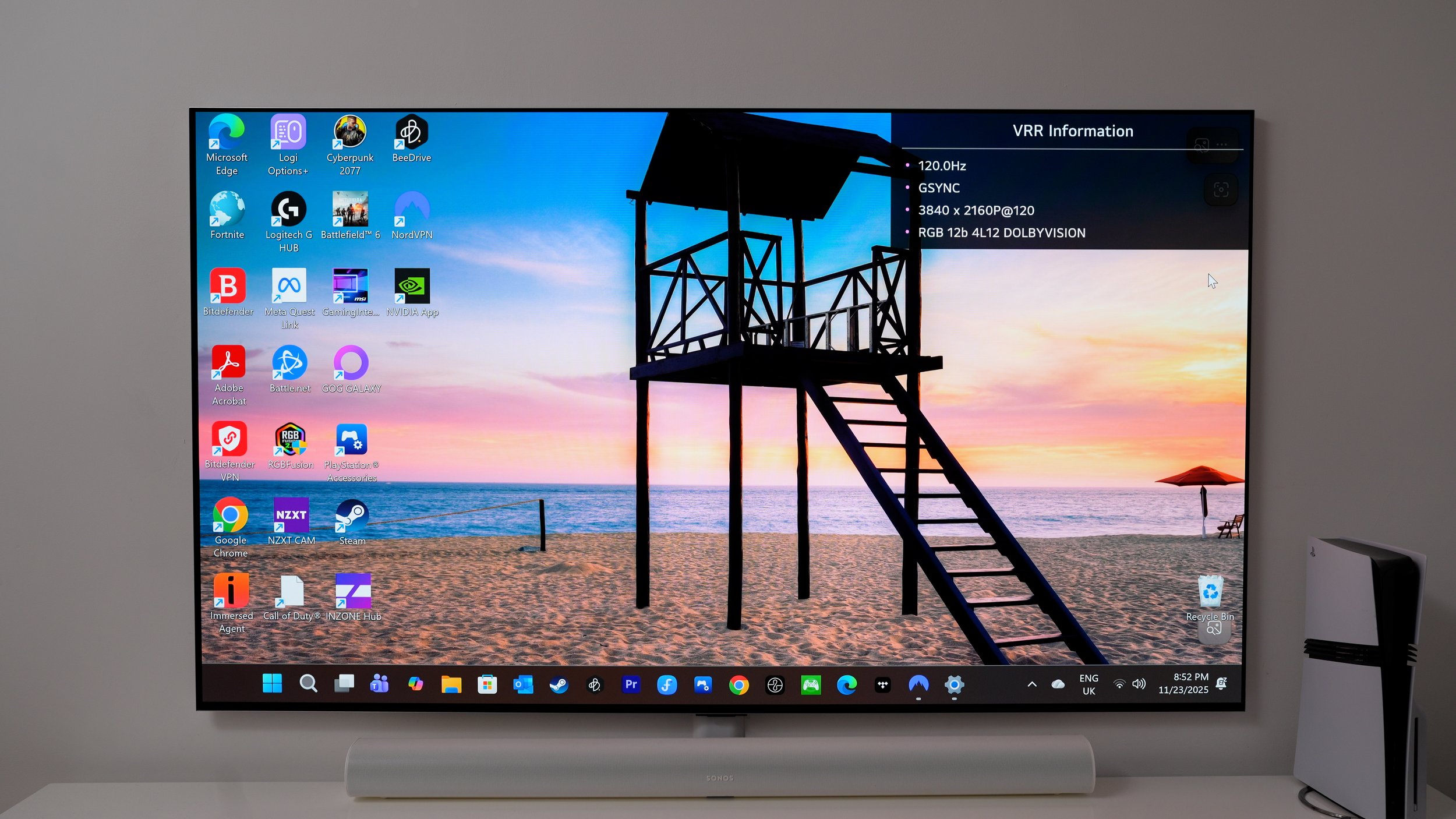
One last important hidden feature for PC gamers. Suppose you tap the green button 8 times. In that case, you get a small overlay showing VRR information, so you can see exactly which signal your LG TV is receiving.
THINGS TO TURN OFF
Alright, so you might not know this, but OLED panels are notoriously challenging to make. But LG has gotten really good at making them. Even so, the yield is around 85% so every 10 panels made, one ends up in the bin. That's why they tend to cost more. But to keep prices reasonable, LG does sell ad space and user data to advertisers. For example, it might show you a movie just released, which is good, but then follow up with a clothing brand ad. So without further ado. Here's some stuff to switch off if you don't want to be marketed to when you're on the sofa.
SCREENSAVER ADS
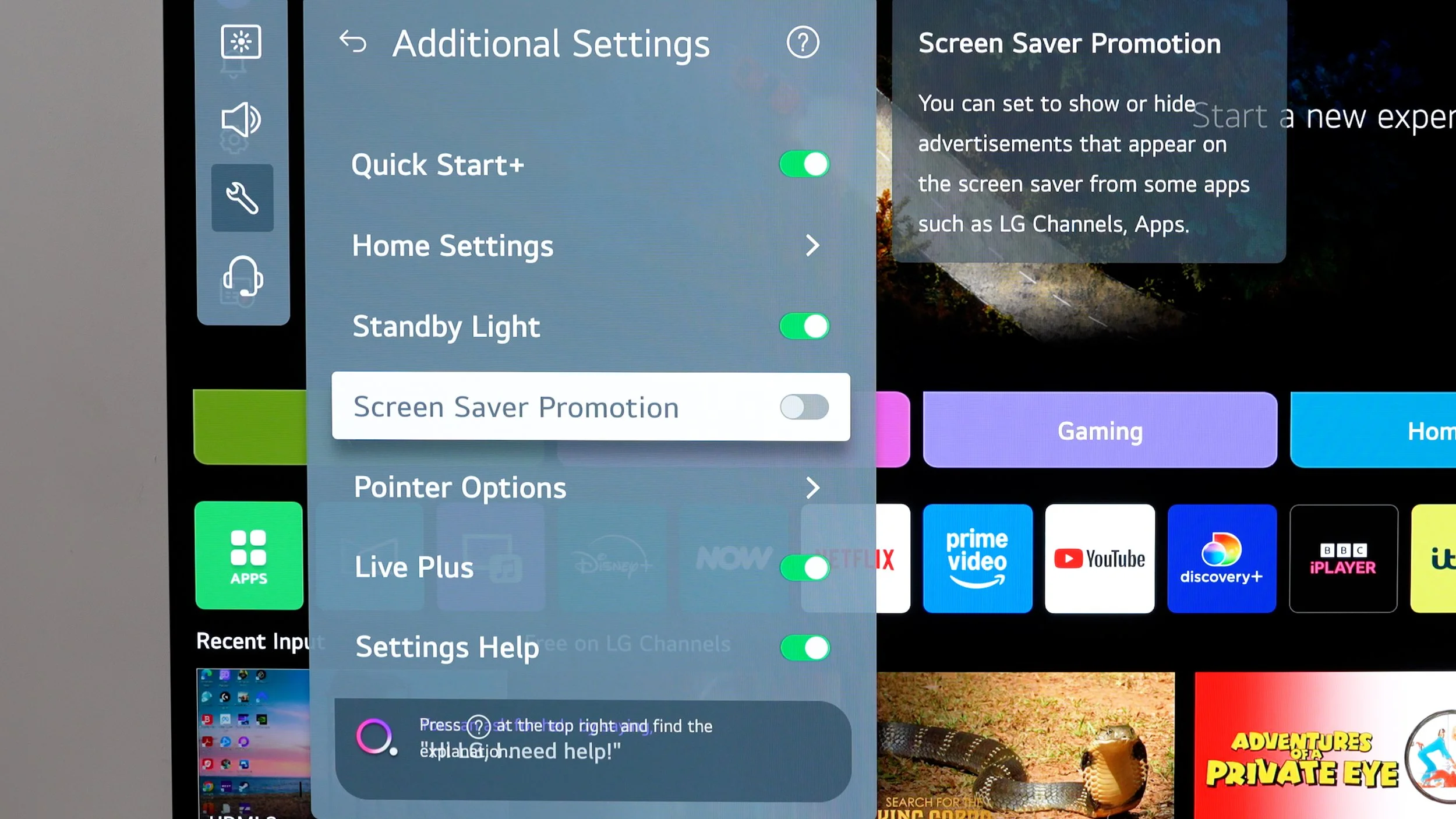
Your TV has a built-in screensaver you've probably seen. And, in the mid-screen saver, you're going to see ads by default. To switch this off, go to. Settings / general / system / additional settings / turn off screen saver promotions
MORE ADS TO TURN OFF
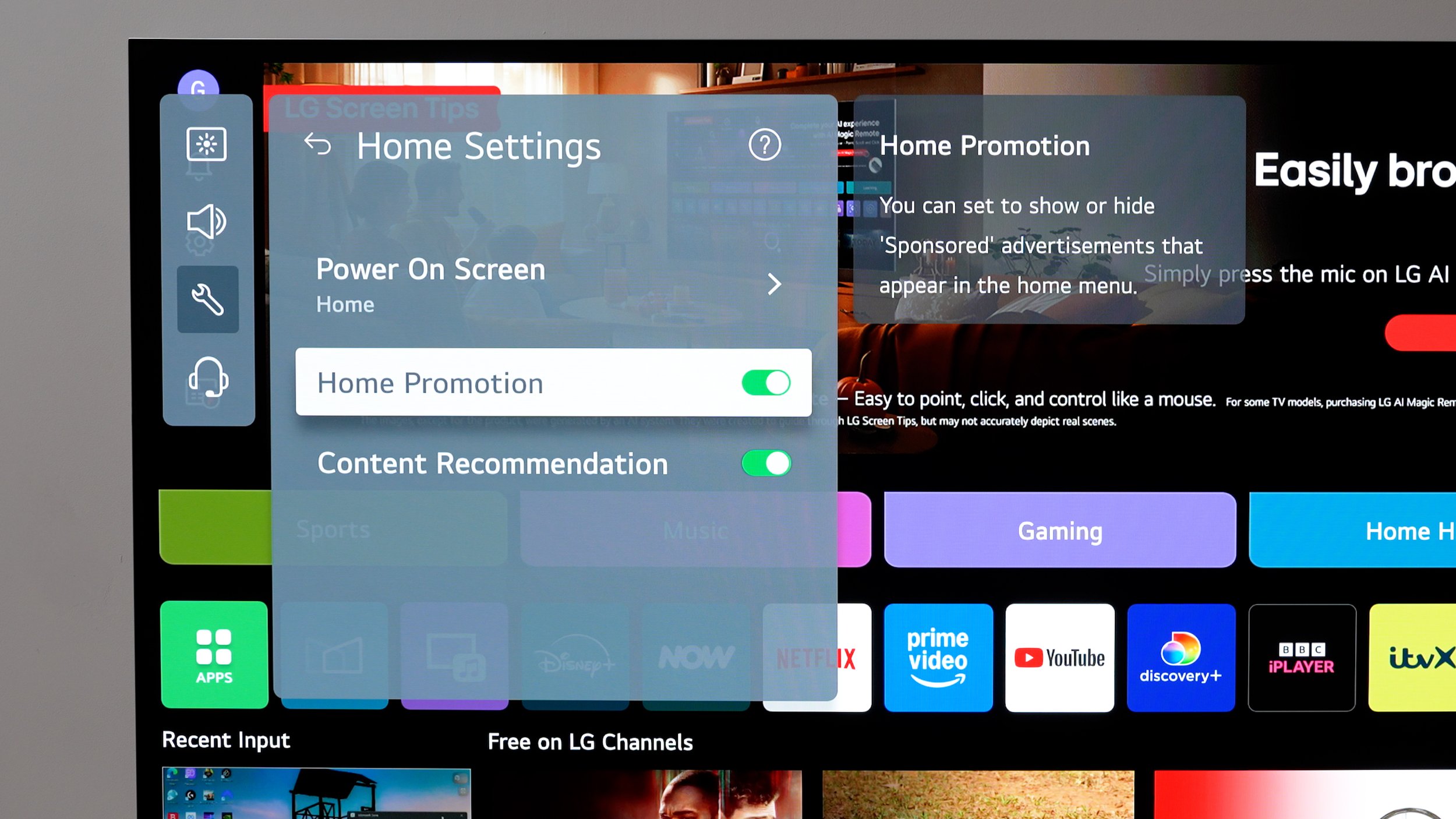
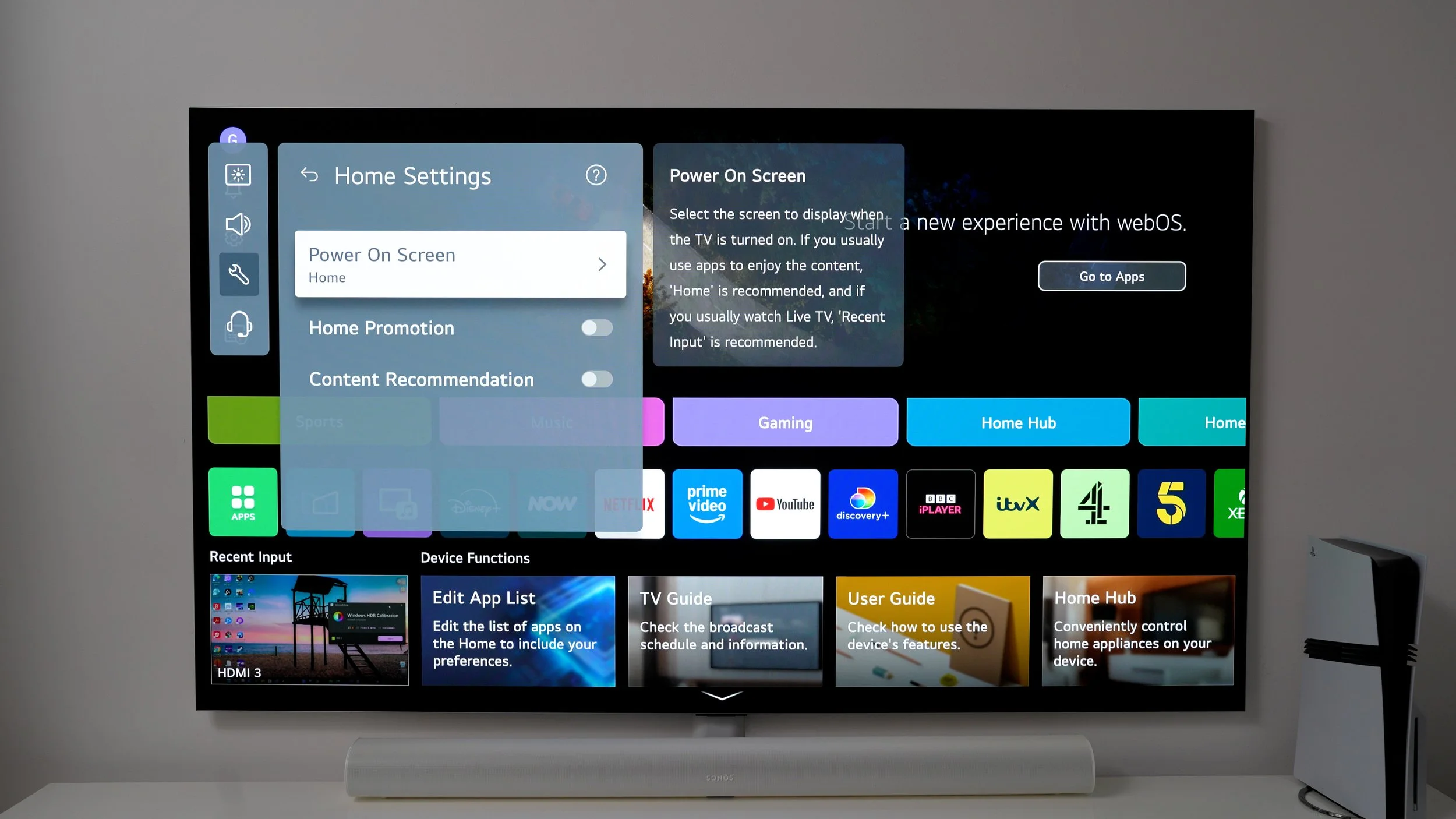
Did you know that your TV collects viewing data, which is shared with TV advertisers who want you to watch and sometimes pay for their stuff? To switch this off, go to Settings / General / system / additional settings / home settings / home promotion. Now, I actually don't mind content recommendations because with this on, you can quickly see what's new on the streaming services you have installed.
ORGANISE THE ROWS
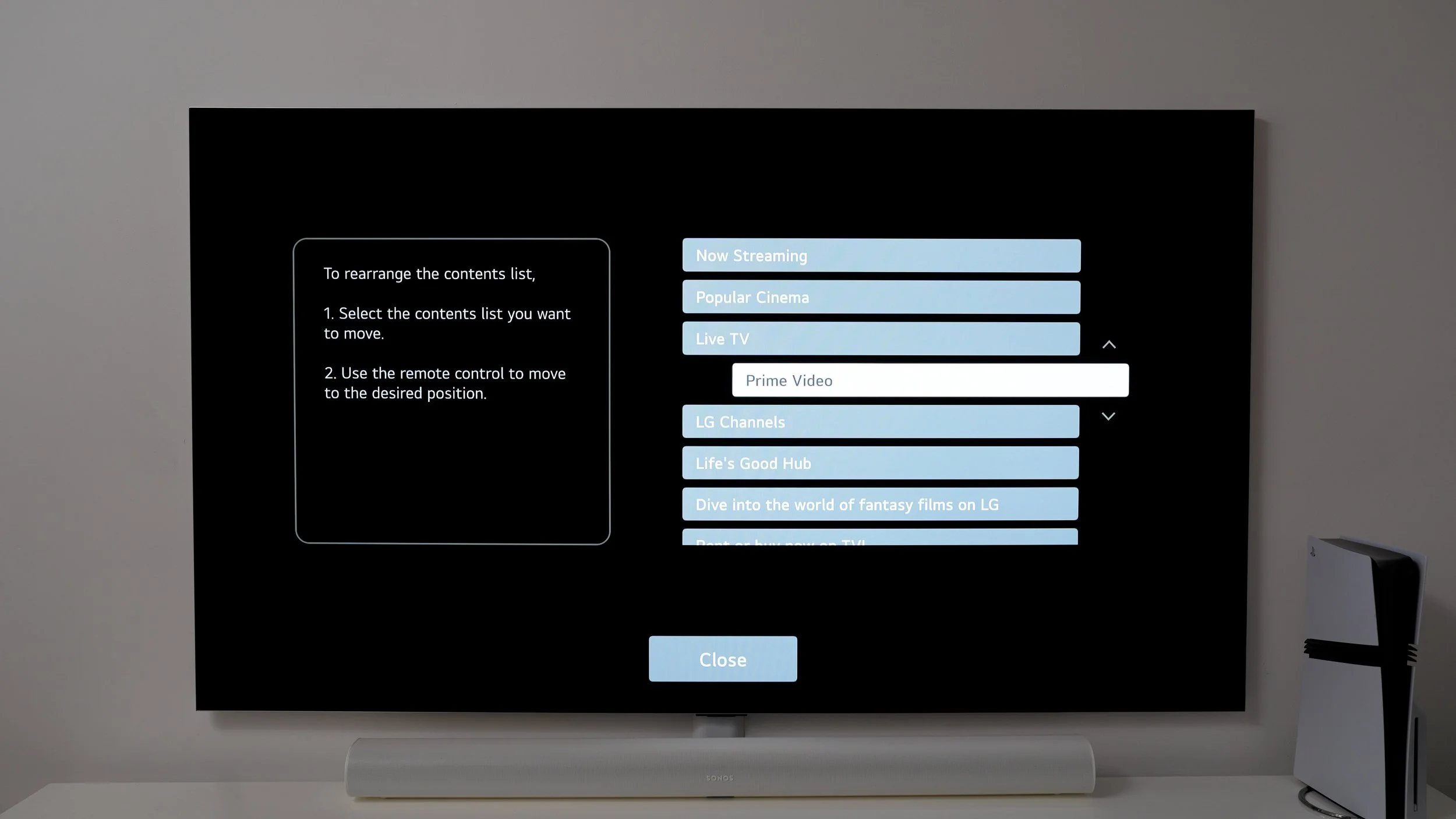
Here's a little bonus hack to improve this. If you scroll down to the bottom, you'll see a pen. Hit this. Now you can grab all the unnecessary stuff and move it to the bottom of the list, and all the good things to the top.
NO HOME PROMOS
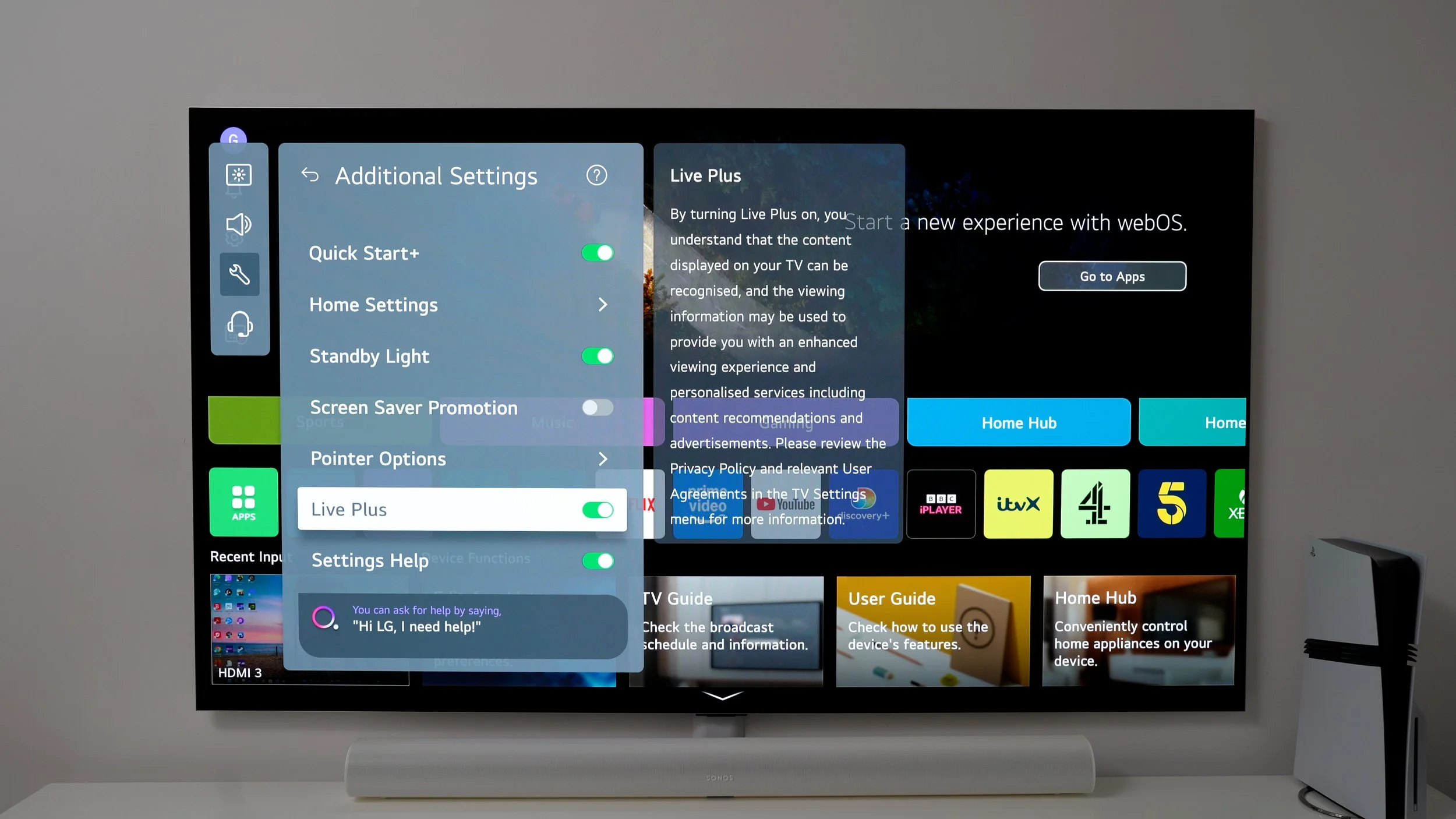
And if you're the type of person who doesn't want ads following you around. Do this Settings / general / system / additional settings / live plus. Turn this off. I'd recommend you do this if you might be the type of person who goes online to find out if you have ADHD and ends up buying a new pair of shoes.
OPTIMISE THE OS
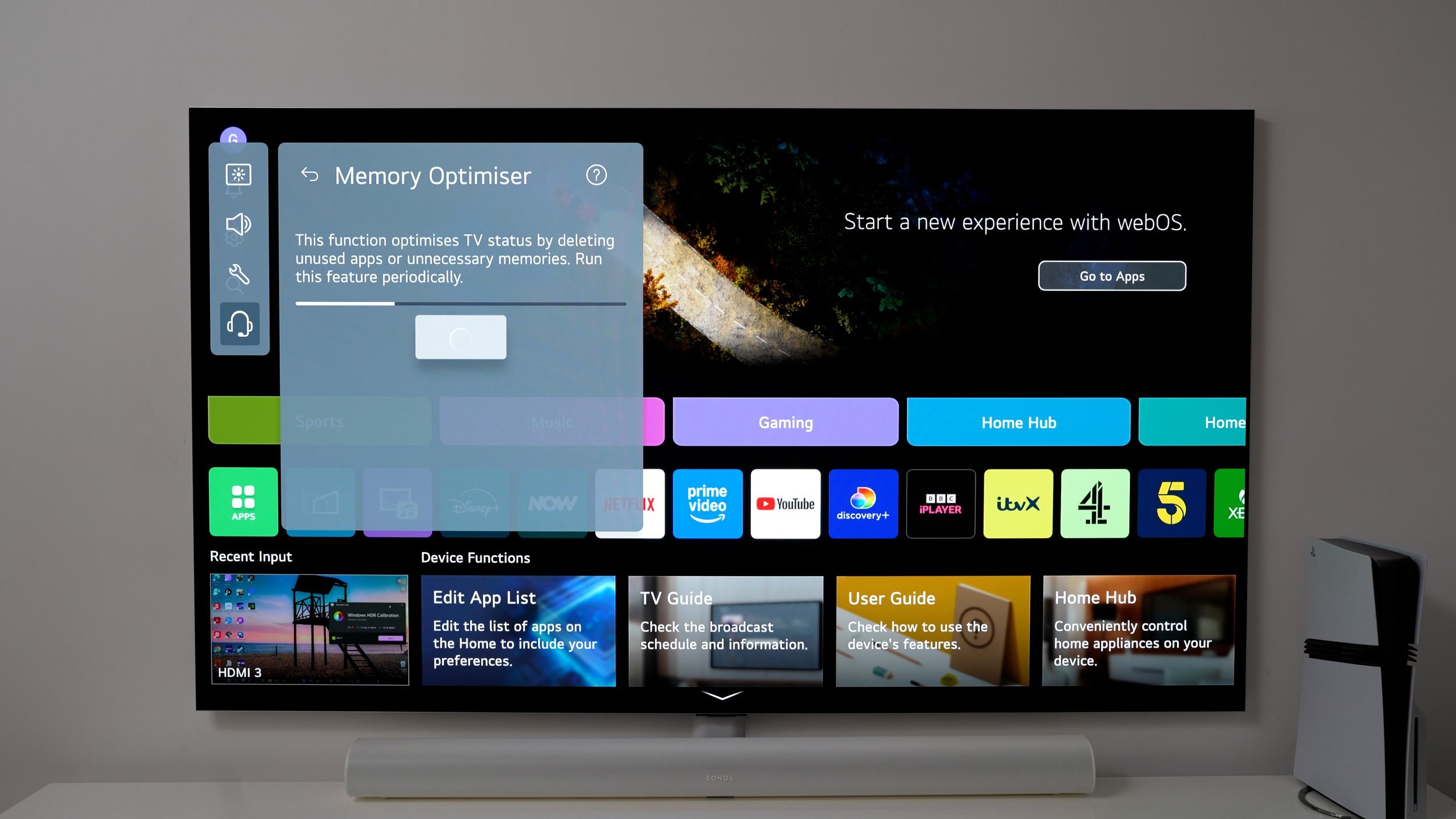
Here are some quick need-to-knows for optimising and speeding up your operating system. If you've installed and uninstalled a bunch of stuff, as I showed you earlier in the video. This tool will be helpful. Go to Settings/support/memory optimiser. Run this to refresh your system's memory.
AN AUDIO SETTINGS
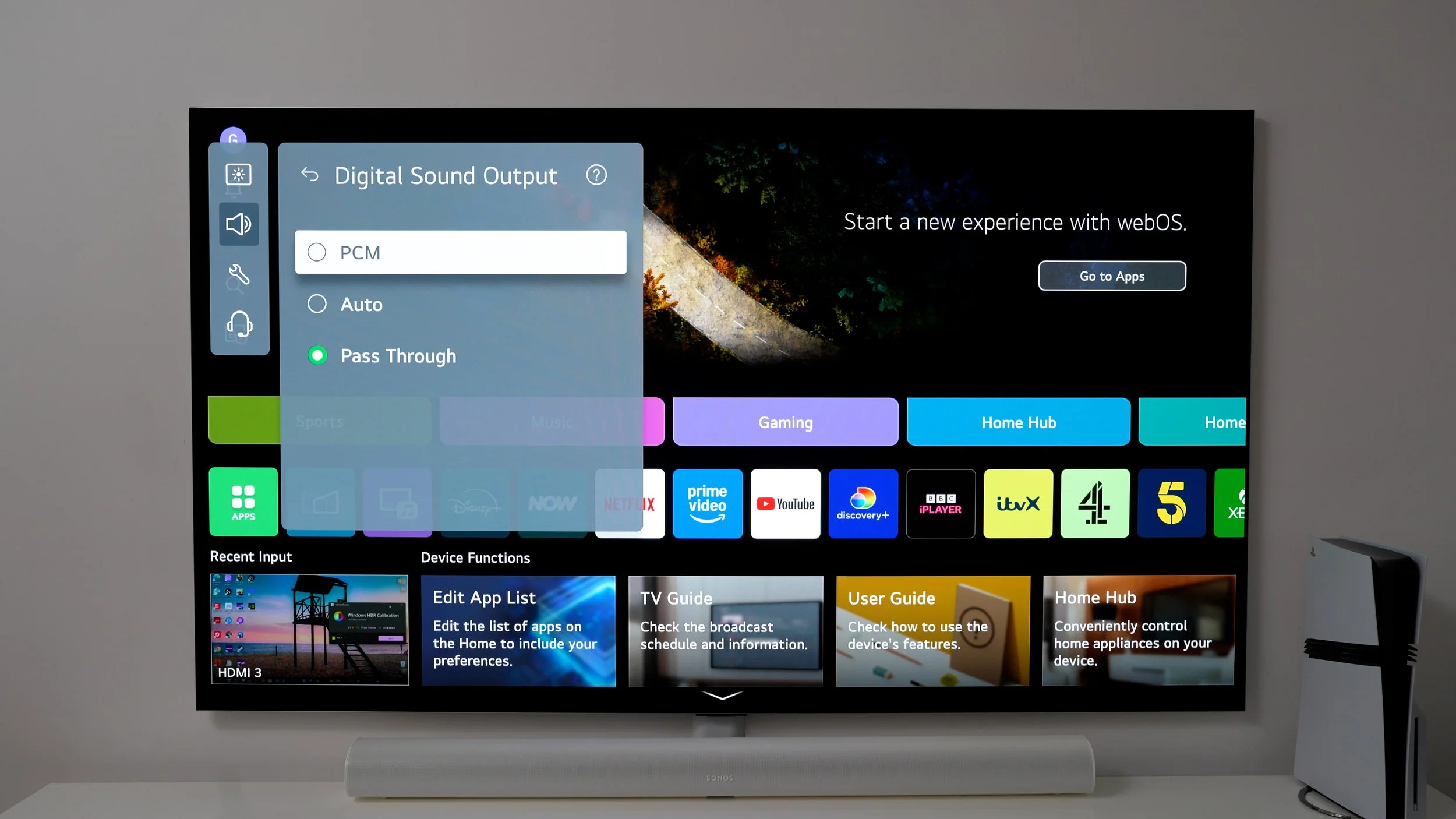
If you're running your TV's audio to a high-quality sound system with 8 channels or fewer that does not support Dolby Atmos. You get better quality audio by going to Settings/sound / advanced settings and changing the digital sound output to PCM. This way, you get the most uncompressed audio signal possible. If no Atmos sound system / switch to PCM
QUICK SETTINGS
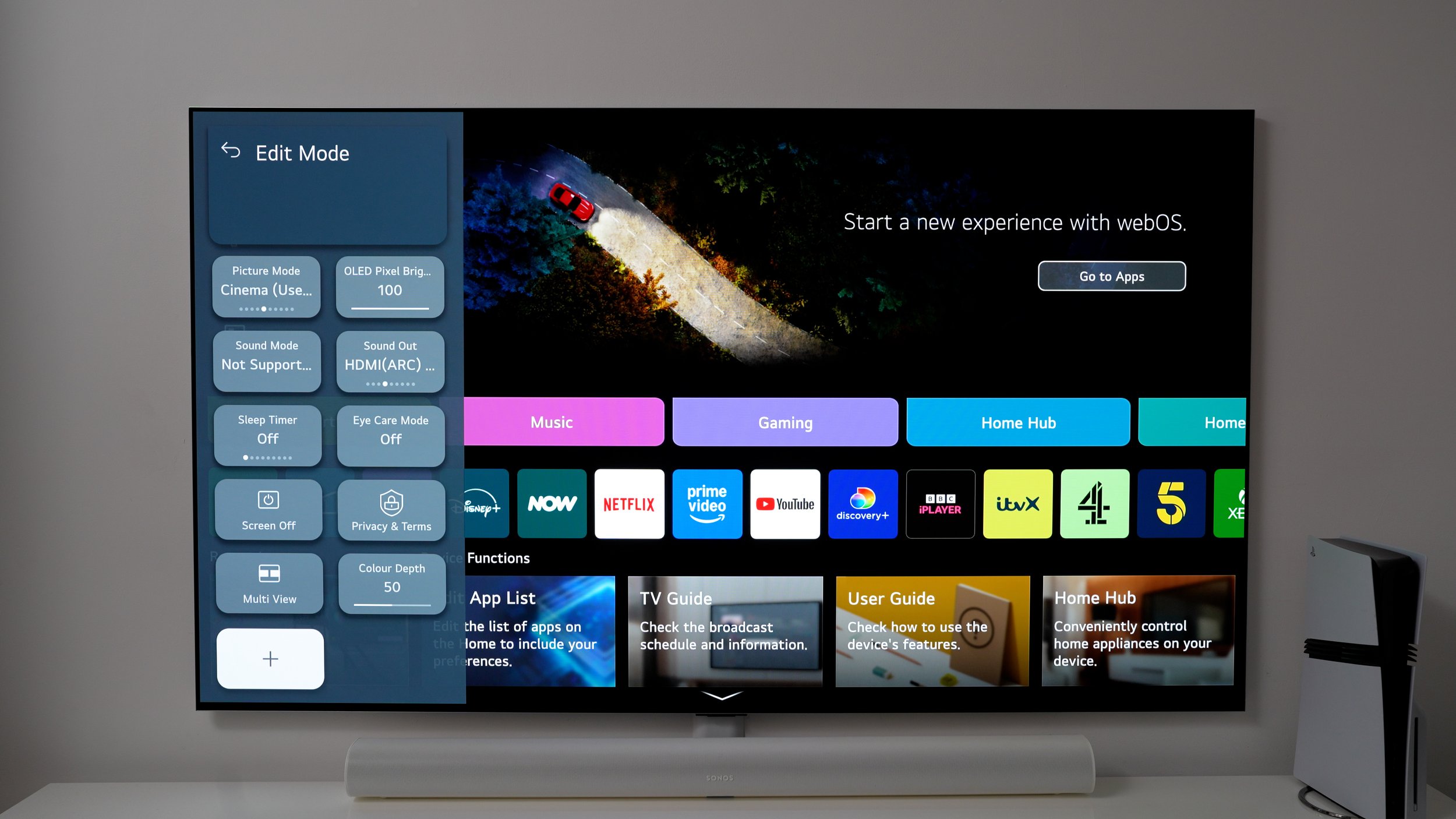
As you've seen, navigating the system menus takes time. Here's how you can save some. Settings / Pen / here you can find quick shortcuts to some important system settings, and even reorganise them.
CUSTOM BOOT UP
If you're the type of person who uses a third-party streaming device and wants to avoid LG's webOS interface altogether. You can do it by going to Settings / General/home settings / additional settings/power on screen / select your set-top box
CHILD PROOF SETTINGS
If you have kids, you can thank me later for this one. Go to the settings at the top, go to the padlock. And enable this function. Now you can lock down the content viewed on your TV in various ways. And if you go to usage limits, you can specify the times at which it can be used. And if you hit the back button. It'll take you straight to the family settings, where you can control volume limits and eye care settings, and even view screen and app usage.

APP AUTO UPDATES
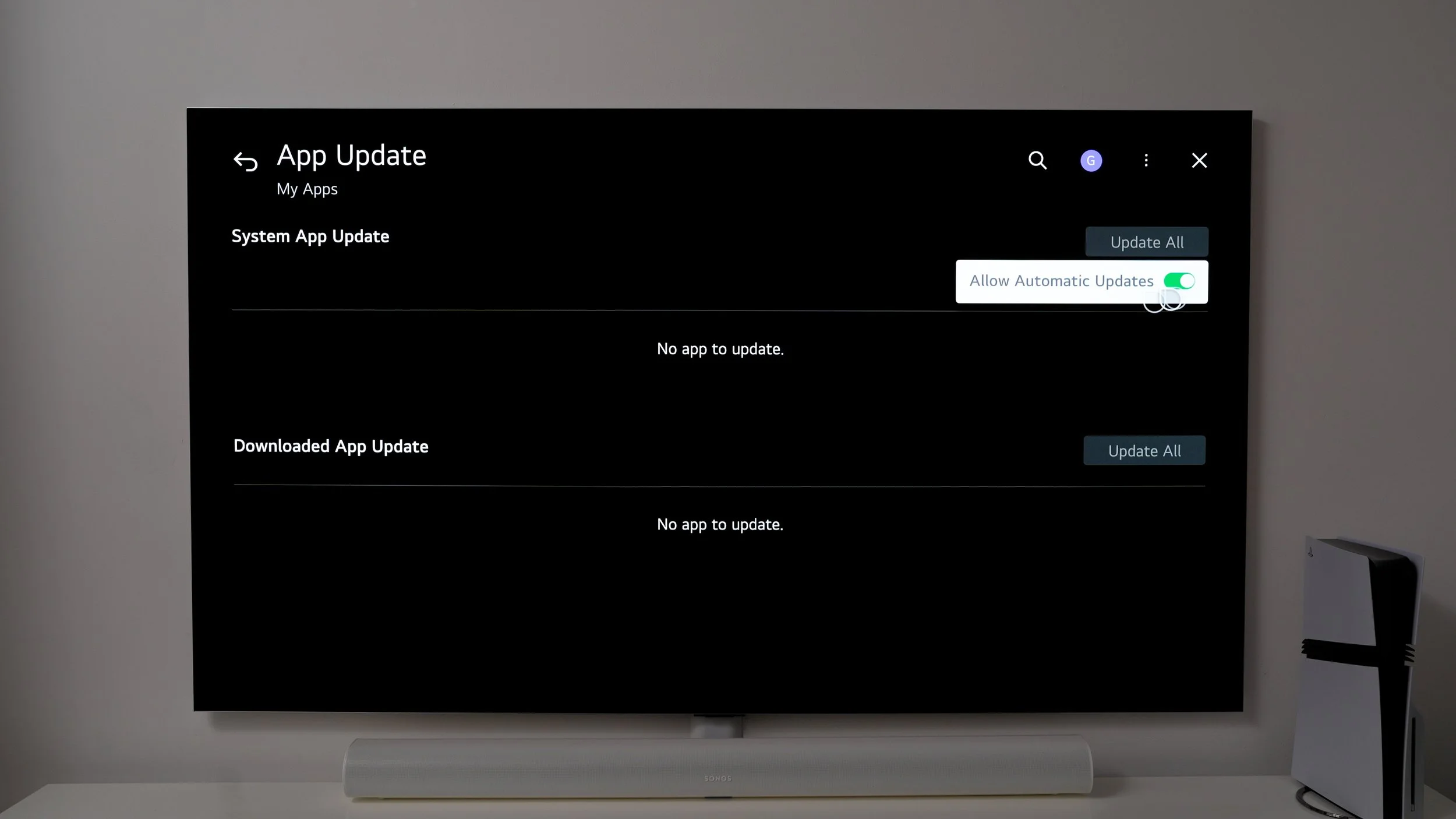
Isn't it annoying when you make some popcorn, sit down and put your feet up? Only to find the app you want to use needs an update. You can avoid this by hitting All apps / go to three dots/app update / allow auto updates
DEVICE MANAGEMENT
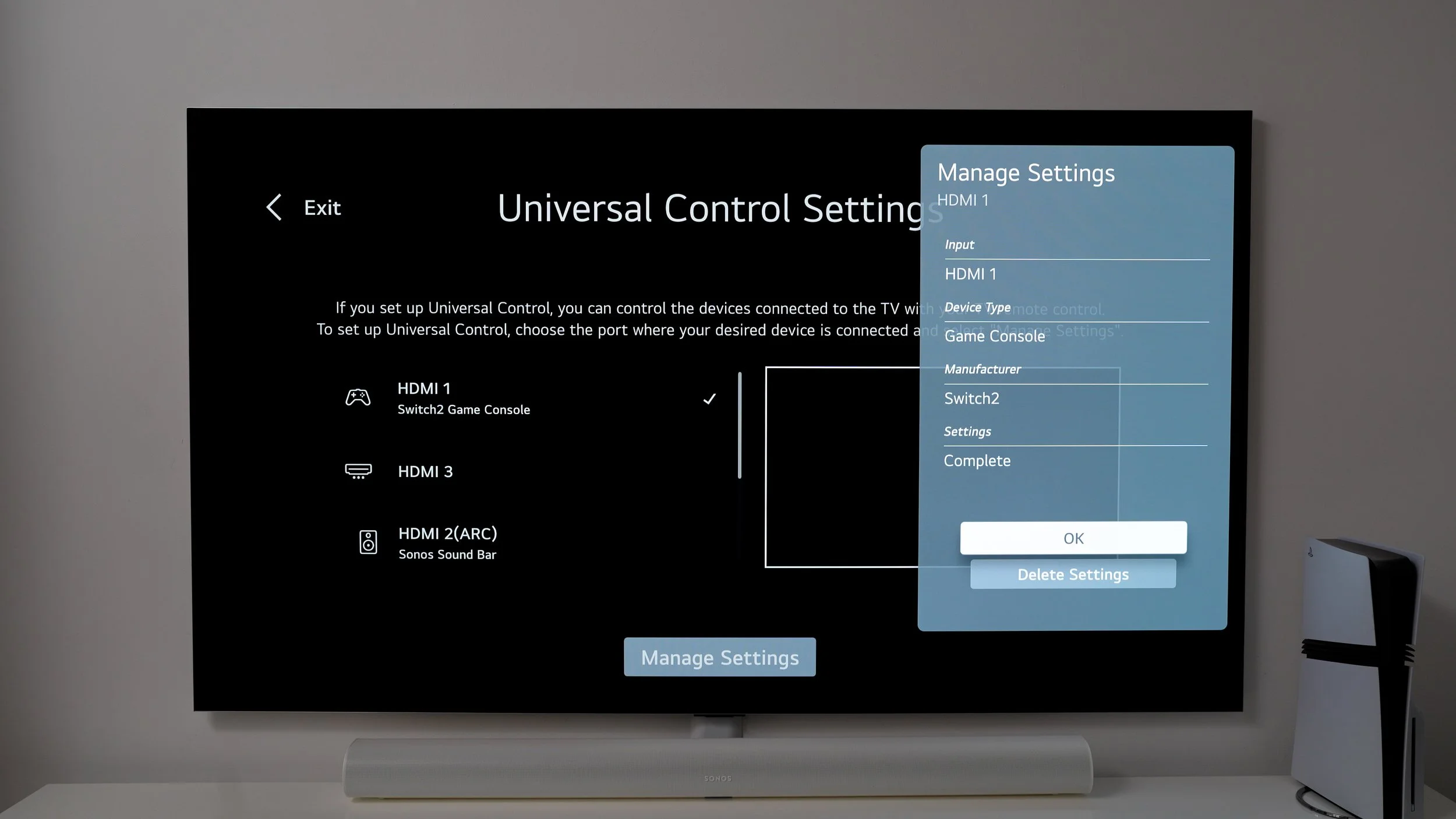
Ok, this is rare, but just in case you ever hot-swap your HDMI cables between devices. For example, I sometimes switch my PS5 HDMI with the switch. The TV doesn't always automatically realise this has happened. And it can cause audio or picture problems. To solve this, hit the input button. Scroll across until you see 'universal control settings' highlight the device, then manage settings. Here you can delete the settings, and the TV will recognise it as a new device.
BONUS HIDDEN MENU
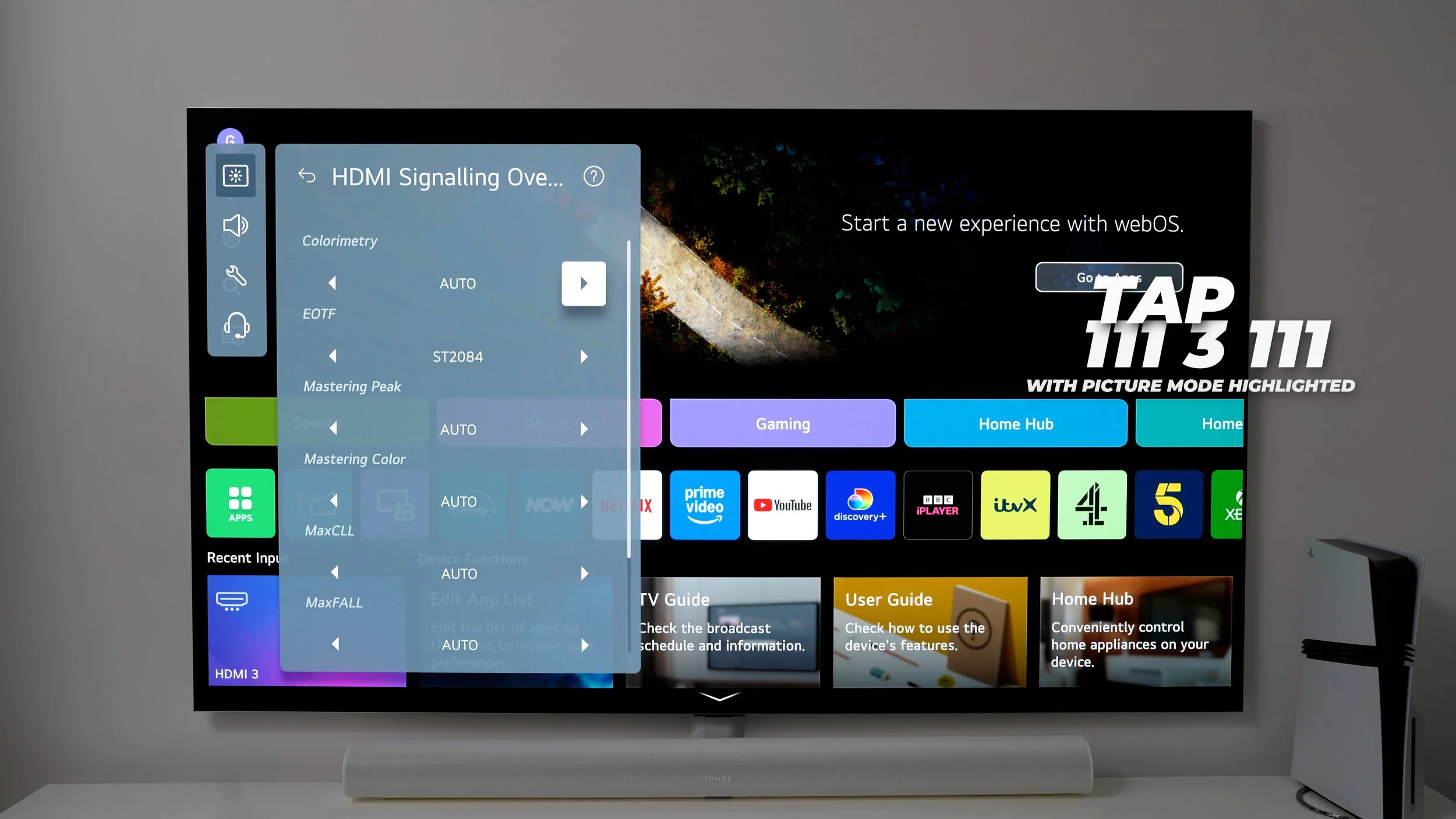
There's one more super-hidden menu. If you highlight your current picture Mode. With select mode highlighted / tap 1113111 . Here, you change EOTF to ST2084. This will force an HDR signal from an SDR input source. So you'd only want to use this if you're hooking up an older device. One that was around before HDR devices became available.