
Huawei Watch GT6 Pro - Beginners Guide ( 10 Tips and tricks )
If you have just picked up a new Huawei Watch, or if you're considering getting one. This will highlight what Huawei's wearables are all about. And if you do have one already, follow along because you're about to learn how to optimise & unlock all its features, and how to customise & tailor it for you specifically, and that way you won't be missing out on any of the hidden settings & excellent features. And when you hit the Gym, you can keep track of all your health data, and there is one that I wish someone had told me a long time ago. Here are the first 10 things to do on the new Huawei Watch.
Watch Faces
App / My Faces / manage local faces / remove unwanted / add favourites
So, let's make the watch feel more your own style. Open the Huawei Health App. Tap where it says 'My Faces'. Here, manage the local watch faces. And delete any of these that you're never going to use. Now, go back, and here are all the watch faces that Huawei has designed & these are all free. If you want to splash some cash, you can tap 'View More in watch face store' and there are a lot more to choose from.
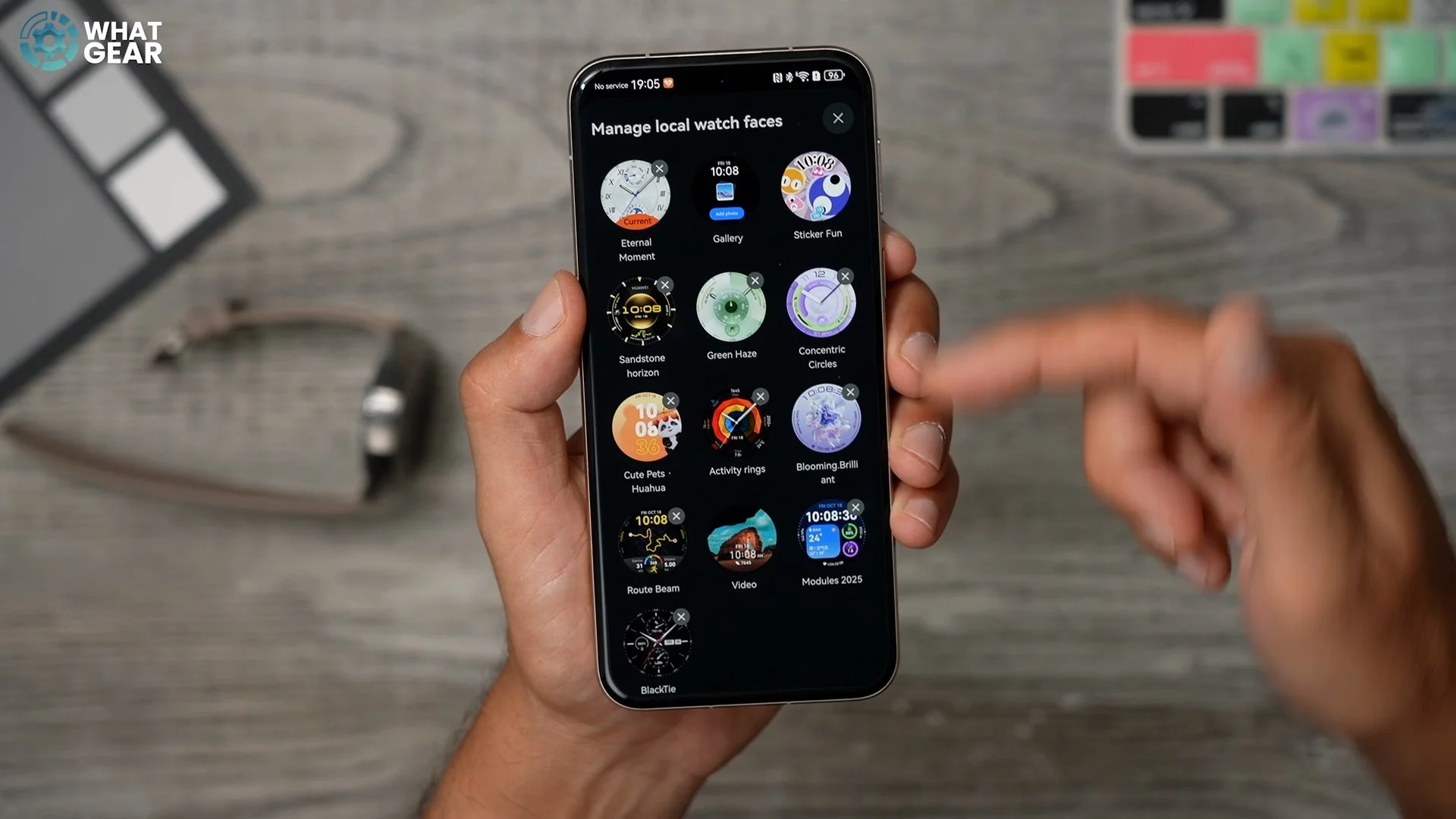
Anyway, if you want to keep things simple. Choose three watch faces:
One for workouts
One for work and formal events
One for casual use
Customising Complications, Colours & Fonts
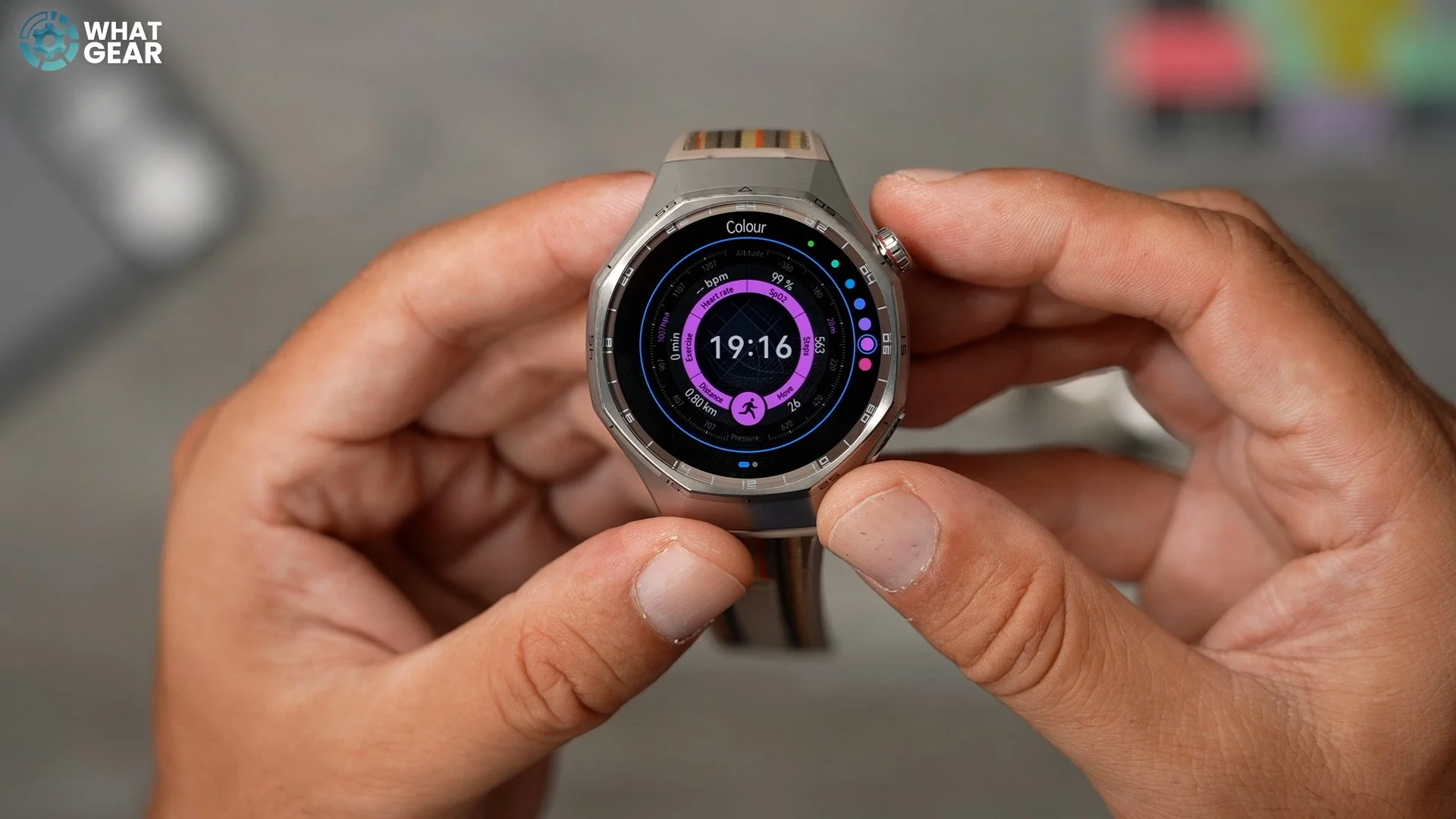
On the watch itself, to switch between faces, hold your finger down on the display, and you can swipe between your chosen faces. There is something very awesome you can do here, which will become clear later on. But for now, I want to show you the basics of customising your chosen faces. If you click the 'custom' button below a watch face, you can now modify the colour schemes, as well as the complications. It's essential to note that some faces will have more customisation options than others. Now you know how to customise the faces, spend a little time getting the colours and complications right.
Navigating Apps
Let's streamline the watch's features so that the most important stuff to you is easy to access with minimal effort if you push the top button. This brings up your apps & features page. Scroll all the way to the bottom of this page. You will see the option to switch to list view.
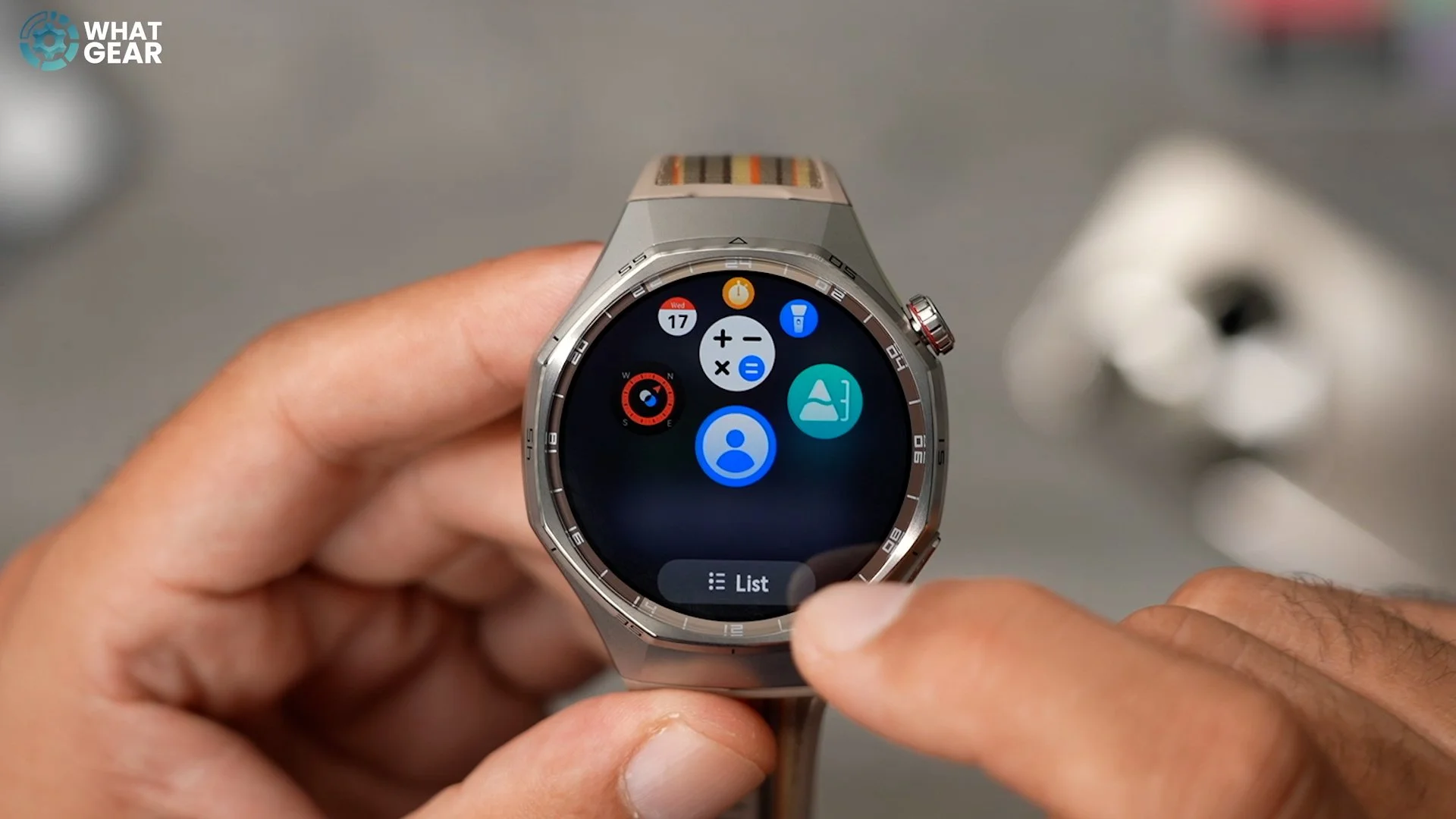
This setting is a matter of personal preference, but one clear advantage of the list view is that you can see both the names of the features and their icons. The list view might help you if you're new to Huawei watches. Ok, let's move on to the next step.
Get Organised
There are many features on the watch. And the chances are some of them are going to be more important to you than others. So let's get them in order so that when you tap that top button. What you need is right there, right away, no scrolling required.
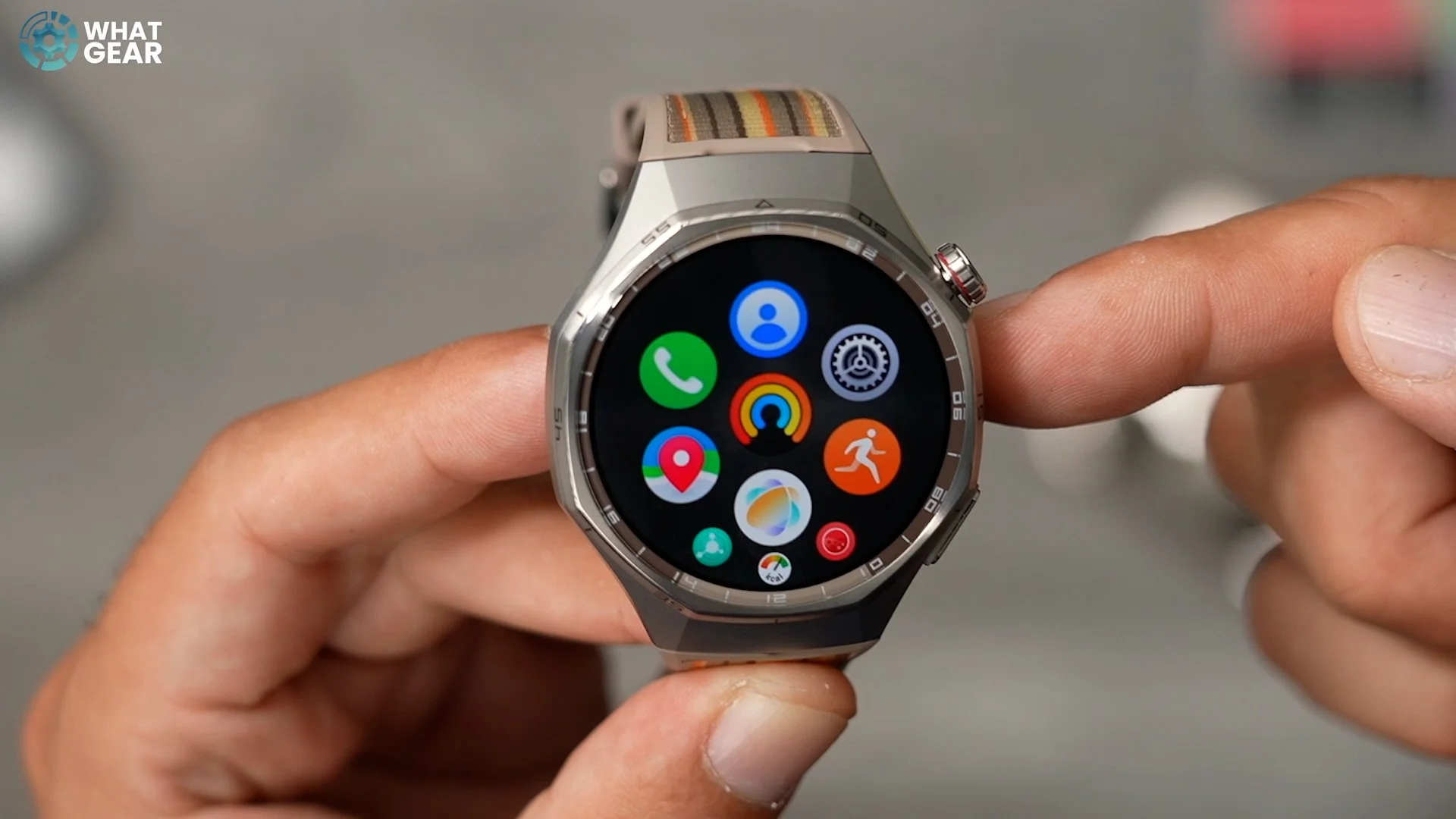
To do this is simple. It's just like a smartphone. Locate the most useful App that you'll be using a lot, hold your finger down on it and drag it to the top. Set this up so that all the useful apps are up top and the less-used ones are furthest away.
You Cards
Alright, now let's optimise and tailor the user experience even more to your specific needs. There are two steps to this. This is step 1. When you swipe right to left on the home screen. You notice you have six pages in total, not including the watch face. These are the standard ones if you want to change the cards that Huawei has dealt.
Swipe down from the top to go to settings / watch face & home/cards / manage cards.
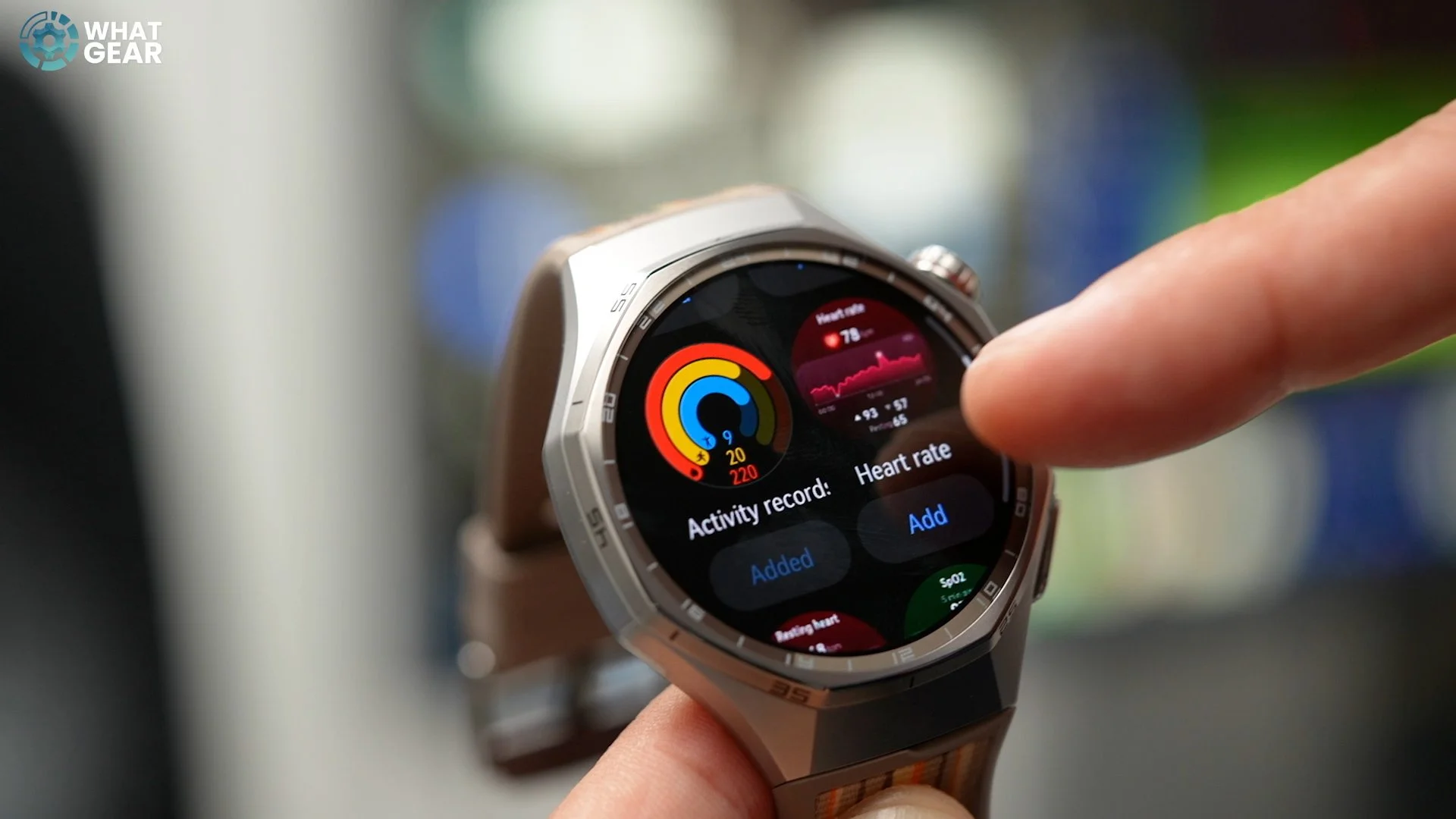
Here, you can delete everything and start from scratch, adding only the cards that are relevant to you. And just like we did with the apps screen. Keep the most important ones closest and the least important further away.
Customise Cards
Now, once you've chosen the cards that are important to you, you must know how to customise them so they display the relevant information and apps that you need. For example, let's use this sporty card. Hold your finger down and hit custom. And now you can switch out the sports tracking mode to 4 of the ones you do the most.
Edit sports list
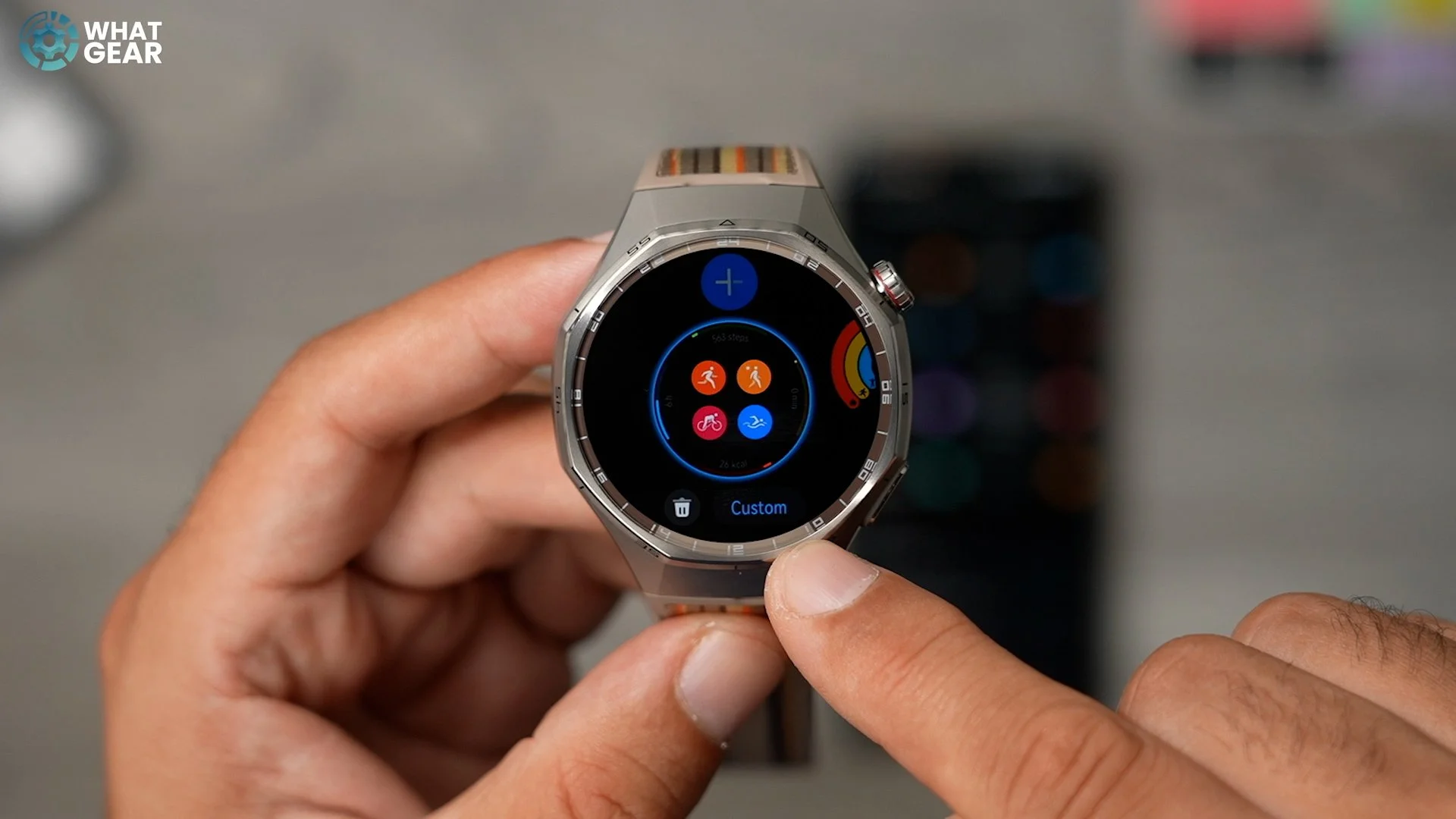
Now you have a quick way to access four fitness tracking modes. But what if you do more than four, or occasionally you like to play a little laser tag, motorsports or something? The Huawei Watch has more than 100 tracking modes. And if you push the down button on the watch, you'll see some of them. These are the default ones Huawei thinks you might use.
Now, if the sports you do the most are listed here, you can move them to the top of the list by pushing and holding for a couple of seconds and releasing, and you'll see an upwards arrow. Tap this, and this will pin them to the top. So now you can get your favourite fitness modes in order. Now your favourite workouts aren't listed here. Scroll to the bottom & hit add. Now you can see the complete list of modes. Find the ones that matter to you and add them & pin them to the top if you want to.
Down button
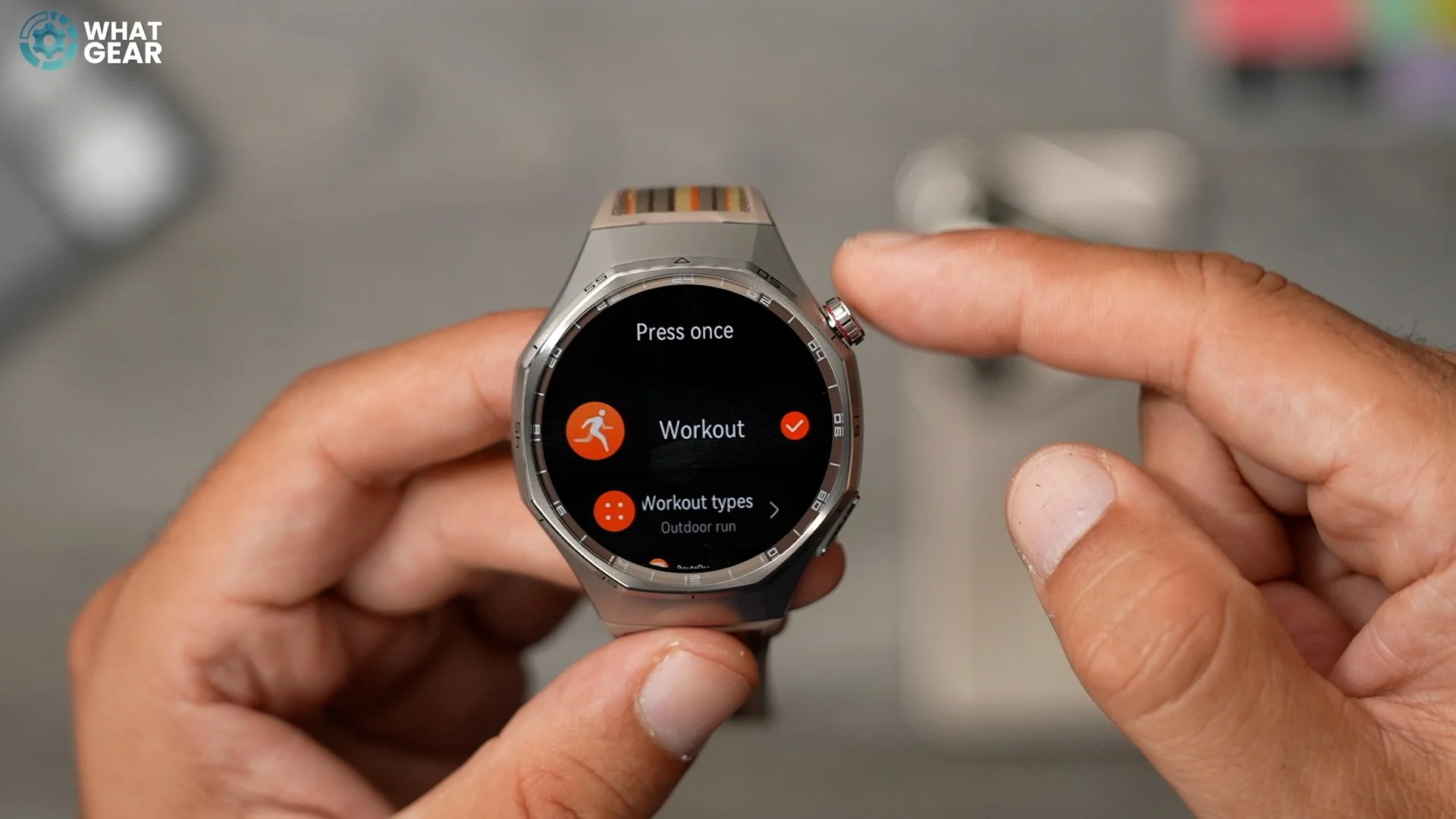
Let's say you only really focus on one sport or workout activity. If that sounds like you, then consider this. Swipe down / settings / down button/press once
Here, you can remap the down button to jump immediately into that tacking mode. No swiping around or looking. It's just a quick tap to get there. Super efficient.
Offline Maps
This watch right here is the GT6 Pro & Huawei has made some significant upgrades to their GPS tracking. Especially when travelling between tall buildings, but more significantly, to the accuracy when scaling heights or travelling downwards. To some smartwatches, they might measure this as not travelling a long distance when looking from the top down. Anyway, to make the most of this upgrade. I recommend you do this.
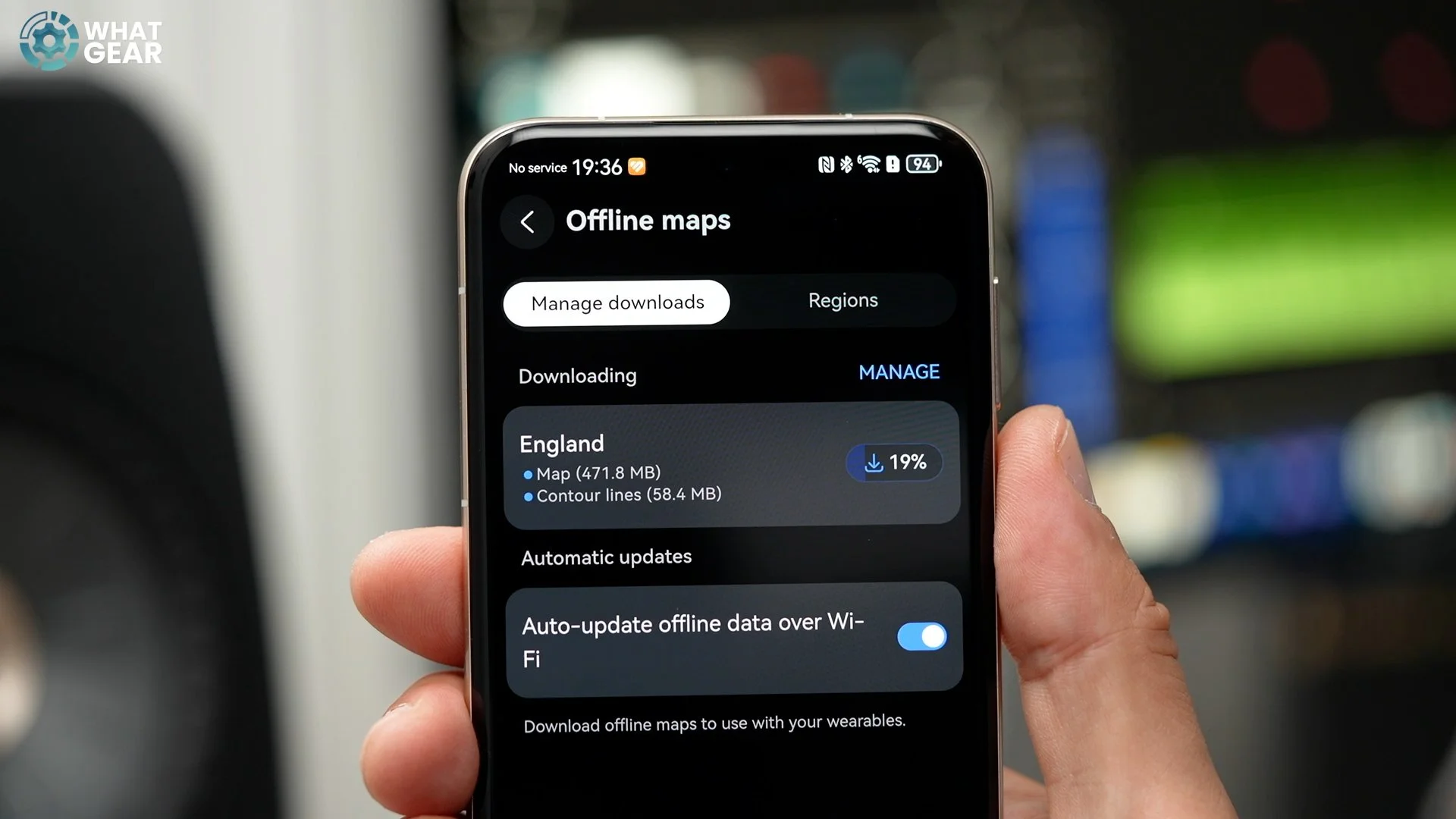
Open the Huawei Health App on your phone. Tap your watch, go to offline maps and download the map pack for your region or the region where you might be training. This comes with the contour data of the terrain. This will also enhance the accuracy of tracking data. Additionally, you can also use the 'Route Draw' feature even when offline, which maps the route you travelled on the map. So, if you are exploring unknown terrain, you'll always be able to find a way back.
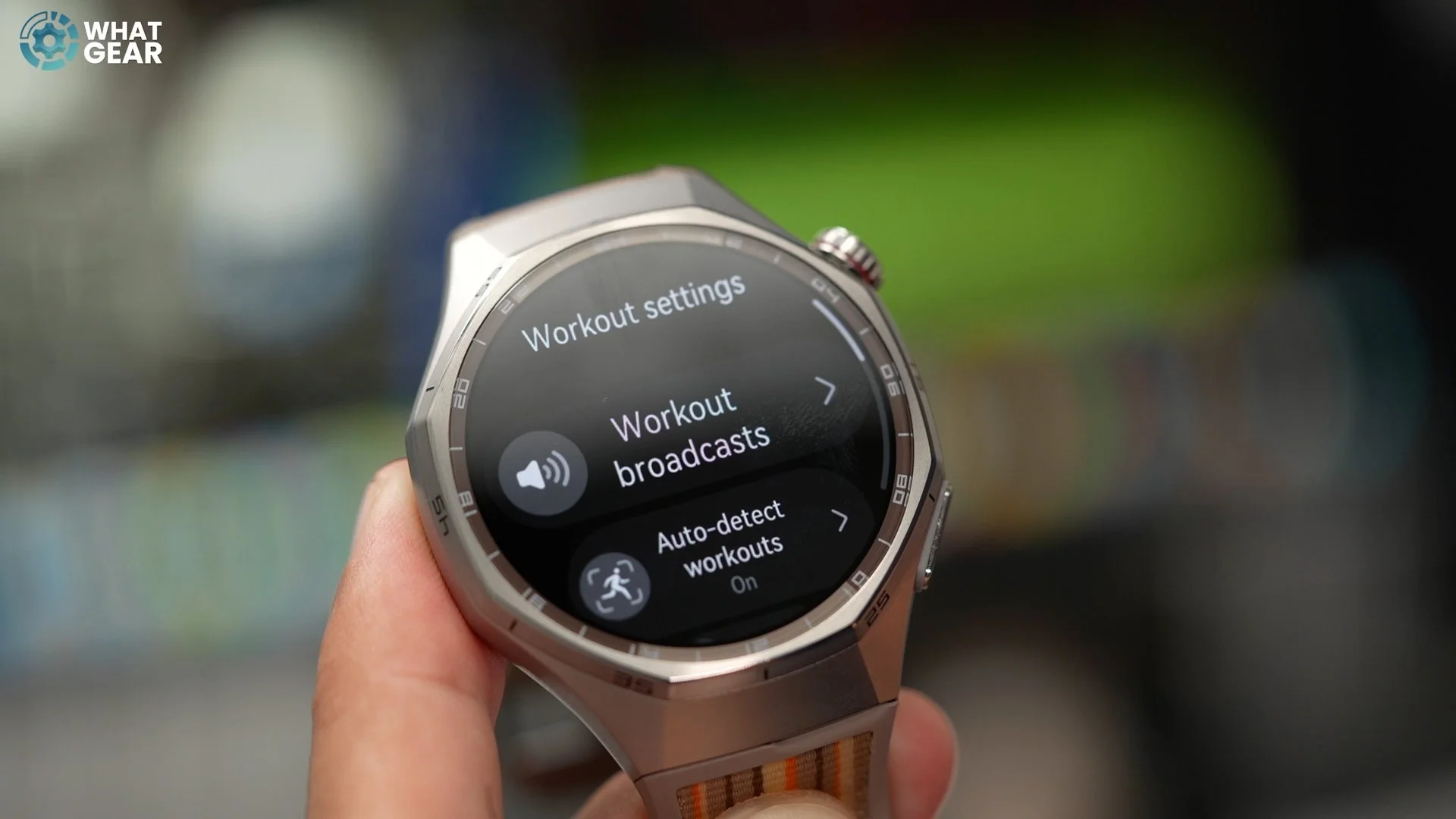
Workout broadcasts
Alright, this is something that I wish someone had told me a long time ago. The problem is that the Huawei watches have a powerful speaker onboard. And if you don't want to broadcast your progress and heart rate to everybody in the Gym or even to the people around you when you're just running down the street. Consider doing this.
Go to the workouts page / scroll down to workout settings/workout broadcasts / lower the volume to where you want it to be.
Bonus Tips
Ok, so made it to the end & as a reward to those of you who made it this far. I've saved some bonus quick-fire tips, just for you guys.
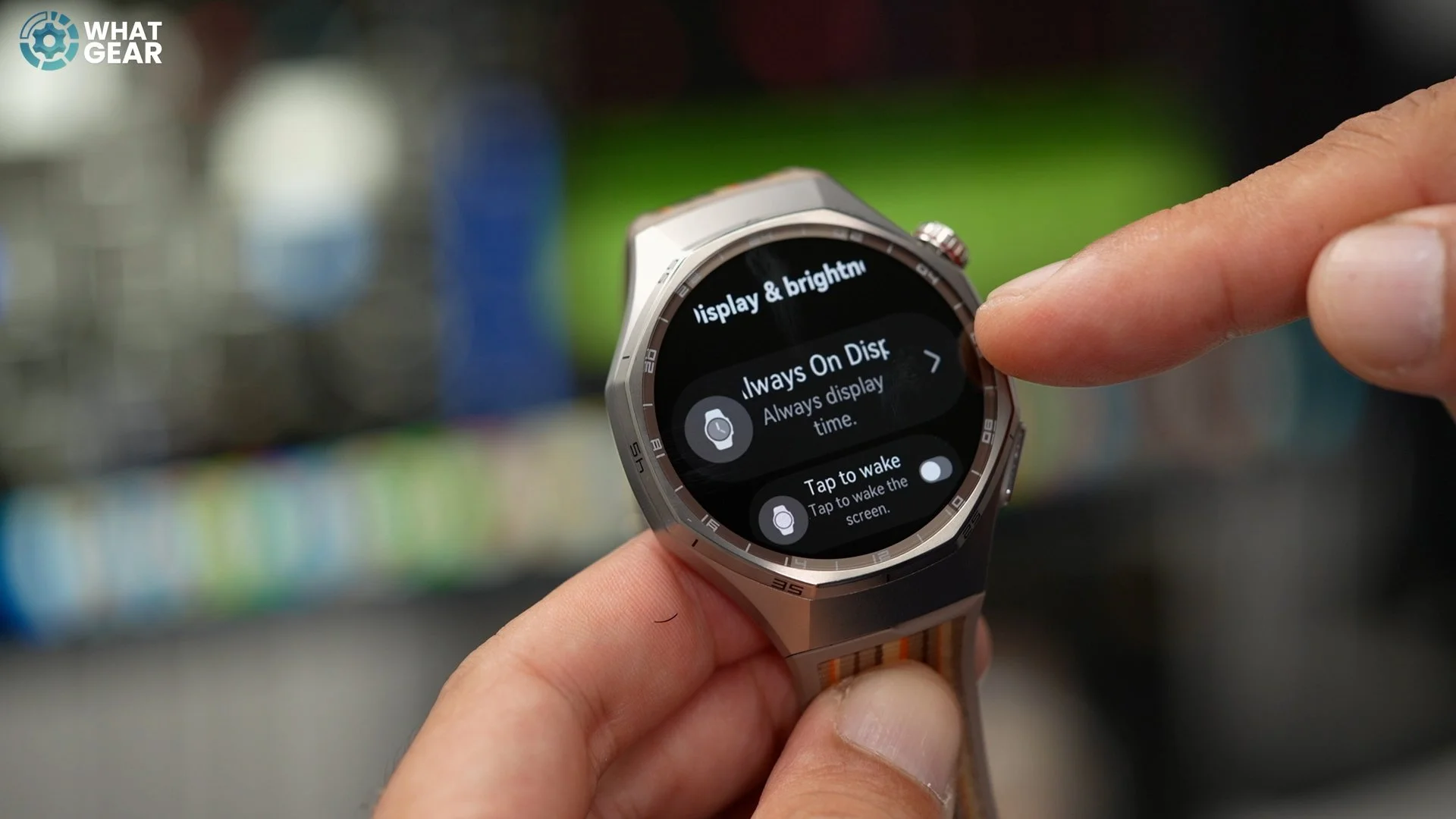
Settings/display & brightness / Always on
The battery life on the Huawei watches is class-leading, so why not use a little power to make your watch look good? To do this, go to Settings / display & brightness / Always on. Now, your Huawei watch will show the time all the time.
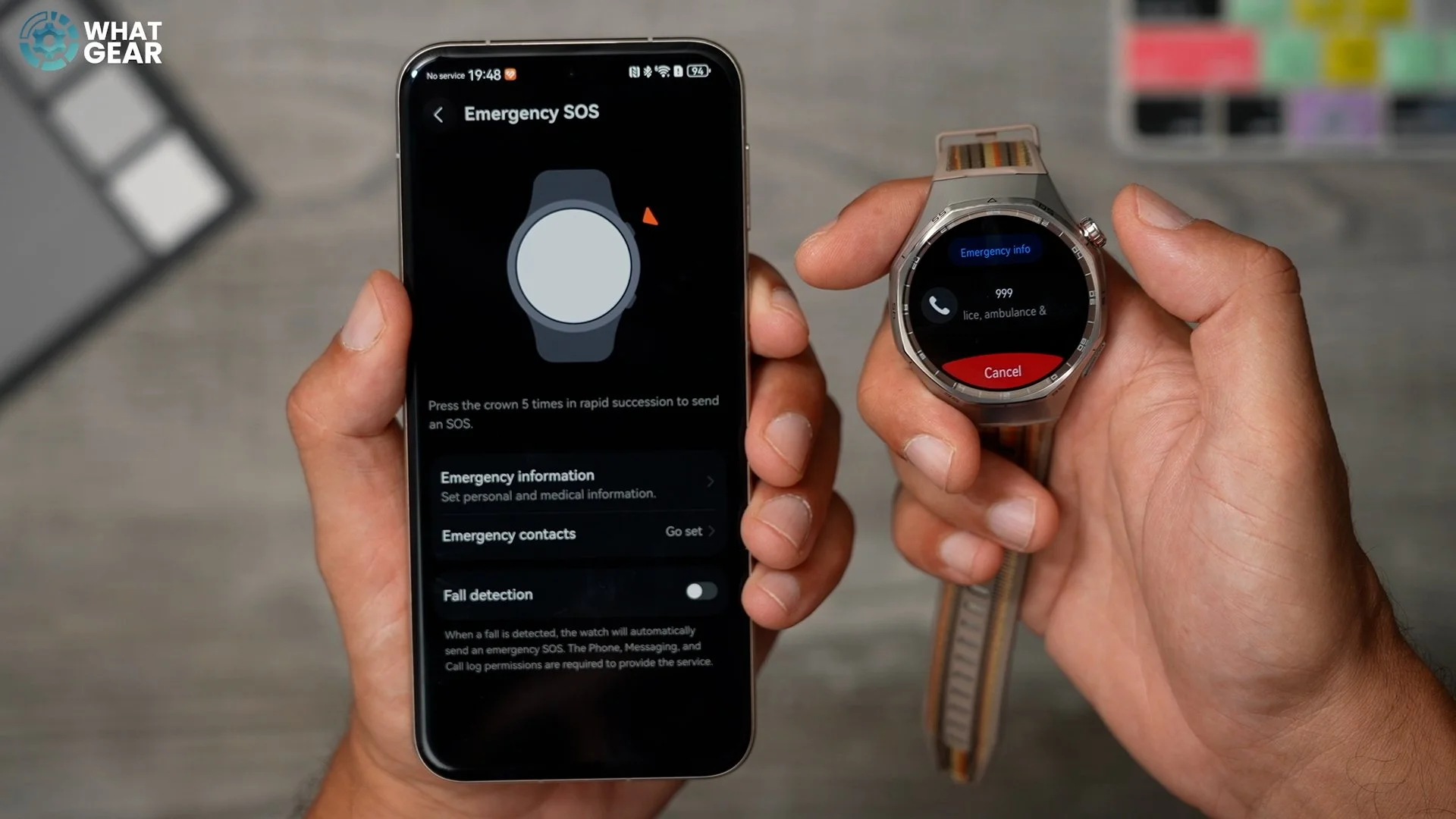
Fall detection / Emergency SOS / Emergency contacts
This could be a life-saving feature. In the Huawei Health app, select your watch. Scroll down to the 'Other' section and tap on Emergency SOS. Spend some time adding emergency contacts to alert in case of an emergency. And be aware that now, if you tap the crown five times, it will send an SOS. Additionally, if you are accident-prone, you can enable fall detection here.
Device settings / remind when disconnected
You don't want to lose your phone. Well, here's a little trick that can help with that. In the Huawei Health App, tap on the watch & again go to the 'Other' settings sub menu and 'Device settings', here enable reminder when disconnected. Now you'll know if you left your phone behind.

Also, on the watch, if you swipe down from the top and hit the phone icon. This will make your phone alert you to where it is.
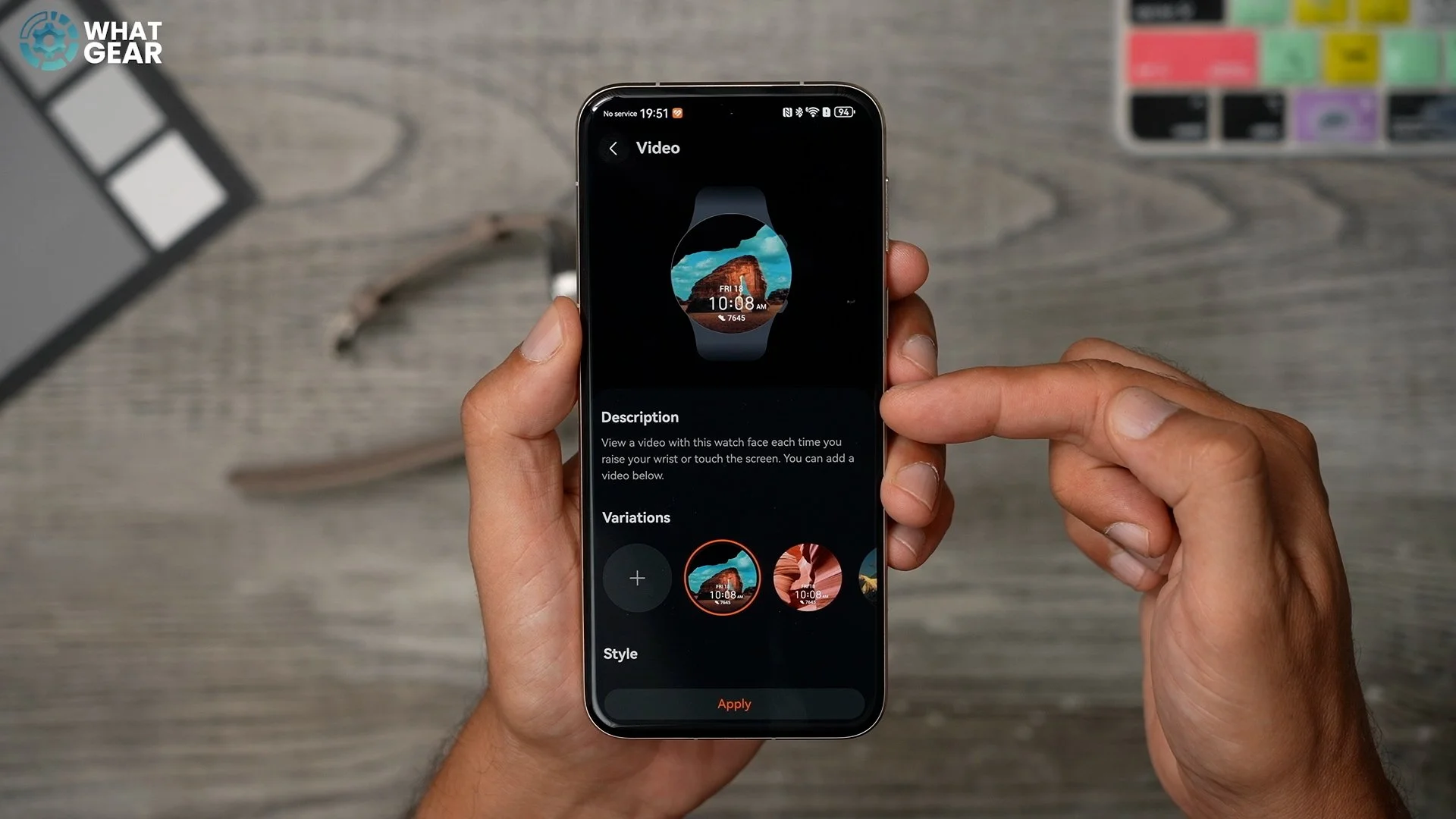
Video & photo watch faces
Remember how I mentioned there was an awesome feature within the watch faces. Well, it's this in the My Faces section on the App. Enable the video watch face. Here you can create a looping video watch face from a video in your phone's gallery.
And if you want to use a static image, you can do that too. Just choose the Gallery watch face.
App / Notifications /
Alright, the last one. Distractions are everywhere. In fact, there are a lot of them fighting for your attention. And it's bad enough on a phone, but it's even more distracting when you watch it buzzing and lighting up too. You should take control of this.
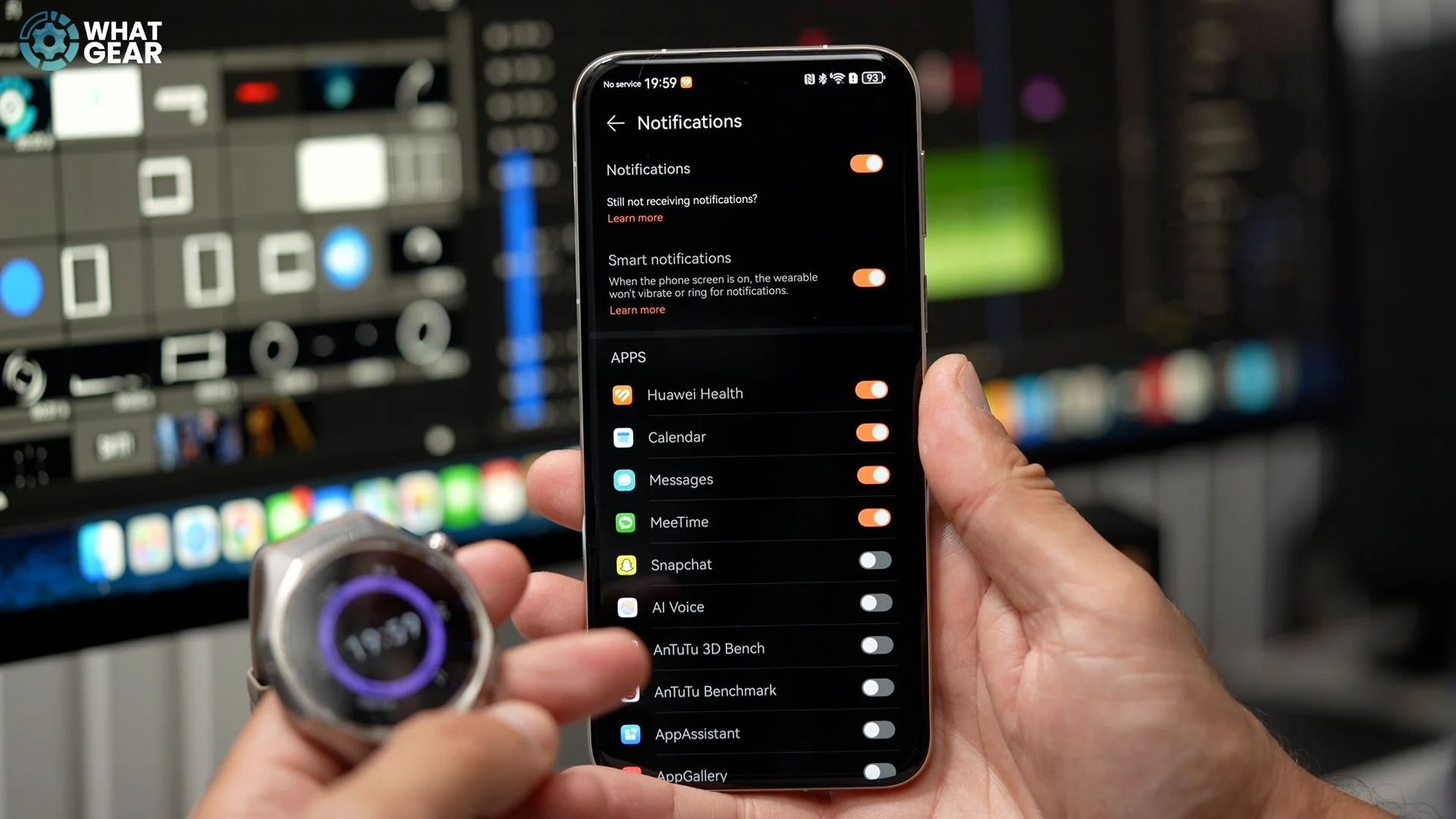
In the App, go to the Notifications section and switch off anything that might distract you from being productive. So, a lot of the information I've just shown you is common sense; the problem is that common sense isn't as common these days. And most people who buy a Huawei Watch won't spend the time to do all the things I've shown you. And now, if you've made it this far, you're not going to be one of those people.
