
15 Important Settings To Change (Redmi Note 15 Pro & Pro+)
If you've just picked up a Redmi Note phone or you have a Xiaomi phone with HyperOS 2.0, here are 15 of the first things you should do on day one to transform your Redmi from a pretty good phone into an absolute beast. But once you've changed these 15 settings, don't go showing off your device to your fellow Redmi friends, because they might get jealous.
DECORATE
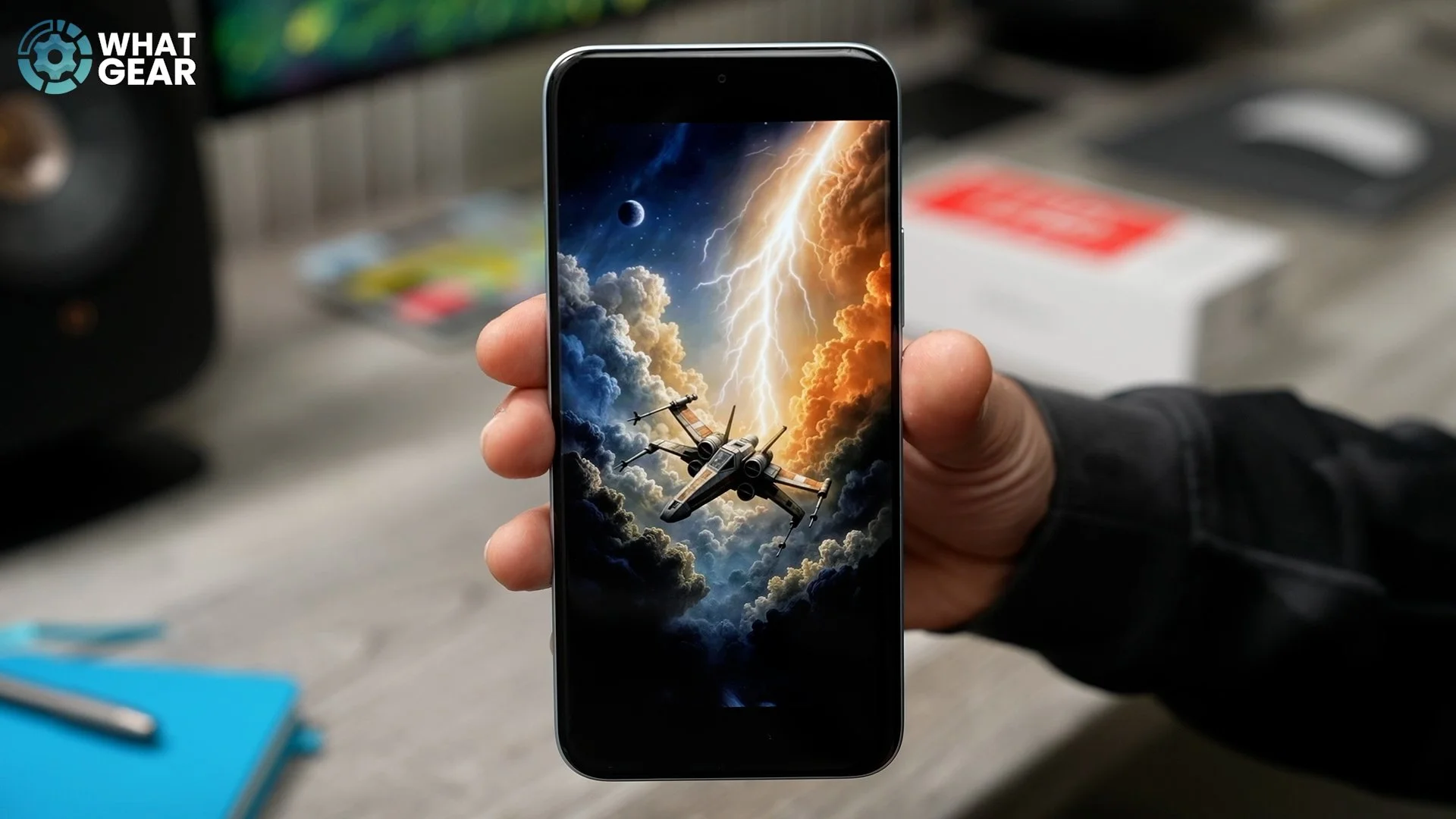
So let's kick this off with some personalisation tips that can make your phone feel more like your own. One of the best ways to do this is to set up a custom wallpaper. Go into the Gallery app, and here let's choose an image that we want to use as a wallpaper. Keep in mind, this works not just for wallpapers, but also for photos that you might have taken on your device. In this image right here, for example, the X-Wing is kind of on the lower part of the display. Let's say we wanted this to be more centred so that it works better with the setup on our home screen. Here's a little trick to modify and improve wallpapers that you might want to use.
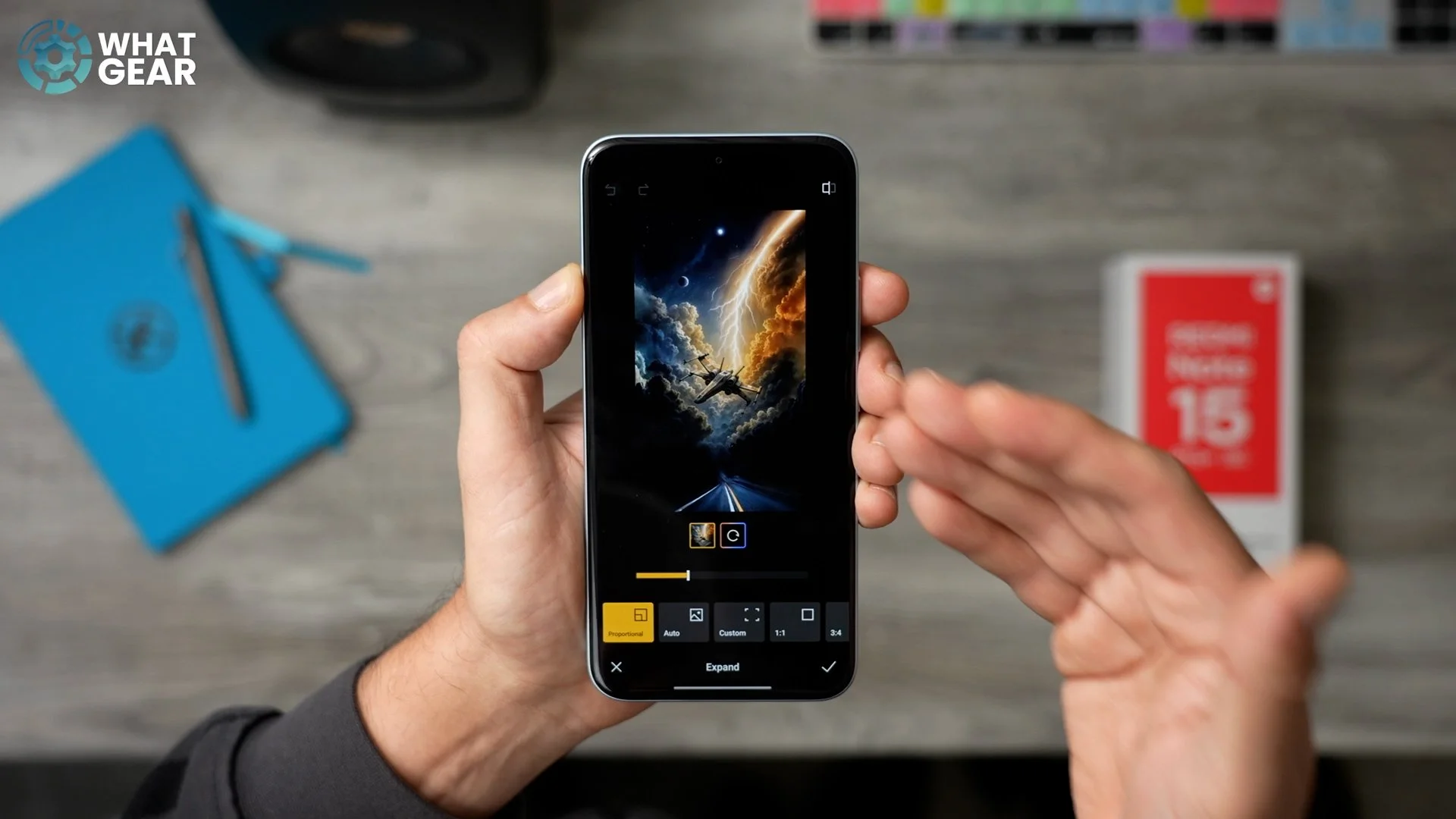
If you tap on the image itself, then hit the pen at the bottom, and then here at the bottom, if you scroll all the way across to where you see Create, tap on that. And here tap Expand. Now we can actually reposition the X-Wing to be more centred in the image and build the image out using AI around it. Once you get the image where you want it to be, all you need to do is hit Start. And there we go – it has expanded that image. Once you're happy with it, you can then hit Save in the top right corner and then, to set it as your wallpaper, hit the three dots (bottom right) and go to Set as wallpaper.
BRING IT TO LIFE
Now, let's expand even more on the customisation of your device and bring it to life a little bit more. Jump into the Settings on the device. This time, we're going to scroll down all the way to Personalisation. Tap here, and then scroll down again until you see AI dynamic wallpapers. There are presets here, but if you want to add your own photo or wallpaper, just hit the Plus and then go to the image that you want to use. Essentially, what this feature does is create an animated wallpaper from a static image.
To do this, just hit Generate. It will take two to three minutes to set up. If you want to, you can let this finish in the background. So there we go – it added a bit of movement to the wallpaper. Once you're happy with that, you can set it to Both or just the Home screen. I'm going to set it to just the Home screen. The results will vary, of course, and it will use some of your system resources to keep these running, so just keep that in mind. But it is a nice little customisation effect.
LOCK STYLE
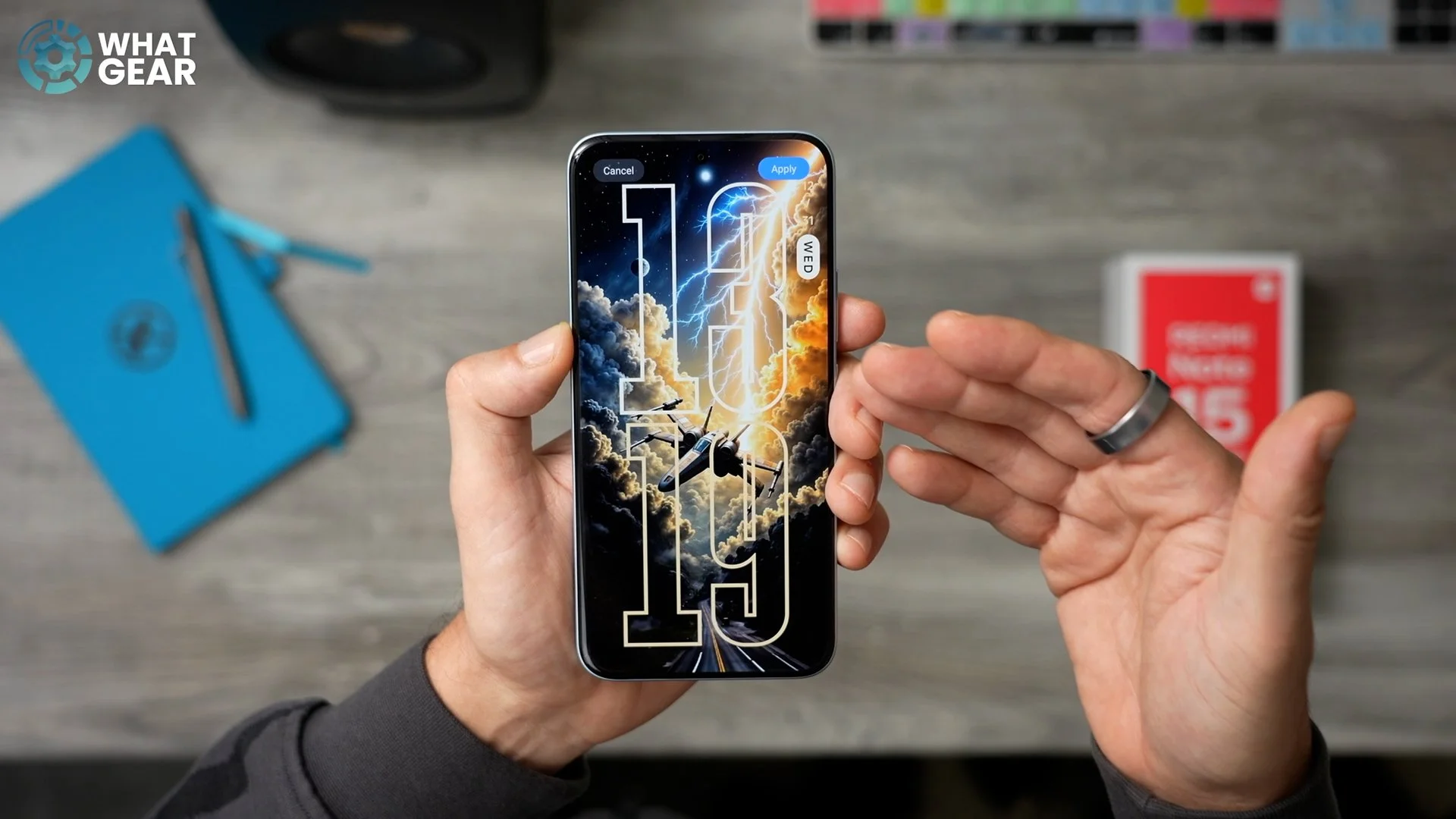
Jump into Settings on the device again and go to Personalisation again. This time we're going to go to the Lock style. Here is where you'll find a bunch of different clocks and themes that you can use. You can customise these too. If you swipe down, you'll see all of the options that you have. Some of these allow for depth effects. The results will definitely vary depending on the image, because with some images, if there's not a clear subject like this one, it won't be able to separate the foreground from the background. So for my X-Wing wallpaper, I'm going to go with this one right here.
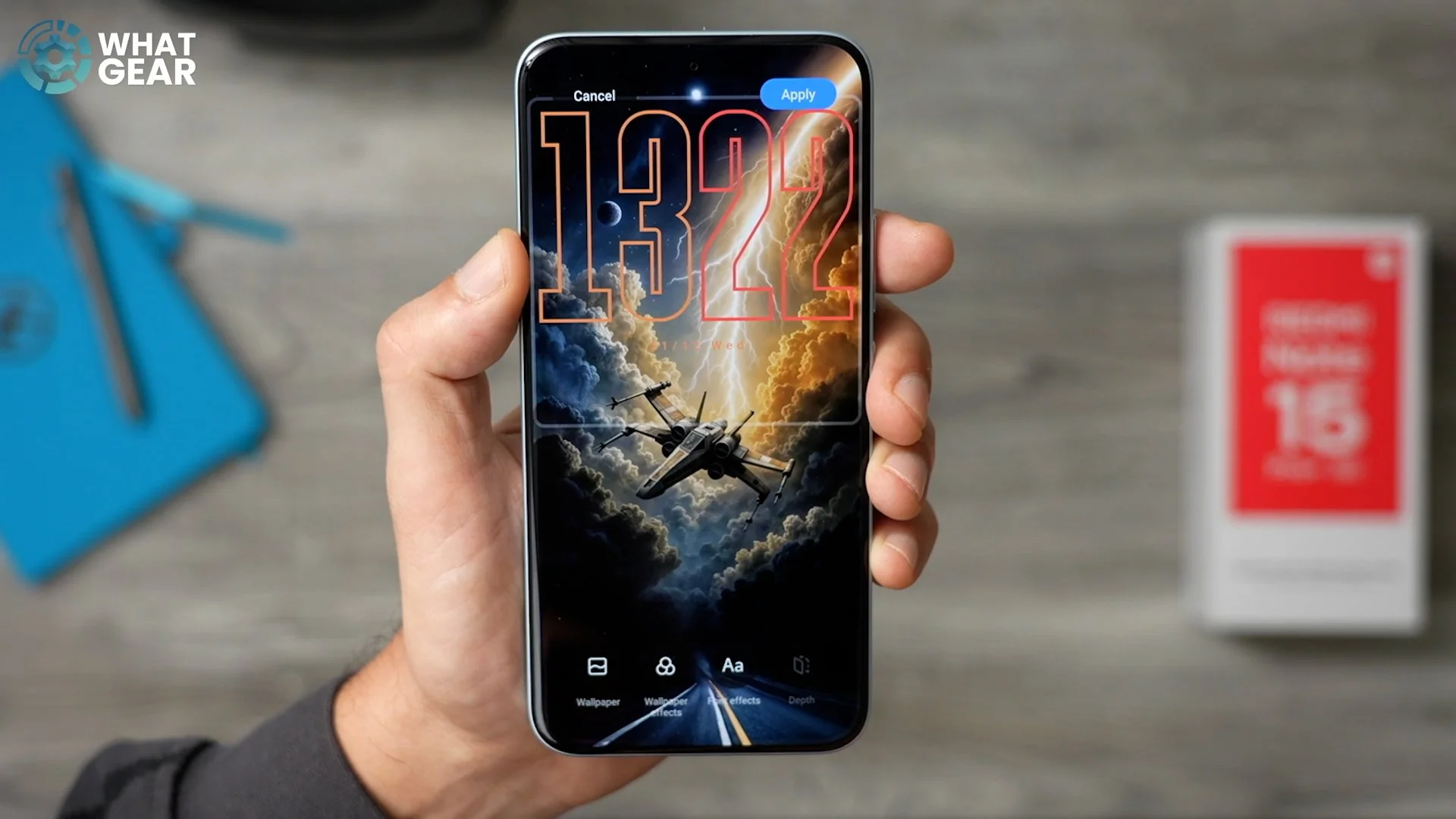
The depth effect is available with the pre-installed image, but if I add my local image of the X-Wing, it begins to detect the layers, and, as you can see, the depth effect is not showing because it doesn't know how to cut it out properly, unfortunately. But what we can do here is actually customise the style of the clock, which is kind of cool. There are font effects that you can play with, so you can customise the colour of the different text on the screen, and you can do this individually for the hours and minutes. Play around with this, have a look at the different styles. Once you're happy with them, just apply the effect, and you're done.
THE LIGHT OF DAY
Here is a setting to improve the visibility of your device so you can appreciate your newly designed wallpapers. Go into Settings again. This time we're going to go to Display and brightness. And here there is a feature called Sunlight mode. What this does is allow the display to reach its peak brightness when the sun is shining.
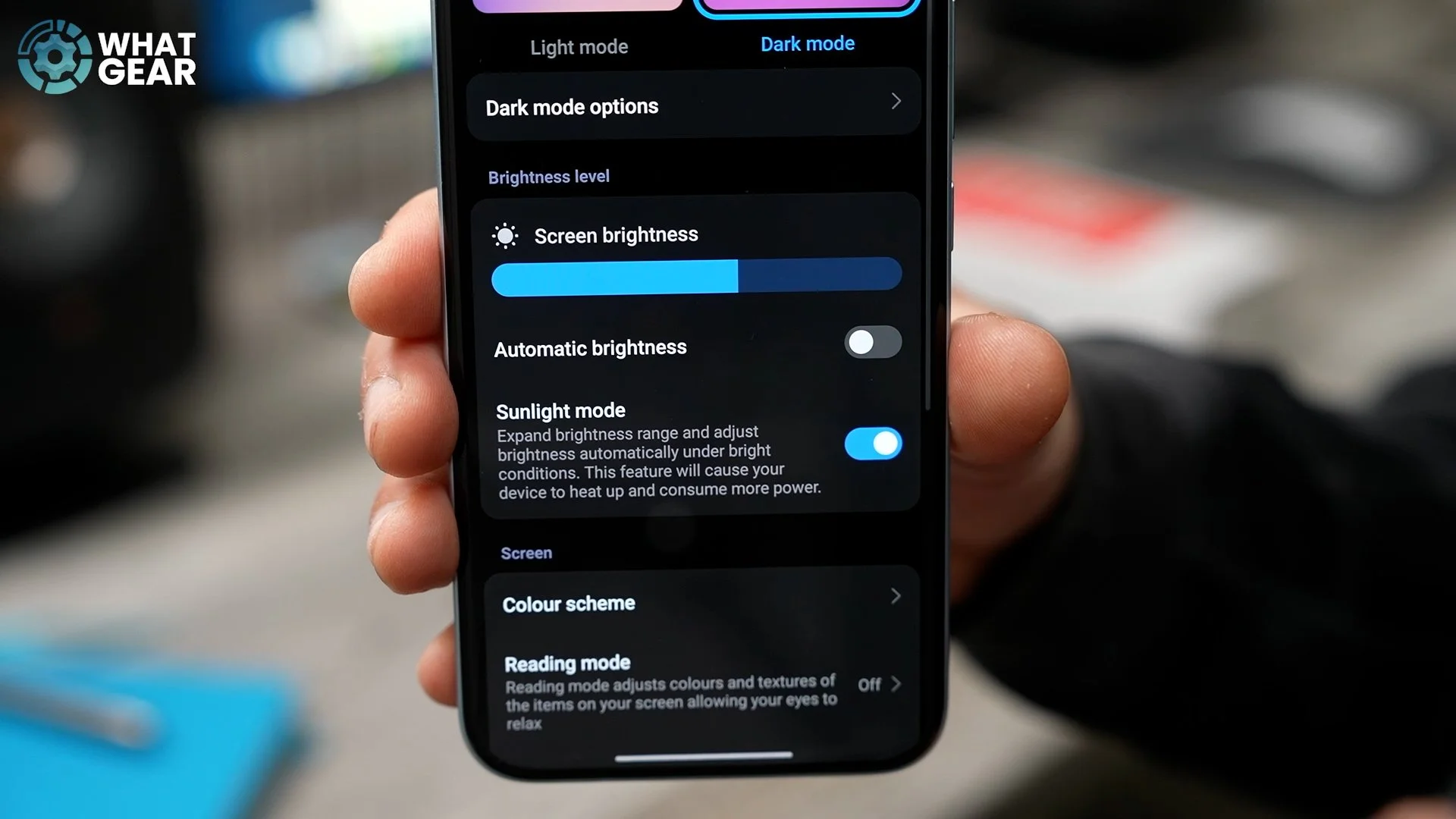
It doesn't necessarily mean that your phone is going to be blasting peak brightness all the time; it will use the sensor on the front of the device to detect the sunlight and adjust it accordingly. With the new Redmi devices, the peak display brightness is 3200 nits, which is kind of incredible. So you might as well make the most of it and switch on this mode.
BEHOLD THE BOLD FOLDER
There's loads of bloatware on this phone, and I have a few really, really good tips to clear all this up and stop it from coming back. But that's not what I'm going to show you right now. What I want to show you is this: when you set up your device, and you put things into folders, your folders will look like this. But if you hold your finger down on them and go to Edit, you get a few more options. If you want to, you can have an enlarged folder so you can see more stuff inside. And if you really wanted to, you can go Double XL.
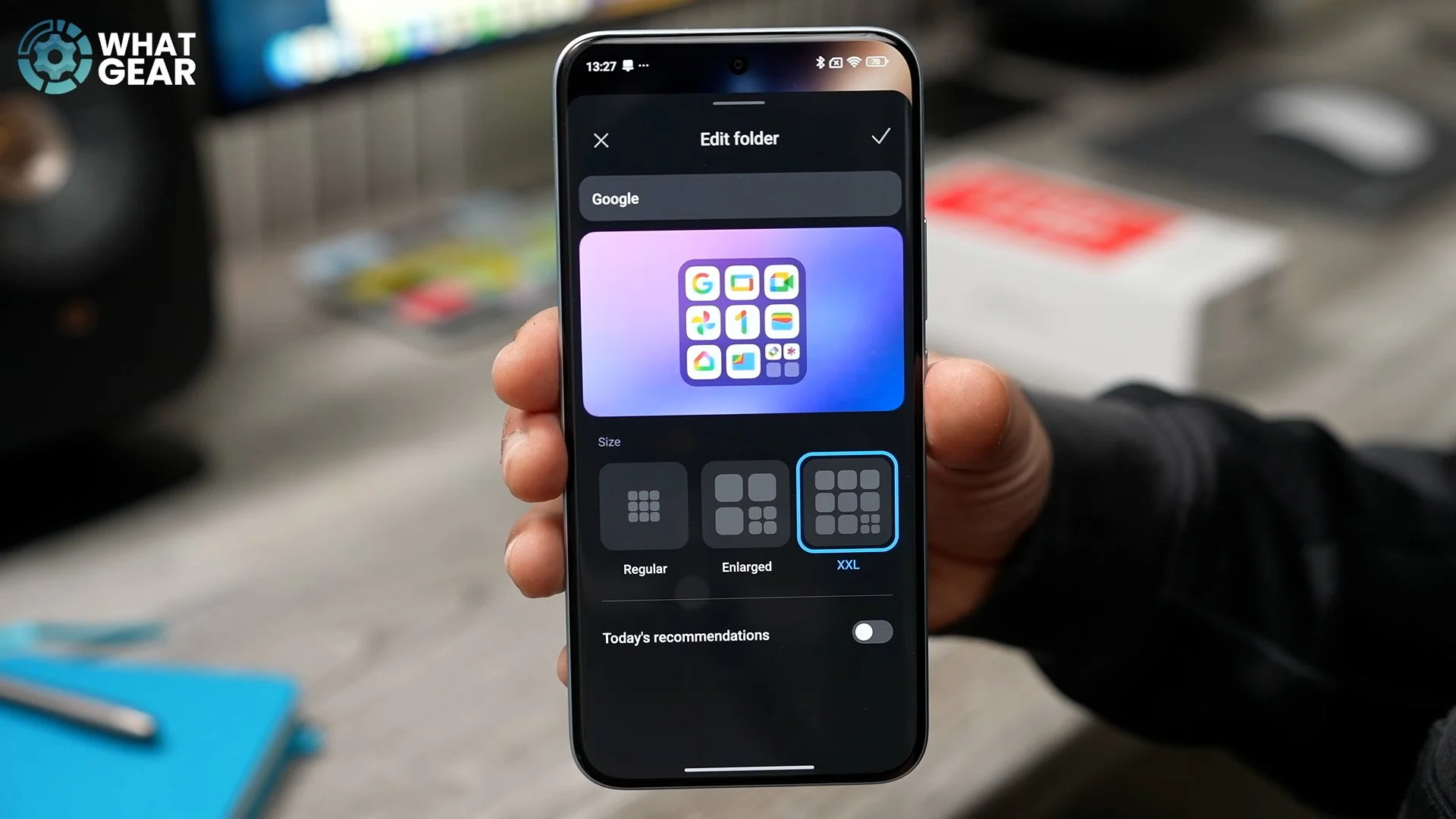
I highly recommend you leave this off if you don't want suggested apps popping up within these folders. Once you've chosen your new style, hit the tick up here, and now you have the newly customised folder on your device. I've been reviewing phones for a long time now, and something that is very clear to me about Xiaomi phones in general is that there are a lot of ads on them. So I'm going to show you how to do this to those pesky ads once and for all. Here are four settings that you need to change that will completely remove all of that annoying bloatware and ad noise.
REMOVE ADS STEP 1
When you look at the apps pre-installed on your device, you should find an app that is called Cleaner. The first time that you open this up, it will scan your device for cache files and all these other bits and pieces that might be wasting space on your device. Run that clean-up for the first time. Once you've done that, you now have unlocked some more options, including the Uninstall apps option. You can do it on the Home screen, but this is just so much easier.
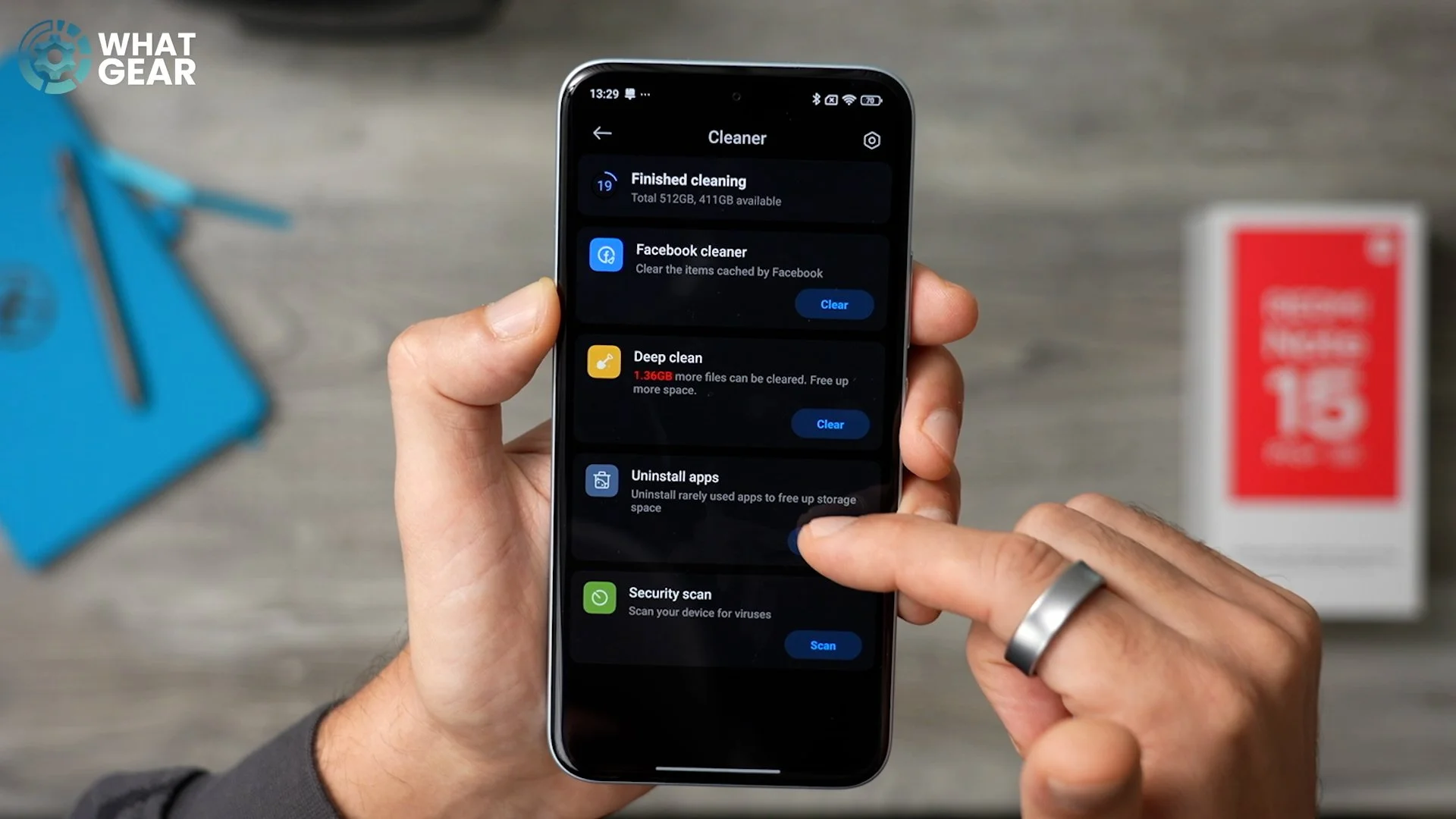
Now you can quickly go through every single app that you're never going to use on this device and uninstall them all in one go. Once you've identified all of that bloatware, you'll see exactly how much space you're going to be freeing up on your device. I can't believe it's 3.8 GB, but it is. So I'm just going to hit Uninstall and get rid of these. There are three more important steps that you need to do in order to completely remove annoying ads from coming back and showing up on your Redmi device.
AD REMOVAL STEP 2
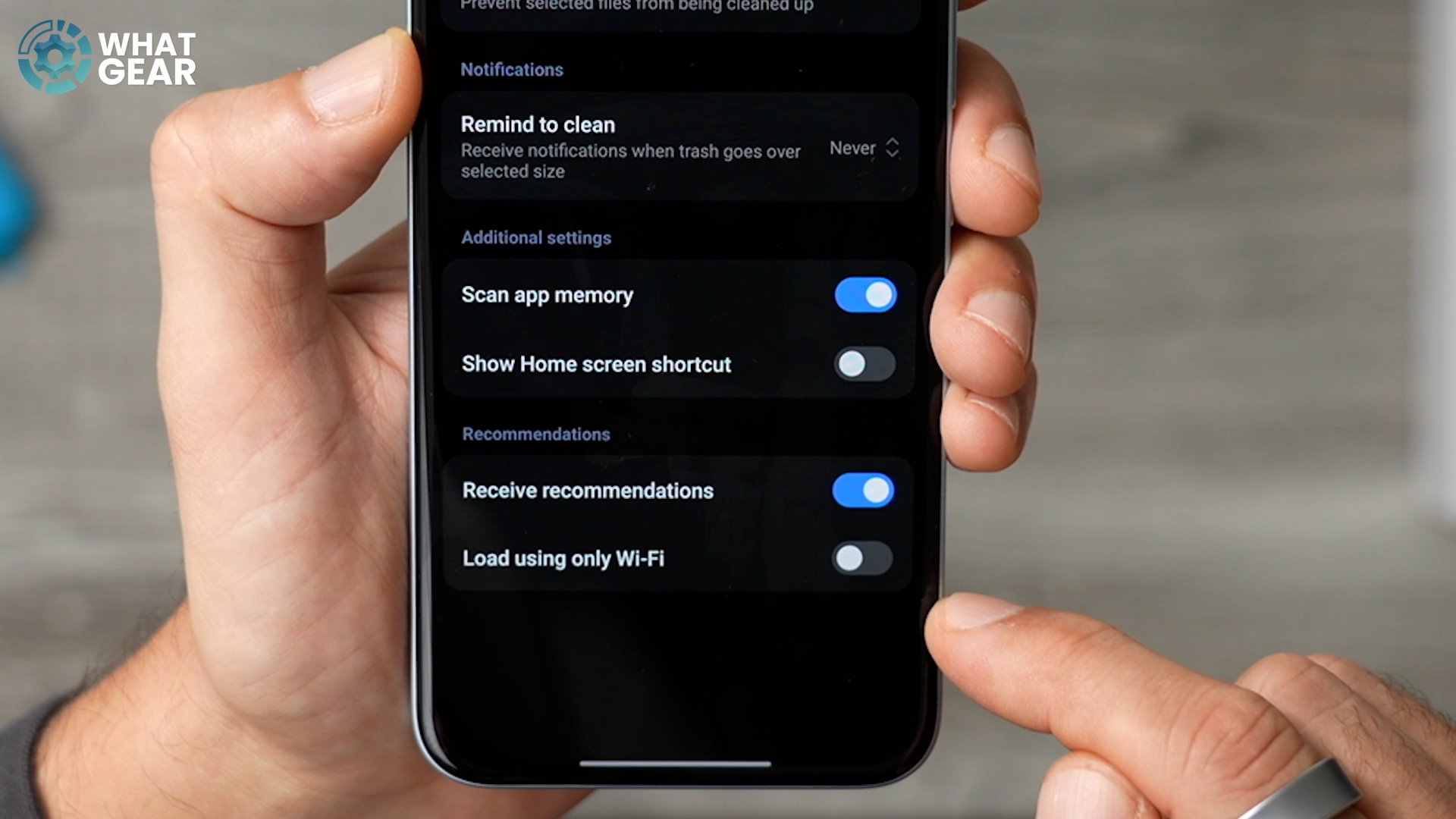
I've moved the Cleaner app onto the Home screen because we're going to be using this a little bit. Let's go back into it, and this time just go to the Settings in the top right corner. Down here in the Recommendation section, you will see Receive recommendations, which are going to be ads, app recommendations and things like that. If you don't want any of that, switch this off straight away.
OPT OUT OF ADS
The next setting to switch off to clear up your device can be found within Xiaomi's Files app. Open it up. In the top right corner, hit the three dots and then go to Settings. Here you'll find the option to withdraw consent. If you tap on it, it will tell you exactly what it does.
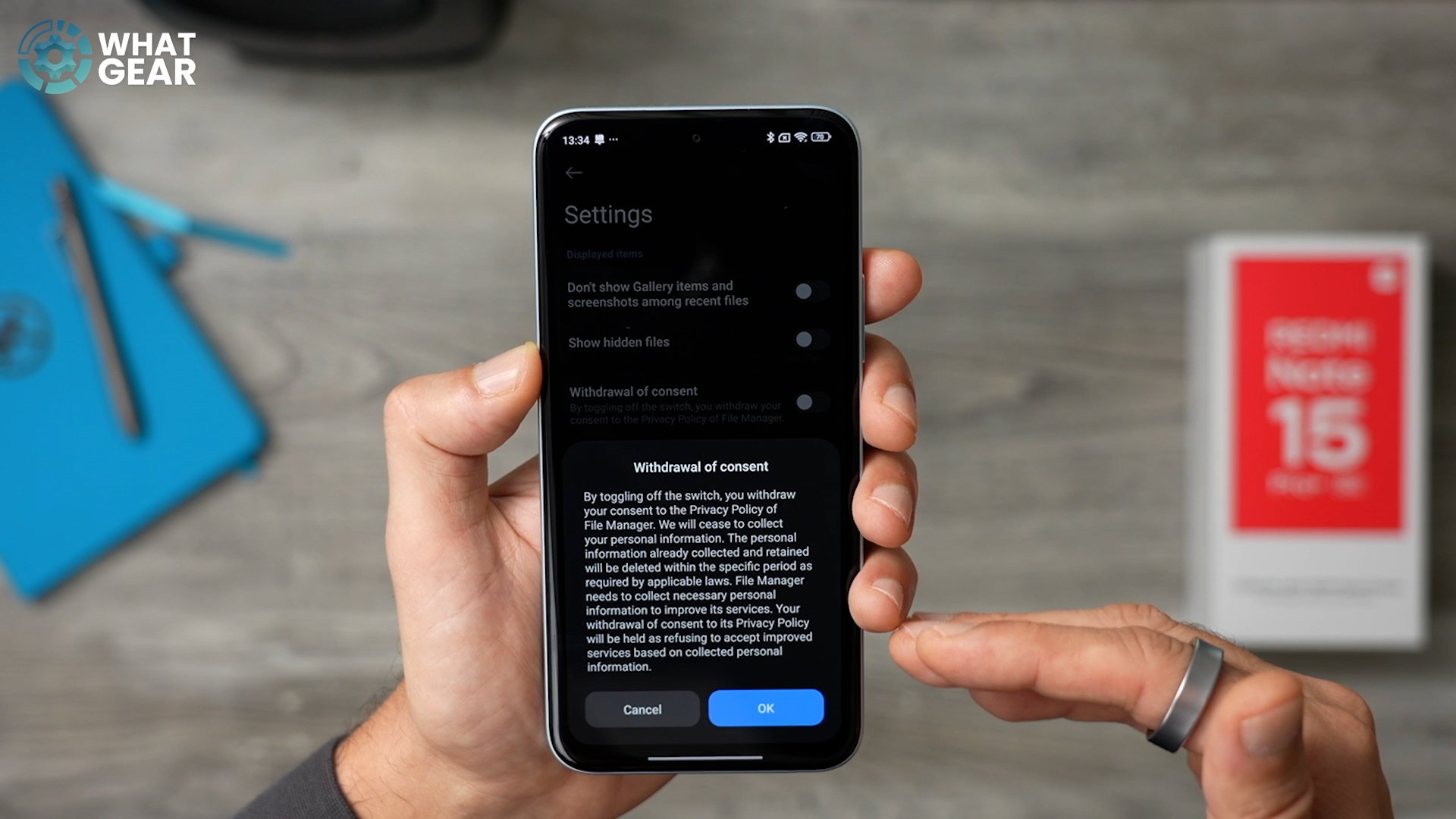
This does not compromise the security of your device in any way – in fact, quite the opposite. With this off, Xiaomi won't be able to recognise files on your device and therefore recommend other stuff that you might want to buy or download. If you hit OK here, that removes that consent. And now you're going to see way fewer ads and recommendations popping up in random places within the UI.
EVEN MORE HIDDEN ADS
Now this next one is really important, and it's really well hidden, so most people will never even find it. But now you're not going to be one of those people. Go into Settings on your device. And in here we're going to Fingerprint, Face data and screen lock. Here is where you'll find the Privacy menu. Go to this, and then if you scroll down, if you want to, you can opt out of the User experience, so your phone is going to be sending less data to Xiaomi. But the important setting here is Ad services.
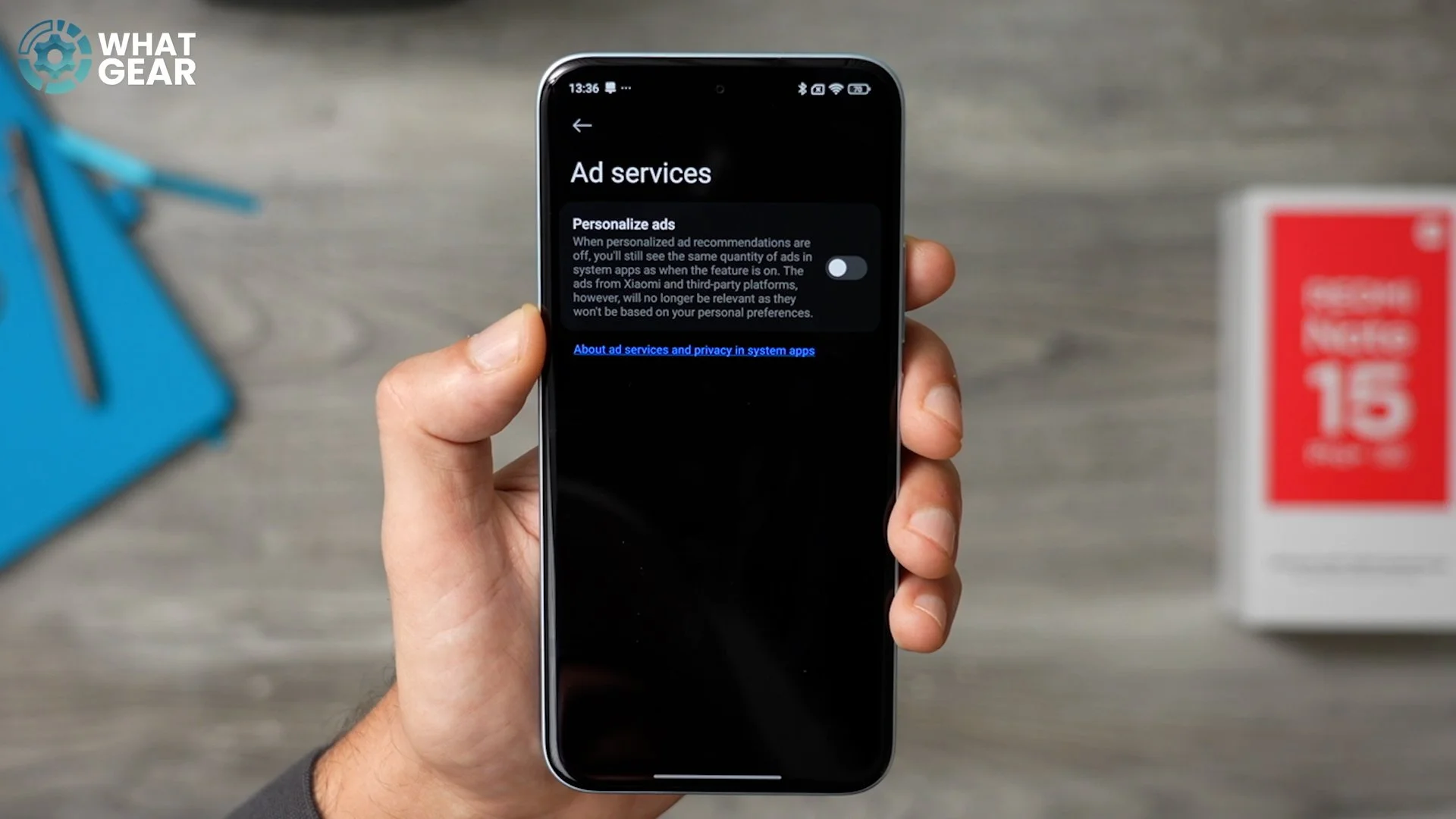
Switch Personalized ads off, and this is very important because it essentially tells your phone not to share your information with third parties. Let's move on to the next chapter: How to speed up your Redmi phone. This first one really just applies to gamers.
SPEED BOOST FOR GAMERS
So if you're going to play any games on your device, do this one. If you're not, then use the timestamp to skip to the next one. Pre-installed on your phone, you will find an app called Game Turbo. Open this up. This will bring you to the Game space, and you should see all of your installed games. If you don't see them, you can hit the Plus up here and add them manually. But for each game, you can do this: if you swipe up on the GPU settings, you can customise a bunch of different things to optimise how that game runs on your device.
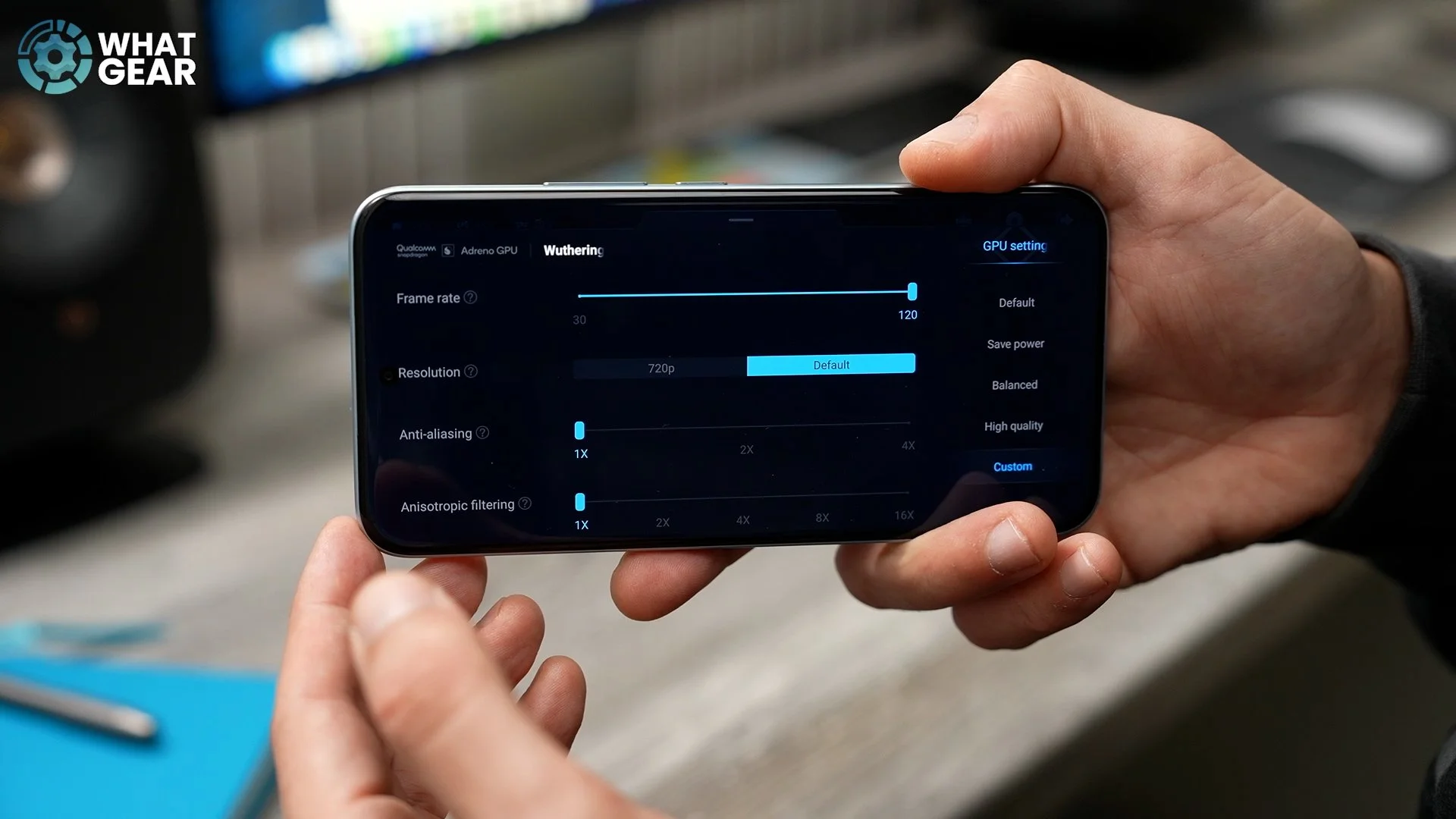
If you just want generic high-quality performance from that game, you can just tap High quality, and this is the preset for that. If the game is less graphically demanding, you could set it to save power. That way, it's not burning off your battery too much. But if you are a pro, then I'd recommend using the Custom options and manually dialling in all of those settings yourself.
MAX POWER ON DEMAND
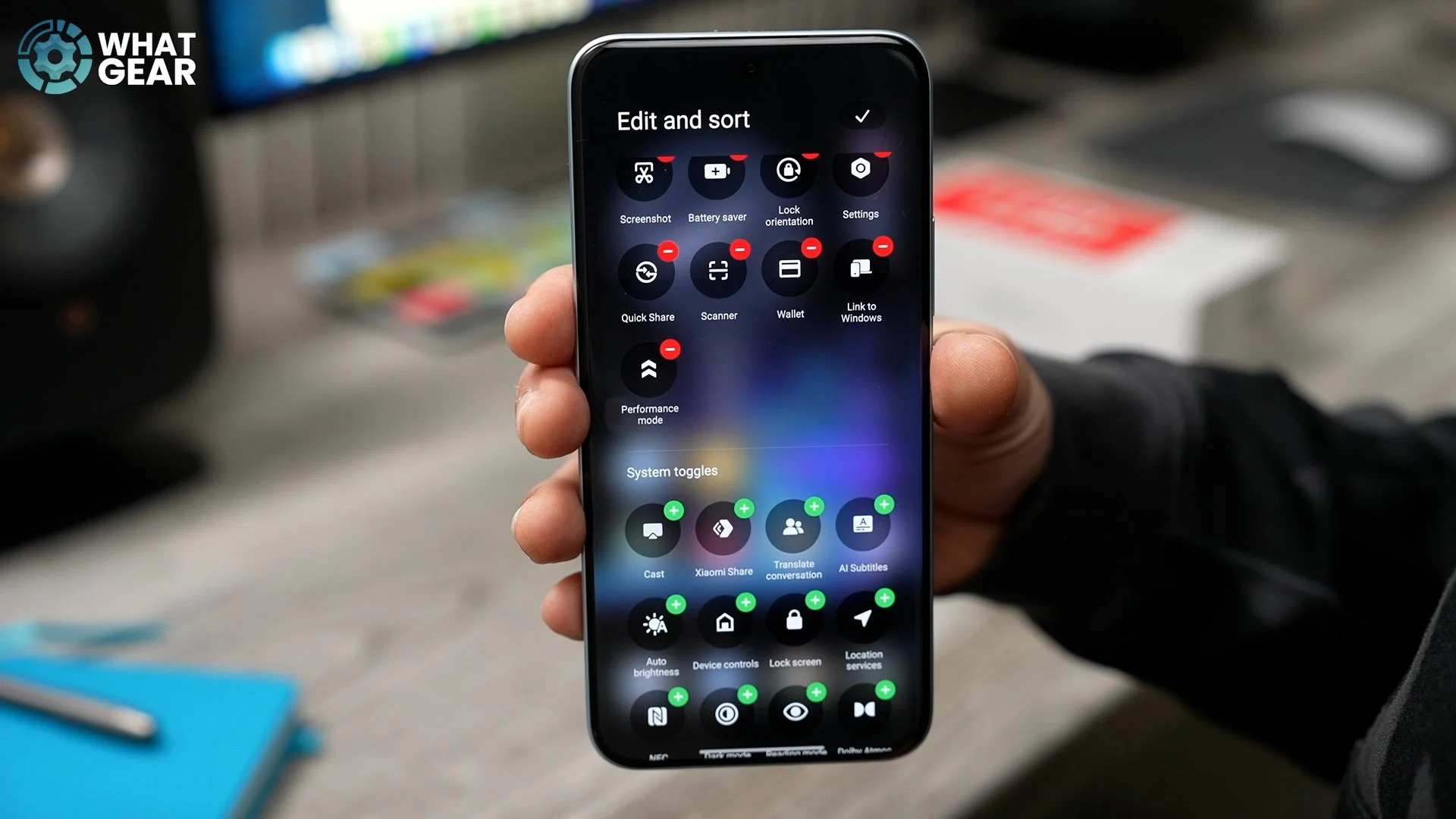
Let's say you're not a gamer, but you still want that max performance from time to time for video editing or for more demanding apps. I highly recommend you do this. Bring down your Quick settings, hit Edit at the bottom, and in here, add the Performance mode quick setting. That way, you can toggle this on and off as and when you need that extra power.
SAVE TIME CHARGING
Something that I really appreciate – and I'm sure you do too – about the Redmi brand is the fact that they still ship their phones with the chargers, and this particular one, the Redmi Note 15 Pro+, charges at up to 100 W. But did you know that by default, your phone won't do that? This is because if you rapidly charge your phone a lot, you can actually degrade the battery over time.
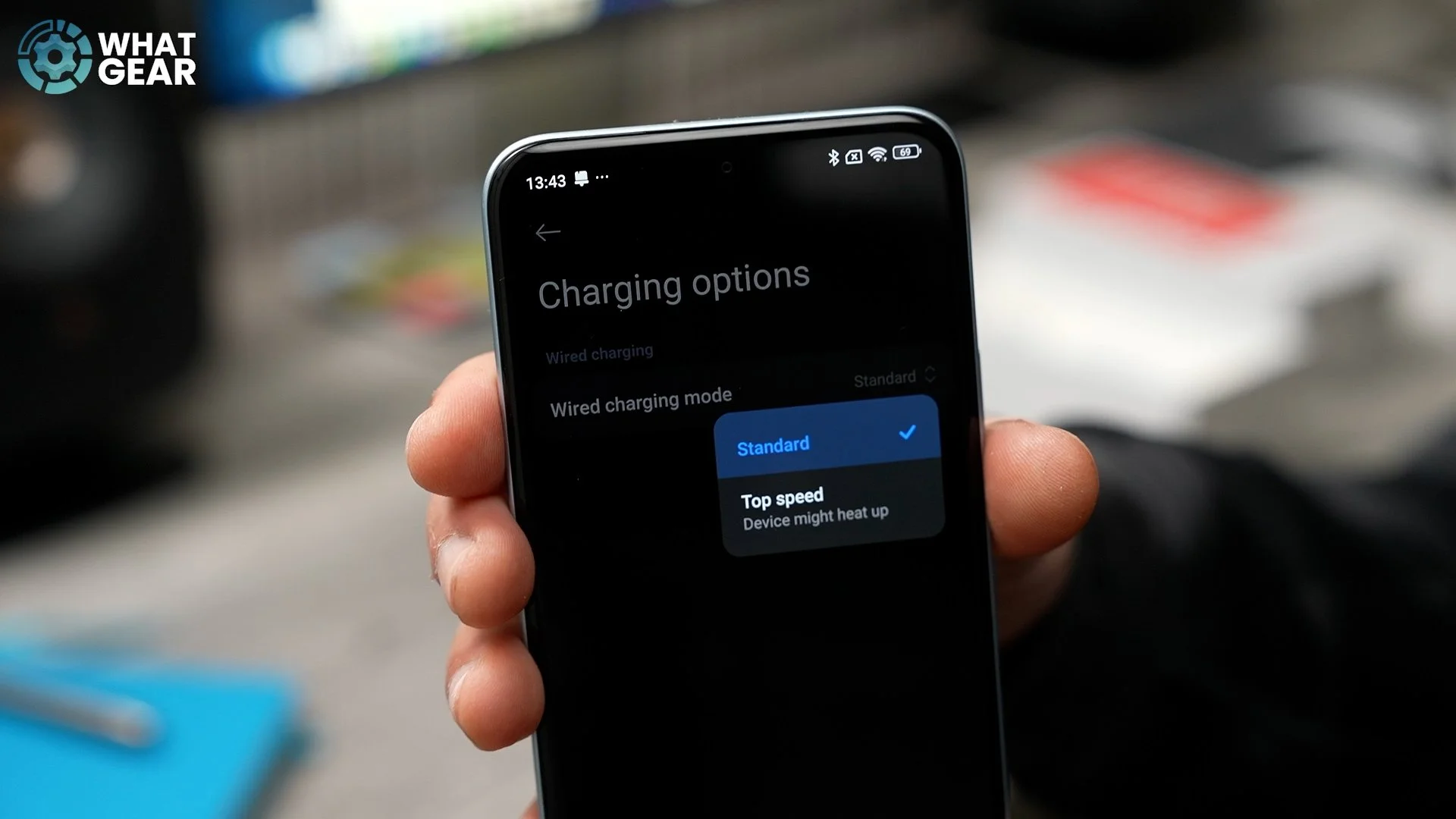
But if you're planning to keep your phone for maybe two or three years, it won't make that much difference to you if you max out the charging speeds. And here's how you can do that. Go into your Settings, go to the Battery options, and then go to Charging options. As standard, it will be set to Standard. If you want the fastest speed when recharging your device, set this to Top speed, because this will save you time.
CACHE RULES
As you begin to use your phone more and more each day, your phone will start to cache information in the background, and eventually, it could slow your device down. So if you value your time, speed and performance, then do this. Let's go back into the Battery settings. I've still got them open here in the background. This time we're going to go to the Additional features. At the top, you'll see Clear cache when device is locked.
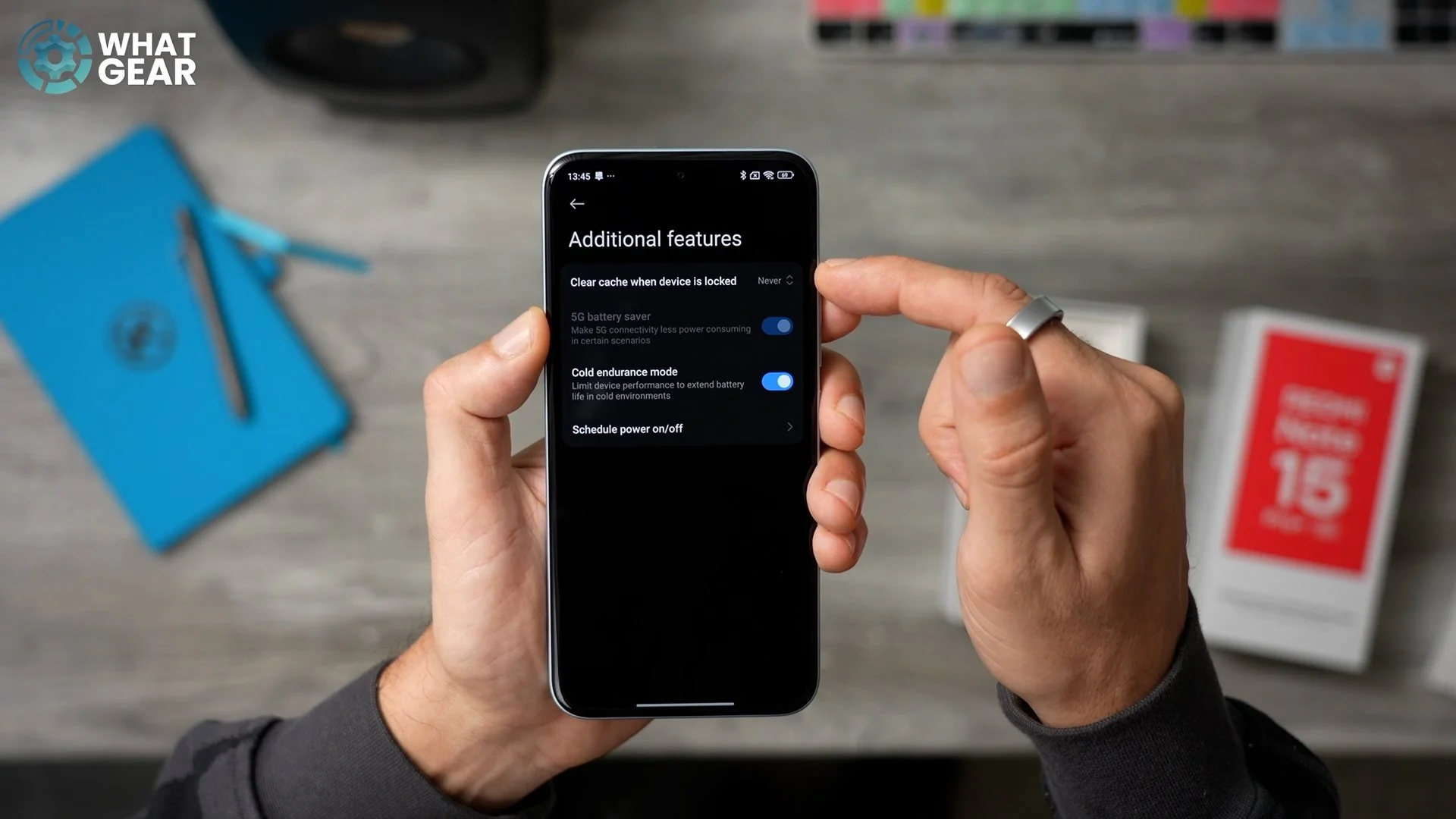
This is set to Never straight out of the box. If you go to this, you can set this to any of these times. I'm going to set it to 30 minutes. So when I'm not using my phone for 30 minutes, my phone will automatically clear all of that random information that sits in the background, and start fresh again when I begin to use it.
FASTER THAN YOUR FRIENDS
If you and your friend both have the exact same phone, here's a little trick to make your phone feel and look faster than theirs. To do this, go into Settings again. This time, we're going to go to the Home screen, and here you will see that the Animation speed of your device is set to Balanced.
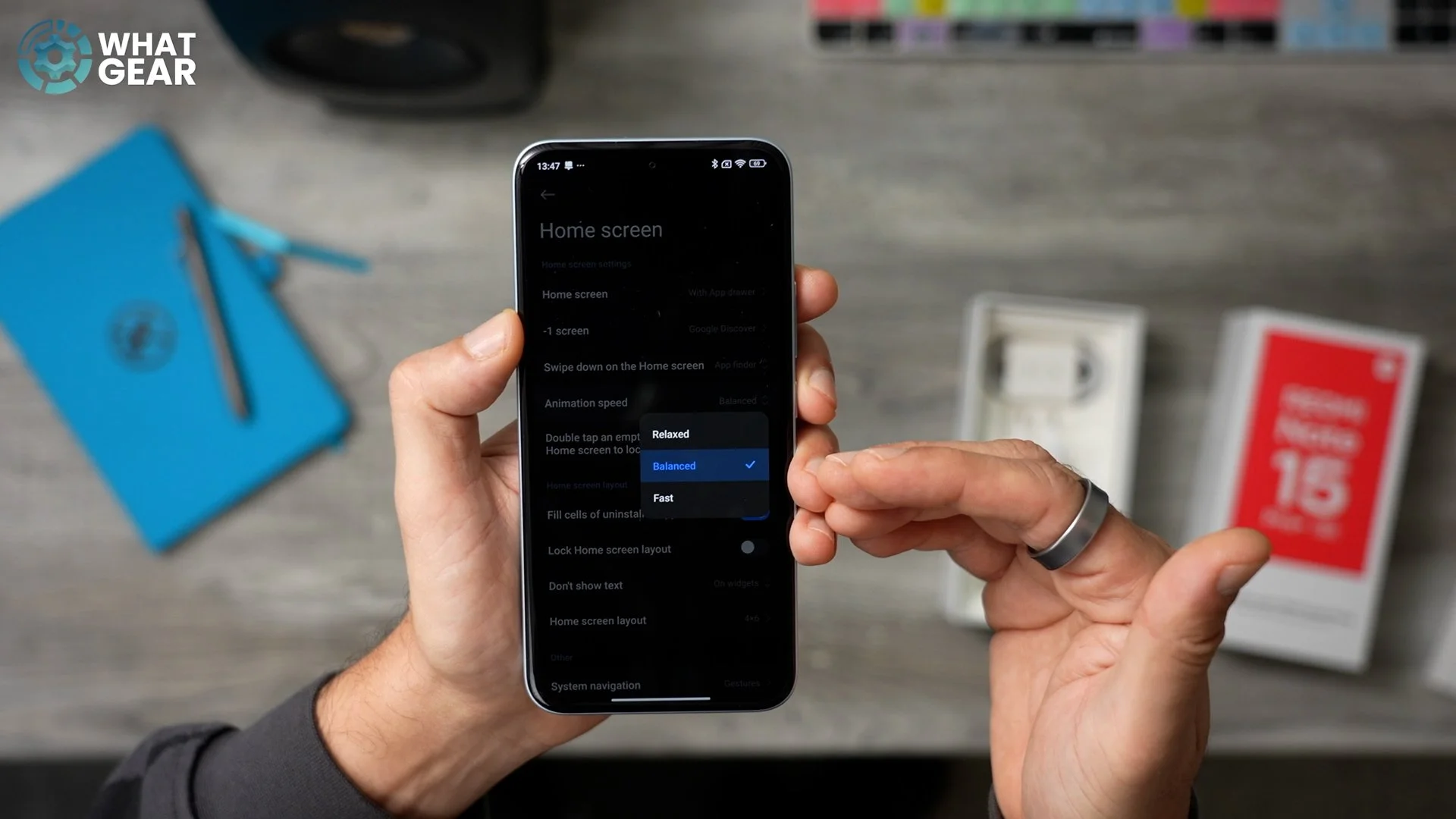
But if you want your phone to feel faster, set this to Fast. The animations will still appear exactly the same, so it's not going to make your phone feel clunky or anything – it will just operate a lot faster than other Redmi devices appear to be.
EXPAND YOUR RAM
Now here's one more speed hack and setting that you need to change that can actually improve the multitasking performance on your device. Go into Settings again. This time, we're going to Additional settings right here. Now scroll down a little bit until you see Memory extension. Here you'll notice this phone actually has 12 GB of RAM, but it's only using 6 GB of the onboard storage as virtual RAM. We can expand this and, in fact, double it in this case to 12 GB.
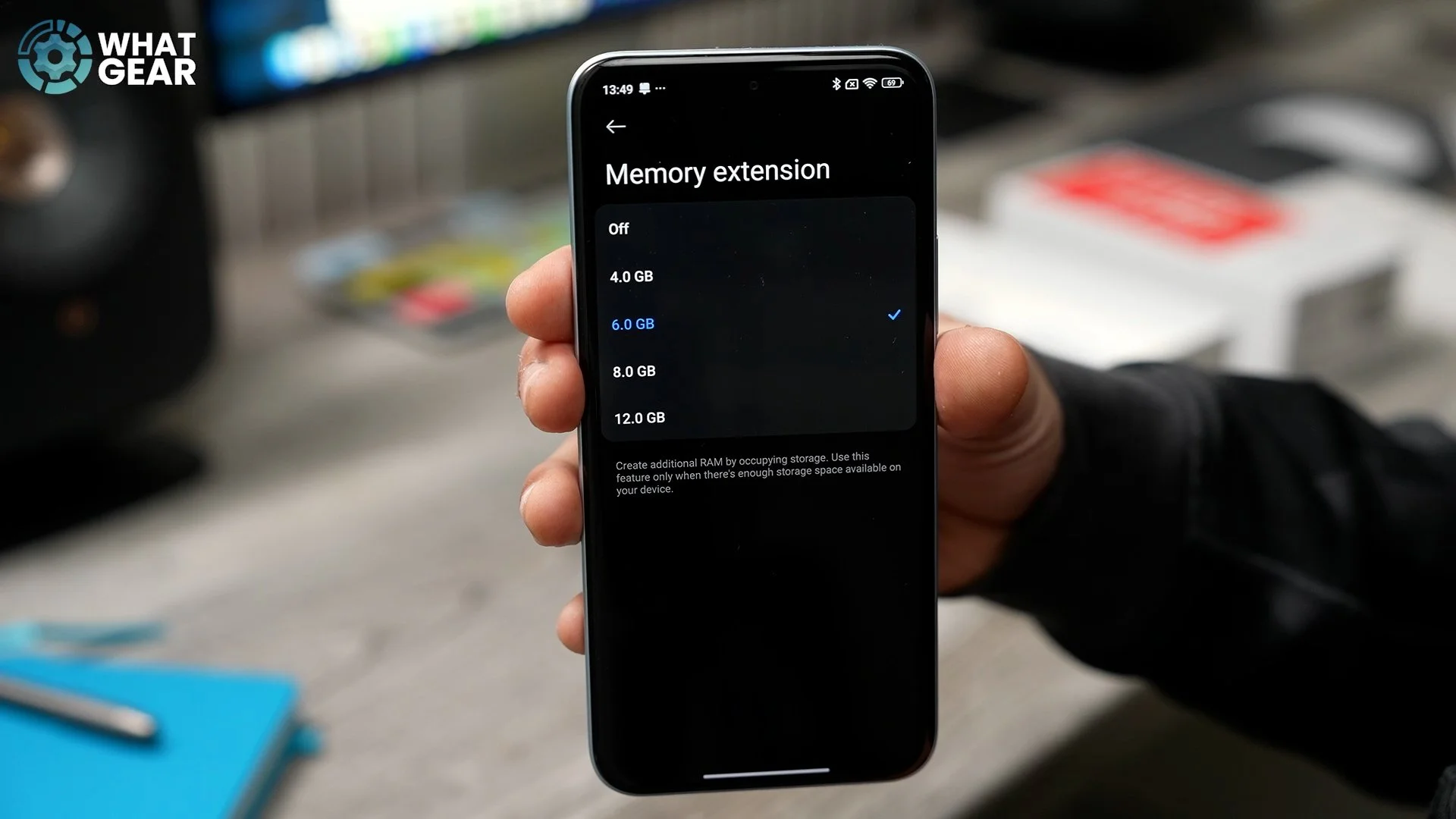
This will significantly improve the multitasking abilities of your device if you're willing to sacrifice some of the onboard storage for it. This particular phone has 512 GB of ROM, so I don't have to worry about storage space too much. If you are worried about it, then maybe you shouldn't do this, but if you can, well then you might as well, because you can always revert back to the 6 GB or even less later on if you start running out of space.
HIDDEN XIAOMI EXCLUSIVE
In my video where I compared the Pro+ to the Pro, I did mention there is an exclusive Xiaomi feature that both of these phones have, which is really, really awesome, especially if you find yourself in a place where there's no phone signal. Let me show you where it is and how to set it up so you can use it in case of an emergency. Go into Settings again. This time we're going to go to the Mobile Networks menu. At the bottom of this page, you'll find that exclusive feature called Xiaomi Offline Communications.
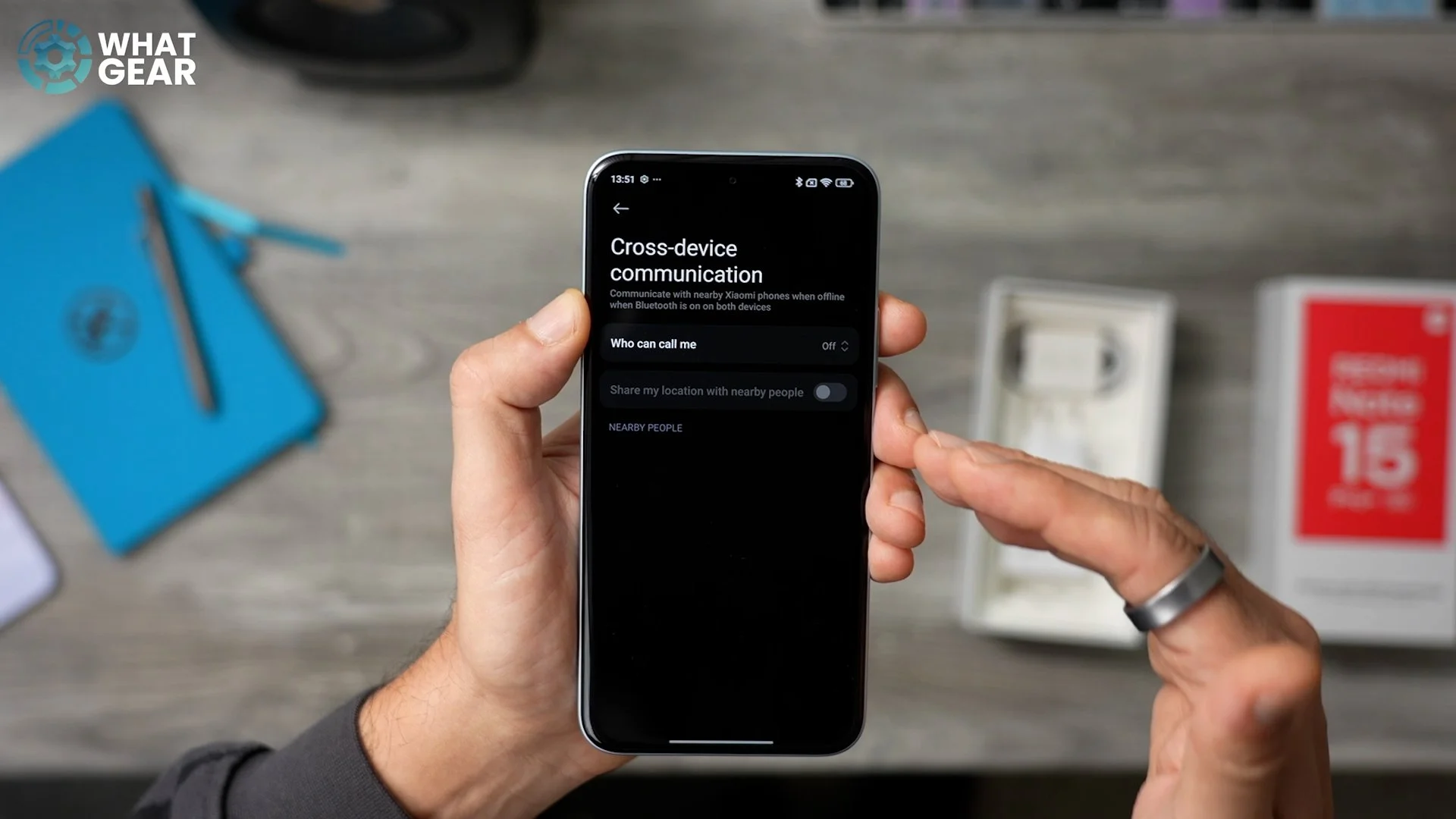
What it essentially does is allow Xiaomi phones to speak to each other, even when there is no data, and you can actually specify who you can contact and who can contact you. So if you want Contacts only or Everyone, set it up like that. Once it's enabled, you can also share your location with nearby people. But keep in mind the range is limited on this feature, so as long as they're in the general area, you'll be able to call them from your phone even when there's no signal.
QUICK DRAW YOUR CAMERA
Here's a little feature that can make life easier for you when it comes to snapping quick photos. Go into Settings on your device. This time, go to the Lock screen, and then here you will see the Launch camera option. If you double-tap the downward volume button when your phone is locked, you can open the camera very, very quickly without having to unlock the device first.
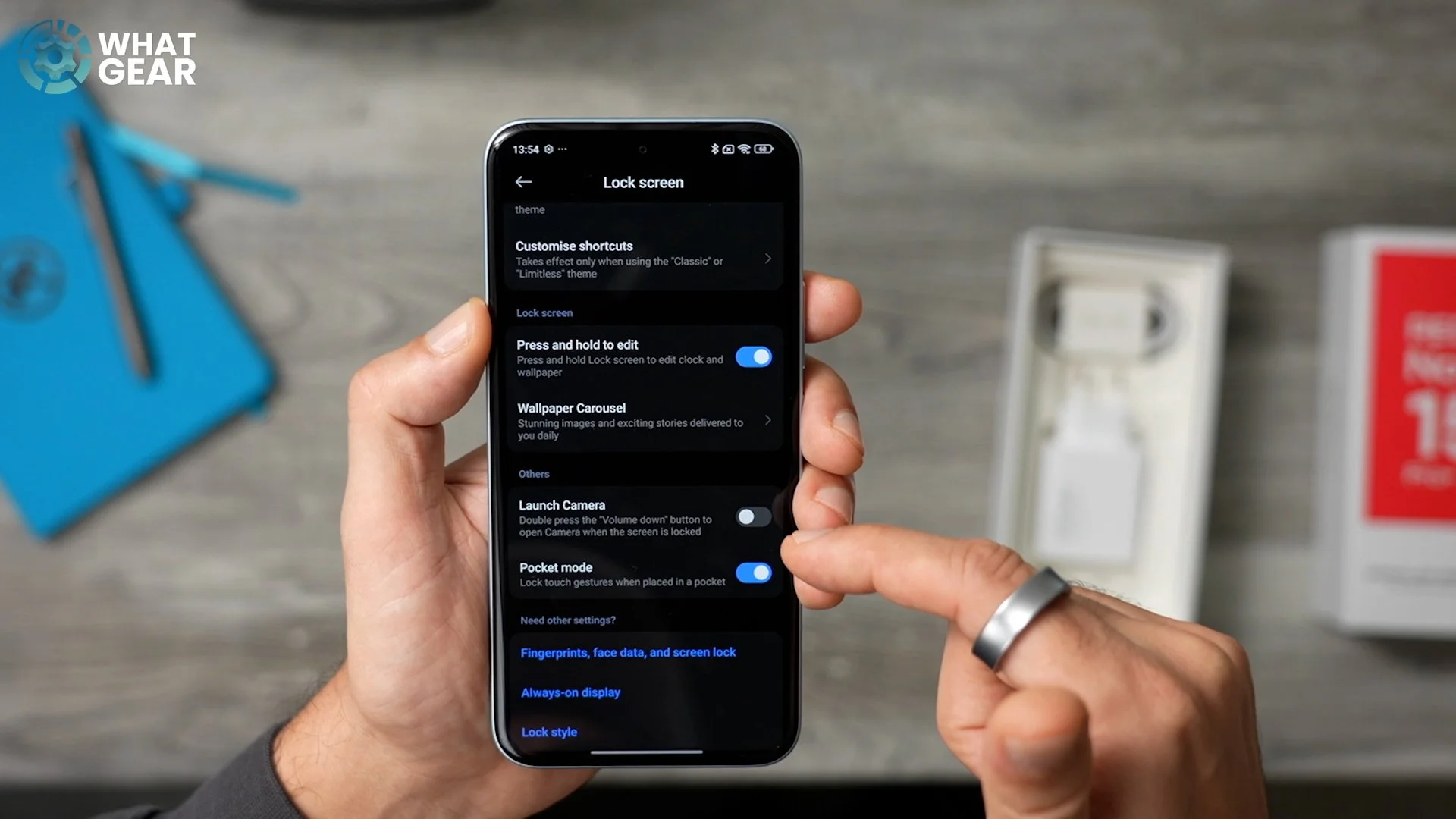
Yes, there is a shortcut down here, but this is a little trickier to do – you have to kind of swipe it in. I find that the volume shortcut is a lot easier. Actually, I like to have my Google Wallet down here instead of the camera. And of course, you can customize these however you want so that it works best for you. But this is, in my opinion, a nice little shortcut.
THE KEY TO POWER
This next setting is for those of you who really appreciate a power button actually being a power button. By default, when you hold this down, it opens up Gemini. That's pretty standard on Google devices nowadays. But if you are more old school and you want it to be a power button, here's how you can change it back. Go into Settings again. Scroll all the way down to Additional settings. Then we're going to go to Gesture shortcuts. I do recommend you check out these other gesture shortcuts, but the one I want to show you is Power off.
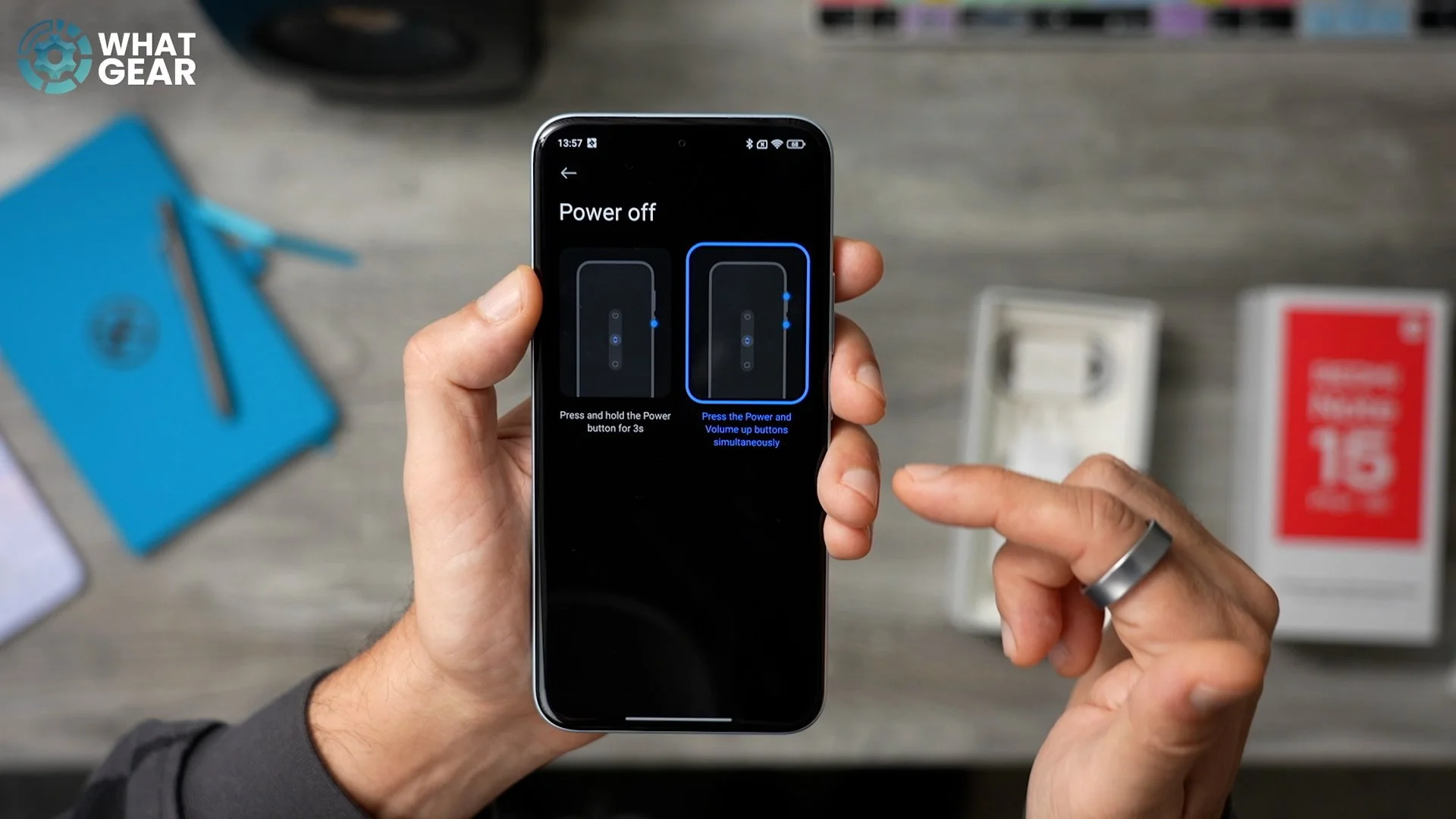
By default, powering off is Power button + Volume up, which is really annoying. I can't tell you how many times I've taken screenshots whilst trying to turn off devices – it's really, really annoying. So if you want to avoid that, just switch it to this (Power key only). Now, when you hold the power key, it acts like a power key. Once you do change this, if you push and hold just for a second, you still get the Gemini feature, which is good. But if you push and keep holding it, you get the Power menu.
SECRET DOUBLE TAP TECHNIQUE
Let me show you one more customisation setting that you might want to look at, because it will improve how you use your device and actually unlock a new input method. Go into Settings and then go down to Additional settings once again, and Gesture shortcuts once again. At the bottom of this page, you'll see the Back tap option is on, but actually, by default, it isn't mapped to do anything at all.
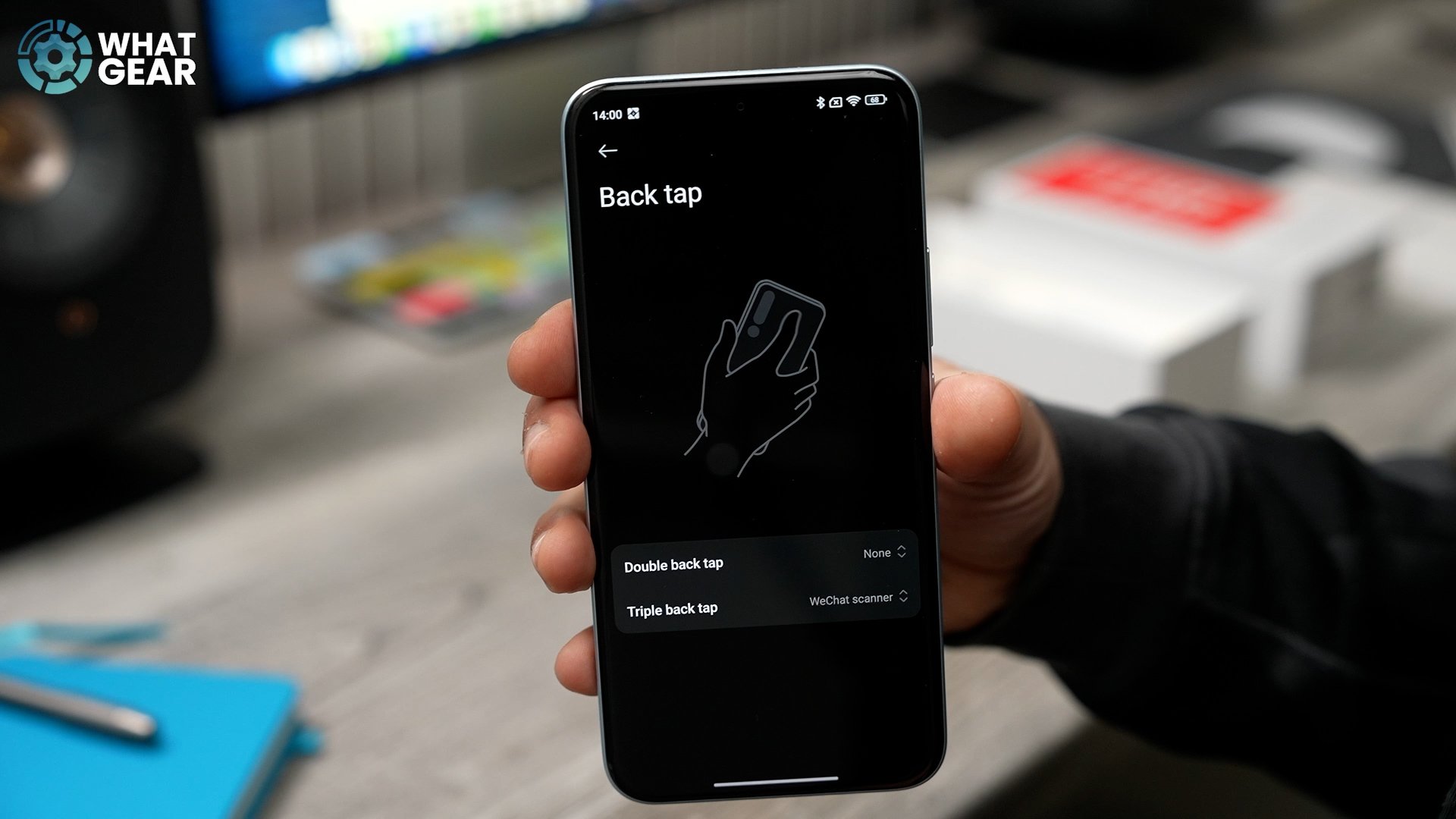
There are two input methods here. So if you want, you can set the double-tap to activate Silent mode or the Recorder. The Recorder is a good one because there is AI in there – you can transcribe and summarise stuff. You can also do the same thing with the triple-tap. I wish that there was the option to map apps to open using this, but with HyperOS 2.0, unfortunately, that isn't possible.
