
17+ Hidden Features Your Samsung Galaxy Had This Whole Time
If you own a Galaxy device, here are some secret settings & hidden features that you might not have noticed you’ve had this whole time! Alright, so if you’re intrigued, join me, and together we can rule the Galaxy.
A Wallpaper Trick
I get a lot of questions asking where I get my wallpapers. I’m going to let you in on a little secret. Pinterest is a great resource. But this tip is all about personalisation – the hidden technique to make your wallpapers truly unique. So find an image with a clear subject, and another with a nice background. Now, go back to your subject image. Hold your finger down until your selection pops off the page and shrinks. Now, with your finger still held down, use your other hand to swipe across to your background, drop it onto it and position it. Now I’ve created a custom wallpaper. And if you want, you can add even more stickers using the same method on top.
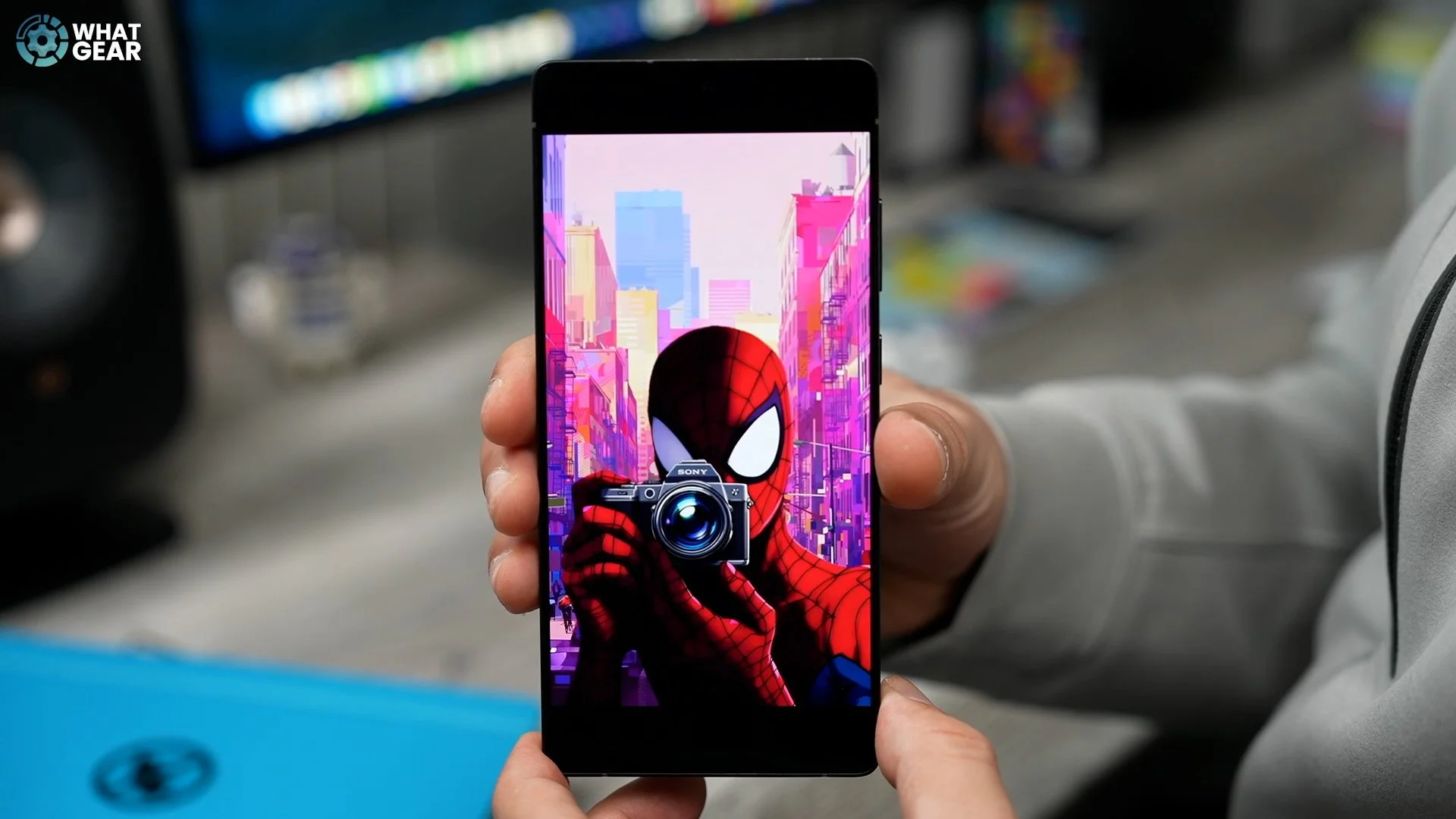
And you can get even more advanced with this. So if you're interested, stick around, because I'm going to show you a pro tip for how to add a 3D depth effect.
Flashy Unlock Feature
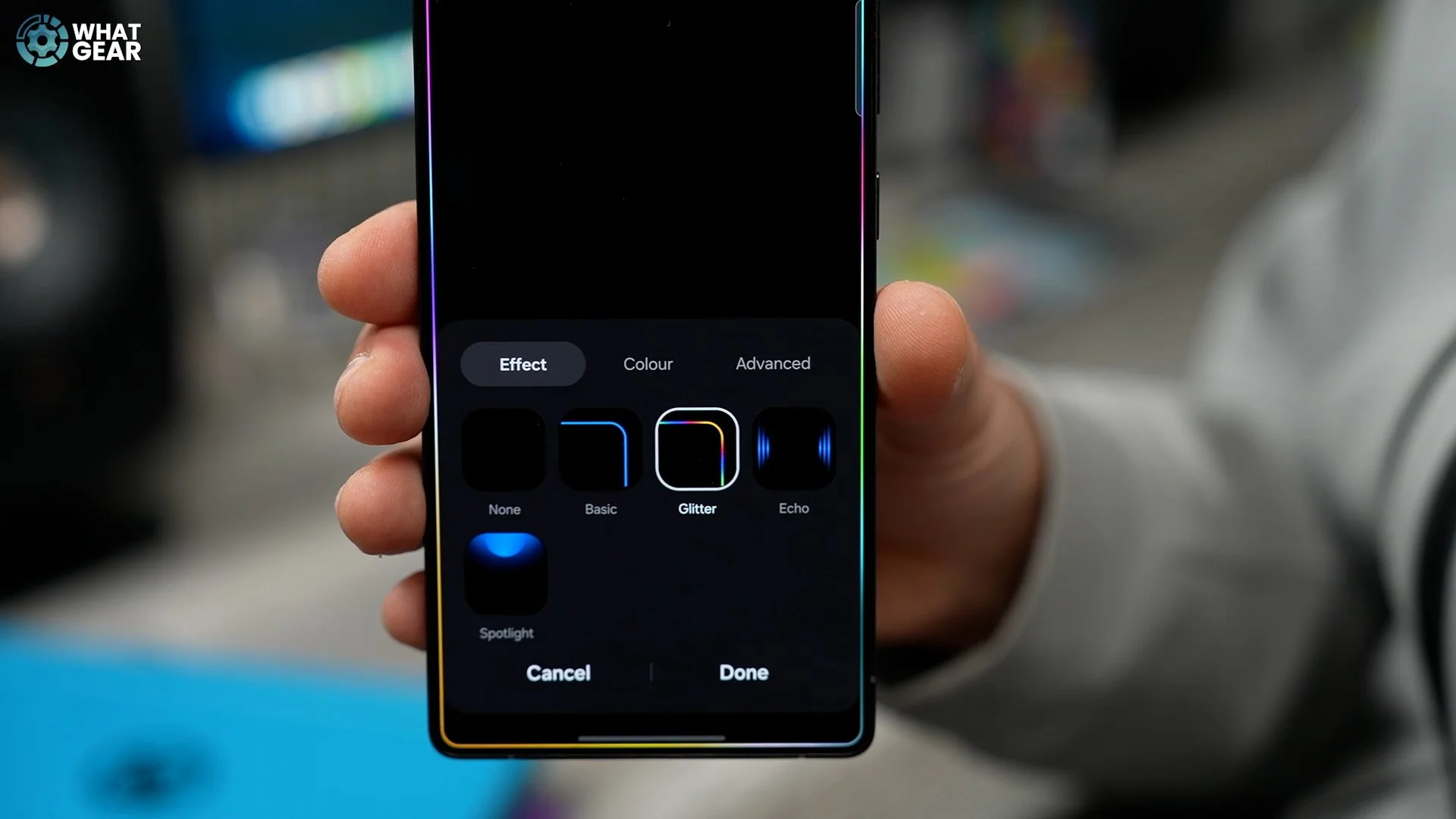
Here’s a trick that adds a little flair every time you unlock your Galaxy. Go to Modes and Routines. Select Routines at the bottom of the page, then hit the + at the top. Under the IF statement, search for ‘unlock with fingerprint’. Here you can even choose which fingerprint triggers this effect. Now, under the THEN statement, search for ‘edge lighting effect once’. Here you can customise the style, the colours and the duration of the animation. And that's it – now you’ve created a custom unlock effect.
Fingerprint Animation Trick
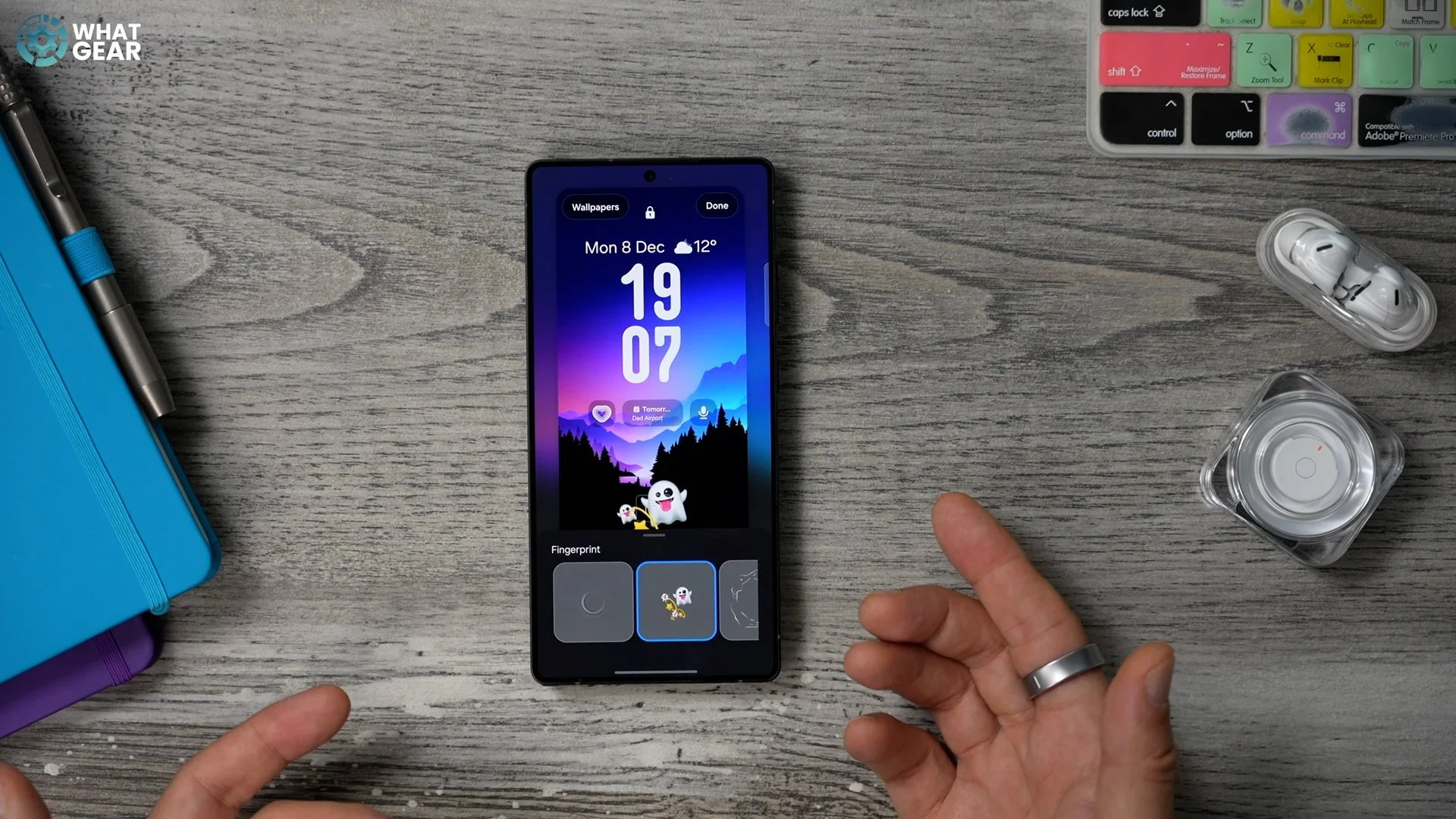
If you’re bored with the fingerprint animation that everyone with a Samsung Galaxy phone has, let me show you how to make your phone stand out. It’s a slightly more nuanced one, but stick with me because it’s easy once you know how. Go to the Galaxy Store app and get Good Lock. This is a Samsung exclusive. Install the LockStar app. Now run it. This will bring you to the lock screen. Here, if you tap the fingerprint icon, you can choose an alternate fingerprint unlock animation. There are a lot more upgrades you can make here, and I'm going to show you a couple of my favourites a little later.
See What I’m Saying
Have you ever been in a busy place and someone has called you, and you haven't been able to hear them clearly? If the answer is yes, then you're going to love this.
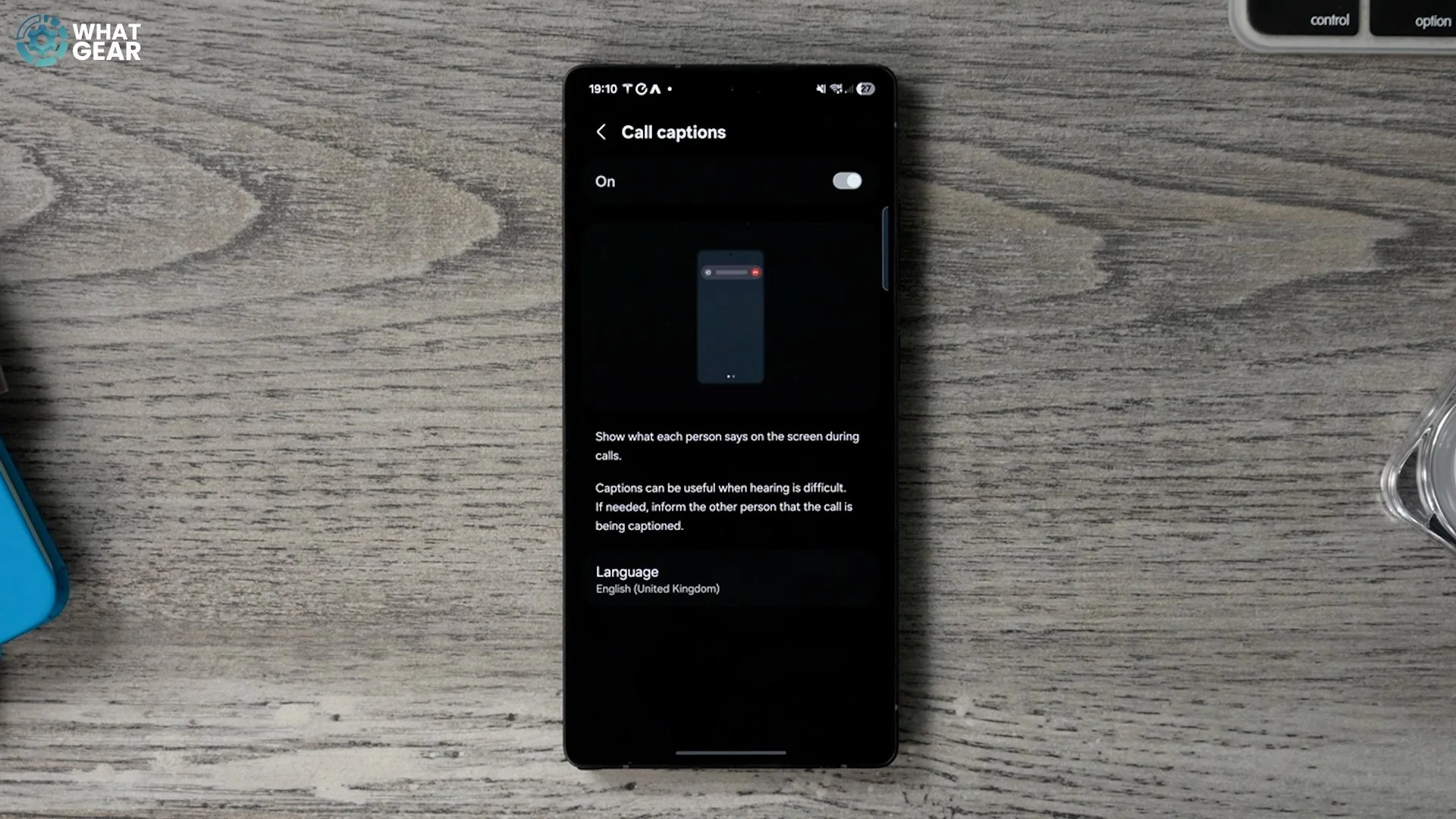
Open the Phone app. Hit the three dots, go to Settings, then go to Call captions and switch this on. Now, when the environment is too loud to listen, you can read and respond.
Straight To The Point
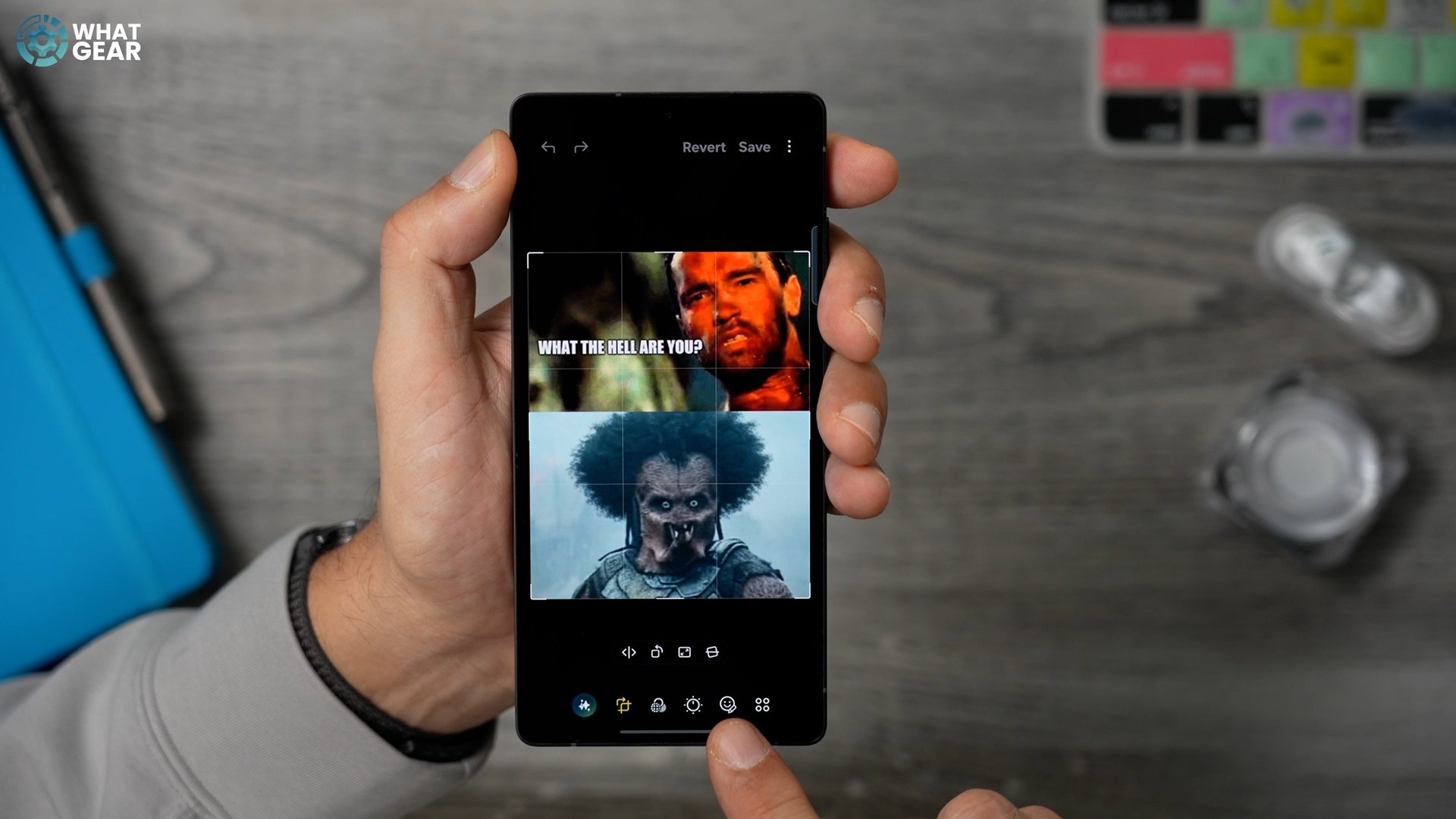
Have you ever had to mark up an image to highlight what you're talking about? Here's a trick to get your point across with a little more finesse. With an image open in the Samsung Gallery app:
Hit the pen icon, then hit the smiley face with the pen. Now draw a shape in one move and keep your finger held down for a couple of seconds, and the Gallery app will smooth and auto-correct that shape.
Don’t Stop The Music
If you've played music via Bluetooth (BT) to a device, here's a feature you absolutely need to know how to use.
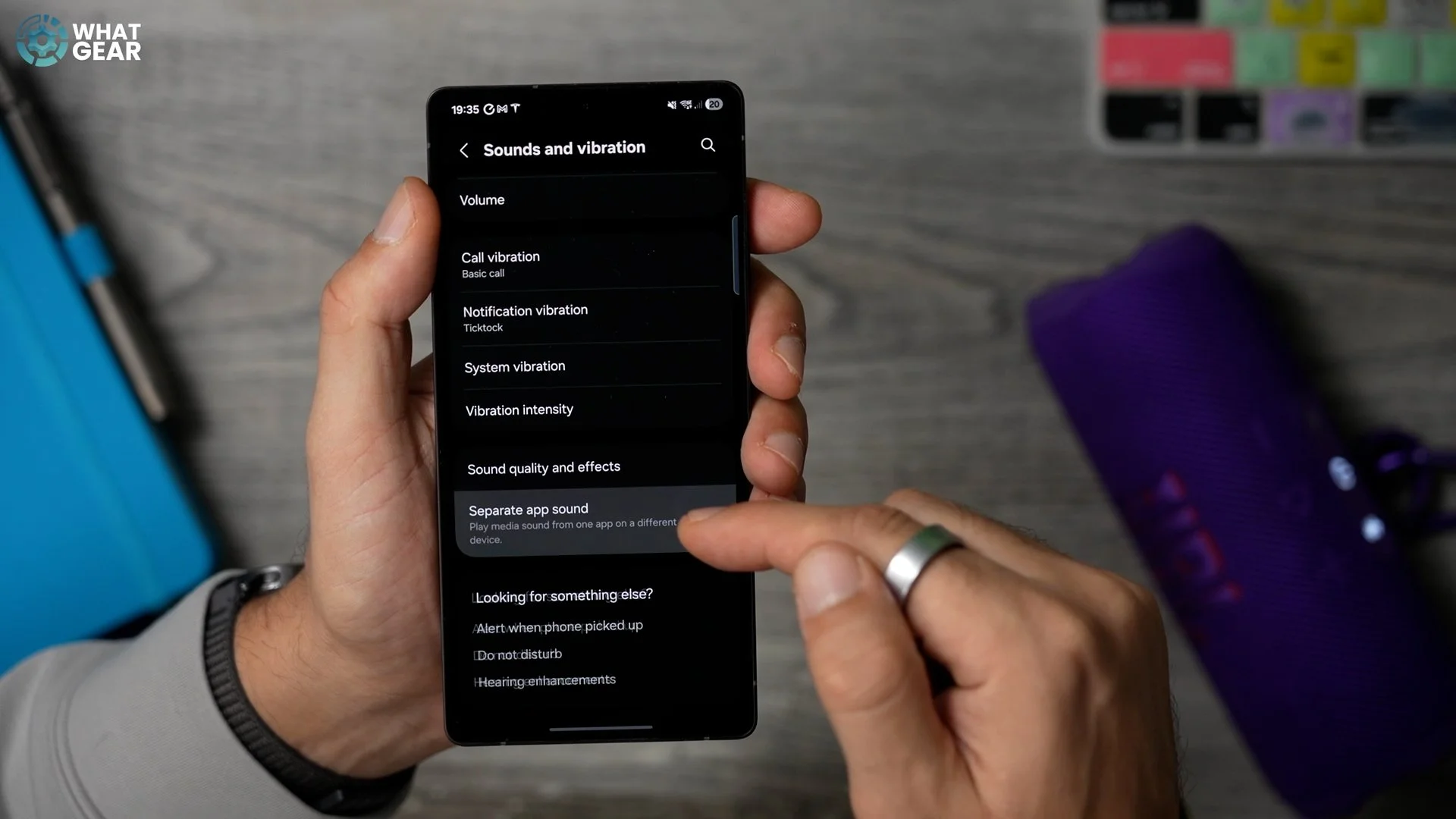
Go to Settings / Sound and vibration / Separate app sound. Turn this on, select your main music app, and set Audio device to BT. Now, whenever you play music to a BT speaker, you can continue to use all the other apps on your phone and have the audio from them play through your phone's speakers, whilst the music remains uninterrupted on the BT speaker.
Speed Up Wi-Fi on Any Device
Here is a very powerful and very well hidden tool that some people know about, but a lot have no idea how to use in a practical way. Open your Settings / Connections / tap Wi-Fi / hit the three dots / Intelligent Wi-Fi / tap the Intelligent Wi-Fi build 8 times. Now you've unlocked Samsung's Connectivity Labs feature. There are so many pro tools here, and I'm going to show you how you can use one of them to instantly increase speeds to a specific device. I'm going to use my PS5 because it's the perfect example of how useful this can be. But keep in mind this method will work with almost any Wi-Fi device.
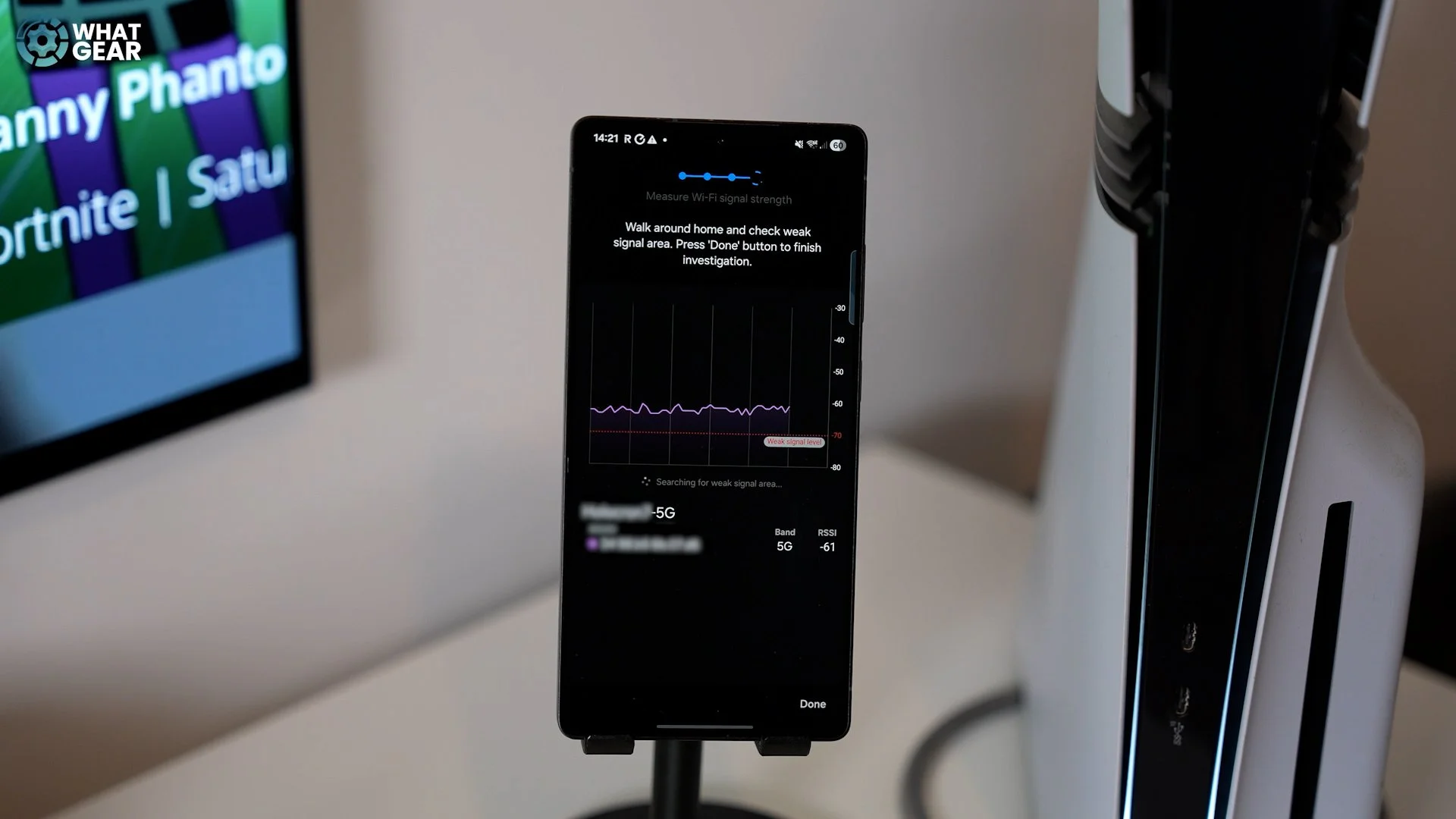
Open the ‘Home Wi-Fi Inspection Tool’ and place your Galaxy next to the device with the slow or unstable connection. Now, most routers these days will output two or three different SSIDs, aka Wi-Fi names. Typically, you'll see the name on its own, and then the same SSID with 5G at the end, and if your modem is more modern, you might even have 6G. But which one should you use? Here's how to find out. Select the first one. This will likely be a 2.4 GHz channel. Let it sit for a while, monitor the graph and take note of the stability and speed. Once you've found the most stable and fastest signal, connect the PS5 or other device to that network.
Don’t Be Scared, Be Aware
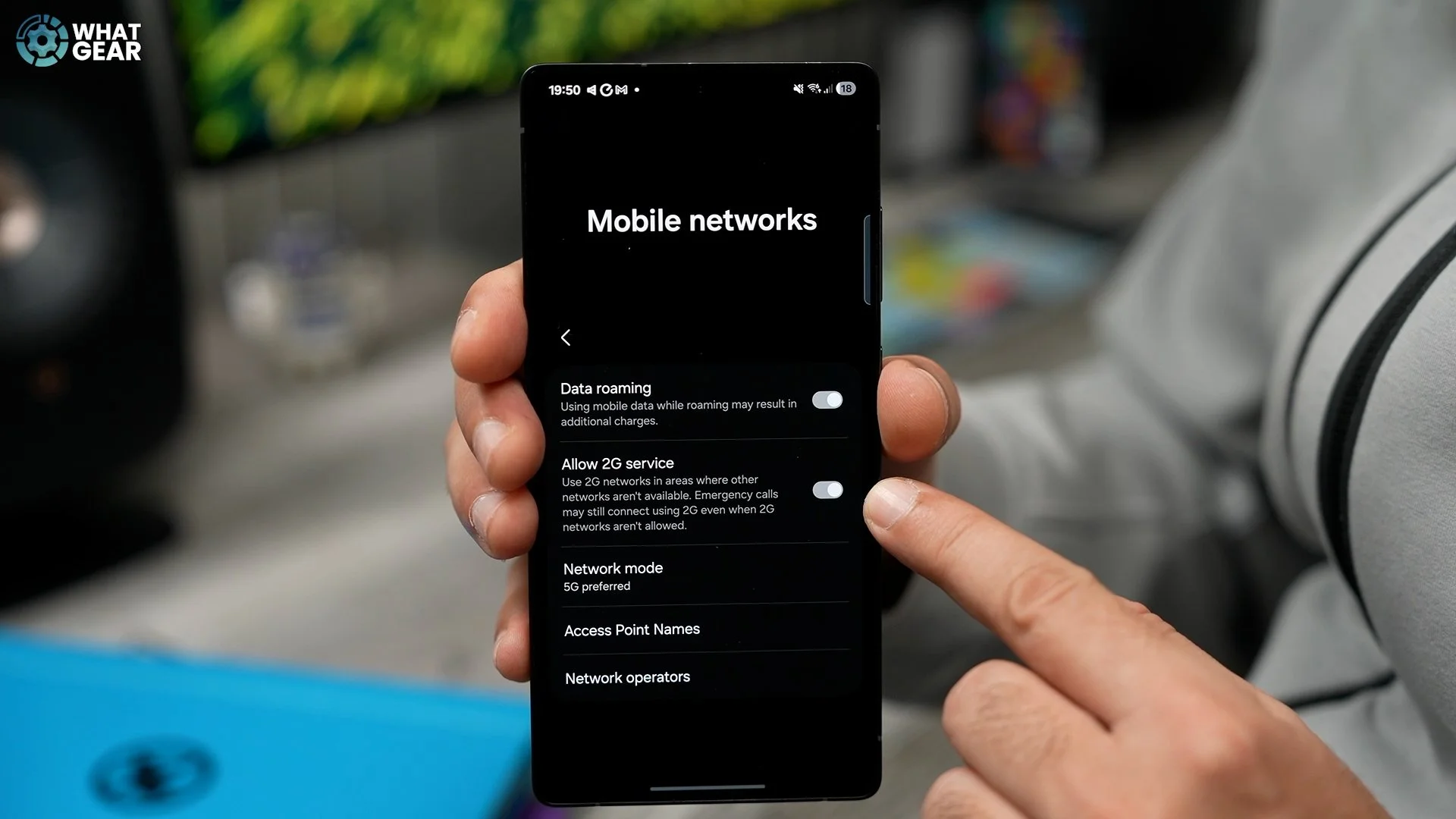
I don't want to scare you, but you should know there's a feature enabled on your phone that could allow people to listen in to calls and even possibly allow them to intercept your two-factor authentications over SMS. But do not fear, because I am here to show you how to eliminate that risk. Open Settings / Connections / Mobile networks and here disable ‘Allow 2G service’. You might not know this, but 2G is an old mobile data protocol, and it's notoriously easy for hackers to intercept. However, it can be useful when in a pinch. And actually, even with this off, if there is an emergency, your phone can intelligently use it when it needs to.
Colour Coded
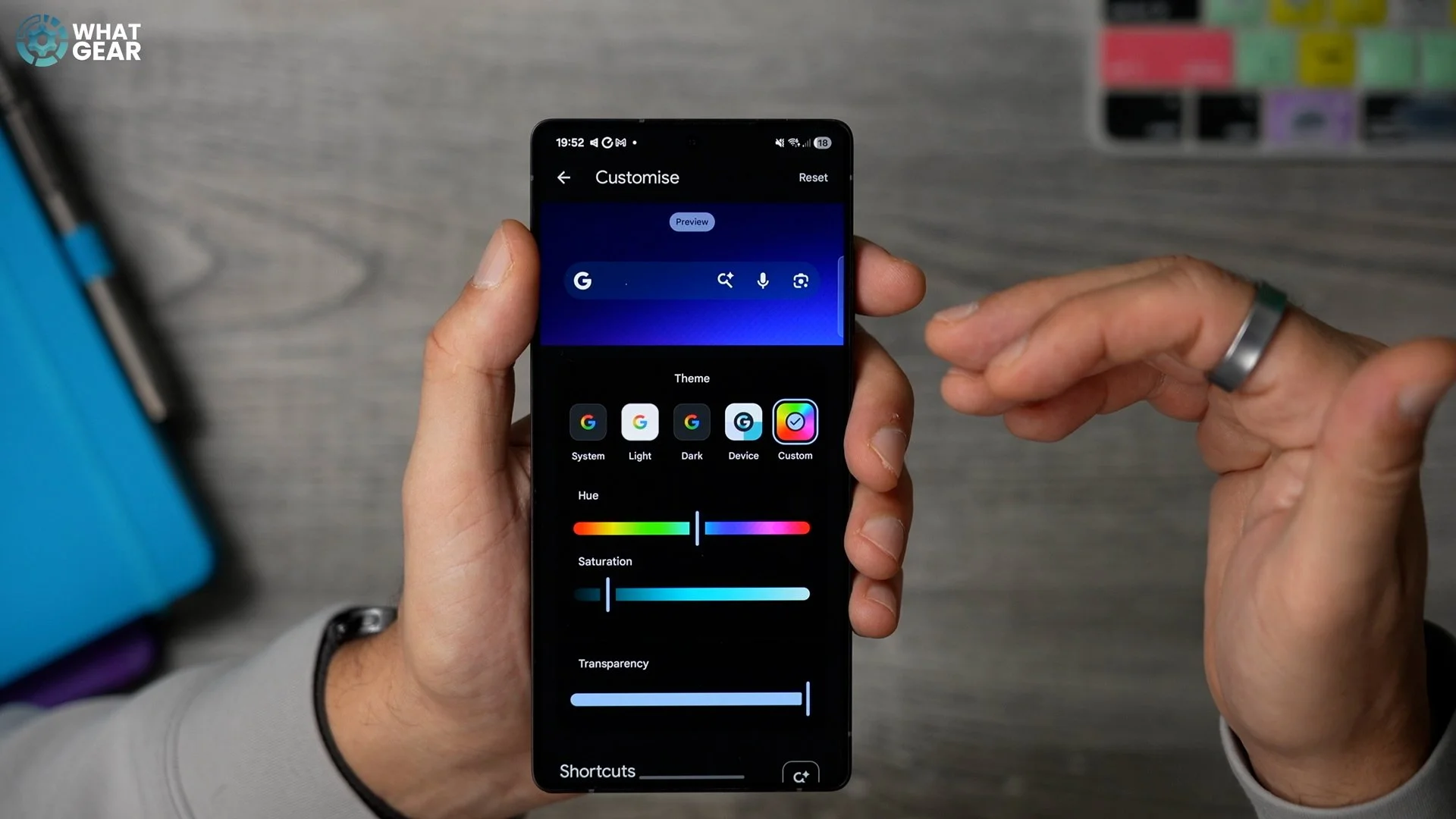
Here's a quick hidden customisation that I love. Tap the ‘G’ on your Google search bar. Tap your icon in the top right corner, go to Settings / Customise search widget.
Now you can customise this to match your custom wallpaper and even add additional tools to it.
LOOK! NO HANDS
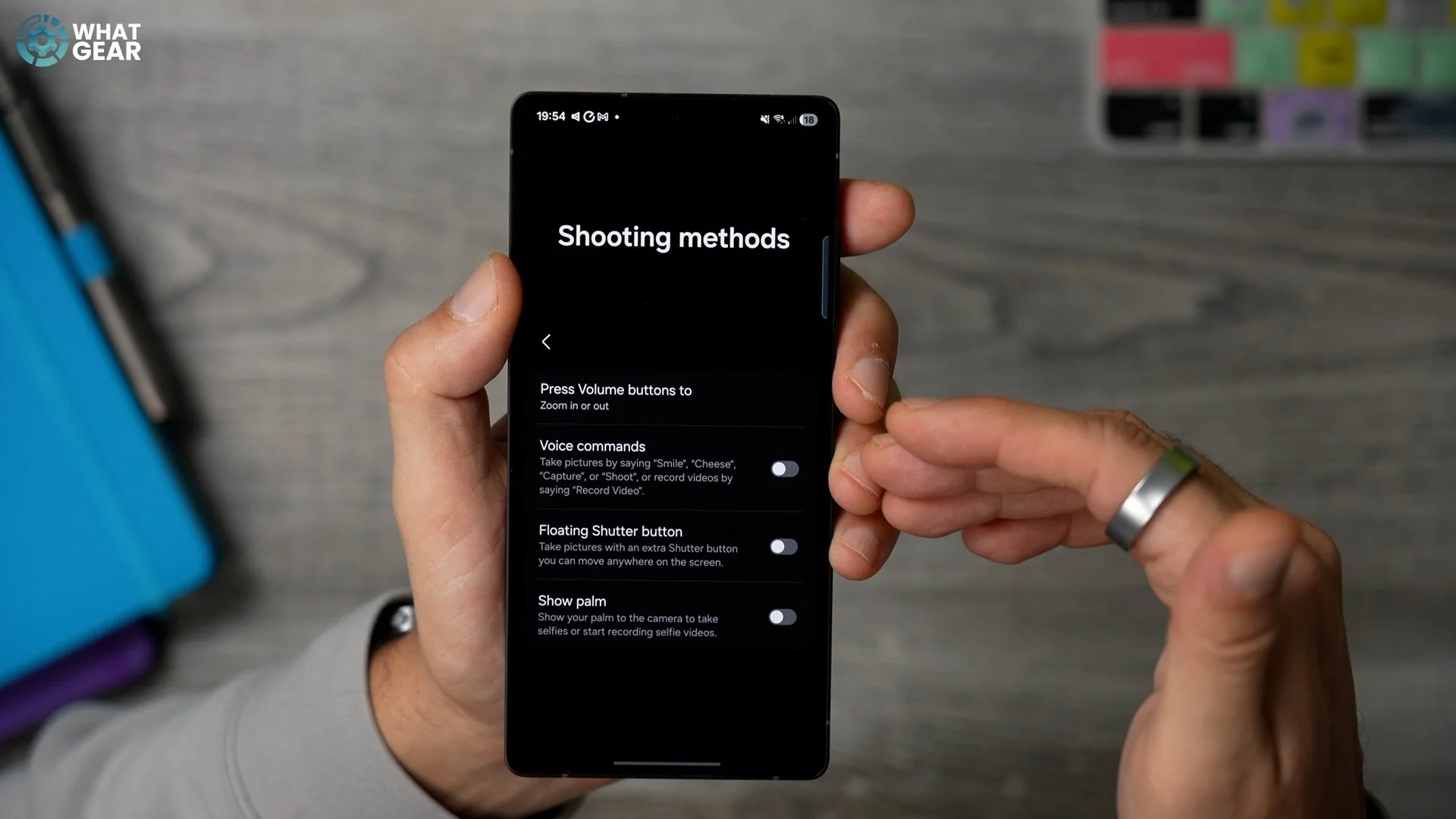
Alright, now let's dive into some quick camera features that you've had the whole time but maybe aren’t using yet. Open the Camera app. Hit the four dots on the right side / then Settings / Shooting methods / enable Voice commands and Show palm. Now, when you’re taking a selfie, you don’t have to touch the screen. Simply say ‘Capture’ for a photo or ‘Shoot’ for video. Or show your palm to the camera for a few seconds to initiate a countdown timer.
VIDEO + BACKGROUND MUSIC
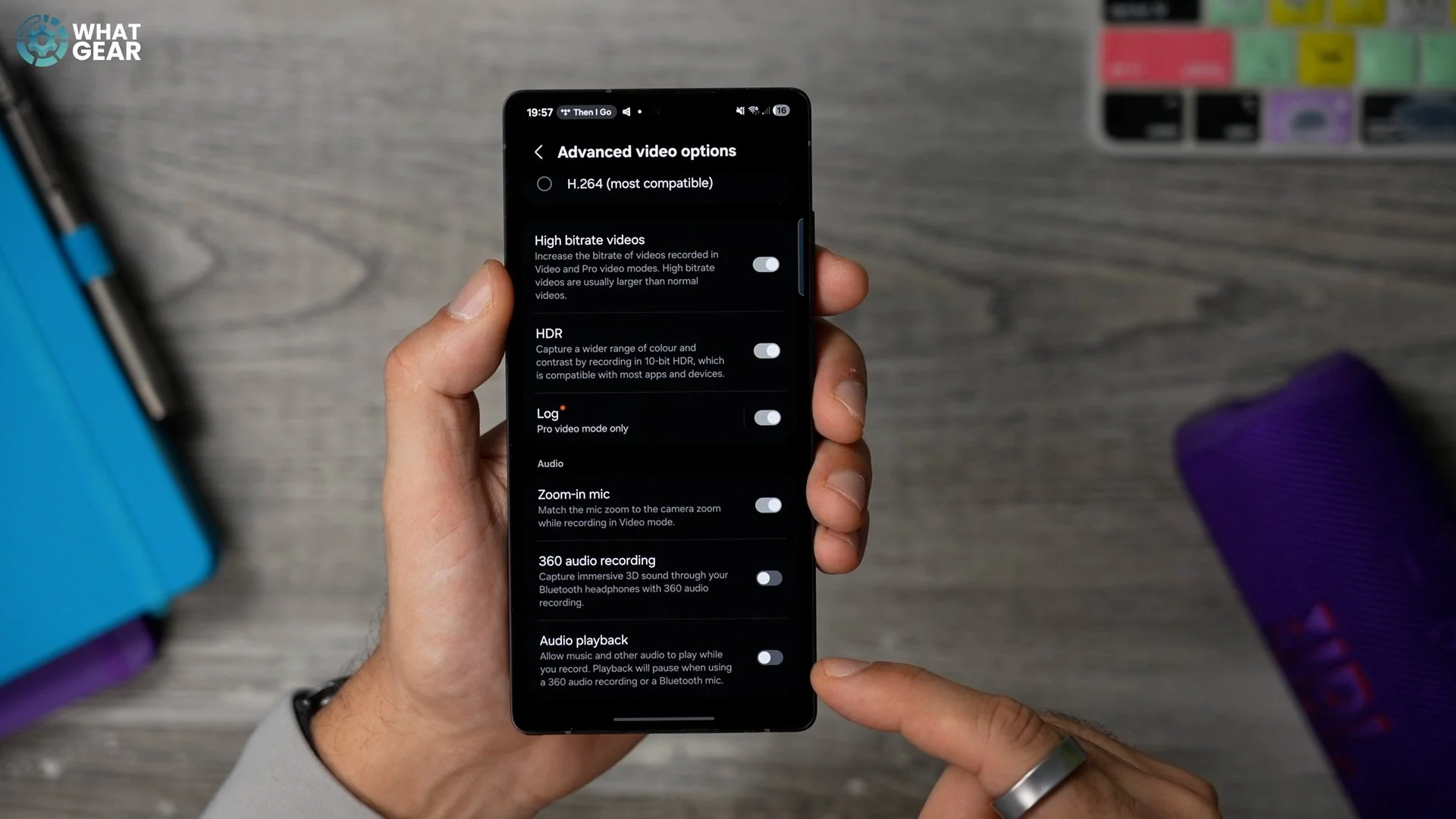
If you’re playing music from your phone to a speaker and you want to film a video quickly, the music will stop… unless you do this. In the Camera app, go to Advanced video options and enable ‘Audio playback’.
OPTIMISE PHOTO
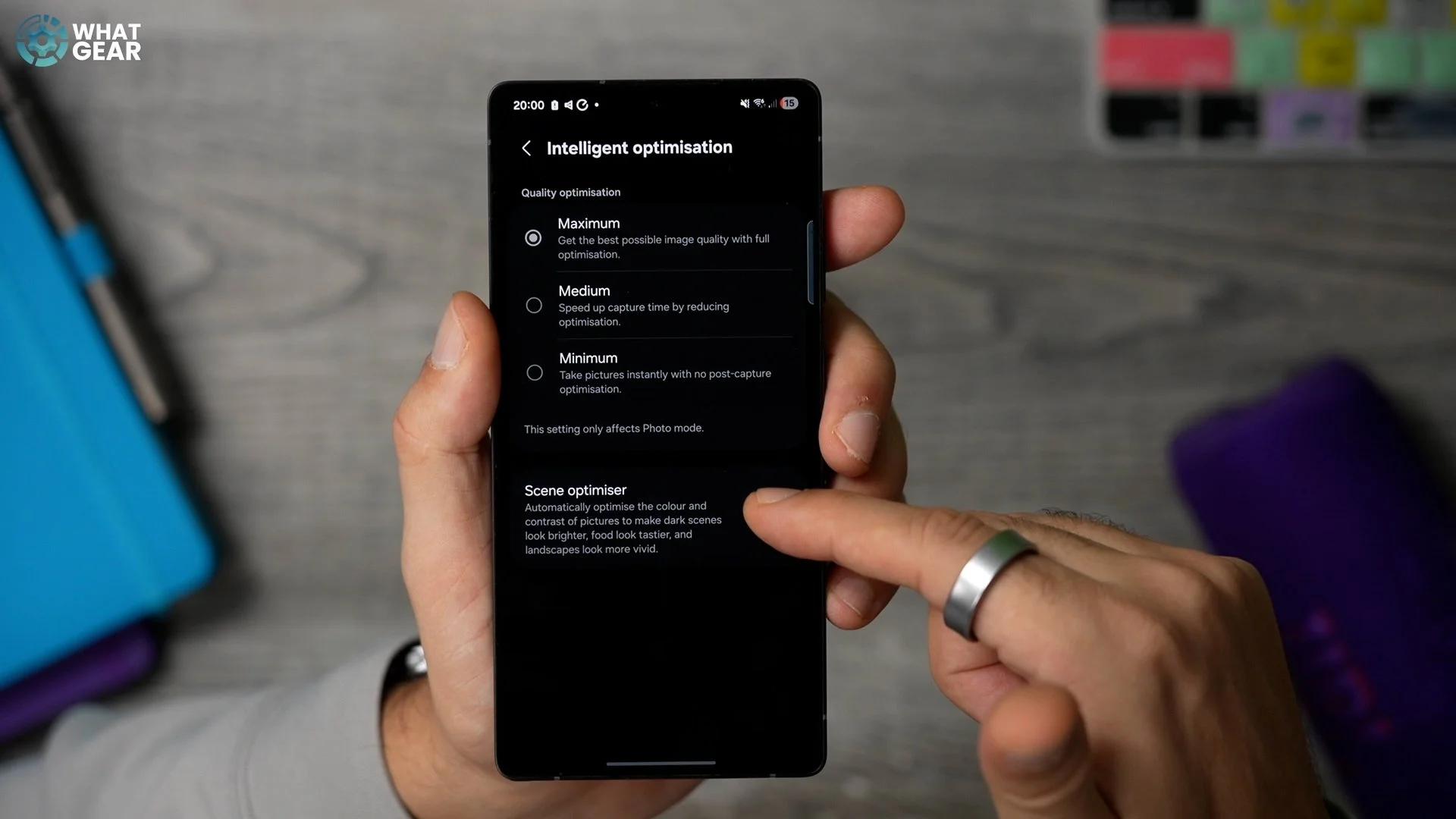
If you want that Instagram-worthy look to your photos straight out of the camera without adding filters, there is a setting that will help you with that. Again, in the Camera settings, this time in the Intelligent optimisation menu, set the quality to Maximum and here enable the Scene Optimiser. This adds more pop to any photo you take on your Galaxy.
UPSCALE ANYTHING
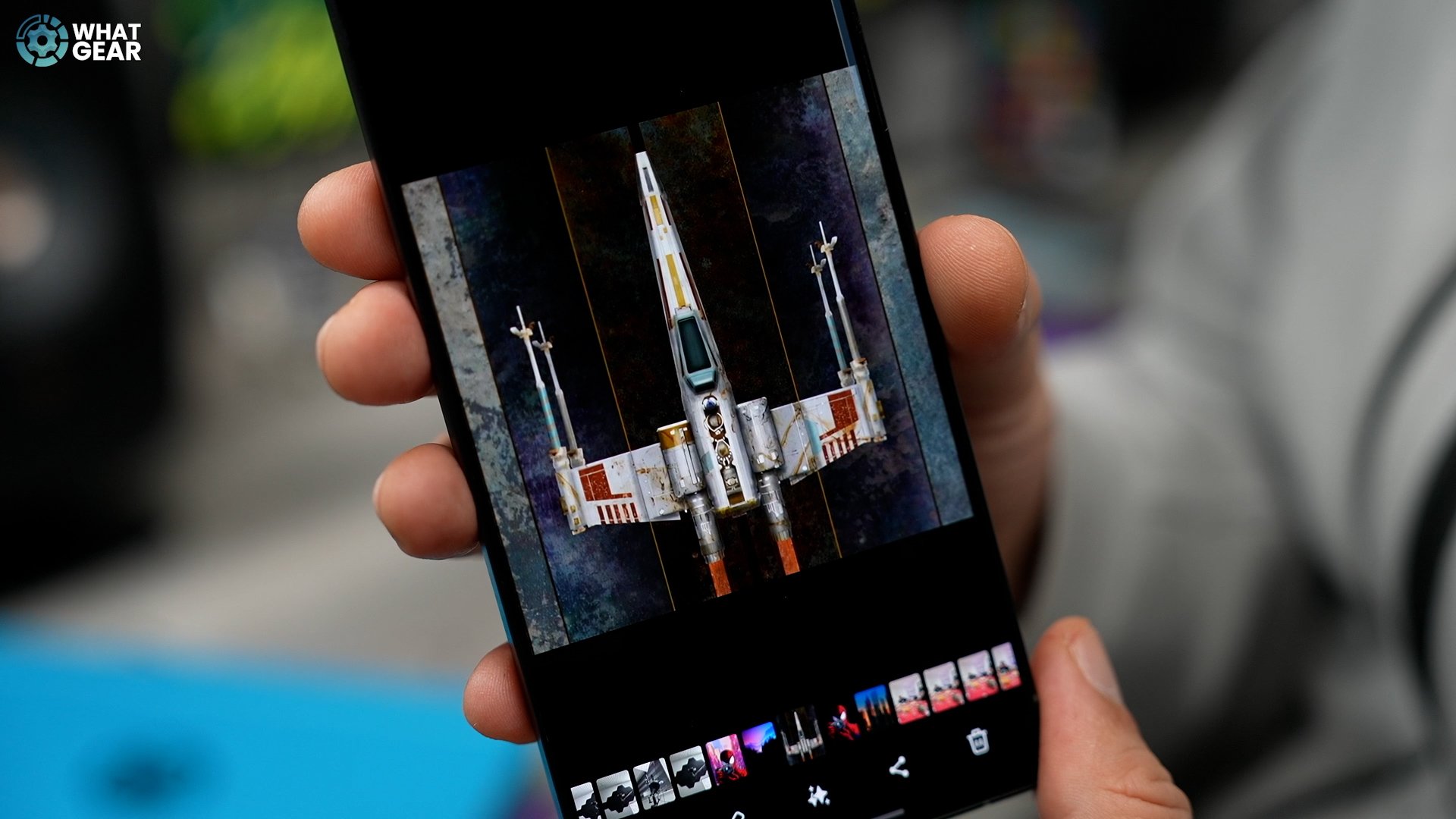
Here is another photo-related feature, but this one is found in the Samsung Gallery app. Hold your finger on the Gallery app, hit the little (i) and go to Gallery settings. Then Detail enhancer. Set this to Maximum. Now, whenever you crop into an image, your Galaxy phone will take that smaller part of the image and will use AI to upscale it intelligently by filling in details and smoothing out the noise. This works amazingly on old photos, maybe taken on an older device or, dare I say, an iPhone.
EASY PRO VIDEO
There is a very pro video mode on your Galaxy that, thankfully, you actually don’t need to be a pro to use – and it will take your video quality to another level, particularly in high contrast scenes like a sunset, for example. Back in the Camera app, go to Settings / Advanced video options and enable ‘LOG’. This is only available in Pro video mode. Now go back to the Camera, hit More, then Edit and drag the Pro video mode to the bottom.
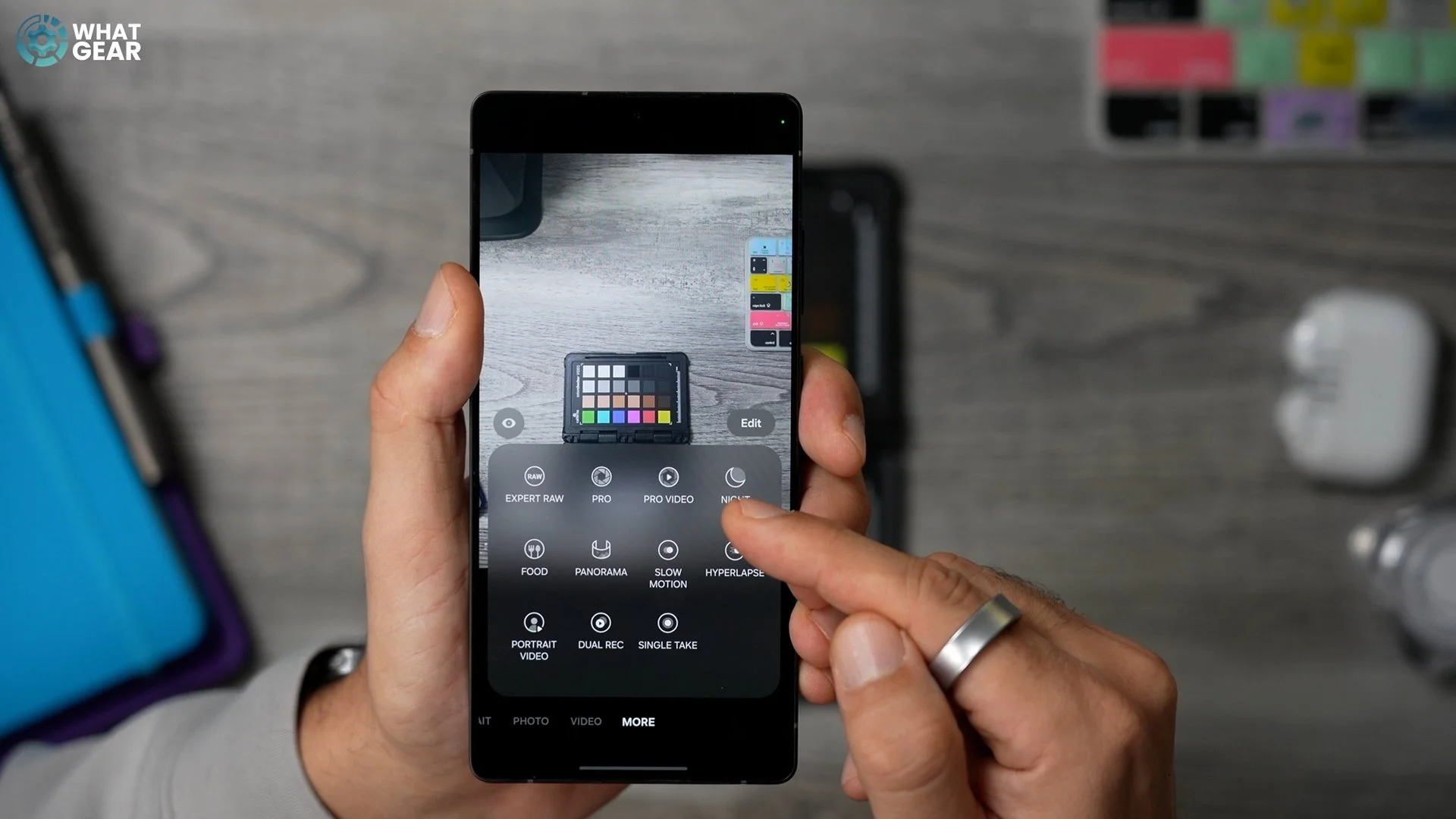
Now you have quick access to it. Open this mode and select LOG at the top. Now, when you film in this mode, you’re filming in a format that has vastly superior image data, but it won’t look like it at first. Here’s how to bring out the details. Go to the Samsung Gallery app, tap on the recording, swipe up and tap ‘Correct colour’. This adds Samsung's own LUT to the footage, which essentially balances all the colours and contrast for you. So use this wisely and keep in mind that file sizes will be larger, and if you are an expert, you can of course colour grade this yourself.
NAIL FOCUS EVERY TIME
One more camera pro trick. This is for anyone who cares about quality. Head over to the Galaxy Store app. Search for Camera Assistant. Run this, and here enable Prioritise focus over speed. It does exactly what it says.
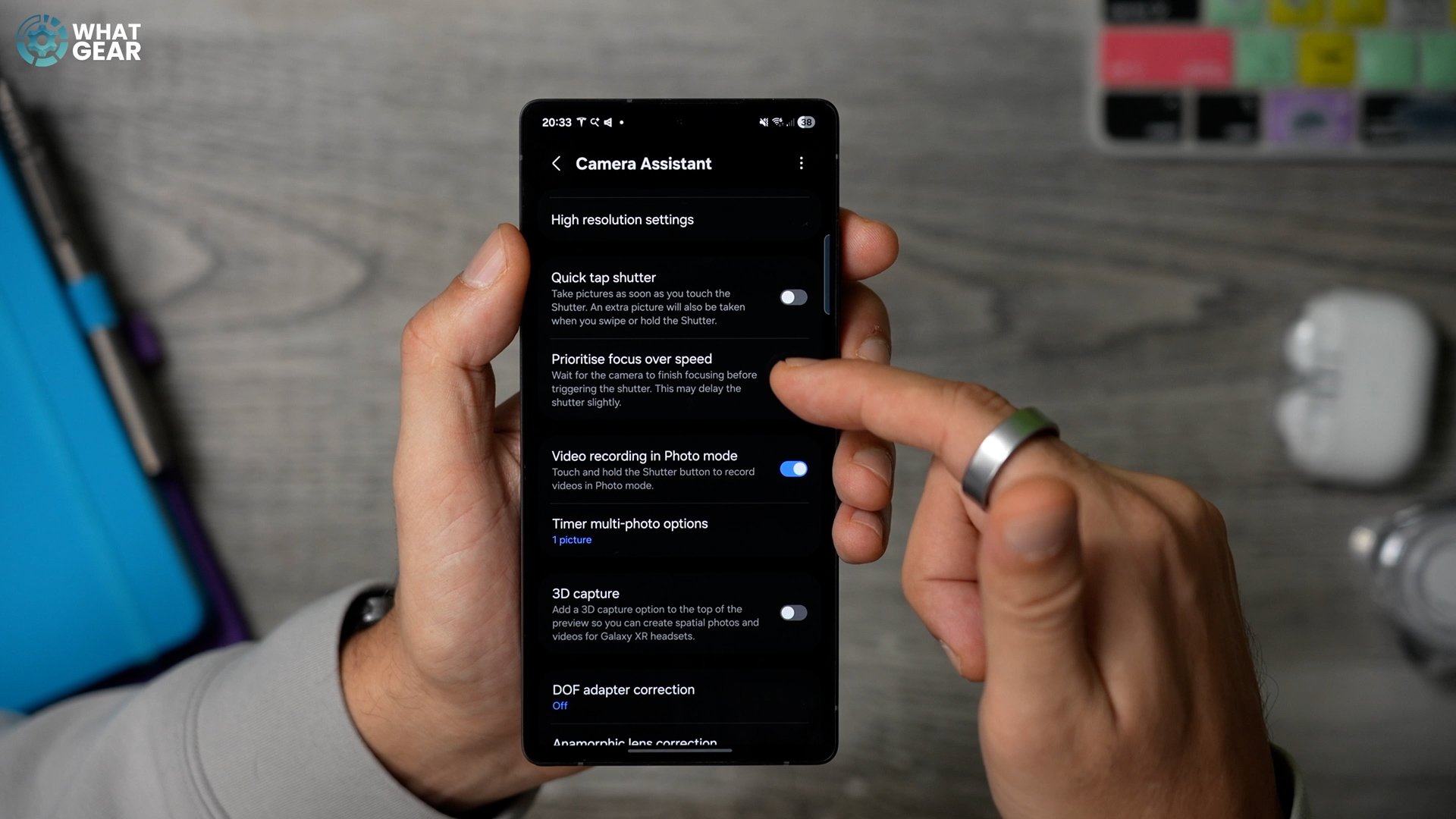
However, the shutter speed will slow down for individual photos, but you’ll get better results. And if speed is what you need, just be aware that if you swipe down and hold from the shutter button, the burst mode remains just as fast as before.
MORE SHORTCUTS ON LOCK
Alright, now let's slow down a little, because here are those two LockStar favourite features of mine that I think you’re going to like. Let’s go back to the Good Lock app and back to LockStar. Now tap where it says ‘LockStar’, add ‘Favourite apps’, and enable Show favourite apps. Now you can select your favourite apps or favourite functions for this list. Choose the alignment, and now you’ve got even more useful shortcuts than before.
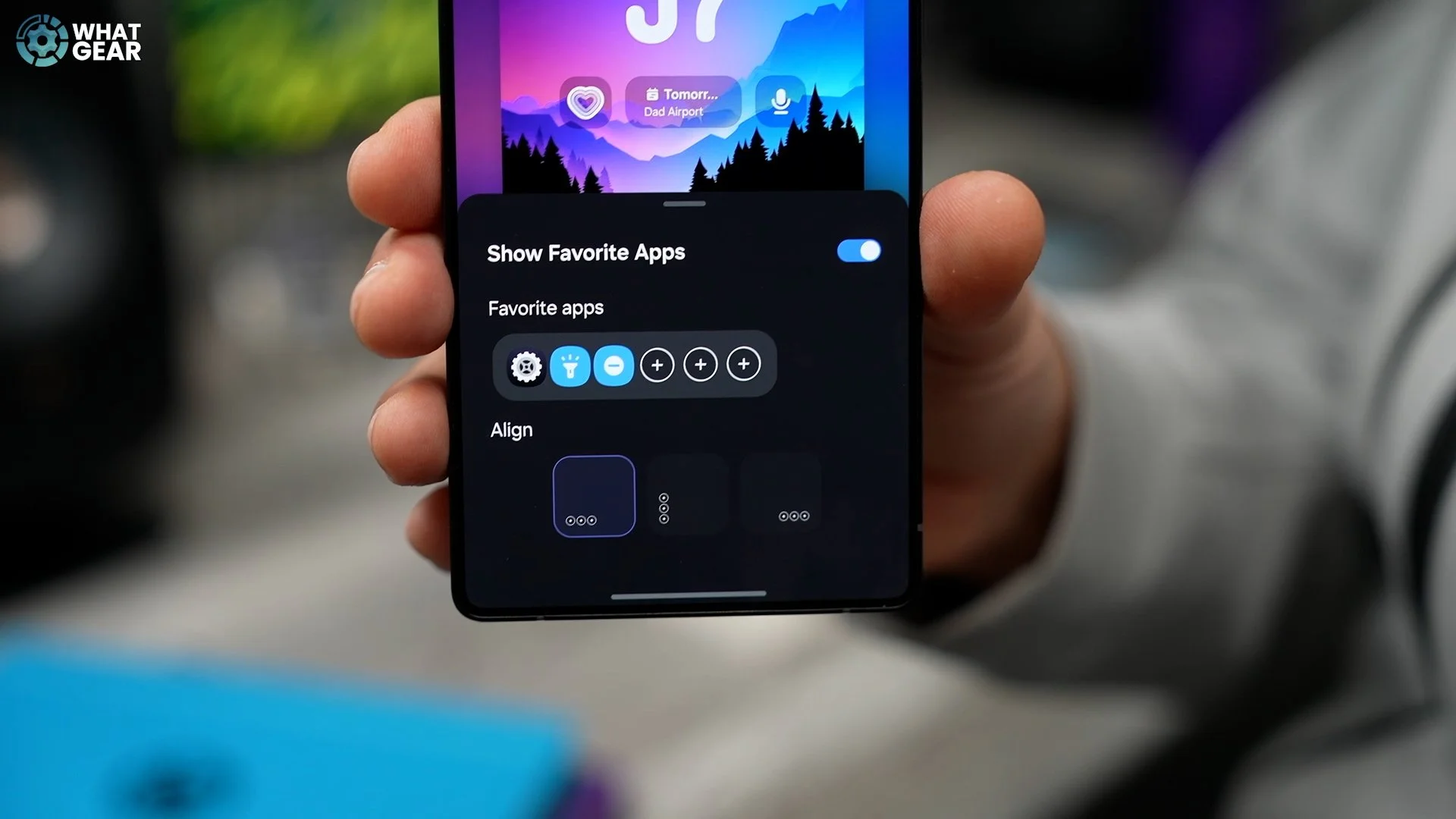
And here’s the second one. If you tap where it says ‘LockStar’ again, switch to Always on. Here you can add an ‘App widget’. I’m going to add one of my custom routines from the Modes and Routines app. I’m going to add a single routine. Now, when you tap it and tap where it says ‘Routines’, choose the one you want. I’ve got a ‘Quiet’ routine set up. Now that's done, you can resize and position this button to where it needs to be. You can use several of these if you wanted to, or even just use an app widget instead.
AOD ACTION
Here’s a fun hidden feature that will definitely get you a few laughs at the Xmas dinner table. Swipe out your Edge panel. Hit the settings, before it disappears, enable the Voice changer panel. If you don’t see it or it’s greyed out, go to the Good Lock app once more, find Sound Assistant, run that and scroll down to ‘Voice changer’ and enable it. You can tap to preview the effects.
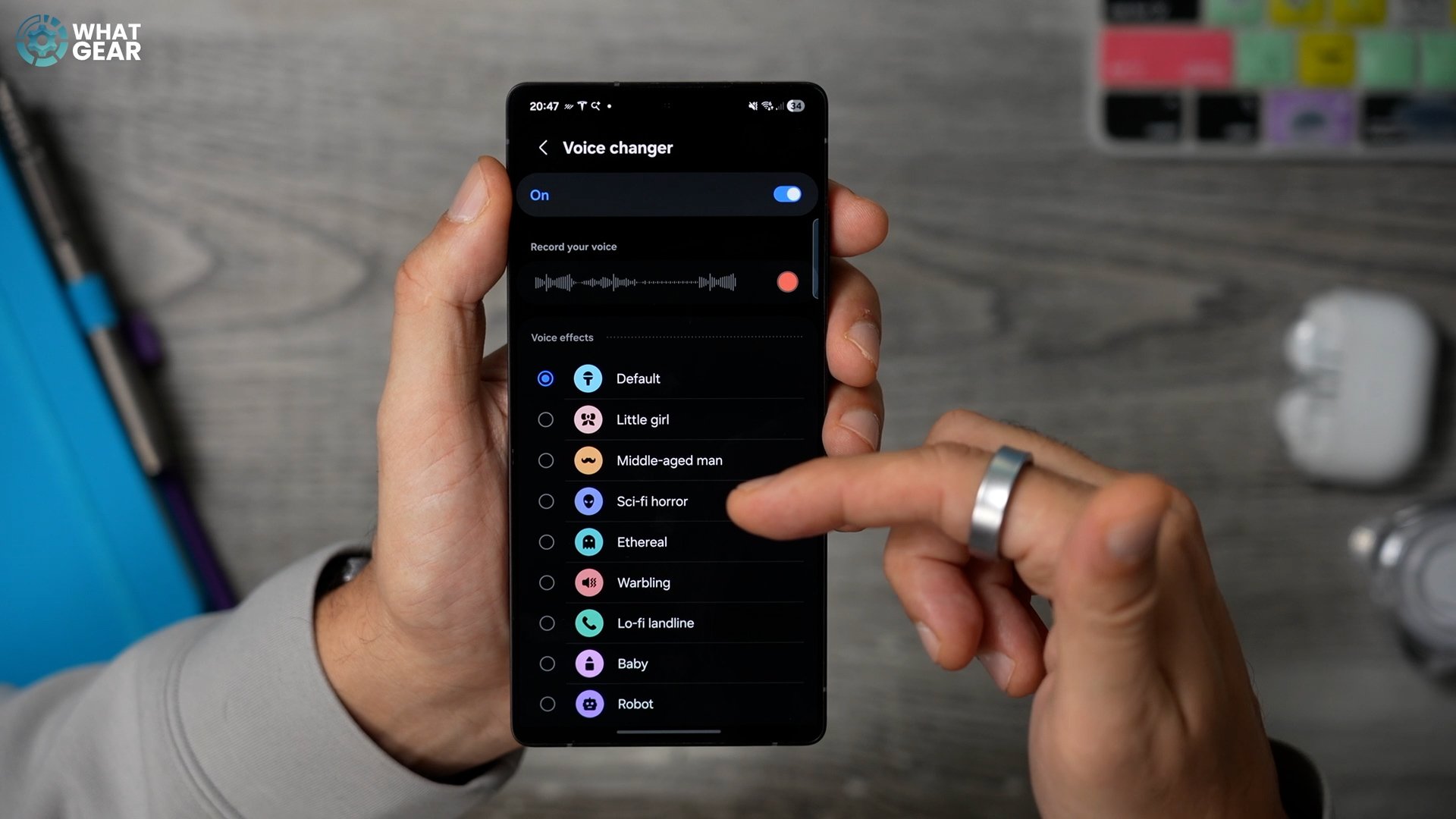
Now you tell your friends or family that you want to film a short video of them to send Xmas cheer to the rest of the family or something. But before you do, swipe out the Voice Changer from the Edge panel and select one of the funny ones. They won’t know you’ve done it until they see the finished recording. This effect can also be used in the Voice Recorder app, but not in the Phone app yet. So, unfortunately, you can’t prank call your friends, but you could use the Home Alone technique if you wanted to.
