YouTube App - 17 Secrets Most People Don't Know! ( Tips & Tricks )
If you have the YouTube app on your phone. What if I told you it might not have unlocked its full potential yet? And what if I told you there might be some incredibly useful features you're probably not using yet ? So stick because you might walk away feeling like. Wow, I wish someone had shown me these 17 YouTube App tips & tricks sooner.
Better Quality
Let's start with some simple settings that will take you 30 seconds to change and instantly improve your audio and video quality. Whilst in the YouTube app, tap your avatar in the bottom right corner, then go to settings in the top right corner, scroll down, and tap Quality.
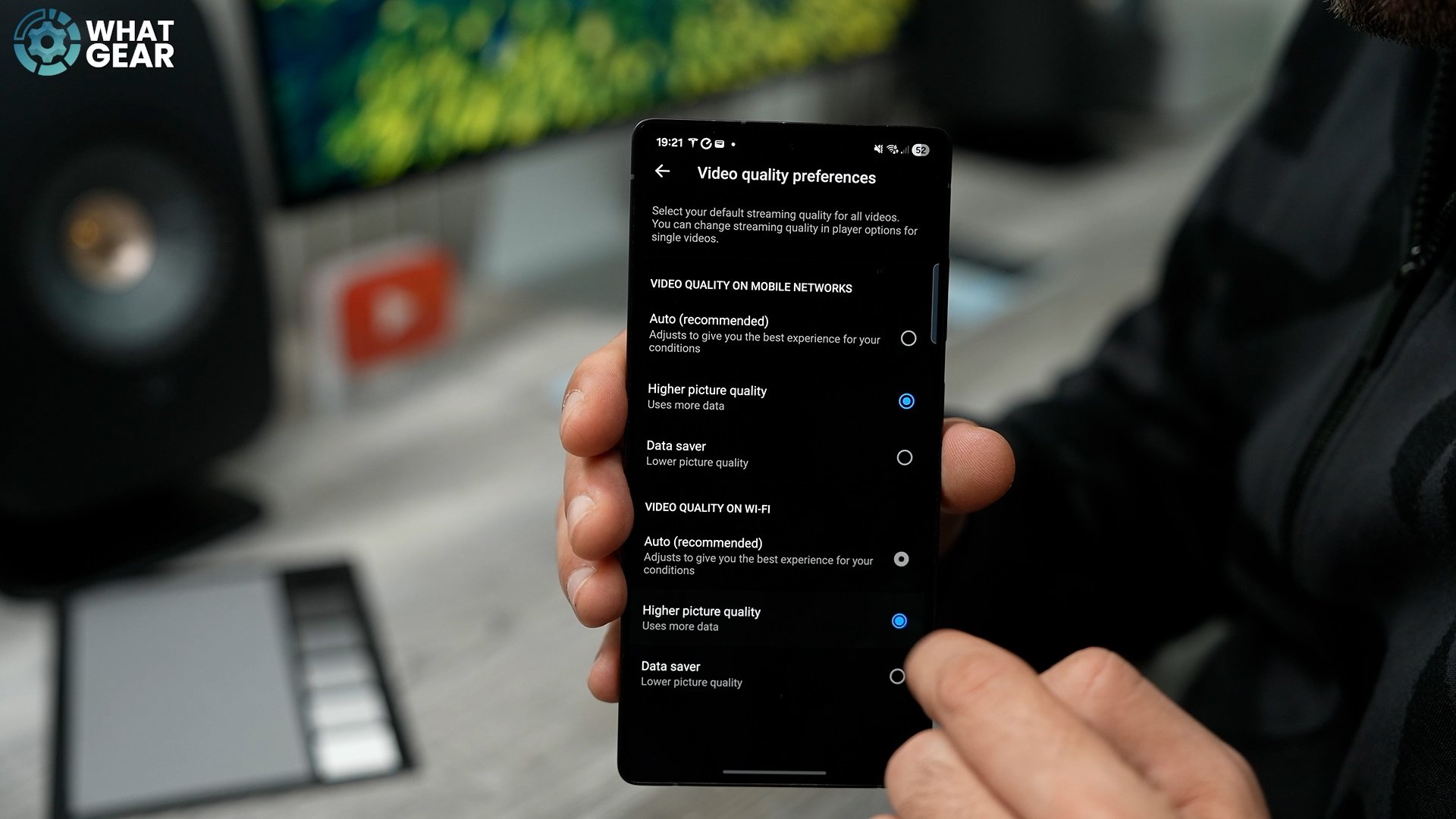
By default, all of these will be set to auto, and you might assume that this is fine, right? Well, the truth is, sometimes you'll experience unnecessary heavy compression. So here's how to take control and turn your quality up to 11. Change all of these to high, but… be mindful of your mobile data limits. And if you have a restricted amount of data. You might like tip number 2
Choice
Ok, if you're concerned about streaming the highest-quality content and wasting data when not on WiFi. Here's the perfect solution that gives you the highest quality, but only when you say so. Go to your icon in the bottom-right corner. Go to settings again in the top right corner. Scroll down to the 'data saving' menu. Now, in the data monitoring and control settings, enable 'select quality for every video'. Now, when you've found a video you'd like to watch, you will be given the choice.

Precise Position
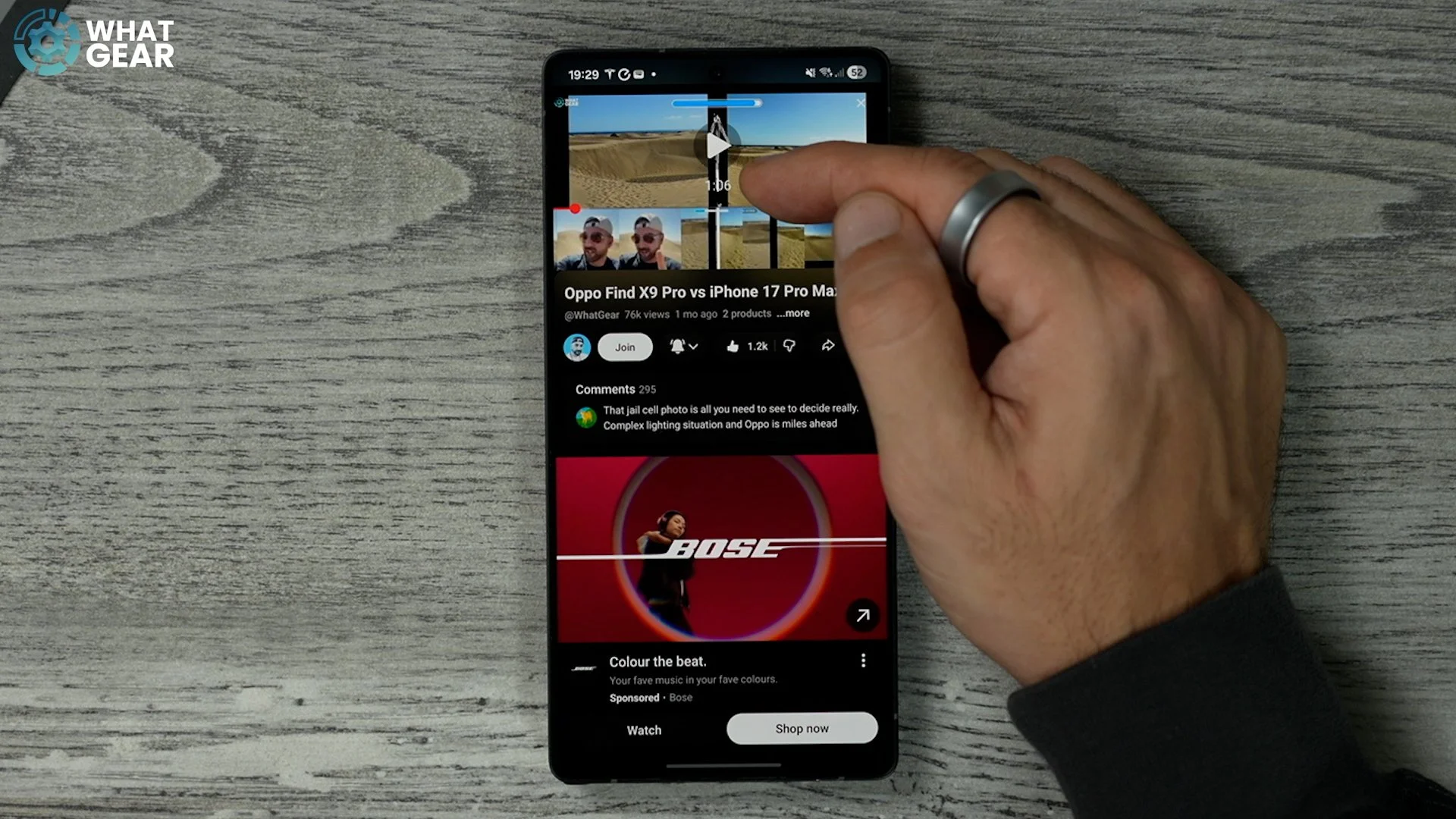
Am I right that sometimes you want to jump straight to a specific part of a video, or skip past a creator's integrated ad segment? Yes, it's easy when there are timestamps. But when there isn't, it can be a headache. Here's a little trick to skip to the part of the video you're looking for. If you swipe up from the timeline of the video you're watching. Now you can scrub through the footage whilst seeing the specific frame displayed at that moment, down to the second. Swiping up on the video's timeline lets you scrub through it. This feature provides a frame-by-frame view, showing the precise moment—down to the second—of the video you are currently previewing. There are some other ways to move back and forward very quickly.
PIP Control
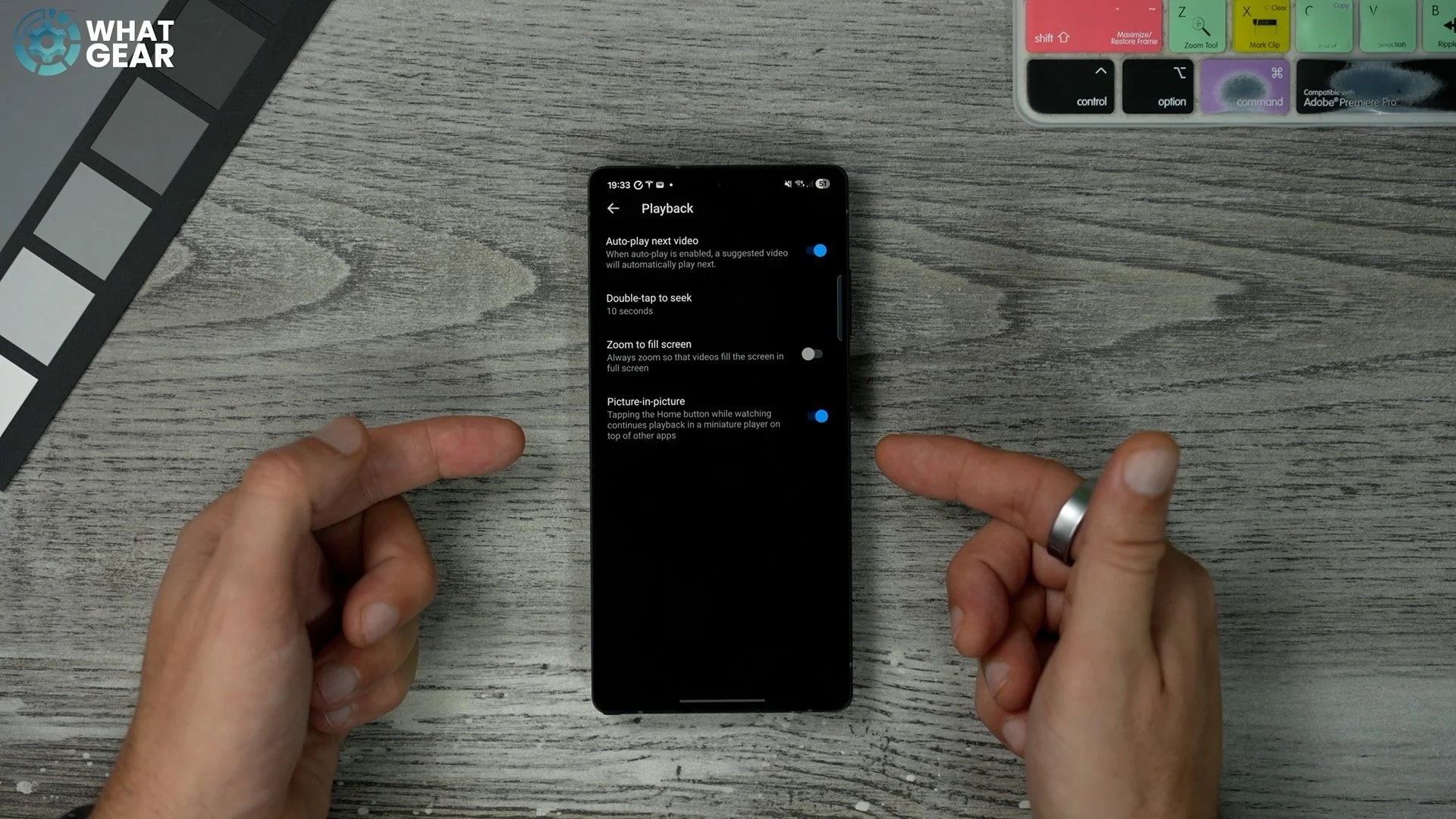
This next tip is something you may have discovered on your own. But you haven't, so let me show what I'm talking about. Go back to your icon, then settings, and this time scroll down to 'Playback'; make sure picture-in-picture is enabled here. Unfortunately, the functionality of this feature varies across different parts of the world. In some places, it's free; in others, like the UK, you have to pay for it. But let me show you anyway.
When using picture-in-picture. You get this floating window that can be positioned anywhere on the screen and even pinned off to the side. But did you know that when you bring it back, if you double-tap, you can enlarge the window & if you double-tap again? You can shrink it back down. Also, on Android, only when you tap to bring up the controls can you tap the split screen icon to initiate split screen setup.
Final Countdown
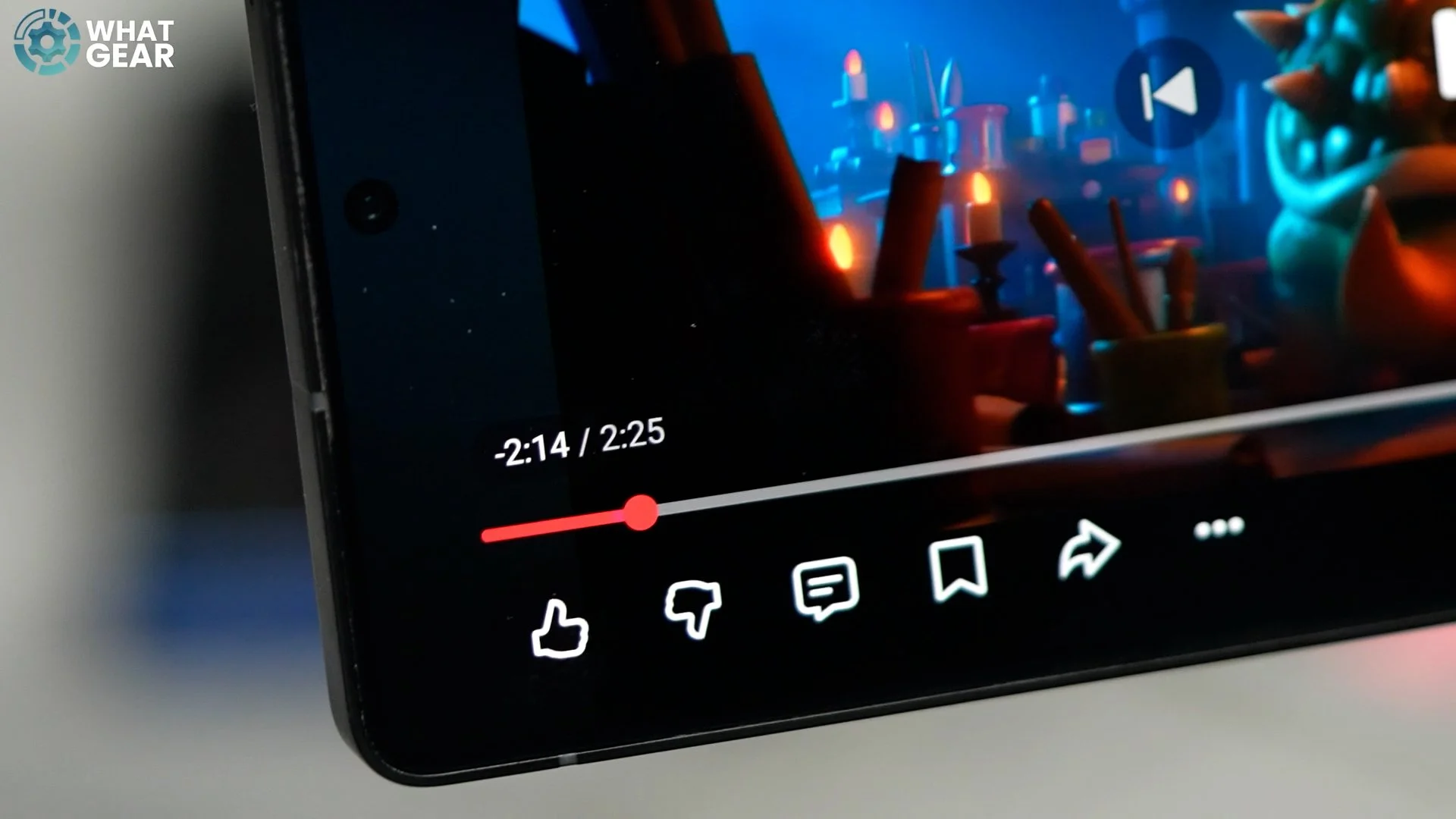
Your time waits for no Man, or woman. All we can do is plan how to use it. Here's a little trick to understand that. If you tap a video whilst playing. You'll see the time marker counting up. If you tap this, it reverts to a countdown. This will give you a clearer sense of how much time is left in the video.
Quick Skip
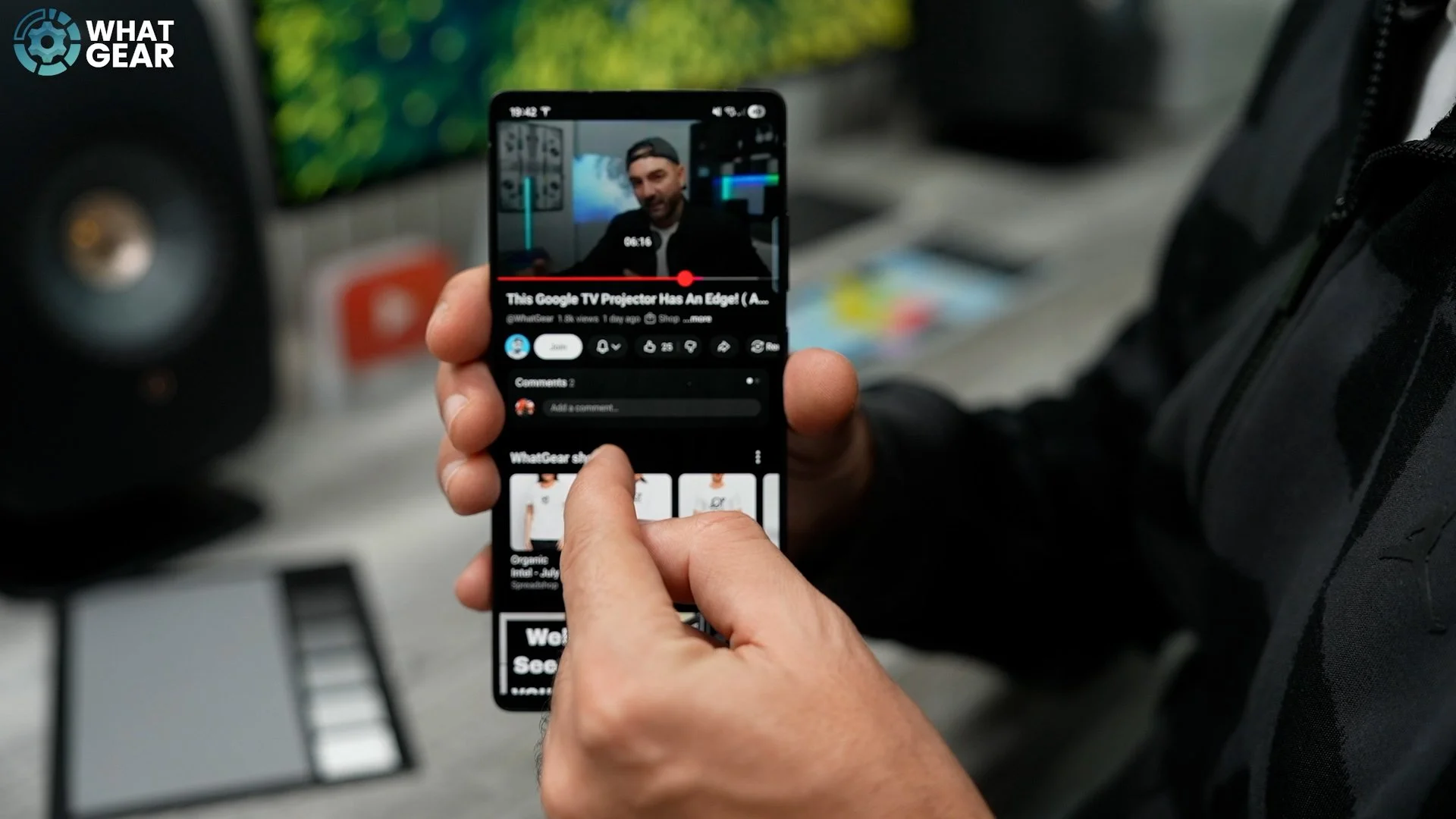
While a video is playing, if you touch and swipe down on the timeline and keep your finger on the screen, you can rapidly and smoothly fast-forward or rewind to the precise point.
Time Jumps
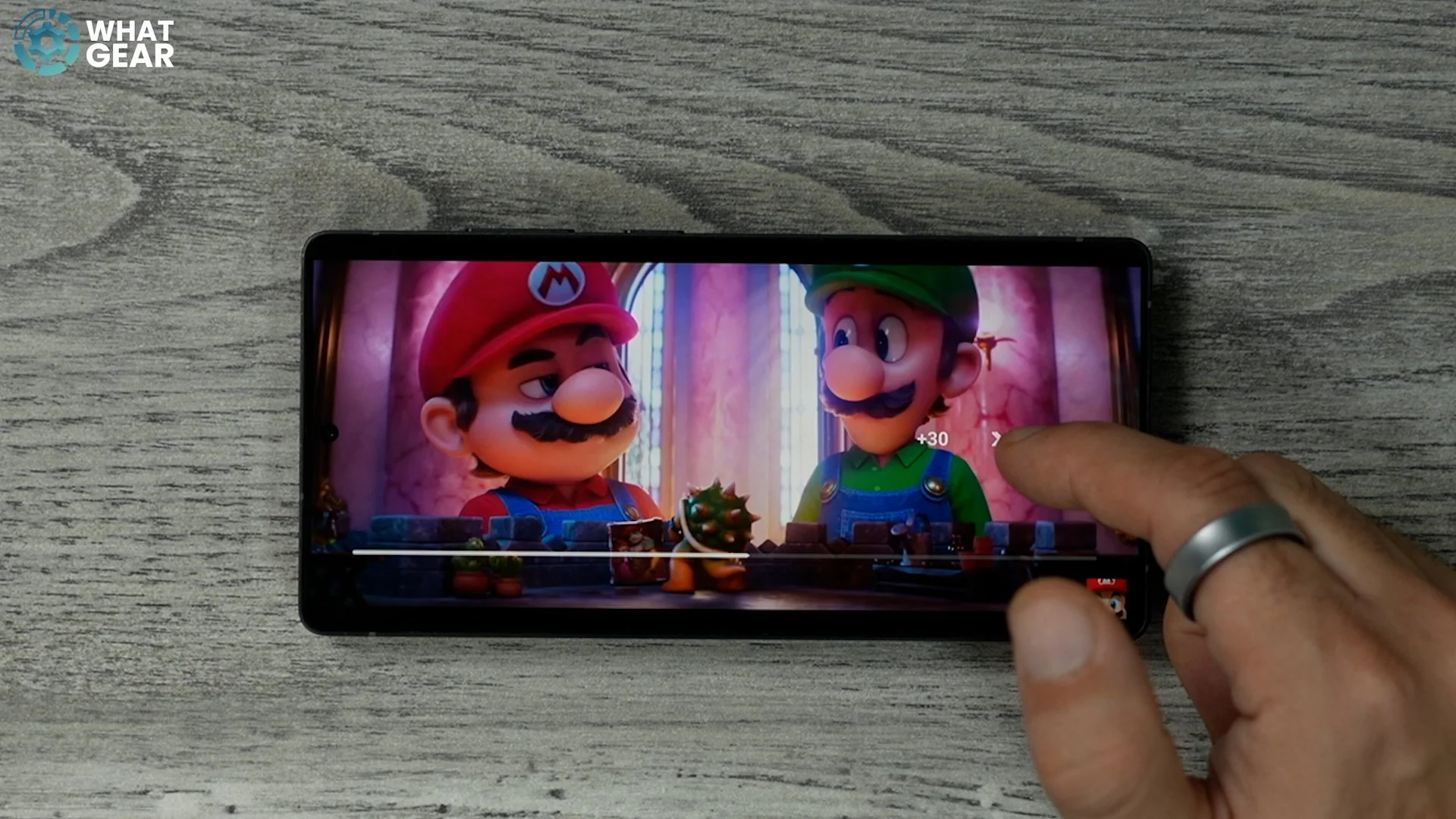
Another, but slightly more clunky way to do this is this. Whilst a video is playing. If you double-tap on the right side, you can skip 10 seconds; tap twice on the left side to go 10 seconds back. And if you continue tapping on either side, it will increase the time in second increments. It's not quite as precise as the other methods, but it can be handy from time to time.
Custom Jumps
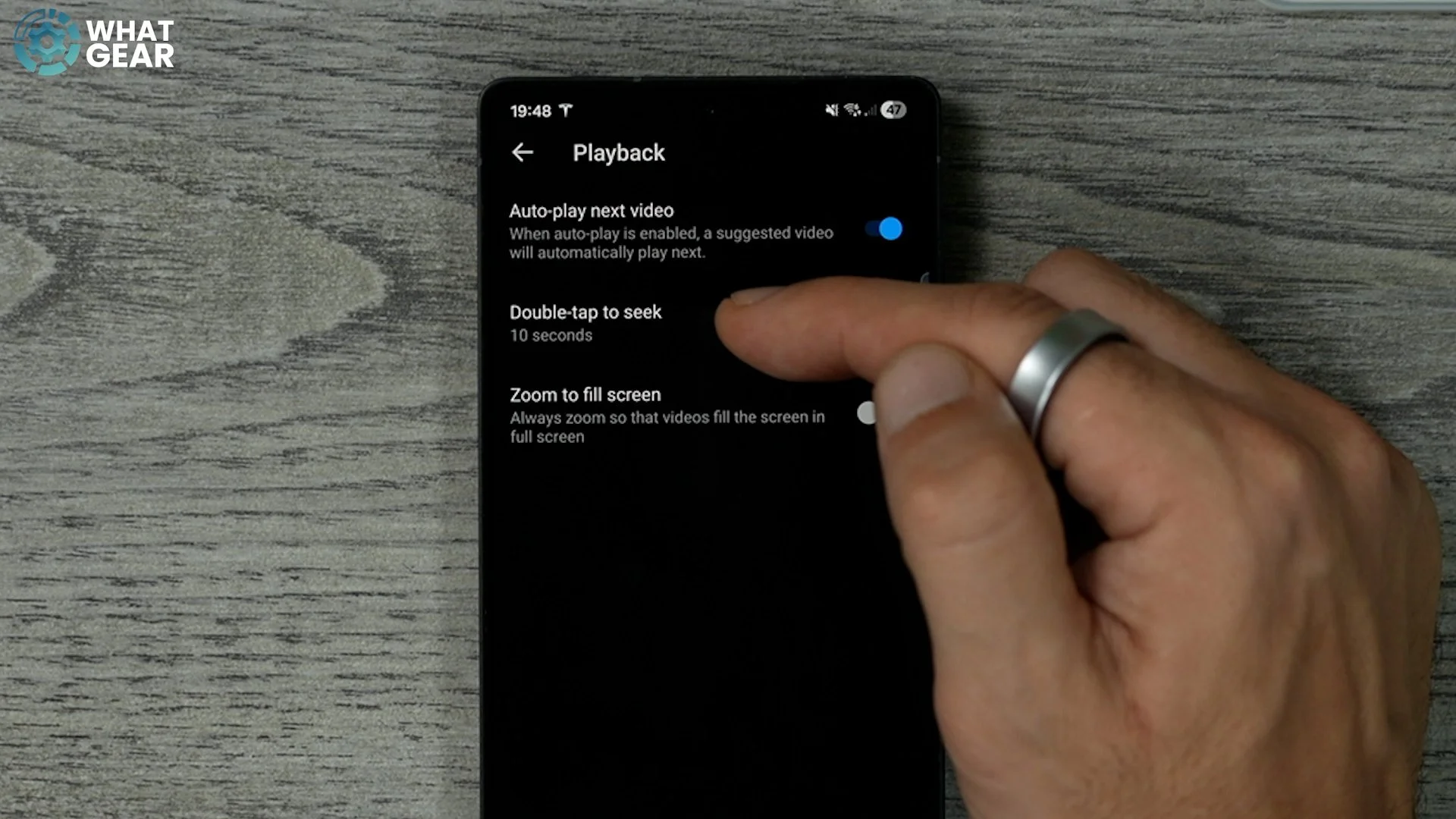
This is a setting that expands on that. Go to your icon, go to settings, then playback. Here, if you tap 'double tap to seek', you can adjust the increments to 5 seconds or up to 60. I'm not saying you should change this, only do so if it will work for you & the content you like to watch.
The Ambience
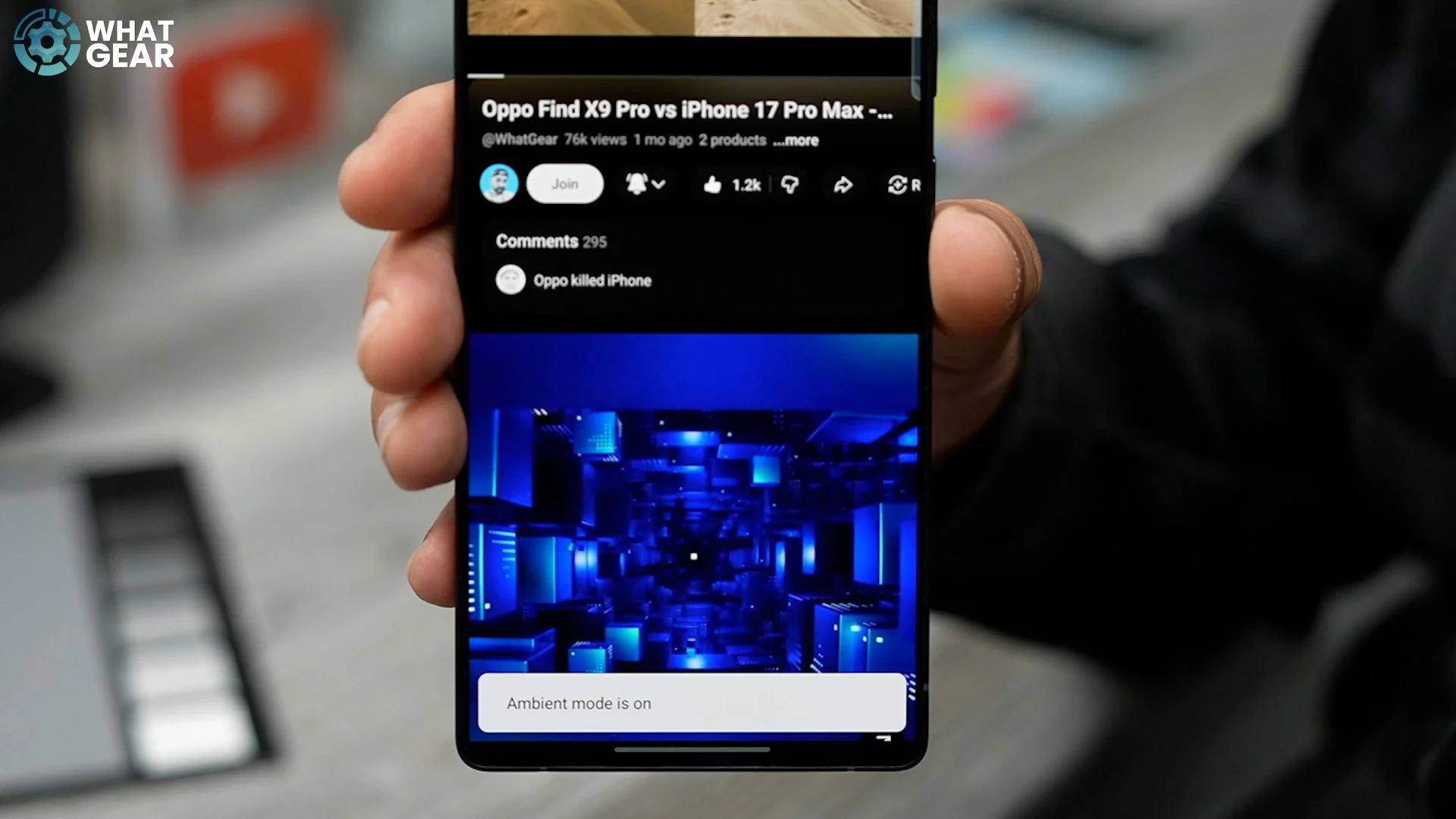
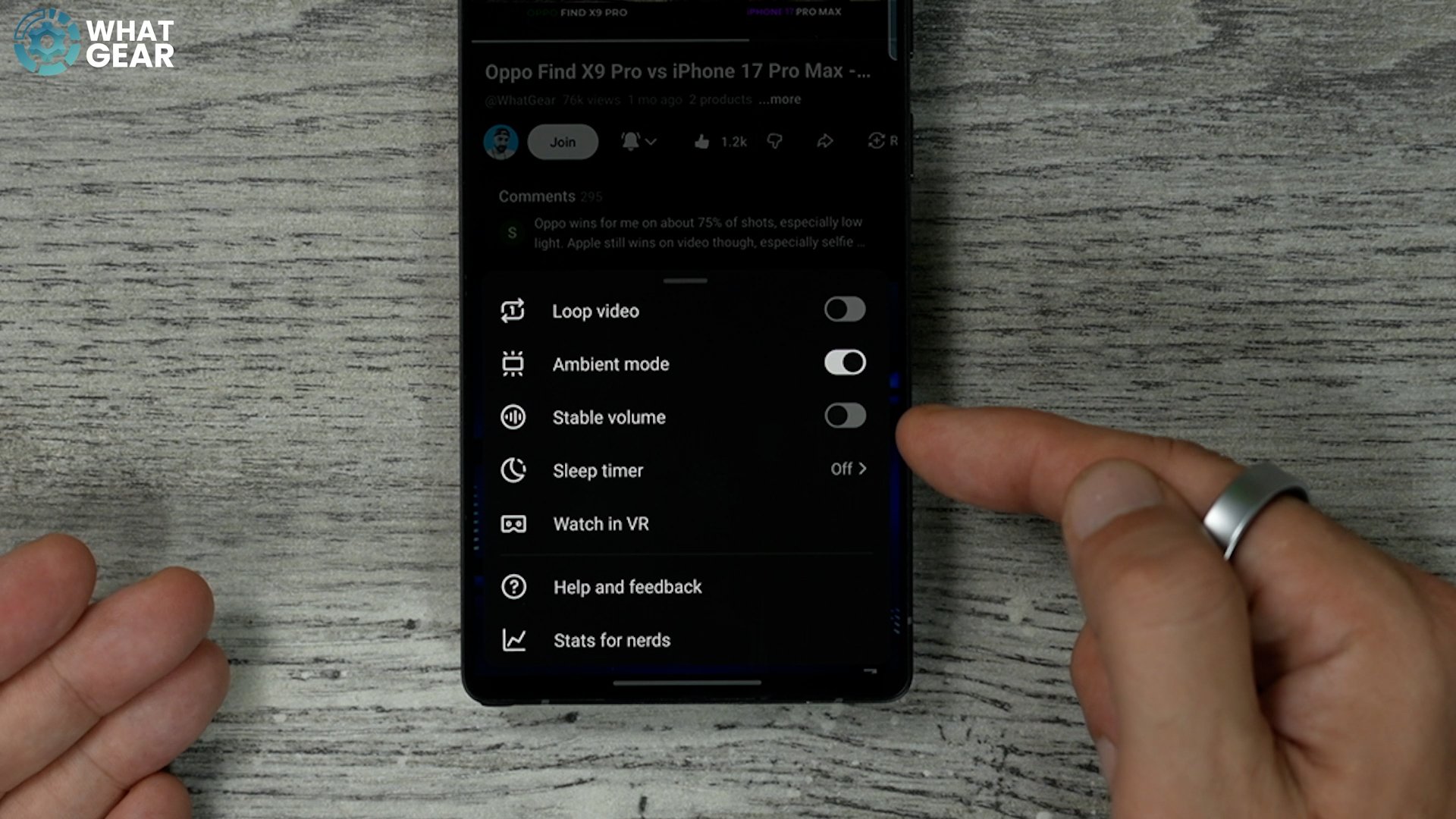
Alright, this next one stays within the settings menu. Here is an aesthetic tweak you might love or hate. Either way, it's worth knowing where it is and what it does. When you're watching a video, you might have noticed this kind of intentional ambient light bleed beneath the video. It's a nice effect, but if it bothers you. Tap the video, go to video settings in the top right corner, then tap more, and here you can disable 'Ambient Light'... but only if it bothers you.
Auto Level
Below the Ambient light feature, you've probably noticed the 'stable volume' feature. If this is off, you should switch it on straight away. As for this, it will essentially make the volume levels consistent across all the content you're binge-watching, even if the creator messed it up during editing… and yes, I have done that in the past. And only found out after receiving agree comments, So, this is a good way to auto-correct the audio to a certain extent.
Your Time
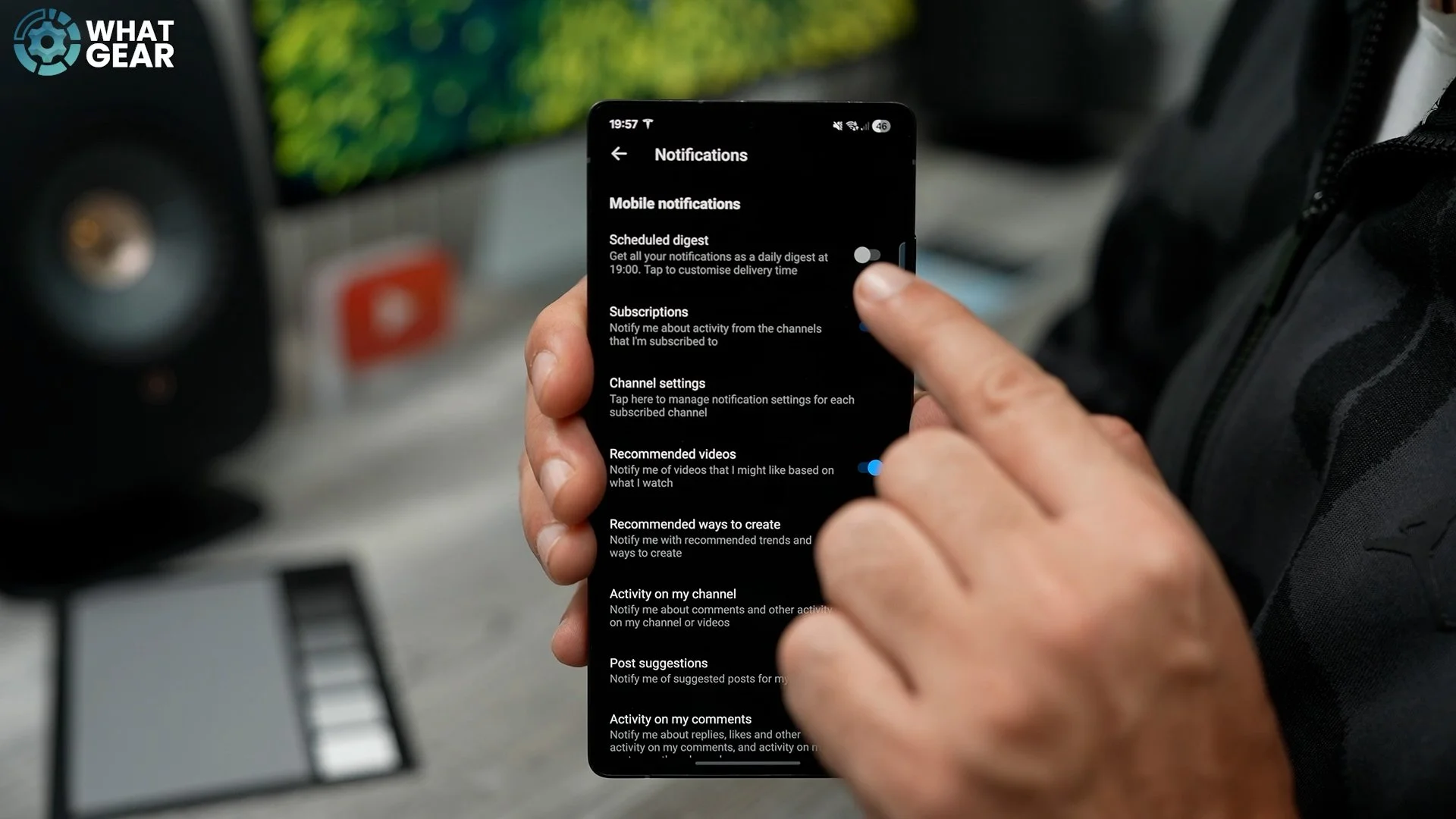
Distractions are everywhere. And there's a time and a place for everything, but isn't it annoying when your favourite creator drops a video? You're in a meeting or a lesson or something, and then you're like, because you know it's there but you can't watch it yet. So with that in mind. Here's an interesting feature you can switch on. Tap your 'You' icon, go to settings, notifications, and right at the top you'll see 'scheduled digest.' Enable it, then tap it, and now you can specify the time you're free to receive a compilation of YouTube content updates. Try it out, but do keep in mind that this doesn't override all the usual YouTube notifications. I suggest you spend a bit of time on this page to customise exactly what you do and don't want.
Lock Down
So, if you want to watch a video whilst walking down the street, and you're worried about this happening. You might appreciate this little feature. Tap the video you're watching, then tap Video settings and enable Screen lock.
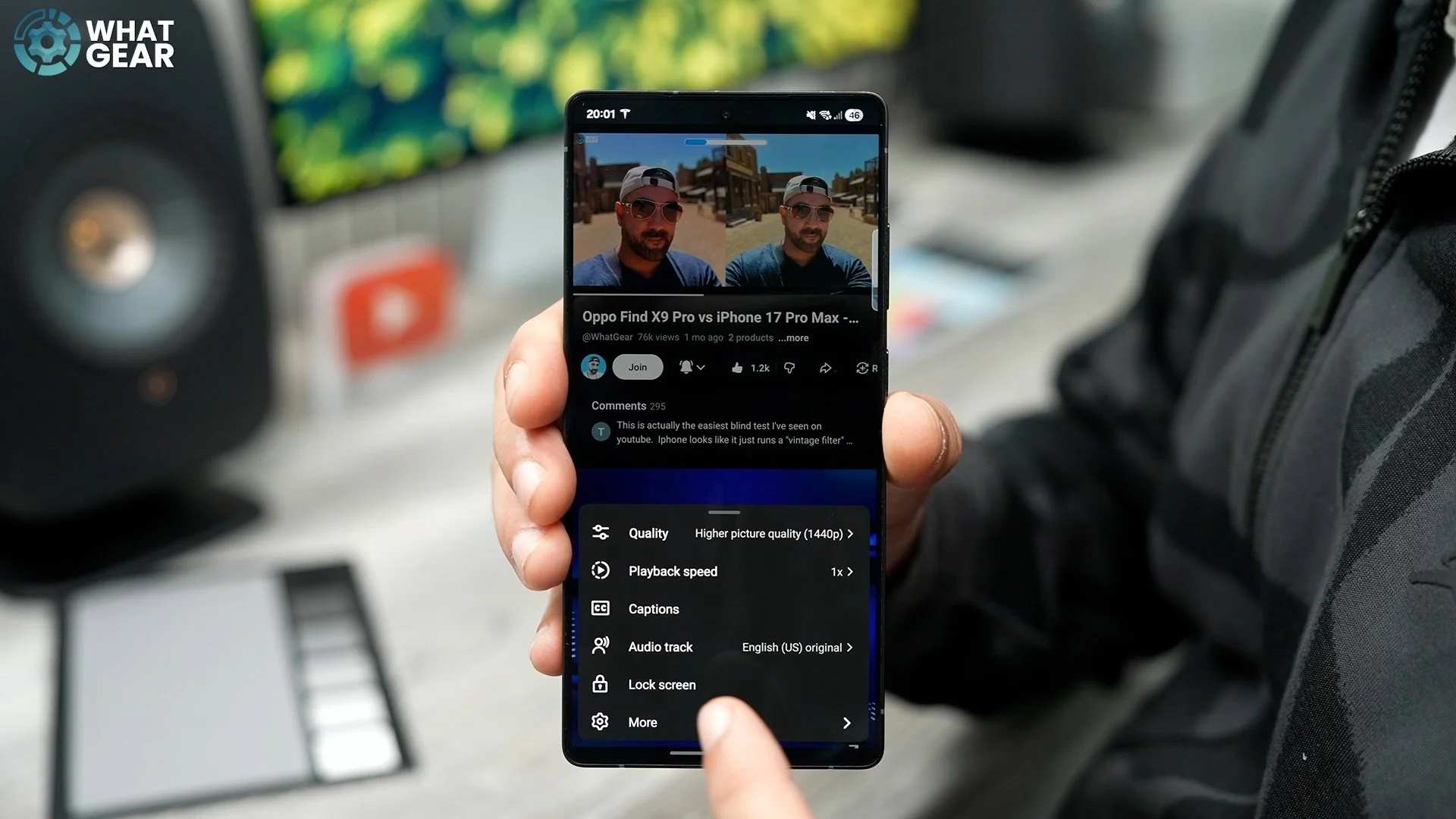
Now you can grip your phone with all your might, and you don't have to worry about accidentally skipping, pausing, or exiting the video. There are, of course, more use cases for this. For example, if it's raining or if you have giant fingers.
Quick Flip
Alright, this is a nice little shortcut that you might already know. When you tap the video whilst in portrait orientation. You can use the little square icon to flip it to landscape mode. That takes two moves; Just swipe to switch to landscape, and you can swipe down in landscape to switch back.
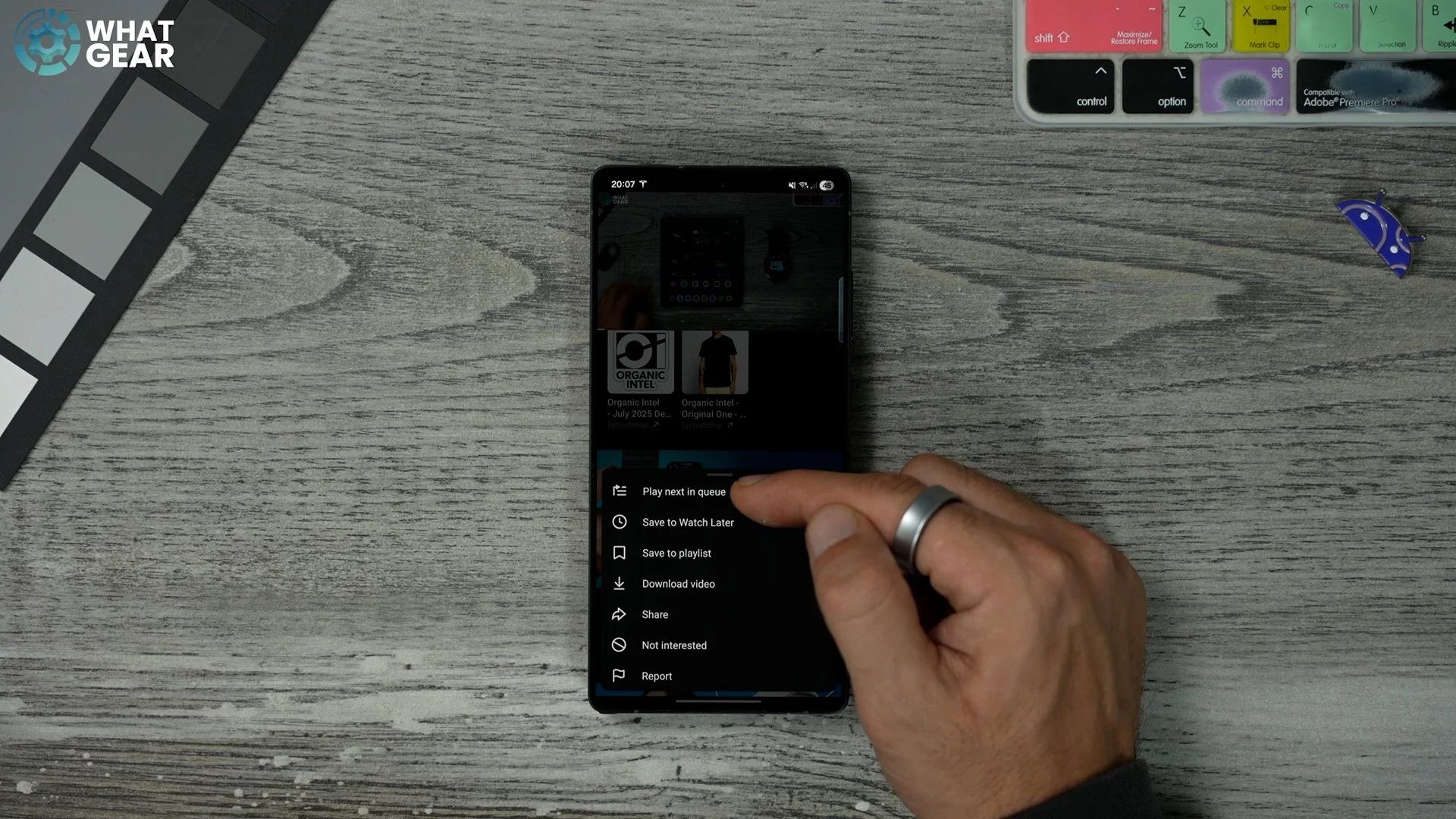
Play Next queue
Here is a feature that some might not be aware of. Let's say you're watching a video you like, and another video you want to watch appears beneath it. If you hit the three dots on the right side of that other video. You can tap play next in the queue. You can also do this whilst in Picture & Picture mode. And what's interesting is that the queue acts as a temporary playlist for your current viewing session.
Gemini Description
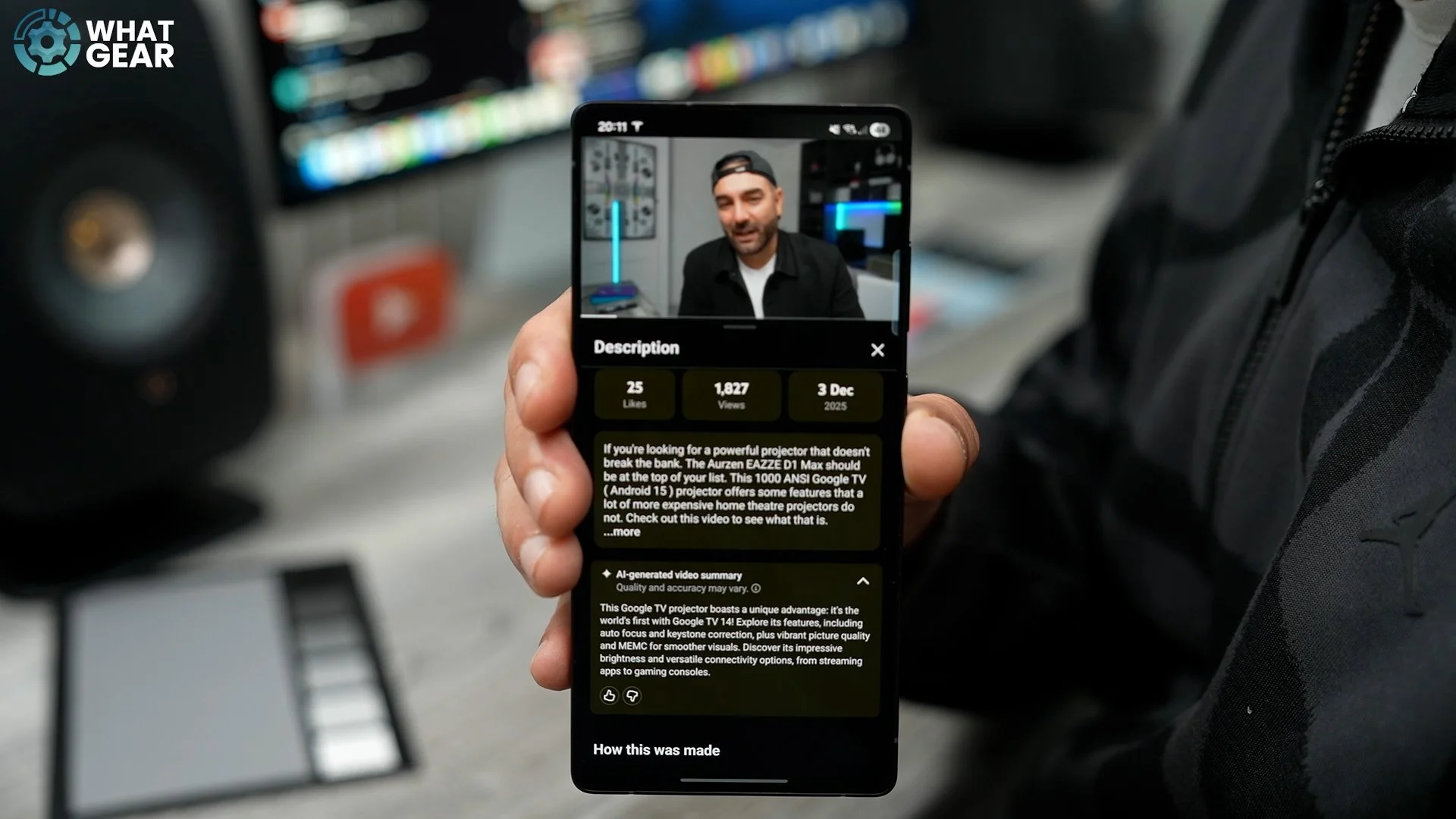
Have you ever wanted to know what a video is about before watching it? You could read the description to get an idea, but it can be hit-or-miss depending on the creator. But there's a new feature that gives you even more insight. Select a video you want to watch. Under the video, tap more & you'll see the description. Just under the description, you will see a drop-down arrow for the 'Gemini-generated Summary' of the content. This can provide more details and specifics about the content covered in that video.
Off The Grid
Alright, we are nearly there. Here's a tip for anyone who likes to watch or listen to longer videos on YouTube whilst off the grid with no WiFi or Data. Depending on your account, you can download YouTube videos. If it is a conversation-style video, the visuals are probably not that important; on the other hand, if you want to watch with the highest-quality audio and video. Here's something that you need to know.
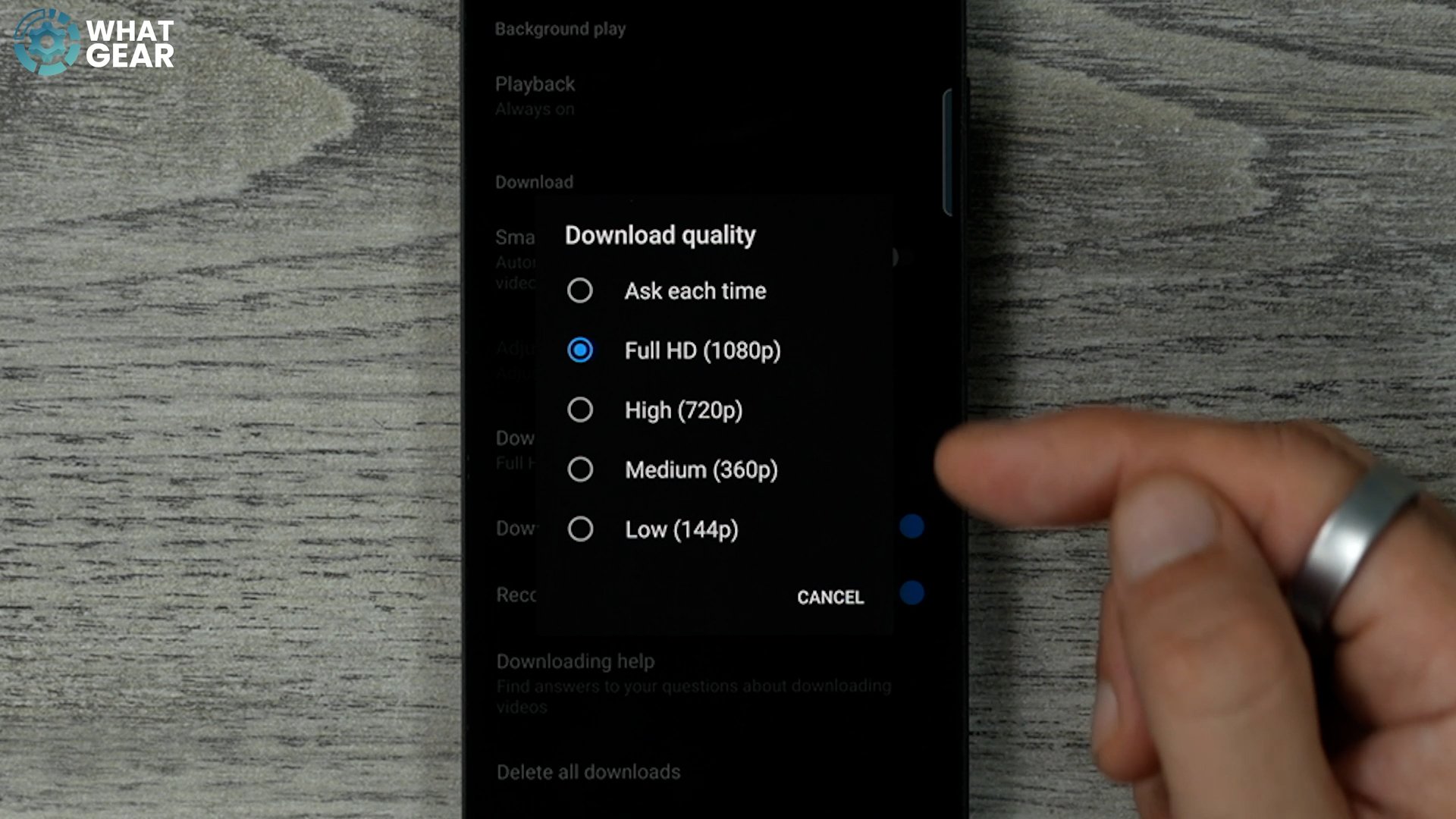
Again, go to 'your icon' and then settings. And now scroll down to the background & downloads section. On this page, tap 'download quality'. If all you care about is the audio so you can listen with headphones whilst offline, you can download at 'low' 144p. And if you need the crispiest content possible, you could do that too. But what I recommend is that you set this to 'ask each time', now you can decide case by case.
Anti Doom Scroll
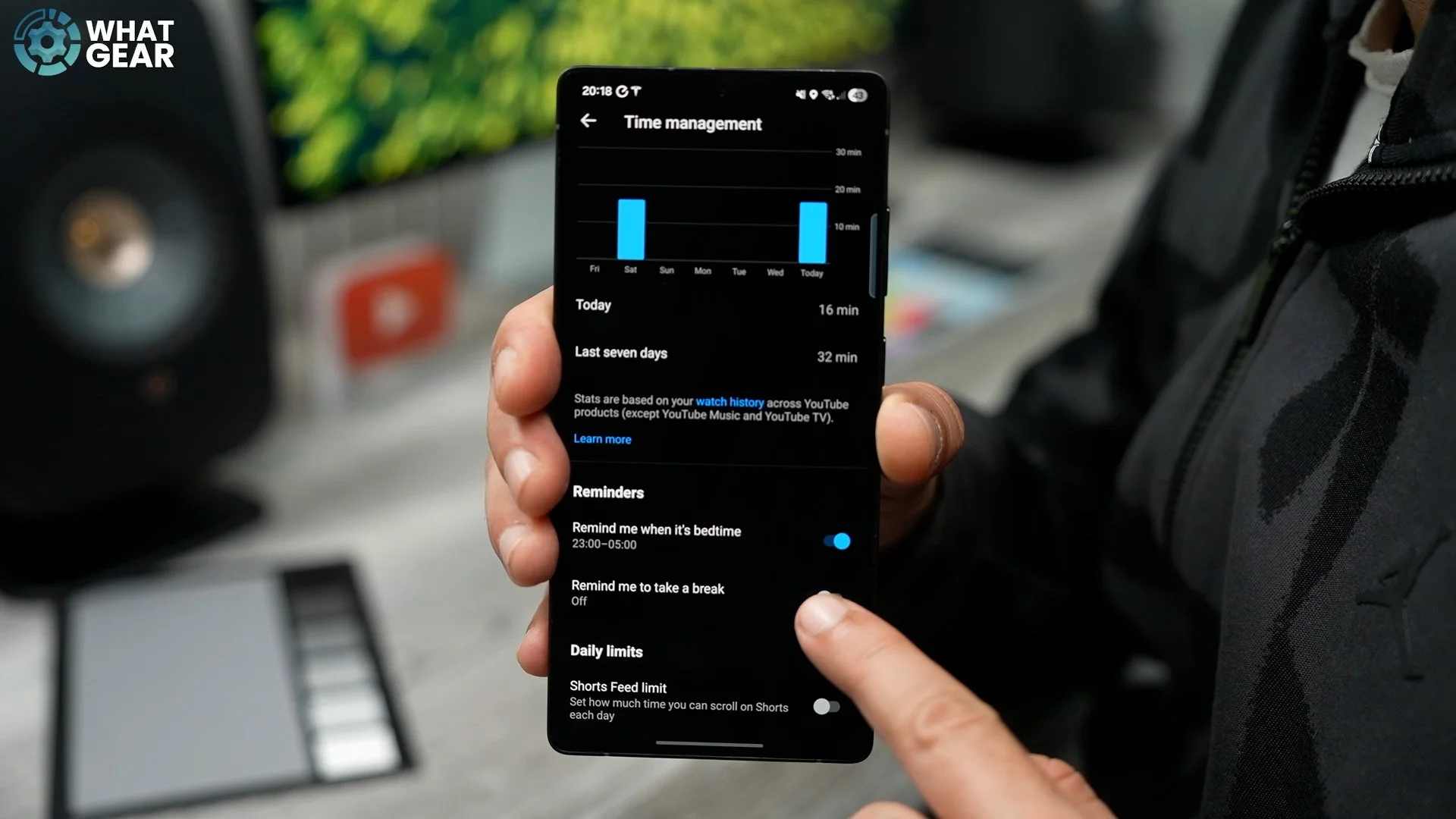
Alright, this is a wellbeing tip. Doom scrolling it reel. And I've fallen into that trap many times. So if you want to do yourself a favour. You should take a look at some of these well-hidden and underutilised YouTube tools. Staying within the settings. Go to 'Time management'. Here you can set bedtime and break reminders, and if shorts are your poison, you can also limit them.