
Galaxy S26 is AMAZING - Try These 17 Things First
If you’ve got a Galaxy S26 or S26 Ultra and you want to know what’s new, and you might also want to know what’s improved, and maybe you want to learn about what it can do that other phones cannot. I’m also going to show you some stuff that will definitely make your iPhone friends pull a face.
I’m kind of a specialist when it comes to this kind of stuff. So let me walk you through 17 killer features and settings that every Samsung Galaxy S26 owner needs to know. And a little side note: if at any point this video feels a bit too advanced, don’t worry, because I’ve made an absolute beginner’s basics guide to the Galaxy S26.
WE WANT PRIVACY
Of course, it is to do with one of Samsung’s most exclusive features to date, and this only applies to the Ultra phone. I am, of course, referring to the privacy display. You should see it in your quick settings. It might be a bit further down. I have customised this, but right now, let me show you how to dial in the perfect settings for your privacy display, so you can toggle it on and off here, and you can change a few of the options. But if you go to details, this will jump straight into the actual settings for the privacy display.
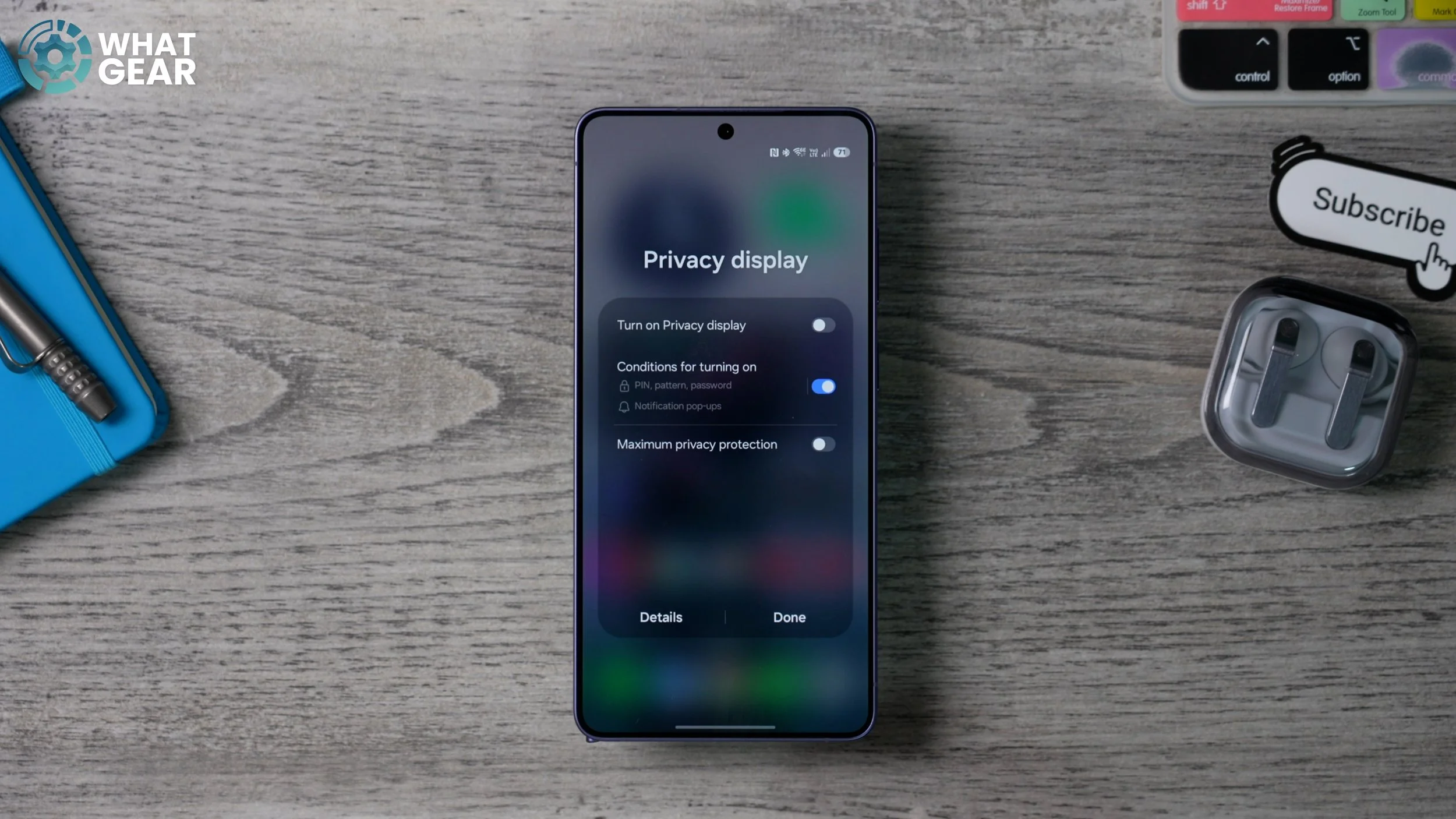
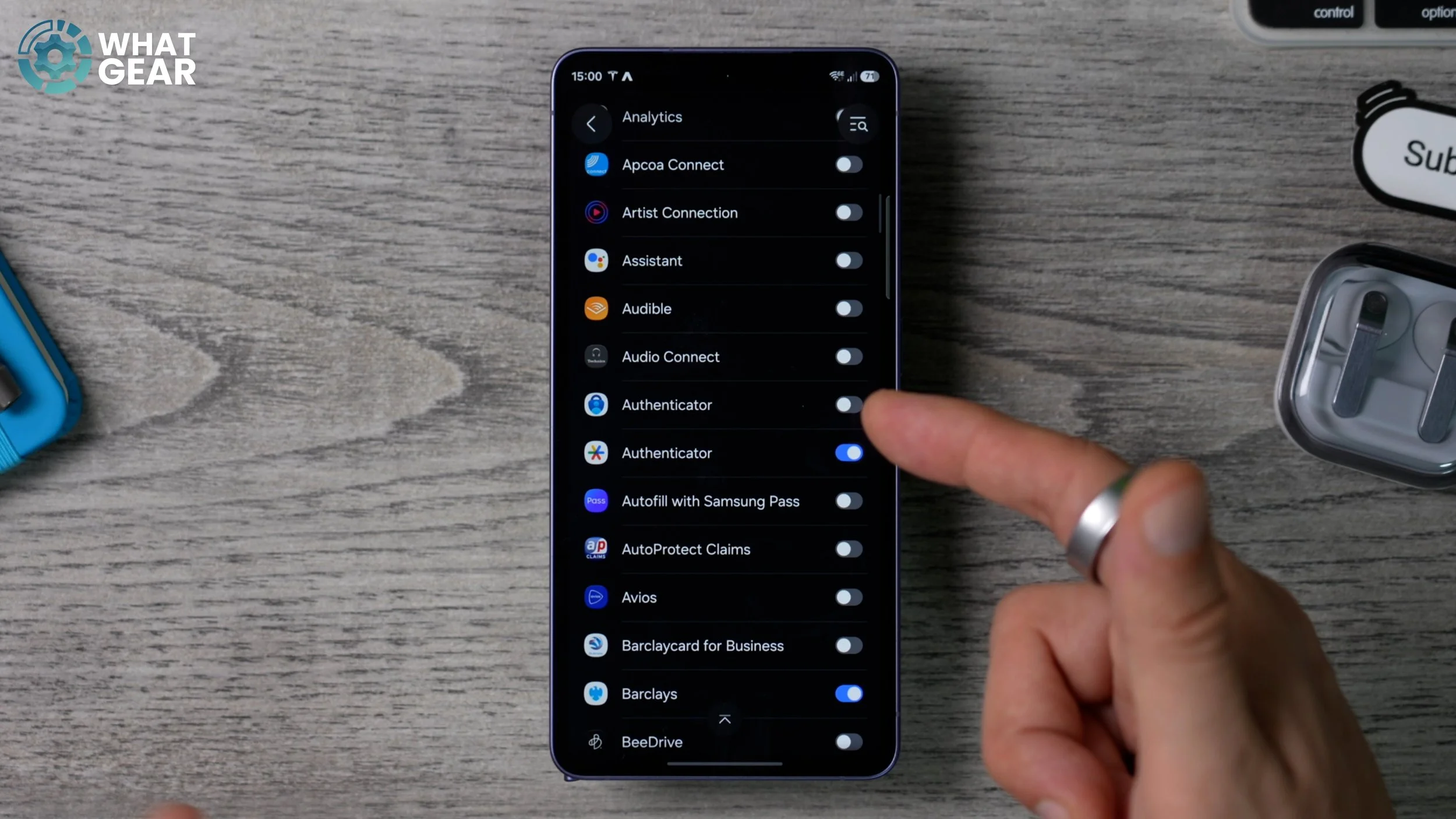
And here’s where you can take it to the next level. So in this section, the conditions for turning on. If you tap on this, you can actually specify what apps you want fully blocked out. So for example, anything related to money might be a good idea. So I highly recommend you go through all of the apps in this list. So for example, authenticator apps are another one that holds sensitive information. You don’t want someone shoulder surfing stealing your security codes. Select all of the ones that hold sensitive information.
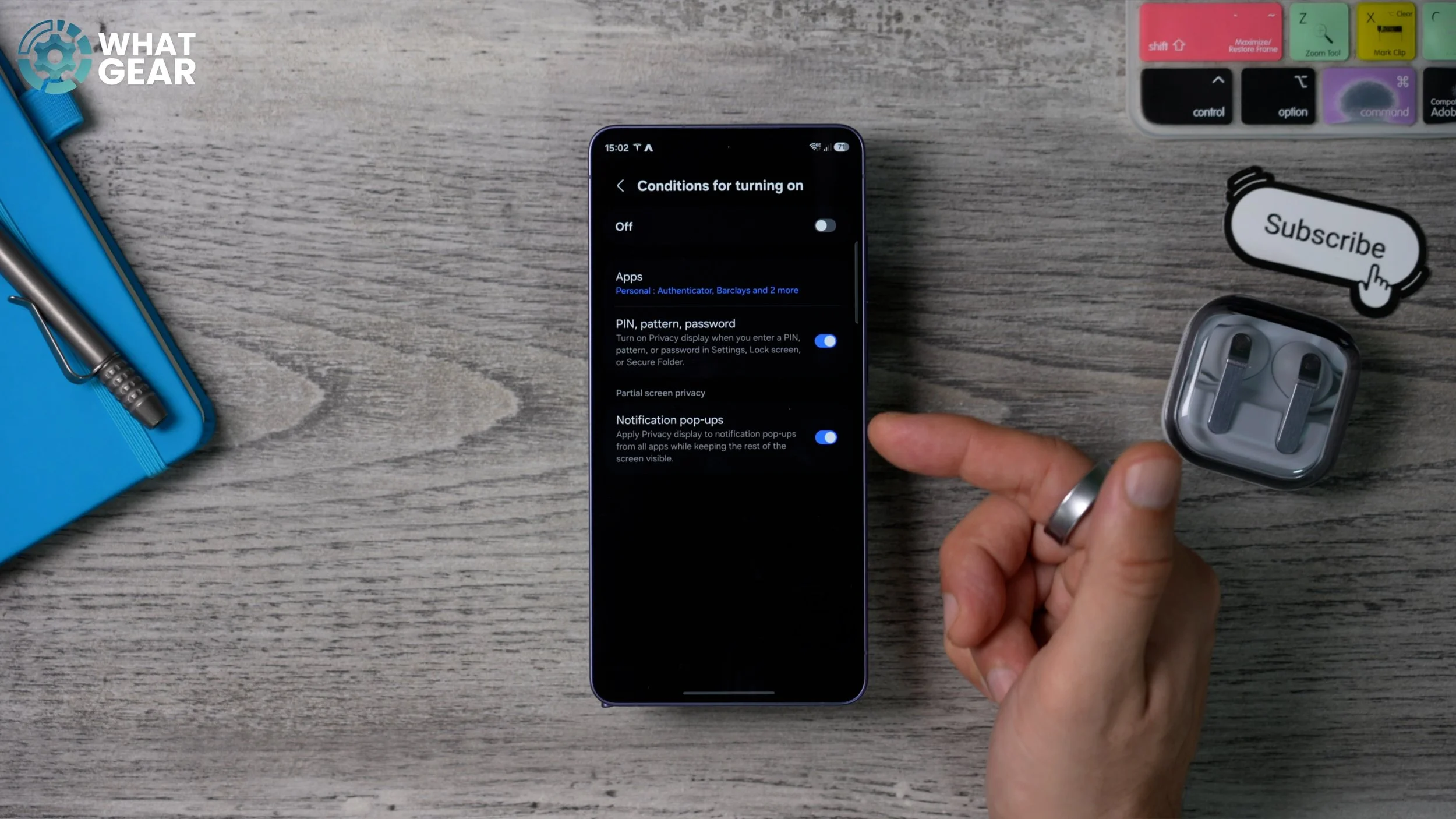
Staying within the privacy display settings, there are two more important settings to change on day one, starting with this one pin pattern, password and pop-up notifications. The great thing about these two settings is they will only apply to part of the screen. Showing those passwords or notifications. The apps that you’ve chosen here will actually apply the effect to the entire screen. Anyway, that’s how you set up the privacy display in a custom way that works best for you. And I do have some pro tips regarding the privacy display, which I’m saving for a future video.
PRIVATE POP-UPS
Now we’ve added this extra layer of privacy to our notifications. Here’s another little setting that you might want to play with. So if we go to settings again, go to the notification settings, right here, we’re going to go to notification pop-up style. So the default setting on the Galaxy phones is brief. So it kind of crops the message down quite a lot.
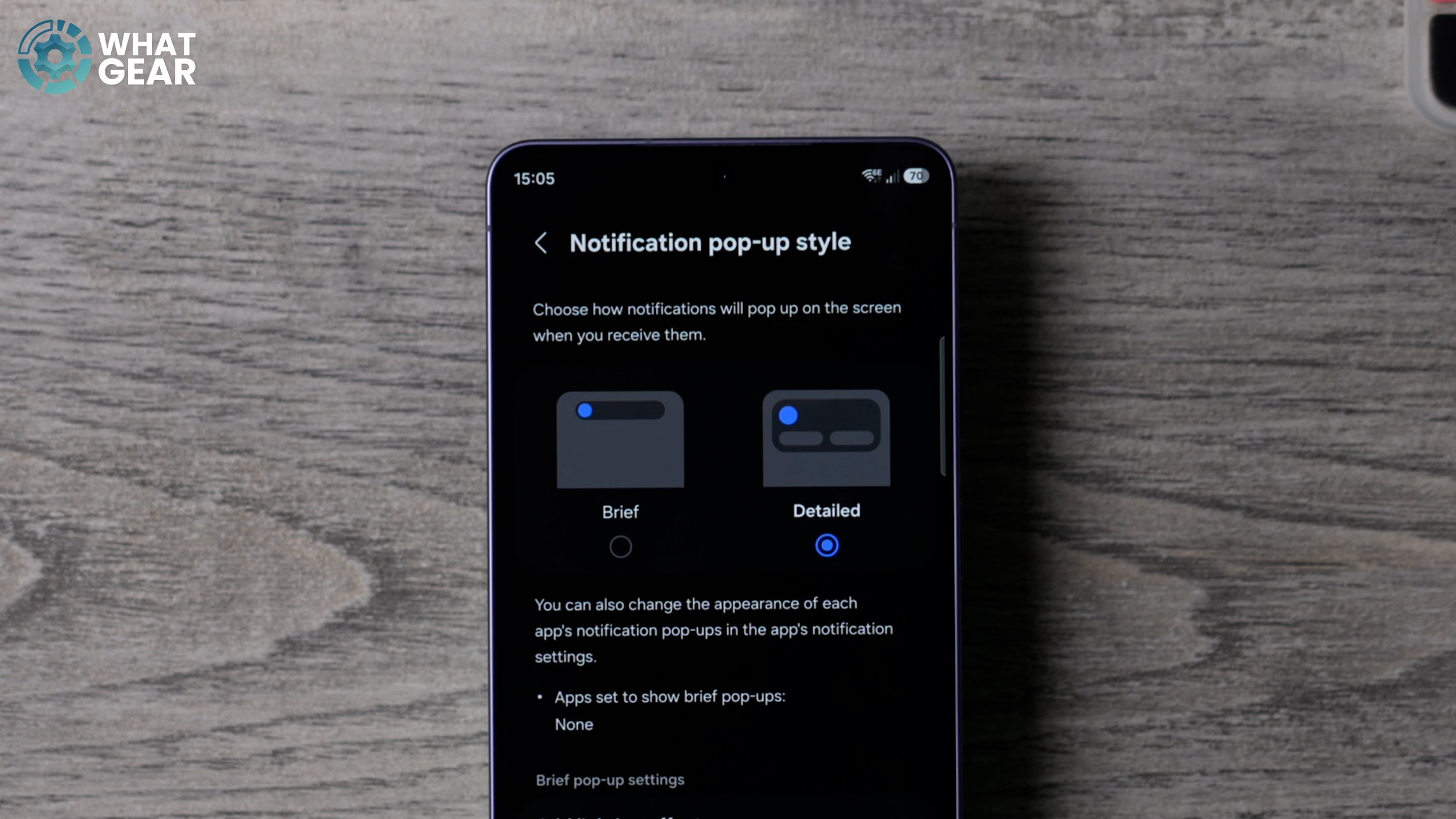
But now that you have the privacy effect, you might as well switch into detail. So you can actually see what people are saying without even having to open the full message. This is of course, personal preference. I do recommend you test it out and see if you prefer it or not, but in my opinion, this is a great way to make the most out of the new privacy display feature.
STAND OUT FROM THE CROWD
This is a standout feature on the Samsung Galaxy phones, and it’s definitely one that I know a lot of sports fans will really, really appreciate. So let’s say you’re into watching football or soccer, if that’s what you want to call it. Now, when you’re watching sports, as you know, you will get the crowd noise, which is nice, but if you’re struggling to hear the voice over the crowd noise, there’s this brand new feature.
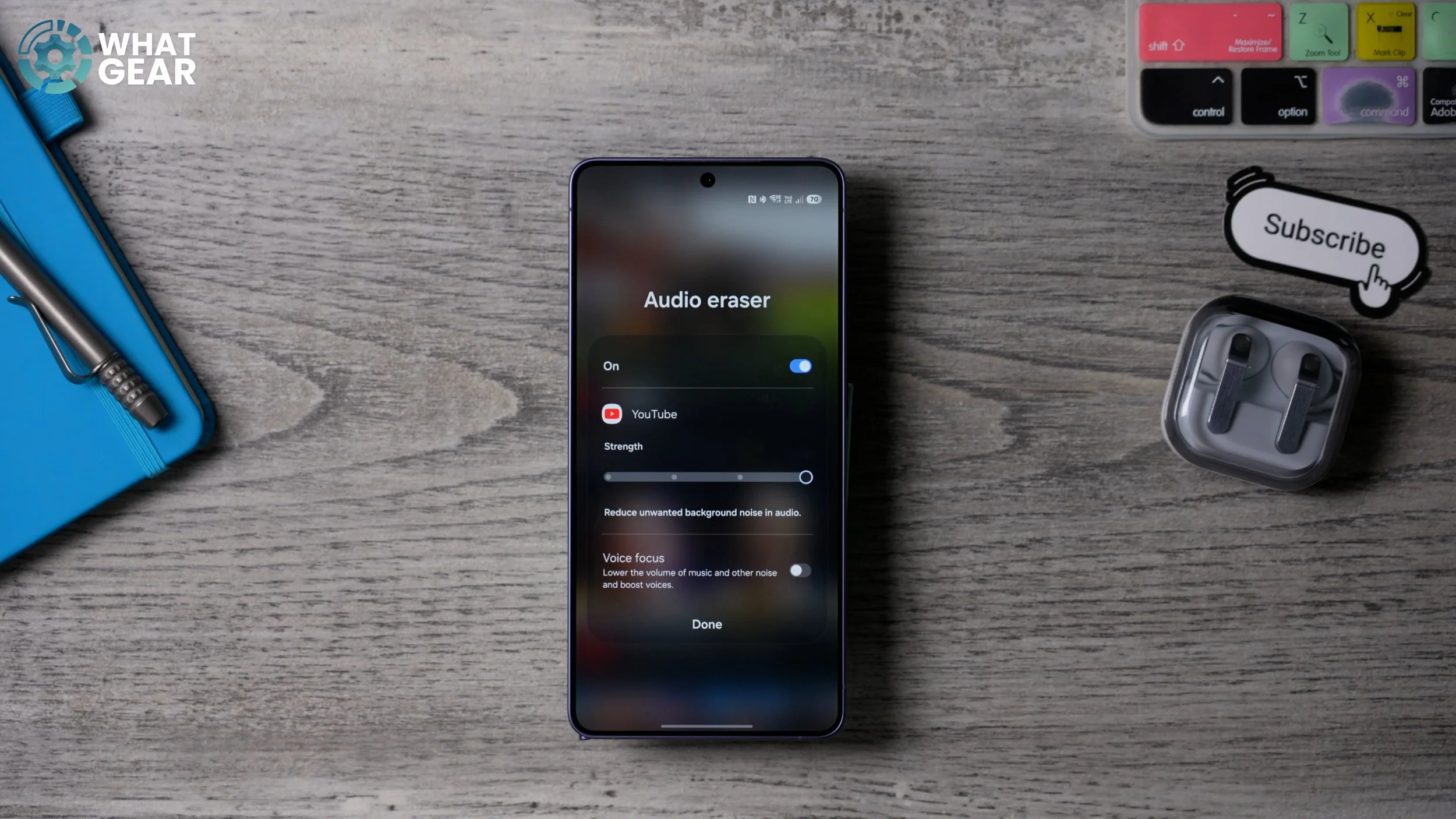
If you swipe down from the top right corner called Audio Eraser, this was available with your own videos, but now you can apply this effect to any videos playing on the phone. And if you want to, you can hit the voice Focus. So just be aware of where to find this. Whenever you’re playing a video on the phone, swipe down from the top right corner and you should see the audio raiser at the top.
UPGRADE YOUR DISPLAY
Now, if you’ve got a Galaxy S26 Ultra, you might not realise this, but your phone is actually not set to its optimal setting straight out of the box. So let me show you how to fix that. if you swipe down from the top and go to settings and then scroll down to where you see display on this page, scroll down until you see the screen resolution.
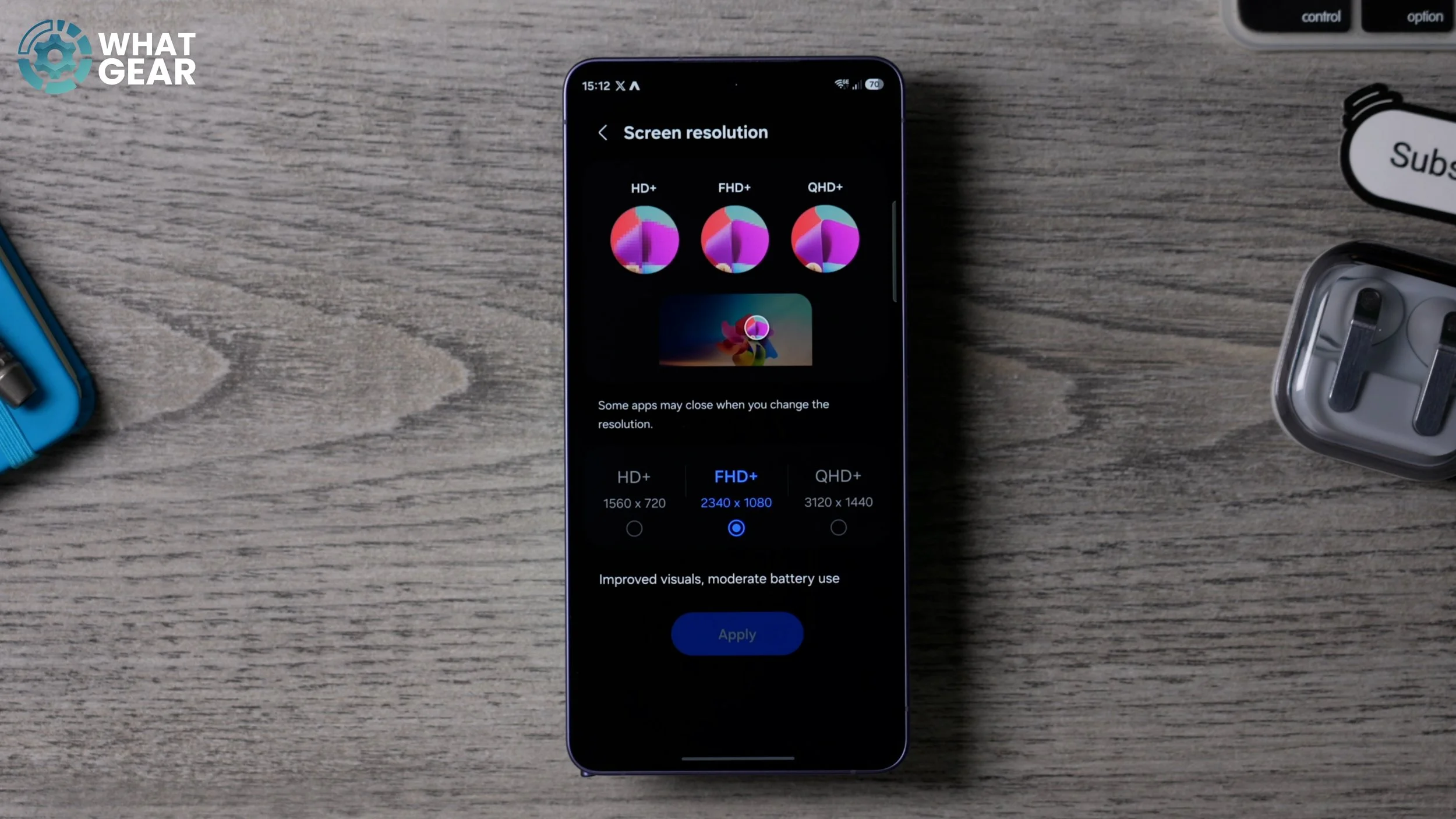
And as you can see, the default setting is full HD plus, which is good enough for a lot of people. But you’ve spent the money on the best phone Samsung has to offer. Why wouldn’t you want to see the display in the best possible way? And to do that, just change this to qHD+. Yes, it will use a little more battery, but remember the chipset inside the phone is more efficient this time and the charging speeds are faster too. So that should help balance it out.
ANOTHER DISPLAY UPGRADE
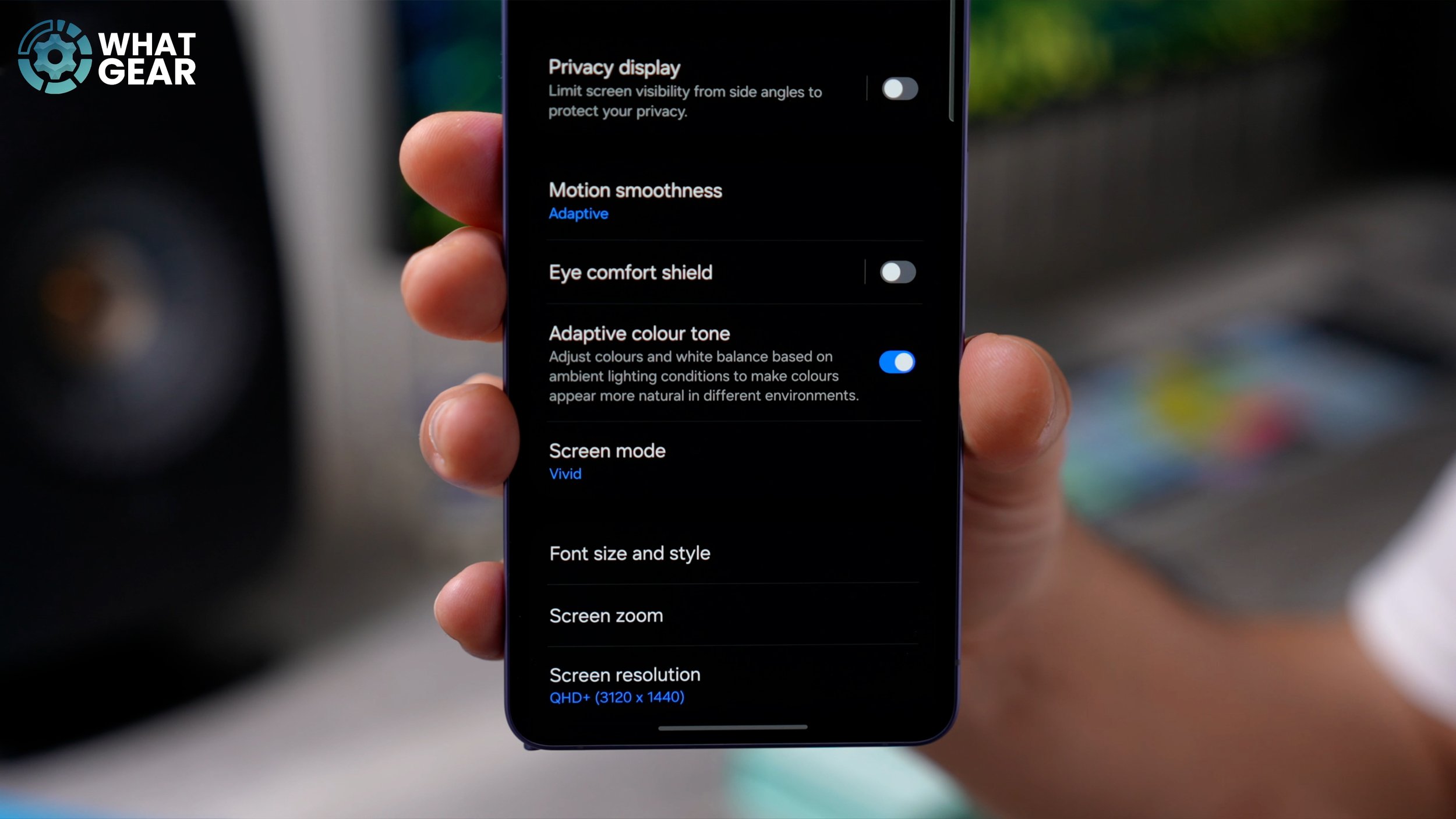
Here is another display setting to change on day one. Go into your settings, go to display and turn on Adaptive Brightness and also the Adaptive Colour tone. This will shift the colours based on the lighting in your environment, which will improve the visibility of the display dynamically for you with minimal effort required.
IMAGINE AN IMAGE
When it comes to getting a new phone, one of the first things you probably want to do is customise the wallpaper. And Samsung have added a brand new tool, which I do believe you need to know about. So let me show you how to get to this. There are a couple of ways. The easiest one is to pinch the home screen and then go to Wallpaper Style, and then go to Change Wallpapers and here in the Creative AI section, there is a new option called Creative Studio.
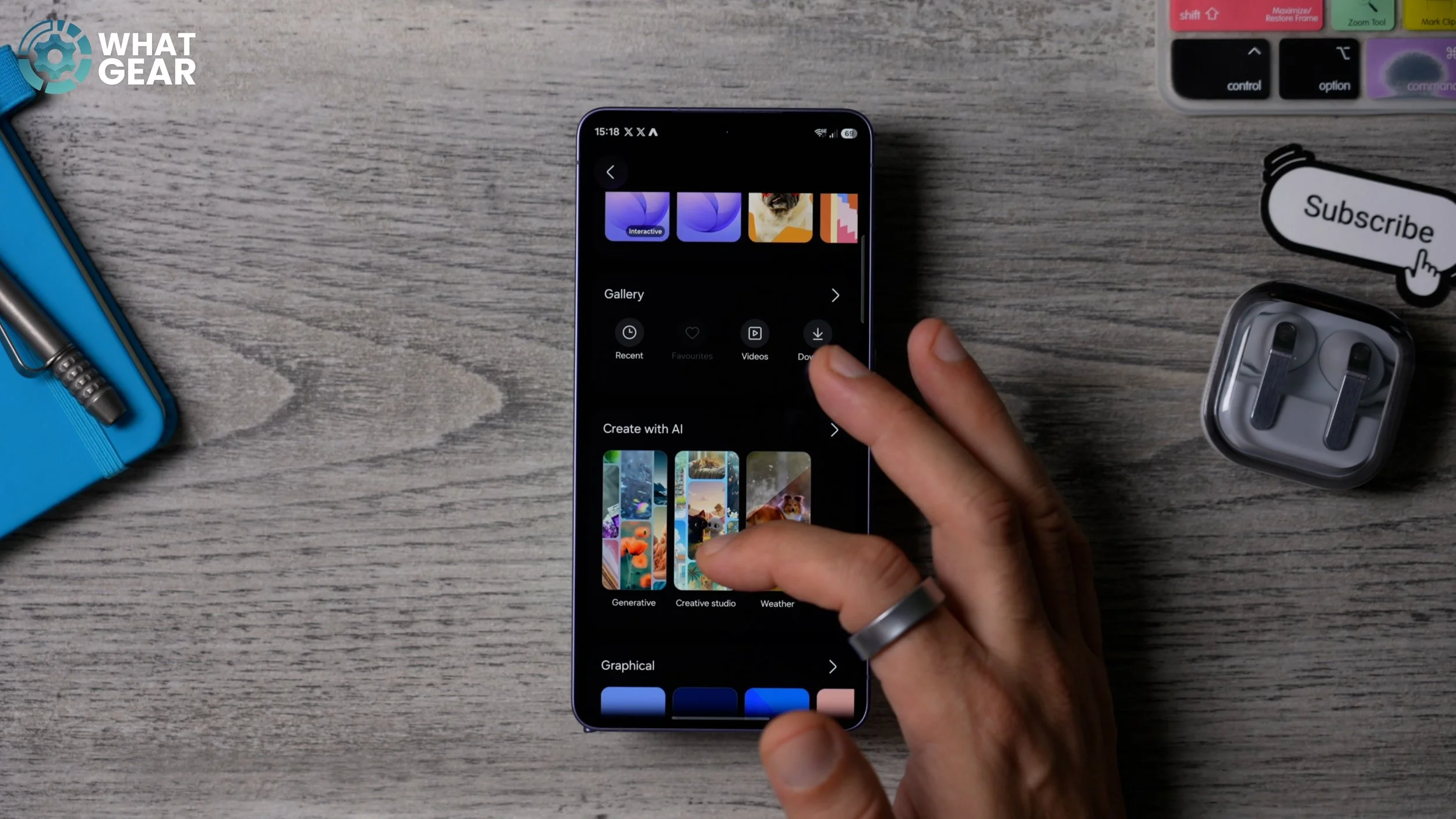
Previously, we had the generative tool. And this is where you can create artwork based on these basic prompts. But now with the creative studio you can take it to the next level. So just open up the app, go to Create wallpaper, and you can write exactly what it is you want. Instead of having to use the fixed prompts. So for example, let’s say London in the summertime, and there we go, the first image is created.
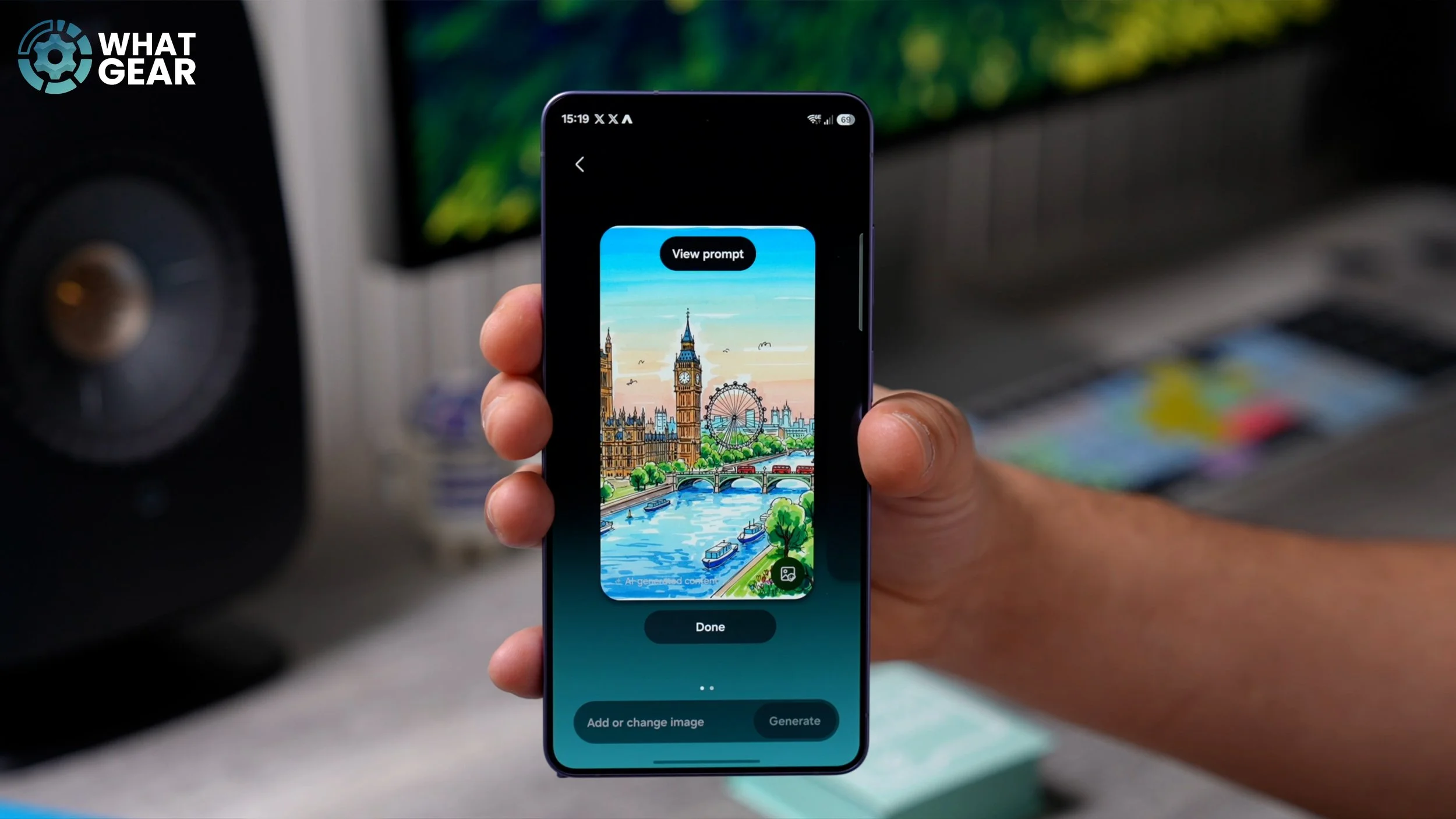
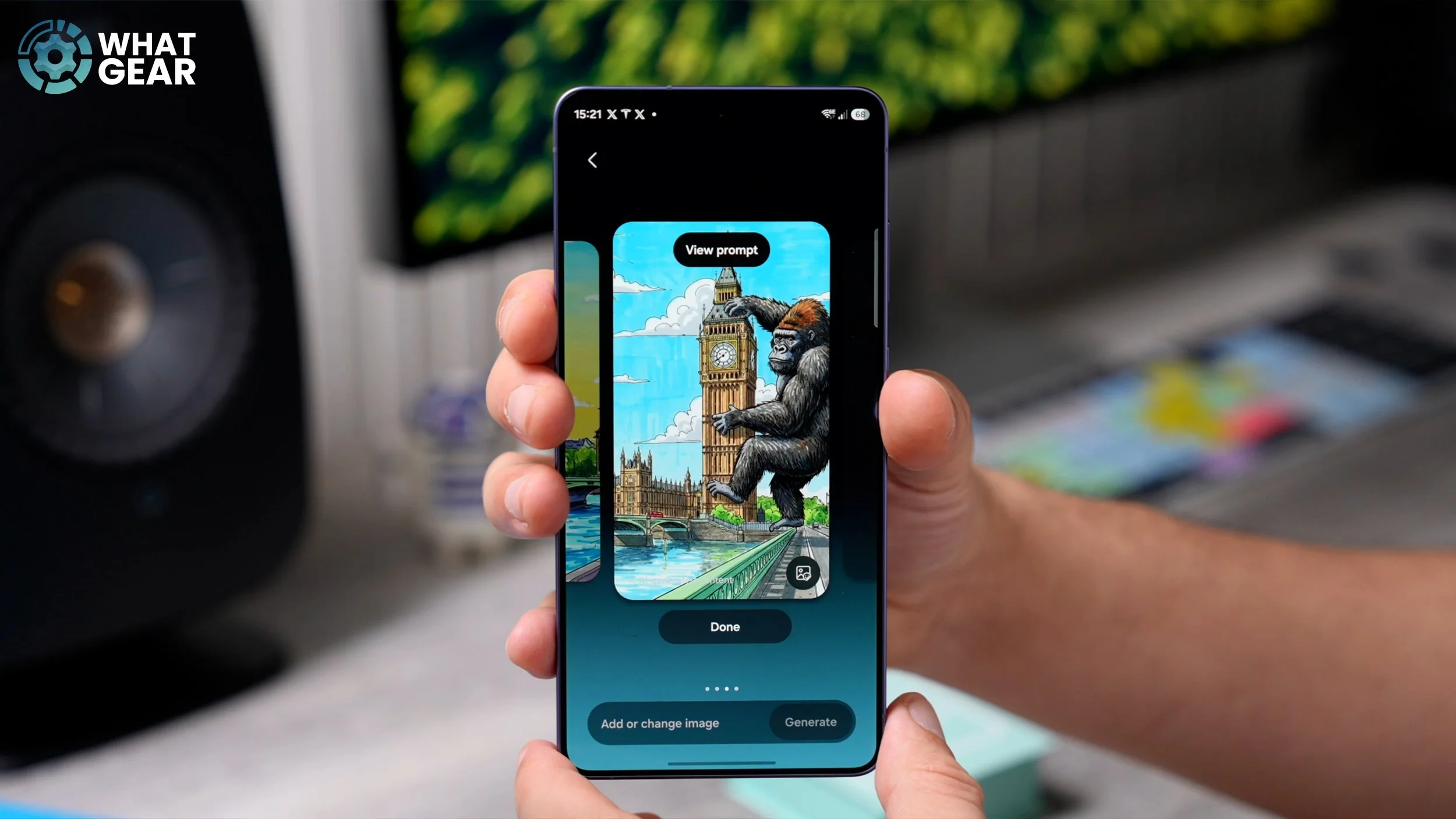
But you can take this much further now. So if you go to view prompt and an edit prompt, you can add more descriptive language to this to add more things to it. For example, let’s add King Kong, and there we go. We’ve modified it again and if we want to, we can keep adding more and more text to this prompt to create something truly unique.
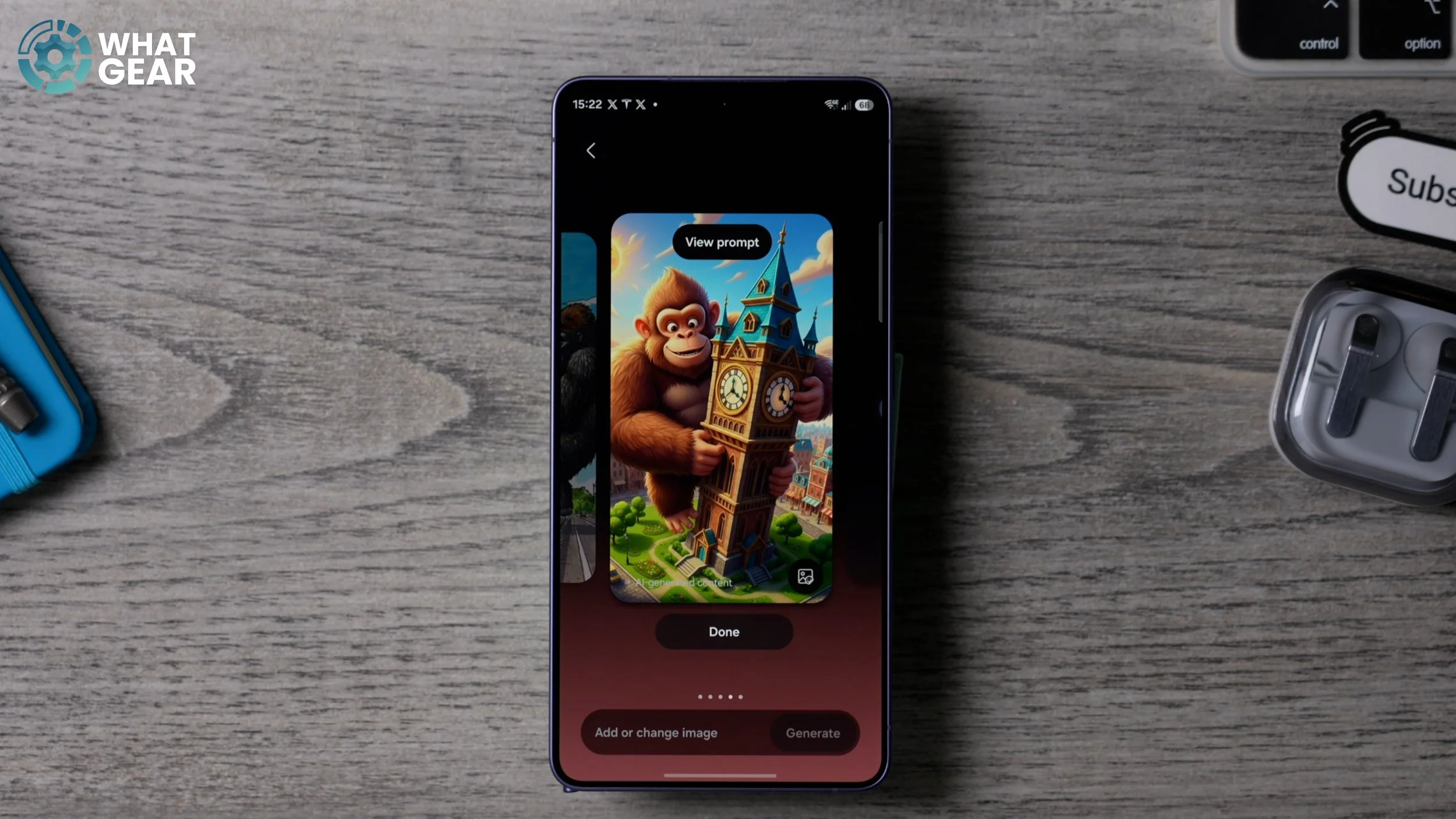
if you go to view prompt again and then edit, you can also change the style of the artwork as well. So right now, you’ll see it’s set to mark a drawing. If we tap on that. These are the different styles. So I’m just going to choose a different one and then hit generate. And there we go. We’ve got a 3D piece of art with a gorilla and Big Ben in London in the summer. So definitely play around with this because you can create something truly unique using your own custom prompts.
WHATEVER THE WEATHER
Here is another feature that doesn’t exist on any other phone that I know of just yet. If you pinch the home screen and go to wallpaper and style and then choose your lock screen, which is the image here on the left at the bottom of this page, scroll all the way across and you will see the weather effect. When you apply this. This will ask for your location permissions and if you give it permissions, it can show you the exact weather where you are in the form of an effect on your wallpaper.
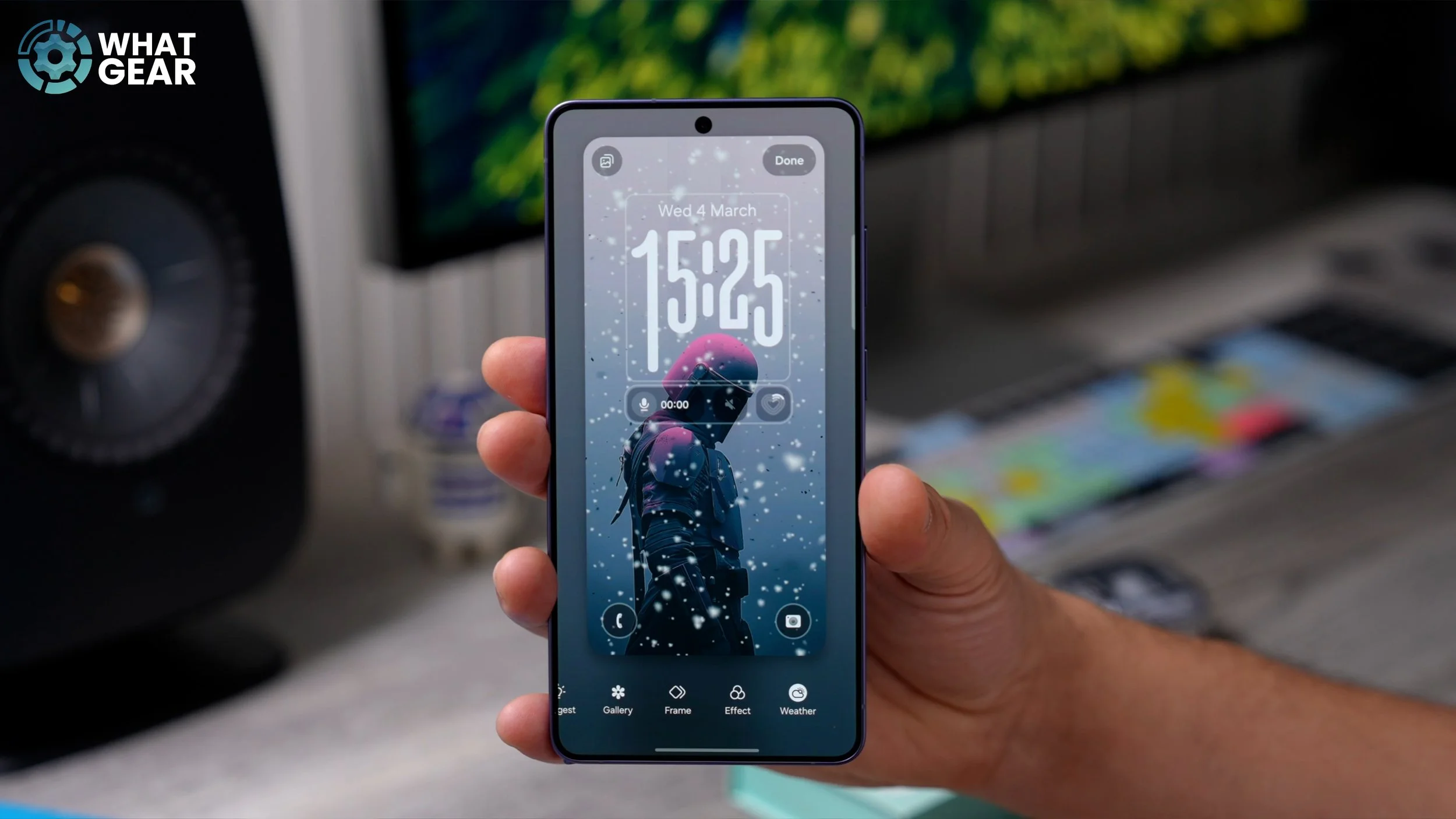
And Samsung have made some massive improvements to this effect as well. You will actually notice that some of the raindrops appear to be hitting the subject of the image and actually splashing off, and then you will also see effects where it’s kind of running down. So definitely check out that weather effect.
EVEN FASTER
Your phone is extremely capable. It is basically a supercomputer in your pocket, but did you know you can actually make it even faster when it comes to certain tasks? So let me show you what I’m talking about real quick. Jump into the settings and then scroll down until you see device care. here is actually where you will find a lot of very useful power tools, including the one that I’m going to show you right now. So if you scroll down, go to memory, and it will show you how much of your RAM is currently being used. And you can see right now 8.4 out of 12, that doesn’t leave me much room, but here is a very quick and easy solution. If you tap which is memory straight away, the Galaxy is offering a way to clean up five gigs of the used RAM. But to kind of avoid this happening so soon in the future, what you can do is go to Ram Plus and then set this to 12 gigs, which maximises the amount of Ram on your Galaxy phone by utilising some of the onboard storage as Ram.
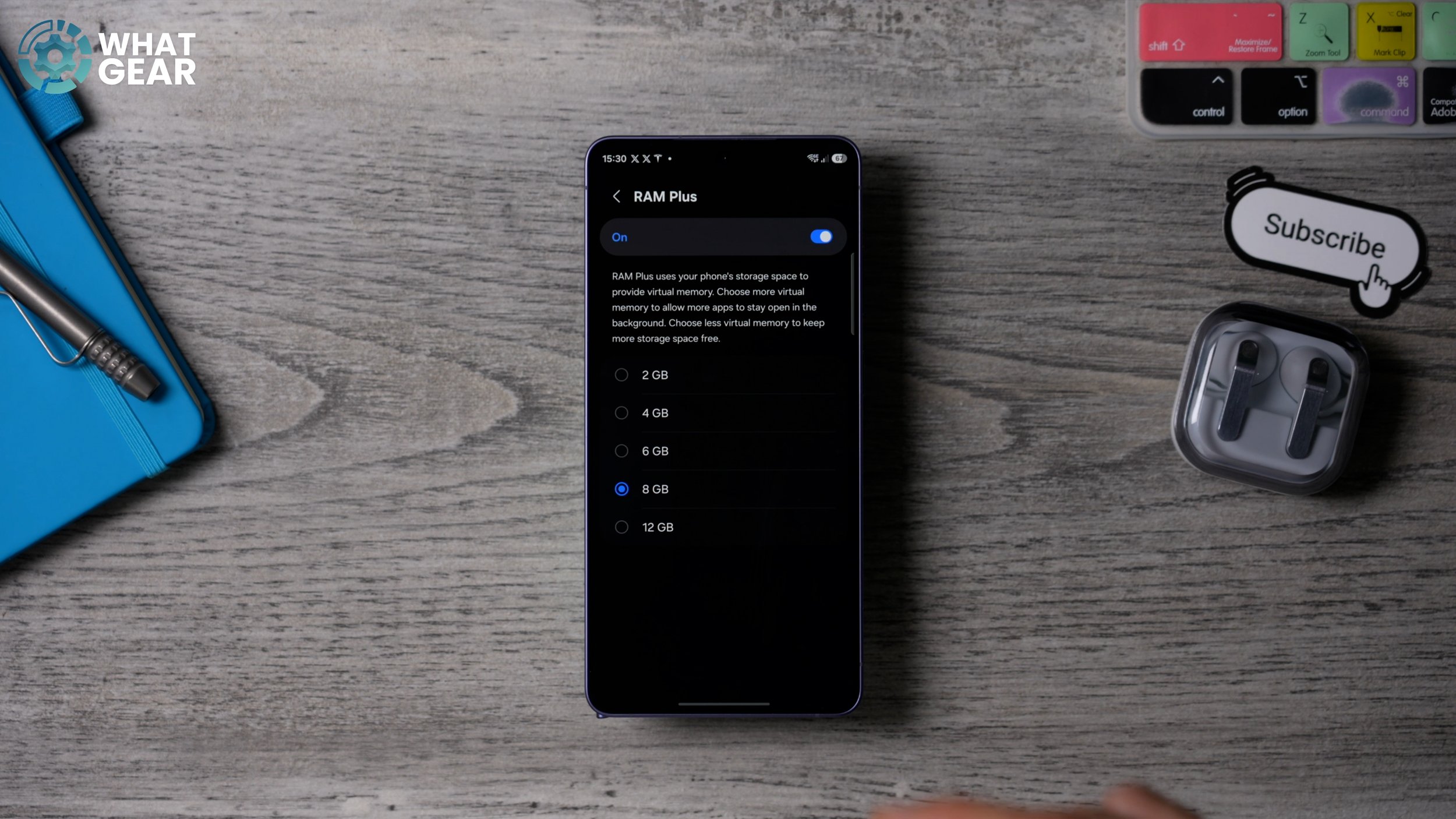
And I’m assuming since your phone is pretty new, you have some storage to spare right now, and you can always dial back in the future if you feel you need that extra memory. But for now, why not max out the potential of your device on day one so you get the best possible multitasking speeds and load times?
ONE CLICK, QUICK CLEAN
And here’s a little bonus tip if you don’t want to do this, but you still want the ability to clear backgrounding apps without having to go through all of these steps that I just showed you. What you could do is hold your finger down on your home screen, go to widgets at the bottom, find the Device Care app and add one of the widgets. I’m just going to add this one, for example, and then you can place this anywhere on your home screen.
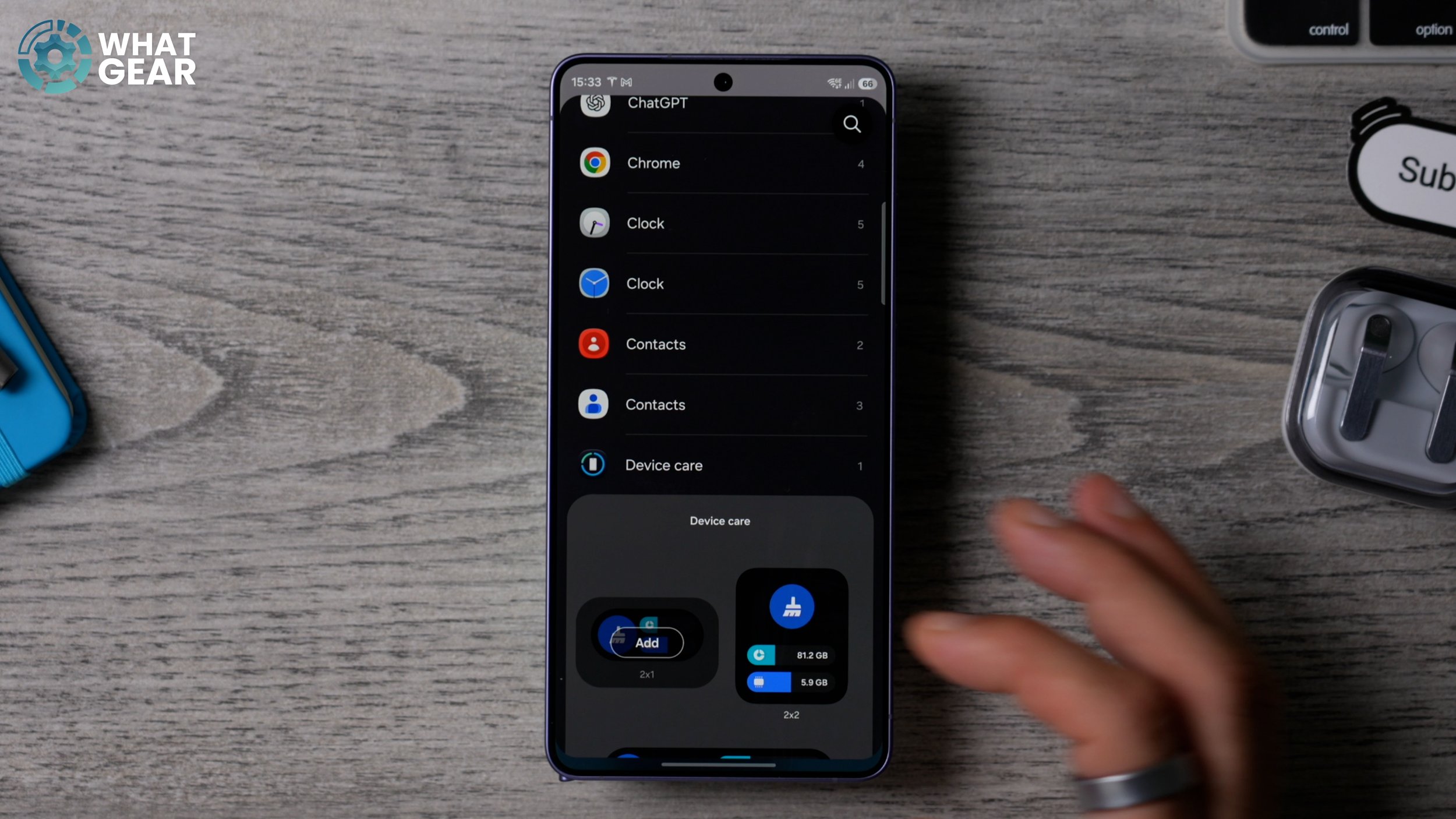
Now whenever you see either of these two bars reaching the top, you can just hit the little brush here to clean all of the background processes and start again from fresh. And this will help you make the most of the RAM that you have set up on the device.
NEED TO KNOW CAMERA STUFF
The Galaxy phone has some fantastic cameras onboard. And here’s a couple of tips to help you make the most of them. When you have the camera app open at the top, you’ll see how many megapixels you’re currently shooting at. It should be 12 megapixels by default, which is fine. However, if you switch this to 50 megapixels when you take a picture in good lighting and you crop into a part of that image, the detail will remain.
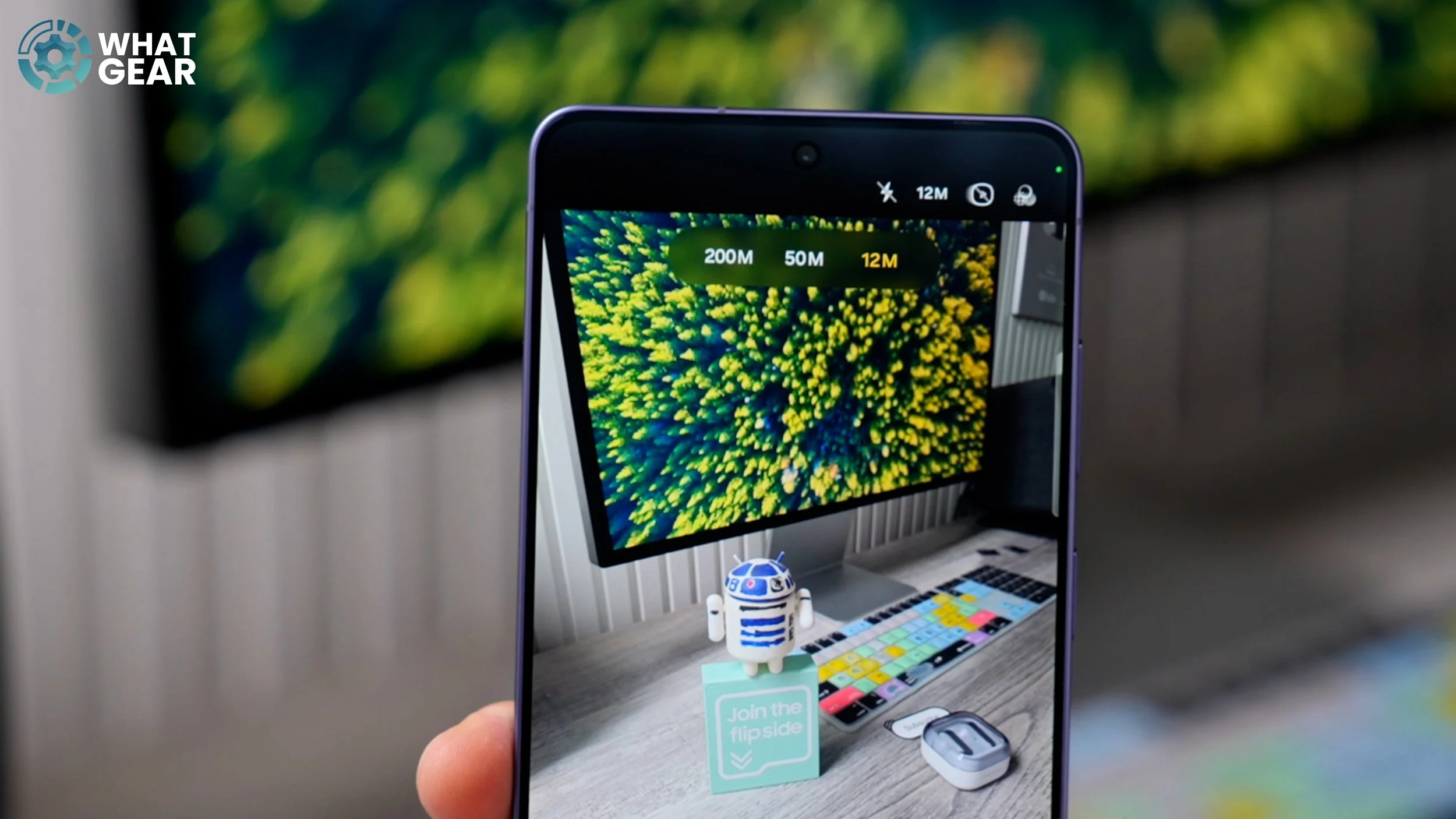
If you want to go even farther than that, let’s say you’ve got this really nice landscape shot set up and it’s really well lit. Could even set this to 200 megapixels for maximum detail. And again, if you want to crop in on that picture, even down to just a small section of it, you’ll find you have fantastic resolution within that image. And you’ll have to forgive me for this really badly painted R2-D2 android.
LEVEL UP YOUR CAMERA SKILLS
So this is the second camera setting that I recommend you switch on on day one. When you open up the camera app. If you hit the four dots, this brings up all of your options, plus the settings for the camera app. So open the settings, scroll down and here you will find the composition guide. If you turn this on, this will give you guidelines and also a spirit level. And if you tap here, you can choose to have just the gridlines or just the level. I think both is the best options.
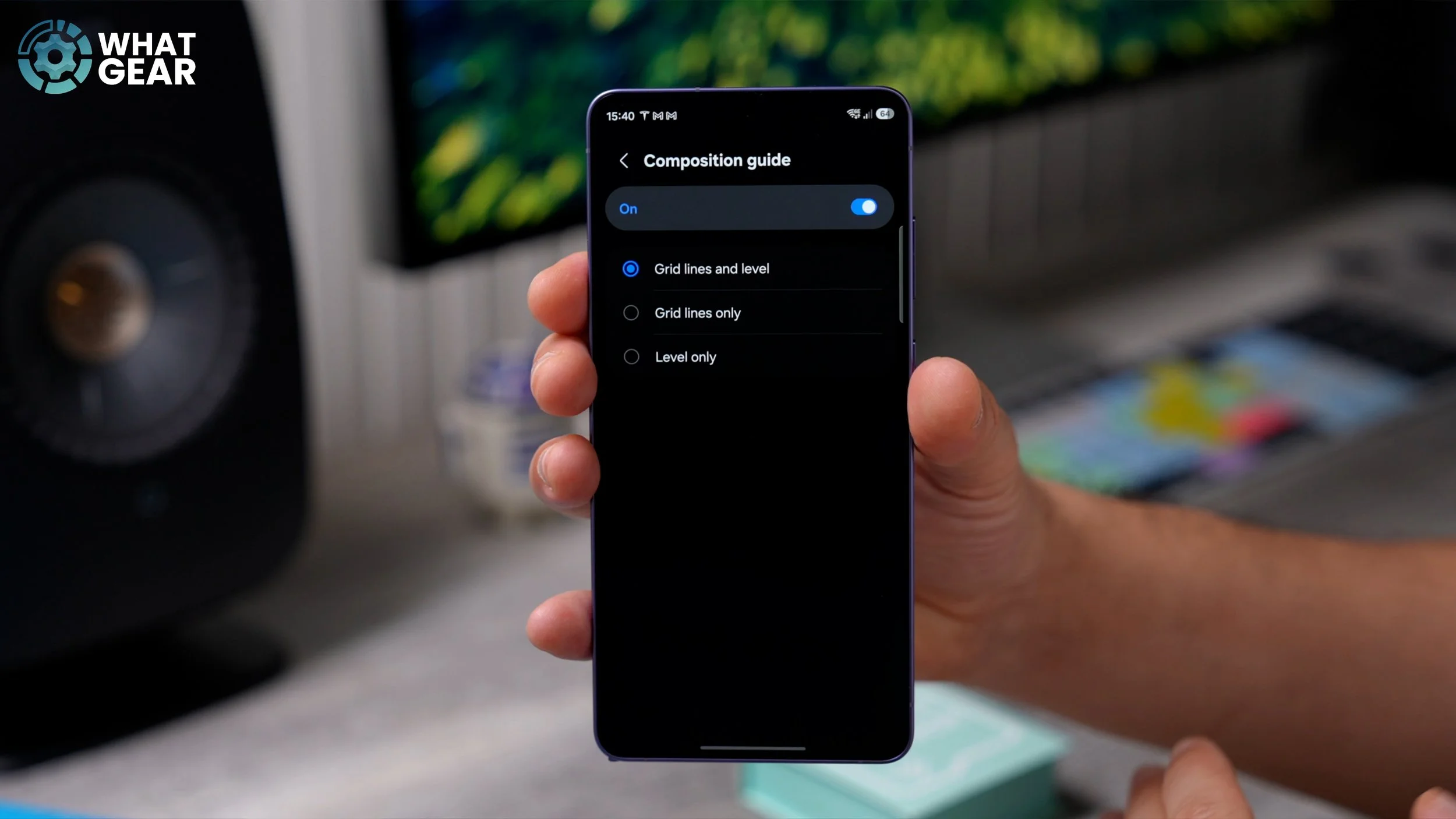
So when you enable this, you get the classic rule of thirds grid, but you also get this crosshair that lets you know when you're tilting the phone and also when it's off-axis as well. So it's super, super useful. You'll notice it also shows you when you're perfectly horizontal for top-down photos, as well. So yeah, this is super, super handy.
NEW HORIZON…TRICK
Here’s a brand new feature when it comes to shooting video with your Galaxy S26. If you open up the camera app, go to video at the bottom. There is a brand new stabilisation feature at the top. So right here, you’ve got a little man with the line. If you tap on that, these are your stabilisation options. The new one is this one. It's called the horizon lock.
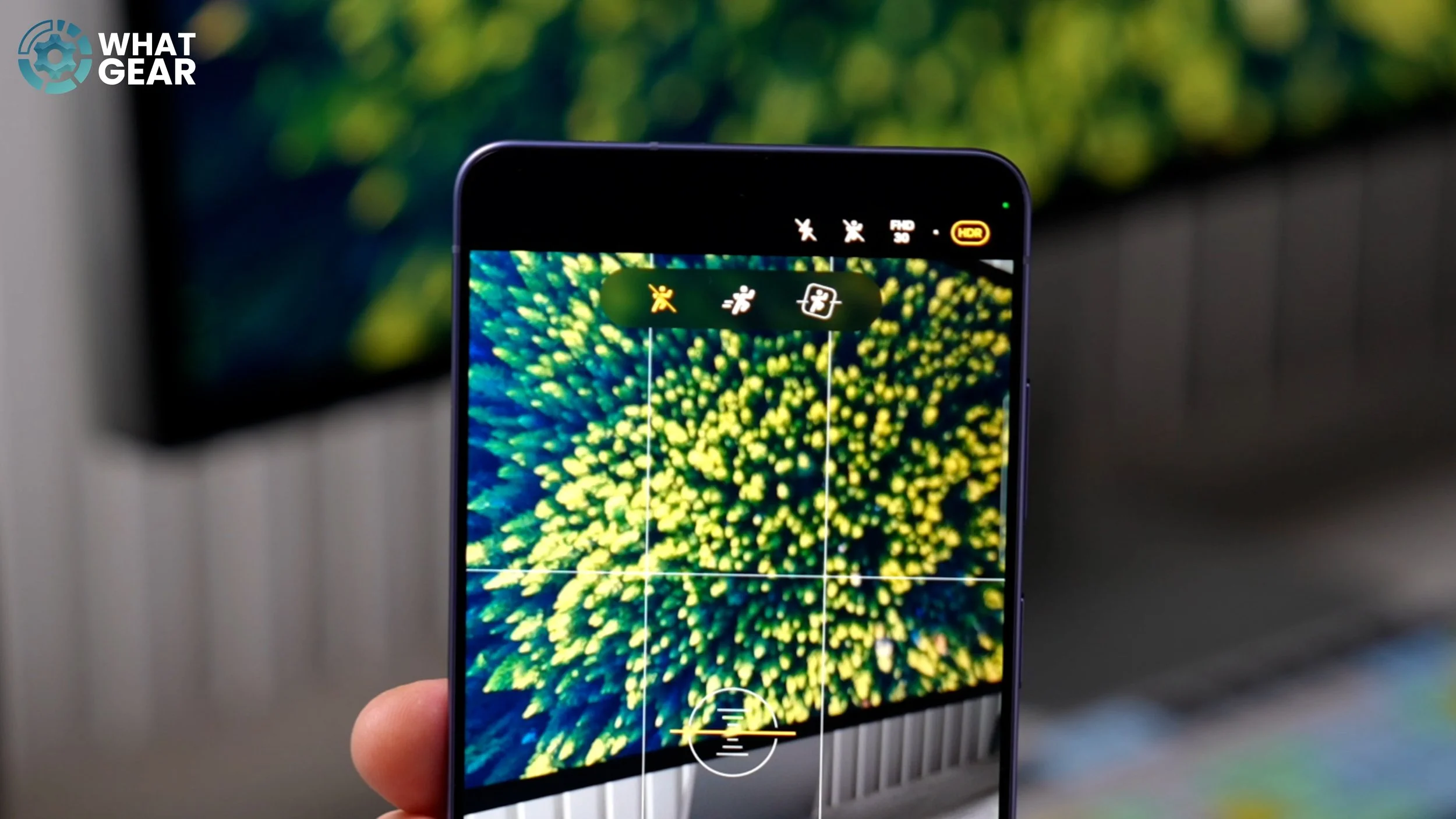
So now, when you’re filming a video, you can tilt your phone all the way to 90 degrees, and it will keep it level. And you can do this either way. So if you're running alongside somebody while skiing down a mountain or anything like that, the footage, regardless of how much you're moving left to right or the angle the phone is changing, will stay steady and locked to the horizon.
OFFLINE AI
Some of you guys might not realise this, but Samsung have significantly levelled up Bixby on a device because they teamed up with Perplexity to make it even more intelligent than before. However, there are some settings that you need to adjust on day one to make sure that it's working properly and to the best of its abilities. Here's how to do that. Go into your settings and then scroll down until you see advanced features. And in here at the top, you'll see Bixby. The first thing that you want to do here is set up the voice registration and improve the voice recognition accuracy. Just run through these steps. Once you've done that, there is another step to this. Scroll down to the offline processing. So this allows Bixby to work even when there are no data signals. And this could be extremely useful in certain scenarios.
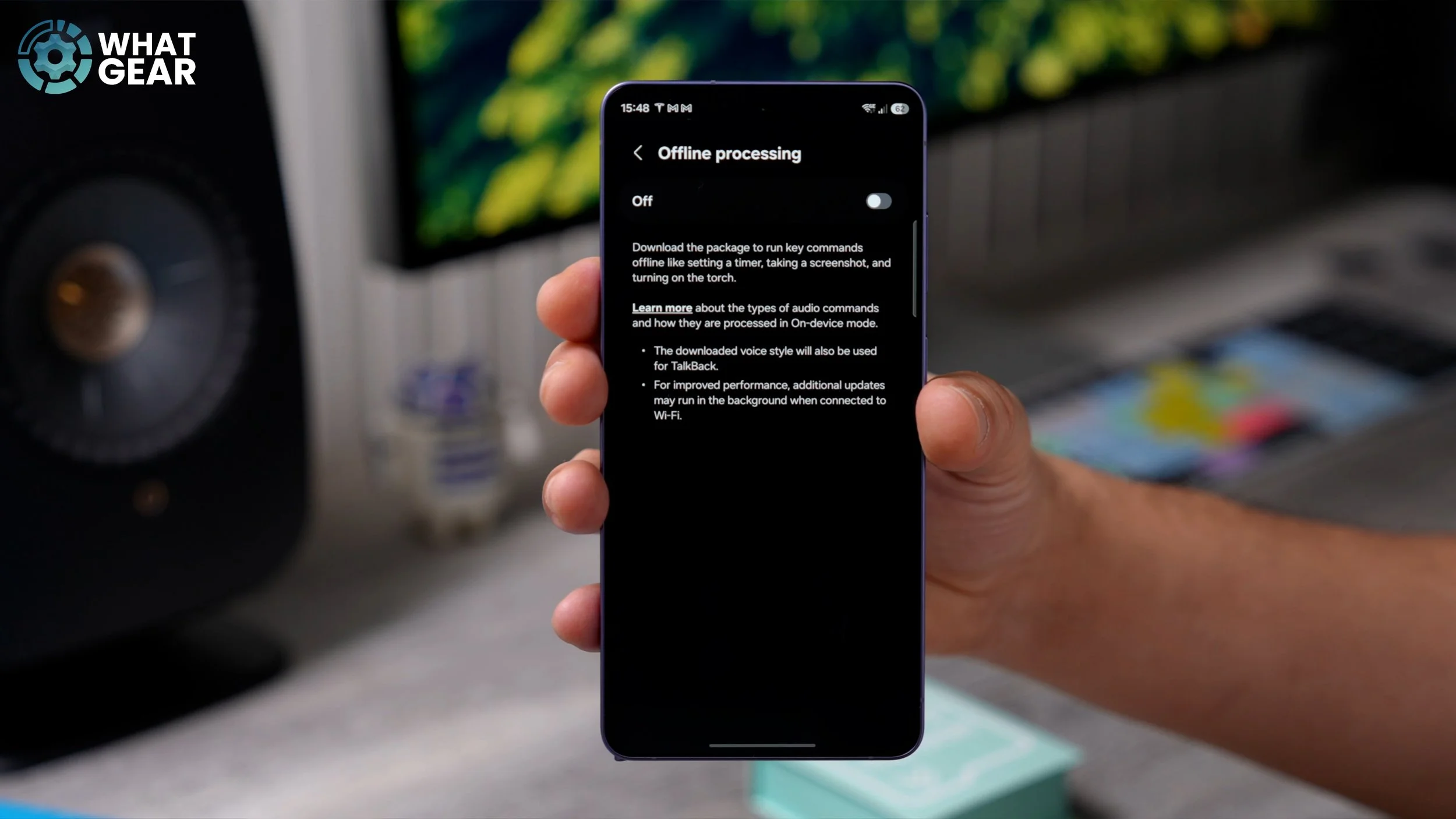
And the reason I'm showing you this is that this is what separates Bixby from the Gemini. This is baked into all of the Android devices. So just enable this and then go to update. This will download the offline data that it needs to assist you when you're away from the internet and mobile signals. And the last setting that you might want to look at here on the Bixby settings page is the full voice responses. If you want it to be able to talk to you instead of just showing you text. Yeah, you might want to switch this on.
YOU’LL FIND THIS USEFUL
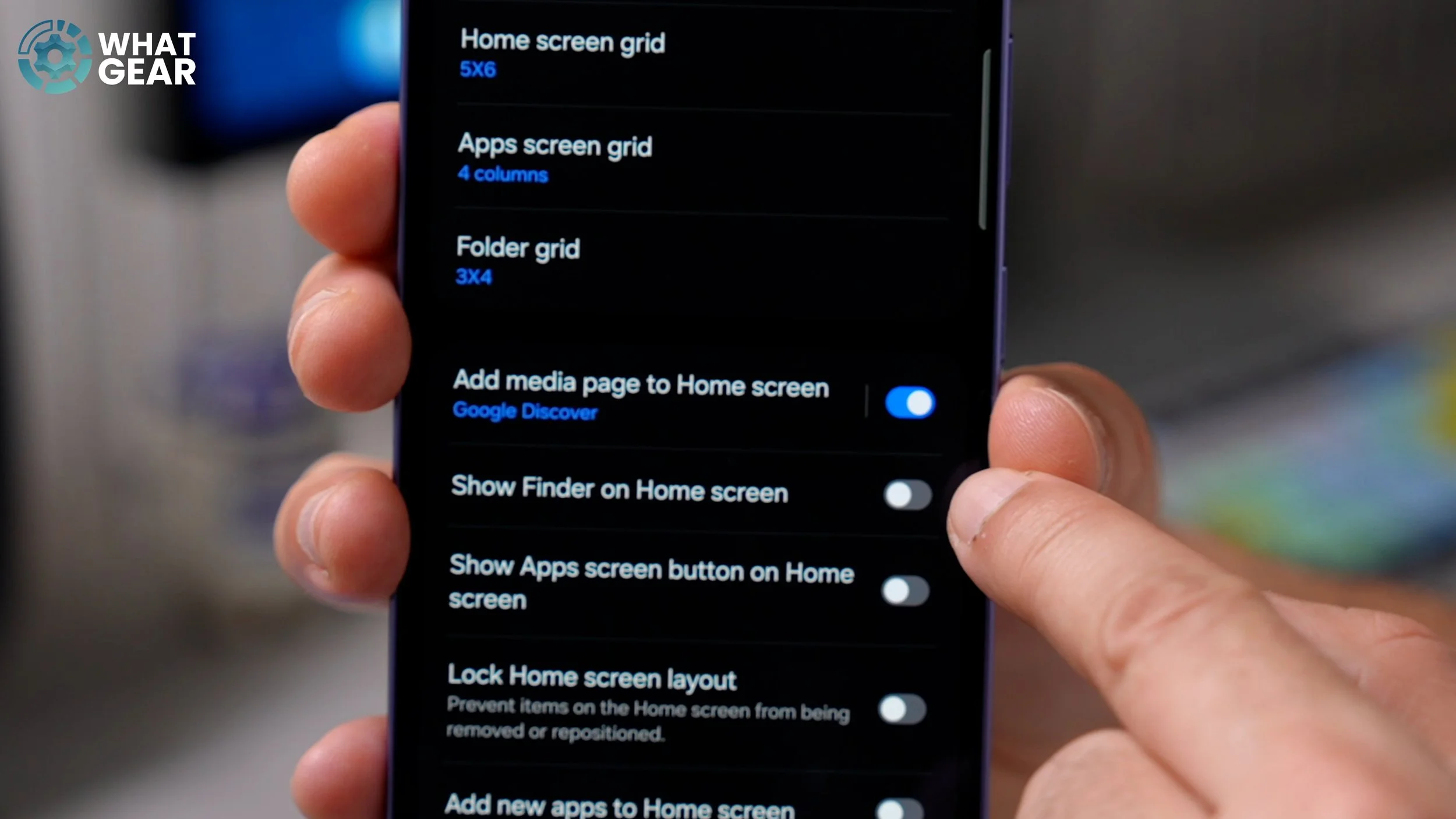
Now. You might be wondering when you would even use Bixby? Why would you use it instead of Gemini? Well, Bixby has more insight into the device specifically, so if you want to find anything on the device, it's going to use Bixby and Perplexity AI to do that. But also, there's this brand new feature down here called The Finder. If you don't see the find it down here at the bottom of your screen, then you need to do this. How do you bring it down on the home screen? Go to settings and then scroll down and enable Show Finder on the home screen. Once you've done that, it will appear. Whenever you tap this, you can search for anything on your device. For example, if there was something mentioned in a text message or WhatsApp, or within an email, you can even use your voice to tell it what you're looking for.
And there is one more setting for this that I recommend you look at. If you open up the Finder and hit the three dots on the right side, right here, go to settings. You can enable the show web search suggestions, which can be very handy if you do have hidden apps. You might want to enable that too. And if you go back again, hit the three dots again. Go to Choose Apps to search in. If you want to revoke permissions for any reason, you can do that with any of these apps. And if there are any that are not enabled, right now, you can enable them here.
NOW… THIS IS BETTER
Here is one setting that you need to change that can improve the way the phone delivers useful information to you. So your home screen probably looked like this. And this right here is the now brief. This is Samsung's exclusive feature that keeps you up to date with news, the weather and other things. You can fine-tune this and kind of customise it. So let me show you how to do that. I'll just go back to my home screen. I have added in a widget stack up here. I do show you guys how to create these and how to customise these in my customisation guide, so definitely check that out. But for now, let's jump into the now brief. I'm going to scroll all the way to the bottom of the now brief and then go to settings. Now here's where the customisation begins. So if you want to you can enable the audio brief. So when you open up the now brief there will be a button to listen to the brief as opposed to having to read it.
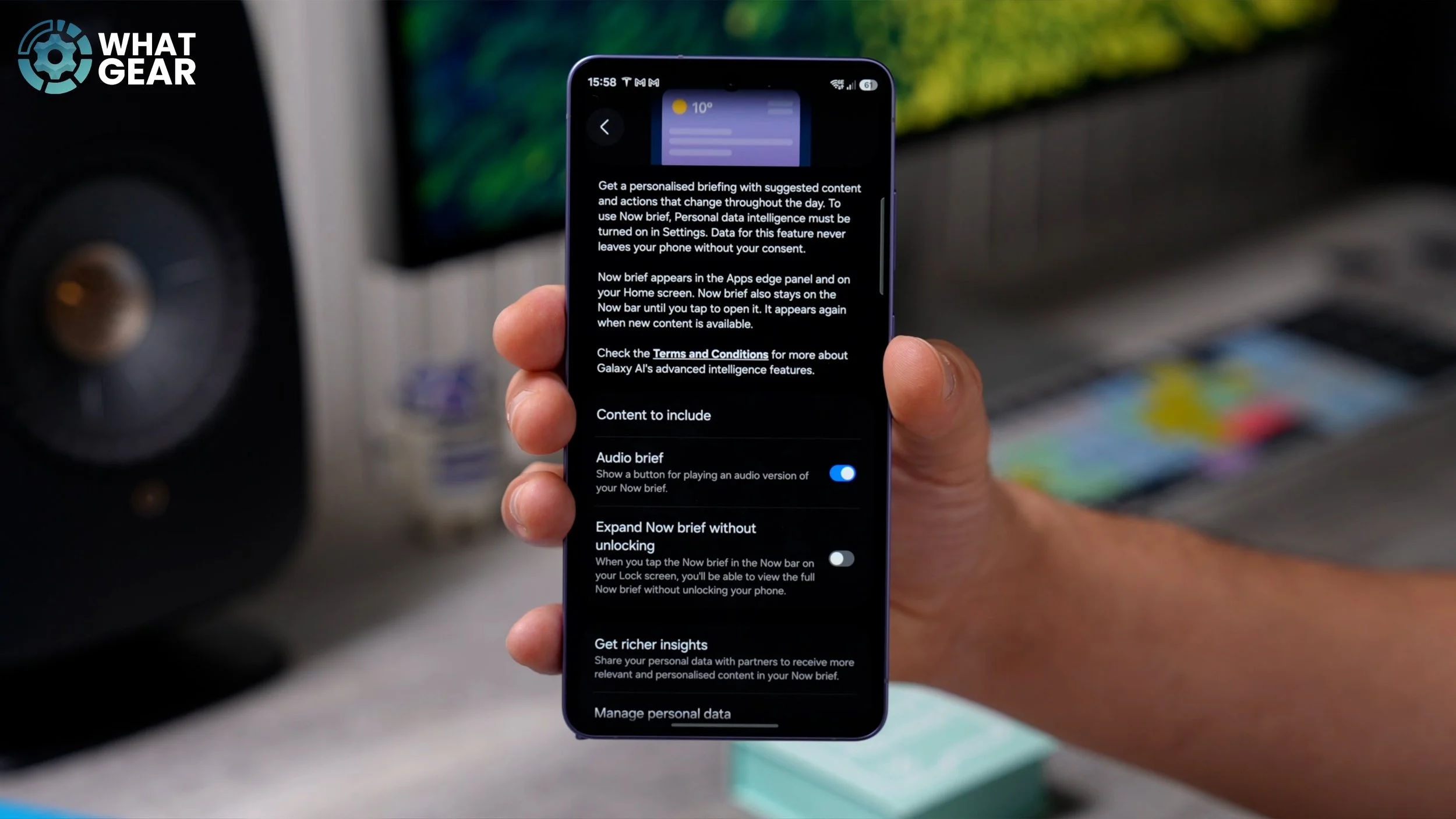
That could be quite convenient. So here you can allow the now brief to be expanded even without unlocking the phone. If you're more of a private person, you probably won't want to do that, but something that I highly recommend you do is get richer insights and enable Gemini. So essentially, Gemini is Google. And what this would allow the now brief to do is give you more location-based information.
NOW…THIS IS USEFUL
Now let me show you another now brief feature, which is actually one of the most useful ones in my opinion. And it's switched off. So I'm going to show you an alternate way to get to it, as opposed to just going through the widget. So if you go into settings, scroll down to Galaxy AI. And in here you'll find the now brief gist here. This is another way you can get to the now pre-settings. And on this page, right at the top, you will see content to include. If you tap on this, here is everything that can be shown in the now brief. And there are actually two which I highly recommend you switch on.
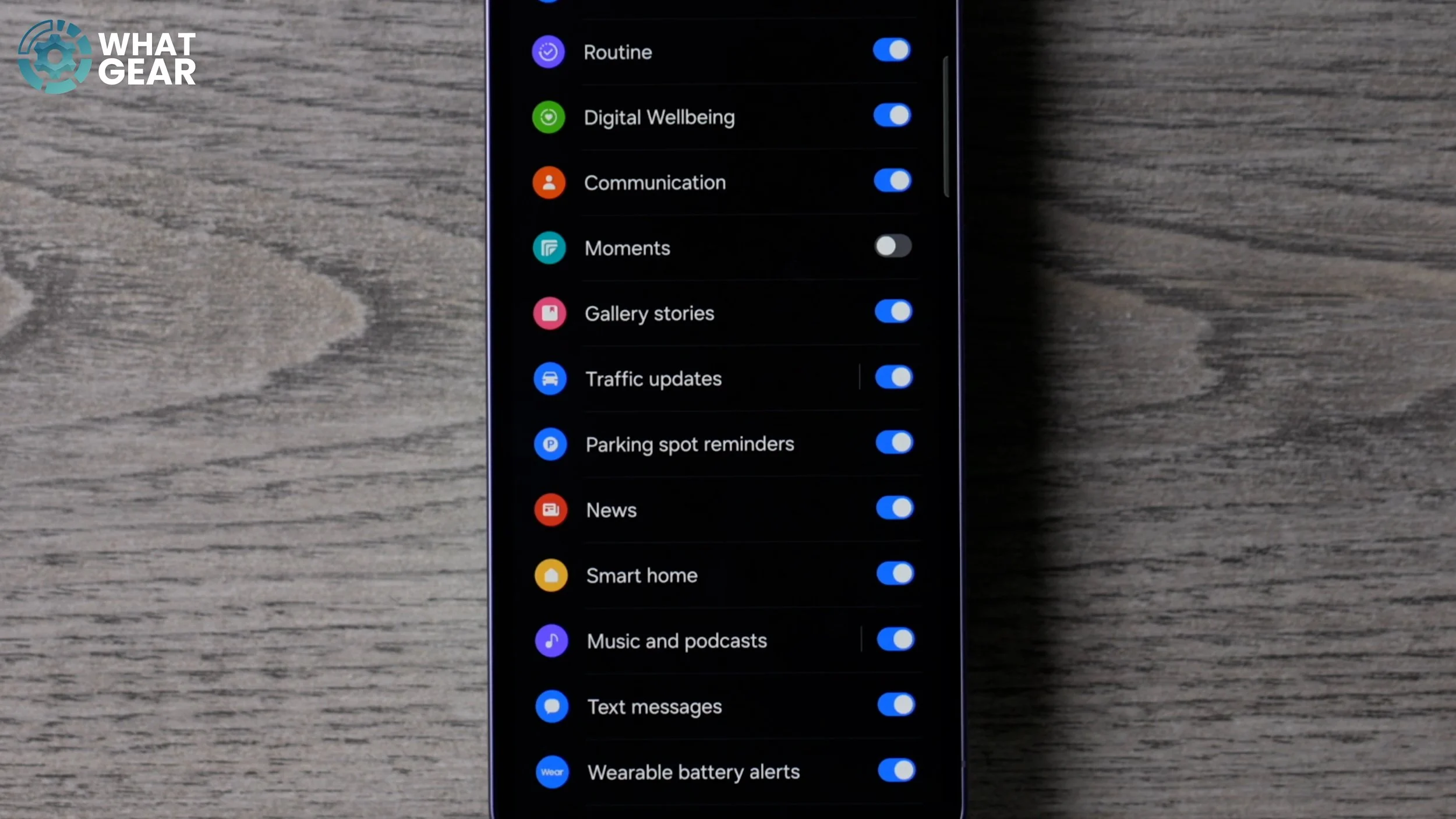
And day one if you drive and it stays to the traffic updates and also the parking spot reminders. This has saved me a lot of time on various occasions where I've parked the car, forgotten where I've parked it, and if you scroll down, you'll see you also have YouTube, which you can switch on, and nano banana creation. So Nano Banana is the image generation tool that Gemini provides. So if you do any image creation via that method, it can show up on your now brief, which is just a bit of fun, really. But the YouTube one is pretty cool because it gives you highlights of videos that are trending, and it will suggest videos that you might be interested in.
VISUAL VOICEMAIL
Here's a brand new tool for the Galaxy S26 within the phone app. If you open this up for the first time, you'll probably see at the top the option to turn on your answering machine and enable direct voicemail. When you can't answer a call, there will be a new button that can send people straight to voicemail. I don't recommend you switch on the auto send to voicemail, because it might pick up for you when you don't want it to, but what I do recommend is that you enable the transcript assist.
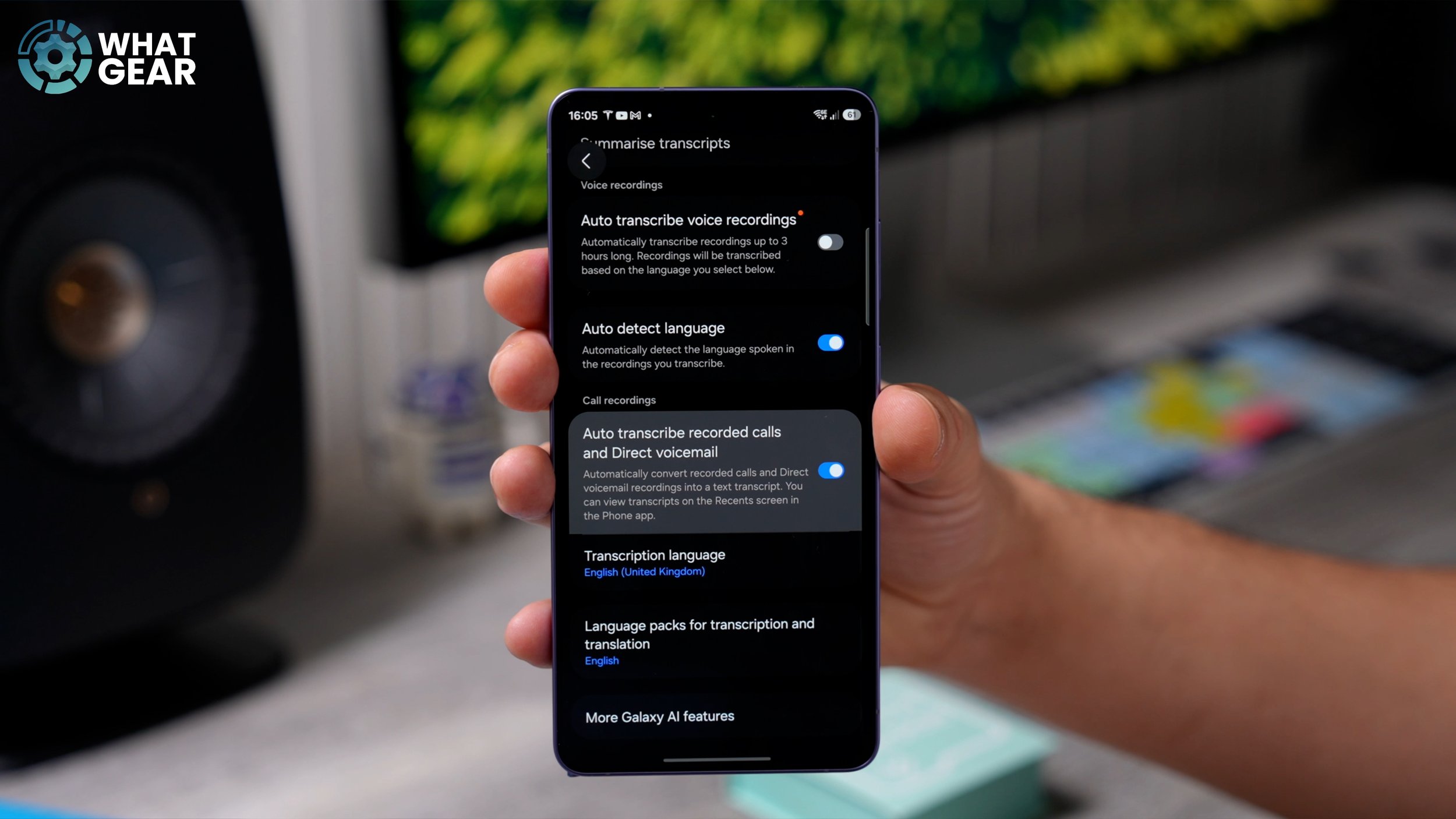
So this will allow you to see what's being said on that voice. Note that someone's leaving for you in real time. You do need to enable the auto-transcribe voice recordings as well, so just make sure that is switched on for this to work properly. That is a feature that existed before, and it's very useful.
