Galaxy S26 Ultra - 10 Hard To Find AMAZING Features!
Welcome to part four of my five-part Galaxy S26 Tips and Tricks and Hidden Features series. This one focuses on some amazing and harder-to-find features and settings. And if you're watching this on an iPhone, don’t worry — you might have some similar features on your phone, and some of the others you might get eventually in 3 to 5 years. Alright, so if you're ready to discover some new Galaxy secrets, I've got 15 of them lined up for you guys. So let’s get straight into it.
MAKE YOUR MEMES COME TRUE
One of the most powerful, hidden, exclusive Samsung tools that not that many people know about is this. When you swipe out the sidebar, right at the top here is Samsung’s AI Select. So this is kind of a more advanced version of the Circle to Search tool, because it doesn’t just search for things — it can actually extract information and even create content. So let me show you how you can use it to create your own GIFs. So right here on YouTube, I’ve loaded up the classic Picard facepalm scene, and what I recommend you do is, when you load up a video you want to create a meme from, hit the little settings in the top right corner,go to More, and put it into loop. That way, the video keeps looping round and around. Now, once you’ve done that, here’s a little trick to access the AI Select tool much more quickly. See the sidebar? Instead of dragging it out and then tapping AI Select, what you can do is hold your finger down on the sidebar, and that automatically opens AI Select. If you tap the area that you want to capture, it will expand to that area.
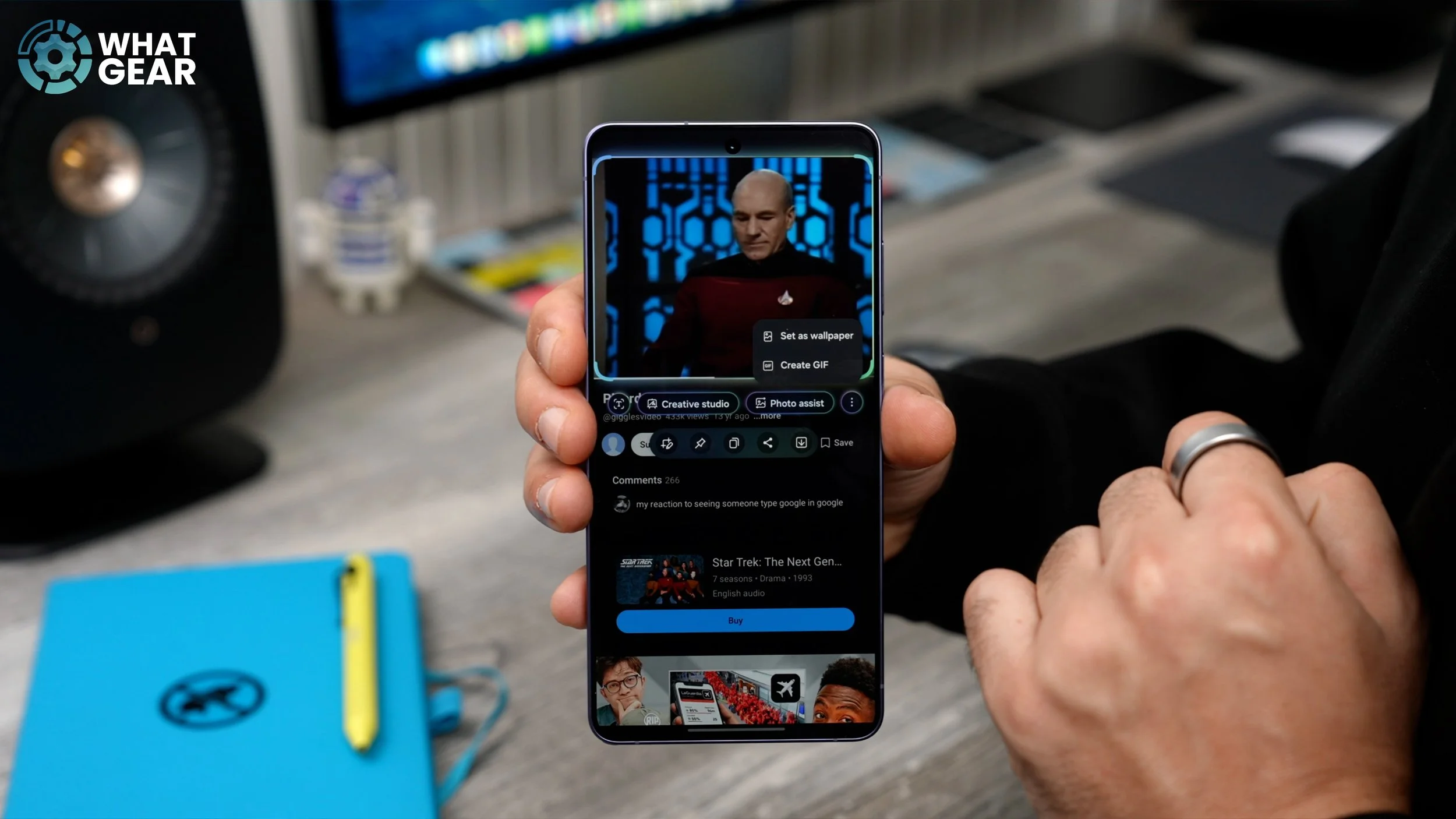
You can drag the corners if you want to as well. Now that you’ve selected the part of the screen that you want to capture, hit the three dots at the side, and you will see the option to create a GIF. If you find a photo or image that you can’t download, you can actually extract that image and set it as wallpaper using this same method. But anyway, let me show you the GIF. Tap “Create GIF” — that starts the content playing in the background. Now all you have to do is hit the record button at the right time. Wait for it to start again… hit record… then stop. There we go — we’ve created a facepalm meme that we can now send to pretty much anyone. And that expression right there is exactly how I felt when I realised over 90% of people watching this channel are not yet subscribed.
THAT NOISE
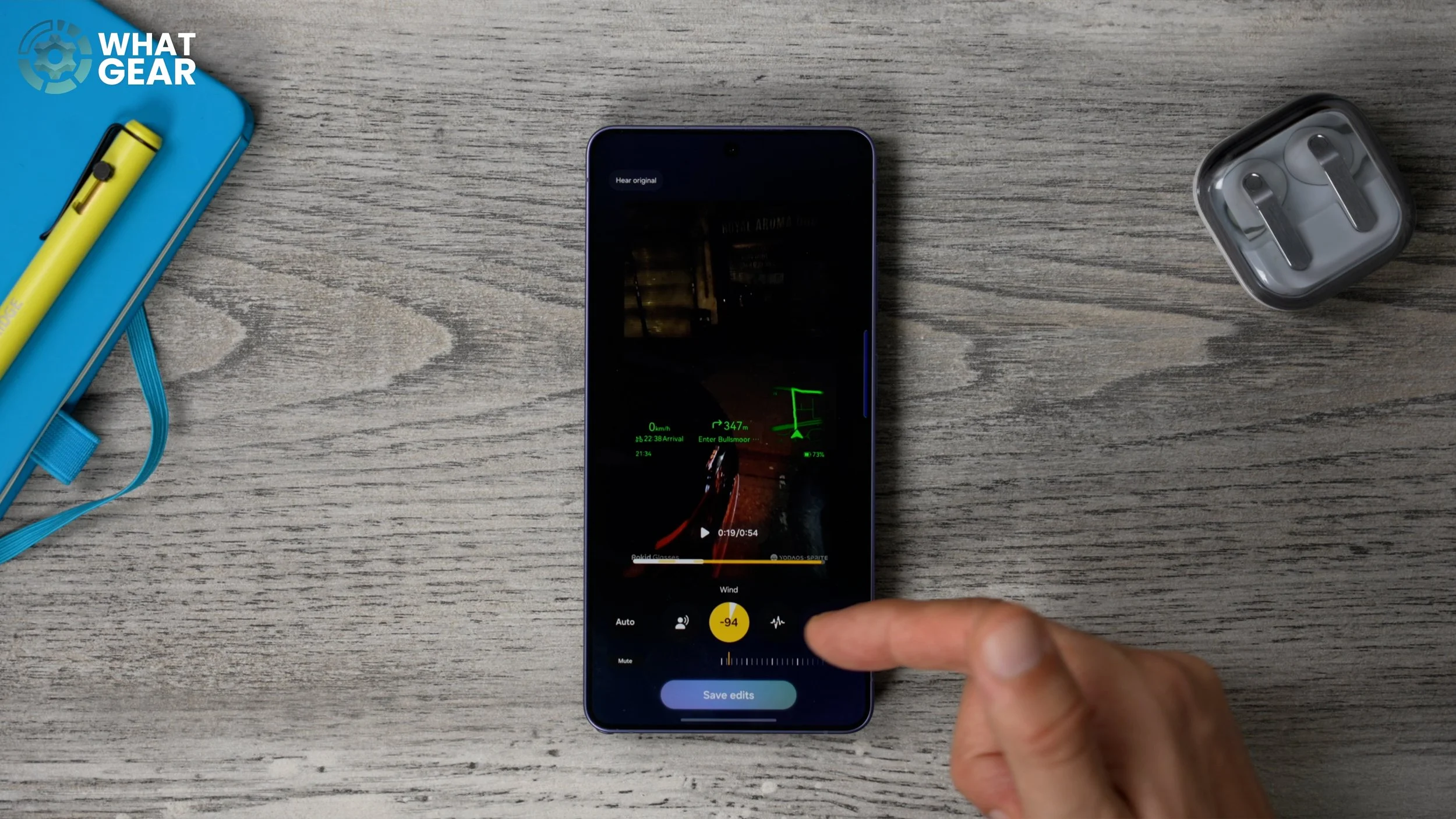
In one of the previous videos, I showed you how to eliminate background noise when watching content. But here’s how to remove noise from your own videos. For example, here’s a noisy clip. If you open that video in your Gallery, hit the little sparkle icon at the bottom, and the phone will analyse the audio. Then you can reduce specific noise types like wind, road noise, etc. You can dial them all the way down or just hit Auto. Once you’re happy, hit save edits — this creates a new clean version while keeping the original.
CUSTOM ANIMATED WALLPAPERS
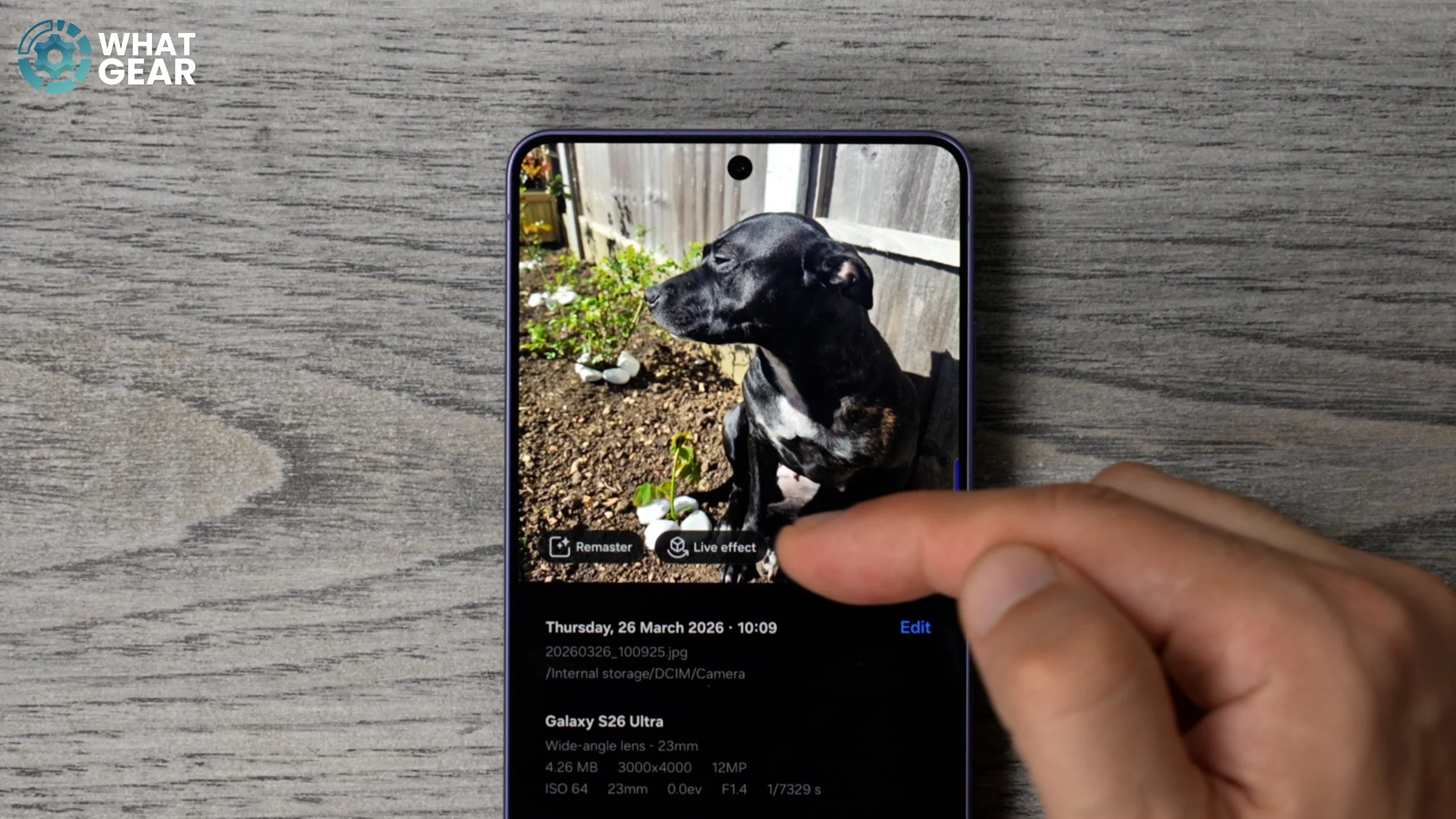
If you want to create your own animated wallpaper, Galaxy phones make it super easy. Open your Gallery, select an image, swipe up, and tap Live Effects. This separates the subject from the background and creates a motion effect when you tilt your phone. You can instantly set it as wallpaper — perfect for pets or portraits.
ENGLISH…DO YOU SPEAK IT?
Now, let’s improve how your phone works as a phone.
Go to the Phone app → settings.
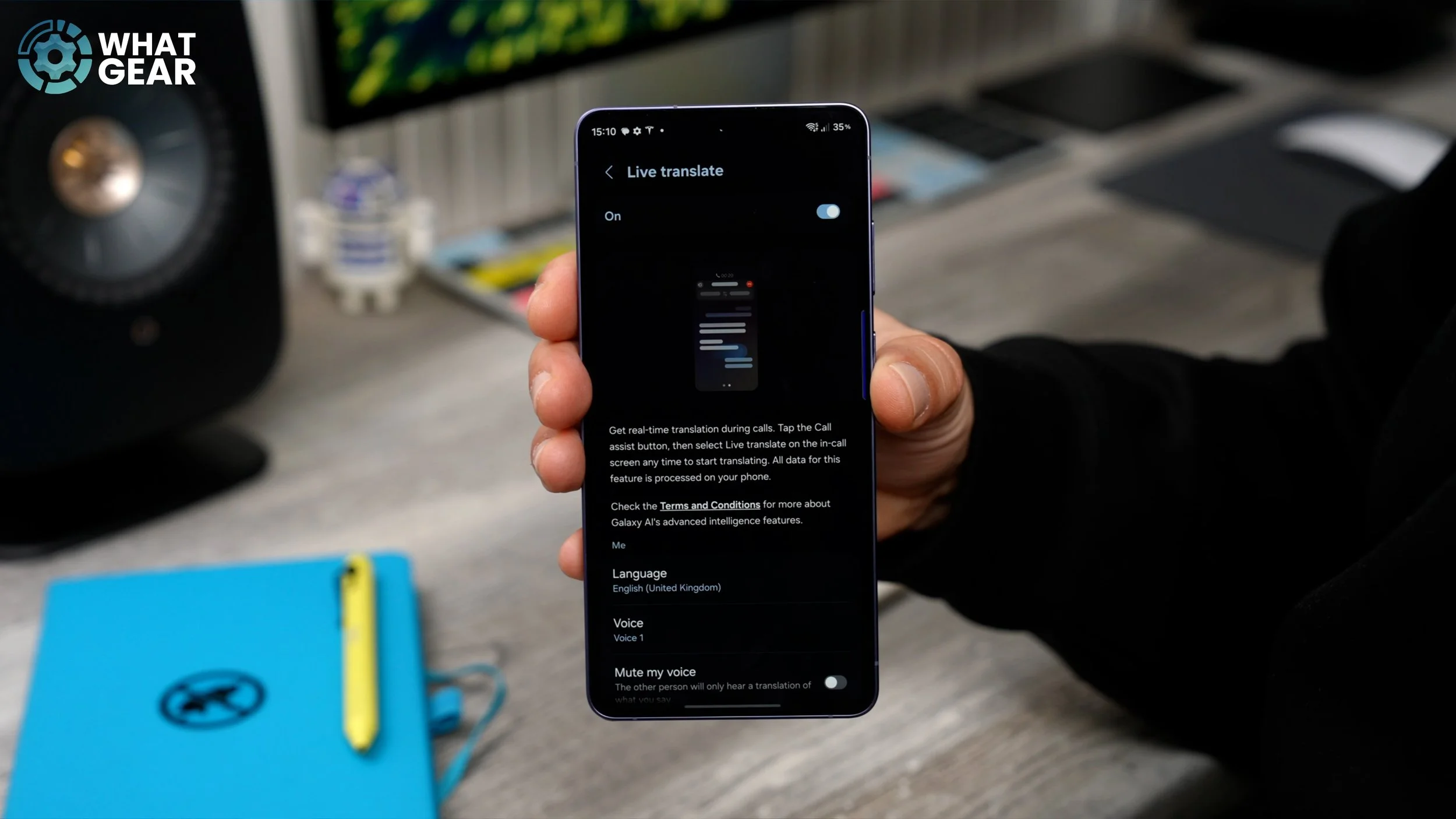
Enable Call Screening
Turn on Text Call
Use Live Translate for calls abroad
You can even mute your voice and let AI translate it for the other person, and vice versa.
DE-CLUTTER
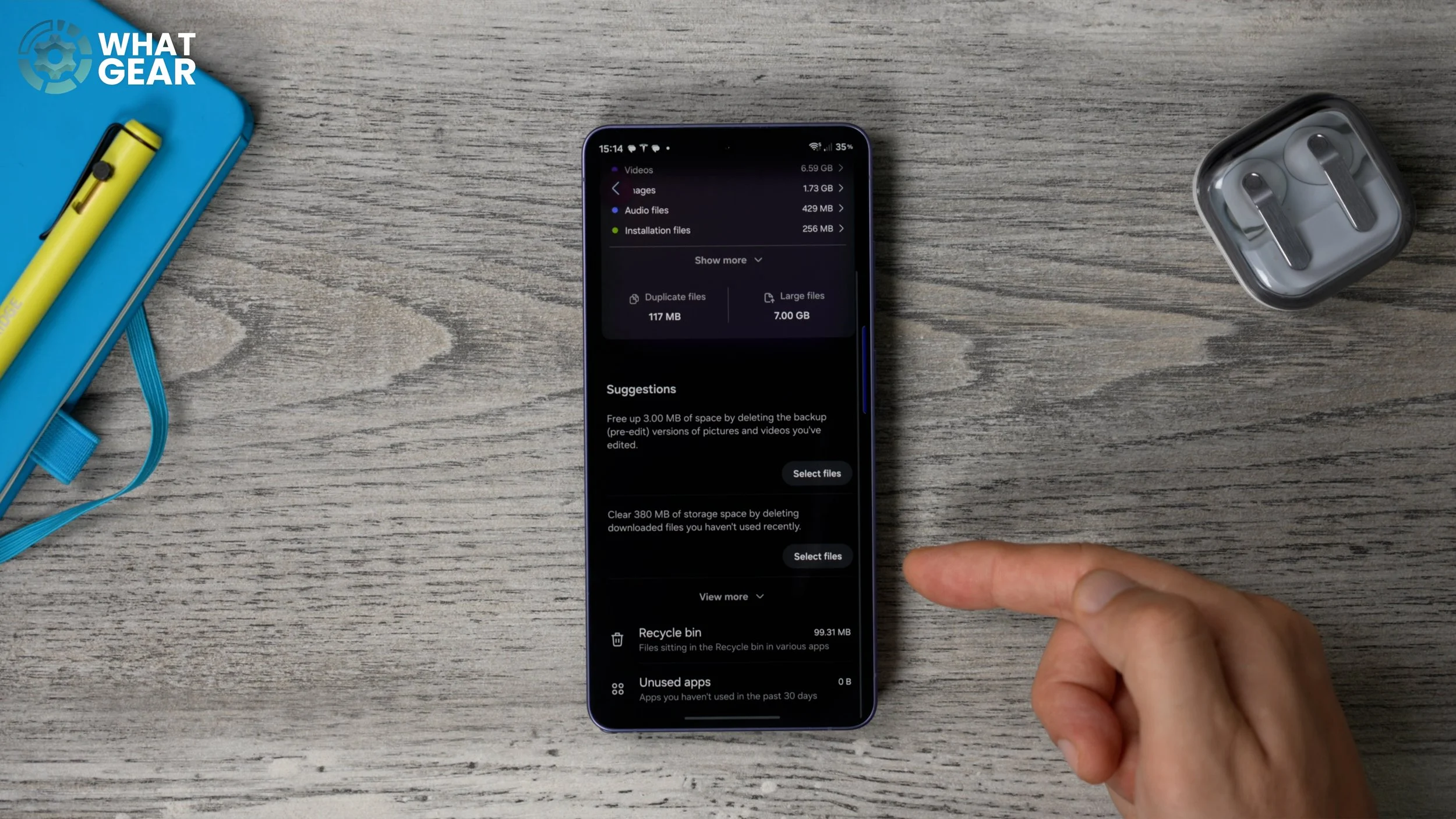
Hidden storage tools. Settings → Device Care → Storage
Here you can:
Delete unused apps
clear old files
clean junk
empty recycle bin
You can even add a shortcut to your home screen.
TIME SAVING TEXT TRICK
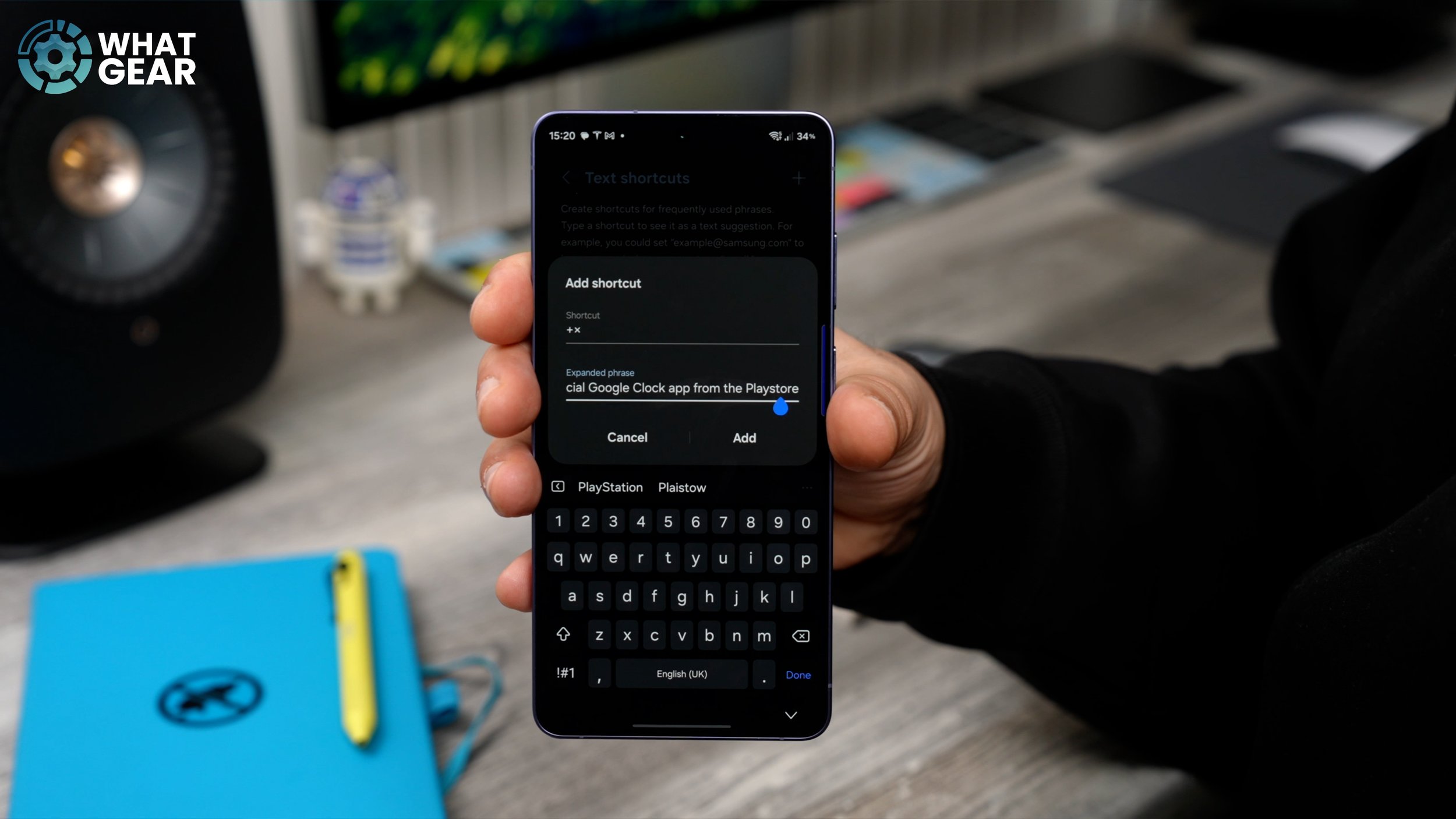
Time-saving keyboard shortcuts. Go to Samsung Keyboard settings → Text shortcuts
Create a shortcut phrase (like “++”) → link it to a full sentence. Now typing two characters fills an entire paragraph instantly.
YOU MIGHT LIKE SWIPE TYPE
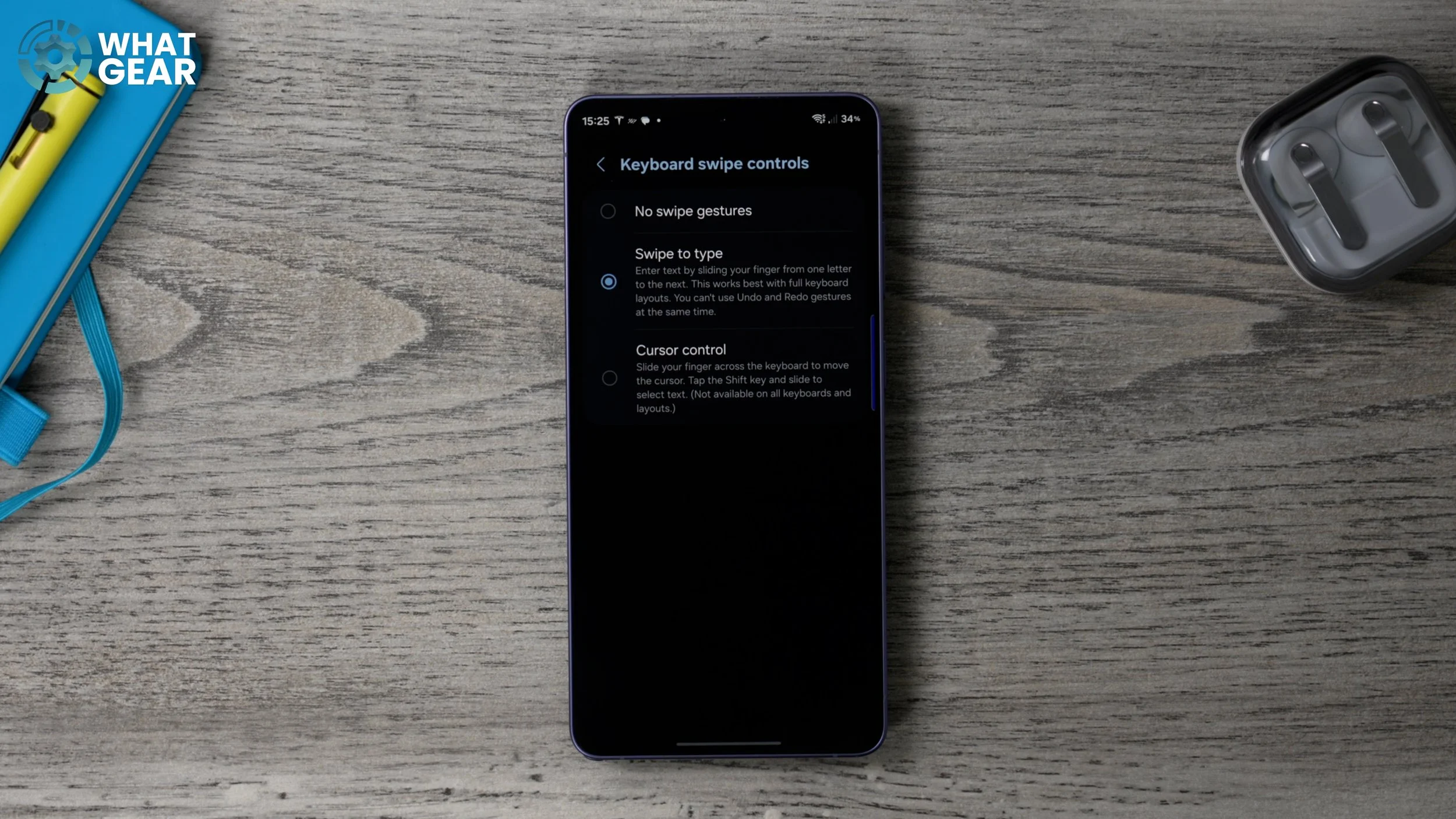
Swipe typing + cursor control
Enable Swipe to type
Also, hold spacebar to move the cursor like a trackpad — super useful.
LISTEN, HERE’S SOME SOUND ADVICE
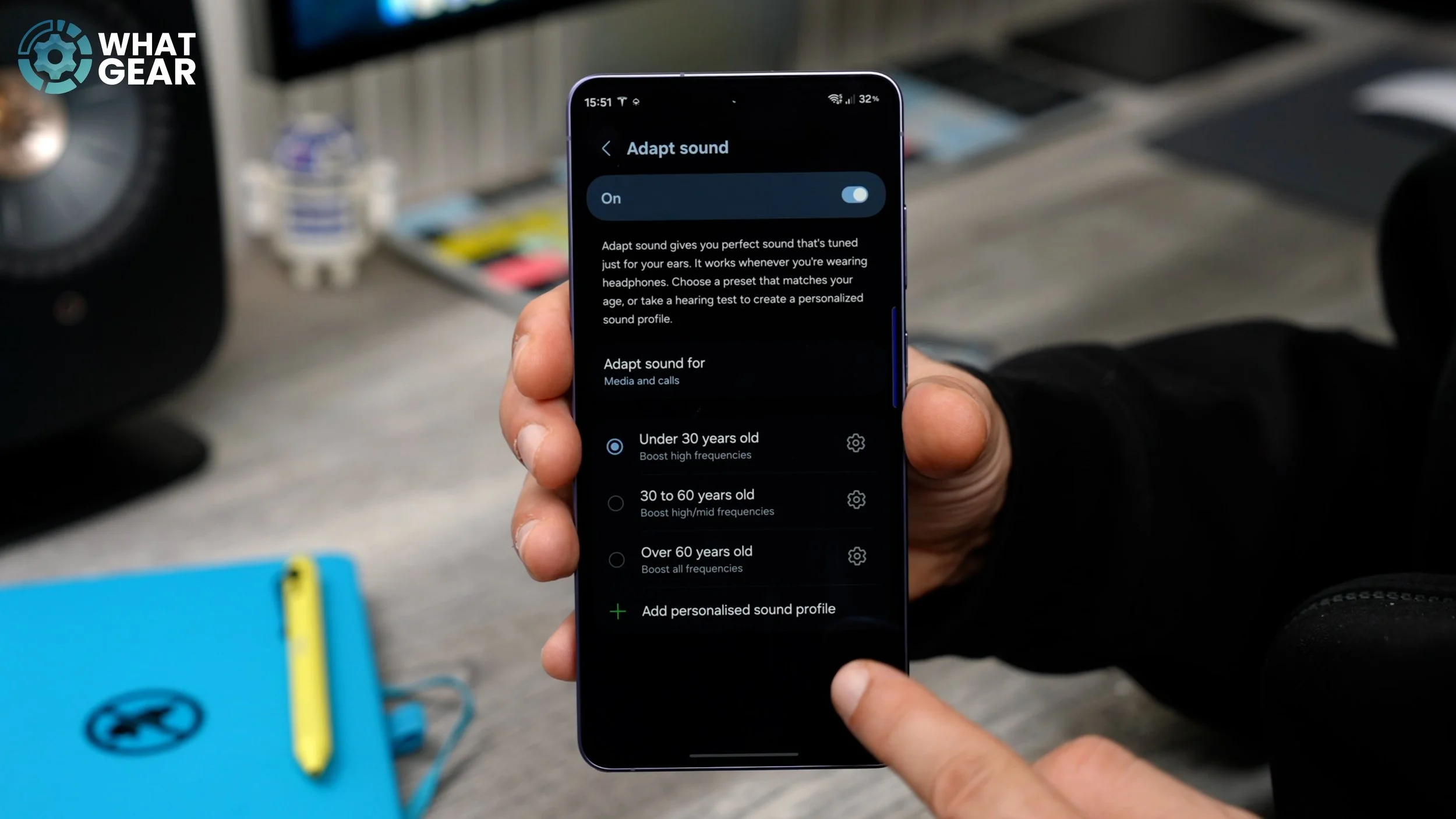
Custom sound profile
Settings → Sound → Adapt Sound
You can:
use presets
or create a personalised hearing profile
This balances audio based on your hearing.
APPROPRIATE NOTIFICATION REACTIONS
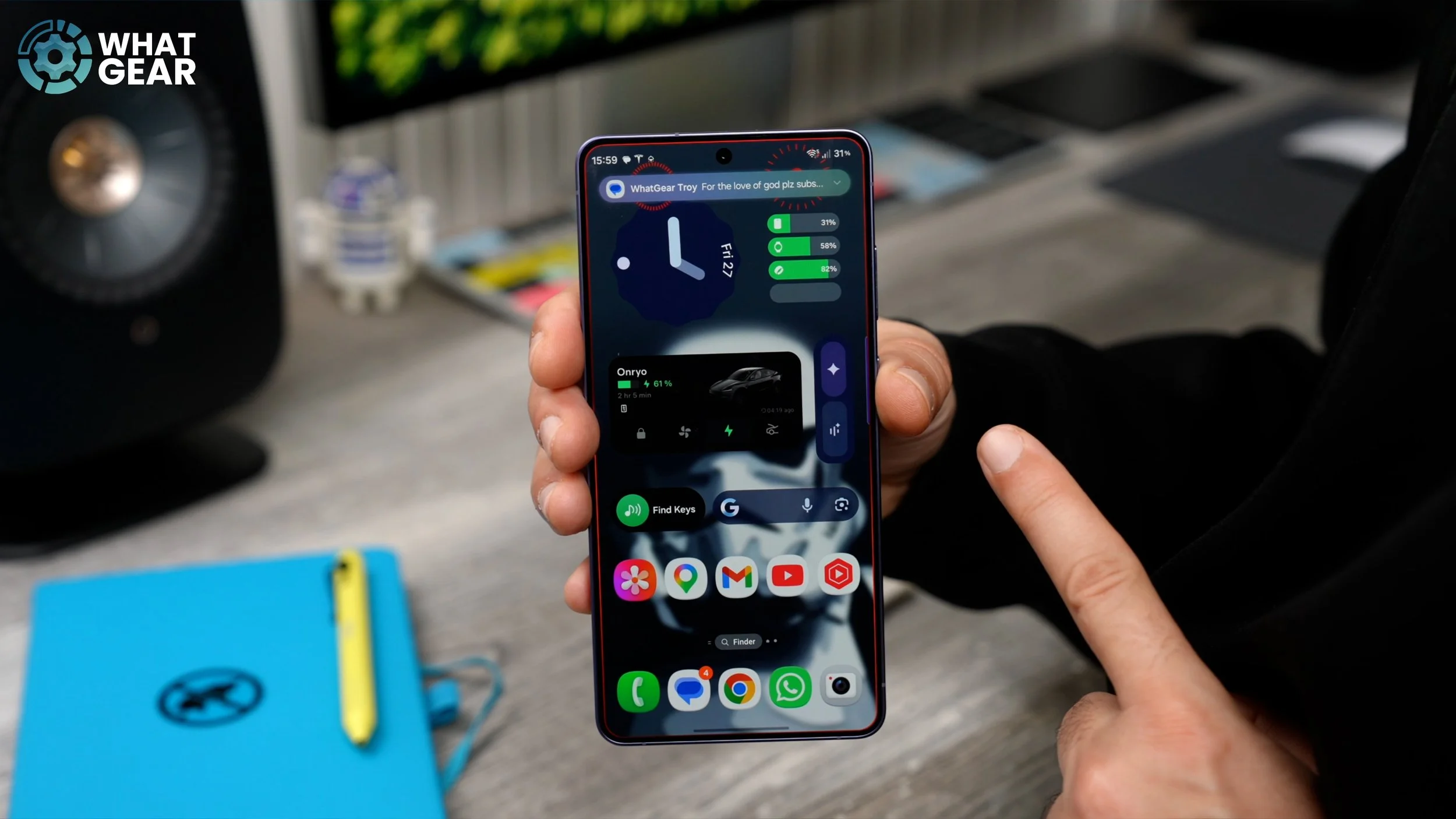
Colour-coded notifications
Settings → Notifications → Edge lighting
Set colours based on keywords or contacts. So you instantly know what’s important without opening your phone.
MIGHTY S PEN SETTINGS
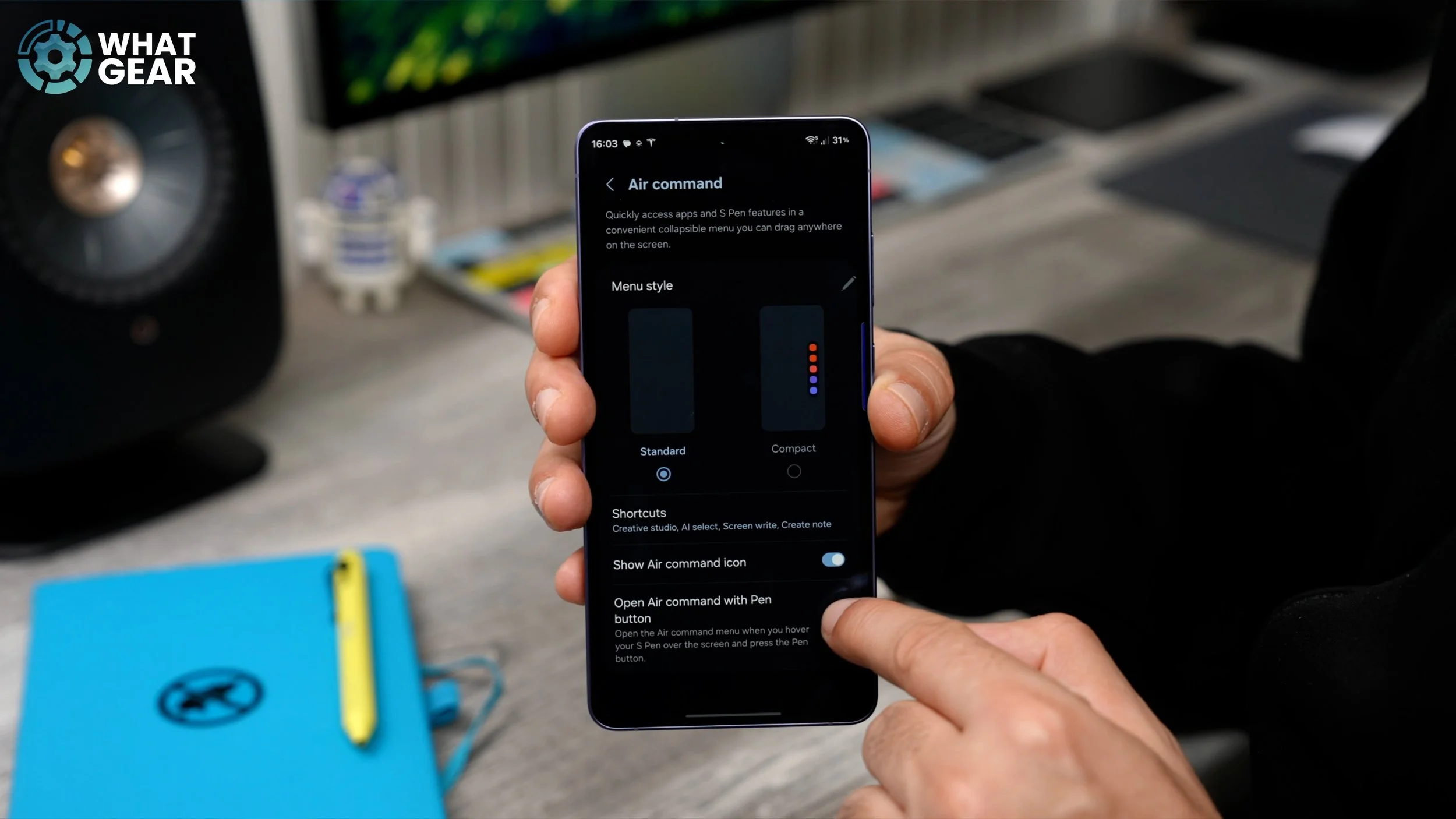
Enable Air Command with the button
Add useful shortcuts (magnify, translate)
Install PenUp for drawing & creativity
PINNED NOTES
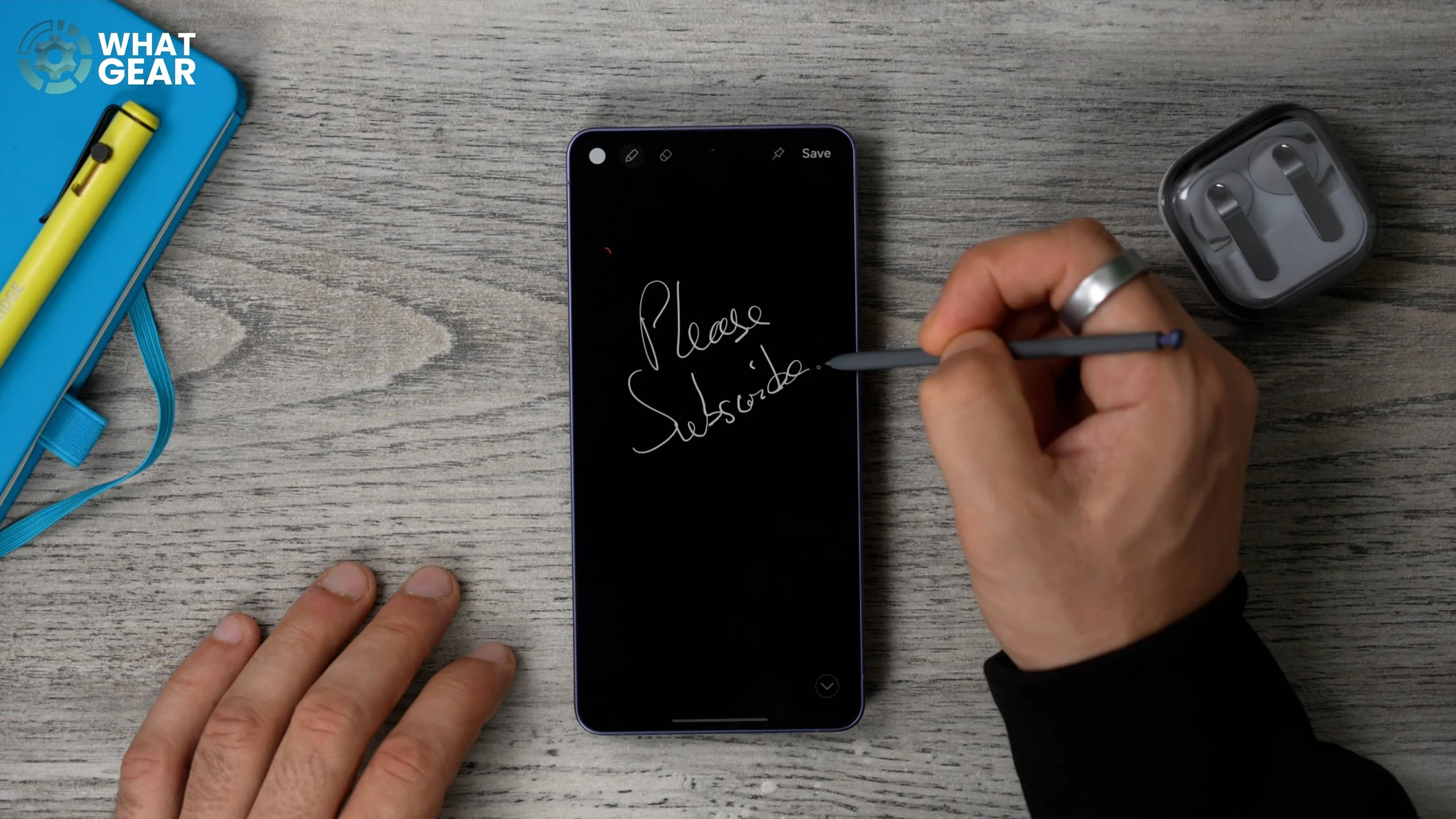
Pull out the S-Pen while the screen is off → write notes instantly
Pin them to your lock screen for quick access
CUSTOM BUTTONS
Create custom buttons using Modes & Routines
You can:
create “quiet mode”
change wallpaper automatically
trigger actions with one tap
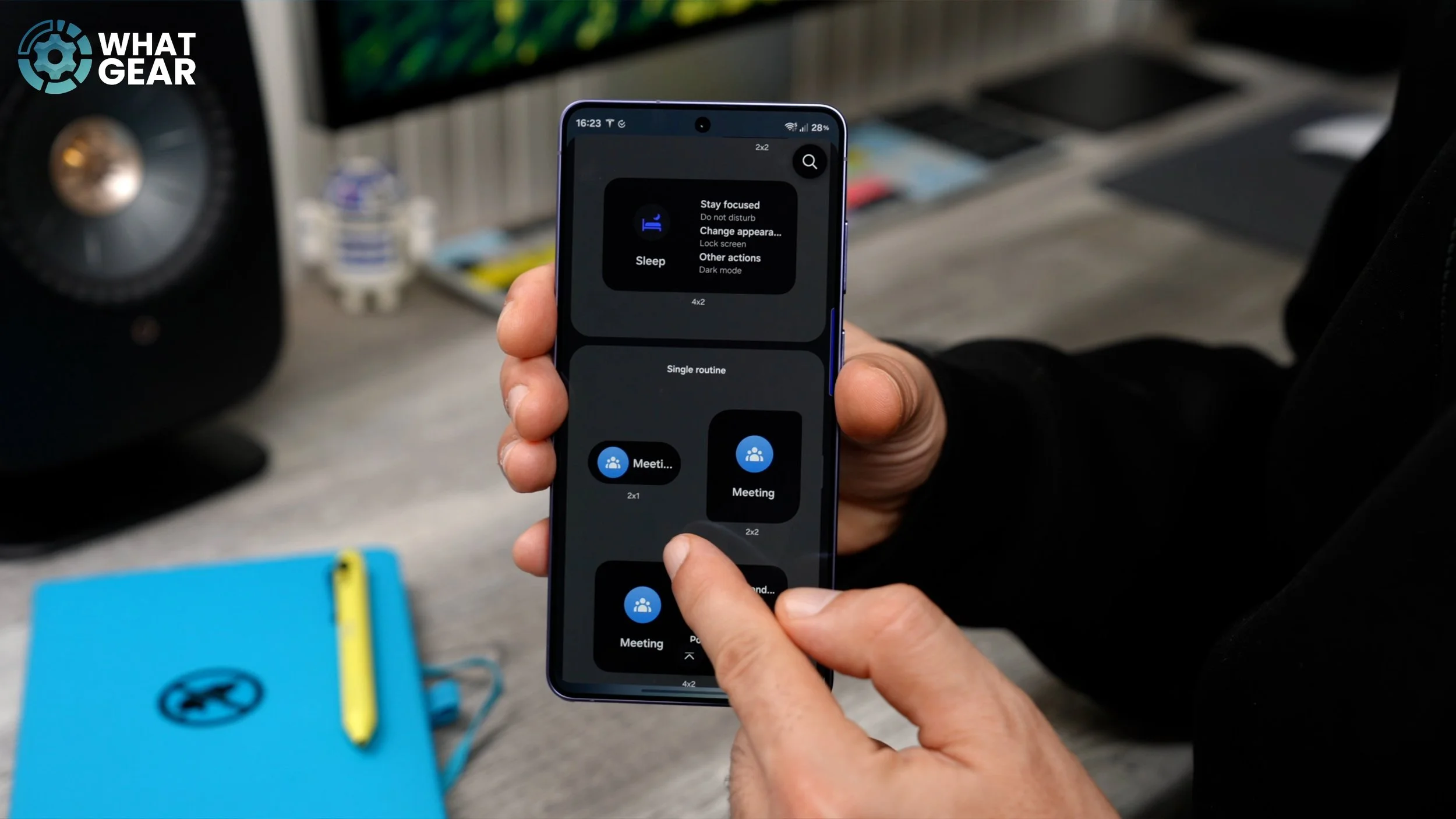
PRO CUSTOM BUTTONS
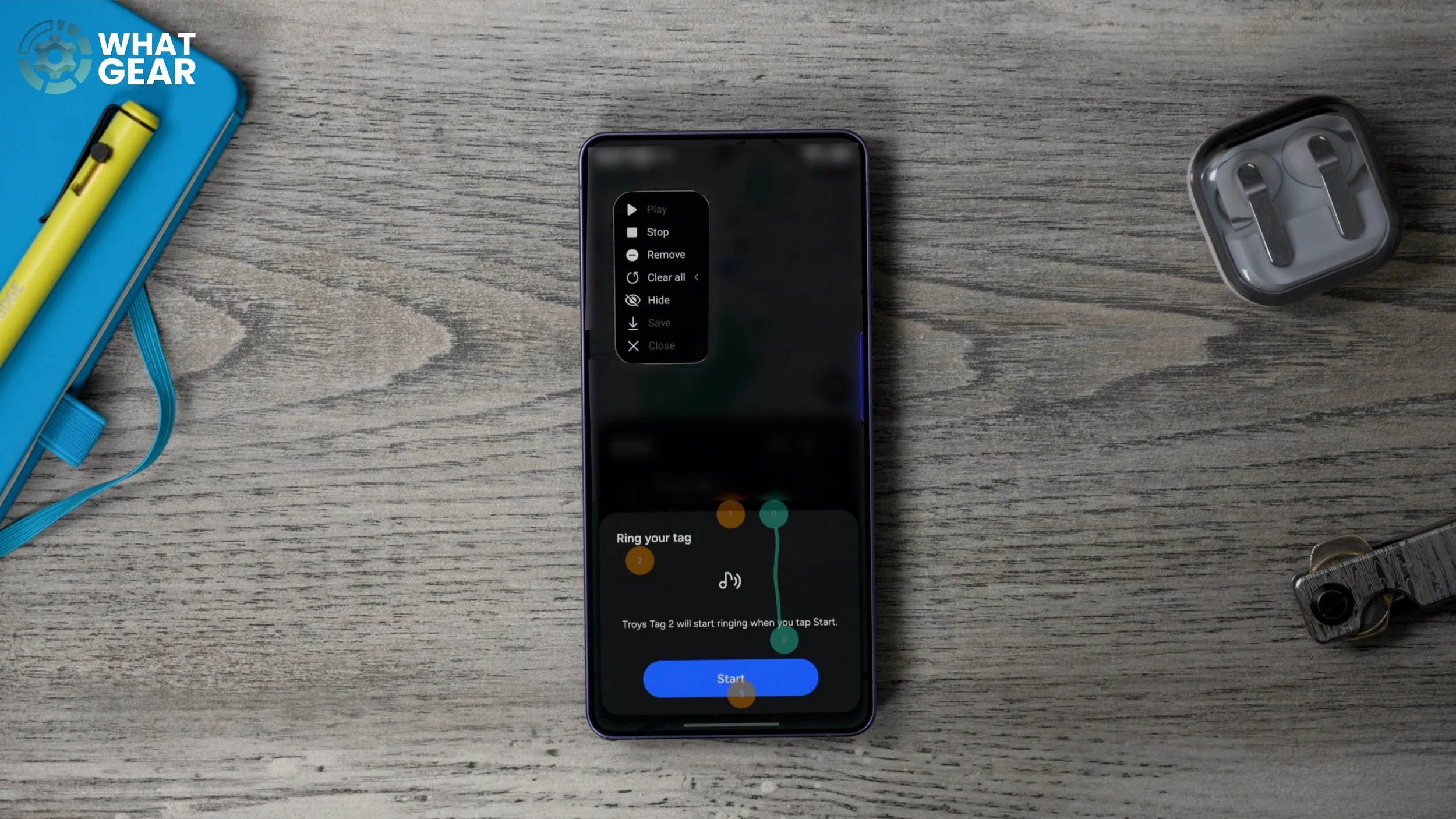
Use Good Lock + Routines+ → Touch Macro
You can automate ANY action
Example:
👉 Press a button → phone rings your SmartTag → find keys instantly
SHARE VIA WIFI
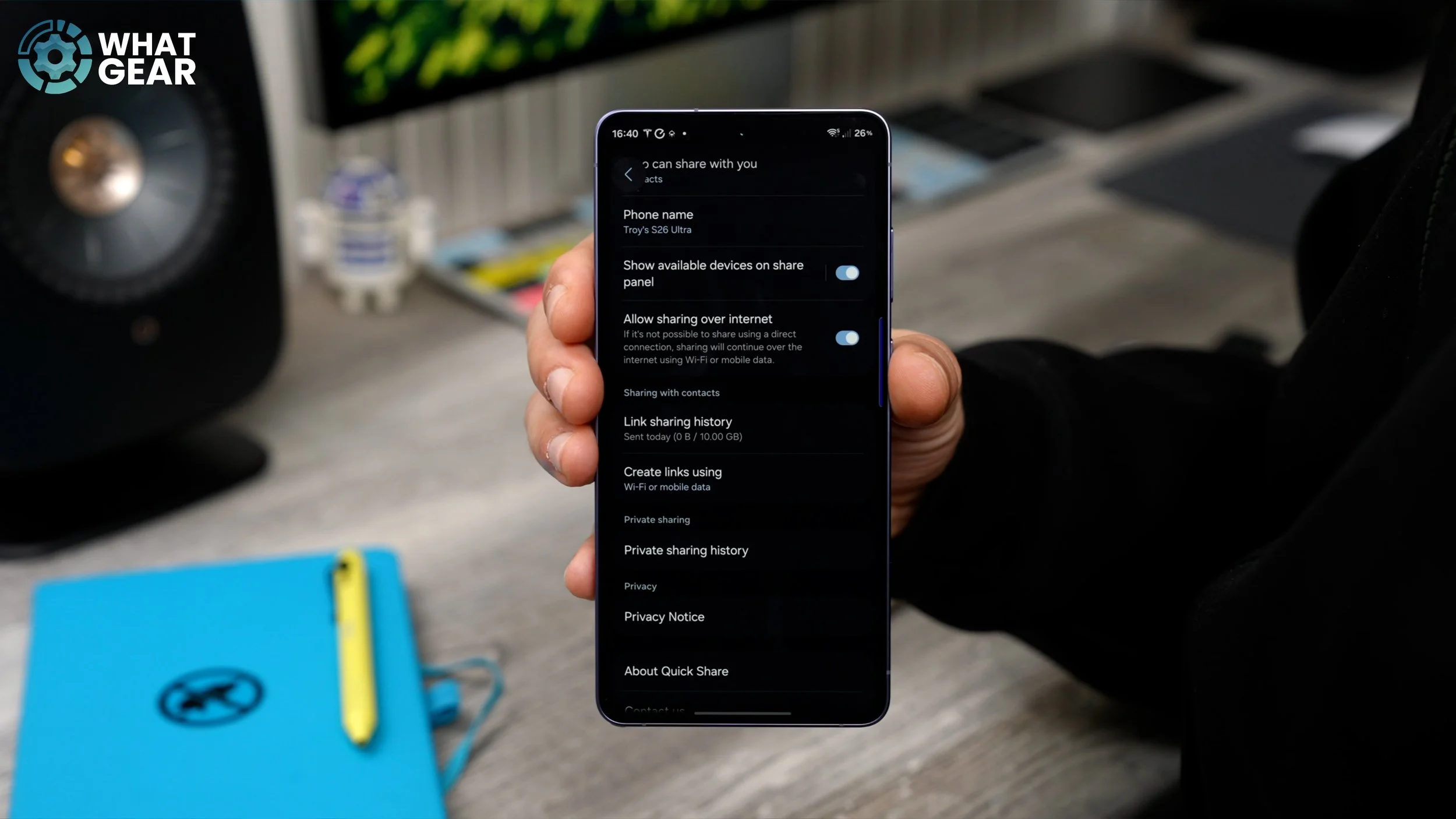
Quick Share over the internet
Enable:
👉 “Share over the internet”
Now you can send files without being nearby
AIR DROP EVERYWHERE
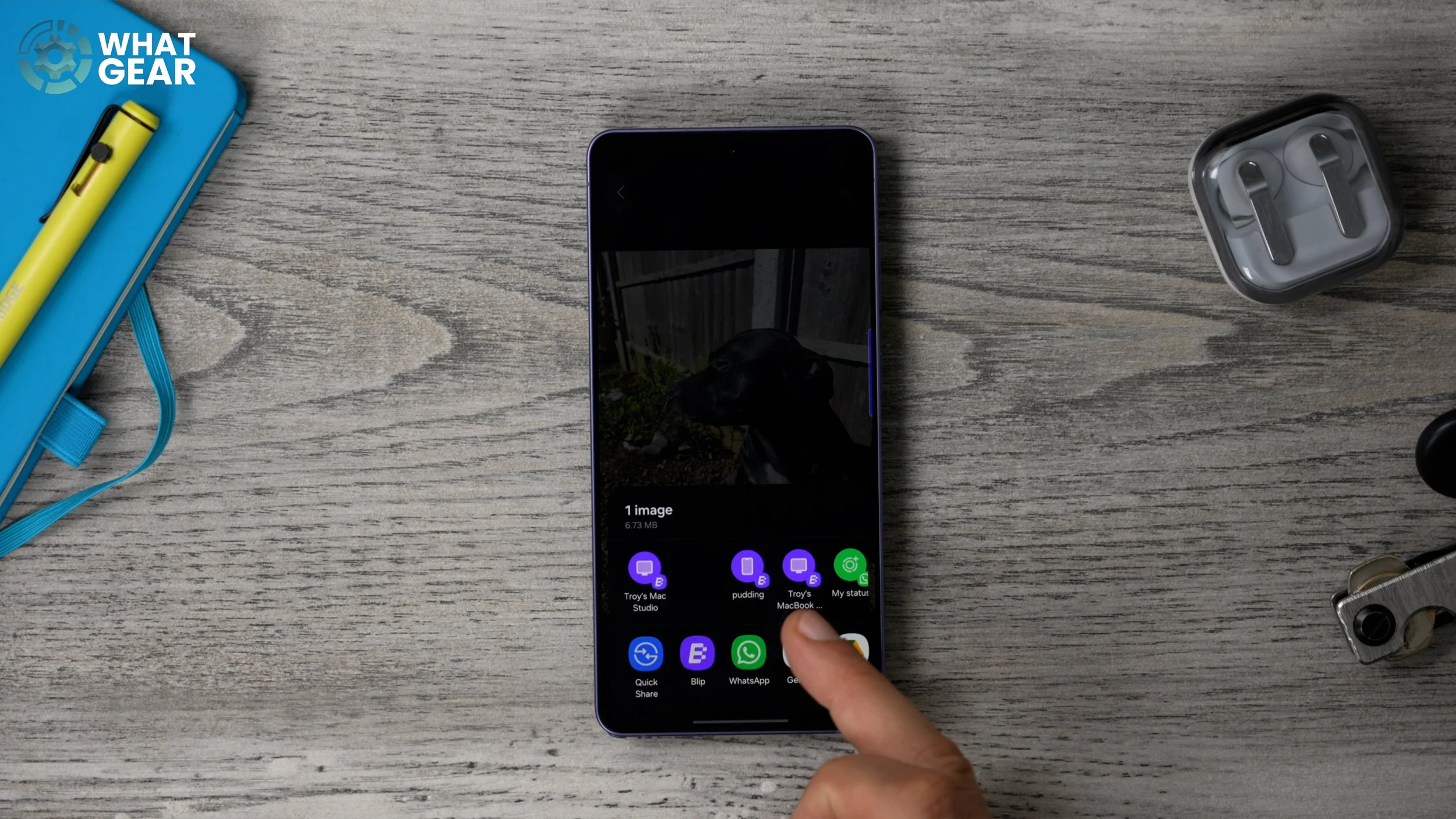
Use the Blip app for cross-platform file sharing
Works between:
Samsung
iPhone
Mac
Windows
Faster than AirDrop for big files