Google Pixel 10 Pro Tips & Tricks - Customisation & Hidden Features Guide ( Part 2 )
So you've got a Google Pixel ten or you're thinking about getting one. Well either way you're in the right place because I'm about to show you how to unlock the full googley ness of your new pixel. if you stick around all the way to the end, you discover a bunch of pixel customization tricks, some of which I'll need the pros now. let's get into this. Starting with the basics.
USEFUL WALLPAPER EFFECT
The first thing you’ll probably want to do with your new phone is customise the wallpaper. Head to Wallpaper & Style → More Wallpapers → Live Effect. Choose an image, add a shape, adjust the contrast or tone, and watch it pop.
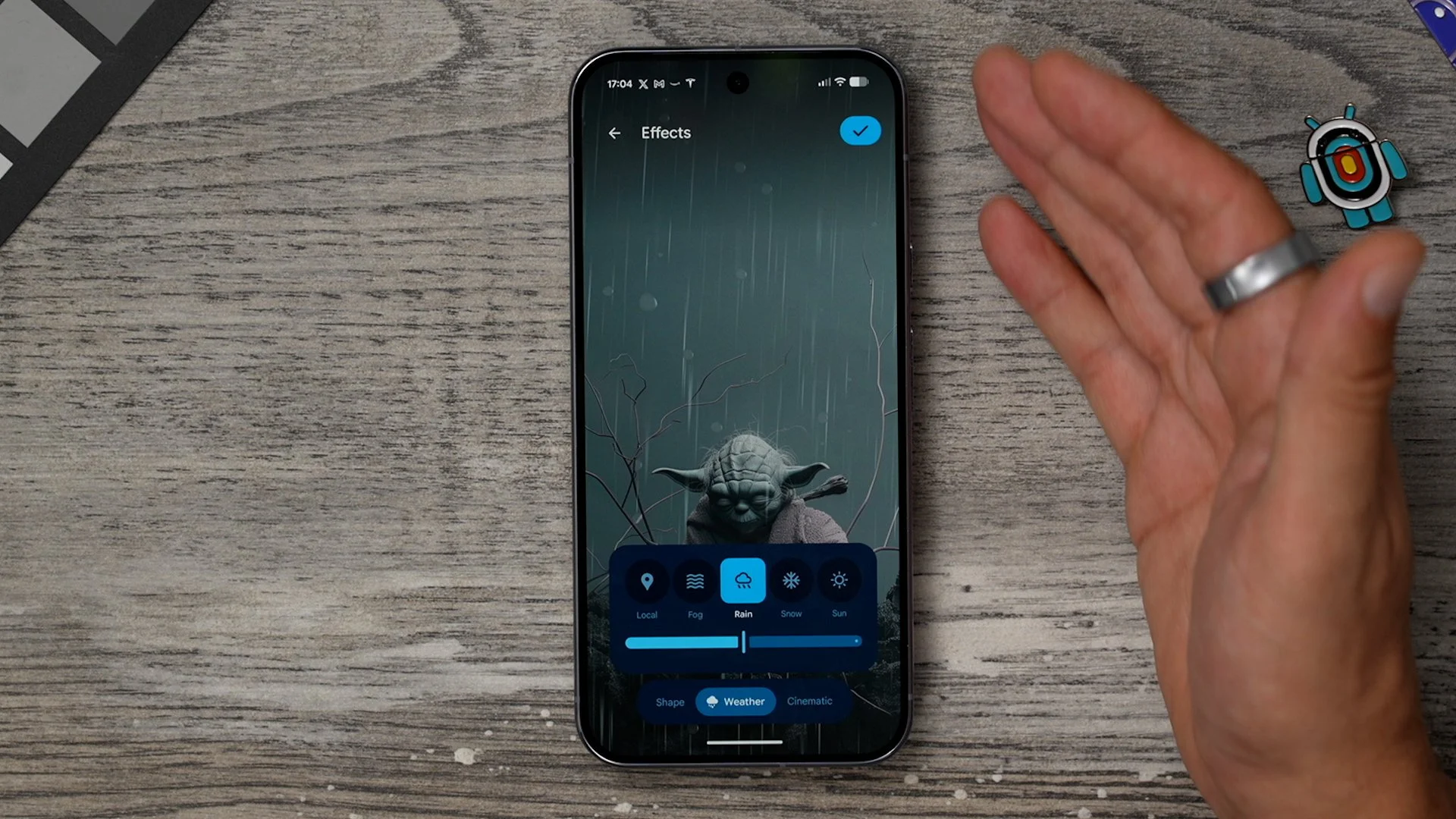
Here’s the cool part: switch to Weather, and your wallpaper will show live weather effects—clouds, rain, fog, or sunshine—based on your location. I’d recommend leaving it on local weather for the most useful and dynamic look.
CREATE A UNIQUE WALLPAPER
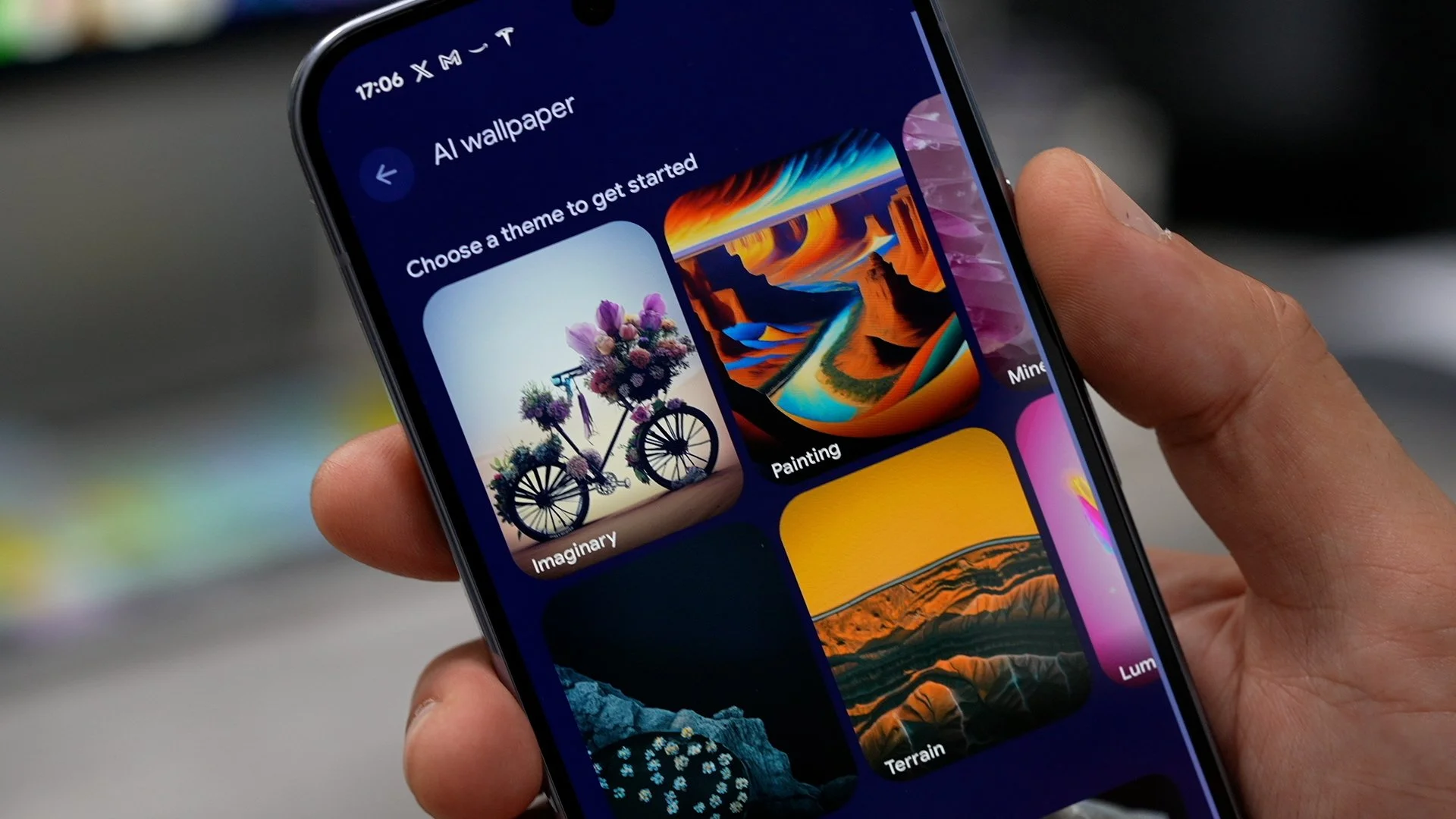
Here’s the second wallpaper trick: AI Wallpapers. Hold your finger on the display → Wallpaper & Style → AI Wallpaper. Type or swap the underlined words (like “bicycle” → “bridge,” or change the color scheme). You can even hit I’m Feeling Lucky for random designs, or browse categories. The best part? Your wallpaper will be completely unique.
WALLPAPER WORKSHOP
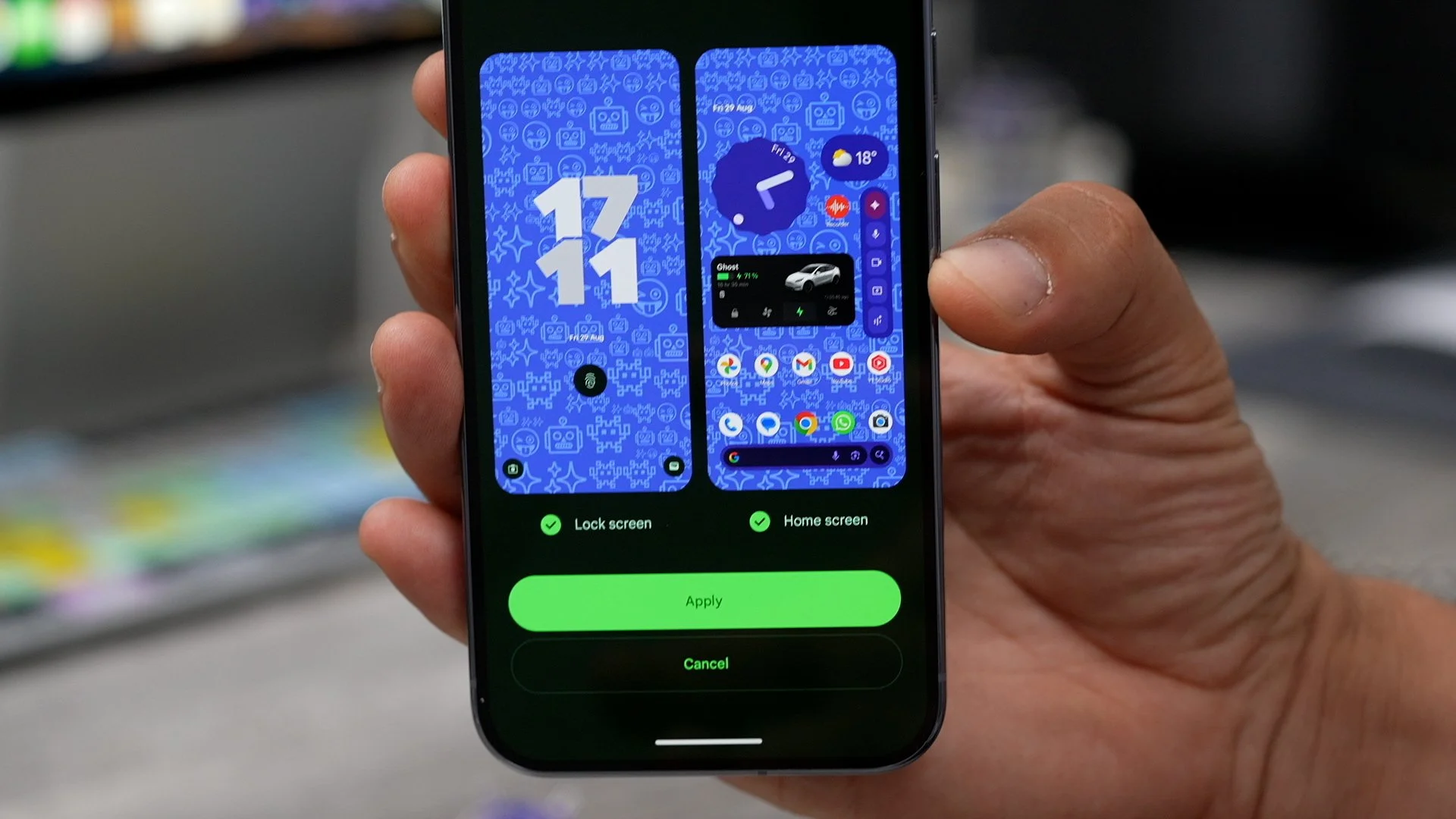
One more wallpaper trick: Emoji Workshop. Go to Wallpaper & Style → More Wallpapers → Emoji Workshop. Pick your favourite emojis, choose a pattern, size, and colour palette, then set it as your lock or home screen. The coolest part? The emojis shift and move as you use your phone—like a living canvas.
SHORTCUTS ON LOCK
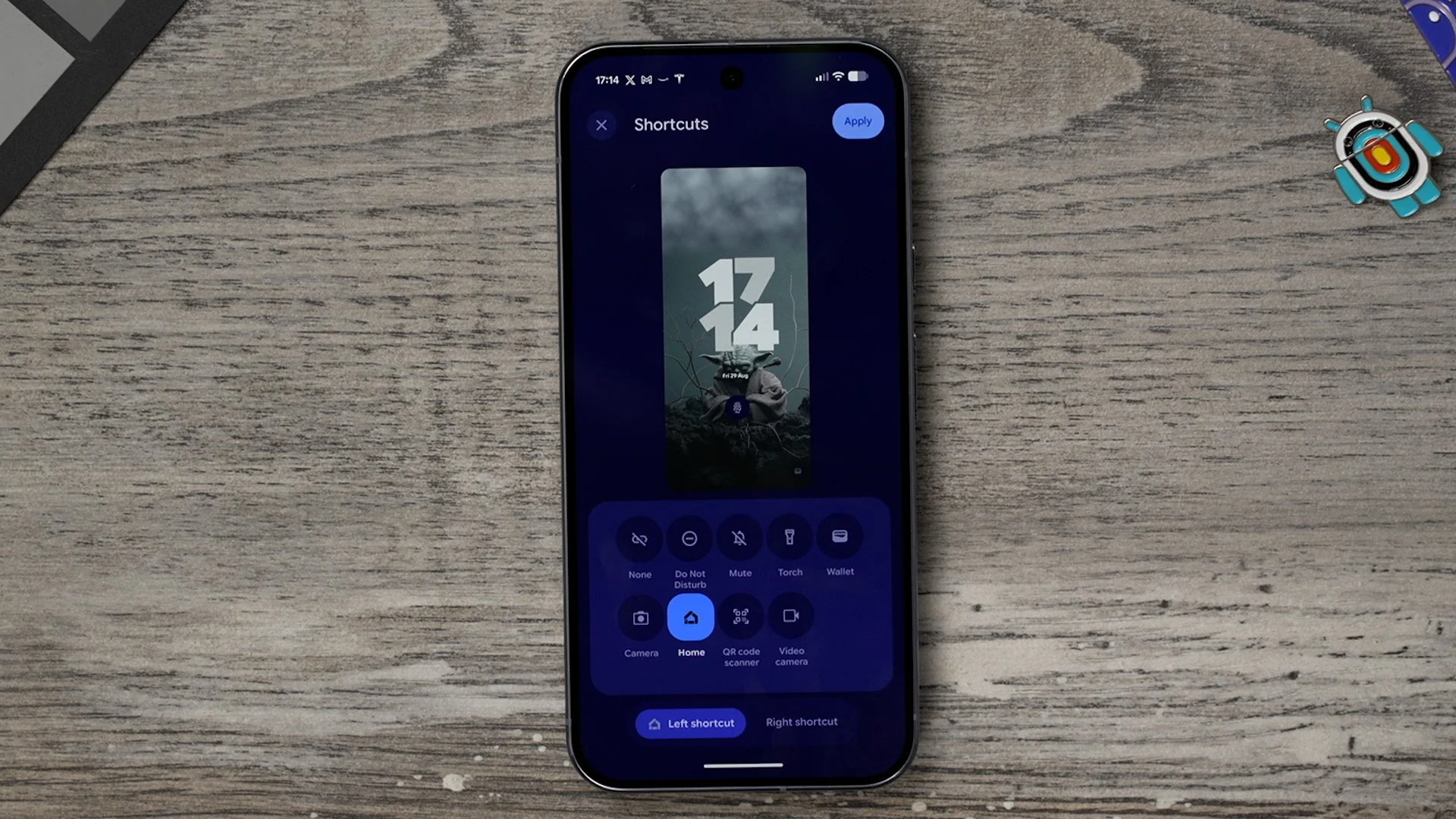
Another day-one tweak: hold your finger on the home screen → Wallpaper & Style → swipe to the lock screen. Swipe up to see clock, shortcuts, and notification options. By default, the left shortcut is Google Home—great only if you use smart devices. Swap it for something more useful, like Torch or Do Not Disturb. On the right, I set mine to Wallet, but you can pick whatever fits your daily use.
LOCKSCREEN CLOCK
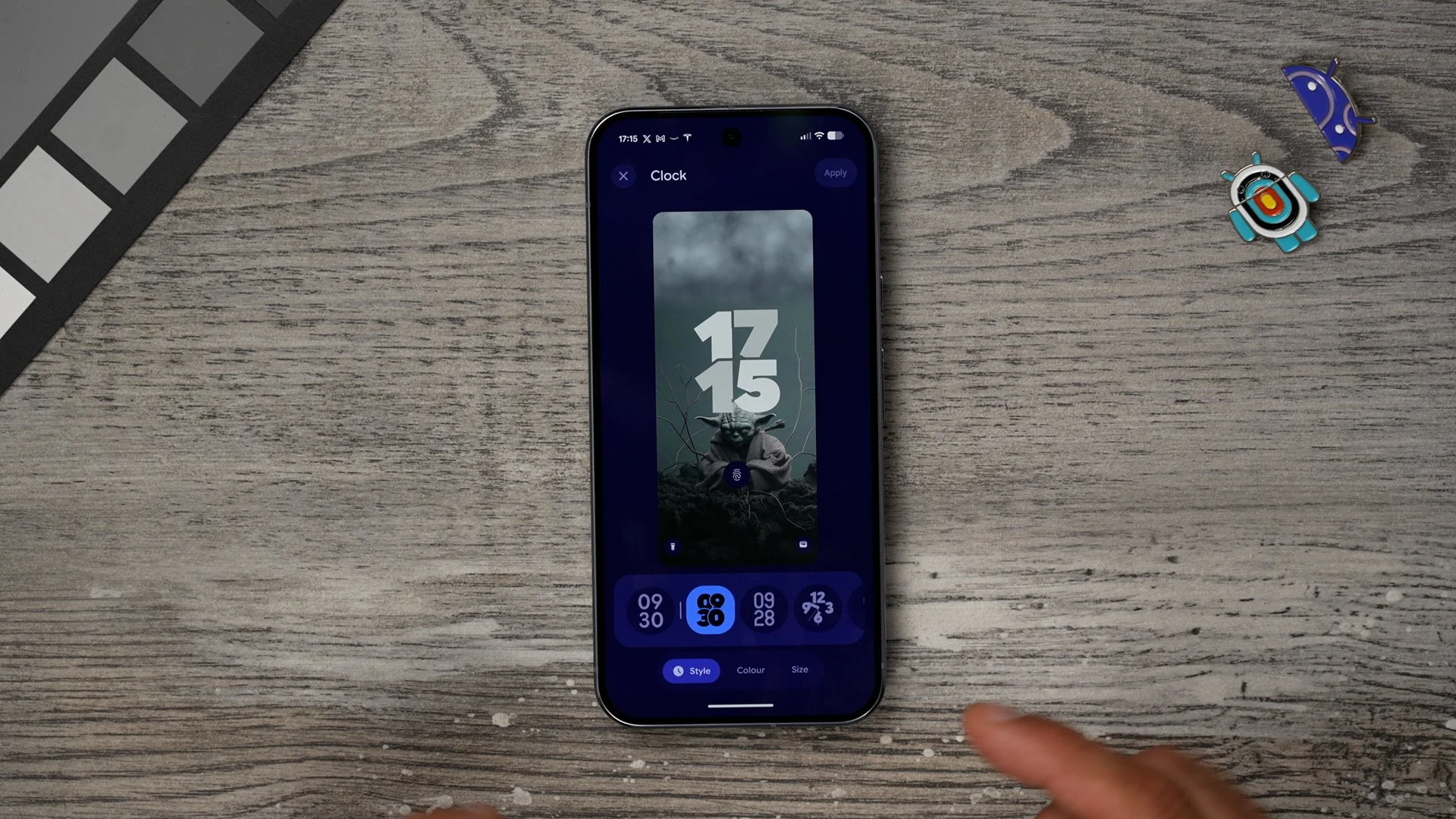
The next thing you probably want to do is change the lock screen clock. So if you go to the clock section, you'll see the options that you have. Some of them are a bit crazy. And you can actually customise these a little bit. You can change the colour to contrast nicely with your wallpaper. And you can adjust the size as well. There are only two sizes: large and small. So choose whatever works best for you. And actually, there is a little hidden setting that can improve the clock on the phone. We'll come back to that.
SEND THEM A MESSAGE
So stay within the wallpaper and style settings. This time we're going to go to the more lock screen settings. This is actually kind of a safety measure that you should put in place. I'm just throwing this one in here because it's to do with the lock screen. So within these settings right here, you'll see this. Add text to the lock screen. So this text will be visible to anyone who looks at your phone, even if it's locked. The best use case for this is to add some information that if one day you do lose your phone, the person who found your phone could actually contact you, if you're lucky, and they are a good person.

MAKE USE OF THE SPACE
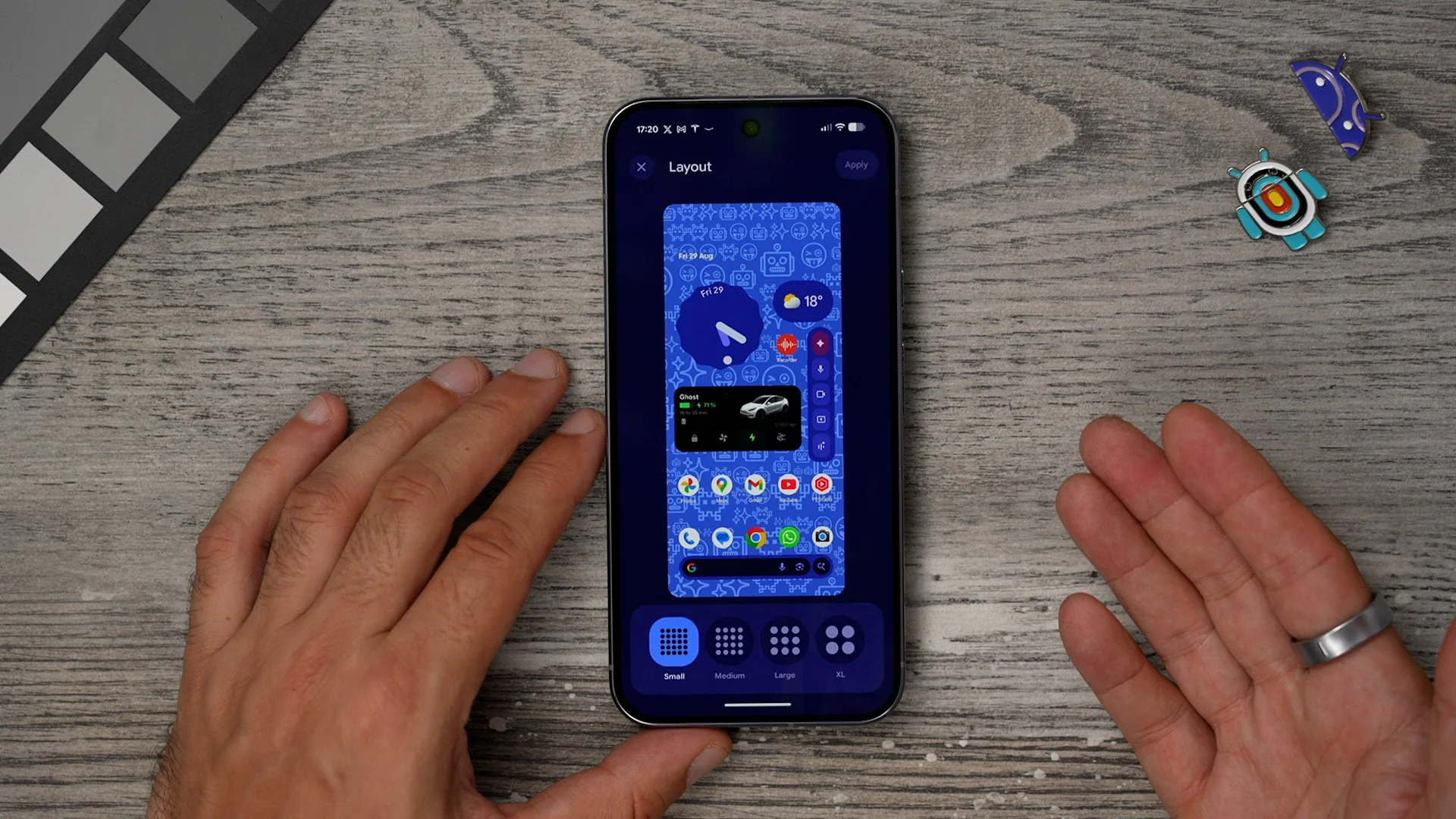
You might notice my phone shows five icons per row instead of the default four. The option to change this is a bit hidden. To do it, long-press on an empty part of the home screen → Wallpaper & Style → swipe up from the bottom to find Layout. Unlike most Android phones, it’s not called “Grid,” and you only get four options. Medium is the default (3 icons per row), XL is oversized, but I prefer Small—it lets me fit more icons and widgets on each screen.
CUSTOM COLOUR ICONS
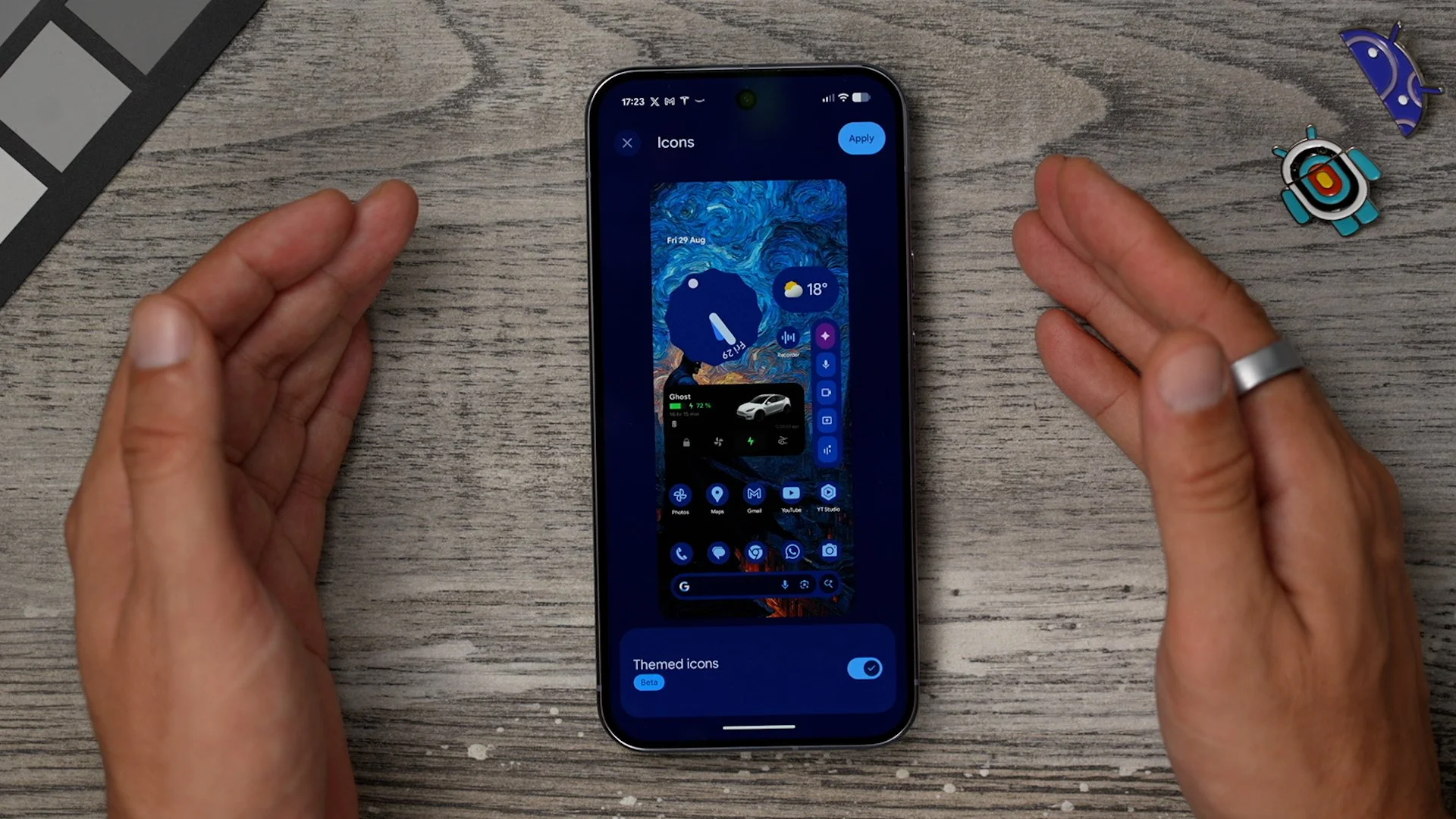
Most apps are designed to grab your attention—that’s why I keep all my social media tucked away on the third page in a folder to avoid doom scrolling. But there’s another trick. Go to Wallpaper & Style with the home screen selected, swipe up, and open the Icons section. Here you can enable the Themed Icons (beta) feature. This applies your system colour theme to many app icons—including social media—making them much less distracting. It won’t work on every app, but it definitely helps keep your home screen calmer.
ICONS
If you’re wondering how I got this blue and purple theme on my phone, here’s how. Go to Wallpaper & Style and scroll up to the Colour section. This adjusts the system colours based on your wallpaper. You’ll see multiple palettes to choose from—pick one that matches your style. If none of the presets work, go to Other colours for more options, including darker tones, solids, and two-tone schemes.
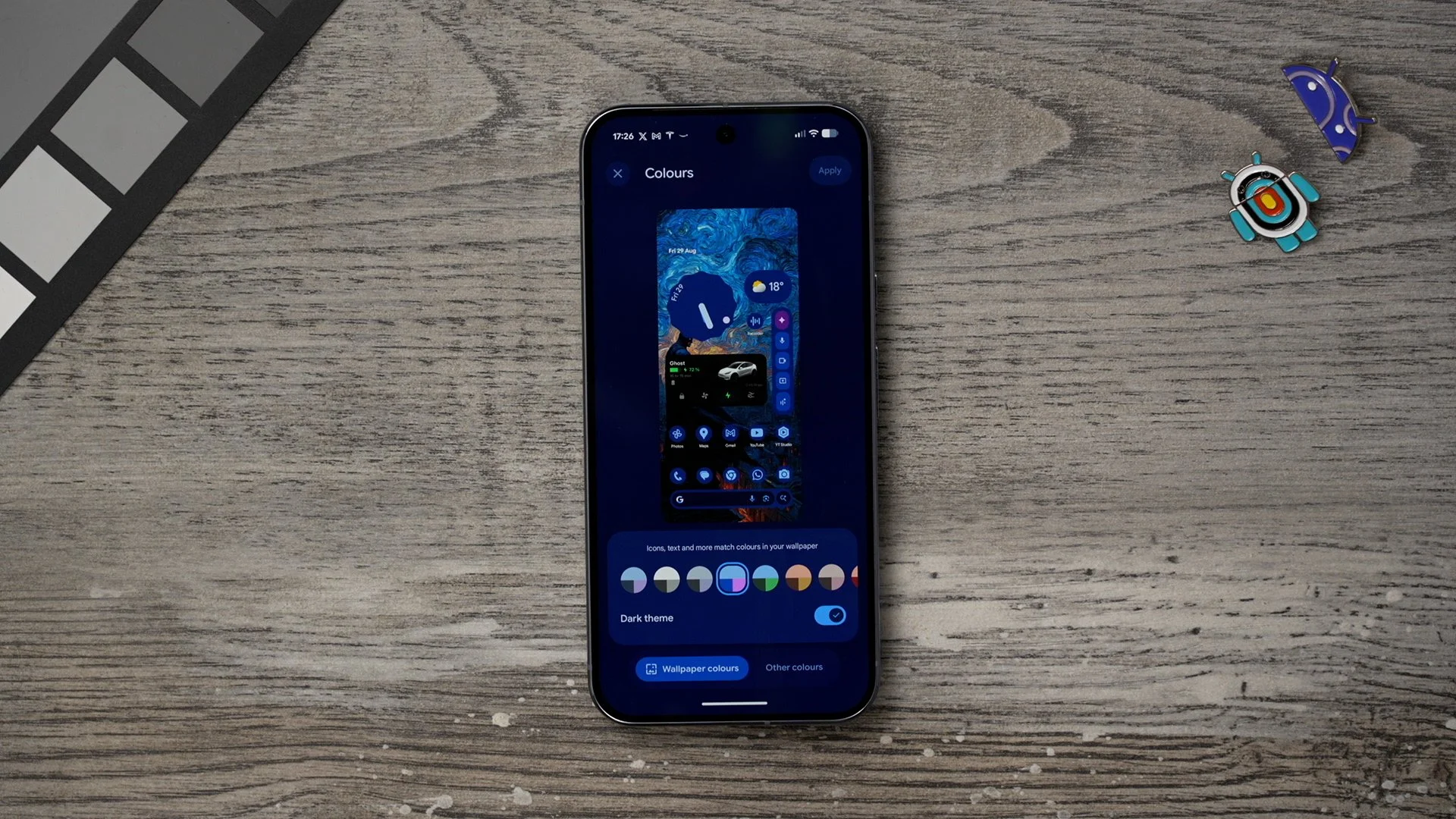
THE PERCENTAGE
For some of you guys, when you see this little battery icon up here right now, you might think it's half full or maybe half empty, and there'll be some of you that want to know exactly what's going on with the battery. So, within your settings menu, scroll down to battery. At the bottom here, you will see the battery percentage. This will add the exact amount of battery percentage to the battery life bar at the top.

And whilst we're here, here's a little bonus tip if you do find yourself far, far away from your phone charger or a power bank, and you're running out of juice real quick, you can do is go to the battery saver and enable the Extreme Battery Saver. And you can even customise how extreme this battery saver is.
ALWAYS ON OPTIONS
Here's a feature to switch off by default that I think a lot of you guys will want to switch on on day one, but you might struggle to find it. Jump into the settings on the phone. Scroll down to display and touch. And enable the Always on Display. Now, if you tap on this.
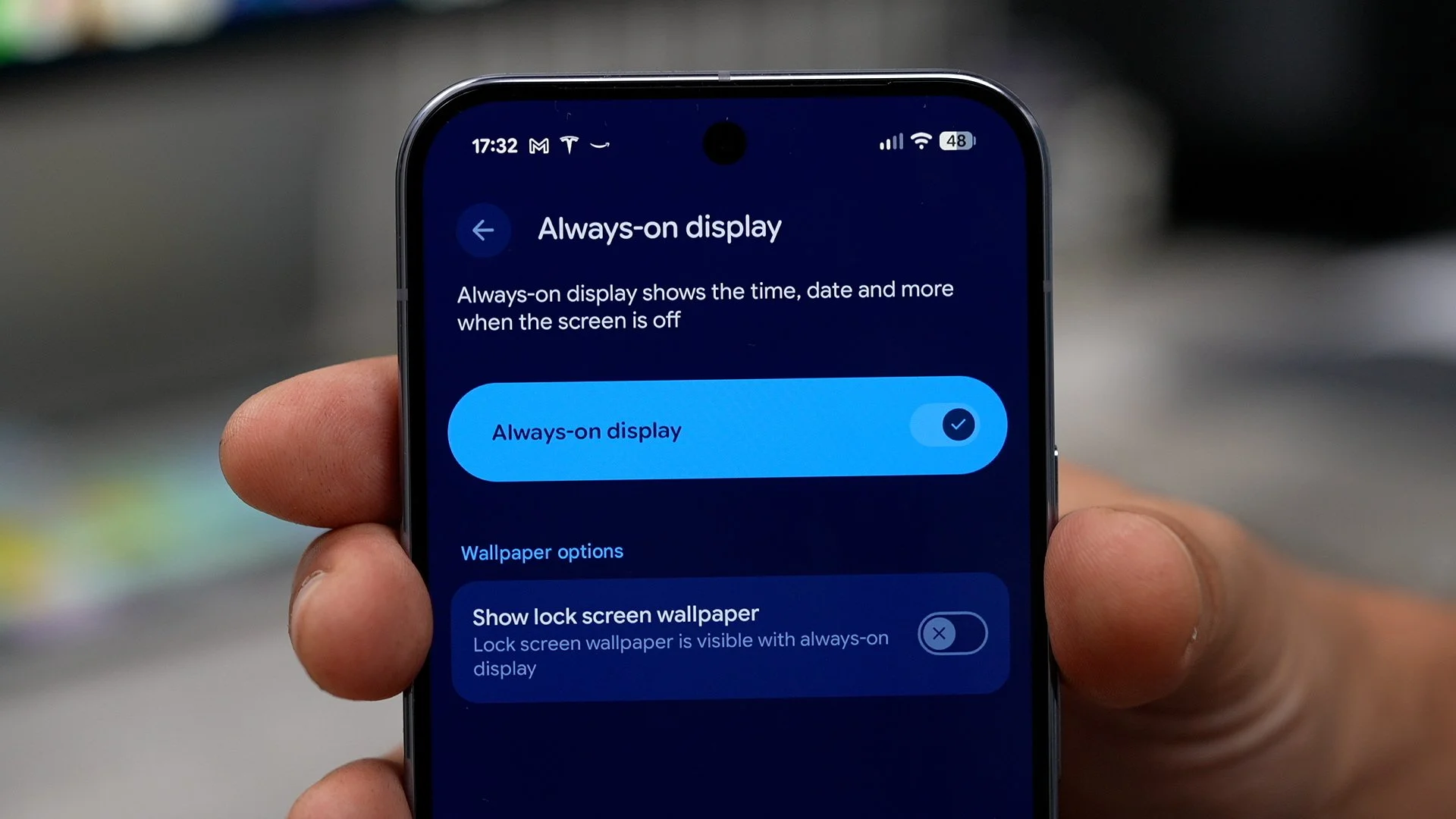
If you want your wallpaper to show faintly on the always-on display, then make sure you enable this. And if you don't, you'll just have the black screen with the clock. So this is how the always-on display looks. Now, with the Yoda image kind of blurred out in the background.
DYNAMIC CLOCK
Now, remember earlier I was talking about how you can customise the clock a bit more. There's a kind of hidden setting here, and it's a feature that I think Google need to work on a bit more, but it is available and you might as well test it out. Go into your settings - Go to display and touch. Tap on the lock screen, and here you will see the Dynamic Clock option.
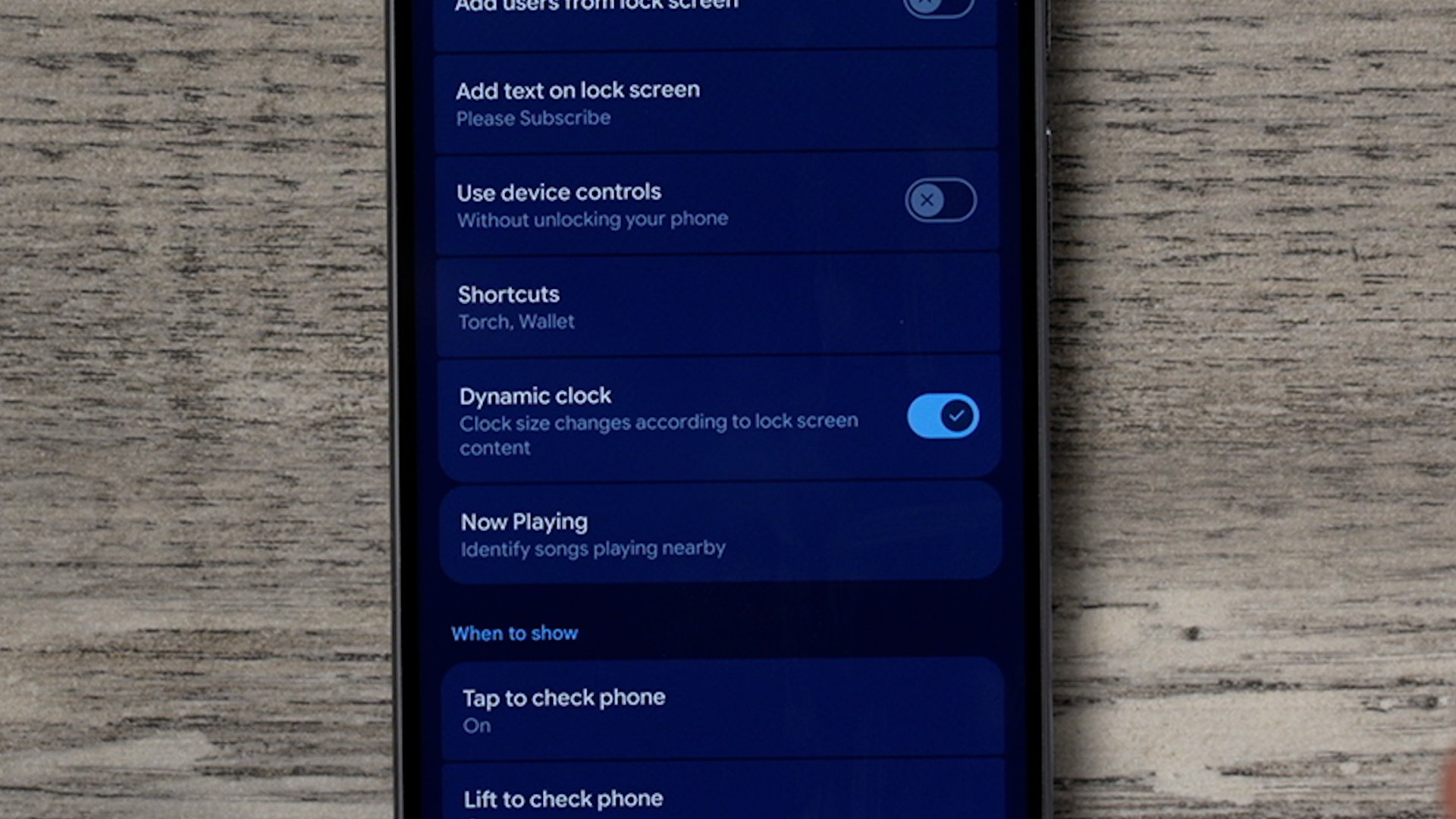
Now this apparently is supposed to adjust the clock size based on what's on the screen. So my understanding of this is that it should adapt the clock to the wallpaper or whatever's on screen with the clock. It is a feature at. But at this point in time I haven't seen it work very effectively. So do let me know if you get this from working.
BEDSIDE CLOCK
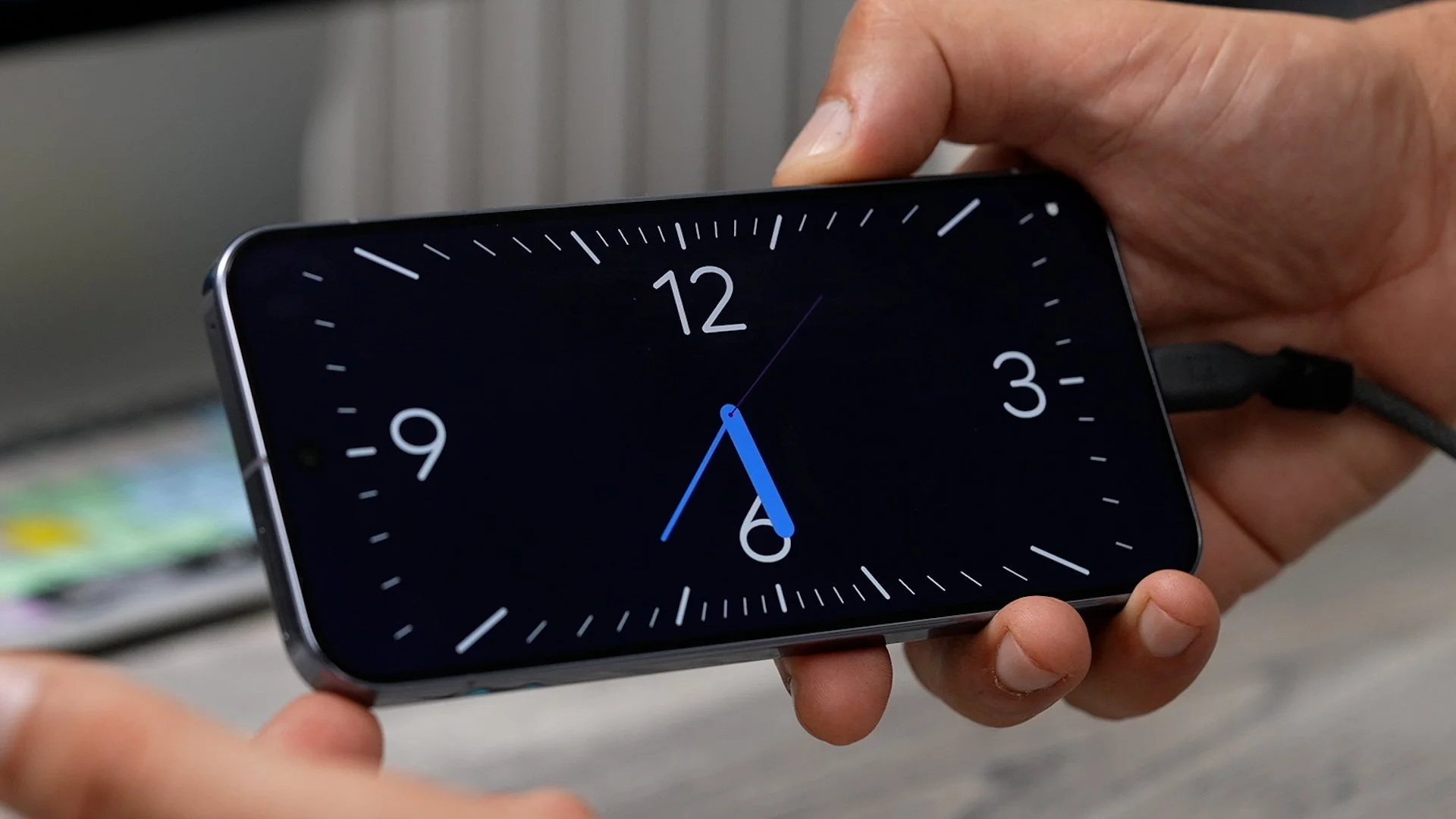
In Settings > Display & Touch, scroll down to Screen Saver. By default, it’s just a basic clock, but you can customise it with different clock styles, themes, or even Google Photos. You can also add Pixel weather, Google Home controls, or fun designs like the pilot boat clock. If you’re charging overnight, switch on low-light mode so it’s easier on the eyes.
WEATHER APP CUSTOMIZATION
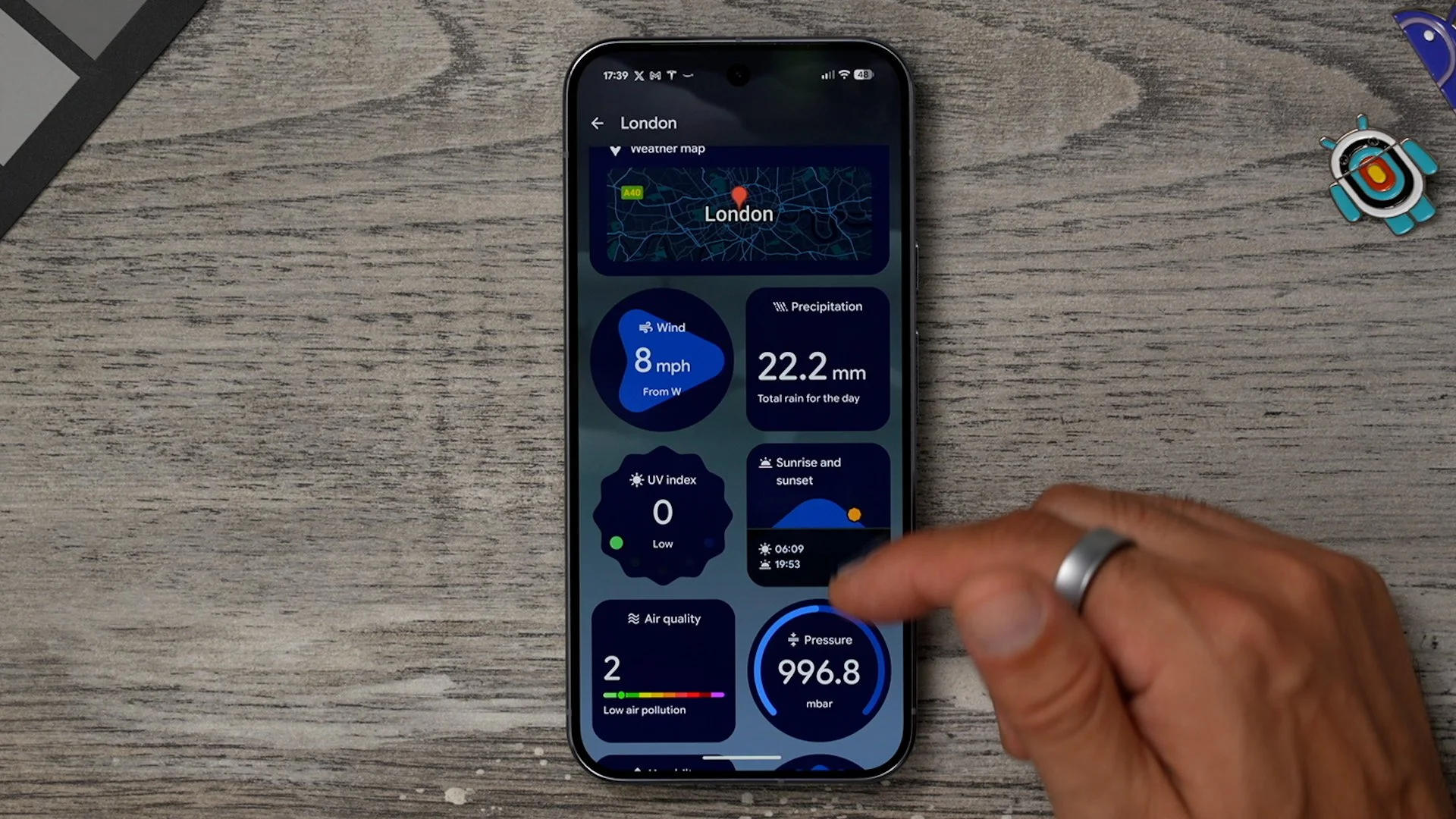
The Pixel has one of the best weather apps around, and you can access it with the Pixel weather widget. Just long-press an empty space on your home screen, go to Widgets, and add it. The widget also acts as a shortcut to the full app, where you can customise the layout. For example, you can move the air quality index or pollen count to the top so the most important info is always visible. And at the top, you’ll find the daily weather report, which gives a quick summary of the day—super handy.
KNOW YOUR SOUND
All right. So you've probably heard it a couple of times in this video and maybe in part one of this three-part series. The notification sound that I've got the amount of events that I've been to, where everyone's got the same device, and the notification goes off, and then everybody looks at their phone. Yeah, it's kind of hilarious. And it's because they don't do this. Go into the settings, go to Sound and Vibration. Scroll down to the notification alert. And here you'll find some really nice notifications that are native to the pixel.
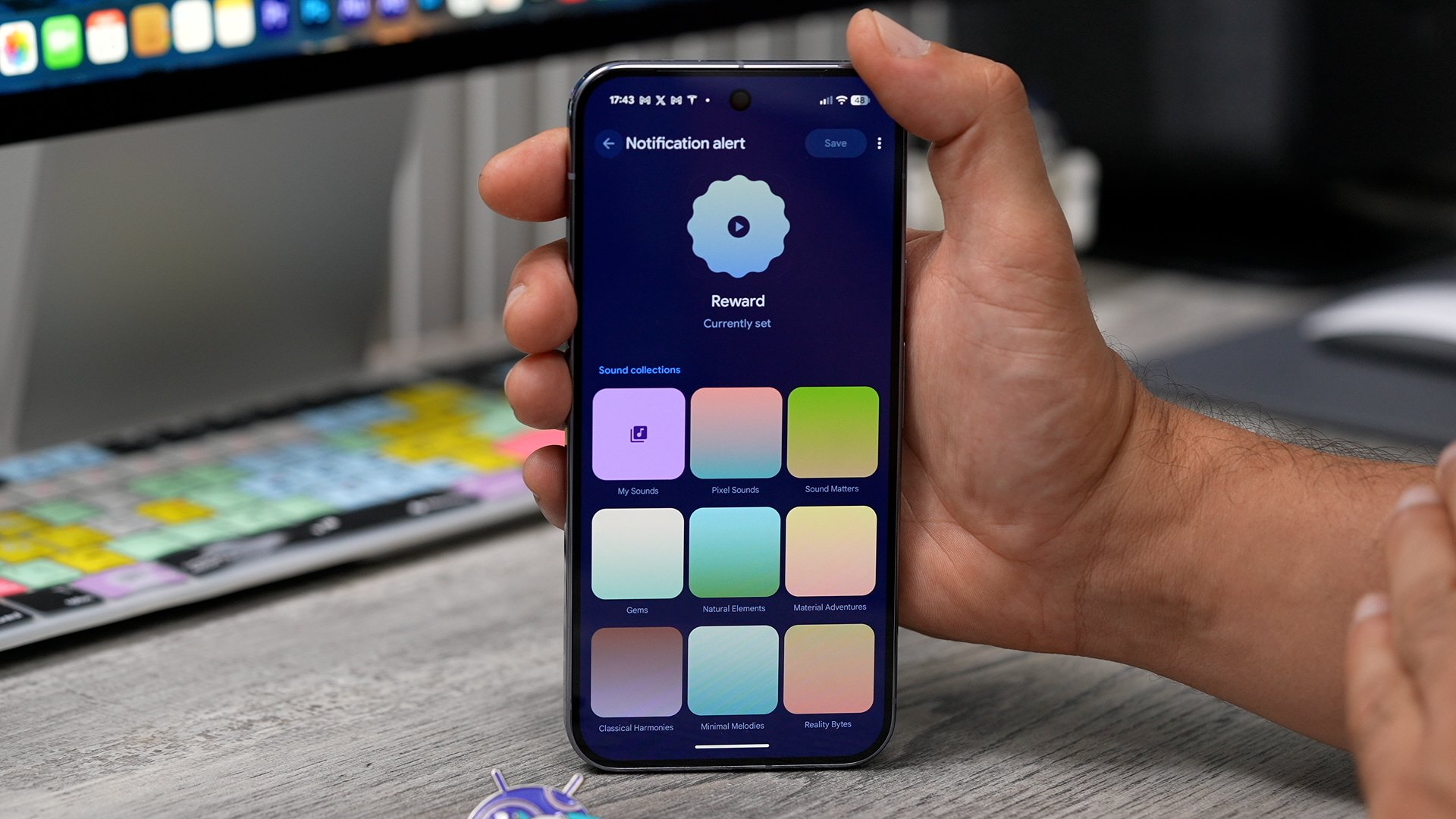
So I do recommend spending a bit of time going through these and listening to them. Finding one that will capture your attention. Don't worry about what everyone else is doing. If you want the same sound that I use, it is within the retro race and is called the reward. And if you really want to use something custom, you can go to my sounds. If you have audio in your device, like an audio track or something, you could use that.
A USEFUL WIDGET
All right. Here is a nice customisation feature. And the great thing about this one is, even if you don't have official Google Pixel Buds or the Pixel Watch and things like that, you can still use this. So these earbuds are linked up to this phone. And the case also has its own battery life. And one of the cool things you can do with this phone is hold your finger down on the home screen, go to widgets and go to the battery widget right here and add this to one of your home screens.
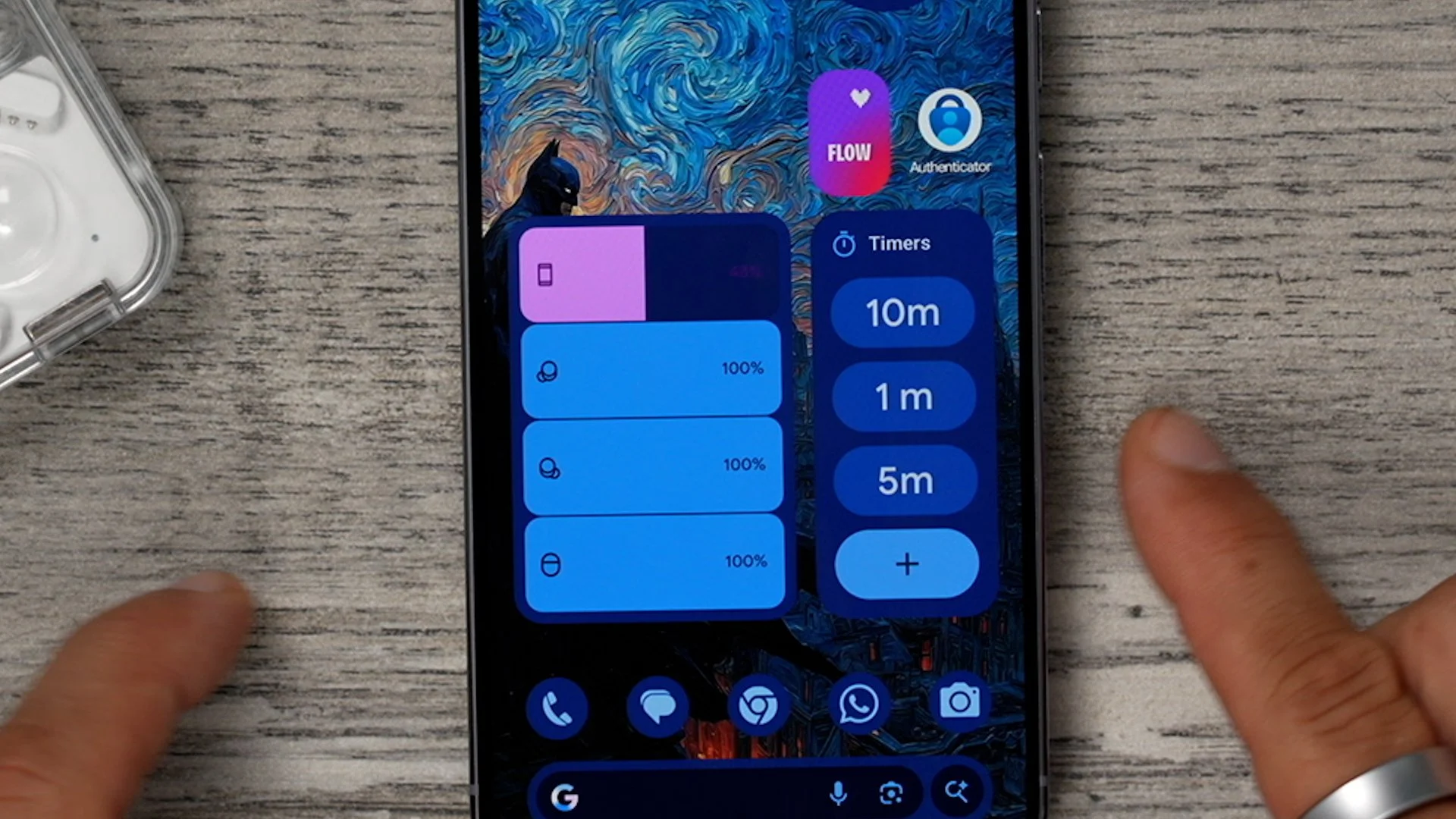
You can also resize this so it fits nicely. And you'll notice not only have I got the phone battery at the top, I've also got the left and right ear buds and the earbud case. Even though these are not Pixel Buds. This will also work for smartwatches and things like that. So it's actually a really nice widget to have on this phone. When you're disconnected. It will just show the battery on the phone itself.
KNOW YOUR NAME
Here's a really well-hidden trick on this phone. So if you jump into the Google app, one way you can do it is by hitting the Google icon down here. Another way would be to actually go to the app and the app drawer and tap on it. Hit your little icon in the top right corner. These are the settings for your Google search bar, also, Gemini and the Google Assistant.
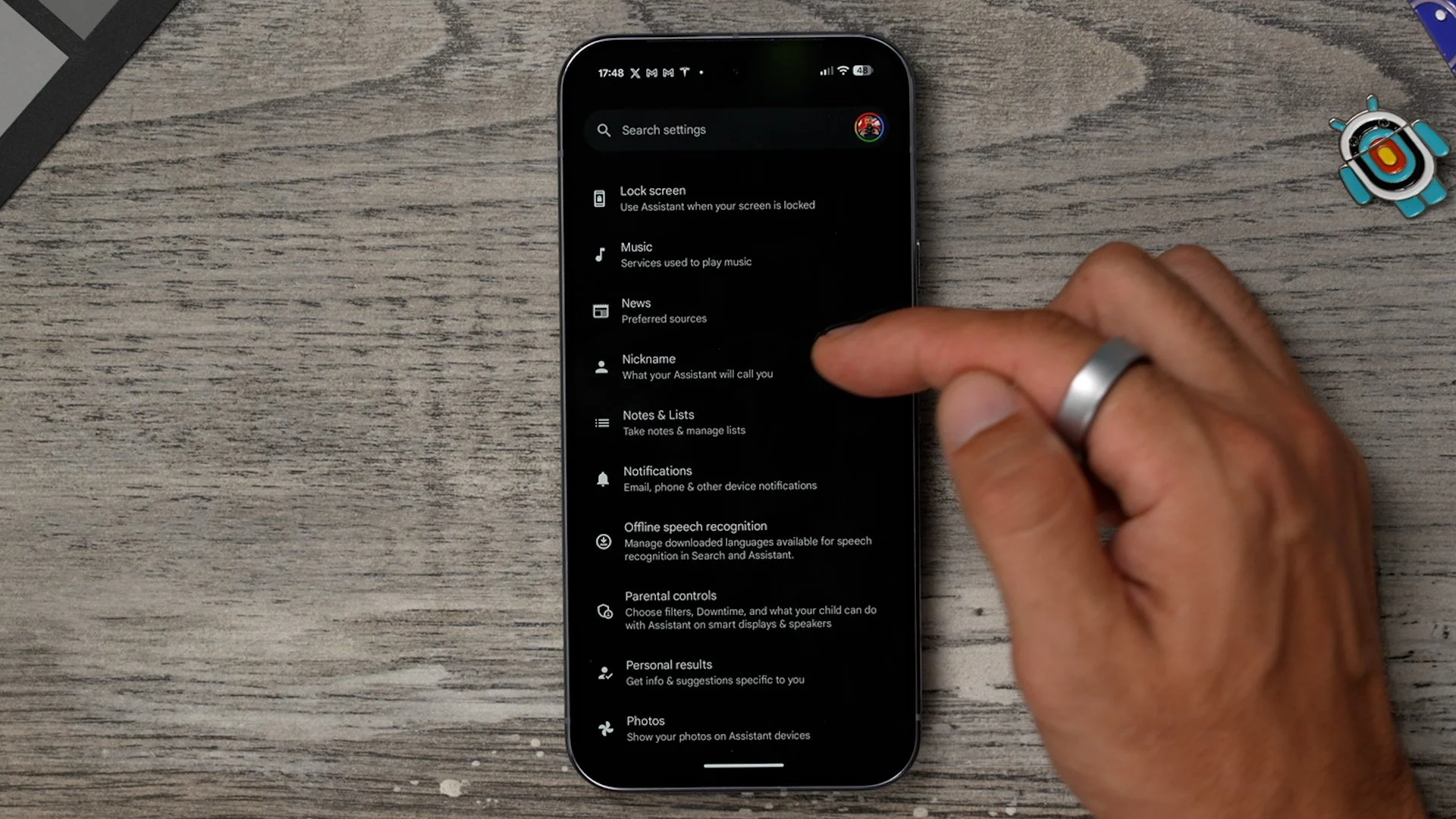
If you go to Google Assistant, and you scroll down to where it says nickname, you can actually teach the assistant how to say your name so that it would actually call you by name when you speak to it. It does suggest that you spell it out phonetically, so that it sounds, as opposed to actually how you spell it. get the idea. So this is a cool little customisation tweak for the assistant, just to personalise it a bit more for yourself.
HOLD FOR ME
This next tip is kind of a usability hack as opposed to a customisation tweak. But it is a very, very powerful feature that is switched off on day one and that you should switch on. if you open the official phone app., in the top left corner, if you go to the three lines and go to settings. Right at the top of this page, you'll see the hold for me.
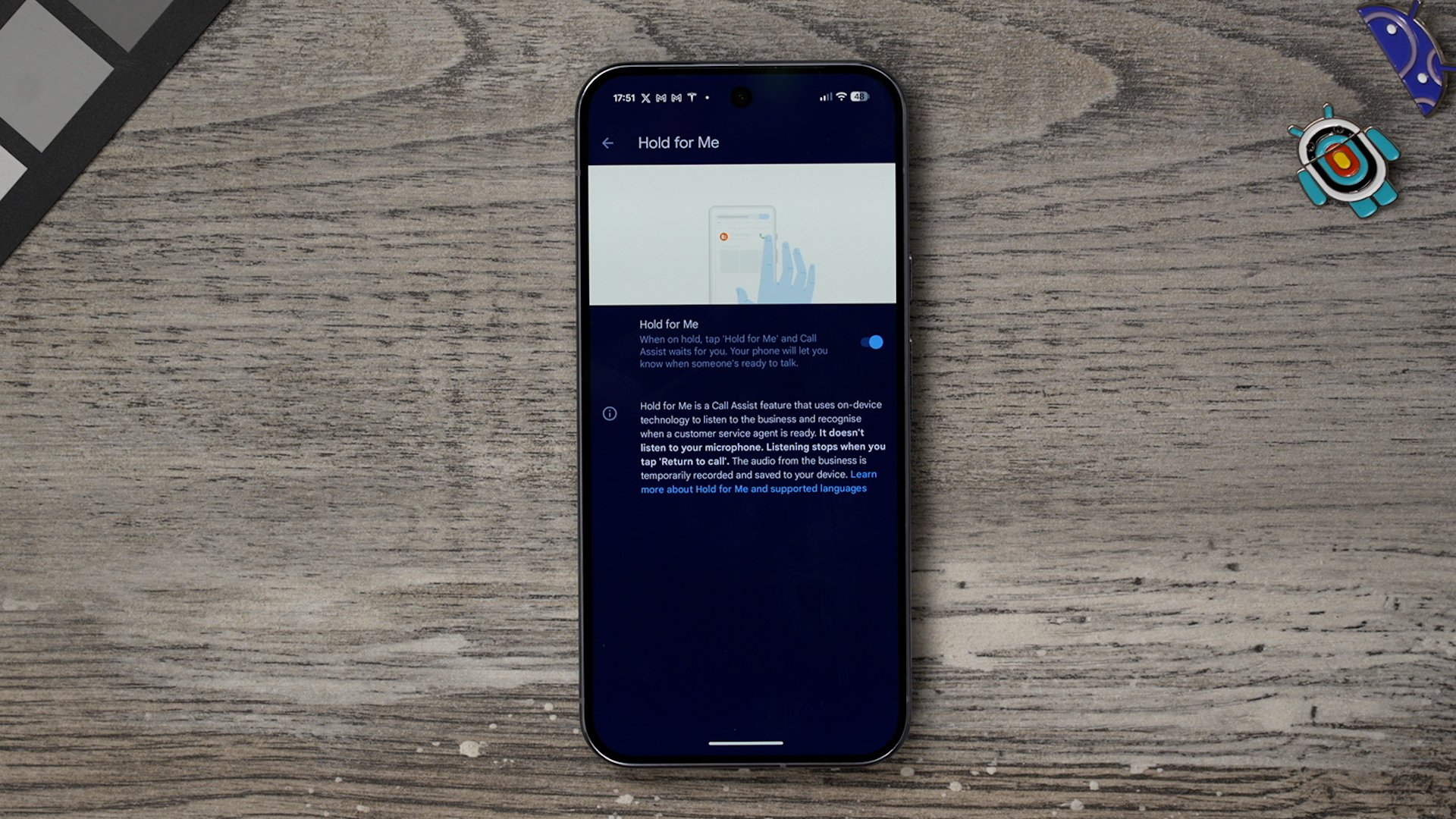
This is a fantastic feature for when you're on a call, when you're in a queue, and you're waiting, or someone's told you, Can you hold for a minute? What you can do is activate the hold for me feature, and that way, your phone will literally carry on listening until the person comes back to start speaking to you. And when that happens, and they actually alert you that they've come back that way, you're not just sitting there listening to that annoying music that they normally have on a loop. This is a brilliant feature. Turn it on day one.
MACHINE VS MACHINE
Another useful setting can be found in the Phone app. Open it, tap the three lines (top left), then go to Settings and enable Direct My Call. This feature makes automated systems—like banks or travel agents—far easier to navigate. Instead of listening through endless menus, you’ll see the options transcribed on-screen, and with faster menu options enabled, you can jump straight to what you need. It basically gets you to a real person much quicker. Definitely worth switching on.

NOTIFICATION LOG
So, back within the settings menu, if you go to notifications at the top of this page, you will see notification history. This is actually switched off by default. And if you switch this on, let's say you accidentally swipe away a notification for something important. This will actually keep a log of every notification that comes through to your phone, and there'll be a long list of things that you can go back through. That way, you're less likely to lose that important information.

ENHANCED NOTIFICATIONS
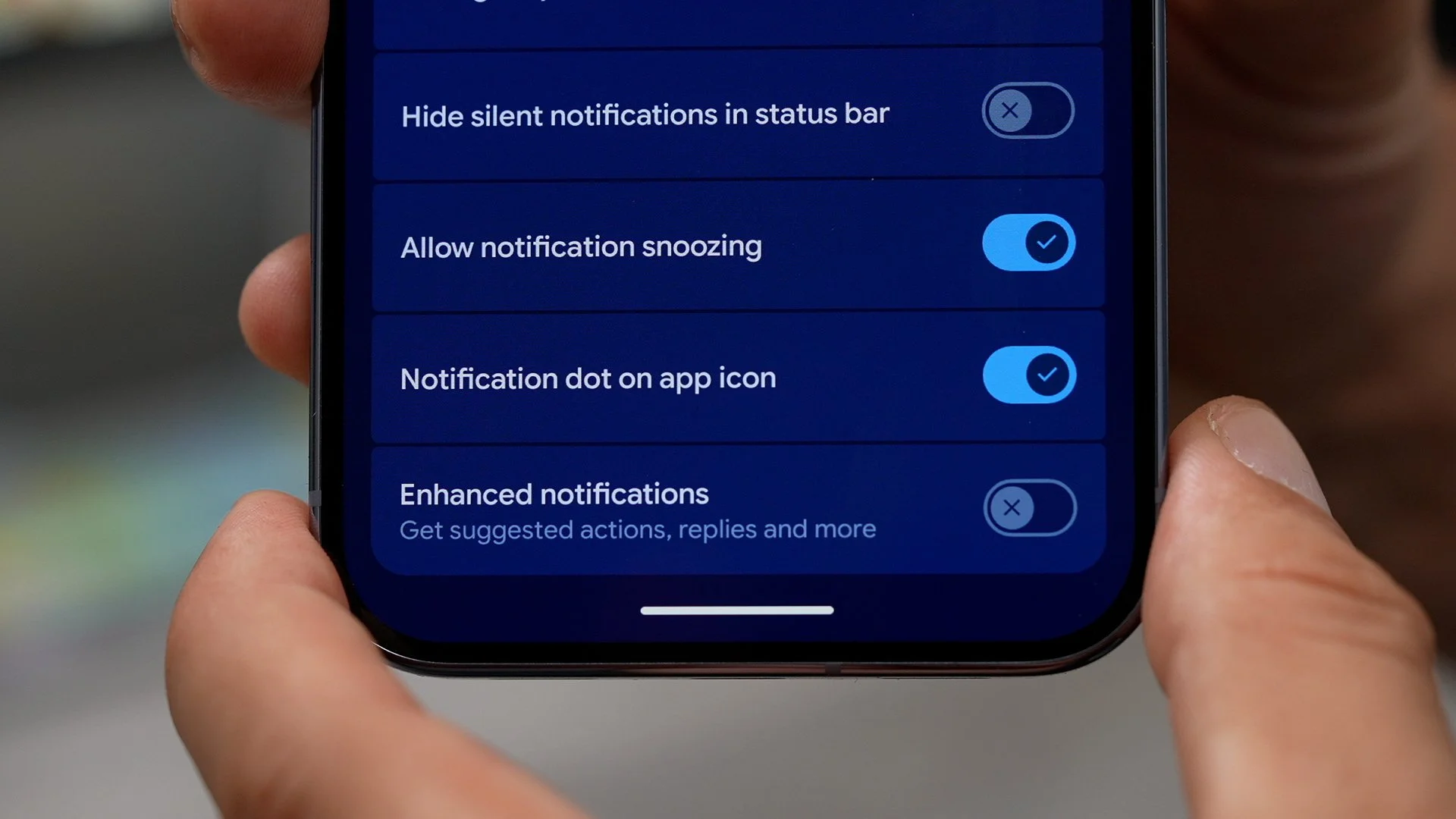
staying within the settings menu and the notification section. Here's something else to look at. If you scroll down right at the bottom of this page. Almost like they don't want you to know that there is an enhanced notification option. This is switched off on day one. The great thing about this is that it gives you suggested actions and replies automatically when you get notifications. Make sure you're happy with what it says here. And if you are just hit next, and there you go. Those are active.