The iPhone Refresher You Didn’t Know You Needed ( iPhone 17 Pro Tips )
If you have just picked up a new iPhone. Some of the tips and tricks I’m going to show you in this video are features that only the pros know & and some will be quite basic but important day one settings… the common sense stuff… but as you know, common sense is not that common these days. And that's why a lot of people might be missing out on the iPhone’s best features. So even if you’re an iPhone seasoned Pro, you’ll be like ( I’ll stay ) just see if there’s anything here that you might not know. Let’s start with some customisation
Customise Wallpaper
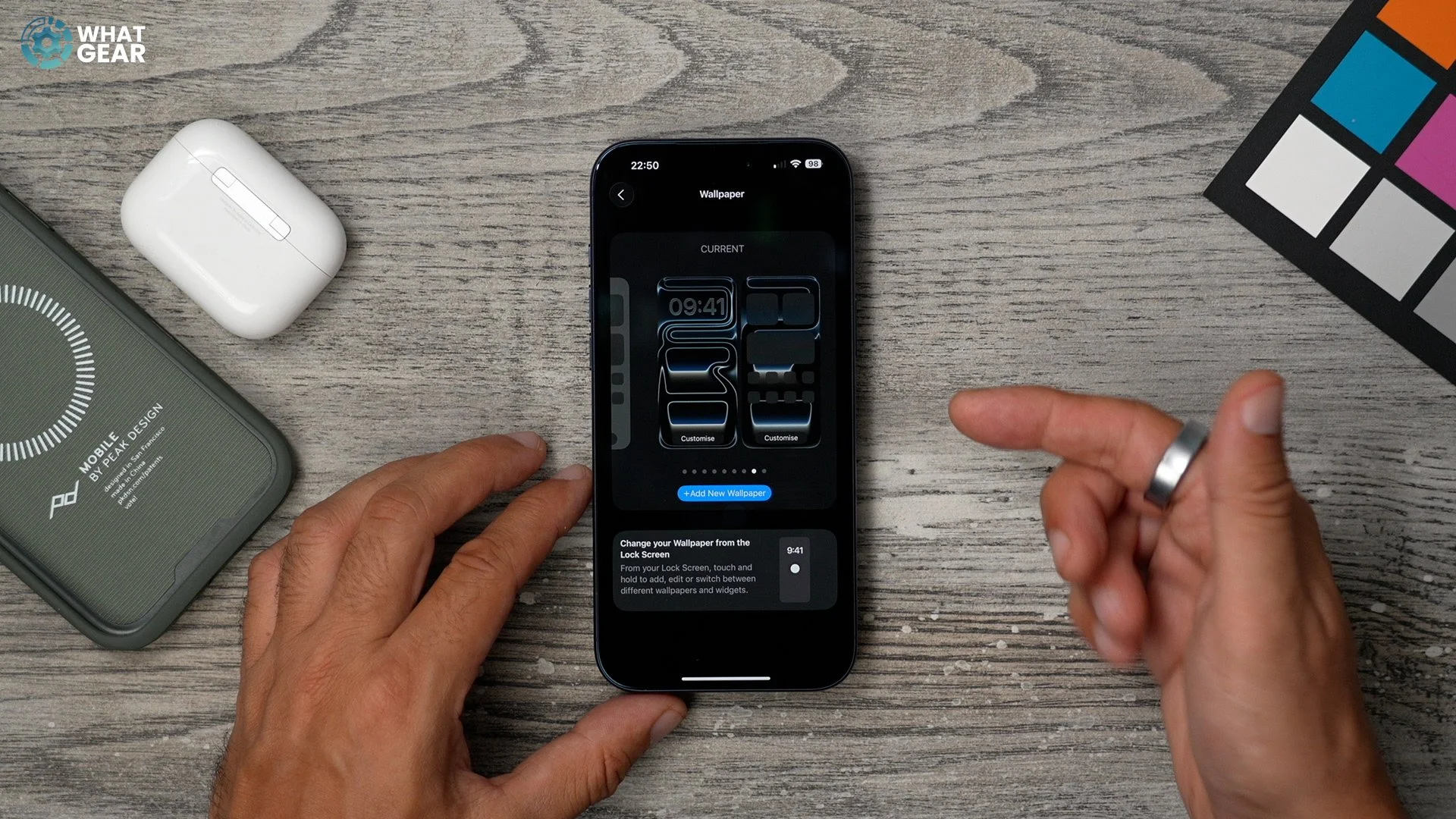
If you’ve just transferred your old iPhone to this new one, well then, the wallpaper probably transferred over, and it might instantly feel like not very new. So let’s give it a refresh. Go to Settings / Wallpaper. Here you can create home & lockscreen wallpaper pairs. The categories are across the top. I’m not going through all of them. I am just going to recommend you set up at least three unique ones, because it will be important later. So I'll just show you a fun option and a very useful one, and a custom one.
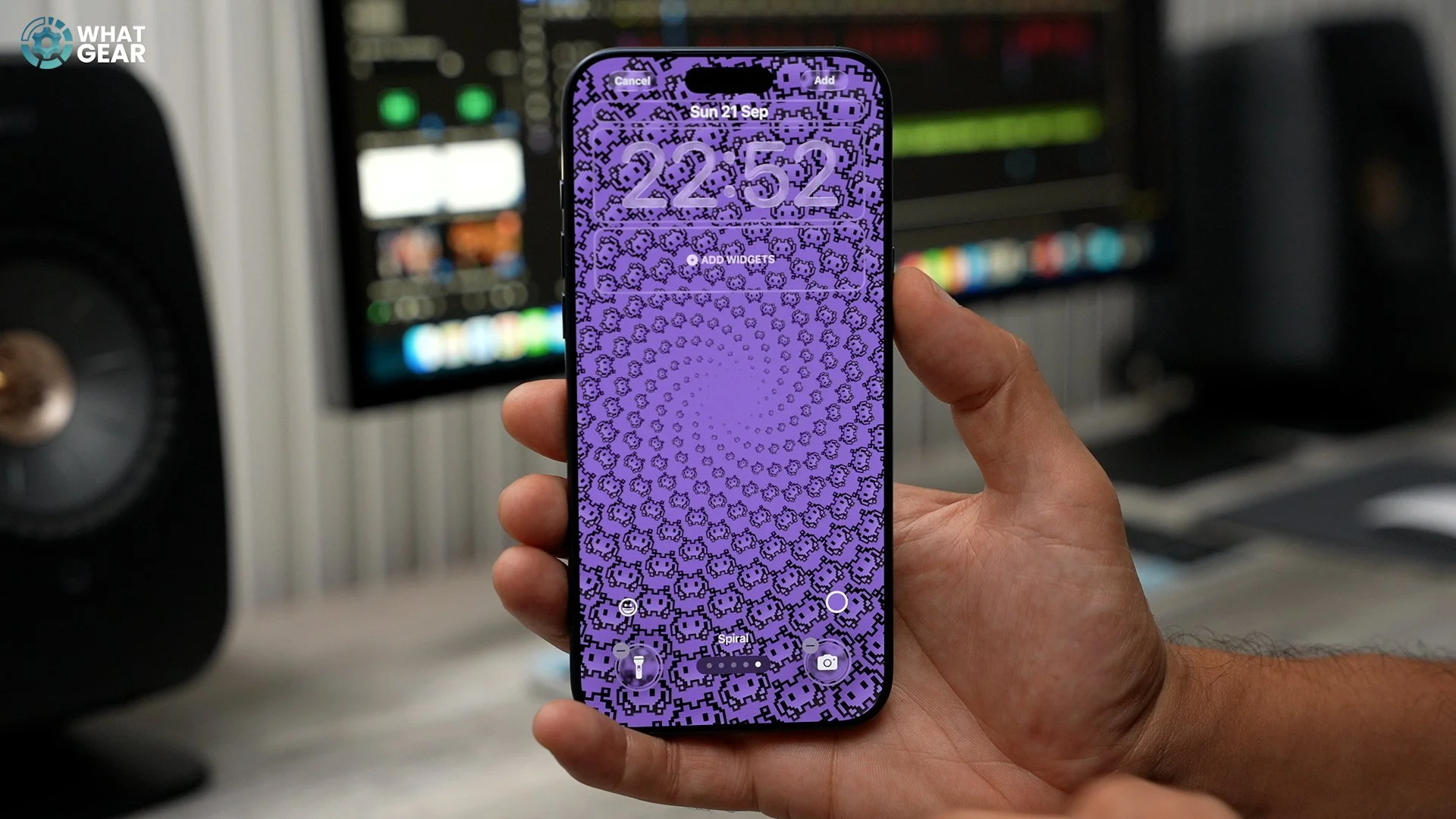
The Emoji wallpaper is great fun to play with. Simply choose an Emoji or up to 7 different emojis, hit the little colour to change the background colour and then swipe across to modify the pattern. Now you can set this as a wallpaper pair or customise the homescreen separately. The homescreen wallpaper settings are important, and we’ll come back to that in a moment.
But first that useful wallpaper. Same as before, go to Settings / Wallpaper, and this time choose the Weather wallpaper. This is a good one for when you're stuck indoors, as it gives you insight into what the weather is like outdoors.

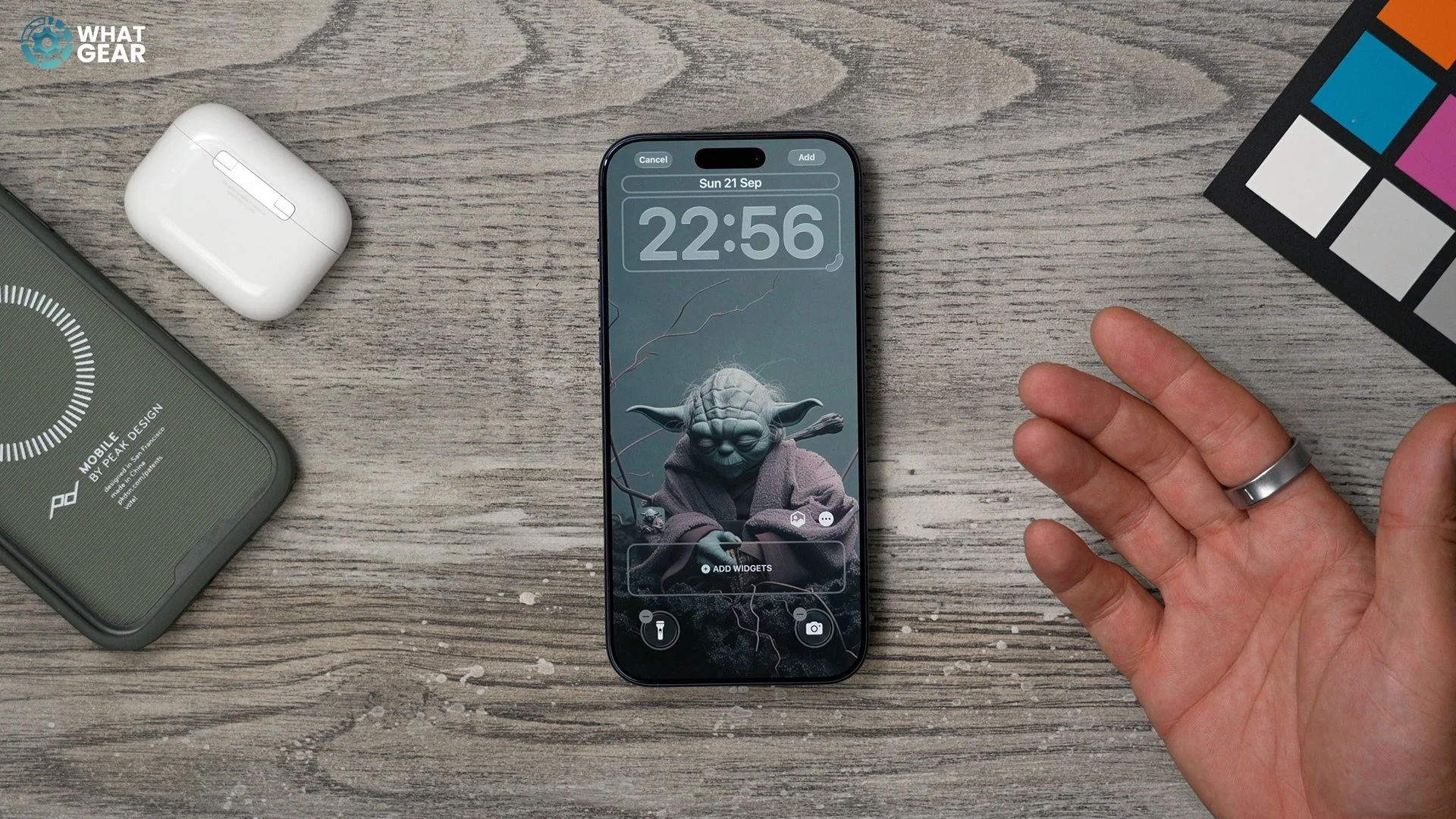
The third wallpaper I’m going to set up is a custom wallpaper. So you can use photo shuffle if you want, but I’m just going to choose a single image, because there’s an effect I want to show you. So, I’m going to use this Master Yoda wallpaper to demo this. When you add a wallpaper with a clear foreground, you’ll see the hexagon icon. Tap this to turn a spatial effect to the wallpaper. And if you tap the three dots to the side of it, you can also add a depth effect to this if you want.
Customise Lock-screen ( bring shortcuts down )
Alright, this is something you might want to do. Not just for aesthetics, but to improve the functionality of the lockscreen. Hold your finger down on the lockscreen. Hit customise. You can, of course, tap the clock to re-style it. If you are not a fan of the glass effect, tap solid here. The day and the date at the top can also be customised & I like having my calendar up here to remind me of any events or to do’s.
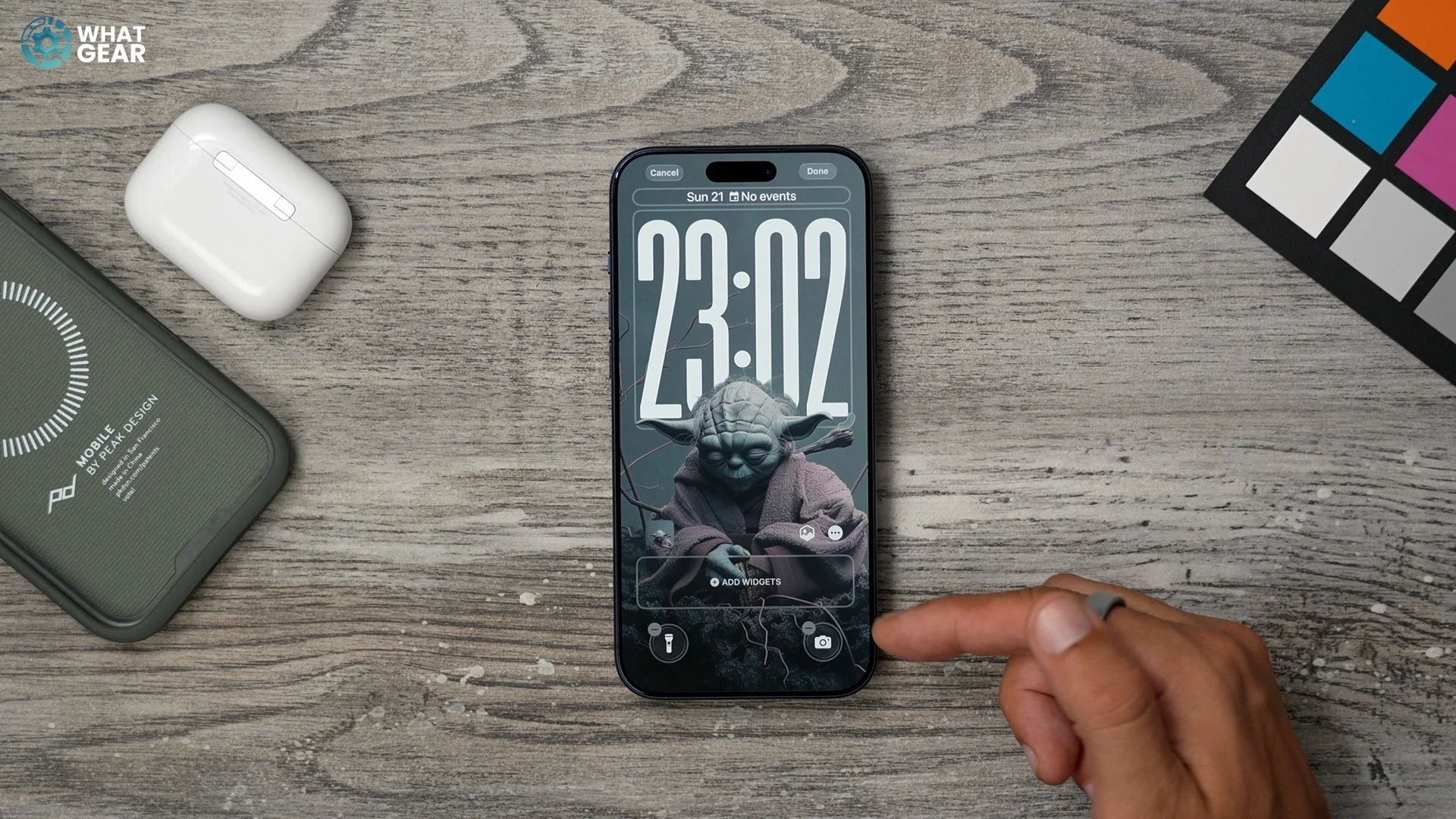
And then you have the widgets that can be pinned to the lower part of the display. These can be super useful as they act as shortcuts to specific apps and features. For example, the ChatGPT widget is great whenever you have a quick question about anything. The health widget gives you some heads-up info and jumps you straight into the app. You can add your VPN, anything you want from the list, just keep in mind there are only 4 spaces.
Customise Icons / Glass
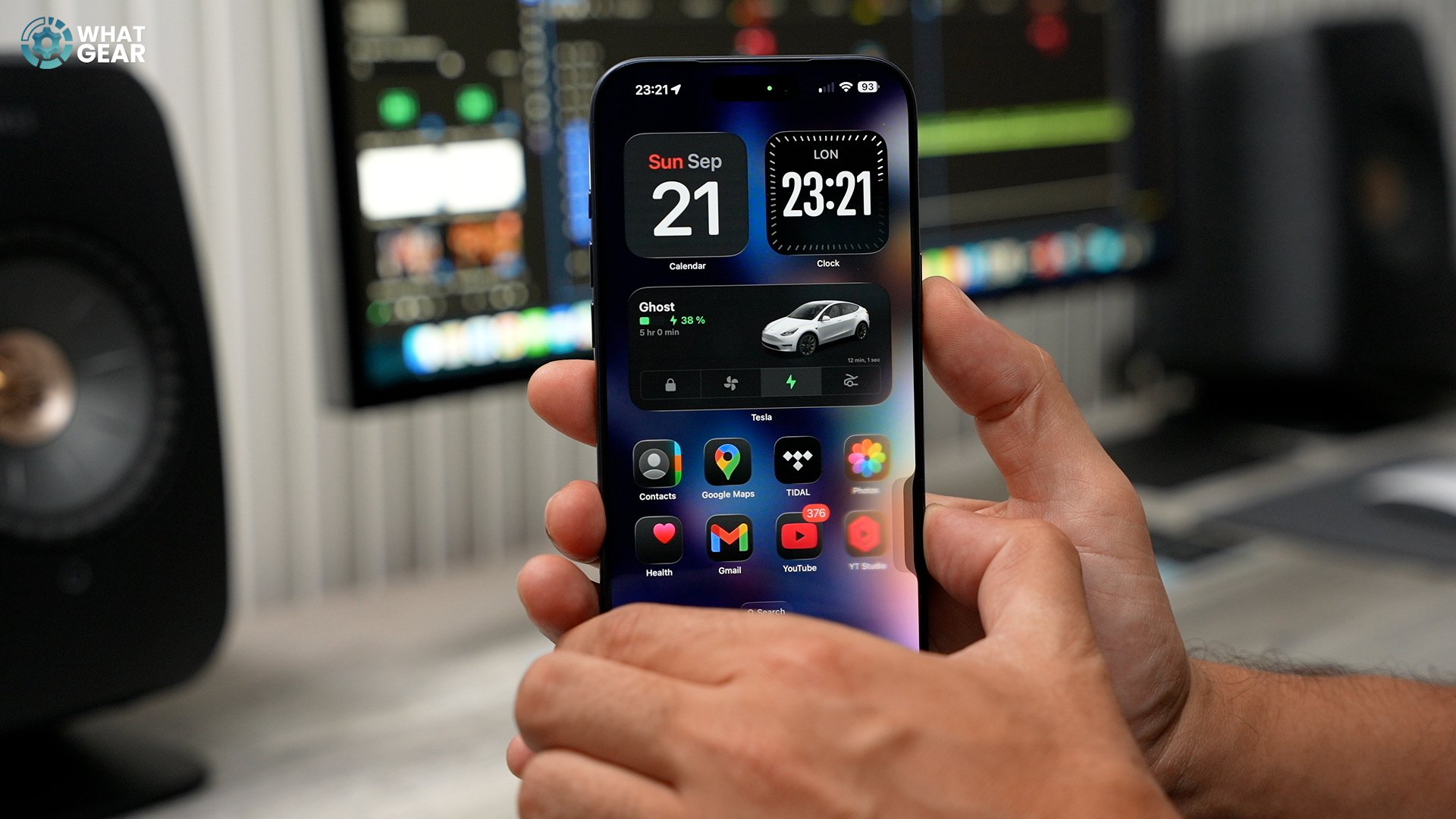
Ok, one bit of visual customisation that you need to know about is the Icon options. So Apple has introduced their new liquid glass effect, which is nice when paired with certain wallpapers. If it’s not your cup of tea, or you want to change it up a bit. Just hold your finger down on the display. Hit edit, then customise. There’s default light mode, dark mode / clear glass & then tinted, where you can manually tint the glass icons. Which can look really nice.
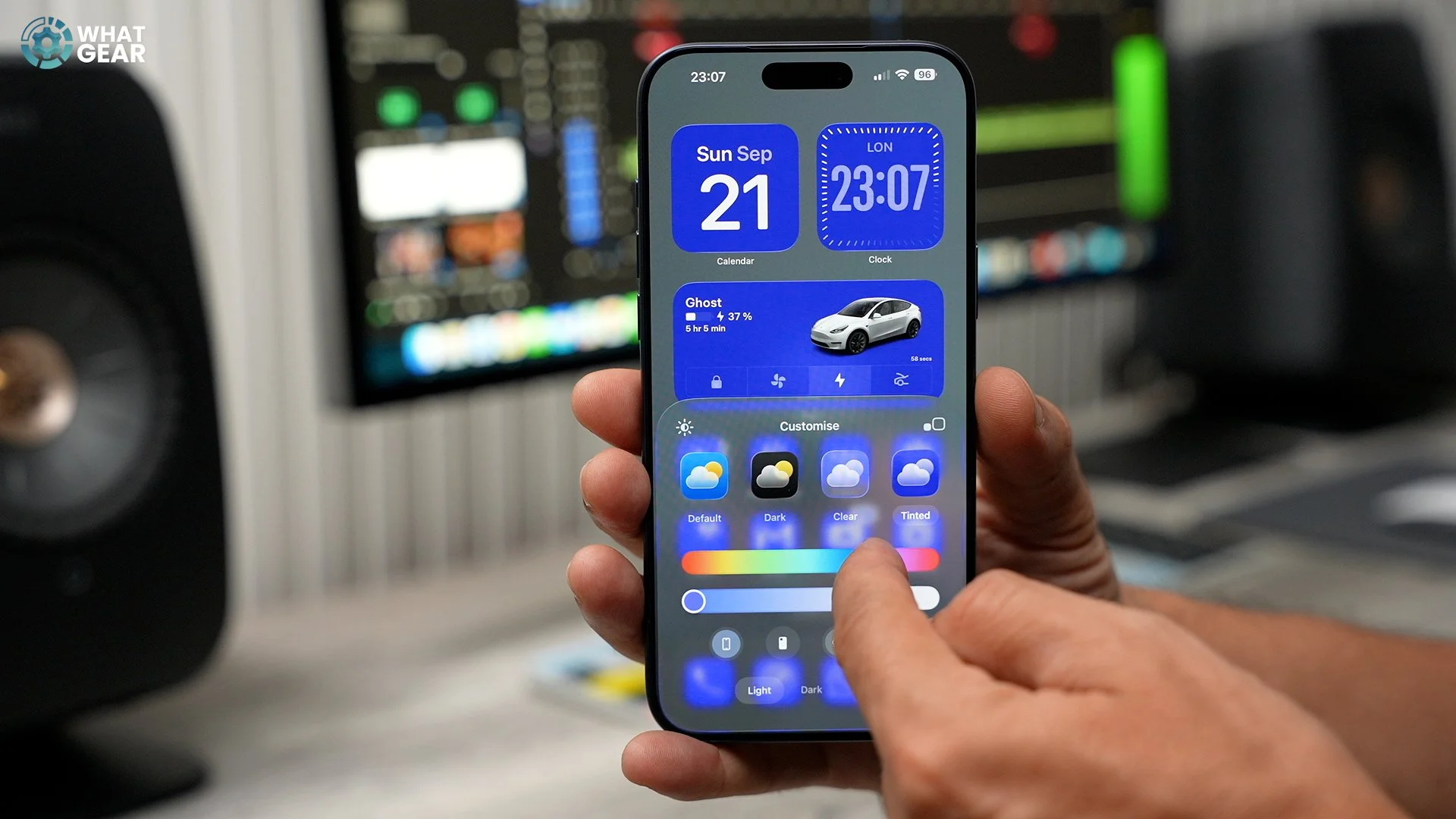
There’s also the option for light, dark modes to match the phone's colour, and if you want, you can use the eye dropper to grab a colour from your wallpaper. And if you want, you can enlarge the icons and get rid of the app labels, but for some reason, this creates a pretty large gap between the dock and the first row of apps. I think Apple need to work on the spacing here a little bit.0
Customise Action Button
Alright, so if you haven't upgraded your iPhone for a couple of years, you’ve probably noticed there are a couple of new buttons. Let’s start with the action button. Go to settings/action button, by default, this will toggle the silent mode. Not to be mistaken for ‘Do Not Disturb’ focus mode. Anyway, look at the preset options you have here. Do not set it up as a camera or, visual intelligence, which will become clear in a minute. I think out of the preset options here, either the focus or control option might be the most useful.
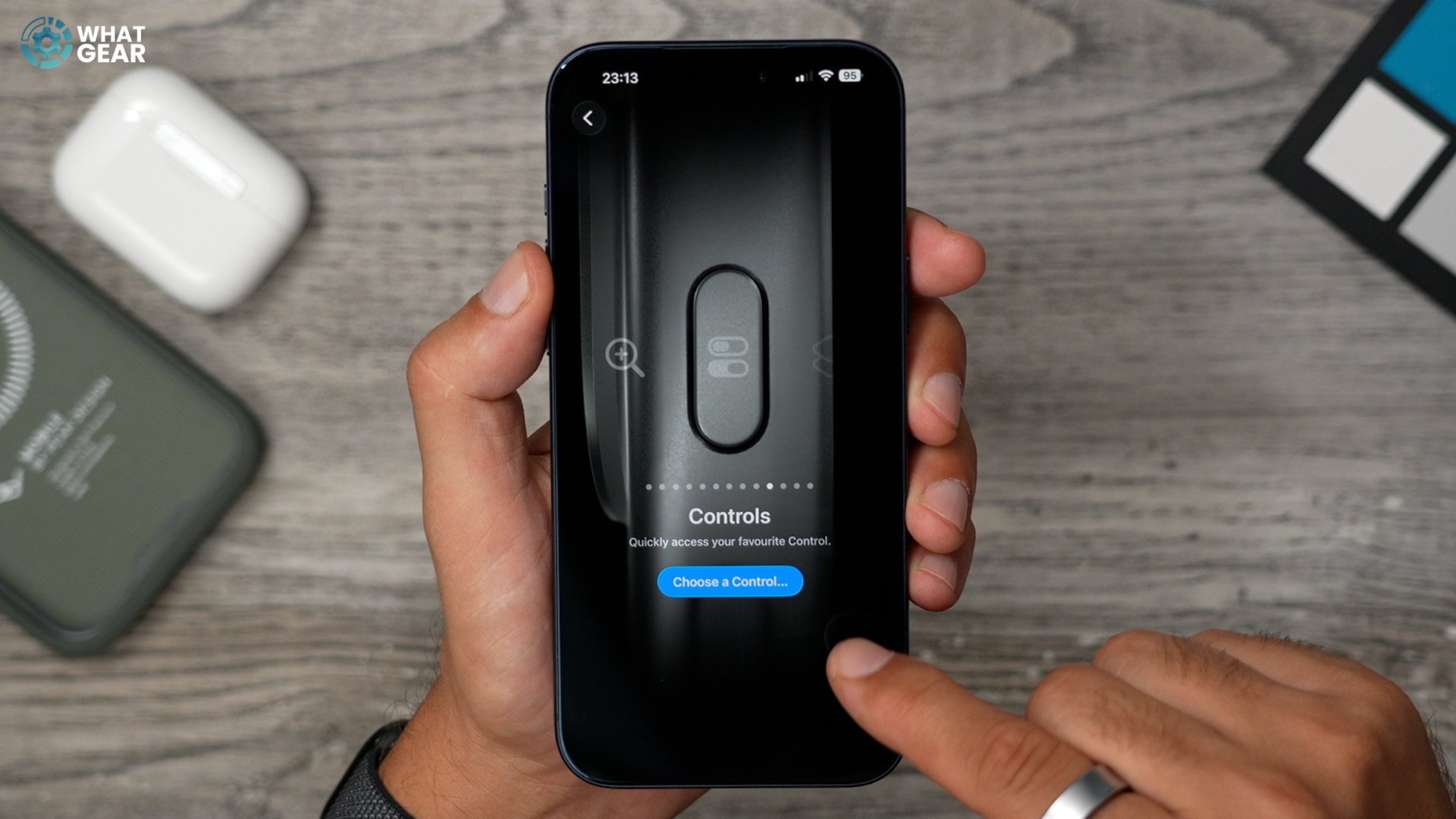
If you use the control option. The action button can perform actions within apps, which is really nice. And you’ll start to see more and more options available as you install more apps. But if you really want to make the action even more useful. 8 times more useful, I got a trick to share with you.
Visual Intelligence
Ok, so the second new button. This can be customised, but I think before going ahead and doing any of that and think it is important that you know this one thing first. If you quickly tap the control button, this opens the camera app. Swipes will toggle through lenses, so you can snap things further away if needed. A half push brings up pro controls & a full push snaps the photo.
But that’s pretty useful. But check this out. If you close the camera app. If you push and hold the camera control button. This opens up Apple’s visual intelligence, which is actually a combination of ChatGPT and Google's image search tools. Once you snap the image, you can do an image search or ask ChatGPT about the image. And this can be great for whenever you see something and you want to know what it is.
Control Centre Customisation / add ear
Alright, so performing quick actions with fewer swipes and fewer taps. Is really the best way to streamline your iPhone's interface. And here’s a good way to do that. Bring down your control centre and hit the plus icon. Here you can delete anything unnecessary. For example, if you have a camera control button, there’s really no reason for it to be here as well. You can resize these control buttons if you want. But more importantly, hit the ‘add a control’ text & have a look at the options available to you.
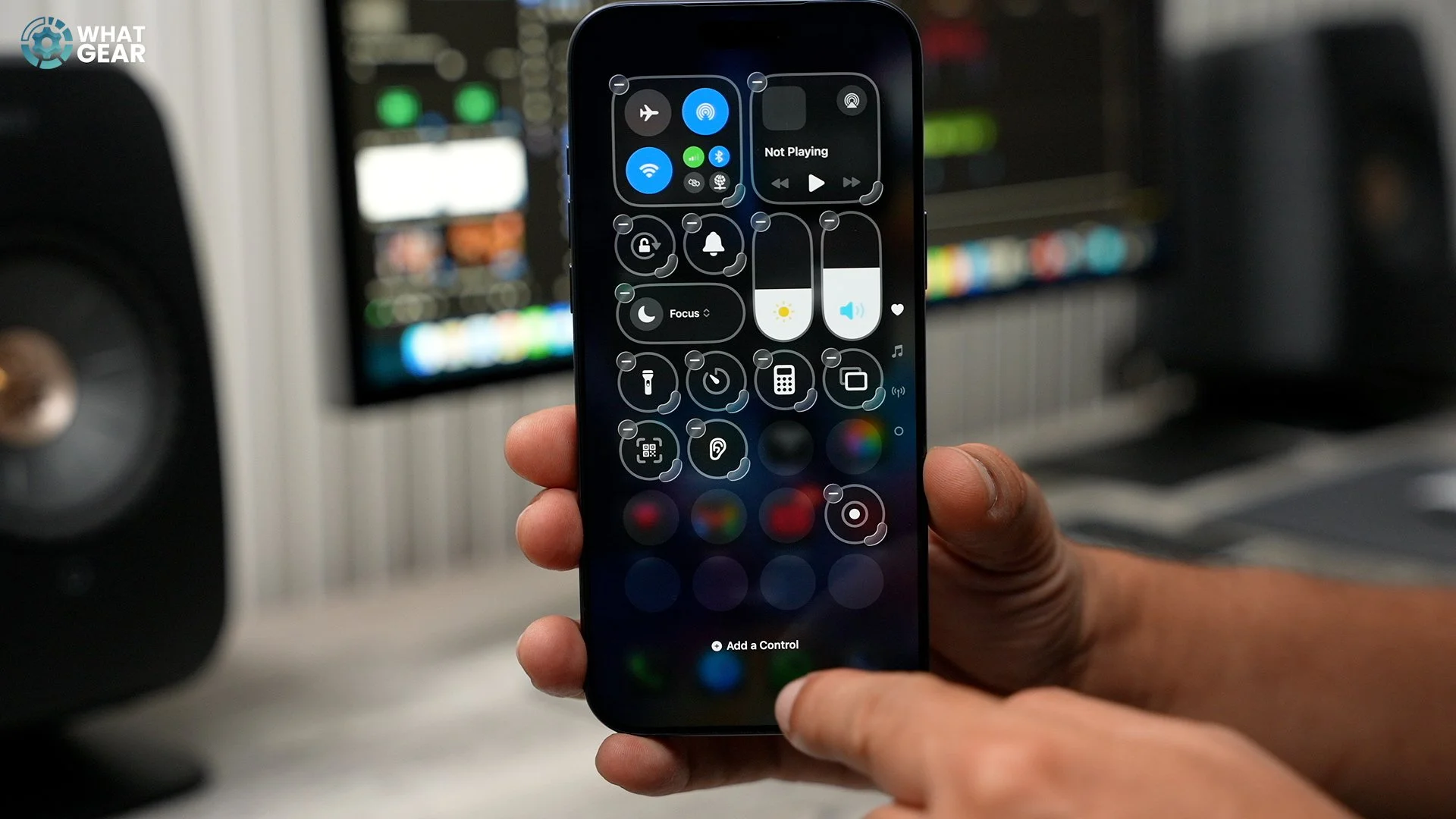
And keep in mind there are three pages by default & you can customise them all. For example, on the music tab, you may want to add some audio-related controls. First, you’ll need to shrink the music player widget, and now you have a ton more space to play with. The Ambient Music options are pretty sweet. Also, there is one incredibly useful feature that goes under the radar. It’s this little ear icon. Here you can access the background sounds library. Which is stored locally on the iPhone. Trust me, next time you want to sleep on a long journey. With these gentle sounds, combined with some nice noise-cancelling headphones, you’ll sleep like a baby.
Change Language to the same language
Alright, here’s a very quick but extremely important tip for anyone who’s not in America. You might find yourself wondering why there doesn’t seem to be many AI options on your new iPhone, particularly when it comes to the keyboard.
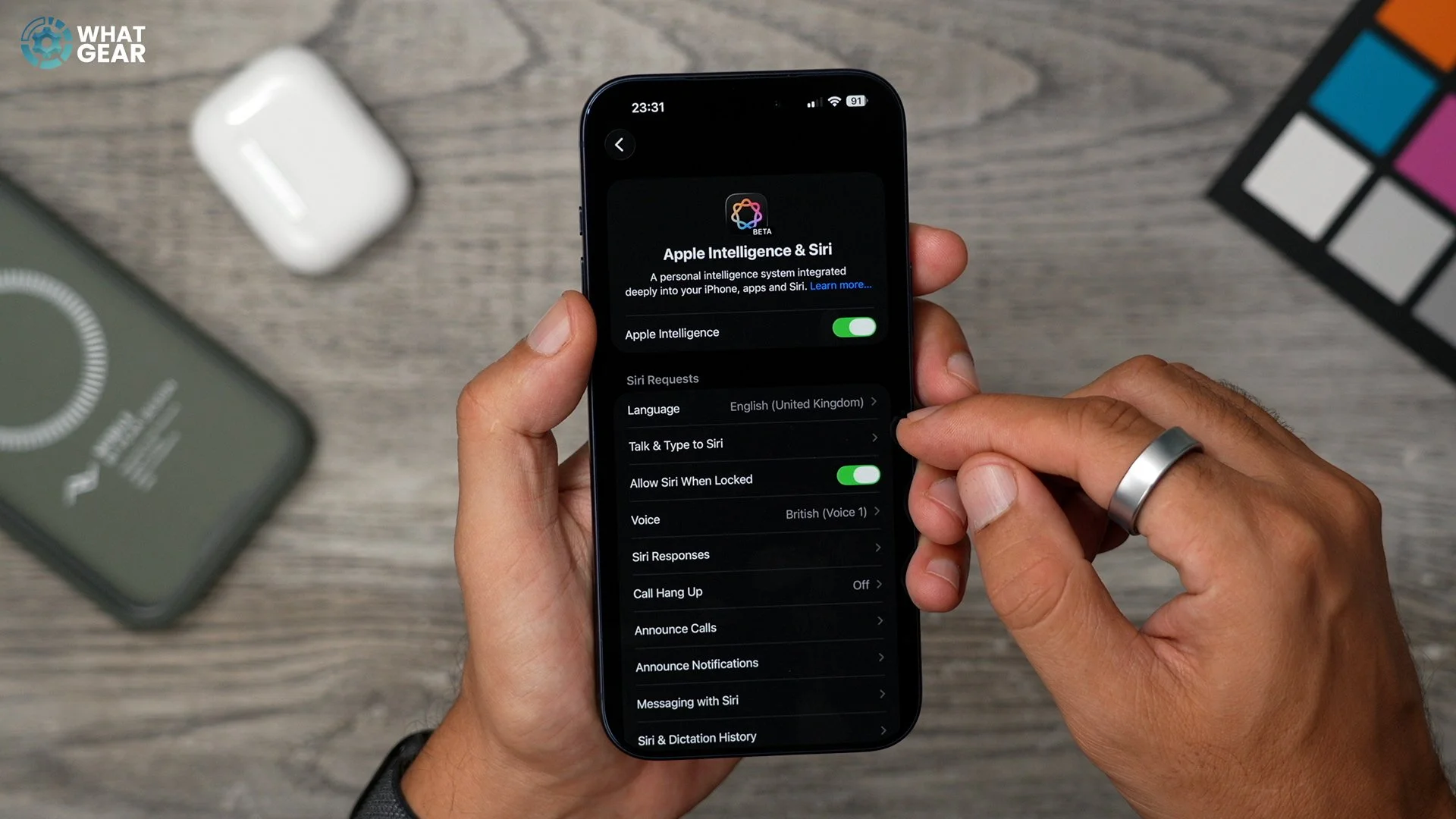
Well, there's a very simple setting you need to change to unlock the Apple Intelligence writing tools. Go to Settings / Apple Intelligence & Siri. Here, make sure the language is set to the same language as your phone. Mine was in English ( United States ) when I first set it up, and it stopped a lot of the AI from working.
Set up ChatGPT Extension
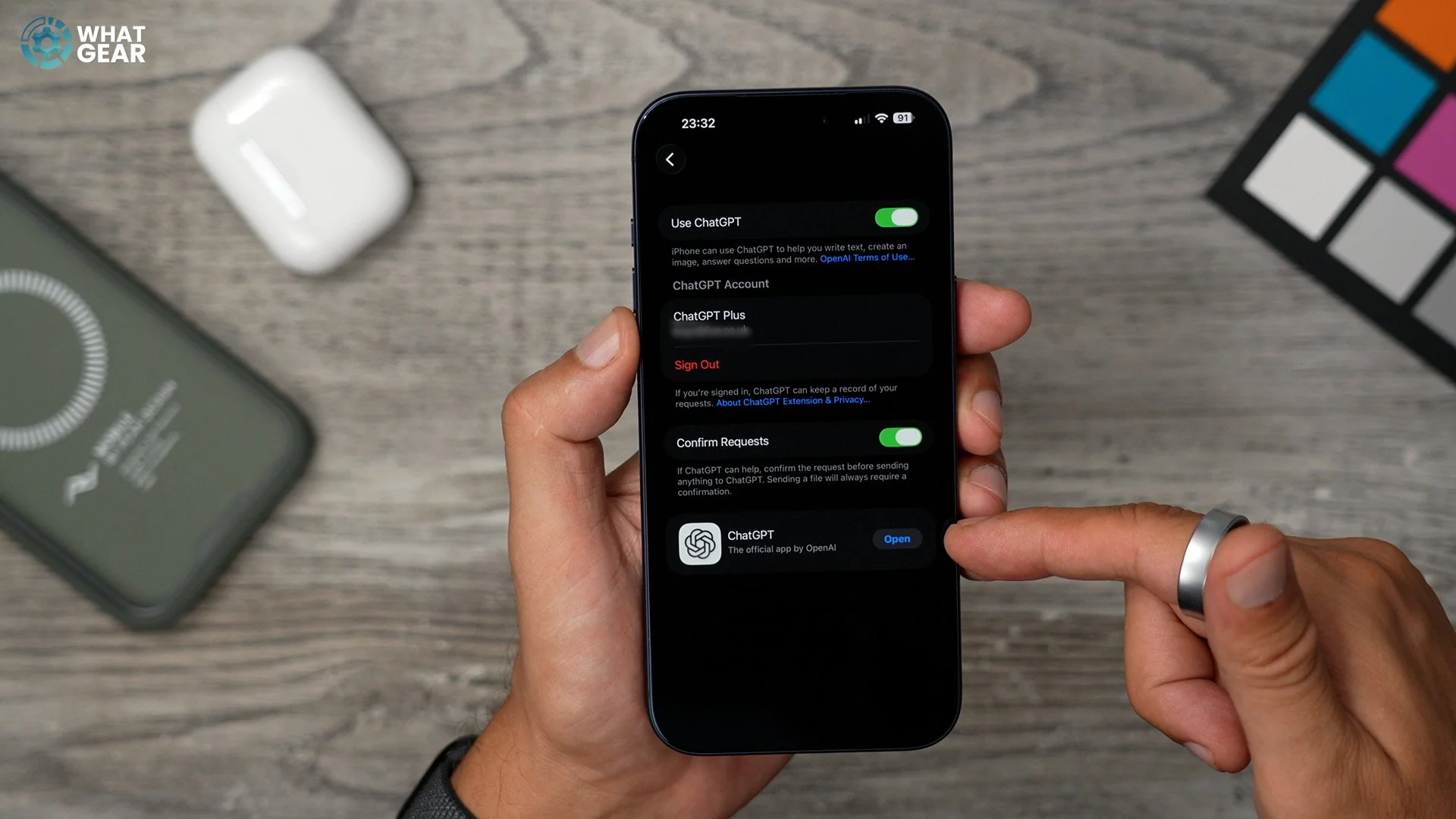
Now, here’s an important day, one step that will level up your iPhone’s AI massively. Staying on the same page. Scroll down to Extensions. Tap here if you haven’t got ChatGPT already. Get it because Apple and OpenAi are business partners now. Set up a free account and then come back here and link it up. Remember the visual intelligence trick. The ChatGPT options won’t be available if you don’t do this.
Writing Tools
Ok, now that you have unleashed the full power of the machines. You might want to know how you can use some of the tools. This is one of the best use cases. Whenever you’re writing something or trying to write something. Maybe you’re trying to convey an important message… What you can do is highlight the text and hit the Apple Intelligence icon. And give it an idea of what you want it to do. And it will do it.
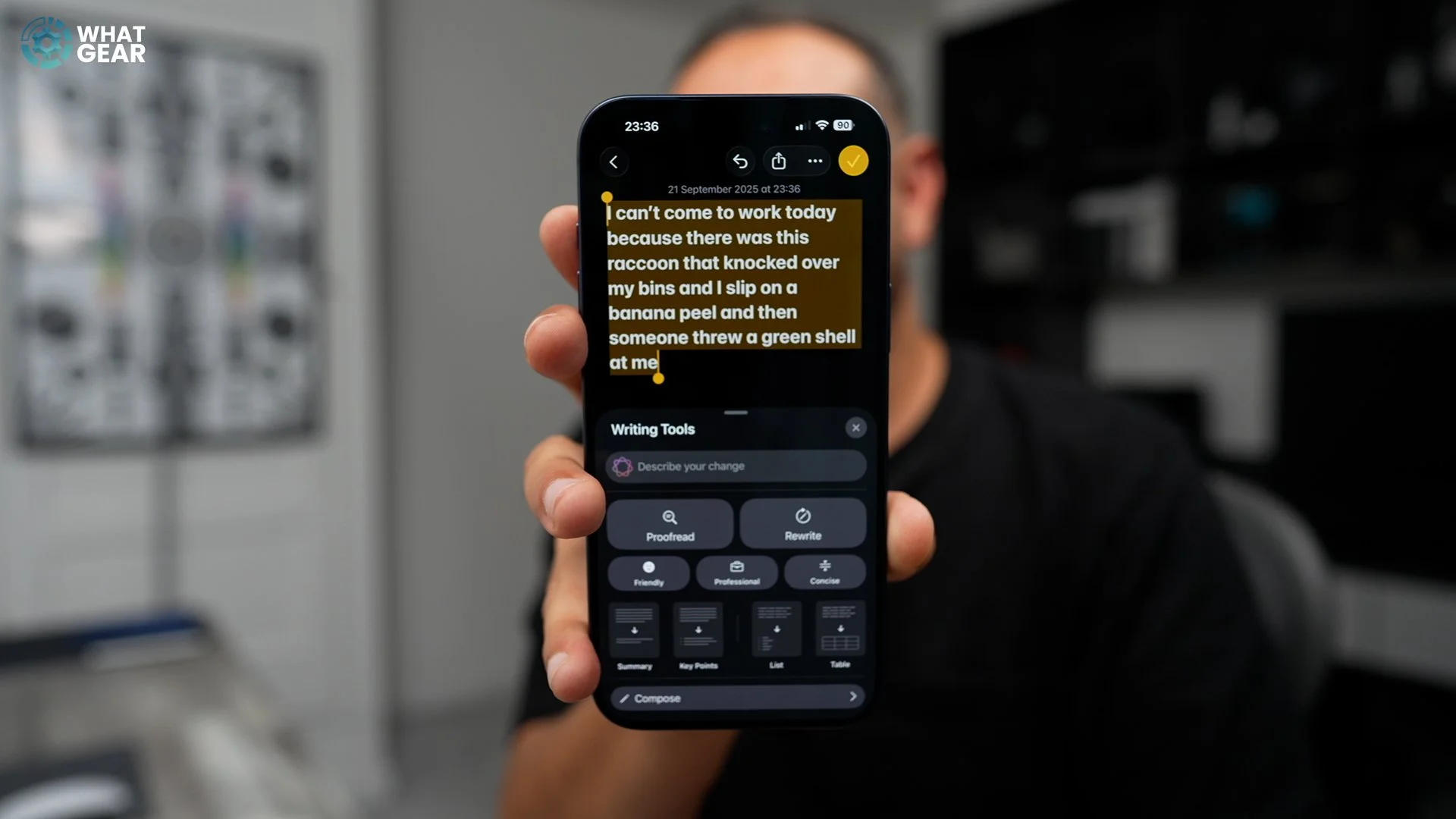
You have lots of tools here that are self-explanatory. But if you are completely lost for words, you tap the compose button. Tell it what you were trying to say, and it’ll do your homework, I mean, the writing for you.
General / screen capture / automatic visual look-up tool
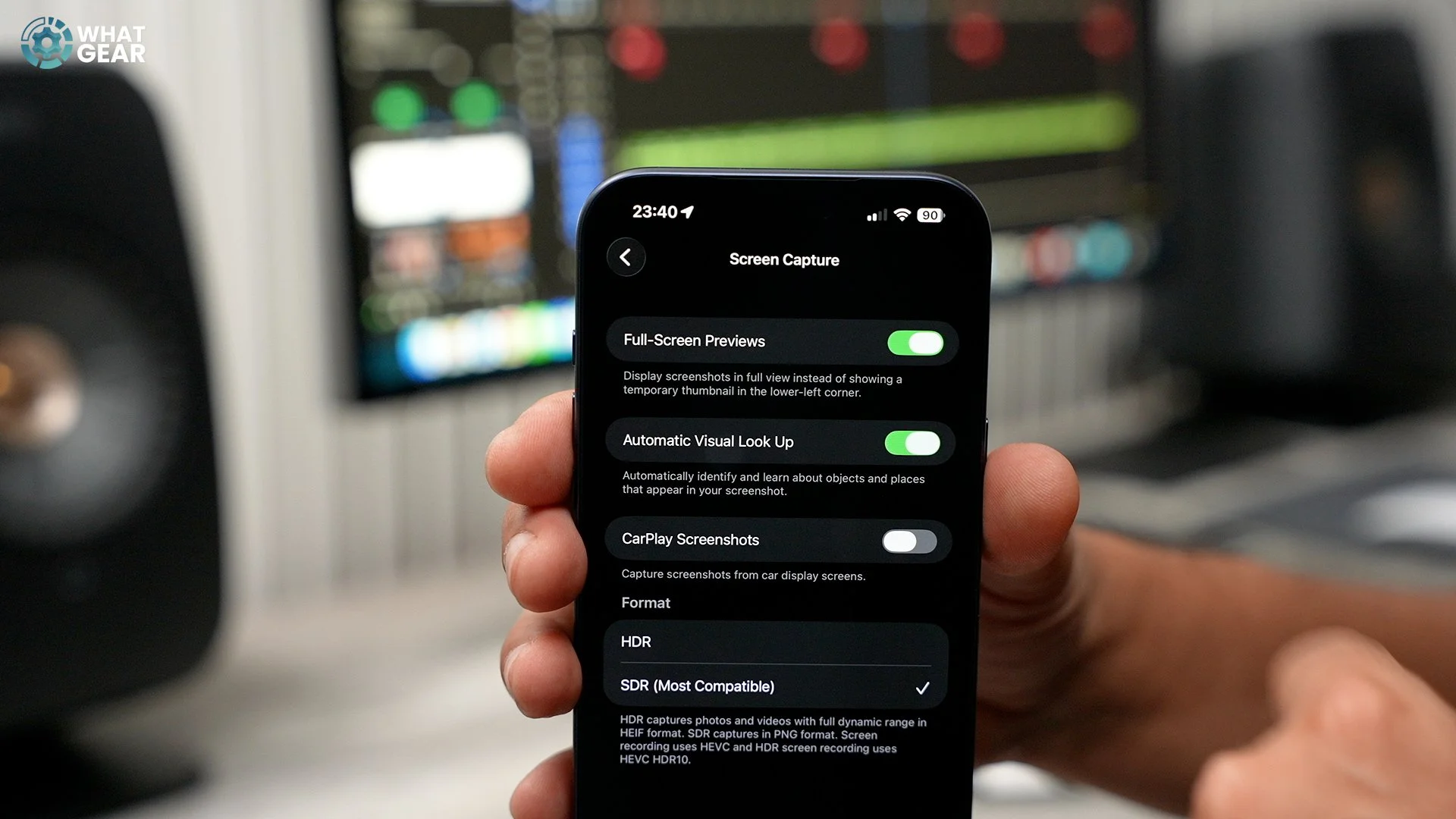
Here’s another nice little AI tool. A little similar to the camera's Visual Intelligence. To make sure this works properly. In the settings menu / general / screen capture / enable Automatic Visual Look Up. Now, when you screenshot anything with the volume up & power button, you can highlight smaller parts of the screenshot. You’ll get results from Google & you can also ask Chat GPT if you want.
Apps / Phone/screen unknown callers
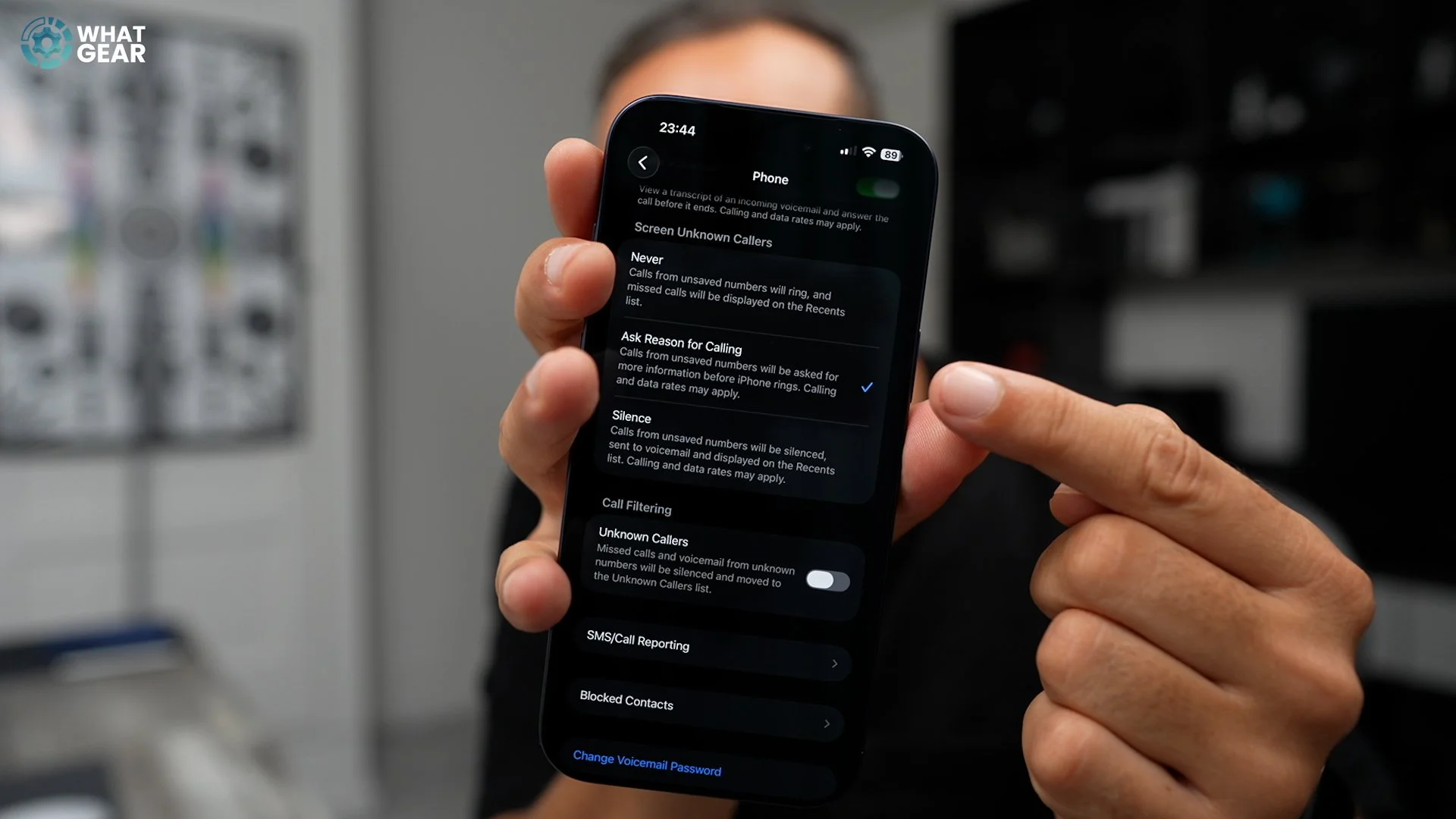
Do you hate spam callers? Well, then you’ll love this. Go to settings / Apps / Phone. Scroll to the ‘Screen Unknown Callers Section’ and set this to ‘Ask reason for calling’ now private or unknown numbers call your iPhone will check for you if they’re legit.
Focus modes / Reduce Interruptions
Alright, remember way back when I spoke about setting up three wallpaper pairs. Well, here’s why. It’s a very noisy world; every company and every app is trying to market to you. And honestly, you’re not going to remember much if your iPhone is blowing up whilst trying to get things done. So you have to be really clear about what you’re trying to achieve. So you know what you expected to do, right? Here’s how you can do that. In the phone settings/focus. To get started, maybe only set up two. Do not disturb is a very good one. I personally think this is better than putting your phone into silent mode. Because you can choose to allow only important things through. There’s also a new feature here called ‘Intelligent breakthrough silencing’, which can intelligently decide if there is an alert or call that is actually important enough to pass through. So switch this on.
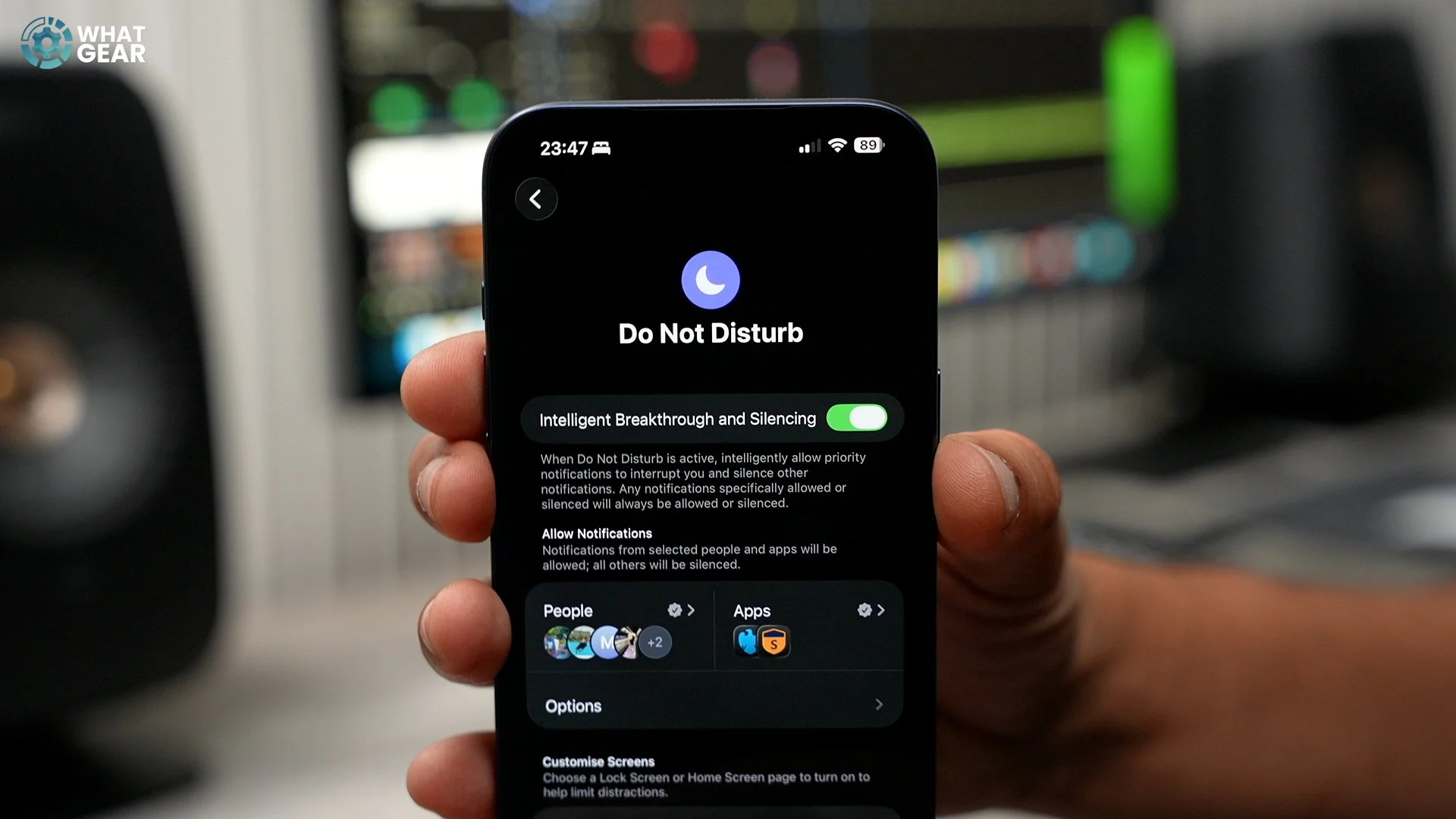
Now, when you scroll down, here is where you can select one of the custom wallpaper combos you created earlier. Now, once you’ve created this Focus mode, you can customise the icons like I showed you earlier as well, and if you want, you can have an Apple Watch reflect those modes and wallpapers too. If this is the mode you’re going to use at work or at school, you can use the add schedule feature so that the mode kicks in wherever you're at that Geo Location. The other modes I recommend you spend time setting up are your sleep mode, which ideally should have warm, aka reddish orange tones, as the wallpapers. Again, choose what apps and who has the permission to disturb you when this mode is active. A really important side note. The third wallpaper set is your everyday set. To get back to it just swipe down from the top right-hand corner and tap the ‘ active focus mode ‘ to switch it off.
Action Button / 8 options instead of one
Alright, here’s an advanced pro user tip. The Action button is just one button. Here’s how you can open up 8 options and perform a complex action in just two moves instead of many. Swipe across to your App Library. Search for ‘Shortcuts’ In the shortcuts app. In the Library tab, hit the folder with the plus. To create a folder. Call it Action Button & give it an appropriate icon. Now tap on the new folder. Hit the plus button & go to controls. Here you can choose ‘set silent’. Now change ‘turn’ to ‘toggle’. This means when you tap this, it will toggle on or off as needed. At the top, hit the little drop-down arrow. Rename it ‘Silent’, choose an icon and a colour. Now, hit the plus again to create another action that will be useful. Like maybe the ‘ set brightness’ to 5%.
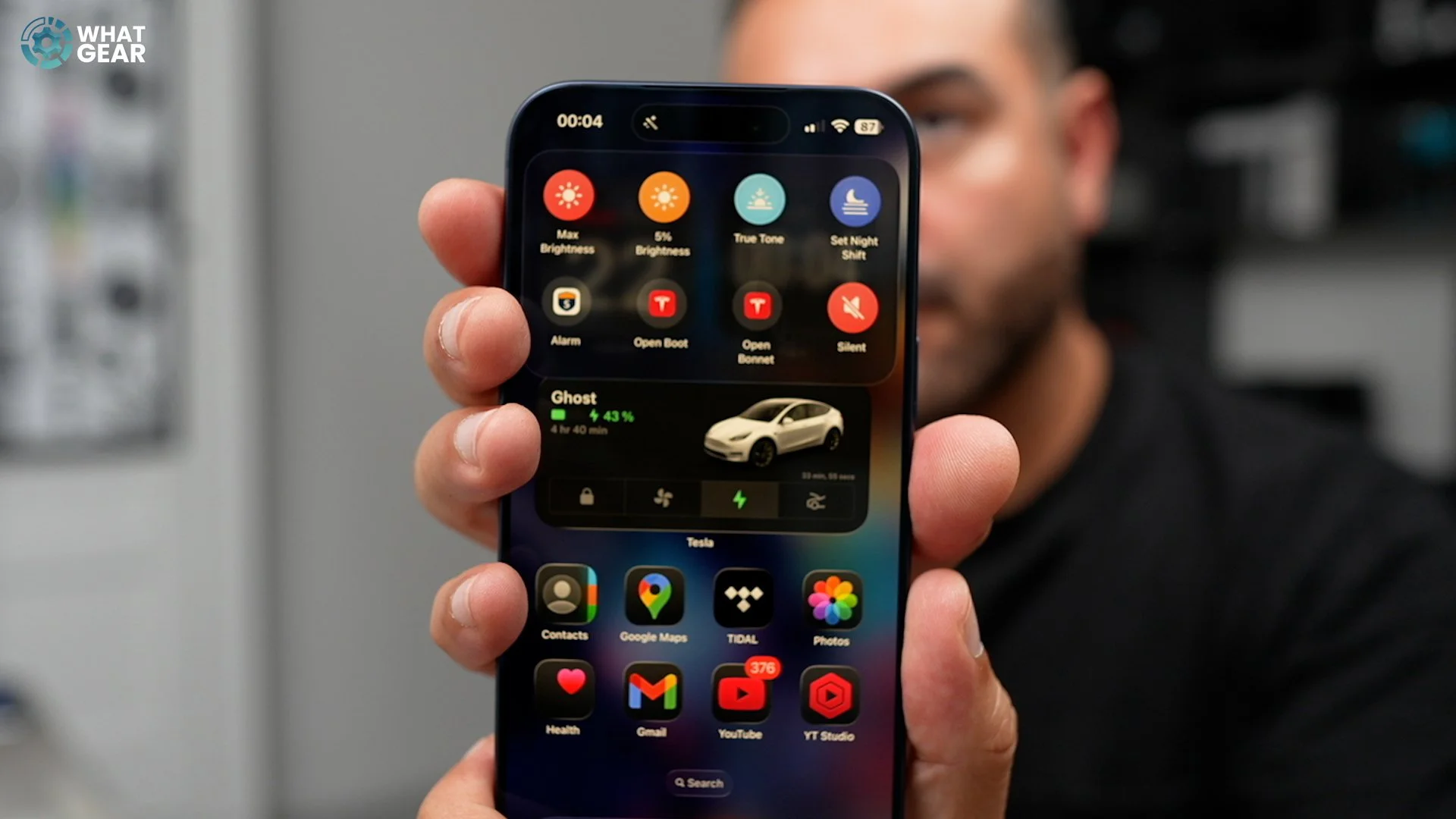
Again, just make sure you rename it and give it an appropriate icon. You can also create shortcuts to apps and even within apps. If you know what you’re doing, you can create some very advanced routines here. But keep it simple at first. Map out the most useful shortcuts that you would actually use regularly. Once you’ve created that goes back to settings/action button / set it to shortcut. Then the ‘show folder’ and select your newly created ‘Action Button Folder’. So if you’ve just spent a little time doing everything I’ve just shown you. You can save time in the future. And that’s the most important thing. Because no one can give you your time back.
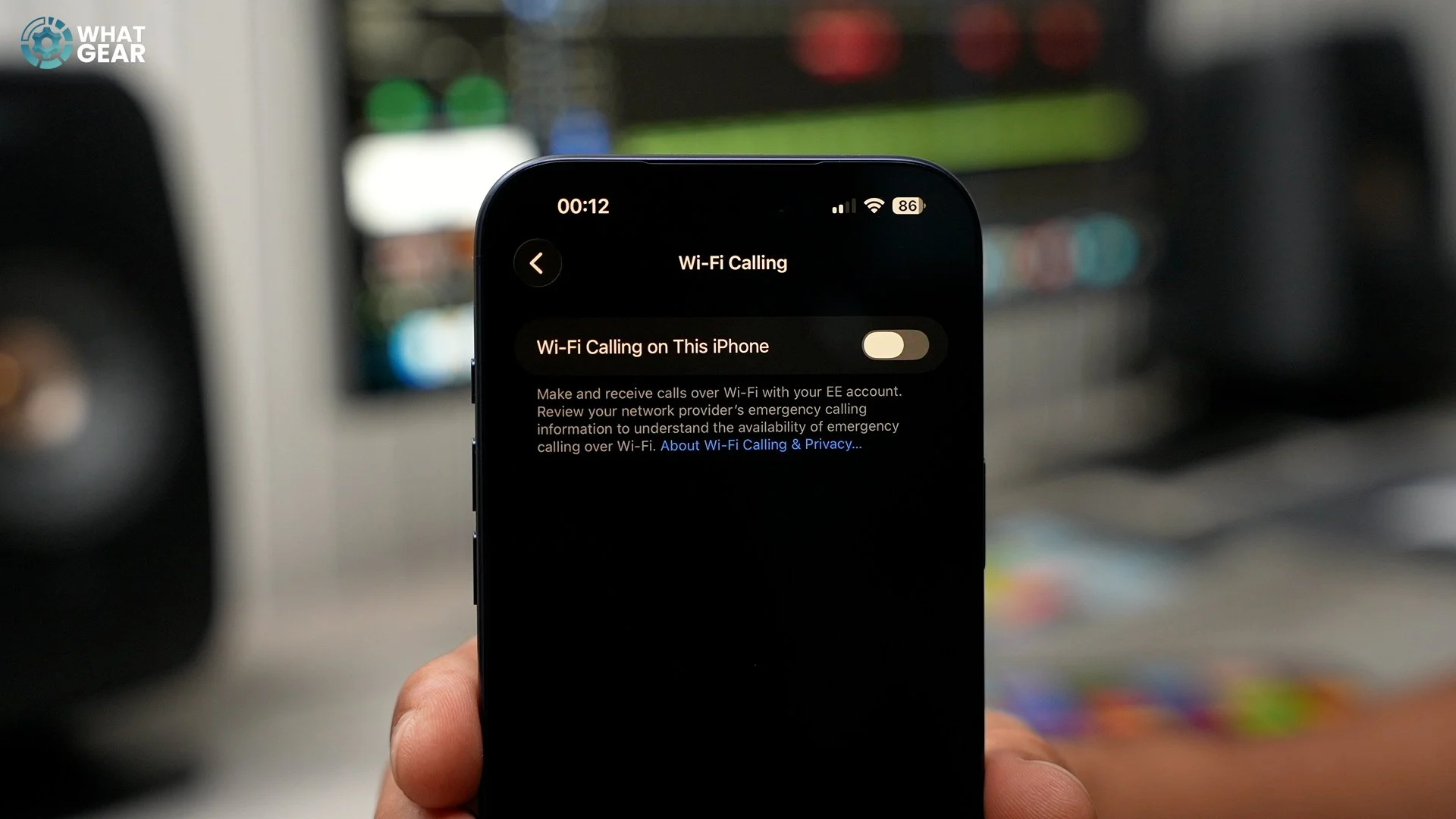
Apps / Phone / WiFi calling
There’s nothing worse than a bad signal when on a call. There’s a solution to this, and it’s a feature that's off by default. Go to settings / Apps / phone / turn on WiFi calling. Now, if your signal sucks, but you have WiFi, your phone will take or make the call over the internet.
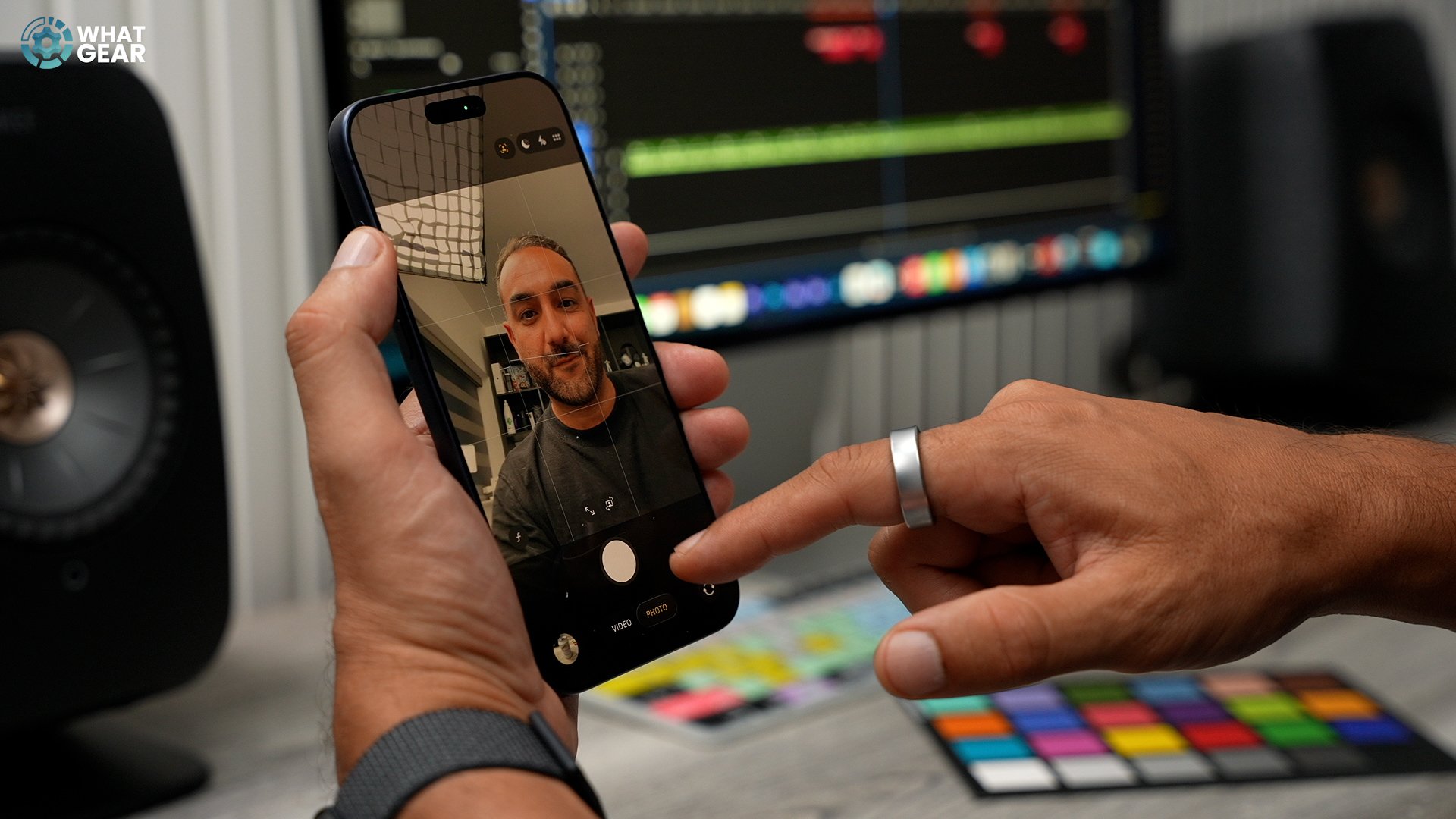
Center Stage
Ok, one big upgrade this year is the change to the selfie camera. It’s important you know about these two centre-stage options. You’ll see the option to manually rotate the sensor crop to landscape. But if you want to use the centre stage, hit the icon of the person with the square around it. Switch on auto zoom and auto rotate. Now your selfie camera will adapt on the fly to make sure everyone is in the frame.
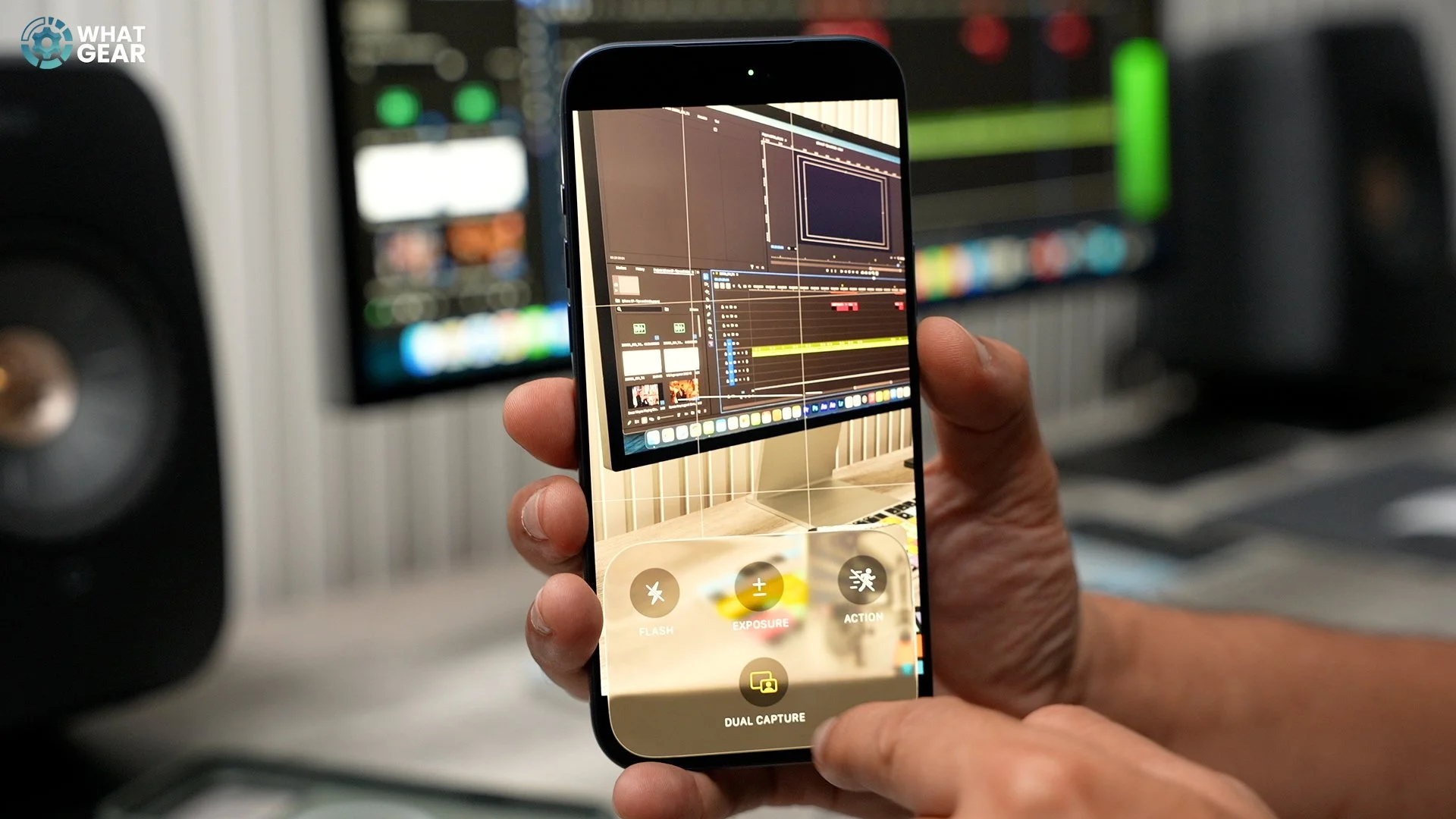
Dual Capture
Another new camera feature this year is in the video mode. It’s called dual capture, and this allows you to film pictures in picture content, and you can move the positioning of the smaller video feed around if you want.
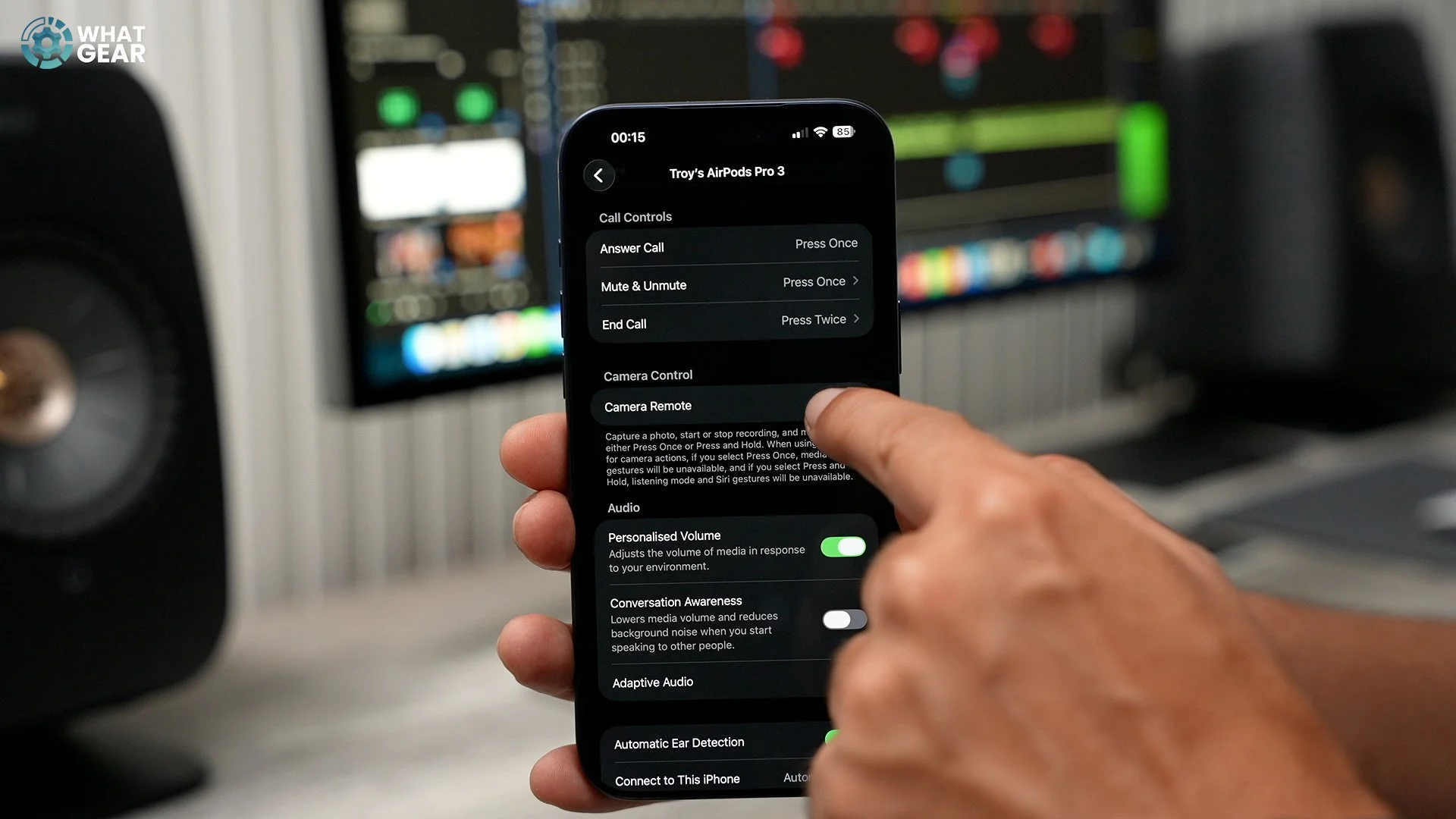
AirPods settings / remote shutter
If you ever want to set your phone up on a tripod or set it up somewhere to take group photos from far away. Did you know that if you have some AirPods, you can use them as a shutter button? Connect your AirPods to settings/tap on the AirPods, and here you should see the camera remote option. Now you can pinch to start a 3-second countdown.
App locks
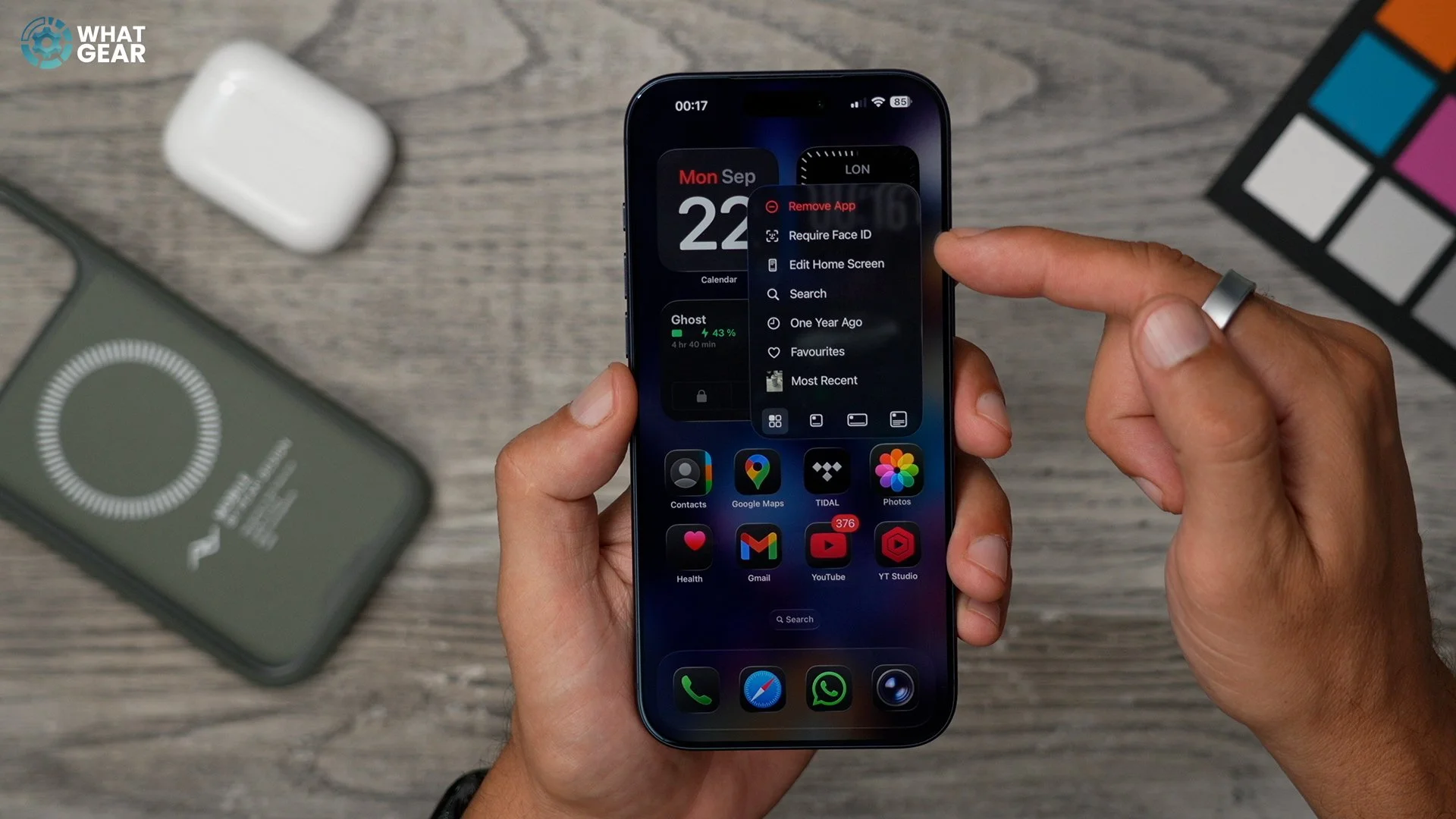
If you ever let anyone use your phone…ever. You can thank me for this one later. Hold your finger down on the Photos app. Tap ‘require a face ID’. Matter of fact, you should set this up on any app you don’t want people snooping around in.
Battery Percent
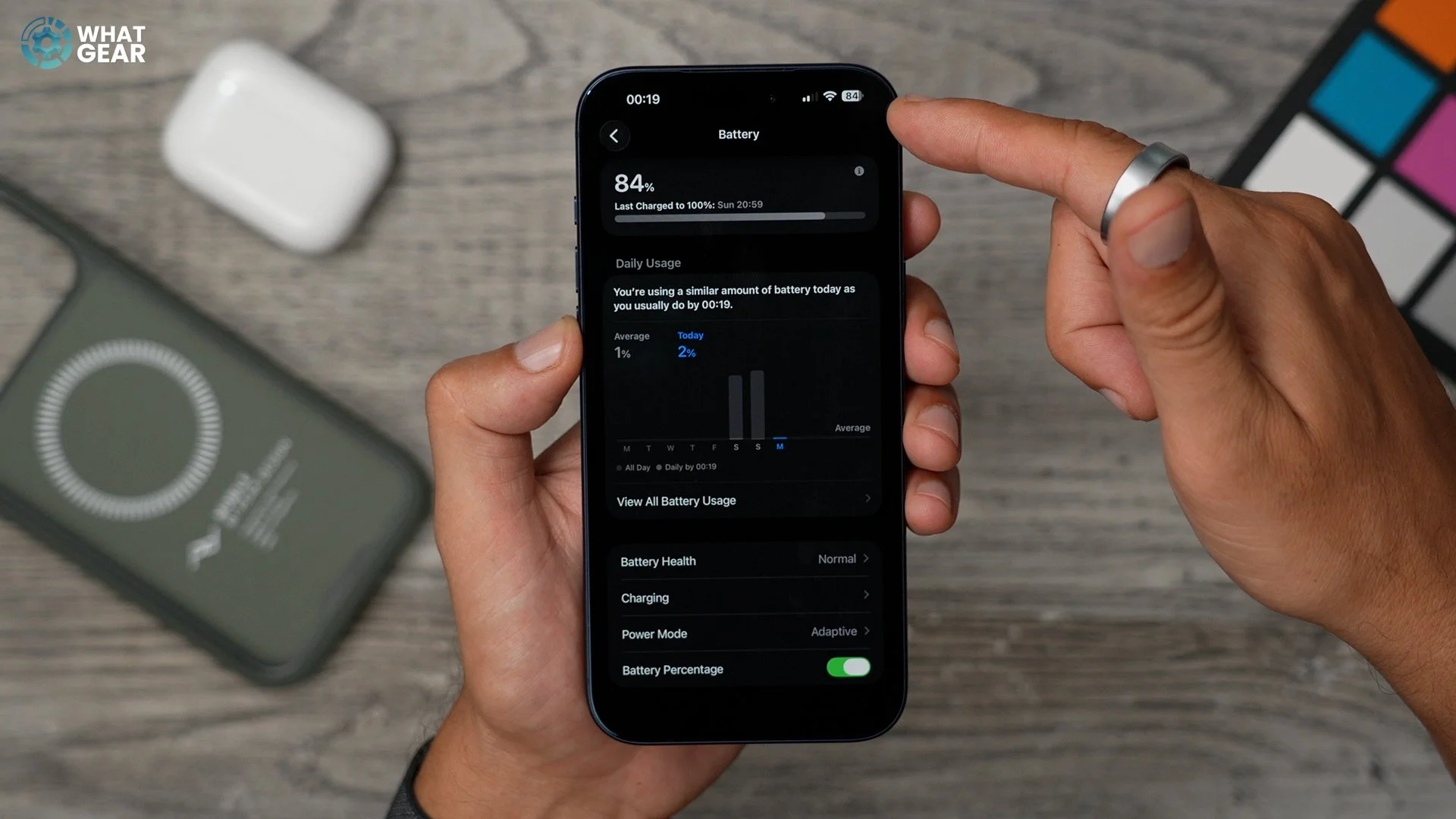
Ever wanted to know precisely how much battery life you have left? Do this go to settings / battery / switch on battery percentage. Now, when it comes to battery percentage, you’ll know what you've got left.
Spatial photo
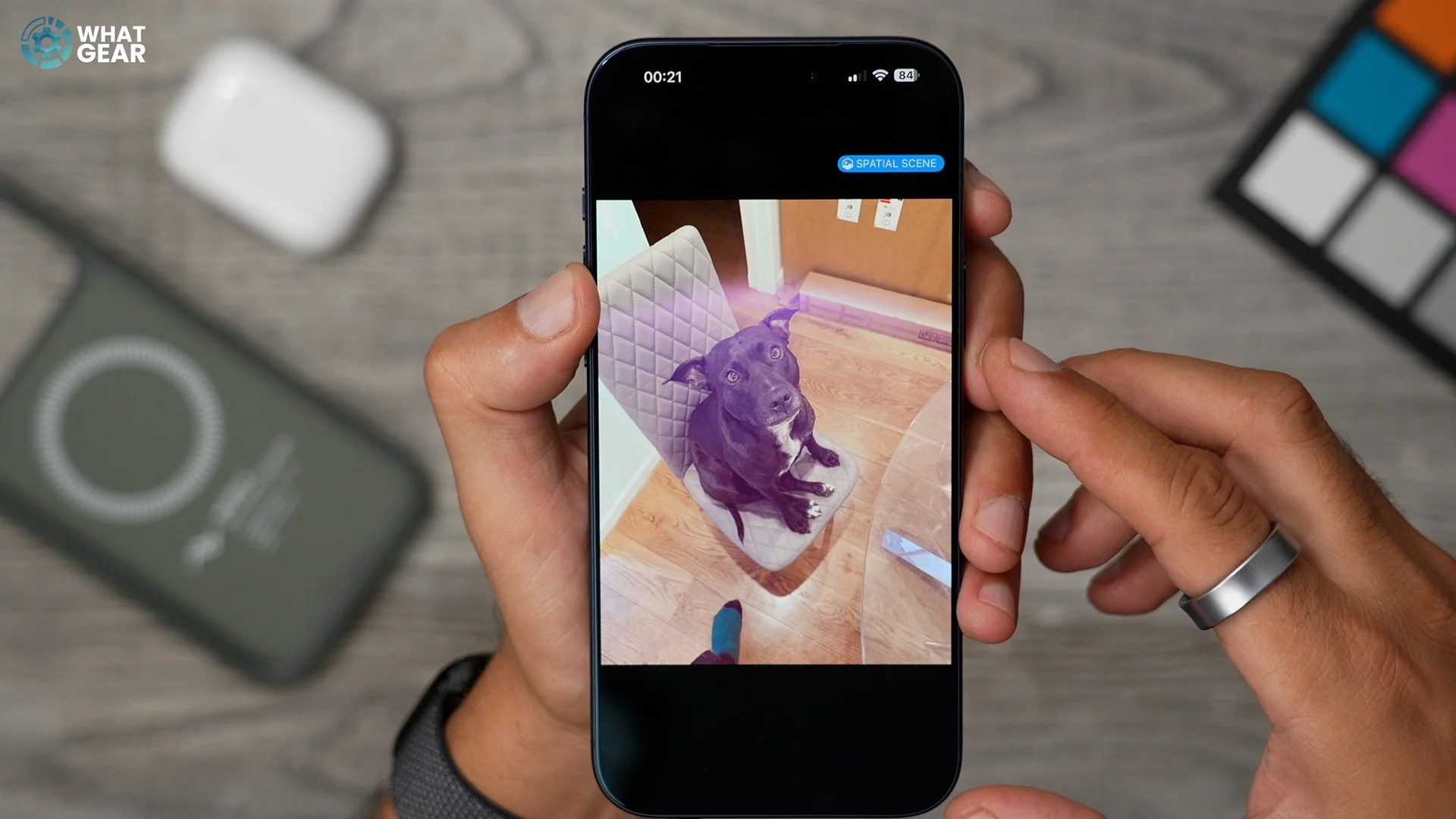
Ok, one last nice feature to play around with. In your photo library, take a look at a photo where there's a clear subject in the frame. At the top, if you see the little hexagon icon, this means this photo can be transformed into a spatial image. So if you scroll through old photos, this can really bring them to life a little bit.
Personal Voice
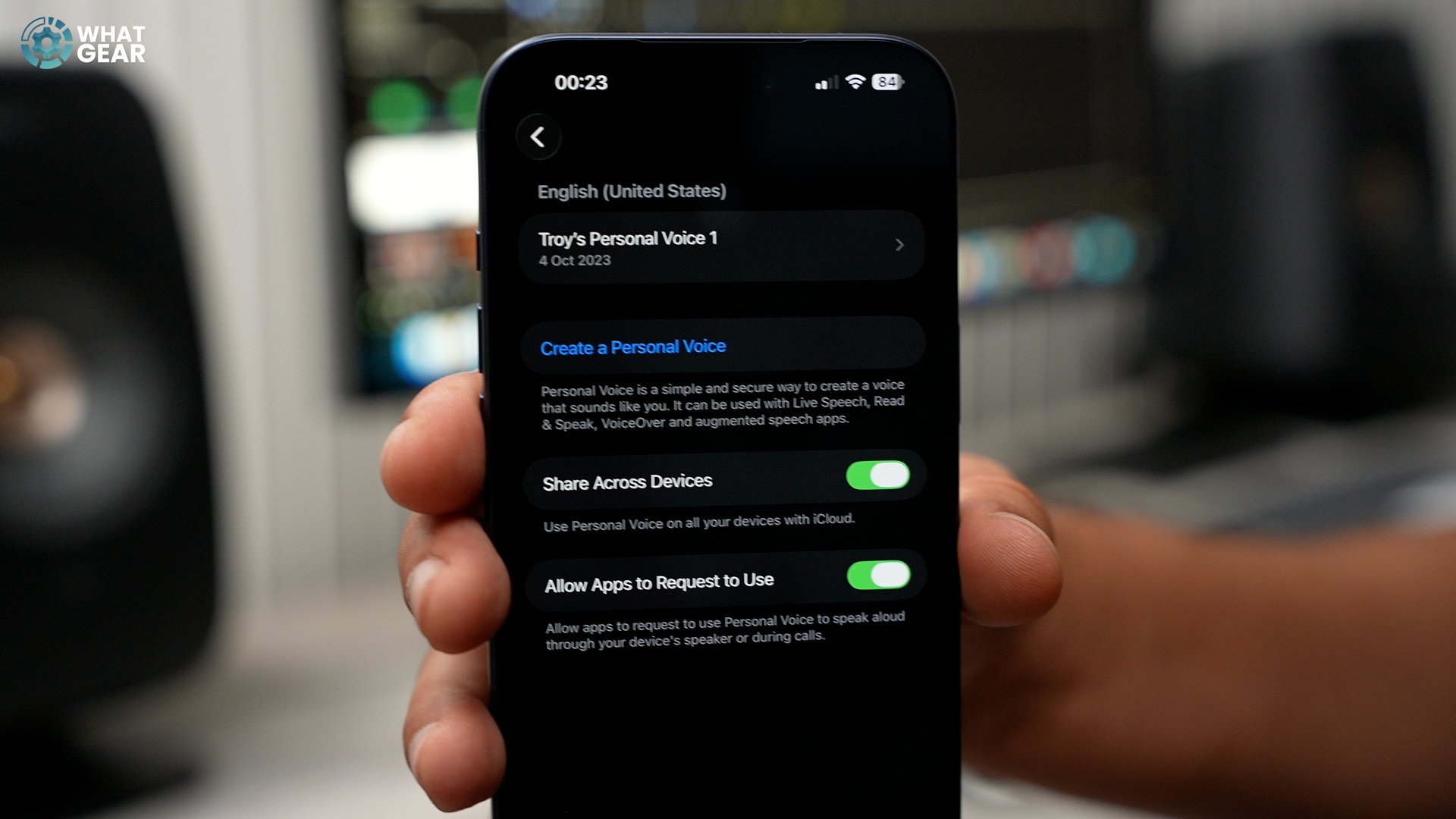
Hey, remember in the endgame where Tony Stark uploads a version of himself to the machines? Well, you can do that with your voice on your iPhone. Go to accessibility / personal voice. It takes quite some time to train it. But It can be done, and it can be shared with other people. And used in various apps.