Honor Magic 8 Pro - 20 Features & Hidden Features YOU NEED TO KNOW!
If you’ve just got an Honor Magic 8 Pro, there’s just one question: Do you want to see some magic? Well, that is exactly what you’re about to see. Here are the first 20 things to do, including some of the most standout Honor Magic OS features that you definitely need to know about. And I have some good news for you. If you stick around, something brand new on Honor’s flagship phone this year is a new button on the side. You can use this in a few different ways and customize it to make the most sense for you. So let me show you how to set this up.
THE NEW BUTTON
If you go into Settings and scroll down to Honor AI, on this page, you will find the menu for the brand-new AI button. This is where you’ll discover some of the awesome new features available on the Honor Magic 8 Pro. Something very important to know is that the AI button supports three different input methods that can be mapped and used anywhere on the device. When you’re in the camera app, you can half-press to focus and fully press to take a photo. You can also push and hold it, which can be remapped. I’ll show you how to do that later, but for now, here’s how I’ve set up the short press. I’ve mapped it to AI Memories, which I think of as screenshots with context. These include links back to where you took the screenshot and can even summarise the content for you.
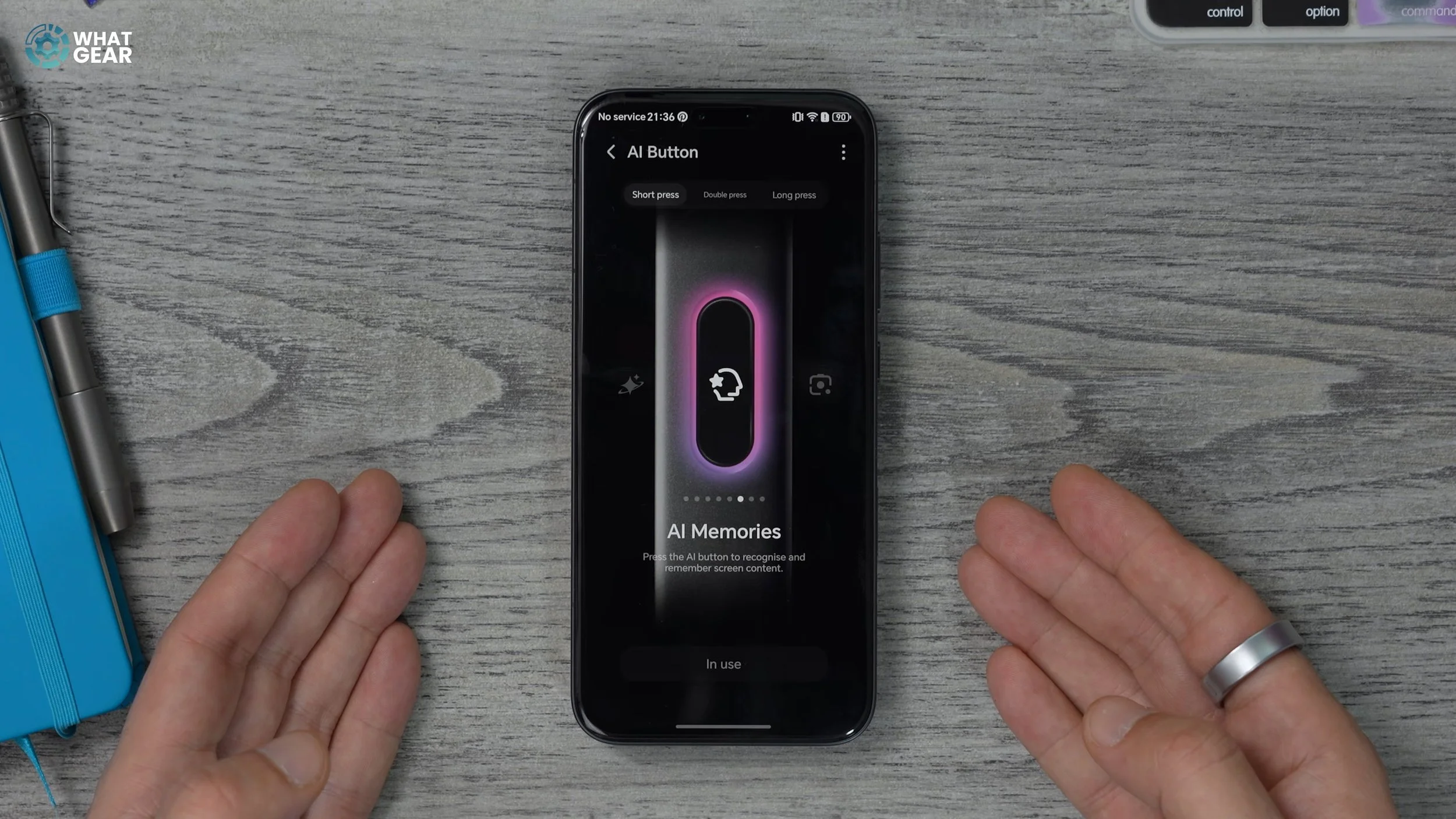
For example, if you’re researching a topic and want to grab information from different websites, whenever you see something useful, you can tap the AI button to store it in AI Memories. On the home screen, you’ll already see the AI Memories icon, which opens your saved collection. As an example, I’m going to Vegas soon and was researching things to do. You can see that I took screenshots, and the phone created a summary of each page. I can also jump straight back into Chrome and return to the exact spot where the information was captured. That’s how I’ve set it up, but it’s worth browsing the other options as some may be more useful for you.
AI SIDEBAR
AI Memories is a powerful tool, but if you don’t want the app icon on your home screen all the time, there’s another quick way to access it. Open the AI Memories app, tap the three dots in the top-right corner, and go to Settings. Here you’ll see the option to use a three-finger swipe down instead of the AI button, if you prefer.
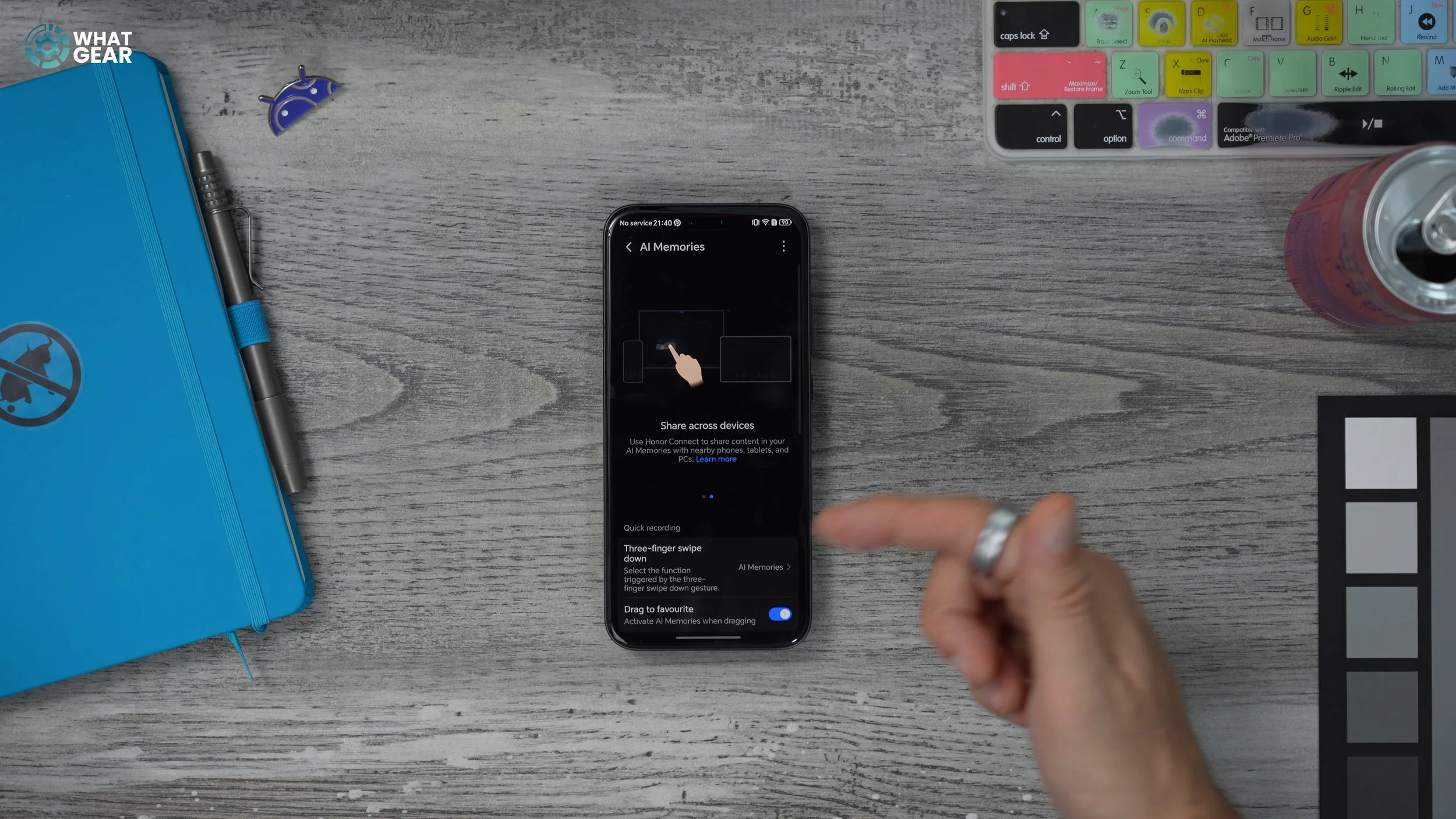
If you scroll down further, you’ll find the option to show the sidebar. Once enabled, you’ll see a small tab on the right edge of the screen. This acts as a shortcut to your most recent AI Memories without opening the full app. Once this is set up, you can remove the AI Memories app from your home screen.
A LITTLE SUGGESTION
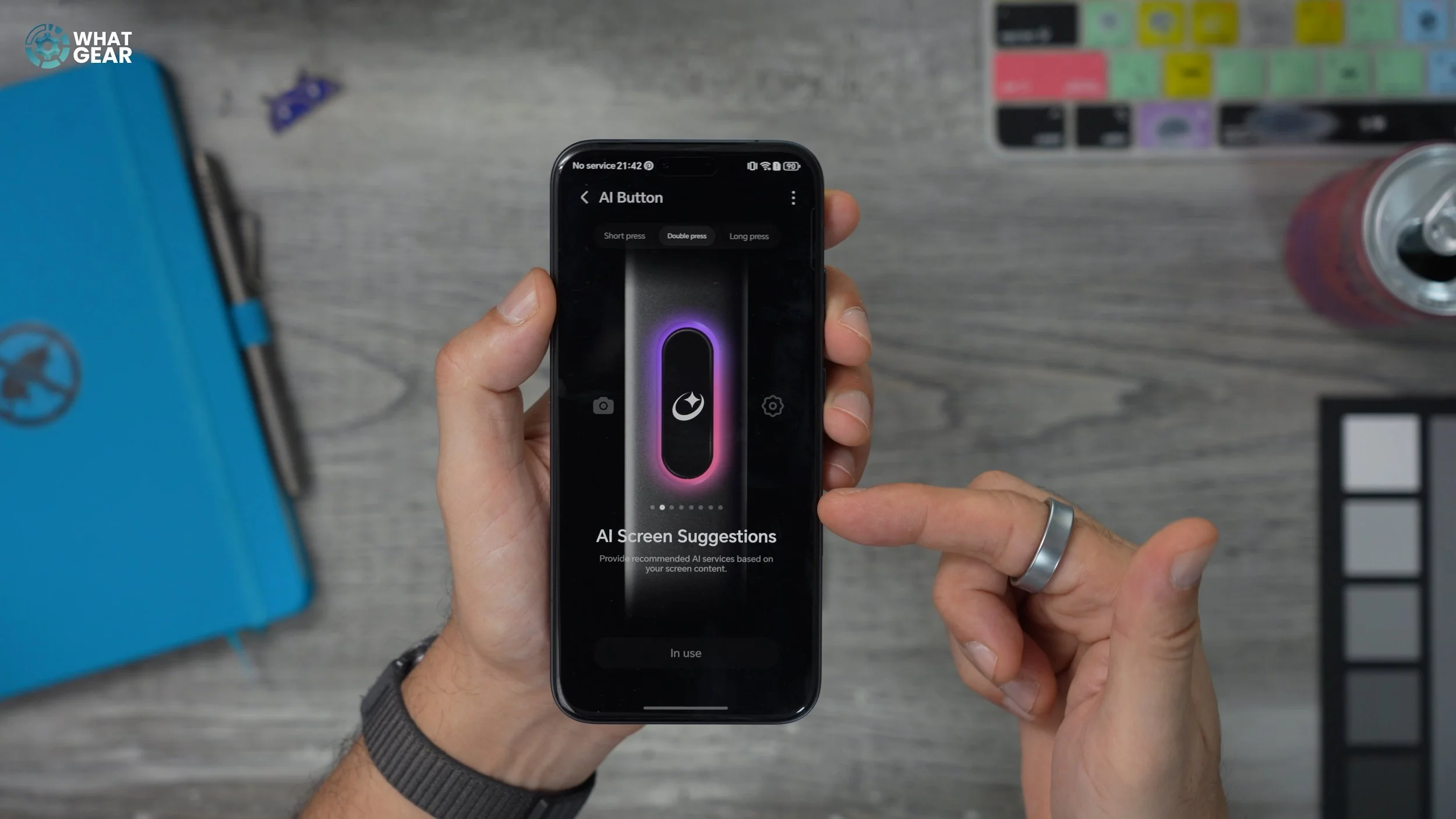
Go back into Settings → Honor AI → AI Button, then select Double Press. With this enabled, whenever you’re researching something and double-press the AI button, you’ll get several options: Circle to Search, Summary, and AI Memories. If you choose Summary, it creates a quick overview of what you’re viewing, which can be extremely helpful for homework or research. In the bottom-left corner, there’s also a Rewrite button, allowing you to recreate the content in a different style.
THE CAMERA BUTTON
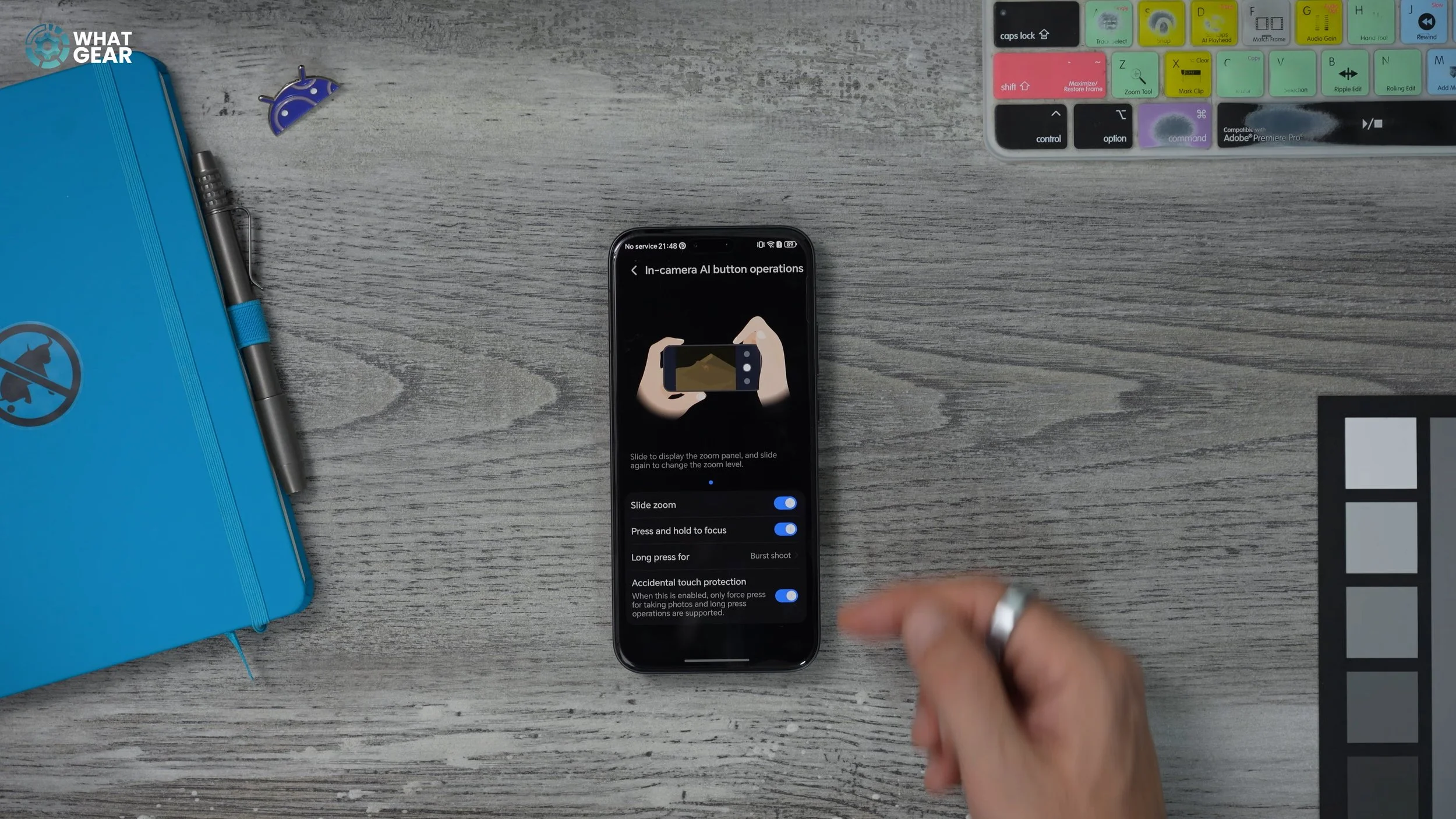
The AI button also doubles as a camera shutter. You can swipe up or down to zoom, half-press to focus, and fully press to take a photo. You can also remap the press and hold function. In the camera app, tap the three dots in the top-right corner, go to Settings, then In-Camera AI Button Operations. One of the most useful options is setting press and hold to start video recording. This way, if something happens suddenly, you can start filming instantly with just two presses.
AI AGENT
Go back to Settings → Honor AI → AI Button, then swipe across to AI Settings Agent. This feature allows you to change phone settings using your voice. It’s especially useful if you’re not very tech-savvy.
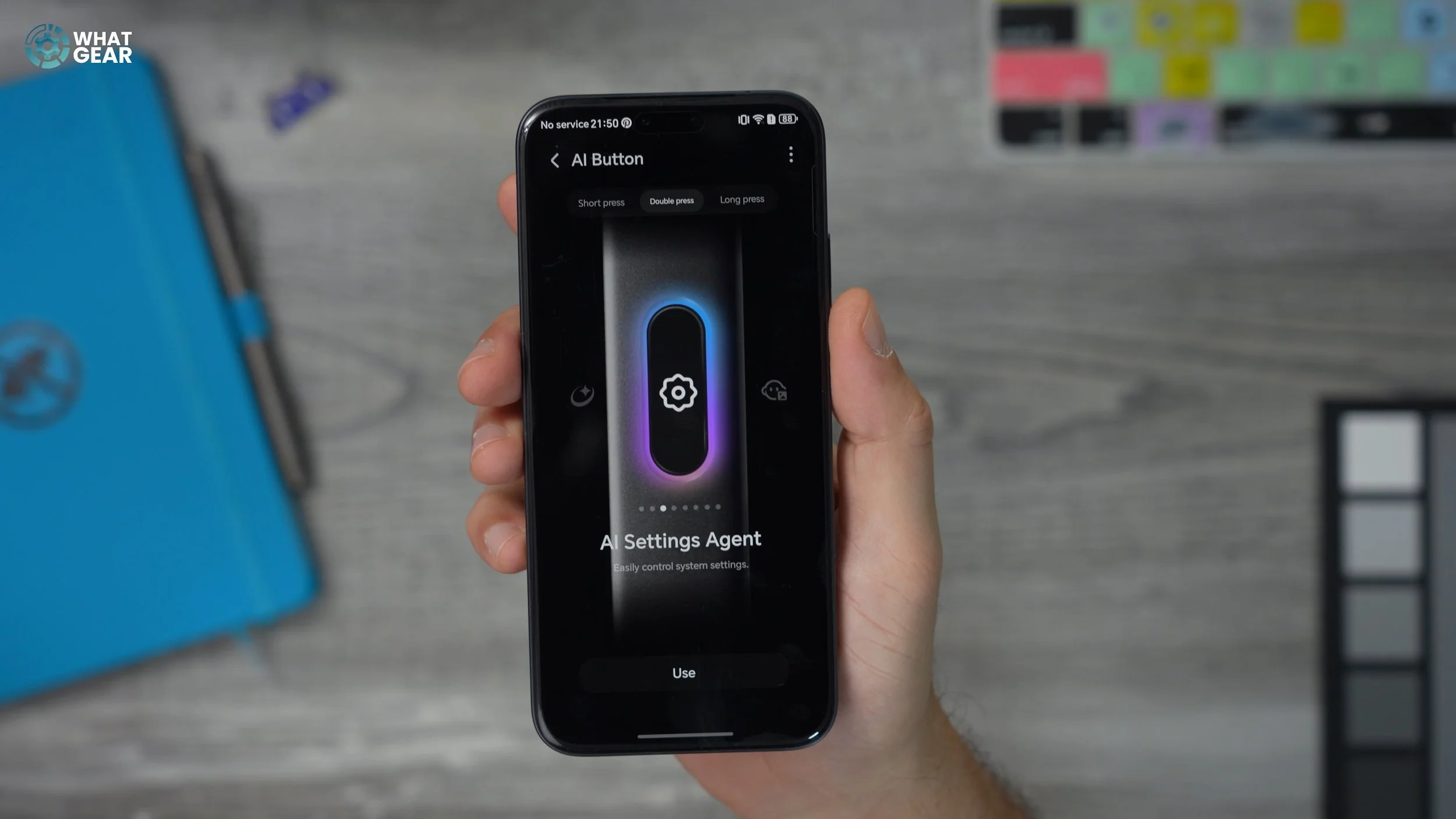
For example:
“Switch the phone into light mode.”
“Switch the phone into dark mode.”
“Turn the volume down.”
If you ever struggle to find a setting, this feature can make things much easier.
AI EYE TRACKING
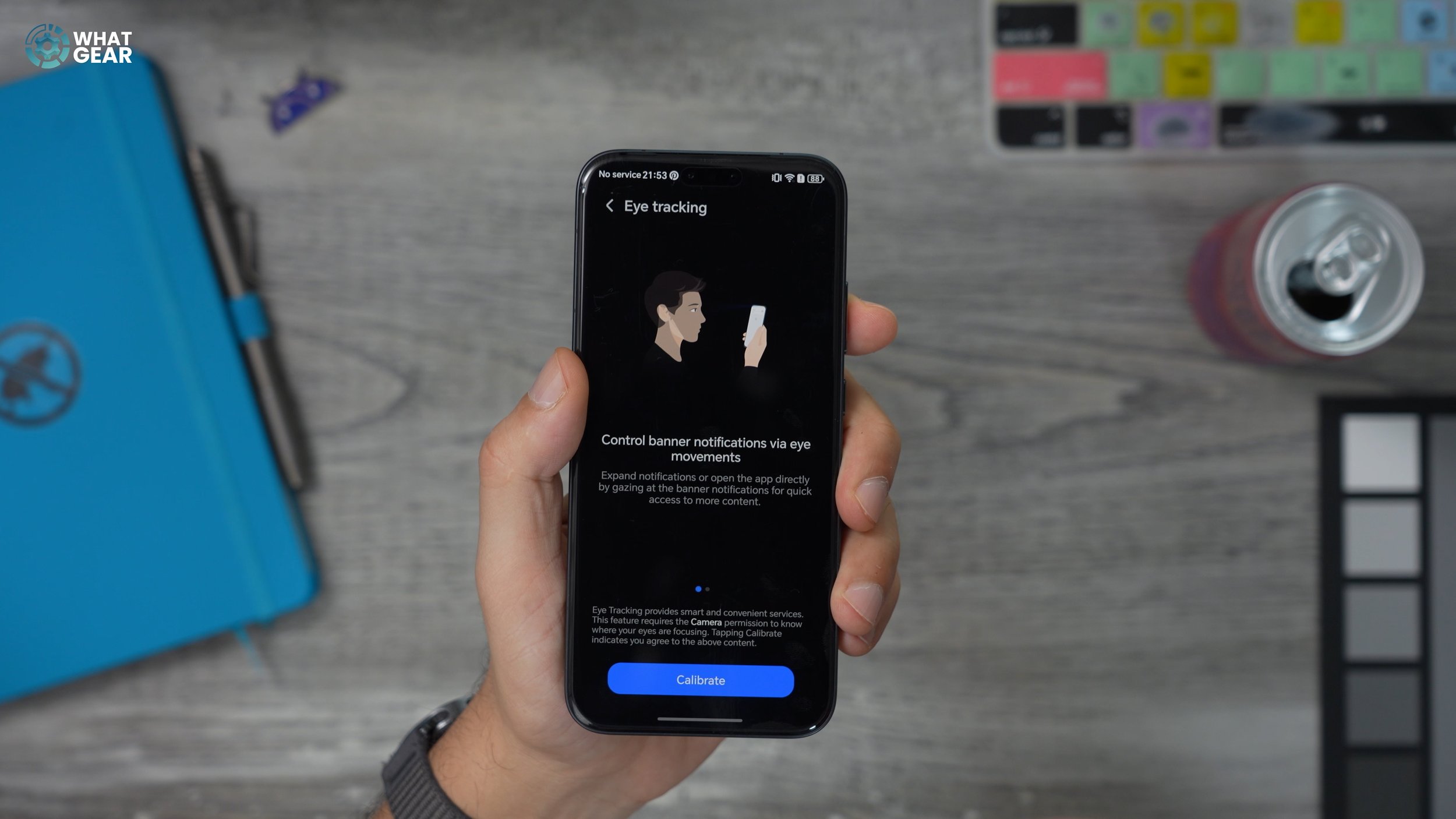
One of the most unique features of the Honor Magic 8 Pro is the additional front-facing sensors, similar to an iPhone. These enable 3D face mapping and eye tracking, which is more secure than 2D systems. To enable this, go to Settings → Honor AI → AI Tracking. After a short calibration process, you can expand notifications and interact with the phone using just your eyes. It takes some practice, but once you get used to it, it feels like a magic trick.
AOD TRICK
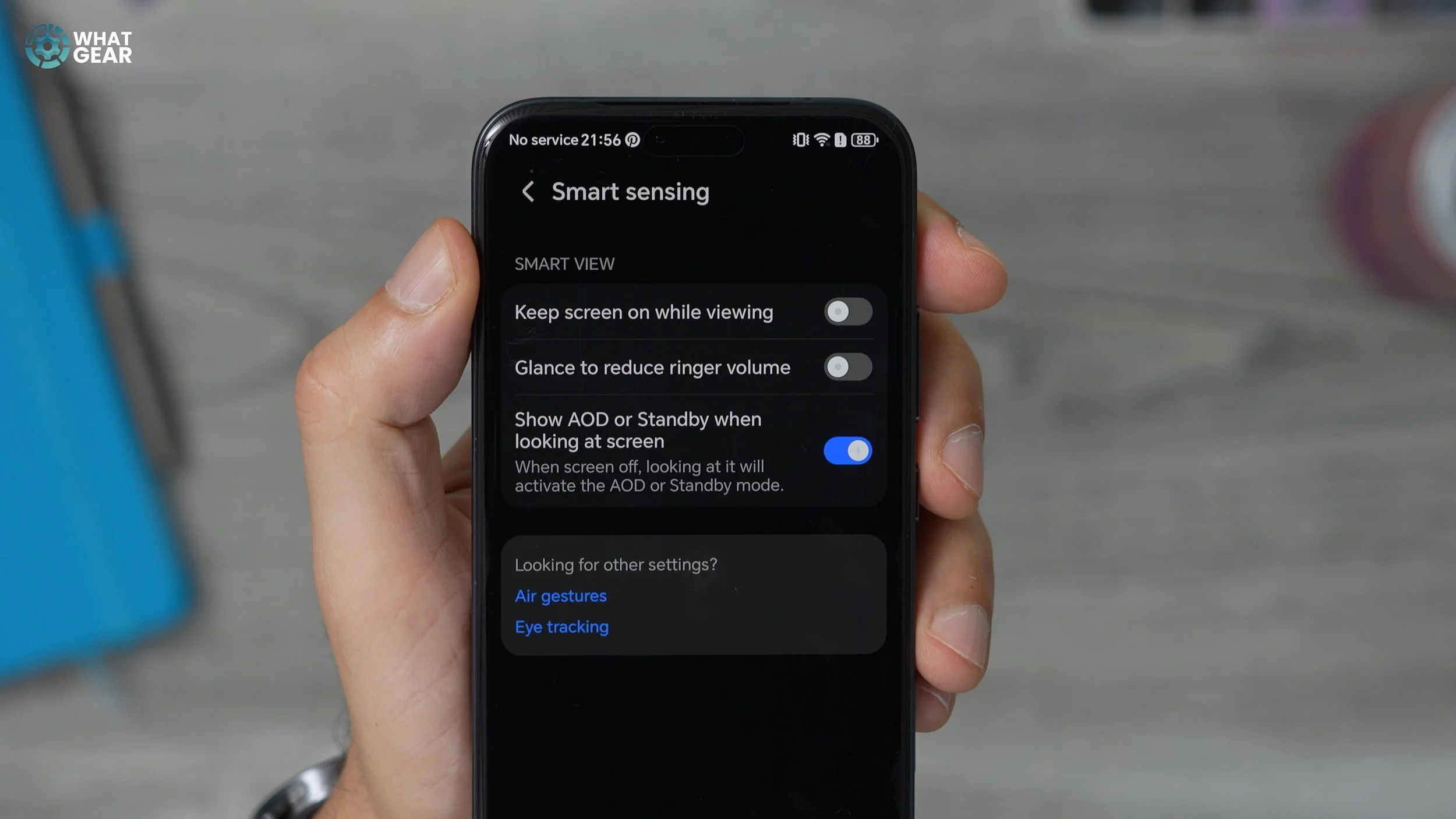
Go to Settings → Honor AI → Smart Sensing. Here you can enable features that use eye tracking. For example:
Always-on display activation when you look at the screen
Glance to reduce ringer volume
Keep the screen on while viewing, which is useful for reading
THE PORTAL
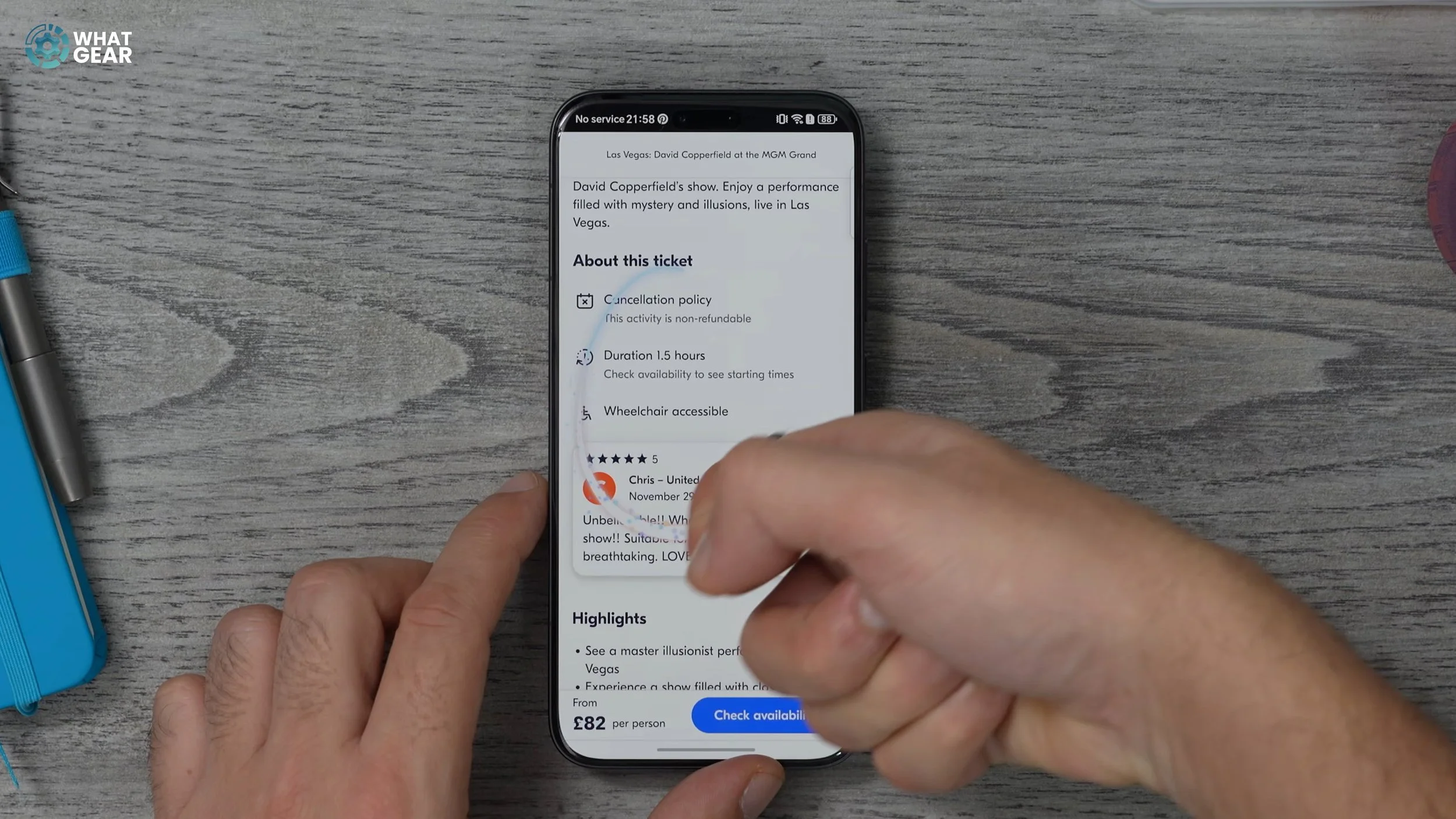
You already know about Circle to Search, but there’s another powerful feature called Magic Portal, which is activated by drawing around content with your knuckle. Magic Portal suggests apps based on the content you select. Addresses may open Maps, dates may suggest Calendar, and text can be extracted even from images.
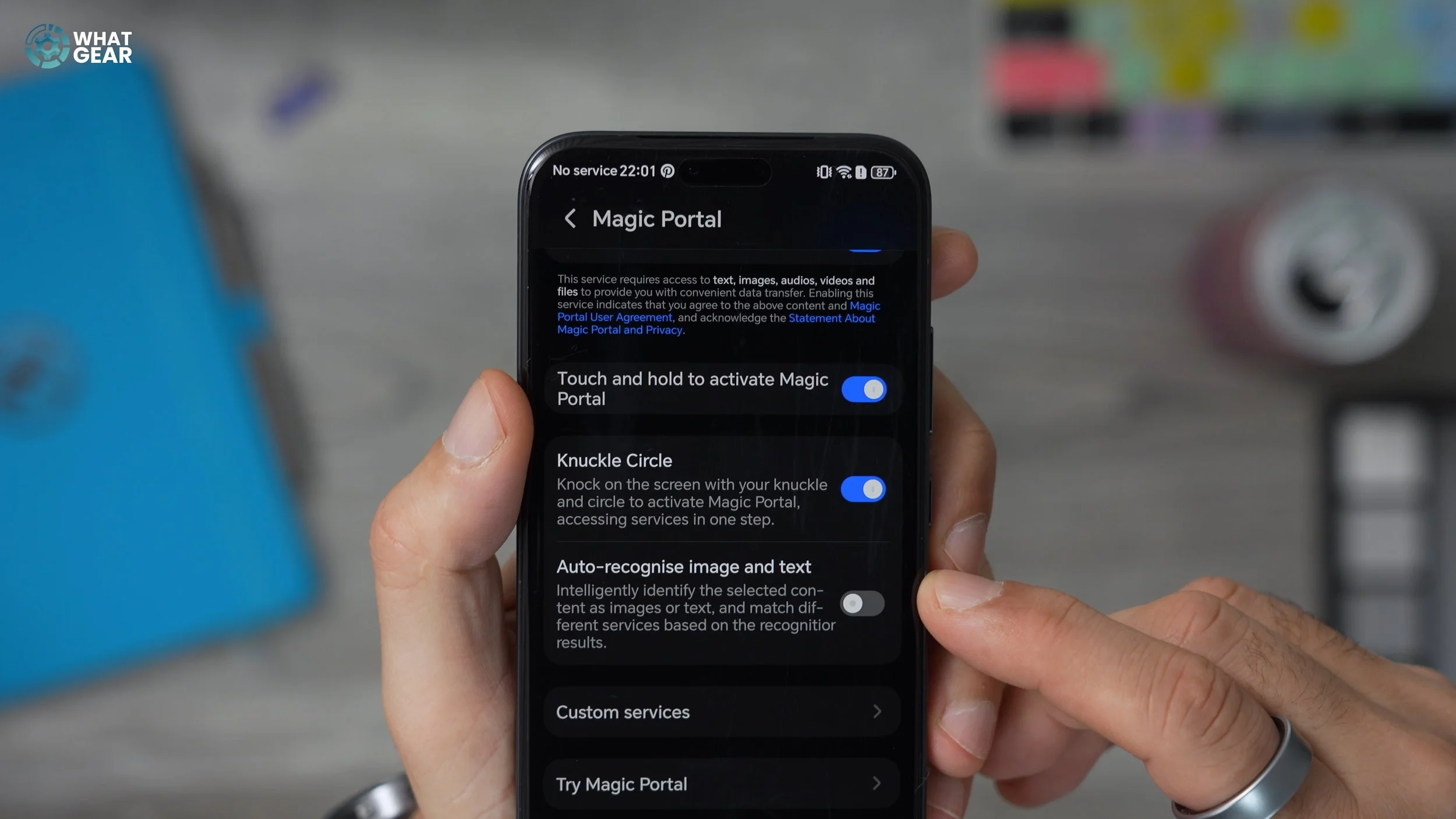
RECOGNISE
Go to Settings → Honor AI → Magic Portal, and enable Auto Recognise Image and Text. This option is off by default but greatly improves app suggestions when using Magic Portal.
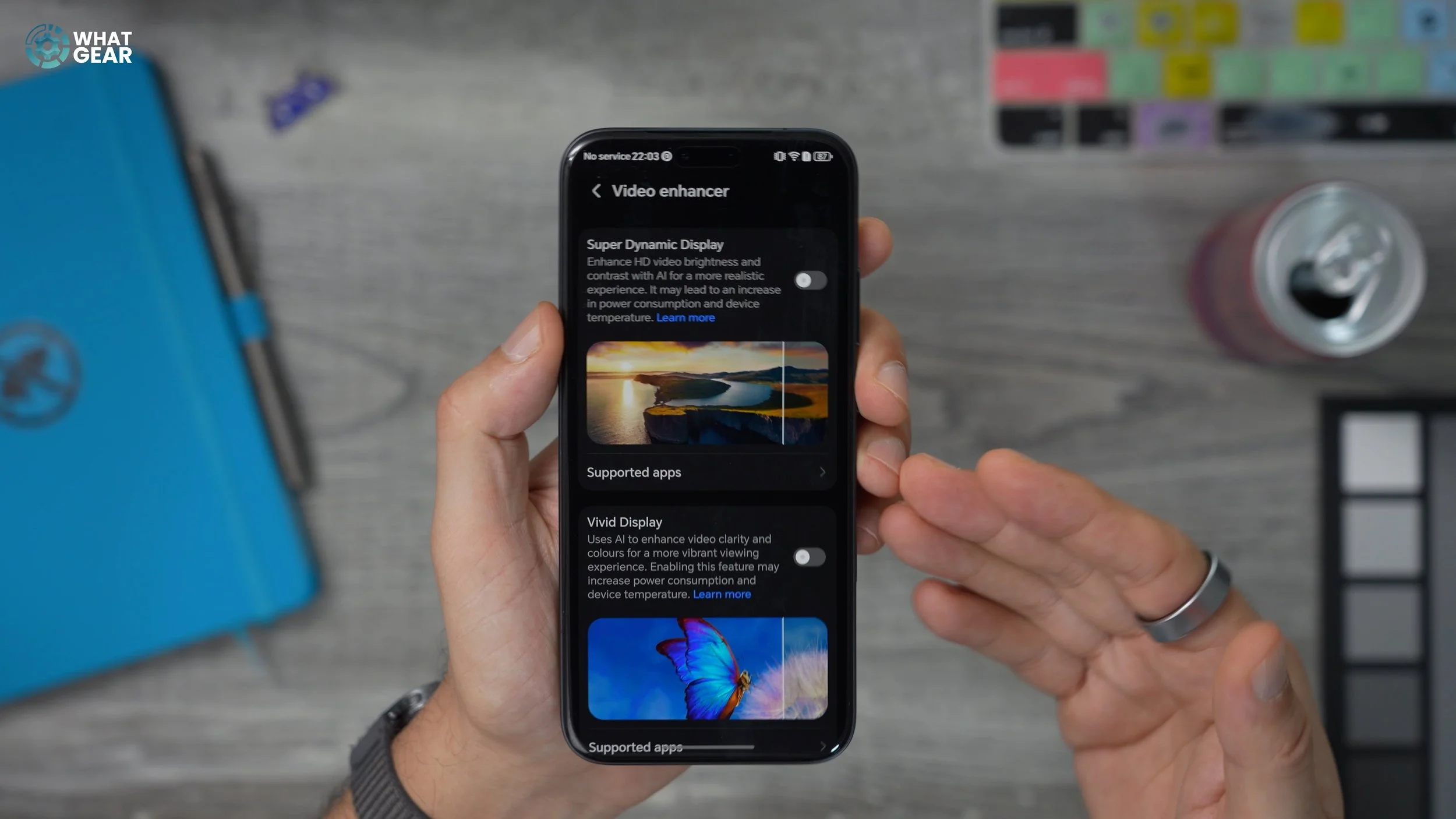
SUPER DYNAMIC
Go to Settings → Display & Brightness → Video Enhancer. Enable Super Dynamic Display and Vivid Display to enhance video playback. Both are off by default but significantly improve video quality.
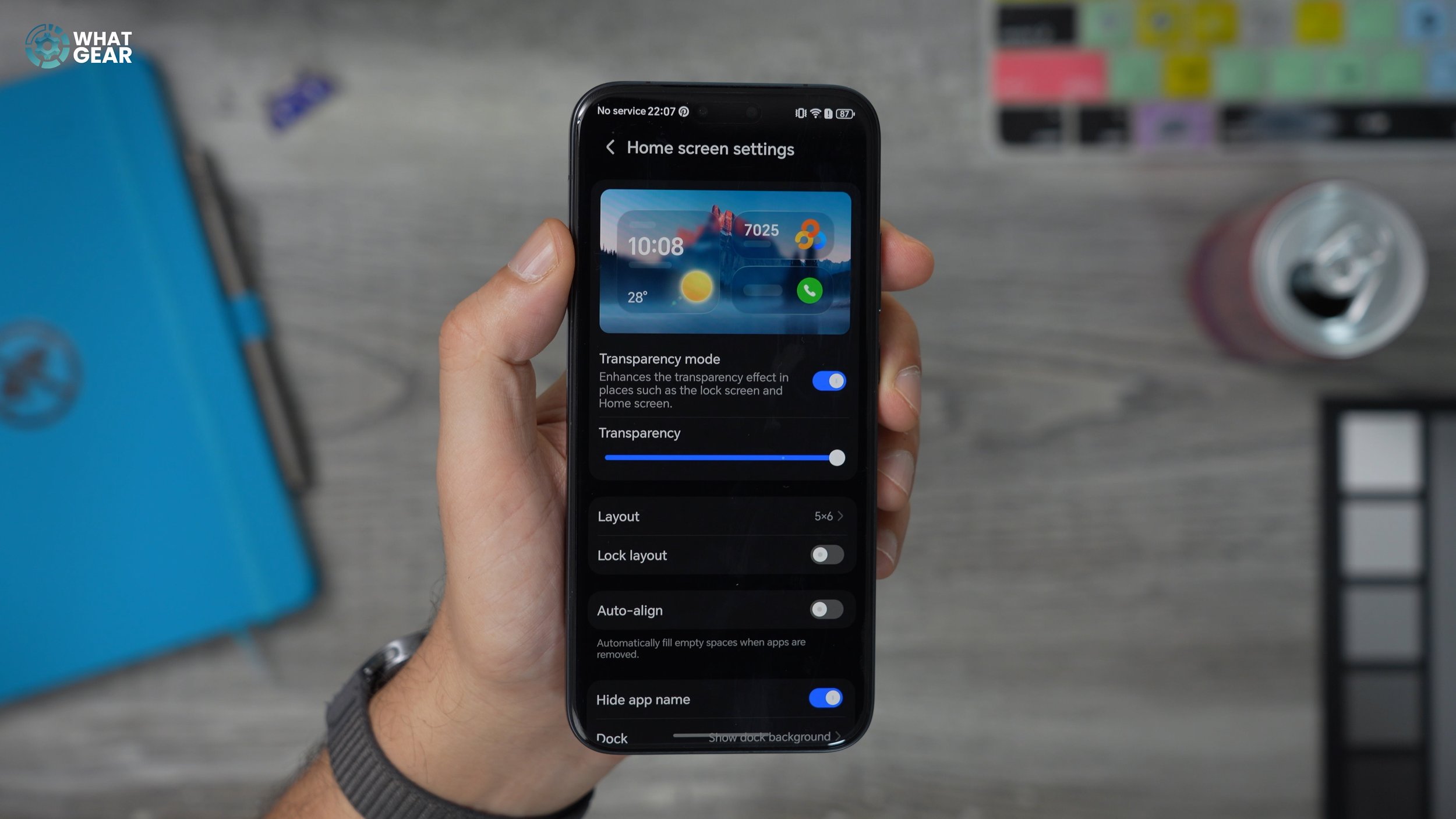
CLEARLY NOT COPIED FROM APPLE
Pinch the home screen and go to Settings, then enable Transparency Mode. You can also adjust transparency levels for quick settings. While here, consider increasing the grid layout to 5×6 to take advantage of the large display, and customise the dock background if you prefer.
MORE ICONIC
Pinch the home screen and go to Wallpaper & Style → Icon Style. You can customise the default Golden Dawn icons with system colours, manual colours, gloss effects, or even create custom icons for individual apps.
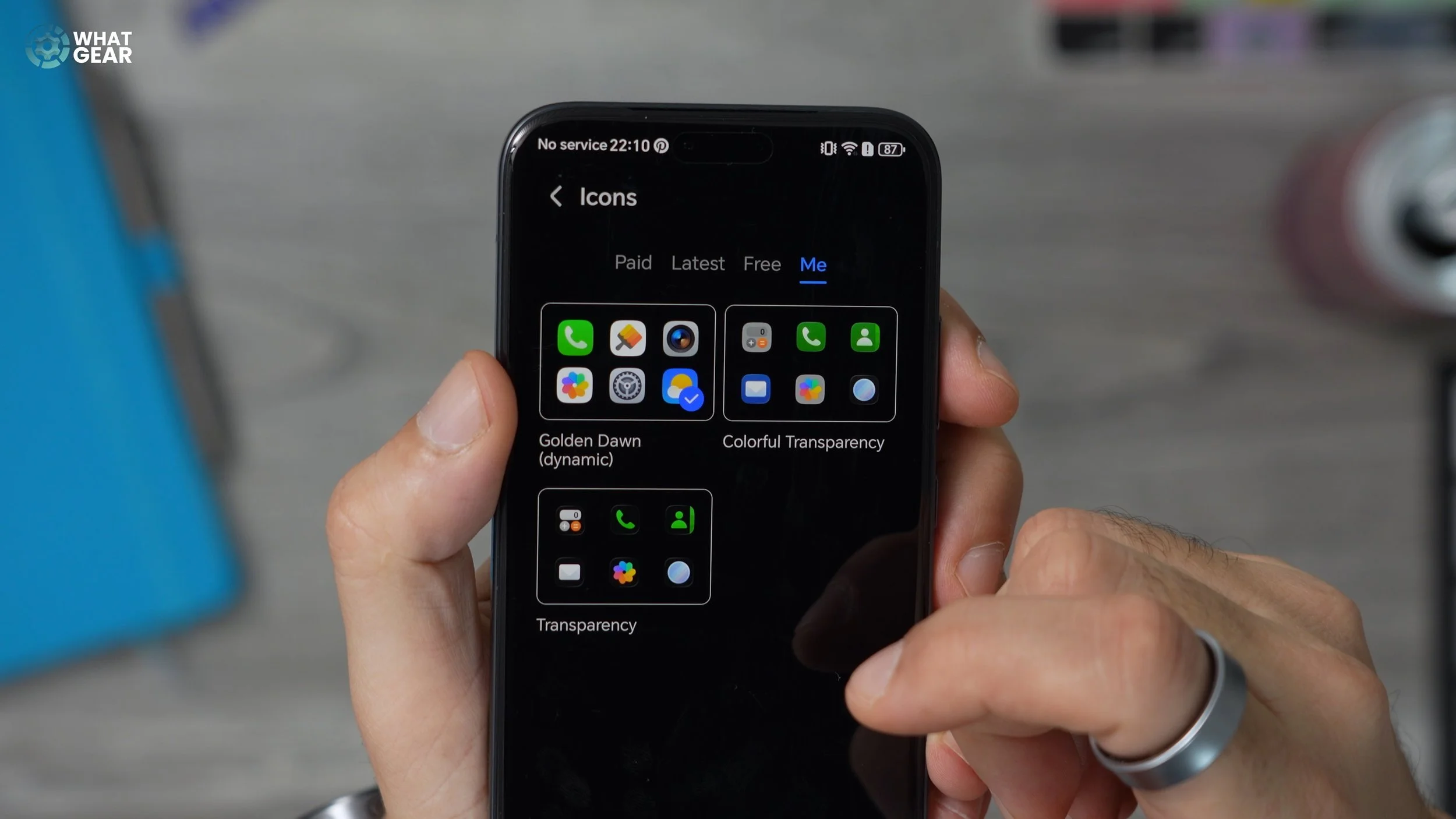
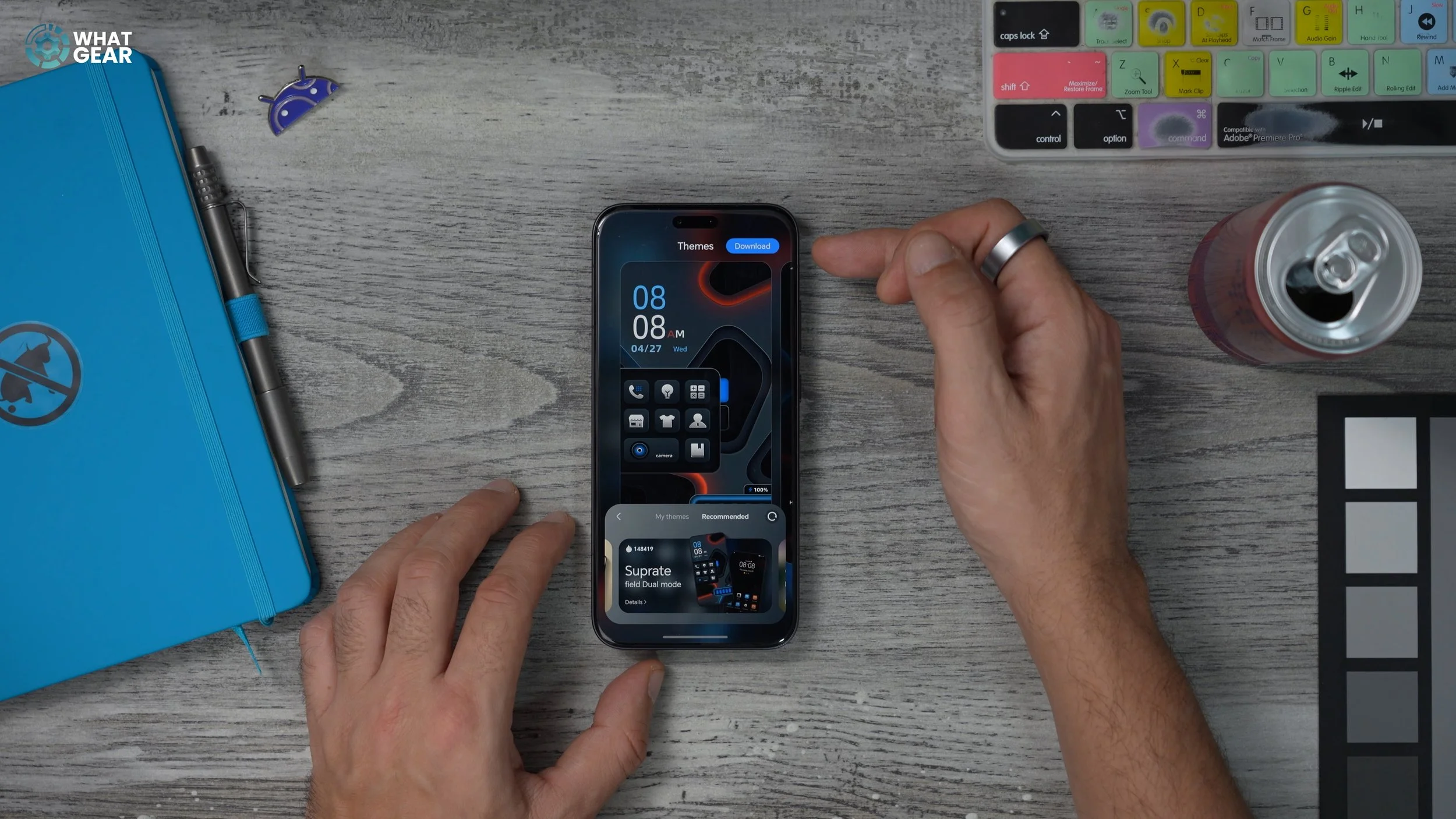
DYNAMIC STYLE
Go to Wallpaper & Style → Themes. Many themes are free, and some include dynamic wallpapers that transition smoothly between the lock screen, always-on display, and home screen.
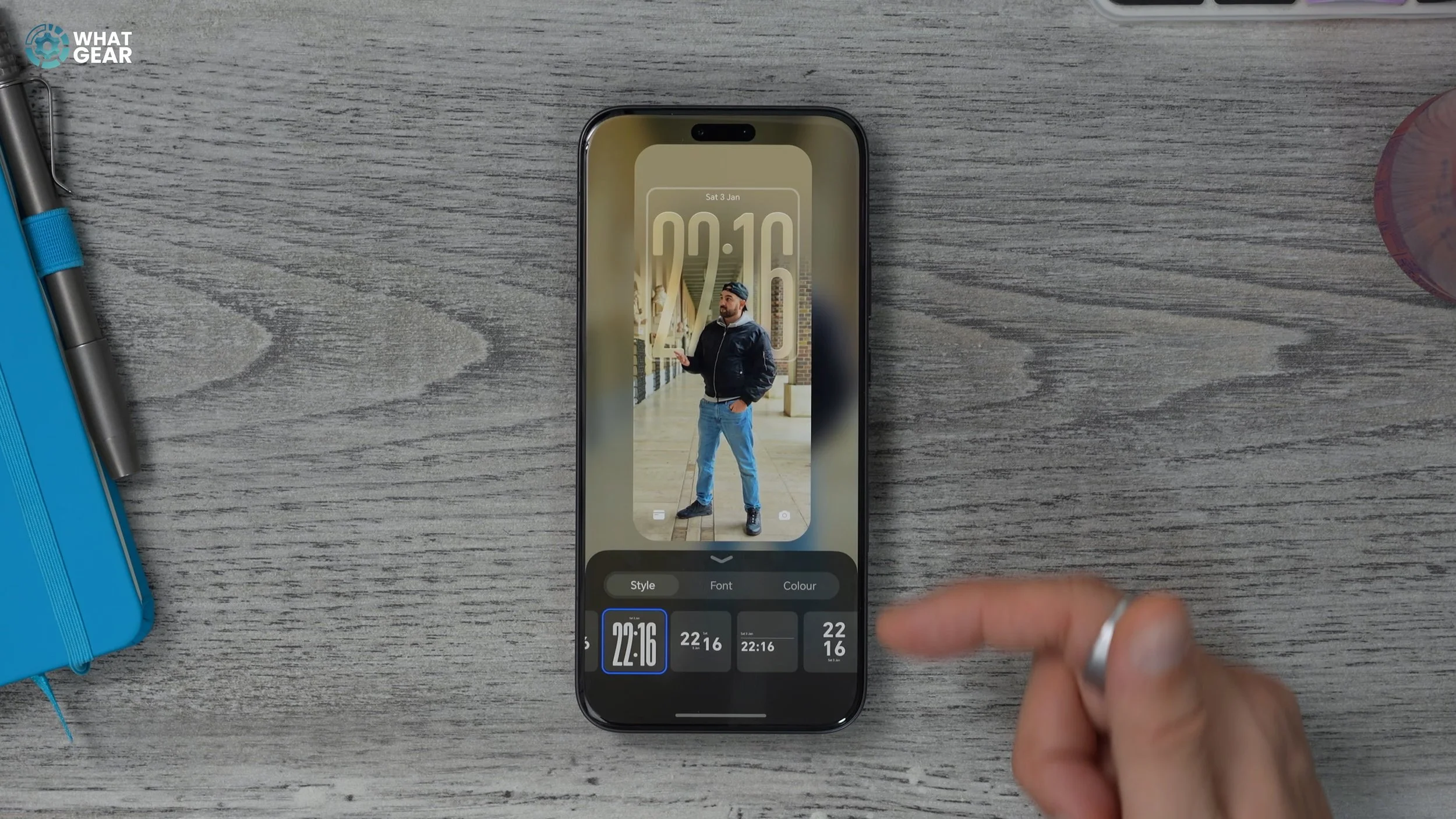
CLOCK ON LOCK
Go to Settings → Home Screen & Style and create custom lock screen and home screen wallpaper pairs. You can enable the depth effect, placing the clock behind the subject of an image. You can also customise fonts, colours, and lock screen shortcuts.
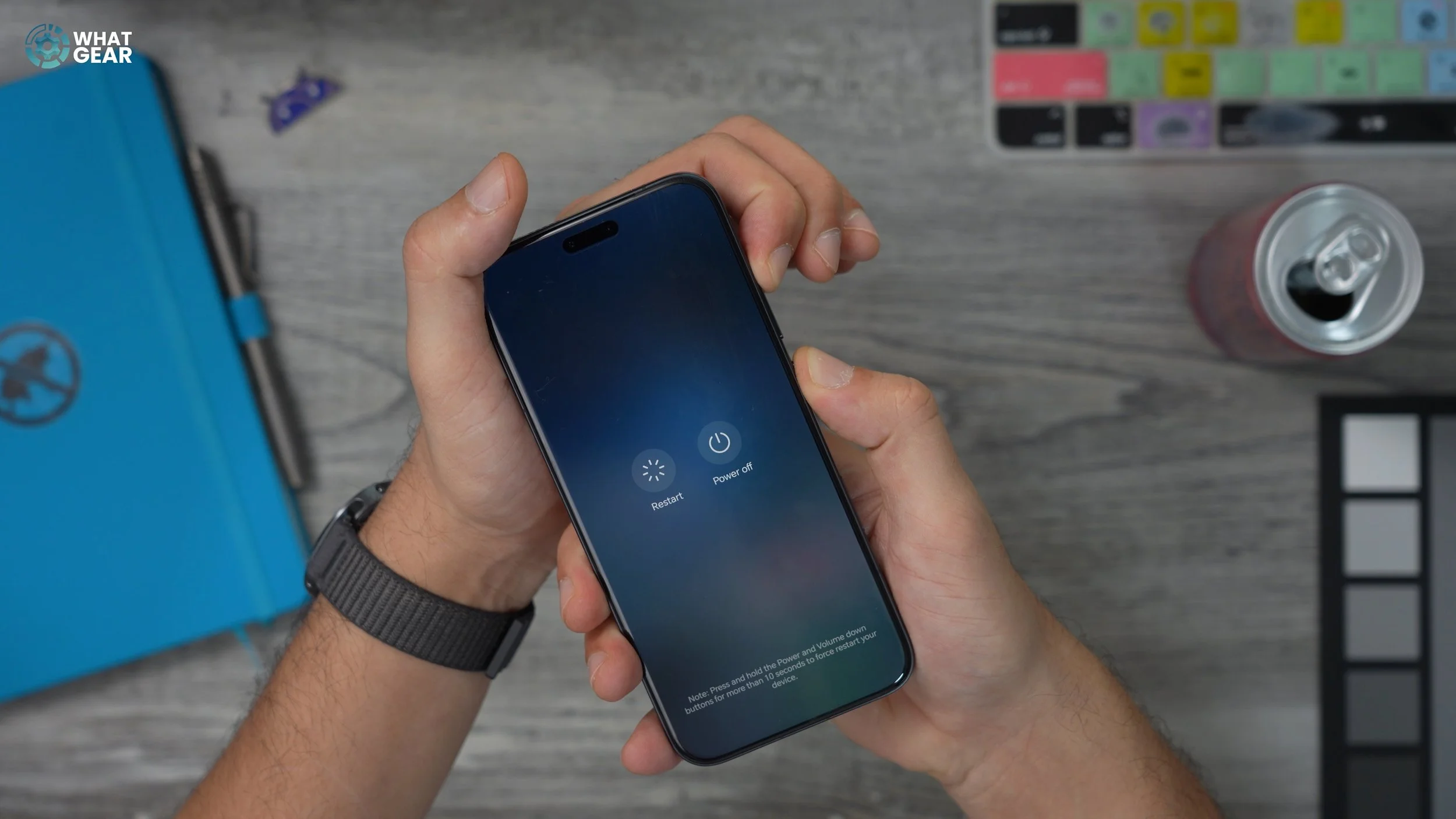
POWER TAP
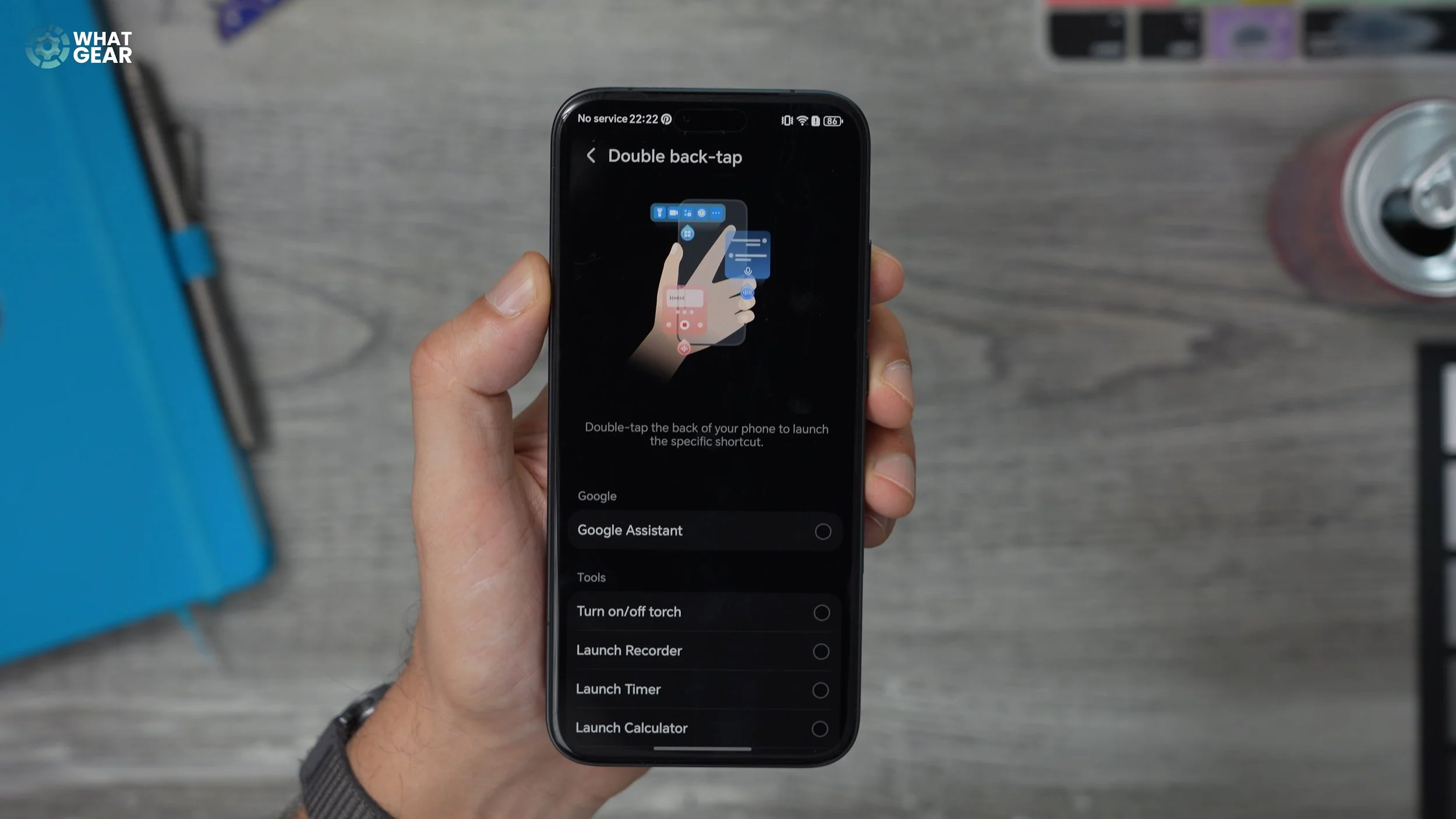
Go to Settings → Accessibility Features → Shortcuts & Gestures. Change Press and Hold from Google Assistant to Power Off, and remap the double press to something useful like Google Wallet.
TAP BACK
In the same menu, enable Double Back Tap to launch apps like Voice Recorder or other shortcuts.
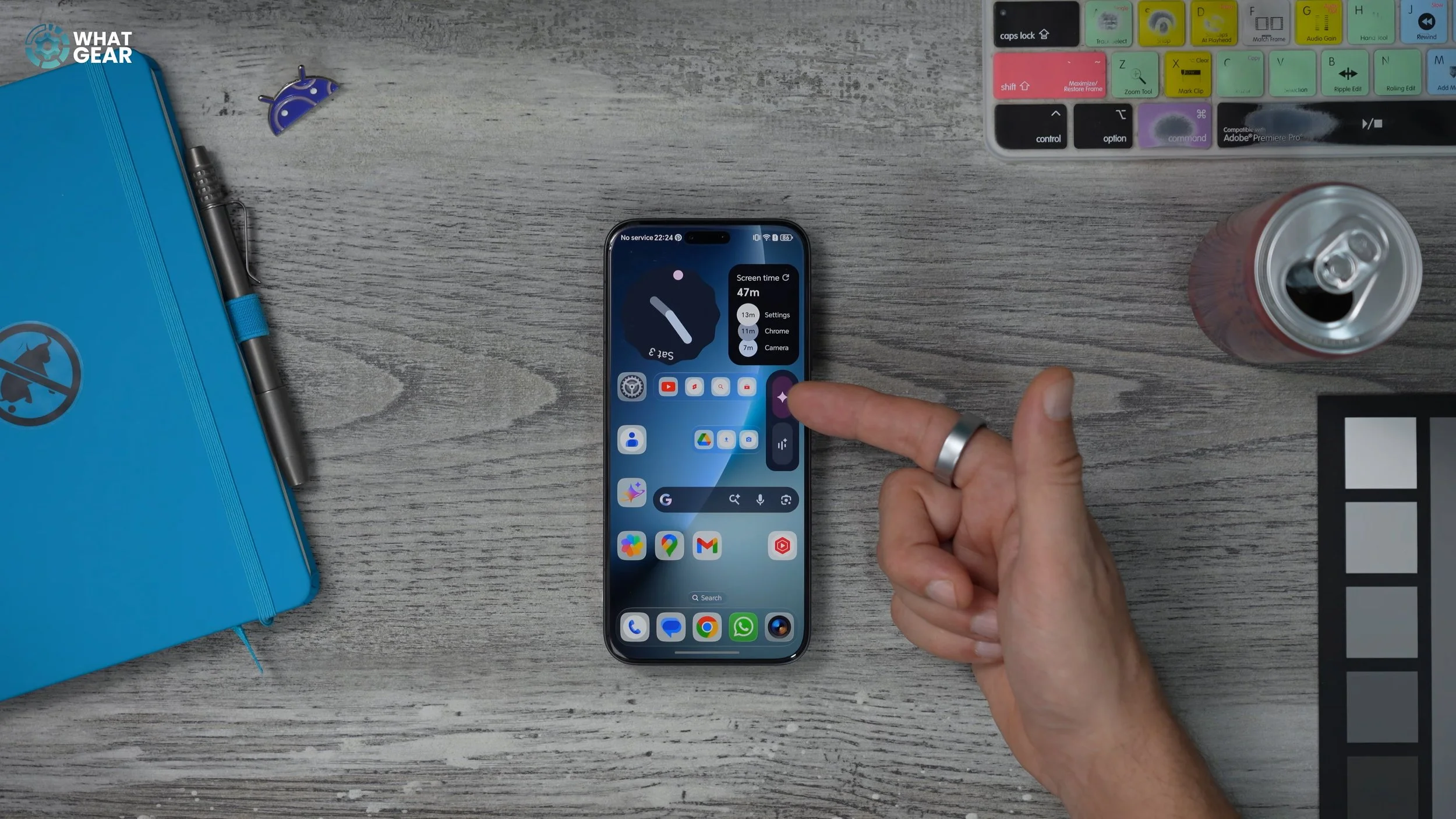
EPIC EXPANSION
On the home screen, long-press apps like Google Drive or YouTube and expand them horizontally or vertically to show shortcuts directly on the home screen.
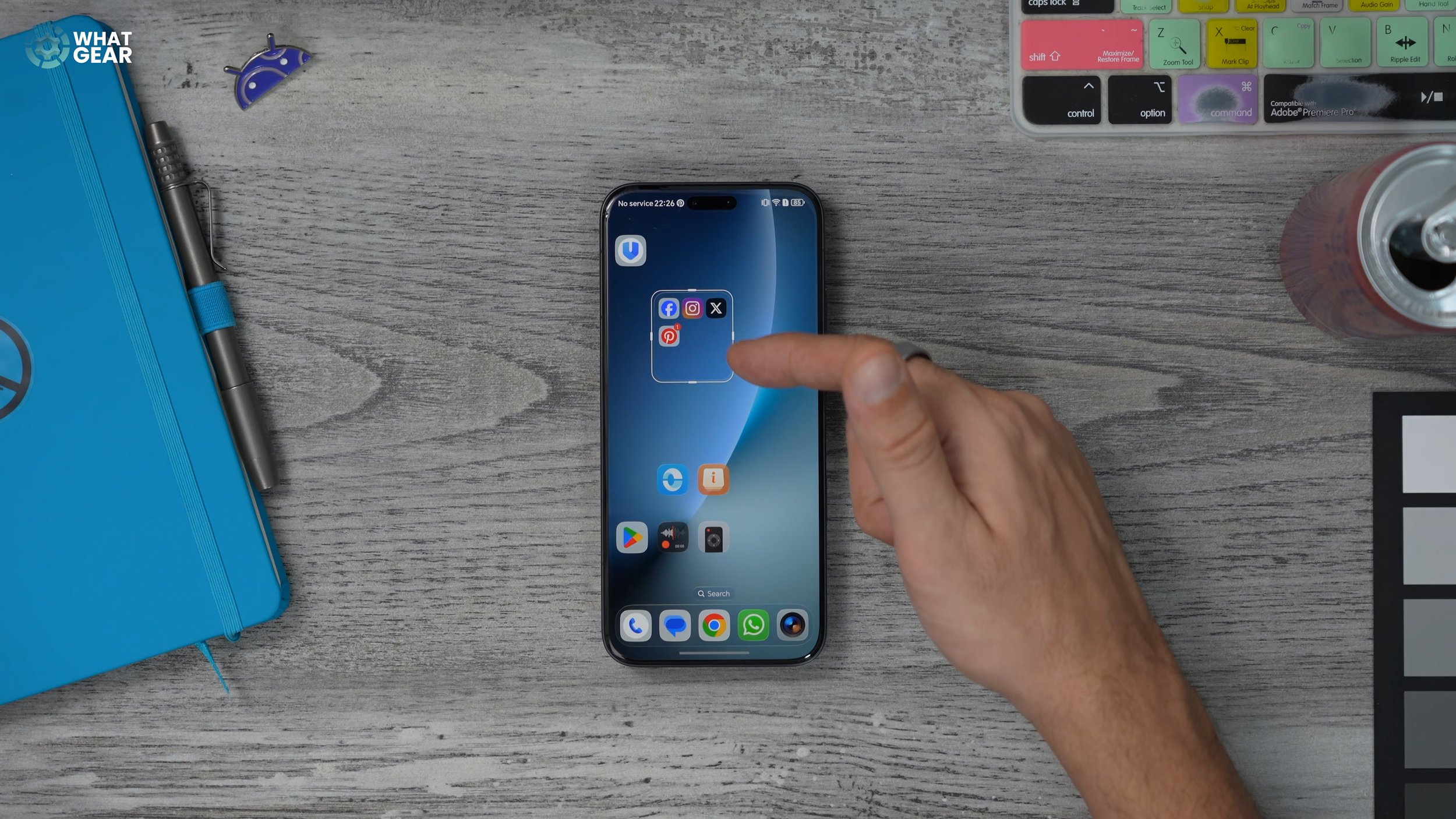
FOLDER OPTIONS
App folders can also be expanded horizontally, vertically, or enlarged to show more apps, giving you much more flexibility in layout design.
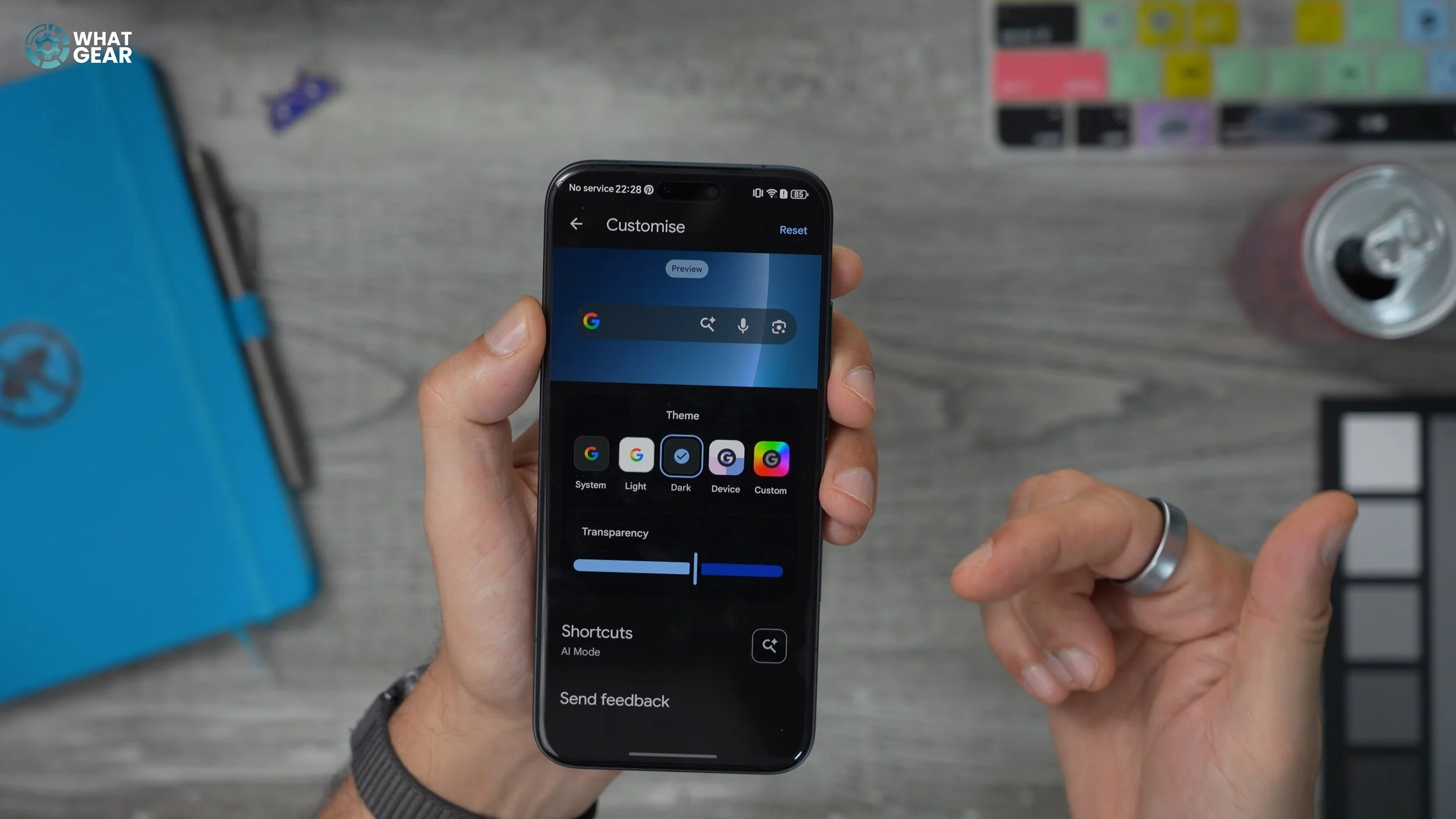
CUSTOM BAR
Long-press the Google search bar and tap Edit to customise shortcuts, colours, transparency, and themes.
SUPER IR
The Honor Magic 8 Pro includes a built-in IR blaster. Open the Smart Remote app, tap the plus icon, select your device (for example, an LG TV), and follow the setup instructions. Once configured, your phone can control multiple devices like a universal remote.
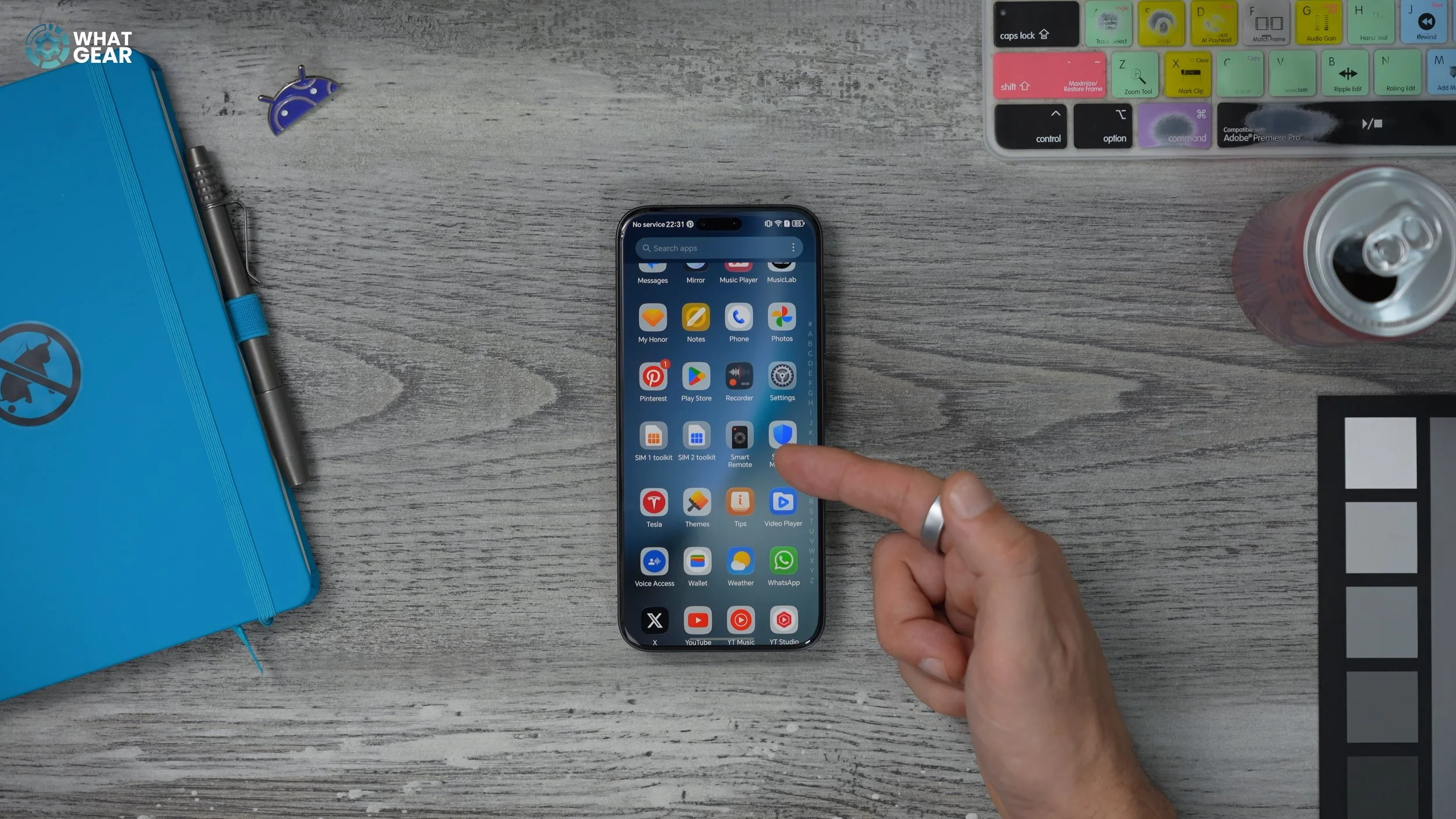
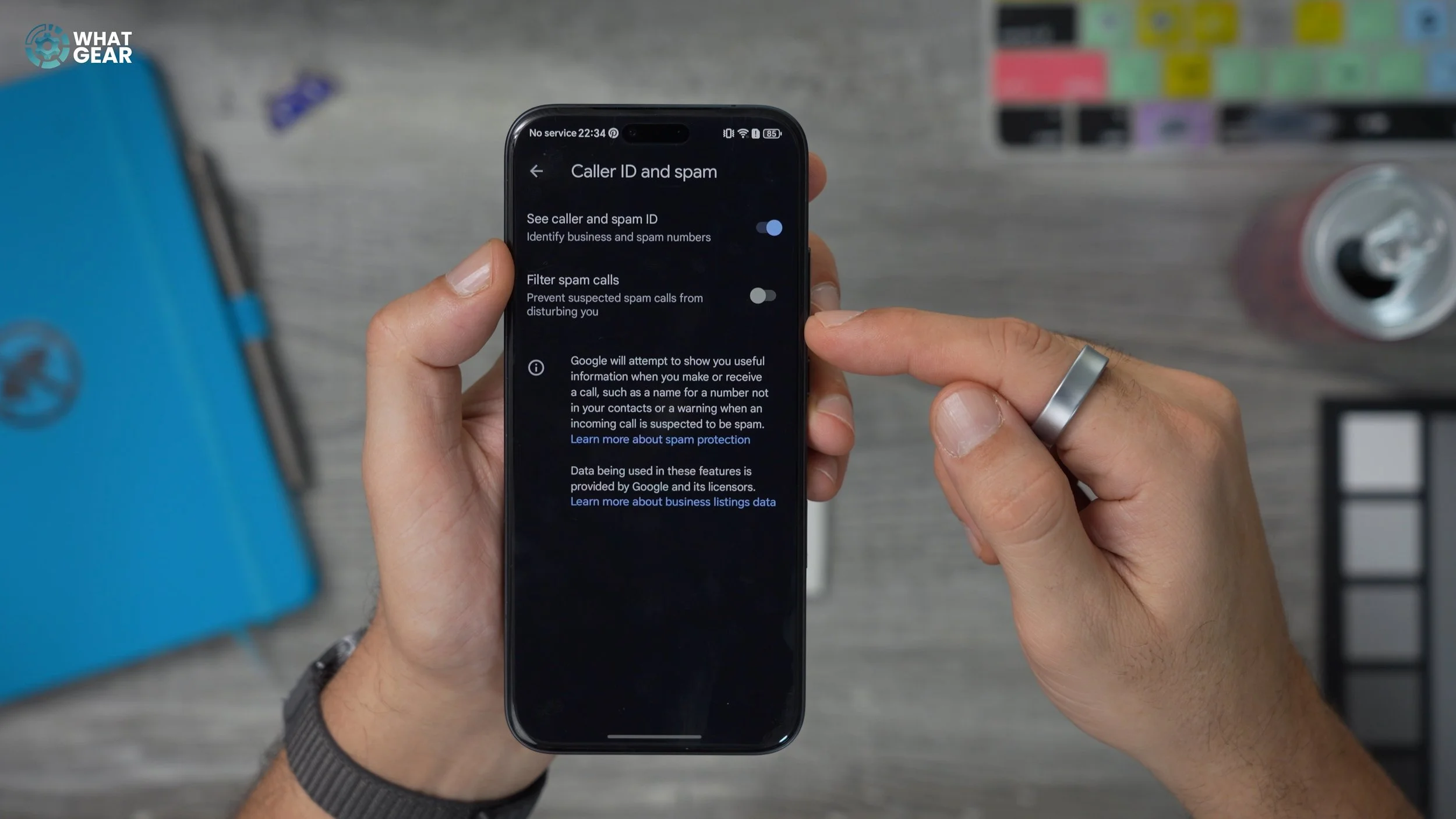
ANTI SPAM/SCAM
Enable Caller ID & Spam Filtering in the Phone app settings.
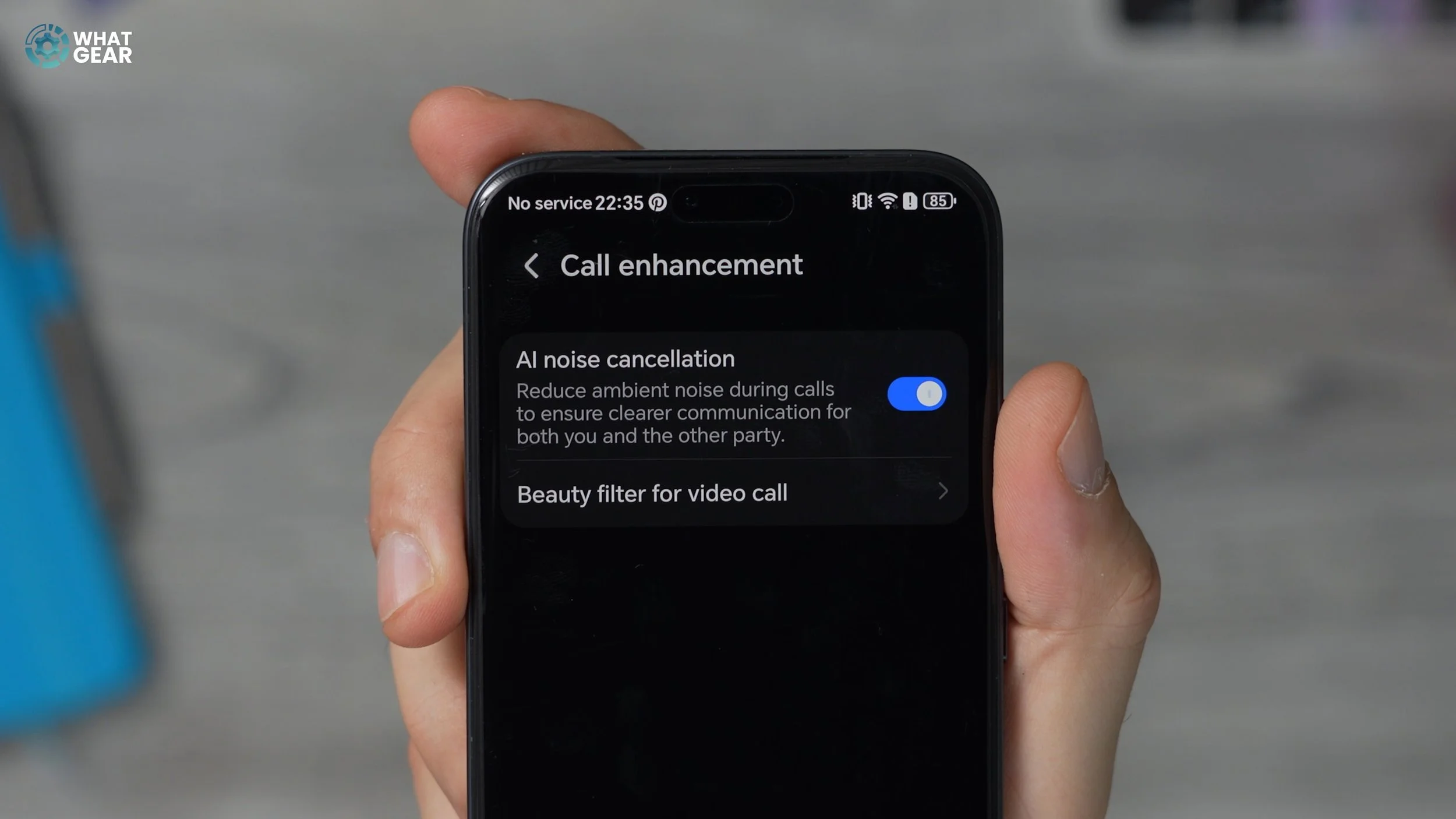
BETTER CALL QUALITY
Go to Accessibility Features → Call Enhancements and enable AI noise reduction.
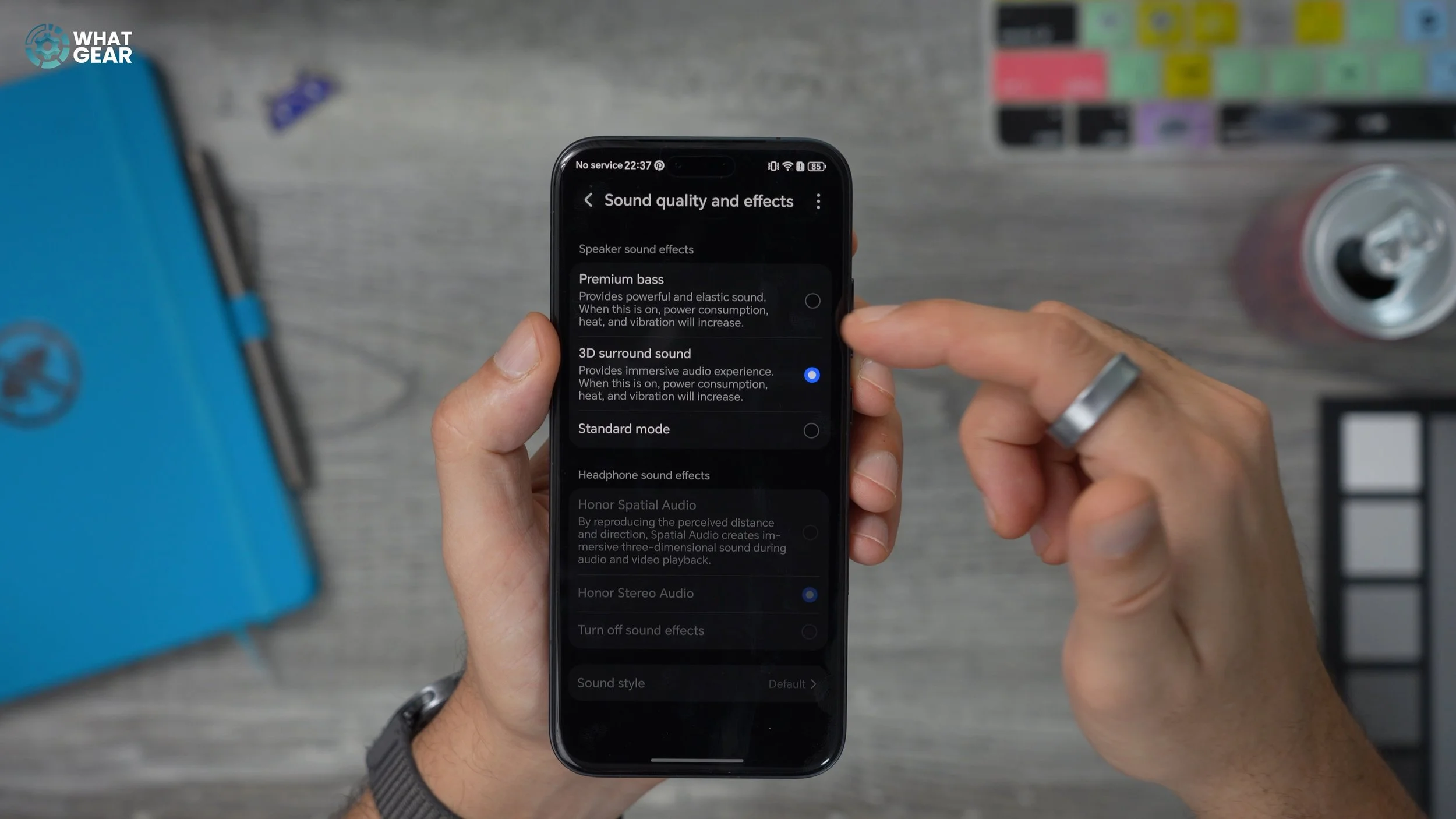
UGRADED SOUND
Go to Sound & Haptics → Sound Quality & Effects and enable 3D surround sound and premium bass.
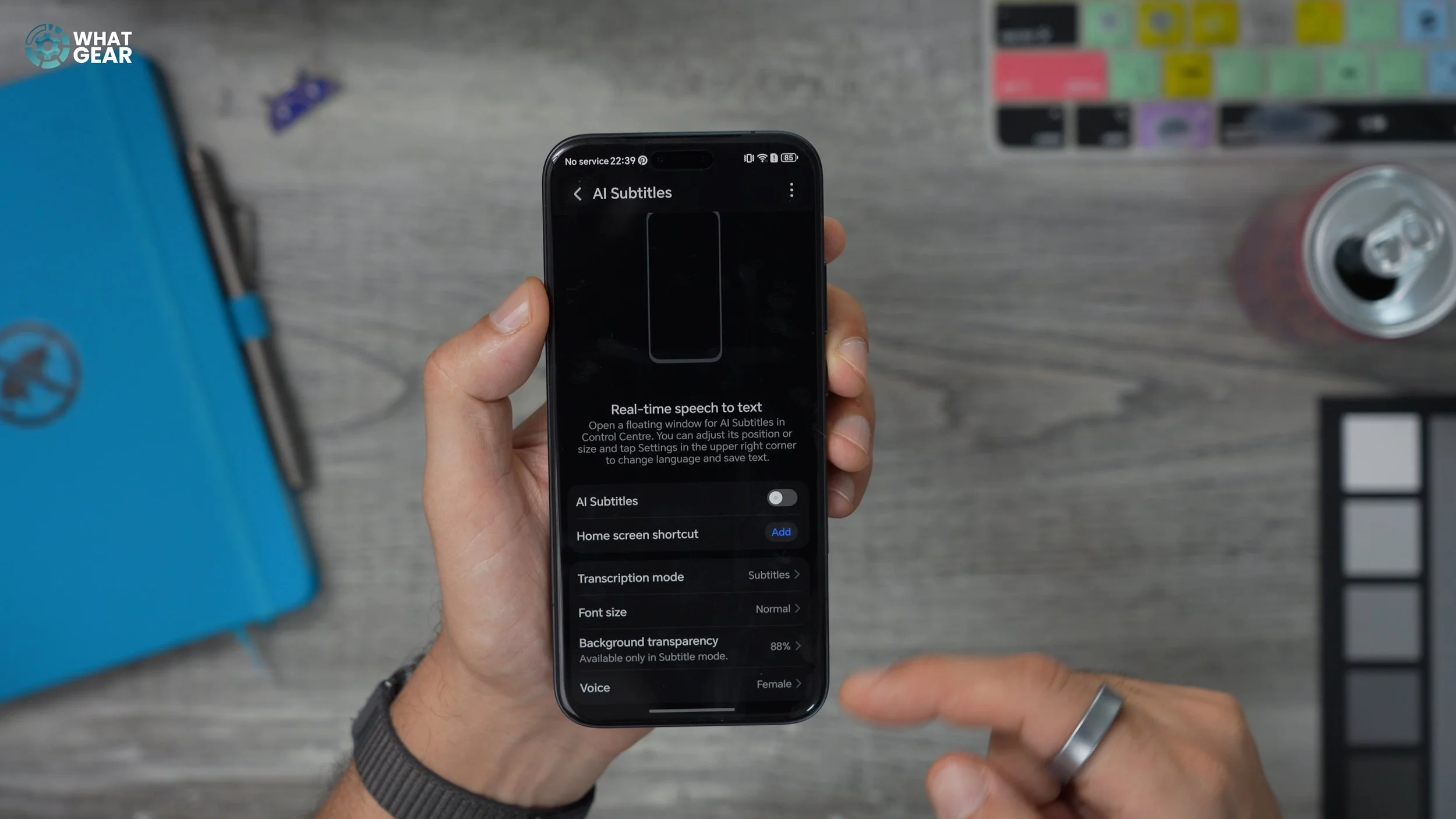
CAPTION ANYTHING
Enable AI Subtitles in Honor AI to translate spoken content in real time.
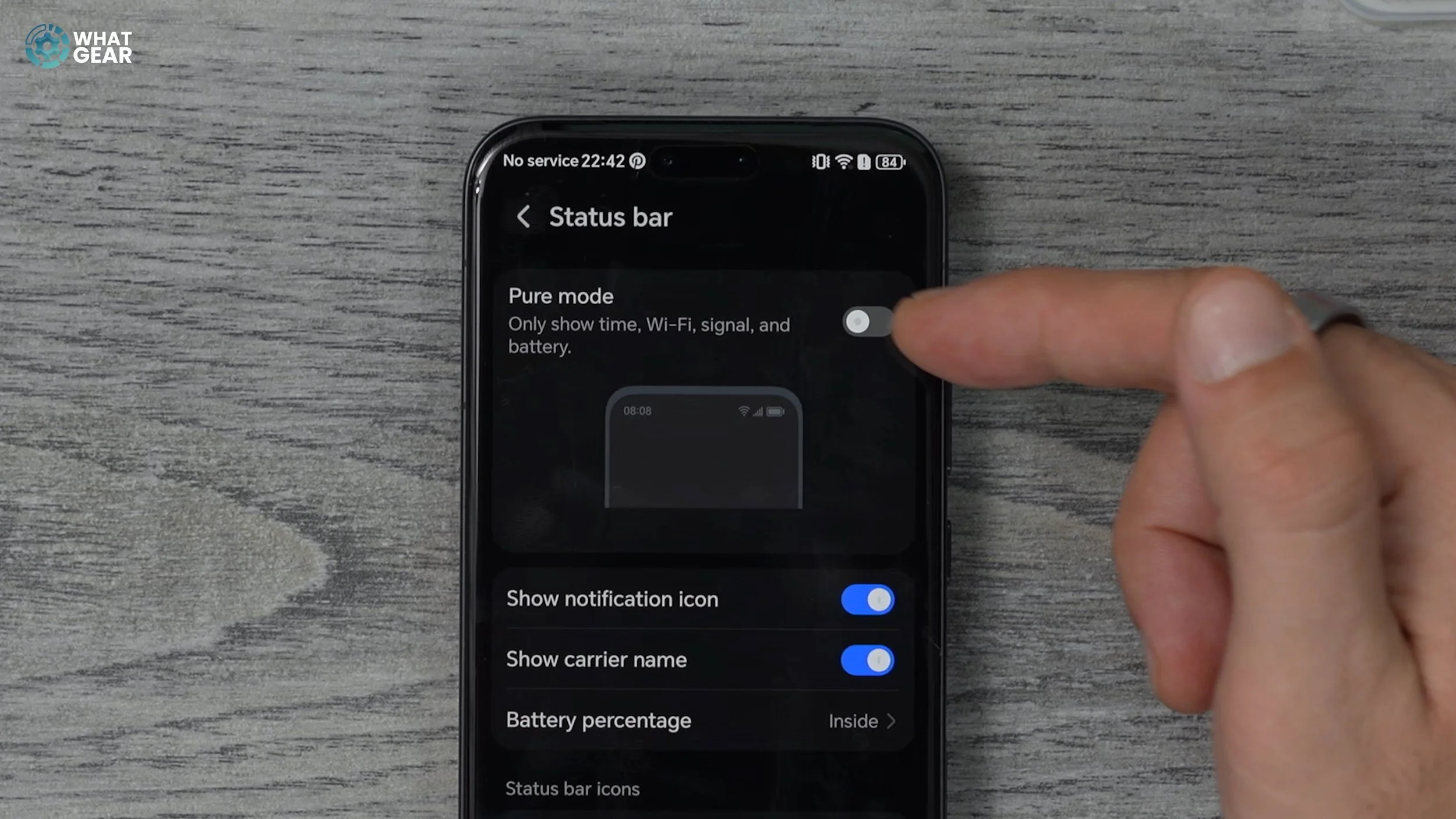
CLEAR THE CLUTTER
Enable Pure Mode in Notifications & Status Bar to remove clutter from the status bar.
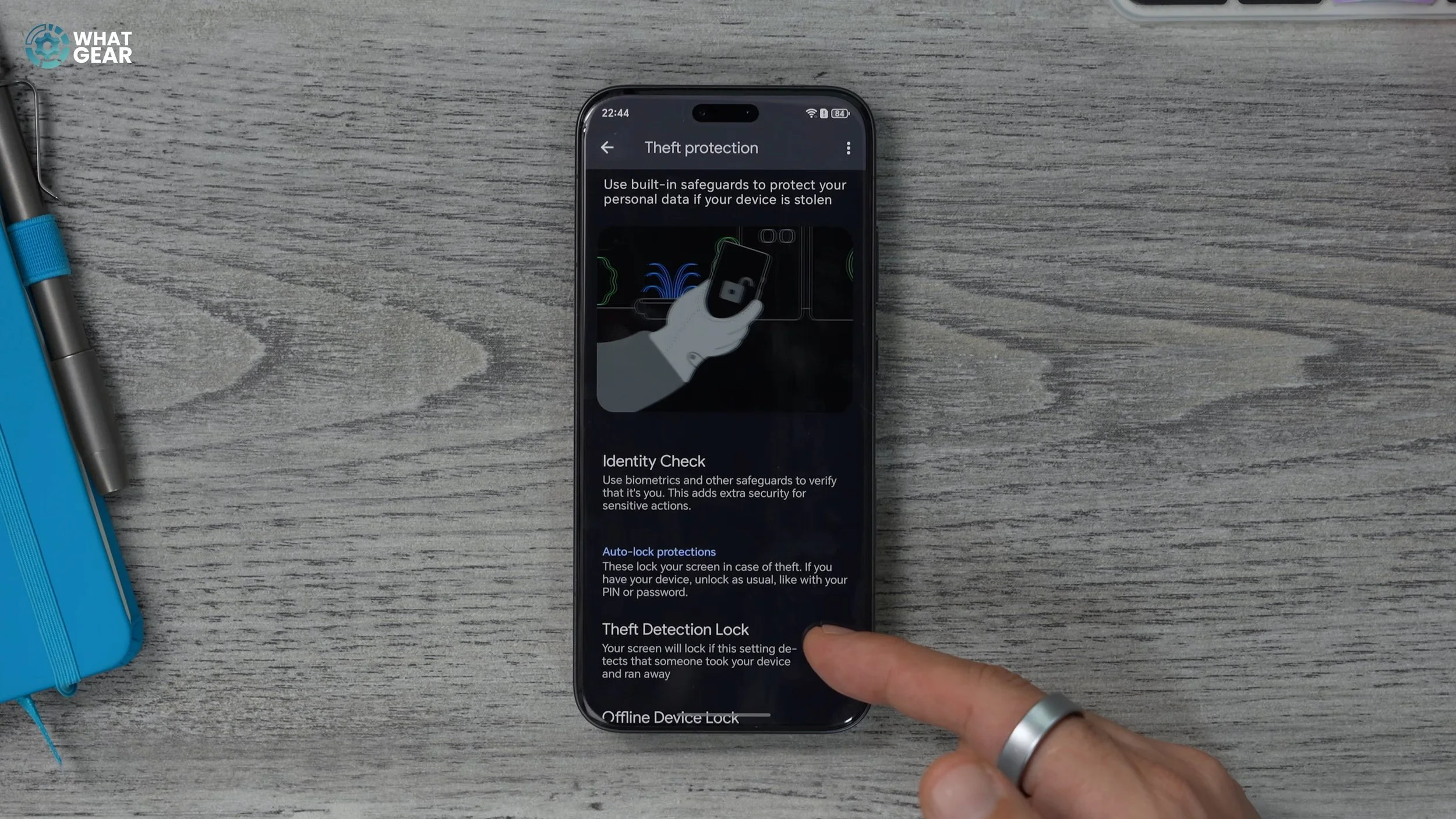
DUDE… WHERE IS MY PHONE?
Enable Theft Protection in Security & Privacy → Device Unlock to auto-lock the phone if it’s snatched.
PARALLEL UNIVERSE
Pinch outward on the home screen to access Parallel Space, allowing separate app environments for work and personal use.