
Huawei MatePad 11.5s - The PaperMatte King ( Google Apps are BACK? )
If you've had your eyes on a HUAWEI tablet, but maybe the Google situation has been holding you back, then I think you're going to like this article. This is the brand new HUAWEI MatePad 11.5s, and this officially goes on sale in 2026. I have seen previous versions of this, and something that really makes this unique is its PaperMatte display, and I will show you exactly how much of a difference this makes.
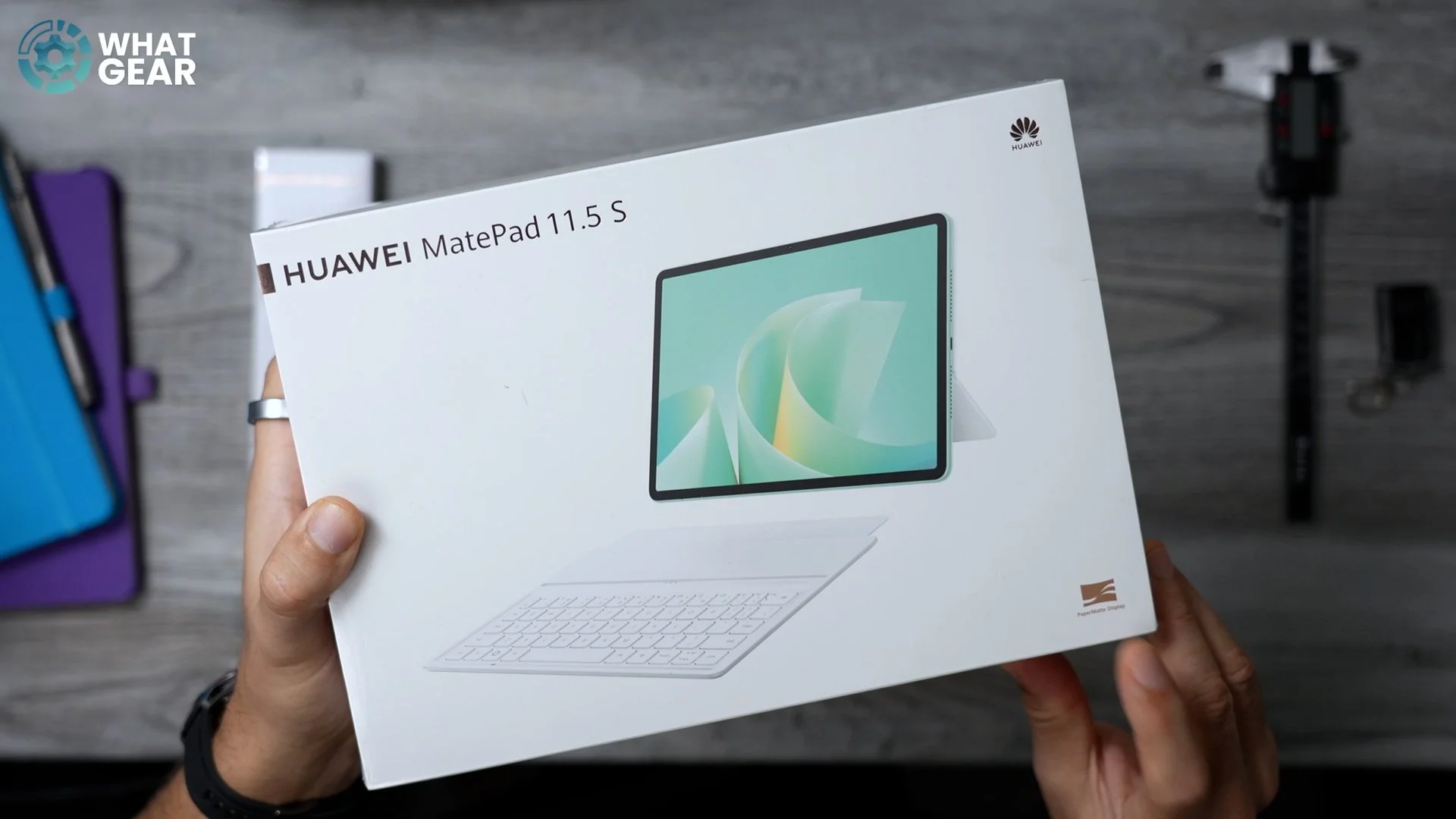
But the real game changer that you might be most interested in in this article is that I have found a new way to get Google apps running properly on HUAWEI devices in 2026. So we're talking about Google Maps, YouTube, Keep, Docs, Sheets – all of the good stuff that we're used to using on a daily basis out here in the West and in parts of Asia – and without using any clunky emulators or virtual machines that we used to have to use in the past on HUAWEI devices. So I'm going to show you exactly how to do that. But first, let's get this out of the box. Where's my ninja knife? Knife.
Unboxing the HUAWEI MatePad 11.5s Bundle
This is the bundled version of the tablet, which includes the tablet itself. I've got it here in the green, and it also comes with the Smart Magnetic Keyboard. I also have the latest and greatest version of the HUAWEI Pencil. This one is called the Pencil Pro, and there have been some upgrades here as well – we’ll come back to this. Get this keyboard out first. I like that colour. It's a nice sort of grey textured surface, almost a leatherette-type finish. It's got a nice bit of rubber padding here as well on the back. It's got a nice soft texture on the inside as well, so it's not going to scuff the back of the tablet, and the keys have a nice bit of travel, and they sound nice too, which is always a win when it comes to keyboards.
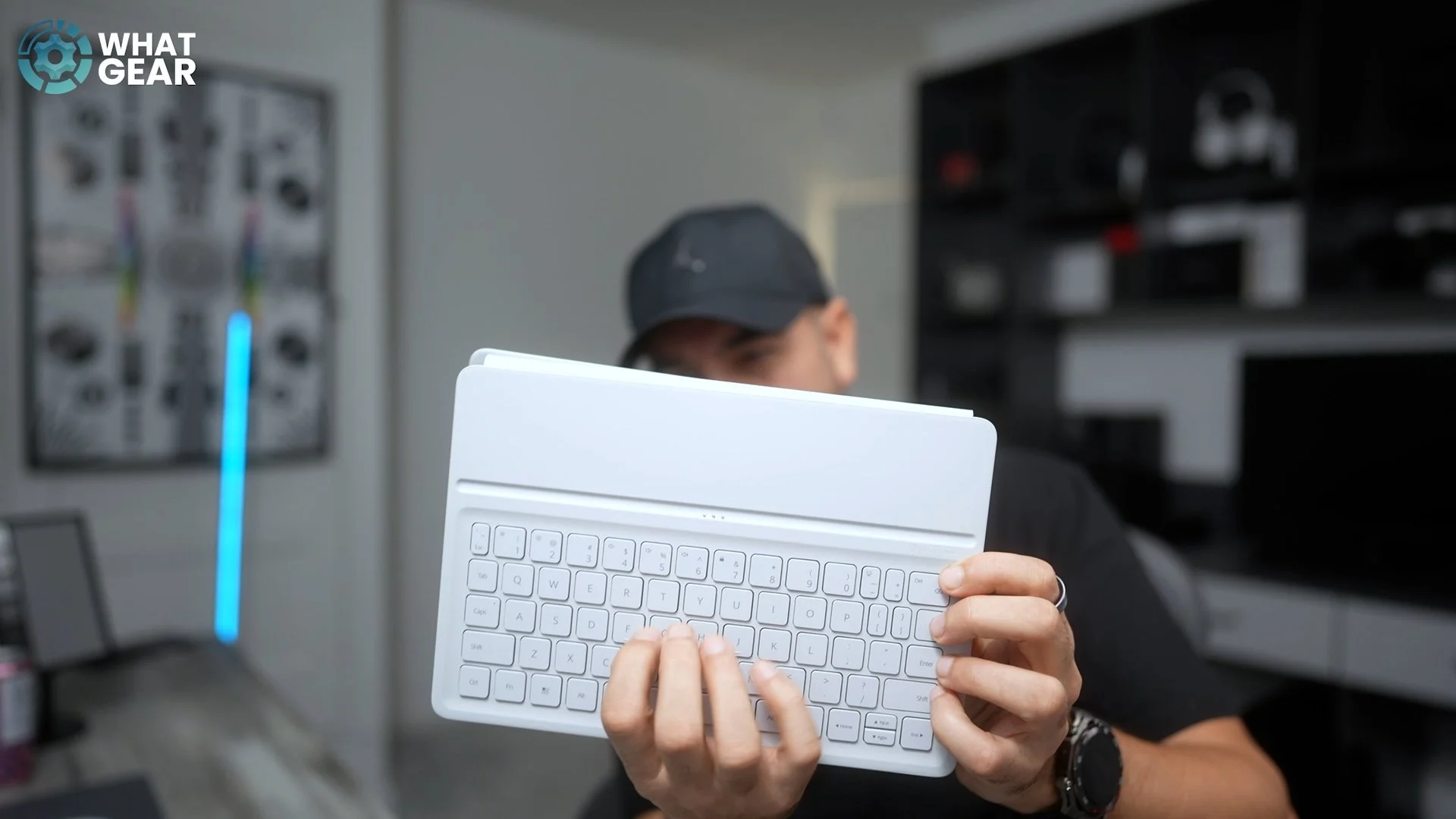
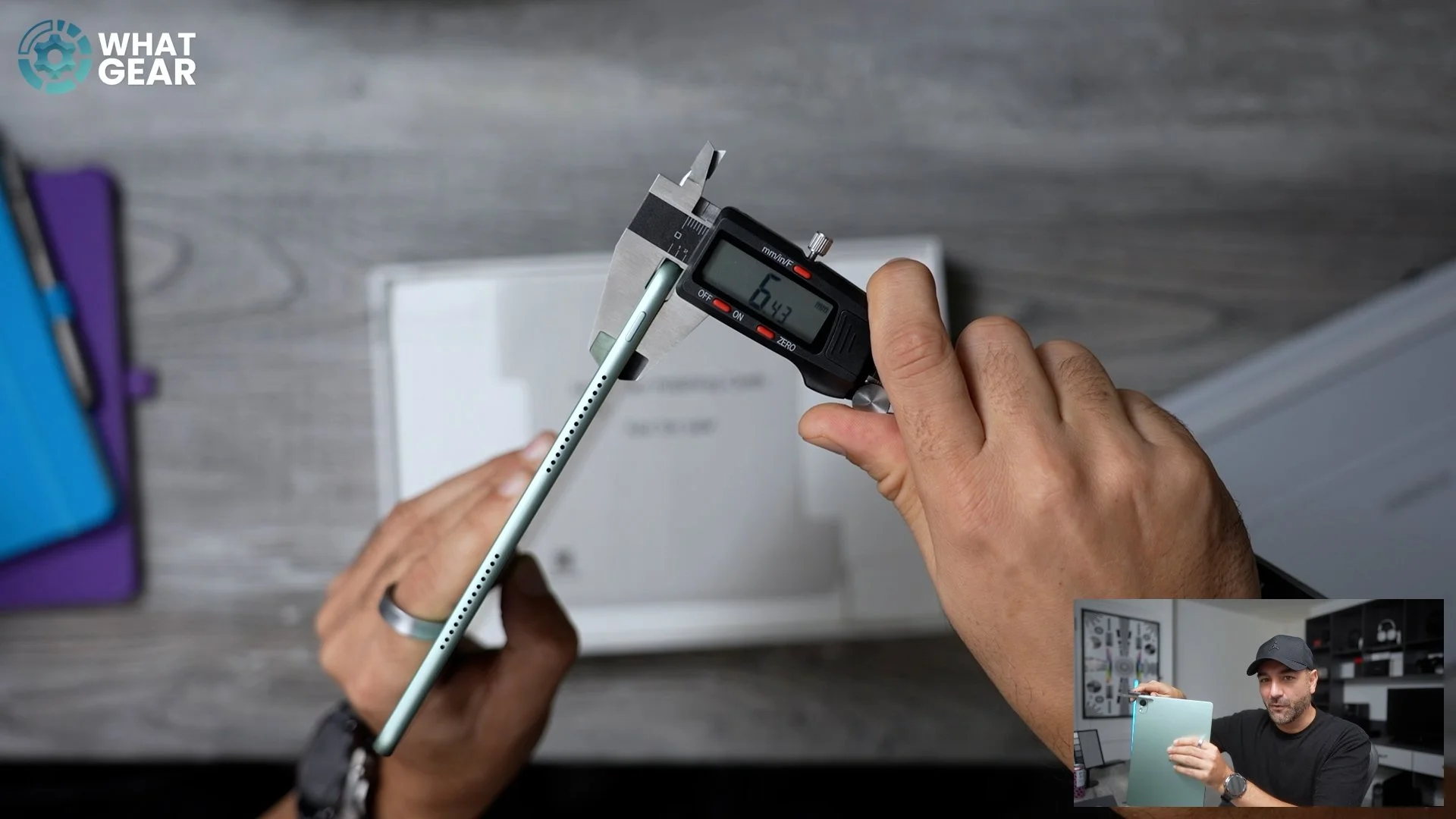
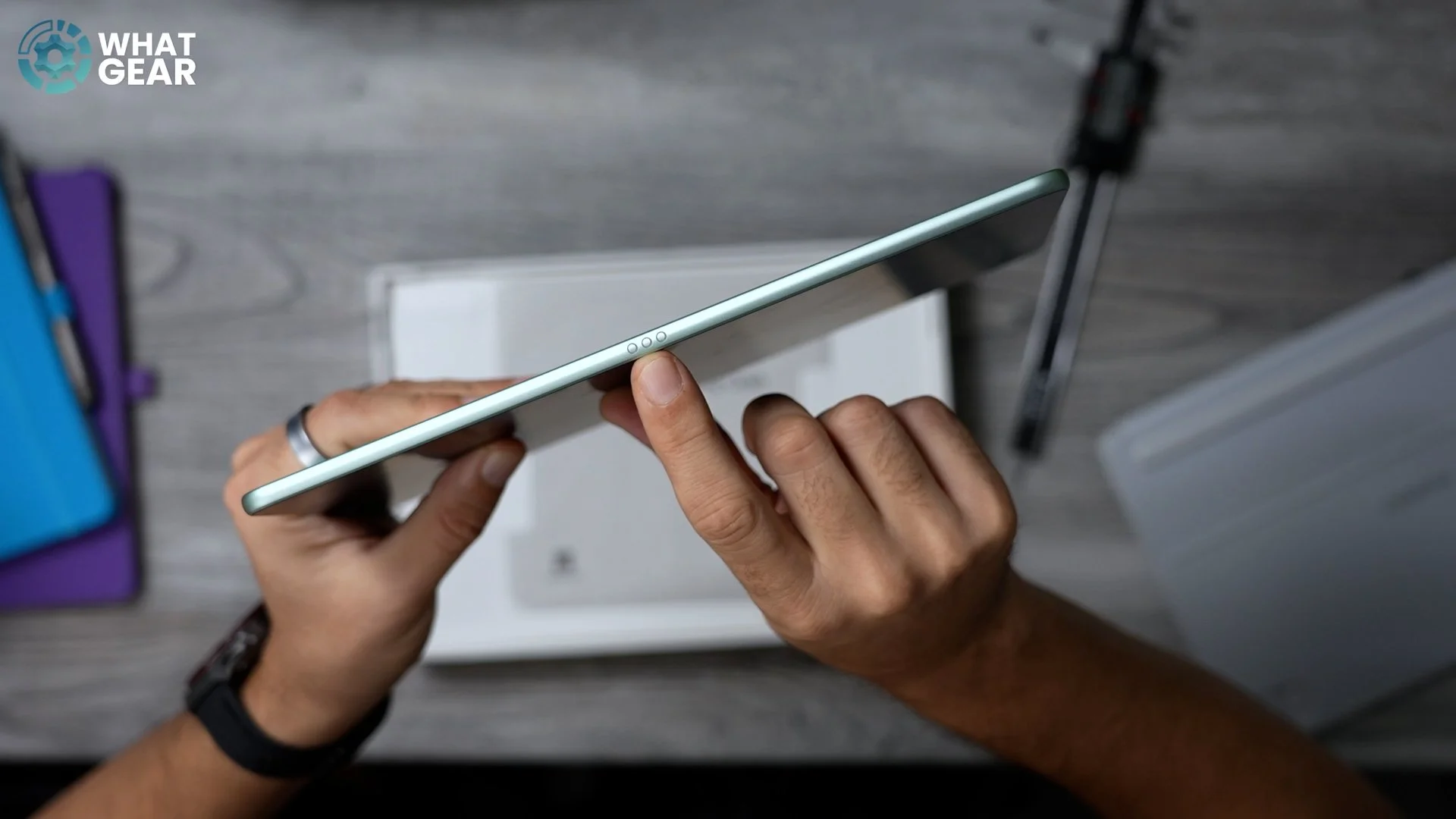
Now let's get this tablet out. Perfect weight distribution now on the box. It's a good size. I like this size tablet – it is perfect for travelling around with. So this is the back of the device. It's got this nice, almost two-tone green finish to it. When the light hits it, you've got the HUAWEI letters there. It's got that 13-megapixel rear camera with the flash. Let's check the depth of this to see how thin it is. According to my calliper here, it is 6.4 mm, so it's very, very thin.
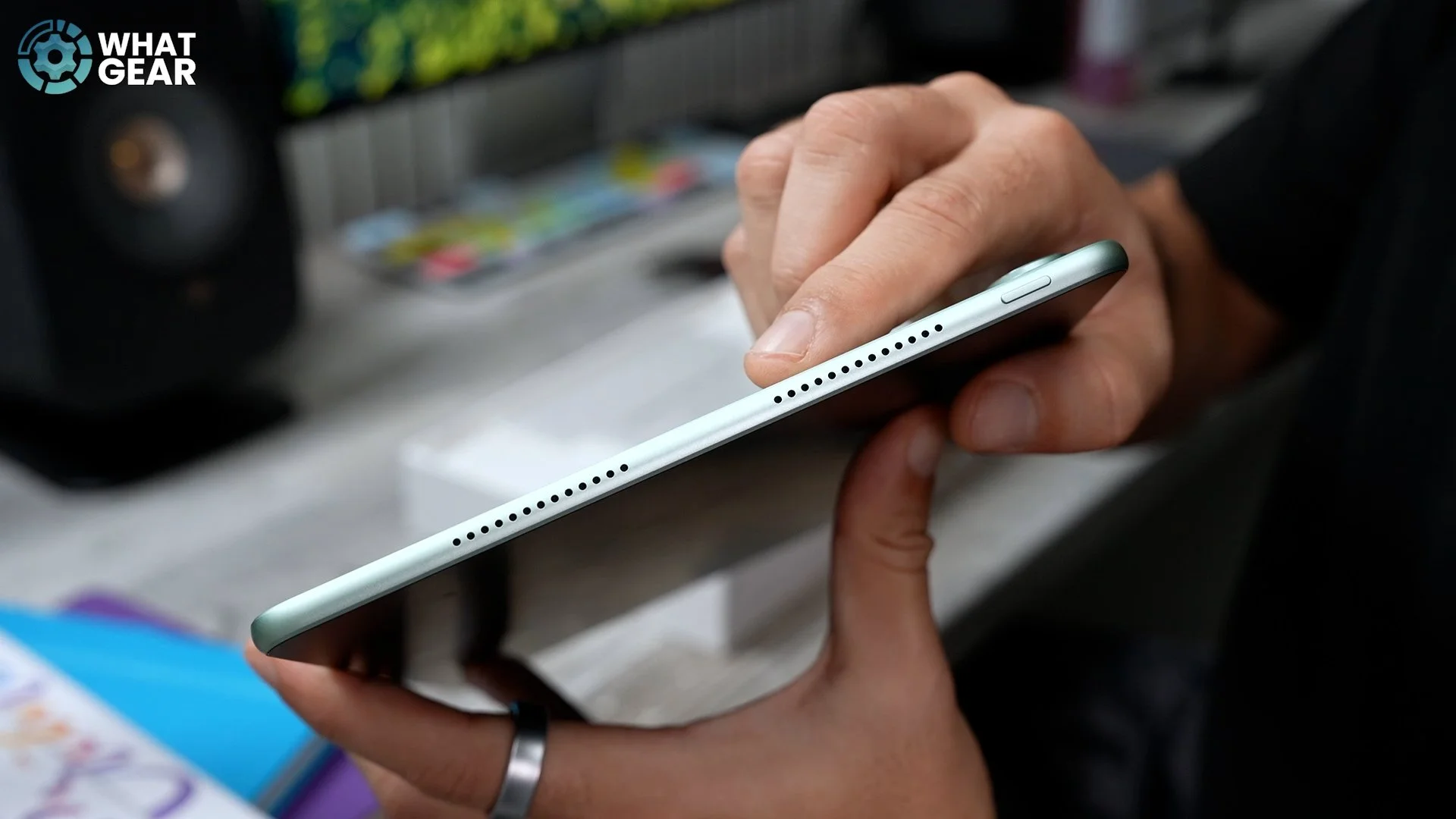
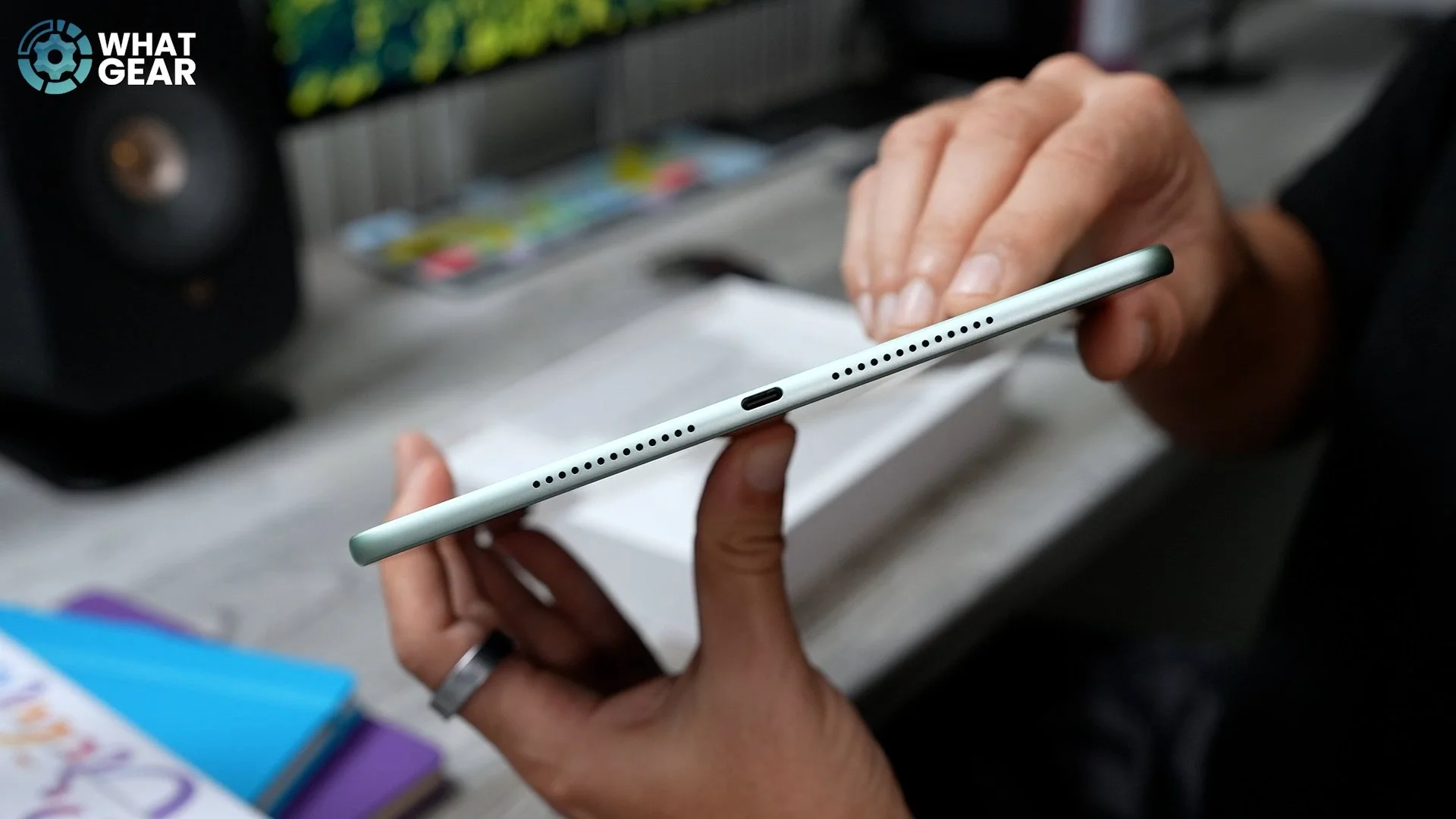
And it does have four speakers: two on this side plus the power button, two on this side plus the USB-C charging port. There's a set of pogo pins on the lower part of the display, and that's going to be for the keyboard connection, I'm assuming. And then we've got the volume rocker on this side, and then the power button on the top if you hold it in portrait. So let's see what else comes with this. In the box, you get a special microfiber polishing cloth made specifically for this type of display, and you might be able to hear it. This has got this kind of chamois-like quality to it. And if you're wondering what a chamois is, it's a type of cloth for cleaning cars, polishing cars and things.
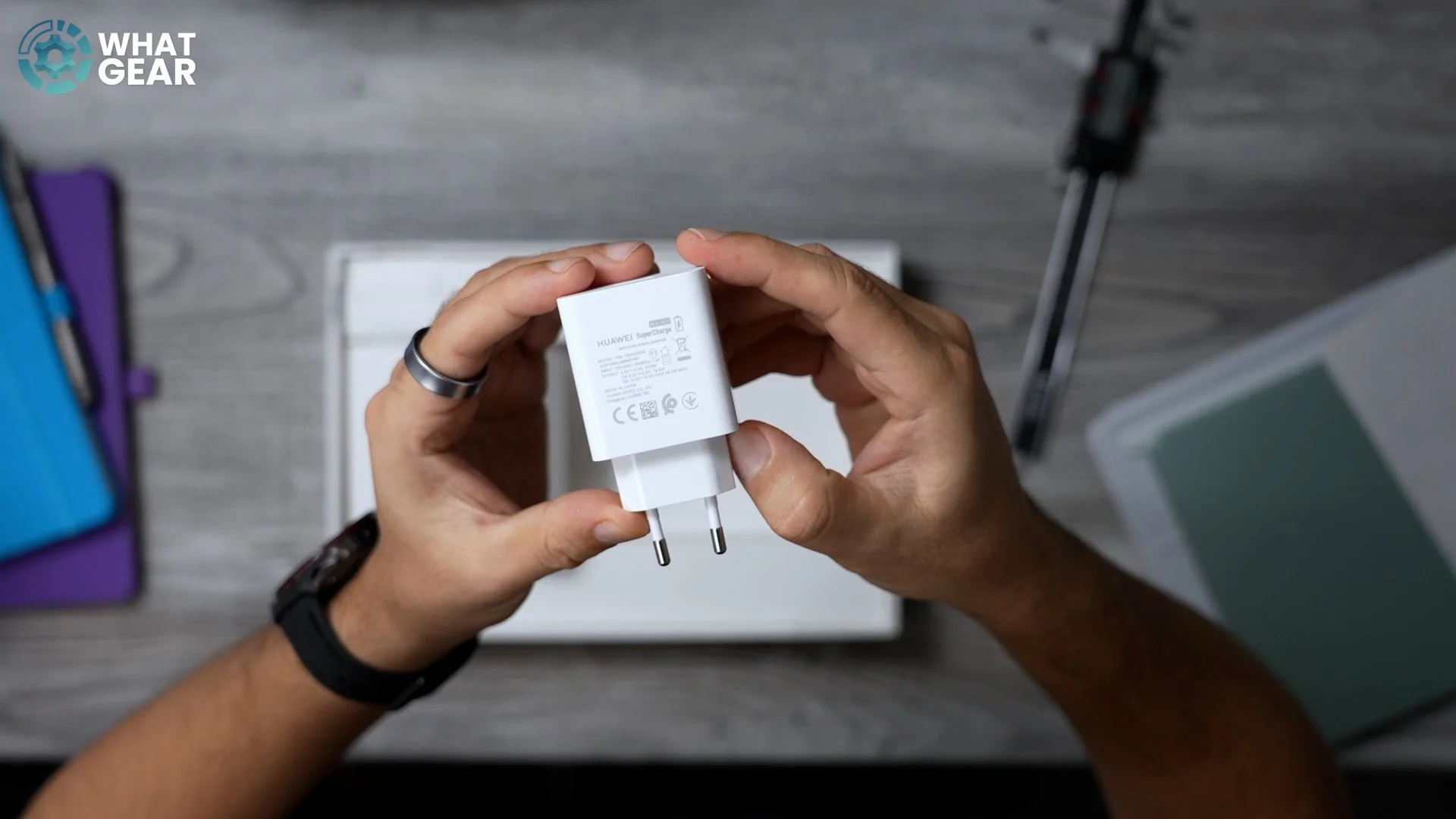
Anyway, let's see what else is in here. Feels like there should have been something in this box, but this is a prerelease version of the device, and it looks like there should have been a SIM ejector. Power brick is in the box, and it's got a nice little purple accent there. This is a HUAWEI SuperCharge charger, and it's 40 W. And on this other side, it looks like there would have been something in here too, but it's not here. I don't know why. That's everything in the box.
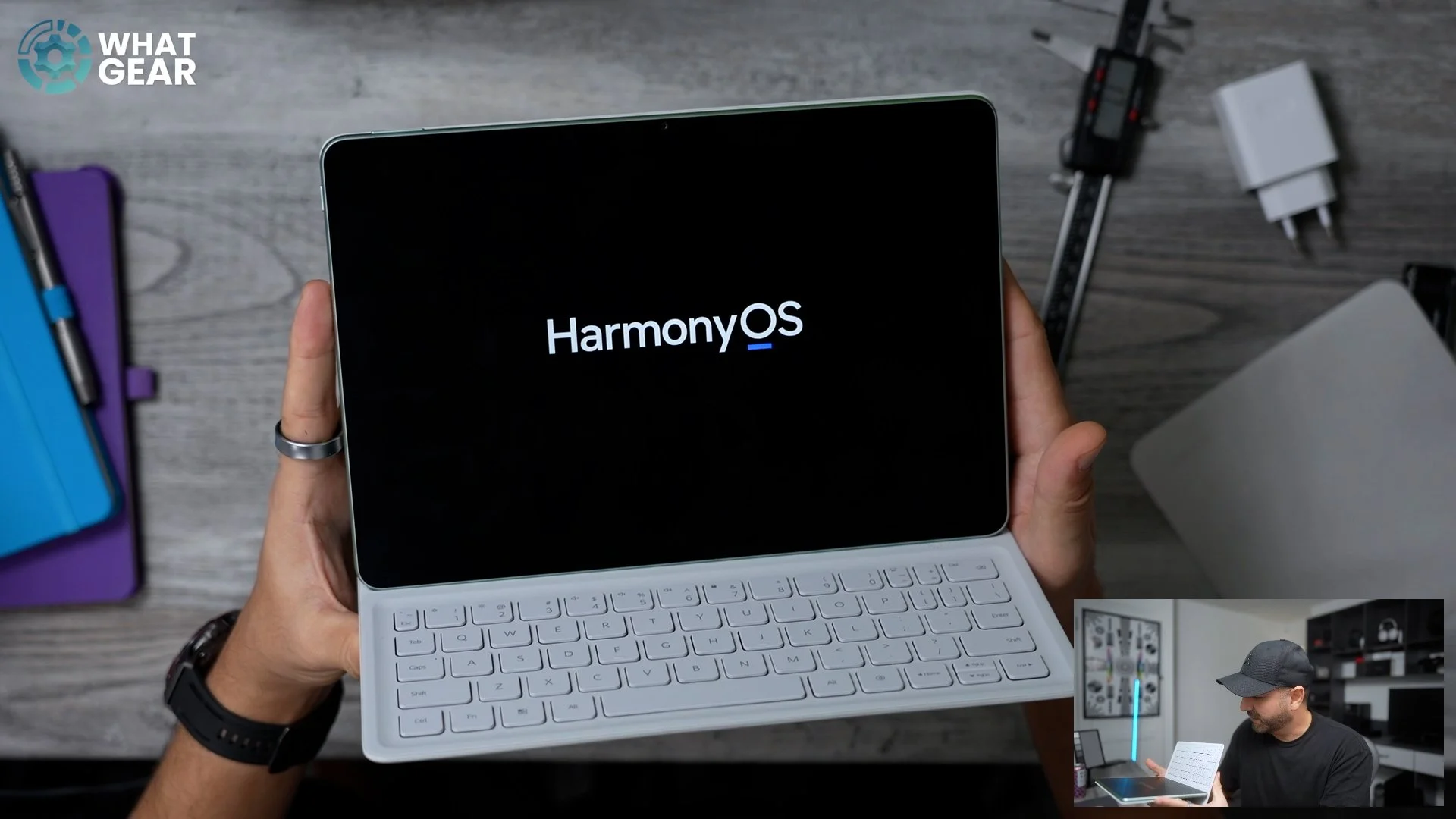
All right, let's see how the tablet fits onto this keyboard. It's a magnetic connection there, and then you can lean it forward, connect the pogo pins, and there we go. You've got a nice little workstation. Let's boot this up for the very first time. The sound on this immediately is really nice. Great depth to it. So as you can see, the US is supported, also the UK and pretty much any other country. Of course, there is that Google ban, but we're about to solve that. It took me around five minutes to get this set up with my HUAWEI ID, and as you can see, this tablet is running on HarmonyOS 4.
The PaperMatte Display
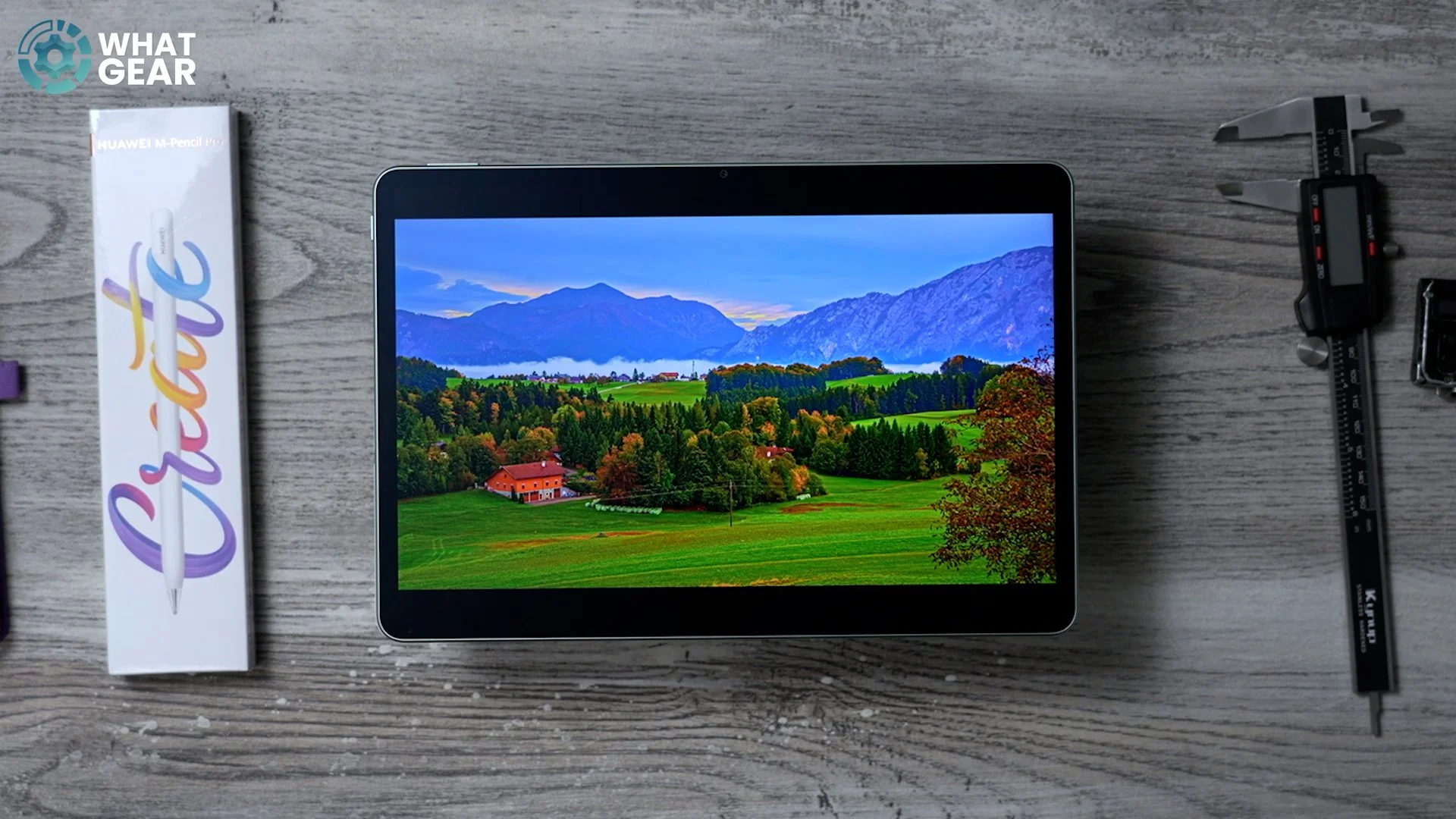
So let's start with the absolute star of the show. It is, of course, the PaperMatte display on this tablet. And as you can see, here I am logged into YouTube on the browser, so I don't have to worry about security or anything like that. And if you don't want to use that new method that I'm going to show you later on in this article, when in the browser, if you hit the four dots in the top right corner, you can actually add this to the home screen. So now you can access YouTube very quickly, just like this via a URL. So what we're looking at here is an 11.5-inch 2.8K display with up to 144 Hz refresh rate, but the specs don't tell the whole story here and don't really do it justice. It’s that PaperMatte finish. This separates it from the pack. HUAWEI have used nano-level anti-glare etching technology to cut out 99% or less, which is what they claim, of light interference on this glass.
I've got this little torch here from Nitecore. They sent me this so many years ago, and it's a really fantastic, very useful little gadget. So let's boost this all the way up to 200 lumens and glare it off the screen so you can see how much light has been deflected off of this display. It's kind of incredible. Let me just show you a regular shiny phone for context. So this is a phone with just regular glass without the anti-glare technology, and you can see how much of a difference there is.
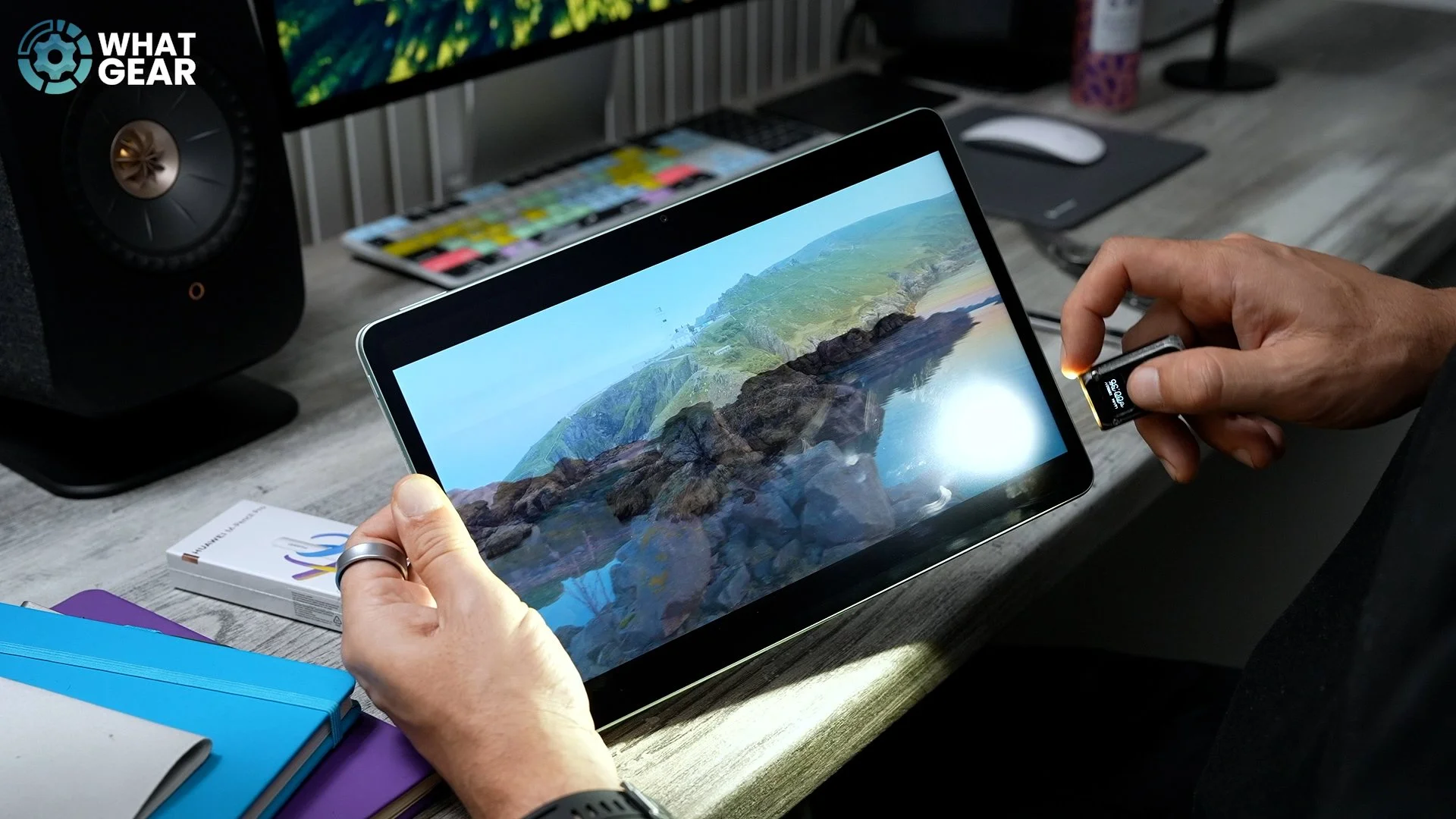
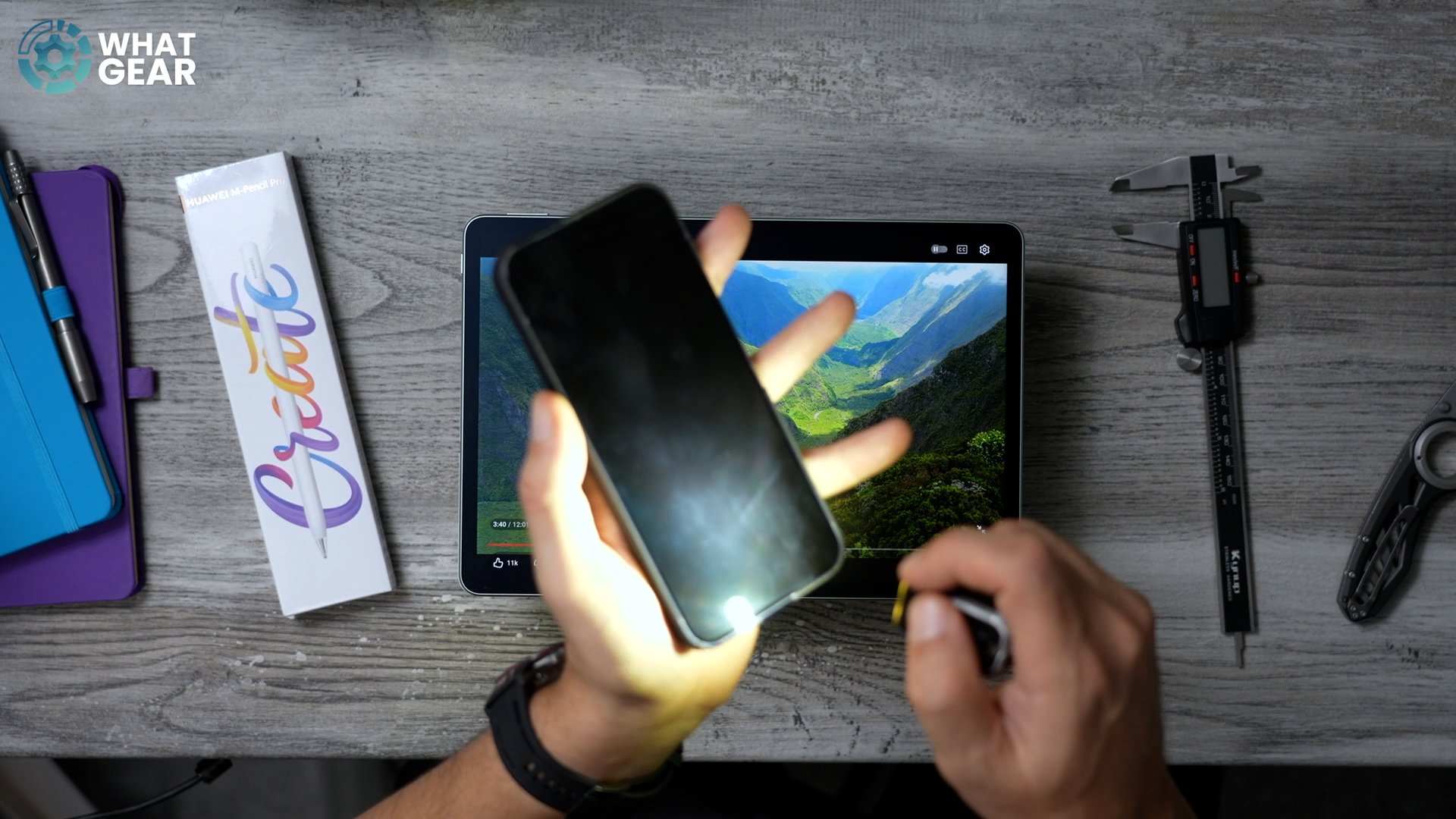
So what this means for you is you can use this in a bright office or studio. If you're on a plane and the sun is glaring through the window, with most tablets, you'd have to kind of adjust the angle or get someone to close the blind. But with this tablet, you don't have to worry about that kind of thing, because it does such a good job at reducing the light reflections. And also, fingerprints are definitely less visible on this type of display as well, and it also feels really nice to the touch. It's got this kind of silky quality to it, and the colours look really nice here. And because of that PaperMatte finish, it almost gives it this kind of magazine-type look to it, which makes it much easier on the eyes. So if you struggle with eyestrain due to staring at screens for too long, you'll really appreciate that about this tablet.
HUAWEI Pencil Pro & GoPaint
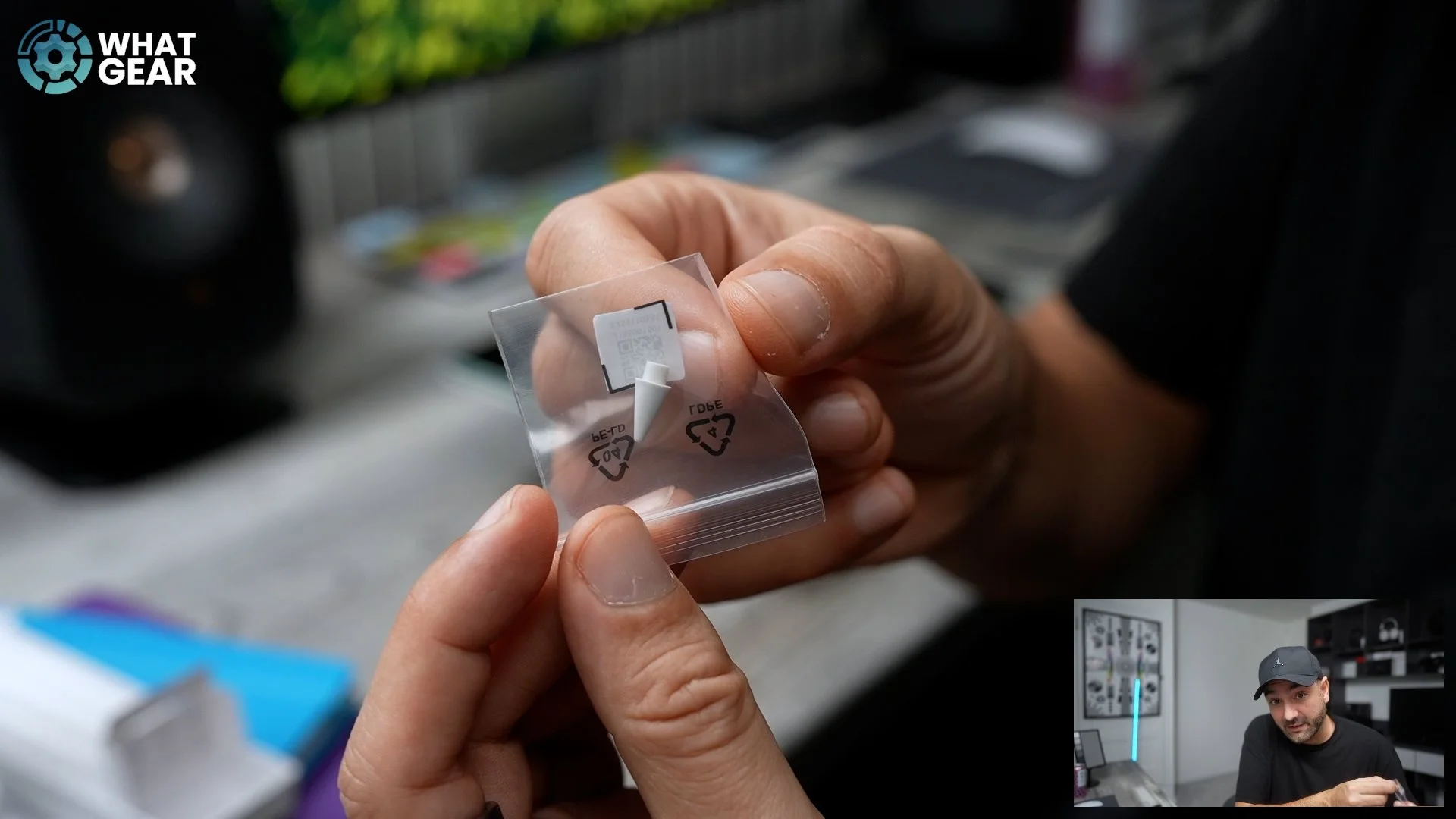
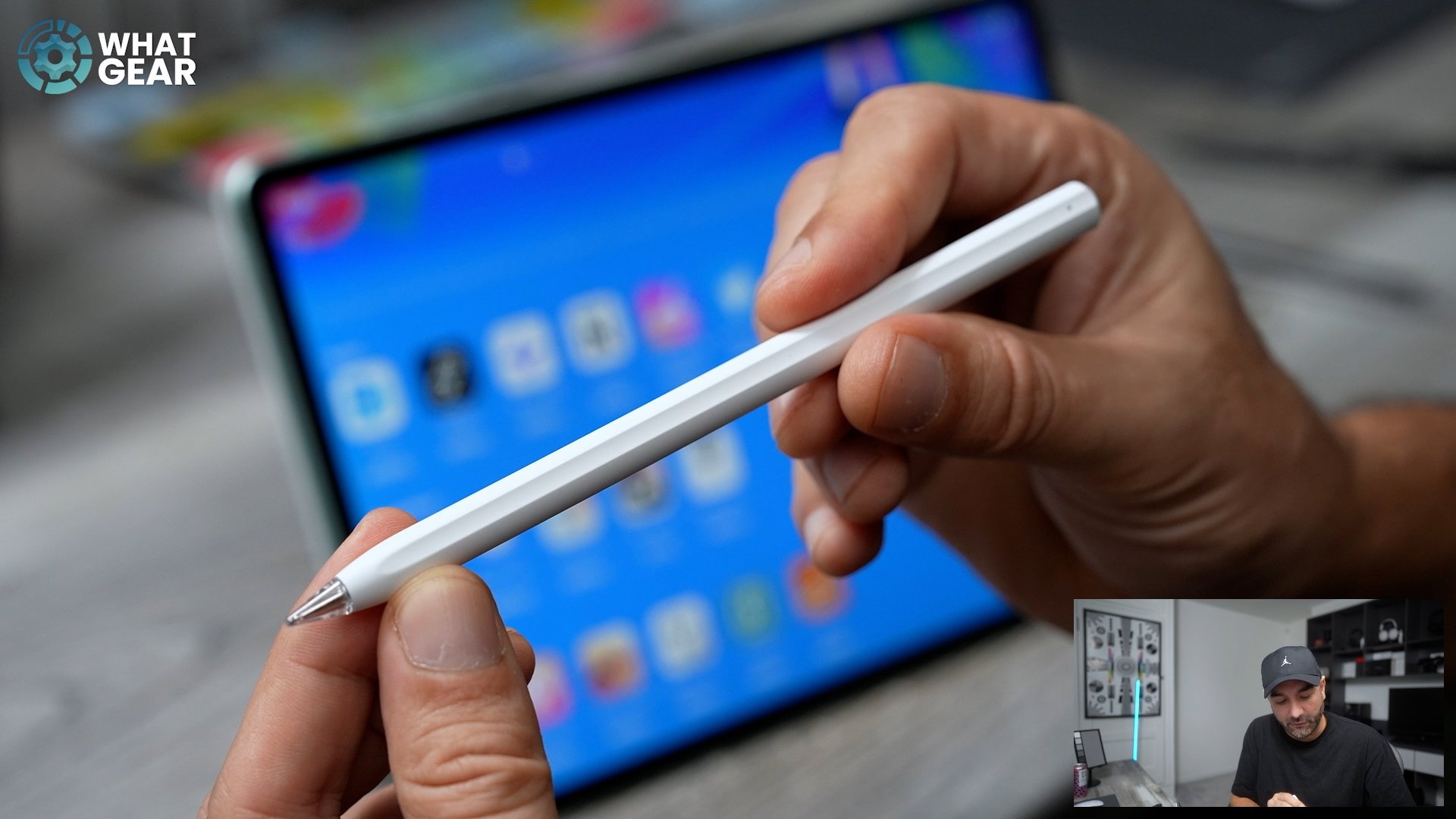
Now let's get a look at the brand new Pencil Pro and see how well it works with this. It's got a nice bit of weight to it. It actually feels like a proper pen as opposed to just a hollow piece of plastic that some styluses feel like. And then there are some additional tips here as well. So we've got the writing tip, we've got the painting tip, and then we have a small-font writing tip. So it's nice you get a bit of variation between them. So the one that is pre-installed on the Pencil Pro, I believe, is the painting tip by default. This solid one right here is the writing tip, and I guess it will change the resistance on the display. And this one with the slightly finer tip to it is the small-font writing tip.
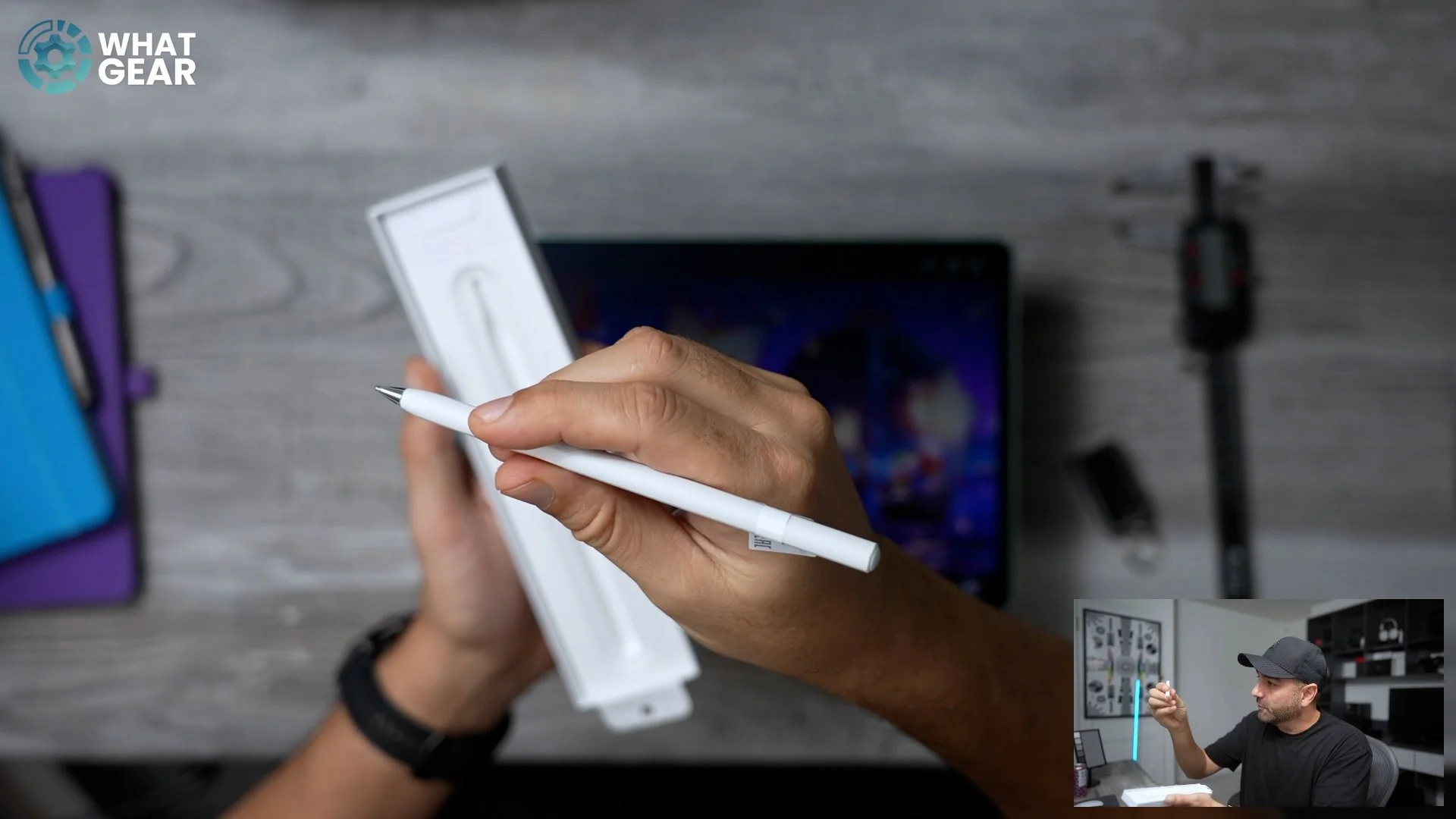
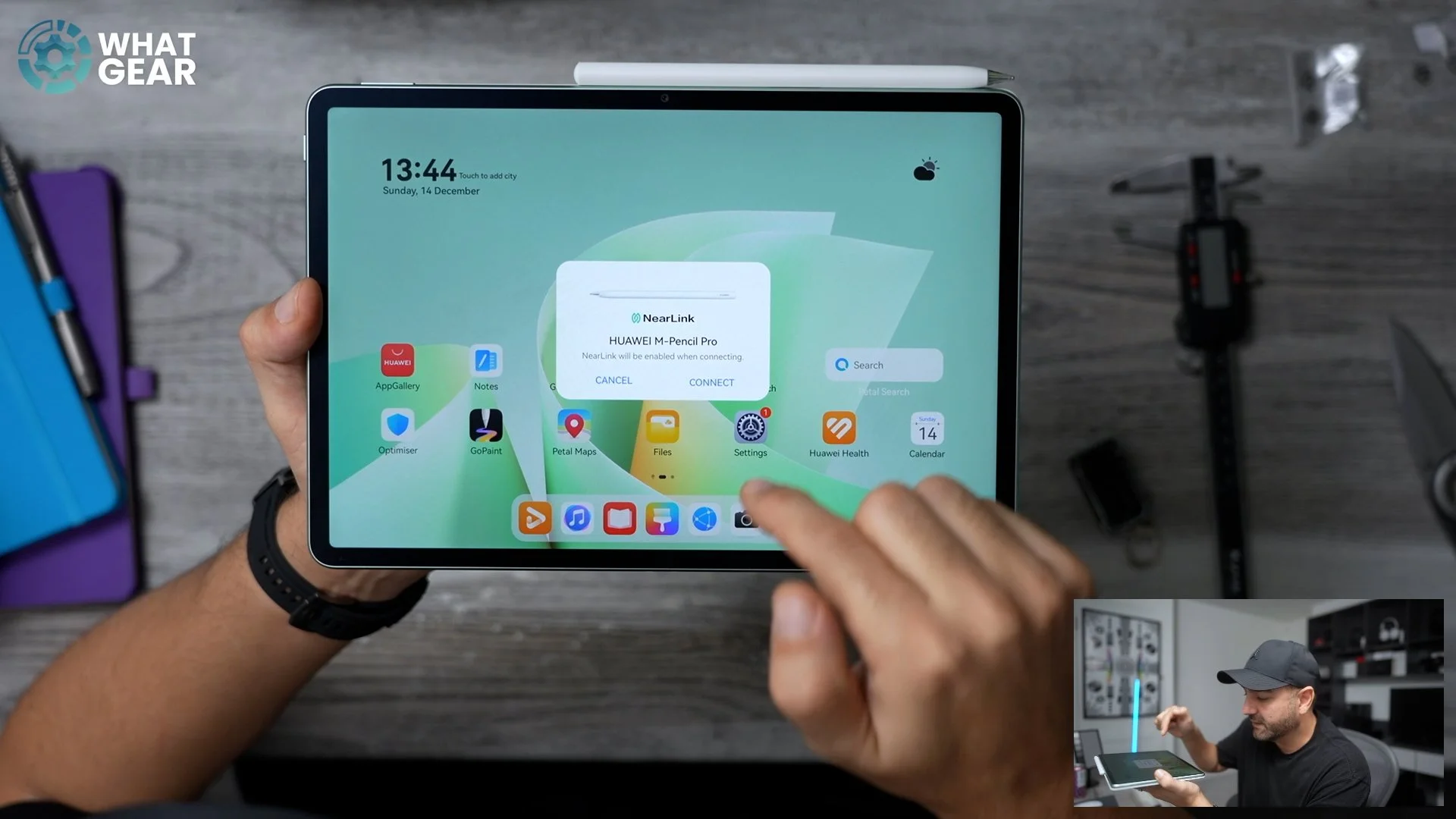
So immediately, that resistance you get on the display there feels really, really nice. I think in order to connect this, we have to connect it to the magnetic point at the top, and then it automatically detects the NearLink connection between the pencil and the tablet. So I'm just going to connect. It gives the battery level on the pen, and also gives you a little walkthrough of the tools. So you've got the pinch gesture – now that's exclusive to the brand new Pro version of the pencil. You've got a quick button on the end, so like a regular pencil, if you click the top, you can toggle between different modes.
You can open shortcuts from the top right corner, and you've got the handwriting, so in a text field, you can use handwriting to convert it into digital. And then you can take notes. Of course, you can then see how this works with the compensation right here. So the nice thing about the keyboard stand is you can detach the keyboard and just have the little kickstand, just like that. And here we have the recommended apps for the pencil. So GoPaint is the official HUAWEI one, and apparently, it's very, very advanced. So let's get that installed. Now, something that's unique about this new Pencil is the number of sensitivity levels that it can recognise. The previous one, I believe, was 10,000; this one's over 16,000 pressure levels, making it way more sensitive to how hard you're pushing on the display, which, of course, will help you be even more artistic when it comes to apps like GoPaint. And it's not just about how hard the pressure level is; it's also about how soft it is. So if you just want to feather some artwork with a paintbrush, you'll be able to do that nicely with this Pro.
So GoPaint has so many tools with it. You can use this exclusively for your artwork if you want to. What I’ll do is just sketch something real quick, and then I'll give you guys my opinion on how good this Pencil Pro is. I just want to try that squeeze gesture. And there's even haptic feedback inside the pen. So when you do that, you feel it vibrate a little bit. And when you click the top, you can actually jump straight into the Notes app. And I believe you can probably remap this to do other things. So we'll go back to GoPaint for now. When you're using these different tools, you'll notice if I just lightly touch like this, it's very faint, and then when I push hard, you get full-on colour. It's kind of crazy how good that is.
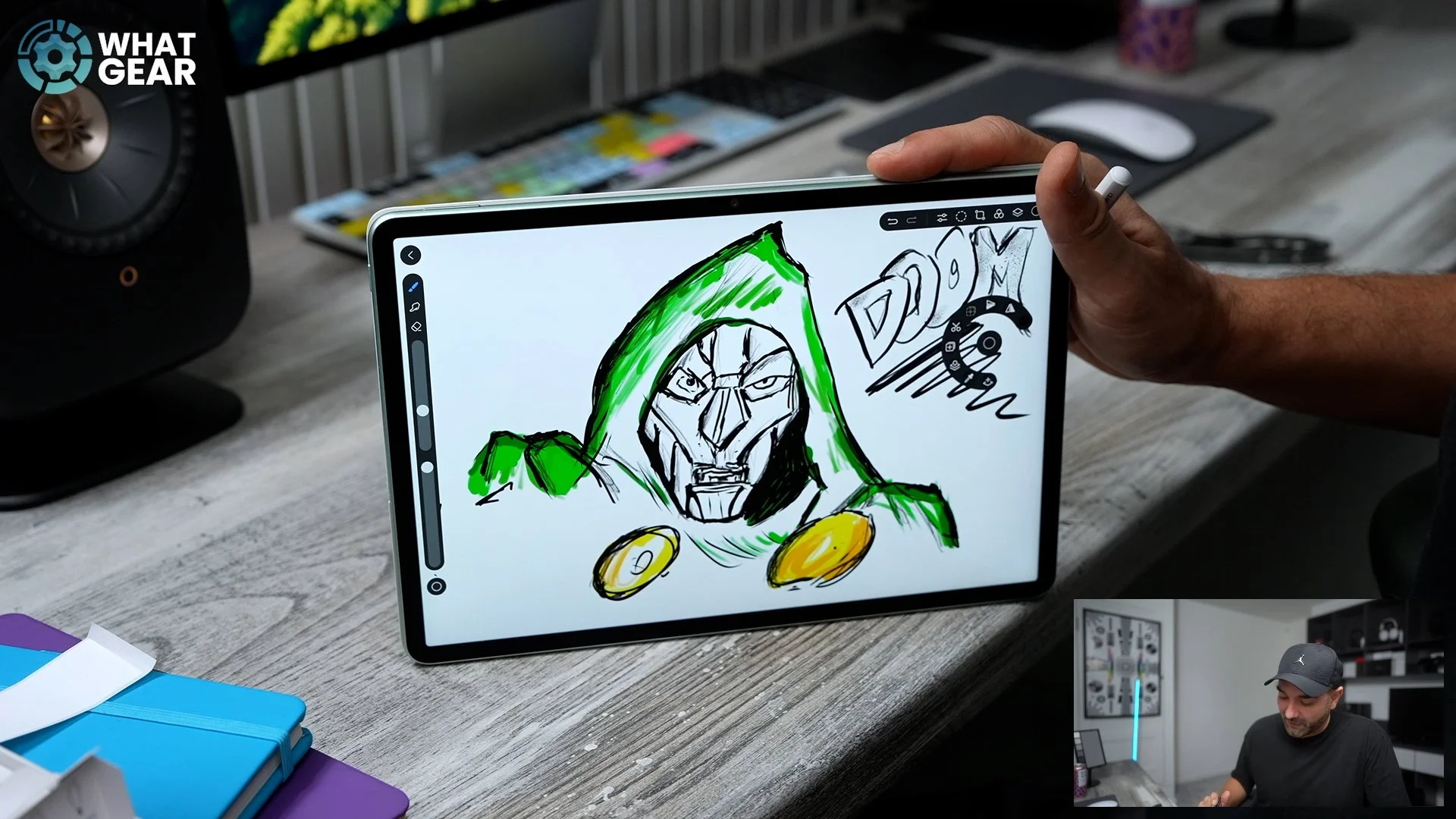
Having just tested the Pencil Pro for the first time with GoPaint and drawing this kind of bad Doctor Doom, I can tell you from experience that the pressure levels here on the Pencil Pro are noticeable. The haptic feedback is really nice, the responsiveness is really nice, but maybe most importantly, the resistance against that PaperMatte display makes a huge difference. It really makes you feel like you're drawing on paper. I am very impressed with this, and I love that functionality with the button and pinch gestures. So yeah, thoroughly impressed with this. And that makes it a fantastic tool for anyone who's into graphic design, art and things like that, or who just enjoys drawing.
Smart Magnetic Keyboard & Notes
Now let's get the keyboard connected up. As soon as you connect it to the pogo pins at the bottom, it connects via NearLink, so you get super-low latency between the keyboard and the tablet. And let's give it a little test run. So from HUAWEI Notes, there is actually a feature within HUAWEI’s Notes app where you can actually write on screen and record audio at the same time, and it kind of syncs up so you can see what notes you took when certain things were being said in a meeting or something like that. So that could be handy.
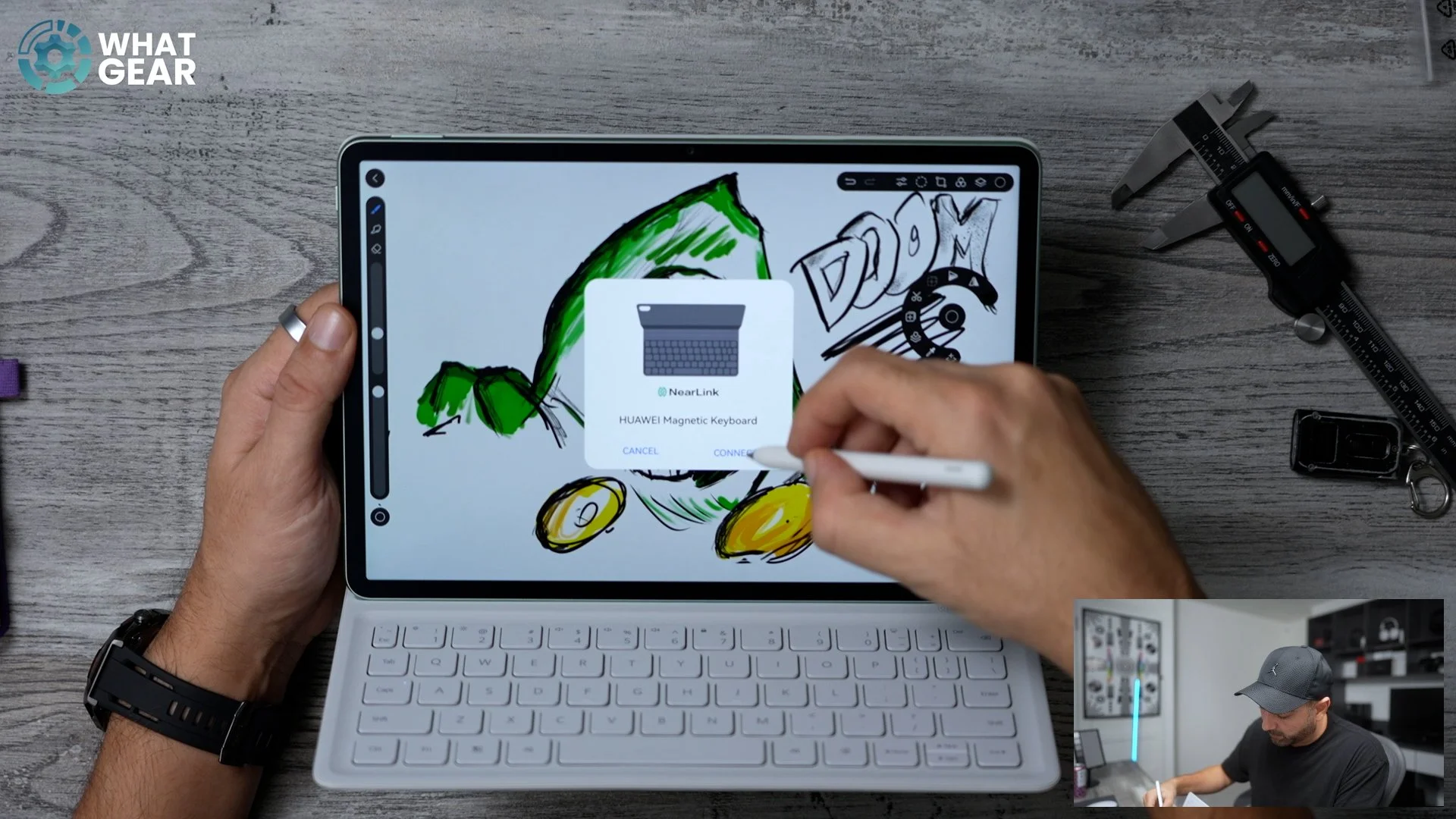
This keyboard is surprisingly satisfying. I like the sound, I like the key travel, and it's nice and compact, so it's not going to take up too much space. If you're on a plane with the little drop-down table thing, you could still potentially have a drink set just in front of it or to the side of it, because it doesn't stick out too far from the tablet.
How to Get Google Apps Running on HUAWEI in 2026
Now it's time for me to show you how to get Google apps running and how to get apps that don't exist on the HUAWEI AppGallery onto a HUAWEI MatePad or other HUAWEI device. There are really five simple steps to this.
Step 1: Install microG Core APKs
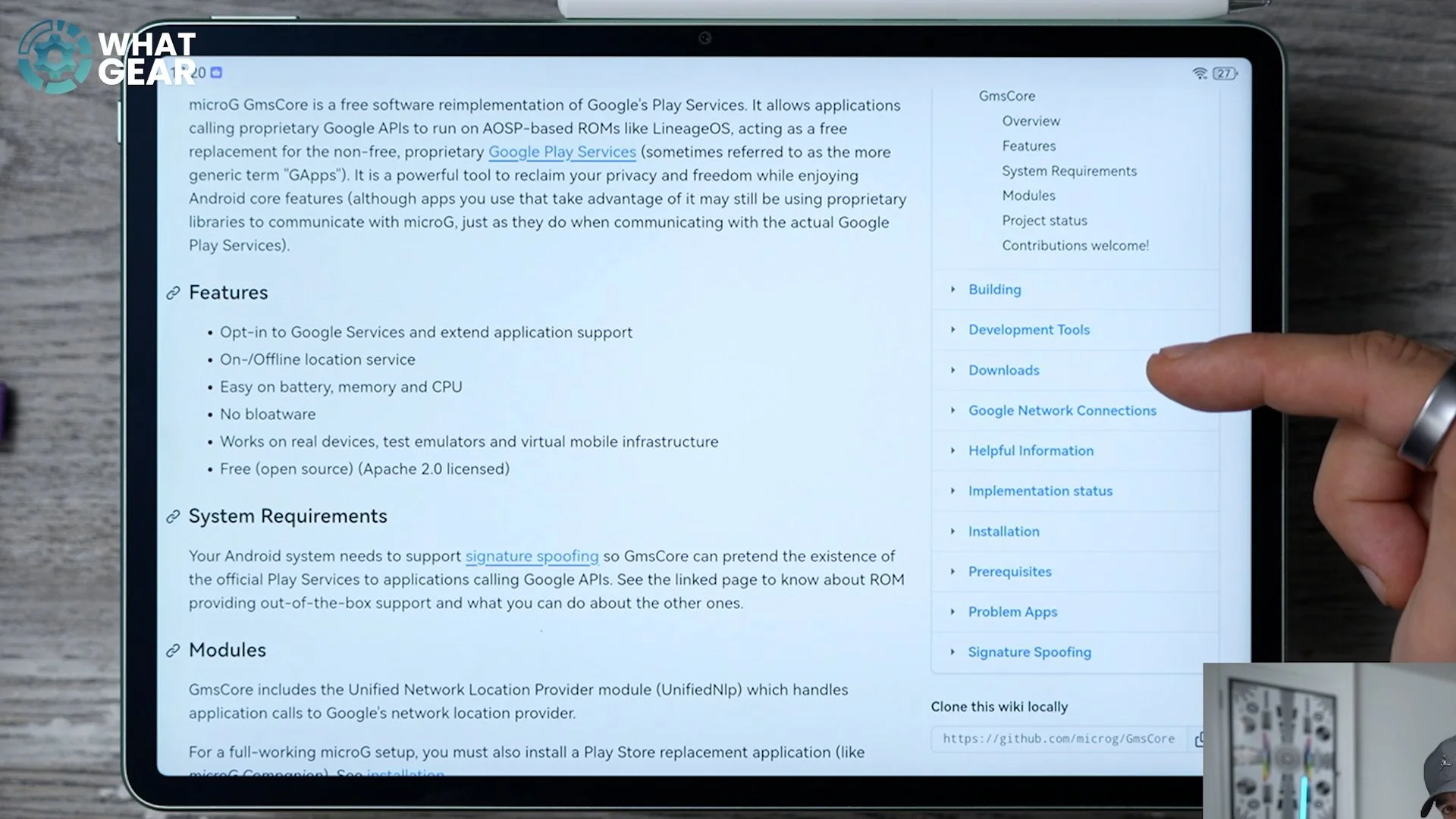
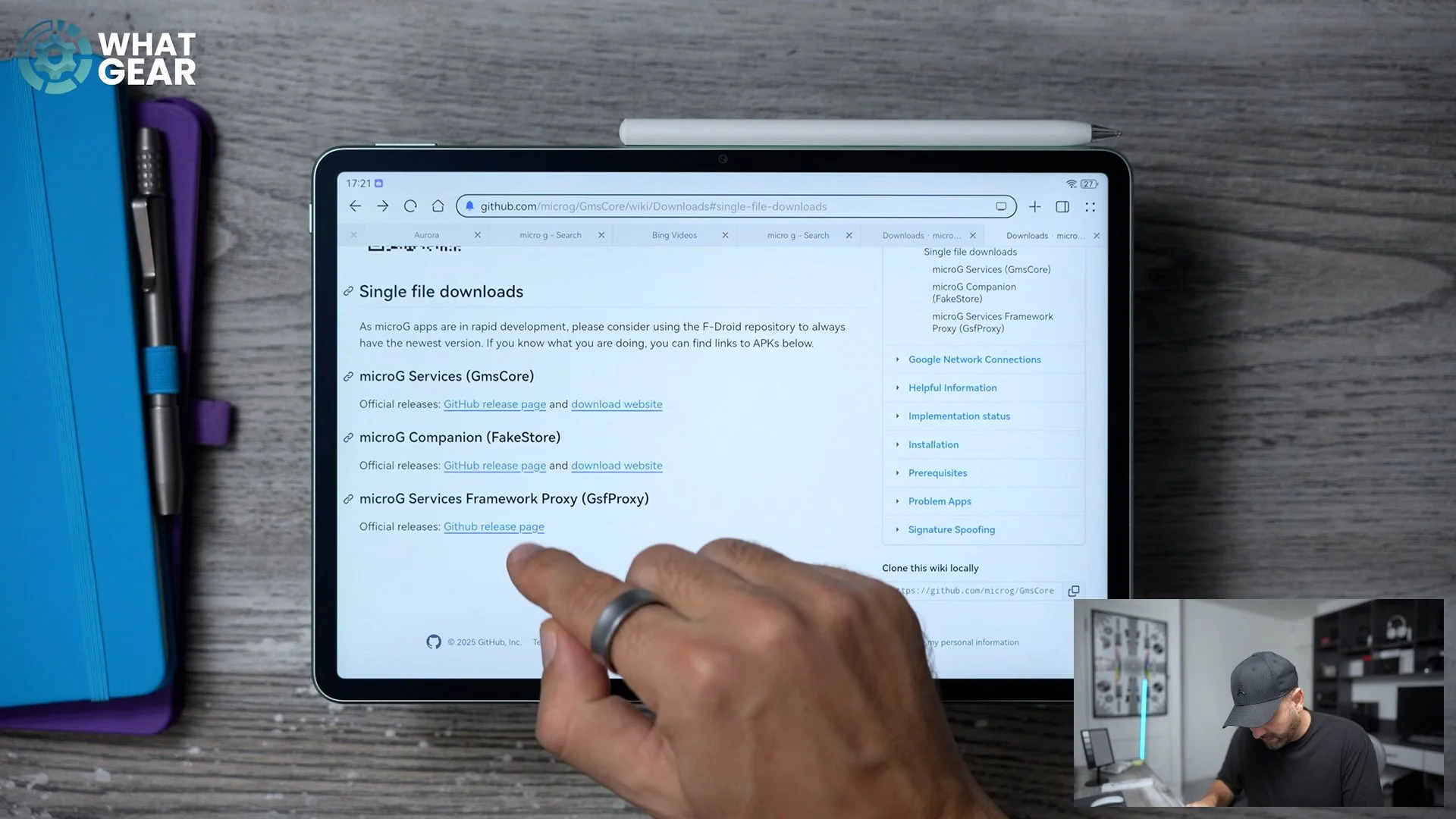
So first of all, if you open up the Internet browser, whichever one you're going to use, what you want to go to is microg.org. This is step one. On this page, on the right side, you want to go to where it says Download. And then, on the right side, go to where it says Single file downloads. And then here is where we can get the microG services. To explain very simply what this is: it is an alternative to the Google Play services that works pretty much in the same way, but via microG’s service and not Google’s service. So if we go to the download page here for the GmsCore, scroll down, and you'll find this section, Release artifacts, and it will list out the specific APKs that you need to download onto your HUAWEI device.
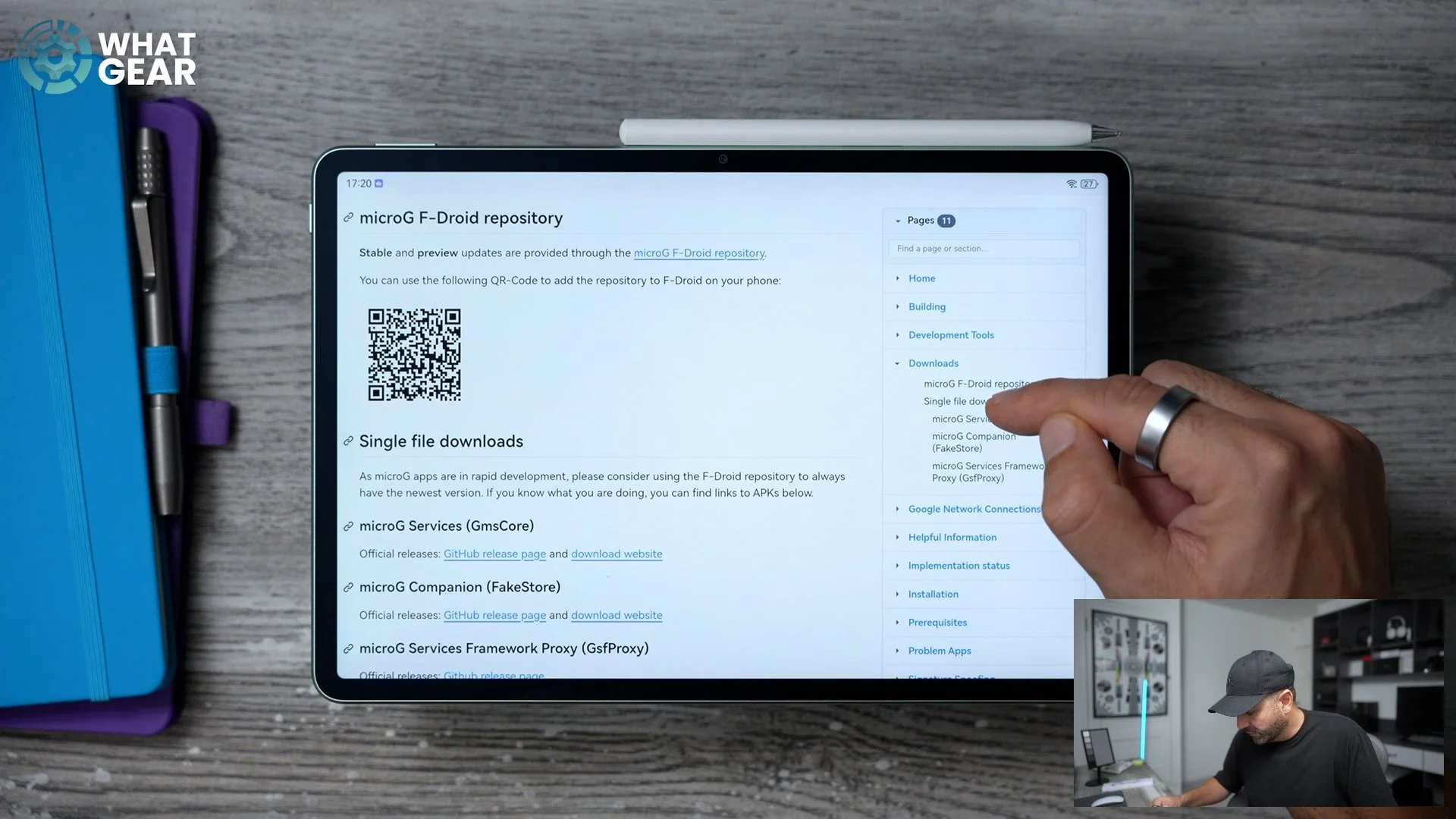

So right here you can see it's this one: Gms-250932022-huawei.apk – that Huawei bit is important – and then there's also the second one here, 8422622. So those are the two that we need. And if you scroll down, you'll actually find them in this list just below. So the top one is that one there, and then we've also got 2022 with the hw at the end. That is this one here. So you have to download these two highlighted APKs first. Hit the dots in the top right corner, go to Downloads, make sure you install each one of those, and once you've got those two, you can go into the next step.
Step 2: Install microG Services Framework Proxy
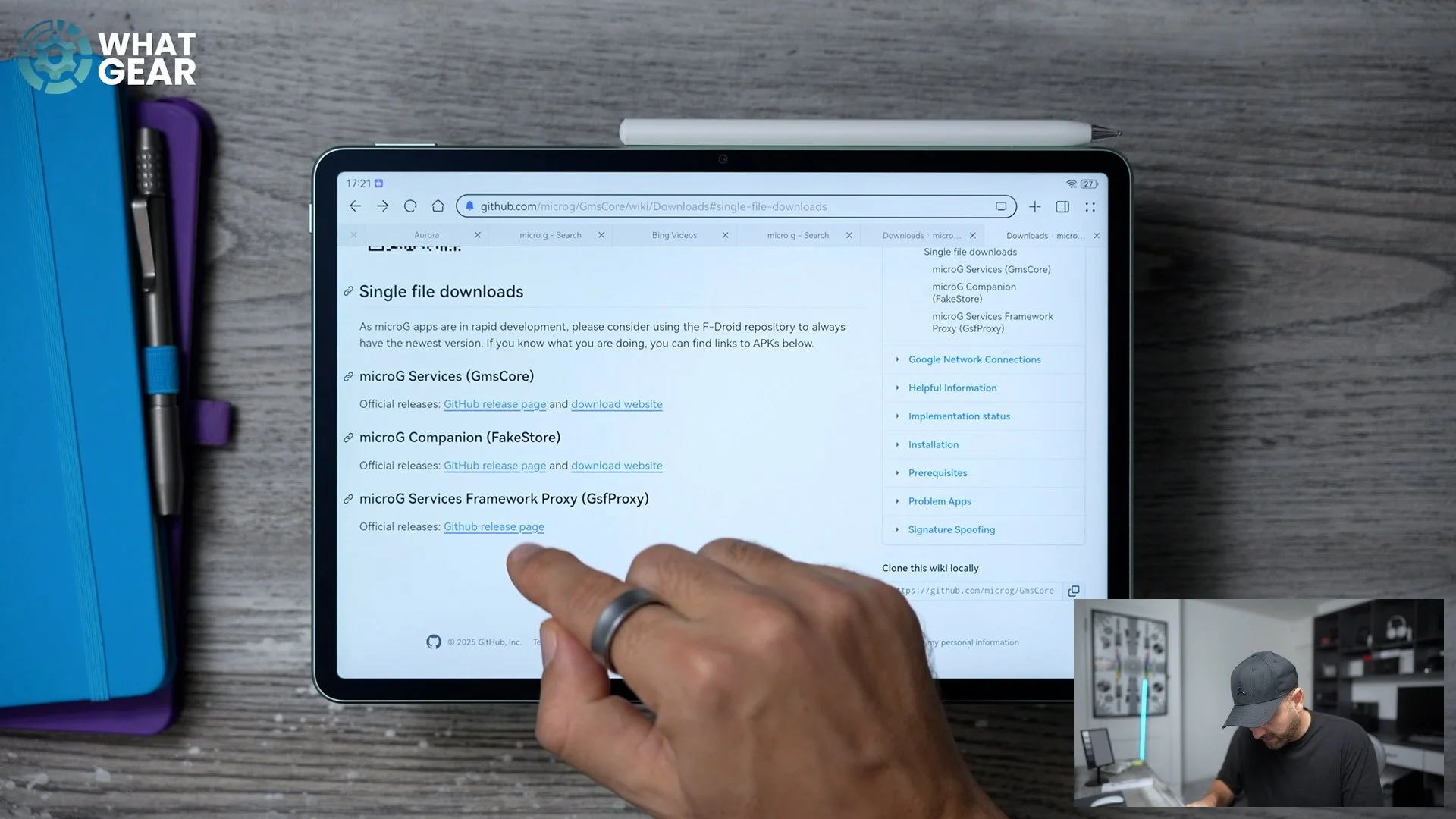
If we go back to the downloads page, right here is where we'll find the actual microG Services Framework Proxy. So if you tap on this, this takes you to the GitHub page where you'll find the gfs-proxy APK. This is for microG Lite. If you tap on that, it downloads. Go to the Downloads section on your device and install the microG Services Framework Proxy.
Step 3: Check microG Permissions
So there's one more little bit to get this working. If you go into your Settings and then search for "microG" up here, go into the microG companion and tap on Permissions. Just make sure you've got this set to Allow whilst in use. And just to double-check, just go to See all microG permissions. So you should see a page like this. Just make sure it's got access to all of that. Once you've done that, we can go to the next step and the final step before we can download pretty much anything.
Step 4: Install Aurora Store
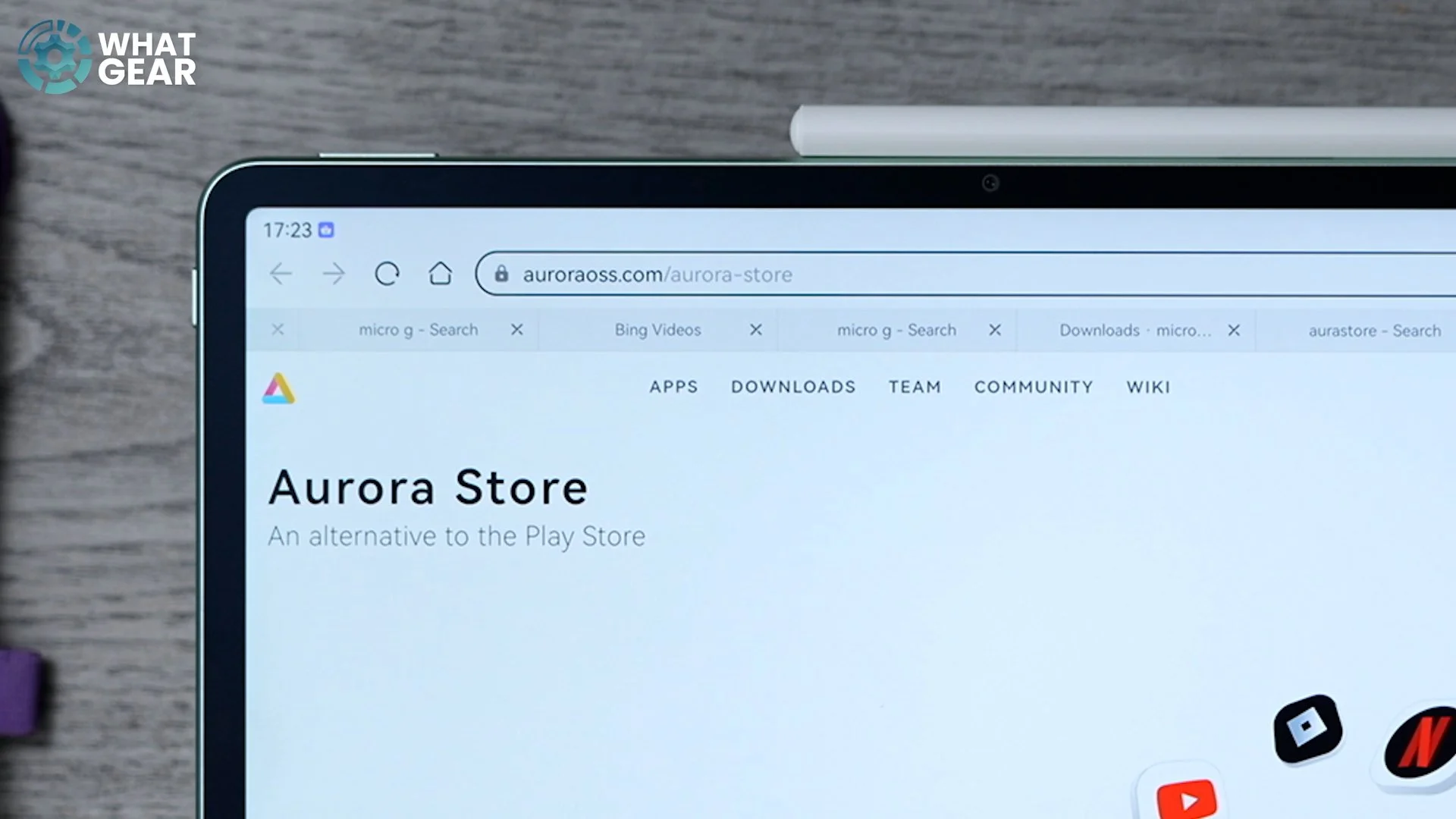
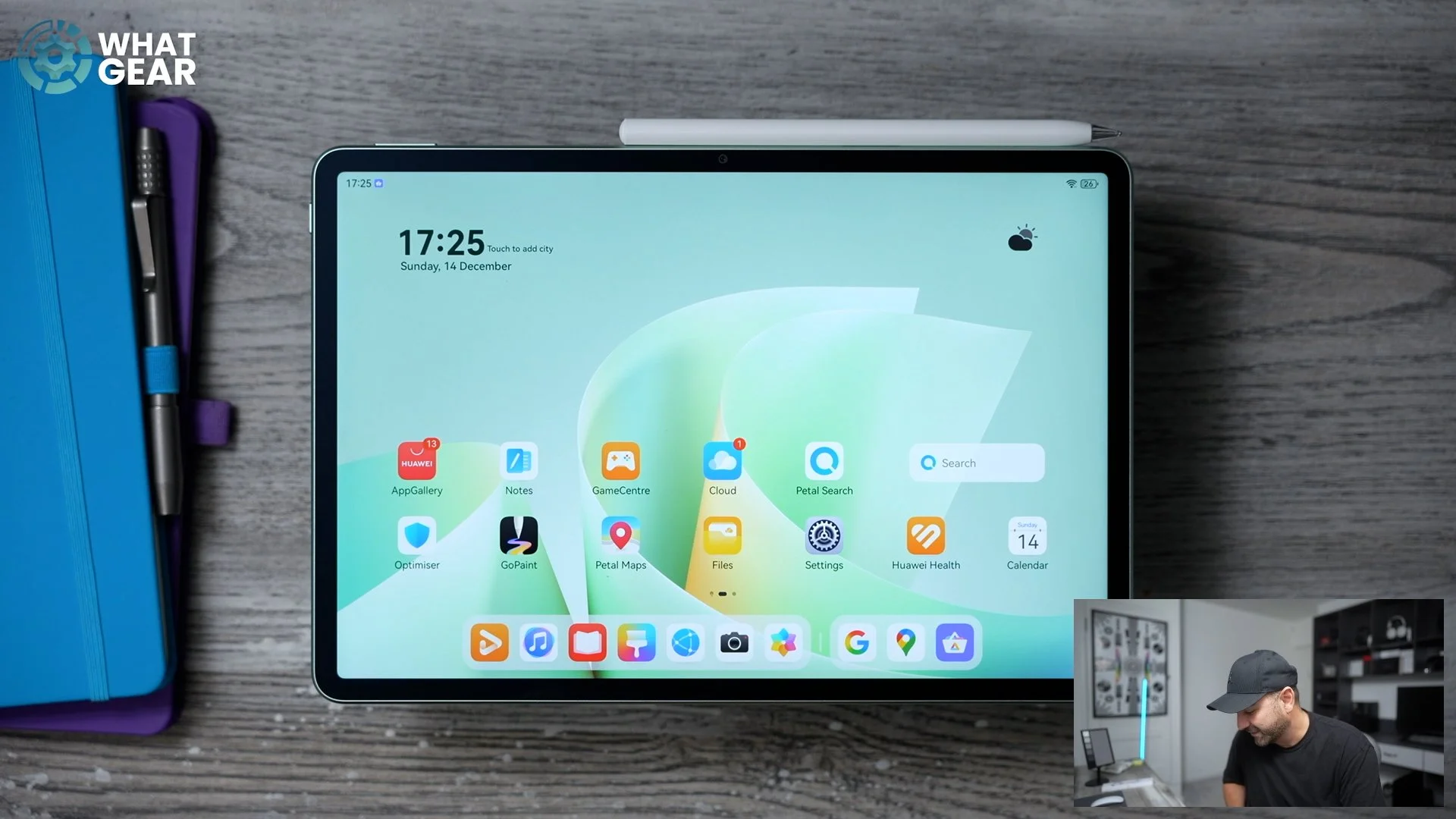
We go back to the browser, and we're going to go to this website right here: auroraoss.com. It takes you to the Aurora Store. This essentially acts exactly like the Google Play Store, with all the apps that are available there. So scroll down on this page all the way down until you see this little download section here – Get ready in three easy steps – download and install the same way we did with the microG APKs. Once you've done that, you'll now have a desktop icon for the Aurora Store. You can open this up and find pretty much any app you want to download.
Step 5: Important Warnings & Use Cases
And with Google services, you can actually even go into them, for example, like Maps, and log in with a Google account. However, big disclaimer here: because microG services are handling all of the data and not Google’s, you have to be mindful of the kind of data that you're going to share via these services. If you're just using Maps to get from A to B, obviously that's not a big problem. But if you put in your bank details and all that kind of stuff on there, yeah, be a little bit more concerned about that.
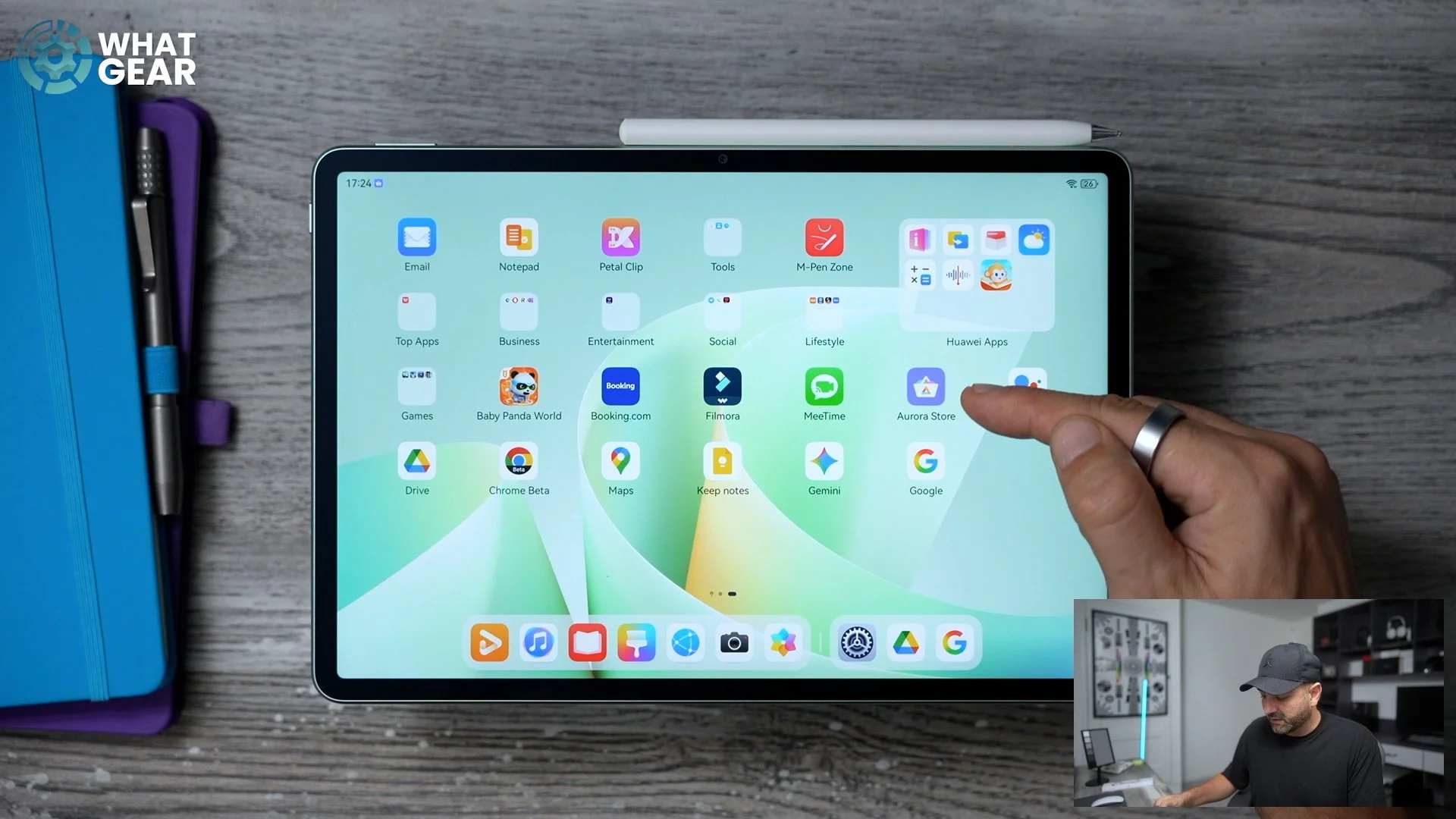
Also, I wouldn't recommend using your main Google account to log into microG, because if, for some reason, Google decides it is a breach of their terms of service, they could shut that Google account down. So I would recommend using a burner account if you are going to log in to some of these services. You could even get stuff like Gemini running here and sign in if you want to. I think with Gemini, you actually have to sign in. But yeah, these kinds of things are now possible on HUAWEI devices. I mean, they have been in the past, but it's a bit easier now, which is nice.
Final Thoughts
So that's the brand new HUAWEI MatePad 11.5s. This is a decent bit of kit. There is a lot of good stuff going on here, and I really, really like this Pencil and the drawing experience on this particular one.
Let me know what you guys think of this. Appreciate you guys for reading. If you enjoyed it, a little thumbs up would be appreciated. If you just subscribed, you're now one of the finest subscribers known to man and I will see you in the next one.
