LG C5 & G5 OLED - First Things To Do! (Tips & Tricks)
In this article, I’m going to show you the first ten things you should do with your brand-new LG TV in 2026. The settings I’m about to show you will instantly improve your picture performance. They will also make the TV easier to use, and I’ll even show you how to remove those unwanted ads.
CONTROL UPGRADE
Let’s kick this off with a tip that will make your remote control much easier to use. To get to the settings, press the Settings button on the remote control. That will jump straight into Settings. Alternatively, you can go to the top left corner of the screen and access Settings from there. Once you're in Settings, you need to hit Settings again, then go to: General → System → Additional Settings → Pointer Options
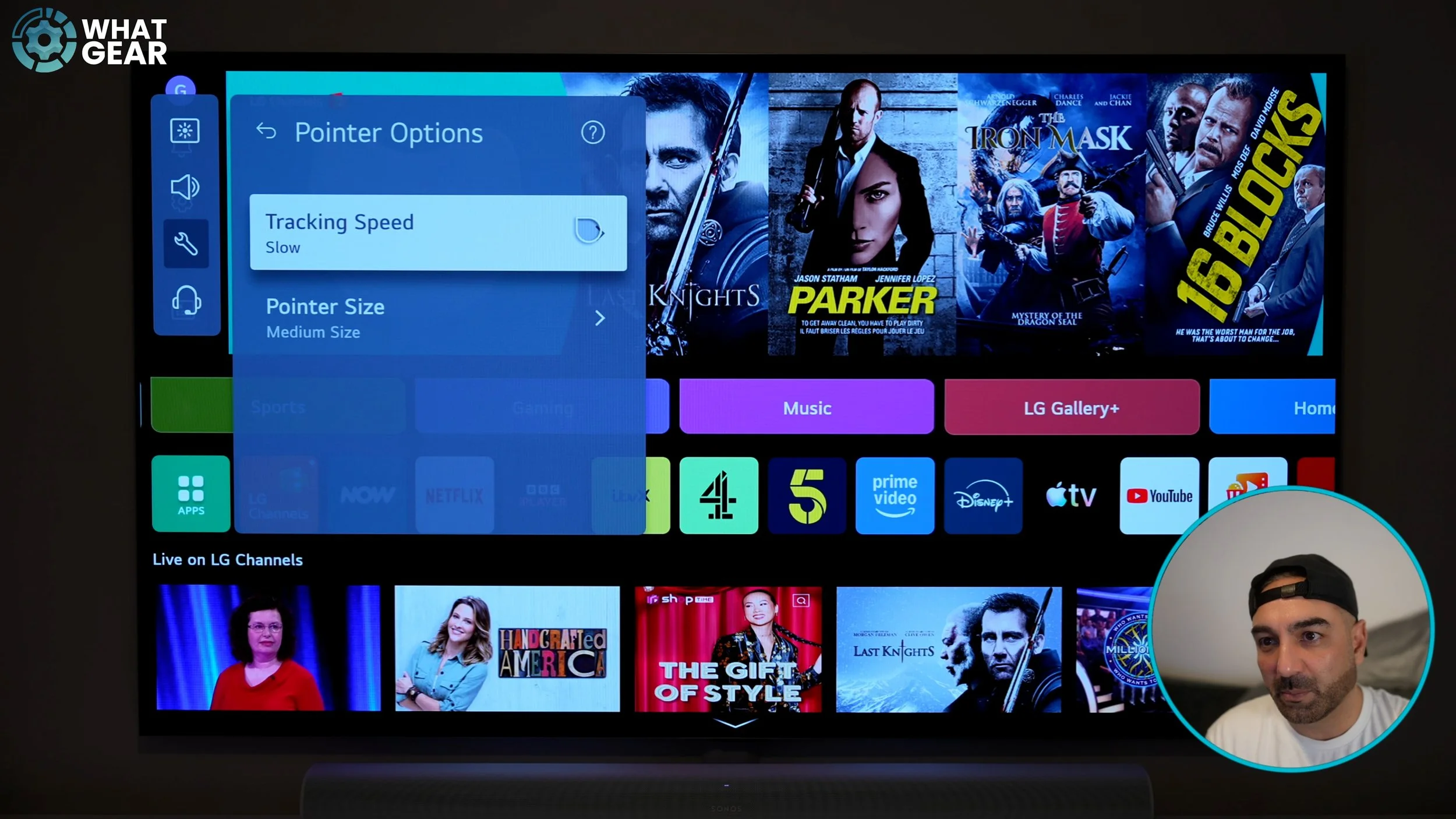
Your remote control has a built-in pointer, which allows you to quickly type on keyboards and navigate websites. It’s very handy, especially in the web browser. The problem is that it can be quite sensitive. Inside Pointer Options, you can adjust the speed. I’ve already set mine to Slow, and this makes typing and navigating much easier. This is definitely one of the first things you should change.
PICTURE UPGRADE
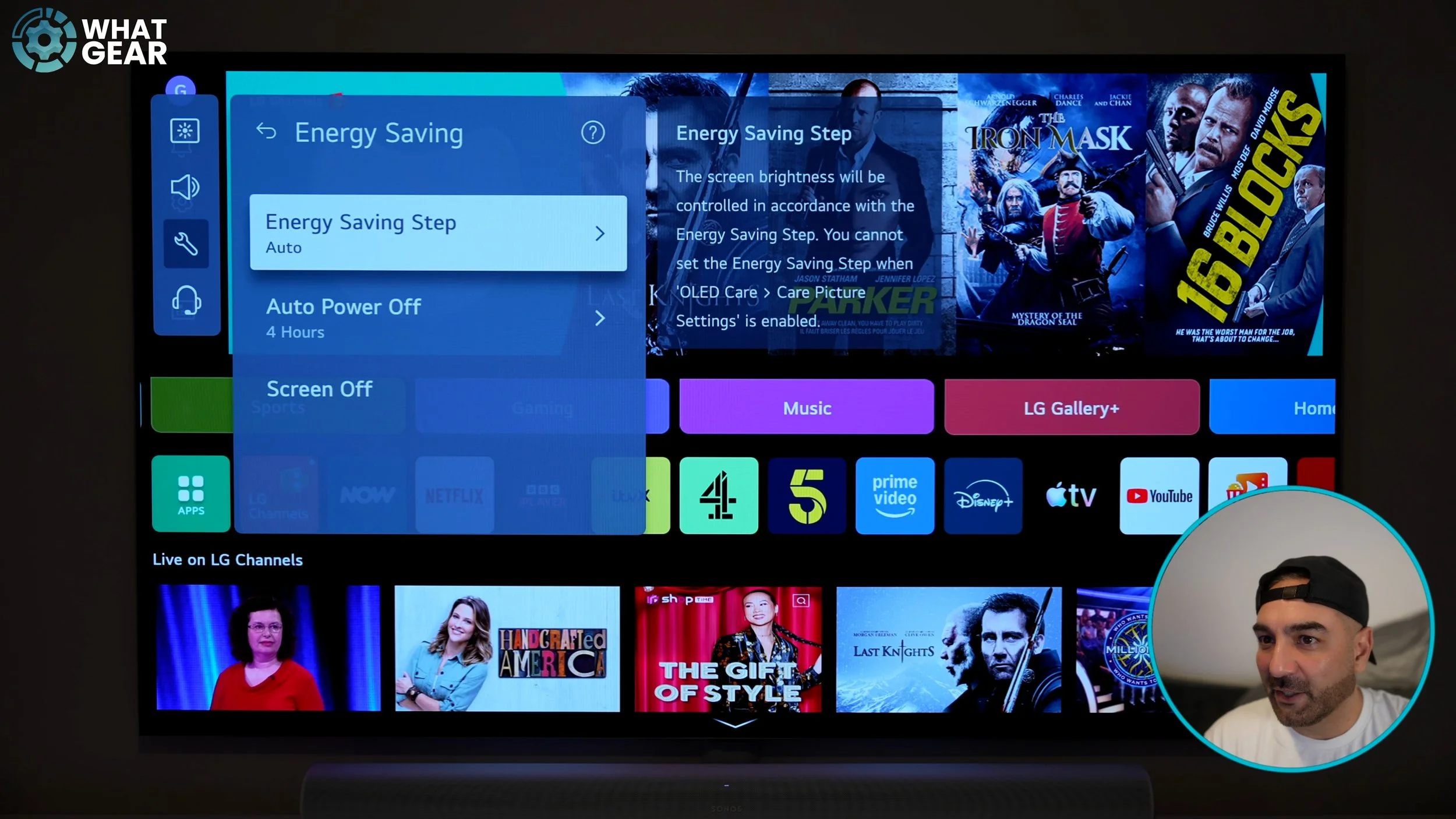
Let’s improve the picture quality. For reference, I’m using the LG G5 OLED 77-inch. Go to: Settings → General → Energy Saving. Many brands optimise TVs for energy efficiency out of the box so they perform well on marketing labels. But once you’ve bought the TV, you probably want the best picture possible. By default, Energy Saving is set to Auto. Turn it off, and you’ll immediately notice the screen gets brighter. This instantly improves picture quality. Just keep in mind that it will use slightly more power.
BEST CALIBRATION
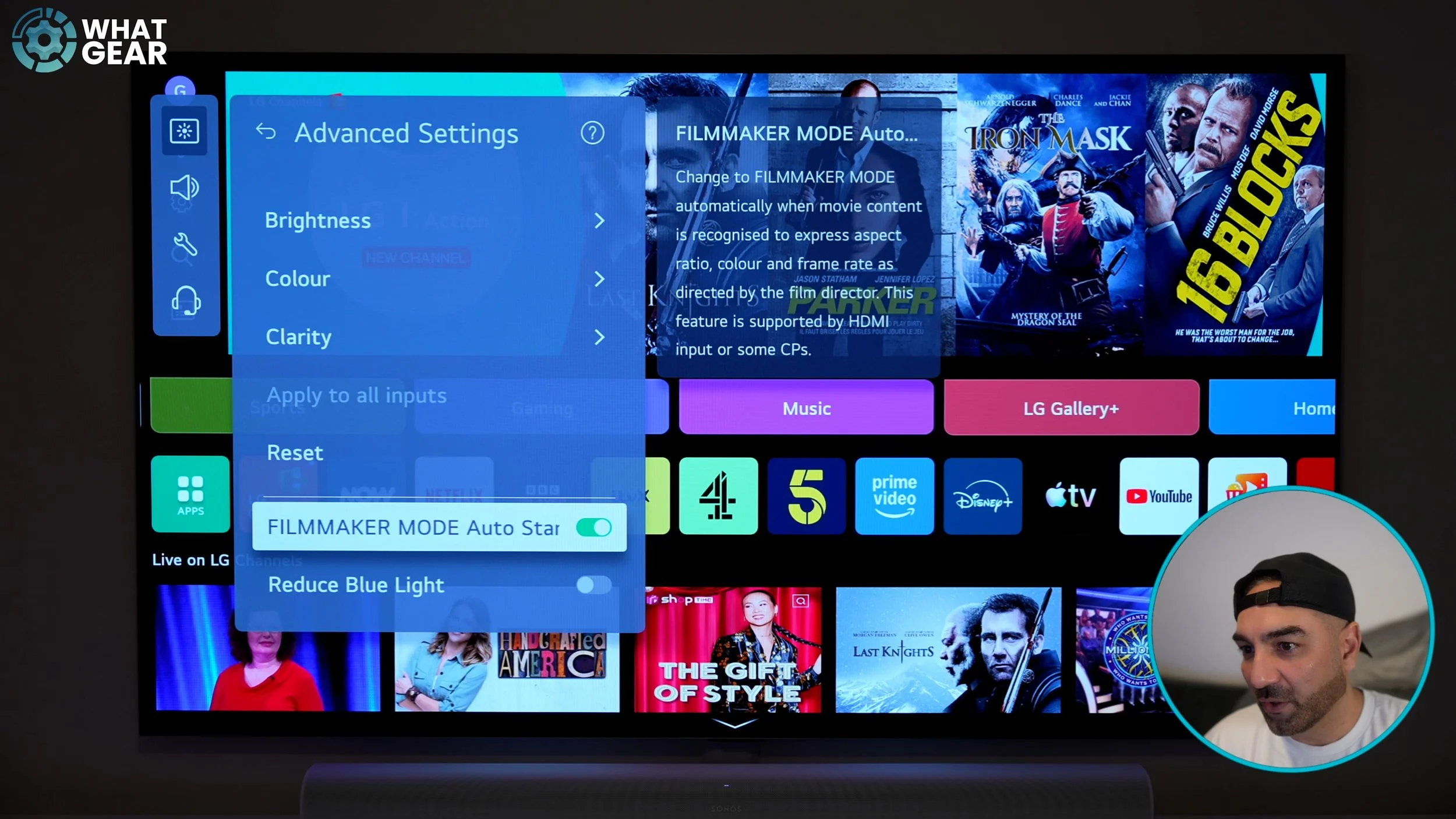
This is a must for movie lovers. Go to: Settings → Full Settings (Cog Icon) → Picture → Advanced Settings. Scroll down and enable: Filmmaker Mode Auto Start. Experts agree that Filmmaker Mode on LG TVs is the most colour-accurate pre-installed picture profile. With this enabled, the TV will automatically switch into Filmmaker Mode when watching movie content.
AI ADJUSTMENTS
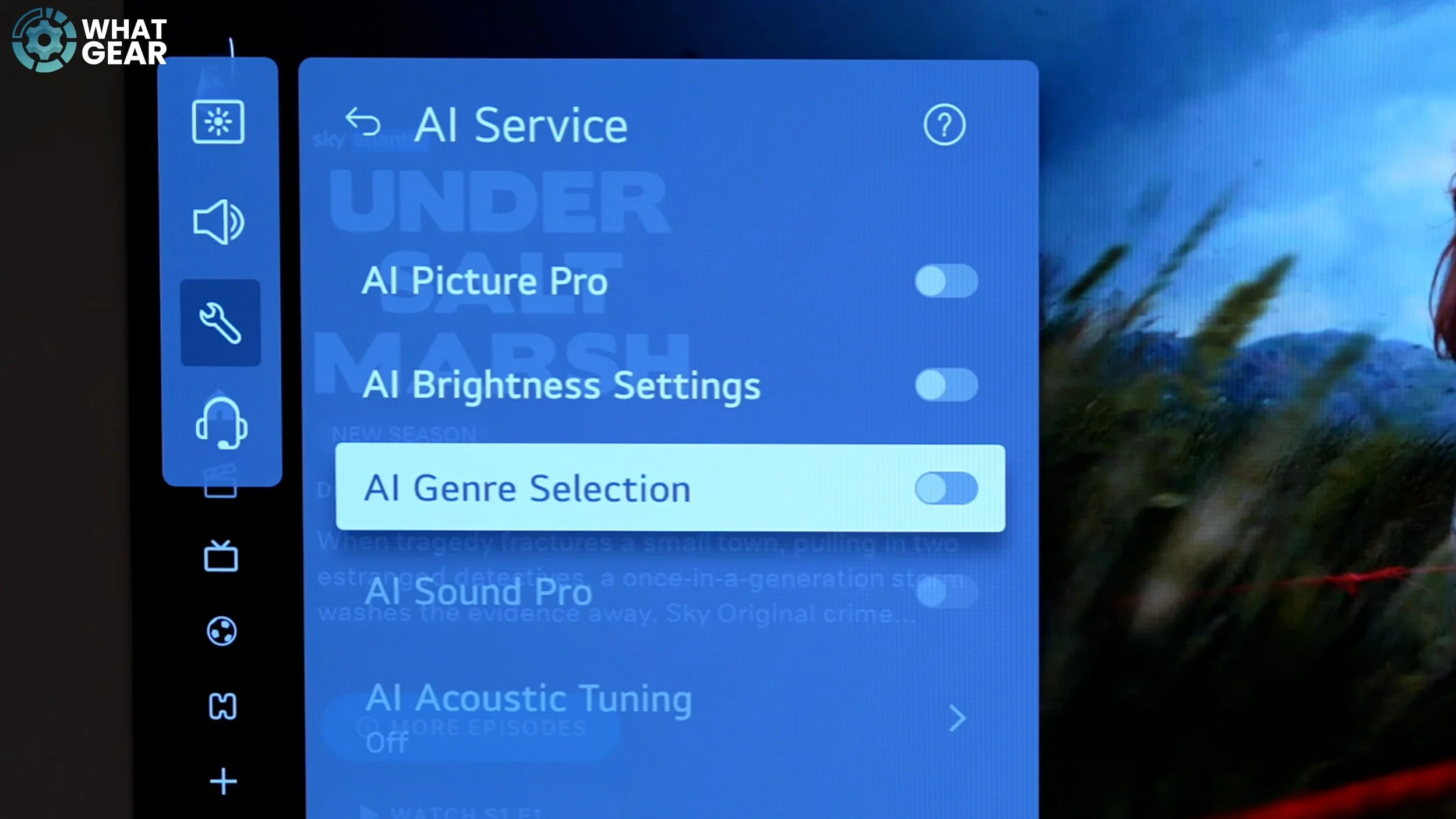
This setting is great for sports fans. Go to: Settings → General → AI Service → AI Genre Selection. This won’t completely switch your picture profile, but it recognises different types of content—like fast-moving sports—and dynamically adjusts the image to optimise it. Perfect for football or other fast-paced events.
FAST INPUT SELECT
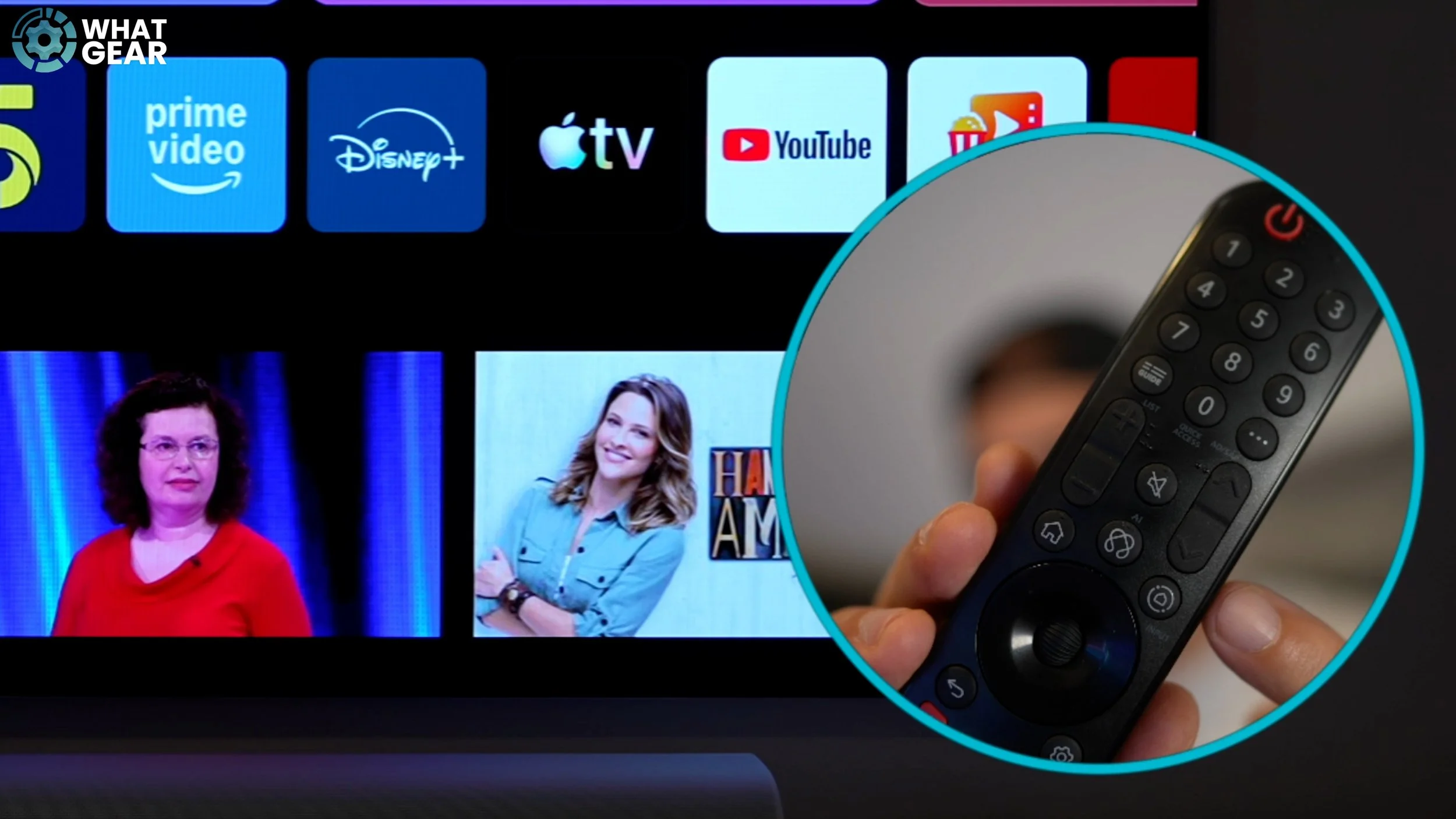
On newer LG TVs, the dedicated input button is gone. You now have to hold a button down to access inputs, which isn’t ideal. Scroll across your apps row until you find Inputs at the end.
To move it:
Highlight the icon
Hold down the Select button
Move it to the front
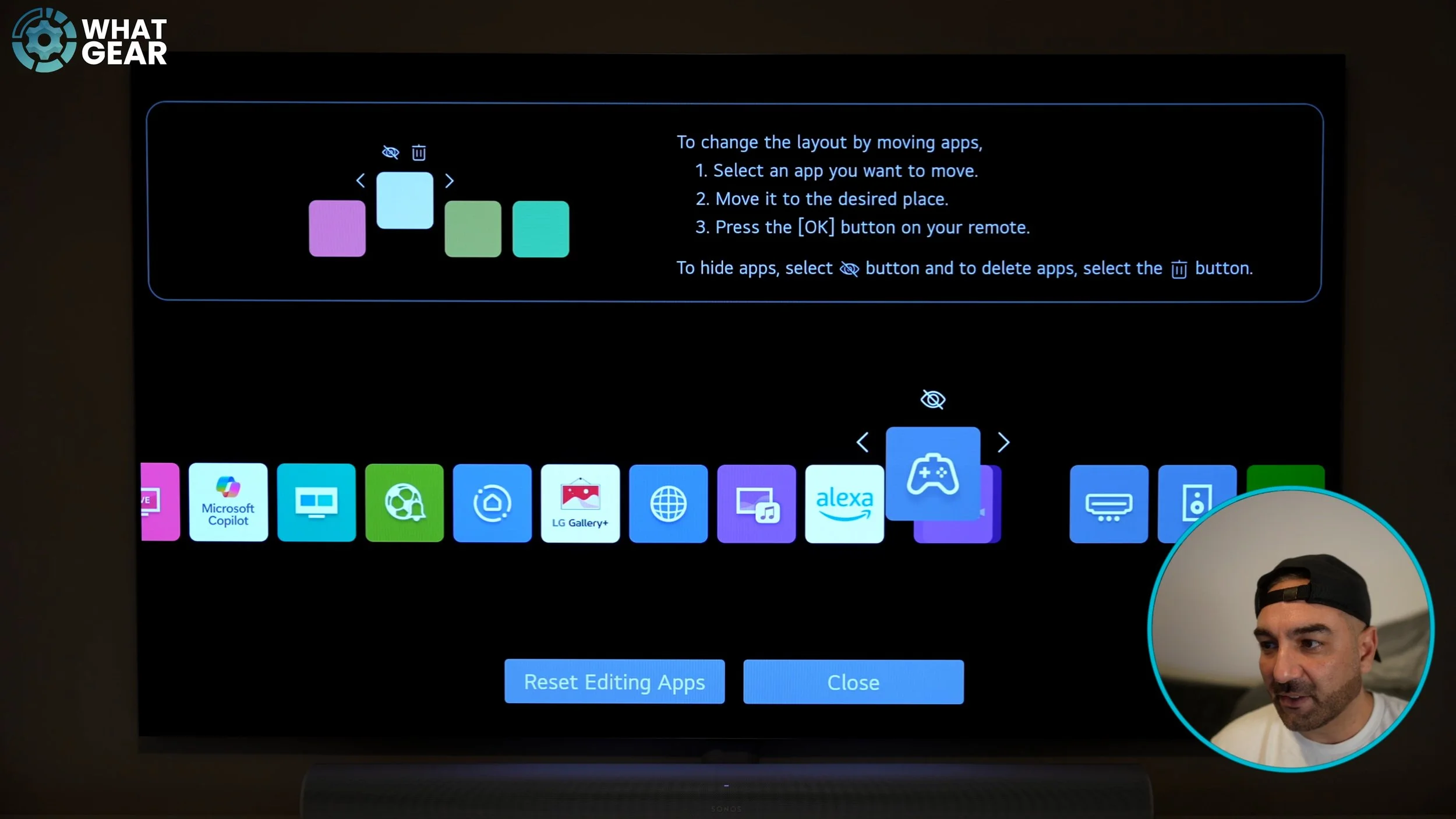
You can do the same with gaming consoles, Blu-ray players, or any apps you use frequently.
You can also:
Reorganize apps
Uninstall unwanted pre-installed apps by selecting them and hitting the bin icon Thankfully, there isn’t much bloatware on this TV.
REMOVE ADS SWIFTLY
Let’s get rid of those annoying ads. Go to: Settings → General → System → Additional Settings → Home Settings. Here you can turn off:
Home Promotion
Content Recommendations
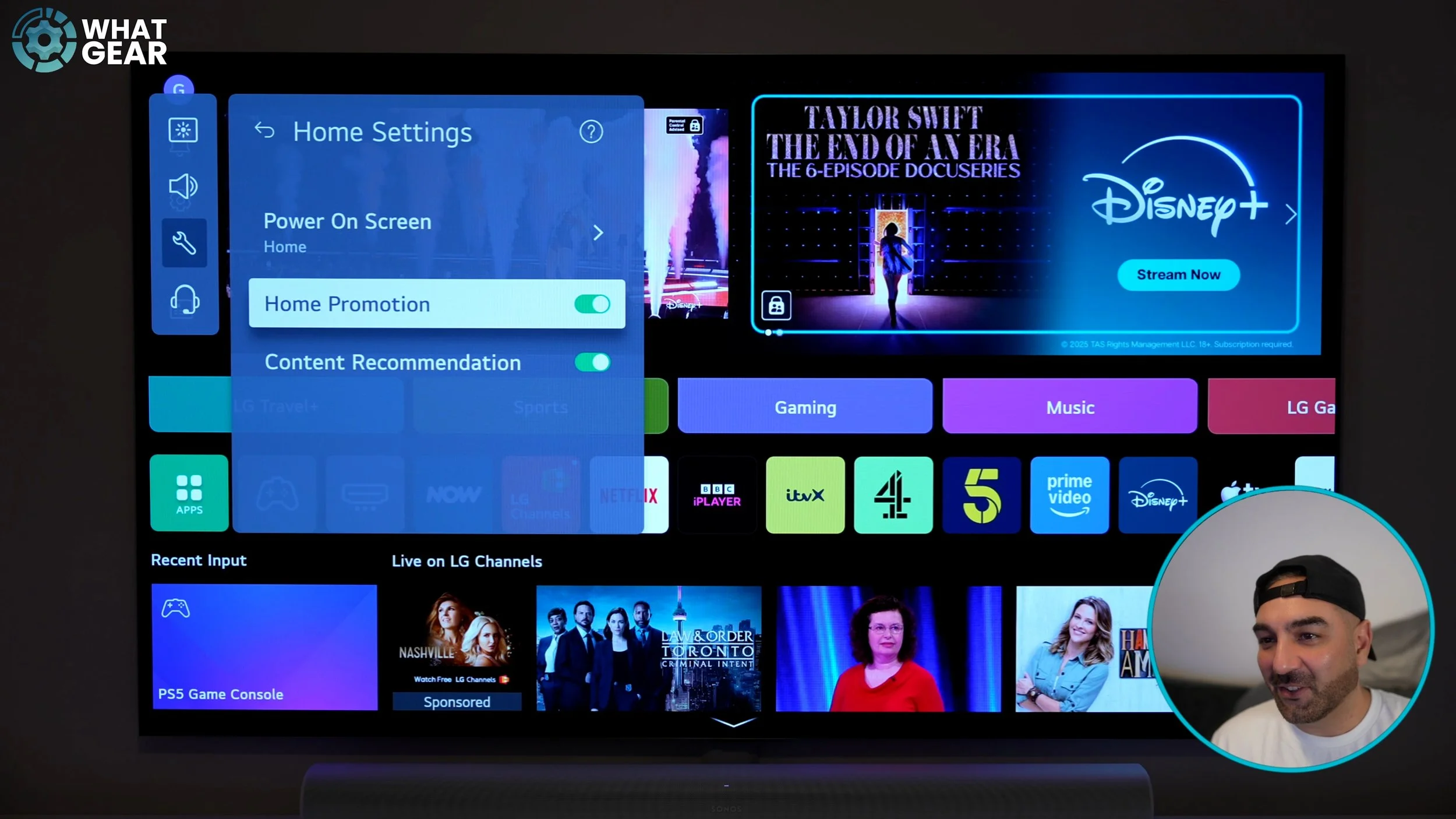
If you disable Home Promotion, those autoplay music banners disappear. You can decide whether you want to keep content recommendations. Personally, I prefer turning them off if they’re irrelevant.
EVEN LESS ADS
Still in the same area, go back one step and find: Live Plus. If enabled, your viewing data can be shared with advertisers to target ads more effectively. If you don’t like that idea, turn it off.
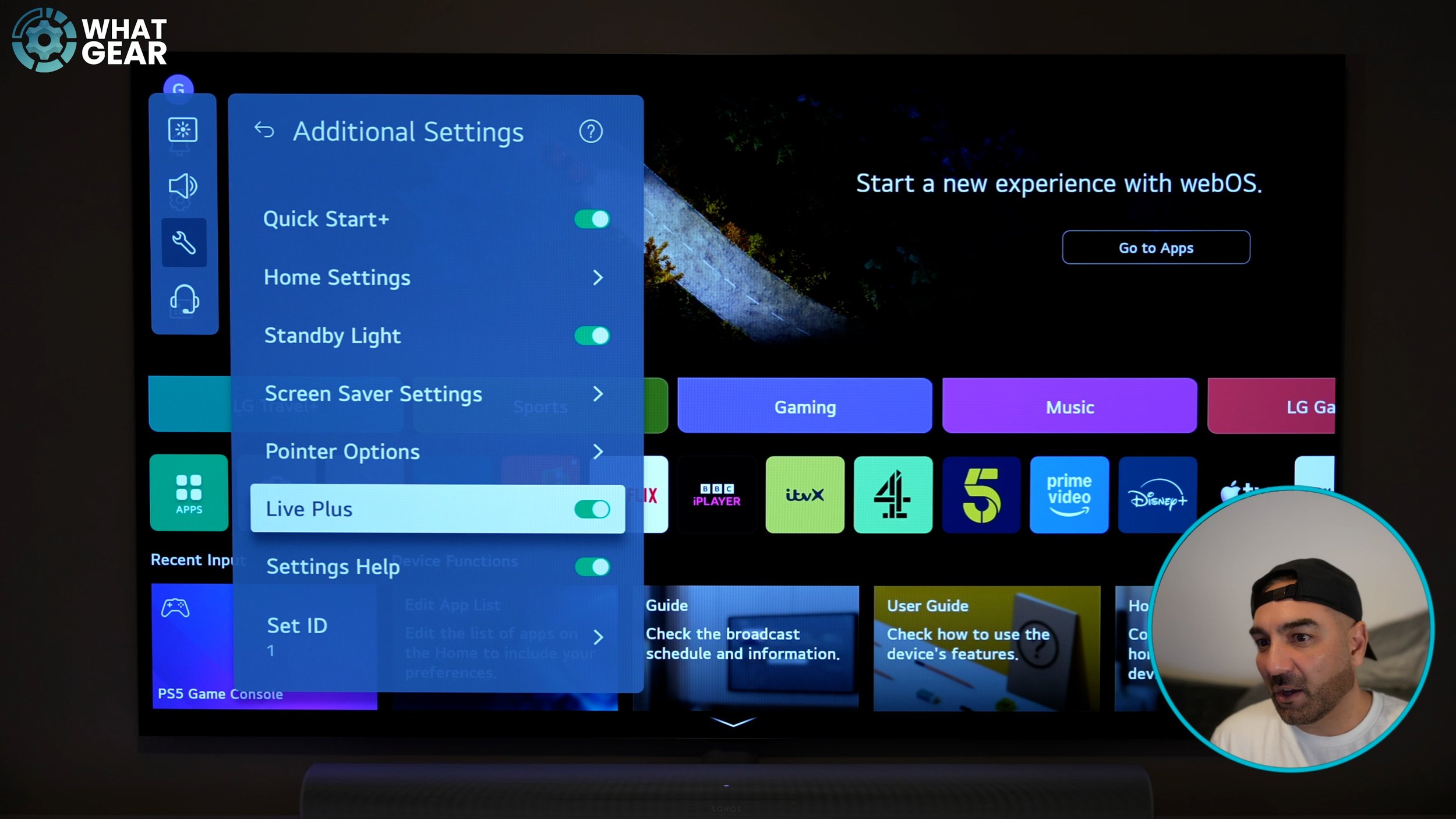
ONE MORE AD SETTING
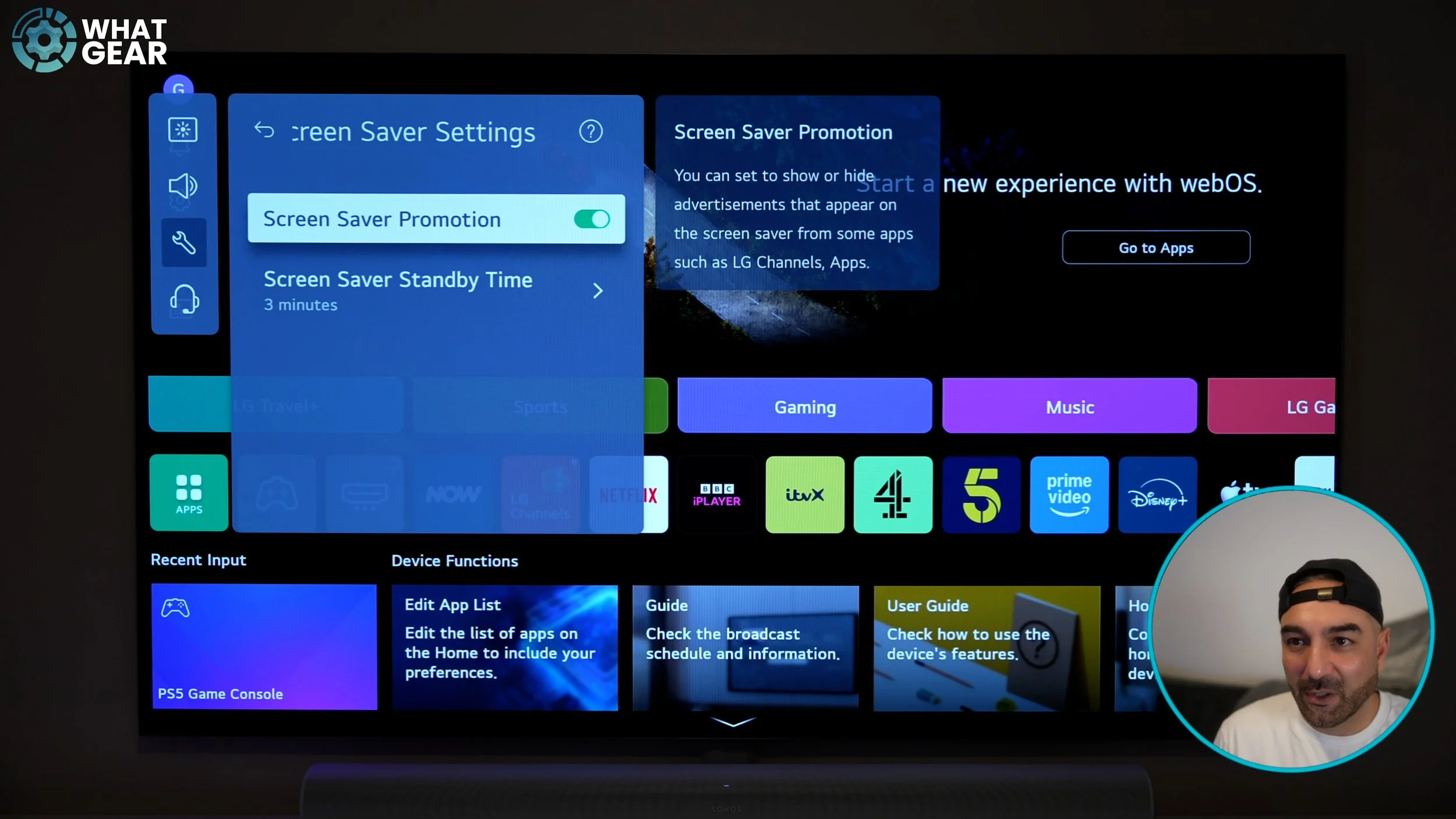
There’s one more hidden ad setting. Go to: Settings → General → System → Additional Settings → Screen Saver Settings. Turn off: Screen Saver Promotion. Otherwise, ads can appear when your TV goes into screen saver mode.
NEW FEATURE
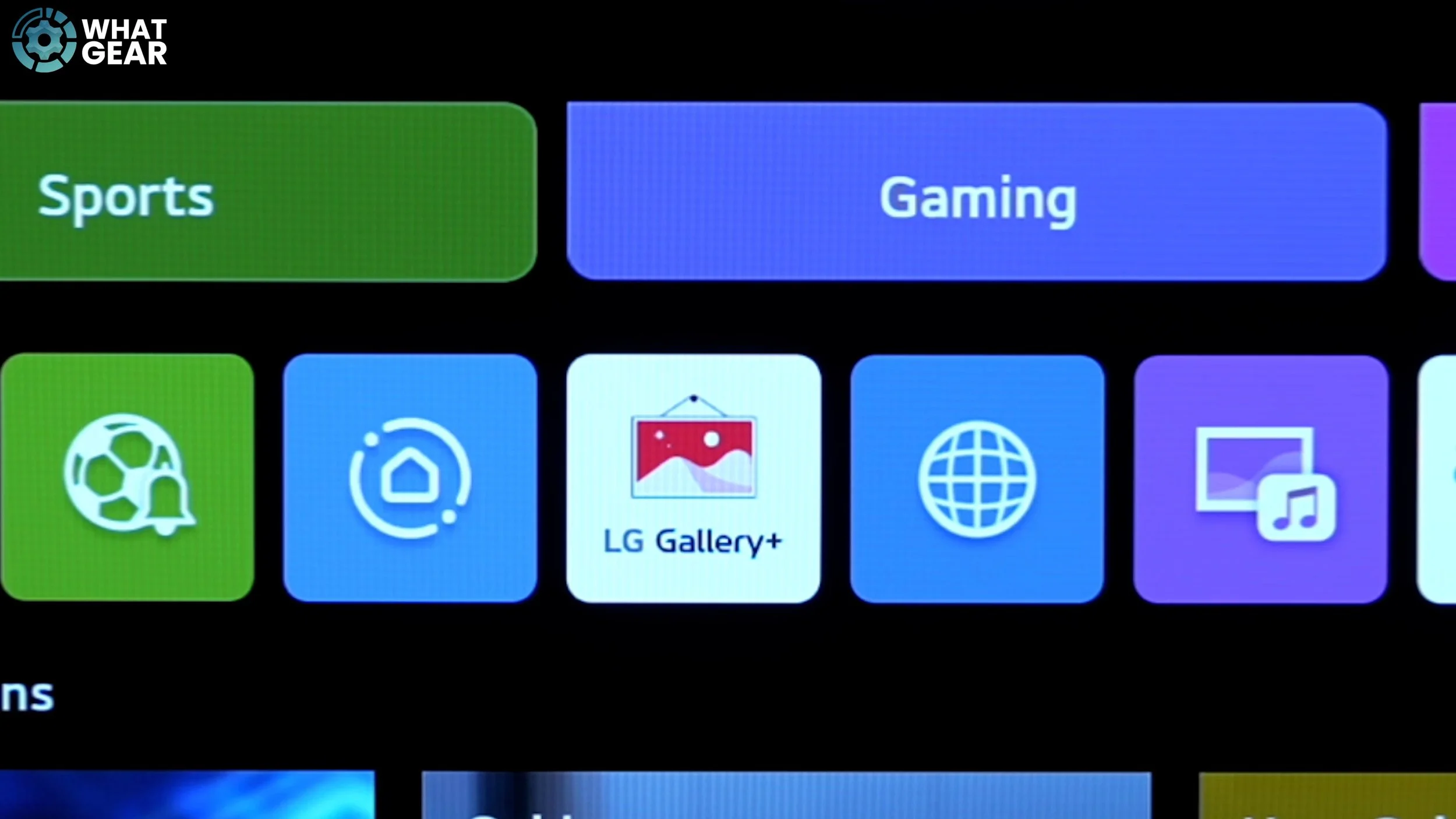
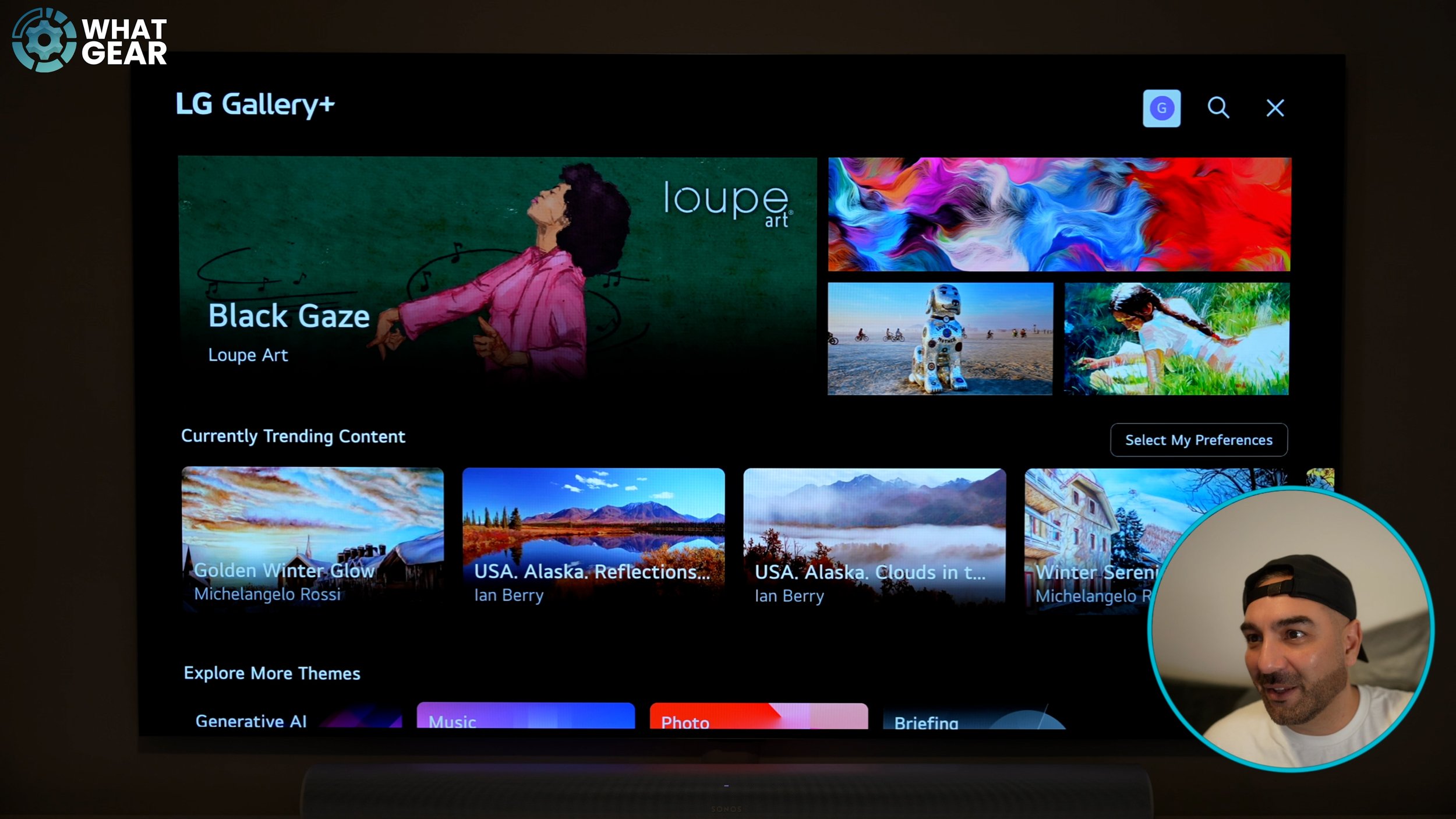
Scroll across your apps row until you find: LG Gallery Plus. This gives you access to beautiful artwork and wallpapers. Some content requires a subscription, but there is a Free Content section where you can choose wallpapers and even enable complimentary music. The AI-generated options look great, but they require a subscription.
YOUR TV IDENTITY
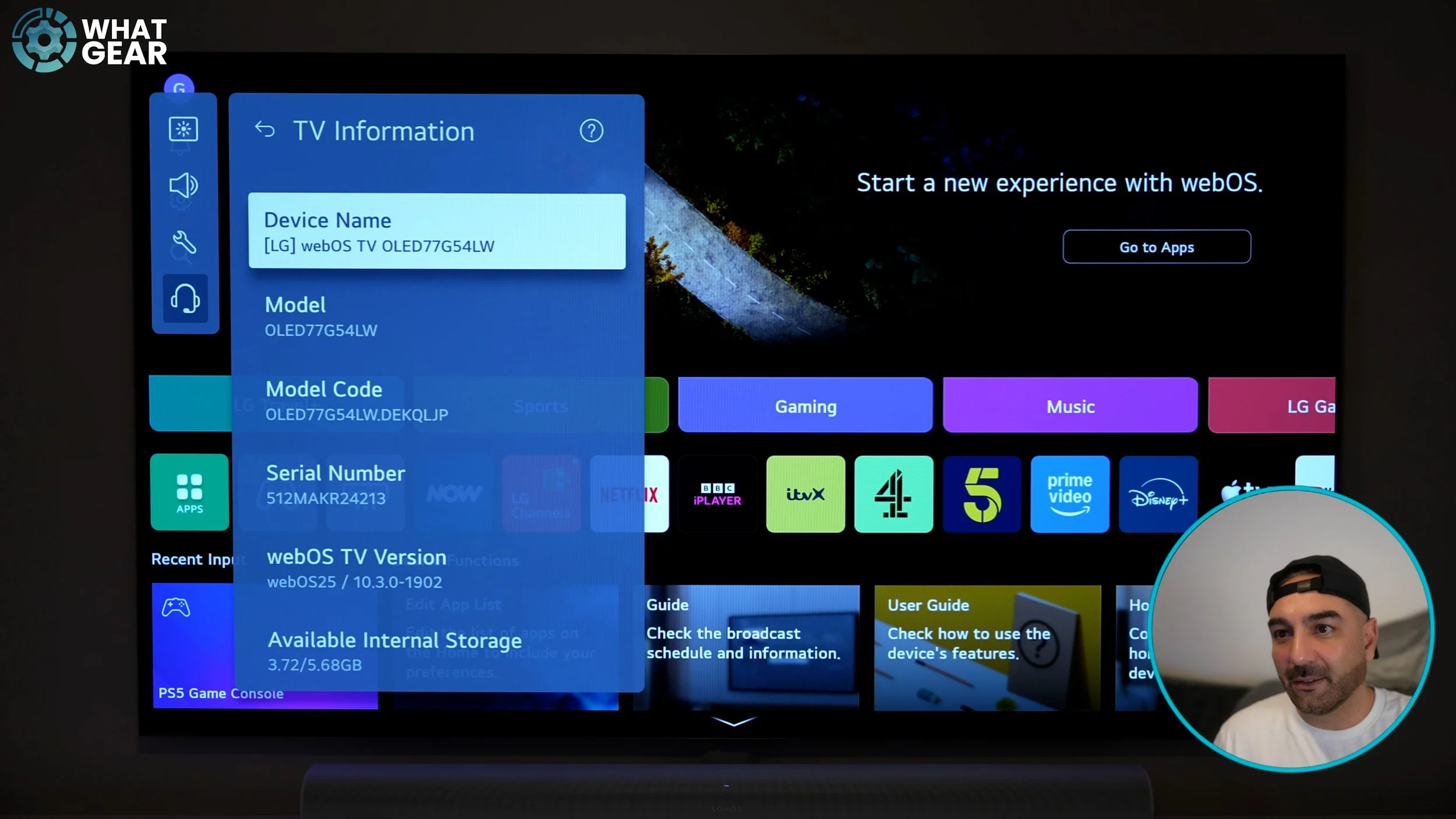
This is very important. Go to: Settings → All Settings → Support → TV Information. At the top, you’ll see the Device Name. This is how your TV appears on your Wi-Fi network. By default, it will be a complicated name. Rename it to something memorable, especially if you:
Cast to it
Connect Bluetooth devices
Change Wi-Fi networks
Make sure the name reflects where it is in your home.
BONUS TIP
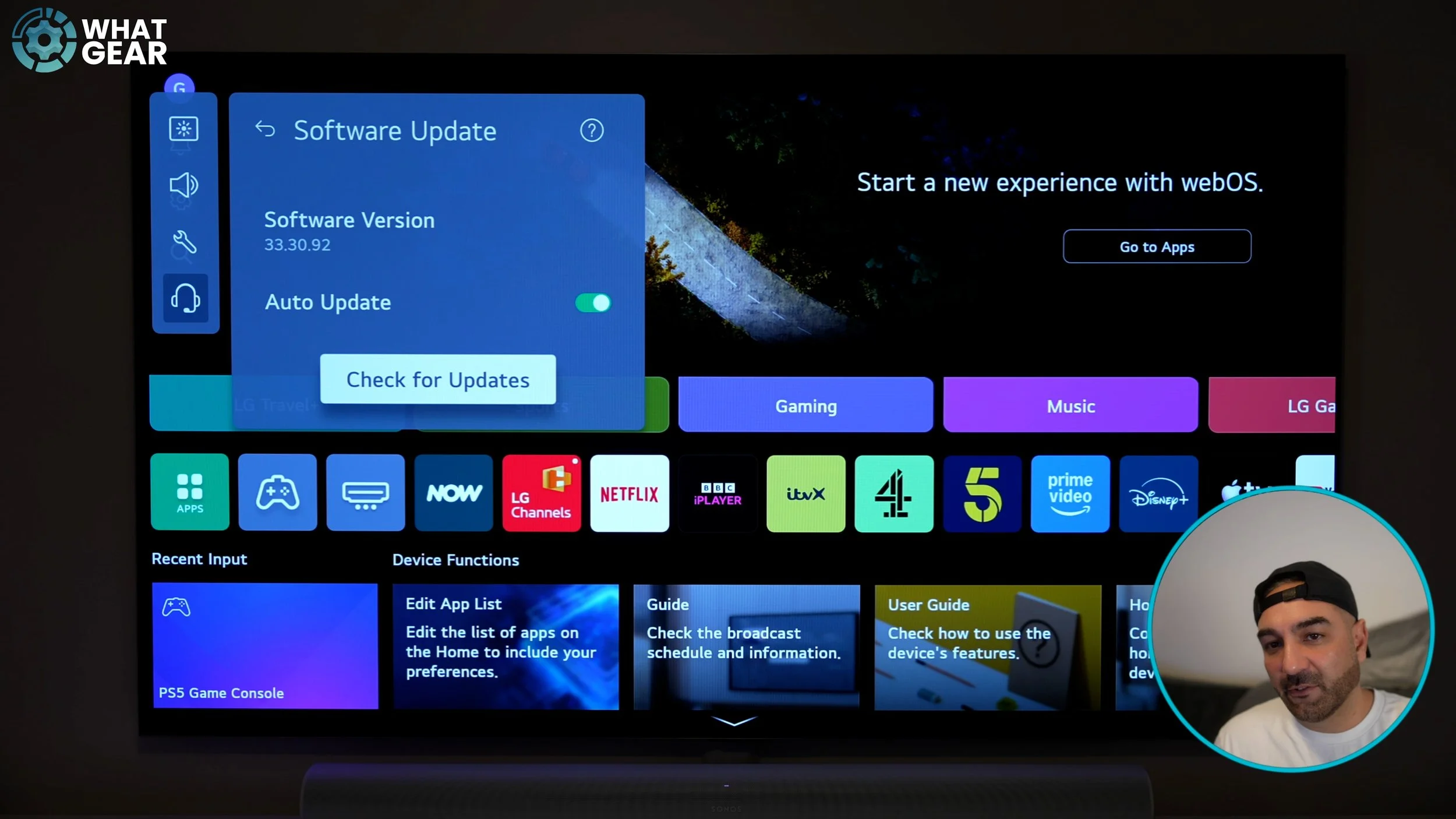
If you don’t see some of these features, your TV might not be updated. Go to: Settings → All Settings → Support → Software Update. Even if Auto Update is enabled, check manually. When I set this TV up, it didn’t update automatically. Make sure you’re running the latest software to access all features.