Samsung Galaxy One UI 8.5 - 17+ New Features Explained! ( Tips & Tricks )
Samsung Galaxy One UI 8.5 is coming, and there's just one question: do you want to know what it is? Some might assume that they'll just discover all of the new upgrades in time, but let me tell you, it's not that simple. So I'm going to lay it out for you. Here are 17 of the best new features and eight subtle changes and upgrades that might not be immediately obvious when you get the new update. And if you stick around, you will see precisely what I mean.
INFINITE CREATIVITY
So let's start with a fun upgrade that builds on top of an existing feature. If you open up an image in the Samsung Gallery—for example, this nice little wallpaper—if you tap on the screen to hit the AI sparkles at the bottom, just like before, you get the AI editing menu. They’ve revised some of the animations here, but if you go to Create now and hit the pen tool, just like before, you can draw on the image and then use AI to generate a more polished version of your drawing. I'm going to use the S Pen for this, just to be a bit more precise. Now you can hit Generate, just like before.
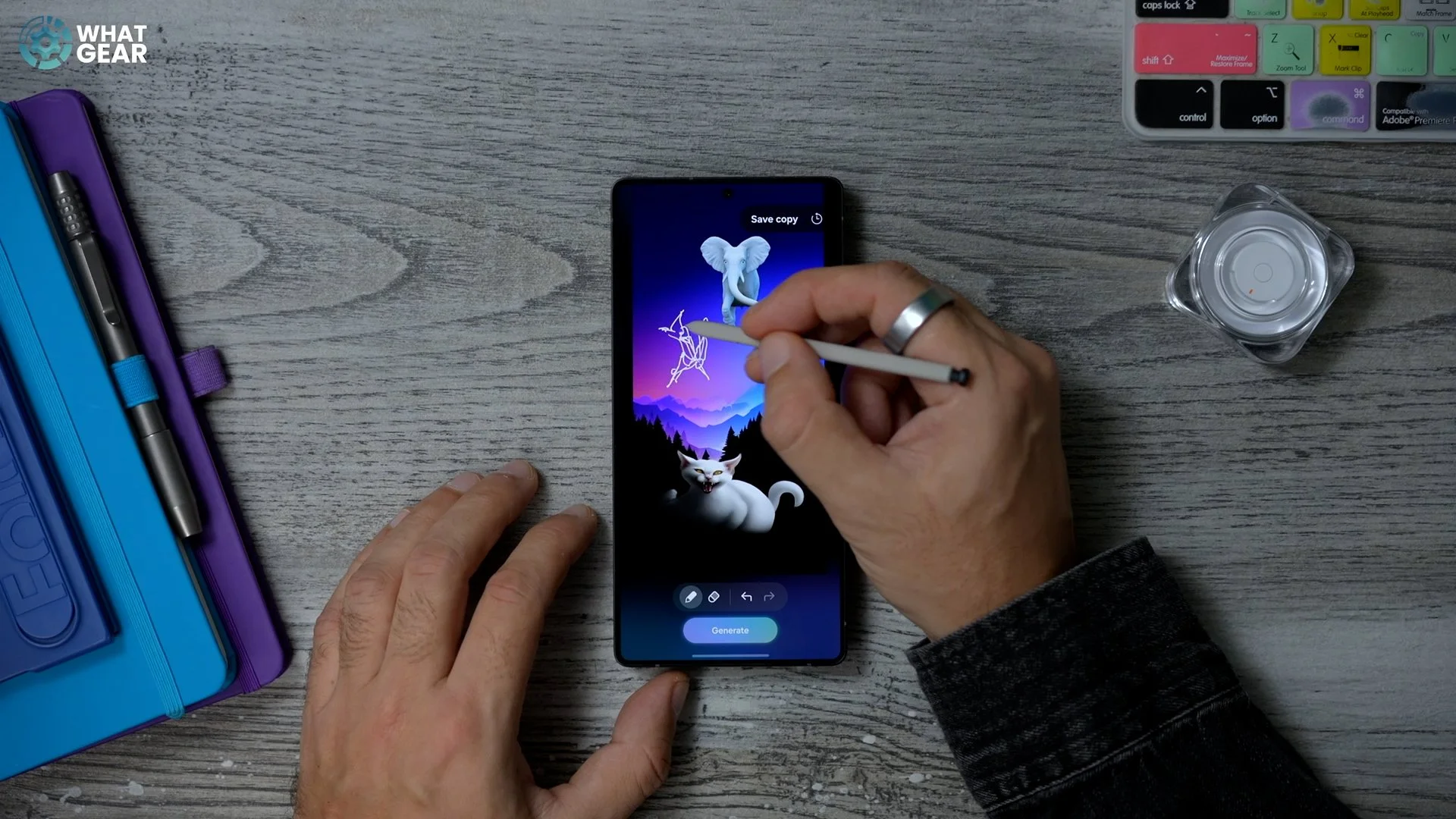
And there we go: it's added a creepy cat to this drawing. Here's where it gets a little bit different. If you tap here where it says Keep editing, now you can draw another image. So let's draw a little bird up here, and then hit Generate again. And it's created an elephant. This isn't the best example—that was meant to be a bird—but you get the idea of what this thing does. You know, I would believe just about anything when I see an elephant fly. Anyway, if we hit Keep editing again, we can now draw something else. Let's try a bird again, this time simpler. Hopefully, you get the idea of what this upgrade is all about. It allows you to continuously edit and add AI elements to an existing image with no limit, pretty much. You can just keep going with this and create a fully customised wallpaper, assisted by Galaxy AI.
ANTI-AD FEATURE
Do you know how many knife sharpeners I now own because I keep seeing ads? It's a lot. And do I need that many more? How can I stop myself from buying more knife sharpeners in the future? Well, there is a brand-new Galaxy feature that can help with that. If we jump into the Settings menu and scroll down until we see Device care. Once in the Device care menu, you can hit the three dots in the top right corner and go into Settings.
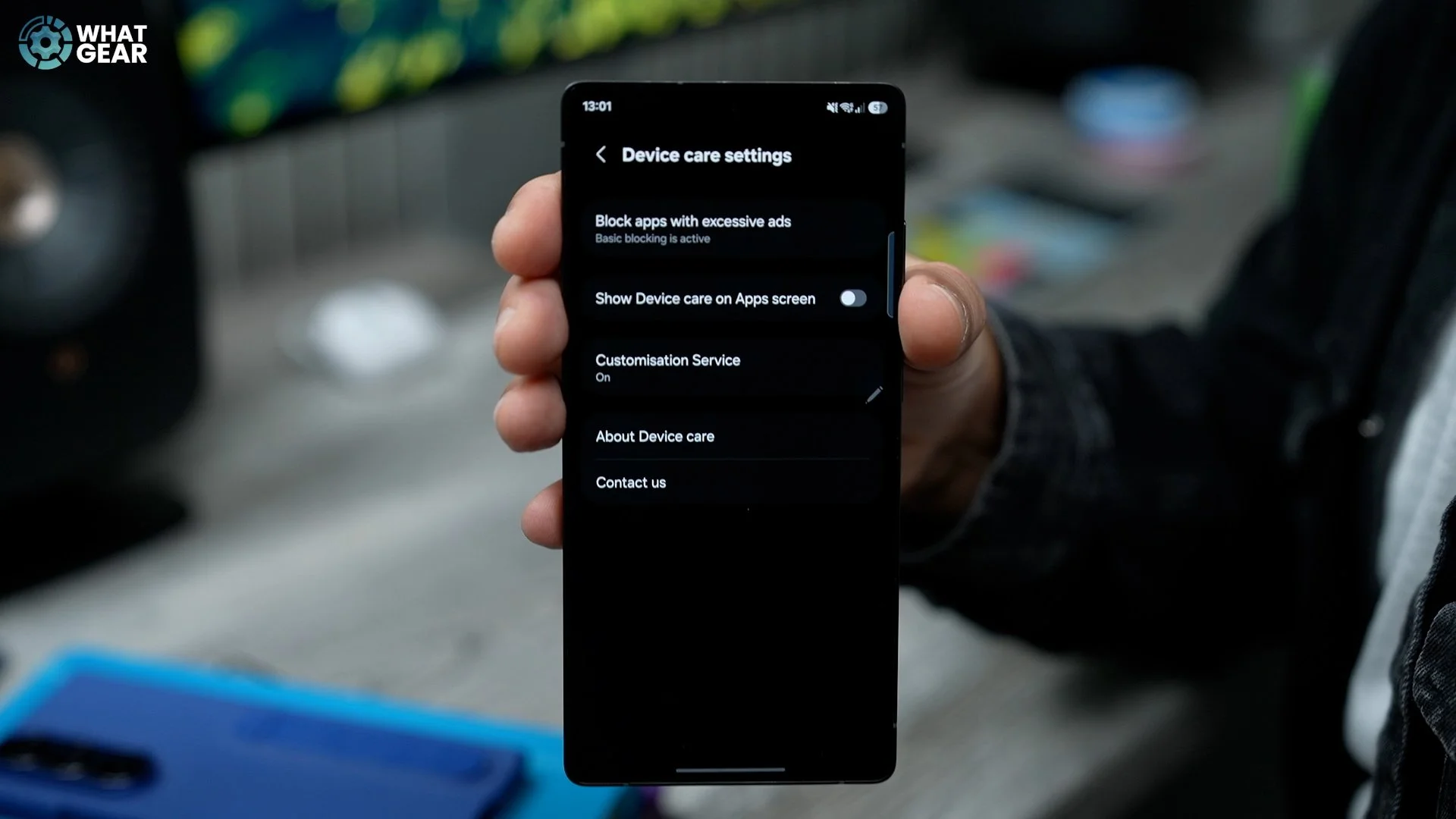
Here, at the top of this menu, you will see the option to Block apps with excessive ads. Tap on this, and then you can go to Intelligent blocking and enable this. This will allow your phone to detect apps that are spamming you with ads and then silence those intelligently. Now, once you've enabled this, if it's not quite doing the job you want it to do, what you can do is go to the Excessive alert section right here and manually put apps to sleep.
UPGRADED BROADCASTS
So most modern earbuds these days, including the Galaxy Buds, do support Bluetooth. And this also means, in some cases, they support Auracast. This is the ability to broadcast a radio signal from your phone to as many, in fact, an unlimited number of other Bluetooth devices that can tap into that Auracast signal. The problem is, it's not been that easy to do in the past, but now on Samsung phones it is so much easier, and they've actually unlocked a brand-new feature which is going to be incredible for tour guides. Let me show you what I'm talking about. In the Settings menu, if you go to Connected devices, you can go to Audio broadcast, and this entire page has been redesigned. So now it's so much easier to share the audio from your phone to Bluetooth devices and other Galaxy Buds, and instead of just sharing the media on your device, you can actually share your voice.
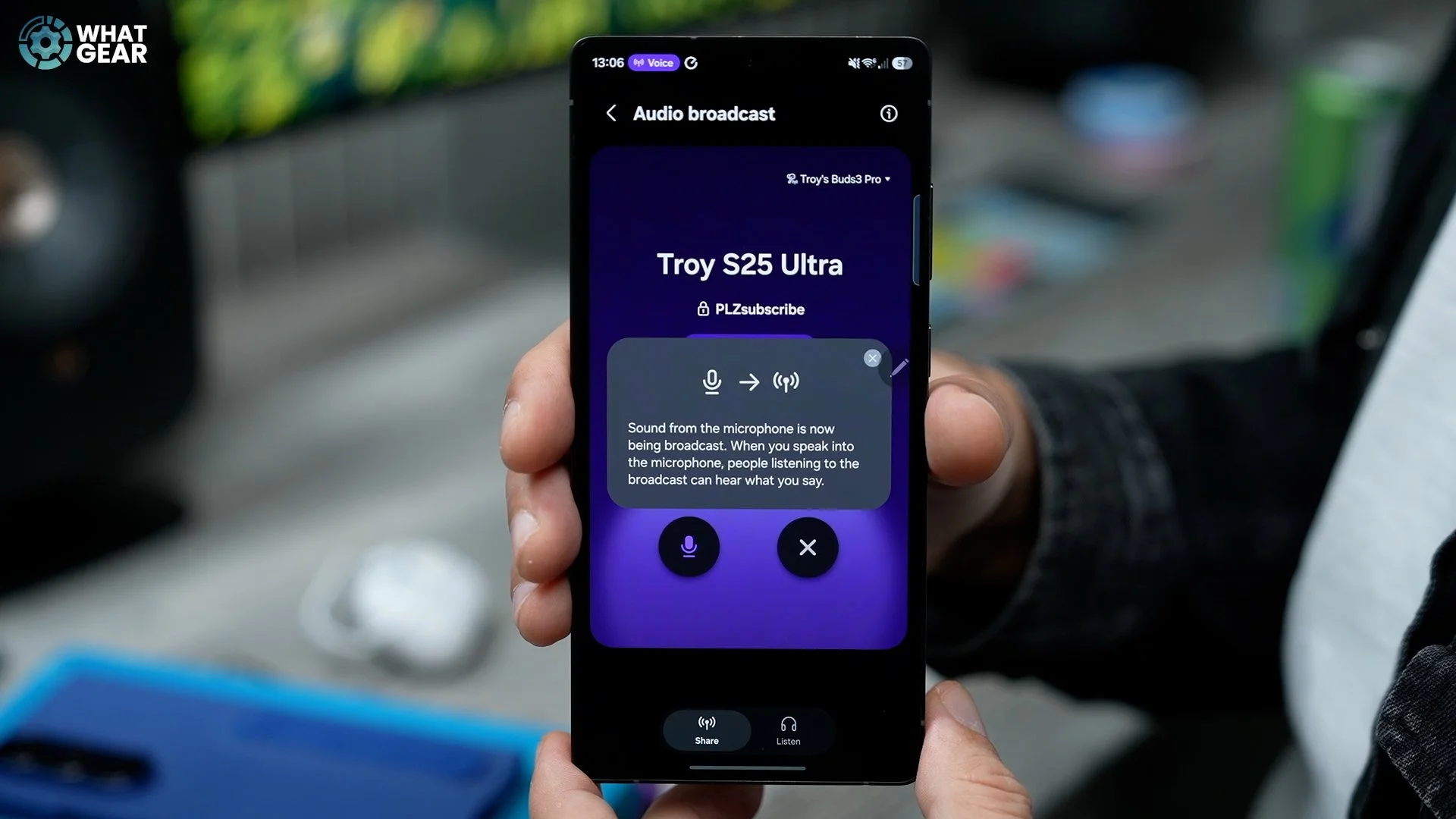
So you use your phone as a microphone to broadcast to a group of people with Bluetooth headphones by selecting Voice and then hitting the Broadcast icon right here. So if you are a tour guide and all the tourists you're showing around have Bluetooth headphones, they don't have to be right next to you to hear what you're saying. Now, the next step to this—which is fantastic for Samsung owners—is that now it's much easier to tap into an Auracast broadcast by hitting the little Listen icon down here. This will scan for all broadcast signals around you, and then you can simply select that broadcast and tap into it. I have not seen another Android device that has made it this easy to use in the past, and that's probably why a lot of people don't even know that it actually exists. So this is a big thumbs up from me, and it's a massive advantage for Samsung Galaxy owners. And if you're wondering when you might use this if you're not a tour guide: let's say you're watching something on a plane on a Galaxy tablet, and you want the people either side of you to also watch along with you. You can do that very easily now, instead of having to use an audio splitter and wired headphones.
MORE CONTROL
This next one is a subtle customisation upgrade. When you bring down your quick settings by swiping down from the top right corner, just like before, when you hit the pen at the top, you can customise just like before, but now you have a couple of new options and a bit more freedom when it comes to placement.
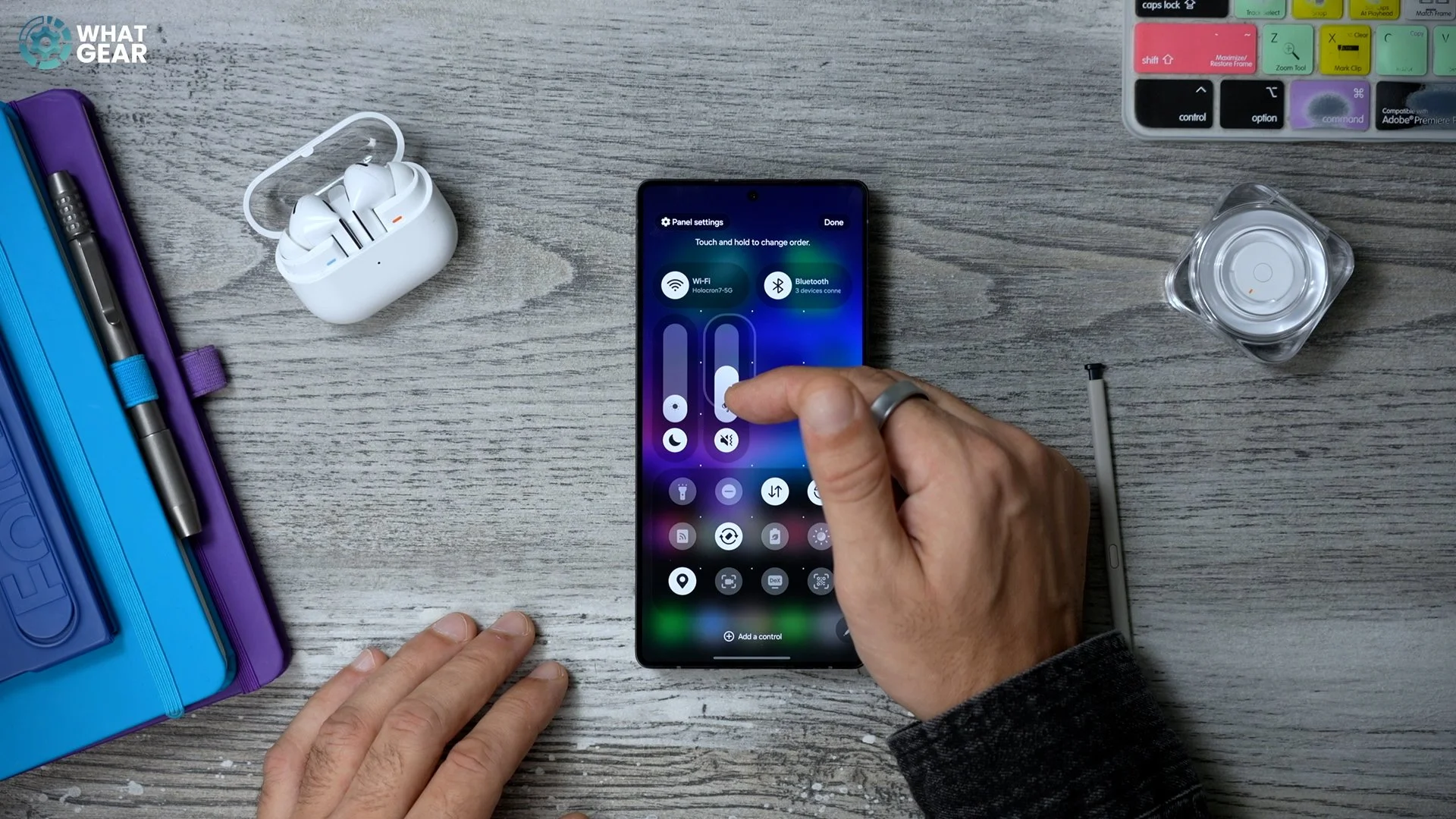
You can grab these sliders now and actually make them vertical sliders instead of horizontal ones. You can also adjust the height of these sliders and even the width with a bit more control. And now you've got all this free space here to add more quick controls if you want to. Pretty much anything can be added in any spot now. So, put very simply, you now have more control over the quick controls.
NEW GALLERY TOOL
This next one is another upgrade to Samsung's Gallery app. You'll notice the menu bar across the bottom has been redesigned, but that's not what I want to show you. Within the Gallery app, if you hit the Menu, you get a new layout here too and a brand-new filter known as Shot type.
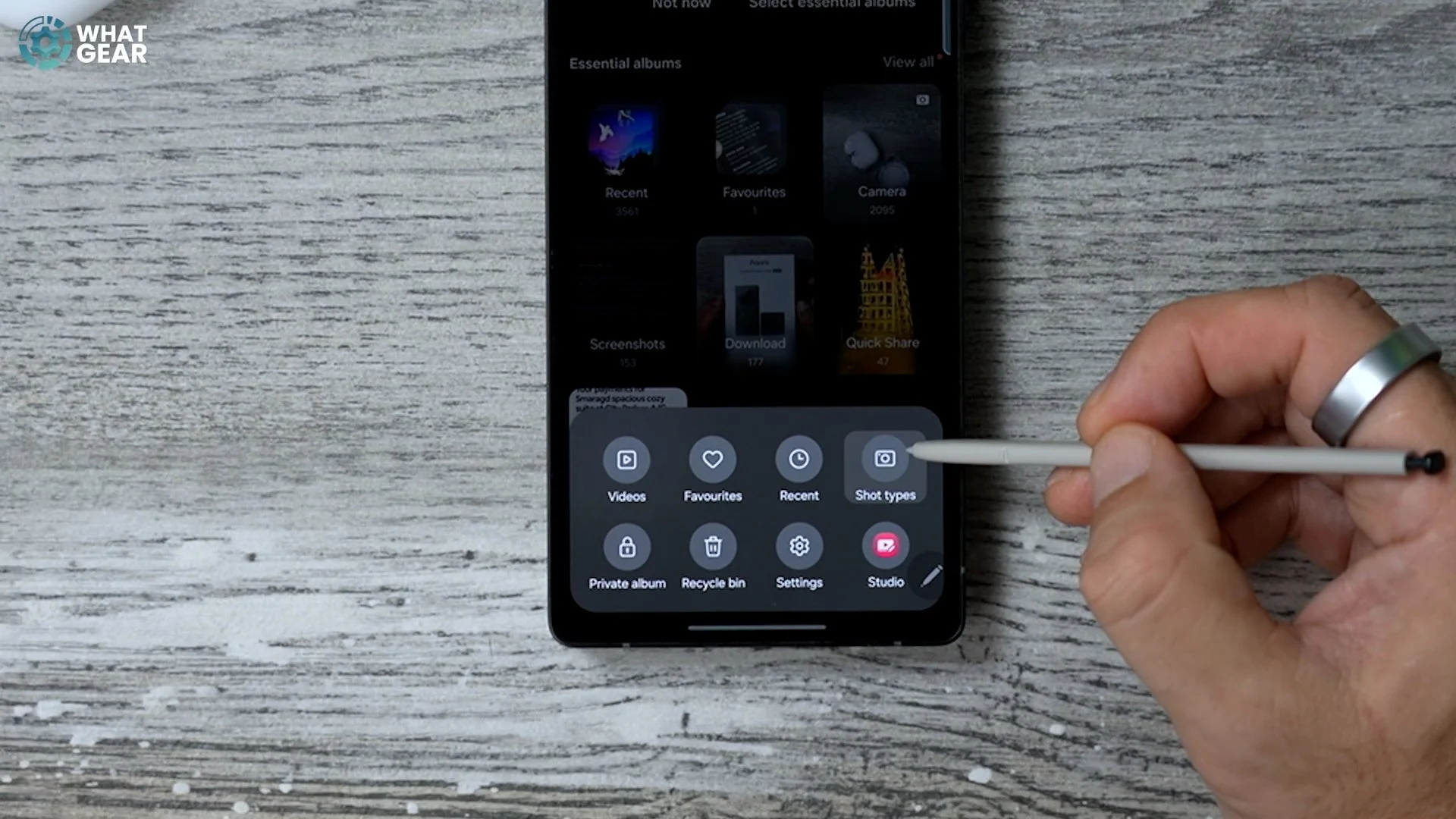
This will break down the images in your gallery based off how you shot them. This could be quite nice if you're looking for a GIF you've created, burst photos, or Pro video. It's just another nice way to find photos and videos more easily on your phone.
STUDIO UPGRADES
This next one is again an upgrade to the Samsung Gallery app. So we're going to stay in this app. We're going to go back to that menu where we have that new menu layout, and this upgrade is actually within the Samsung Studio app. If you're not familiar with this, this already exists on the previous software, and it's essentially Samsung's own video editing tool.
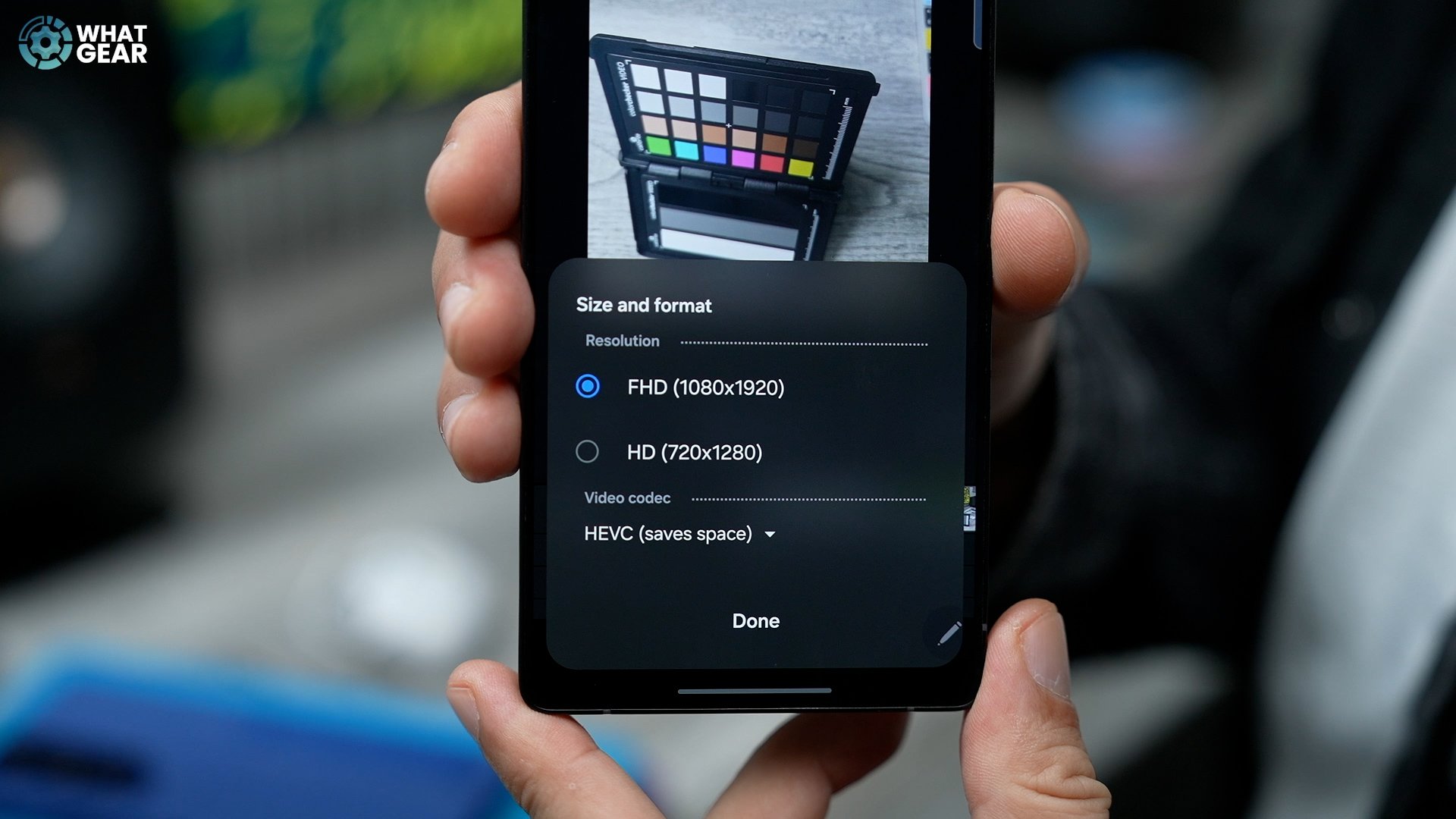
Once you open up a project now, the design is slightly more refined. You have these clear lines between the layers of your video. But here's the big difference: when you go to Export project now, it gives you more options, so you can choose whether you want it to be Full HD or HD 720p, and you can even change the video codec from HEVC to H.264, which is a more compatible codec for some social media sites and some other devices.
SDR/HDR OPTION
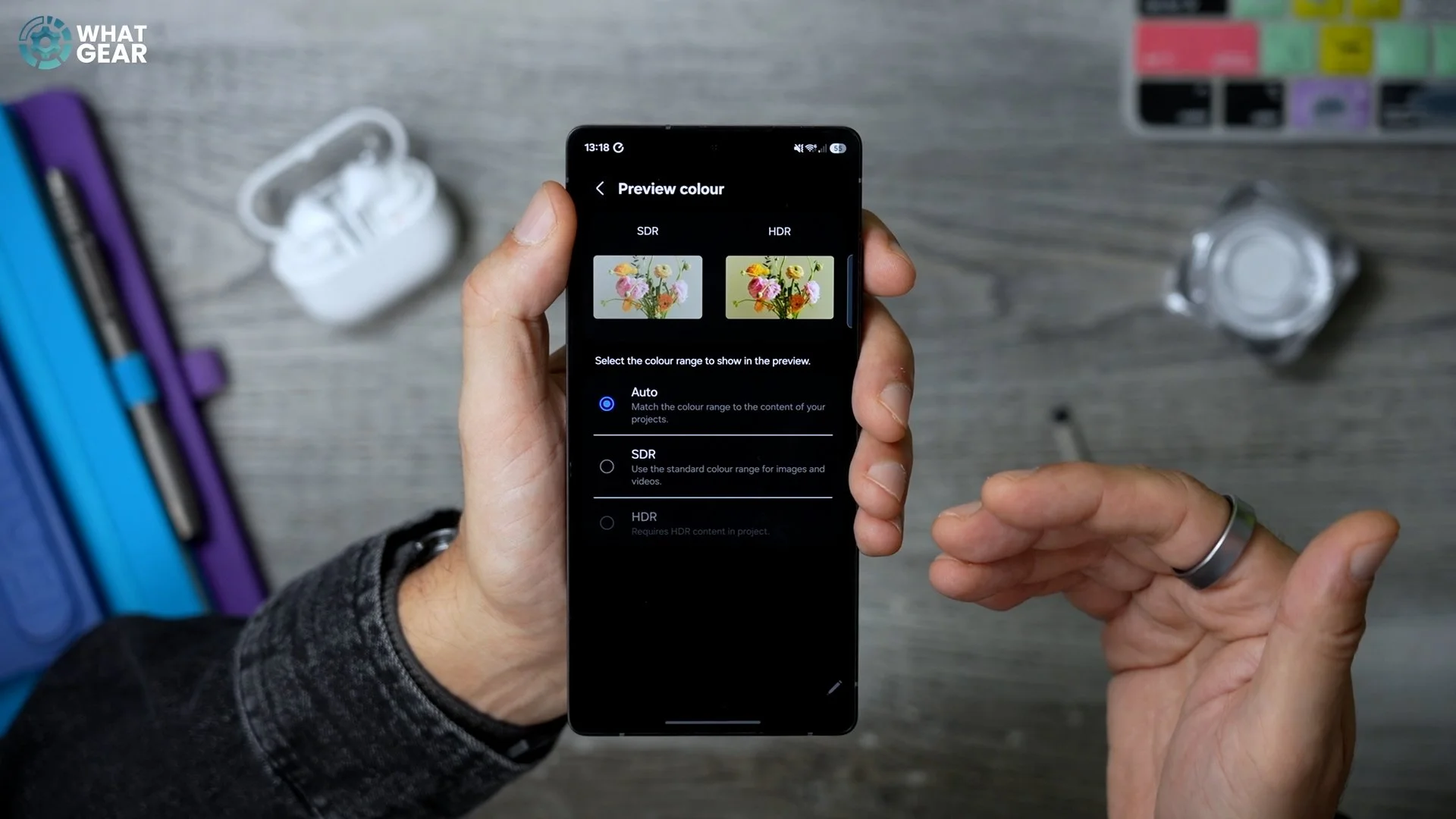
There's actually another little upgrade here, which is well hidden. If you hit the three dots in the top right corner and go to Project settings, on this page, you can change the ratio—which I believe you could do before—but if you tap where it says Preview colour, now you can actually choose whether you want that video to be SDR or HDR. The HDR option will only be available if you shot the video in HDR format.
START FRESH
So, I'm sure you long-term Galaxy owners already know this, but there is AI on your phone that optimises the usage of certain apps in the background, killing processes in order to make your phone run more efficiently. Now, what can happen from time to time is if, let's say, you've been using TikTok a lot and suddenly you've decided, “Do you know what? This is too distracting. I don't want to use it anymore,” the phone's intelligence might think that you still want to use the app and therefore allow it to run more frequently in the background. And maybe there are some other apps that you used to use that you never use anymore, and these things can actually slow your device down.
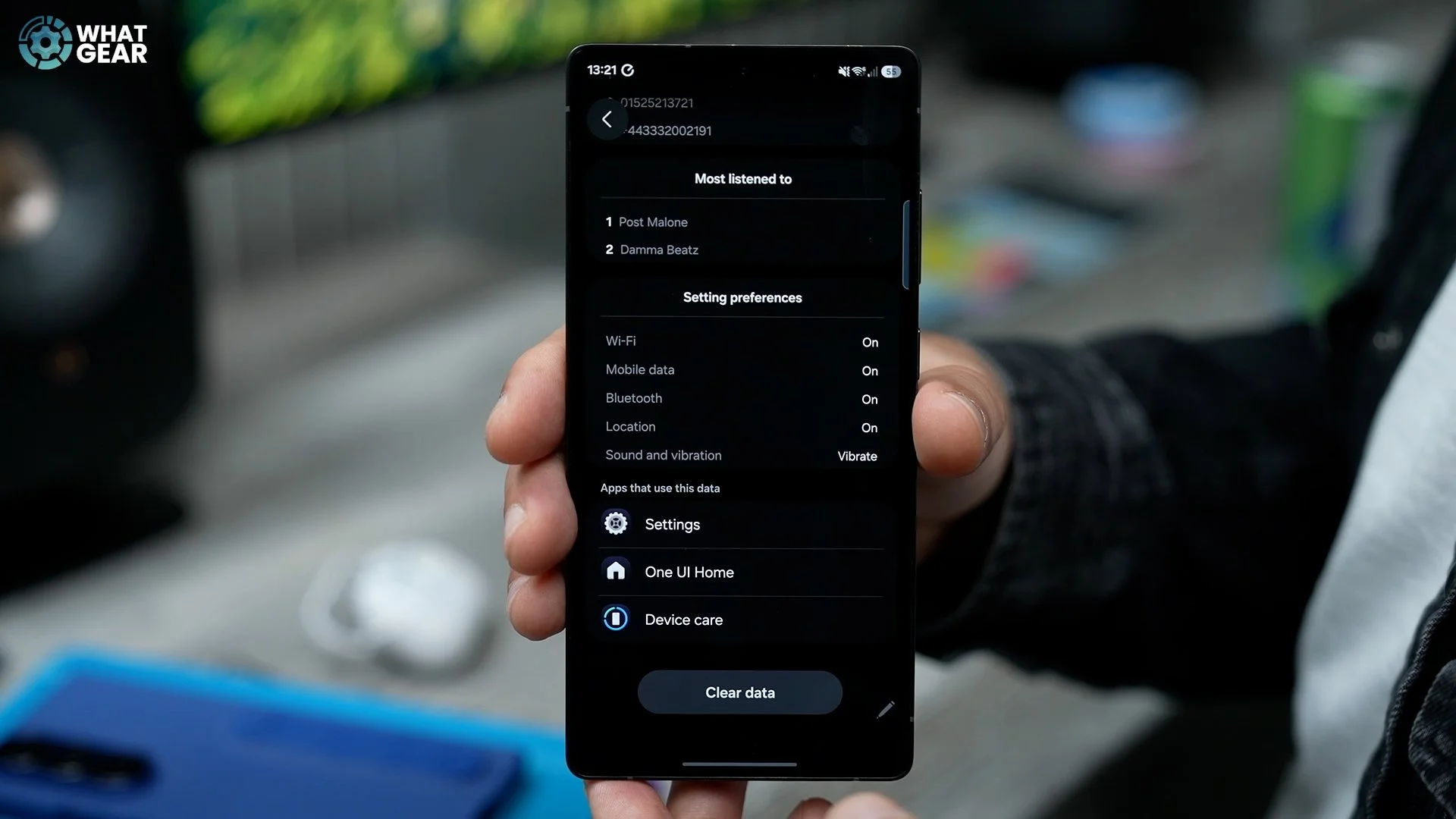
So let me show you this new little setting that can wipe the slate and help you start again. If you go into your Settings again and scroll all the way down to Device care, you’ve probably noticed this looks a little bit different now. They've polished some of the design elements here, but here's that new setting: if you hit the three dots in the top right corner and go to Settings, on this page, if you go to Customization service and tap the settings next to the App and setting preferences, at the bottom of this page you will see the option to Clear data, which essentially will wipe the slate and allow your device to start again and analyze each app again individually. Once your phone starts to learn the apps that you do use all the time, your phone will now start to run more efficiently and more tailored to deliver a better experience.
TOUCHPAD OPTIONS
Okay, so here are some more settings that have been updated to improve the user experience, and these settings apply to DeX. If you're not familiar with DeX, well, you should be. Essentially, what you can do is connect your phone to a monitor or a TV and then use your phone as the brains of the operation, and it transforms your TV into a full-on PC. I have made an entire video about DeX and how you can use it, and what it does. If you do want to see a more updated version of that video, let me know in the comments, and I'll do my best to make it for you guys.
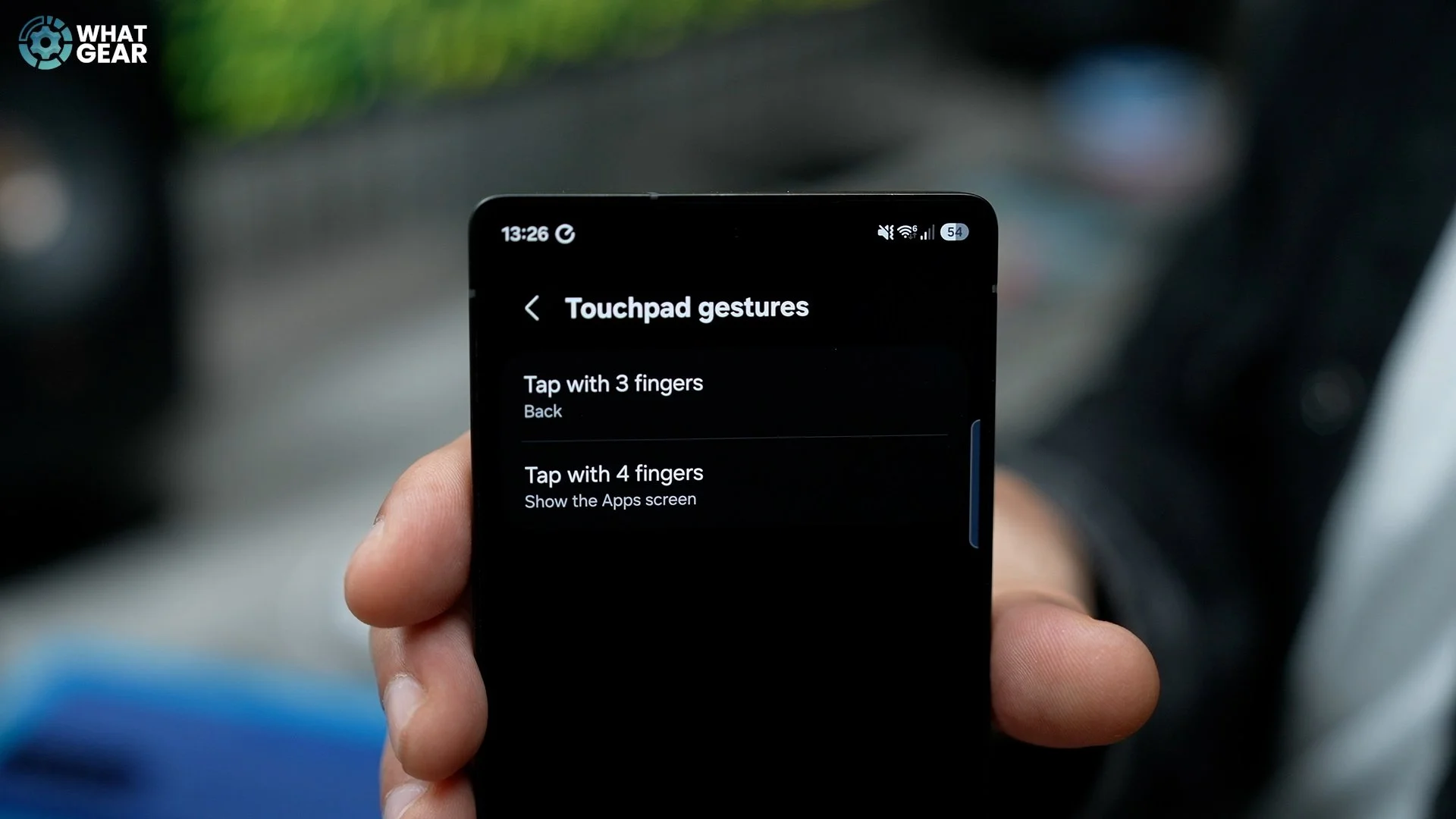
But for now, let me show you those upgraded settings. Back on the main Settings page, if you scroll down to General management, on this page, if you scroll down to where you see Touchpad, here is where you'll find those new options: the touchpad gestures. So when you do connect to a monitor and use DeX, you can use your phone as a touchpad. You could always do that, but now you can actually customise some of the input gestures that your phone will recognise. The default is three fingers to go back, four fingers to show the app screen. If you want those to do something else, here are the options for that. The same applies to the four-finger gestures—you can choose something else that you want it to do.
MORE TIME TO REACT
Now let's run through some quick-fire features that are a little harder to find, and the use case for these is a little more niche, but they're definitely worth knowing about. Within Settings this time, if you scroll all the way down to Accessibility, and here we go to Interaction and dexterity, in here, if you scroll down, you will discover this new option: Time to take action.
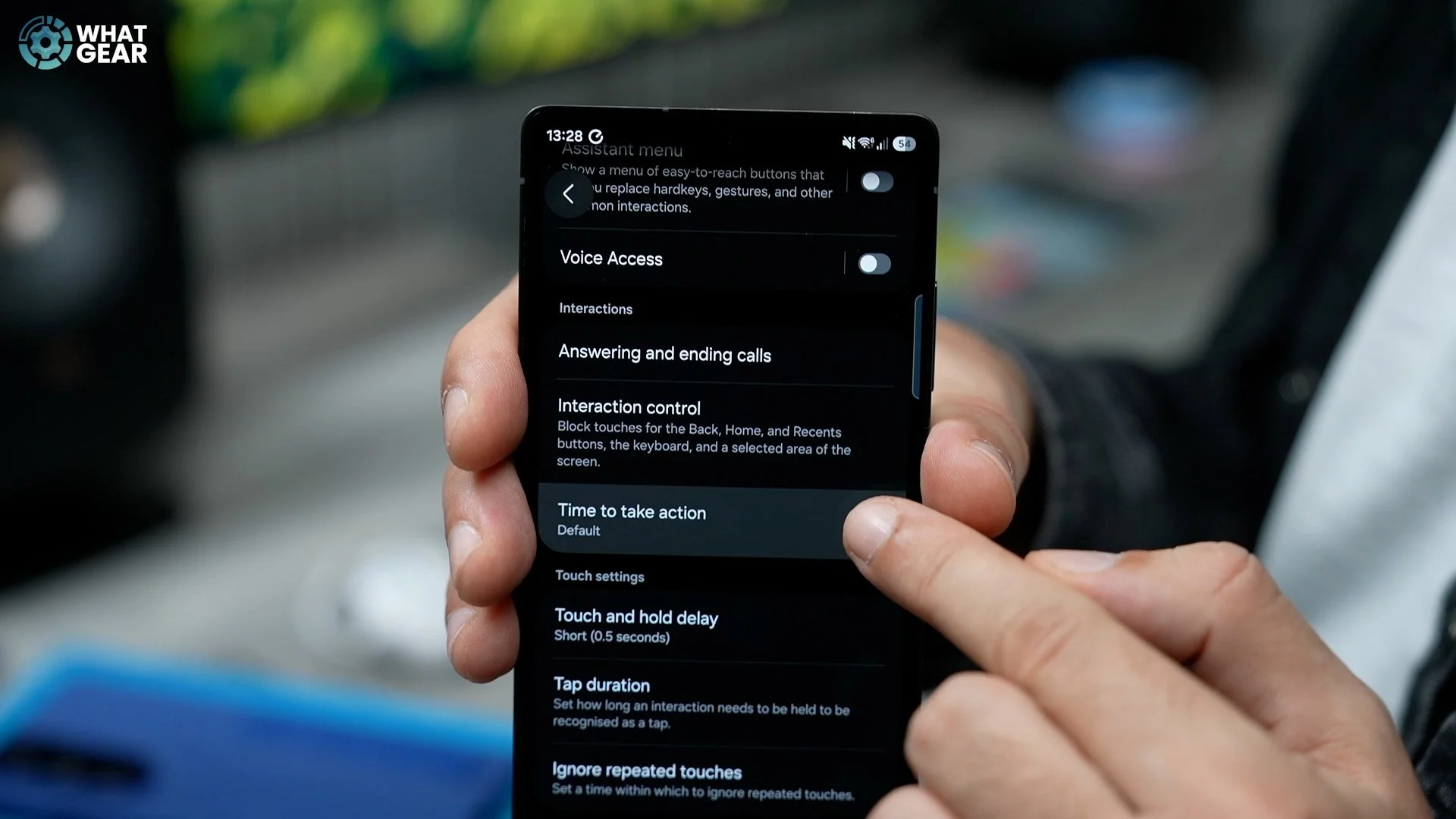
Now listen, if, like me, your first-person shooter skills are not quite what they used to be and your reaction times are not quite what they used to be, what this essentially does is it allows controls like the volume, when it pops up, to stay on screen a bit longer than it does by default, giving you more time to react to these controls. So if you do need more time to control your device with these little pop-out setting menus, you can adjust it here.
DWELL ON IT
Here is another one, staying within the Accessibility menu and again within Interaction and dexterity. This one's actually more useful if you use a mouse connected to your phone or tablet.
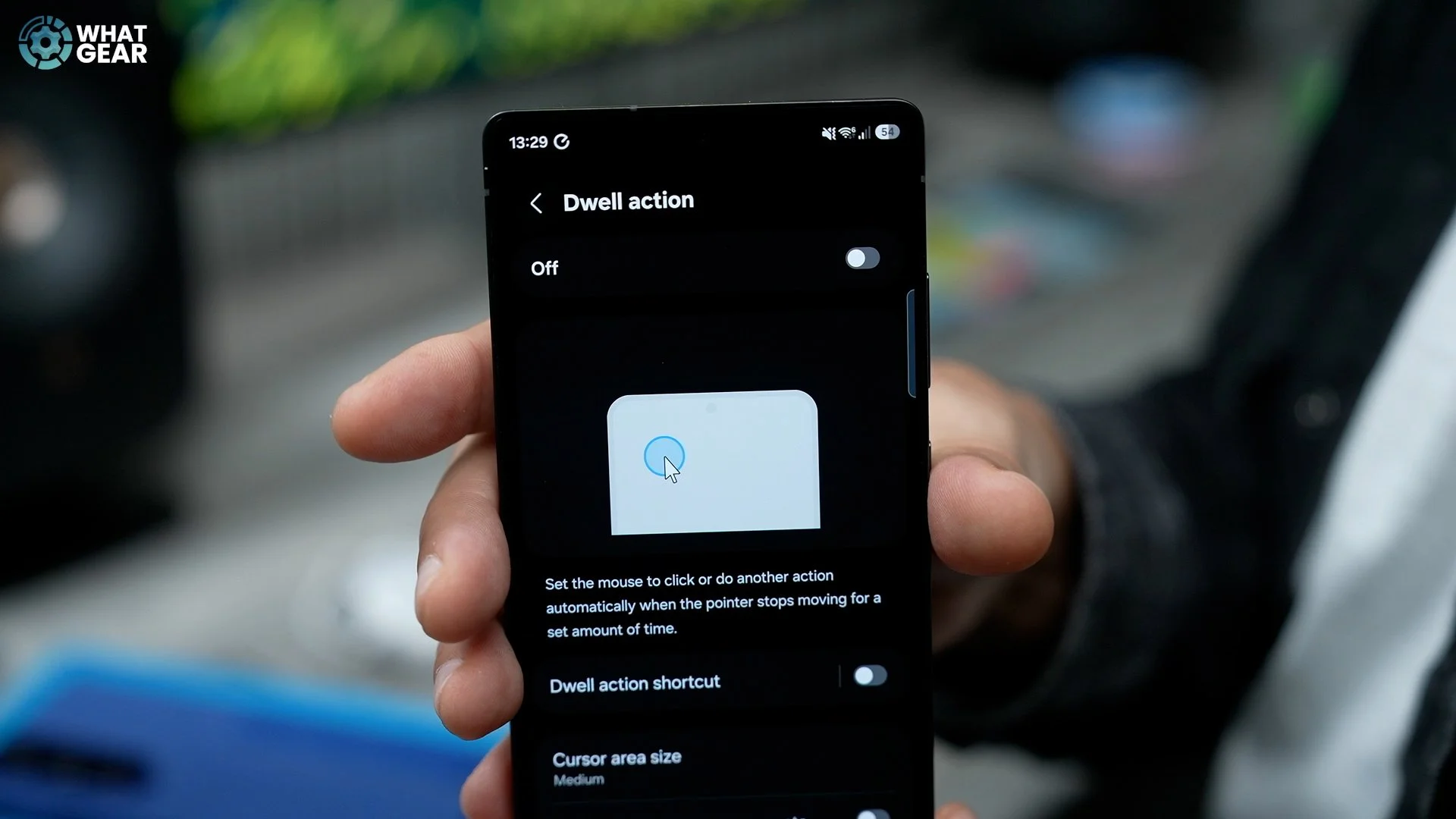
What we can do here is go to the Mouse section and enable Dwell actions. When you hover your mouse over something, it will actually click it for you without you having to push the button. So if, for whatever reason, you can't push mouse buttons too well, now you can do it just by hovering and dwelling over what it is you want to click on.
REDUCE FLICKER
Staying within the Accessibility menu, here's another upgrade. This one will be useful for anyone who struggles with eye strain or who suffers from epilepsy.
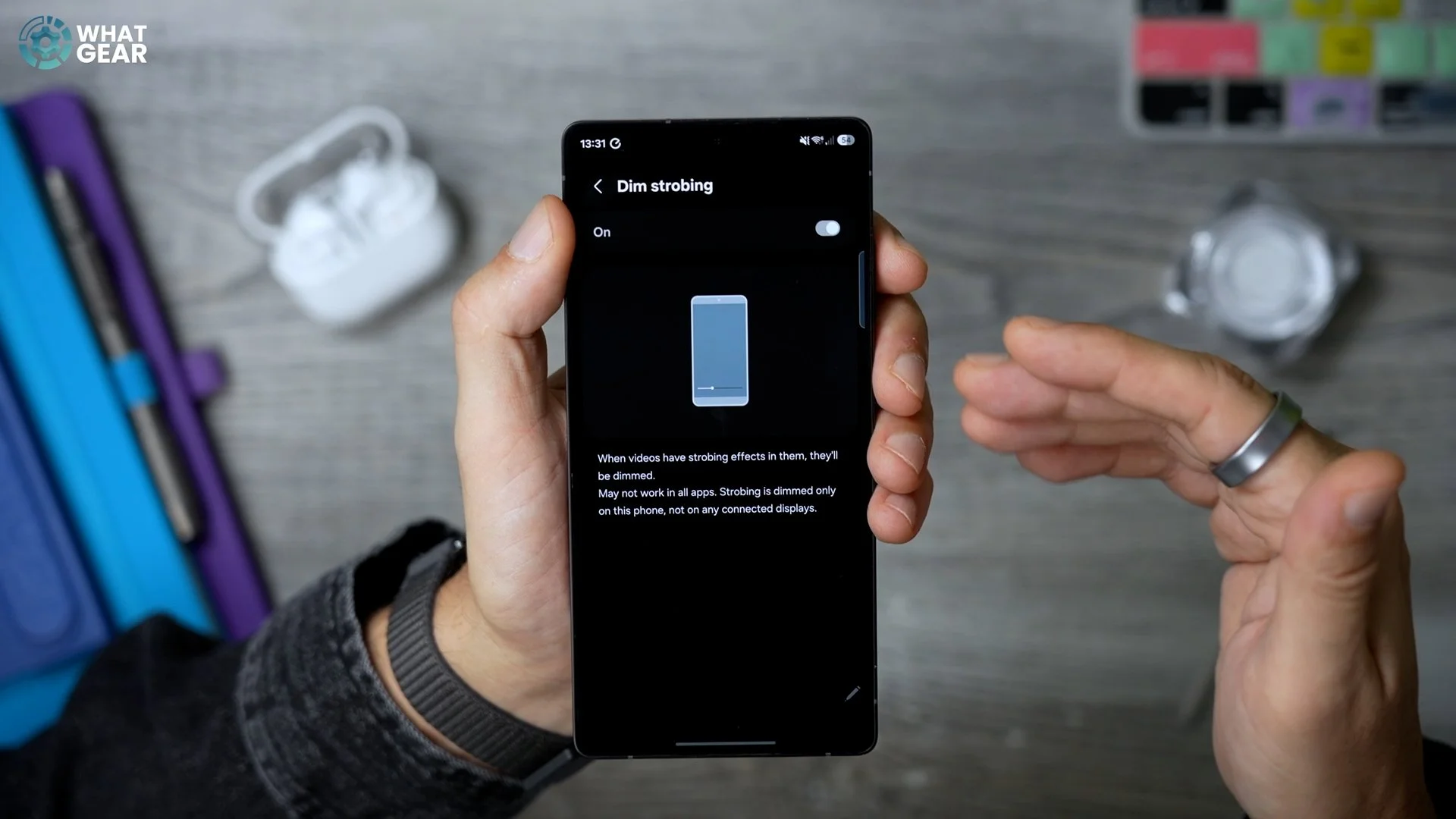
Within the Vision and enhancement menu, scroll down until you see Dim strobing. What this does is allow your Galaxy phone to detect what it is that’s on screen, and if it is flickering and changing colours very quickly, it will auto-dim the display to reduce any negative effects that that might have on you.
GET IN THE ZONE
Now, this next upgrade is a timely one and very useful for you if you have friends, family, or business in another country, or if you ever go on holiday. To find this new feature, you need to go to Samsung's Clock app. It's the grey one here, not the blue one—that's the Google Clock. You will notice straight away that Samsung has refreshed the entire design of this app, and it’s a lot nicer now.
But that's not what I want to show you. There is a very powerful tool here within the World Clock section. You can still add time widgets, just like you could before, in various different countries. But let's say you're in London and you want to know what the time is in a specific part of the world. What you can now do is actually just scroll around the global map and choose a specific place, and it will tell you the time there, and you can see the time they are ahead or behind, and the sunset and sunrise times precisely with this new tool.
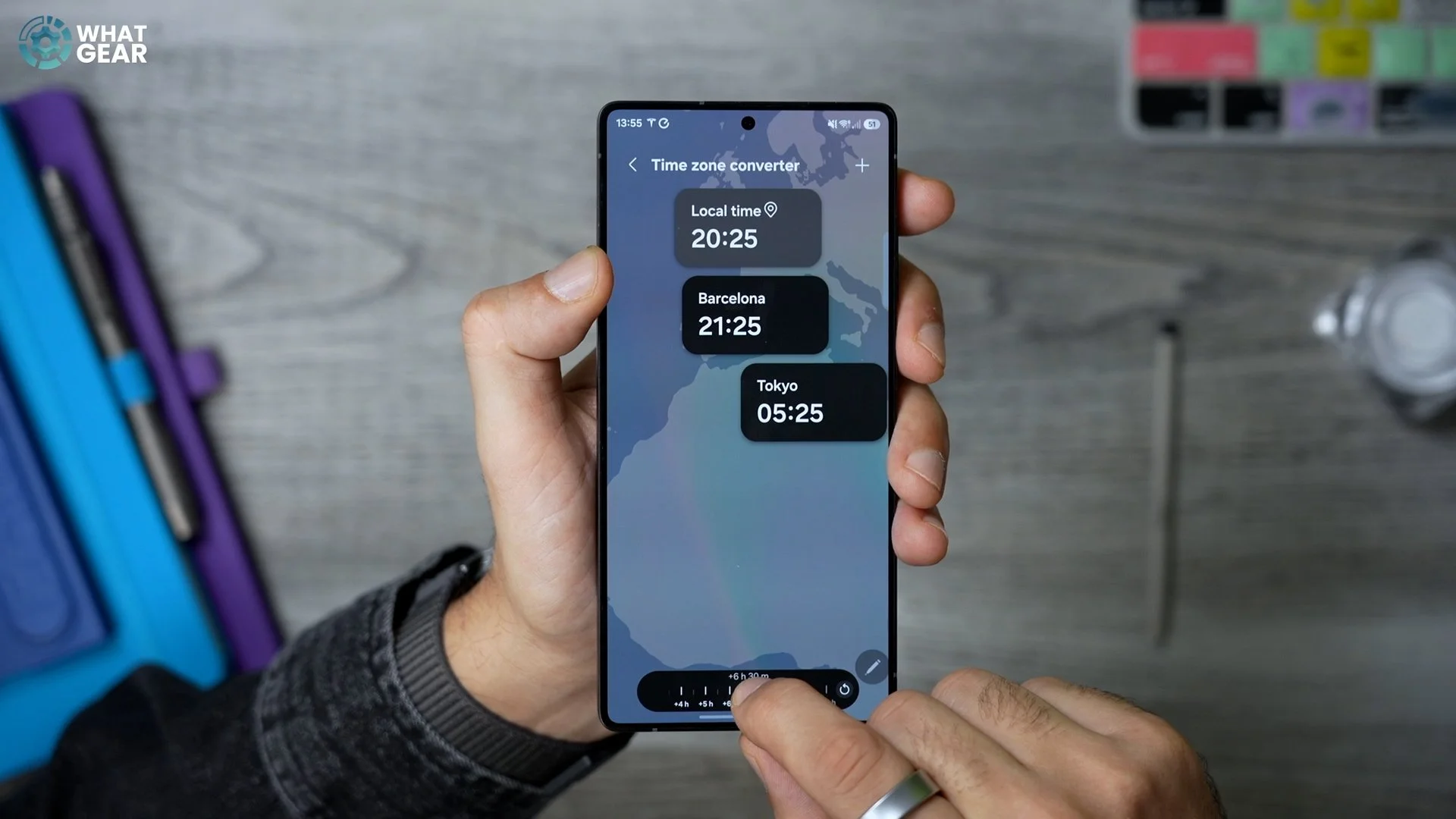
If you want to add any one of these as a widget, if you hit Change, that will then add it to your World Clock page. There's also another nice little tool here: if you hit this little button right here, it shrinks the widgets down, and then you can adjust the slider across the bottom. So let's say you want to know what time it will be in Tokyo when it's 8:00 here. You can figure that out quickly using this new slider.
WAKE UP ROUTINE
If you're the type of person who wakes up to an alarm clock every day, you might like this new upgrade. This one can be found in Samsung's Modes and Routines app. You'll notice there's been a slight redesign here as well, but when you go to the Routines section at the bottom and hit the plus at the top, you can now choose the If statement to start based on your alarm clock. Setting this up will trigger an action. Select that, and then you can choose the specific alarm that you want this to apply to.
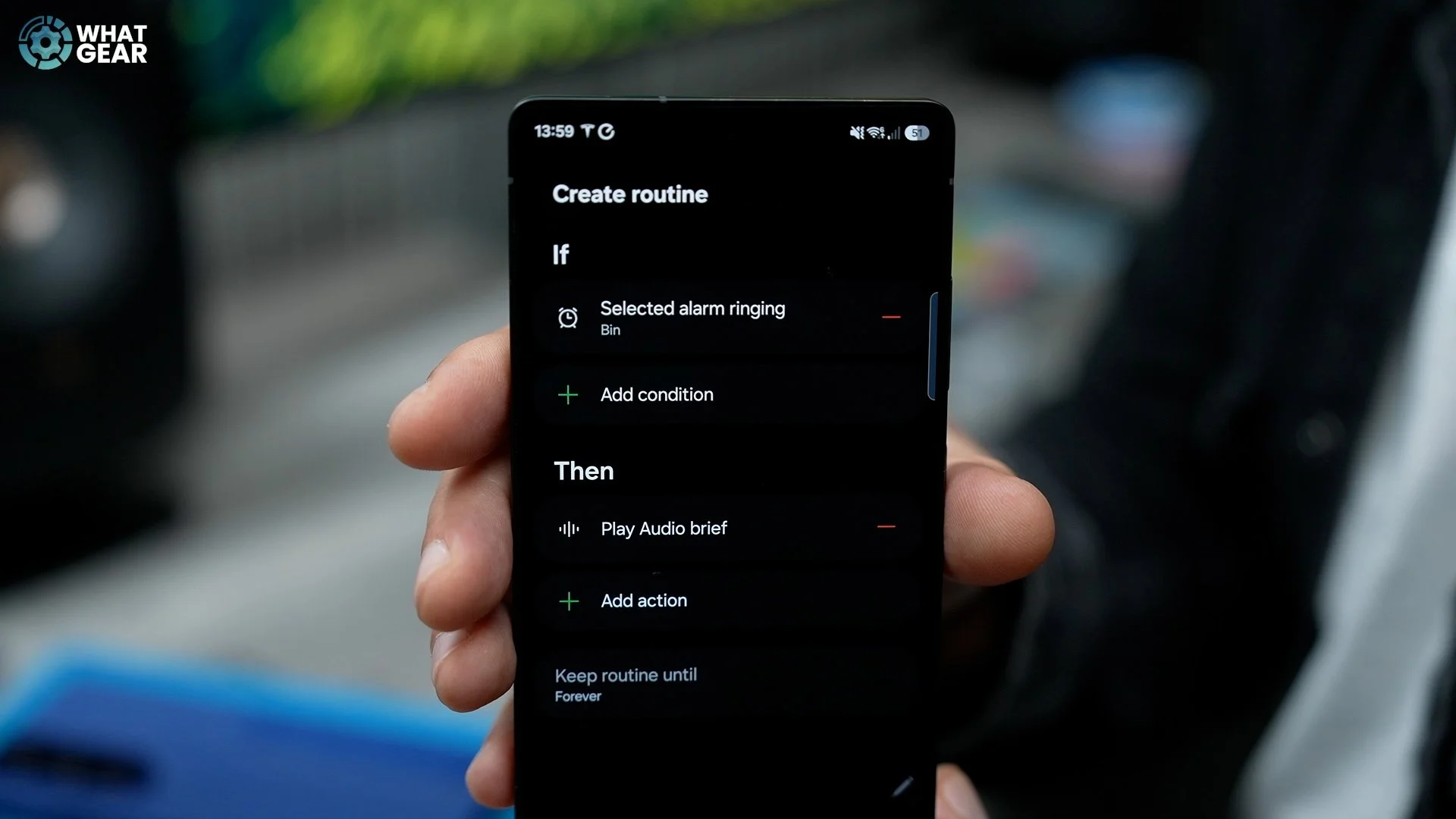
I'll just choose this one for demo purposes and hit Done, and now we can go to the Then statement. For example, the Now brief could be a good one because you can select this and get it to read out the audio from your Now brief, which will include the weather and anything that’s on your calendar. If you hit Add action again, you can add an endless amount of things that happen when your alarm clocks go off, so you can kind of automate your life a little bit better. And you know how I feel about alarm clocks.
BROWSE QUICKER
Here's another subtle upgrade that most people won't realise. This one exists within Samsung's Internet app. I keep it on the side panel because I tend to use Chrome most of the time, but the Galaxy browser does have the Galaxy AI features within it, so I do use this from time to time to summarise websites and play audio in the background and things like that.
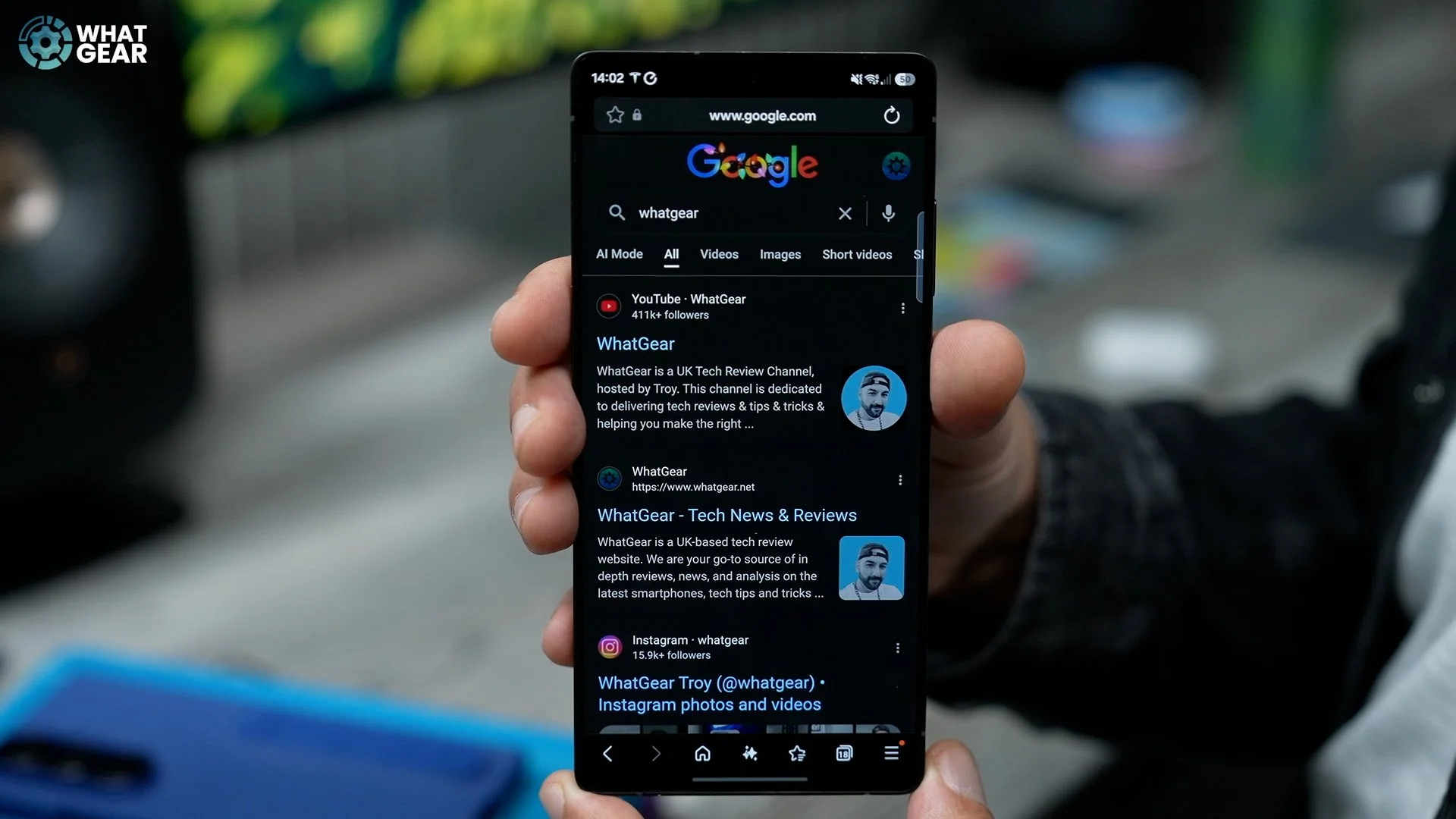
Anyway, that's not the upgrade. The upgrade now is the search bar actually acts as an actual search bar. Previously, it would just recognise web addresses. Now you can use Google Search directly here, which is definitely more user-friendly than having to type in full web addresses or having to navigate to the Google search platform first and then having to type in again what it is you're searching for.
CUSTOMIZATION UPGRADES
Here's another subtle upgrade that you might not notice straight away. If you hold your finger on a blank spot on the home screen, this is a good way to shortcut straight into the Wallpaper and style menu. If you go to the Lock screen and tap on the clock, there are now a couple of new fonts and a little more flexibility with the thinness and thickness of those ones that you can play around with. This definitely isn't a game-changer, but it's a nice little addition to what we already had.
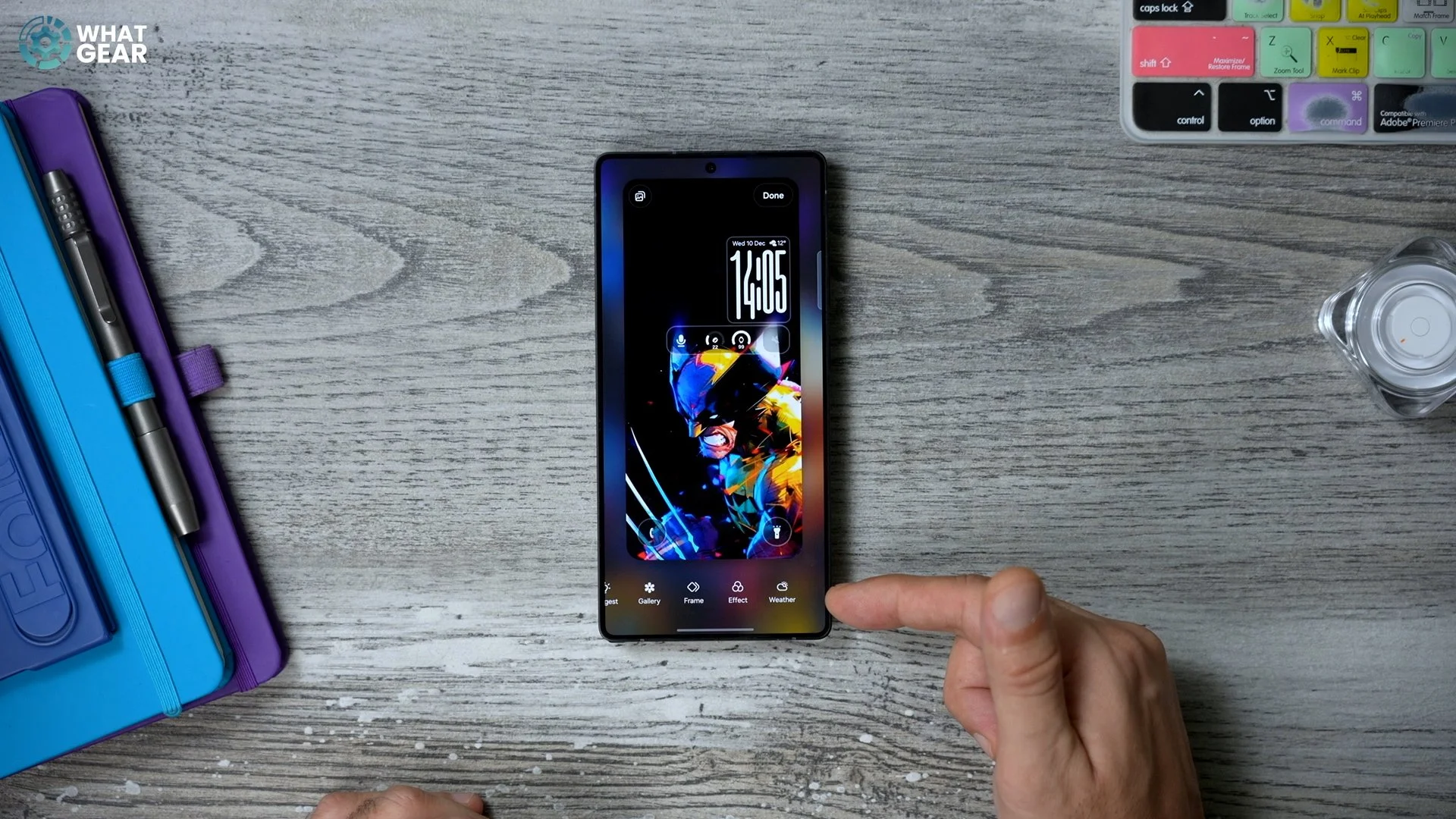
Something else has changed here when it comes to the lock screen: when you grab an image and add it to your lock screen, when you move that image around, you'll notice some of the elements like the clock, will actually shape to fit around that image, depending on how you place it. So that's a nice little subtle upgrade. Also, now, whilst you're placing your image, you have a quick shortcut to get to the weather effect, which is located here in the bottom right corner. This adds contextual weather on top of the wallpaper, which is not new—it’s just a bit easier to do now.
Identity check
So, I hate to break the bad news to you guys, especially if you live in London, but phone thieves are everywhere these days, and there are some good anti-theft measures in place already on One UI 8. But on One UI 8.5, Samsung have added another layer to this, which I think you need to know about.
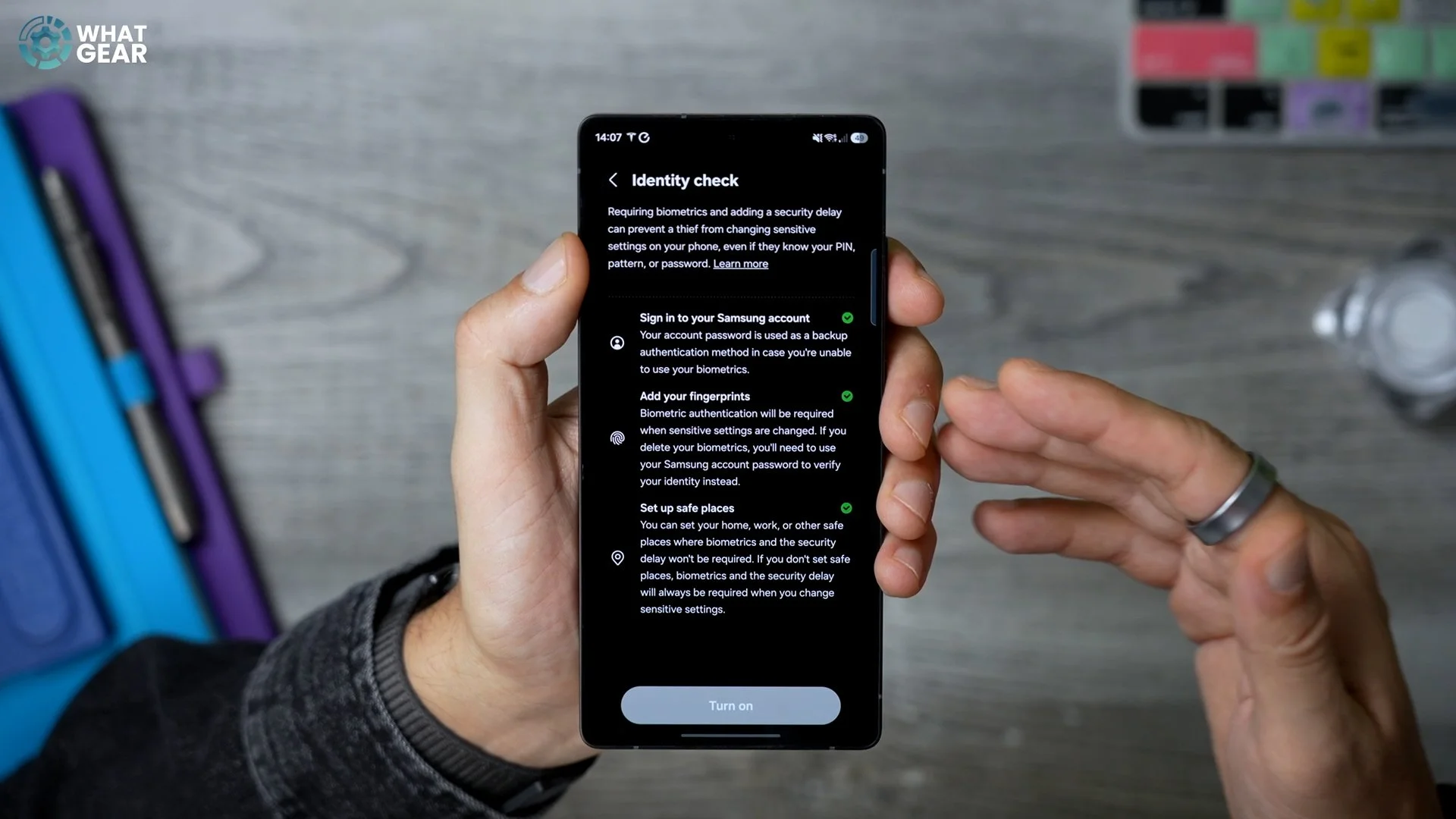
Within Settings, if you go to the Security and privacy section, and in here go to Lost device protection and then tap where it says Theft protection, right at the top of this page, you'll find the brand-new Identity check feature. If you turn this on, this essentially can add that extra layer of protection if someone does one day steal your phone. It’s a very welcome update in my opinion, especially the way the world is these days.
EASY SMART VIEW
This next one is in regards to Samsung Smart View. When you swipe down your quick settings menu, you'll find the Smart View quick setting here. This will scan for compatible TVs or monitors, and then you can tap on that and mirror your phone screen to that monitor.
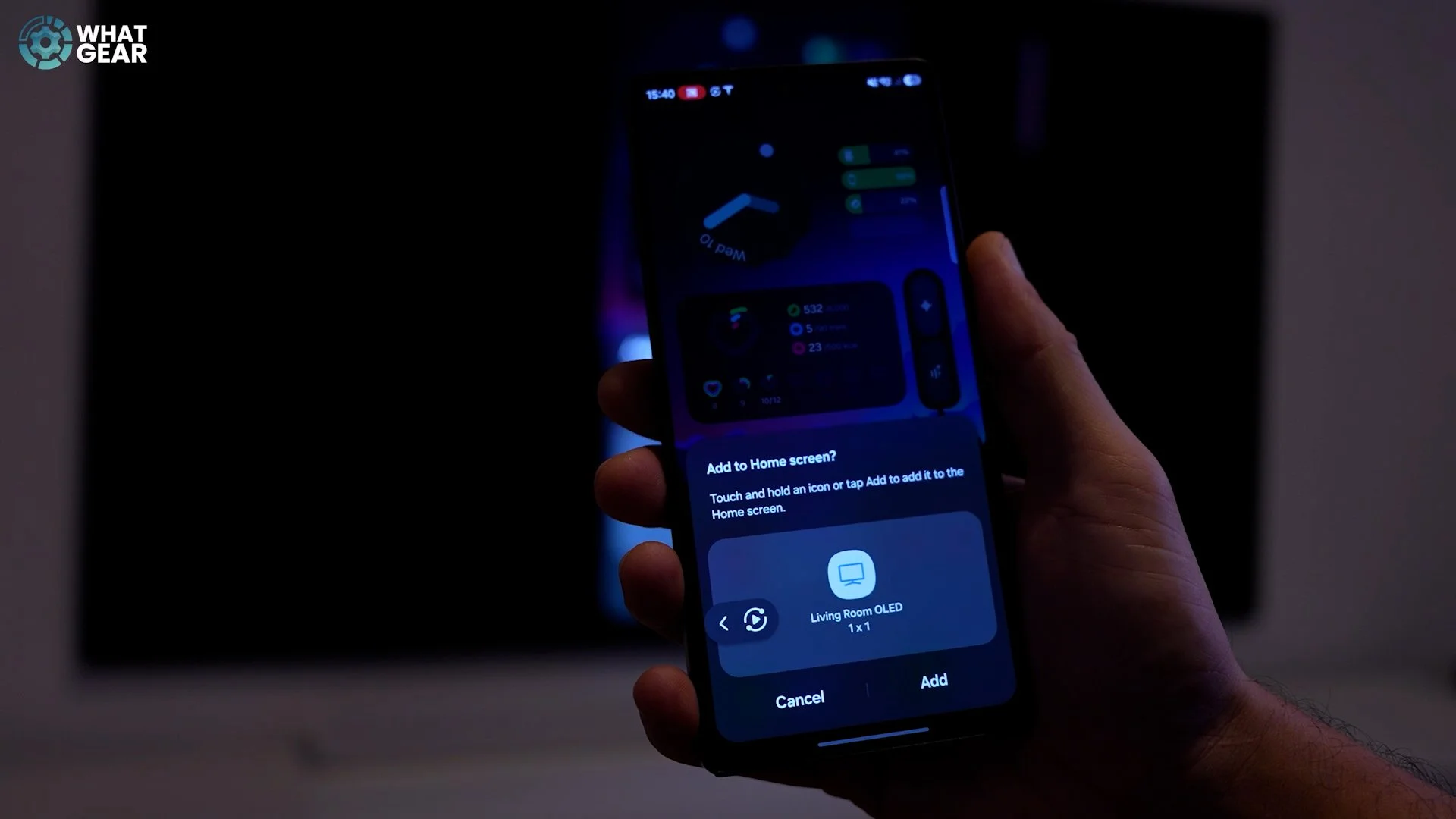
Here is where things have changed a little bit when it comes to Smart View: you have this little floating control here. If you tap the bottom right here, you can add a shortcut to your home screen. So next time you want to connect to your TV or monitor, you have a dedicated button that does that without having to search for the controls itself.
DEX UPGRADES
Now, there has also been another upgrade to DeX functionality. To access DeX, bring down your Settings and go to Connected devices. This is where you'll find the controls for DeX. Jump into that and connect wirelessly if you're not doing it via wire. Again, it will scan for your compatible TVs, and you can start casting DeX to the big screen.
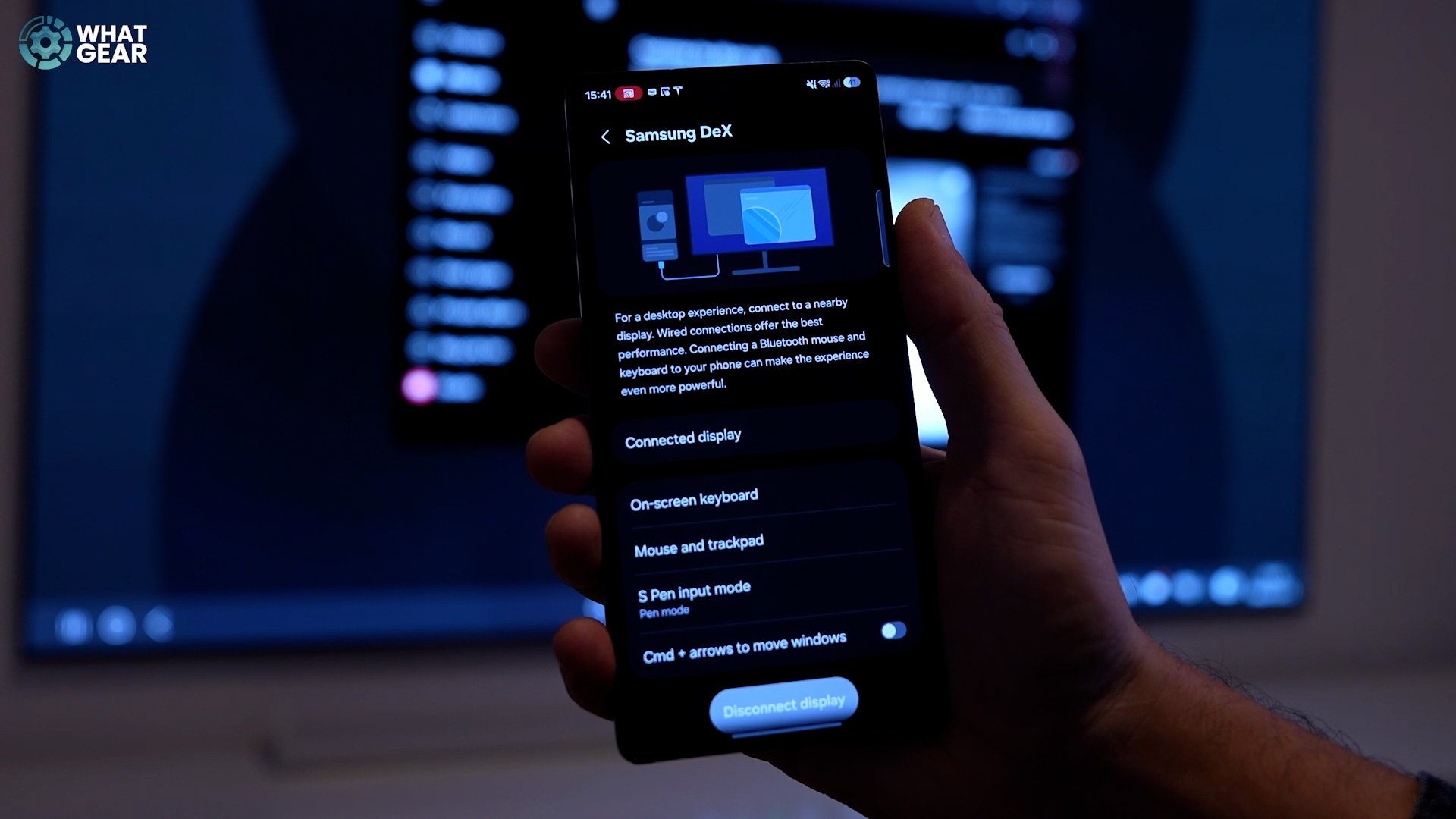
Once DeX is fired up, if you bring down your quick settings, you'll see the option to use your phone as a touchpad. You can use those new controls that we set up, and when you begin to open and close windows, DeX will remember the window sizes for each of the applications that you use, and then it will default back to those even after you close the app and reopen it.
Eight One UI 8.5 refinements
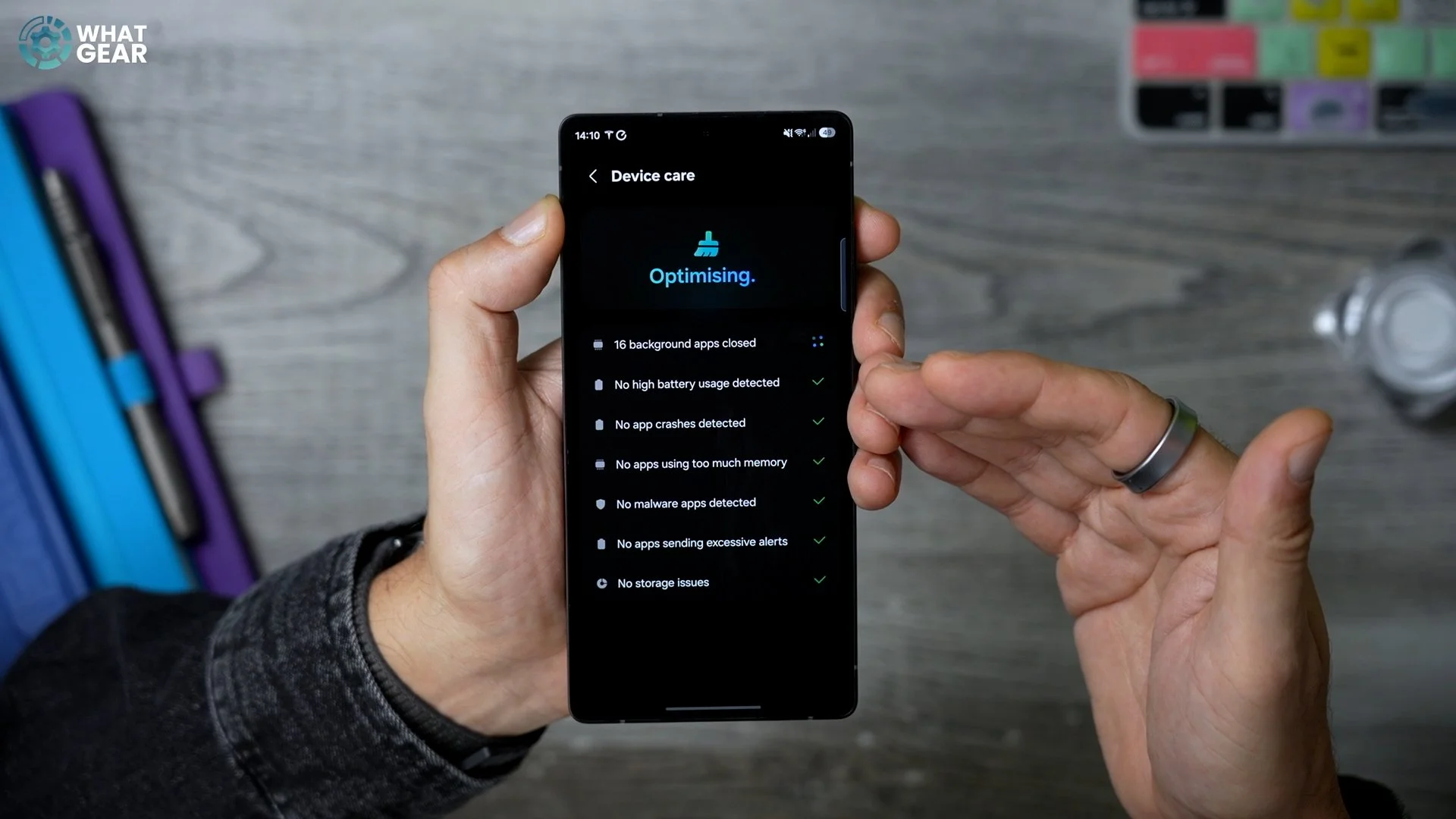
Now it's time to get into those eight One UI 8.5 refinements that you can expect to see when you get the new update, starting with the brand-new layout of the Device care page.
1. Here you'll find pretty much the same stuff as before, but the animations have changed. You've still got the option to optimise at any point in time very quickly at the top, and you'll notice the graphics here are a little bit different than before.
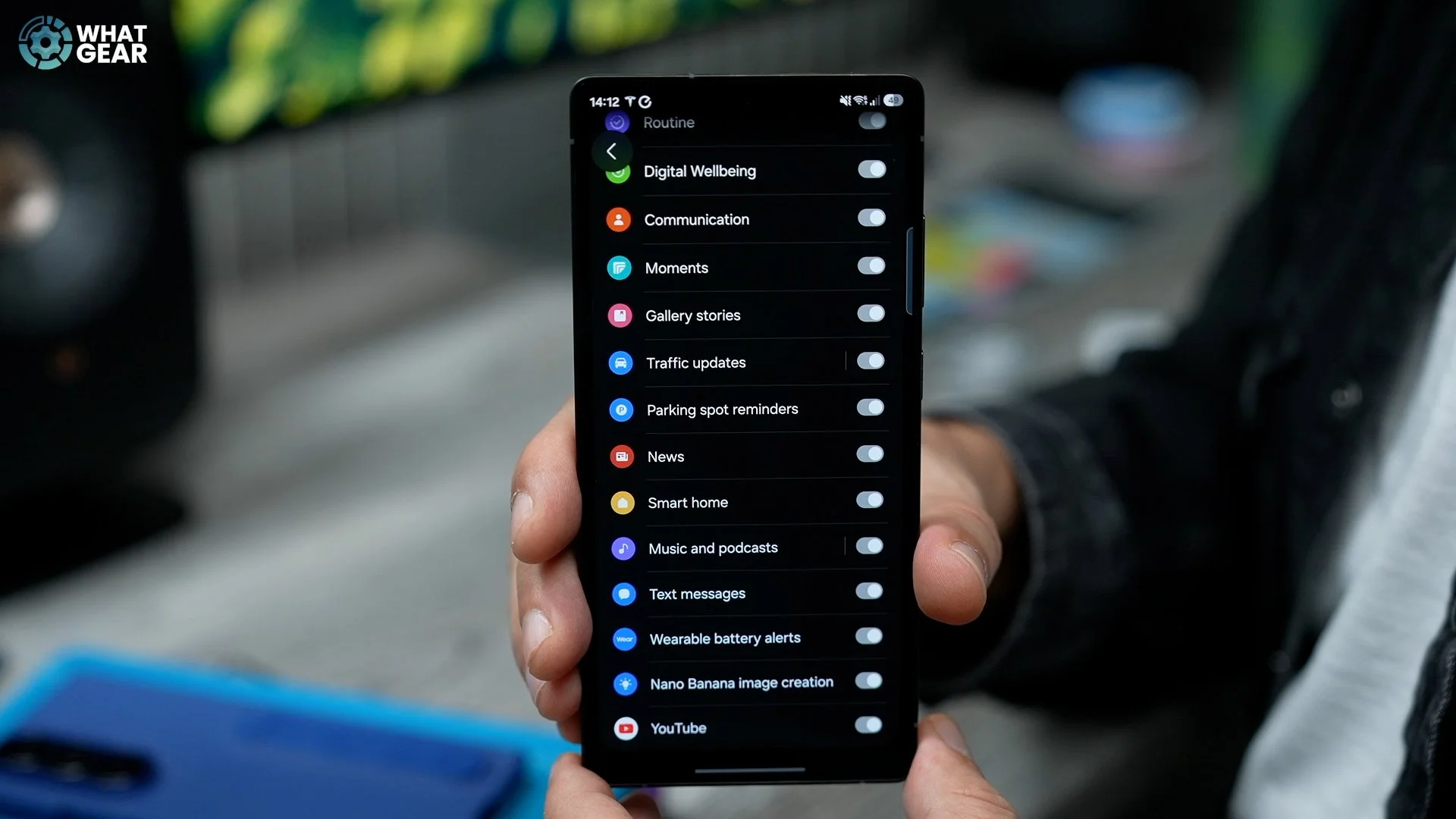
2. The next one is a refreshed look to the Now brief. I've got the Now brief widget here, which has a slightly different tone to it, and when you jump into it, you'll notice those new color themes carry across. If you scroll all the way to the bottom and hit the Settings here, there is a new feature within the Content to include. I believe this is available on 8 as well. It is the Nano banana image creation feature. I'm not sure that Samsung have fully implemented this just yet, even though it is already available on 8. I'll expect to see that in full action when the new Galaxy S26 devices come out.
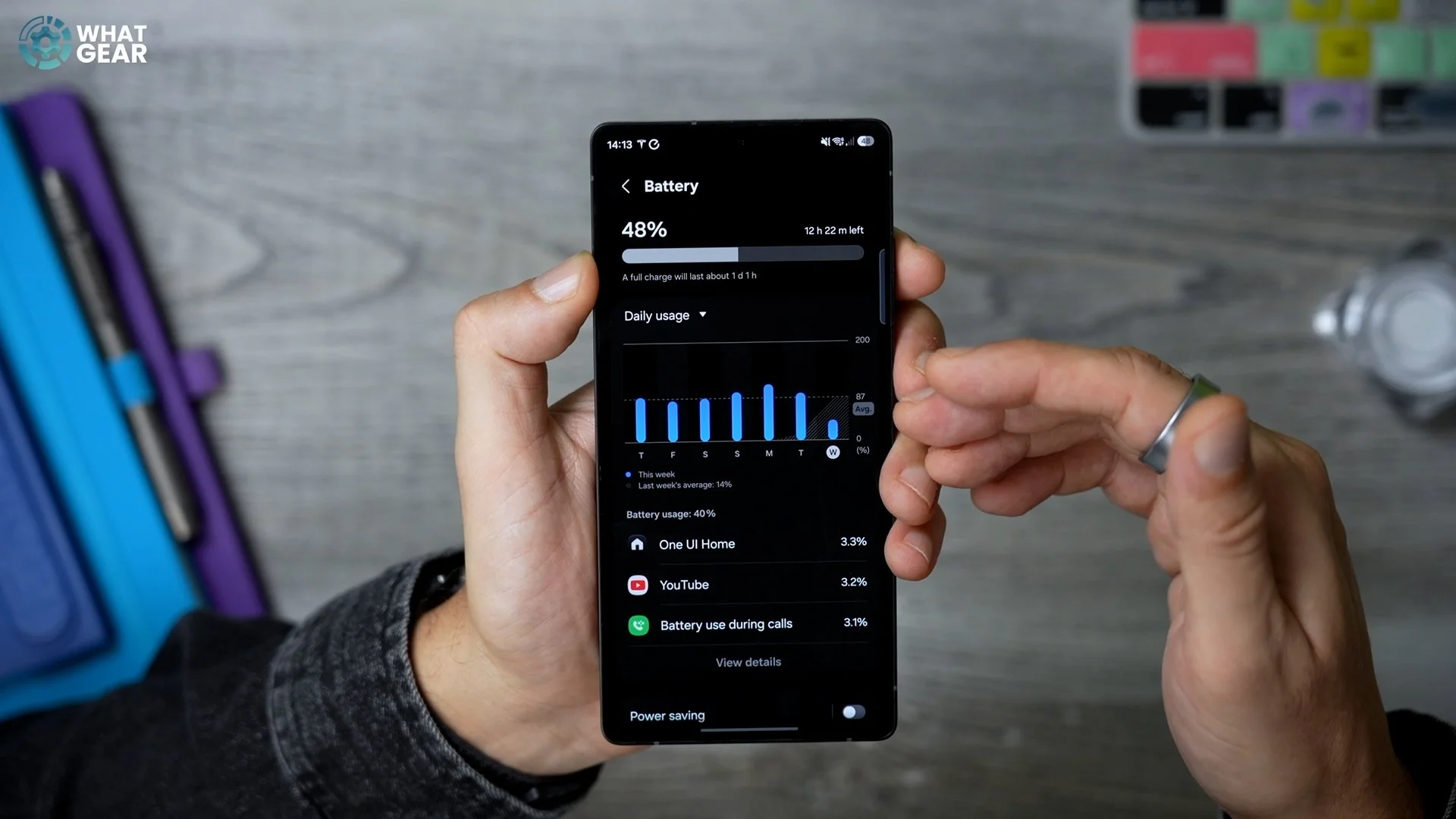
3. Okay, here is another change. Back into Settings and then scroll down to the Battery section. This entire menu system has been redesigned. The battery usage graphs have changed, and all of the detail menus and things like that have also been updated and improved.
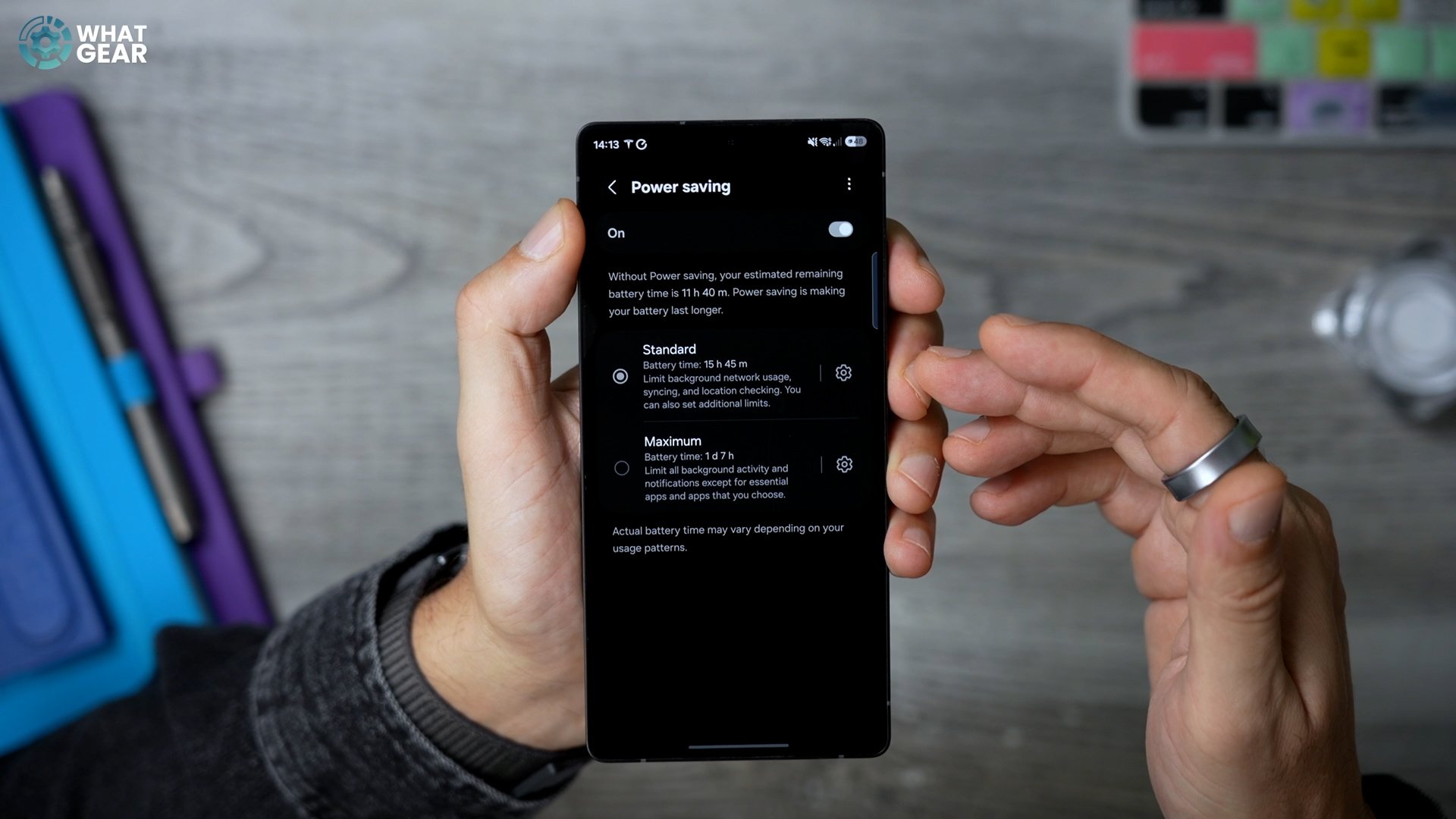
4. Here's a pretty significant change. Staying within the Battery menu system, if you scroll down to the Power saving feature—this is not new—but if you enable it and actually tap where it says Power saving, you can now choose between Standard and Maximum, and you can even hit Settings here to customise each one of these power saving modes. So instead of just having one power saving mode, you've now got two.
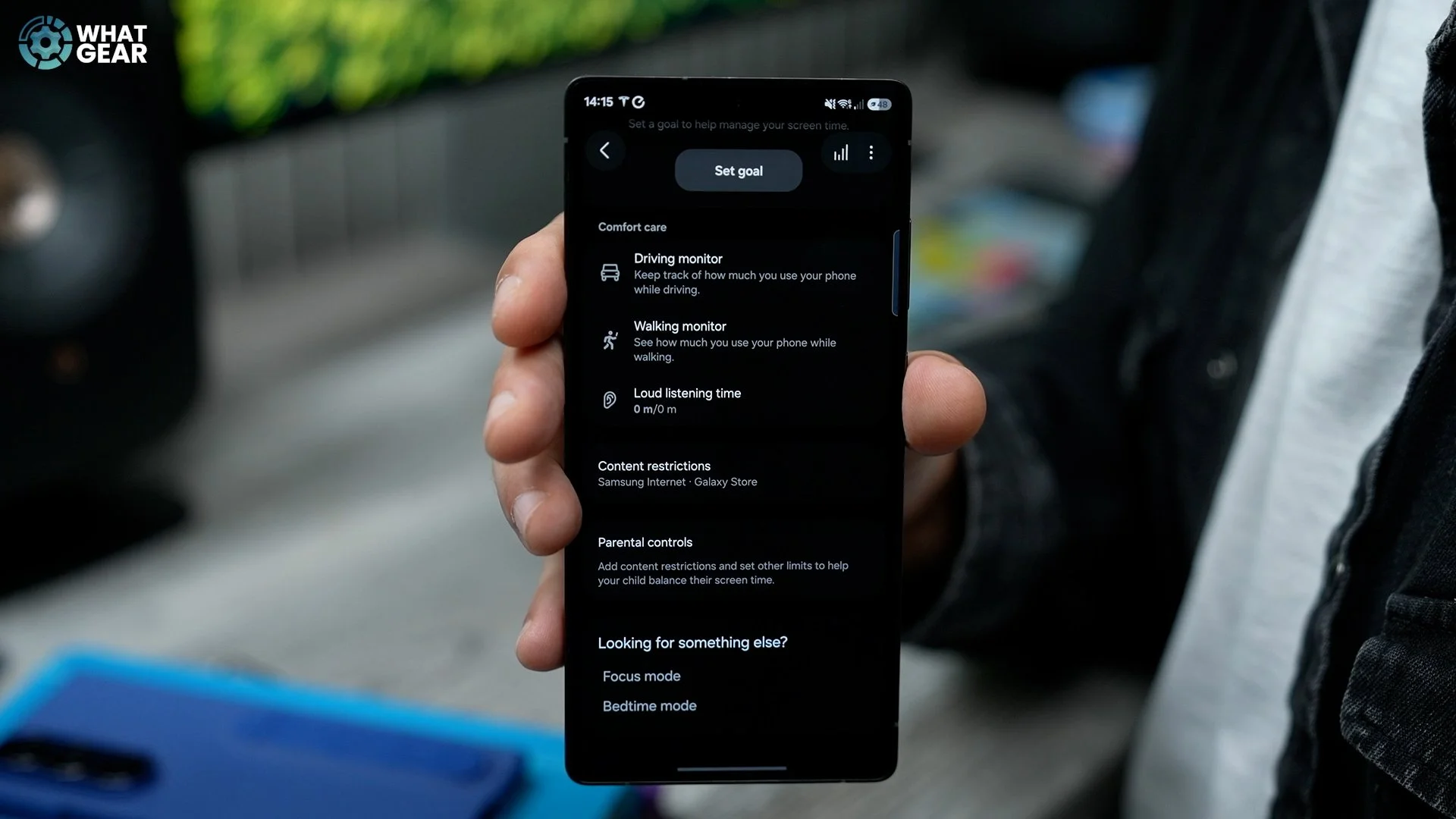
5. Here is another redesign. I've actually added the widget for it here on the home screen: it’s within the Digital Wellbeing app. You can tap on the widget to jump straight in, or on the main Settings page, if you scroll all the way to the bottom, you will see Digital Wellbeing and parental controls. This has been completely overhauled and updated, and you can see all of the different styling that’s going on here. If you are a parent setting up a Samsung phone for your kids, this is the page you definitely want to check out, because here is where you find the parental controls. That's not new—it’s just the design that's been overhauled here, so it should be even easier to use.
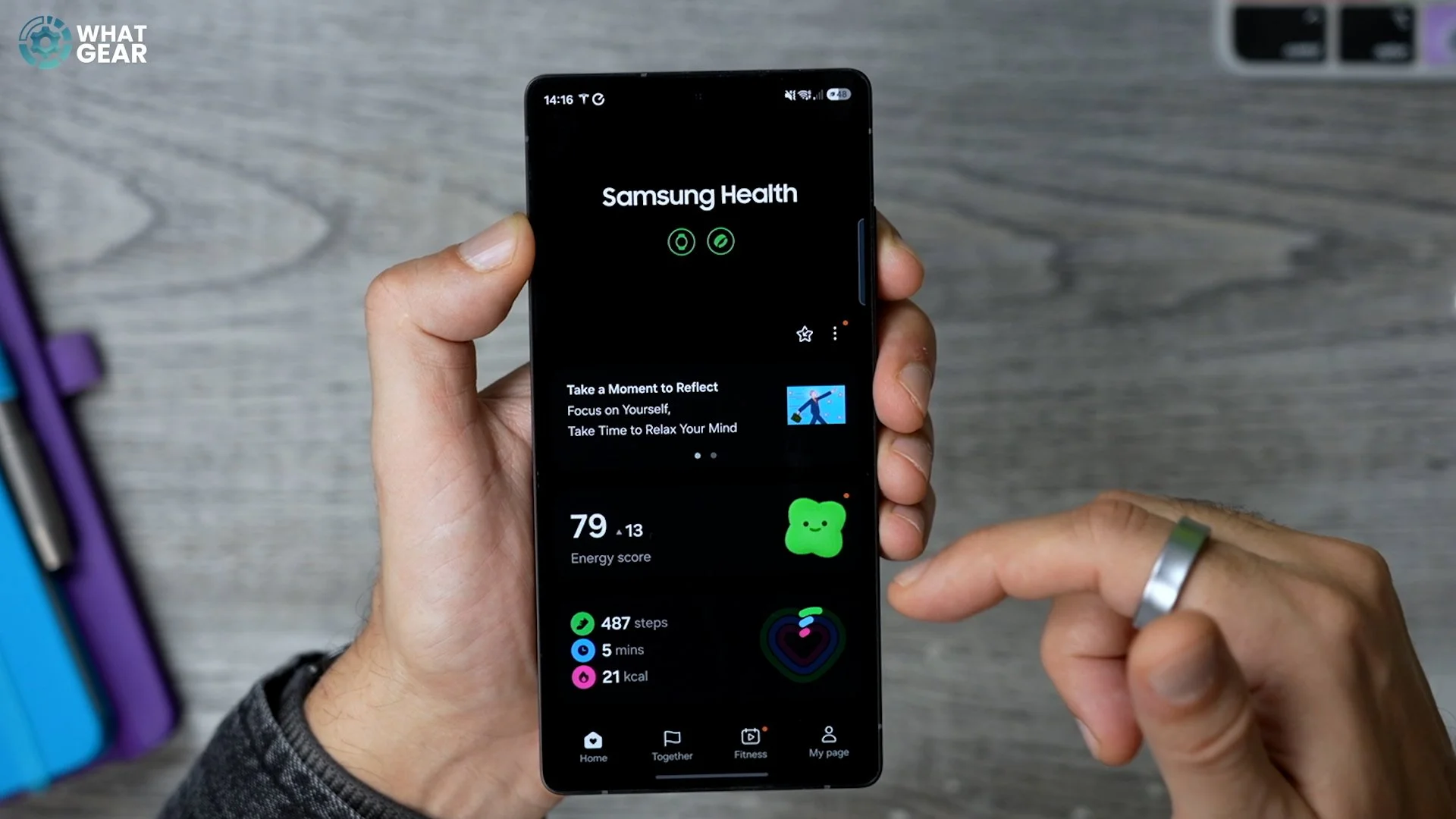
6. Now, the update—again, I have a widget for it on my home screen—is the Samsung Health app. If you don't have the widget and you want to find it, just swipe up, go to the Samsung folder at the top, and here you'll find Samsung Health. This has had a subtle redesign. There are some new sharing features available here, so this one's kind of a refresh but with some added features.
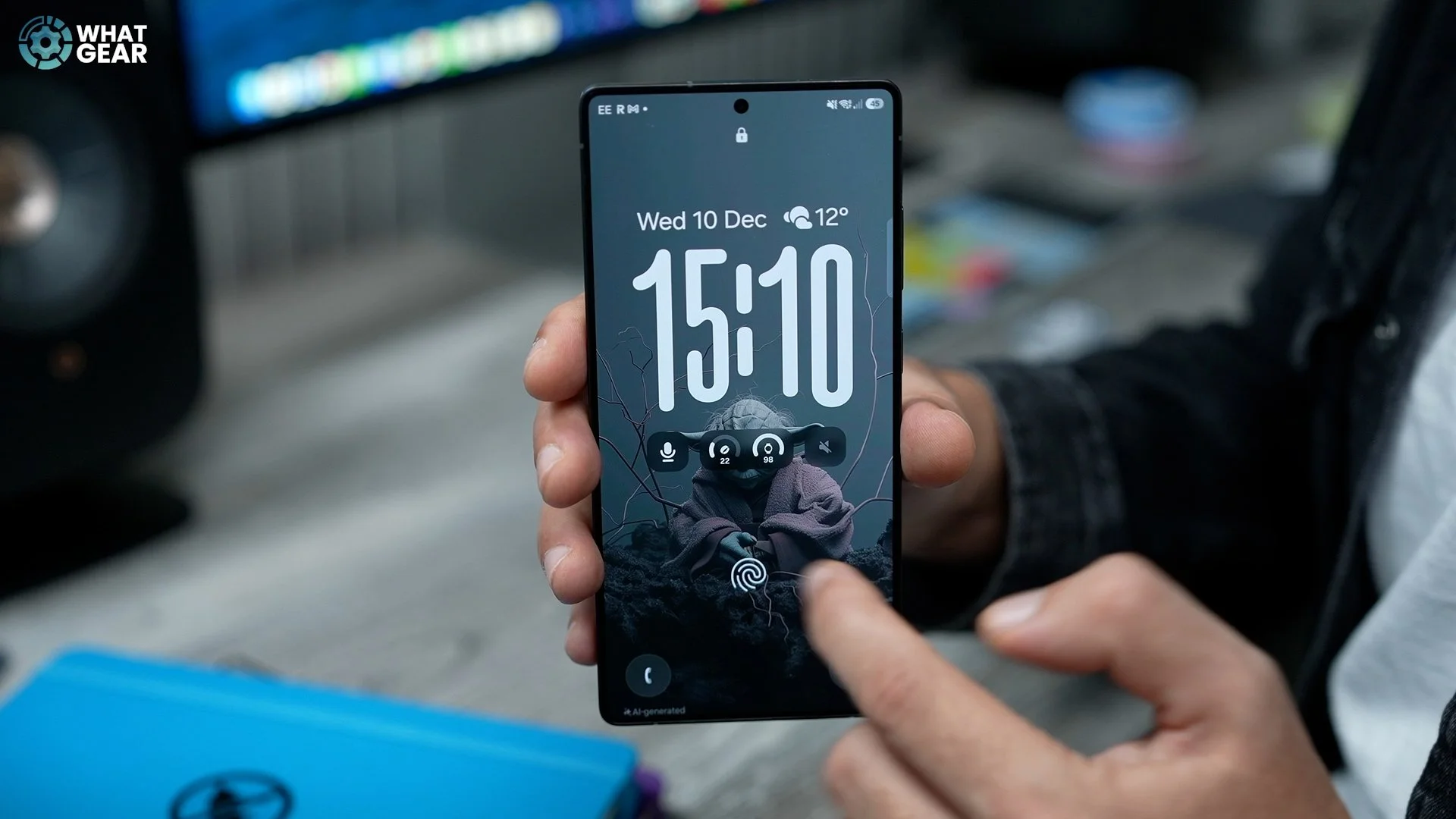
7. Here's another little subtle change to the design: when you transition between the Always On Display and the lock screen, you'll find some revised animations depending on the lock screen clock that you're using.
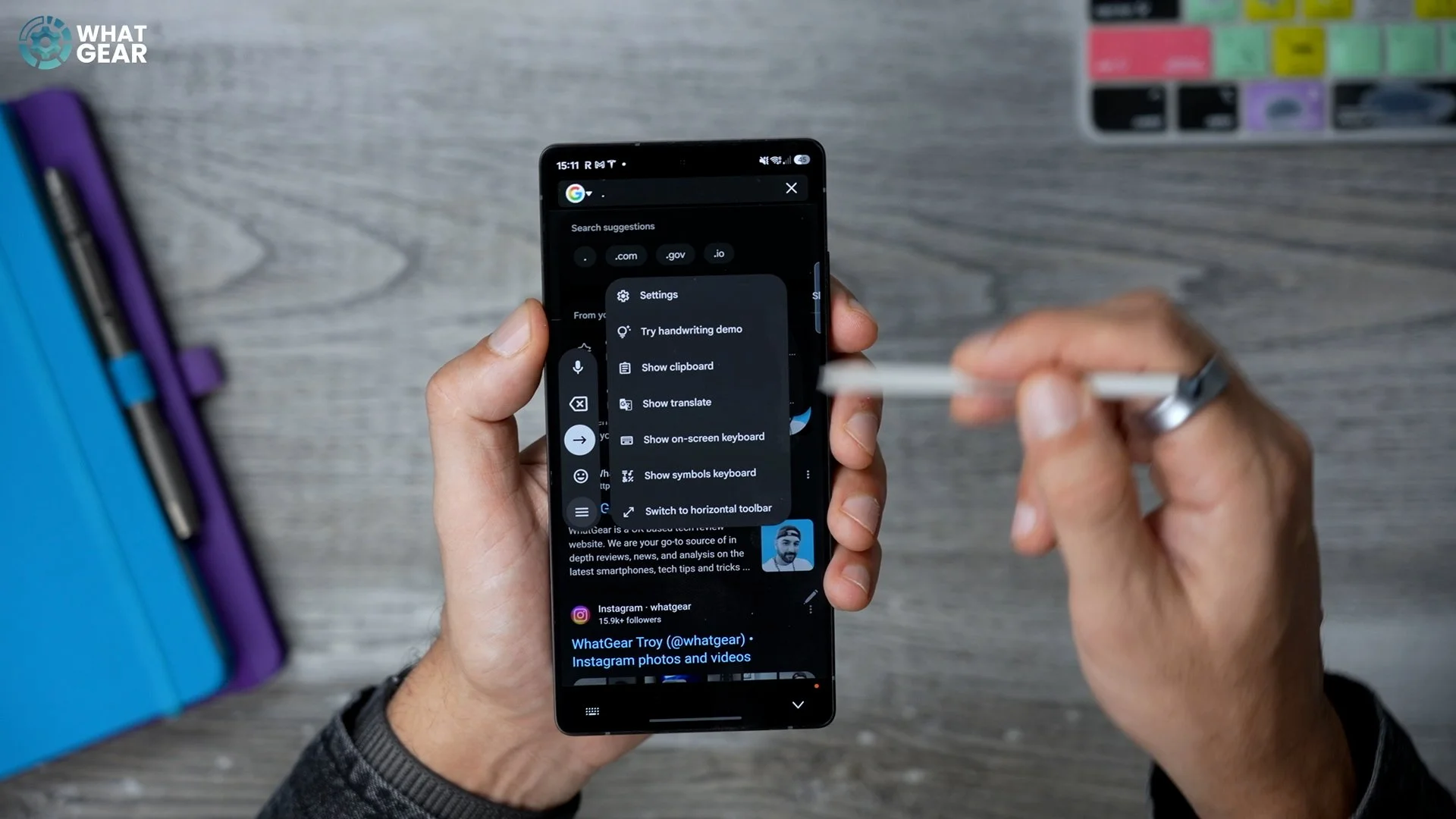
8. This next little change I see only applies to the Ultra phones. Whenever you're typing using the pen and you tap the text field, you actually get this new little bar down the side here with a slightly different layout and slightly different animations and tools.