
The Secret Galaxy AI Tool Everyone is Missing!
In this video, I'm going to teach you how to use one of the most misunderstood yet most powerful AI tools found on your Galaxy device. So I'm going to show you some insanely useful use cases for this, and some fun ones that you need to start using right now. Because the reality is, this is one exclusive tool that most Samsung Galaxy owners are missing out on. Now, before we get into tip number one, it's important you know how to access this tool. I am, of course, talking about the AI Select feature. It is located at the top of your Edge panels, right here.
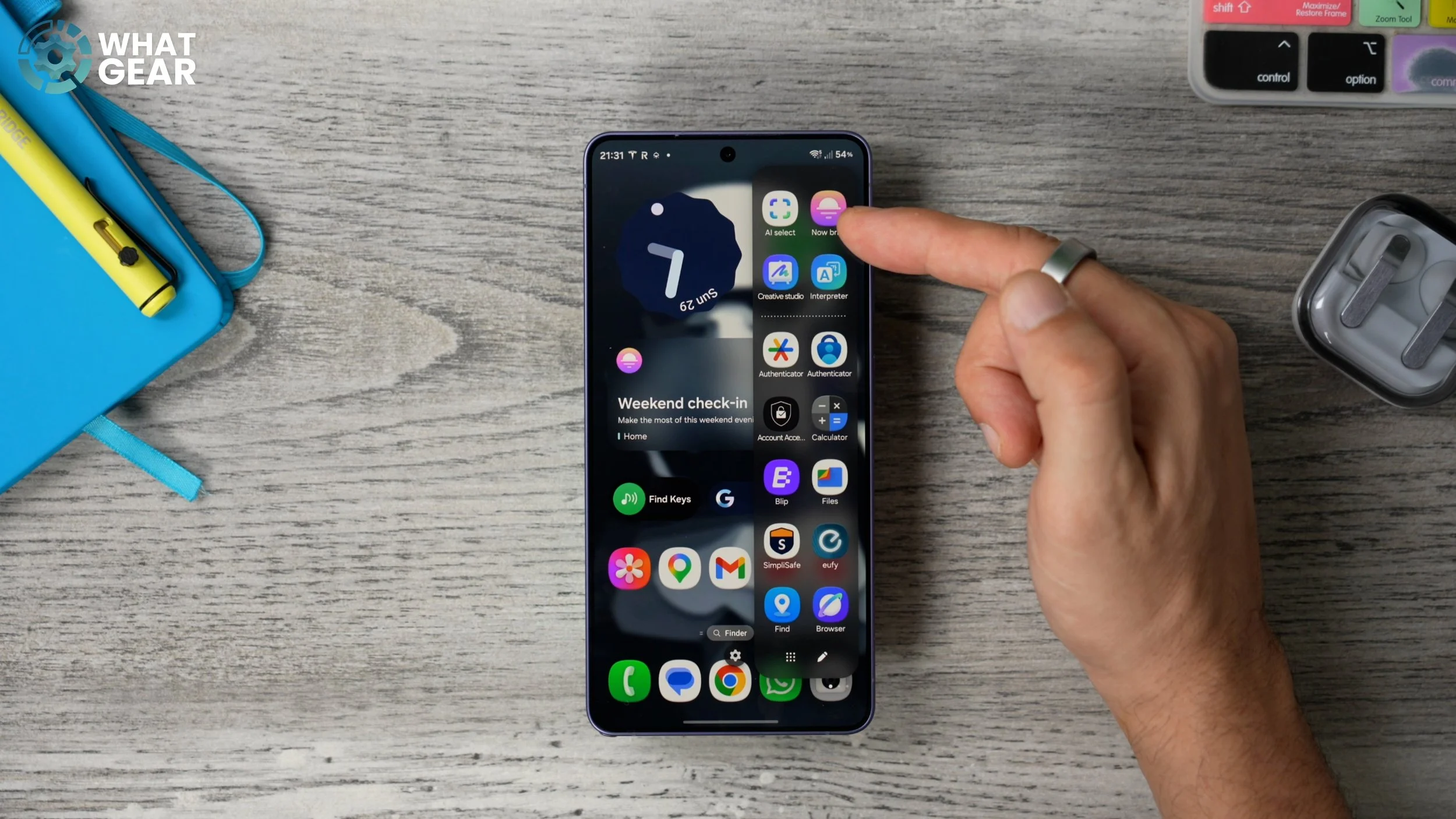
And it looks like this. So what I'm getting at is, if you don't consider yourself a master of the AI Select tool yet, don't worry, because if you stick around to the end of this video, you will be. You will be. Now, if you don't have the Edge panel, you don't see it. Here's how you activate it. Go into the Settings on your phone, scroll down to Display, and then on this page, about halfway down, you will see Edge panels right here. Make sure this is switched on. And now you should see this little line at the edge of the screen. And if you're wondering why my line is purple, that's because I customised it. I do explain how to do that in my Customisation Tips and Tricks guide. I'll link that at the end anyway. Now, let's get into tip number one.
TEMPORARY TICKETS
Have you ever had to use an app that creates a QR code or a barcode, for example, like a boarding pass from an airline app? However, at the very moment when you need to show it to get through, the app doesn't load, you have no data, and for whatever reason, you can't bring up the pass. And now everybody in the queue is getting mad at you. Well, you can avoid all of that with this tip. So ahead of time, you can bring up that QR code, barcode or ticket for an event within the app. With it open, if you hold your finger down on the Edge panel, this is a quick shortcut to activate AI Select. Now you can select the pass that you need, and at the bottom of the page, you will see a little pin icon. So if you tap that, that pops that bit of information out of the app. Now, as you can see, it's taking up half of my screen, and it's getting in the way of everything.
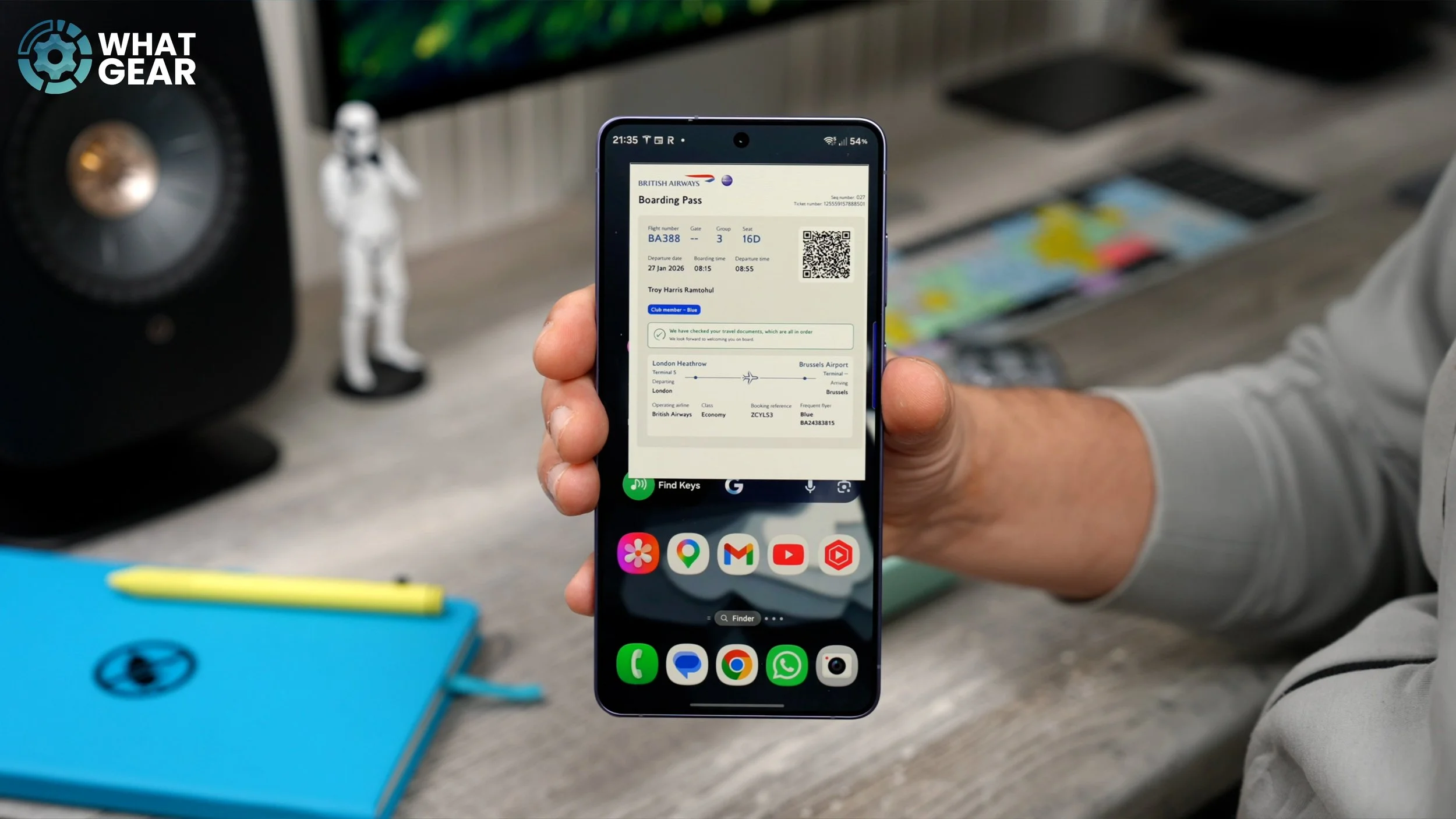
And obviously, I'm not going to be using my phone like this. So what I'm going to do is tap on the image and hit the two inward arrows down here. And that shrinks it right down into this little floating bubble. This can then be easily moved out of the way and placed anywhere on your home screen. And when you get to the gate, and you need to show the ticket, you can just expand it very quickly, scan it, and get through without all the extra stress. Now, when you're finished with it, you can tap on it again and hit the little cross at the bottom to get rid of it forever. If you want to keep it, you can hit the download icon just here to save it to your gallery.
QUICK MARK-UPS
In some scenarios, you might need to elaborate on a point or highlight a key piece of information. Now you could spend some time writing out a full explanation, but don't you know a picture is worth a thousand words? So next time you need to convey a message, you could do this instead. Bring up an image related to the information you want to convey. Bring out the AI Select tool. Once you've done that, select the area, and at the bottom, you'll see the little crop tool with a pen next to it.
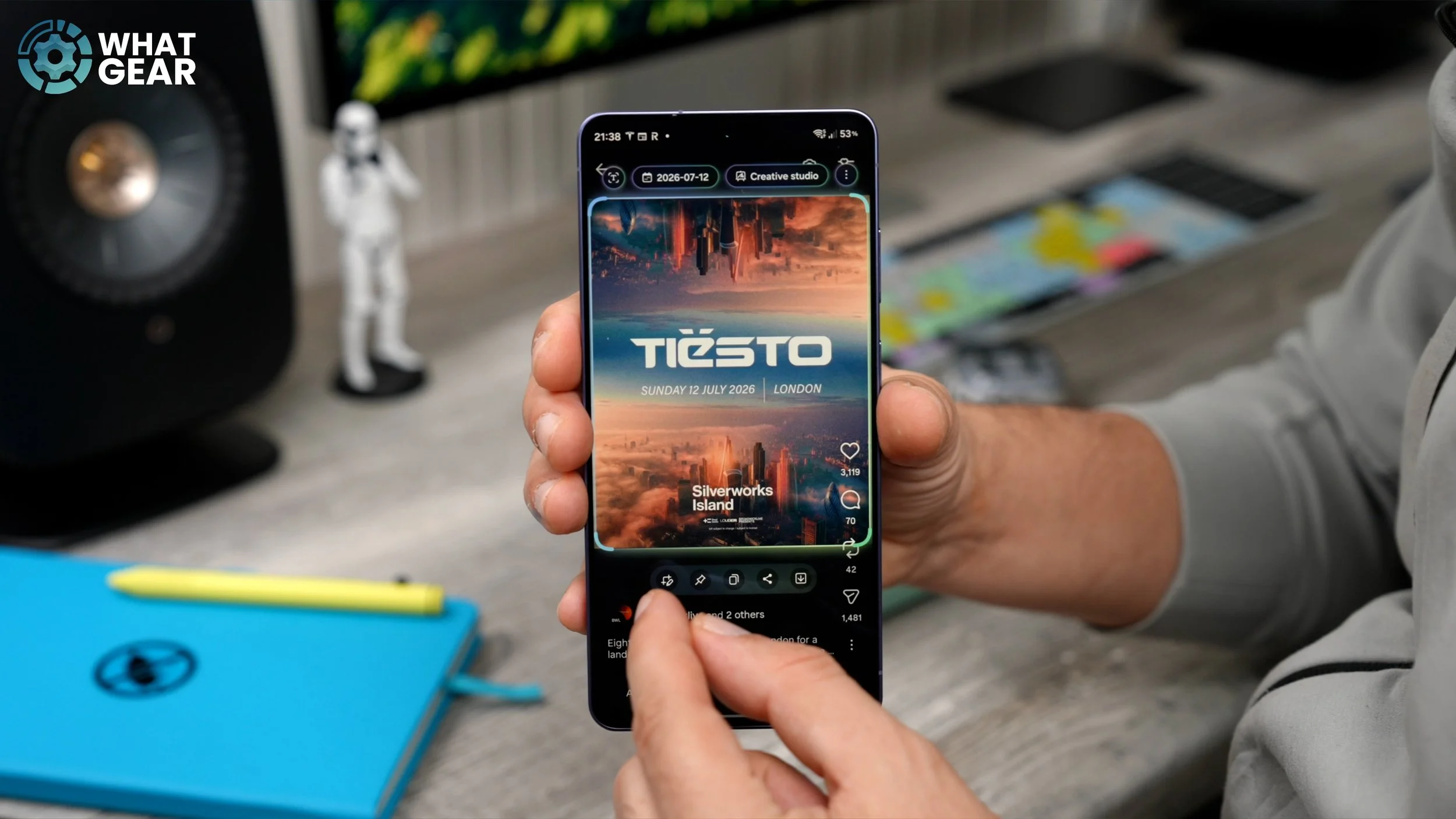
If you tap on that, you will then see the marker tool, and when you tap on this, you get a full selection of pens and paintbrushes to use, and you can select all the colours and even open up the colour spectrum. So choose your pen, choose your colour, and then mark up the image. You can then share this piece of information using the share button down here with whoever you like.
EXTRACT THE UNEXTRACTABLE
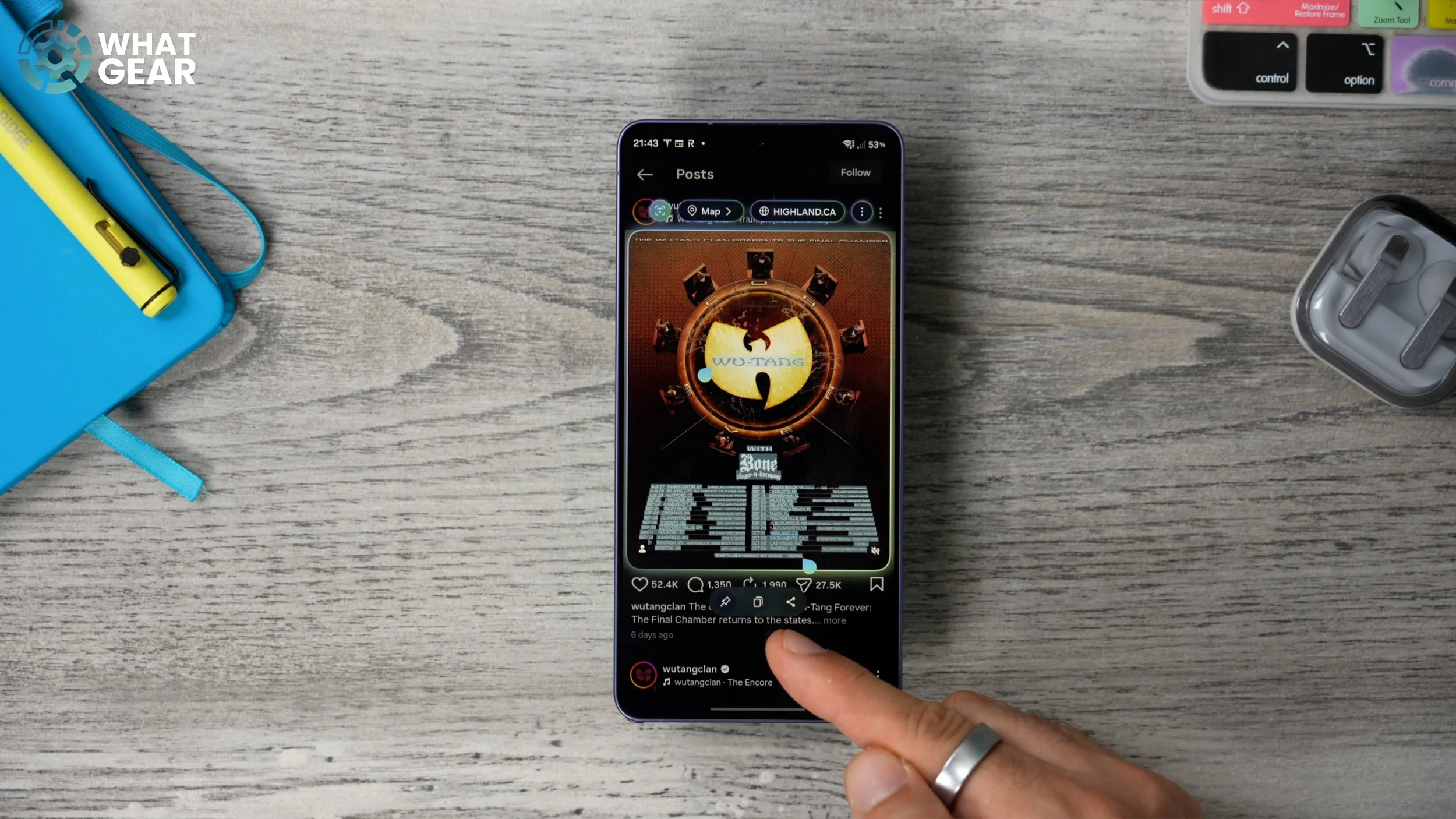
Now, the problem with images sometimes is that they hold important details, and sometimes the text within the image cannot be copied because the image is flat. Now, while you could screenshot the image, import it into your gallery, and extract the text that way, there is a much easier way with AI Select. So once again, I'm going to hold my finger down on the Edge panel right here to activate the AI Select button very quickly. I'm going to select the image that has the text in it. And in the top left corner, right here, you'll see the little “T” icon. If you tap on that, that highlights all of the text in the image. You can then select a smaller area if you want to. But let's say all of the information here is what I need. What I can now do is hit the copy button down here. And once you do that, it copies it to your clipboard, and it can then be pasted anywhere else on your device.
UN-DOWNLOADABLE WALLPAPERS
Have you ever been looking online for the perfect wallpaper for your phone, and when you finally find it, it won't let you download it unless you pay for it, or watch a thousand ads first? Well, that problem is solved with AI Select, because you can just do this. So once you've found an image that you want to use as a wallpaper — for example, let's say this one right here
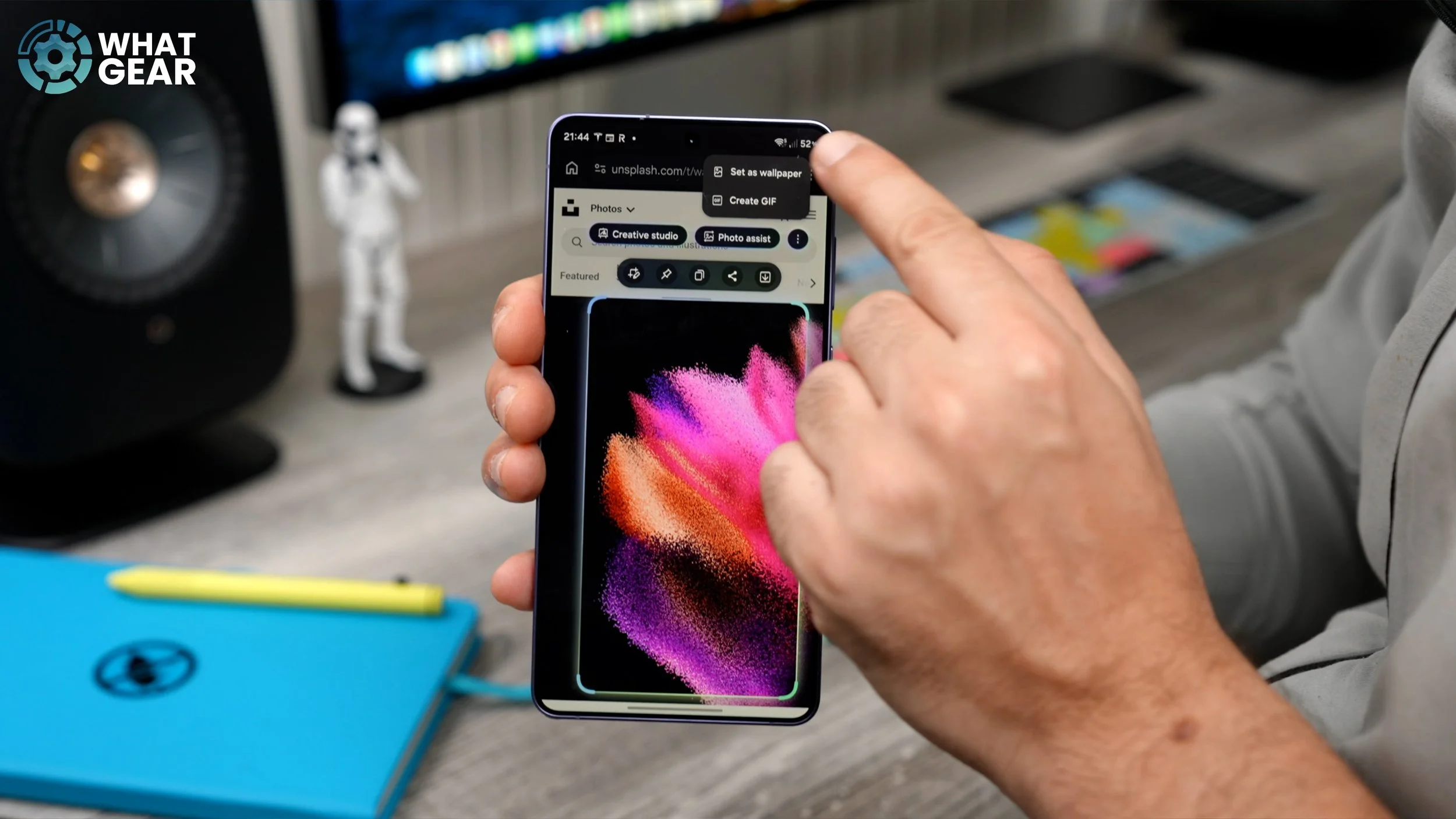
you can activate AI Select, select the image, and straight away, if the image can be cropped into the right size for your phone screen, you can hit the three dots in the top right corner here and set it as your wallpaper. And it really is that simple. Now, this next use case is quite similar to the wallpaper trick that I just showed you. But let's say you don't want to set it as a wallpaper and you just want the image for later. Well, here's how you can do that.
GRAB ANYTHING FROM ANYWHERE
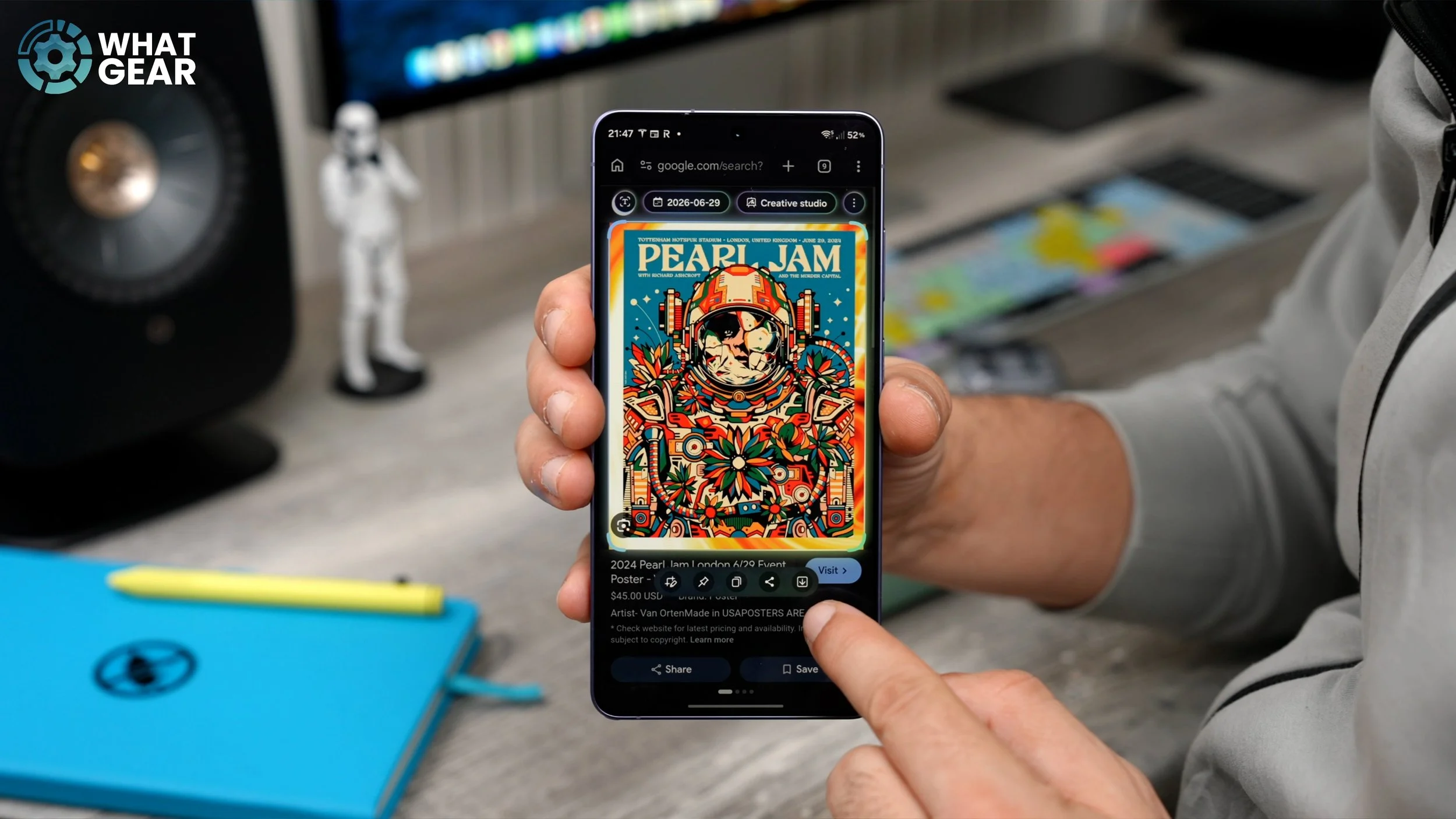
So let's say you found an image that you want to keep on your device. Again, we can either swipe out and tap AI Select, or hold our finger down on the Edge panel. This will highlight the screen. Select the image that you want, and instead of setting it as a wallpaper this time, you can just hit the little download button. That then saves that image to the Gallery. And this works even if the image is undownloadable.
RE-WRITE ANYTHING
Now, have you ever been online and read a phrase in an online article, or a paragraph in an e-book, or found a quote that you really like, and maybe you thought about including it in your own writing somehow? Well, here's a smart way to grab text from anywhere and modify it without ever having to write a single word. And it's so easy, it almost seems unfair. Let's take this quote here from Winston Churchill. If we hold our finger down on the Edge panel again and select the image that holds the quote, you can then hit the little text tool in the top left corner.
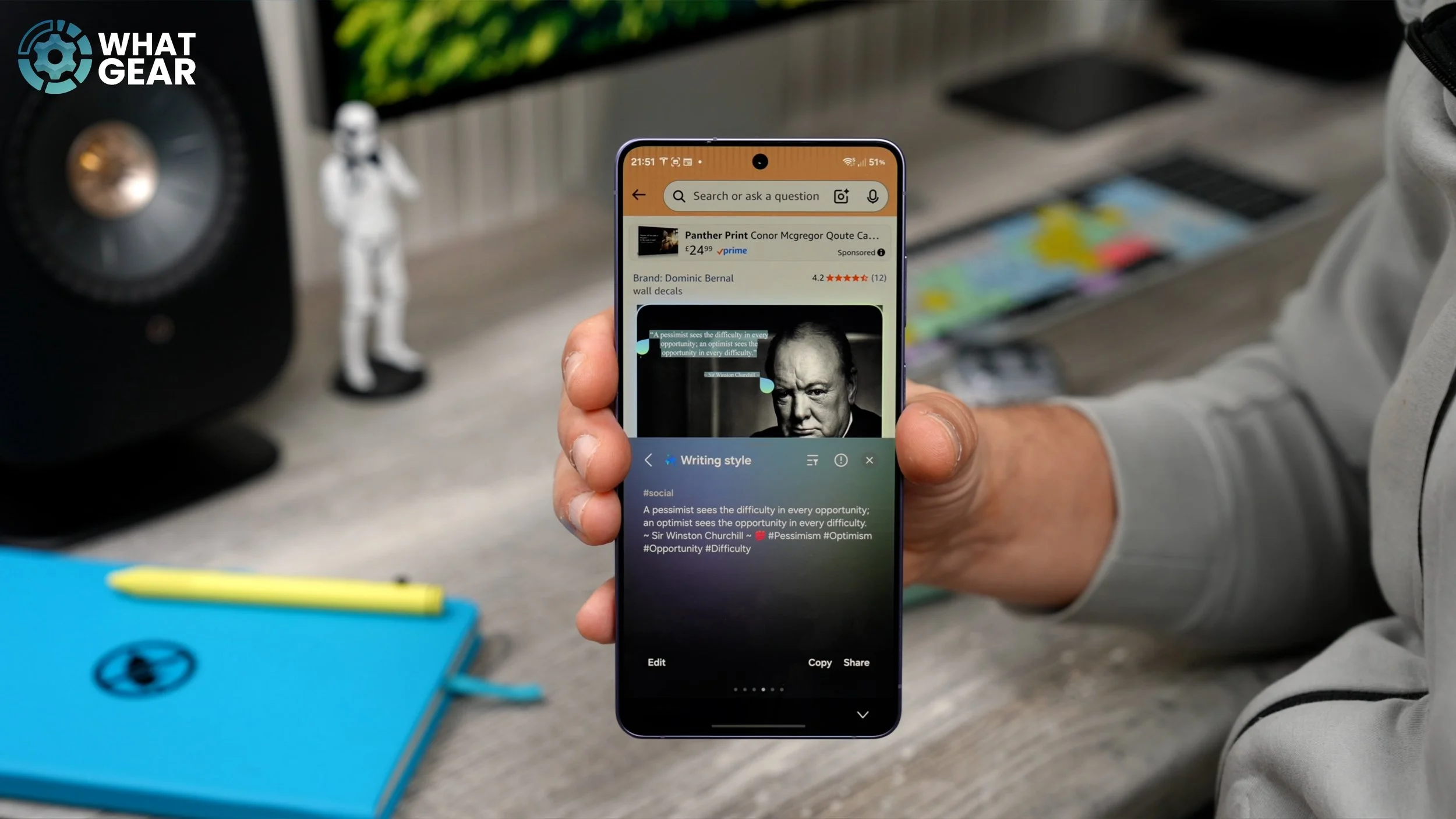
This will highlight the text. Now you'll see the Writing Assist option pop up above the image. Tap on this, and this brings up all of the writing tools that Galaxy AI has to offer. Now you can go to Writing Style, and it will analyse that text and give you other ways to say the same thing. Once you're happy with the selected text, you can either edit it down here and add your own spin, or you can just hit copy and paste it into your own work. And I'm sure you can see how this could be useful.
IMPROVE ANYONE’S PHOTOS
Now here is a fun one. Let's say a family member or friend sends you a nice photo. But the problem is that there are a bunch of photobombers in the image, or there are objects in the image which are distracting. Now, while you could save that image to your Gallery, go to the editing tools, go to the AI tools, and go from there — that, to me, sounds like a lot of work, especially if I don't even want to keep the image on my device. So here's an alternative way to do that very quickly and then send the improved image back to them. So once again, bring out the AI Select tool — that will analyse this picture. At the top of the image, you should see Photo Assist. This activates all of the Photo Assist tools that are normally only available within your Samsung Gallery app. But now you can make modifications to this image in an instant without ever having to save it to your device.
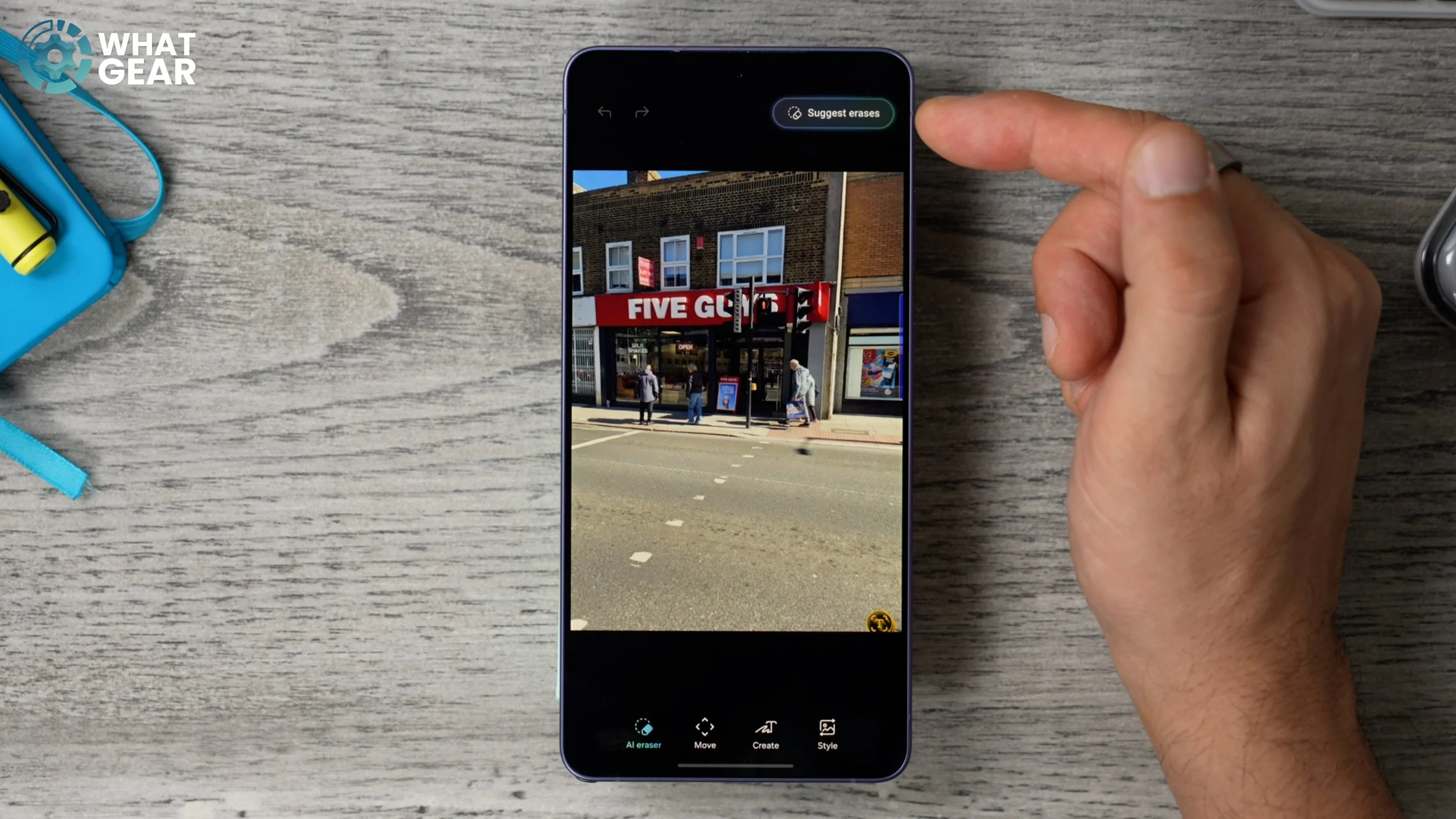
At the top of the screen here, you'll see the suggested erases. This will analyse the picture and detect things that it thinks are distracting. And as you can see, all of the people have been highlighted. I can then hit Erase, and there we go — they are gone. Now, let's say I want to make this image a bit more dramatic. If I go to Keep editing, I can then use the Create tool down here, which is similar to another tool that I'm going to show you in a minute, where you can write whatever you want in the text box underneath. And there we go — it has added an elephant in front of Five Guys. Now, if I wanted to, I could save this to my device and store it in my Gallery. But if I don't want to do that, I could just hit Share and then send it straight back to them.
Artistic Renditions
Let's say you want to create a meme or something like that, or you just want to make somebody laugh. Here's a quick way you can create some unique artwork from just about anything online in an instant. So let's take this picture of Samuel L. Jackson with this very tasty burger. Activate AI Select and choose the image that we want to recreate. Above the image, you should see the Creative Studio tool. Tap on this.
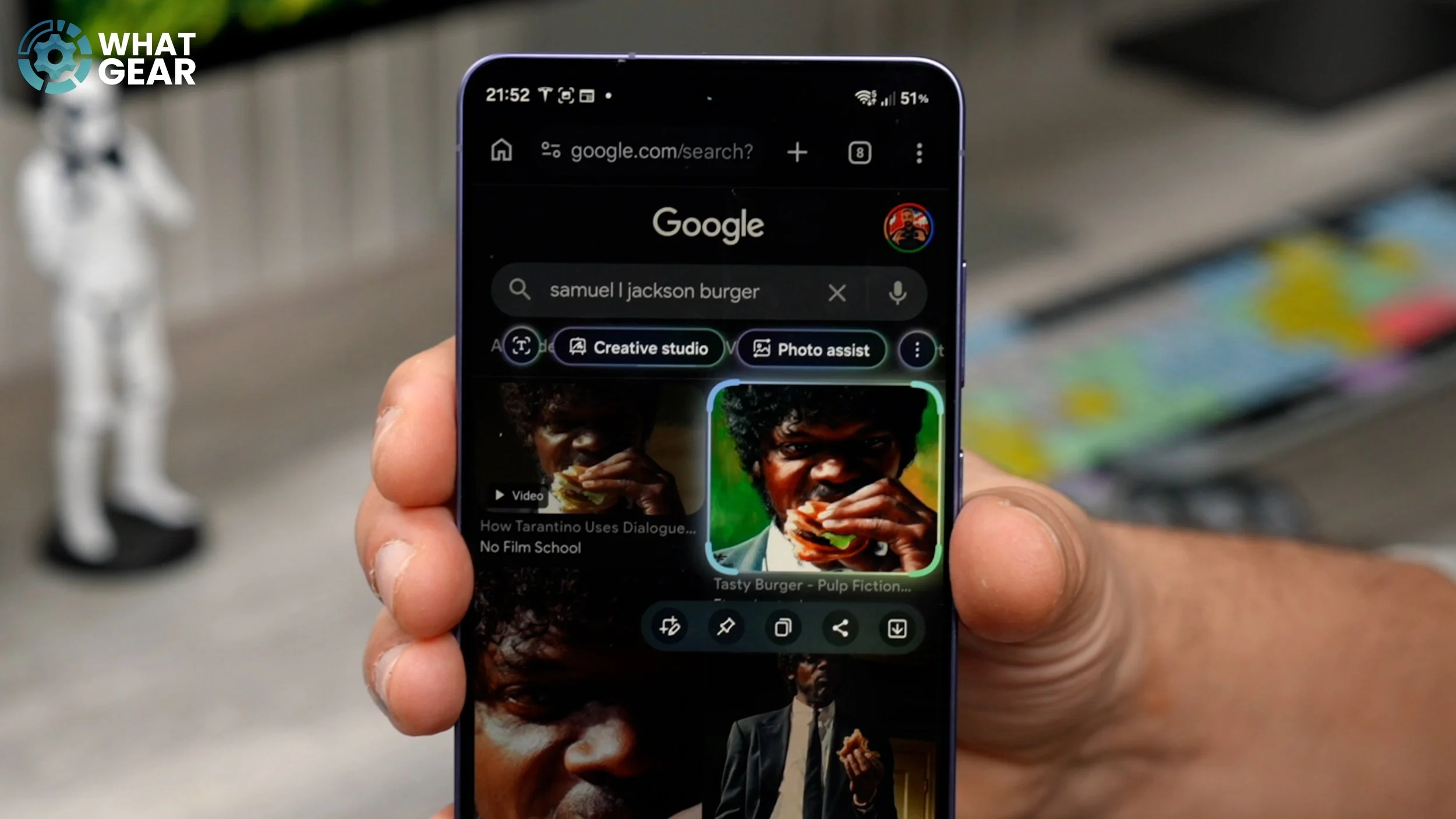
So within Creative Studio, you can tap where it says 3D Cartoon, which is the default, and change the style if you want to. I'm just going to go with 3D Cartoon for this one and hit Generate. And there we go — we have a custom version of that image, which we can use to create our own meme or share with someone just for a laugh. And if, for whatever reason, you're not happy with the result here, if you swipe across, you can give it another go.
Insert images
So sometimes it's useful to add infographics to your work. But the problem with this is that some apps make it pretty difficult to do. So let me show you how you can quickly add an infographic or an image into your work very easily using AI Select. So let's say, for example, this image right here — this was the face that I pulled when I found out I couldn't go to Five Guys before going to see Project Hail Mary in the cinema, and instead had to go to a healthy restaurant.
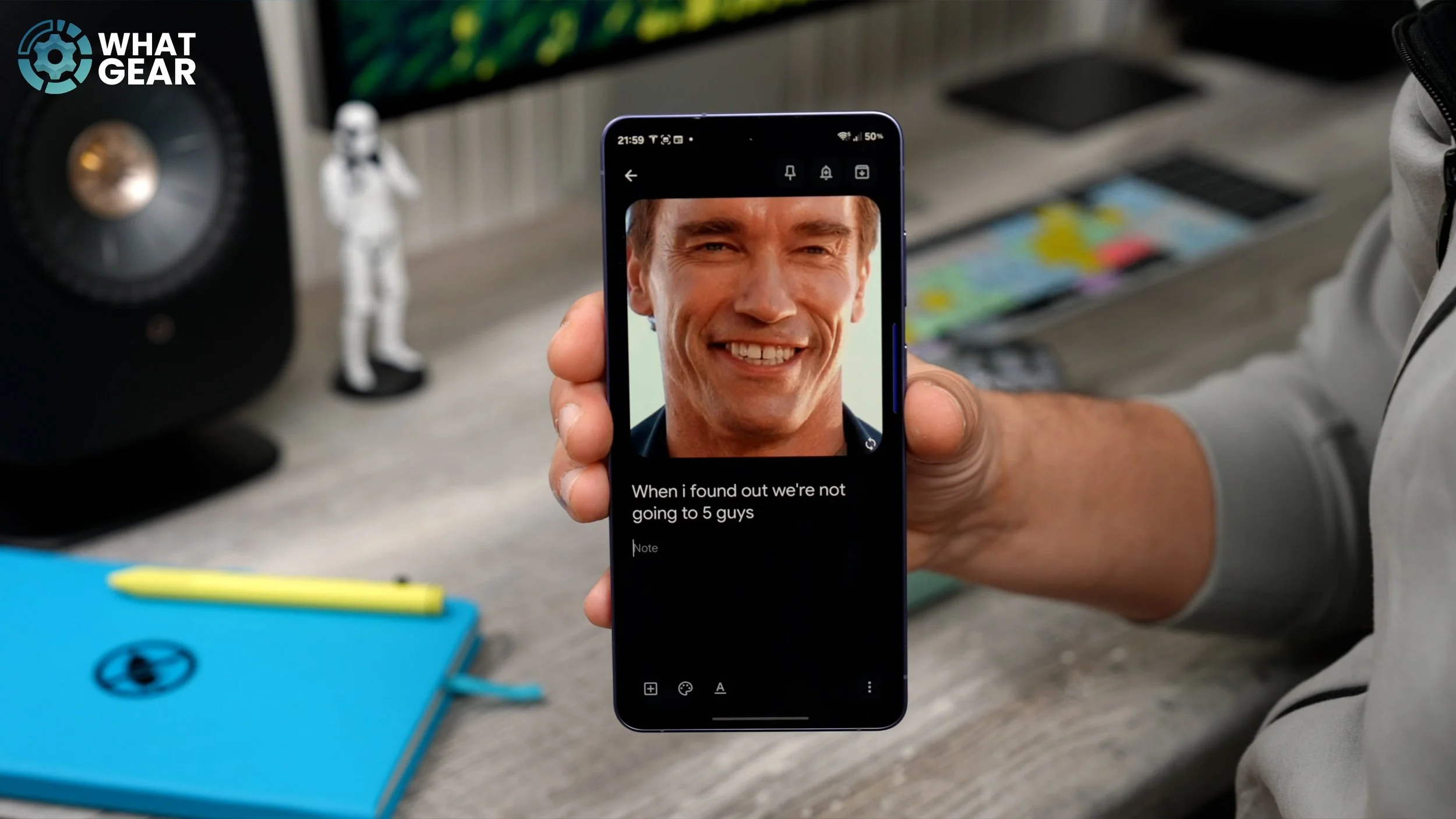
Anyway, what you can do is activate the AI Select tool, tap the image that you want to import into your own work, hit the little copy button underneath, and save the image to the clipboard. Now you can go back to your own work, select an area where you want to paste it, and then you should see the Paste option right here. And there we go — that's how you can add images and infographics into your own work very easily.
Location Detection
Now, has anyone ever sent you a screenshot of an address, or a picture with an address in it that you need to get to? If so, instead of copying and pasting or trying to extract the text, there is actually a quicker way to start your navigation straight from there. What you can do is open up the image that has the address in it, activate AI Select to highlight the bit of the image that has the address, and I think somewhere down here it says London Wembley.
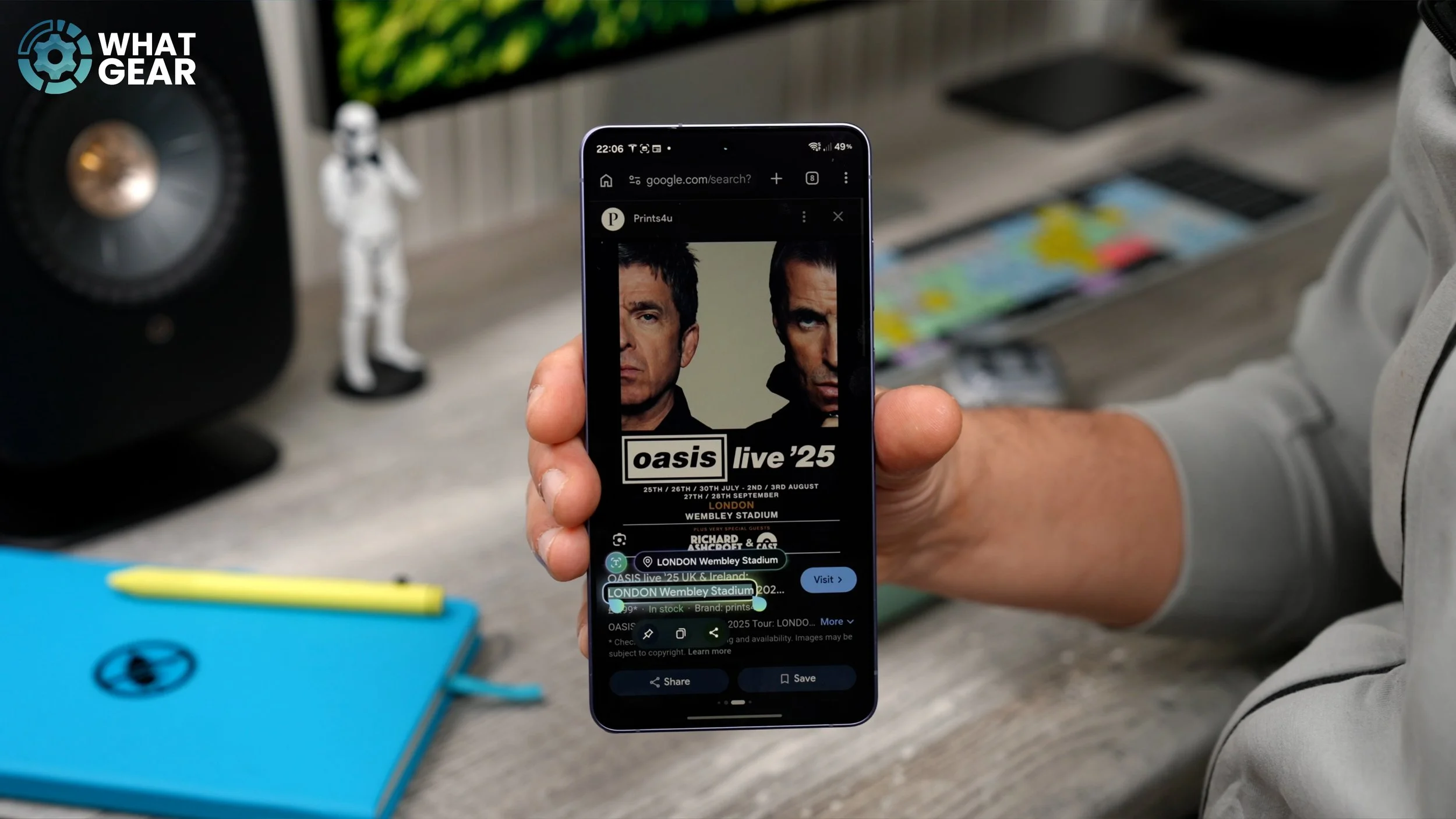
So I'm just going to tap there. And even though it hasn't got the full address, it intelligently knows where Wembley Stadium is. And straight away, above it, you see the little map icon. If you tap on this, that will prompt you to then open up your navigation app of choice. So straight away, you can navigate to that location.
Send them a GIF
I did show this in part four of my five-part Galaxy S26 Tips and Tricks series, but it's so good I figured I might as well show you again since it does relate to the AI Select tool. So let's say you want to send a meme to someone, but you can't find the exact one you're looking for. Aligned with AI Select, you can just create one. For example, let's take this one right here. If we open up the video, activate AI Select, go to the video window and hit the three dots on the right side, you'll then see the option to create a GIF.
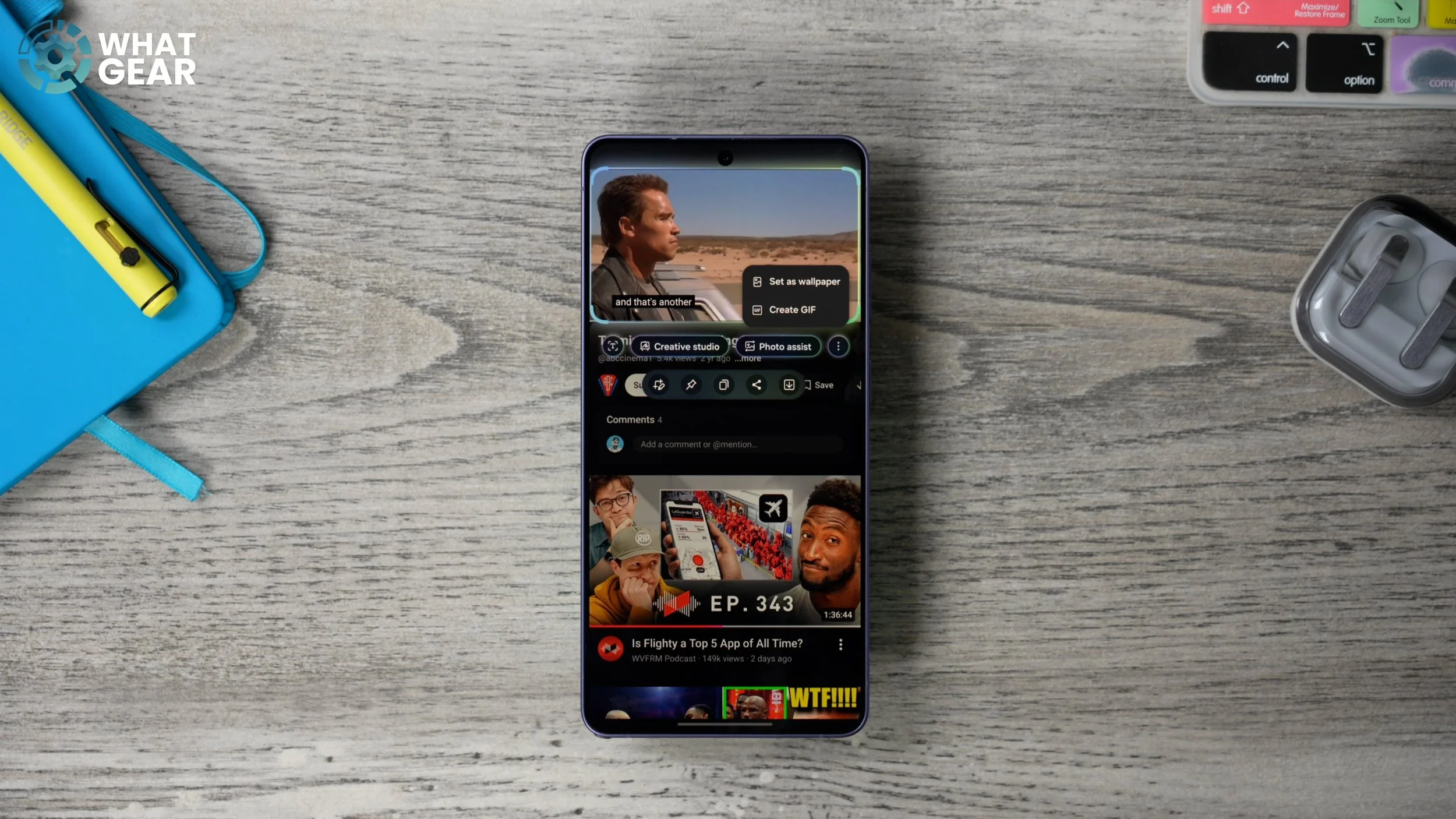
You'll now see the record button underneath, and you can even adjust the quality of the capture as well. Now, just before the scene is about to start, you need to hit the record button — so you have to time this right. Tap the record button, and once the meme has been captured, hit Stop. And there we go — we've created the Terminator smile meme. We can then hit the download button, or share it, or even copy and paste it into another app.
Extract & Create a Table
Alright, so remember how I showed you how you could paste images into your work — for example, infographics and things like that — to add to your own work? Only this time, we're going to show you how to do it in a table format, which could be extremely useful in certain scenarios. So, for example, right here, it might be the greatest jerk chicken recipe that you can find online. And in this scenario, let's say I want to keep a record of this in a nice, tidy format. What I can do is use AI Select, select all of the text for the recipe right here, use the text tool right here to select everything, and then I'm going to go to the Writing Assist tools.
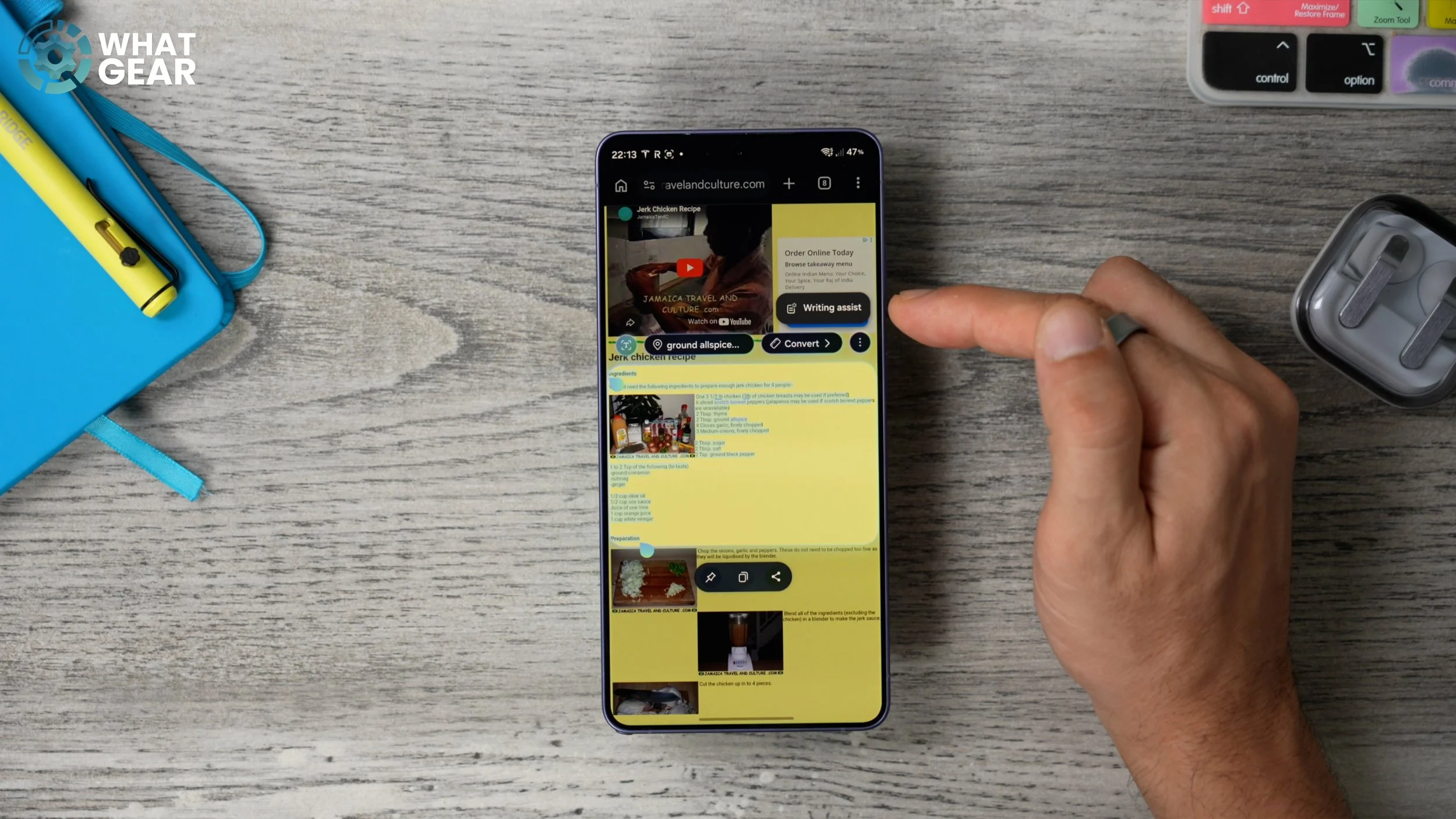
Now you'll see the option underneath to create a table with the extracted text. And as you can see, it's created this really nice table, which I can paste into my own notes or a Word doc or whatever. And there's a little bonus feature here that I want to show you guys. When you select stuff like this, if the measurements are not what you're used to, with the AI Select tool, if there are certain measurements — for example, in this case it's using pounds instead of grams — you might see the convert option here to show you the conversions of what you actually need for this particular recipe.
Send Location
Here is a question for you. Has anyone ever sent you an invitation, and on the invitation, it has a date and time and location, but again, because it's a flat image, you can't instantly extract the text very easily? Well, with the AI Select tool, you can do this super simply. And just for example, let's go back to this. There are loads of dates and locations on here, so I'm going to try and pick one using the AI Select tool.
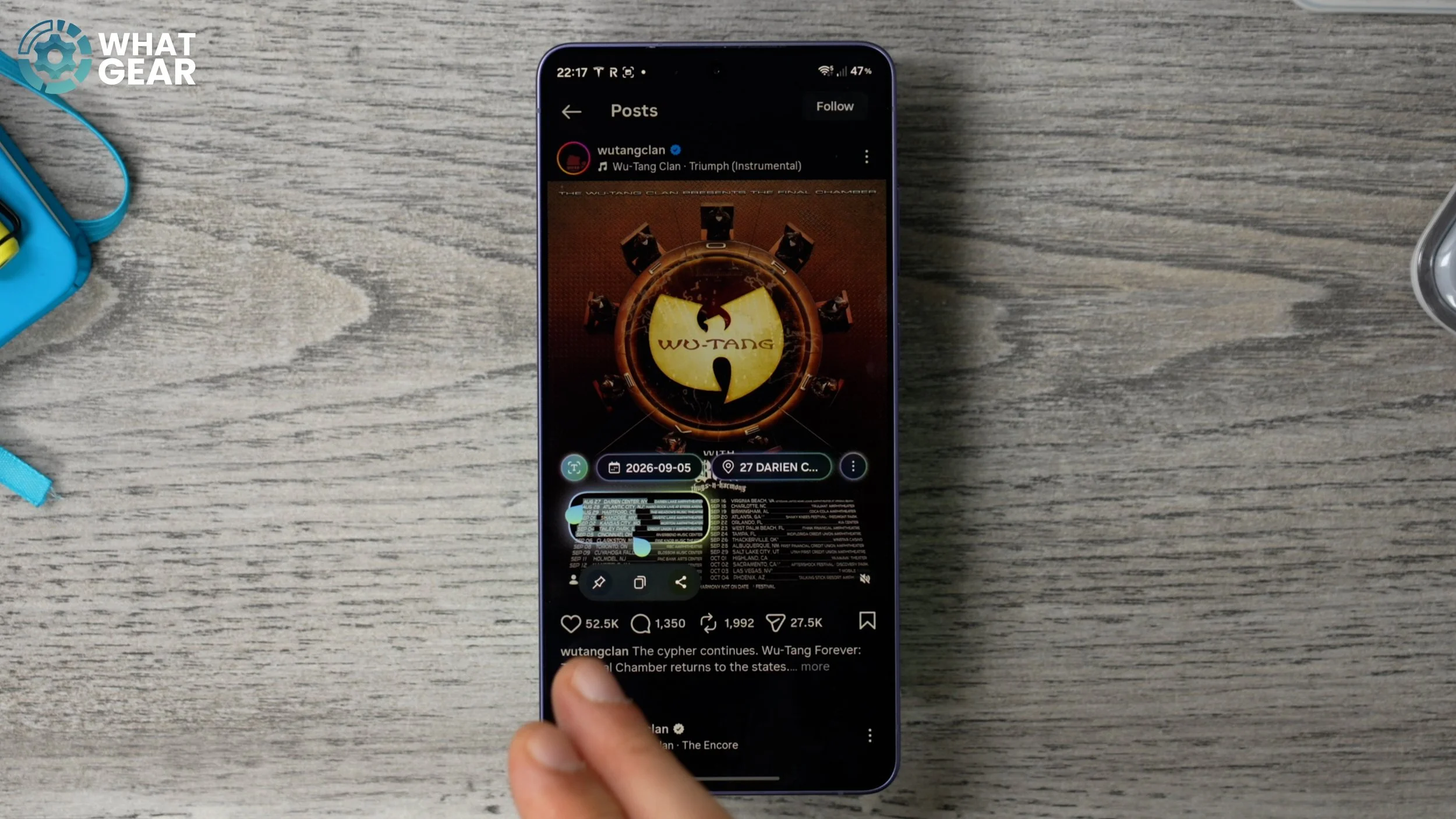
So I'm going to highlight the whole screen, I'm going to choose one of these down here, and straight away you'll see there's the option to add to calendar. This will automatically grab that date and that location in some scenarios, and also the time if it's listed, and give you the option to add it instantly to your calendar of choice. Obviously, this works a lot better when there aren't like 20 different locations and 20 different dates. But yeah, you get the idea.
Make it Make Sense
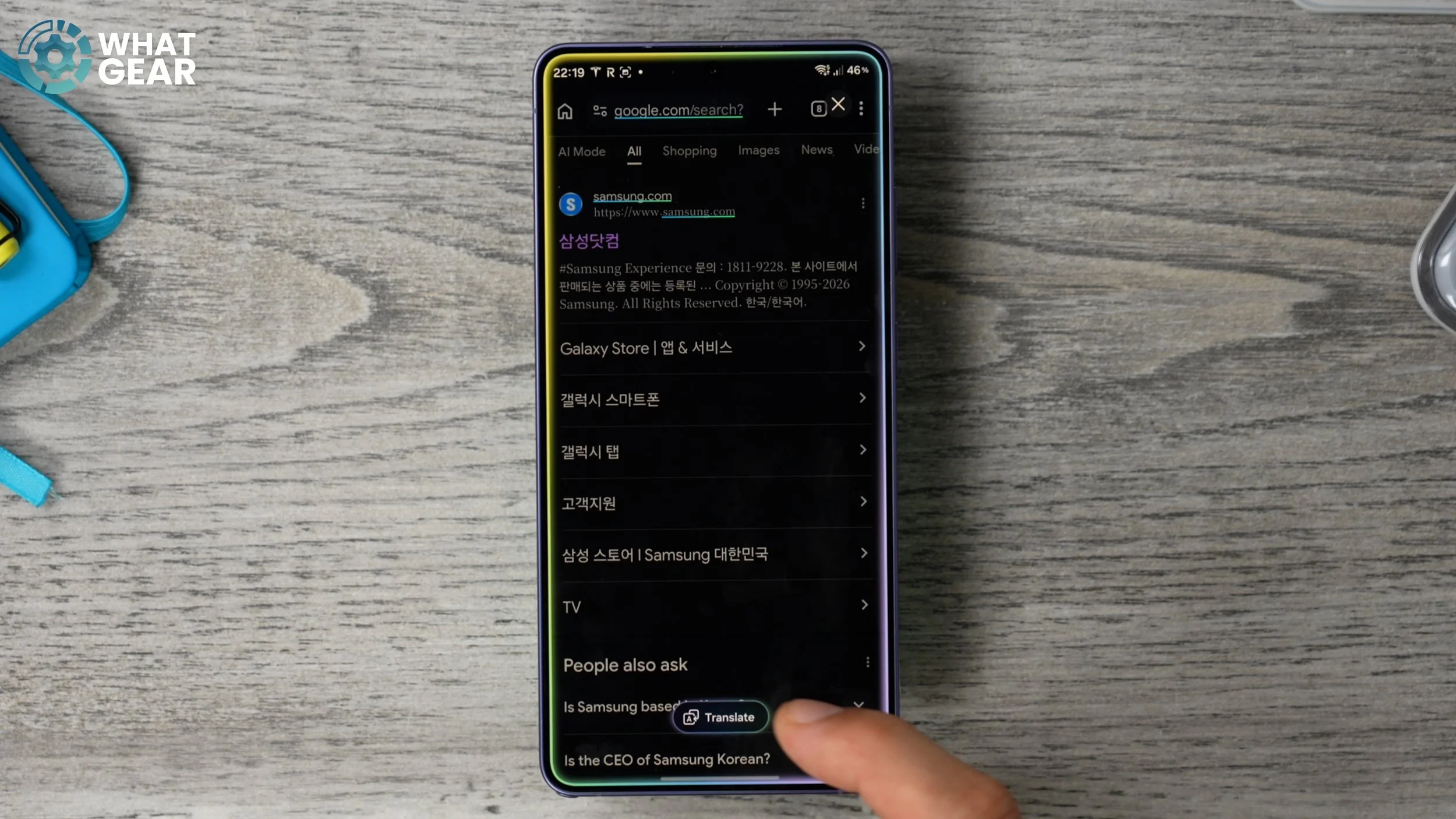
Alright, here is another very useful tool. When you're abroad, or someone sends you a flyer or an event poster or something that has loads of foreign text on it, and again, without importing it into your Gallery or using Gemini or ChatGPT to decode it, you can just use the AI Select tool to do this. So let's say, for example, this is what someone has sent me. I have no idea what all this stuff says. What I need to do is use the AI Select tool that highlights the whole screen, and straight away, you'll see the Translate option pop up at the bottom that overlays the English text on top of where the foreign text was. And in this case, Korean text. It's super simple, it's quick, and it's very effective.
Freeze Frame Trick
This might be the most unknown and underutilised feature of them all, and it works great with short-form content. So next time you're binge-watching short-form stuff and melting your mind, if you happen to see a funny frame within that video that you want to capture — maybe you want to turn it into a meme, or you just find it particularly eye-catching — you can use this. We have a video playing. Go past the point where you spotted the image that you want to grab, then hold the AI Select button here, and at the bottom, you will see the rewind tool. It will pause the video, and if you tap the rewind button, you will see a bunch of frames that you can grab and instantly extract from that short-form video.
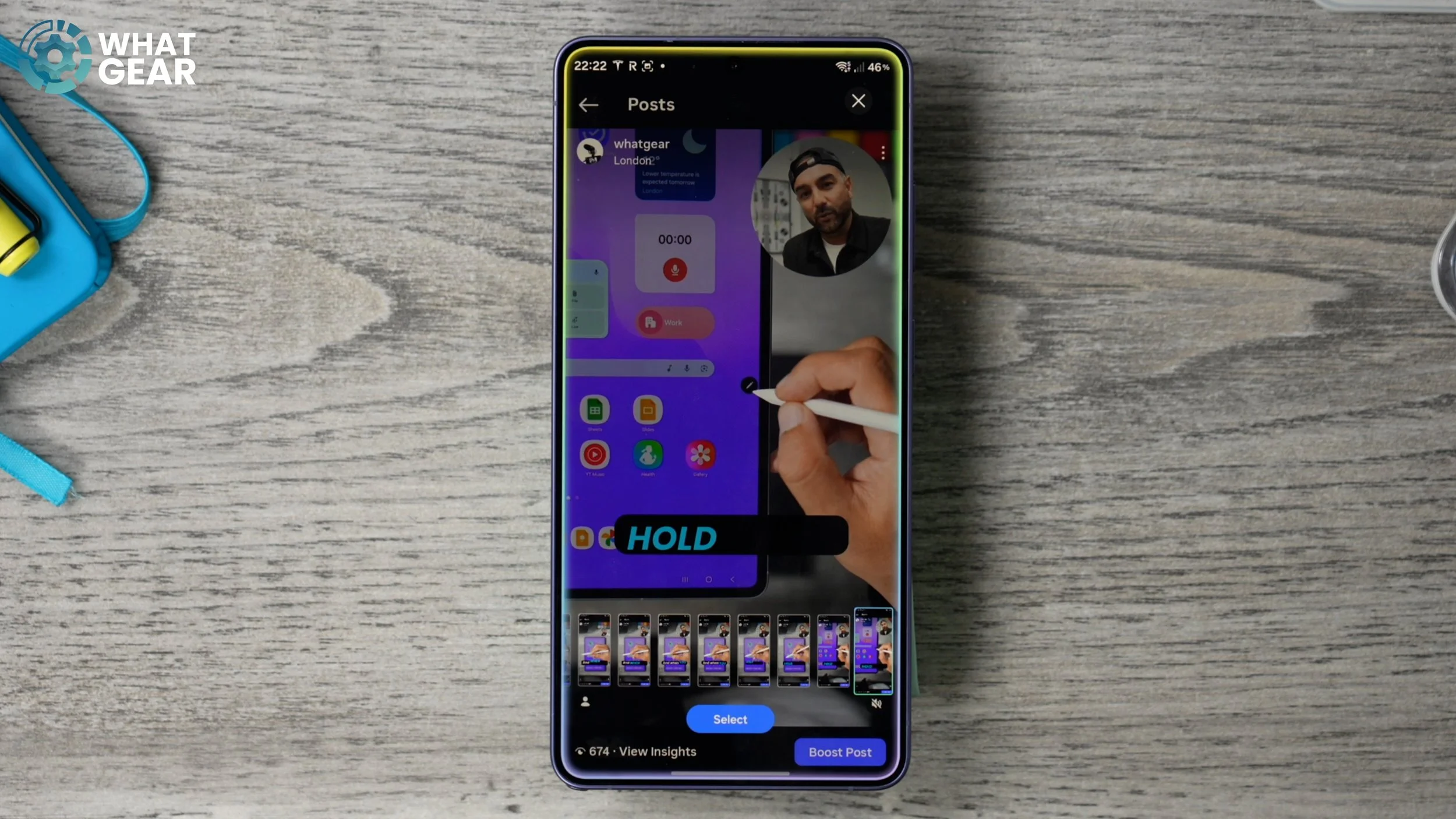
It does work on long-form video — you do need to turn your phone sideways if you want to do that. Once you find the image that you want, you can just select it, and that then grabs the image and brings up the rest of the tools for you to play with, like Photo Assist, Creative Studio, the editing markup tools, the download, the share, the copy — all of the stuff that I've shown you in this video. And if you really want to, you could even create a GIF right here.
