Sony WF1000 XM6 - Tips, Tricks & Hidden Features!
So you've just got yourself the Sony XM six flagship earbuds. And maybe, just maybe, you rushed the setup process. And now maybe you're a little bit worried that you might be missing out on some of these earbuds’ best features. And if you did, don’t worry, because that’s what I did too. And that’s why I’ve spent ages searching for the best settings and features for these earbuds. And that’s what I’m about to share with you in this video. And if you stick around, I have created three custom EQs, which I think make them sound so much better. So stick around for that if you’re interested. Anyway, let’s get into this. So here are the first ten things to do with your brand new XM6 earbuds.
BETTER SOUND
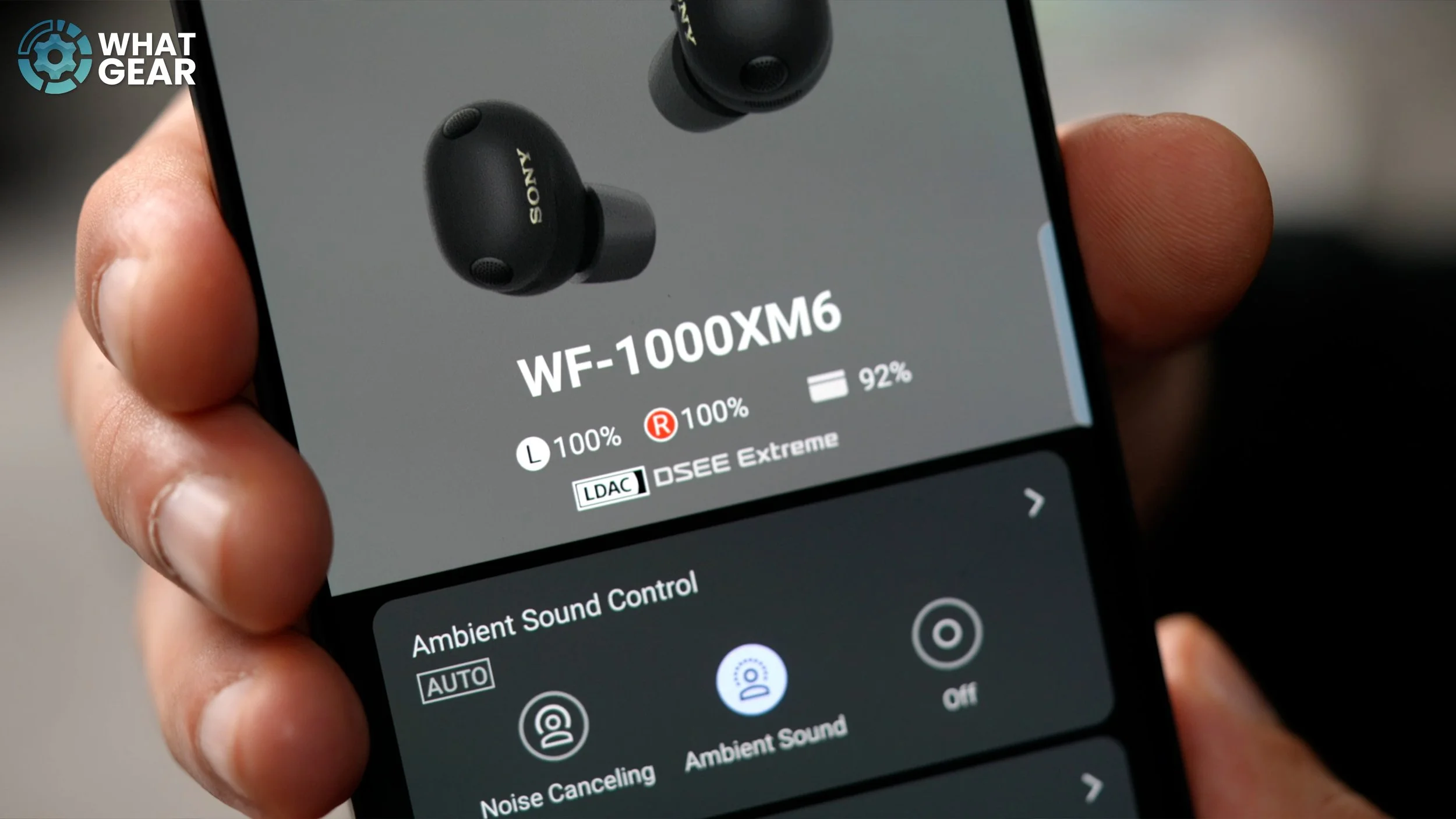
So let’s kick this off with a few settings that will instantly level up the sound quality that you get from your XM6. On your home screen, you will see your earbuds at the top and the codec that is currently being used. You can see right here that when you set these up, you will default to the AAC codec, which is good, but it’s not the best one available on these earbuds. So this is the first step that you should take if you want to turn your sound quality up to 11. On your home screen, if you scroll down, you will see the Bluetooth connection quality options. By default, it will be set to prioritize stable connection. You want to change this to prioritise quality.
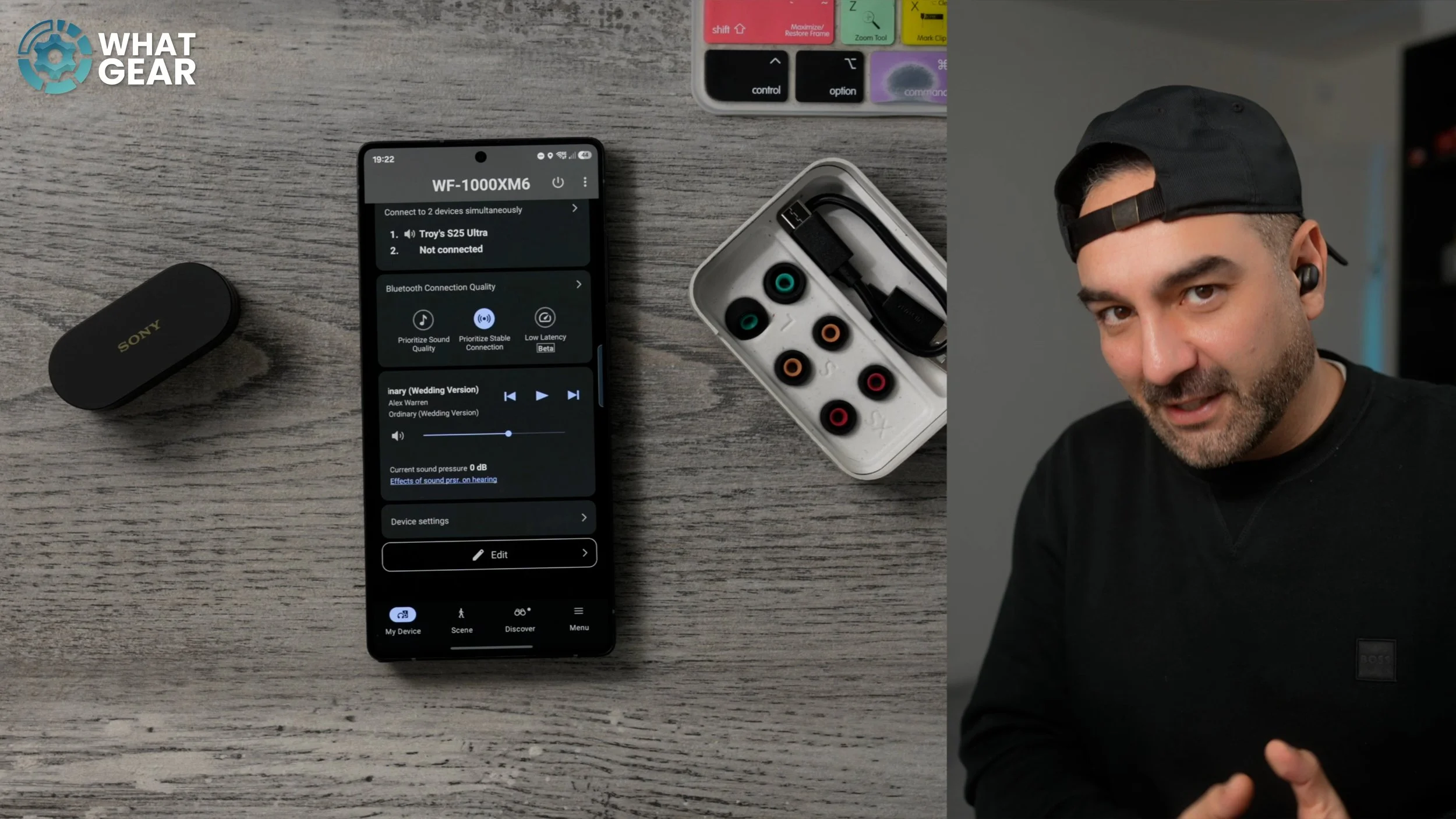
Do pay attention to the disclaimer here. You can still use the dual pair functionality, but it’s not quite as smooth as when you use a slightly lower-resolution codec. But if sound quality matters to you, then you should absolutely do this on day one.
MORE SOUND ADVICE
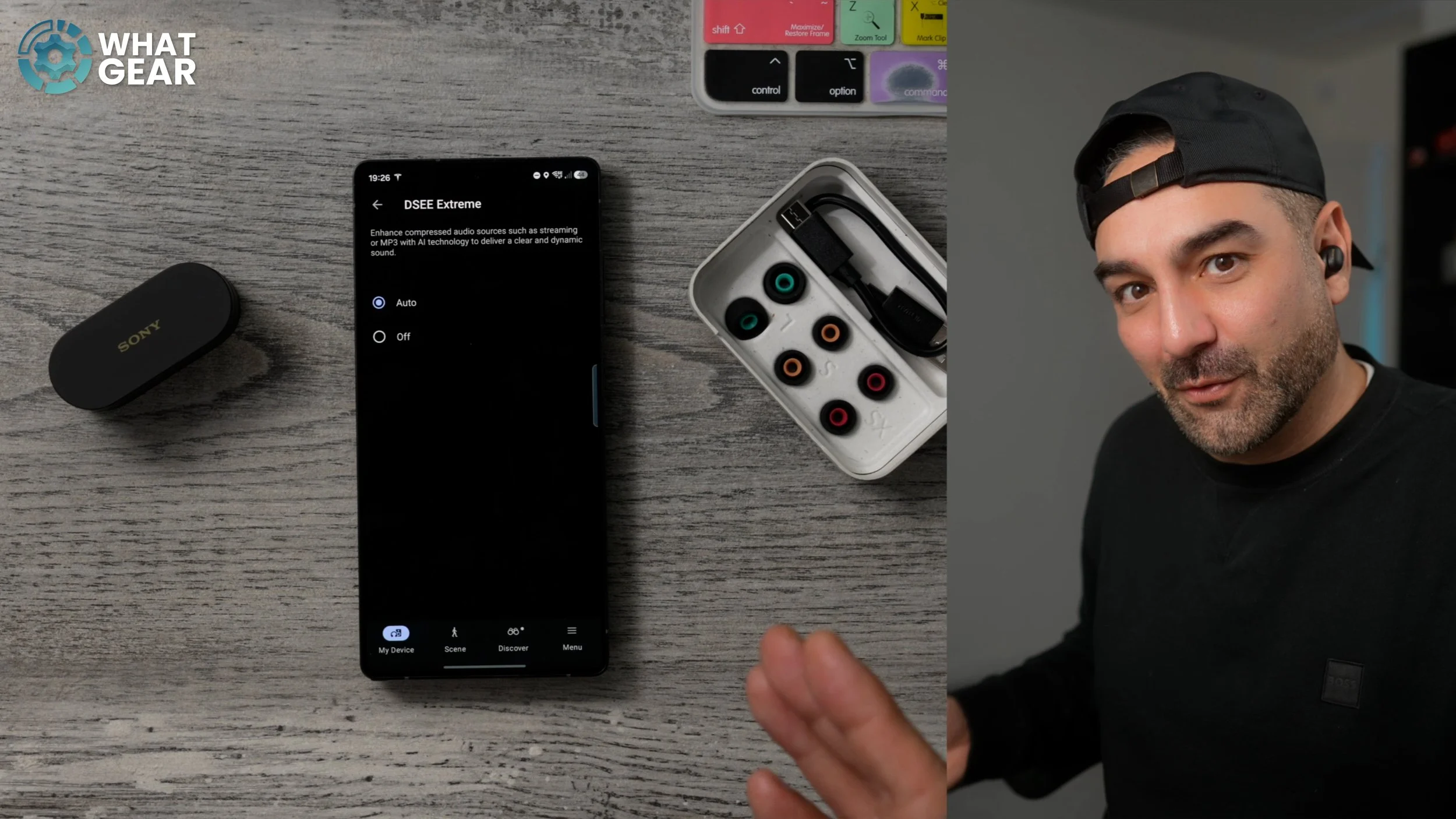
This is another sound piece of advice, and it’s a little hard to define. So follow me carefully through the settings. Scroll all the way to the bottom → Device Settings → Sound Quality and Volume. Here you will find DSEE Extreme, which is Sony’s very own audio upscaling software. Set this to Auto. Whenever your phone detects that you're playing lower-resolution audio, DSEE Extreme will kick in and level up that sound quality — even if the original recording wasn’t that good.
SENSE OF DIRECTION
Scroll to Device Settings → Sound Quality and Volume
Look for:
360 Reality Audio Setup
Spatial Audio / Spatial Sound
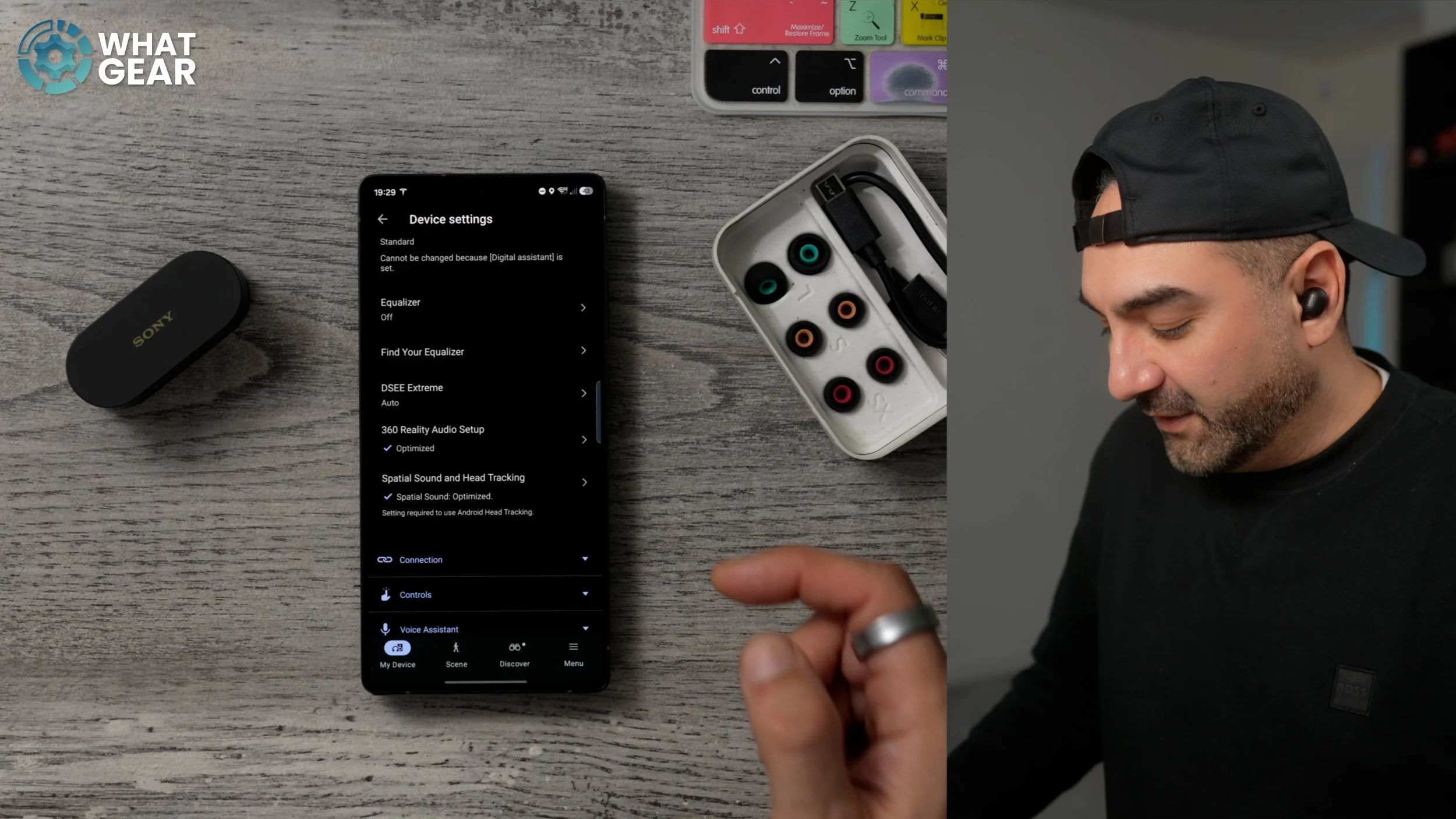
If you don’t see the blue optimised ticks, you missed them during setup. You’ll go through a short listening test to create your personalised hearing profile. Then repeat the process for spatial audio head tracking. It takes a couple of minutes and massively improves movies, spatial tracks and immersion.
NEW FOUND SOUND
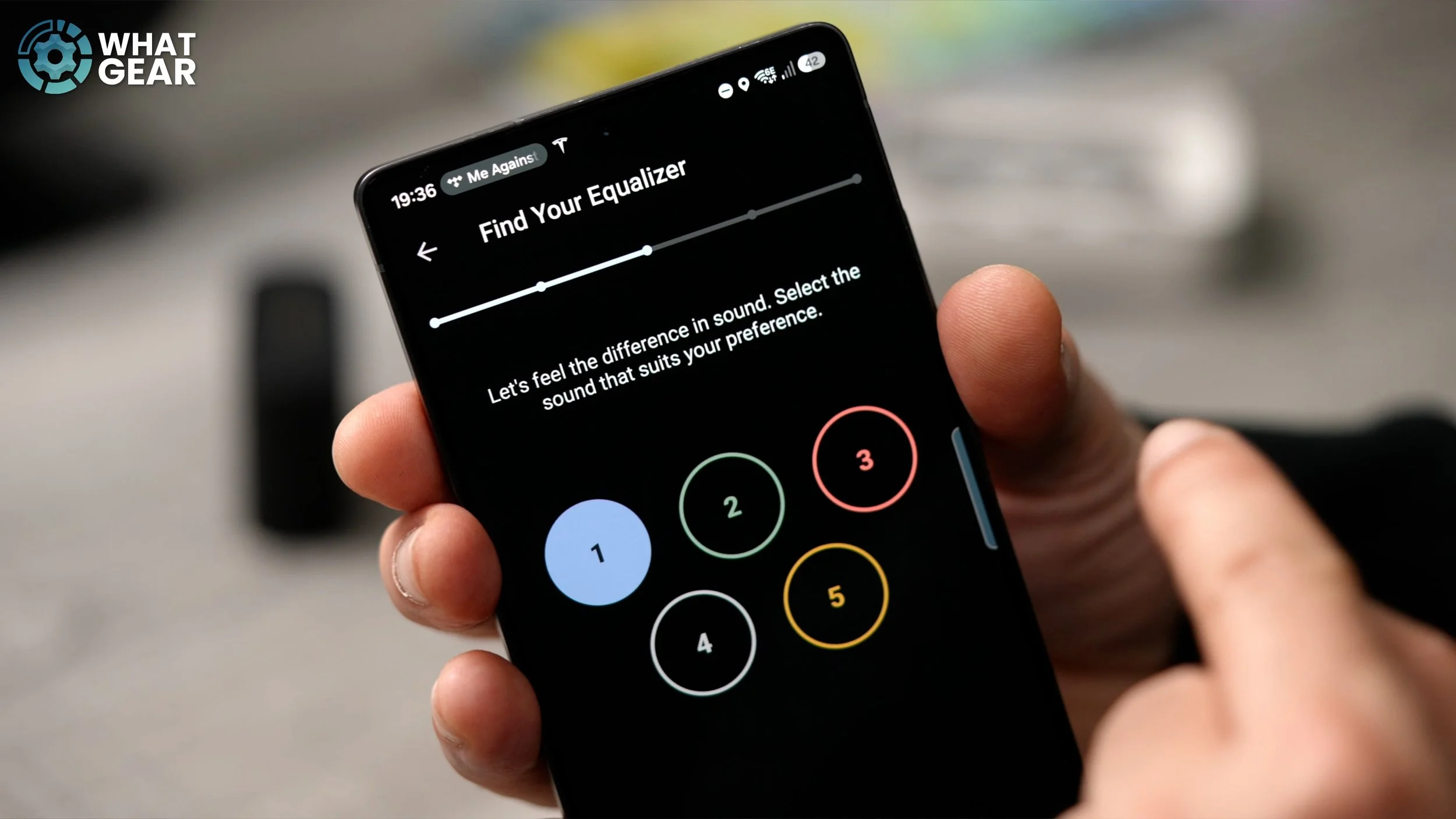
Go to Device Settings → Sound Quality and Volume → Find Your Equaliser. Play your favourite track and cycle through the profiles until you find what suits your ears best.
This creates a custom EQ automatically. (And yes — I’ll share my better ones at the end.)
HIDDEN HI RES CODEC
Android users — this is a big one. Open Bluetooth settings → device settings for the earbuds
Turn on:
High-Res Audio (LDAC)
Super Wideband Speech
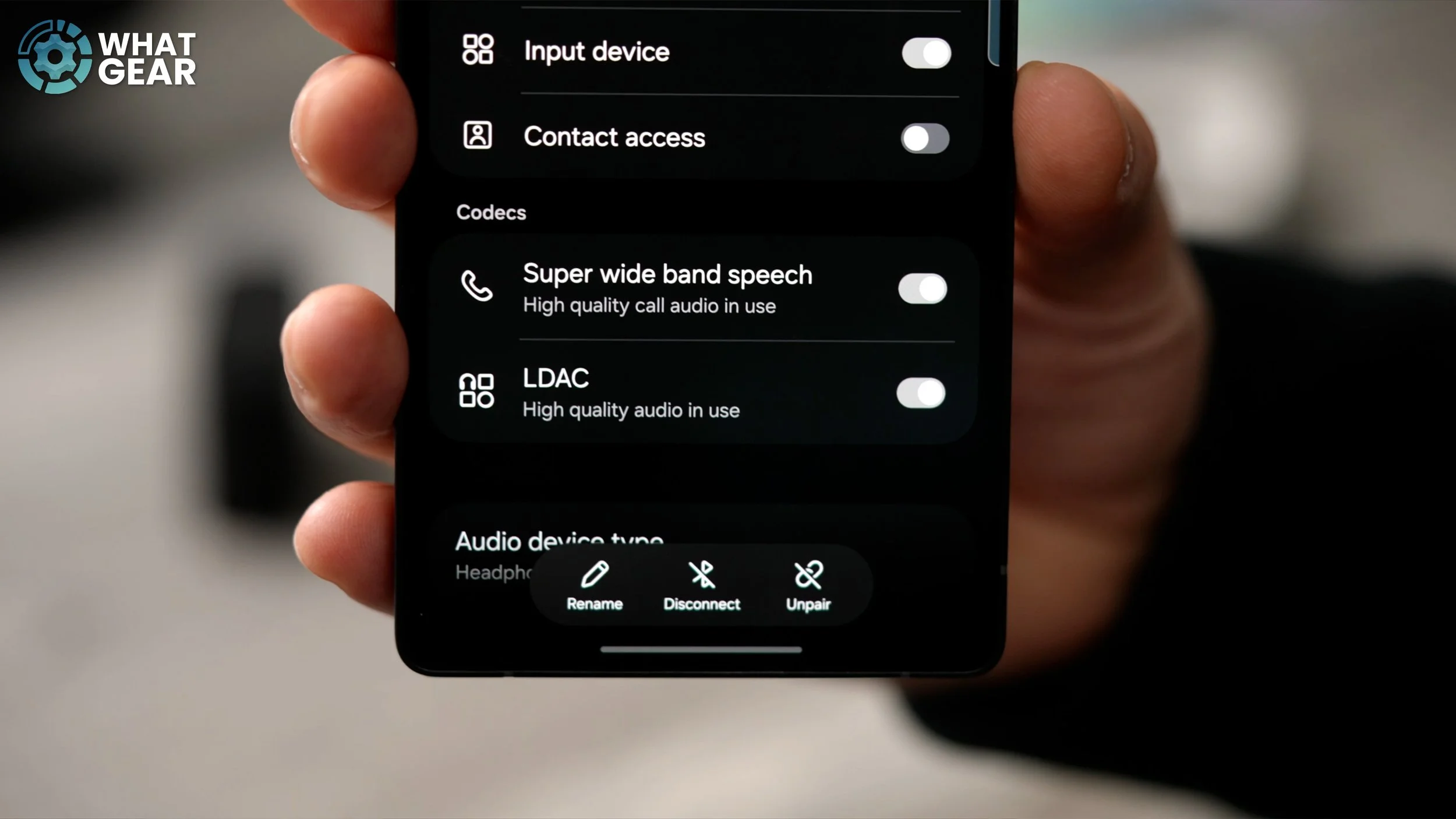
LDAC gives up to 24-bit / 192kHz audio, but:
shorter range
limits multipoint performance
After enabling it, the earbuds reconnect, and the high-res icon appears in the app.
AMP UP AMBIENT MODE
Go to:
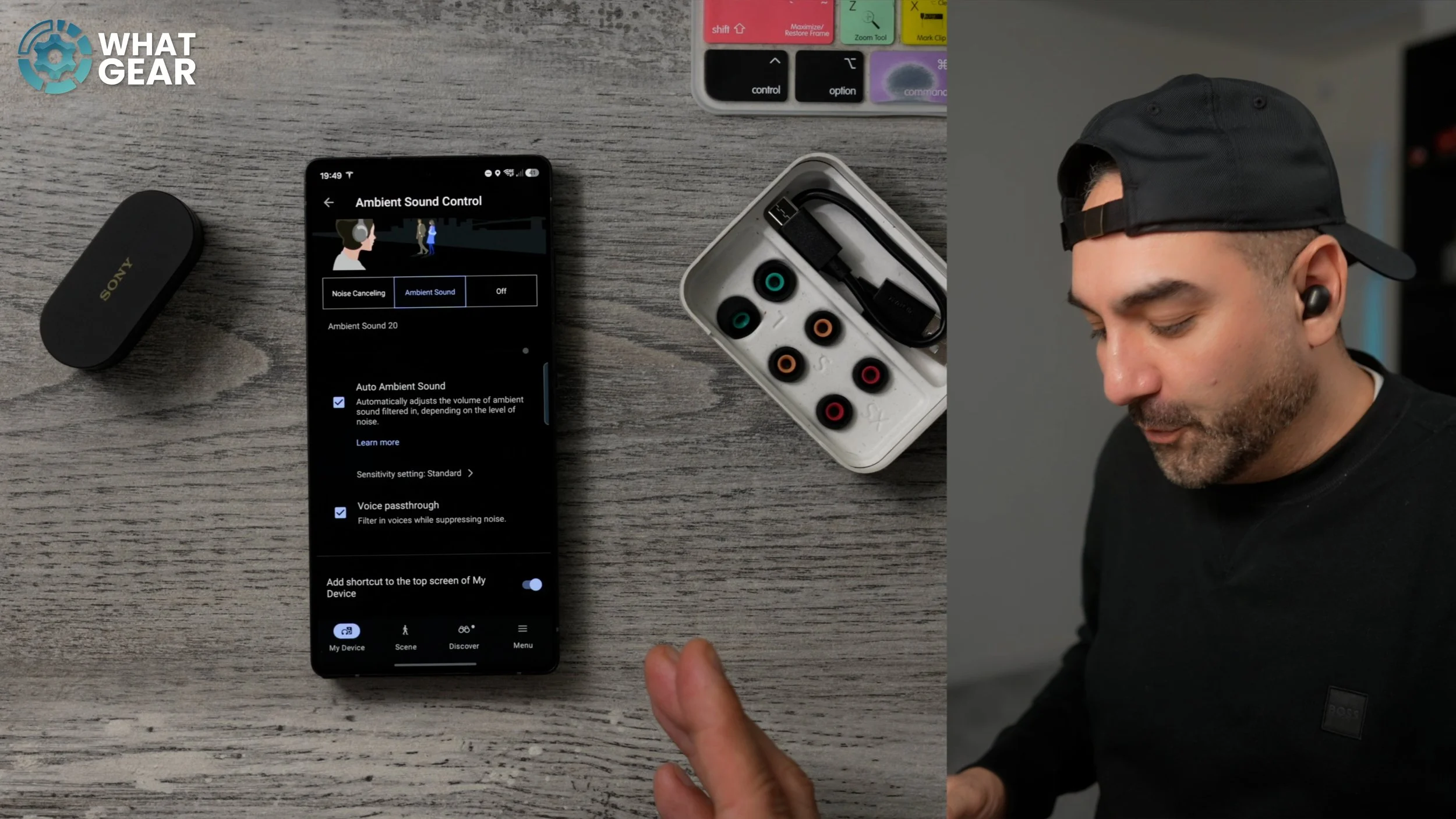
Device Settings → Noise Cancelling & Ambient Sound → Auto Ambient Sound. Choose sensitivity (Low / Standard / High). This automatically lowers volume when loud noises happen (sirens, etc.). Also, enable Voice Passthrough if you talk to people frequently while wearing them — but cyclists may want it off.
MORE ASSISTANCE
Go to:
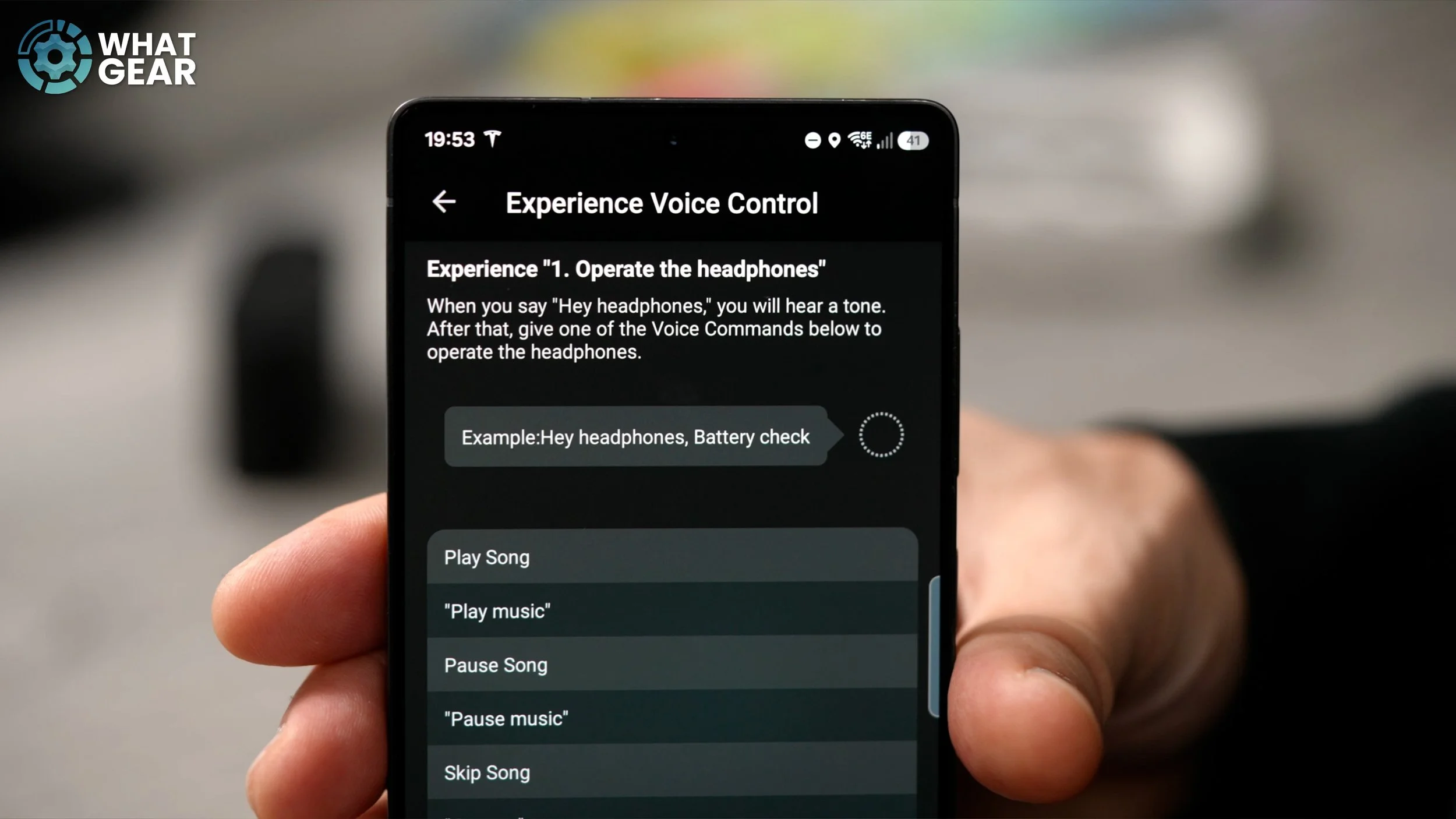
Device Settings → Voice Assistant → Voice Control
You can now say:
“Hey, headphones, play a song”
“Pause song”
Hands-free control without touching earbuds — perfect for the gym or cycling. The assistant still works by saying “Assistant”.
MIC DROP MOMENTS
Go to:
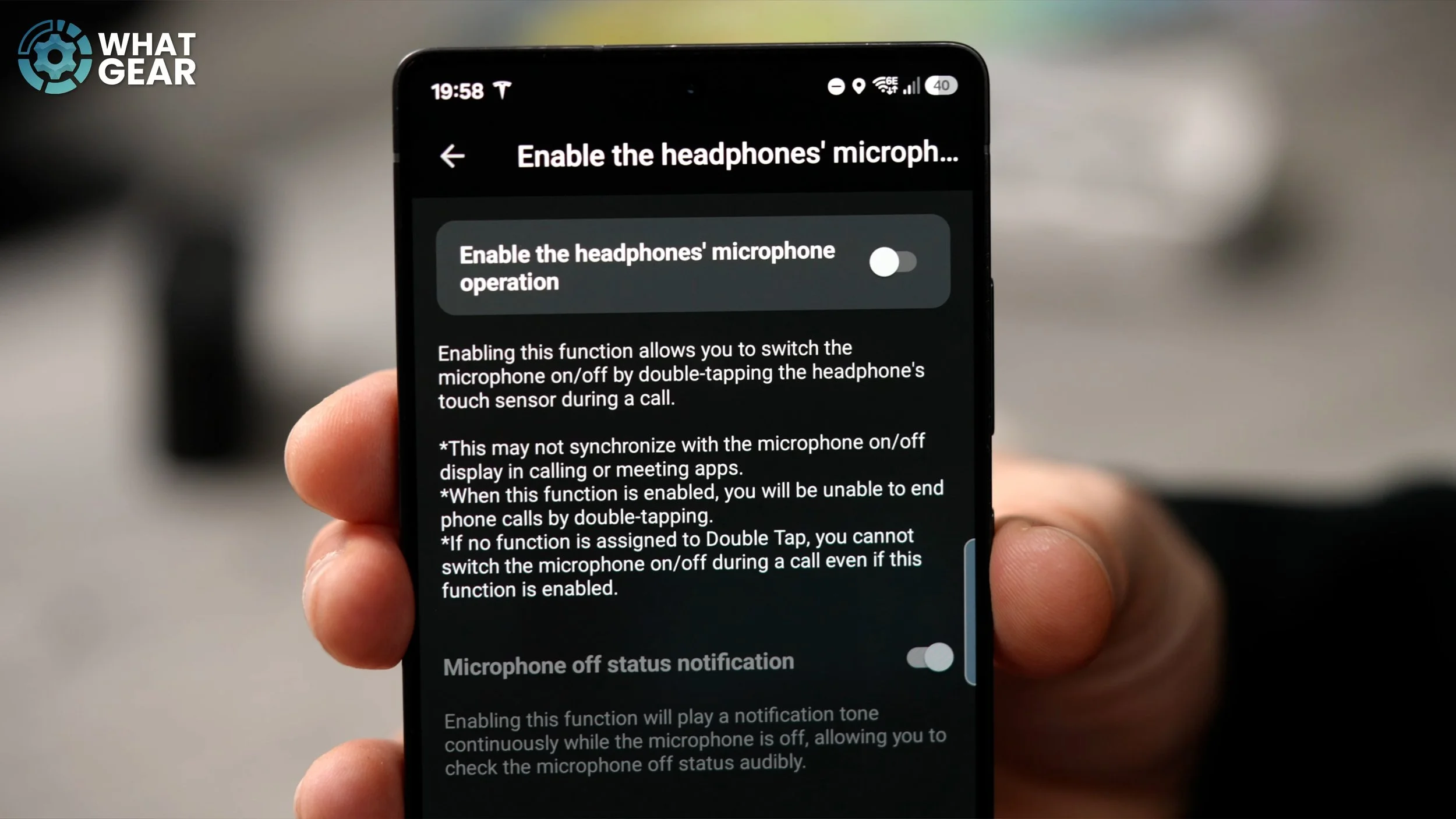
Device Settings → Controls → Headphones Microphone Operation - Enable it. Double tap earbud during calls = mute mic. You’ll hear a reminder tone every 30 seconds.
(Other people won’t see the mute — only you know.)
YOU SAYING SOMETHING?
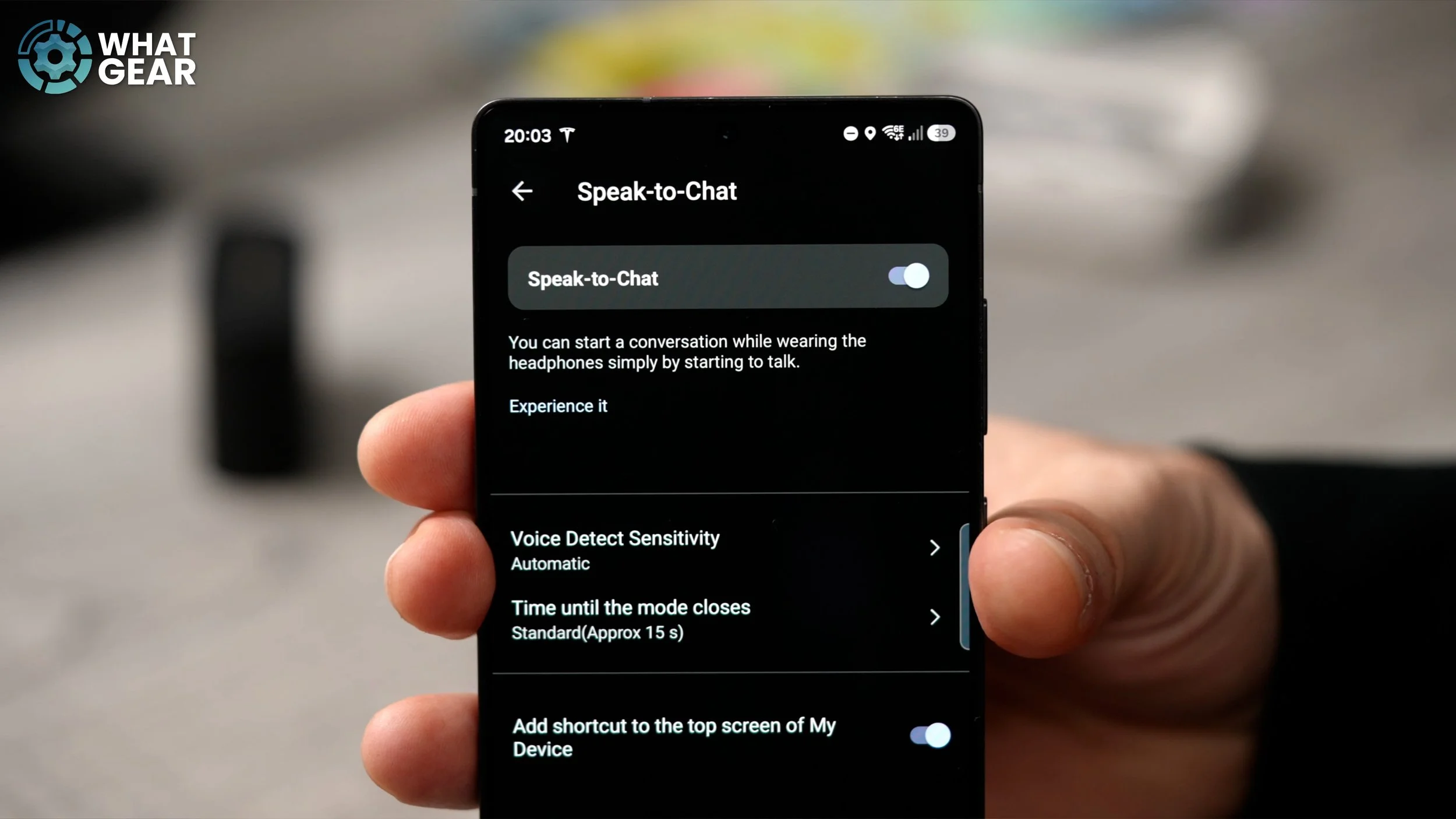
Instead of holding your finger to hear someone, enable Speak-to-Chat from the home screen edit menu.
Earbuds detect when you talk → switch to ambient mode. Stop talking → noise cancelling resumes. Adjust the sensitivity so humming doesn’t trigger it. Great for planes — not always needed daily.
YOU HAVE THE POWER
Go to:
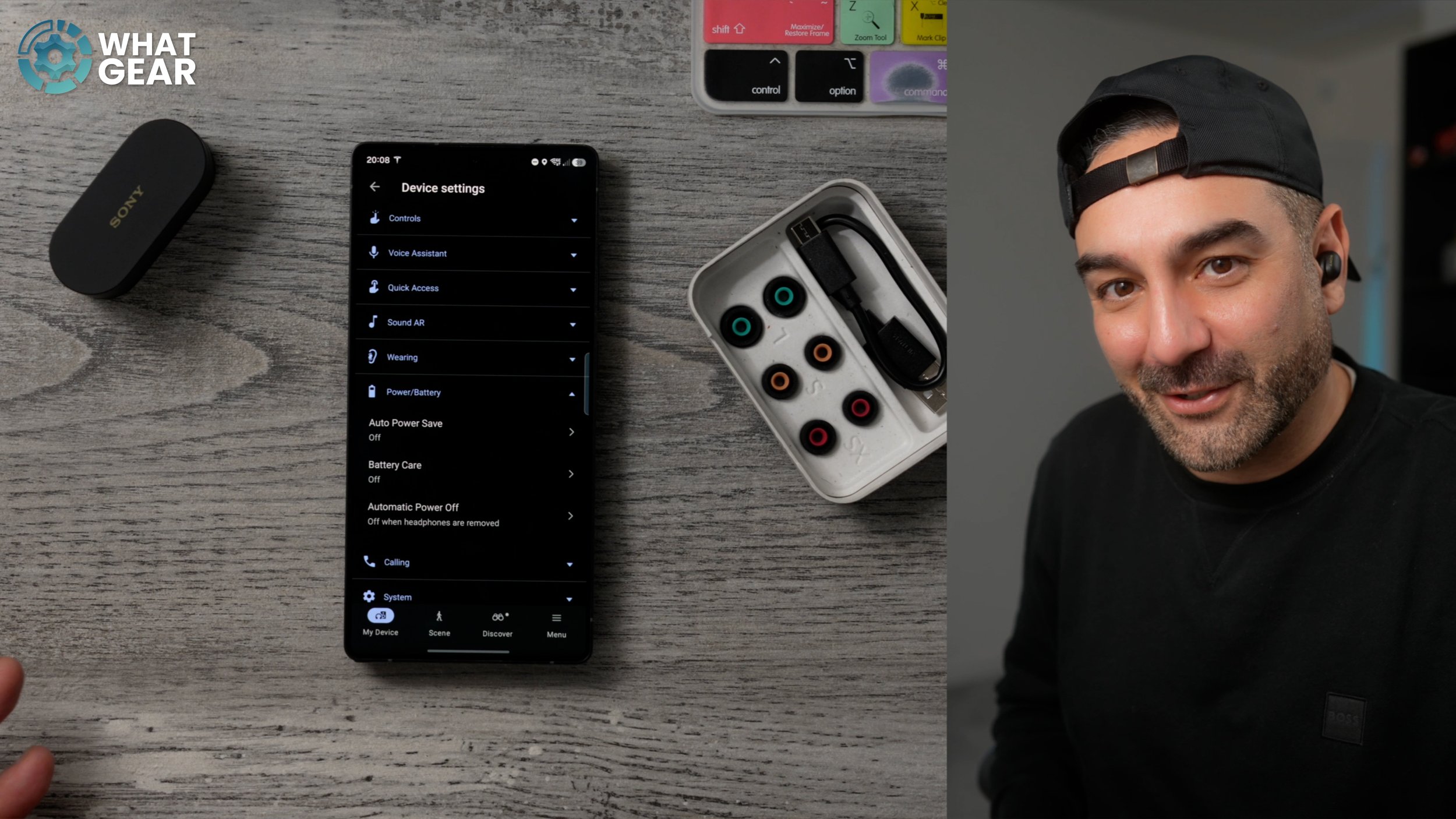
Device Settings → Power & Battery
Turn on:
Auto Power Off
Battery Care
Auto Power Save (optional travel mode)
Battery Care limits max charge but prolongs lifespan.
SCENE THIS?
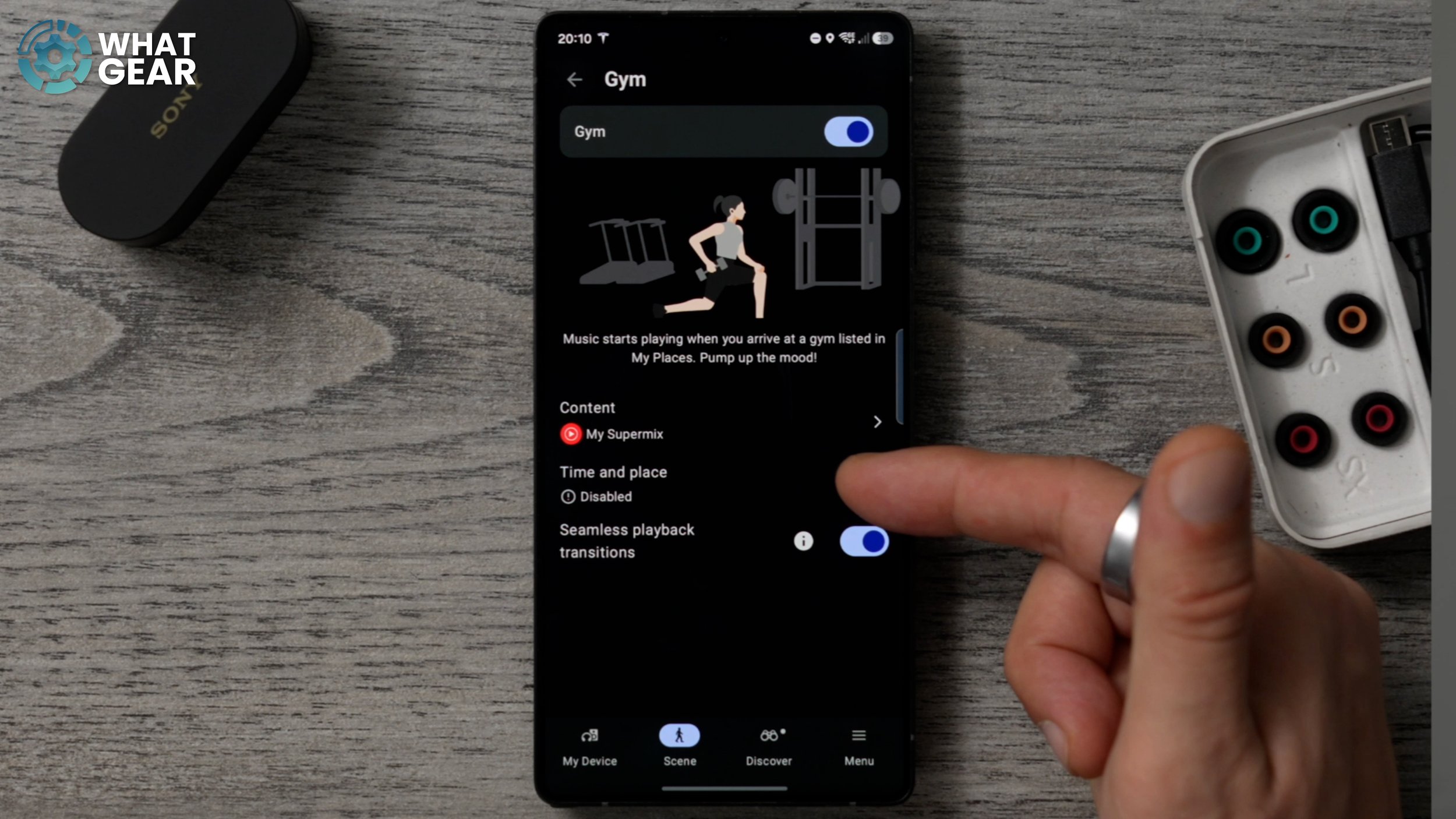
Log in → unlock adaptive location profiles (gym, home, work modes). Also, hourly voice time announcements are available.
QUICKER ACCESS APPS
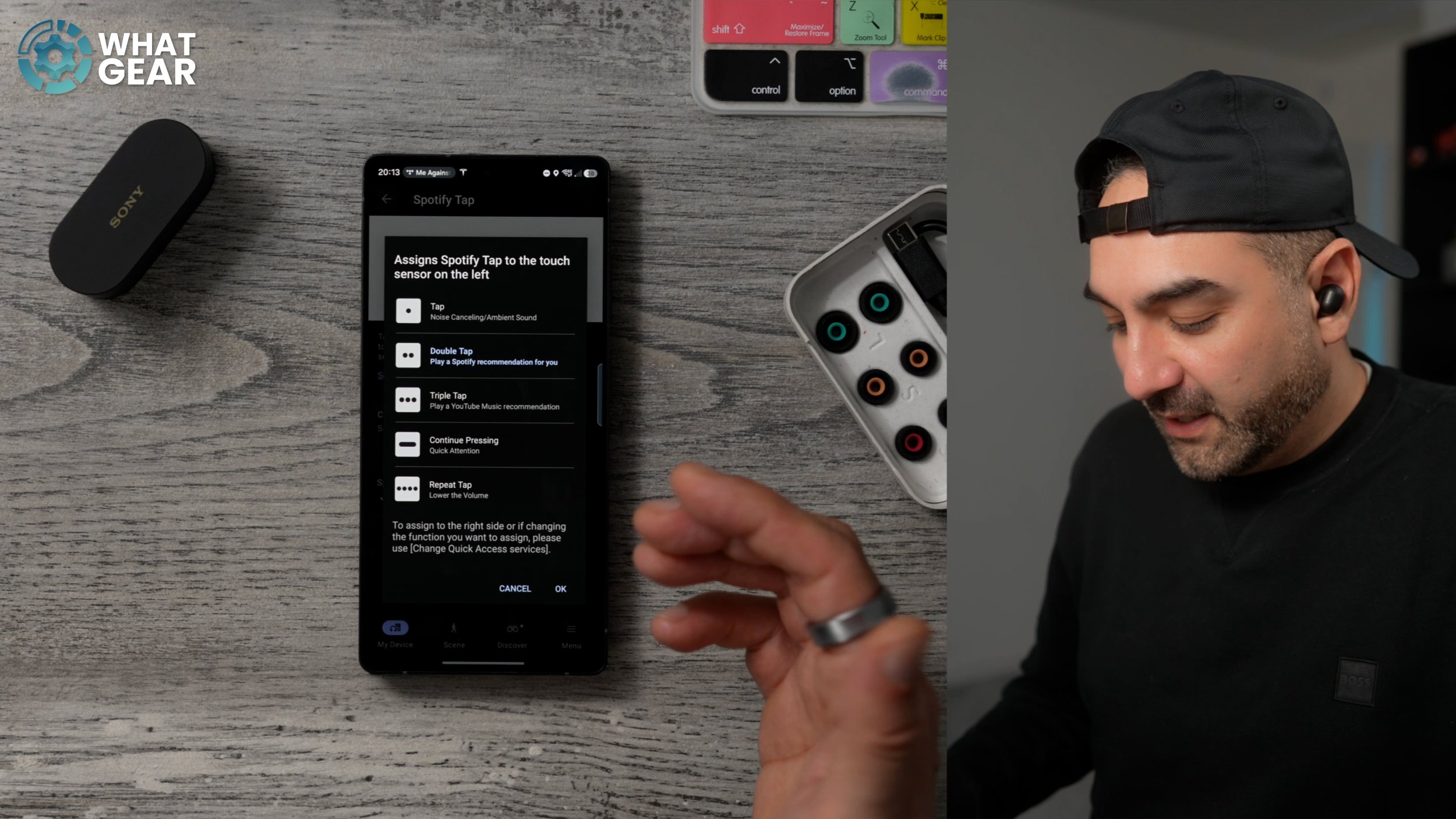
Assign double-tap to open Spotify / YouTube Music instantly and resume playback.
HEAR ME NOW!
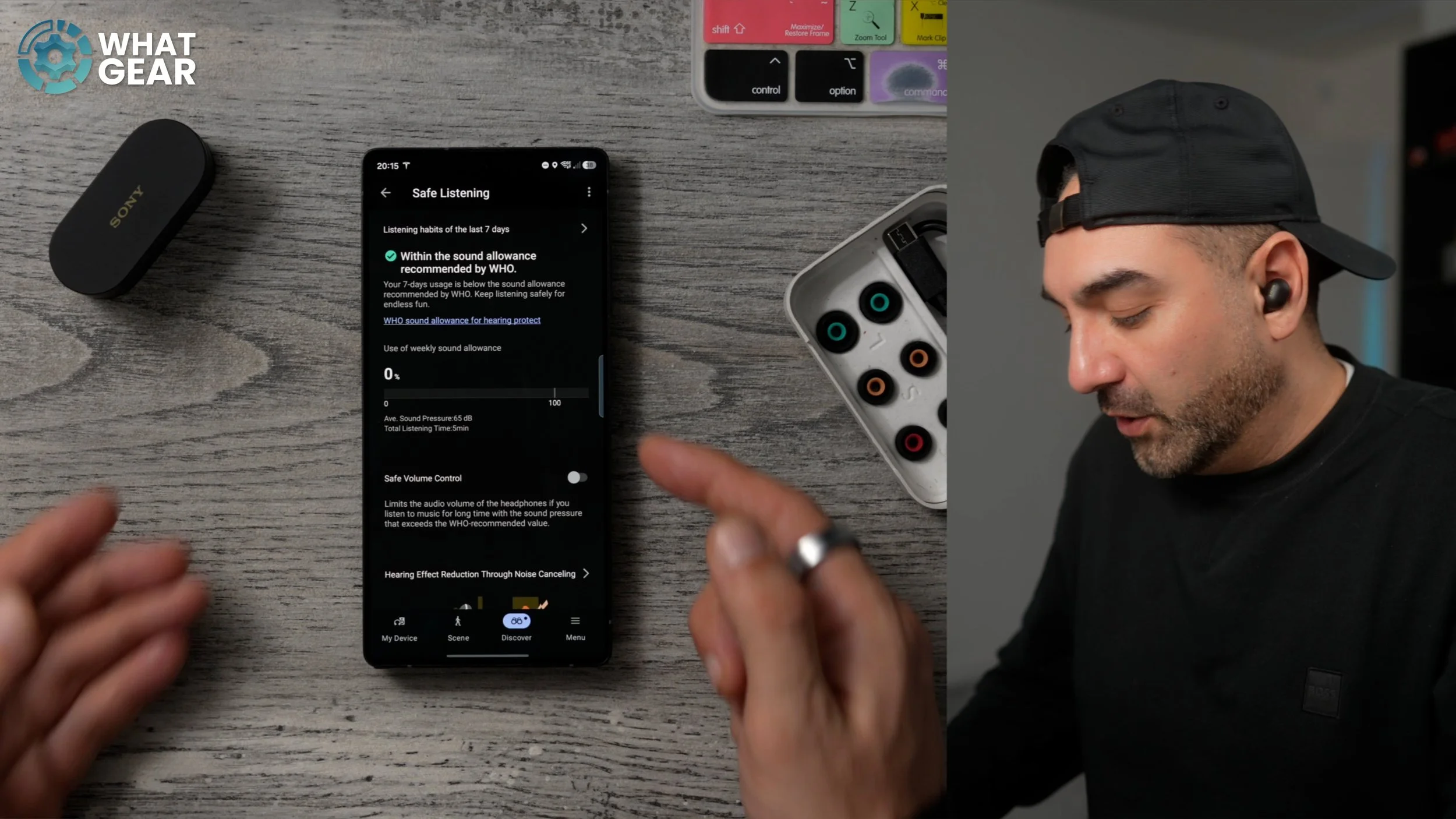
Enable Safe Listening to track sound pressure levels and protect hearing health.
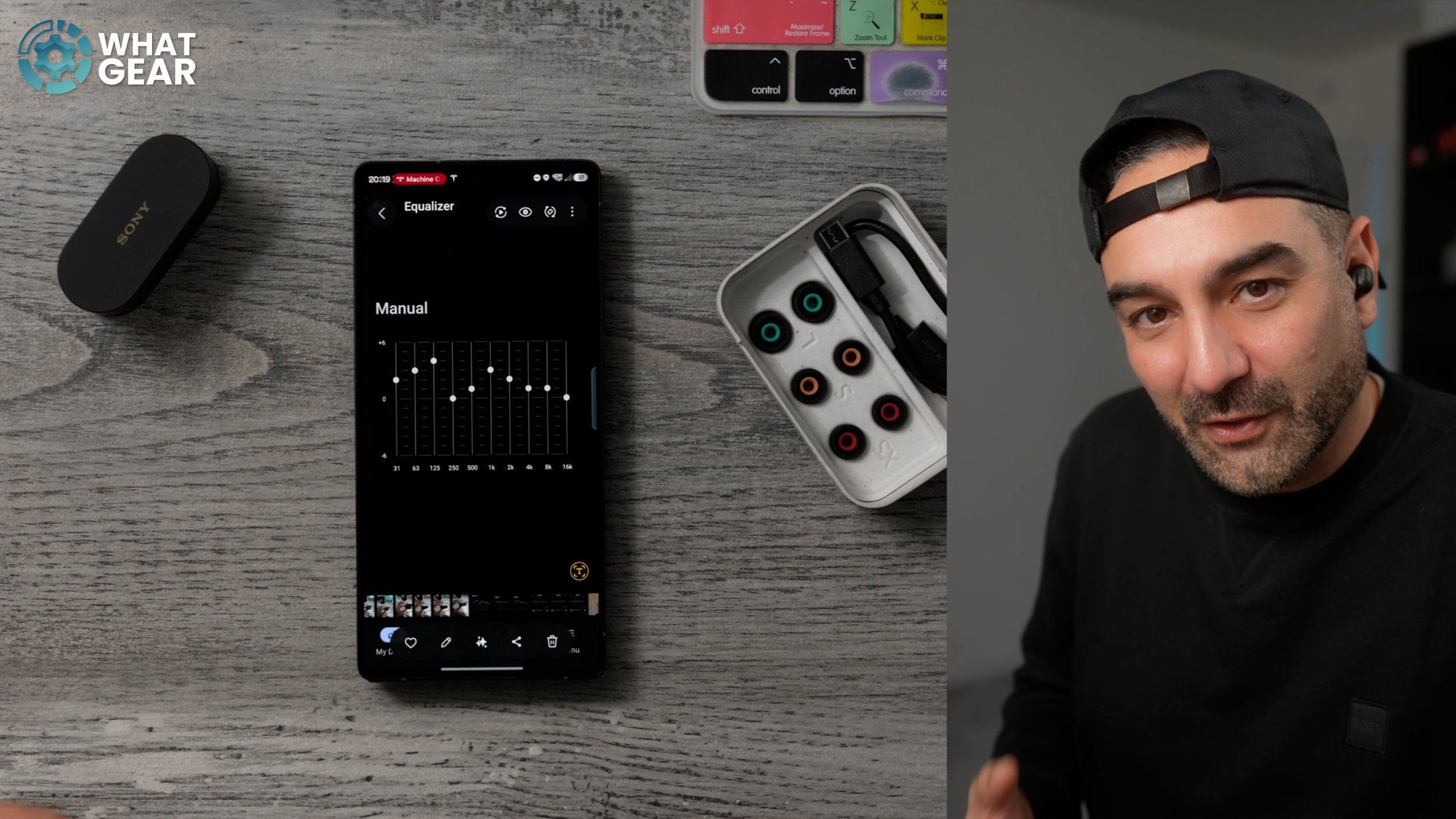
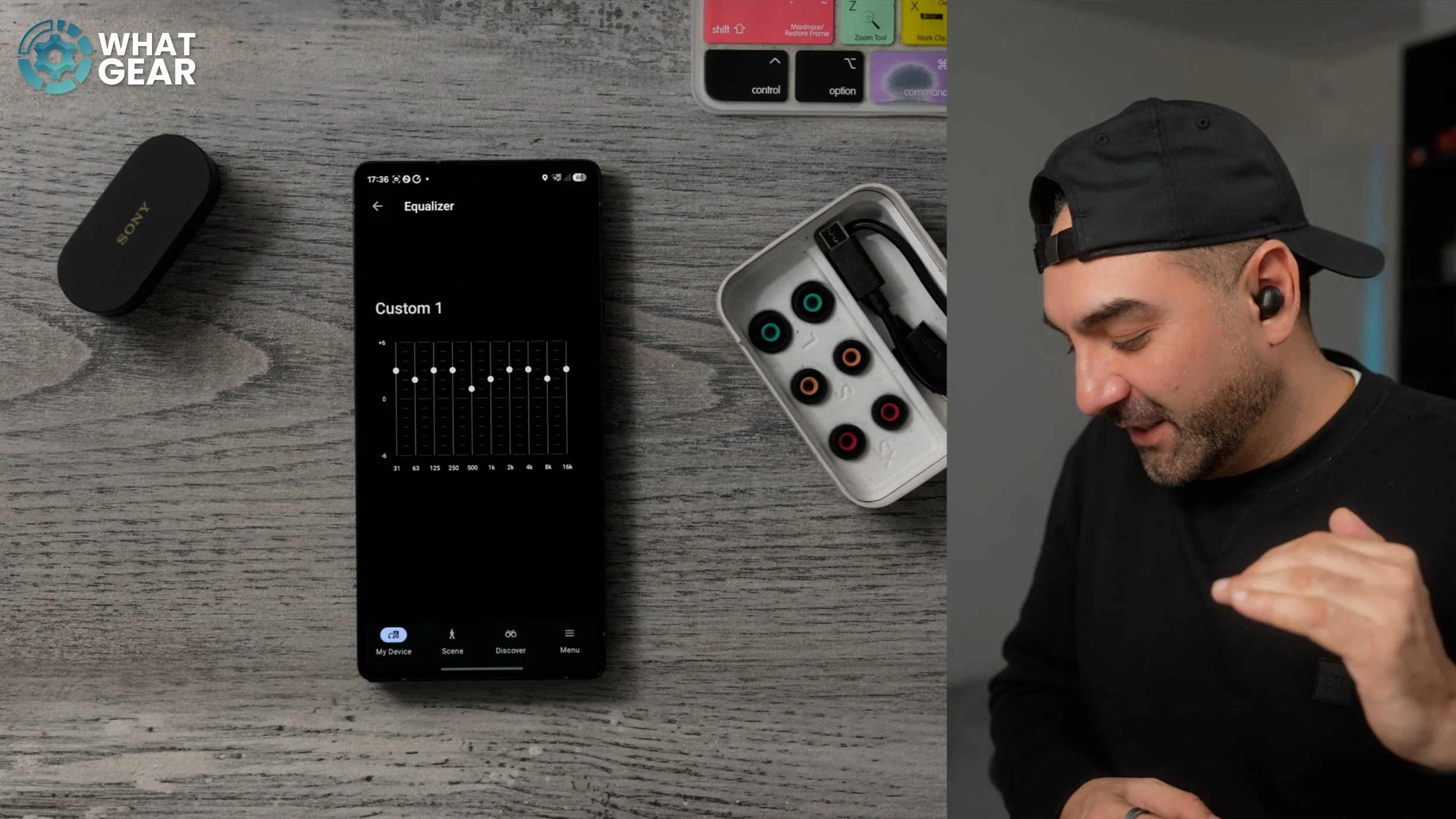
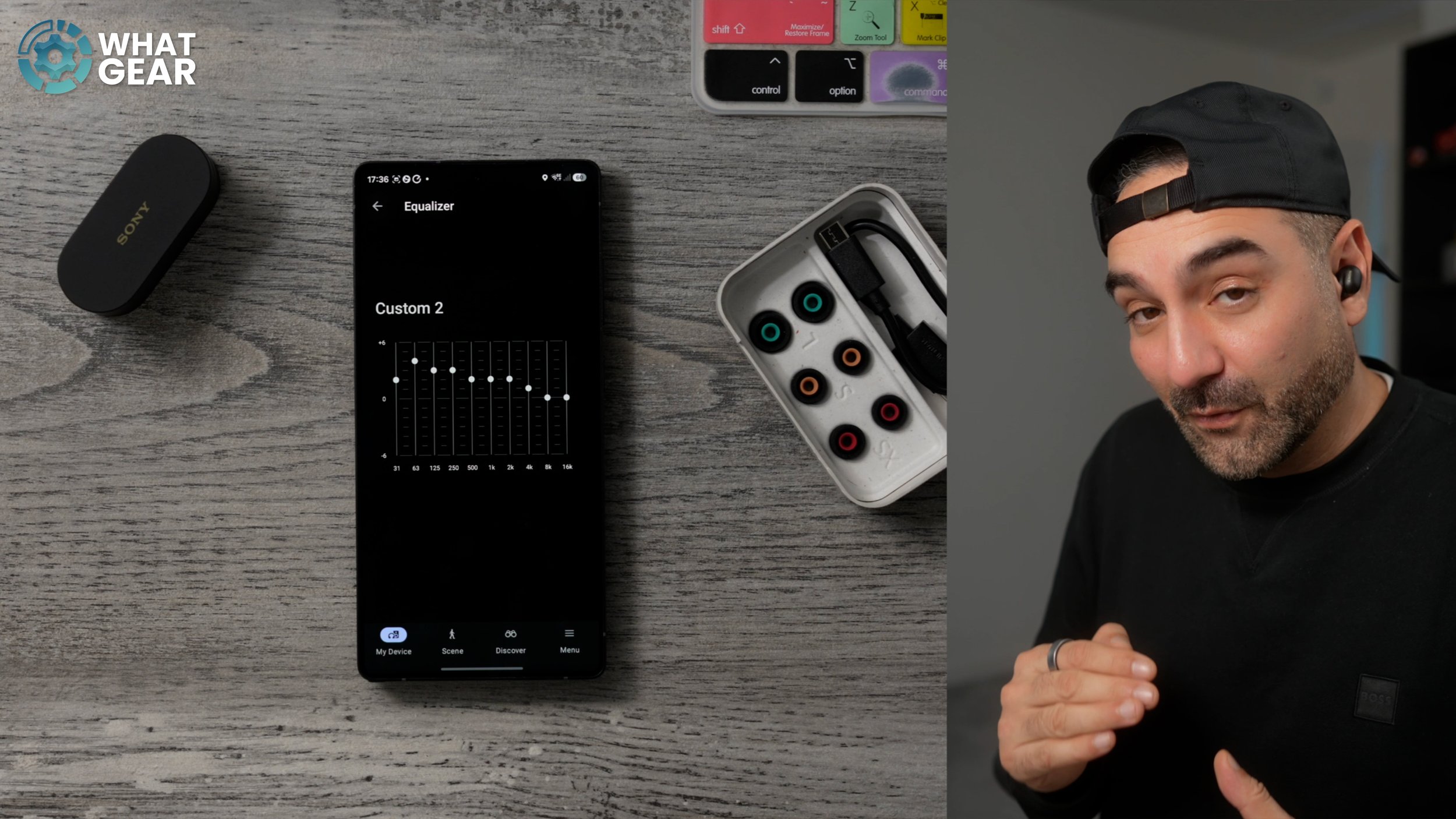
WHATGEAR CUSTOM EQs
Go to Equalizer → Manual
I created three profiles:
Vocal + Bass boost — great for rock & dance
Balanced clarity + deep bass (my favorite)
Ultimate bass — maximum power
Sony massively improved bass on the XM6 — these take advantage of it.